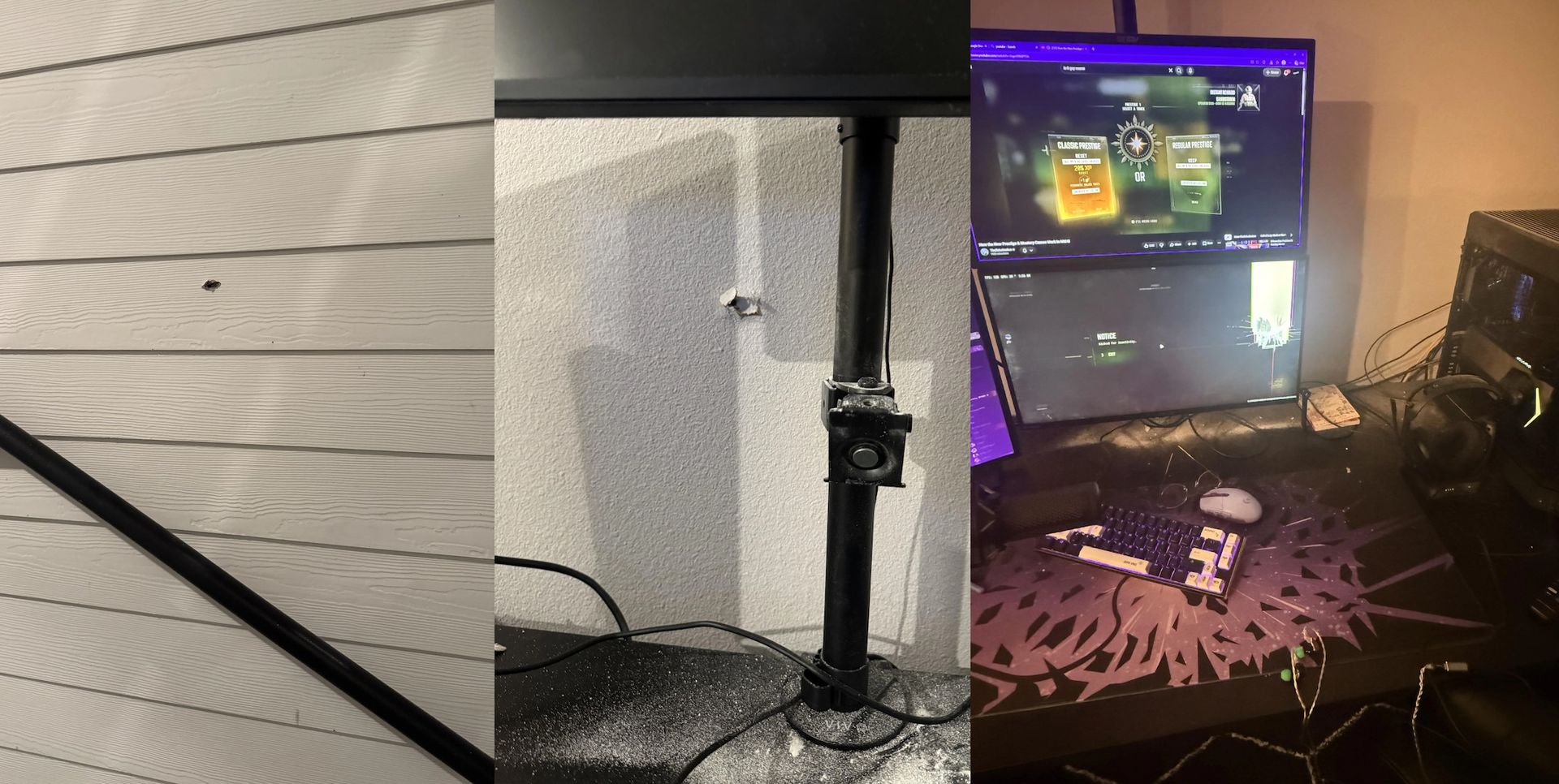
A Redditor by the name of /u/antisocialnae describes their Asus TUF VG258QM 280Hz gaming monitor as "the best $280 [they] ever spent" after it blocked a bullet that passed through the wall of their home, nearly striking them directly as they were playing some "late-night Call of Duty." Asus has responded to the post with a promise to investigate, though no confirmation of a replacement monitor just yet.
It probably doesn't need explaining that the only reason the plastic-and-plastic monitor was able to stop a bullet is that it had already passed through the exterior wall of the home, and that monitors are generally not ideal for sheltering from gunfire.
But even still, it's a wonderful tale, especially given the TUF branding of the display. TUF technically stands for "The Ultimate Force", but most TUF gear is actually subjected to U.S. Department of Defense MIL-STD-810H testing protocols, including shock & drop tests, vibration tests, high-and-low temperature tests, humidity, sand and dust ingress, and more. That sand and dust ingress protection could be important given the sheetrock powder all over the back of his rig.
What Asus doesn't test for is bullet ingress, which would be quite a thing. While it wouldn't actually be that hard to build, it's difficult to imagine the circumstances where someone would specifically select for that when buying a display.
Three photos showing a bullet hole on the exterior of the home, the interior wall of the home, and the damage it inflicted to the Redditor's monitor. (Image credit: /u/antisocialnae on Reddit)
While these events don't seem to be all that common, we've previously covered a couple, including an event where a user's gaming PC deflected a bullet that came through the wall earlier this year. A few years ago, another user's Razer headset deflected a bullet, almost assuredly saving their life. For their part, /u/antisocialnae says that they've been meaning to buy a new display anyway, so this makes the perfect excuse. For now, they apparently have two other Asus monitors to game on.
Incredibly, the monitor actually still works aside from the damaged portion of the LCD. It makes a decent advertisement for Asus TUF monitors, which mostly miss our selections of the best gaming monitors — beaten by pricier rivals — not because of any problems with the quality. In fact, our last TUF Gaming monitor review scored very well and earned itself an Editor's Choice award. Of course, we also don't test for bullet ingress.
You’ve probably heard TCL’s name associated with jumbo TVs sold in big-box stores, but it also makes a line of gaming monitors that offer excellent performance for the money. It’s also one of the few companies putting effort into Mini LED panels where others have gone all-in with OLED. Mini LED delivers the brightest imagery you can buy among the best gaming monitors, with HDR peaks of 2,000 nits or more.
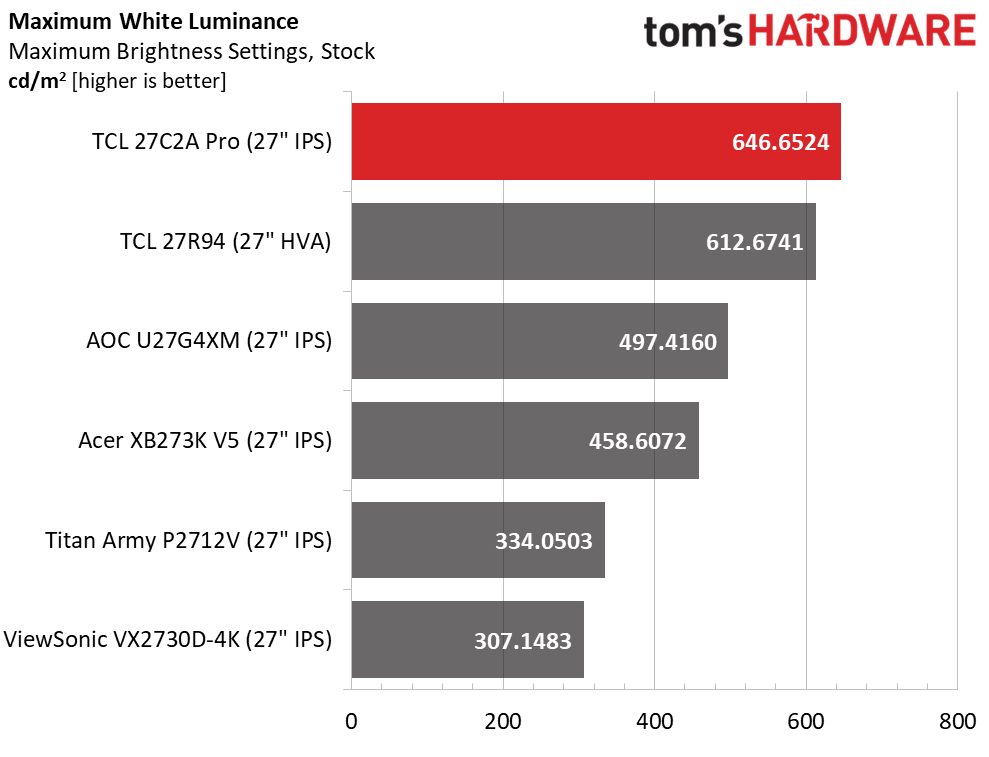
TCL’s 27C2A Pro is such a panel, with an honest 2,000 nits from a 3% window in HDR mode and 650 nits full field for SDR. It also sports a full-array local dimming (FALD) backlight with 2,304 zones, which delivers tremendous contrast. A Quantum Dot layer pushes the color gamut past 100% of DCI-P3. And a set of accurate picture modes promise precise color rendering. It’s speedy too, with 160 Hz in 4K and 320 Hz in FHD resolution, with available overdrive and MPRT backlight strobing. This fully loaded package can be yours for $600 as I write this. Let’s take a look.
TCL 27C2A Pro Specs
Panel Type / Backlight
Quantum Dot IPS / Mini LED
2,304 dimming zones
Screen Size / Aspect Ratio
27 inches / 16:9
Max Resolution and Refresh Rate
3840x2160 @ 160 Hz
1920x1080 @ 320 Hz
FreeSync and G-Sync Compatible
Native Color Depth and Gamut
10-bit (8-bit+FRC) / DCI-P3+
Response Time (GTG)
0.2ms
Brightness (mfr)
600 nits full field
2,000 nits 3% window
Contrast (mfr)
1,000:1
Speakers
2x 5w
Video Inputs
1x DisplayPort 1.4
2x HDMI 2.1, 1x Type C
Audio
3.5mm headphone output
USB 3.0
1x up, 2x down
Power Consumption
36.1w, brightness @ 200 nits
Panel Dimensions
WxHxD w/base
24.2 x 15.7-20.5 x 9 inches
(615 x 399-521 x 229mm)
Panel Thickness
3.27 inches (83mm)
Bezel Width
Top/sides: 0.35 inch (9mm)
Bottom: 0.59 inches (15mm)
Weight
14.6 pounds (6.64kg)
Warranty
3 years
The 27C2A Pro’s core tech is an IPS variant TCL calls HFS Shoot. It combines an ultra-bright FALD backlight with Quantum Dot color and very quick response. Native resolution is 4K 3840x2160 pixels for a density of 163ppi. This is about as fine as it gets unless you move up to 5K or more. And those panels are still quite rare and expensive.
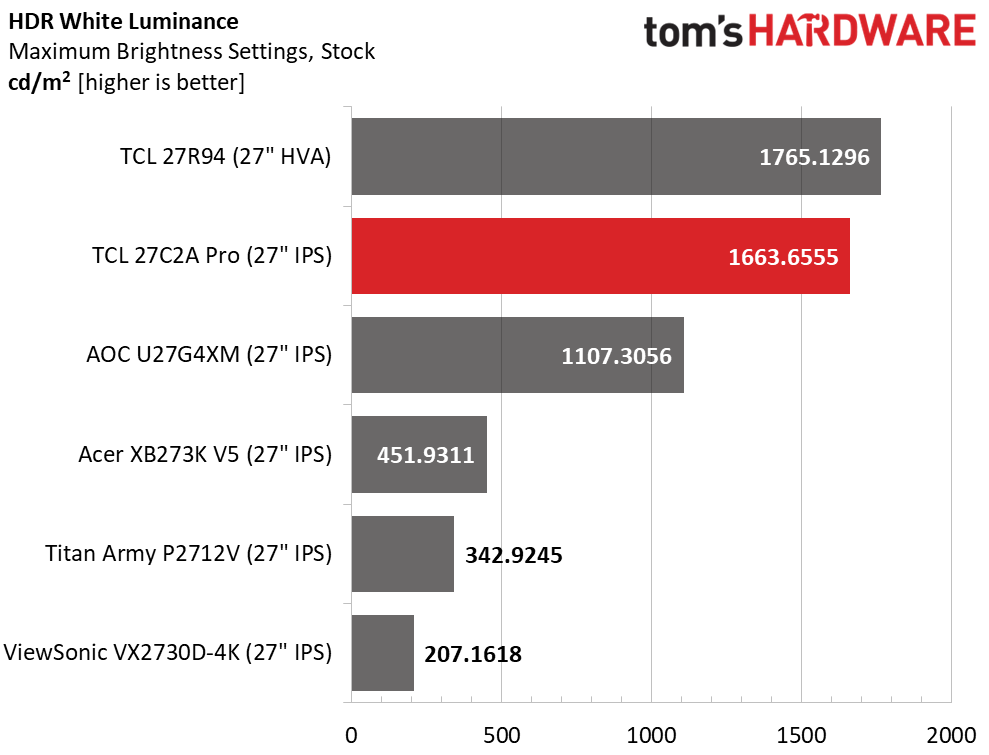
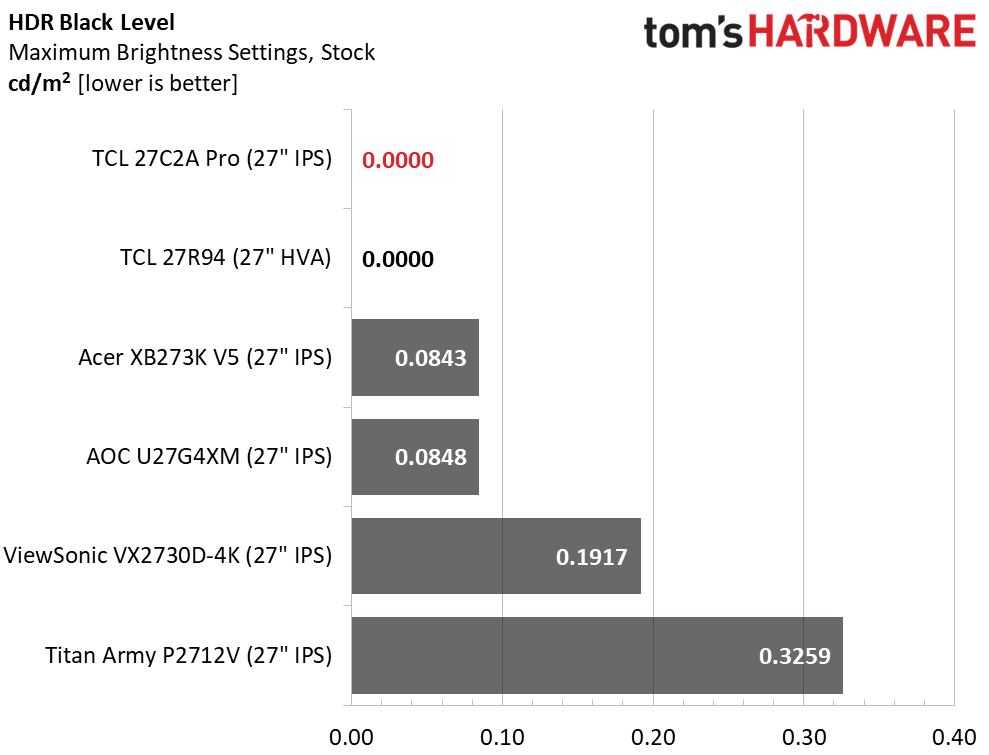
Brightness is honestly reported here, with my tests matching TCL’s claims. I saw almost 650 nits from a full white field pattern in SDR mode with the dimming turned off. HDR ran that up to almost 1,700 nits when I measured a 25% window with dimming on High. At that setting, I couldn’t measure the black levels at all. With 2,304 dimming zones, you won’t see any halo artifacts like panels with just a few hundred zones.
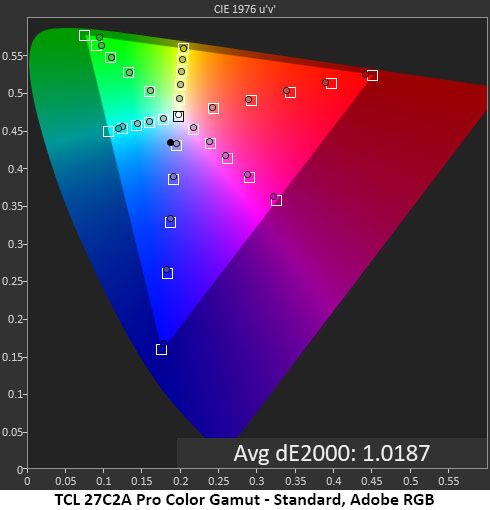
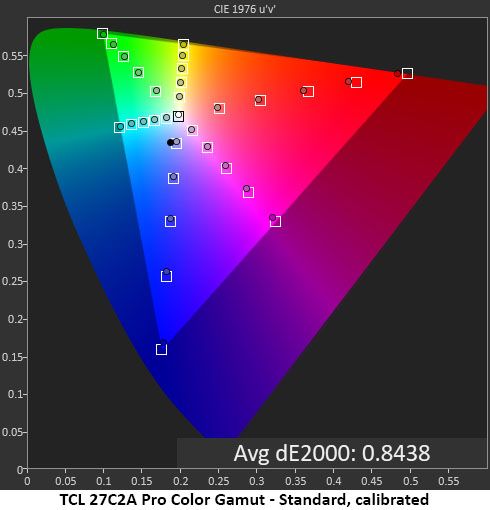
The Quantum Dot layer delivers just over 100% of the DCI-P3 gamut. You also get accurate picture modes with presets for DCI-P3, sRGB, Rec.709, and Adobe RGB, which is something rarely found outside the professional realm. Accuracy is superb with little to no need for calibration. I found similarly good performance in HDR mode, where you can adjust grayscale tracking and brightness if you wish.
The 27C2A Pro offers premium gaming too, with 160 Hz in 4K and 320 Hz in FHD resolution with a dual-mode switch. And there’s precise overdrive, Adaptive-Sync, and MPRT backlight strobing. This is one of the few monitors that lets you use all its video processing options at the same time. You can have MPRT, Adaptive-Sync, and overdrive all active at once.
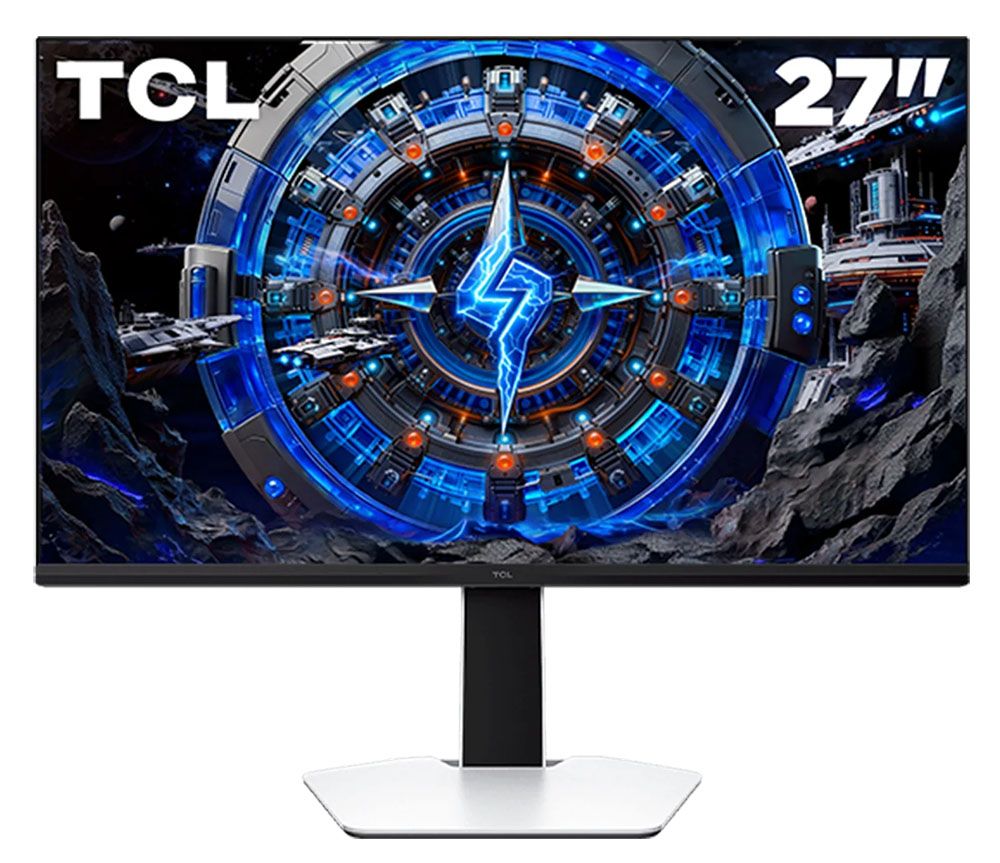
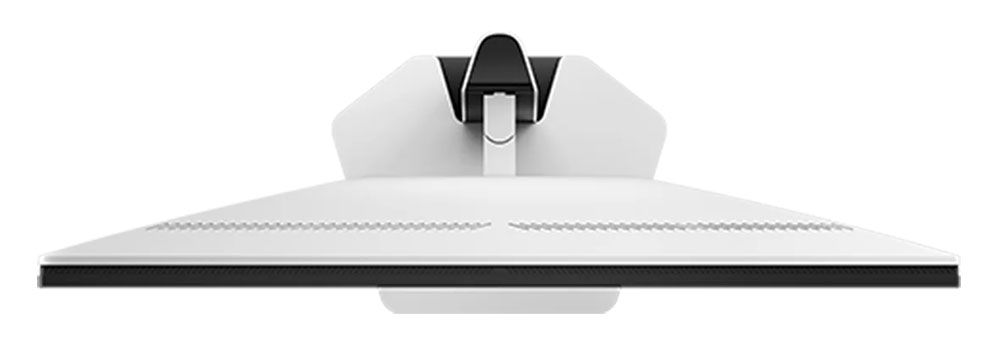
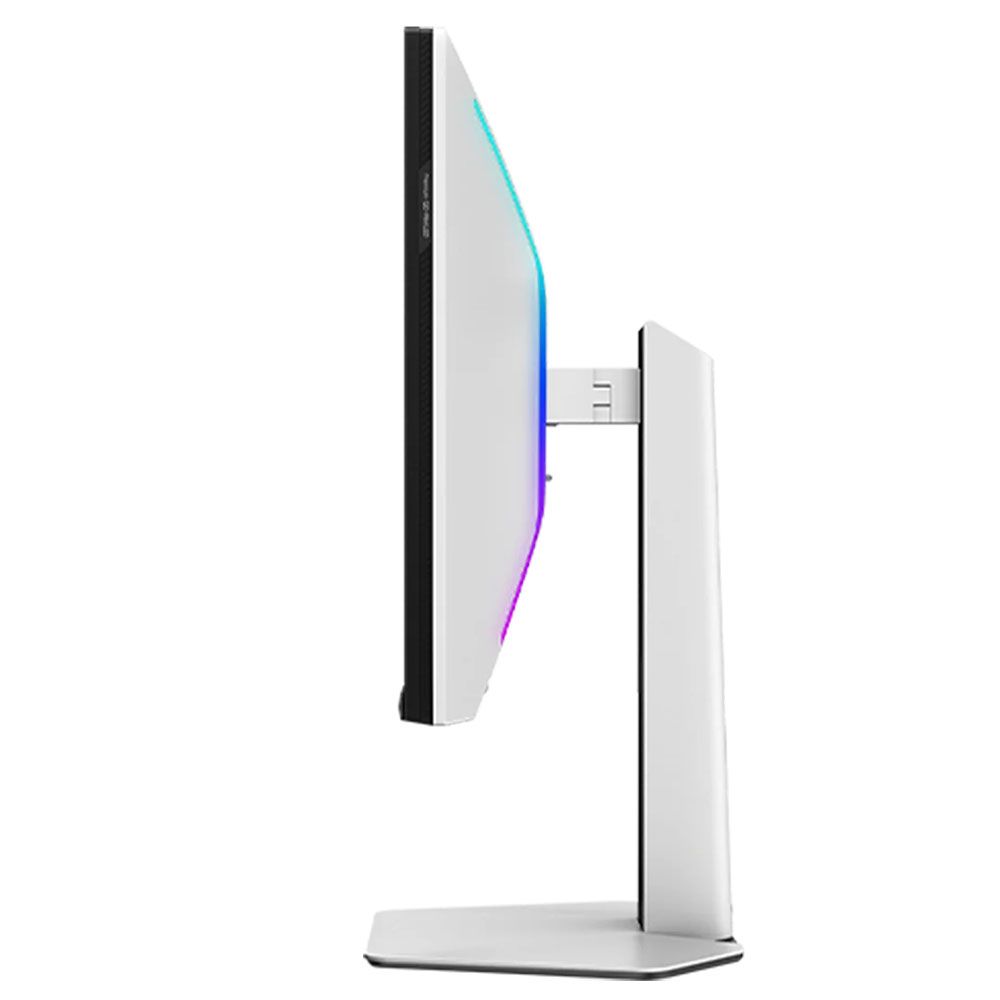
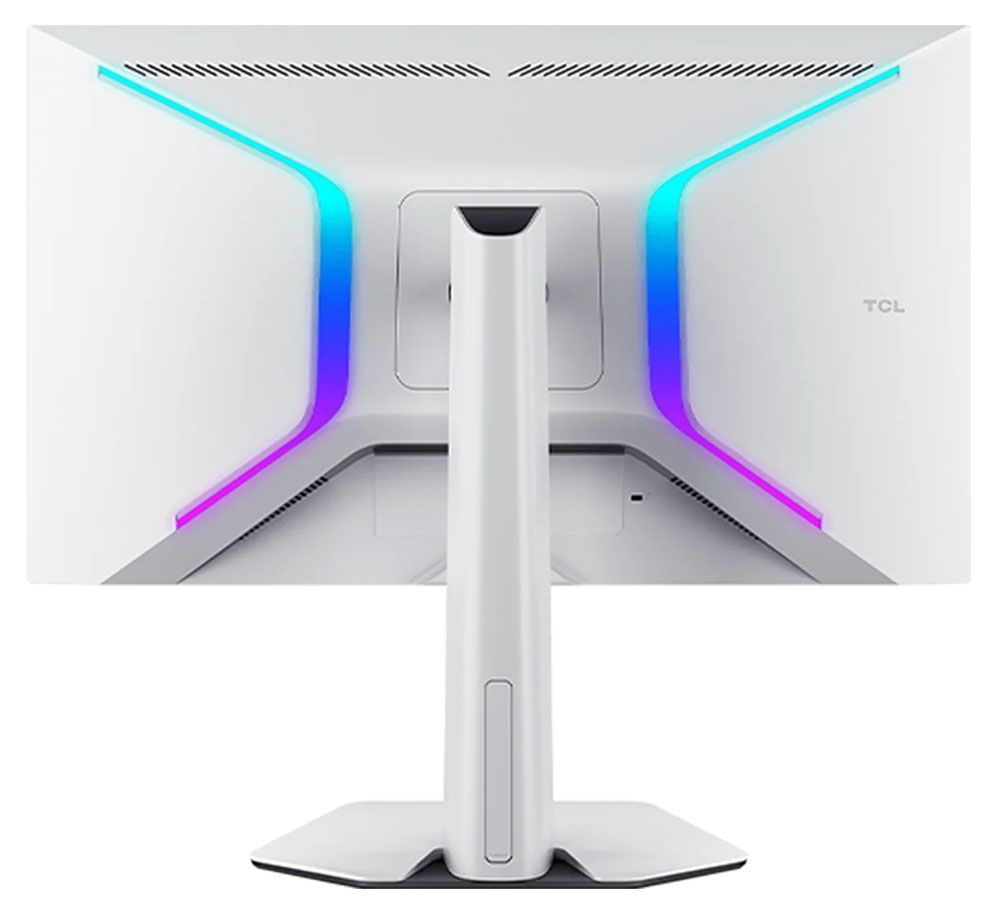
Styling is outside the norm as well, with a white aesthetic for the stand and panel’s backside. LED lighting shines in the back with two large bracket shapes that show an array of colors and effects. There are gaming aids like reticles, timers, and a frame rate indicator. And you get a full complement of I/O ports with HDMI 2.1, DisplayPort 1.4, and a USB-C, plus USB for your peripherals.
Assembly and Accessories
The 27C2A Pro ships in blocks of crumbly foam in its three main parts: base, upright, and panel. They assemble without tools. Under the snap-on fulcrum is a 100mm VESA mount with fasteners included if you'd rather use an arm, and you might want to after you read the next section of this review. The power supply is an external brick, and you get cables for DisplayPort, HDMI, USB-A/B, and USB-C.
Product 360
TCLTCLTCLTCL
I said the 27C2A Pro is a white monitor, but from the front, everything is black except the base. This is good for distraction-free use, especially in low-light situations where you want to stay focused on the image. There’s plenty of white plastic in the back, though, on the stand and on the panel.
The back features ventilation across the top and two large LED banks shaped like reversed parentheses. The shapes are angular with soft corners and no sharp edges. The screen has a flush bezel 9mm thick on the top and sides with a 15mm strip across the bottom. All you see there is a tiny TCL logo. The control joystick is underneath the center and is backlit.
The stand offers full ergonomics with 5/15 degrees tilt, 20 degrees swivel, and a 90-degree portrait mode. The height range is 4.8 inches. This was my only complaint about the 27C2A Pro. Though the base and upright are solid together, the panel’s fulcrum point is very small and wobbly, which makes positioning it difficult. If you game intensely and have your keyboard on the desk, it will jiggle a bit.
Up and under the center is a well-stocked I/O panel with one DisplayPort 1.4, two HDMI 2.1, and a USB-C with 90 watts of power. You also get one upstream and two downstream USB 3.0 ports. There is a pair of five-watt internal speakers, and you get a 3.5mm headphone jack.
OSD Features
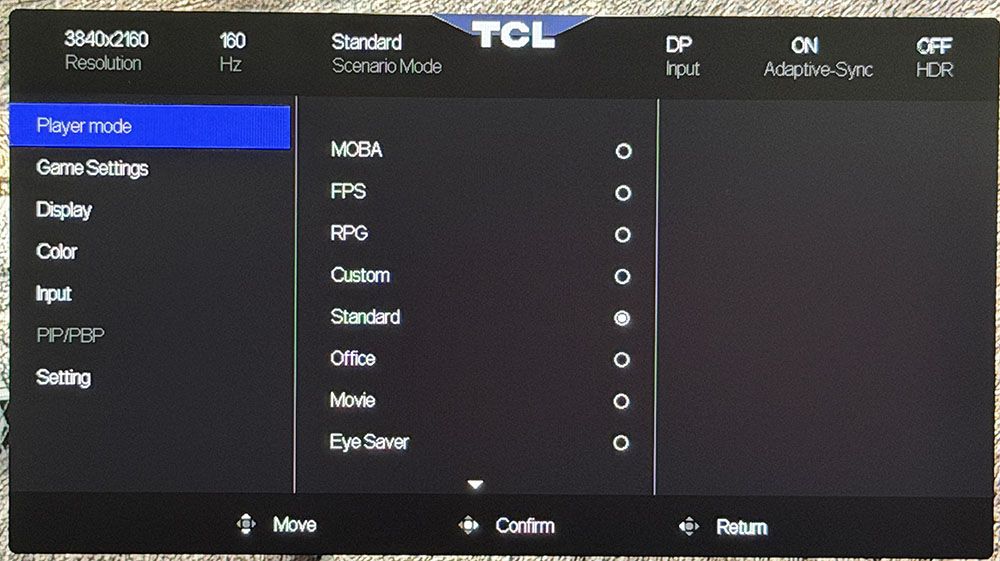
In 4K resolution, the 27C2A Pro’s OSD is very small. It was hard to read the tiny text unless I got up close. The FHD version is larger, of course. Press the joystick and click left to summon it.
Player mode refers to the nine picture modes you see in the first photo above. All you need is the default one, Standard, and I’ll tell you why in a moment.
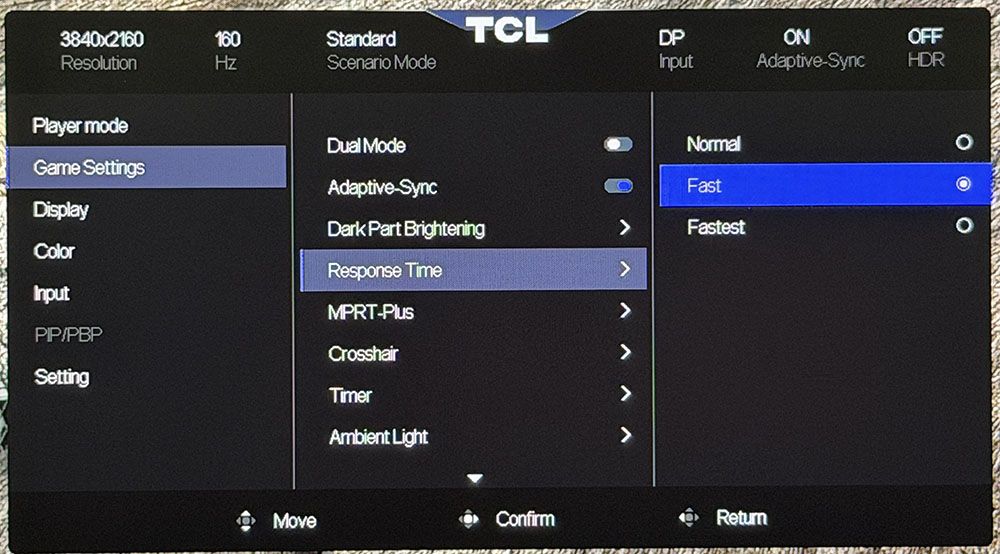
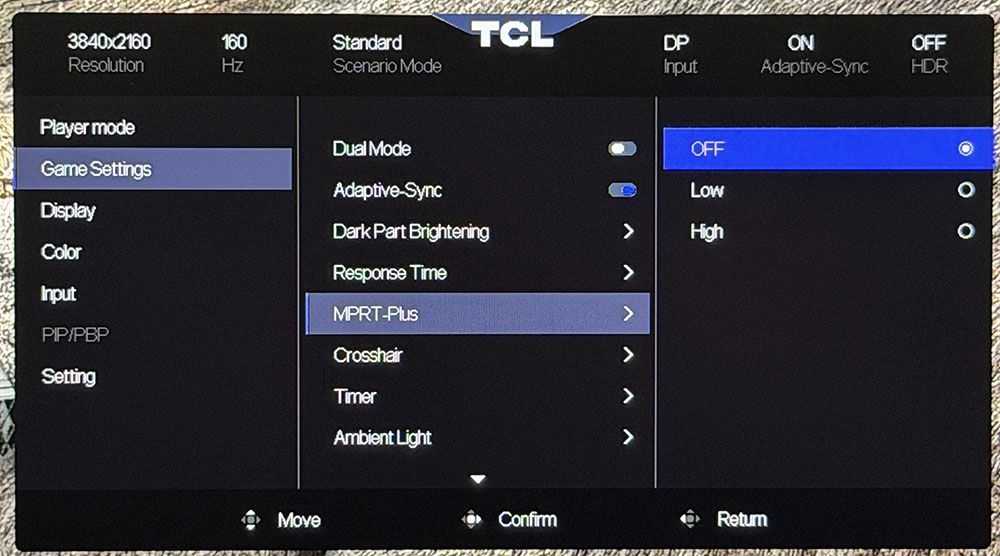
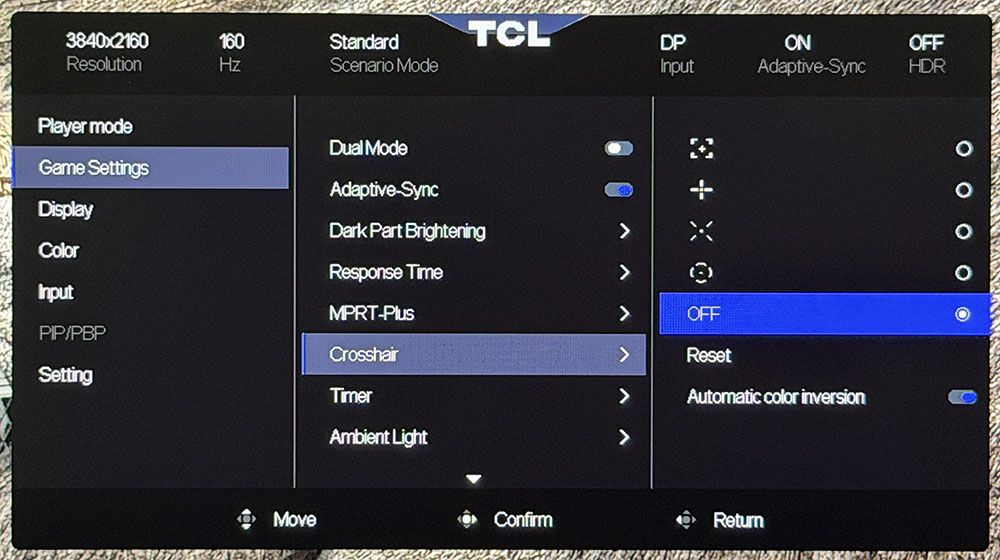
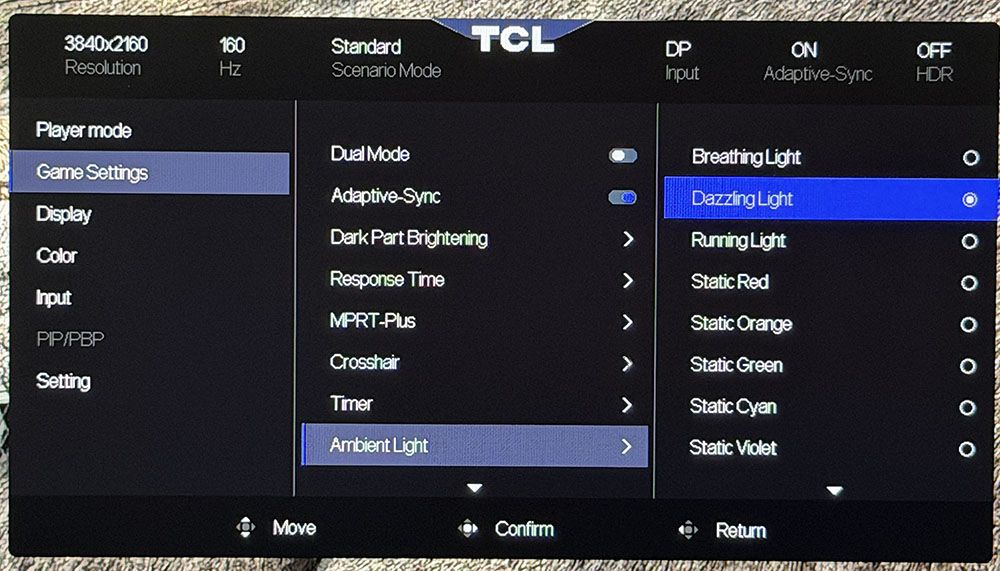
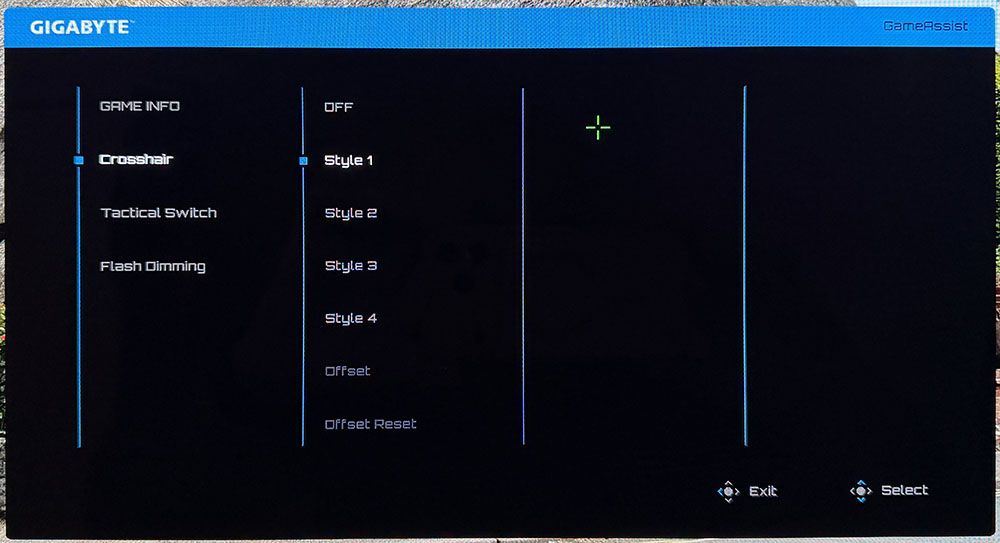
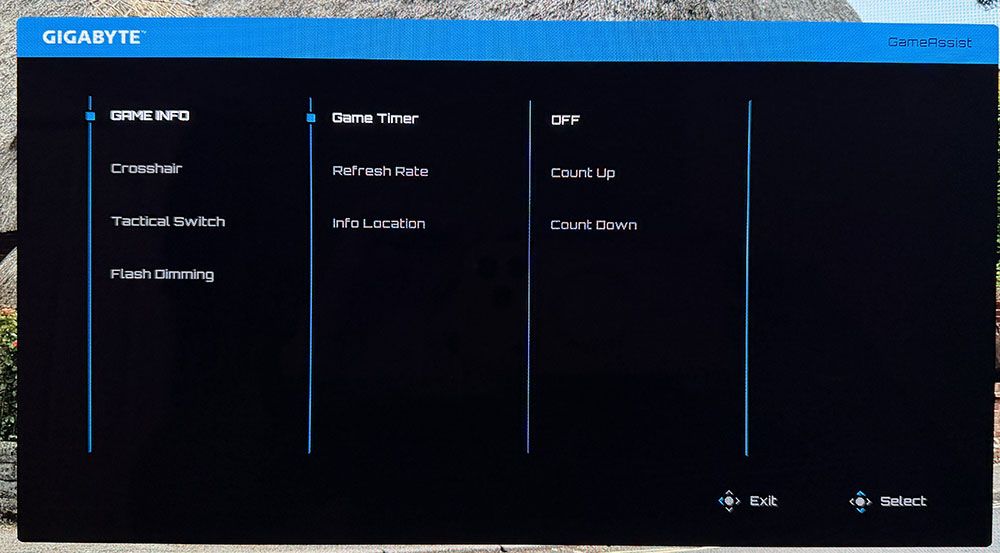
Moving on to Game Settings, the 27C2A Pro has every video processing option currently available for an LCD panel. The overdrive has three speeds, with fast being the best. MPRT-Plus (backlight strobe) has two levels, which correspond to pulse width. The higher one cuts brightness by around 50%, but you can easily compensate with the brightness slider because there’s more than enough luminance headroom. You can use both with Adaptive-Sync if you wish, which is something very few monitors can do. I found the best motion quality with overdrive on Fast and Adaptive-Sync engaged. MPRT reduces motion blur to almost nothing but introduces a slight phasing artifact, so I didn’t use it for my gaming tests. Also in this menu are a set of aiming points, timers, and controls for the LED lighting.
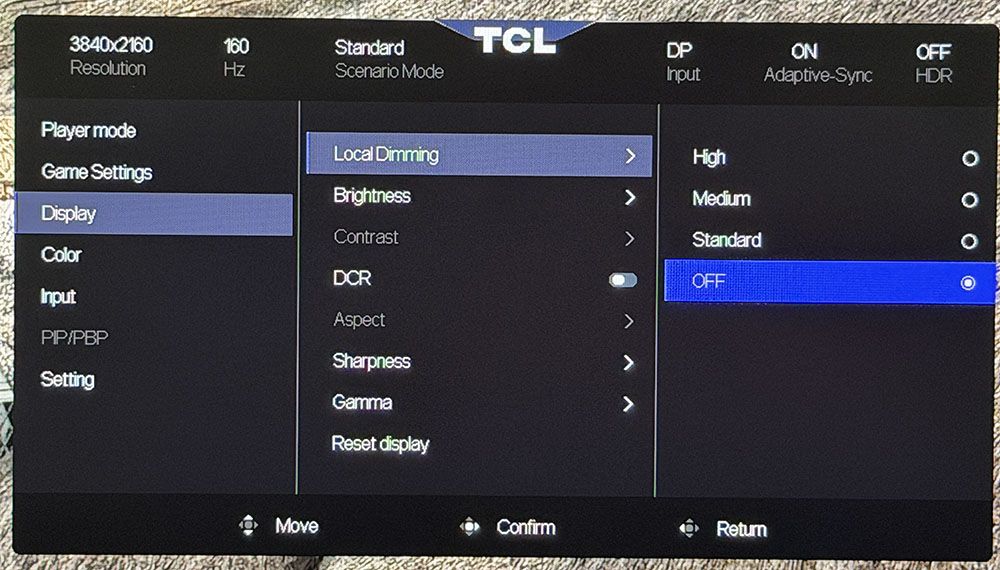
The Display menu starts with Local Dimming and its three levels. Standard barely does anything, only increasing contrast to around 1,800:1. Medium and High are more aggressive, and they shut off the backlight completely at light level zero for theoretically infinite contrast. Dimming is available for both SDR and HDR content.
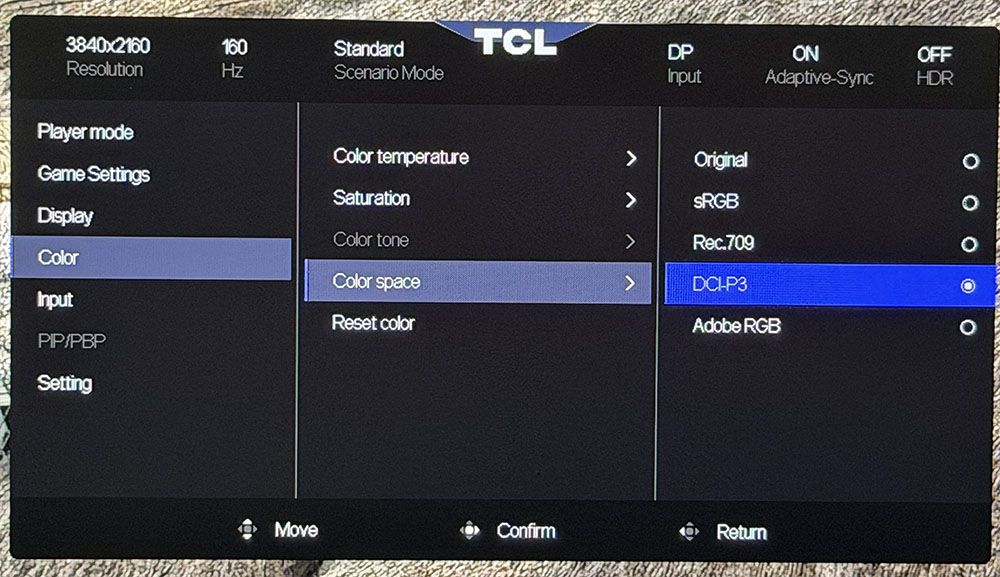
In the Color menu, you’ll find color temp presets and a gamut selector. It offers sRGB, Rec.709, DCI-P3, and Adobe RGB. All are very accurate, more so than the Original option, in fact. You’ll see how this works in my tests on page four. The 27C2A Pro is a very accurate monitor when set up correctly.
The remainder of the OSD is focused on conveniences like PIP/PBP, KVM options, OSD controls, and the like. If you want to reset everything to factory defaults, that option is in the Settings menu.
TCL 27C2A Pro Calibration Settings
I was initially disappointed with the 27C2A Pro during my first round of tests. It comes set to Standard mode, Original color space, warm color temp, and gamma 1. Gamma and grayscale measured well, but color tracking was a bit wonky. Luckily, you can select any of the available gamuts, sRGB, Rec.709, DCI-P3, or Adobe RGB, and get much better accuracy with near-perfect gamma and grayscale. I made small tweaks to the RGB sliders, and that was it. My settings are below.
In HDR mode, you get two presets, Display and Cinema. Their color is the same, but the EOTF curves are slightly different. My pick was Display, and with that, you get RGB sliders and a brightness control. You can also change the local dimming, though I recommend High for the deepest blacks and best contrast.
Picture Mode
Standard
Brightness 200 nits
43
Brightness 120 nits
21
Brightness 100 nits
17
Brightness 80 nits
11
Brightness 50 nits
4 (min. 39 nits)
Contrast
50
Gamma
1
Color Space
DCI-P3, Rec.709, sRGB, Adobe RGB
Color Temp User
Red 49, Green 49, Blue 51
Gaming and Hands-on
Gaming on the 27C2A Pro was a treat. I’m spoiled by premium OLEDs, but TCL has found a great combination of brightness, color, speed, and smoothness that mostly replicates that experience with an LCD panel. The only thing you won’t get is those infinite blacks, but the 27C2A Pro comes close with its 2,304 dimming zones and extremely bright highlights.
You’ll see later in the test notes just how bright it can get, and that capability is used to full effect. I always set up review displays to 200 nits, and that was only a third of the 27C2A Pro’s SDR brightness range. I found that I could use its local dimming for both SDR and HDR content, which was nice. Often, there is only dimming for HDR.
Color was also a strength, with vivid hues and excellent accuracy. I found some unusual behavior during initial tests, but once I discovered the secret, it was pro-level color all the way. Just pick the gamut you want and avoid the Original option in the OSD’s color space menu.
My GeForce RTX 4090-equipped PC had no problem maintaining 160fps in 4K. I tried the FHD/320 Hz option and found that it worked fine and delivered that frame rate. Since the downscale is an exact multiple, the picture wasn’t as soft as you might expect. The dual-mode feature is a viable option for users with consoles or less stout video cards.
I also noted that I could use overdrive and MPRT backlight strobing in concert with Adaptive-Sync. That’s something only a few high-end monitors offer, so it was nice to see from a $600 display. If you’re relegated to frame rates below 144 Hz, MPRT is a good option for eliminating motion blur. The overdrive on its own is also very effective at its middle setting, Fast.
Lag was low enough that I didn’t perceive any delay in control response. Backgrounds and moving objects stayed sharp, and my inputs were instantly translated to action. The 27C2A Pro has that addictive quality that all fast and smooth monitors have.
For productivity, the 27C2A Pro shines as a photo and graphics display. Its color modes include sRGB, Rec.709, DCI-P3, and Adobe RGB. That last one is a rarity outside the professional realm. They are spot-on, as you’ll see in my test results; no calibration needed. If you need a print reference monitor, this one qualifies.
I also noted that the 27C2A Pro is a complete package with LED lighting, internal speakers, USB ports with KVM, and a slick white aesthetic. My only complaint is that the stand is too wobbly. The base and upright are solid, but the panel’s attachment point has some jiggle. I would probably spend some of the money I saved over an OLED on an arm.
Takeaway: The 27C2A Pro is a complete package for gaming and productivity. It’s fast and smooth with excellent video processing and the ability to run Adaptive-Sync along with overdrive and backlight strobing. It’s colorful and sharp and has deep contrast thanks to 2,304 local dimming zones. It’s also much brighter than any OLED. It delivers tremendous bang for the buck.
Click here to read up on our pixel response and input lag testing procedures.
Tom's HardwareTom's Hardware
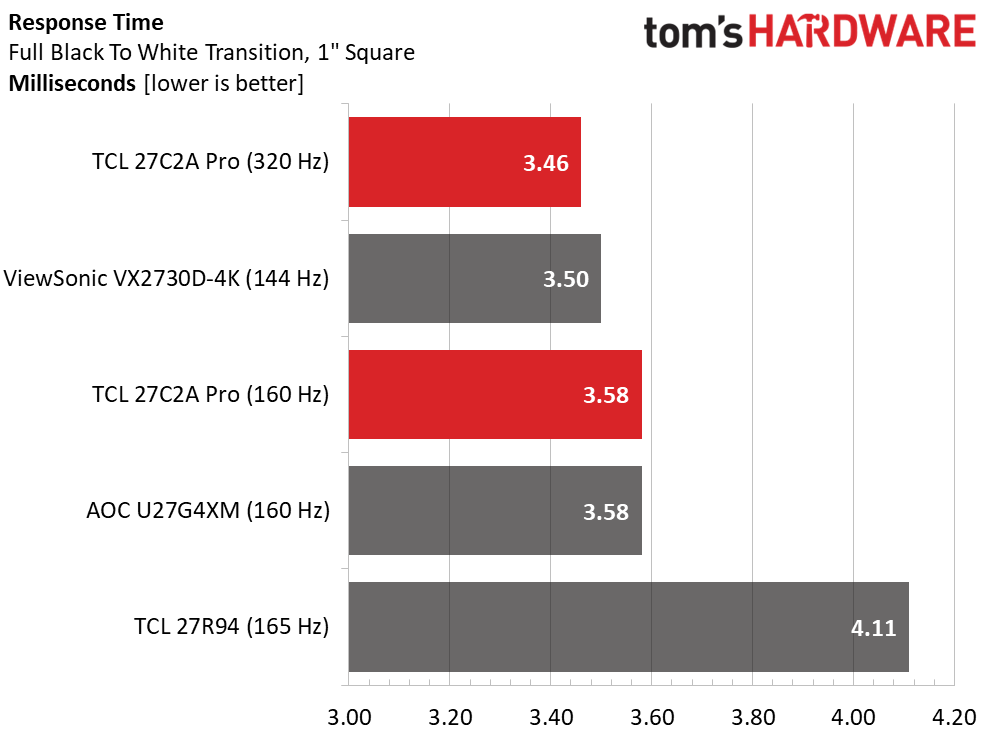
The P2712V and XB273K V5 weren’t tested with the Nvidia LDAT, so their results are omitted from the response chart. The remaining panels are close in performance, with the 27R94 being a bit slower than the rest. This manifests in moving test patterns where you can see more blur from the slower monitor. The 27C2A Pro is a tad quicker at 320 Hz than it is at 160 Hz, but not by a visible amount. It isn’t a particularly fast panel, but it delivers good motion resolution thanks to its precise overdrive. You can have even less blur by turning on MPRT, but that has a slight phasing artifact.
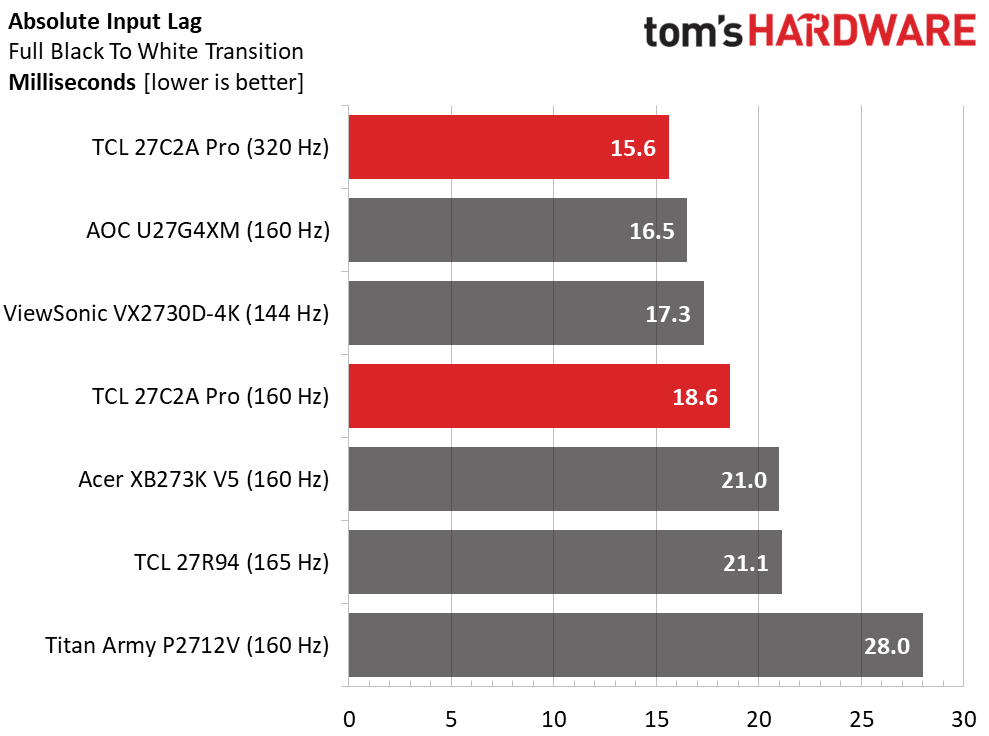
In the lag test, the 27C2A Pro was about average at 160 Hz and took the top spot at 320 Hz. In practice, you’ll barely notice the difference. The dual mode feature is best used when you can’t maintain 160fps in 4K. Either way, it’s a fast monitor that’s quick enough for gamers of all skill levels.
Test Takeaway: The 27C2A Pro is a competition-worthy display with speed comparable to other 27-inch 4K LCDs. It gains a little performance with its dual-mode switch to FHD and 320 Hz. Though it doesn’t have quicker panel response than its competitors, it has an excellent overdrive that eliminates most motion blur. And you can use the backlight strobe along with Adaptive-Sync, which is a standout feature.
Viewing Angles
(Image credit: Tom's Hardware)
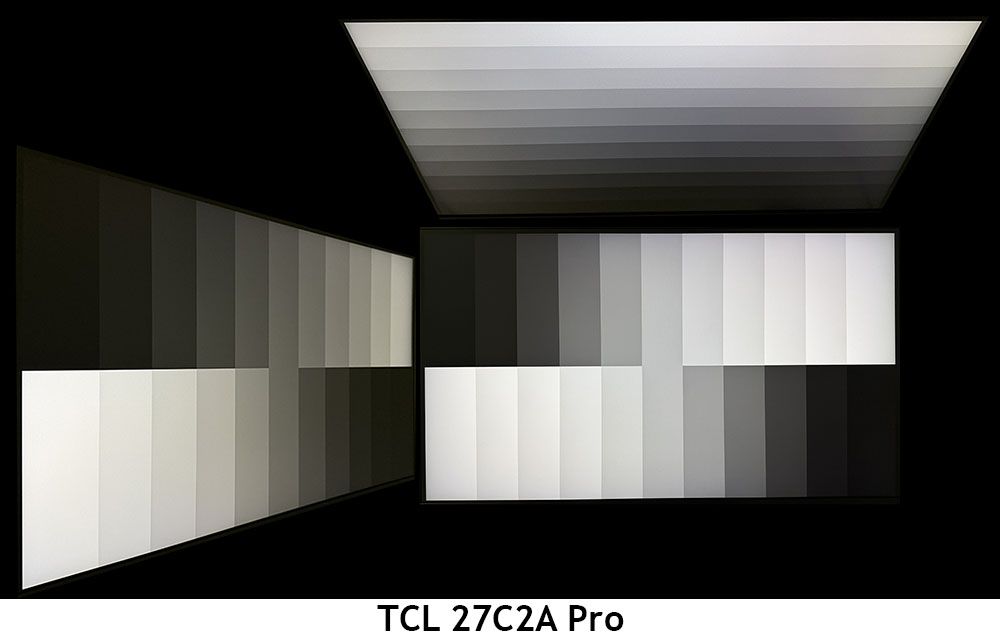
The 27C2A Pro has the off-axis image quality of a premium IPS display. The horizontal color shift is slightly green in tone with no visible loss of brightness or gamma. The top view goes cool with a reduction in brightness and gamma. It is a very shareable monitor.
Screen Uniformity
To learn how we measure screen uniformity,click here.
(Image credit: Tom's Hardware)
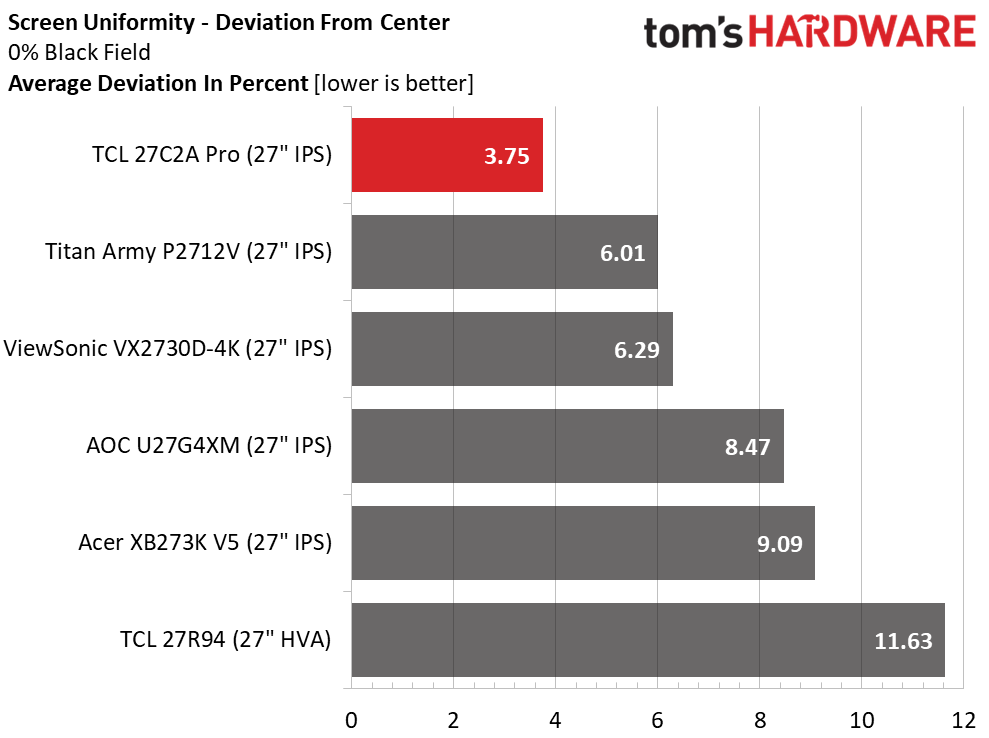
My 27C2A Pro showed exceptional screen uniformity with an average deviation of just 3.75% from the center zone. It’s one of the best LCDs I’ve reviewed in this test. There was no bleed or glow visible in any test pattern regardless of brightness or color. It doesn’t get much better than this.
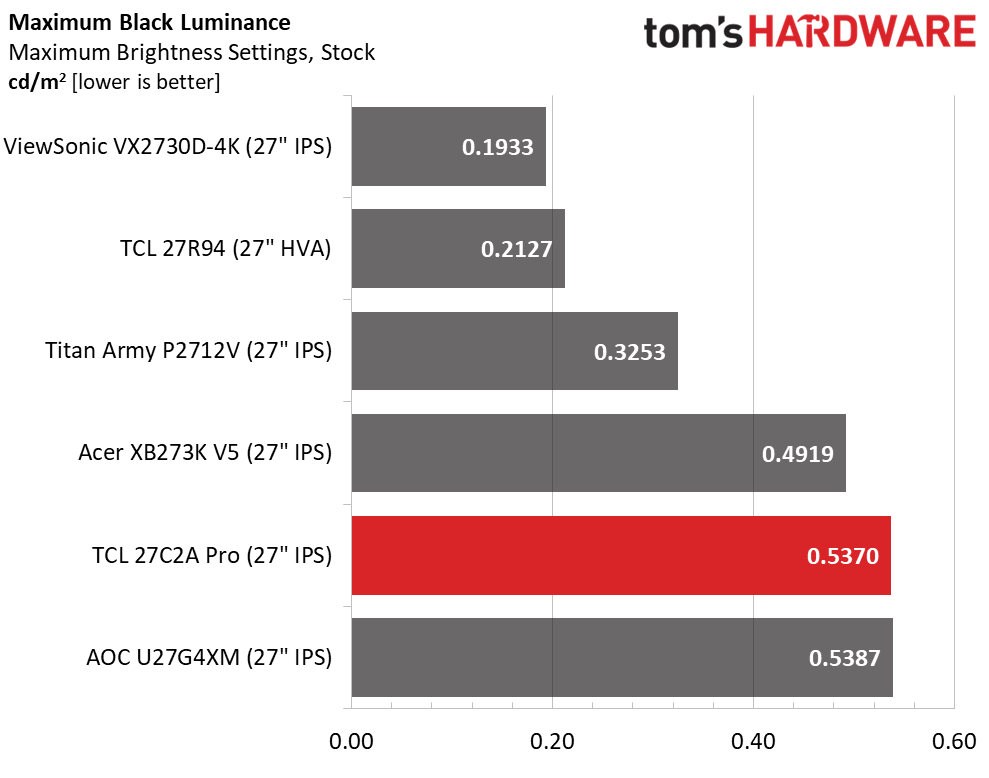
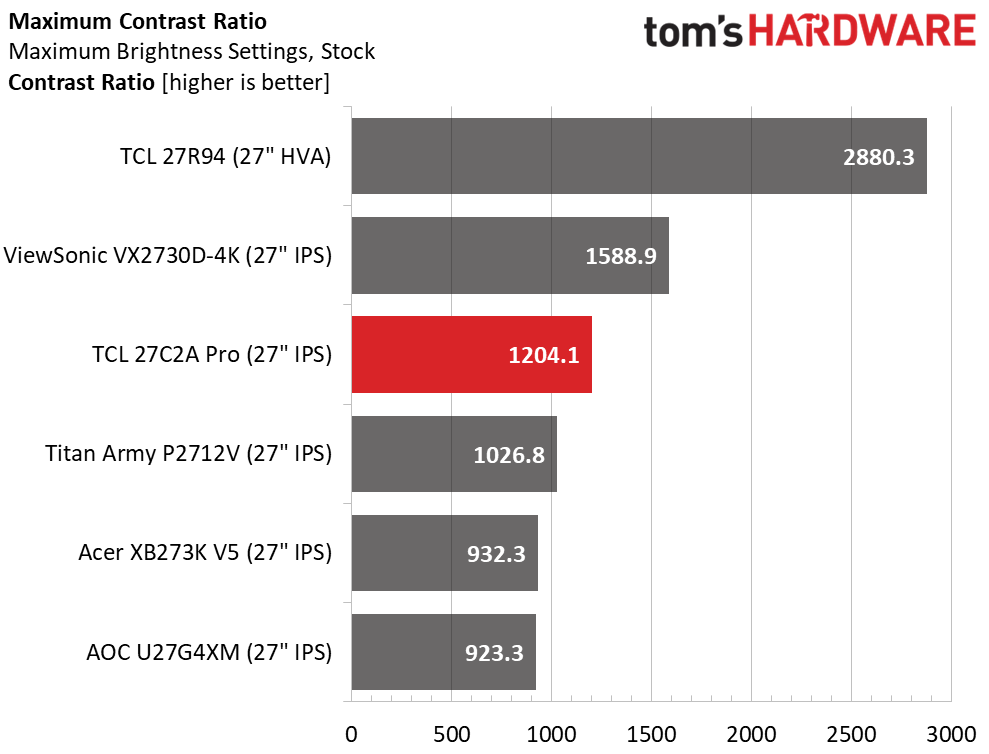
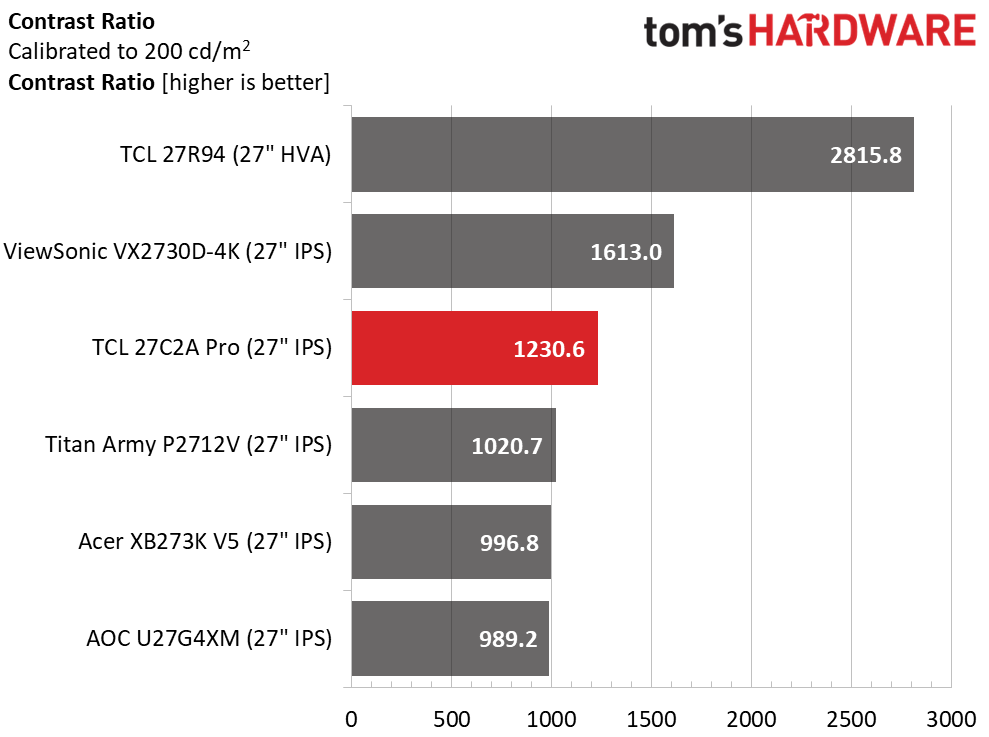
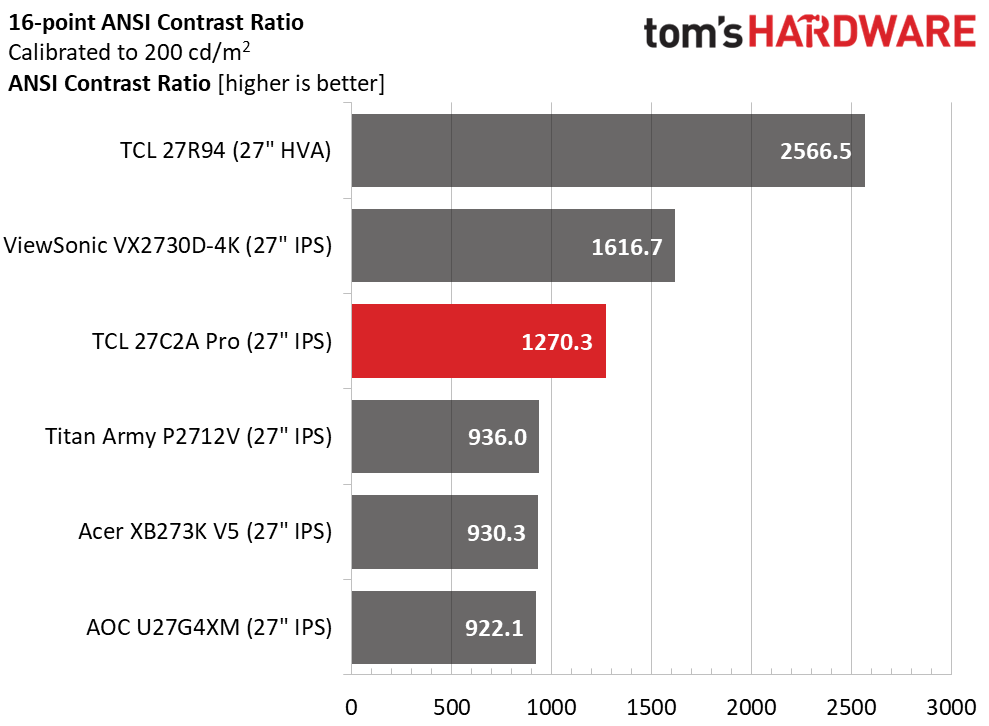
The 27C2A Pro has many strengths, but peak brightness is its greatest one. It hit nearly 650 nits in my SDR test when measuring a full white field pattern with local dimming turned off. You can use dimming in SDR mode if you wish. On the High setting, a 25% window was around 1,600 nits, and black levels could not be measured. On Standard, the contrast ratio is around 1,800:1. The native contrast result of 1,204.1:1 is above the IPS average.
After Calibration to 200 nits
Tom's HardwareTom's HardwareTom's Hardware
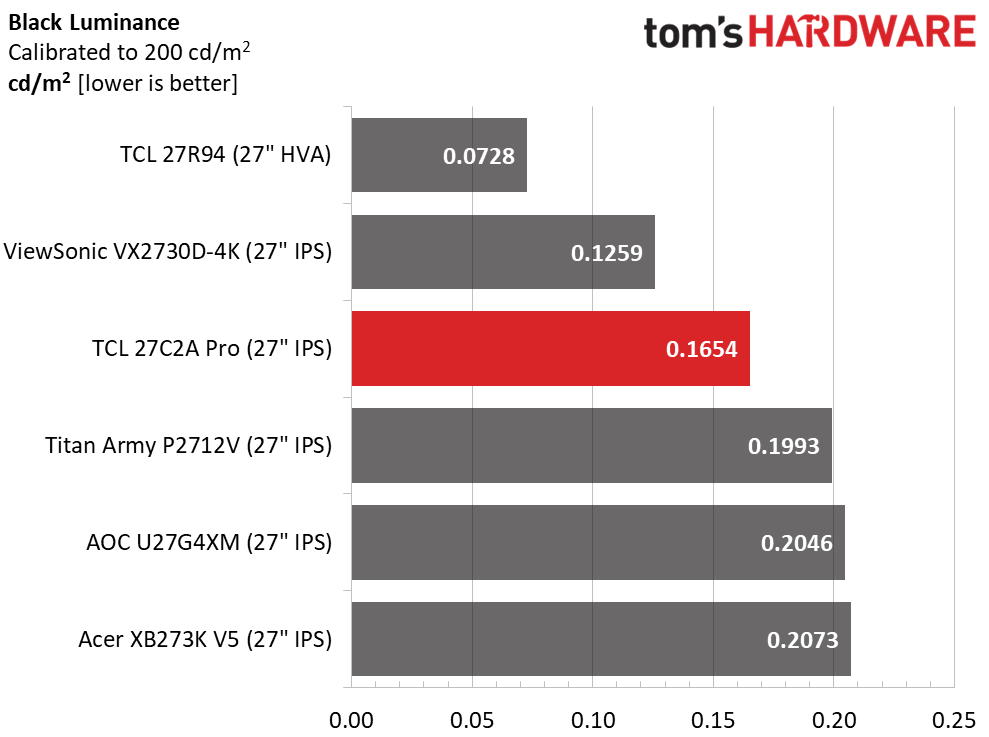
My calibration was a simple one. I set brightness to 200 nits, selected the DCI-P3 color space, and tweaked the RGB sliders. That gained me a few contrast points, which is awesome. This is still with local dimming turned off. In the ANSI test, I saw an even better score of 1,270.3:1. It’s rare that any monitor’s intra-image number is higher than its static one. This is exceptional performance.
Test Takeaway: The 27C2A Pro has excellent native contrast that’s broadened with local dimming, which is available for both SDR and HDR. The two top settings have black levels so low, they can’t be measured. Peak brightness is extremely high at almost 650 nits for a full-field pattern and 25% windows topping 1,500 nits. With 2,304 dimming zones from the FALD backlight, it can render images almost as deep, sharp, and textural as a premium OLED.
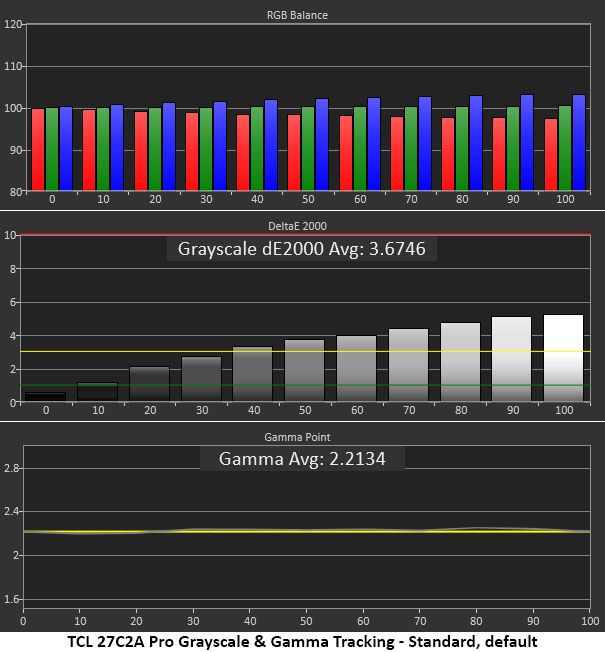
The 27C2A Pro comes set to its Standard picture mode, which has both good and bad attributes. Color isn’t great out of the box, but there’s an easy fix that delivers pro-level accuracy.
Grayscale and Gamma Tracking
Our grayscale and gamma tests use Calman calibration software fromPortrait Displays. We describe our grayscale and gamma tests in detail here.
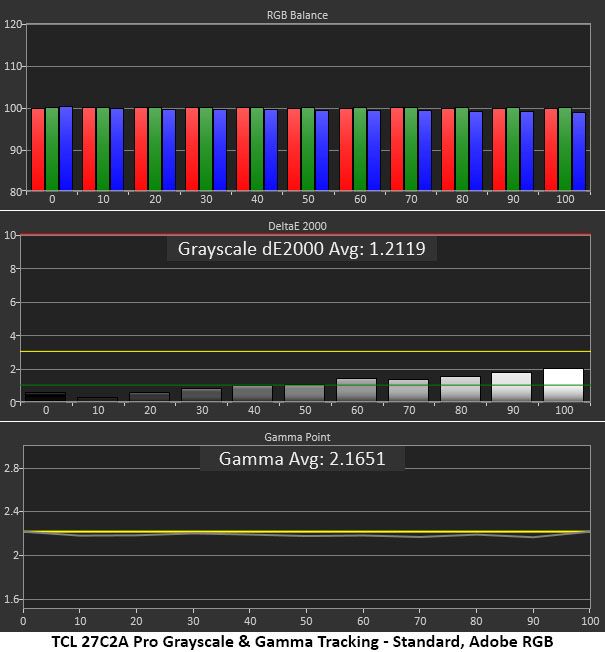
The 27C2A Pro’s first chart looks a little blue out of the box but has visually perfect gamma tracking. Normally, I’d say tweak the RGB sliders and call it a day. But wait, there’s more to the story.
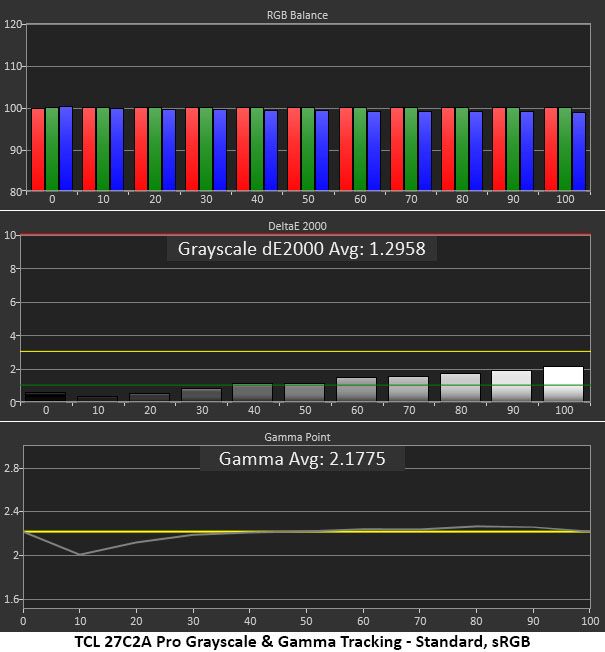
In sRGB mode, grayscale has no visible errors and just a slight dip in its gamma tracking at the 10% brightness step. This is typical performance for the gaming monitors I’ve tested. Since the 27C2A Pro has an Adobe RGB mode, I tested it too and found excellent grayscale and gamma tracking. You won’t need this mode for gaming, but users creating content for print will appreciate its inclusion.
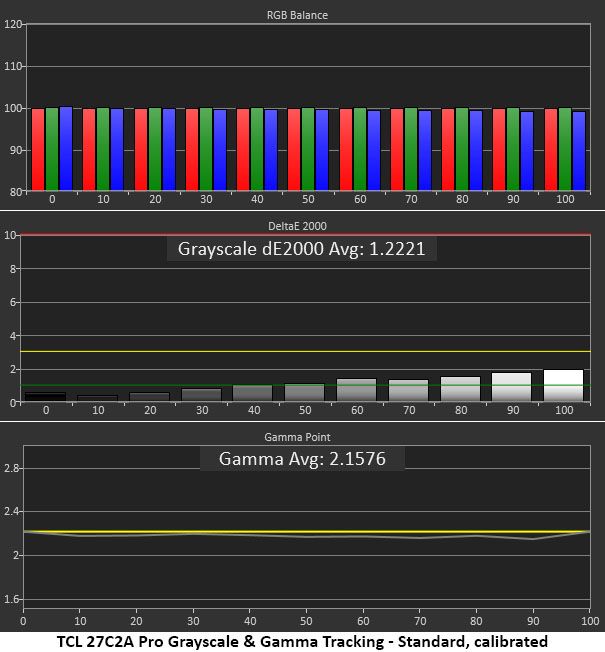
After calibration, grayscale is excellent, and gamma is only a tad lighter. How I achieved this is detailed in the next section. I couldn’t take the usual approach.
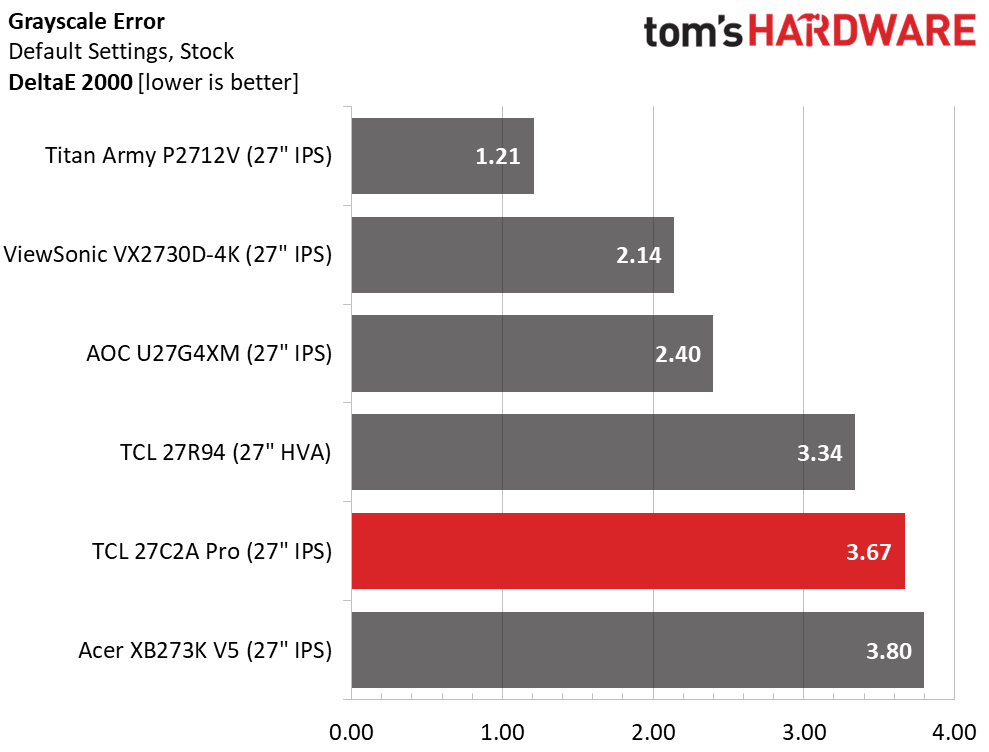
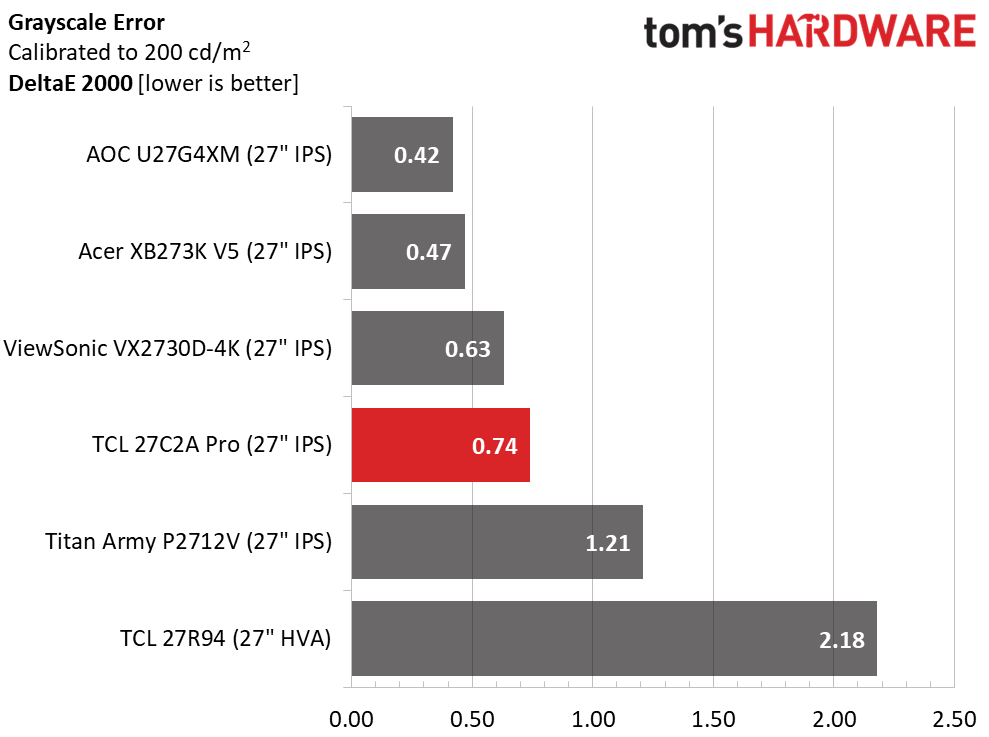
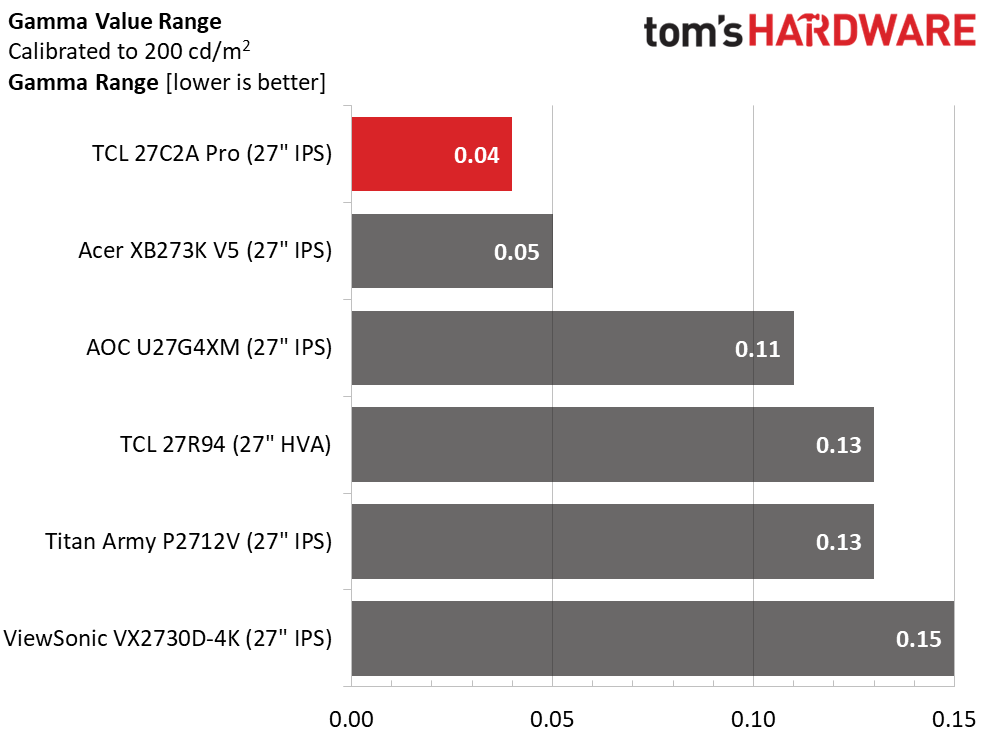
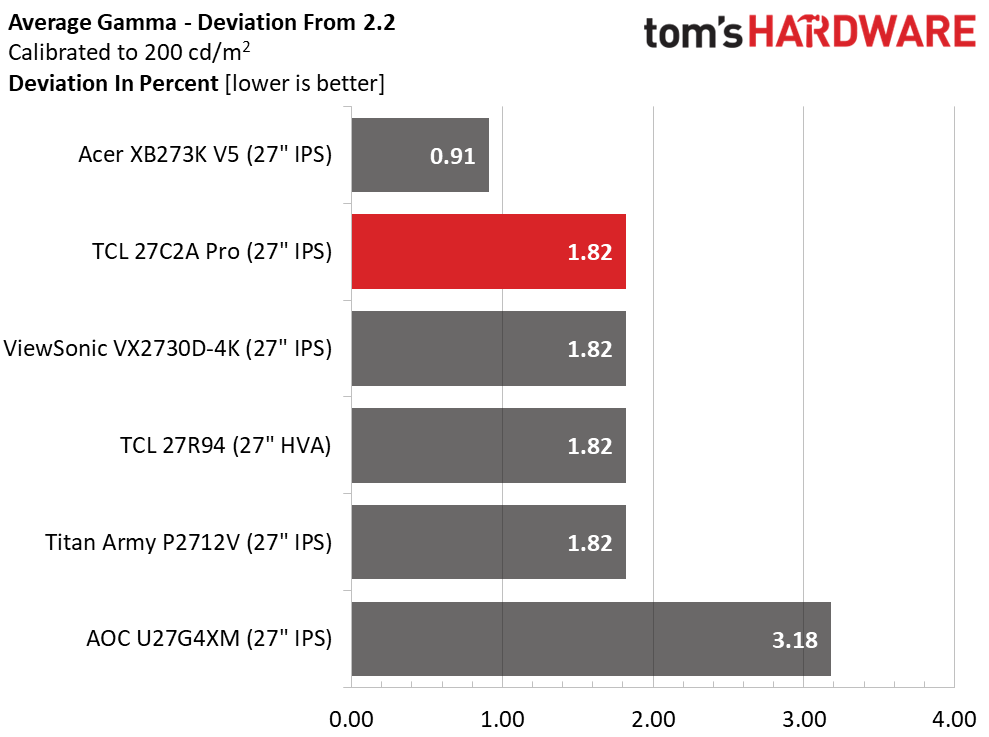
The 27C2A Pro’s grayscale starts at 3.67dE, not too bad but a little blue in tone. Calibration fixes that issue to where it’s on par with the other screens at 0.74dE. Gamma tracking is exemplary whether you calibrate or not. The range of values is super tight at 0.04 from lowest to highest, and the average deviation is 1.82% with an actual value of 2.16. It doesn’t get much better than that.
Color Gamut Accuracy
Our color gamut and volume testing usePortrait Displays’ Calman software. For details on our color gamut testing and volume calculations,click here.
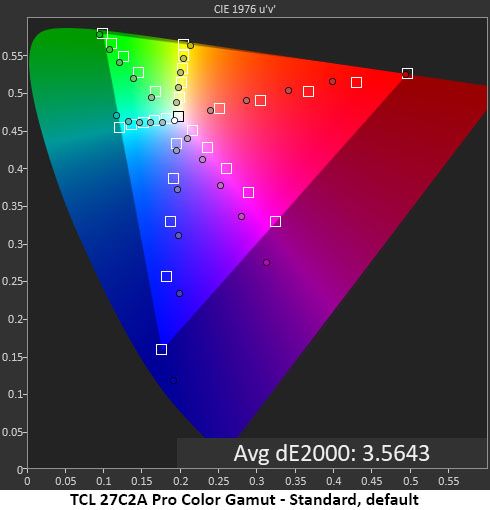
The color gamut test is where the 27C2A Pro gets interesting. Out of the box, gamut tracking is wonky with obvious hue errors, undersaturation in some colors and oversaturation in others. After the solid grayscale results, I was a bit flummoxed.
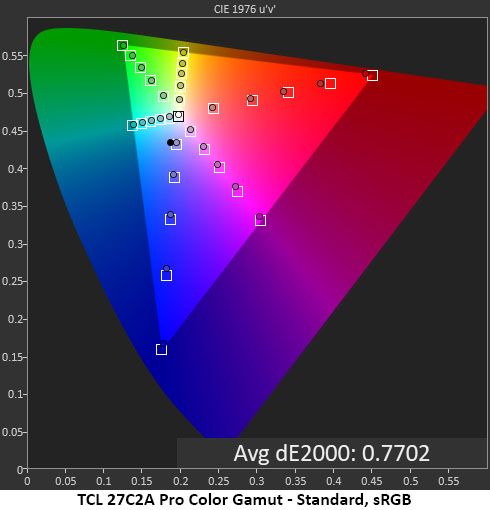
Relief came when I tried the different color space options. Normally, I’d just pick sRGB as an alternative, but the 27C2A Pro also has DCI-P3 and Adobe RGB on offer. All of them let you calibrate grayscale. The only control grayed out is gamma, and that’s OK because it measured perfectly in my tests. So, to get accurate DCI-P3 color, choose the DCI-P3 gamut option and adjust the RGB sliders the way I specified earlier. You can see that the sRGB and Adobe RGB choices are very accurate as well. Only Adobe comes up a tad short in green, which is typical of LCDs with LED backlights.
Comparisons
Tom's HardwareTom's Hardware
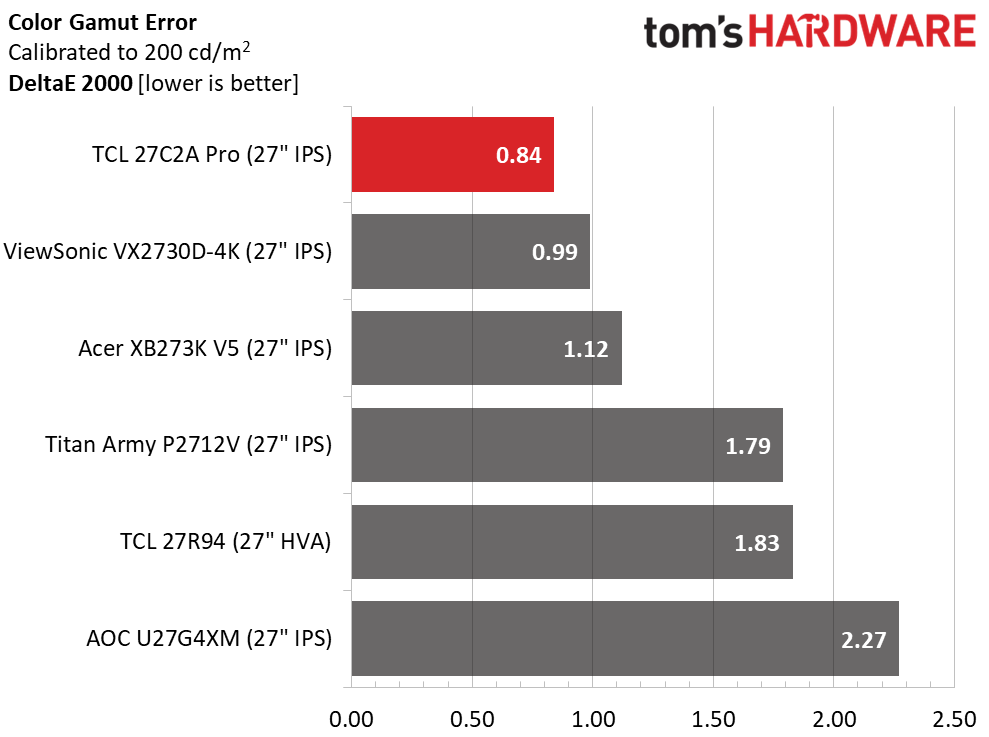
Any monitor that can average below 1dE in the gamut test is qualified for color-critical applications. The 27C2A Pro is in that club for sure. And it beats the other excellent screens. Just be sure to use the color space option for the gamut you want and avoid the Original mode.
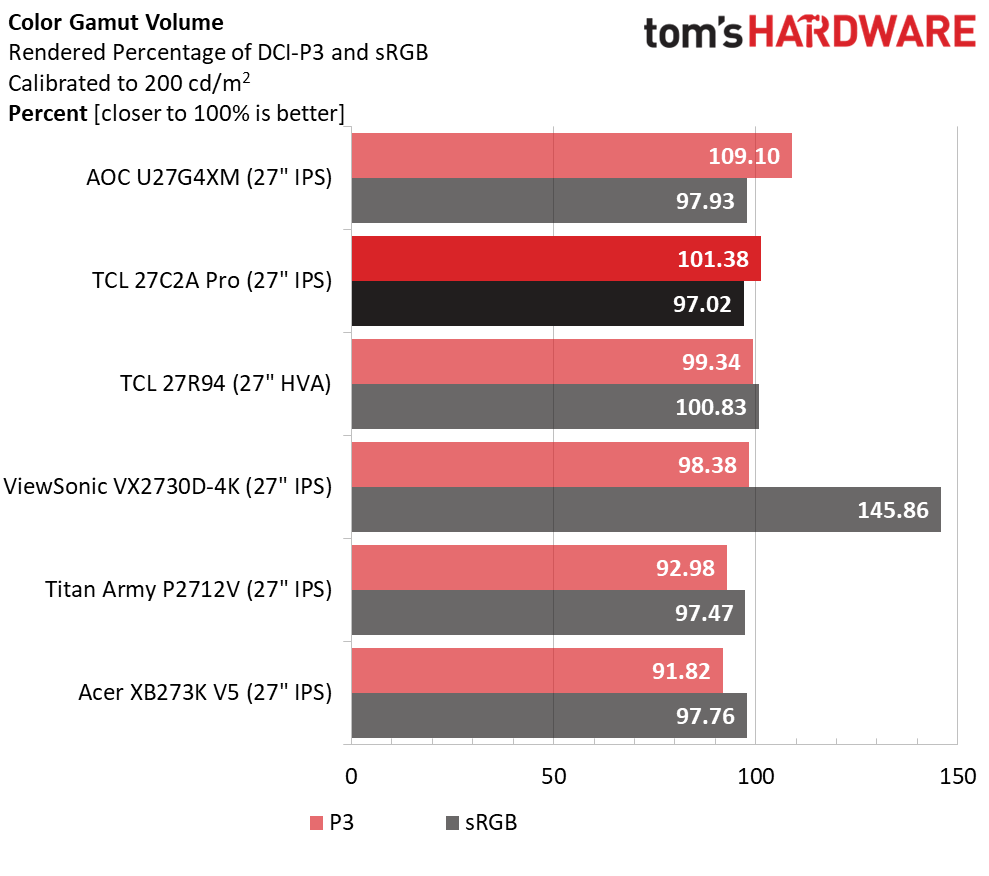
In the volume test, the 27C2A Pro is charted in its most accurate mode, DCI-P3, post-calibration. It’s a little less colorful in the blue part of the gamut than the AOC, which is also a Quantum Dot display. But at 101.38%, it’s still very colorful and easily beats non-QD monitors. The sRGB volume is a nice 97.02%, though it comes up a tad short in red.
Test Takeaway: The 27C2A Pro has pro-level color accuracy if you use its gamut modes. Avoid the Original option for the best gamut tracking. Grayscale and gamma are visually perfect as well. Aside from the gamut selection, calibration is unnecessary. It is unusual in that it offers a usable Adobe RGB mode, which is great when creating content for print.
The 27C2A Pro supports HDR10 content with two similar picture modes. You can calibrate grayscale and adjust brightness. Also, the local dimming remains available so you can control contrast. The mode switch is automatic.
HDR Brightness and Contrast
Tom's HardwareTom's HardwareTom's Hardware
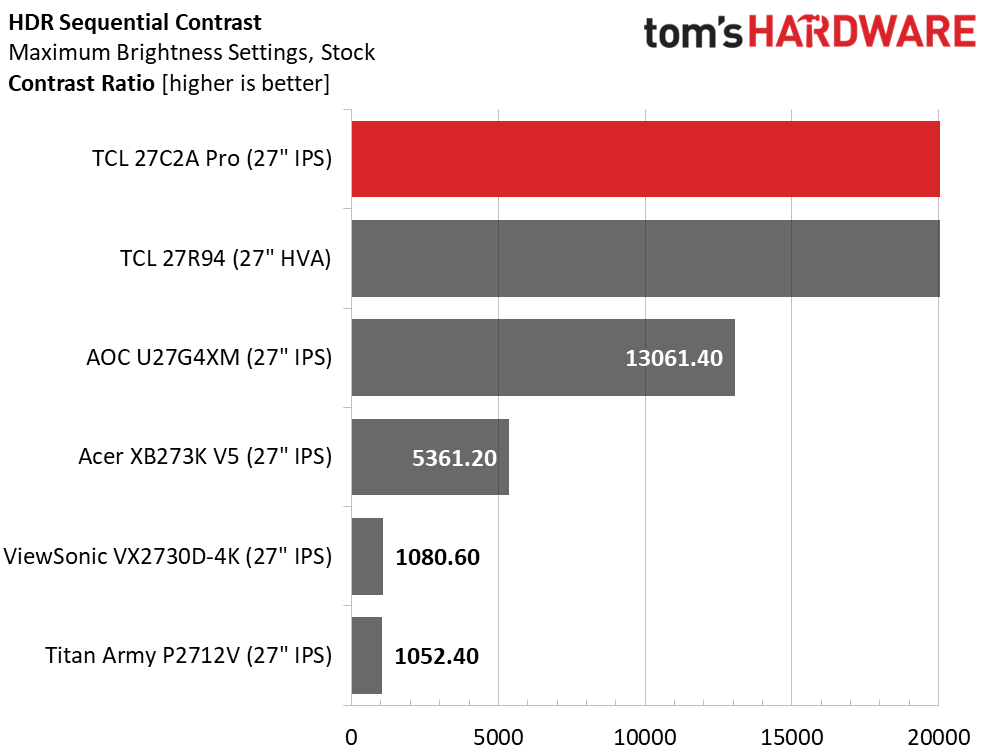
The 27C2A Pro’s peak of 1,663 nits demonstrates why one buys a Mini LED monitor. No OLED can touch this number for a 25% window. TCL’s claim of 2,000 nits for a 3% window is completely valid. For my test, I left local dimming on high, which shuts off the backlight under zero signal conditions. That means black levels and contrast cannot be measured, just like an OLED. In practice, the 27C2A Pro won’t quite match an OLED, but it comes closer than any other LCD technology thanks to its 2,304 dimming zones and well-engineered dynamic contrast feature. It doesn’t get much better than this.
Grayscale, EOTF and Color
Portrait Displays CalmanPortrait Displays Calman
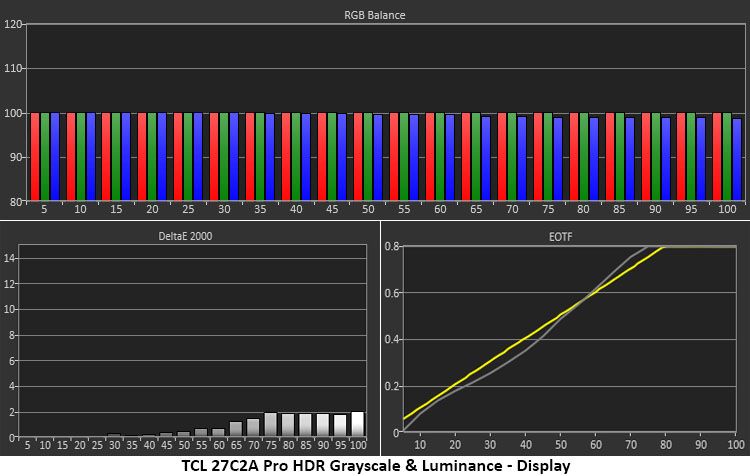
In the HDR grayscale test, I noted that the RGB sliders were adjustable, so I applied the same settings from SDR to HDR. The result was visually perfect grayscale with almost all errors below 2dE. I measured both Display and Cinema modes and found slightly different EOTF tracking between them. Display was my preference. Cinema looked a tad lighter and less textured, but the difference was small.
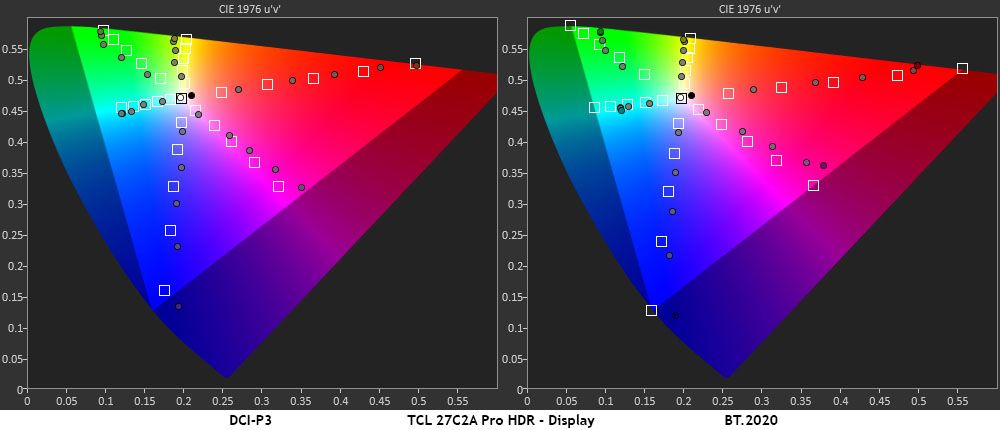
In the color test, the 27C2A Pro is slightly off hue in magenta, green, and yellow, but not too far. The triangle is generally oversaturated, but no more than the other HDR monitors I’ve tested. This is a typical response in my experience. The DCI-P3 gamut is fully rendered with a little bonus blue and magenta. In the BT.2020 test, the 27C2A Pro runs out of color at 88% red and 75% green but has a little more than 100% blue.
Test Takeaway: The 27C2A Pro is a stellar HDR monitor with deep contrast, accurate color, and very bright highlights. It stands out with adjustable color temperature and brightness. And you can change the local dimming as well. Most monitors have no HDR options other than picture mode. It isn’t quite as deeply textured as an OLED, but it is much brighter.
For gaming in a small space, there’s nothing sharper than a 27-inch 4K monitor. Its 163ppi pixel density is the finest structure you can buy outside of 5K, 6K, or 8K screens, which are still in the realm of the rare and exotic. The TCL 27C2A Pro brings that sharpness along with high brightness, accurate color, and premium video processing.
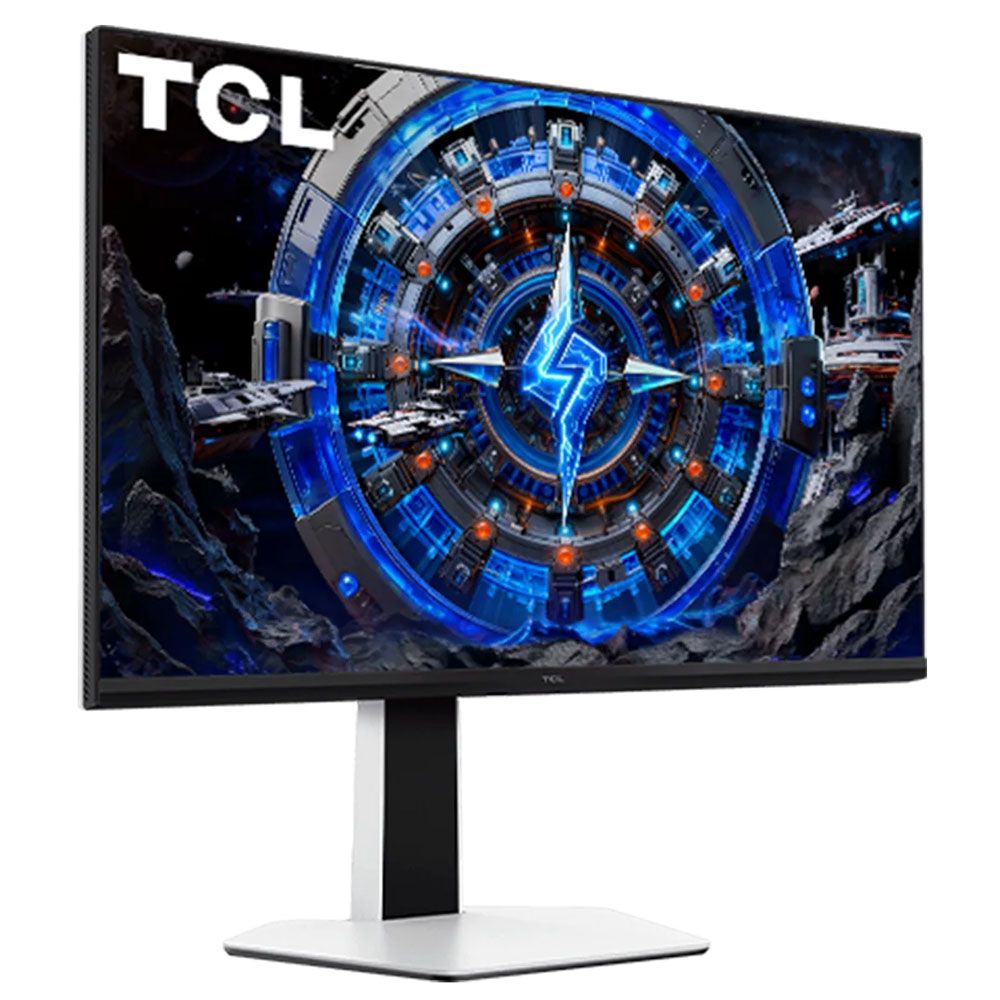
(Image credit: TCL)
Once I cracked the code of its color modes, I found extreme accuracy with extras like Adobe RGB and Rec.709. You don’t find these outside the professional realm too often. And brightness? The 27C2A Pro has lots of that. TCL claims 2,000 nits for a 3% window, and since I measured almost 1,700 from a 25% window, there is no reason for doubt. The local dimming is very effective with 2,304 zones and very deep black levels. It was nice to have for both SDR and HDR content.
(Image credit: Tom's Hardware)
Gaming had that addictive quality that every OLED delivers, but only a few LCDs do. TCL lets you run the overdrive, Adaptive-Sync, and the backlight strobe all together if you wish, which is something very few monitors allow. I enjoyed smooth motion resolution and quick control response with the 4K refresh rate maxed at 160 Hz. Users with consoles or mid-priced video cards will find flexibility in the dual-mode switch, which runs the 27C2A Pro at 320 Hz in FHD resolution.
My one complaint was about the stand. Though it is stable, the panel wobbles a bit. I would likely invest in an arm if I were going to use the 27C2A Pro every day. I appreciated the inclusion of LED lights, internal speakers, and USB ports, though. This is a fully loaded display.
If you want OLED-level gaming performance, deep contrast, and vivid color, but don’t want an OLED, the TCL 27C2A Pro is a good alternative. It’s definitely worth checking out.
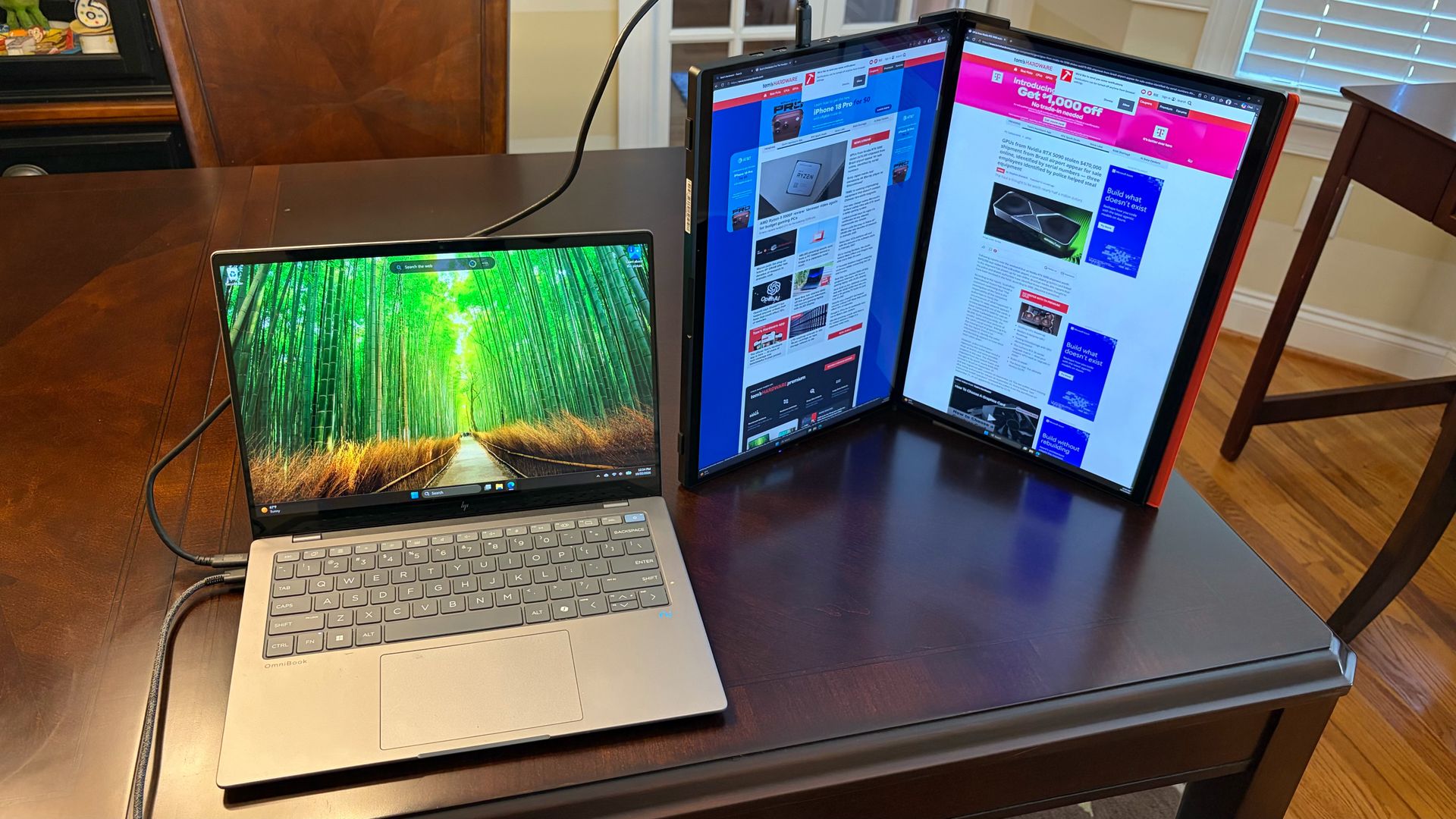
The FlipGo is yet another entry into the portable dual-monitor field from JSAUX (the previous one being the more ambitious FlipGo Horizon Pro), and it definitely makes a good first impression. Not only do you get two 16-inch 2560 x 1600 IPS displays, but the FlipGo also supports touch input (on Windows systems). In addition, it incorporates a built-in USB hub that gives you two additional USB-A ports and one USB-C port for your peripherals.
JSAUX provides all of this functionality in a product that comes in at a bit under $500, which is in line with other portable dual-monitors on the market. However, there’s a hefty toll for the functionality that’s provided in this package for those expecting to actually use it as a travel companion.
Design of the JSAUX FlipGo (PM0204)
When I first received the shipping box for the FlipGo, I was shocked at how large and heavy it was. My shock was made even more apparent when I removed the FlipGo from its protective padding, revealing a massive dual-screen device weighing an incredible 4.18 pounds. That’s more than half a pound heavier than a 14-inch Apple MacBook Pro.
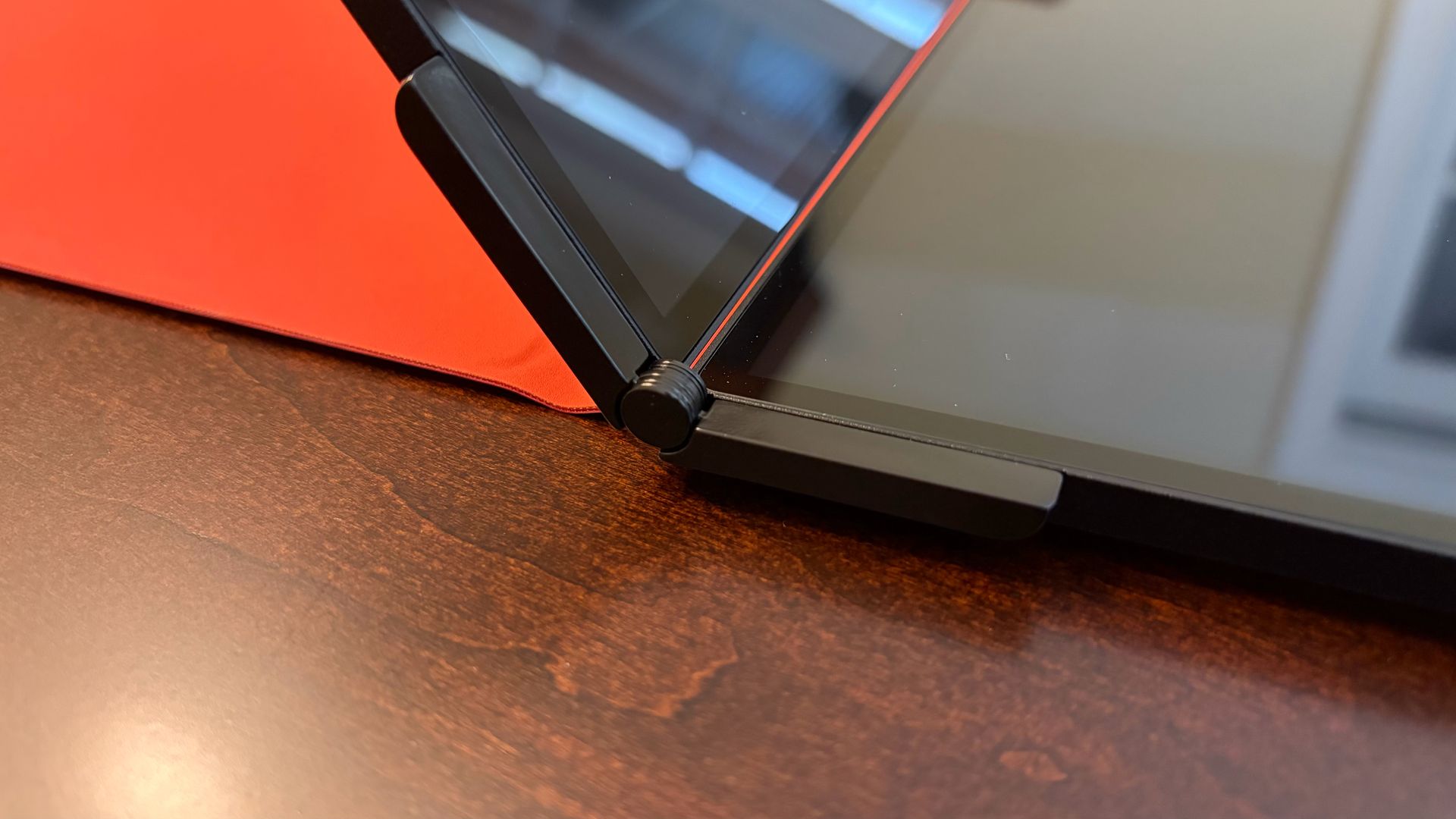
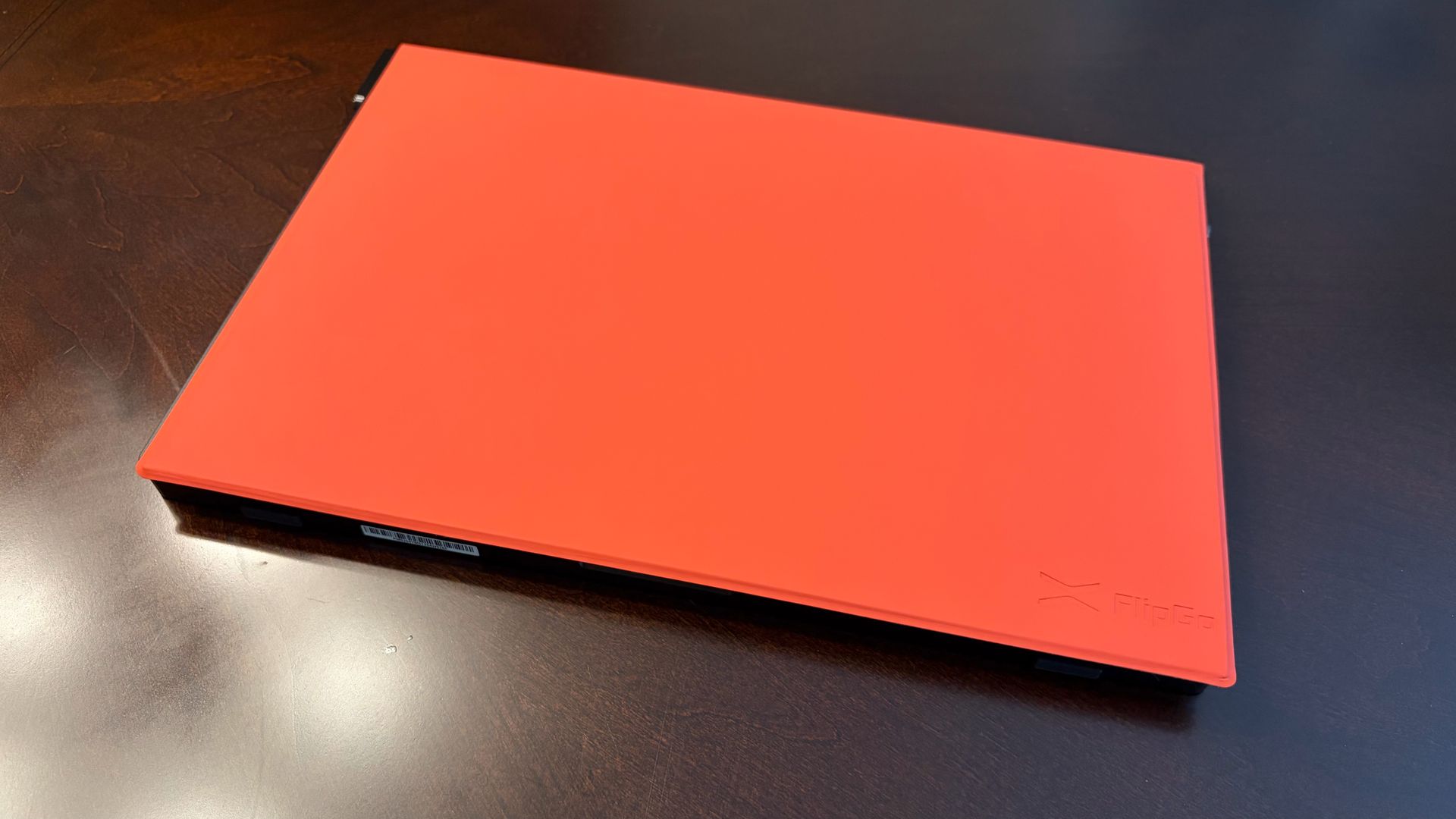
The choice of materials contributes to the 4+ pound weight of the FlipGo. JSAUX uses a thick aluminum chassis that resists flexing and feels incredibly premium to the touch. That premium feel even extends to the hinges that connect the two displays. They are robust, with no play, allowing you to easily open the FlipGo to whatever display angle you desire.
Tom's HardwareTom's HardwareFuture
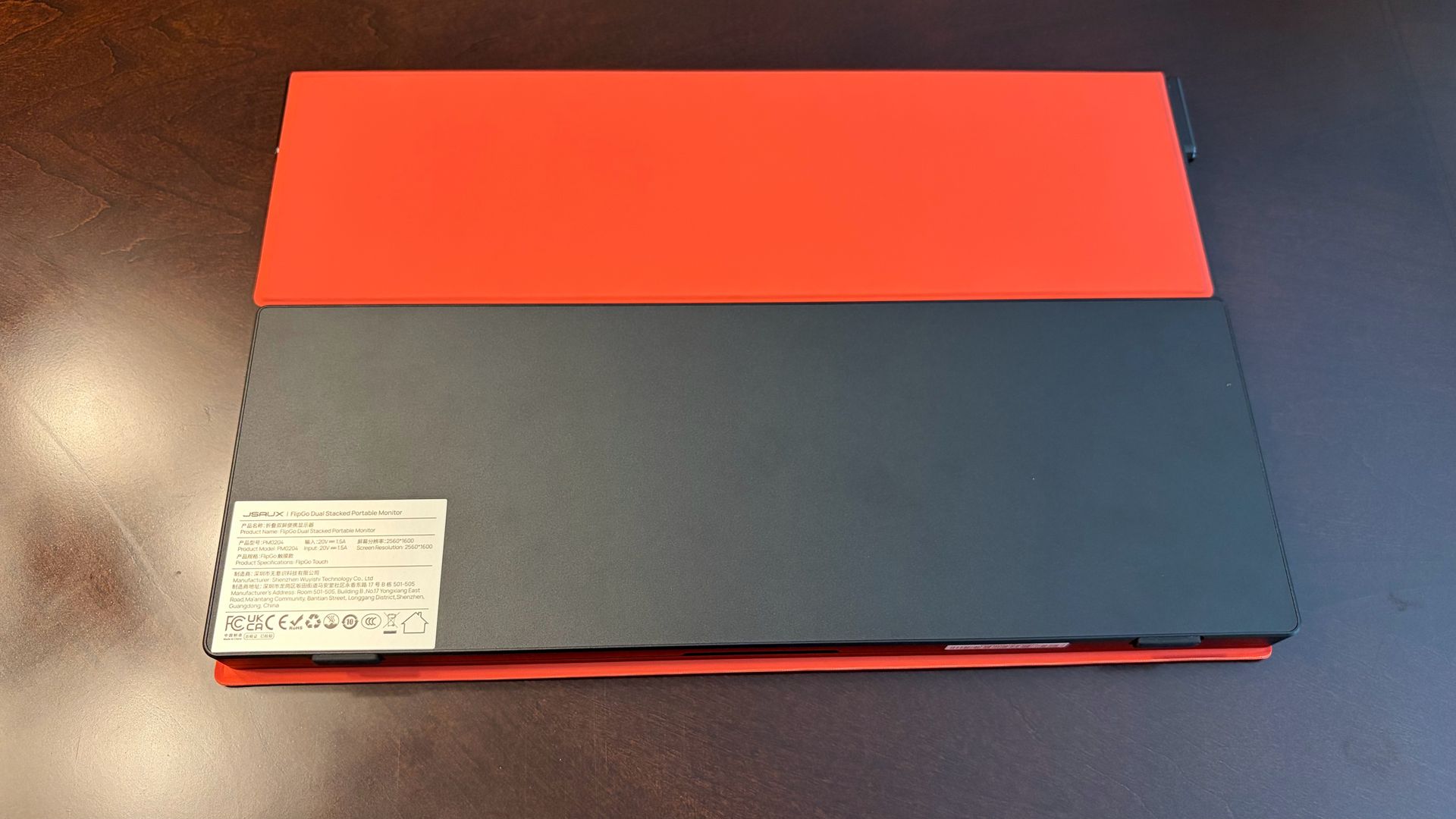
While JSAUX labels the FlipGo as a “portable” monitor, this is not something that you’ll be able to easily slip into a laptop bag or even a backpack. The dual 16-inch screen frame measures 14.41 x 9.45 inches and is 0.7 inches thick. For most people, the FlipGo will take up a permanent residence on your desk, or perhaps travel with you from one side of your office building to the other. But carrying it around for travel seems like a bridge too far.
With that said, the specs on the FlipGo are quite impressive. You get two 16-inch 60 Hz IPS displays, each with a resolution of 2560 x 1600. Considering that most competitors in this space give you dual 1920 x 1080 panels, this resolution upgrade is much appreciated here.
Both screens feature a glossy finish, which is uncommon for dual-screen monitors. However, that’s because both panels support 10-point touch input natively in Windows 11. Unfortunately, touch input is not supported in macOS, so you’ll want to consider the FlipGo (non-touch) if you’re a Mac user.
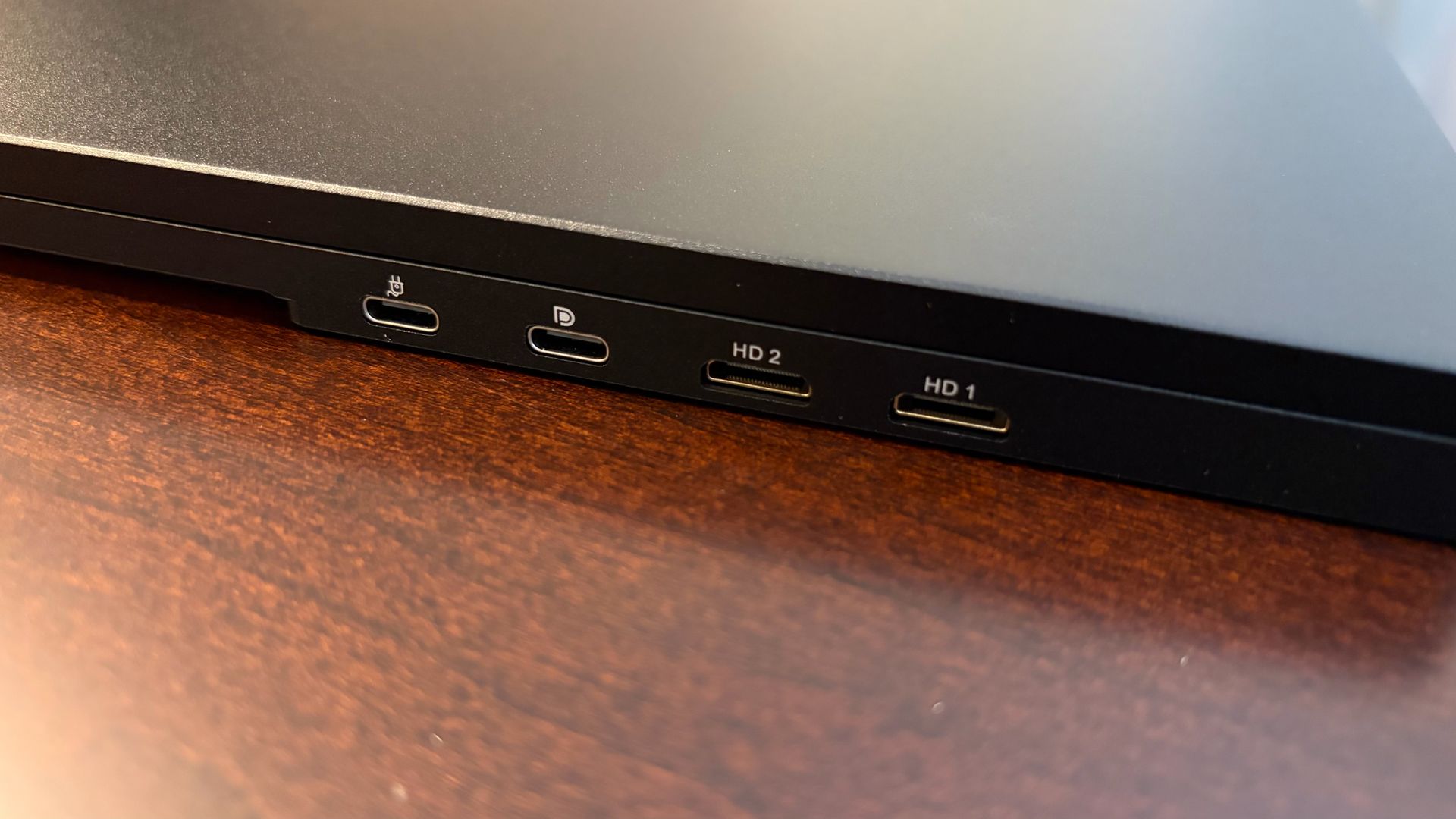
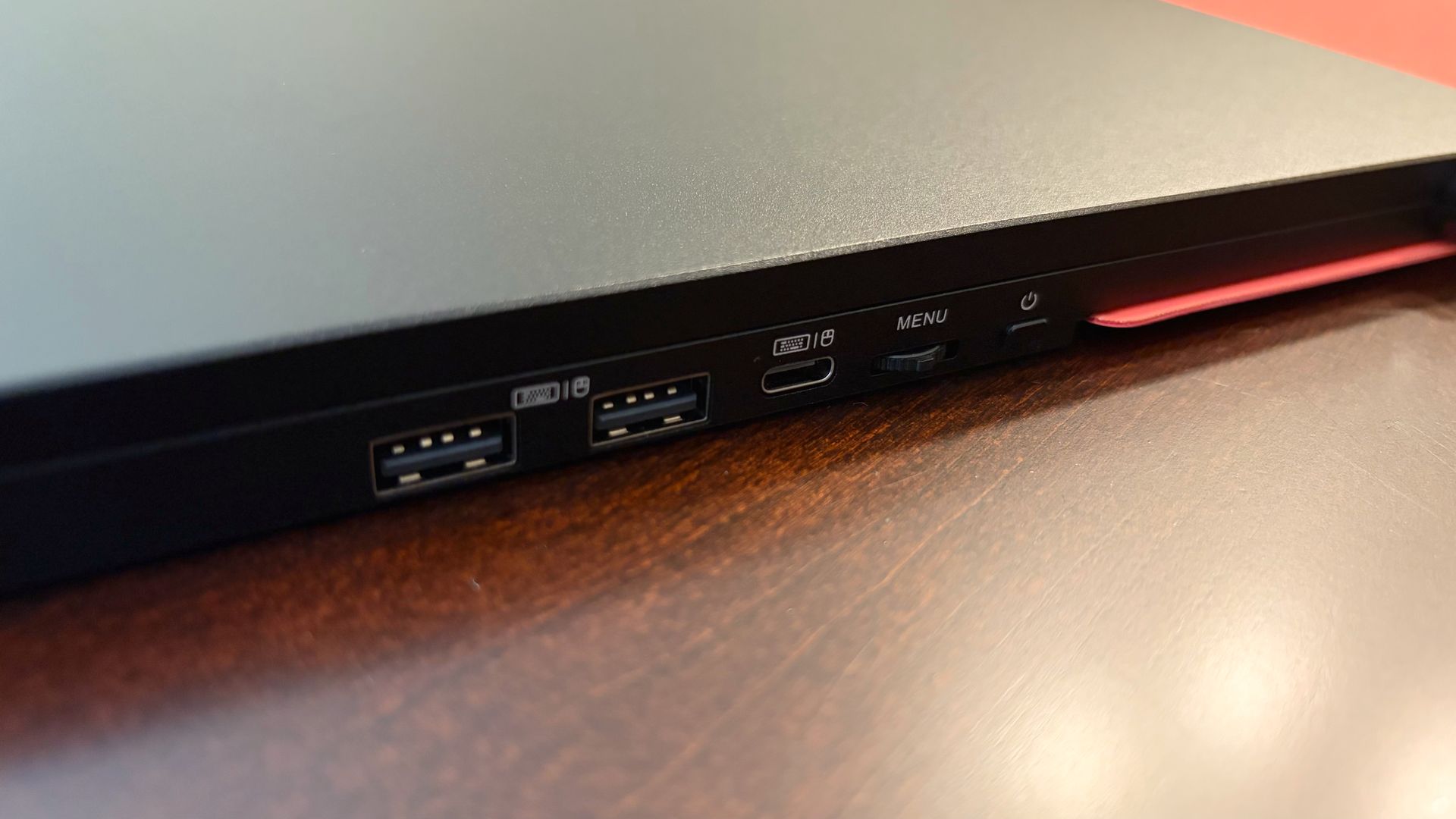
Connectivity-wise, the FlipGo’s primary ports are on the left side of the bottom panel. Here you’ll find two USB-C ports and two mini-HDMI ports. On the right side of the bottom panel, you’ll find ports provided by the internal USB hub: two USB-A and one USB-C. Adjacent to the USB hub hookups is a three-way jog wheel for the OSD and the power button.
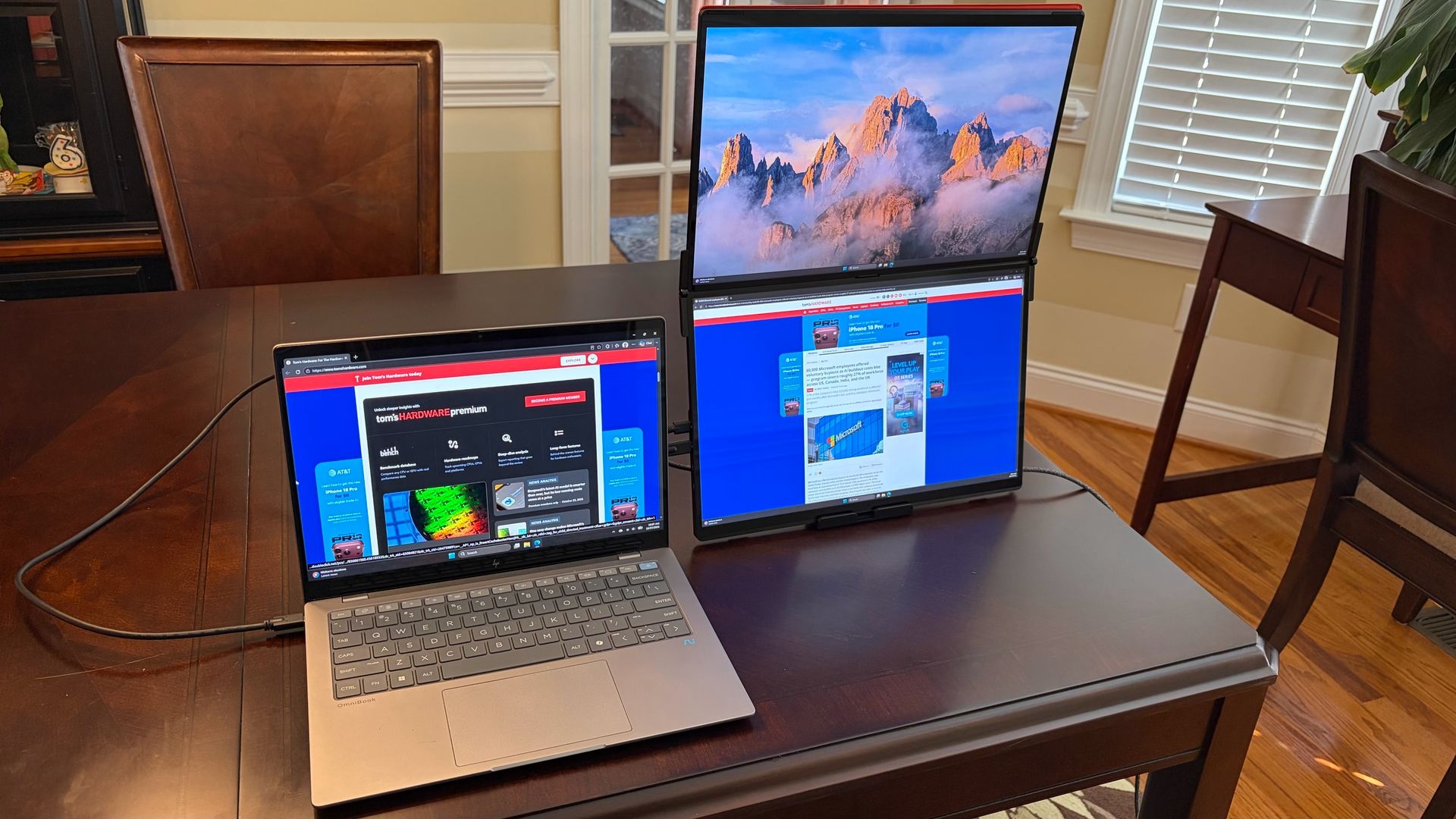
JSAUX offers a stand that allows you to prop the FlipGo up in landscape (one monitor stacked on top of the other) or portrait mode (both monitors standing up vertically, book-style).
JSAUX FlipGo (PM0204) Specifications
Panel Type / Backlight
IPS
Screen Size / Aspect Ratio
16 inches / 16:10 x2
Max Resolution & Refresh Rate
2560 x 1600 @ 60Hz
Typical Brightness
500 nits
Contrast Ratio Typical
1,200:1
Video Ports
2x USB-C, 2x micro-HDMI
USB Hub
2x USB-A, 1x USB-C
Speakers
None
Weight
4.18 pounds
Warranty
1 year
OSD on the JSAUX FlipGo (PM0204)
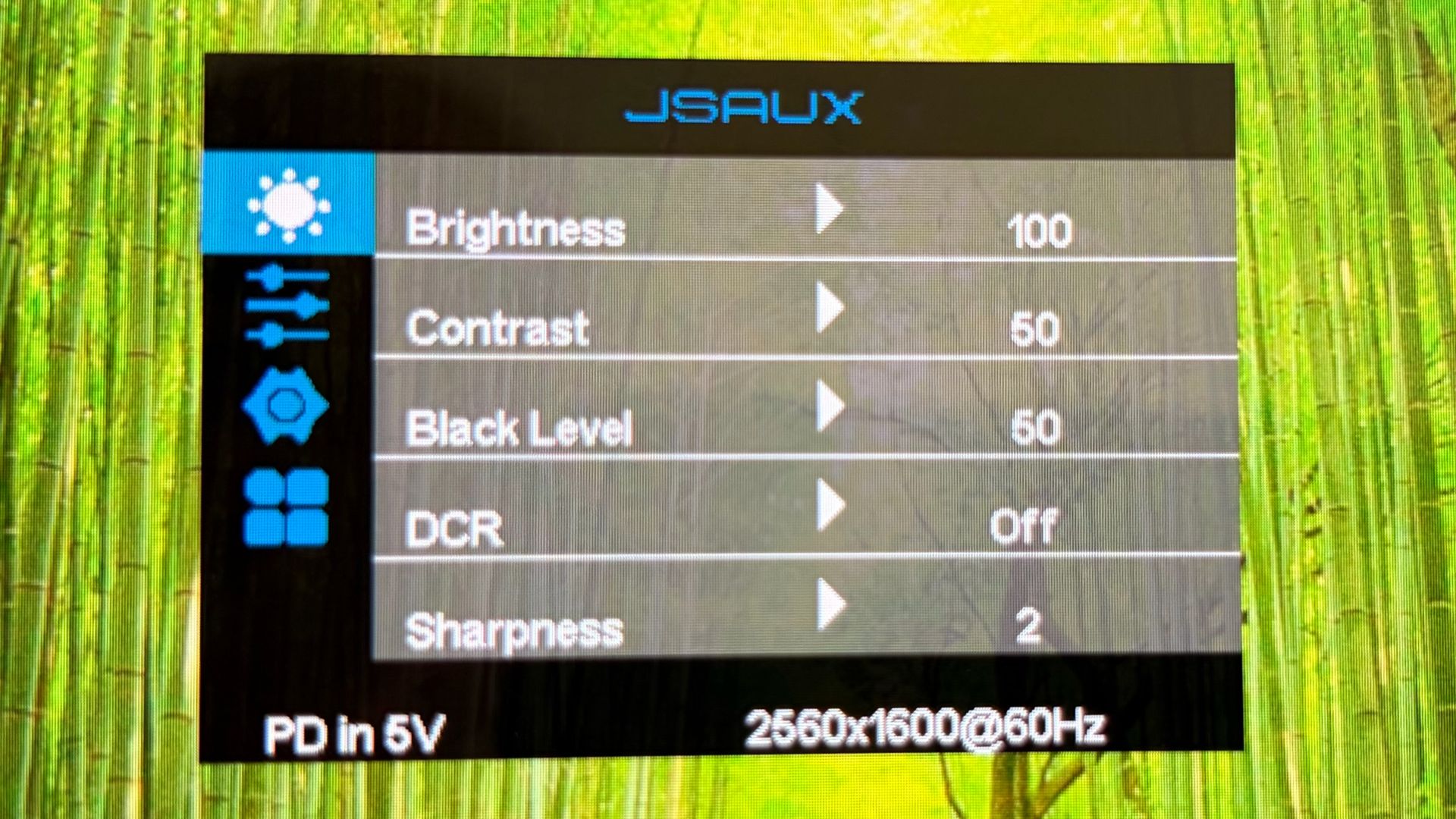
The FlipGo uses a relatively basic on-screen display (OSD), which is controlled using a three-way jog wheel. Despite there being two displays, you don’t have independent control over picture settings. Adjustments made on one display apply to both, for better or worse.
You can flick the wheel right or left to adjust brightness up or down. Moving up and down with the jog wheel navigates through the OSD, while pressing on it takes you one level deeper until you select an option (similar to the previously reviewed FlipGo Horizon Pro). Likewise, pressing once on the power button takes you back one menu, and a long press turns off the monitor.
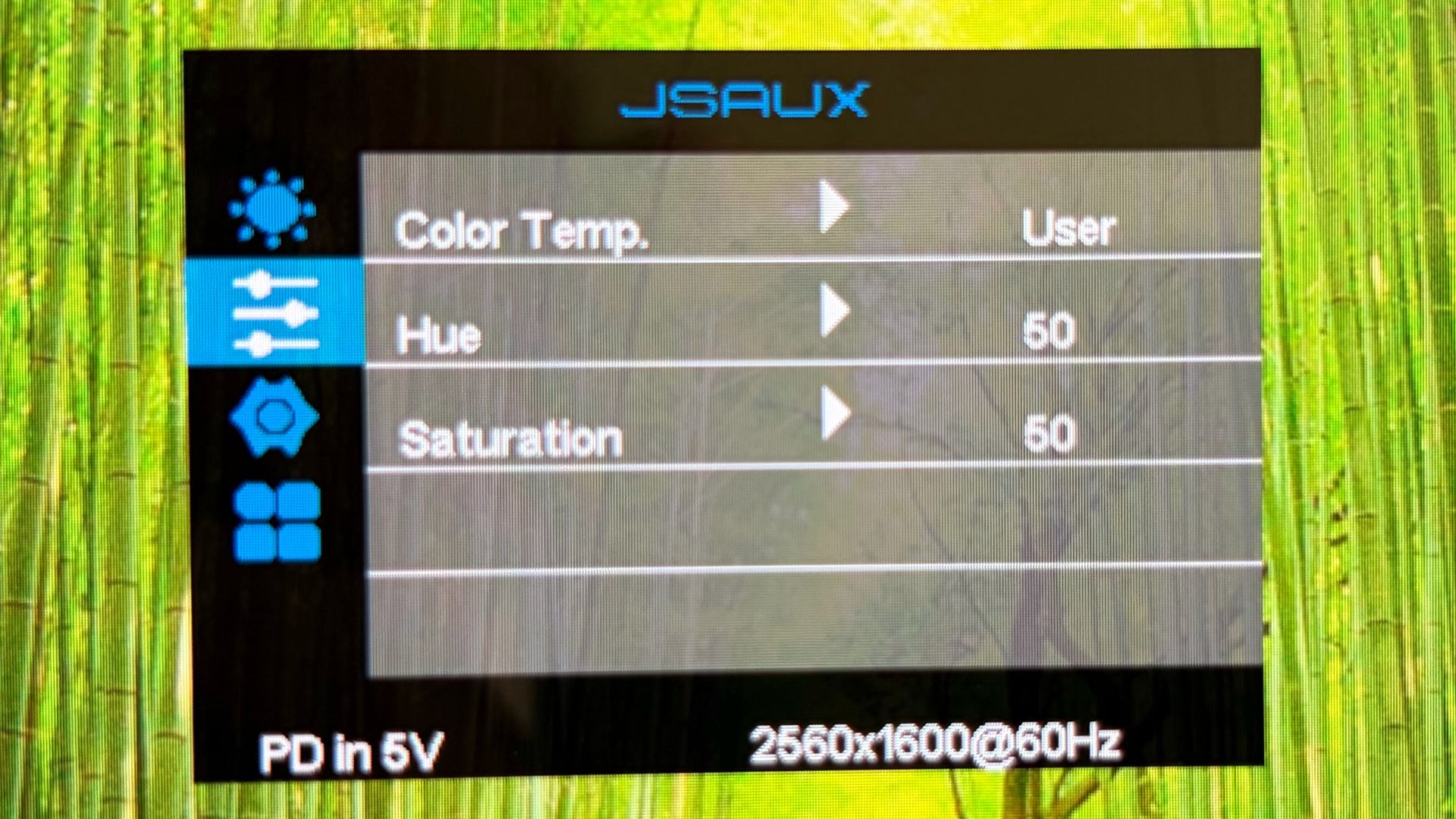
You’ll find the usual assortment of adjustable settings in the OSD, like brightness, contrast, and sharpness. There’s a separate menu for color temperature, saturation, and hue. There are also options to switch between HDMI and USB-C inputs.
Connecting and Operating the JSAUX FlipGo (PM0204)
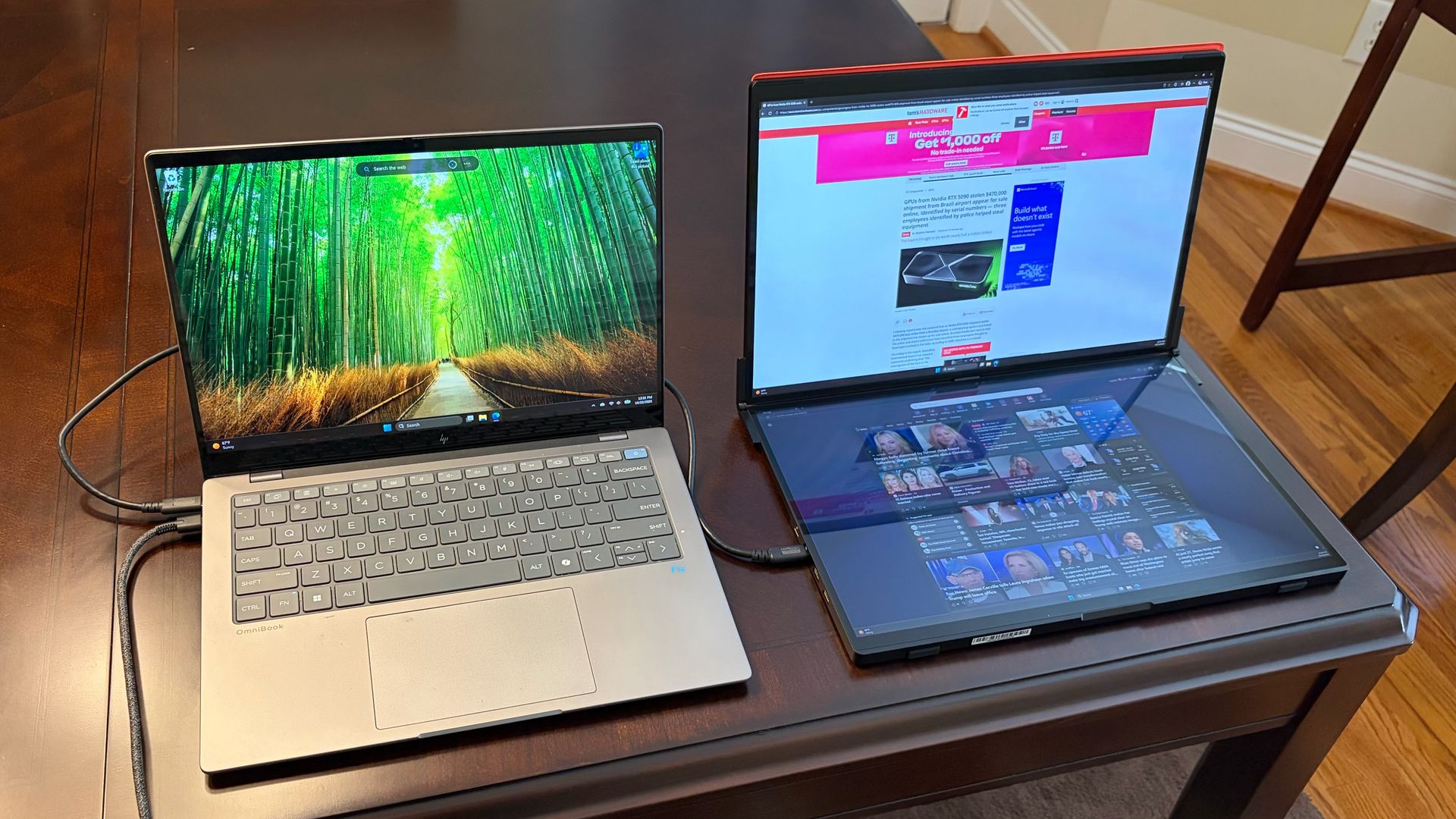
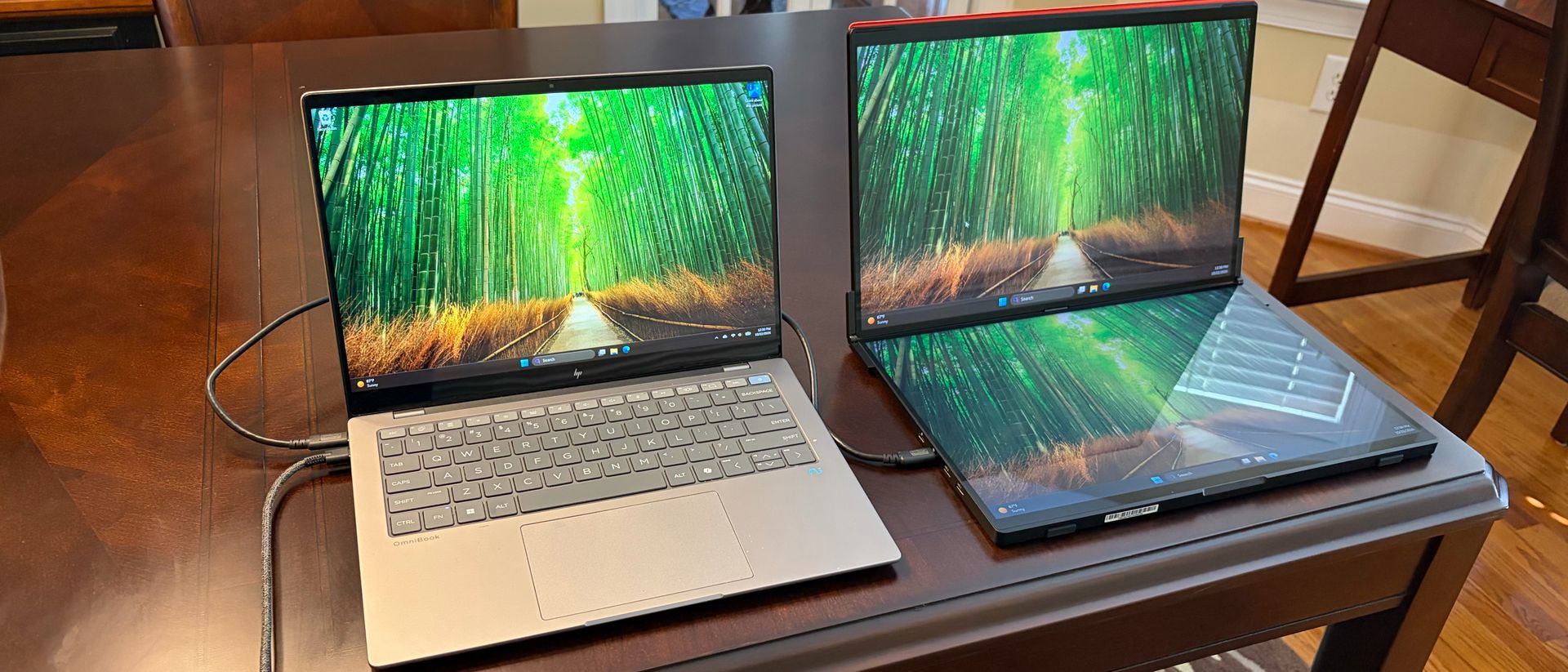
The FlipGo comes with an assortment of cables in the box. You get two USB-C cables, a mini-HDMI to HDMI cable, and a USB-C wall adapter. As I previously mentioned, the FlipGo does not support touch input on macOS. In addition, the FlipGo only supports mirror mode for both screens on macOS and requires you to use both USB-C and mini-HDMI to HDMI cables to connect (Windows 11 supports both mirror and extend modes). Because of these limitations and the fact that you’d be better off buying the cheaper non-touch model for macOS, I performed all of my testing with a Windows 11 laptop (HP OminiBook X).
Setting up the FlipGo couldn’t have been easier. Although JSAUX includes two mini-HDMI ports on the FlipGo for use with older laptops, if you have a USB-C port that supports DisplayPort, you can use that instead. With my OmniBook X test laptop, I was able to use just one USB-C cable to handle both power and video/data for the FlipGo. The FlipGo also supports 60-watt power passthrough to your laptop, which you can leverage by running dedicated power through the second USB-C port.
Tom's HardwareTom's Hardware
Using just a single cable between the FlipGo and the OmniBook X, I primarily used the two displays in portrait mode. In this mode, I could have two separate webpages open, side-by-side next to the OmniBook X’s internal panel. Landscape mode is also possible with the included stand.
Touch support functioned, as expected, on both panels without needing to install any additional software. In short, the FlipGo operated flawlessly.
Display Performance on the JSAUX FlipGo (PM0204)
The FlipGo uses two 16-inch IPS panels, each with a resolution of 2560 x 1600 and a refresh rate of 60 Hz. JSAUX listed maximum brightness at 500 nits, but as you’ll see with our test numbers below, that figure was quite optimistic.
The large panel sizes combined with the extra resolution over 1080p panels made them ideal for putting two webpages side-by-side. More frequently, I found myself pairing a webpage with an instance of Microsoft Word or Microsoft Excel. I especially appreciated the extra vertical resolution to limit scrolling up and down in Excel.
(Image credit: Tom's Hardware)
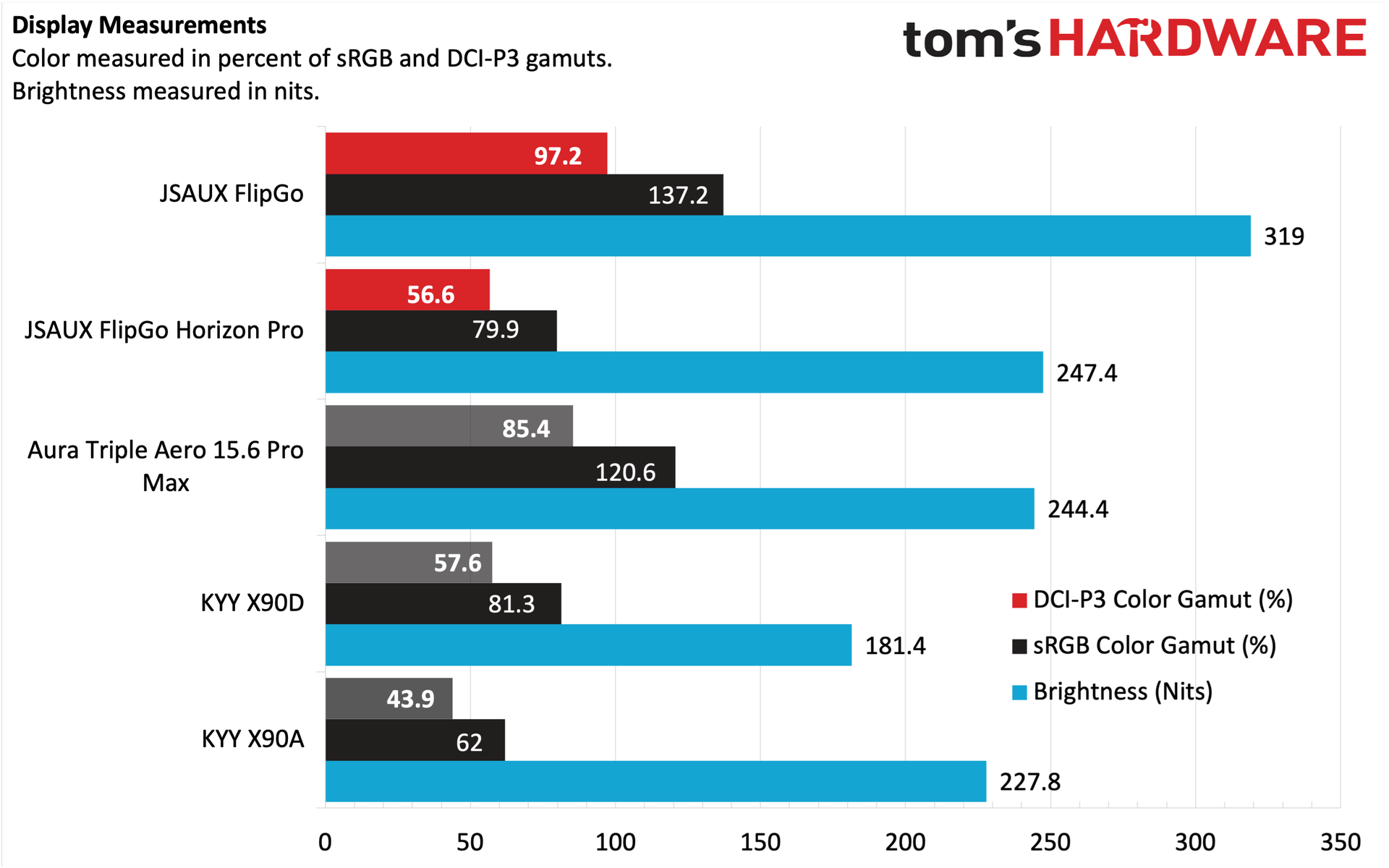
Compared to the FlipGo Horizon Pro that I previously reviewed, the panels on the “regular” FlipGo were far superior. Not only were they much more colorful and vibrant, but they were also vastly superior in brightness (319 nits versus 247.4 nits). However, I must note that the 319 nits that we recorded were a far cry from the 500 nits that JSAUX claims.
For our color tests, the FlipGo covered 97.2 percent of DCI-P3 and 137.2 percent of sRGB color spaces. That put the FlipGo well ahead of its competition, with the Aura Triple Aero 15.6 Pro Max coming the closest (at 85.4 percent and 120.6 percent, respectively). Given the higher-quality panels on the FlipGo compared to the FlipGo Horizon Pro and the glossy finish on my OmniBook X’s display, overall color balance matched pretty well across all three displays, adding to the enjoyment of using the portable monitor. I’ve often found that portable monitors have slightly (and sometimes far) inferior panels than their laptop counterparts, which can lead to a jarring experience when looking from one to the other. That is definitely not the case with the FlipGo.
Bottom Line
The JSAUX FlipGo is a remarkable piece of hardware for productivity warriors. At first sight, the FlipGo impresses with its high-quality build, stiff hinges, and plentiful video input options. JSAUX even incorporates a USB hub that gives you a couple of USB-A ports and a USB-C port to expand your peripheral footprint.
The FlipGo also tops the charts when it comes to color performance and brightness, more than justifying its $479 street price. I have just one complaint: the 4.18-pound weight is considerable and is probably a bit more than most people are willing to deal with when traveling. However, it makes a perfect companion for expanding real estate on your desk without the massive footprint that comes with hooking up a traditional desktop monitor.
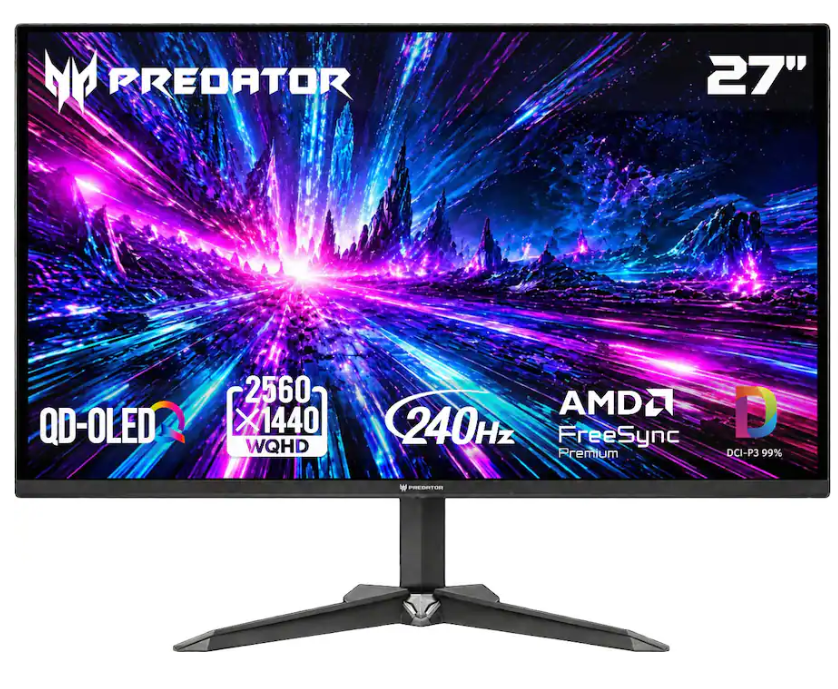
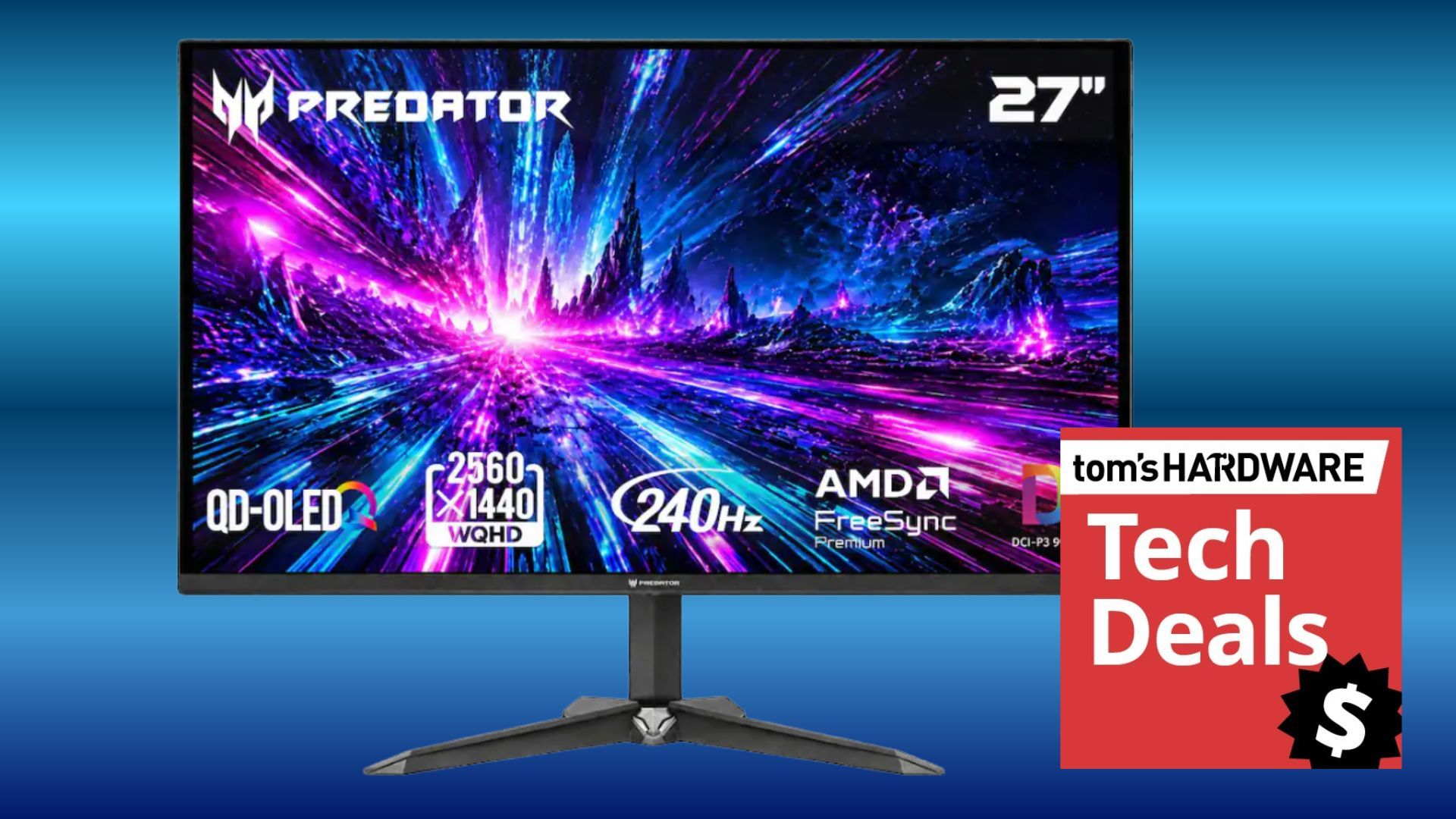
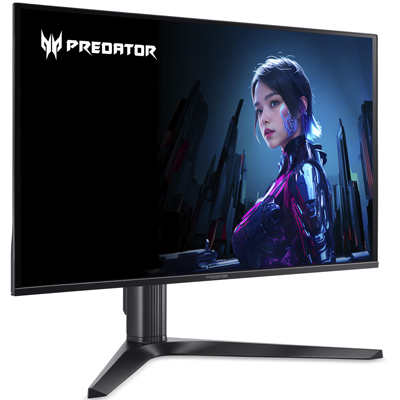
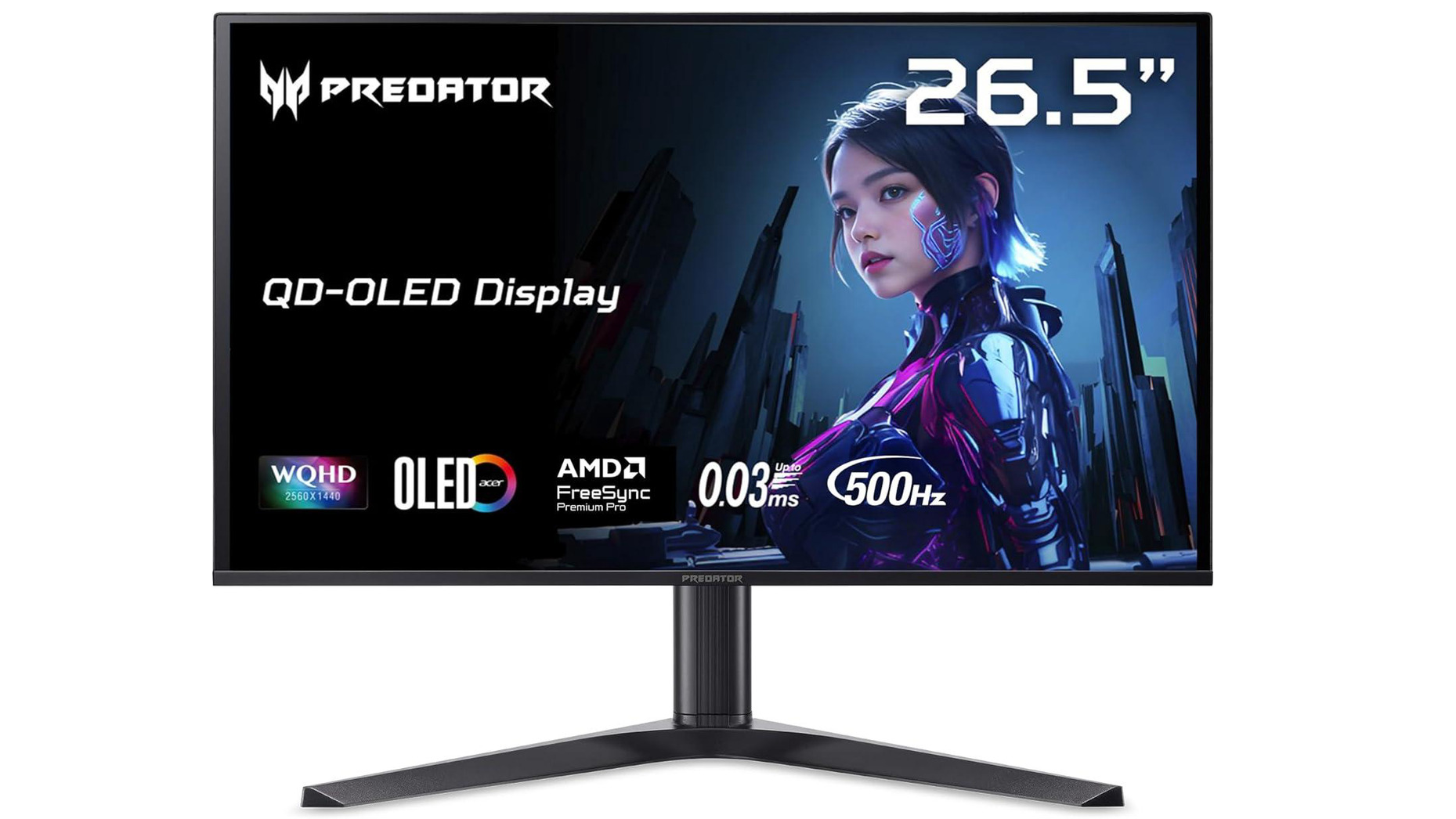
If you've been thinking about making the transition from an IPS monitor to an OLED display to upgrade your gaming setup, today's deal is a great way to pick up a new QD-OLED screen for a great price. Save $50 at Best Buy on Acer's 27-inch Predator XB27OU QD-OLED gaming monitor, now only $329.99, a great price for onboarding the latest technology into your gaming setup. Experience gorgeous inky blacks and eye-popping colors with the amazing contrast offered by QD-OLED displays, perfect for accentuating your favorite games.
The Acer Predator XB27OU has a max resolution of 2,560 x 1,440 pixels; it's a QHD (2K) display that's superb for a mid-range gaming PC where the graphics card shouldn't struggle too much to meet the frame rate and resolution requirements. It has a very fast 240Hz refresh rate for seamless gaming, and thanks to the OLED tech, the gray-to-gray response time is a staggeringly low 0.03ms, giving your games very smooth motion and avoiding ghosting compared to slower monitors. This monitor also fully supports AMD's FreeSync Premium tech, so you can match the refresh rate of the monitor to the frame rate of your games to eliminate screen tearing completely, for a much better gaming experience.
Predator XB27OU 27-inch QD-OLED Gaming Monitor: was $379.99 now $329.99 This Acer Predator XB27OU display features a gorgeous 26.5-inch QD-OLED panel with a crisp 2,560 x 1,440 resolution. A super-low 0.03 ms response time and 240Hz refresh rate make the Acer Predator XB27OU a great option for fast-paced gaming, with AMD FreeSync support to eliminate screen tearing.View Deal
Let's not forget about the other great aspect of QD-OLED displays - the color representation. The Acer Predator XB27OU sports an impressive 99% DCI-P3 color gamut, a Delta E
You can connect your gaming PC and even a couple of game consoles thanks to the inclusion of two HDMI 2.1 ports and a DisplayPort 1.4 port. Plenty of connections for the ultimate gaming battlestation.
If you're looking for an extra monitor screen for your setup, today's deal offers an amazingly cheap solution. Whether you want to have another screen to read your Discord chat while gaming, or view your Slack messages whilst working, this 25-inch LG UltraGear G5 is the answer at just $79. It's a hard price to beat, especially when Walmart has knocked a staggering 47% off the $149 list price. Any screen at $79 is a pretty good price, but when it comes with these specifications, you can't ignore how good a deal this is. If you don't need a second or third screen, this has the refresh rate to make an ideal main monitor for esports-centric gaming.
The LG UltraGear G5 is a flat-panel gaming monitor with an IPS panel measuring 25 inches diagonally. It sports a 1920 x 1080 pixel (FHD) resolution and has a fast refresh rate of 200Hz, with a gray-to-gray response time of 1ms. The monitor also supports Nvidia G-Sync and AMD FreeSync for enhanced tear-free gaming by matching the refresh rate of the monitor to the frame rate of the game you're playing. There's also HDR10 certification and up to 99% sRGB color gamut on the IPS panel.
UltraGear G5 25-Inch FHD Gaming Monitor (200Hz): was $149 now $79 LG's UltraGear G5 is a flat-panel gaming monitor with an IPS panel measuring 25 inches diagonally. It sports a 1920 x 1080 pixel (FHD) resolution and has a fast refresh rate of 200Hz, with a gray-to-gray response time of 1ms. A great monitor choice for esports gaming or as an extra screen for your desktop setup. View Deal
LG's superb UltraGear monitor also comes with plenty of connectivity ports to easily combine it with your existing desktop setup. You can also choose to connect the screen to multiple devices, including your favorite game consoles. Laptop, docks, and anything else with a compatible video port. There are 2 x HDMI ports, 1 x DisplayPort, and a 3-pole headphone input for connecting some headphones or speakers.
In the evolution of gaming monitors, there is nothing more significant than the advent of G-Sync and FreeSync (AKA, Adaptive-Sync or VRR). By syncing the video card output and monitor refresh rate in real time, all frame tearing and stuttering are eliminated. But there is one thing this tech cannot fix – motion blur.
LCD panels continuously display each frame until the next one arrives. This inevitably results in blur unless frame rates are very high. At least 500Hz is needed to truly call LCD motion resolution perfect. How to combat this? Well, you can buy one of the best OLED gaming monitors, which has a much faster panel response. You could employ overdrive, where the LCD panel anticipates the next frame. It’s also known as overshoot. If done precisely, that eliminates nearly all blur. Or you can insert a black frame by strobing the backlight. But this reduces light output.
Earlier this year, I reviewed my first G-Sync Pulsar display, the Acer XB273U F5. G-Sync Pulsar syncs the backlight’s LED array with the frame rate in real time. It’s a form of strobing but without the brightness penalty. And it’s the only way an LCD can achieve perfect motion resolution, i.e., when moving objects are as clear as stationary ones.
Thought of another way: an OLED pixel, or an LED, can flash 20,000 times per second. The TFT layer of an LCD panel is fast if it can flash 500 times per second.
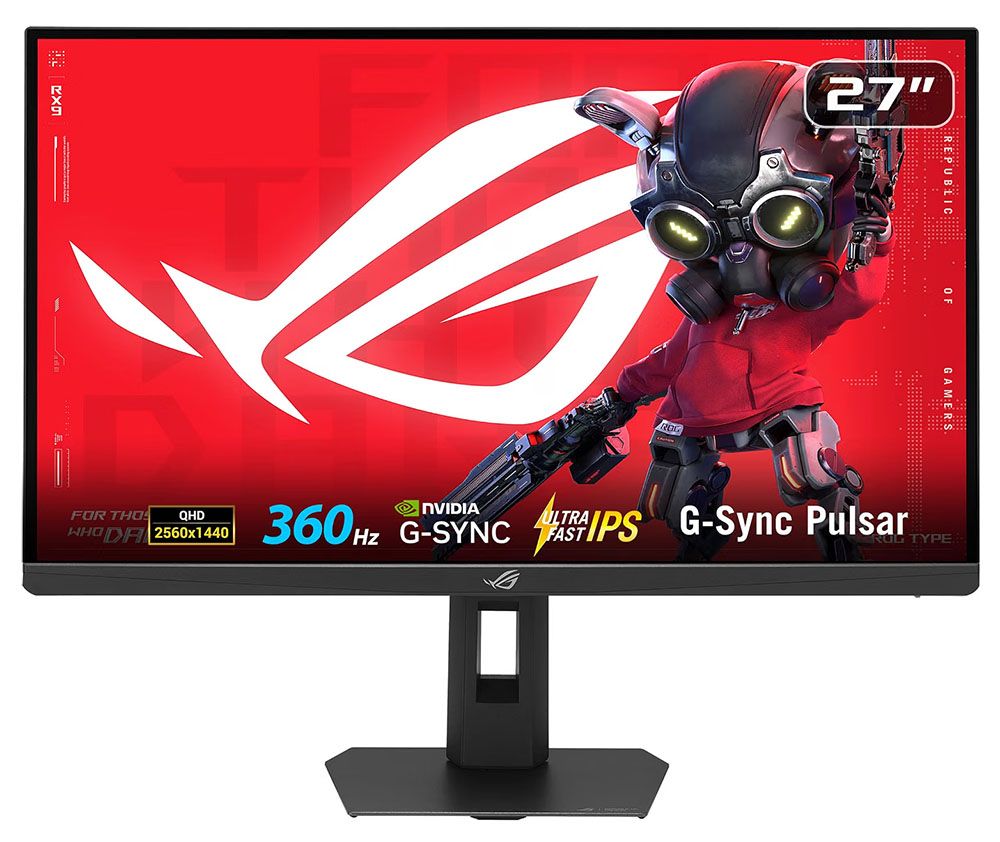
Today, I’m reviewing another G-Sync Pulsar monitor, Asus’ ROG Strix XB27AQNGV. It’s a 27-inch QHD IPS panel with 360 Hz, HDR, and wide gamut color. Let’s take a look.
Asus ROG Strix XG27AQGNV Specs
Panel Type / Backlight
IPS / W-LED, edge array
Screen Size / Aspect Ratio
27 inches / 16:9
Max Resolution and Refresh Rate
2560x1440 @ 360 Hz
G-Sync Pulsar
FreeSync Compatible
Native Color Depth and Gamut
10-bit / sRGB+
Response Time (GTG)
1ms
Brightness (mfr)
500 nits
Contrast (mfr)
1,000:1
Speakers
None
Video Inputs
1x DisplayPort 1.4
2x HDMI 2.1
Audio
3.5mm headphone output
USB 3.2
1x Type-B upstream
3x Type-A downstream
Power Consumption
46.5w, brightness @ 200 nits
Panel Dimensions
WxHxD w/base
24.17 x 15.5-19.75 x 7.4 inches
(614 x 394-502 x 188mm)
Panel Thickness
3.4 inches (86mm)
Bezel Width
Top/sides: 0.31 inch (8mm)
Bottom: 0.83 inches (21mm)
Weight
14.33 pounds (6.5kg)
Warranty
3 years
As a ROG Strix display, the XB27AQNGV is a little less expensive than the ROG Swift line and gives up only a few minor features. Anything pertaining to game performance is included. The max refresh rate is 360 Hz at QHD 2560x1440 resolution. The panel is IPS, or as Asus calls it “Ultra-Fast IPS”. And it is, as you’ll see in my Nvidia LDAT tests on the next page. G-Sync Pulsar is there with low frame rate compensation that eliminates flicker when speeds drop. You also get a traditional overdrive with three presets and a user control with 400-step precision.
Color-wise, the XB27AQNGV can be considered wide gamut, but it doesn’t quite achieve full coverage of DCI-P3. I’ve termed it an sRGB+ display because it covers around 120% of sRGB with bonus color across the board. For tweakers who like to calibrate, there is a super cool gamma control that lets you move the luminance curve in 0.01 increments rather than the usual five or six presets that differ by 0.2. You can also dial in the color temperature with precise RGB sliders. And the brightness adjuster is graduated in nits for fine control.
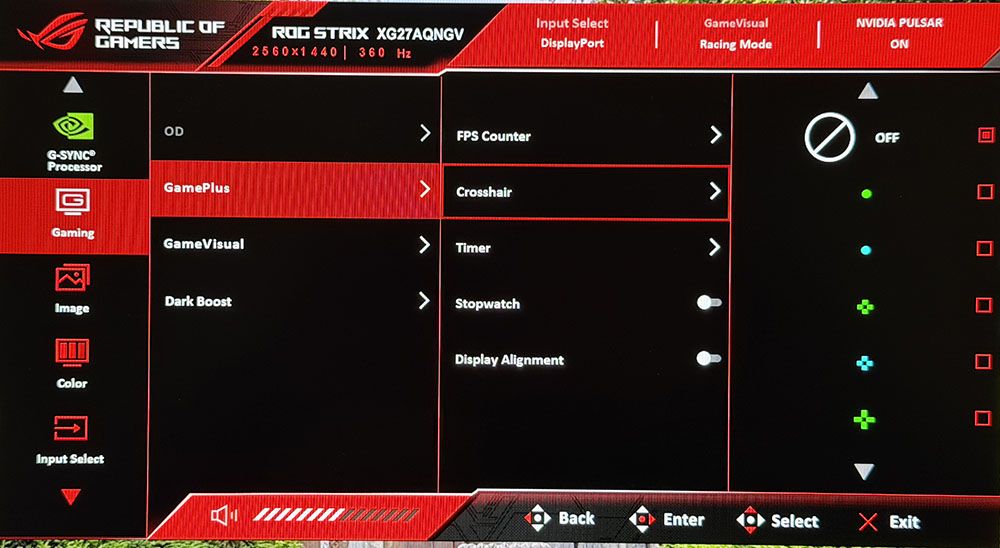
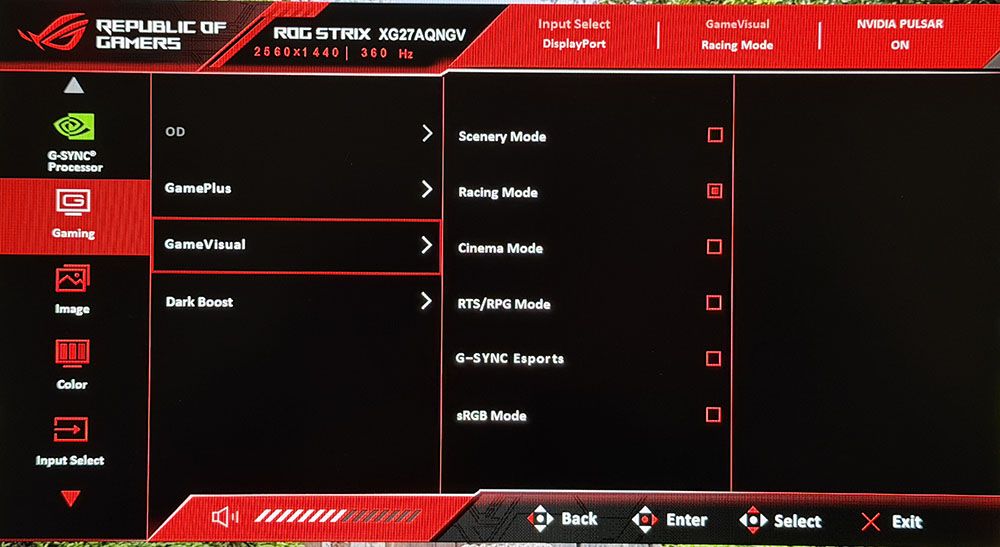
For extras, the XB27AQNGV has a full suite of GamePlus options with aiming points, frame counters, timer, stopwatch, and alignment marks. And there are six picture modes including sRGB and G-Sync Esports. LED lighting comes with a backlit ROG logo and the full set of Aura RGB and Sync options. A handy joystick and four control keys provide access to everything, or you can use the top-mounted ambient light sensor for automatic control of color and brightness.
The XB27AQNGV is selling for $500 at this writing, which is closer to premium than most 27-inch QHD screens. But it’s one of only four monitors that offer G-Sync Pulsar, and if you don’t want to buy an OLED, it’s the only LCD variant that is as smooth and responsive.
Assembly and Accessories
The XB27AQNGV ships in a plain brown carton with the words “For Those Who Dare” stenciled on the side. Dare to what? I cannot say. But I dared to open it and found the monitor packed in crumbly foam (hate that stuff). The upright is already attached, so all that needs doing is to attach the base with a captive bolt. To expose the inputs, remove the snap-on plastic cover. The cables and external power supply come in a zippered pouch and include DisplayPort and USB.
Product 360
AsusAsusAsusAsus
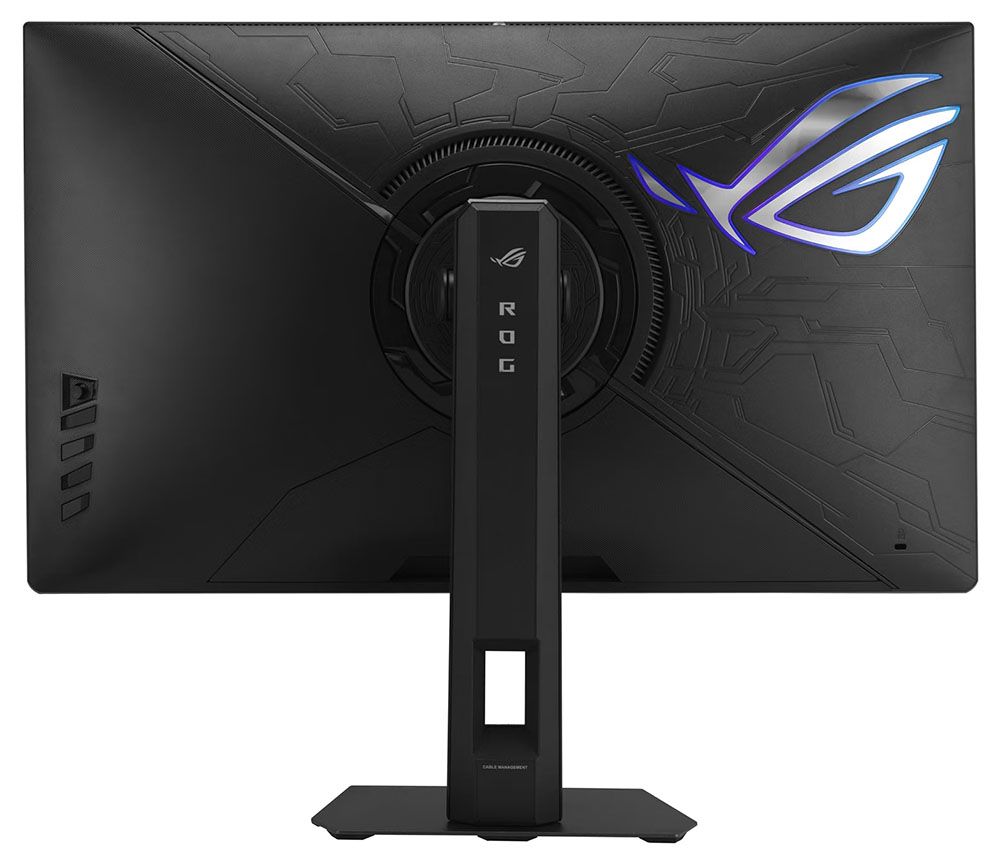
The XB27AQNGV doesn’t show much from the front besides the screen. The bezel is 8mm thin with a flush mount and a wider trim strip across the bottom adorned with a small ROG logo. The base is a solid metal plate with a small and stable footprint. The upright includes a cable hole to keep wires tidy. Ergonomics include 5/20 degrees tilt, 45 degrees swivel, a 90-degree portrait mode, and 4.25 inches of height range. Movements are very stiff with no hint of play. The XB27AQNGV will stay put even when you’re shaking things up on the virtual battlefield. On top of the stand is a quarter-inch threaded socket for things like webcams and other peripherals. Also on top is the ambient light sensor, which can automatically adjust brightness and color temperature.
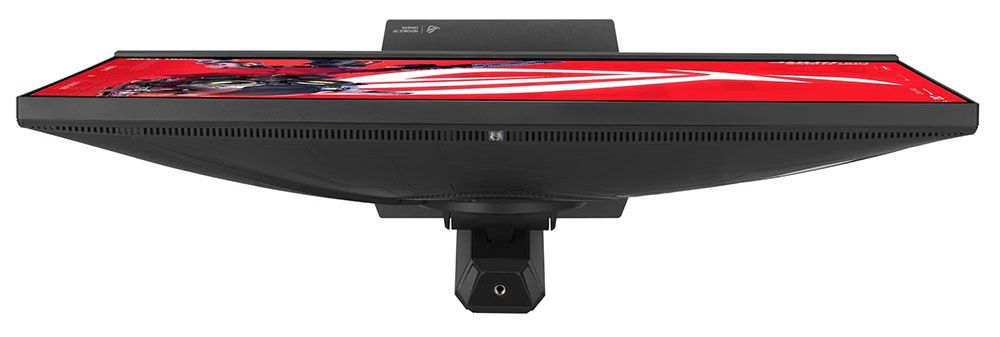
Around the back right is the OSD joystick and three control keys plus a power toggle. Two of the keys can be programmed by the user. The large ROG logo is backlit with a glowing border around a reflective material. You can see in the photo that the panel’s back is smoothly tapered left to right and top to bottom.
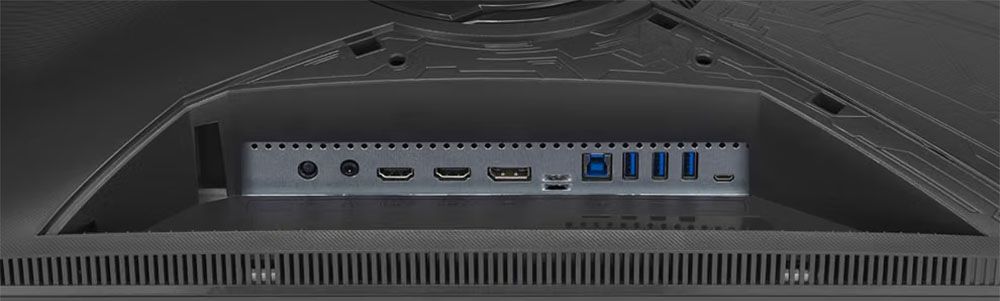
The input panel is hidden under a cover with a small hole to let the cables out. It’s a little tricky to plug in large connectors because the ports are very recessed. I/O options include a DisplayPort 1.4 with Display Stream Compression (DSC), two HDMI 2.1 ports, a 3.5mm headphone jack, and a large array of USB ports. There’s a USB-B upstream and three USB-A downstream.
OSD Features
Press the XB27AQNGV’s joystick and a large OSD appears. You can move it to a corner if you like. It’s divided into eight sections.
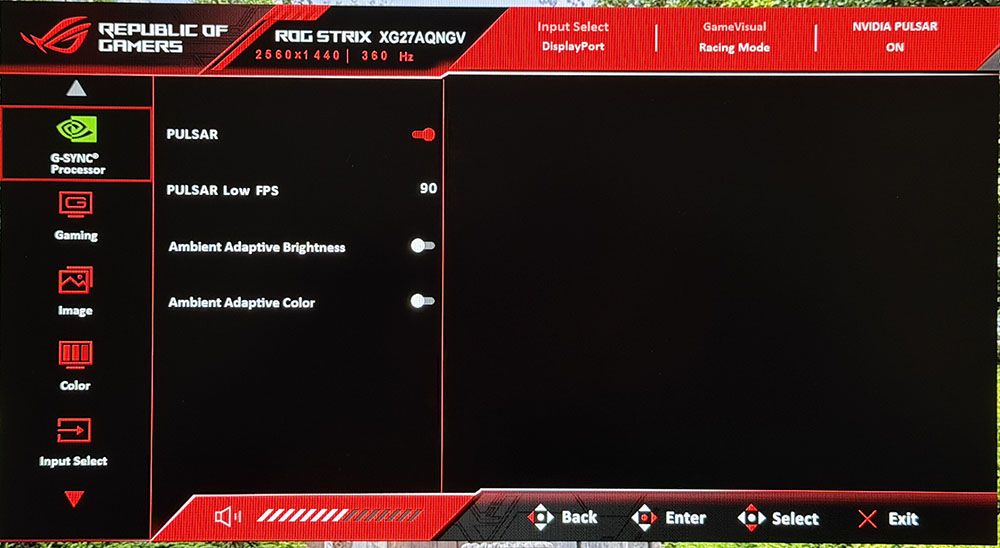
First up is the G-Sync Processor and Pulsar options. You can toggle the feature off if you prefer overdrive. Remember that there is no ELMB here because it’s part of the Pulsar technology. This menu also has toggles for adaptive brightness and color, which are controlled by the top-mounted sensor. The Gaming menu continues with a three-level overdrive which becomes active when you turn off Pulsar. You can also adjust the amount of overshoot with a 400-step slider. The suite of GamePlus options includes a frame counter, aiming points, timer, stopwatch, and display alignment marks. GameVisual is the six picture modes. The default and best option there is Racing. You can engage an sRGB mode as well.
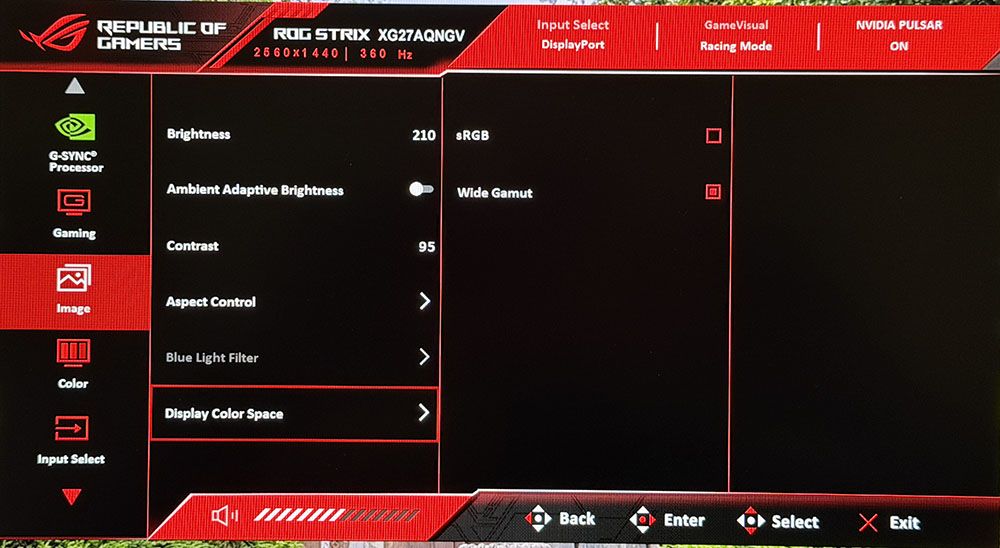
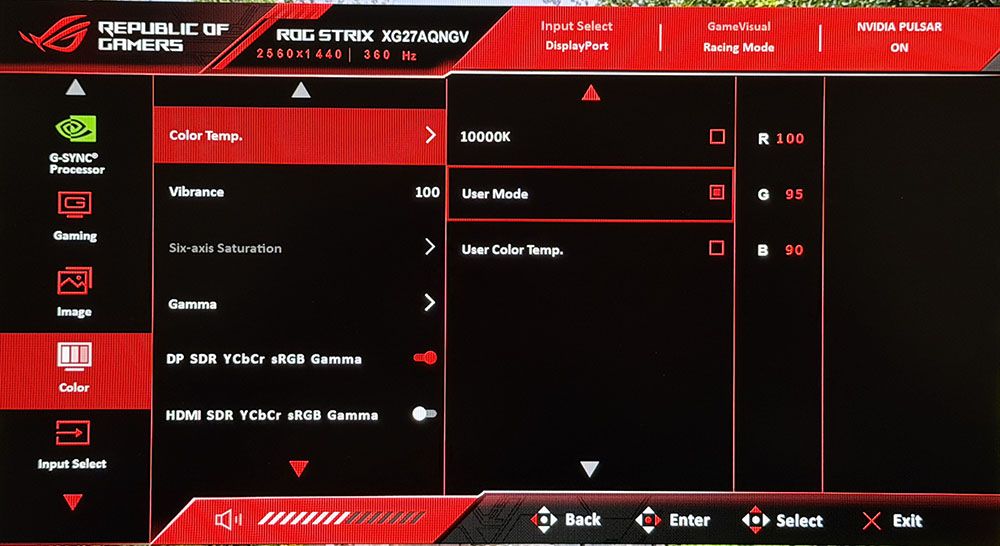
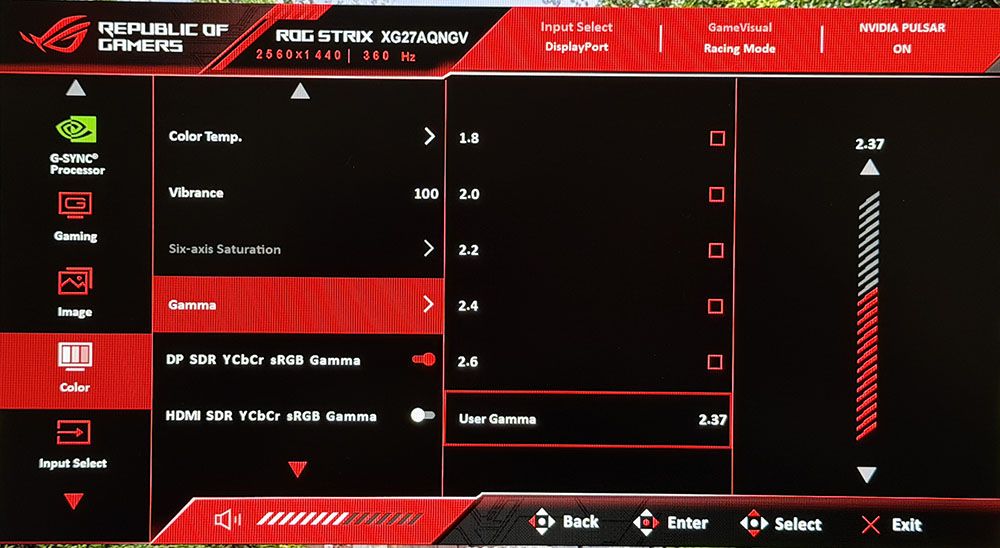
The Image menu has the luminance controls along with a redundant toggle for adaptive brightness. The color space options are sRGB and wide gamut, which is around 120% of sRGB. In the Color menu are preset color temps plus a very precise set of RGB sliders. The gamma control is something that I hope to see imitated by others because it is the most useful way to achieve precise gamma. Typically, there are five or six presets that are 0.2 apart, making gamma adjustments very coarse. You can almost never land right on 2.2 that way. The XG27AQNGV has a user gamma slider that moves in 0.01 increments. And that’s a good thing because the 2.2 preset is lighter than 2.2. You can read more about this on page four.
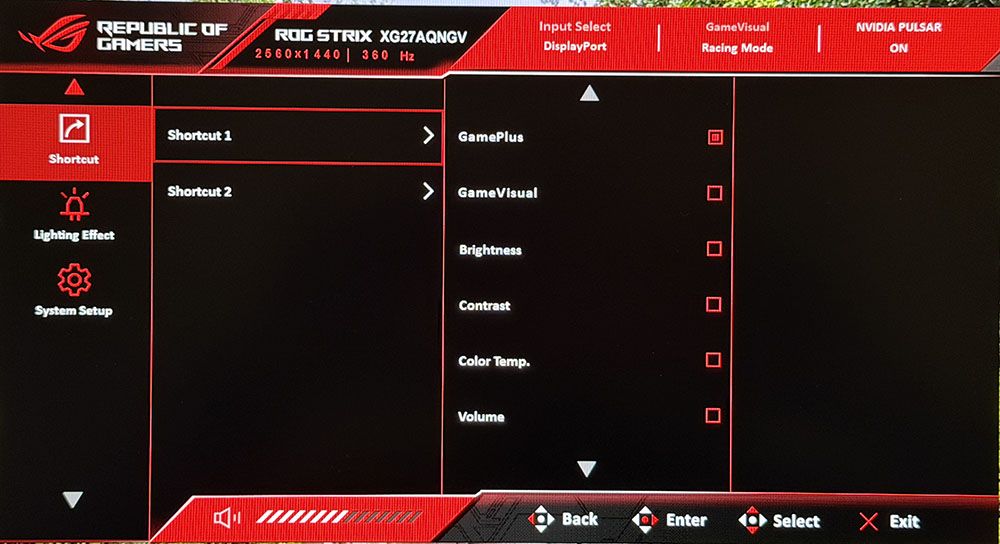
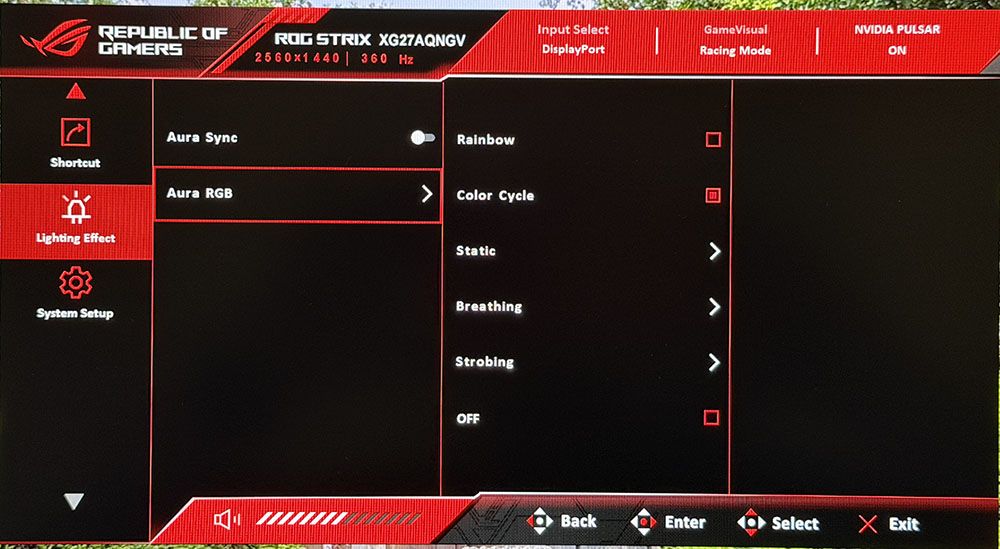
Two of the control keys can be set to one of seven different functions for easy access to picture modes, GamePlus, and others. The Lighting Effect menu has options for Aura Sync, where the LEDs change along with screen content. Or you can choose an effect and color using Aura RGB. This pertains to the backlit ROG logo in the back.
Asus ROG Strix XG27AQNGV Calibration Settings
The XG27AQNGV comes out of the box with decent grayscale tracking, but its default gamma is too light. With a few tweaks to the RGB sliders and changes to the user gamma (coolest thing ever!), I achieved near-perfection. The color gamut is a bit larger than sRGB but smaller than DCI-P3. You can choose between gamuts in the Display Color Space sub-menu. I recommend choosing this rather than the preset sRGB mode because that way, you can still calibrate. I also reduced contrast to solve a clipping issue that affected HDR luminance tracking. You can see the two recommended settings in the table below.
Picture Mode
Racing
Brightness 200 nits
210
Brightness 120 nits
128
Brightness 100 nits
107
Brightness 80 nits
86
Brightness 50 nits
55 (min. 45 nits)
Contrast
95 (HDR Contrast 110)
Gamma
2.37
Color Temp User
Red 100, Green 95, Blue 90
Gaming and Hands-on
Gameplay on the XG27AQNGV is instantly addictive. Though it doesn’t have the deep contrast and vivid color of an OLED, its motion quality and responsiveness are indistinguishable from that premium technology. G-Sync Pulsar is truly a game changer for LCDs.
Playing Doom Eternal in HDR mode, I noted that my contrast settings did not carry over from SDR, so I had to change the slider whenever I switched. And since there’s no dynamic dimming, there was no more contrast or depth to the image. But it was a little more colorful thanks to the intentional oversaturation Asus included. You can read more about that on page five.
The image was plenty sharp enough, but what struck me the most was how much the XG27AQNGV felt like an OLED. Its smoothness and responsiveness are the same as any premium display. Though I would buy an OLED for myself, I realize that some users prefer LCD. If you want OLED performance in an LCD, a G-Sync Pulsar monitor is the best way to achieve that. It’s better than a 500 Hz LCD, or a 540 Hz LCD for that matter. There is no motion blur whatsoever, and input lag is super low.
Since I had no problem running over 300fps, there was no need for the low-speed compensation option. But it’s nice to know it’s there for systems that don’t have a GeForce RTX 4090 video card. I never needed the overdrive, and with Pulsar engaged, it was grayed out. When I tried it out, it worked well and reduced blur but didn’t eliminate it. The 400-step control was super cool though.
The XG27AQNGV is a solid choice for productivity with 109ppi pixel density and a sharp, colorful image. If you’re used to a Quantum Dot screen with its jumbo gamut, you’ll notice a little less color here, but the difference isn’t huge. It’s a worthwhile sacrifice to make for the incredible gaming performance on offer.
I spent time browsing the web and using Photoshop, and for that, the XG27AQNGV functioned as well as any bread-and-butter display. 27 inches is a good compromise between footprint and screen real estate, and the image is clean and detailed. I noted the extra USB ports, which many monitors don’t have. And though there were no internal speakers, I could plug into the 3.5mm jack when I wanted game sound. The stand is a quality piece, and it keeps everything solid and secure despite its small base. The inputs were a bit fiddly because they’re very recessed and hard to manage with cables that have large connectors.
Takeaway: The XG27AQNGV is an excellent all-around display and a superlative gaming monitor. G-Sync Pulsar delivers the same smooth and responsive performance as a premium OLED. It was very bright for both SDR and HDR, but I missed a dynamic dimming option for greater contrast. I noted slightly less color saturation than other speedy screens, but the XG27AQNGV is still more colorful than a typical sRGB monitor.
To compare the XG27AQNGV’s performance, I pulled data from my other G-Sync Pulsar monitor review of the Acer XB273U F5. We also have the XV273U F5 540 Hz display. The other screens include KTC’s M27T6S and H27E6 plus HP’s Omen 27qs G2.
Pixel Response and Input Lag
Click here to read up on our pixel response and input lag testing procedures.
Tom's HardwareTom's Hardware
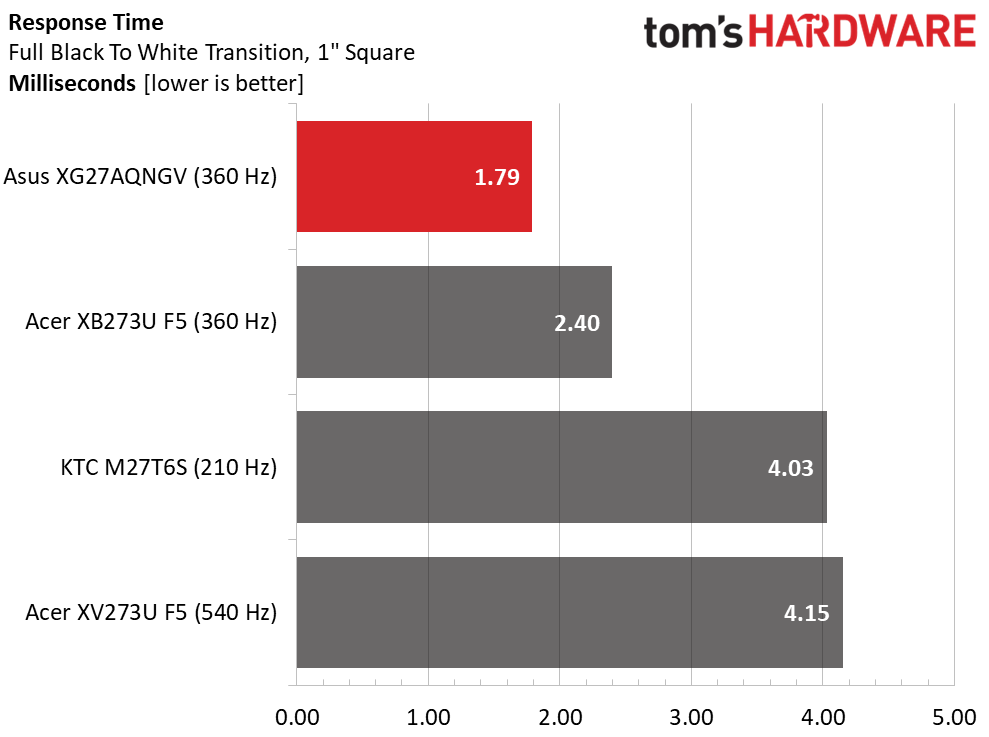
In the response chart, I only showed the screens tested with Nvidia’s LDAT sensor. The XG27AQNGV is now the fastest LCD I’ve ever tested, with a super quick 1.79ms draw time for the one-inch white square. It’s quicker than Acer’s Pulsar display and much quicker than typical LCD panels.
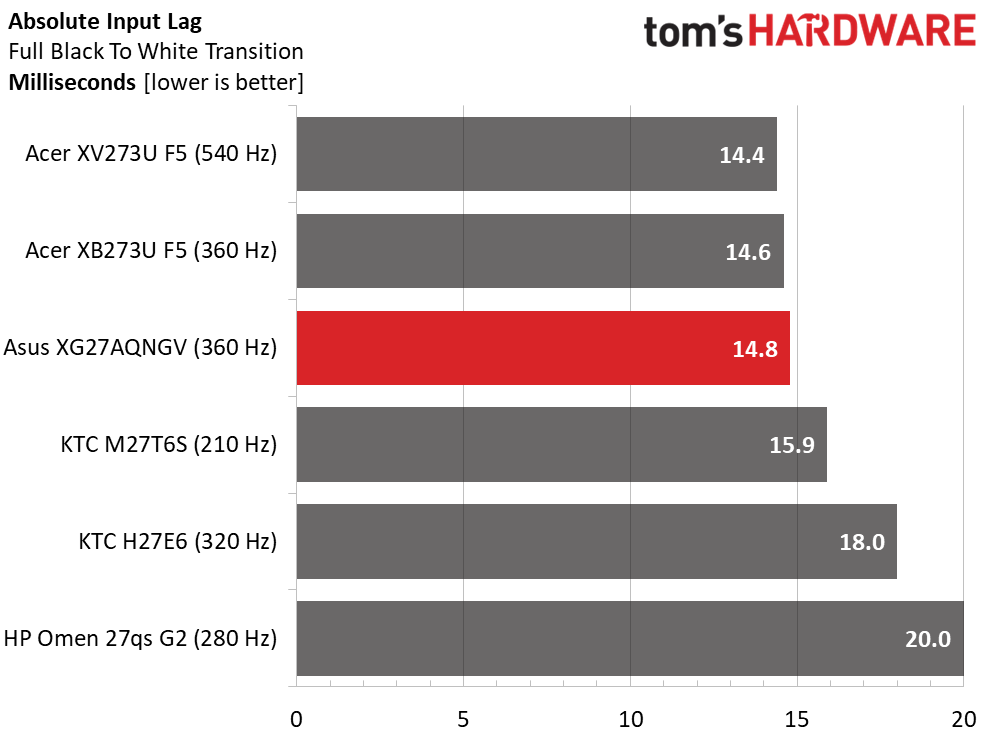
In the lag test, the XG27AQNGV is on par with both Acers. It easily hangs with a 540 Hz panel, no small achievement. The KTCs and the HP are a bit slower but still fast enough to provide perceptually instant response to control inputs.
Test Takeaway: The XG27AQNGV with G-Sync Pulsar engaged is the fastest and smoothest LCD panel I have tested to date. Visually, its motion resolution is indistinguishable from a 240 Hz OLED, and that is a major statement. Only a few other monitors have less input lag, which makes the XG27AQNGV a top contender for pro-level competition.
Viewing Angles
(Image credit: Tom's Hardware)
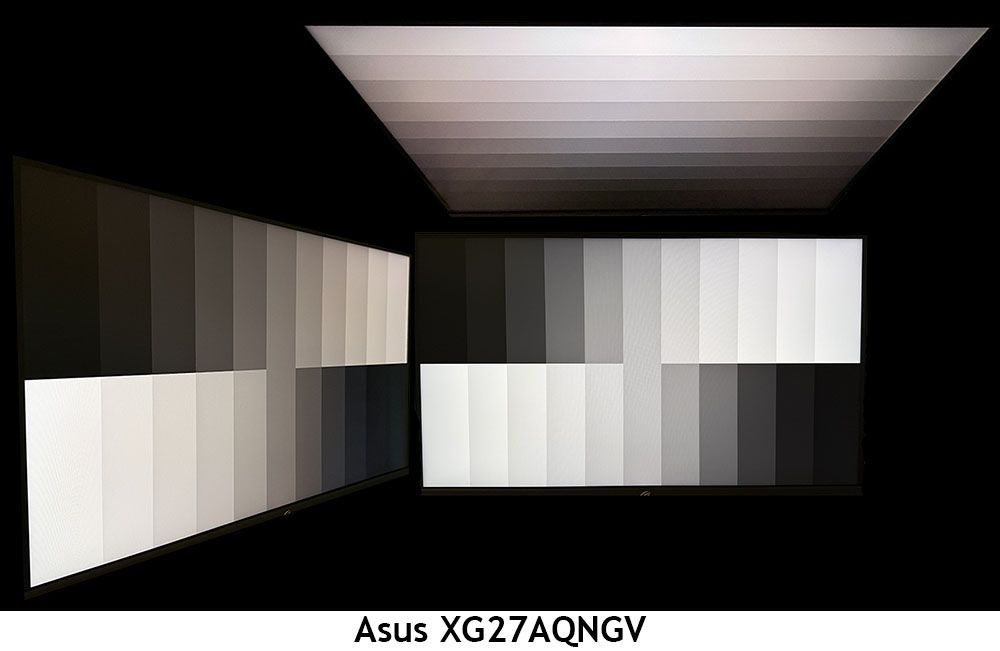
The XG27AQNGV does reasonably well in my viewing angle tests for an LCD panel. You can see a red tint in both the horizontal and vertical planes. But at 45 degrees to the side, there is no loss of gamma or brightness.
Screen Uniformity
To learn how we measure screen uniformity,click here.
(Image credit: Tom's Hardware)
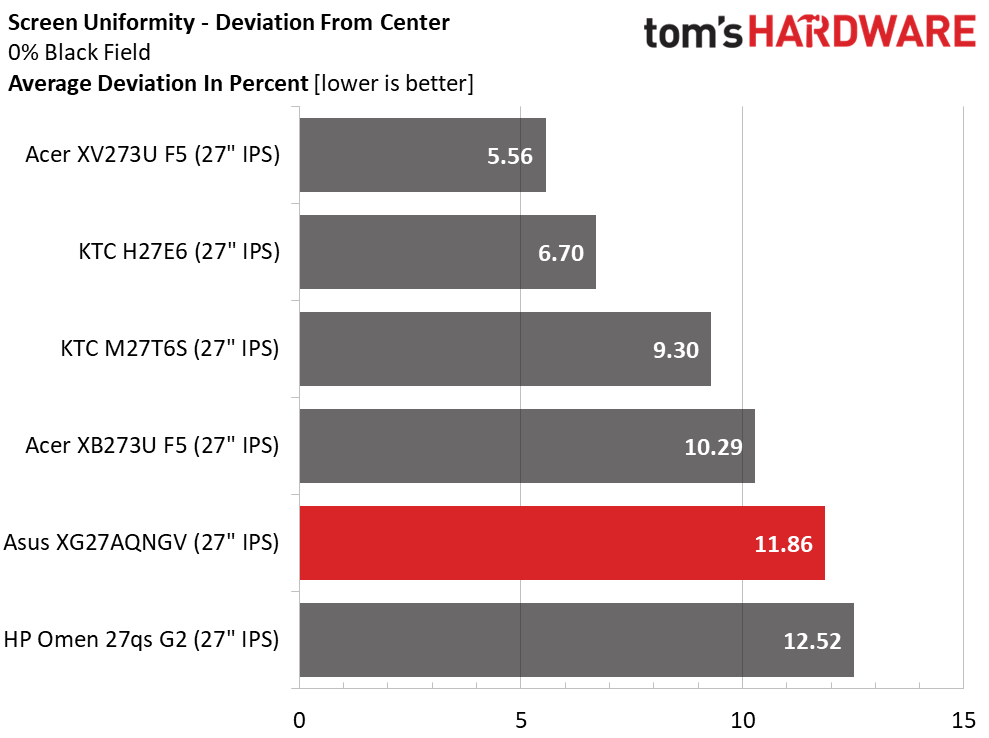
The XG27AQNGV almost achieves visual perfection in the uniformity test, but my sample had a slight hotspot in the lower right. It wasn’t obvious in content, but I could see it in the black field test pattern. Other colors and brightness levels were free of artifacts. This is solid performance.
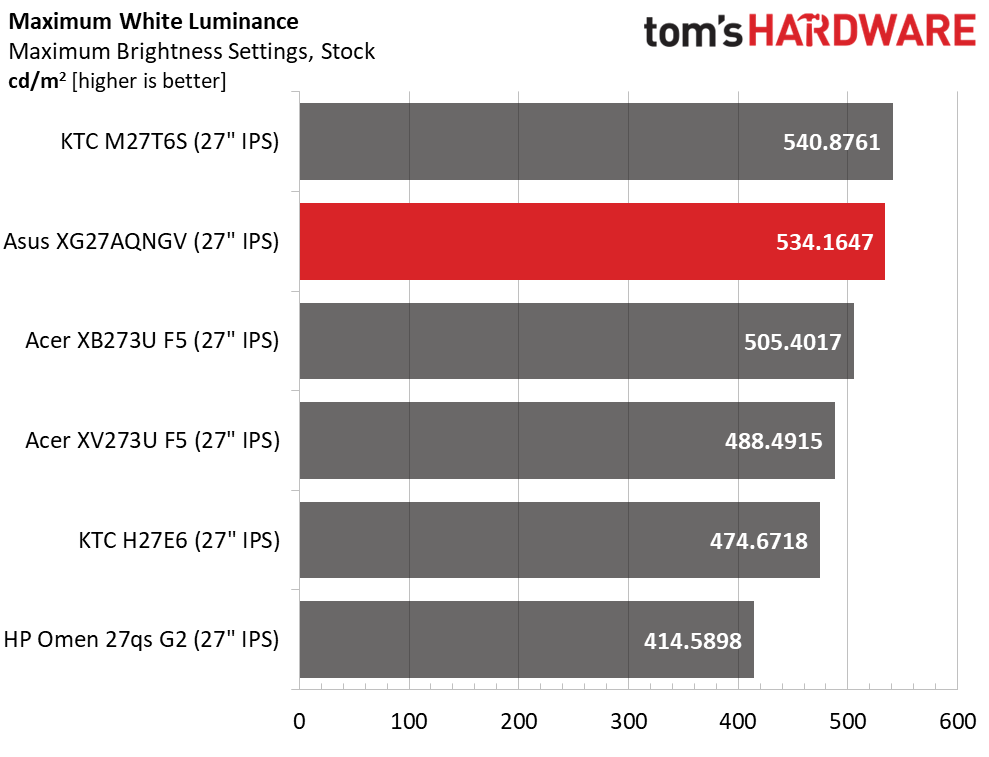
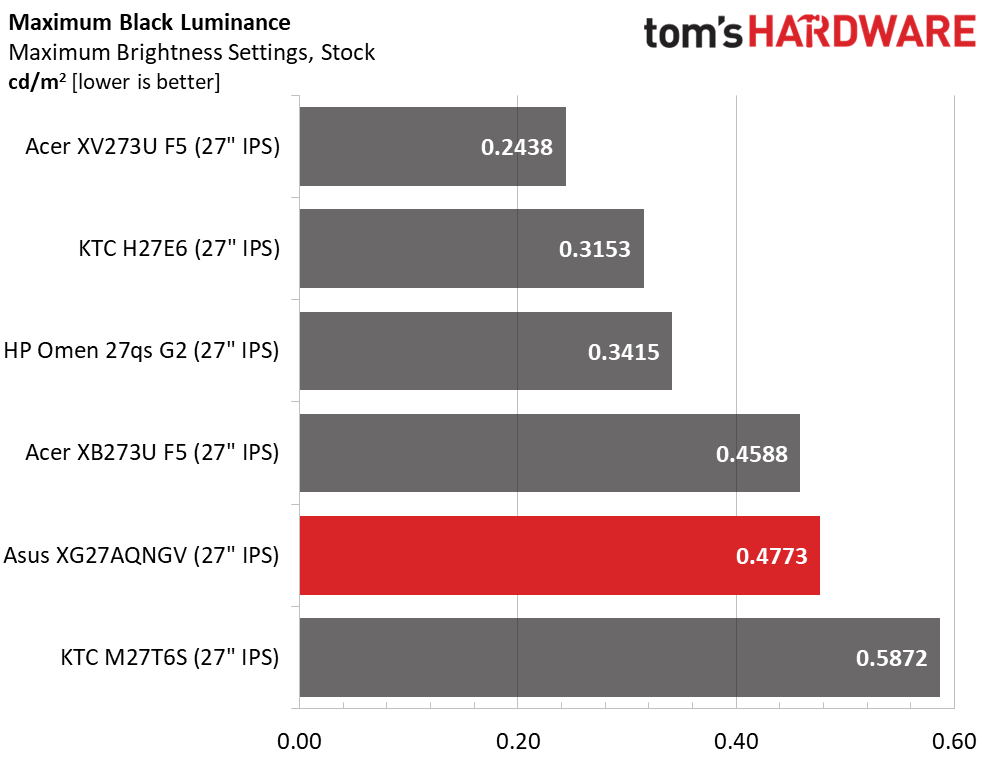
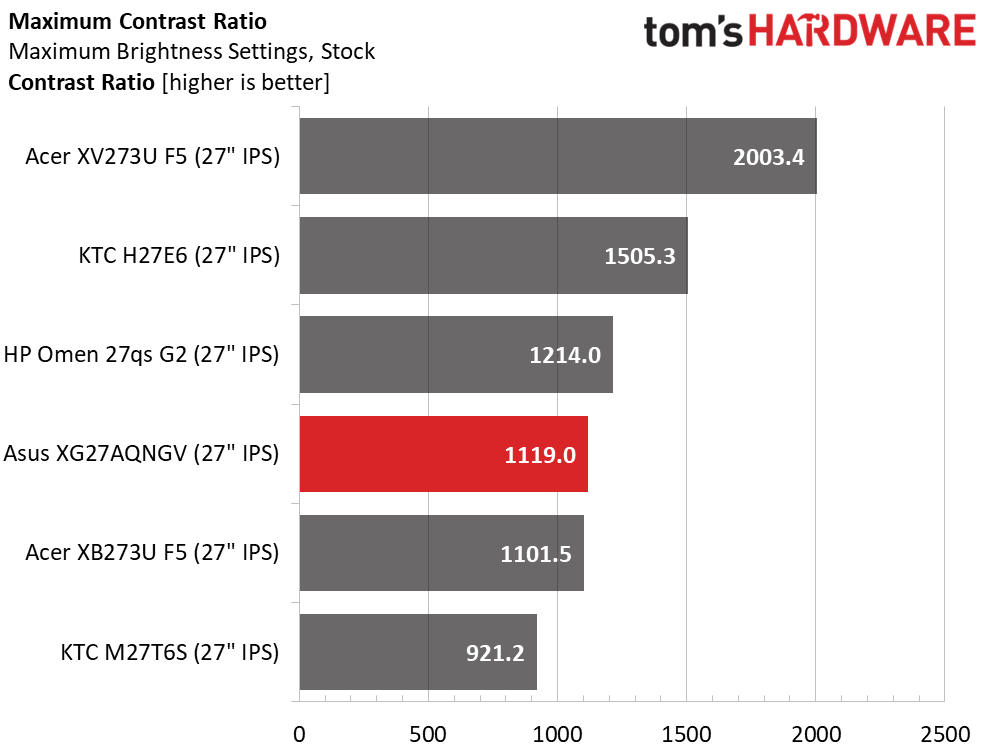
The XG27AQNGV is a very bright monitor with a little more SDR output than its nearest rival, the XB273U F5. 534 nits is searingly bright for an indoor setting but lends itself well to outdoor use or near a sunny window. With a black level of 0.4773, you can expect contrast to be a little over the IPS average at 1,119:1. There is no dynamic dimming available to increase this.
After Calibration to 200 nits
Tom's HardwareTom's HardwareTom's Hardware
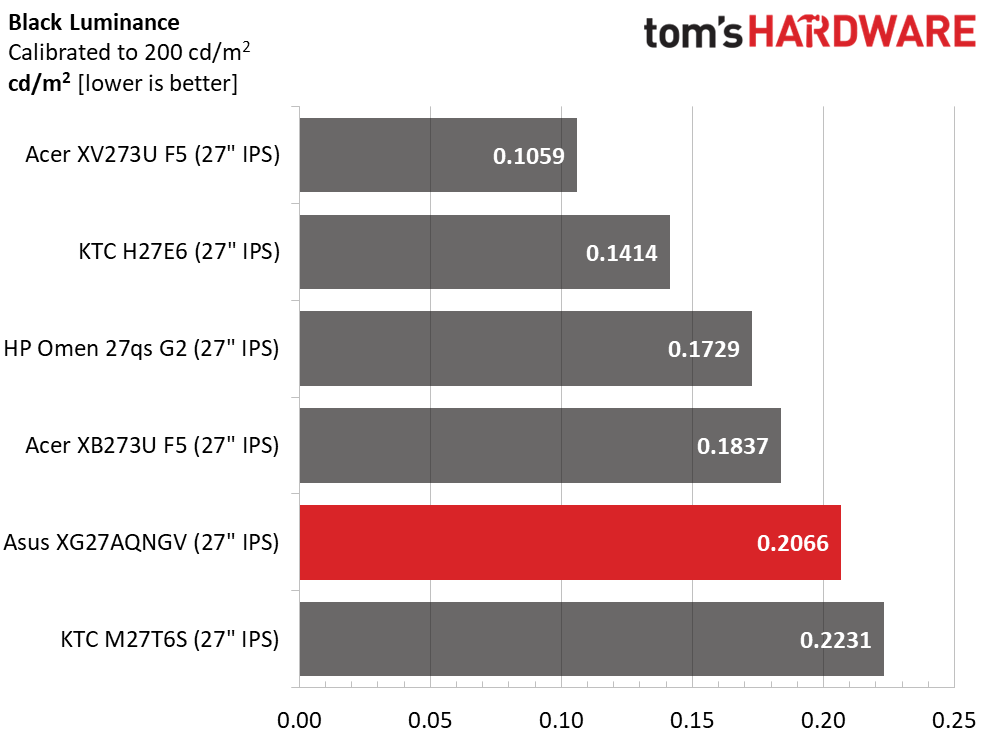
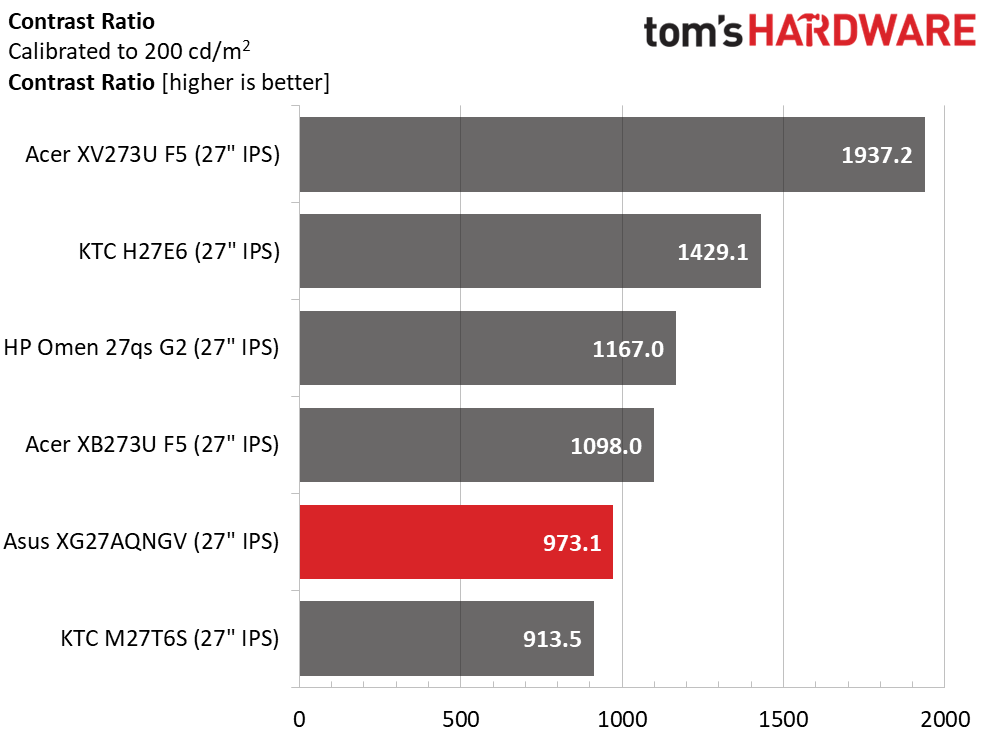
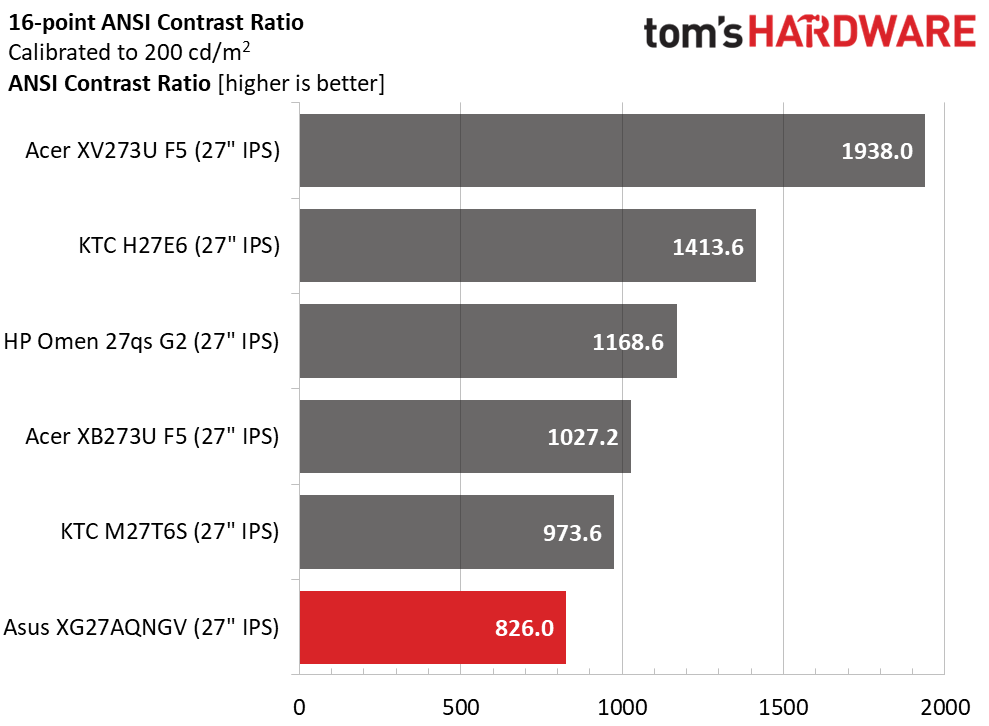
I lost a little contrast after calibrating because I had to reduce the contrast slider five clicks to solve a clipping issue. Though it’s now 973.1:1, gamma is more true, which improves depth and color saturation. ANSI contrast is at 826:1, which is lower than the competition but still near the IPS average.
Test Takeaway: The XG27AQNGV delivers contrast and black levels typical of the IPS panels I’ve tested. It is a little above average out of the box, but my calibration lowered the ratio a bit. There is no dynamic dimming, either field or zone, to increase contrast.
The XG27AQNGV ships, like all Asus gaming monitors, in its Racing picture mode, AKA GameVisual. You can access all the calibration options, including the most awesome gamma control I’ve ever seen on a display.
Grayscale and Gamma Tracking
Our grayscale and gamma tests use Calman calibration software fromPortrait Displays. We describe our grayscale and gamma tests in detail here.
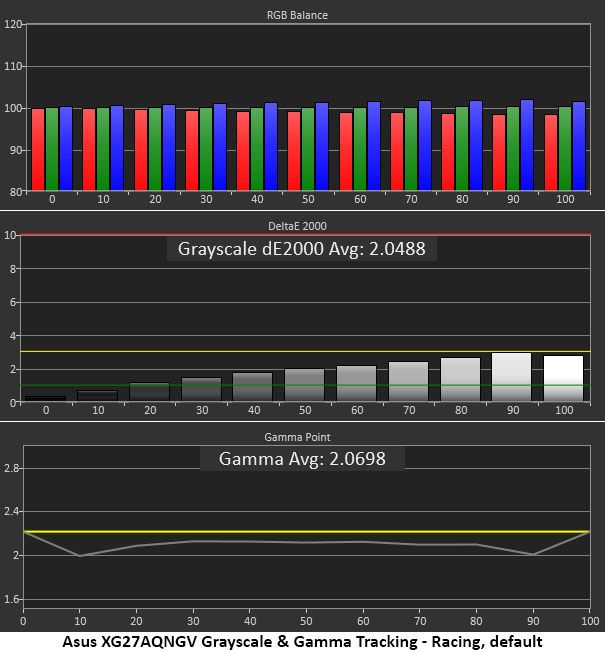
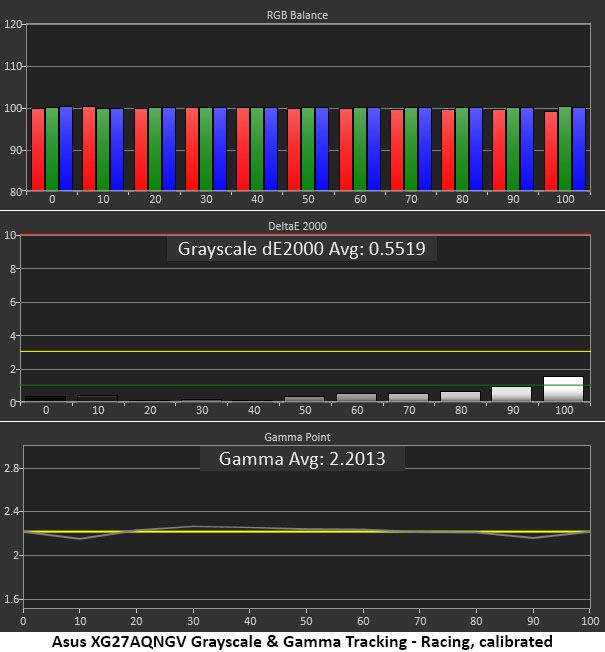
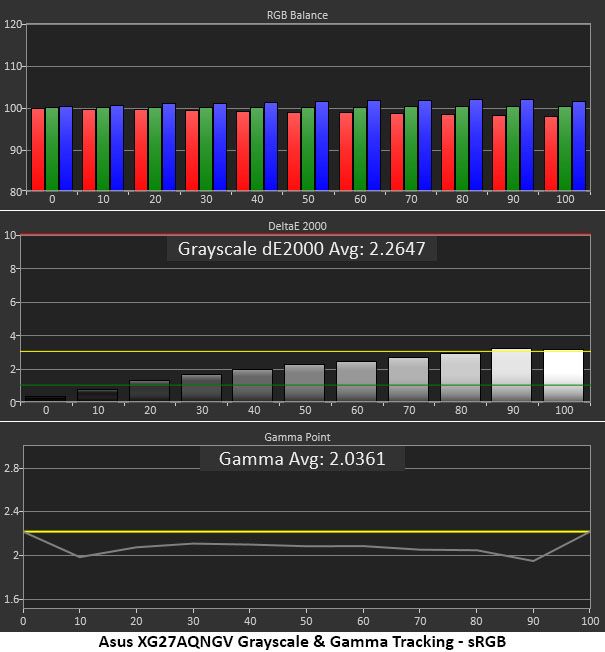
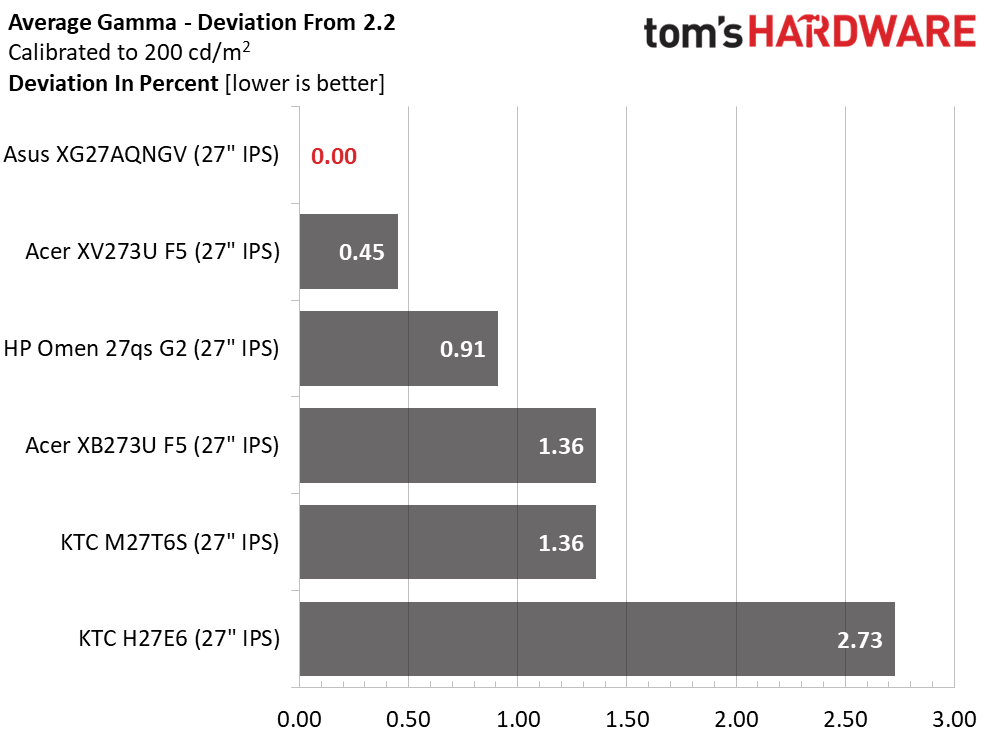
The XG27AQNGV can be enjoyed without calibration, but the picture is a bit flat due to the light gamma. Grayscale has no visual errors, but with a few tweaks, it rises to reference level. The best part here is the gamma adjustment. In addition to the presets that are widely spaced, you get a user gamma slider that adjusts in 0.01 increments. I lowered the contrast slider a few clicks, then tweaked gamma until it averaged precisely 2.2. The trace became flatter as a result. This one control improves picture quality more than anything else.
To measure the sRGB mode, I selected sRGB from the Display Color Space menu rather than engaging the sRGB mode in GameVisual. This leaves the calibration controls available. I didn’t calibrate it for this test, but you can see that it performs similarly to the Racing mode’s default state.
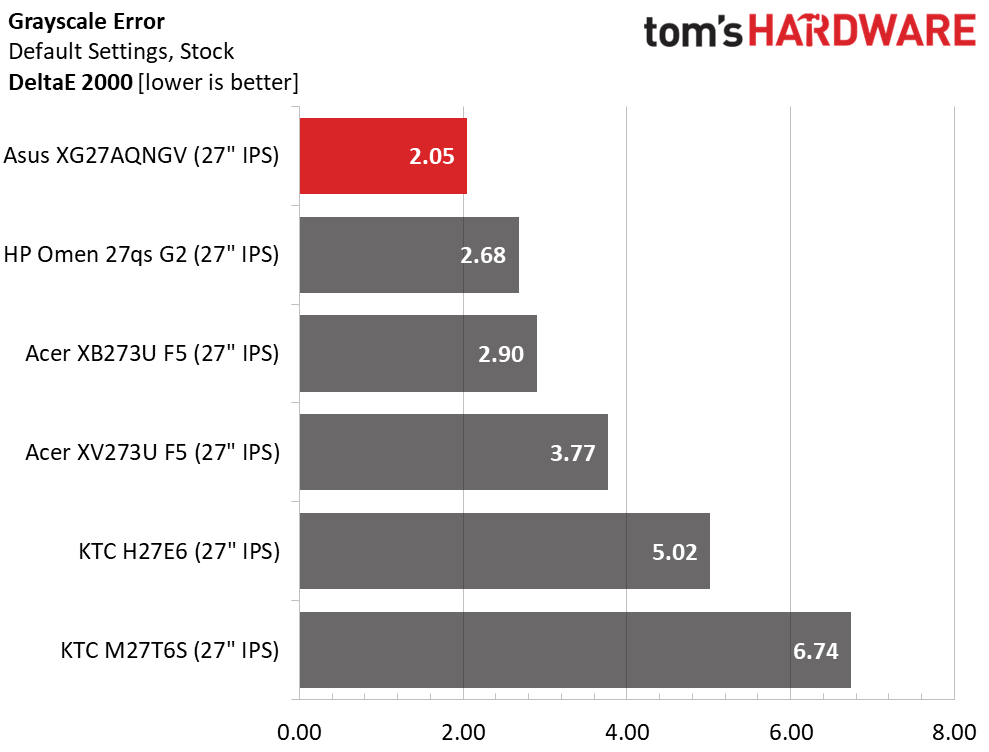
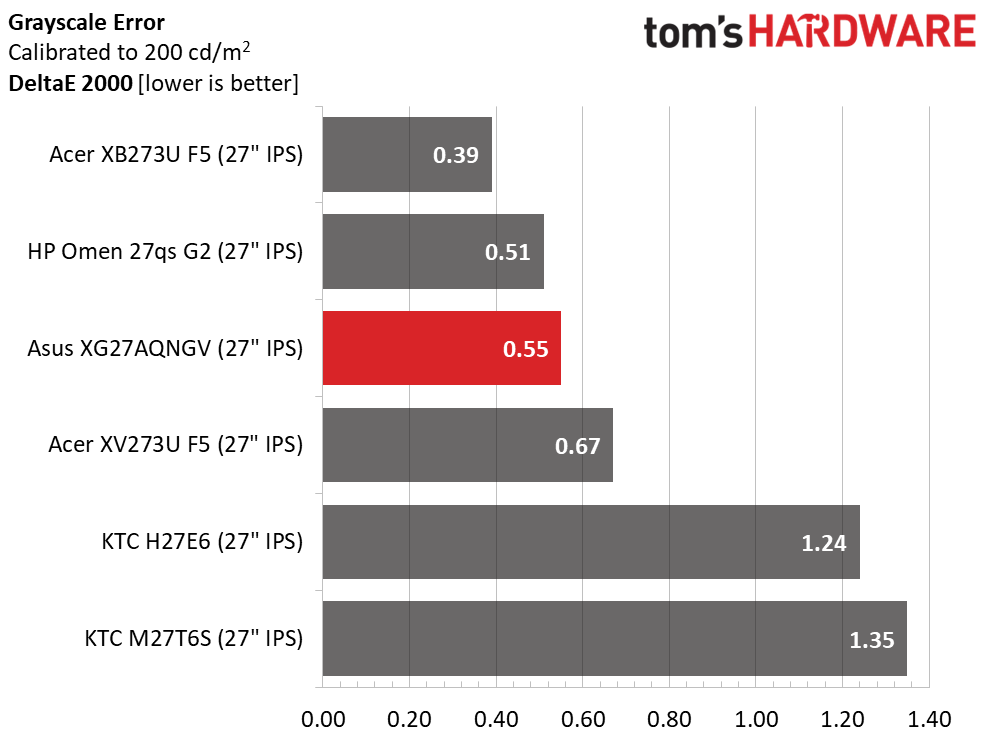
The XG27AQNGV posts the best out-of-box grayscale score with a 2.05dE value. If gamma were as close to reference as that, I would say calibration isn’t necessary, but the light gamma needs addressing. With a few tweaks to the RGB sliders, I got the average grayscale error down to 0.55dE which is pro-level performance.
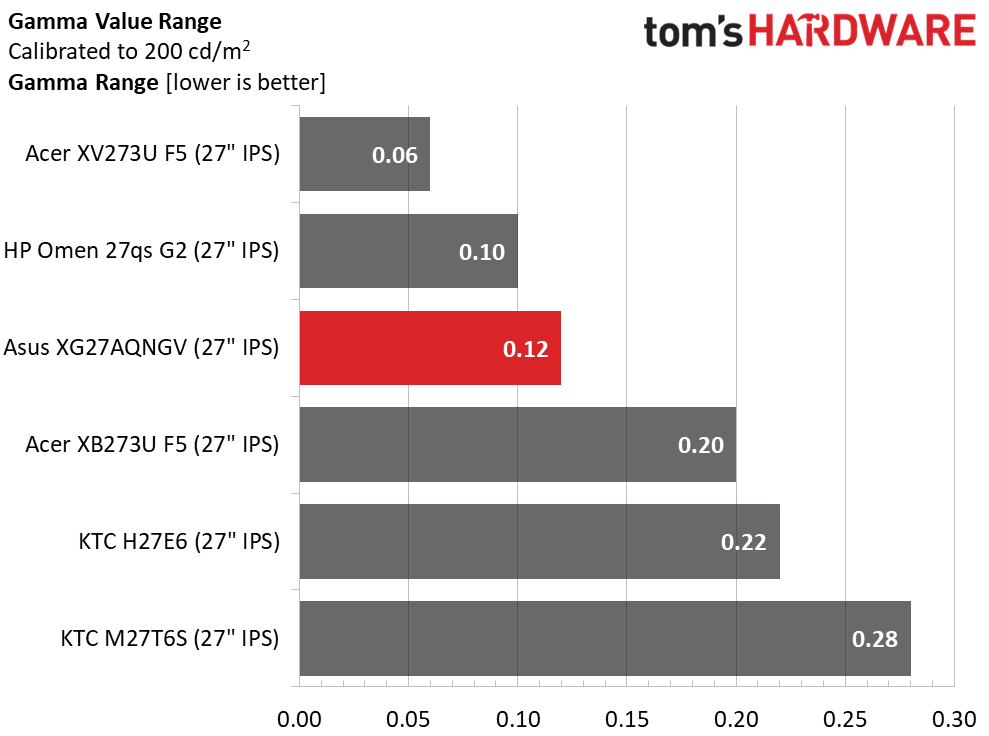
Gamma started out too light, but with Asus’ awesome adjuster, I put it right on 2.2 with a setting of 2.37. The range of values is tighter too, at 0.12 from lowest to highest. Of course, there is zero percent deviation. This control is something that all displays should have, monitors, TVs, and projectors alike. Over my twenty years of calibrating displays, I’ve never seen a control this useful and thoughtfully designed.
Color Gamut Accuracy
Our color gamut and volume testing usePortrait Displays’ Calman software. For details on our color gamut testing and volume calculations,click here.
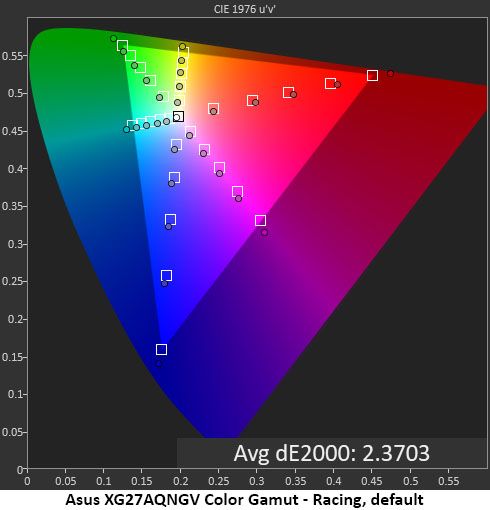
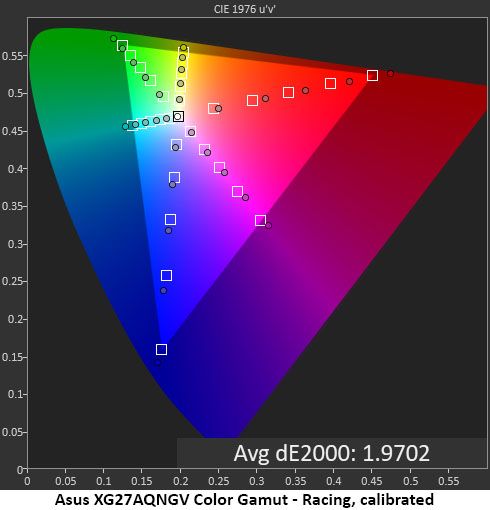
The XG27AQNGV has excellent color accuracy both before and after calibration. The gamut is bigger than sRGB with around 120% coverage. There is bonus color in all parts of the triangle. The tweaks I made to grayscale and gamma improve color saturation and hue accuracy. This is excellent performance.
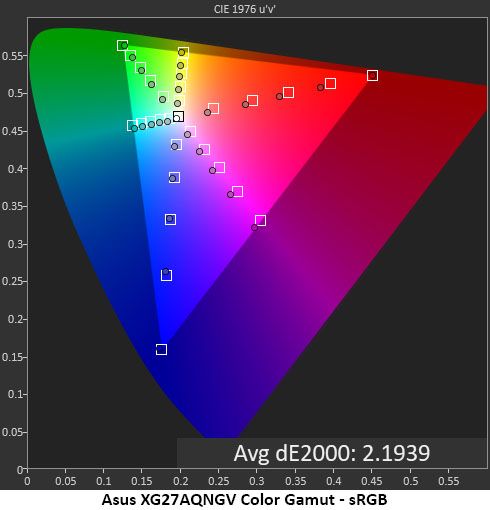
The sRGB mode is a tad undersaturated at the inner points of the gamut, but the 100% points are on target. This chart shows the XG27AQNGV’s uncalibrated state. If you choose sRGB from the Display Color Space options, you can tweak the RGB and gamma sliders for better performance.
Comparisons
Tom's HardwareTom's Hardware
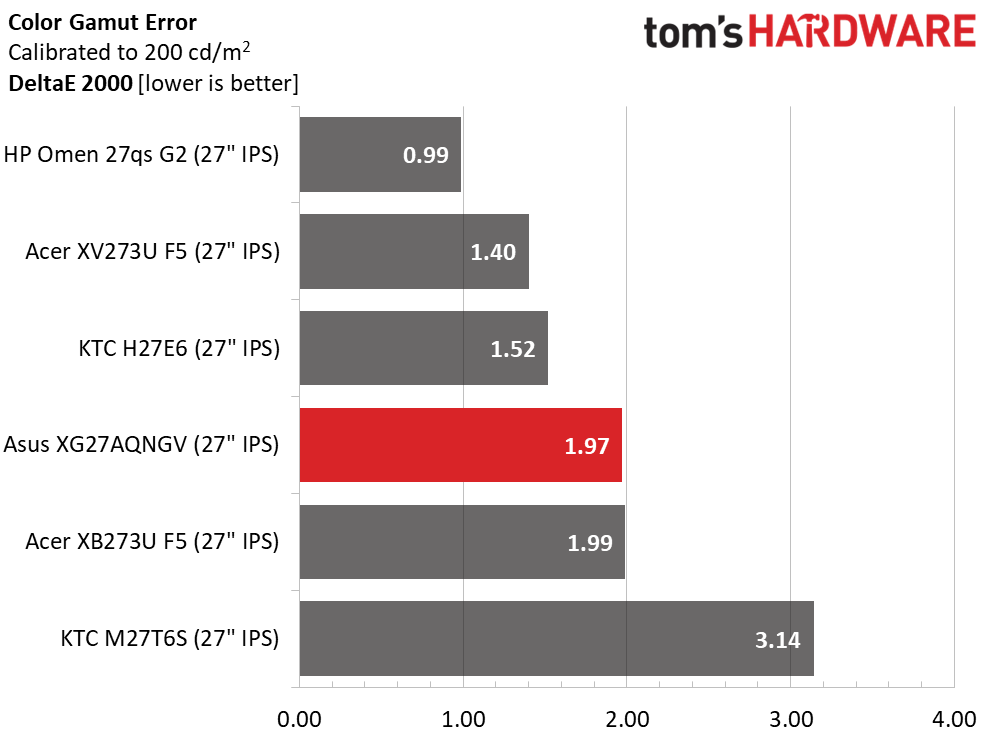
The XG27AQNGV doesn’t post the lowest color numbers, but it’s right in the mix with the other screens. 1.97dE is well below the point where errors can be seen by the naked eye.
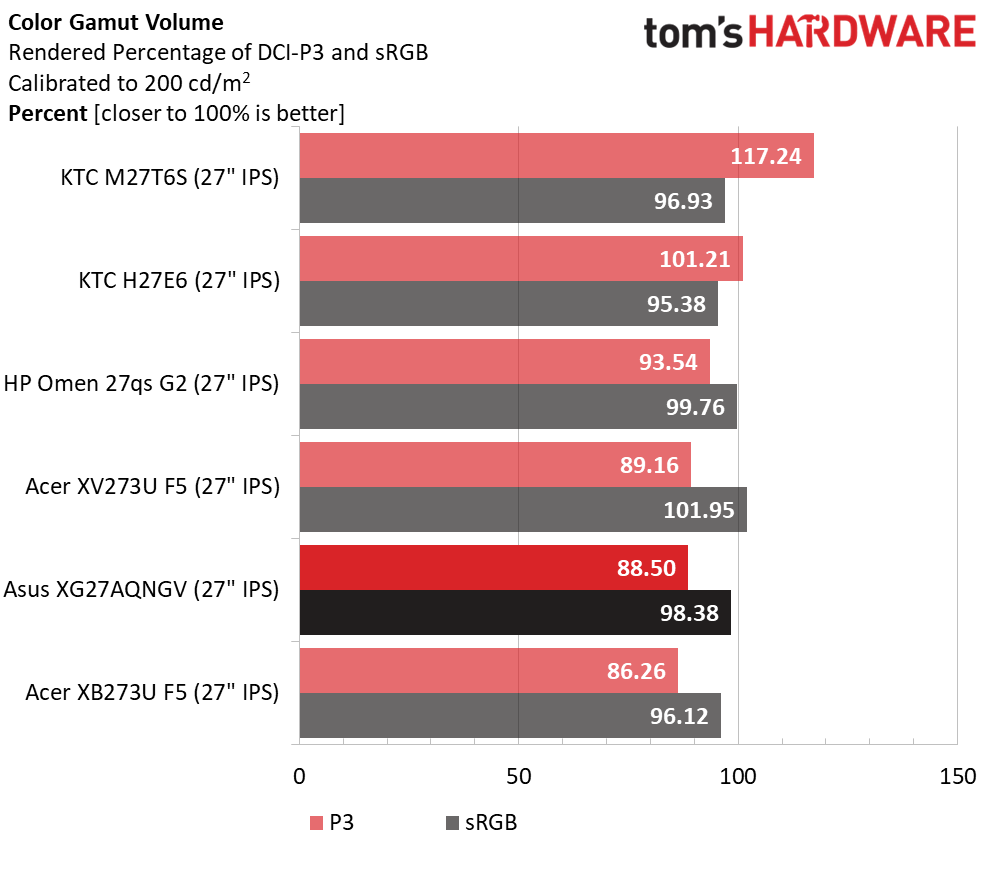
The only weakness here is color volume. Though the XG27AQNGV covers 120% of sRGB, that equates to 88.5% of DCI-P3. Though it is a tad more colorful than the G-Sync Pulsar XB273U F5, it is less colorful than the KTCs with their Quantum Dot screens. The sRGB option covers a near-ideal 98.38%.
Test Takeaway: The XG27AQNGV is reasonably accurate out of the box and does not require calibration. But with a few changes to the RGB and gamma sliders, it achieves reference quality. The gamma slider is something I have not seen before, and it is a game changer for sure. By providing precise 0.01-click control, it lets you achieve perfect luminance tracking, which has a positive impact on color saturation and picture depth.
The XG27AQNGV improves upon other Asus HDR monitors by providing just a single picture mode for HDR10 content. It allows adjustments to contrast, which, as you’ll soon see, is a good thing.
HDR Brightness and Contrast
Tom's HardwareTom's HardwareTom's Hardware
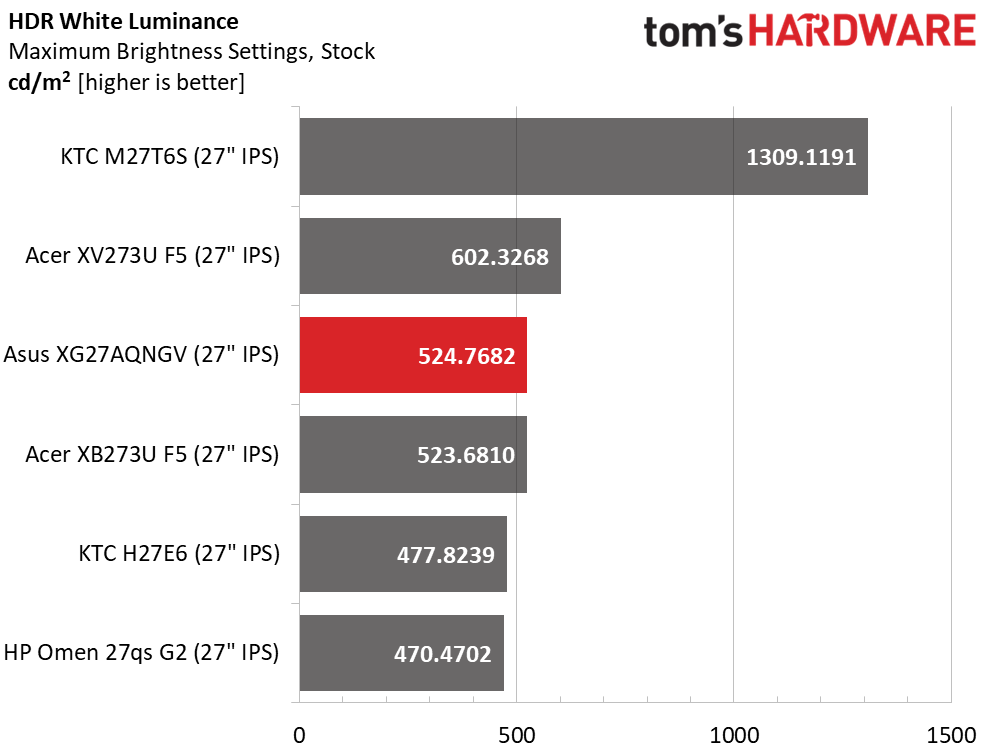
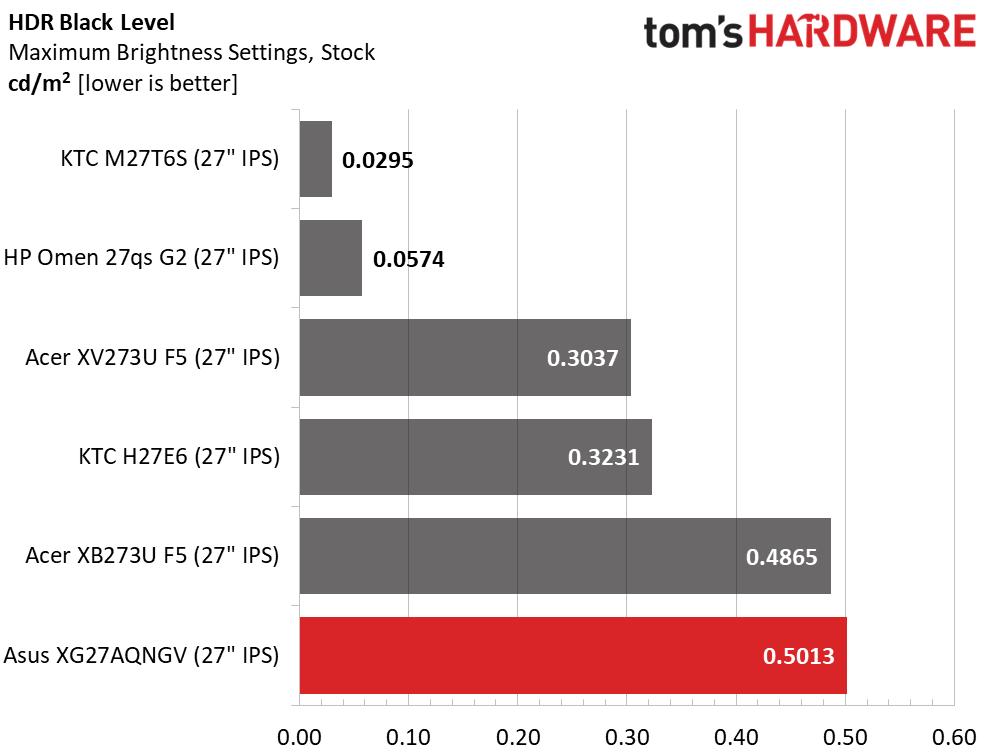
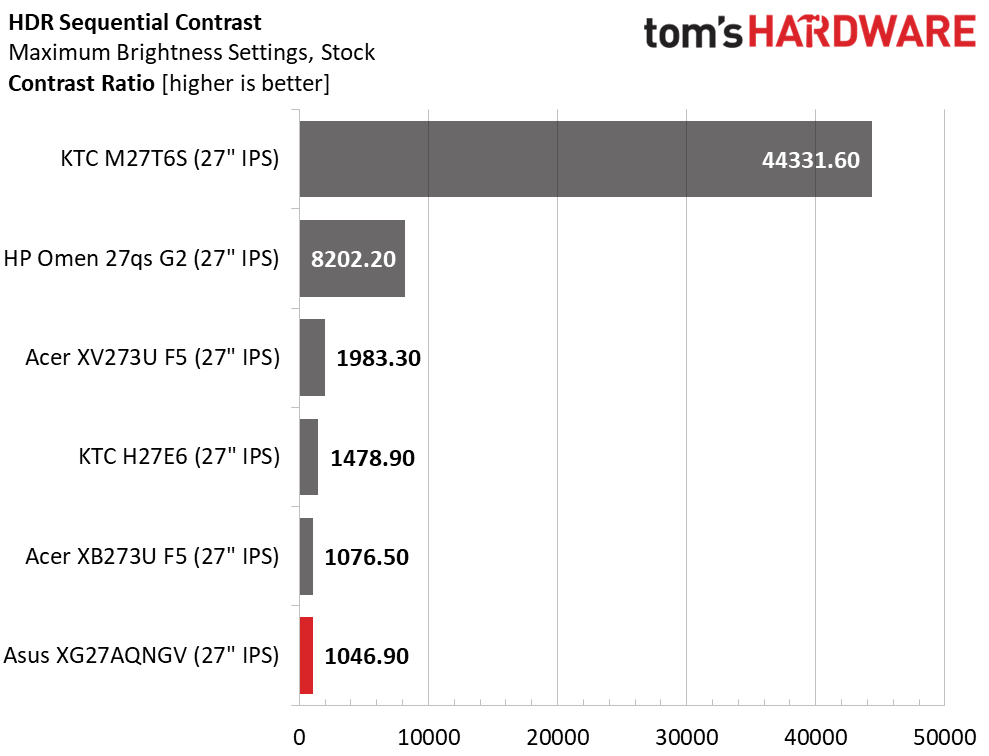
The XG27AQNGV offers the same peak brightness for HDR content as for SDR, around 524 nits. There is no dynamic dimming available, so contrast is the same as SDR, 1,046.9:1 in this case. The top-finishing KTC uses a zone-dimming Mini LED to achieve 44,331.6:1 contrast.
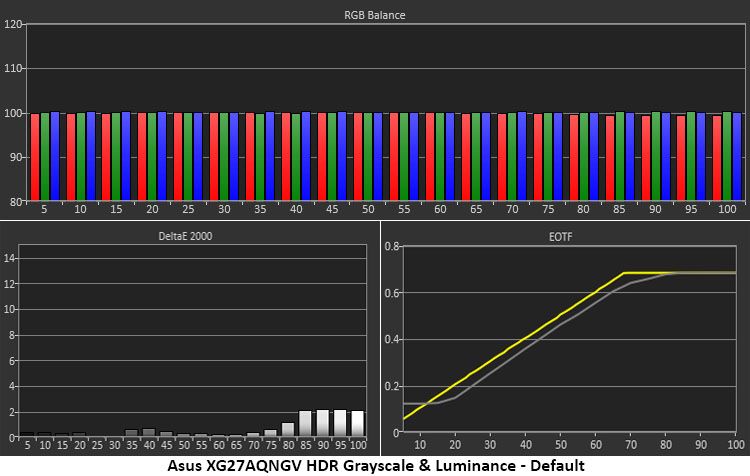
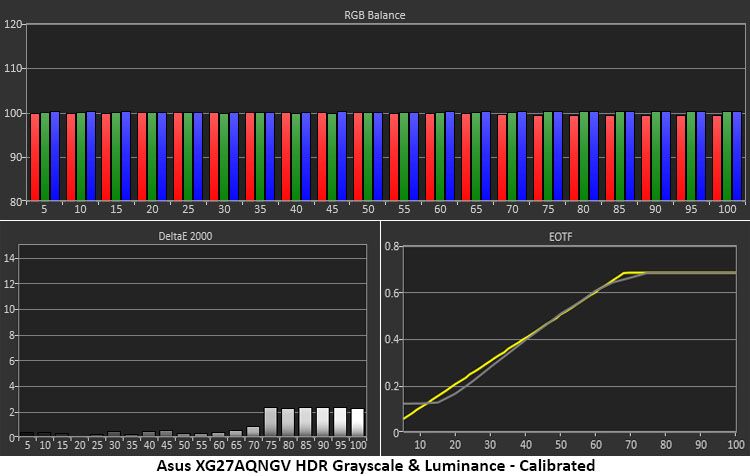
The XG27AQNGV has visually perfect HDR grayscale tracking with all errors below 3dE and most below 1dE. It doesn’t get better than that. I’m showing two charts here to demonstrate the effectiveness of the contrast slider, which remains adjustable. The default chart shows the curve to be a bit dark, which makes detail a little less crisp. By raising contrast, you can move the curve closer to the reference. I noted that the tone-map transition point did not change, which is a good thing. The only rub is that you must change the contrast setting whenever you switch between SDR and HDR.
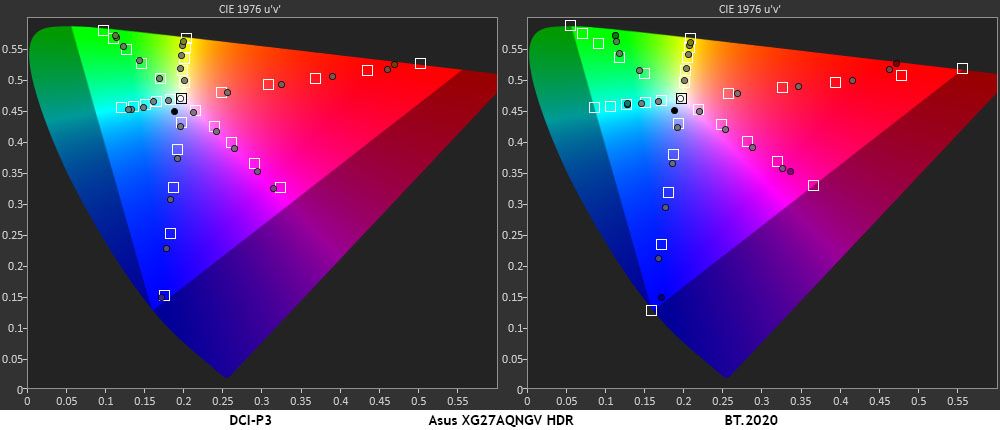
The XG27AQNGV’s color test shows slight oversaturation of the inner points, which is what most HDR monitors do to increase impact. Tracking is linear, so there is no loss of detail. In the DCI-P3 test, color runs out at 90% red and 80% green, but blue is fully covered. In the BT.2020 test, color runs out at 80% red, 65% green, and 95% blue.
Test Takeaway: The XG27AQNGV is accurate to the HDR10 standard and includes adjustable contrast so you can dial in the luminance tracking precisely. It also has visually perfect grayscale tracking. Two weaknesses are its smaller color volume, which covers 88% of DCI-P3, and its lack of dynamic dimming, which means HDR has the same contrast performance as SDR.
When G-Sync Pulsar first appeared at the beginning of 2026, I expected there to be many monitors coming out with this new tech. It delivers OLED-level smoothness and responsiveness to the LCD genre with no downside. But there have been no new additions to the four initial offerings from Asus, Acer, AOC, and MSI. And I have been trying to get samples from AOC and MSI with no luck so far.
I could speculate about price since the Asus ROG Strix XG27AQNGV sits right in the middle of the range of 27-inch QHD 240 Hz OLEDs currently available. But aside from the OLED’s contrast and color volume advantage, a G-Sync Pulsar monitor is visually identical. It games the same.
(Image credit: Asus)
Once I spent some time playing games, I noted a few things. The XG27AQNGV is exactly like an OLED in feel. Motion resolution is perfect in that moving objects and camera pans are just as sharp as static images. Input lag is super low, to the point where I experienced instant response to every control input. Color is bright and saturated, but a tad less vivid than a typical OLED. And nothing can match OLED’s black levels. The XG27AQNGV would benefit from a dynamic dimming option for HDR.
(Image credit: Tom's Hardware)
My favorite part, though, was its gamma control. This parameter has a huge impact on image quality, and in every other monitor I’ve reviewed, you get five or six presets that are far apart. It’s often impossible to land right on 2.2. The XG27AQNGV lets the user tweak gamma in 0.01 increments. That’s a huge improvement because you can land exactly on 2.2. And that has positive effects on perceived contrast and color saturation. Also in the fine control department is the 400-step overdrive. That’s something I’ve only seen on a few screens.
If you want the smoothest possible gaming but don’t want an OLED, the Asus ROG Strix XG27AQNGV delivers the same feel and responsiveness for around the same price. With unprecedented adjustability, it will satisfy any gamer from casual to hardcore. G-Sync Pulsar is a game-changing technology that you should definitely check out.
Though OLEDs remain a premium gaming monitor category, there is no denying that they make up a large share of new model introductions. Looking over my reviews for the past two years, they represent just over half of the screens that have crossed my test bench. Prices are trickling down, and one company trying to make the best OLED gaming monitors more affordable is Alienware. Though it has plenty of high-end displays available, the newest models are aimed at more modest budgets.
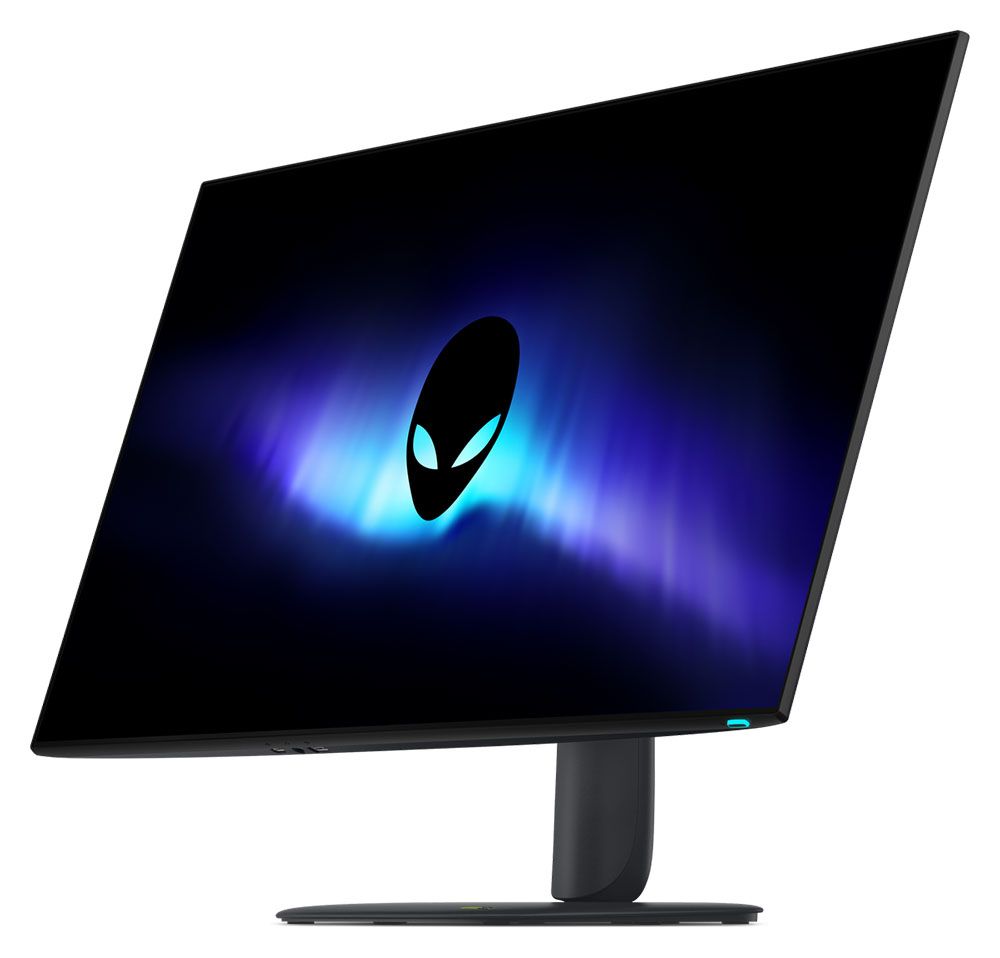
The latest example is one that would have been a flagship not too long ago. The AW3226Q is a 32-inch 4K flat OLED with Tandem Stripe RGB technology, 165 Hz, Adaptive-Sync, HDR400 True Black, Dolby Vision, and wide gamut color. Let’s take a look.
Alienware AW3226Q Specs
Panel Type / Backlight
Tandem RGB Stripe Organic Light Emitting Diode
Screen Size / Aspect Ratio
32 inches / 16:9
Max Resolution and Refresh Rate
3840x2160 @ 165 Hz
FreeSync and G-Sync Compatible
Native Color Depth and Gamut
10-bit / DCI-P3
HDR400 True Black, HDR10, Dolby Vision
Response Time (GTG)
0.03ms
Brightness (mfr)
250 nits full field
1,000 nits HDR 3% window
Contrast
Unmeasurable
Speakers
None
Video Inputs
1x DisplayPort 1.4
2x HDMI 2.1
Audio
3.5mm headphone output
USB 3.0
1x up, 2x down, 1x USB-C (15w)
Power Consumption
34w, brightness @ 200 nits
Panel Dimensions
WxHxD w/base
28.2 x 19.2-23.5 x 9.1 inches
(716 x 488-597 x 232mm)
Panel Thickness
2.3 inches (57mm)
Bezel Width
Top/sides: 0.31 inch (8mm)
Bottom: 0.55 inch (14mm)
Weight
17.05 pounds (7.75kg)
Warranty
3 years
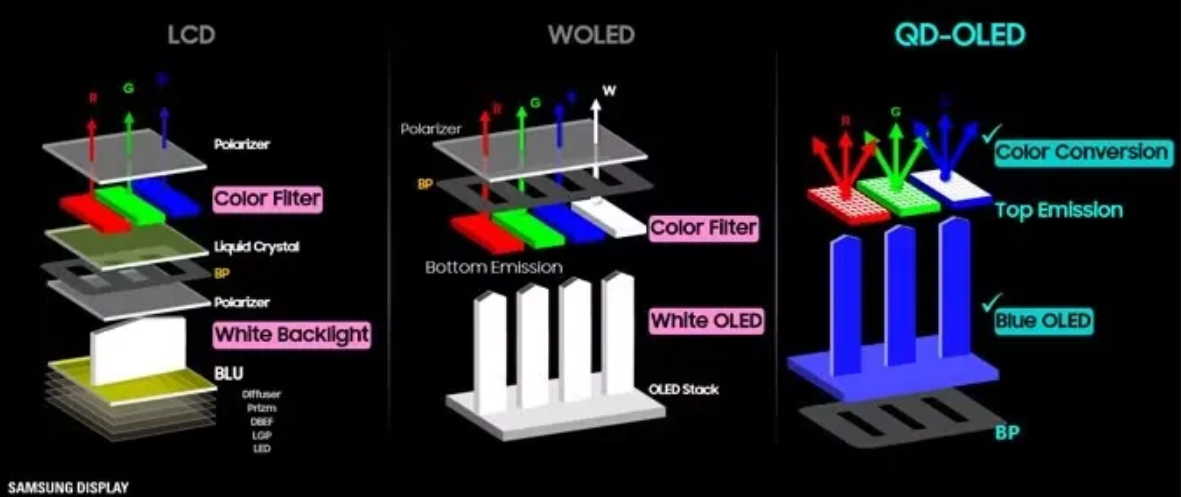
Tandem RGB Stripe is the newest OLED variant, and it can be found in the AW3226Q as well as several new screens from Asus. I propose to simply call it TRS-OLED in this review. It takes the approach of stacking emissive layers to provide more light with less power consumption. It also broadens the color gamut to over 100% coverage of DCI-P3. In Alienware’s case, it’s four emissive layers behind an RGB sub-pixel layer that acts as a polarizer. By putting the pixels next to each other, hence the Stripe, rather than the triangular arrangement of QD-OLEDs, you get a wide color gamut and high brightness with sharper detail and no chance of fringing.
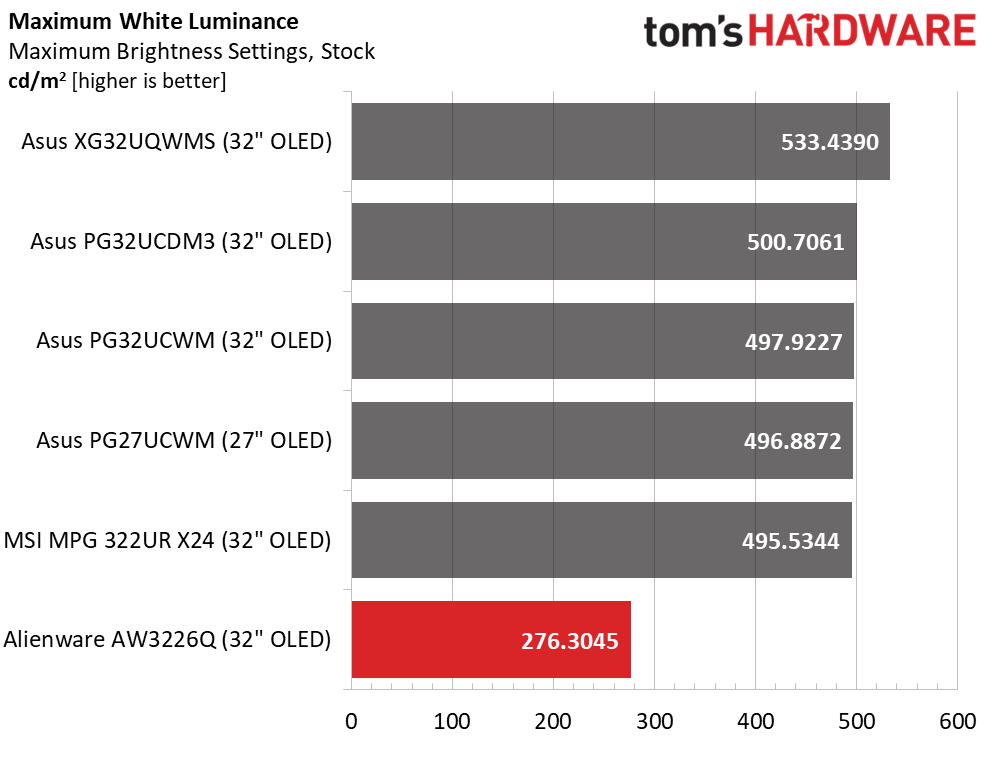
The AW3226Q produces 1,000 nits from a 3% window in HDR mode and around 275 nits full field as I measured it. The polarizing layer makes blacks more true by keeping ambient reflections from spoiling the image. Color volume came in at 101% of DCI-P3, which is more than a typical OLED, although a bit less than one equipped with Quantum Dots. And power consumption is low, with just 34 watts drawn at 200 nits brightness. HDR10 and Dolby Vision are supported, with a VESA DisplayHDR 400 True Black certification that I verified in testing.
Gamers benefit from the AW3226Q’s 165 Hz refresh rate that works with Adaptive-Sync to produce smooth motion processing. Like all speedy OLEDs, input lag is low and, in my tests, it managed to beat one 240 Hz screen that costs a good deal more. You also get AlienVision, which is a super cool aiming point and sniper mode editor that is unique to Alienware displays.
The AW3226Q is attractively styled and well-appointed with USB ports, a bit of LED lighting, and a solid stand with full ergonomics. It includes a DisplayPort 1.4 input and two HDMI 2.1 ports with FRL (48Gbps) and eARC, making it easy to integrate the monitor with soundbars or AV systems that also support HDMI eARC. There are no internal speakers, but you do get a 3.5mm headphone jack. Also included are USB ports: two Type-A, one Type-B, and one Type-C.
The AW3226Q is a decent value at its opening price of $699. That’s a significant discount over the $1,000 you’ll spend on an AW3225QF, which only has minor differences.
Assembly and Accessories
The AW3226Q arrived in fully recyclable packaging consisting of a clamshell-style carton and molded pulp forms to protect the contents. The upright snaps onto the panel and the base attaches with a captive bolt. The resulting piece is solid and stable on the desktop. The power supply is internal, so you get a stout IEC cord plus cables for DisplayPort, HDMI, and USB-A/B.
Product 360
DellDellDellDell
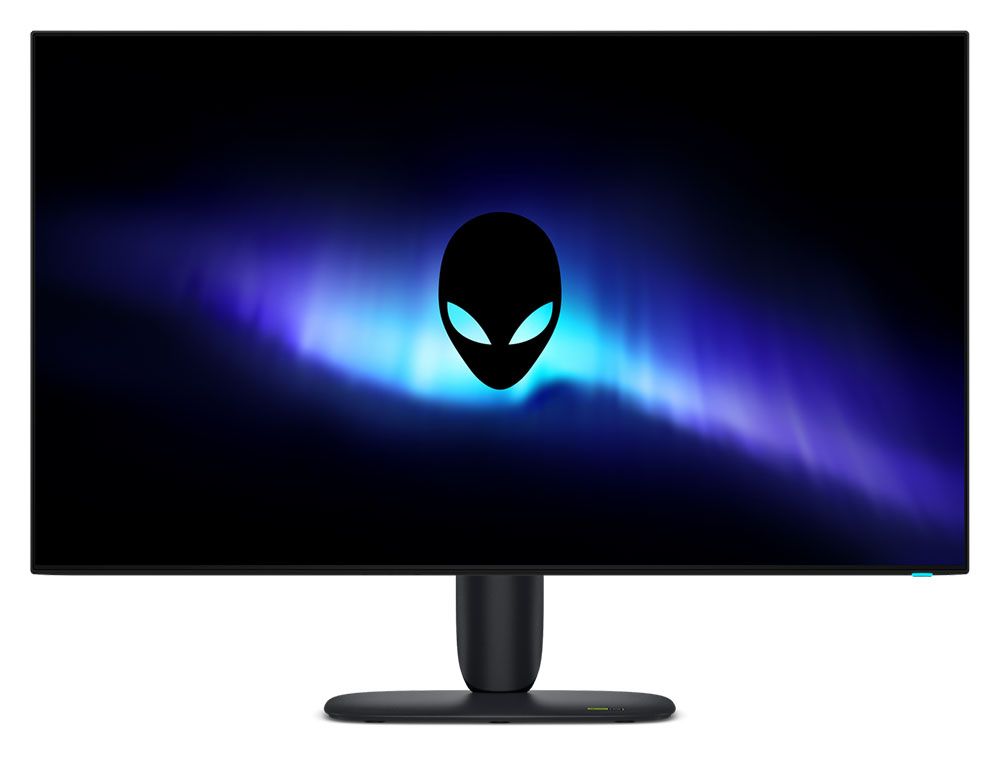
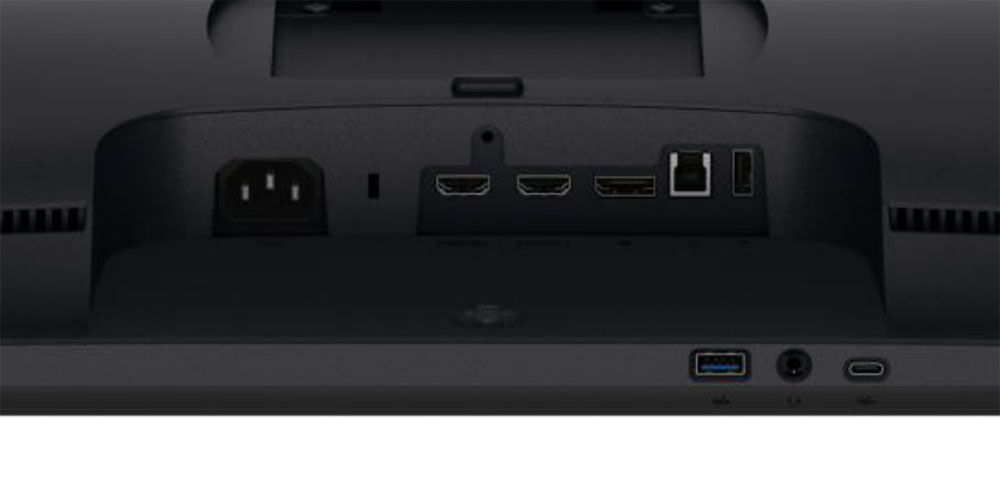
The AW3226Q’s screen is touted as “almost frameless”, and indeed, it is. The top and side frames are just 8mm, while at the bottom, it’s 14mm and flush on all sides. There is no extra protruding trim. The bottom is not without utility, though, as it puts a headphone jack and two USB ports within easy reach. The remaining I/O is in the usual spot, up and under, where you’ll find a DisplayPort 1.4, two HDMI 2.1, and more USBs, one upstream and one downstream.
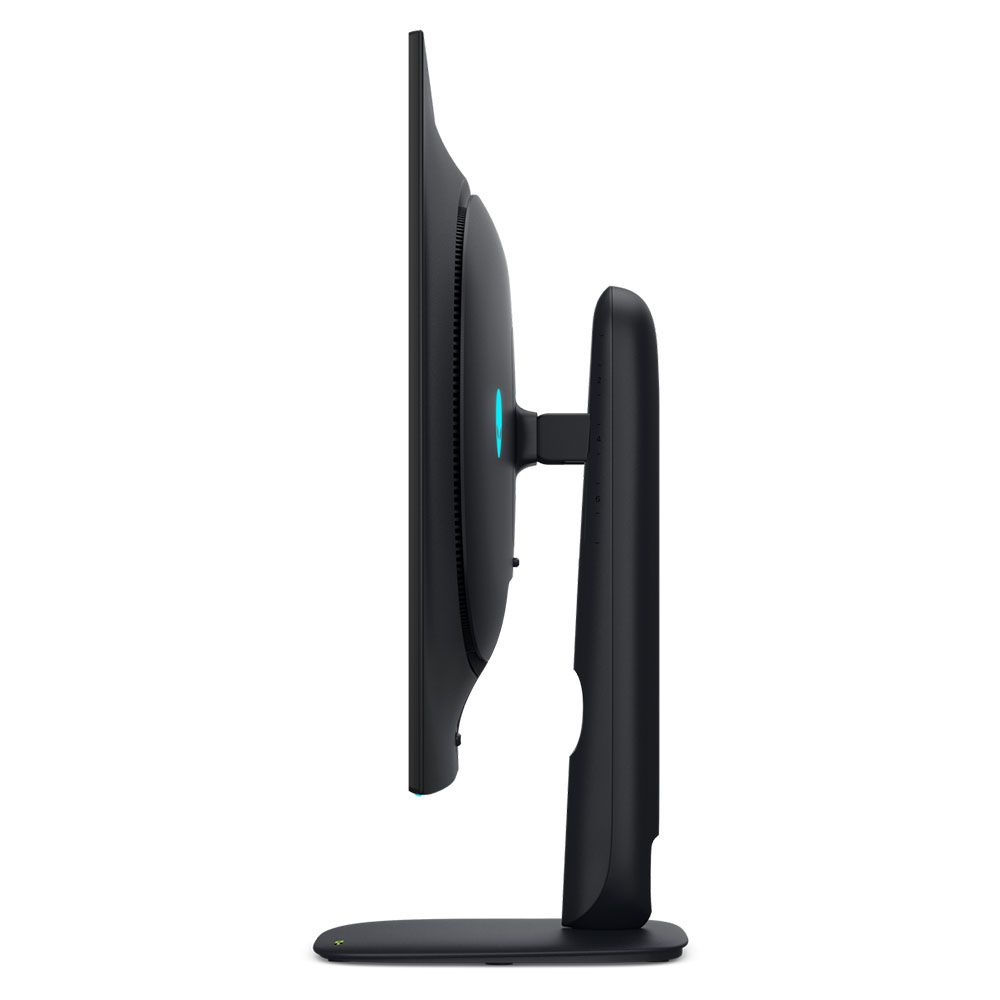
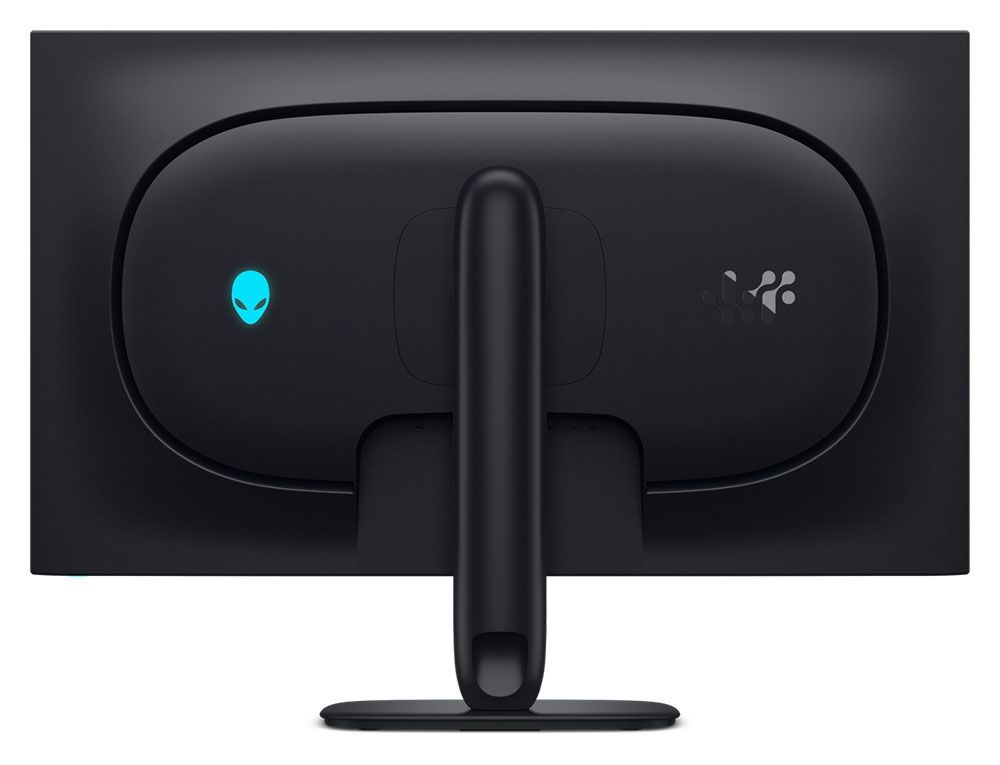
The stand features Alienware’s latest design where the upright’s attachment point appears to float above the base. There are no sharp edges or square corners here. Everything is smoothly tapered, including the bulge in the back, which is generously vented around its perimeter. On one side is the Alienware head, which has the main LED feature. It can light up in a variety of colors and effects, all controlled from the OSD.
The upright has an angled cable management hole, which is cool because then you can’t see through it from the front. It features 5/21 degrees tilt, 20 degrees swivel, a 90-degree portrait mode, and 4.3 inches of height range. Movements are smooth and firm with no wobble or play. If you’d rather use an aftermarket support, the stand comes off to expose a 100mm VESA mount with fasteners included.
OSD Features
Pressing the AW3226Q’s joystick opens a well-stocked OSD with nearly every option a gamer or enthusiast could want. Except for one that I’ll tell you about below.
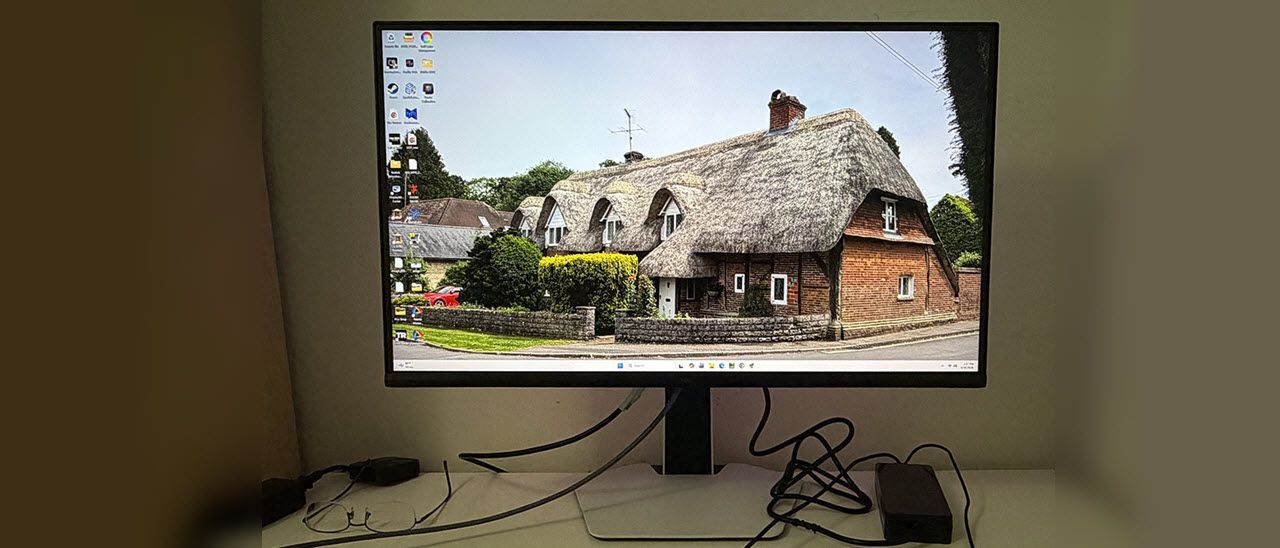
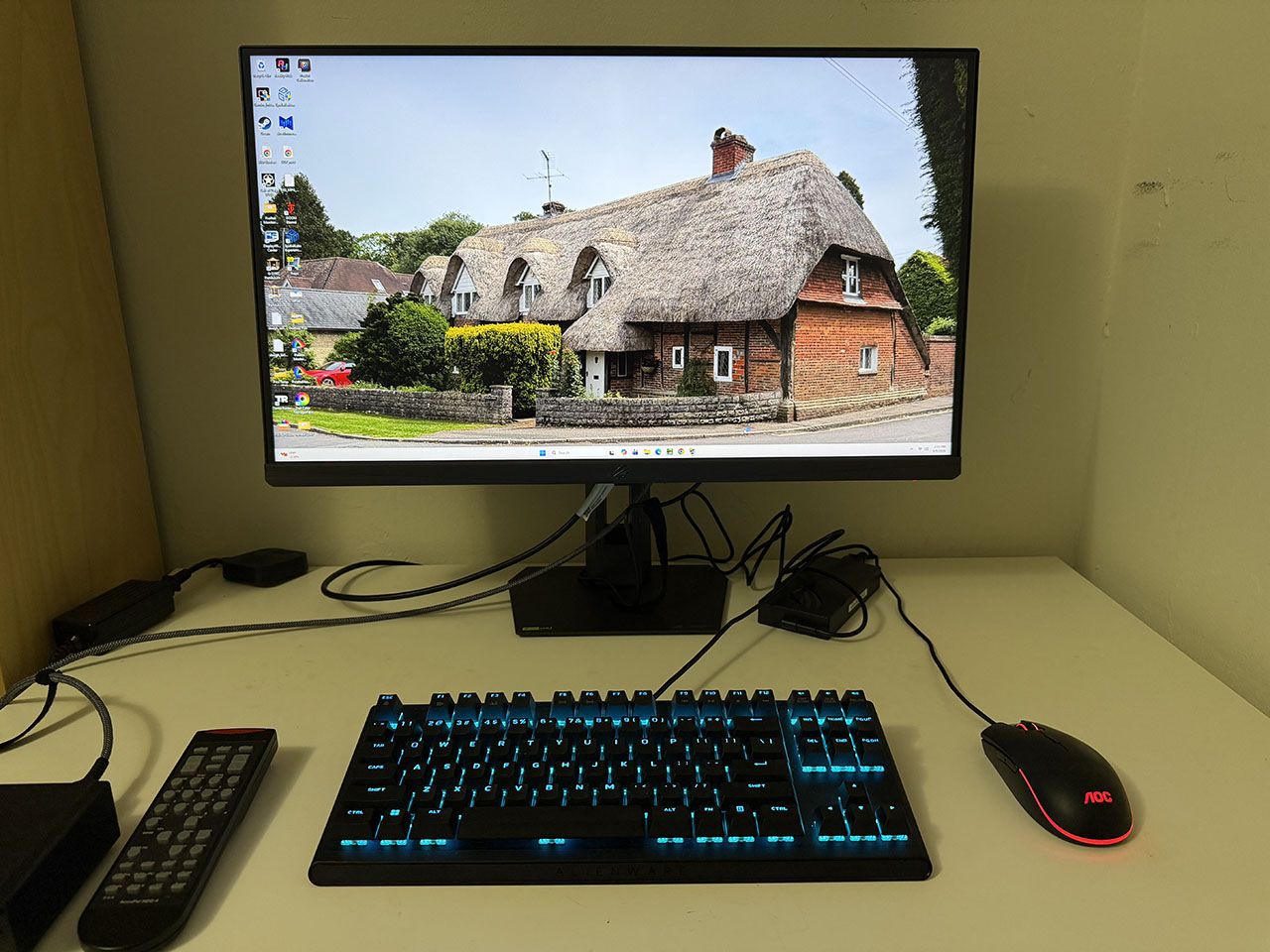
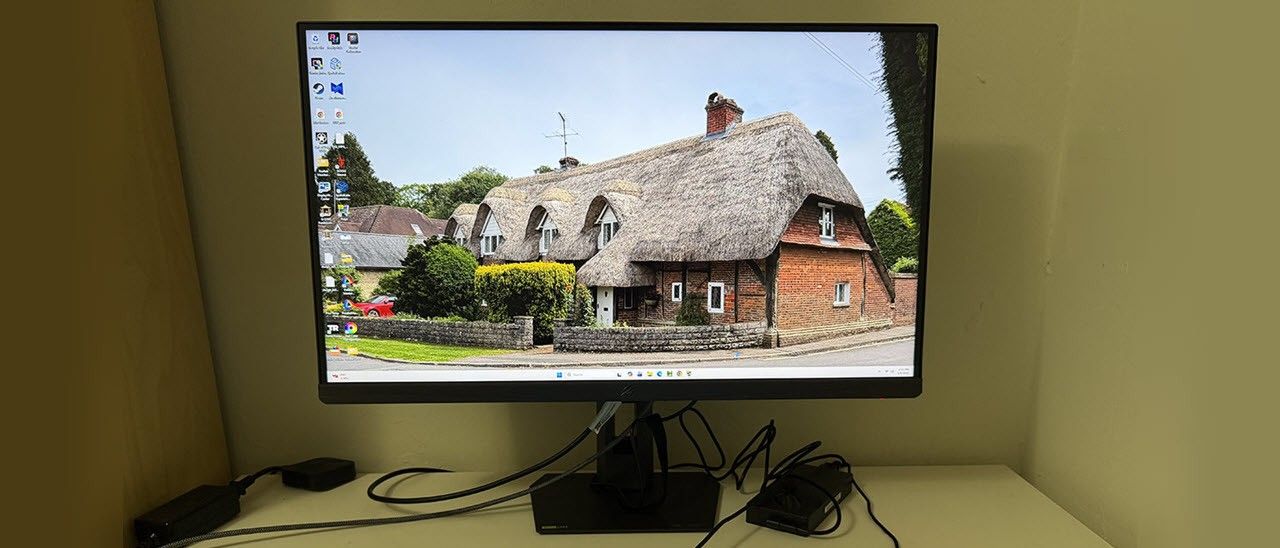
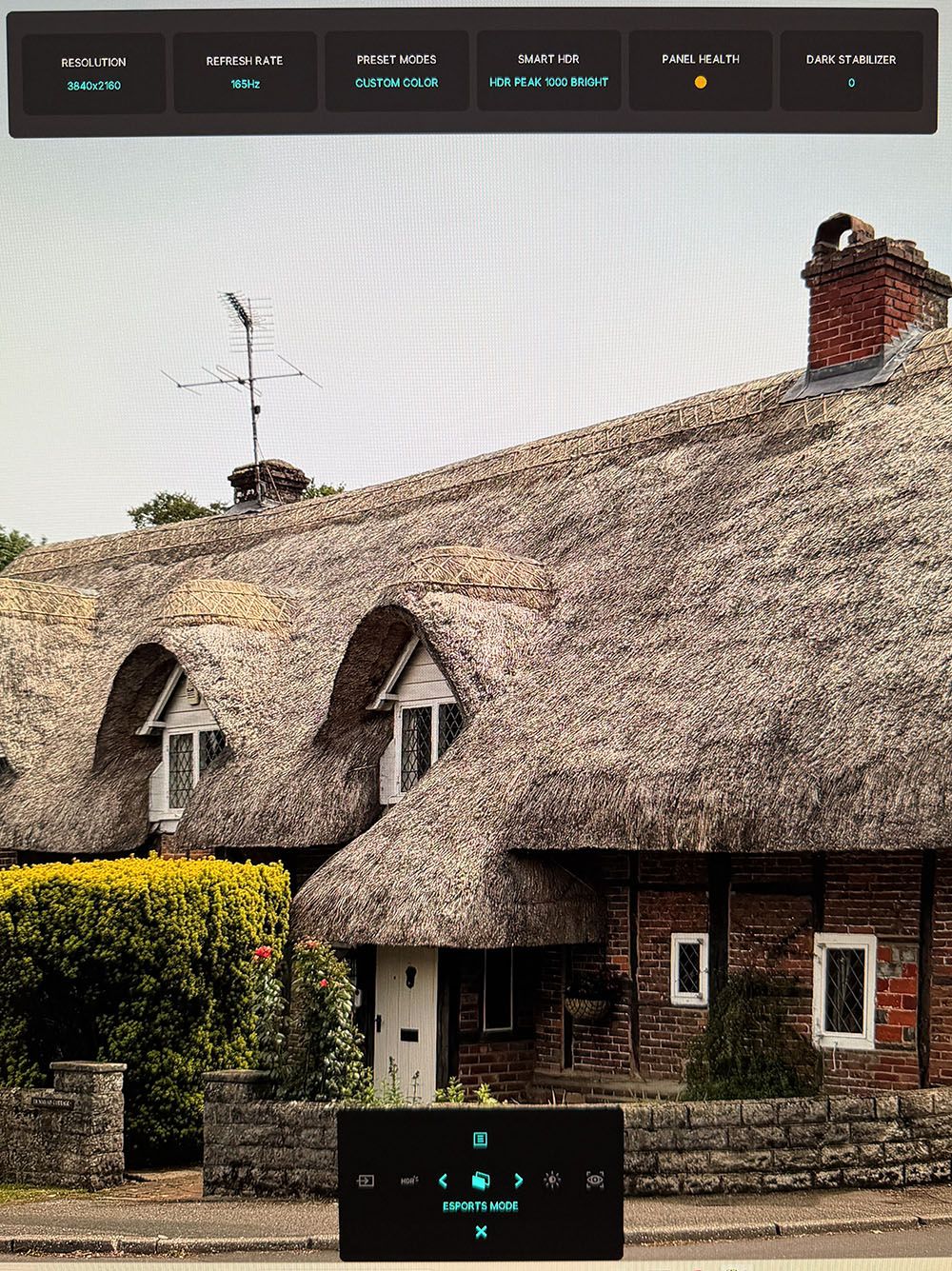
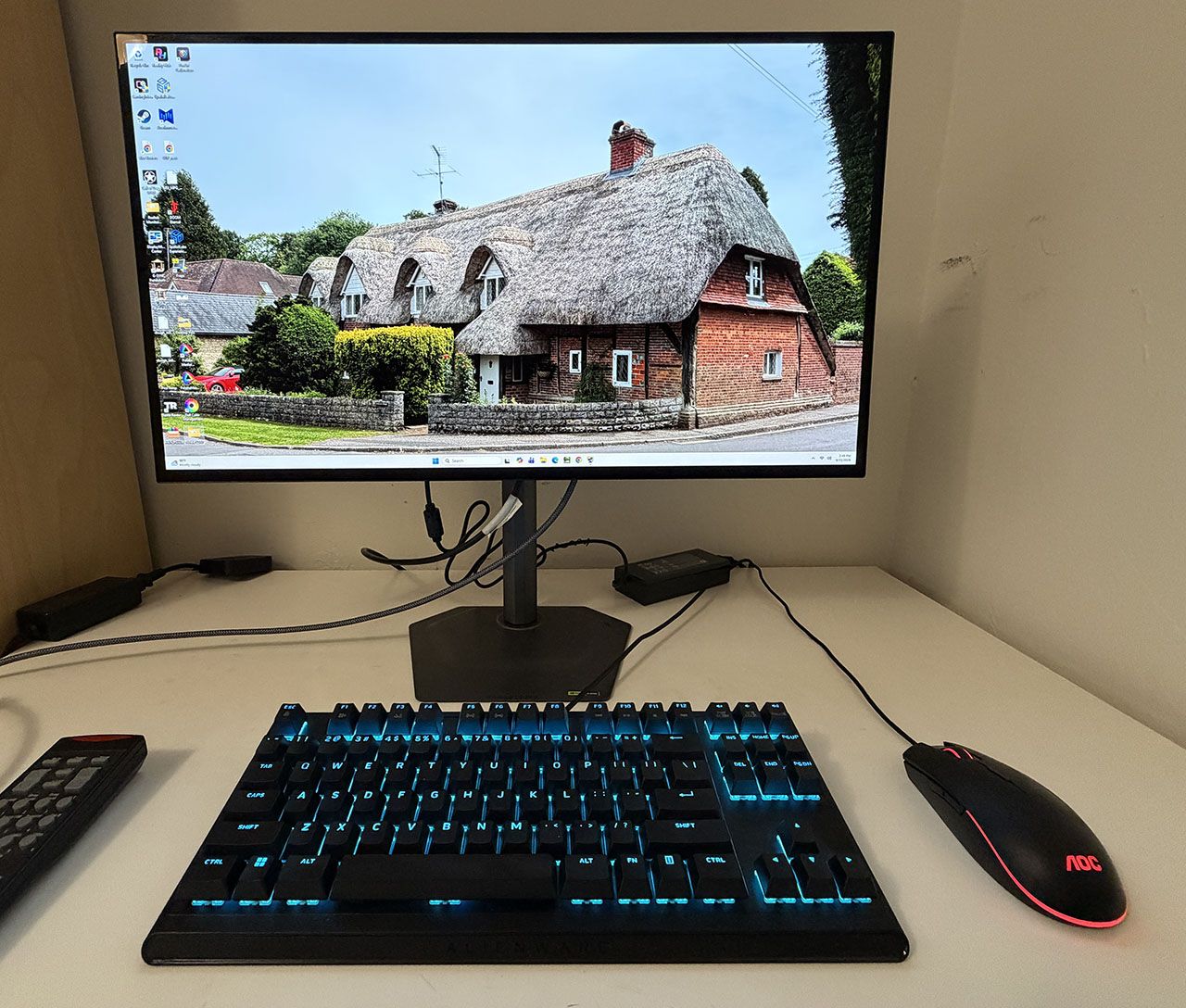
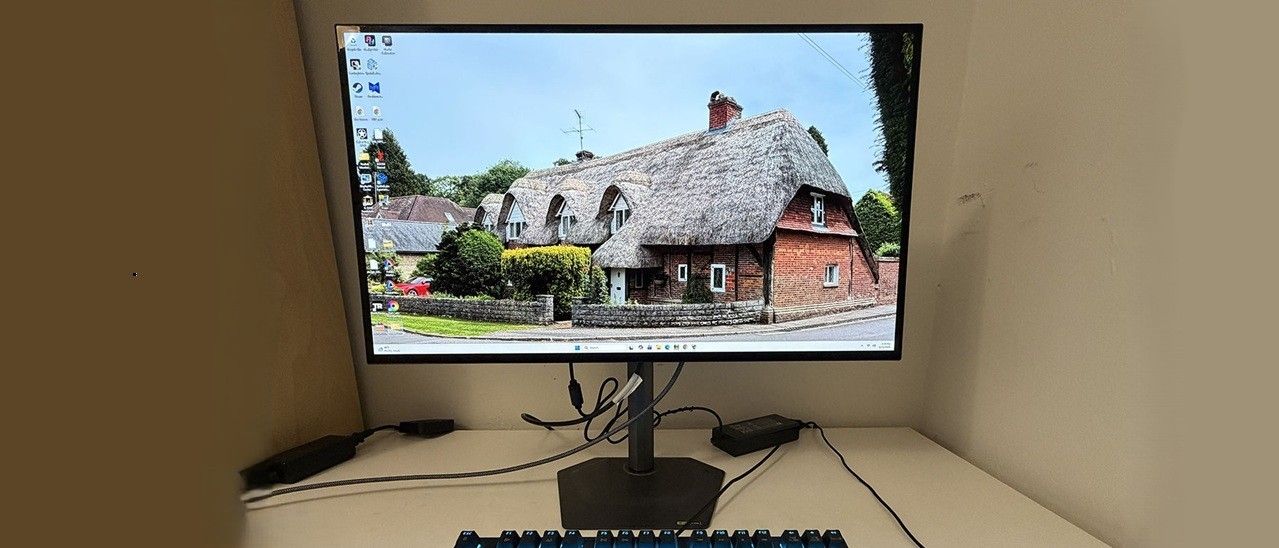
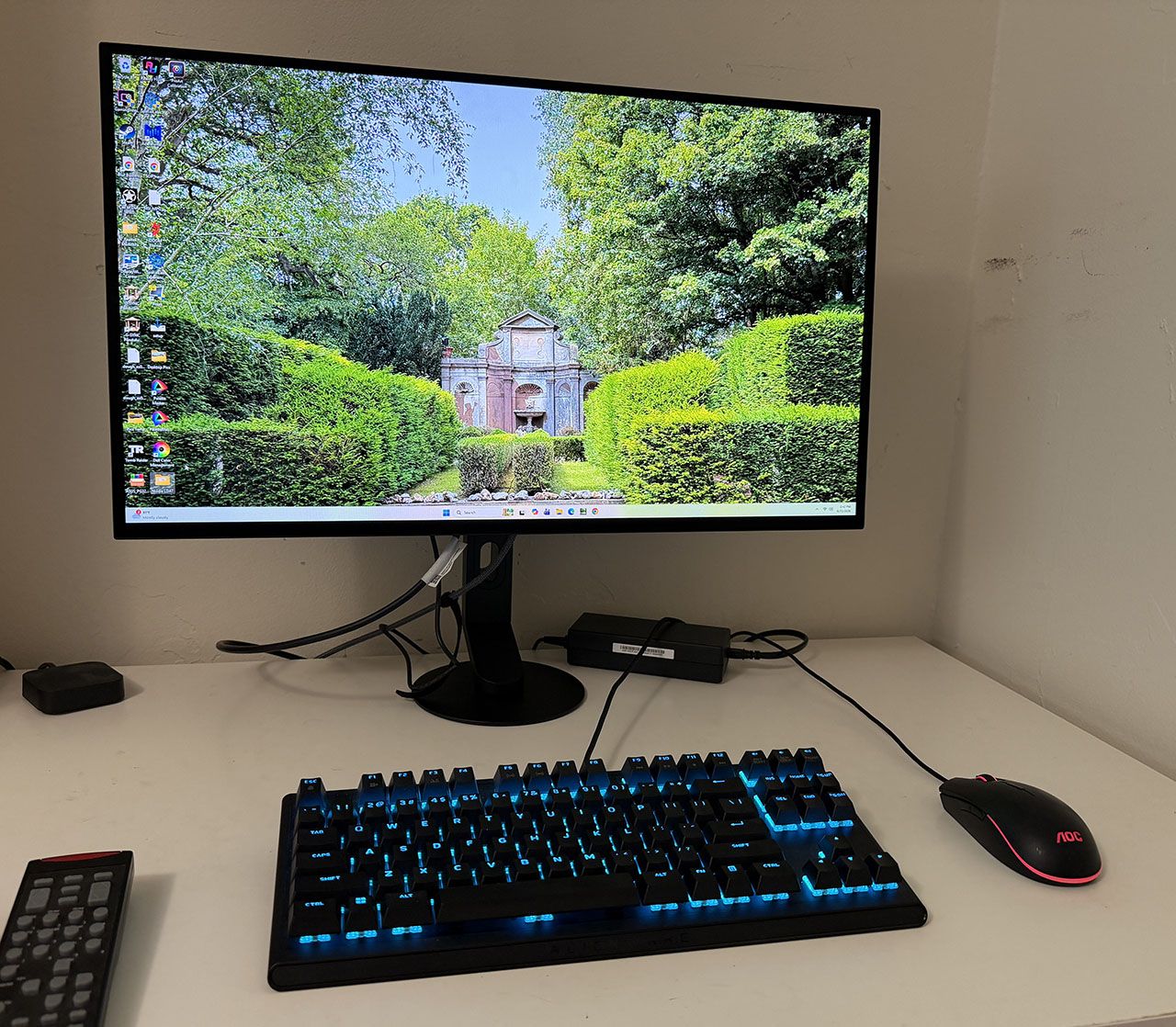
The first joystick press opens a quick menu with info at the top that shows resolution, refresh, current preset, HDR mode, panel health, and the dark stabilizer setting. At the bottom of the screen is a quick menu that can be programmed by the user. Fun fact: that thatch-roof house in the photo is down the street from where Jane Austen lived from 1809 to 1817 in Chawton, England.
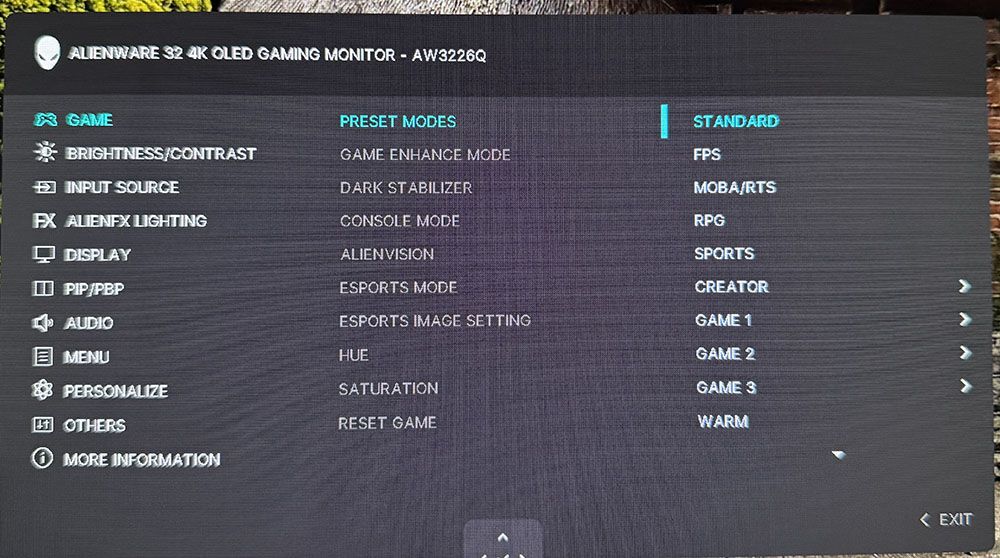
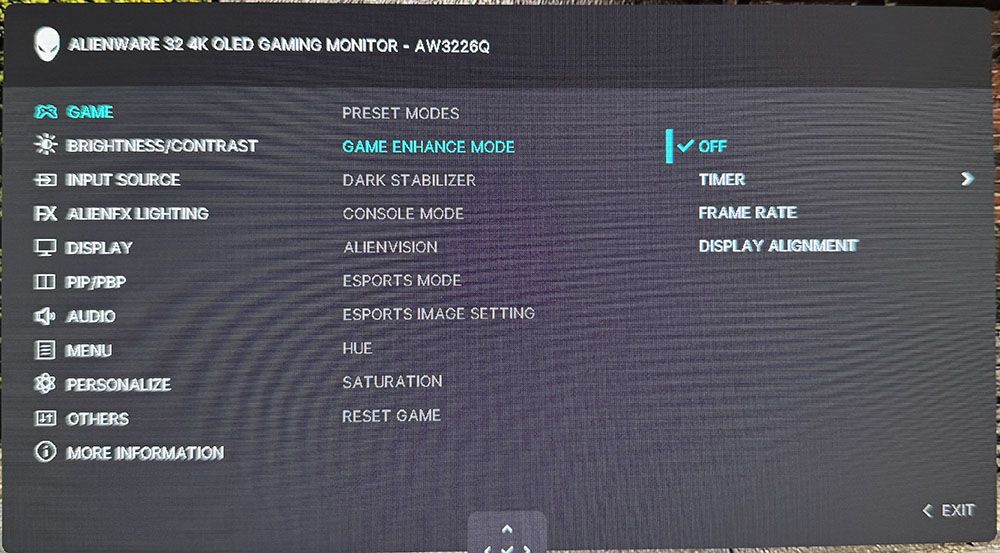
With another upclick, we get the full OSD, which has 11 sections starting with Game and the 12 picture modes. Standard is the default and its color is accurate, but you can get some improvement by using Custom Color and its two-point white balance sliders. Creator mode gives you access to the sRGB and DCI-P3 gamuts. The one thing missing, and this is true of every Dell and Alienware monitor I’ve ever reviewed, is a gamma control. Normally, this isn’t an issue, but in the AW3226Q’s case, the default gamma is too light with no practical way to correct. I’ll show you what I mean on page four.
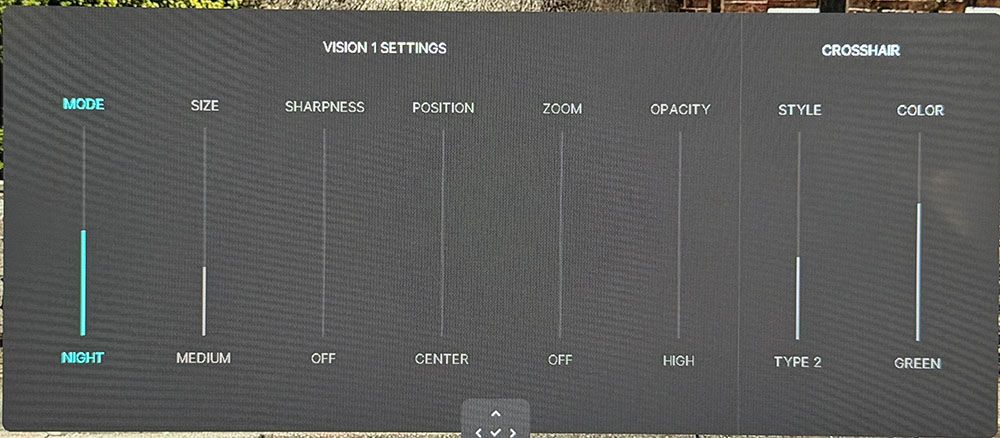
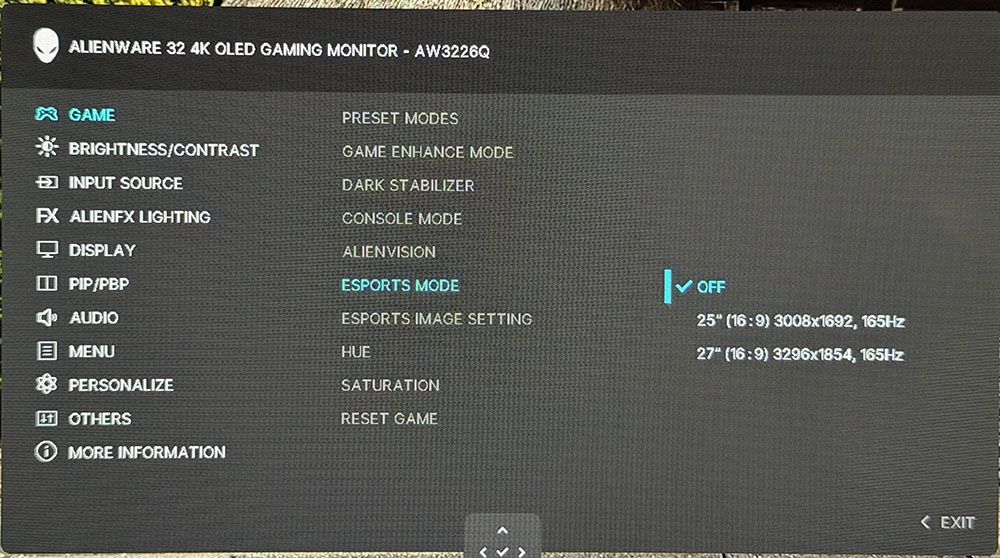
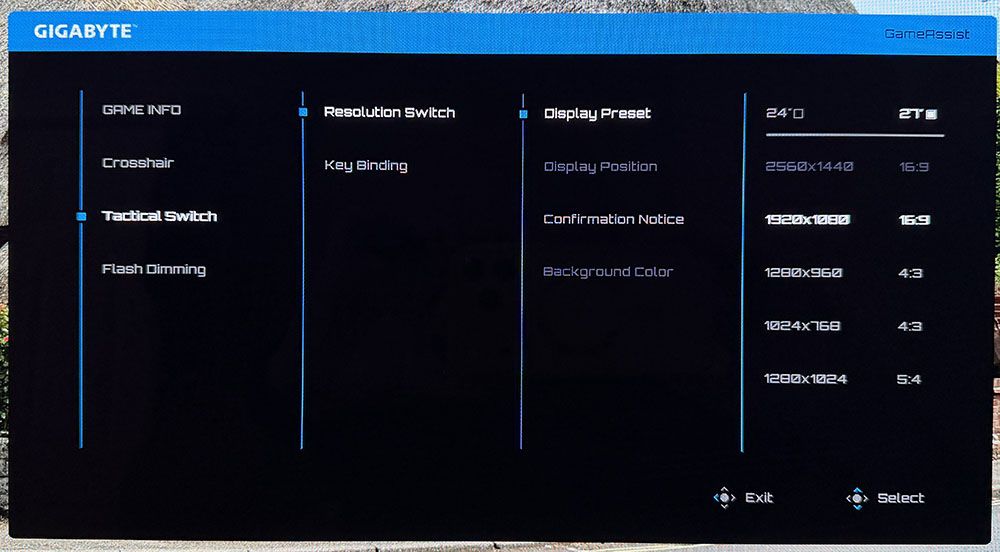
Game Enhance includes a set of timers and a frame rate counter. The aiming point editor is called AlienVision, and it gets its own screen with parameters for reticle shape, color, and position. You can also roll your own sniper mode with variable magnification and opacity. There are three memories to save your configurations. Esports modes include 25 and 27-inch images with reduced resolution, which is a benefit to frame rates, although you’re still capped at 165 Hz.
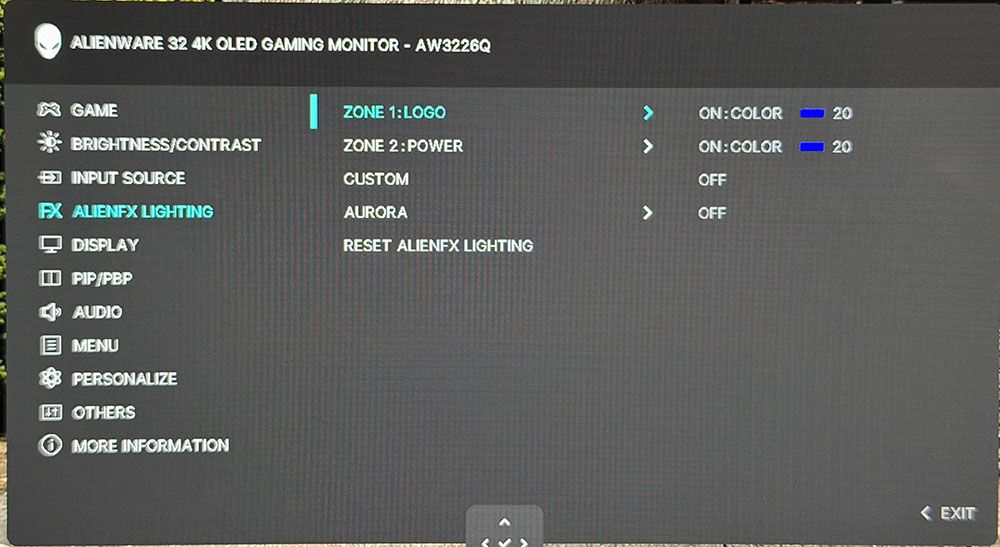
AlienFX lighting refers to the Alienware head in the back and the power button LED, which you can see from the front. They can display in any color or effect or be turned off if you want total darkness.
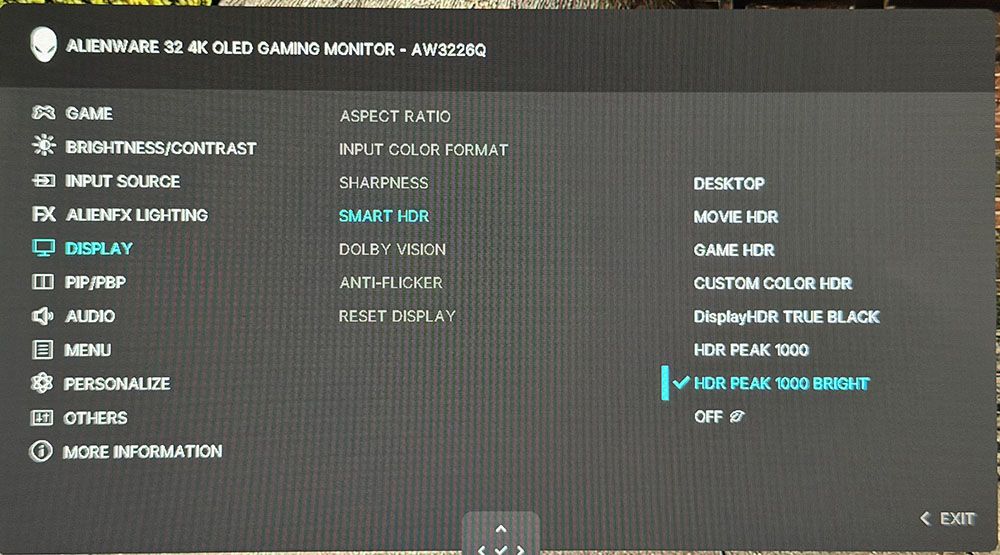
In the Display menu, you’ll find seven HDR modes plus a toggle for Dolby Vision. I found during testing that the HDR Peak 1000 Bright mode delivered the brightest and most impactful HDR.
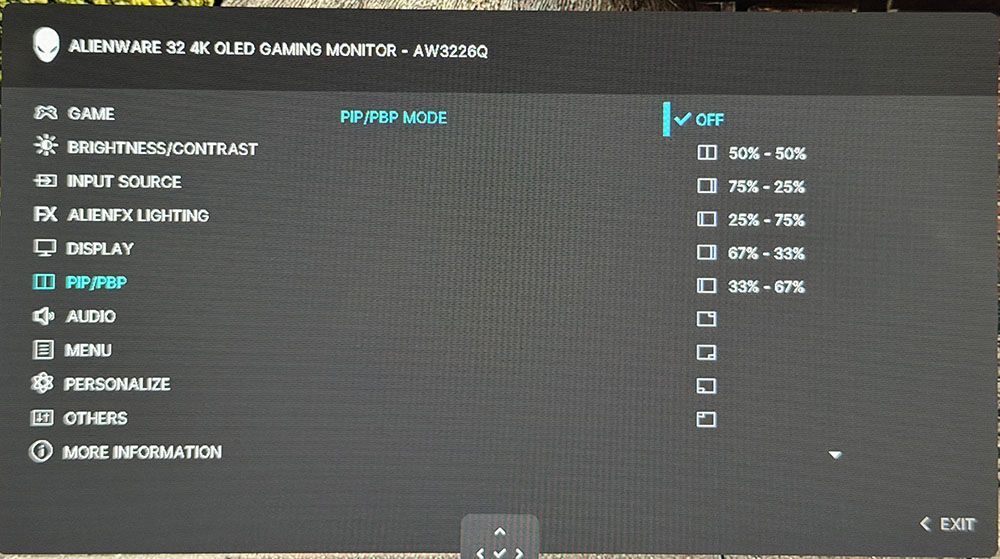
The AW3226Q includes full PIP/PBP functions for viewing two video sources at once. You can move the PIP window to any corner or decide how to split the PBP mode.
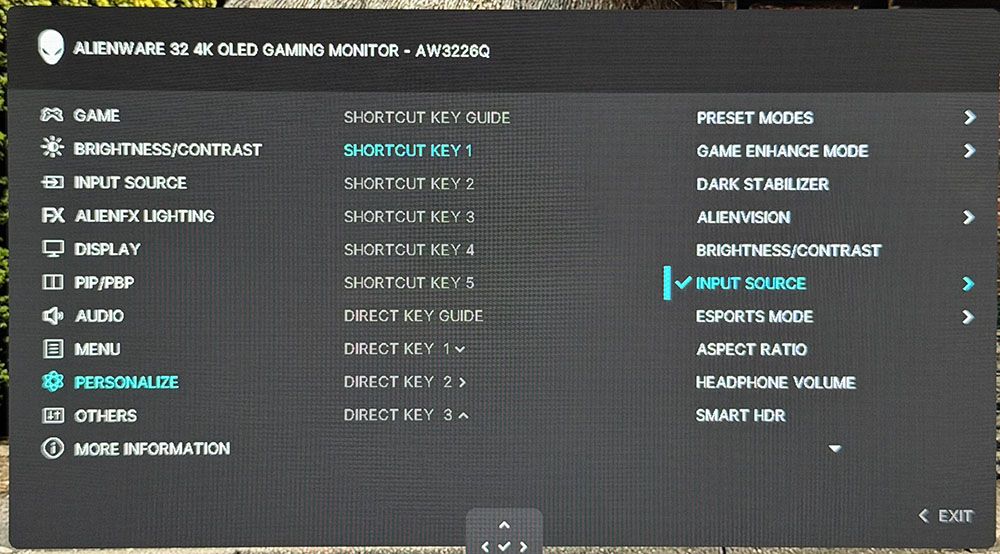
In Personalize, you can program the quick menu seen in the first photo above and the four joystick directions. Many functions can be accessed this way, like presets, Alienvision, headphone volume, and more.
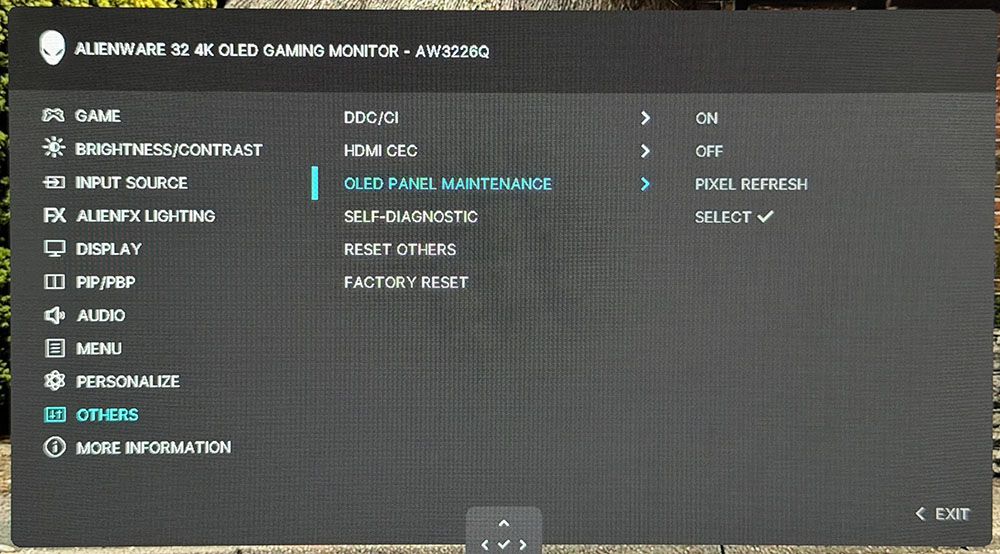
Most of the AW3226Q’s panel maintenance is handled by an algorithm that tracks the panel’s usage and manipulates pixel brightness accordingly. You can also initiate a panel refresh routine manually if you prefer.
Alienware AW3226Q Calibration Settings
Calibrating the AW3226Q was something of a compromise. In Standard mode, color and grayscale are without visible errors, but gamma is too light. And there is no gamma control in the custom color mode. You can adjust gamma in Creator mode and select sRGB if you like, but then you give up grayscale calibration. There’s also a gamma control in Console mode, but this only works over HDMI. I have long wished that Alienware and Dell would add gamma to the options in Custom Color mode. And when they do, I hope it’s a fine resolution slider like the Asus XG27AQNGV has, not the usual presets that are 0.2 apart. Anyway, my suggested settings are below.
For HDR10 signals, you get seven specific picture modes. Desktop is the default, but for the highest brightness and impact, choose Peak 1000 Bright.
Picture Mode
Custom Color
Brightness 200 nits
84
Brightness 120 nits
47
Brightness 100 nits
38
Brightness 80 nits
28
Brightness 50 nits
13 (min. 24 nits)
Contrast
75
Color Temp User
Gain – Red 99, Green 98, Blue 97
Bias – Red 50, Green 50, Blue 50
Gaming and Hands-on
Gameplay on the AW3226Q was satisfying and successful. But it didn’t quite have the shooting-fish-in-a-barrel feel of some of the 240 Hz monitors I’ve experienced. Motion was smooth and quick, but I had to concentrate a bit more on my aim to make sure I wasn’t wasting ammo. I’m in nit-pick mode here because I play on so many different monitors. After a short time, I adapted to the AW3226Q and was handily dispatching gory monsters and aliens in Doom Eternal.
Frame rates stayed at 165fps thanks to a GeForce RTX 4090, and there was only a slight amount of motion blur. The picture didn’t smear like some slower screens, but there was just a little less definition in hard edges when I moved the mouse quickly. Again, it was something I noticed, then adapted to. I played with the AlienVision options a bit and found them very useful. And once I had created a couple of setups, I could switch them on and off quickly using the programmable menu and joystick options.
The AW3226Q was a monitor I could easily live with long term. The image is gorgeous for starters. Tandem RGB Stripe OLEDs (TRS-OLEDs) are sharper than other variants, by enough that you can tell the difference in a side-by-side comparison. I spend a lot of time in Photoshop, and this monitor is easily on par with the best professional displays I’ve reviewed. It’s also colorful and accurate. I noted light gamma during testing, which only had a minor effect. It wasn’t that I found the picture lacking; it was that I didn’t have a practical option to darken the gamma to my liking.
In a nutshell, Standard mode has no adjustments. Custom Color lets you tweak grayscale with a two-point control, but there are no gamma presets. Creator has color gamut options for sRGB and DCI-P3 and gamma presets, but no RGB sliders. So, whatever you choose, there’s a compromise.
Physically, the AW3226Q is a presence in a good way. I love Alienware’s newest styling aesthetic, which has been around for a while now. The almost frameless screen delivers on its promise. When the picture is on, the bezel disappears. Taking away the bottom trim strip makes a big difference there. Though I missed internal speakers, I appreciated the inclusion of USB ports, especially the ones right under the bezel. They, along with the headphone jack, are within easy reach. And even though it is a value-oriented display, it has the same premium build quality and solid feel as Alienware’s flagship models.
Takeaway: The AW3226Q has a gorgeous image with super crisp detail and deep texture. Its Tandem RGB Stripe technology eliminates any hint of fringing and gives the picture more dimension. The 165 Hz refresh rate produced a little blur, but I soon adapted to it. I reminded myself that the lower number comes with a $200 cost savings. My favorite use for the AW3226Q was as an everyday screen. It’s a premium tool for Photoshop or any graphics app you might wish to use. And it makes a great personal TV as well thanks to its support for Dolby Vision and HDMI eARC. Just hook up an external AV system or soundbar, and you’ve got a desktop home theater.
Click here to read up on our pixel response and input lag testing procedures.
Tom's HardwareTom's Hardware
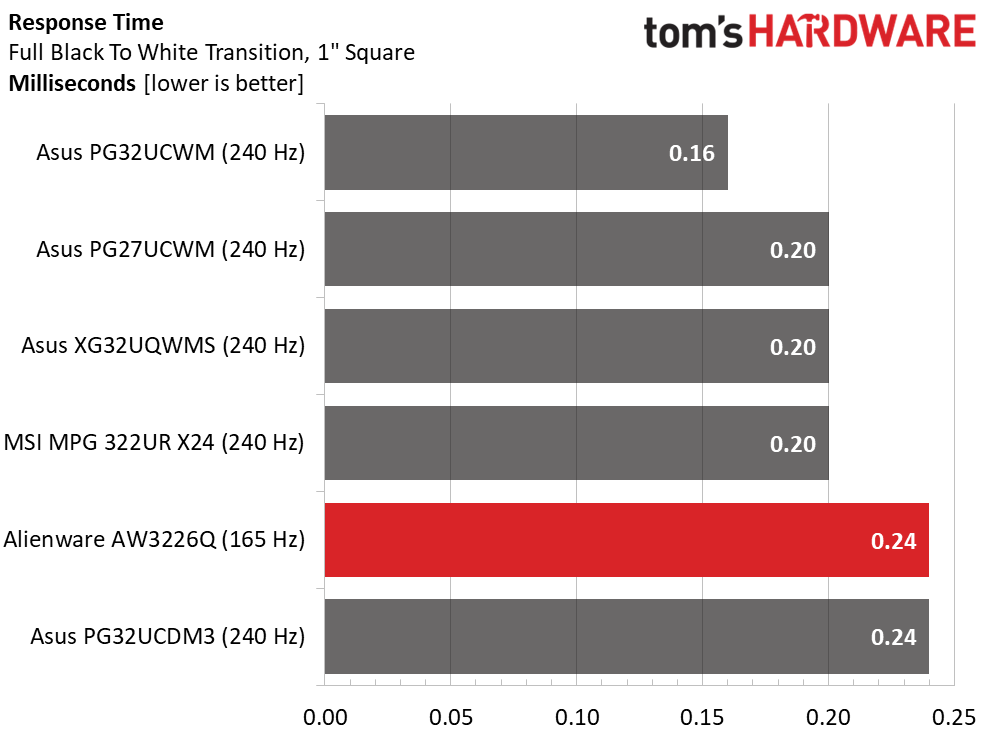
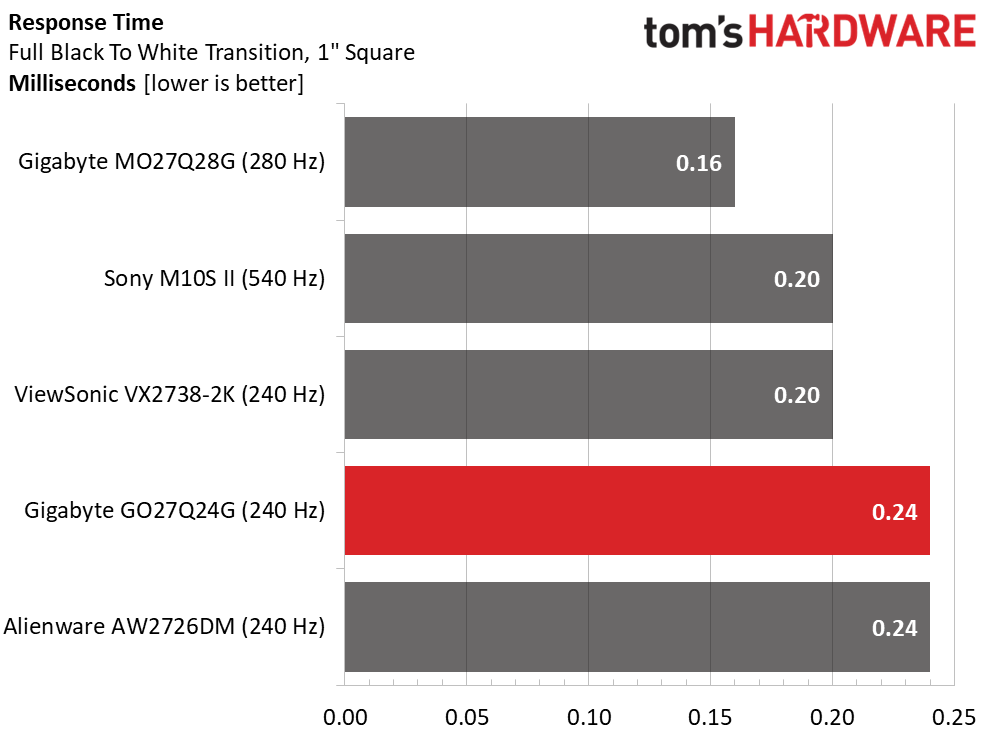
The difference between 0.16 and 0.24ms is invisible to the naked eye. Though the AW3226Q runs at 165 Hz versus the others’ 240 Hz, it draws the one-inch box just as fast. In practice, though, I noted a slight bit of motion blur. When analyzing the LDAT results, I saw a significant amount of overshoot that ranged from 10 to 20%. Though OLEDs don’t have adjustable overdrive like LCDs, there is still some anticipation happening here to try and mitigate blur. Bottom line: the AW3226Q is a tad less smooth than a 240 Hz screen.
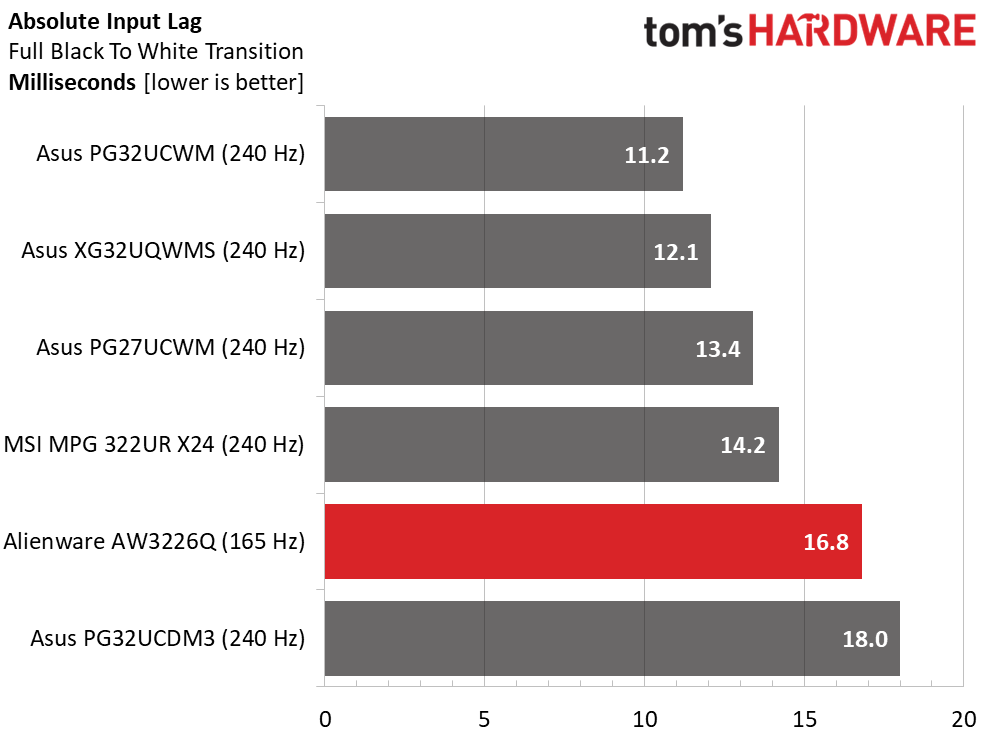
It only gives up a bit of input lag to the faster monitors and even beats the PG32UCDM3 by a hair. In practice, you won’t perceive any difference between the AW3226Q and the PG32UCWM because 5.6ms is still well below even the fastest human reaction time. This monitor is plenty quick.
Test Takeaway: In the OLED category, a 240 Hz monitor will be smoother than a 165 Hz one, but the difference is very small. And there is no practical difference in input lag. The AW3226Q will appeal to all but the most skilled players. Worth considering is that those 75 extra Hertz will cost you around $200.
Viewing Angles
(Image credit: Tom's Hardware)
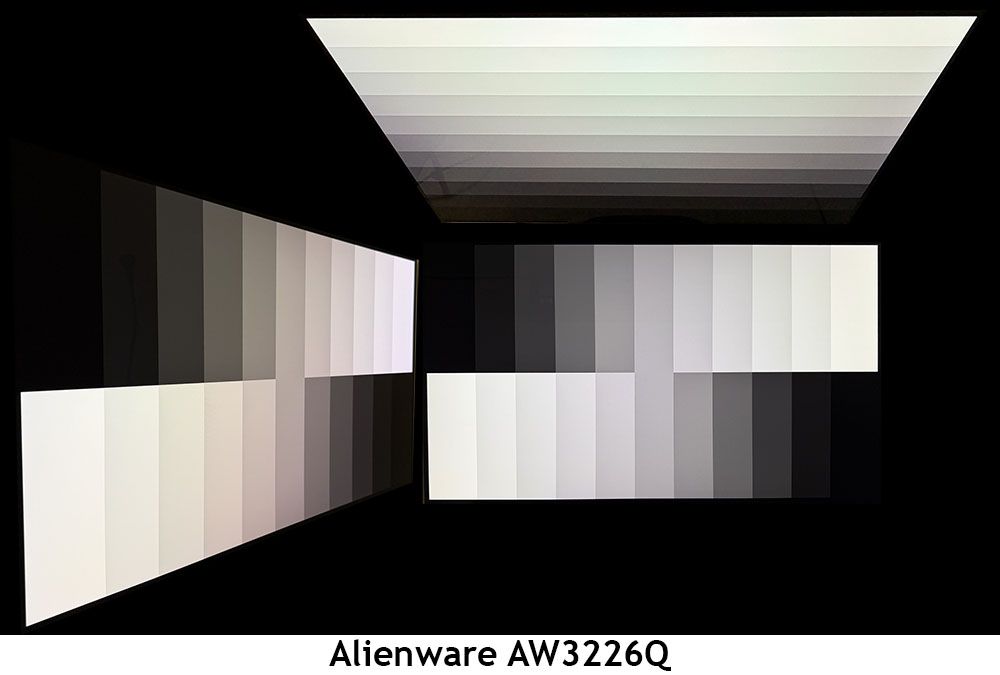
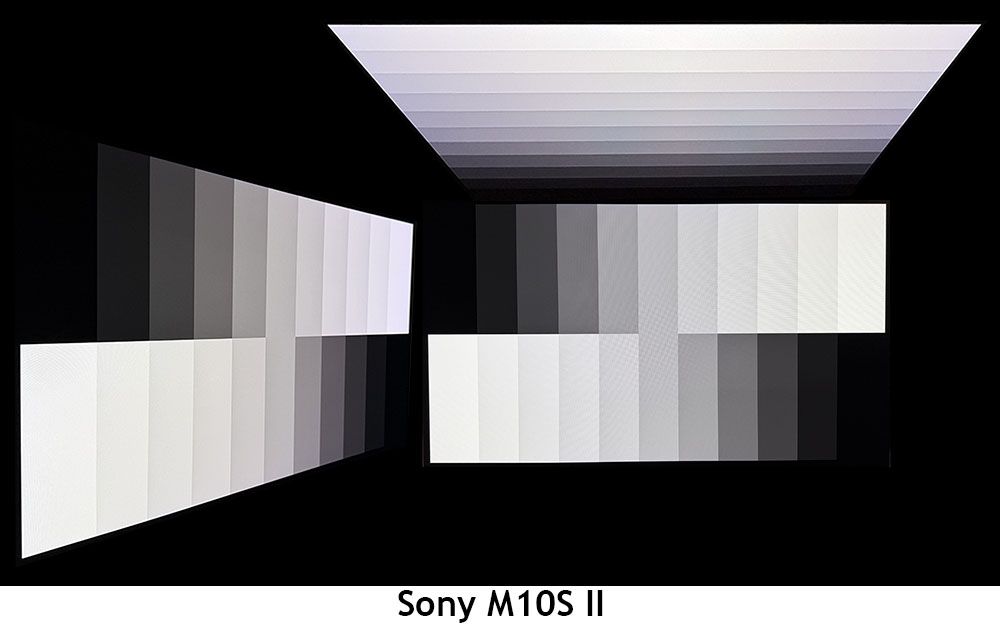
Though OLED generally beats LCD technologies for off-axis image quality, the Tandem RGB Stripe variant has a visible color shift at 45 degrees horizontal. You can see a red tint in the photo above. There is no change to brightness or gamma, though. This is from the polarization of the sub-pixel layer, which is what gives the AW3226Q its extreme clarity. The top view has the same red shift plus reduced gamma.
Screen Uniformity
To learn how we measure screen uniformity,click here.
(Image credit: Tom's Hardware)
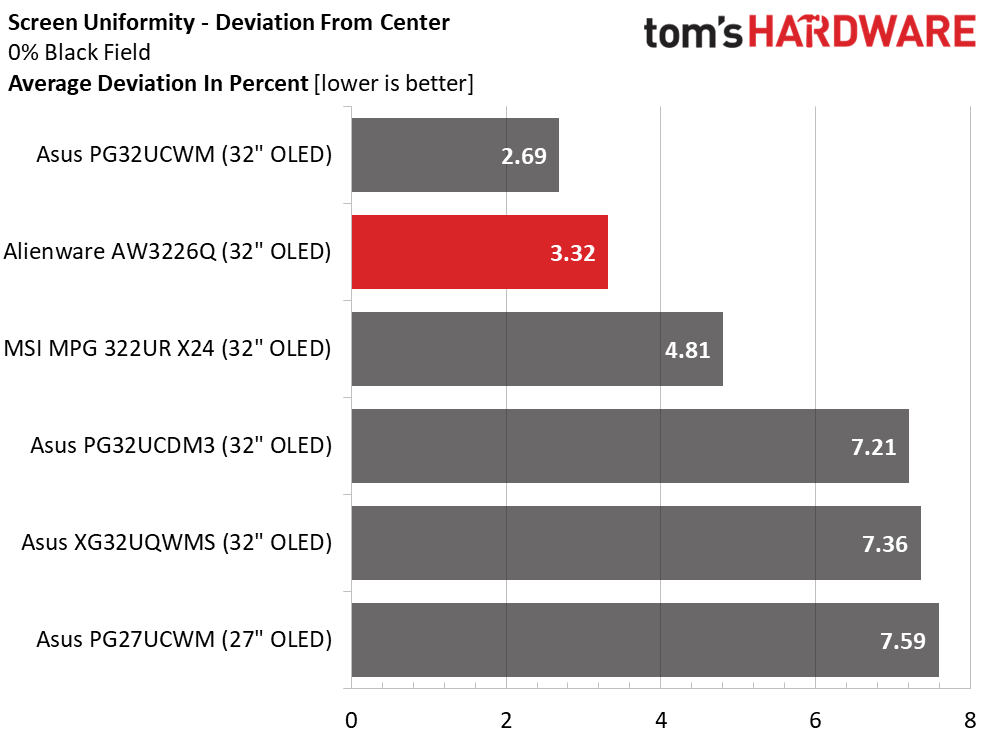
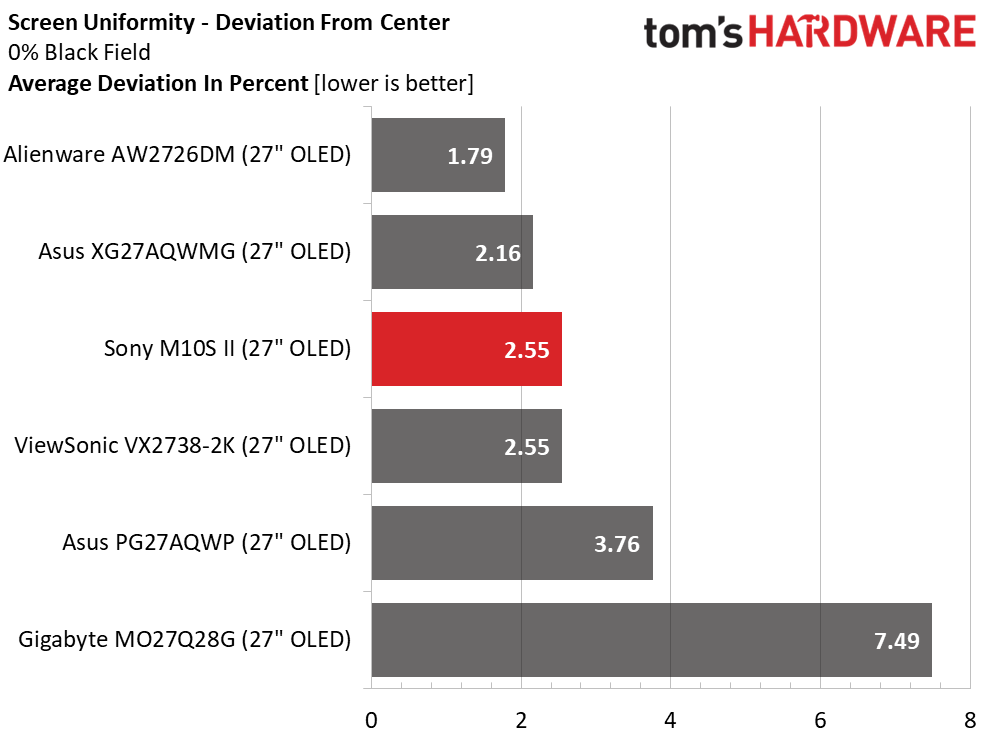
There are certainly no issues with screen uniformity here. The AW3226Q aced my test with just 3.32% variation from the center zone. That figure matches most premium OLEDs and is on par with a professional display. It doesn’t get much better than that.
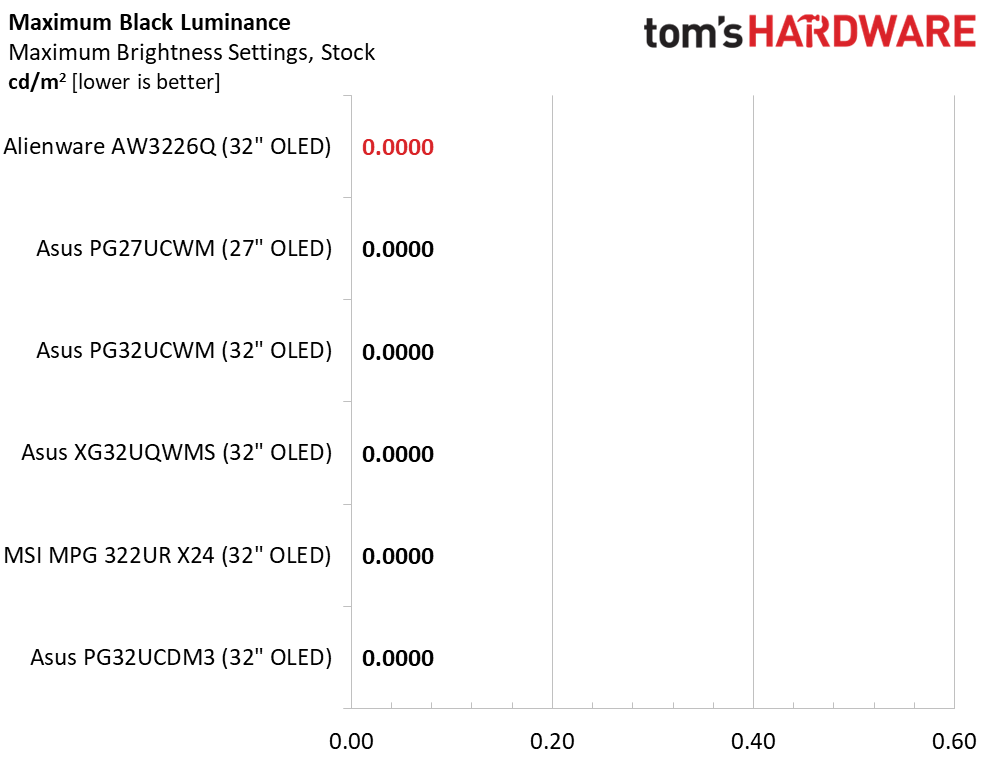
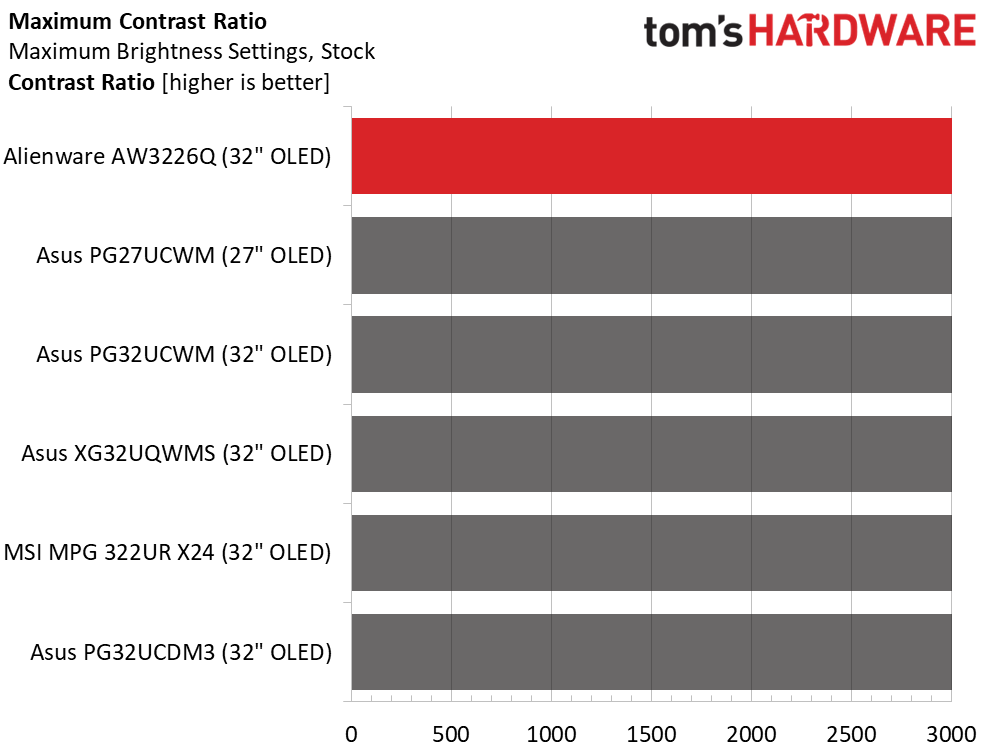
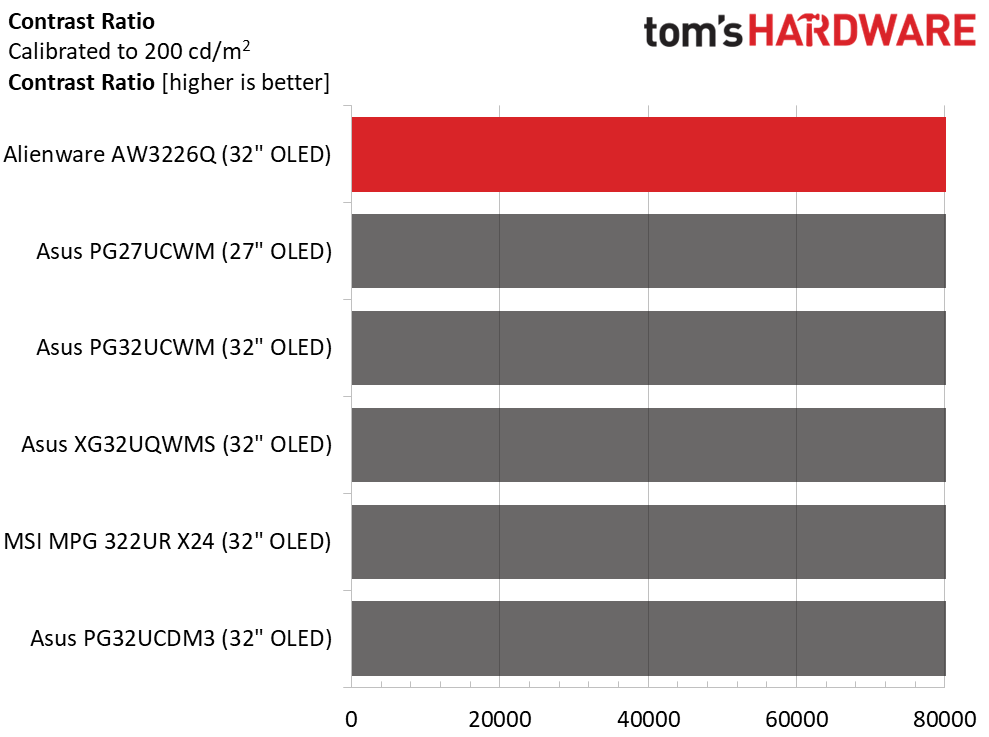
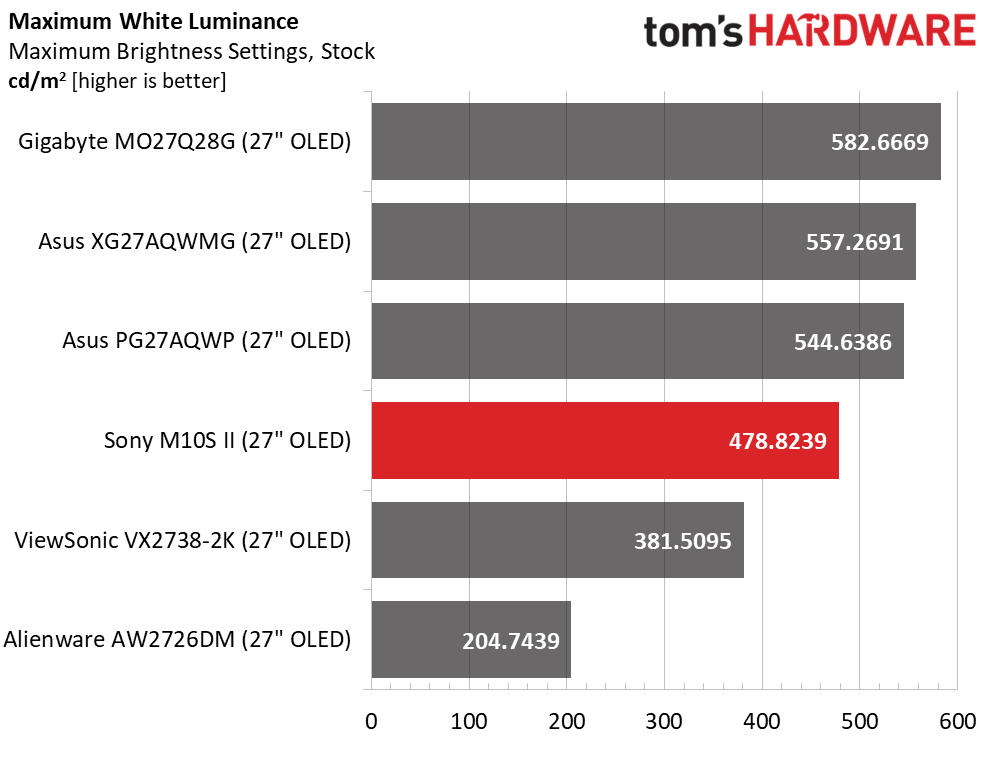
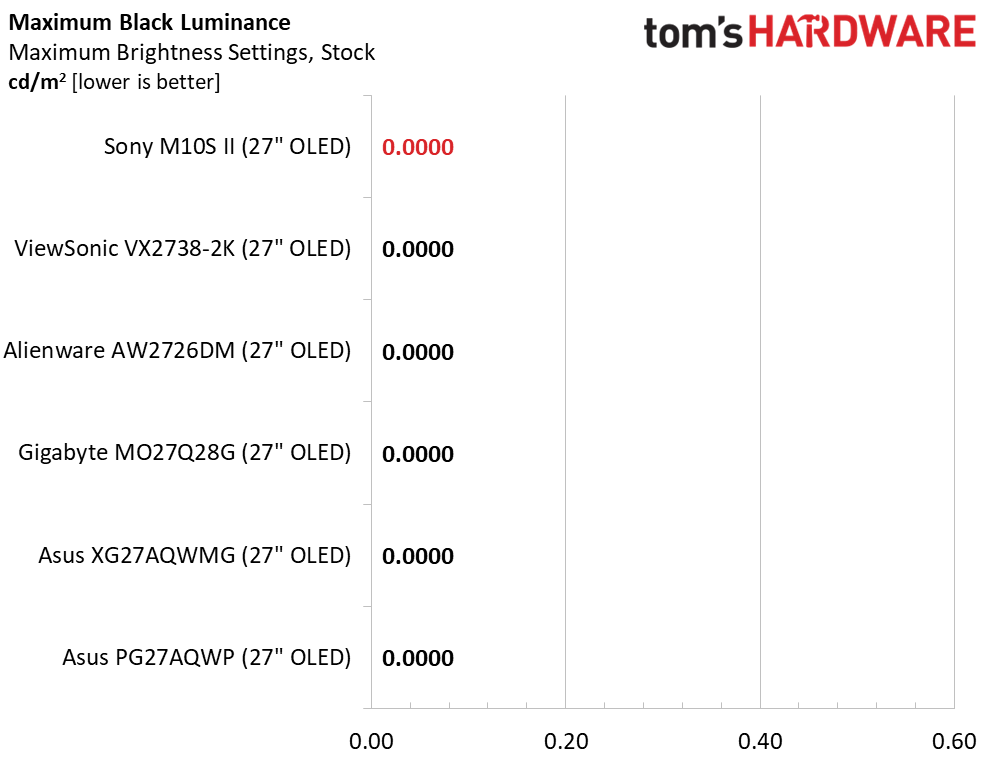
The AW3226Q’s Tandem RGB Stripe tech delivers excellent brightness with low power consumption. In SDR mode, both a full white field and a 25% window measure 276 nits. There is no variable brightness option available for SDR content, but it is there for HDR; more on that on page five. Black levels can’t be measured, so contrast is theoretically infinite. I noted that the polarizing layer delivered a truer-looking black than typical OLED and QD-OLED panels. But this is a perception, not something that can be measured.
After Calibration to 200 nits
Tom's HardwareTom's HardwareTom's Hardware
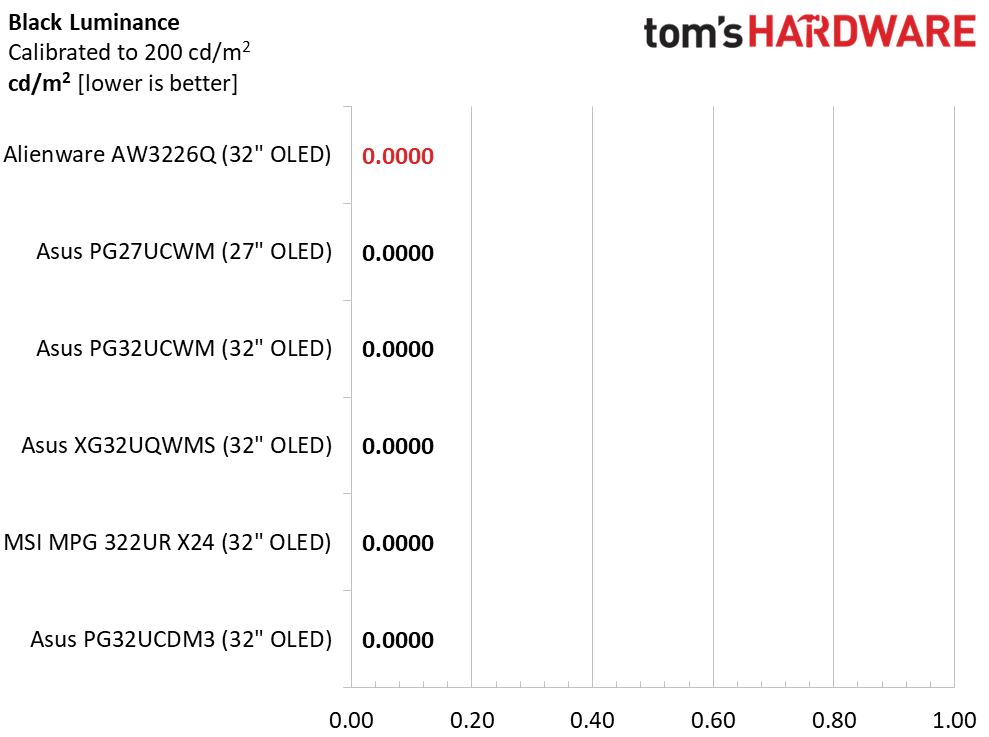
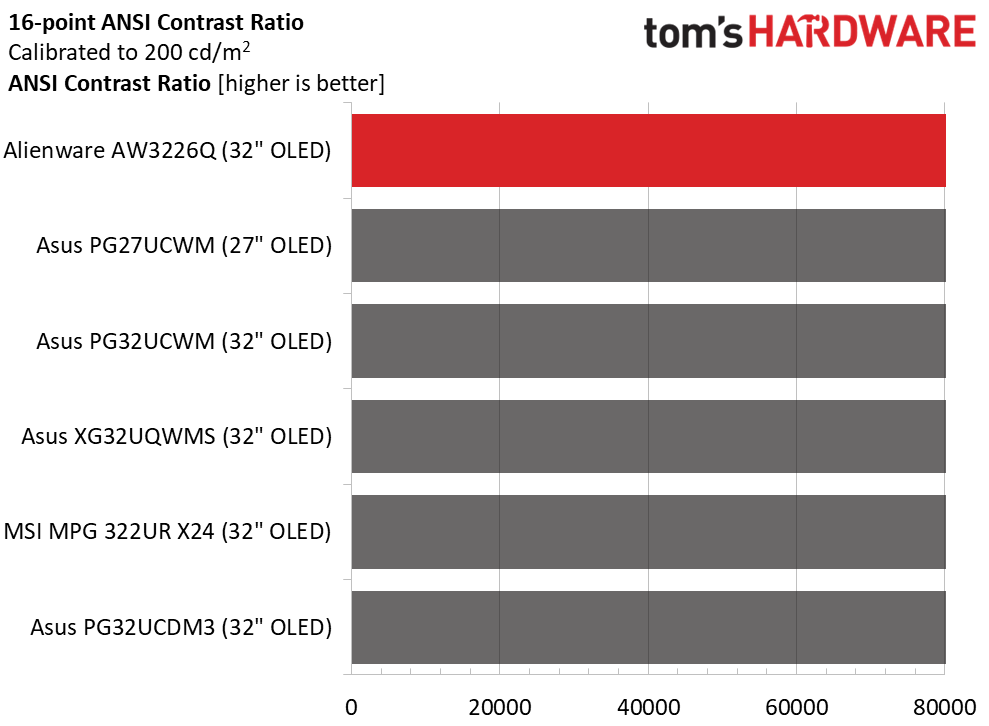
Calibration doesn’t change anything but the peak output level, which I set to 200 nits. Since there’s no variable brightness option, you only need to measure a full field to find your preferred peak light level. ANSI contrast also could not be measured.
Test Takeaway: The AW3226Q has similar contrast and brightness to other premium OLEDs. There is no variable brightness option for SDR, so full fields and windows measure the same, around 276 nits. Blacks are unmeasurable but look more true thanks to the screen’s polarizing layer. If you want more drama for SDR content, a panel with variable brightness will deliver around 500 nits peak.
You can enjoy the AW3226Q without calibration in its Standard picture mode, but gamma will be a little light, as you’ll see below. Options include Custom Color and Creator if you want more control.
Grayscale and Gamma Tracking
Our grayscale and gamma tests use Calman calibration software fromPortrait Displays. We describe our grayscale and gamma tests in detail here.
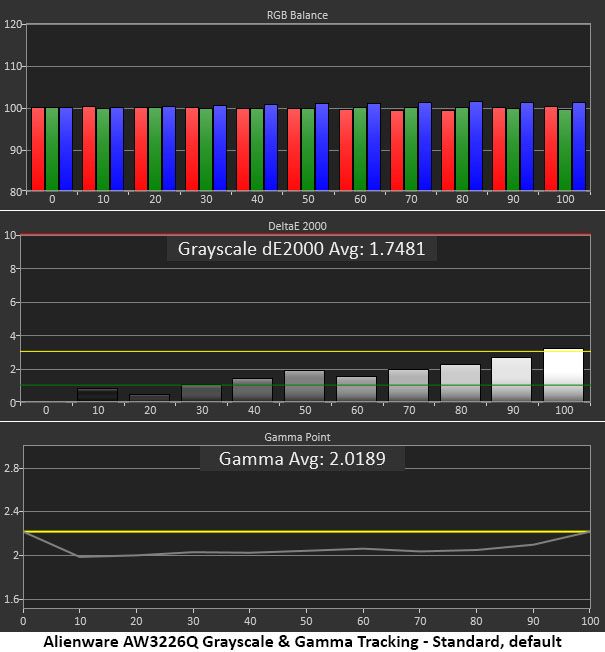
Default grayscale tracking is solid, with only the 100% brightness step cracking the 3dE line. There are no visible errors here. But gamma is too light, with an average of 2.02, well below the reference of 2.2. Since tracking is linear, it doesn’t have a huge effect on image quality, but if it were darker, there would be a little more texture and dimension. My main complaint is that there is no practical option to change this.
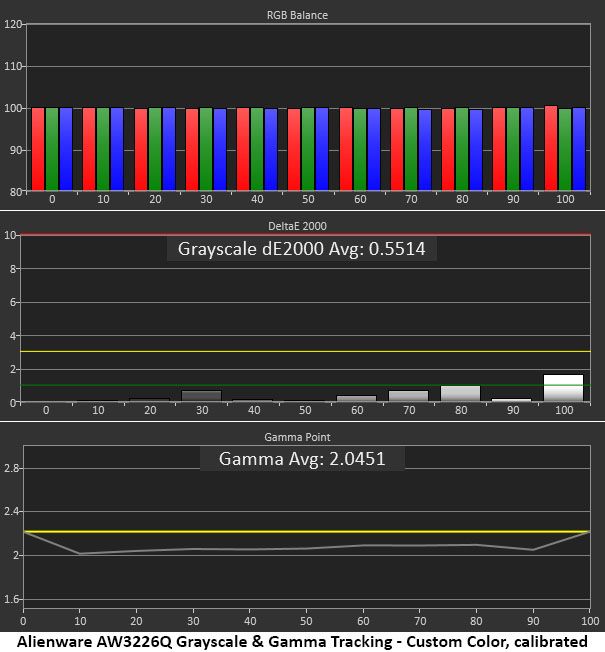
Using the Custom Color mode, I was able to improve grayscale tracking to a very impressive 0.55dE. Gamma got slightly darker but is still too light at 2.05.
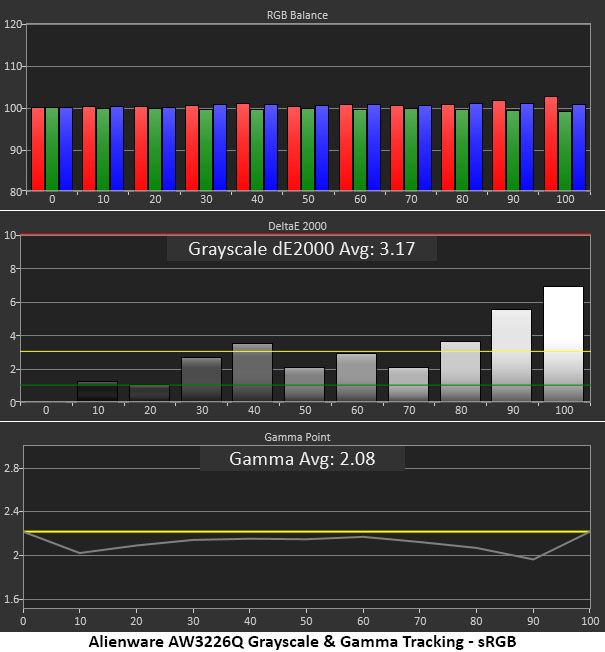
To select sRGB, use the Creator mode and its gamut options. It has adjustable gamma, which I did not use for this test, but no color temp adjustments. You can see that it’s mostly under the 3dE line except for 90 and 100%, which are too warm in tone.
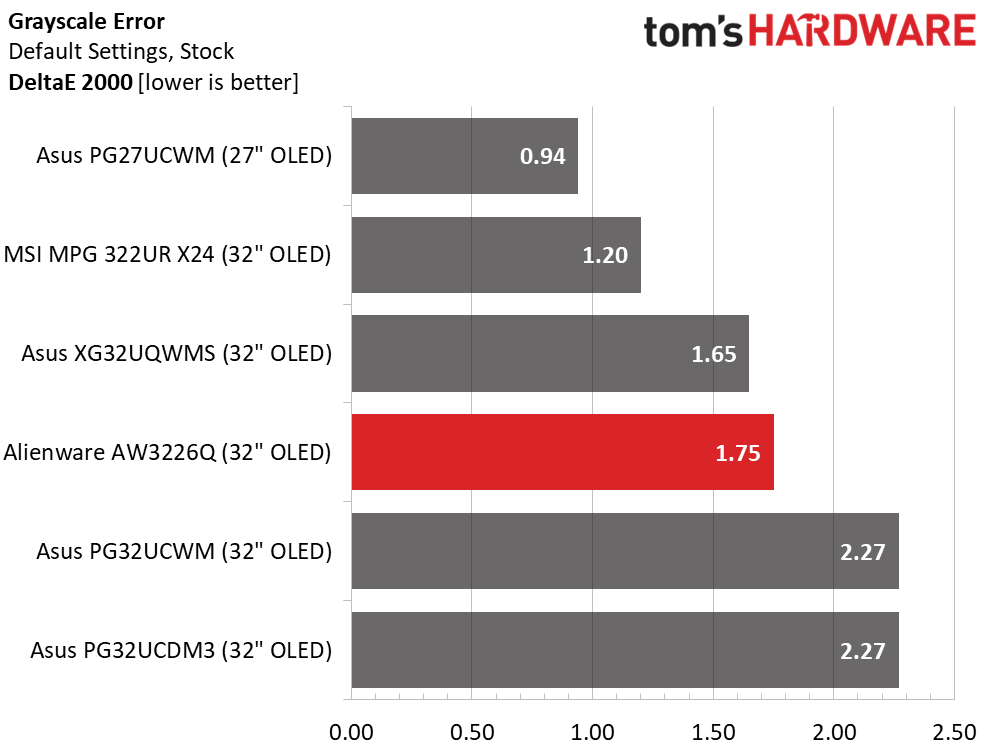
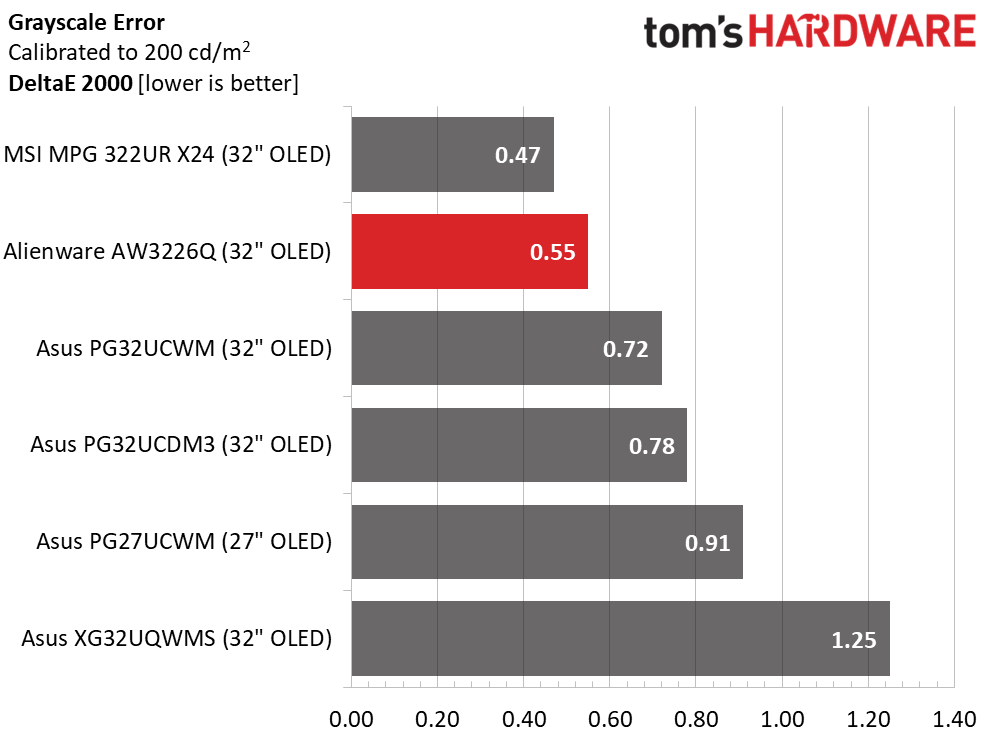
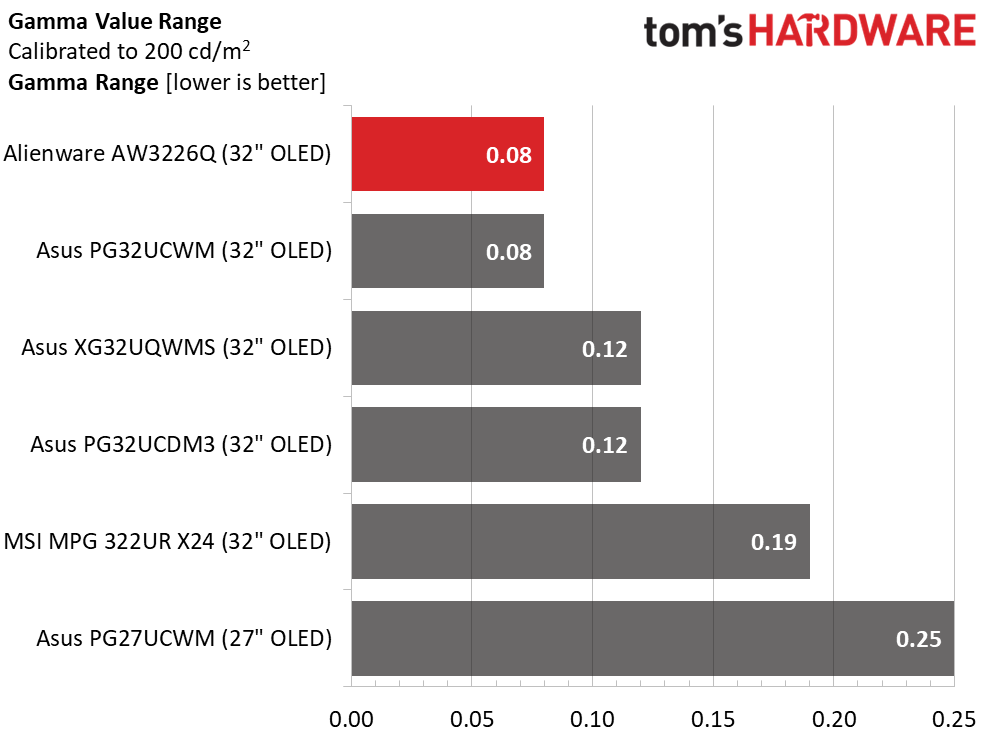
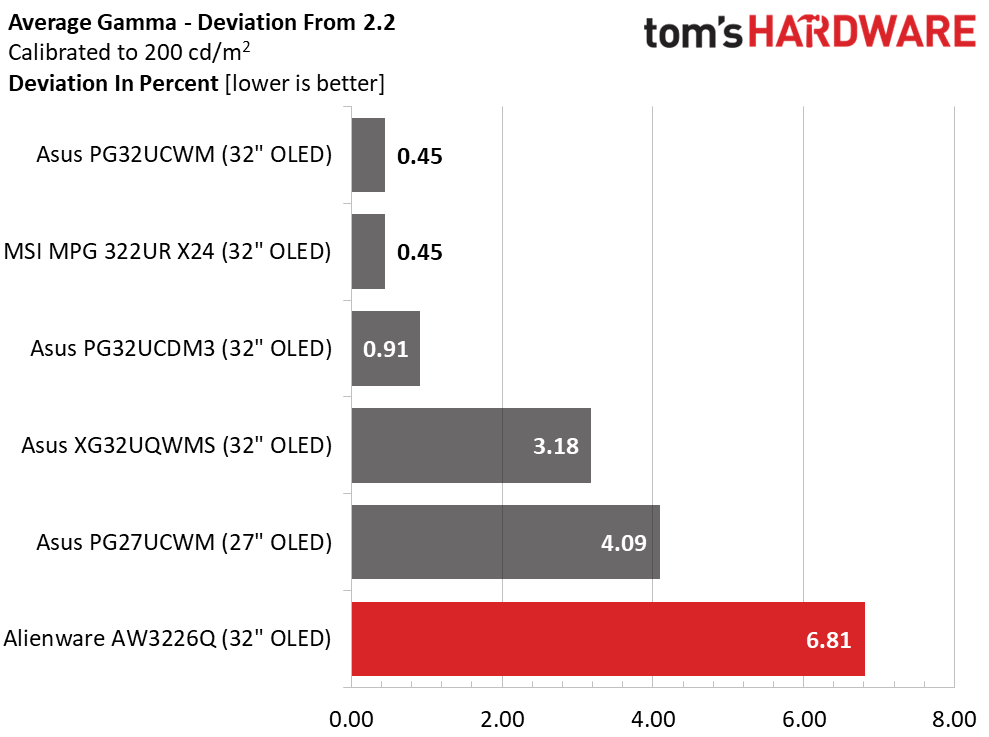
The AW3226Q starts out at 1.75dE, no complaint there, and you can go on about your day without calibrating. But a few tweaks in Custom Color mode reduce the average error to 0.55dE, which is among the very best. In the gamma test, the AW3226Q had the tightest range of values with just 0.08 separating lowest from highest. But tracking is off the 2.2 reference by 6.81% (2.05 actual).
Color Gamut Accuracy
Our color gamut and volume testing usePortrait Displays’ Calman software. For details on our color gamut testing and volume calculations,click here.
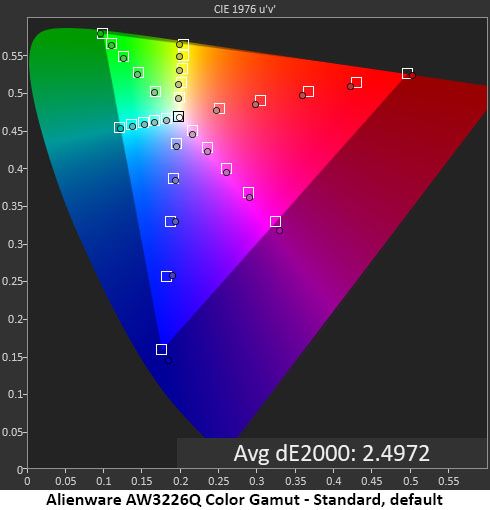
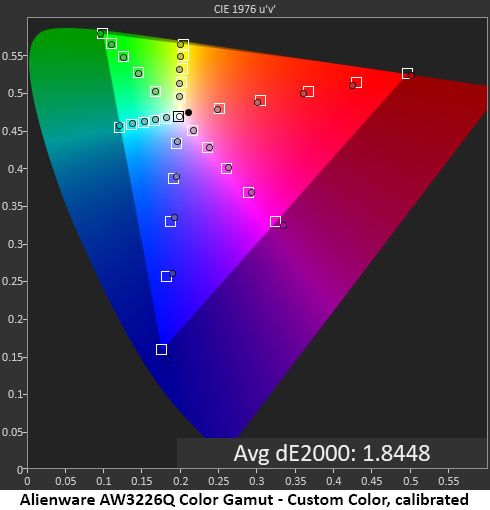
The AW3226Q’s default color chart shows a couple of things. You can see that it fully covers the DCI-P3 gamut with just a slight bit of bonus color in blue. Red is a tad undersaturated but not enough to have a negative effect. Hue points are also on target. This is excellent performance.
Calibration barely moves the needle, but the average error is a tad lower, and red is a tad more saturated. I have no complaints here.
The Creator mode’s sRGB option is spot-on, with all points inside or in contact with their target boxes. There are no visible errors here either.
Comparisons
Tom's HardwareTom's Hardware
I have yet to test an OLED with anything but excellent color. The AW3226Q’s 1.84dE score is professional grade. Visually, you would not see an accuracy difference between any of the screens, but the top three will have slightly more saturated red and green hues. And you’d see that in the brightest content only. For sRGB use, the AW3226Q covers 97.16%, which is nearly ideal for color-critical work.
Test Takeaway: The AW3226Q has excellent out-of-the-box accuracy in my grayscale and color tests. Only gamma is a tad light, though it maintains tight linearity, which partially mitigates the error. My only complaint is that there is no option to change this. The AW3226Q has a little less color volume than some of its competitors but still covers more than 101% of the DCI-P3 gamut.
The AW3226Q supports Dolby Vision and HDR10 signals with an automatic mode switch. HDR10 gets eight specific presets, of which Desktop is the default.
HDR Brightness and Contrast
Tom's HardwareTom's HardwareTom's Hardware
To find the brightest HDR peaks, I tested the Peak 1000 Bright mode. A 25% window measured 402 nits, which is enough to confirm the AW3226Q’s VESA DisplayHDR 400 True Black certification. Alienware claims 1,000 nits for a 3% window, and there is no reason to doubt this. Variable brightness is in play here. It’s only too bad that you can’t turn it on for SDR content.
Grayscale, EOTF and Color
Portrait Displays CalmanPortrait Displays Calman
In the HDR grayscale test, the AW3226Q tickles the underside of some blue errors at 80% brightness and above, but in actual content, there are no visible issues. I measured multiple HDR modes to find the most favorable EOTF and settled on Peak 1000 Bright as my favorite. It starts a tad dark, then pumps up the midtones a bit before making a smooth transition to tone mapping at 70%, which is a little past the specified 60%. This does not have a negative effect on image quality.
In the color test, the AW3226Q fully covers DCI-P3 with a little bonus blue. Inner points are slightly oversaturated in the same manner as most of the other HDR displays I’ve tested. Hue points are all on or close to their targets. In the BT.2020 test, the AW3226Q runs out of color at 88% red, 75% green, and 93% blue. This is typical performance.
Test Takeaway: After measuring all the AW3226Q’s HDR modes, I found that they were all similar, but Peak 1000 Bright had the most impact. It had the brightest peaks and the most vivid color. While some of the competition is a bit brighter, the difference is small. And if you want Dolby Vision, your choices are limited to Alienware and a few Asus screens. Overall, I’d call the AW3226Q’s HDR excellent.
There’s no question that OLEDs have become more affordable in the past year. Though they still cost more than their LCD counterparts, the gap between them narrows with each new model introduction. Alienware contributes to that happy trend with the AW3226Q. When you compare it to a flagship like the AW3225QF, it only gives up the curved screen, a little color volume, and 75 Hz for a $300 savings.
(Image credit: Dell)
I did note some motion blur at 165 Hz versus 240. But I also noted overshoot in testing, which mitigates that issue somewhat. Input lag is nearly as low as other 240 Hz screens and even lower than one expensive Asus I’ve tested. Gaming was a fun experience once I had adapted to the AW3226Q.
The star feature is its excellent clarity. Tandem RGB Stripe (TRS-OLED) eliminates any trace of the fringing artifact and delivers the sharpest picture of any OLED technology. There’s plenty of color volume with over 101% measured coverage of DCI-P3 from my sample. And it’s bright too. HDR delivers on its VESA DisplayHDR 400 True Black promise, and there are honest 1,000-nit peaks that improve the image further. The polarizing layer that delivers that sharpness also improves the perception of black, which is very deep indeed.
(Image credit: Tom's Hardware)
My only complaint centered around a lack of choice in the gamma department. The AW3226Q is a bit light out of the box, which isn’t a huge deal, but I’d have liked the ability to adjust gamma in fine increments along with the grayscale calibration so I could get all the numbers on target for a true reference-quality image. In that metric, the AW3226Q comes up a tad short.
In the end, though, it’s hard to argue with a 32-inch 4K OLED display that costs $699. That’s a deal that will attract many buyers. And they will be satisfied with their purchase of a premium gaming monitor. The Alienware AW3226Q is well worth checking out.
Buying some RAM or storage right now means burning a massive hole in your wallet; individual component prices have reached and surpassed all-time highs, with the best ways of grabbing either of these components at a more reasonable price limited to combo deals or prebuilt gaming PCs. That's where today's deal strikes. You can pick up a gaming PC at Walmart with a large 64GB of memory and a 4TB SSD, along with a host of other powerful components, and avoid paying the standalone component tax. Grab the CyberPowerPC Gamer Supreme with RTX 5070 Ti for $2,739.99. Although still a chunk of change, it's a far cry from the original cost of $4,179.99, saving you a massive $1440 (34%).
This CyberPowerPC packs an AMD Ryzen 9 9950X processor, an Nvidia RTX 5070 Ti graphics card, 64GB of DDR5 RAM, and a 4TB SSD for storage. A great spec list if you're looking for a PC for video editing, or if you just want to have a trillion browser tabs open.
Nvidia's RTX 5070 Ti graphics card comes with 16GB of superfast GDDR7 VRAM and is perfect for 1440p gaming, even performing well at 4K. If you're thinking of a new PC for video editing, the RTX 5070 Ti is also a competent choice.
For multithreaded applications, the 9950X from AMD is an absolute beast, one of our best-performing processors in our benchmark testing quite. It's also not too shabby as a gaming processor, but it falls behind the X3D CPUs in performance due to the lack of stacked 3D V-cache and lower memory. See our benchmark chart below for how the 9950X compares to other AMD processors and the competition from Intel.
We haven't reviewed this specific CyberPower gaming PC, but we have tested individual parts like the GPU and CPU. For more in-depth details and benchmark testing, check out our full reviews of the AMD Ryzen 9950X and Nvidia RTX 5070 Ti.
OLED or LCD? This is a question many monitor shoppers ask themselves. When you consider the pros and cons of each, there isn’t a clear winner. OLED has better image quality thanks to its extreme contrast. But LCDs are brighter and less expensive. So, what if you could move the needle further towards one of the best OLED gaming monitors?
Gigabyte has done this with the GO27Q24G. This 27-inch QHD 240 Hz OLED delivers brightness over 1,300 nits for a shockingly low price of just $350 as I write this. Cutting corners? That’s a hard nope. You get 240 Hz, FHD gaming modes, wide gamut color, Adaptive-Sync, gaming aids, HDR10 and premium build quality. Let’s take a look.
Gigabyte GO27Q24G Specs
Panel Type / Backlight
Organic Light Emitting Diode (OLED)
Screen Size / Aspect Ratio
27 inches / 16:9
Max Resolution and Refresh Rate
2560x1440 @ 240 Hz
FreeSync and G-Sync Compatible
Native Color Depth and Gamut
10-bit / DCI-P3
HDR10
DisplayHDR 400 True Black
Response Time (GTG)
0.03ms
Brightness (mfr)
275 nits full field
1,300 nits 1.5% window
Contrast
Unmeasurable
Speakers
None
Video Inputs
1x DisplayPort 1.4
2x HDMI 2.1, 1x USB-C
Audio
3.5mm headphone output
USB
None
Power Consumption
30.5w, brightness @ 200 nits
Panel Dimensions
WxHxD w/base
23.8 x 15.5-20.6 x 7.4 inches
(604 x 394-523 x 188mm)
Panel Thickness
2.1 inches (54mm)
Bezel Width
Top/sides: 0.3 inch (8mm)
Bottom: 0.4 inch (11mm)
Weight
12.3 pounds (5.6kg)
Warranty
3 years
The GO27Q24G saves some cost by omitting USB ports, internal speakers, and LED lighting. But there is nothing else critical missing from this impressive display to meet the low price point. The refresh rate is 240 Hz with Adaptive-Sync and certified G-Sync and FreeSync operation. There’s an anti-flicker option to prevent image pumping during rapid frame rate transitions. And you can turn on black frame insertion to keep motion blur at bay when frame rates drop. Video processing gives nothing away to more expensive monitors.
There’s plenty of color and contrast from the WOLED panel. WOLED, or white OLED, achieves color with filters rather than RGB stripes or Quantum Dots. There’s a definite cost saving and you won’t quite get the huge color gamuts found in higher-priced displays. But you do get 96% of DCI-P3 by my measurements, and that’s a colorful image. Accuracy is there as well, with solid results in my tests that you can read about on pages four and five.
The panel’s high brightness comes from a Micro Lens Array, which is essentially a textured layer over the pixels that amplifies light. Each pixel has around 5,000 of these lenses over it, and given the numbers I saw in testing, it clearly works. This approach also reduces power consumption and improves viewing angles.
The GO27Q24G’s screen is glossy but includes an optical coating that deepens black levels and cuts reflections. There’s a lot of metal used here, both behind the panel and in the stand, which is one of the nicest bits I’ve seen in a while. You would never imagine the price tag being so low.
In addition to pro-level video processing, there are gaming aids like reticles, timers and a frame counter. OLED care options are plentiful, with pixel orbiting, logo and perimeter protection, and screen refresh. Variable brightness is available too, which helps bump up the impact of small highlights to as much as 1,300 nits.
If you’ve been fancying an OLED but didn’t want to spend $600 or more on a 27-inch monitor, the GO27Q24G is a compelling option.
Assembly and Accessories
The GO27Q24G comes packed in crumbly foam in three parts. I was impressed by the stand, which is all-metal and super solid. Everything assembles tool-free. The accessory bundle includes an external power supply and a DisplayPort cable. If you want to use an arm, there’s a 100mm VESA mount, but you’ll need to source your own fasteners.\
Product 360
GigabyteGigabyteGigabyte
The GO27Q24G’s styling and build is minimalist in all the right ways. From the front, you only see the image surrounded by a very narrow flush bezel of 8-11 millimeters. There is no plastic trim anywhere in sight and no logos either. Even the power LED is tucked well underneath where you won’t be distracted.
The base is a stamped steel plate with a gray satin finish. Its footprint is small, but with rubber feet and an ideal shape, it’s very stable. The upright is all-metal with very smooth movements and the same gray satin finish. The GO27Q24G includes full ergonomics with 5/21 degrees of tilt, 15 degrees swivel, a 90-degree portrait mode, and a 5.1-inch height range. A small cable clip is included to keep your wires tidy.
The only plastic used is in the back, where a small component bulge is trimmed with generous ventilation and a small Gigabyte logo. There’s a joystick flanked by two buttons and the input panel. It features two HDMI 2.1 ports, one DisplayPort 1.4 with DSC, and a USB-C input which has 15 watts of power. There are no additional USB ports or internal speakers, but you do get a 3.5mm headphone jack.
OSD Features
A single joystick controls the GO27Q24G’s OSD. Two flanking buttons toggle power and switch between aspect ratio modes.
The OSD screen is well appointed with information. Resolution and refresh numbers are at the top while other parameters are at the bottom. You can quickly check the active input, SDR/HDR status, picture mode, brightness level, gamma setting, and color temp mode.
The GO27Q24G’s Gaming menu has Ultra Clear, which is Gigabyte’s term for black frame insertion. It effectively eliminates motion blur below 120 Hz. It also cuts brightness by around 40%, but it’s a great solution for slower PCs and consoles that operate at low frame rates.
The Picture menu offers 10 picture modes, each with its own set of calibration options. Standard works well and leaves all controls available. There are gamma presets and color temps along with gamut selections. For sRGB, use the sRGB picture mode. The GO27Q24G has variable brightness, which you’d think would be here, but it isn’t. Read on to find it.
The GO27Q24G includes PIP and PBP options with full control of the PIP window’s size and location. You can also program the four joystick directions for quick access to commonly used settings.
To find OLED Care, press the joystick and click left. There are many bits here, like pixel shift, cleaning routines that you can schedule, logo and corner dimming, and APL Stabilize. What is that, you ask? It’s the variable brightness option, which should be in the Picture menu. It has three levels which are termed counterintuitively. You’d think Low means the least stable, as in the most aggressive dimming. Nope, it’s effectively the off button. If you want constant brightness, choose that. High is great for HDR and watching SDR video. With it, you get very bright highlights and deep blacks for an impactful image.
Press the joystick and click right for the Game Assist menu. It has crosshairs and the Tactical Switch. This is fancy-speak for the resolution modes. You can switch on the fly to FHD either full screen or in a 24-inch window. I recommend the latter because it pixel-maps 1:1, thereby avoiding the softness that comes with displaying FHD graphics on a QHD screen. You get black borders, but you can position the picture at the top, bottom, or center of the screen. The switch itself is the button on the right side of the joystick. Don’t press the left one unless you want to turn off the GO27Q24G.
Gigabyte GO27Q24G Calibration Settings
In Standard mode, the GO27Q24G measures OK out of the box but leaves room for improvement. Grayscale is a tad warm, and gamma is too dark, which makes the picture less lively. With a few tweaks to the RGB sliders and a change of gamma preset from 2.2 to 2.0, the picture is greatly improved. Color gamut coverage is nearly 100% of DCI-P3, so you can see a vivid picture in SDR or HDR mode. If you want sRGB, choose that mode from the 10 presets. It has only a brightness control available. My recommended settings are below.
For HDR signals, there are five specific modes. To get the brightest possible picture, choose Peak 1300. It has a lot of impact, but for the most accurate luminance tracking, HDR is the way to go. You can read more about this on page five.
Picture Mode
Standard
Brightness 200 nits
76
Brightness 120 nits
41
Brightness 100 nits
33
Brightness 80 nits
24
Brightness 50 nits
12 (min. 24 nits)
Contrast
50
Gamma
2.0
Color Temp User
Red 95, Green 100, Blue 99
Gaming and Hands-on
You’ll see in the upcoming tests that the GO27Q24G delivers more brightness than any other OLED in its class. But does that translate to gaming goodness? I’m going to say yes. Because it’s one of the most precise monitors I’ve ever played on. Qualifier: you’ll need to keep the frame rate above 200fps. But that’s true of any OLED, regardless of resolution. I had no problem with that thanks to a GeForce RTX 4090. And when I say precision, I mean that I could pretty much not miss. The firing accuracy I enjoyed made me a bit overconfident, to the point where I was wading into hordes of enemies rather than taking my time picking them off one by one. I can’t promise that the GO27Q24G will make you a better player, but it is an absolute weapon. Pro competitors will surely want to give it an audition.
Picture quality was superb thanks to its high brightness. I tried both HDR and Peak 1300 modes for Doom Eternal and picked the latter as my favorite. You can see the technical differences between them in my test on page five. Quick spoiler: Peak 1300 is much brighter, almost double, in fact. And it has tremendous impact. The GO27Q24G has a bit less color volume than Quantum Dot or Tandem OLED monitors, but its extra light output makes up for that.
I noted from the get-go that the GO27Q24G has premium build quality. Though many OLEDs share this trait, I was particularly impressed with the all-metal stand. It’s sleek and slender, but supremely solid. The panel’s fulcrum is equally tight, which creates a monolithic package. And with nothing facing the viewer besides the screen, there are no distracting elements; no lights, no logos, no plastic trim, no nothing. I was amazed when I learned that the price is only $350.
If you want to make the GO27Q24G an everyday screen, it is more than up to the task. I recommend calibration, but it’s a simple matter. Just plug in my numbers above to see the same image I did. It has variable brightness, which you’ll find in the OLED Care menu. Choose Low for constant brightness and High for maximum contrast and impact. For those who need sRGB, that option is in the picture mode list. With 109ppi, there is enough pixel density to show a finely detailed and smooth image for things like Photoshop or YouTube.
Takeaway: The GO27Q24G is one of the best values I’ve seen in the OLED category. It offers all the performance of more expensive monitors while outpacing them in brightness. It also has the smoothness and response of the best gaming panels I’ve experienced. There are a few peripheral bits missing, like USB ports, LEDs, and internal speakers. But for the money, there isn’t a better 27-inch QHD OLED.
Click here to read up on our pixel response and input lag testing procedures.
Tom's HardwareTom's Hardware
The Asus is omitted from the response results because it wasn’t tested with the Nvidia LDAT sensor. The remaining screens are all within a whisker of the GO27Q24G, with black-to-white transition times ranging from 0.16 to 0.24ms. That’s a difference you can’t see with the naked eye. I have yet to see an OLED look any more or less smooth than any other at a given frame rate. And clearly, higher refresh speeds don’t translate to faster response. Note that the 540 Hz Sony is 0.04ms slower than the 280 Hz MO27Q28G. The GO27Q24G is on par with most of the 240 Hz OLEDs I’ve tested.
In the lag test, the GO27Q24G takes the top spot by 0.5ms. Again, this is well below the range of human perception, but I can say unequivocally that it is one of the fastest QHD OLEDs I have reviewed. In practice, I never experienced anything but instant response to control inputs.
Test Takeaway: The GO27Q24G is one of the quickest and smoothest 240 Hz QHD OLEDs you can buy. It edges out monitors with higher refresh rates and higher prices. At rates greater than 200fps, there is no motion blur. For lower speeds, below 120fps, the Ultra Clear option works well. The price/performance ratio here is unmatched.
Viewing Angles
(Image credit: Tom's Hardware)
One wouldn’t think OLEDs needed help in the viewing angle department, but recent variants of the technology have shown some of the effects of polarization. The Micro Lens Array used in the GO27Q24G eliminates any artifacts caused by things like stacked layers or Quantum Dots. The side photo shows no change in color, brightness, or gamma. This is as good as a flat panel can get. The top view remains neutral in color but has a tad lower brightness and gamma.
Screen Uniformity
To learn how we measure screen uniformity,click here.
(Image credit: Tom's Hardware)
The chart looks a bit dramatic because the top four screens are below 3% in my uniformity test, but the GO27Q24G is still below the visible threshold of 10% with a 7.22% score. There are no hot spots to be seen in any neutral or colored field pattern.
Brightness is where the GO27Q24G’s rubber meets the road. It is brighter than just about any OLED I’ve reviewed, regardless of size, price, resolution, or technology. That 722 nits is from a 25% window pattern with APL Stabilize set to High. If you set it to Low, a window or full field measures 263 nits, still plenty of light if you want constant brightness. Black levels and contrast could not be measured.
After Calibration to 200 nits
Tom's HardwareTom's HardwareTom's Hardware
Calibration changes nothing except the peak output level, which I set to 200 nits. I noted that if you want to switch between constant and variable brightness, the brightness slider’s value stays the same, meaning you must change it each time you switch. In both static and intra-image tests, black levels and contrast could not be measured.
Test Takeaway: The GO27Q24G has similar contrast to other OLEDs but much more brightness than almost every example I’ve reviewed. Its Micro Lens Array technology is a true game changer because it provides a lot of light for no extra cost and no downsides in performance. And you get better viewing angles too, win-win!
The GO27Q24G looks OK out of the box but has room for improvement in its default Standard picture mode.
Grayscale and Gamma Tracking
Our grayscale and gamma tests use Calman calibration software fromPortrait Displays. We describe our grayscale and gamma tests in detail here.
Portrait Displays CalmanPortrait Displays Calman
Default grayscale is a bit warm in tone, which is a forgivable error. Too much red won’t harm image quality as much as too much green or blue. Gamma is too dark as well, which makes the picture a bit flat.
To calibrate, I adjusted the RGB sliders and changed the gamma preset from 2.2 to 2.0. This made a significant improvement. The image is much more vivid and textural with these changes.
To use the sRGB gamut, choose that mode from the 10 presets. There is a gamut selector in the picture menu, but it only offers Adobe and DCI. That one should be left on Native. In sRGB, you get a brightness control, but other options are grayed out. This one has a warm grayscale and dark gamma as well.
4.03dE doesn’t seem like an impressive out-of-box result for the GO27Q24G, but it is only eclipsed by the Asus in this test. All the screens need some love to look their best. Fortunately, it is just a few clicks of the OSD joystick away to an excellent 0.81dE result and an on-par finish. None of the monitors have visible grayscale errors.
In the gamma comparison, the GO27Q24G sits well with a tight 0.09 range of values and a 1.36% deviation from the 2.2 reference. The gamma presets are a bit off the mark, but if you select 2.0, you get 2.17, not bad at all. This is solid performance.
Color Gamut Accuracy
Our color gamut and volume testing usePortrait Displays’ Calman software. For details on our color gamut testing and volume calculations,click here.
In the gamut test, the GO27Q24G is visually perfect out of the box. The chart shows a slight red oversaturation but no hue errors. Calibration tightens up the chart with all points on or close to their targets. This is excellent performance.
In the sRGB test, you can see the same red oversaturation, but no point is out of contact with its target box. This is solid performance.
Comparisons
Tom's HardwareTom's Hardware
With calibration, the GO27Q24G posts the best color result of the group. There are no visible errors from any of the screens, but a 1.04dE result is among the very best. Its only relative weakness is in color volume, which is lower than the others. They all use either Quantum Dots or Tandem RGB Stripe tech to expand the gamut. The GO27Q24G comes close to 100% of DCI-P3, so it is colorful, just not as much. Its 105% coverage of sRGB is from a little bonus red.
Test Takeaway: The GO27Q24G is a colorful and accurate monitor once calibrated. It has a little less color volume than its competition, but it is brighter and less expensive. And it covers almost 100% of DCI-P3. It comes out of the box looking a little dark, but a few tweaks are all that’s needed for a nice gain in performance and quality.
The GO27Q24G supports HDR10 signals with an automatic switch where you’ll find five new picture modes. You also get some choices for brightness and other parameters.
HDR Brightness and Contrast
Tom's HardwareTom's HardwareTom's Hardware
I’ve noted in past OLED monitor reviews that modes like “Peak 1000” are no brighter than modes called "Game” or “Cinema.” The GO27Q24G bucks this trend. The default mode is called HDR, and it will hit around 465 nits when measuring a 25% window. This earns it the HDR400 certification. But if you want to see the full potential, pick the Peak 1300 mode. That measured over 728 nits in my 25% window test. Gigabyte claims 1,300 nits for a 1.5% window, and there is no reason to doubt that. The GO27Q24G is BRIGHT. But there’s a catch; read on.
If you want the most accurate luminance tracking from the GO27Q24G’s HDR mode, choose the HDR preset. It’s a touch dark until the 40% step, then it tracks the reference almost perfectly. Grayscale is a tad warm but not to the point where it reduces image quality. This is excellent performance. The second chart shows the Peak 1300 mode. It has the same grayscale tracking, but the EOTF trace is a bit wonky. It keeps the same dark tone levels but pumps up midtones for more impact. It looks good to my eyes, but it isn’t strictly accurate. It is, however, the way to get the brightest HDR from the GO27Q24G.
In the color test, I observed the same result from the two modes, so I’m showing HDR here. There is general oversaturation in DCI-P3 and BT.2020 that is comparable to the other HDR OLEDs I’ve reviewed. Hue points are on target, so there are no visible errors. In the BT.2020 chart, color runs out at 75% red, 70% green, and 95% blue.
Test Takeaway: The GO27Q24G has the brightest HDR I’ve seen from an OLED display. In its Peak 1300 mode, it truly delivers 1,300 nits from the smallest highlights. This gives the picture real pop and dimension. Color is a bit short of the competition, but that difference is minor. Since hues are on target, there is no cause for complaint. The GO27Q24G is a superb HDR monitor.
Desktop OLED gaming monitors have been with us for a few years now, and in that time, their prices have trickled down slowly at best. It’s a premium technology for sure, and for many users, the cost is just out of reach, until now. The Gigabyte GO27Q24G is $350 as I write this, and for that sum, you get a 27-inch OLED panel with 240 Hz, QHD resolution, HDR, Adaptive-Sync, and wide gamut color. What more do you need to know?
(Image credit: Gigabyte)
A few things have been sacrificed on the altar of value, like internal speakers, USB ports, and LED lighting. But the image and gaming experience are every bit the equal of monitors costing twice as much. The GO27Q24G’s Micro Lens Array delivers tremendous brightness, as much as 1,300 nits in HDR mode. It also has nearly perfect viewing angles. Color volume isn’t quite as large as panels with Quantum Dots or Tandem RGB Stripes, but you do get over 96% coverage of DCI-P3. I noted warm grayscale and dark gamma out of the box, but these issues were easily resolved with calibration.
(Image credit: Tom's Hardware)
When it comes to game performance, there is no complaint, only praise. A 240 Hz refresh rate delivers smooth motion and instant control response. The GO27Q24G has a tad less input lag than its nearest competitors. In practice, it’s a gaming weapon. And if you pair it with a console, there’s black frame insertion at 120 Hz to keep the action clear.
A quick search reveals similar monitors priced from $ 400 to $ 600. The GO27Q24G is a serious value. If OLED’s cost and lower brightness have put you off, Gigabyte has answered those concerns. Budget-conscious gamers should definitely check it out.
Snag an awesome after-the-sales bargain on a new OLED monitor upgrade with a delicious 36% off deal on a new 27-inch Asus Republic of Gamers (XG27AQDMGR) WOLED gaming monitor for just $384. Now's the perfect time to upgrade your gaming setup to an OLED panel whilst it's on sale. You can find this superb deal on Amazon, where the original list price of this screen was $599, so you're making a saving of $215. That's nothing to be sniffed at in the current climate for PC gaming prices.
The Asus ROG XG27AQDMGR is a flat-panel gaming monitor with a 1440p QHD resolution along with a super-fast refresh rate of 240Hz. As with the majority of OLED monitors, the technology allows for a rapid response time of just 0.03ms; this provides an incredibly smooth gaming experience and eliminates ghosting from fast-motion gameplay.
The WOLED panel sports VESA DisplayHDR 400 True Black compliance, 99% DCI-P3 color gamut, true 10-bit color, and a Delta E
ROG XG27AQDMGR 27-inch WOLED Gaming Monitor: was $599 now $384 Asus' ROG (Republic of Gamers) gaming monitor is a flat-panel WOLED display with a crisp 1440p (QHD) resolution and a super-fast 240Hz refresh rate. Enjoy smooth-motion gameplay with a 0.03ms response time and a glossy screen finish. View Deal
Asus' superb WOLED monitor also comes with plenty of connectivity options for connecting to your PC and other computing hardware. You can hook up your game consoles like the Xbox Series X, Switch 2, and PlayStation 5, or maybe even your laptop for work or school, or anything else with a compatible video port. There are 2 x HDMI 2.1 ports, 2 x DisplayPort 1.4, and 2 x USB ports.
This week's sales period may have ended for most retailers, but you can still find plenty of deals if you look in the right places. One of the best places to find a bargain right now is gaming monitors, with prices actually declining, unlike RAM or Storage. Available at Newegg is this fantastic 4K OLED gaming monitor with a special feature that allows dual-resolution modes. The 32-inch ASRock PGO32UFS Phantom Gaming Monitor is down to just $596, from its previous $899 list price, a saving of $303. This is a very good price for a 4K OLED gaming monitor, especially as it also supports esports gaming with its dual-mode refresh rate and resolution switching.
The ASRock PGO32UFS Phantom Gaming is a flat-panel gaming monitor with dual-mode refresh rate and resolution profiles. You can choose to game in 4K with a high refresh rate of 240Hz, or if you play competitive ranked esports titles, you can dial-up the refresh rate to a staggering 480Hz with a Full-HD resolution. The response time for this OLED panel is a mere 0.03ms, the de facto standard for most OLED panels, which makes in-game movement and motion incredibly smooth.
The OLED panel sports a very high contrast ratio of 1,500,000:1, which produces true blacks and highlights the eye-popping colours from your favorite games. This monitor is compatible with both AMD FreeSync Premium Pro for ultra-smooth, tear-free visuals and is also DisplayHDR True Black 400 certified.
Phantom Gaming PGO32UFS 32-inch OLED Gaming Monitor: was $899 now $596 The 32-inch ASRock PGO32UFS Phantom Gaming monitor features a 32-inch (3840 x 2160-pixel) 4K resolution, a dual refresh rate setup of 240Hz at 4K or 480Hz at 1080p Full-HD, plus a 0.03ms gray-to-gray response time for ultra-smooth game motion. View Deal
ASRock's superb OLED monitor also comes with an array of connectivity. You can connect a host of devices to this screen, including your favorite game consoles like the Xbox Series X and PlayStation 5, plus laptops, docks, and anything else with a compatible video port. There are 2 x HDMI 2.1 ports, 2 x DisplayPort 1.4, and 1 x USB-C (DisplayPort Alt Mode).
You may not be able to get your hands on an affordable graphics card or DDR5 RAM, but one of the best and biggest upgrades you can still make to your gaming PC setup is a relatively affordable monitor upgrade. If you've not already taken the leap, OLED displays are the new most-wanted panel type for a gaming screen, thanks to their impressive response-time performance, inky black contrast, and outstanding colors.
Sitting at its lowest price in at least the last thirty days, LG's UltraGear 45GX900A-B 45-Inch OLED gaming monitor costs just $884.99. This is a far cry from its initial launch price of $1699.99, where you're saving almost 50%. OLED gaming monitors have come down substantially in price over the last couple of years as the technology is more widely adopted and fears of fast OLED burn-in subside.
The LG UltraGear 45-inch OLED monitor (model: 45GX900A-B) is a curved gaming monitor with a very tight 800R curvature, paired with a WQHD (3440 x 1440-pixel) resolution and rapid 240Hz refresh rate. The response time for this OLED panel is a mere 0.03ms, making movement and motion in-game incredibly smooth. The other benefits of an OLED panel are a very high contrast ratio of 1,500,000:1, which produces true blacks. This monitor is compatible with both AMD FreeSync and Nvidia G-Sync for ultra-smooth, tear-free visuals, and is also HDR400 certified. The screen also outputs up to 1300 nits of peak brightness, with up to 98.5% of DCI-P3 color coverage.
UltraGear 45GX900A-B 45-Inch OLED Gaming Monitor: was $1699.99 now $884.99 The 45-inch LG UltraGear 45GX900A-B features a massive curved screen with a WQHD (3440 X 1440-pixel) resolution, a 240Hz refresh rate, a 0.03ms gray-to-gray response time, deep 800R curvature, and a peak brightness of up to 1300 nits. The perfect display if you're looking for a monster monitor for the ultimate gaming setup. View Deal
LG's UltraGear 45GX900A-B is also a great screen if you want to connect more than just your gaming PC. For current-gen console gamers on the Xbox Series X and PlayStation 5, there's an HDMI 2.1 port with support for variable refresh rates, plus DisplayPort 1.4 and USB Type-C with 65W power delivery.
OLED panels are quickly becoming a must-have item for desktop PCs. Most of us were introduced to the panel technology in smartphones, and it’s become increasingly popular on laptops. For desktop gamers seeking an immediate visual upgrade, OLED is the way to go, and fortunately, Prime Day is proving to be a great time to take the plunge. From massive DQHD panels on the Samsung Odyssey OLED G9 (G93SC) to more value-oriented offerings like the Acer Nitro VG277U Xbiip, we have you covered.
Here are the best OLED gaming monitors that we’ve seen so far:
Samsung's Odyssey OLED G9 (9G3SC) is massive, with a 49-inch QD-OLED panel. It also features integrated Wi-Fi for interfacing with Samsung's Gaming Hub service.View Deal
Mega-ultrawide gaming monitors are not for the faint of heart. Not only can these monitors be quite expensive, but they can also occupy a substantial amount of desktop space. However, for those who have the need (and the space), there are options such as the Samsung Odyssey OLED G9 (G93SC), which features a 49-inch DQHD (5120 x 1440) QD-OLED panel. It's currently priced at $898 on sale at Amazon.
The G93SC sports a maximum 240 Hz refresh rate. We reviewed the G93SC and came away impressed not only with its overall image quality and expansive contrast, but also with its premium build quality. Samsung also includes some excellent extras, such as Bluetooth and Wi-Fi, the latter of which can be used with Samsung TV Plus and the Gaming Hub.
FutureFuture
Our testing revealed that the G93SC was among the class leaders in input lag and response time, as expected from a premium OLED gaming monitor.
The Samsung Odyssey OLED G9 (G91SD) is a slightly less ambitious 49-inch QD-OLED gaming monitor with a DQHD resolution. Instead of a 240 Hz top speed, the G91SD dials it back to a maximum of 144 Hz.View Deal
You still get a gorgeous 49-inch QD-OLED panel with a 5120 x 1440 resolution, but instead of a maximum 240 Hz refresh rate, you'll top out at 144 Hz. Brightness tops out at 250 nits (typical), and you'll still get a fast 0.03 ms GtG response time. The monitor supports AMD FreeSync Premium Pro, and it's also Nvidia G-Sync compatible. As for ports, you'll find one DisplayPort 1.4, two HDMI 2.1, and two downstream USB-C ports.
34-inch Ultrawide OLED Gaming Monitors
The AOC Agon Pro AG346UCD is a highly desirable QD-OLED monitor that strikes a sweet spot with its 34-inch WQHD panel and a 165 Hz refresh rate.View Deal
MSI's MAG 341CQP offers a 34-inch WQHD WOLED panel with a 175 Hz refresh rate. It is also a good-looking monitor with thin bezels, which helps with gaming immersion.View Deal
If you're looking for something more in a “mid-range” size class, the AOC Agon Pro AG346UCD should be on your shopping list. This is a 34-inch QD-OLED monitor with a 3440 x 1440 resolution and a 165 Hz refresh rate. While that figure may not be as high as the 240 Hz more commonly found with 34-inch panels, the Agon Pro AG346UCD is priced at just $599, taking $50 off its typical asking price. In our review, we praised the monitor for its well-saturated color, excellent contrast, and out-of-the-box accuracy.
(Image credit: Tom's Hardware)
It's also worth considering the MSI MAG 341CQP, priced at $549.99 ($100 off its usual selling price). You still get a 34-inch QD-OLED panel, but the maximum refresh rate is slightly higher at 175 Hz.
27-inch OLED Gaming Monitors
Nitro VG277U Xbiip: was $349 now $269 This mid-sized gaming monitor sports a QD-OLED panel rated at a decent 400 nits of brightness, with a 240 Hz refresh and a resolution of 2560 x 1440. If you're after a gaming screen on a budget and want inky blacks and saturated colors, this is a tough deal to beat.View Deal
The Alienware AW2725DF might be small in stature, but its 27-inch QHD panel delivers a sizzling 360 Hz maximum refresh rate.View Deal
One of the best things to happen to gaming monitors in recent years has been the emergence of OLED panel technology. OLED panels are fast, offer rich color and blacker blacks, but have come with a big price premium. But as the technology has matured, prices have come down. That fact is exemplified by the 27-inch, 240 Hz model (VG277U Xbiip) from Acer's Nitro line. It sports a 240 Hz QD-OLED panel rated at 400 Nits of brightness and a 0.03 ms response time. Best of all, the monitor is currently on sale for just $269, which is unheard of.
We haven't tested this monitor, so we can't vouch for its performance. However, Acer typically makes solid gaming panels, and the QD-OLED panel ensures that the blacks will be truly black and the colors should be vivid. The 400-nit brightness rating isn't the best for an OLED, but it should be sufficient for most home environments (as long as you're not sitting next to a sun-blasted window).
The VG277U Xbiip has one DisplayPort (1.4) and two HDMI (2.1) ports. And AMD FreeSync Premium is on the menu for smooth gaming performance.
(Image credit: Future)
Another option is the Alienware AW2725DF, which also sports a 27-inch QHD panel, albeit using QD-OLED technology. When the AW2725DF arrived in our testing lab, we noted its large color gamut, fast response, and stunning image quality. The monitor also boasts a 360 Hz refresh rate for ultra-twitch gamers. Currently, the AW2725DF is on sale for $469.99, representing a 28% savings.
4K OLED PC monitors have been out for years, but while some enthusiasts have made the move to OLED tech, some haven’t. Like any new technology, when the first OLED gaming monitor was released - the Alienware AW3423DW - it was expensive, with a launch price of $1,300, and it was price-prohibitive for an overwhelming majority of users. But compared to other PC gaming monitors (think VA and IPS-type panels), it was a Thanksgiving feast for the eyes. The LG UltraGear 32GS95UE, widely considered one of the first 4K OLEDs for gaming, was $1,400.
I remember seeing them at CES and later walking past them in stores. The blacks were as black as could be, and the colors more vibrant than IPS panels. I recall thinking: "I have to have one." Then I looked at the price and walked away. Eventually, prices came down, and I upgraded, donating the 1440p IPS 165Hz panel to my kids, and I’ve been on a 4K OLED ever since. This article explains why I upgraded and offers advice on whether you should or shouldn't.
Why I upgraded to a 4K OLED monitor
Why I upgraded to a 4K OLED monitor
My journey to a 4K OLED started after seeing them at CES a few years ago, and more recently in stores. Seeing the deepest blacks and incredible colors was a sight to behold compared to my previous 27-inch 2560x1440 165Hz Acer Predator IPS panel, which many would consider a very good, fast IPS panel.
I worked on two 2560x1440 panels at my desk. On the left panel, I usually had video streaming, be it Hulu/news or Twitch, on one half of the monitor along with Chrome and several tabs ranging from personal email to a ‘scratch pad’ for work. On the right monitor, I had my ‘work Chrome’ on the right half (along with Slack), and I used the left area as free space to write articles in another Chrome tab and access File Explorer and other applications necessary for my job. This worked, but I quickly realized that I needed more screen real estate. I needed a higher resolution to fit more on the screen and a larger size so my old eyes could actually see what’s on the screen.
(Image credit: Future)
But I’m also a gamer at night. Generally, I'm an FPS (First-Person Shooter) guy playing titles like PUBG, Call of Duty, Battlefield 6, and more. Because I mostly play quick-twitch games, I need a high-refresh-rate monitor. Since I was already rocking 165Hz, the next natural upgrade for significantly higher refresh rates and lower display-related input lag was 240Hz. Sure, 180Hz variants are available, but I want a significant upgrade for something I will likely keep until it dies and cannot be replaced.
In the end, I upgraded to a 32-inch 4K OLED in early 2025 before RAM, video cards, and storage prices went nuts. The MSI MPG 321URX was $900 at the time (currently $634) and, without a doubt, the best upgrade I’ve made to my system in a long time. While I spent a pretty penny, not only was I able to get more screen real estate, both physically and in pixel count, but I also got true blacks and better color coverage (99% DCI-P3, 137% sRGB, aRGB 96%) than my IPS panel.
I also wanted to keep pixel density (Pixels Per Inch or PPI) the same or better. And if you do the math, the 27-inch 2560x1440 panel is about 109 PPI and, at least for my old eyes, I can’t see the pixels the way you could with, say, a 27-inch 1920x1080p monitor at a low 81 PPI. If we work out the 4K math on a 32-inch panel, that comes out to almost 138 PPI and even more dense than the 27-inch 1440p monitor.
Watching movies or videos in native 4K without scaling was an incredible experience. Seeing all the details and such bright, vibrant colors was such a drastic difference; I’m not sure I can ever go back. It also makes me thankful I’m not missing out in my living room, where it’s 90% movies and TV shows and around 10% console gaming (Xbox) and running an OLED TV (65” LG C4). The difference between these OLEDs and the 45” LCD TV in my bedroom is dramatic.
The refresh-rate bump was also game-changing. I'm lucky enough to have a GeForce RTX 5090, which is practically a necessity to drive a 240Hz high-refresh-rate OLED monitor and achieve frame rates well over 165 and close to the monitor's maximum refresh rate of 240 Hz. In some heavier titles, like Call of Duty, I need to enable DLSS to help reach that, or better, close to, that threshold, but it’s easier today with the RTX 5080 and, in some titles, the RTX 5070 Ti to reach higher frame rates than it was in the previous generations. Nvidia’s DLSS and MFG (Multi-Frame Generation) and AMD’s FSR have both come a long way (with Nvidia’s implementation being arguably better), so don’t be afraid to use them if needed.
Why should you upgrade?
Why should you upgrade?
The short answer: 4K UHD (3840x2160) gives you sharper pictures and more usable space. Whether you're playing games, watching movies, doing photo/video editing, or working in the office, you can now run multiple windows across the 3840-pixel width, and the higher PPI makes text look better (printed rather than rendered); finer details in pictures, games, and video are more visible. Streaming services also support 4K or 1080p, so you can avoid scaling and view content natively compared to a 2560x1440.
It’s also much easier to run today than it was a year or two ago. DLSS, FSR, MFG, and other upscalers let mid- to high-end video cards produce good frame rates at 4K without rendering each pixel natively. With these technologies from Nvidia and AMD, even if you enable this feature and run below native 4K, the upscaled result looks as good as, or sometimes even better than native 1440p. While you still need a fair amount of graphics horsepower to drive it, especially for high frame rates, it is easier using scaling technologies.
Today, 4K OLEDs are affordable enough that they're within reach of many more people than they were just two years ago. While they are still what I would consider a premium product, 4K panel prices have dropped and now sit in the realm of mainstream price points. In fact, you can buy a 32-inch 4K UHD 240Hz panel for under $700.
You need more usable screen space for work or play
Desire sharper pictures in games, movies, photo/video editing, office work
True blacks, improved colors
Easier to run than in years past - DLSS/MFG/FSR looks good and really improves frame rates
Increasingly affordable - obviously affordable is in the eye of the beholder, but they are a lot cheaper today than even a year ago
Burn-in has improved, too - While it’s still a concern over time, especially for static images like taskbars, manufacturers have implemented mitigations to prevent the phenomenon
Why you shouldn't upgrade
Why you shouldn't upgrade
There are several reasons to hold off on upgrading to a 4K 240Hz OLED monitor. One is that your current GPU may not keep up. Driving 240 FPS on a 4K monitor isn’t easy. And even with improvements and upscaling from both camps, you can’t make a budget card play like a flagship. Now, if you don’t play games, any video card will output 4K on an OLED, so this reason not to is only for the gamers.
I know burn-in is part of the reason to upgrade, and modern panels handle this better than early OLEDs, but it hasn’t disappeared. If your day is packed with spreadsheets and coding, or you use permanent taskbars/toolbars, those pixels stay in the same place all day. Dark modes and manufacturer mitigations help, but it’s the main risk. Check your warranty, as some brands cover burn-in (think Dell/Alienware, MSI, Corsair, Asus, LG, Acer), while others do not (Lenovo, budget/generic brands), and consider it ‘normal wear’. In short, if you work on static images a lot, you could see burn-in down the road.
Text can look slightly off depending on the panel type. If you work with a lot of text or spreadsheets, both OLED panel types can struggle with text clarity because they use non-standard subpixel layouts instead of the traditional RGB stripes. QD-OLED generally provides sharper overall rendering with ClearType enabled, while WOLED can look a bit hazy if the screen uses a matte coating. The good news is that the pixel density is so high, it’s harder to notice (I don’t on mine, and I write on it in a browser tab for 8+ hours a day).
Here again, we mentioned affordability in the why you should section, but it needs a place here too. For many users, $700+ is still prohibitively expensive. 1440p and 1080p OLED monitors cost much less.
If you’re an esports gamer, especially a competitive one, you likely need less real estate and higher frame rates. So choosing a 24-inch 240Hz+ 1080p IPS/VA panel is the best choice for users who want more FPS and less input lag than they do the highest contrast or saturated colors, for example.
Summary:
You don’t have a powerful enough video card - If you don’t have an RTX 4080/5070 Ti or greater or AMD Radeon 9070XT, you may want to wait until your next graphics card upgrade. Or, if less than 240 FPS is OK, a lower-end card will work.
If your day is packed with static images on the screen, burn-in can eventually become an issue, regardless of mitigation features from the panel or user.
Text can look slightly off - Coming from someone who writes on their OLED daily, this isn’t a big issue, but it's worth noting just in case. The higher the pixel density, the less of an issue this is.
It’s still expensive - Yeah, they are a lot cheaper than a year ago, but they are still costly. Prices will continue to drop.
Esports gamer - You want a higher refresh rate and less real estate. Smaller, faster panels are ideal for this user.
OLED stands for Organic Light-Emitting Diode. It uses self-illuminating pixels that create their own light and can turn completely off. In other words, each LED creates its own color and, for black, turns off, creating infinite contrast compared to LCDs (IPS/VA/TN panels).
OLEDs have two subvariants, QD-OLED (Quantum Dot OLED) and WOLED (White OLED), and they differ in several ways, including how they generate light (WOLED: bottom emission; QD: top emission), their subpixel structure, and filtering. To summarize, WOLEDs generate white light from the bottom, which goes through four (RGBW) color filters, the backplane, and out. Whereas QD displays generate blue light and then turn it into green and red through a quantum dot layer.
What is OLED technology?
What is OLED technology?
What does all that mean? Without getting technical, it means QD-OLEDs excel in color volume and saturated highlights, with excellent color uniformity and tinting. WOLEDs offer the same benefits as traditional OLEDs (per-pixel control) but with an added advantage. Using a single white emitter with color filters means you don’t run into the problem of individual red, Green, and blue emitters aging at different rates, which can cause color shifting and burn-in. Now, WOLEDs don’t eliminate burn-in or image retention, but they can lessen the severity.
In the end, finding a bad OLED monitor is difficult, especially when you compare it to VA and IPS panels, since the contrast ratio, color volume, and response times put them in a league far above their IPS and VA counterparts. The biggest downside to any OLED panel is price (OLEDs cost more).
So what about the elephant in the OLED room, Burn-in? If you don’t know, burn-in is a phenomenon where the image on a monitor is retained and visible when other content is displayed. A good example is something static, like the ticker bar at the bottom of the screen or the Windows taskbar; these items tend to ‘burn in’ versus other areas of the panel that constantly change.
Over the years, this has improved. Most brands have mitigation features; for example, Philips (among others, like Samsung and MSI) uses pixel shifting technology to move displayed content one pixel up/down/left/right to reduce burn-in. MSI also uses pixel shifting, pixel refreshing, and OLED Care 3.0 to dim or turn off the screen when you step away. Each vendor has something to reduce it. Burn-in is real, but with today’s prevention features and a little bit of common sense from the user, it could take years to see anything visible on your screen, and something that I, so far, cannot see.
Tom’s Hardware’s own monitor expert, Brandon Hill, wrote a great article (WOLED vs QD-OLED monitors: which panel technology is better) covering the differences between OLEDs and which panel technology is better; it's absolutely worth a look if you want more detail on the panel types.
(Image credit: Samsung Dislplay)
Takeaways
Takeaways
Jumping up from my 2560x1440 165Hz monitor to a 4K OLED at 240 Hz was, without a doubt, the best upgrade I made to my system in quite a while. For me, the awesome contrast and colors, plus the extra screen space, changed how I worked during the day and played games at night. Frankly, there’s no way I can go back. Prices, while still out of range for some, have come down considerably, and you can now get a 32-inch 4K 240Hz OLED panel for under $700. With upscaling tech like DLSS and FSR making it easier to run, you may not need a graphics card upgrade to reach your goals. If you want a sharper picture, more screen real estate, and a big jump in image quality, a 4K OLED is hard to beat.
That said, it isn’t for everyone. If your graphics card can’t keep up and your day is packed with static spreadsheets and toolbars, or the price is just too much ($700 is still a lot of money), you can wait or look at a 1440p OLED instead. You can find those, like the Acer Predator X27U, for under $300. If you’re a competitive esports gamer, a smaller, faster 1080p panel is likely the best choice. In the end, the price of entry was worth it for me. But affordability is in the eye of the beholder, so be honest with yourself about how you'll use it before you buy.
KTC might not be a name that's familiar to you in the monitor space, but it's one that we here at Tom's Hardware have increasingly had hands-on time with in recent years. While KTC’s monitors are sometimes light on features (like internal speakers or USB ports), they often offer excellent performance and extreme value for enthusiasts.
The KTC H24T7 is a 24-inch 1440p gaming monitor with a native 180 Hz refresh rate and FreeSync/G-Sync support.View Deal
The smallest gaming monitor available on sale is the KTC H24T7. The monitor typically retails for $189.99, but is on sale for $149.99. The discount code "FTTF8356" knocks another $5 off the price, bringing it to $144.99. This 24-inch monitor has a 2560 x 1440 resolution and a Fast IPS panel. According to KTC, it has a native refresh rate of 180 Hz, although you can overclock it to 185 Hz within the OSD. Other specs worth mentioning include a 1 ms response time, 400 nits typical brightness, 1,000:1 contrast ratio, and AMD FreeSync/Nvidia G-Sync compatibility.
As for ports, you’ll find two HDMI 2.0 ports, one DisplayPort 1.4 port, and a 3.5 mm audio jack.
The KTC H27T22C-3 features a 27-inch 1440p Fast IPS panel that can refresh at up to 210 Hz with overclocking.View Deal
If you’re looking for a smidge more diagonal screen real estate (without increasing resolution), there's the H27T6 and H27T22C-3. Both monitors offer similar specs, including a 27-inch Fast IPS panel, 1440p resolution, 1ms response time, 200 Hz native refresh rate (210 MHz with overclocking), 1,000:1 contrast ratio, and 450 nits typical brightness.
Both monitors also include two internal speakers, two HDMI 2.0 ports, two DisplayPort 1.4 ports, and a 3.5 mm audio jack. The primary difference between the two is that the H27T6's display can pivot 90 degrees, allowing it to operate in landscape or portrait orientation. It also features a white housing for its back panel instead of black.
The H27T6 is another 27-inch 1440p 210 Hz gaming monitor from KTC, but this one ups the ante with a rotating display that can be used in a landscape or portrait orientation.View Deal
Finally, we switch gears to the H15F9 15.6-inch 1080p portable monitor. Over the past several years, portable monitors have become increasingly cheaper, making them an affordable option to add a second screen for boosting productivity while traveling. In the case of the H15F9, it weighs just 1.4 pounds, making it less of a burden when squeezing it into your laptop bag. It also has one of my must-have features for a portable monitor: a built-in kickstand. The kickstand allows you to adjust the tilt of the panel, and I much prefer it to detachable magnetic kickstands or origami case+stand setups that you see with other portable monitors.
The KTC H15F9 is a 15.6-inch portable monitor with a 1080p resolution and a built-in kickstand.View Deal
On the connectivity front, you'll find two USB-C ports (DisplayPort Alt Mode supported) and a mini HDMI port to support a wide range of devices (including smartphones, tablets, and consoles like the Nintendo Switch, PlayStation 5, or Xbox Series X).
The H15F9 normally retails for $69.99, but right now it is priced at $56.99 after a $3 off coupon (FTTF8359).
QD-OLED monitors continue to drop in price, and Amazon has a particularly good deal going right now on AOC's 27-inch 1440p QD-OLED display. Unlike most 27-inch, 1440p OLED displays, this monitor tops out at a 144Hz refresh rate. The more typical 240Hz refresh rate you see on this panel is available, as well, though at a higher $332.49 price. We saw this monitor on sale earlier in the week at $300, and it was a good deal then. An extra $20 off is even better.
There are other displays rocking this same panel that are on sale, but they're all more expensive than this AOC monitor. The MSI Pro Max 271QPX14G is $300 on sale, for instance. As with any QD-OLED panel, this monitor has practically perfect black levels, leading to a theoretically infinite contrast ratio. OLED panels also have extremely fast pixel transition times for extra-clear motion and low input lag.
AOC claims 147.6% coverage of the sRGB and 110.2% coverage of the DCI-P3 color gamuts (OLED panels are wide-gamut). For connectivity, AOC includes a single HDMI 2.1 and single DisplayPort 1.4 connection, allow with a 3.5mm audio out. You don't get an extra goodies like USB-C input, power delivery, or an integrated KVM, but that's unsurprising at this price.
Although the AOC Q27GADE is a budget OLED display, it should still be able to reach the peak HDR highlights of 1,000 nits that we've seen out of other OLED panels. The monitor supports HDR10 inputs, though note it doesn't come with an industry-standard HDR certification like VESA's DisplayHDR. However, AOC's other monitors in this family are certified with DisplayHDR True Black 400.
The display comes with G-Sync Compatible certification, so you shouldn't have issues with variable refresh rate gaming. The maximum 144Hz refresh rate should give most modern gaming rigs plenty of room to stretch out, especially with frame generation techniques.
Perhaps the biggest downside of this monitor is the stand. It includes just a single point of adjustment: around 20 degrees of tilt. There's a 100 mm x 100 mm VESA mount, thankfully, so you can throw the monitor up on an arm. If you stick with the included stand, there's a cable routing channel through the base to keep everything tidy.
Dell/Alienware has long made excellent monitors, and the company's OLED screens in particular have stuck out in recent years for a combination of price and performance. And today, thanks to Amazon's Big Deal Days, you can snag a swift 27-inch, 360 Hz option or a 280 Hz 34-inch ultrawide for the lowest prices ever.
AW2725DF 26.7-inch OLED gaming monitor: was $649.99 now $469.99 This 2560 x 1440 screen can hit 360 Hz refresh and sports a 0.03 ms response time. Its color gamut is wider than other OLEDs, and our reviewer called out its plethora of convenience features, noting it "is a near-perfect display for gaming or productivity when space is limited."View Deal
You can't go wrong with either of these screens, as we've tested both and both got our Editors' Choice for their performance. The AW2725DF is an older model from 2024, while the AW3426DW launched in the middle of this year and therefore has a newer panel. But both are made by Samsung and feature vivid colors and inky blacks.
On the AW3426DW in particular, our color testing showed that the screen was accurate out of the box, and like most QD-OLED screens, the panel was colorful and well-balanced. If you do, though, want to make a couple of minor adjustments, you can achieve 105% coverage of the DCI-P3 space.
(Image credit: Portrait Displays Calman)
We saw similar results in our testing of the smaller AW2725DF, which again proves that either option is excellent. If you're looking to upgrade your screen for gaming or gaming and productivity, these are two of the best options available -- especially at these record-low price points.
Whether you're looking for a new main monitor or a second screen, today's deal is a fantastic option when you consider its size, resolution, and overall price. Receiving a 24% discount at Walmart, the 34-inch ultra-wide Acer Nitro ED0 (EDT340CUR) gaming monitor is now only $189. That's an amazing price for a gaming monitor of this size, especially considering it also sports a 3,440 x 1,440 pixel resolution with a 1500R curved screen for extra immersion. This is the perfect opportunity to rank up your PC or gaming setup to a larger screen, or set up a new gaming battlestation on the cheap.
This Acer EDT340CUR 34-inch gaming monitor is a large ultrawide screen with a 21:9 aspect ratio. The screen features an immersive 1500R curvature with an anti-glare coating to reduce light reflections. The screen isn't overly bright, with a brightness level of just 250 nits, but that should be more than ample for most situations indoors.
For $189, you're getting a large 34-inch monitor with that ultrawide QHD resolution of 3440 x 1440 pixels, with a 120 Hz refresh rate and 1ms gray-to-gray response time. That's a lot of monitor for the money, and looking around at other screens of this size, it's a very hard deal to beat.
The Acer Nitro ED0 gaming monitor is a 34-inch curved ultrawide with a 3440 x 1440 pixel QHD resolution and 21:9 aspect ratio. View Deal
For video connectivity, you get a DisplayPort and two HDMI 2.1 ports, which means you can hook up both your PC and your PlayStation 5, Switch, or Xbox console at the same time without needing to swap cables over, making for a great gaming setup.
If you want to wall mount or place the monitor on an arm, there's also a 100 x 100 VESA mounting pattern on the rear for easy mounting.
This is a simply incredible deal in the current market. If you're looking to upgrade with a large screen for your PC or game console setup, it's definitely worth taking a look at this Acer Nitro ED0 gaming monitor deal for $189 at Walmart before it sells out.
When I look at my collection of computer monitor reviews from the past 13 years, I see a tremendous number of displays from manufacturers that begin with the letter A. But there are lesser-represented companies with the same level of engineering expertise and high quality as mainstream brands when it comes to the best gaming monitors.
If you’re old enough to remember CRTs, then you’ve heard of the Sony Trinitron tube. This was an evolved display with a cylindrical shape rather than the bubble screens that fronted other CRTs. It wasn’t completely flat, but it curved only along one axis. And it was coveted by users for its sharp and undistorted image.
Today, you can still buy a premium gaming monitor from Sony, and here is its latest: the INZONE M10S II. It’s a 27-inch OLED with QHD resolution and 540 Hz refresh rate. It runs at 720 Hz in HD and supports Adaptive-Sync, HDR, and wide-gamut color. Let’s take a look.
Sony INZONE M10S II Specs
Panel Type / Backlight
Organic Light Emitting Diode (OLED)
Screen Size / Aspect Ratio
27 inches / 16:9
Max Resolution and Refresh Rate
2560x1440 @ 540 Hz
1280x720 @ 720 Hz
FreeSync and G-Sync Compatible
Native Color Depth and Gamut
10-bit / DCI-P3+
Response Time (GTG)
0.02ms
Brightness
283 nits full field
543 nits 25% window
Contrast
Unmeasurable
Speakers
None
Video Inputs
1x DisplayPort 2.1
2x HDMI 2.1
Audio
3.5mm headphone output
USB 3.2
1x up, 2x down
Power Consumption
43.5w, brightness @ 200 nits
Panel Dimensions
WxHxD w/base
23.8 x 14.9-19.7 x 7.8 inches
(604 x 378-500 x 197mm)
Panel Thickness
2.28 inches (58mm)
Bezel Width
Top: 0.28 inch (7mm)
Top/sides: 0.3 inch (8mm)
Bottom: 0.47 inch (12mm)
Weight
13.64 pounds (6.2kg)
Warranty
3 years
The M10S II starts with an OLED panel that runs natively at 2560x1440 QHD resolution and 540 Hz. A dual-refresh mode bumps that up to 720 Hz at HD, 1280x720 pixels. Adaptive-Sync runs on both AMD and Nvidia platforms, and you get HDR support with the ability to calibrate for HDR10 content. The screen coating is unusual in that it’s matte, while nearly every OLED that crosses my desk is shiny. That finish is extremely effective at rejecting image-spoiling ambient light. It literally swallows up reflections and displays the image without any visible grain.
The M10S II delivers a huge color gamut that, in my tests, covered nearly 110% of DCI-P3. I found that calibration was necessary, but the reward was a beautifully saturated image. There’s an sRGB mode available if you need that smaller gamut for photography or graphics work. You also get variable brightness to stretch dynamic range. It has two settings that had a positive impact in both practice and testing. I’ll tell you more about that on page four. Peak output is around 475 nits in SDR mode and 543 nits in HDR mode when measuring a 25% window pattern.
For gaming, you get plenty of goodness in the form of static and dynamic aiming points, OLED anti-flicker, black frame insertion for blur reduction at low frame rates, an FPS indicator, and a set of timers. Missing are internal speakers and LED lighting, but you do get USB ports for peripherals. There’s panel protection in the form of advanced heat management and OLED care options, such as panel refresh and pixel orbiting. The latest I/O ports also include one DisplayPort 2.1 and two HDMI 2.1 ports. A pair of headphones can be plugged into the provided 3.5mm jack. There’s a comprehensive OSD for control, or you can use Sony’s INZONE Hub app, which is free to download.
The M10S II sells for $1,100 at this writing, so it’s primed to compete with other speedy competition displays. While it isn’t quite as loaded as an Asus ROG Swift screen, it delivers equal performance and image quality.
Assembly and Accessories
The M10S II’s carton gets the full cardboard treatment with no crumbly foam in sight. The panel, upright, and base assemble without tools. If you plan to use an arm, there’s a 100mm VESA mount with fasteners included. Also in the box are a DisplayPort cable, an external power brick, and a sheet of INZONE stickers, in case you want to decorate your Trapper Keeper.
Product 360
SonySonySony
The M10S II’s most visible feature is its small-footprint base. Honestly, when I took it out of the box, I was dubious about its stability. It’s a heavy metal disc just six inches across. The upright bolts to its center with an offset that extends the depth to almost eight inches. It looks like it would fall over easily, but I gave it a few shakes, and it remained stable. This is geometry at work. The swivel point is where the upright and base meet, allowing you to swing the screen 360 degrees. You also get a 5/35-degree tilt and a 4.8-inch height range, no portrait mode, though. Movements are firm and smooth with no wobble or play.
Reach around the back right, and you’ll find a small protrusion with a power button and a joystick for the OSD. Uniquely, the power LED is positioned on the side, just the right spot to light up your hand when you press the button. It isn’t visible from the front, but you can turn it off if you wish.
The side view shows a thick component bulge attached to a thin screen backed by a metal plate. It’s just 5mm thick, and the bezel is narrow too: 7mm on top, 8mm on the sides, and 12mm at the bottom. It’s flush, so you can’t see it when the power’s off.
The I/O panel is up and under and includes two HDMI 2.1 ports, one DisplayPort 2.1, and USB, one upstream and two downstream ports. There are no internal speakers, so you can plug headphones into the 3.5mm jack. An additional USB port is there for service and firmware updates.
OSD Features
Pressing the M10S II’s joystick brings up an efficiently organized OSD. It’s divided into nine sections and has plenty of calibration and convenience options.
The OSD begins with picture modes, eight in total. The default is Game, and it looks good but needs a bit of tweaking to align it with broadcast standards. The other modes are aimed at specific game types or tasks, and there’s an accurate sRGB mode. I found the best results using Standard with a grayscale calibration, which you can read about below and on page four.
Gaming Assist includes the refresh rate switches and 24.5-inch modes which deliver 1080 vertical pixels while maintaining a 1:1 mapping. That way, there’s no scaling to soften the image. You also get motion blur reduction via a backlight strobe, which works well at low frame rates. It cuts brightness by around 30%. Anti-VRR flicker is unique to OLED monitors and prevents flickering during rapid frame-rate transitions. Hint: if your video card is fast enough to keep the action above 300 Hz, you won’t get flicker. Also in this menu are an FPS counter and aiming points, both static and dynamic.
In the Picture adjustment menu, you’ll find the variable brightness options, which Sony calls Brightness stabilizer. It’s counter to other monitors I’ve encountered, in that off means variable brightness is fully engaged. I experimented with all three settings and found the best gamma, and therefore quality, on the Mid setting. Also, here are gamma presets and color temps with a set of RGB sliders. There is no color gamut selector, but you can opt for sRGB in the sRGB picture mode.
For panel care, the M10S II includes pixel shift, a screen saver, and refresh routines. Sony differentiates between pixel and panel refresh. I ran the pixel refresh when I first powered up my sample. Selecting panel refresh prompted a message that it should only be run once a year, so I concluded it was a very aggressive refresh routine.
Sony INZONE M10S II Calibration Settings
The M10S II arrived set to its Game mode, which had a cool grayscale and light gamma. I could fix the grayscale but not the gamma, so I turned to Standard mode, which was much better. After a few clicks of the RGB sliders, I had much improved grayscale, gamma, and color tracking. The gamut volume is just under 110% of DCI-P3, which is too large for the SDR standard but looks great, nonetheless. If you want sRGB, it’s there in the preset mode list. It has good gamut accuracy and supports grayscale calibration but not gamma adjustment. My recommended settings are below.
For HDR content, the M10S II switches over automatically and provides four specific picture modes. Game works the best, and I noted that it allowed grayscale calibration and brightness adjustment. You can see those test results on page five.
Picture Mode
Standard
Brightness 200 nits
51
Brightness 120 nits
28
Brightness 100 nits
23
Brightness 80 nits
17
Brightness 50 nits
8 (min. 22 nits)
Contrast
75
Gamma
2.2
Color Temp User
Red 100, Green 100, Blue 98
Gaming and Hands-on
Sony’s marketing for the M10S II clearly targets competition and hardcore gamers, and for those users, it delivers. Whether you need 540 Hz or not, it is super quick. Motion resolution is perfect, which means moving objects and backgrounds have the same clarity as stationary elements. Camera pans are free from blur or smearing. Adaptive-Sync worked perfectly for me when using a GeForce RTX 4090 video card. Frame rates in Doom Eternal set to max detail ranged from 350 to 540fps.
The M10S II has a couple of features designed to reduce motion blur and smooth out the image, but I didn’t find any need for them. Anti-flicker, which I’ve seen from Asus as well, is there to remove any flickering during frame rate transitions. I saw plenty of those with rates rapidly shifting 80-100fps by the second. There was no flicker. You also get blur reduction via backlight strobe. It only works below 270 Hz, and since my speeds never went below that, it wasn’t needed. To engage it, turn off Adaptive-Sync first. The M10S II will automatically reduce the refresh rate. It works well and shows no evidence of phasing or ghosting.
Input lag is low enough that I perceived instant response to control inputs during the most frenetic battle maneuvers. My skills are average, but I see this monitor’s benefit to a competitive gamer. The 720 Hz mode felt super quick even though its input lag is only a tad lower. Full-screen resolution is limited to 1280x720, but you can achieve dizzying frame rates in the process. Also available are 24.5-inch modes in which the picture occupies a portion of the screen. You can do 1920x1080 at 720 Hz this way or opt for 2368x1332 pixels in a 1:1 mapping.
In all scenarios, color and clarity are as good as it gets for the OLED genre. The M10S II has a huge color gamut, almost 110% of DCI-P3, and that shows in both SDR and HDR content. HDR has the additional capability of calibration, something most HDR monitors cannot do. I also liked the variable brightness options. The terminology is a little counterintuitive in that when Brightness stabilizer is off, variable brightness is engaged at maximum. The other settings, Mid and High, are less aggressive at modulating light output. I found the best gamma, and therefore picture quality, came from the Mid option.
As a 27-inch QHD flat panel, the M10S II is well suited for productivity and delivers a clean and colorful picture for general use. Small text is sharp and free of color fringing. Graphics and photos are deeply textured, and video looks great as well. The monitor makes a great personal TV. The only things I noted missing were internal speakers and LED lighting. But everything you need for gaming, entertainment, and work is there.
Takeaway: The M10S II is a competitor’s dream with its speedy response, smooth motion resolution, and multitude of refresh and resolution options. It delivers a clean and colorful picture for both SDR and HDR content. The anti-glare layer is among the best I’ve seen, with no effects seen from ambient light reflections. It’s a premium purchase for sure, but there is nothing it cannot do well.
Click here to read up on our pixel response and input lag testing procedures.
Tom's HardwareTom's Hardware
I can only include monitors tested with the Nvidia LDAT for a fair comparison, so I had to exclude the Asus screens from the response test results. The M10S II shows a difference between 540 and 720 Hz of 0.20 ms and 0.12 ms, respectively. You can’t see this difference as it is well below the human eye’s capabilities. Notice that the 240 Hz ViewSonic draws the one-inch white box in the same amount of time, and the Alienware is just behind at 0.24ms. Do you need a 540 Hz OLED? 240 Hz is enough for perfect motion resolution.
Faster refresh rates typically mean lower input lag, though not universally. The M10S II is quick at 14.9 ms, but again, it’s pipped by a 240 and a 280 Hz screen. At 720 Hz, it sits on top. Note the 540 Hz PG27AQWP can only muster 22ms. Is that a problem? Not if you consider that human reaction time is typically around 200ms.
Test Takeaway: The M10S II is certainly a fast monitor and among the quickest 27-inch QHD OLEDs currently available. It gains a slight advantage in test results at 720 Hz, but not enough to make a visible difference. If you can drive it at 540 Hz in QHD resolution, you’ll be rewarded with a superb feel and perfect motion resolution, with moving objects rendered as clearly as static ones.
Viewing Angles
(Image credit: Tom's Hardware)
The M10S II shows a barely visible red tint at 45 degrees from the center, in both horizontal and vertical orientations. This is likely due to the anti-glare coating, which makes it the least shiny screen I’ve encountered. There’s no reduction in light output or gamma, and even the top view has good detail rendering. This is excellent performance.
Screen Uniformity
To learn how we measure screen uniformity,click here.
(Image credit: Tom's Hardware)
The M10S II has screen uniformity on par with the best monitors I’ve measured, OLED and LCD alike. 2.55% is about as good as it gets. I used the pixel refresh routine right after unpacking, which took five minutes, then ran moving patterns on the panel for a few hours before starting my tests. This is excellent performance.
The M10S II includes both constant and variable brightness options. To find the peak luminance, I tested all three Brightness stabilizer settings. Off means variable brightness is fully engaged, measuring 478 nits with a 25% window pattern. A full field was 283 nits. Mid is 426 nits, and Off is the same 283 nits for any size window pattern or a full field. As you’ll see on the next page, Mid delivers the best gamma and is the setting I used for my hands-on tests. Black levels and contrast could not be measured.
After Calibration to 200 nits
Tom's HardwareTom's HardwareTom's Hardware
Calibration doesn’t change black levels or contrast. I found the best gamma on the Mid setting of the Brightness stabilizer, so I used a 25% window to set the slider to 200 nits. This is typical OLED performance.
Test Takeaway: The M10S II has typical brightness and contrast compared to other OLED displays with a variable-brightness option. It stands out by having three options instead of two. It also performs best in gamma tests and looks the best when the Mid setting of the Brightness stabilizer is used.
The M10S II includes a variety of picture modes tailored to different game types and tasks. They offer different levels of control for users who want to calibrate.
Grayscale and Gamma Tracking
Our grayscale and gamma tests use Calman calibration software fromPortrait Displays. We describe our grayscale and gamma tests in detail here.
The M10S II’s Game mode is visibly cool in tone. No surprise, as its default color temp setting is neutral. You can find some relief from the Warm preset, but calibration is the best way to go. Gamma is a tad light as well. Adjustments also affect color tracking, which you’ll see just below.
The RGB sliders are a bit coarse in operation, so I couldn’t quite get all the errors below 1dE. But aside from 90 and 100% brightness, they are all under 2dE, not too bad. I switched to Standard mode as well, which has better gamma. Though it’s a little skewed, more of it sticks close to 2.2, so the picture gains some texture and depth. This is solid performance.
I measured the sRGB mode at its default settings. You can’t change brightness or gamma, but you can adjust the color temperature. The above result shows the default state. Gamma is too light in the darker parts of the image, while highlights are a tad dark.
The M10S II’s out-of-box grayscale is clearly blue in tone. A 6.17dE error is visible to the naked eye. Changing the color temp to warm improves it; it measures around 3dE. The best option is to calibrate, which brings the error down to 1.51dE. Then, there is no visible issue.
In the gamma test, the range of values is a bit wider than the other monitors, at 0.18 (low to high). But the numbers stay close to 2.2, so the deviation is only 0.45%; the actual value is 2.21. This is mainly because I changed the picture mode from Game to Standard.
Color Gamut Accuracy
Our color gamut and volume testing usePortrait Displays’ Calman software. For details on our color gamut testing and volume calculations,click here.
The first chart is the main reason why the Game mode isn’t the best choice. The blue grayscale pulls the gamut tracking off target, resulting in visible hue errors across every color. Yellow is too green; magenta is too blue, and so on. The good part is that there is linear oversaturation, which delivers richer color without going over the top to a cartoonish look.
You can see what a difference calibration makes. Hue errors are now almost gone, and saturation points are at or near target. This makes a visible improvement in picture quality, making it look more natural.
Comparisons
Tom's HardwareTom's Hardware
It’s nigh impossible to find a bad OLED when it comes to color. Though the M10S II isn’t at the top of this group, it has no visible errors once calibrated. 2.22dE is still in the realm of excellent performance. I noted that the sRGB average error was 1.34 dE.
In the volume test, the M10S II proved itself to be one of the most colorful monitors you can buy in this category. OLED gamuts don’t get much bigger than 109.5% of DCI-P3. The 96.61% sRGB coverage is nearly ideal. The M10S II is suitable for color-critical work once calibrated.
Test Takeaway: The M10S II doesn’t come out of the box in its most accurate picture mode, but a few tweaks in the OSD take performance to a higher level. You can simply select the Standard picture mode with Warm color temp or calibrate for the best possible result. The sRGB mode is also accurate, and unlike most monitors, it can be calibrated for grayscale tracking. The M10S II’s overall color performance is on par with other premium OLED displays.
The M10S II accepts HDR10 signals and switches automatically to reveal four new picture modes. I noted that some adjustments were possible, which is unusual in a good way. Most monitors have no HDR picture options.
HDR Brightness and Contrast
Tom's HardwareTom's HardwareTom's Hardware
The M10S II’s brightest HDR picture mode is also the default, Game. A 25% window pattern measures over 543 nits, which puts it mid-pack in this comparison. In practice, and with its infinite black levels, it delivers punchy images with deep shadows and bright highlights with sharp detail throughout.
Grayscale, EOTF and Color
Portrait Displays CalmanPortrait Displays Calman
In the grayscale and EOTF test, the M10S II in Game mode proved to be one of the most accurate HDR monitors I’ve reviewed. The first chart above shows grayscale after a couple of tweaks to the RGB sliders. It’s one of the few HDR monitors that allow color adjustments. The EOTF tracks very closely to the reference with a correct tone-map transition at 68% brightness. This is where it should be given the measured white and black points.
In the color test, there is significant oversaturation in red and just typical oversaturation in blue and green. This isn’t all that different from other HDR displays, but some red-dominant images I viewed showed clipping. Most HDR monitors are engineered this way, but Sony goes a bit further than others. Hue tracking is good, though with only slight deviations in yellow and magenta. In the BT.2020 test, the M10S II runs out of color at 90% red, 80% green, and 98% blue.
Test Takeaway: The M10S II has superb HDR luminance and grayscale tracking. Color is a little oversaturated, but most users will not complain about a monitor this colorful. It fills more of the BT.2020 color space than nearly every monitor I’ve reviewed, including professional models. Brightness is on the high side of average with punchy highlights and deep shadows, all well detailed.
Based on the number of gaming monitors on offer, Sony might not be the first brand one thinks of, but that doesn’t mean it isn’t among the best. Its model line may be small, but it is no less mighty. Competitors looking for the fastest and most flexible OLED display should take a closer look at the INZONE M10S II.
(Image credit: Sony)
With a 540 Hz refresh rate at QHD resolution, the M10S II delivers speed right out of the gate. Then it adds performance options like 720 Hz at HD and two 24.5-inch modes that sport 1920x1080 and 2368x1332 resolutions with 1:1 pixel mapping. Add in blur reduction and anti-flicker, and you have a monitor that delivers smooth, responsive gaming on any PC or console.
(Image credit: Tom's Hardware)
Image quality is given equal attention. The OLED panel used here covers almost 110% of DCI-P3 and, with a few tweaks, delivers a color-accurate picture with the deep contrast and true blacks OLEDs are known for. The M10S II also includes variable brightness and HDR calibration, features not found in many OLED displays. I also noted the matte screen coating, which rejected ambient light better than any other OLED I’ve reviewed.
The Sony INZONE M10S II is a premium purchase for sure, and though it doesn’t include internal speakers or LED lighting, it performs on par with the very best. If you have the budget and you want a competition weapon for your gaming PC or console, you should definitely check it out.
Most every day there's yet another bit of news about how RAM, SSDs, and hard drives are insanely expensive. Today, though, there's a reprieve from high prices, in the form of a sale on an exceedingly nice display. The Acer Predator X27U, or model F5bmiippruzx as it's known to friends, is a 27" 1440p QD-OLED display with a whopping 500 Hz refresh rate and DisplayHDR True Black 500 certification, making for a consistently bright experience. It can be yours for a mere $509.99 at Newegg right now.
The Predator X27U's display is one of the latter-generation QD-OLED 27" 2560x1440 types, granting it that massive 500 Hz refresh rate and increased brightness compared to earlier offerings. It's as good a time as any to note that Acer reused the "Predator X27U" moniker — the F5 model on sale is the nicer revised version, just in case you go searching and find the old specs.
Broadly speaking, OLED displays all have near-zero black levels, an infinite contrast ratio, and "perfect" viewing angles and response time. However, this model's DisplayHDR 500 True Black certification is the star of the show, as it ensures that brightness in HDR mode must be at least 500 nits, but most importantly, that full-screen brightness is at least 300 nits.
Put together, this means that for standard desktop usage, you get a consistently bright image regardless of what's on screen, and that brightness fluctuations ought to be tame — all unlike OLED displays of old. Those 500 nits in HDR mode are also a minimum, too, as Acer says that this display's peak brightness should top out at 1000 nits for 3% panel coverage, for nice highlights during action. As with most any OLED display, the color gamut covers 99% of the DCI-P3 space, and there's true 10-bit input support.
To make the best use of the 500 Hz refresh rate, the Predator X27U has both AMD FreeSync Premium Pro and Nvidia G-Sync Compatible support. The included stand is height-, tilt-, and swivel-adjustable. The newer revision eschews a proximity sensor and other similar accessories for its lower price, but it does include USB-C connectivity alongside two DisplayPort 1.4 inputs and two HDMI 2.1 ports. A pair of 5W speakers round out the main specs. Get yours now from Newegg for $509.99.
 登录
登录