普通视图

发现新文章,点击刷新页面。
昨天以前首页

Asus ZenScreen OLED (MQ16FC) portable monitor review: A great all-around performer

2026年8月24日 19:05

Asus is a well-known name in the portable monitor space, offering single-screen or dual-screen options with IPS or OLED panels. The Asus ZenScreen OLED (MQ16FC) is the company’s latest single-panel portable monitor, and it’s a winner all around.

The MQ16FC uses a 16.1-inch OLED display with a 1920 x 1200 resolution, features an integrated kickstand, and has excellent color performance for well under $300. The MQ16FC is even good enough to be considered a shoo-in among the best portable monitors.

Design of the Asus ZenScreen OLED (MQ16FC)

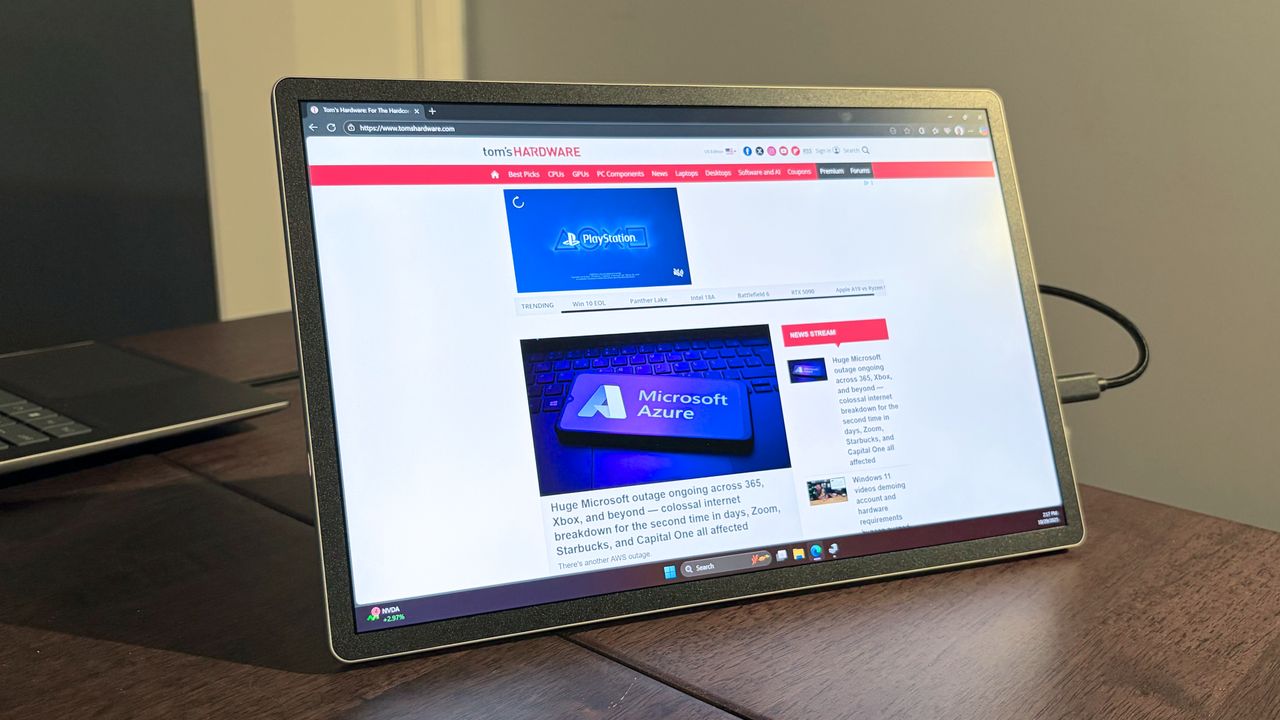
I’ll start off by saying that I really like the design of the MQ16FC. It has a 16.1-inch OLED panel with a glossy finish. That display is trimmed with extremely thin bezels all around. The top and side bezels are roughly the same size, while the bottom is about twice as thick (although still slim for a portable monitor).

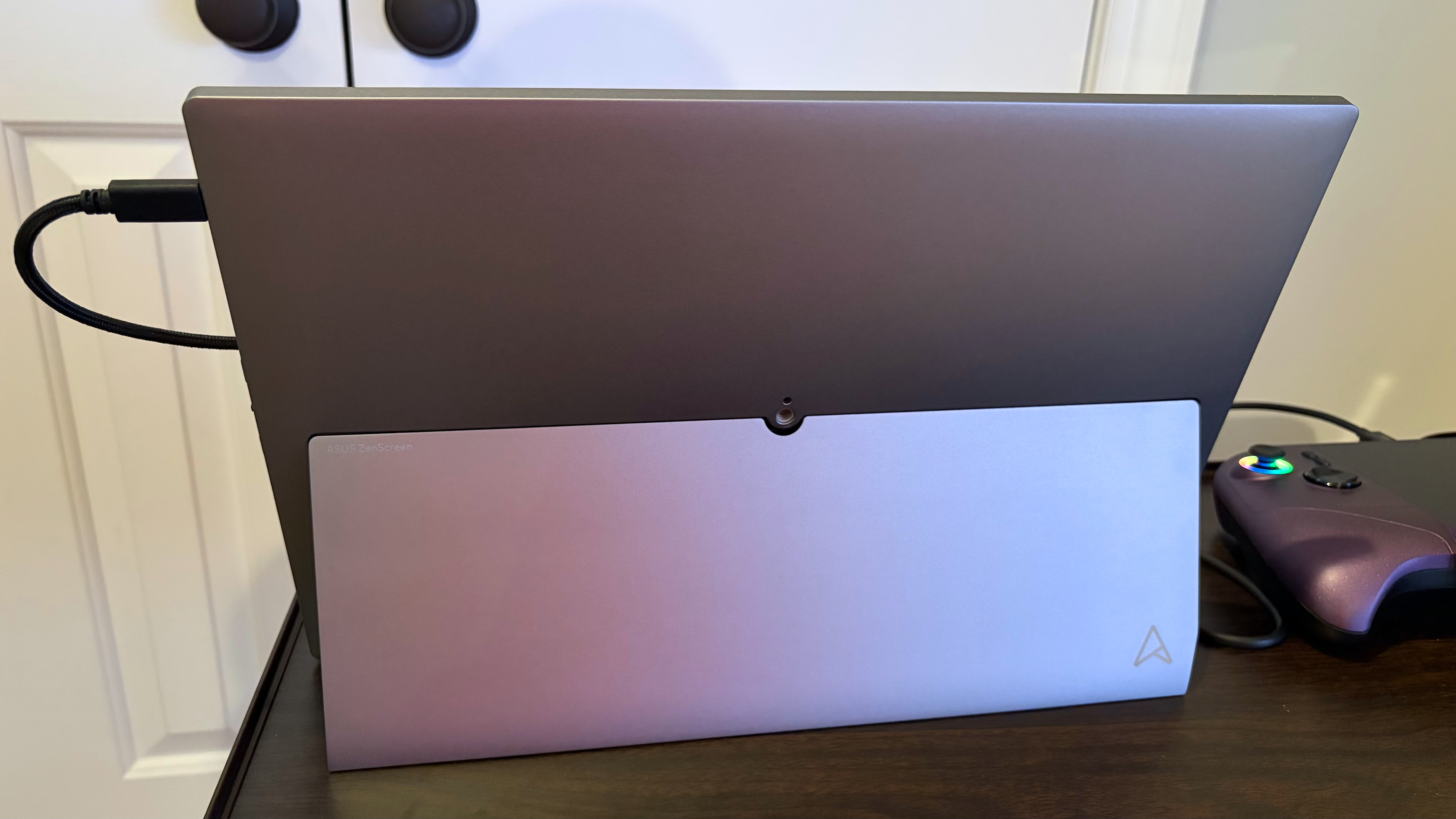
The entire enclosure for the MQ16FC is made of aluminum, which contributes to the minimal weight (1.5 pounds) and sturdy build. But my favorite exterior feature of the monitor is its kickstand, which pivots about halfway up the back. The hinge is stiff enough to keep the monitor at your preferred viewing angle, and tiny rubber feet on the bottom of the monitor keep it in place regardless of the kickstand's position. There are also rubber feet on the left side of the display for using the MQ16FC in portrait mode.

Asus ZenScreen OLED (MQ16FC)
Tom's Hardware
Asus ZenScreen OLED (MQ16FC)
Tom's Hardware
Asus ZenScreen OLED (MQ16FC)
Tom's Hardware

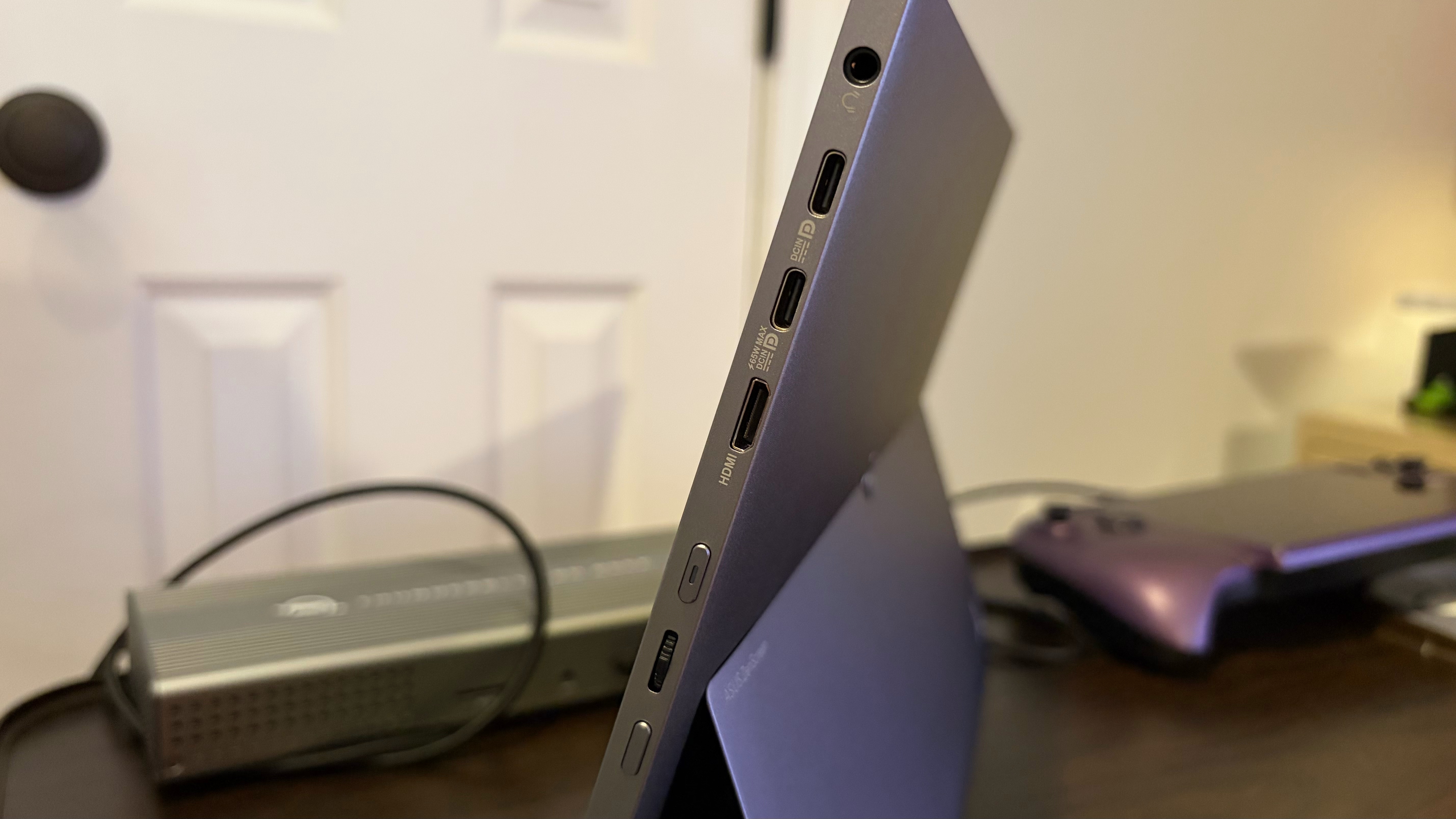
The “business end” of the MQ16FC is on the right side of the display, where you’ll find all of the ports and controls. From top to bottom, you’ll find a 3.5 mm headphone jack, two USB-C ports, a micro-HDMI port, a power button, a jog wheel for the OSD, and an action button.

One final feature of the MQ16FC is a quarter-inch tripod socket on the back of the display, just above the kickstand. The MQ16FC measures 14.13 x 9.17 x 0.35 inches and weighs 1.5 pounds. It comes with a padded cloth case, a wall adapter, a USB-C-to-USB-C cable, and an HDMI-to-micro-HDMI cable.

Asus ZenScreen OLED (MQ16FC) Specifications

Panel Type / Backlight

OLED

Screen Size / Aspect Ratio

16 inches / 16:10

Max Resolution & Refresh Rate

1920 x 1200 @ 60Hz

Response Time

1 ms (GtG)

Typical Brightness

300 nits

Contrast Ratio Typical

100,000:1

Ports

2x USB-C (DisplayPort Alt Mode), 1x Mini-HDMI

Speakers

None

Dimensions

14.13 x 9.17 x 0.35 inches

Weight

1.5 pounds

Warranty

1 year

Asus ZenScreen OLED (MQ16FC) OSD

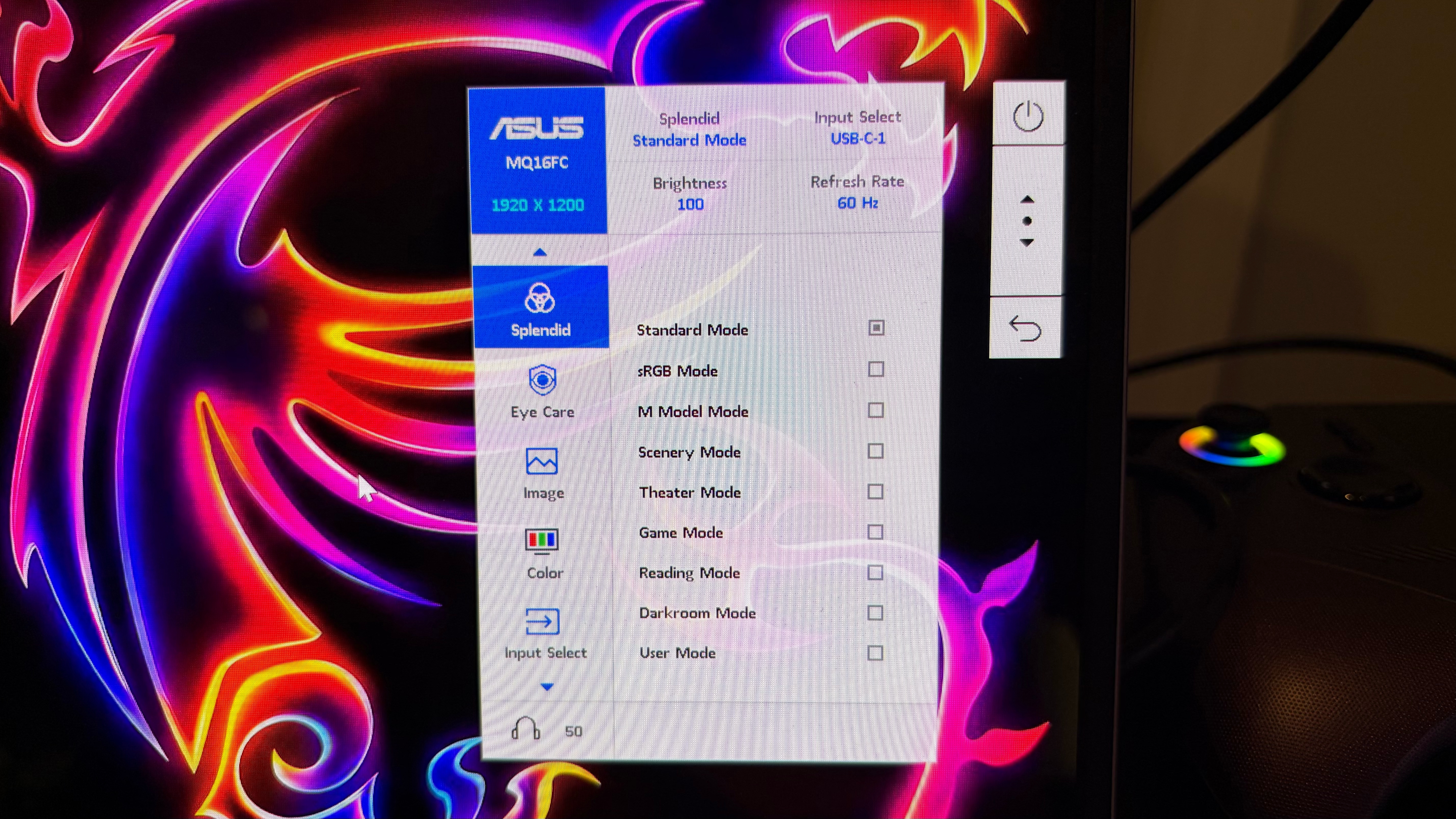
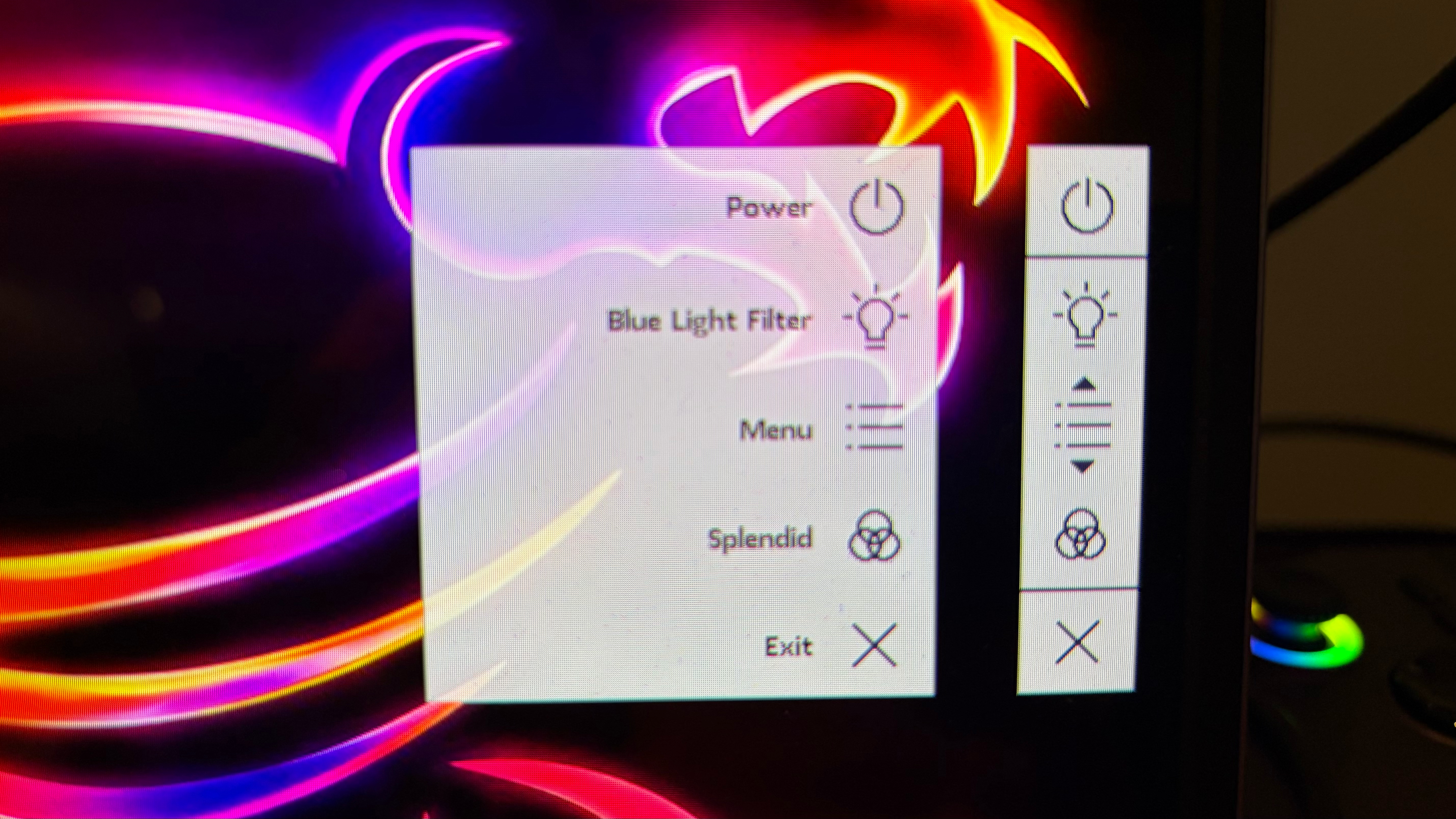
The MQ16FC features an on-screen display (OSD), which pops out from the right side of the screen when you press in on the jog wheel or the action button below it. One press opens the OSD Quick Menu, which lets you access the Blue Light Filter and Splendid display modes. However, if you press the jog wheel in twice, it brings up the full OSD.

Asus ZenScreen OLED (MQ16FC)
Tom's Hardware
Asus ZenScreen OLED (MQ16FC)
Tom's Hardware

The full OSD provides overall display information at the top, including the current Splendid display mode, display resolution, the currently selected input method (USB-C-1, USB-C-2, or HDMI), brightness level (in percent), and refresh rate. From there, you can scroll down through the various menu options, including the aforementioned Splendid (Standard Mode, sRGB Mode, Game Mode, etc.), Eye Care (Blue Light Filter, Color Augmentation), Image (Brightness, Contrast, etc.), Color (Gamma, Color Space, Color Temperature), input select, and Settings (auto rotation, power settings, OSD layout, etc.).

Asus ZenScreen OLED (MQ16FC)

(Image credit: Tom's Hardware)

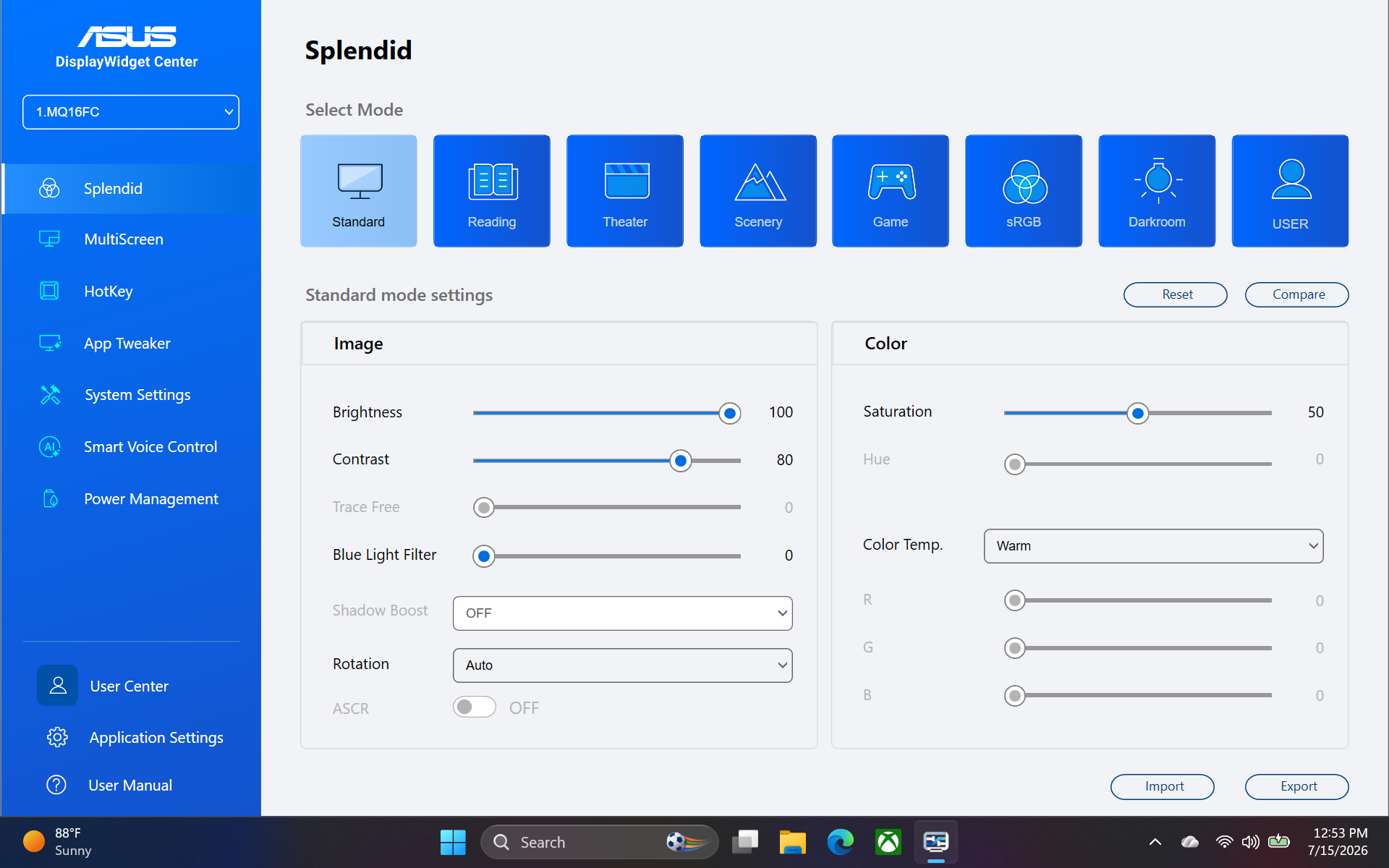
If you prefer, you can install the Asus DisplayWidget Center app for Windows, which provides even easier access to Spendid picture modes, color, and image settings.

Display Performance on the Asus ZenScreen OLED (MQ16FC)

The MQ16FC features a 16.1-inch OLED panel with a 1920 x 1200 resolution and 60 Hz refresh rate. Asus uses a glossy finish over the OLED panel to provide an extra "punch" of color. The glossy film does a good job of slightly enhancing colors while not completely succumbing to environmental reflections. However, the reflections that did make their way onto the screen were quickly vanquished by adjusting the display angle with the kickstand.

Color performance from the OLED display was generally excellent, with deep blacks and vibrant colors. My new go-to for testing out color performance on monitors is to watch Project Hail Mary on Amazon Prime Video. Not only is it an excellent movie, but it's an absolute feast for the eyes in so many respects. The scene featuring planet "Adrian" looked wonderful, from the flashes of red and green to the fiery orange plasma as the Haily Mary started descending into Adrian's atmosphere. Absolutely nothing can do the movie justice like seeing it in theaters, but I was still enthralled watching it on this 16.1-inch OLED.

Our instrumented tests showed the MQ16FC covering 153.2 percent of DCI-P3 and 216.2 percent of sRGB, putting it ahead of rivals like the ViewSonic ColorPro VP16-OLED and Innocn 15A1F. However, it did fall short in brightness. The MQ16FC is rated for 300 nits typical brightness, and we measured just 140 nits in Standard mode (the default). However, we were able to punch that figure up to 271 nits in User Mode, with no discernible change in DCI-P3 or sRGB coverage. Still, the MQ16FC isn't nearly as bright as the other two monitors, which each hit around 370 nits.

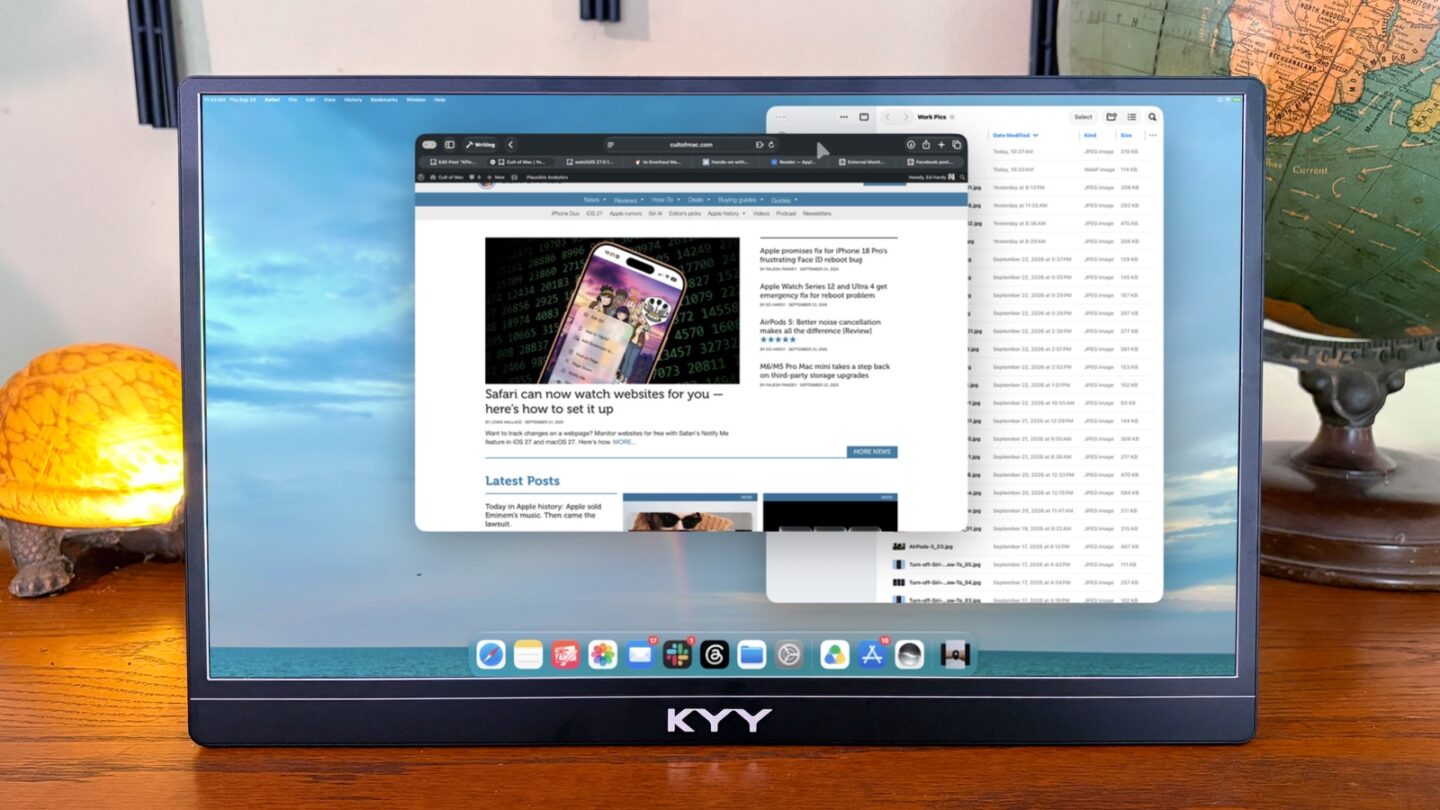
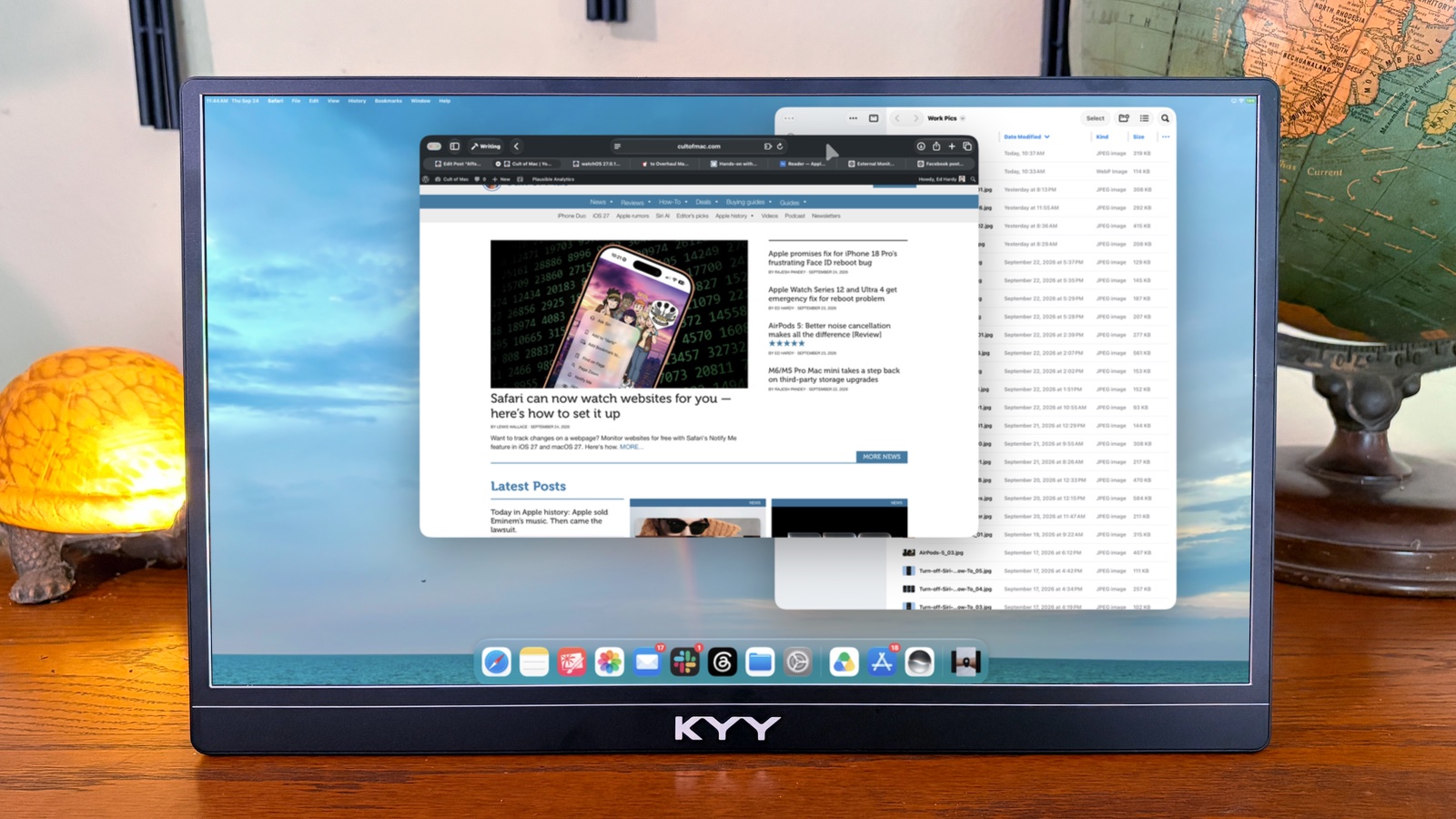
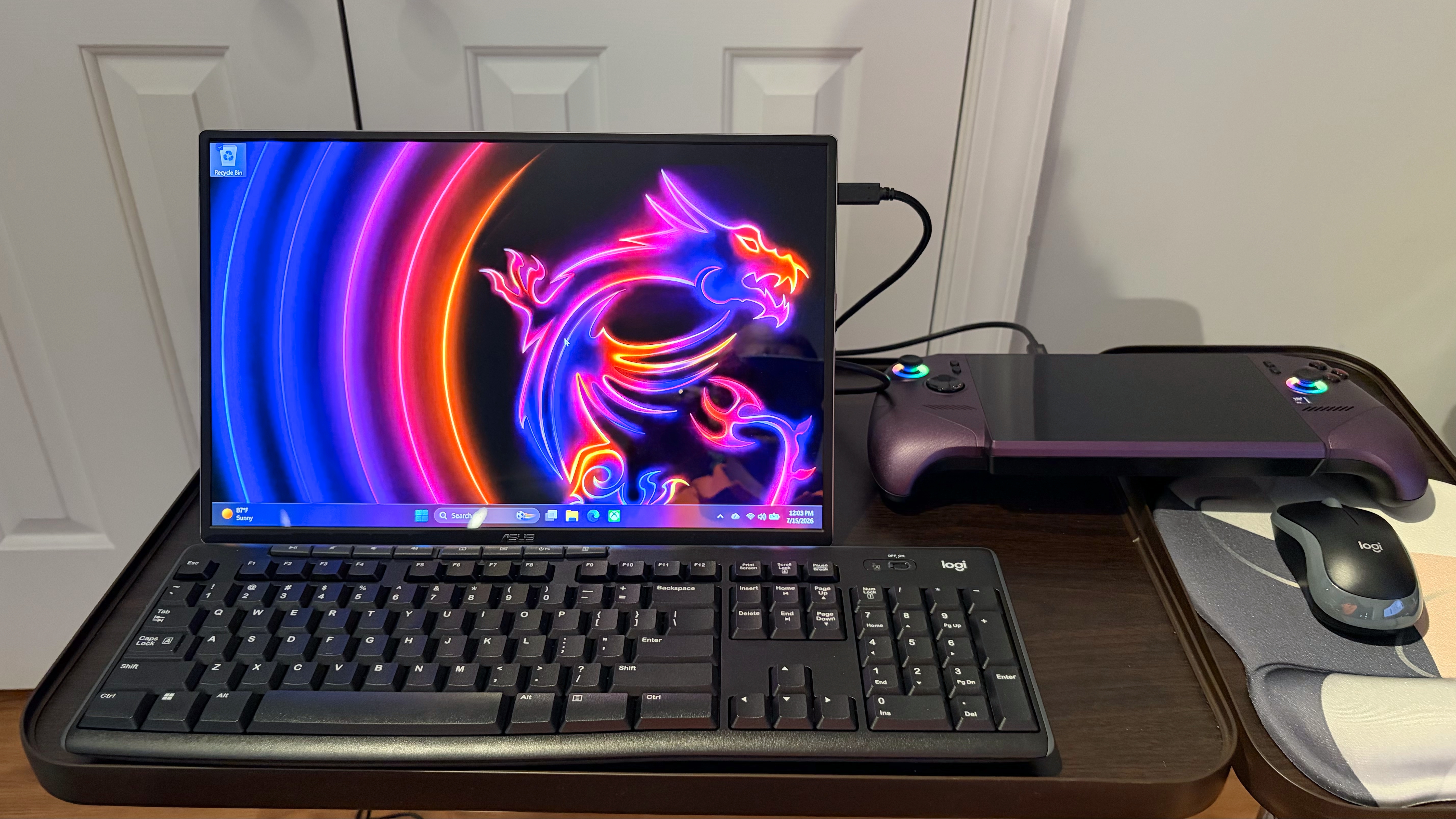
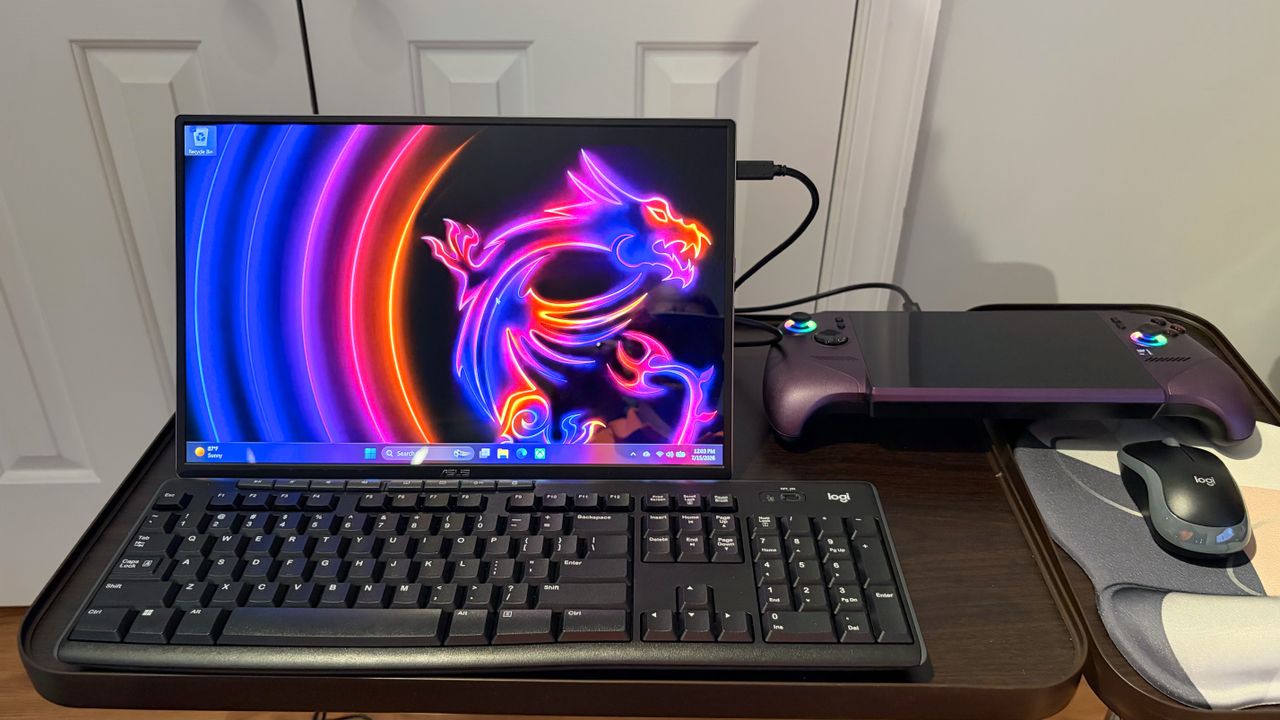
With that said, I used the MQ16FC with several different systems, from a Mac mini, to a MacBook Air to an MSI Claw 8 EX AI+. In fact, I was able to turn the Claw 8 EX AI+ into a miniature desktop system with the help of the Thunderbolt 5 dock, the MQ16FC, and a wireless keyboard and mouse. This setup allowed me to install games more easily and perform certain tasks that I find tedious on the gaming handheld's 8-inch touchscreen.

In each instance, the MQ16FC connected to the systems using a single USB-C-to-USB-C cable, delivering power and video. I greatly appreciate the flexibility of using a single cable instead of needing USB-C for power and an HDMI cable for video.

Bottom Line

The Asus ZenScreen OLED (MQ16FC) is a solidly built portable monitor with excellent color performance and a sturdy kickstand. It is also quite versatile, with a built-in tripod mount, and can be propped up in portrait mode (with support for auto-rotation). Maximum brightness isn’t as high as its peers, but I found it perfectly fine for my daily usage patterns. The only miss is the lack of speakers, but given that most portable monitor speakers are borderline trash, it shouldn’t be a huge deterrent for most people.

With a street price of $274, the MQ16FC is actually priced fairly for a 16-inch OLED monitor. Given its features along with a standard three-year warranty, it’s truly a notch above the rest.
ViewSonic VG1457 dual-screen portable monitor review: compact size and weight, but lackluster color

2026年8月17日 19:05

Five years ago, there was very little variety in the types of portable monitors available for consumers. You had a few options from well-known desktop monitor brands, and that was about it. However, in the past few years, we’ve seen a large uptick not only in form factors for portable monitors, but also in the adoption of leading panel technologies like OLED.

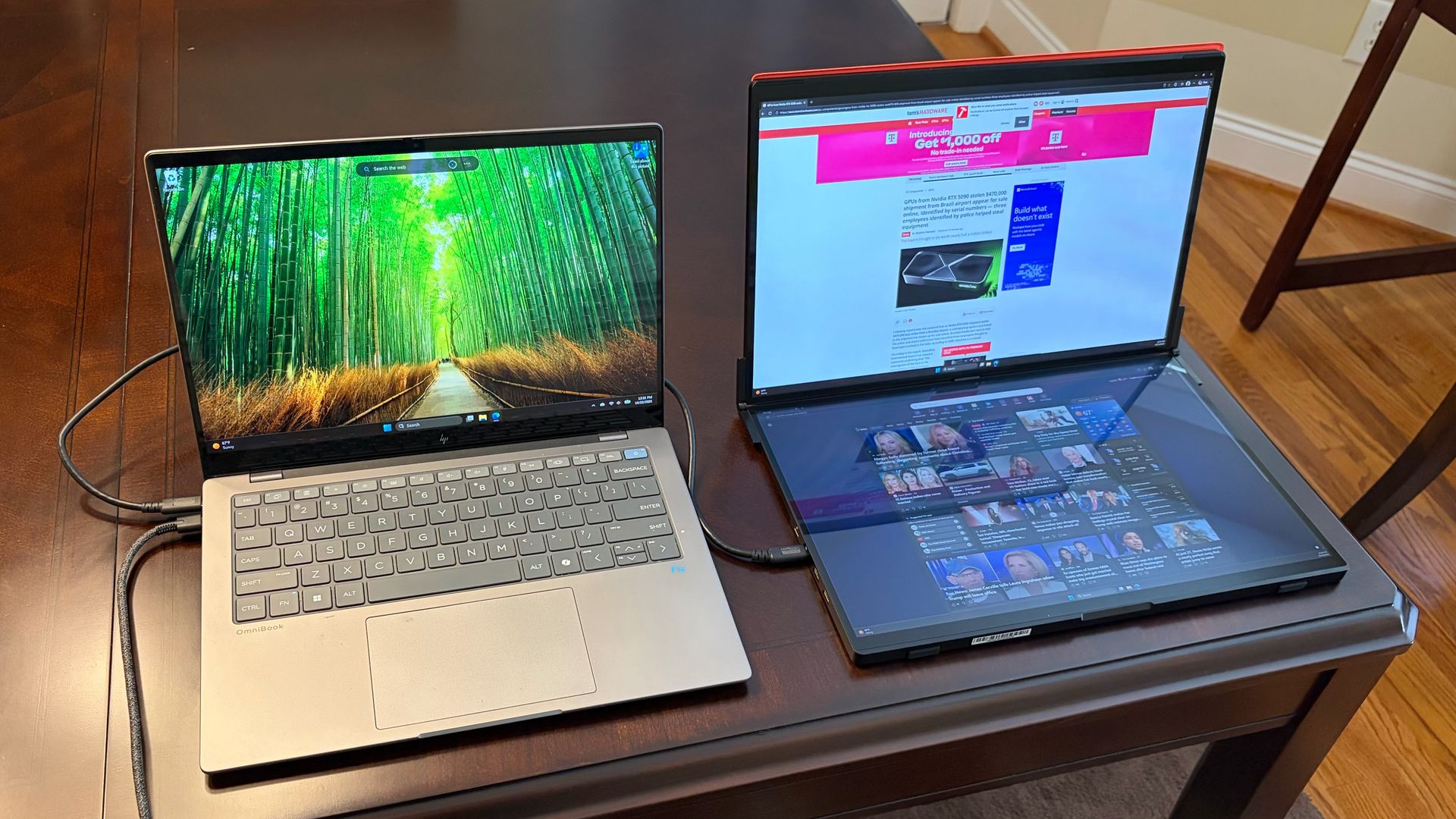
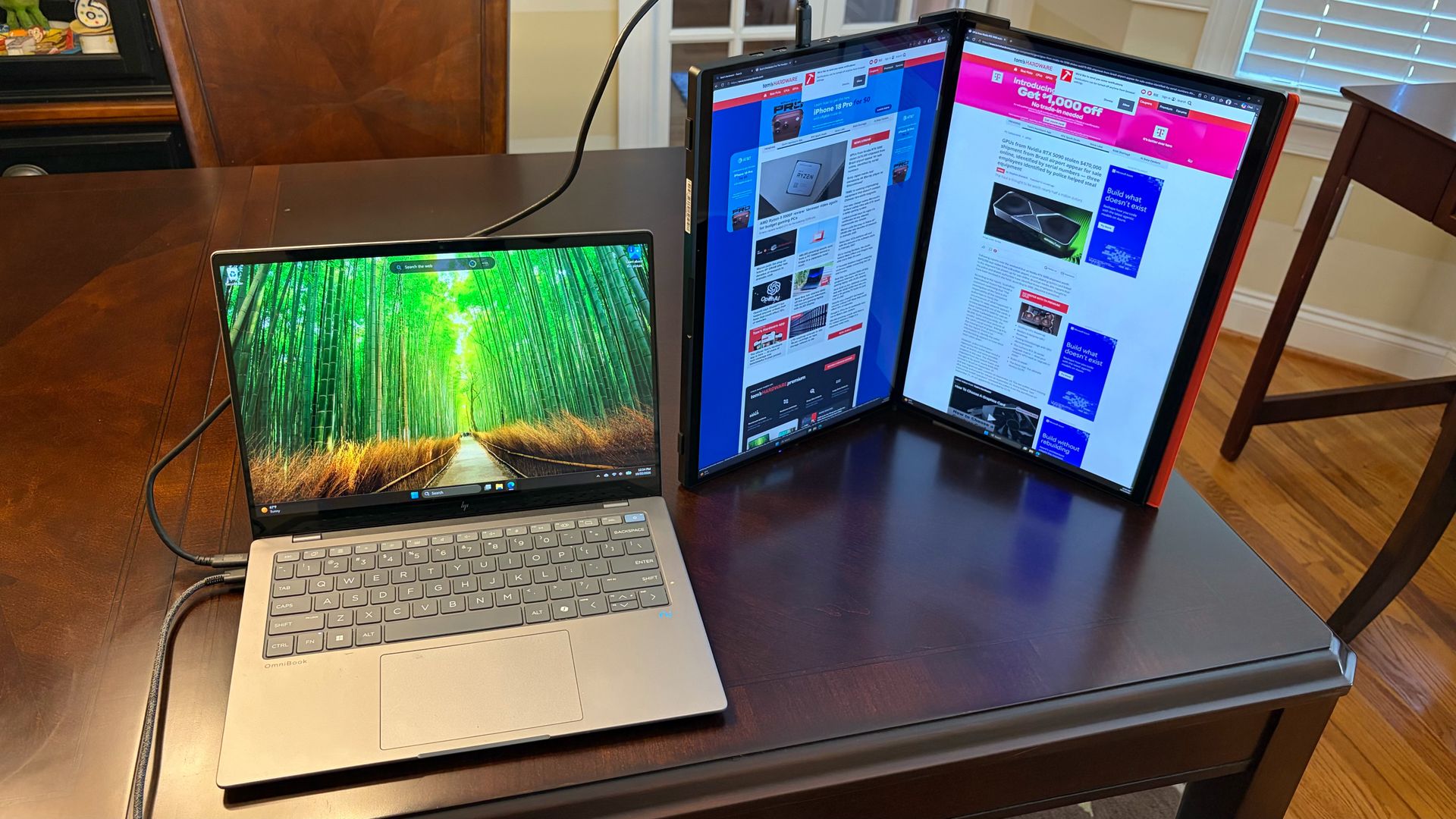
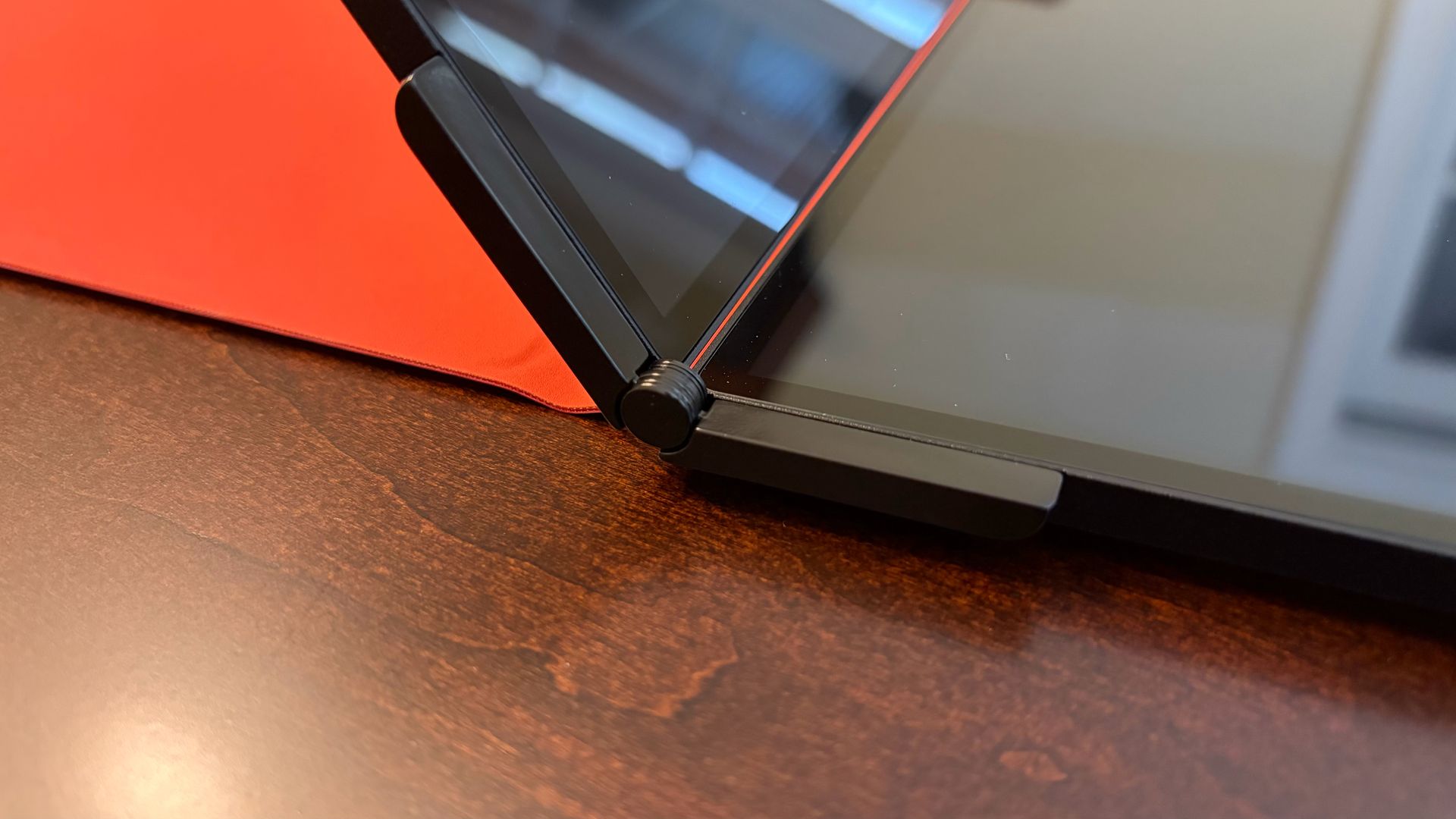
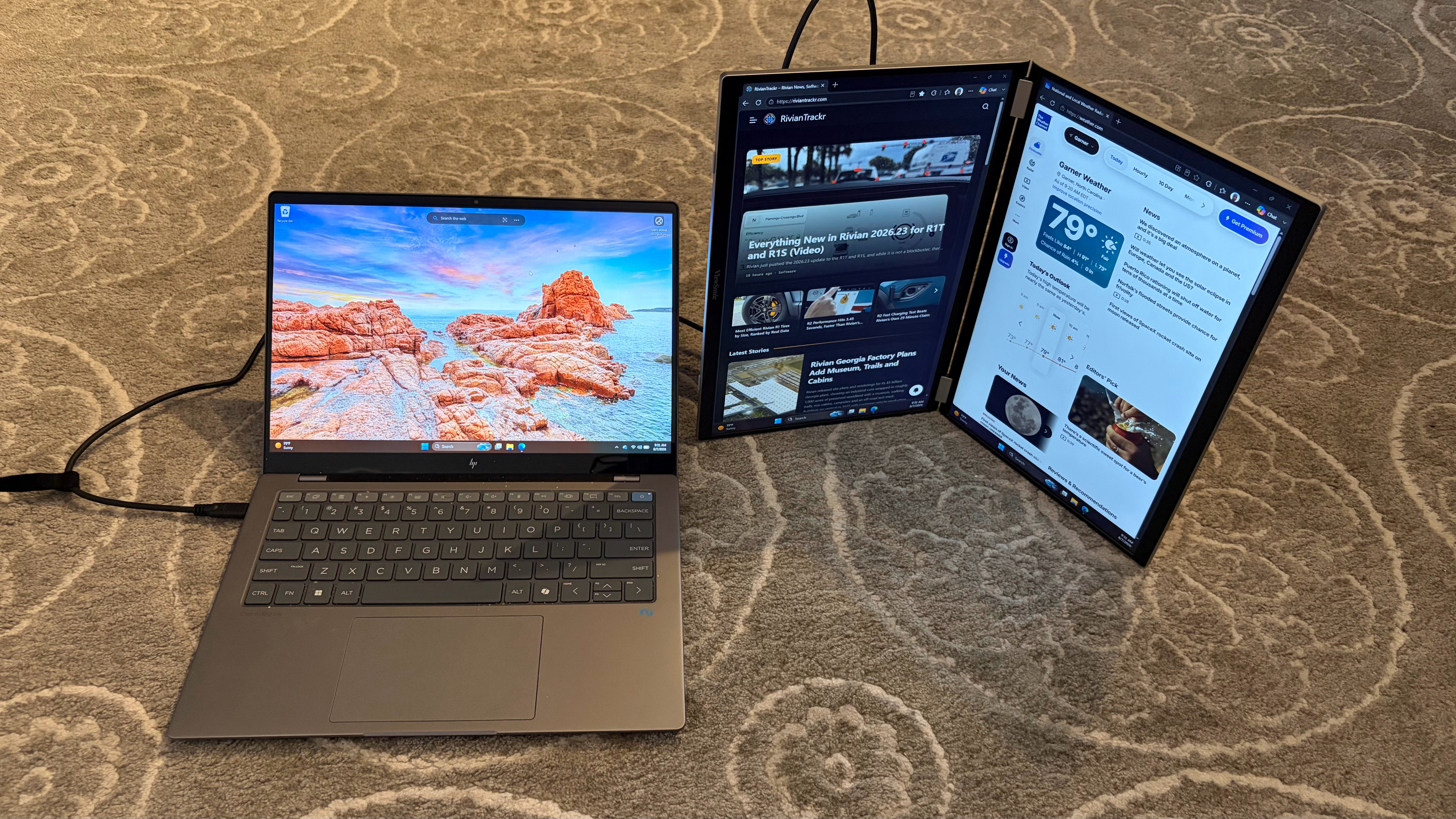
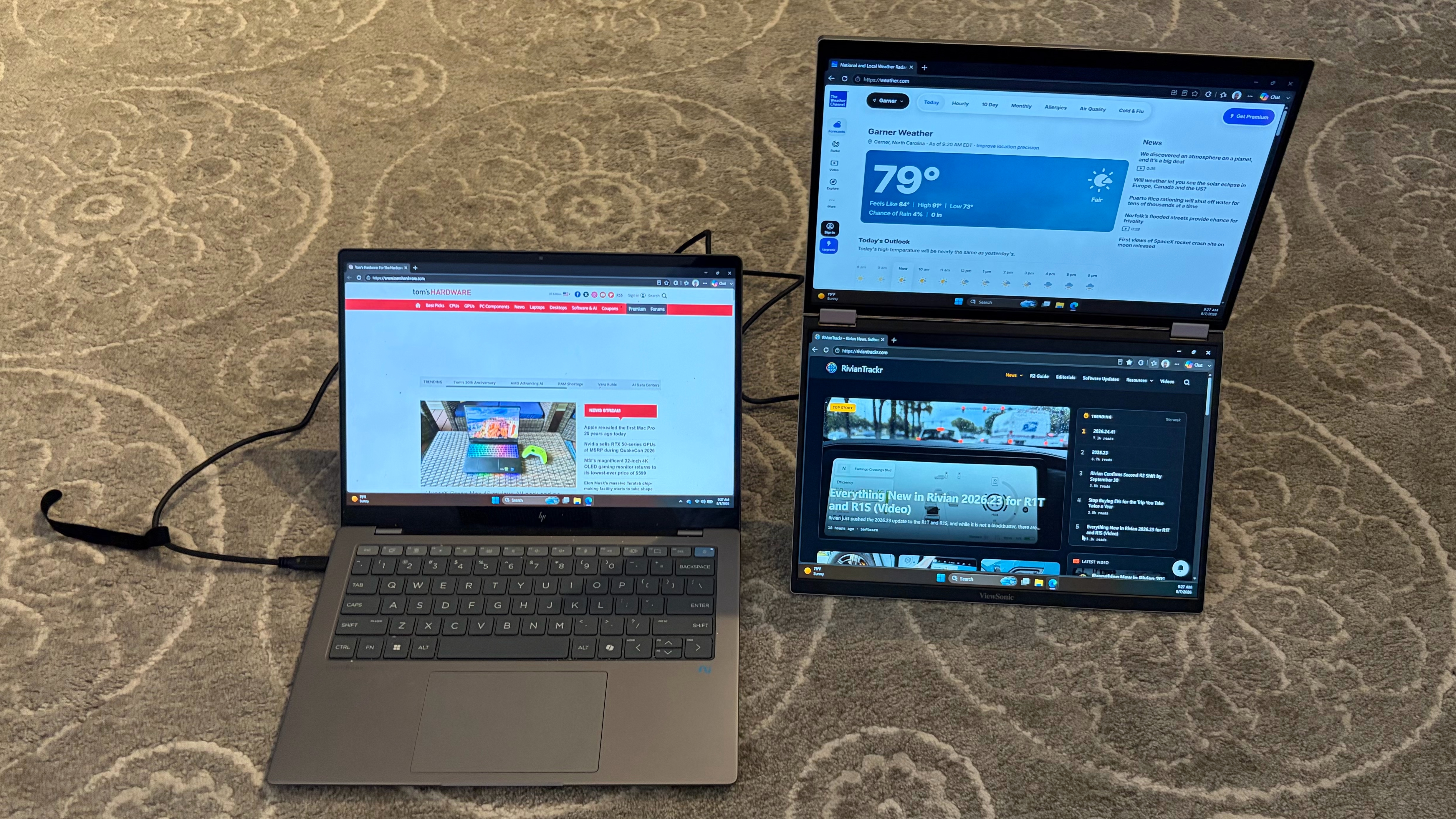
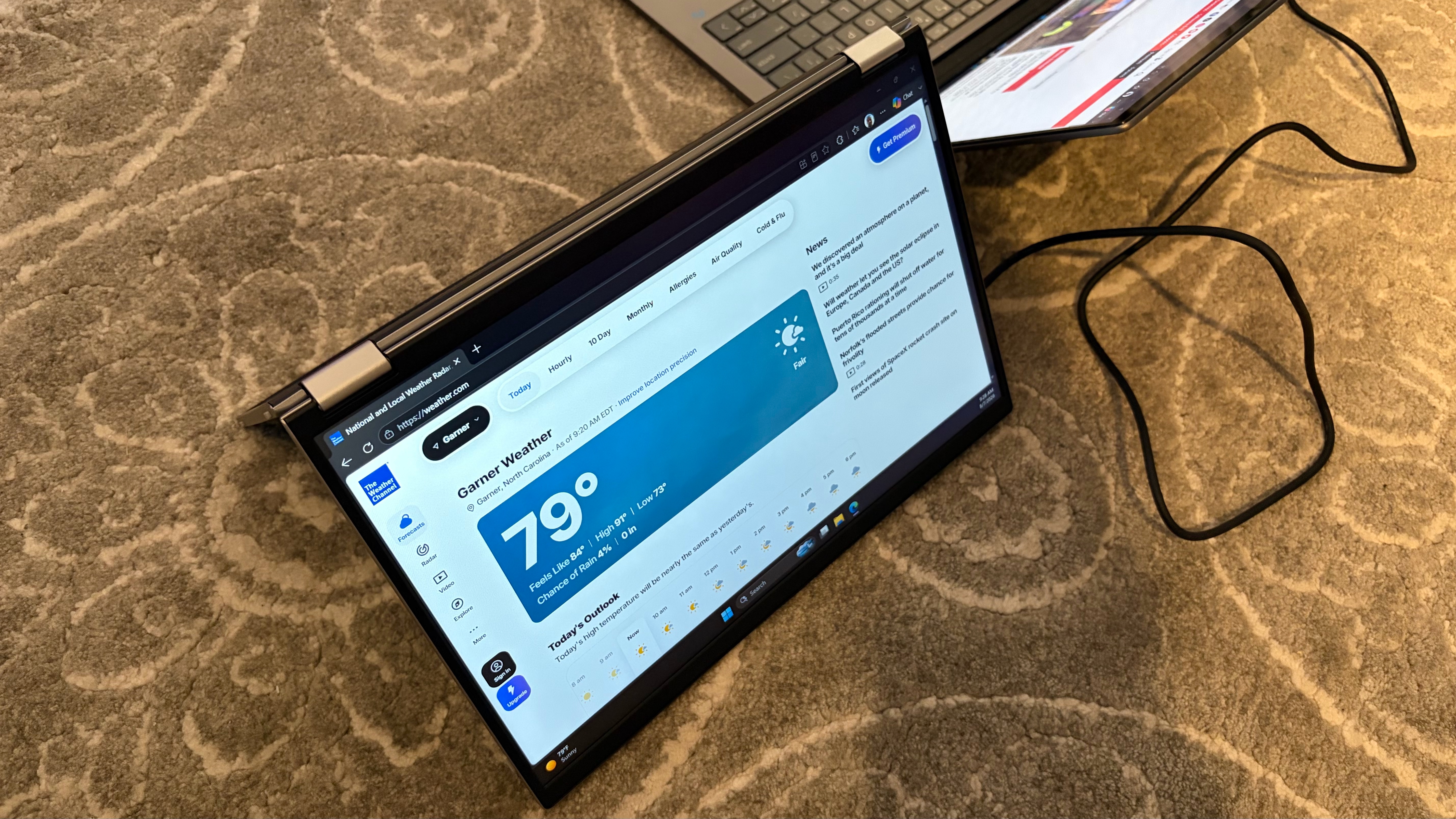
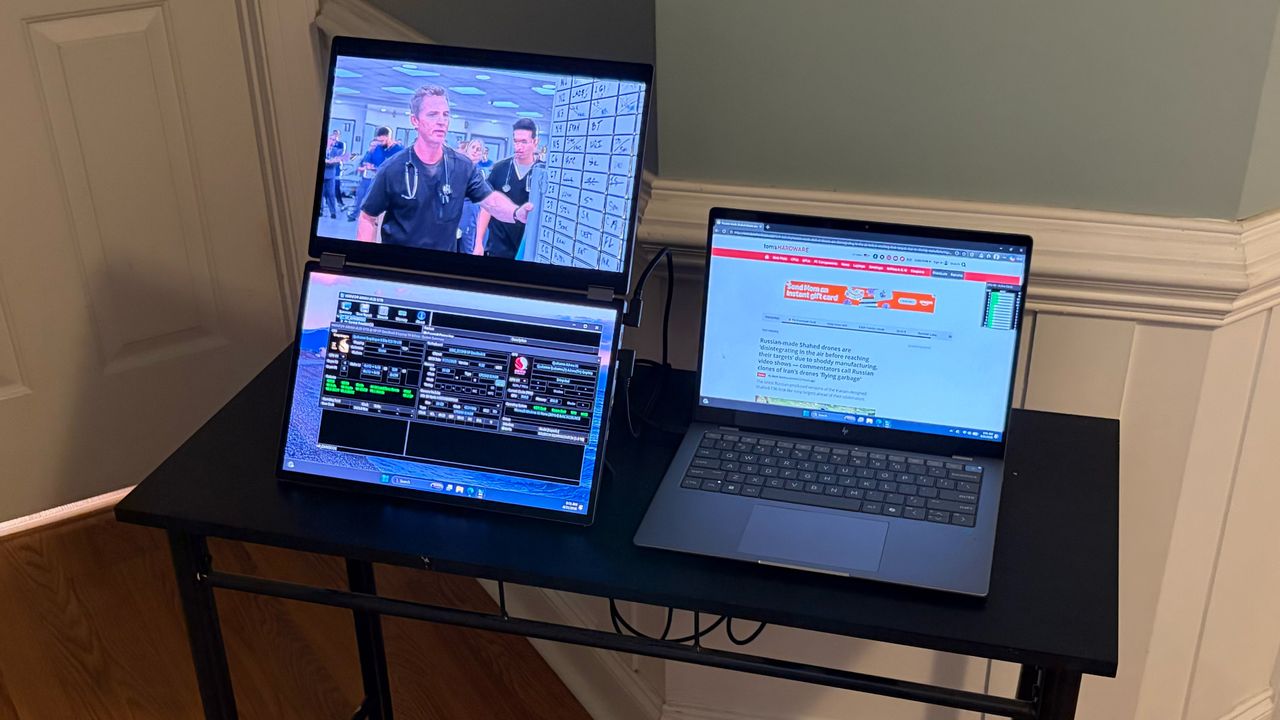
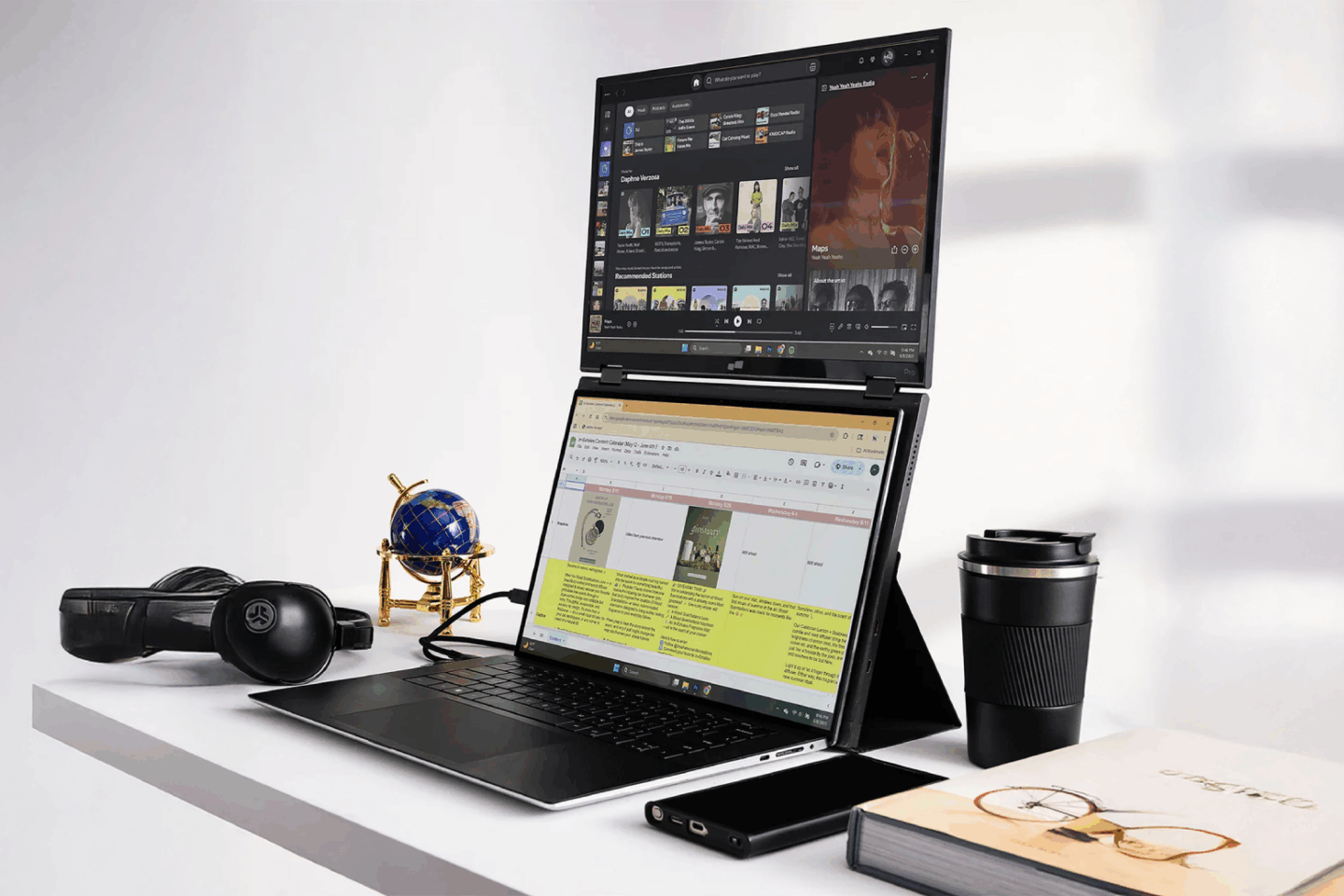
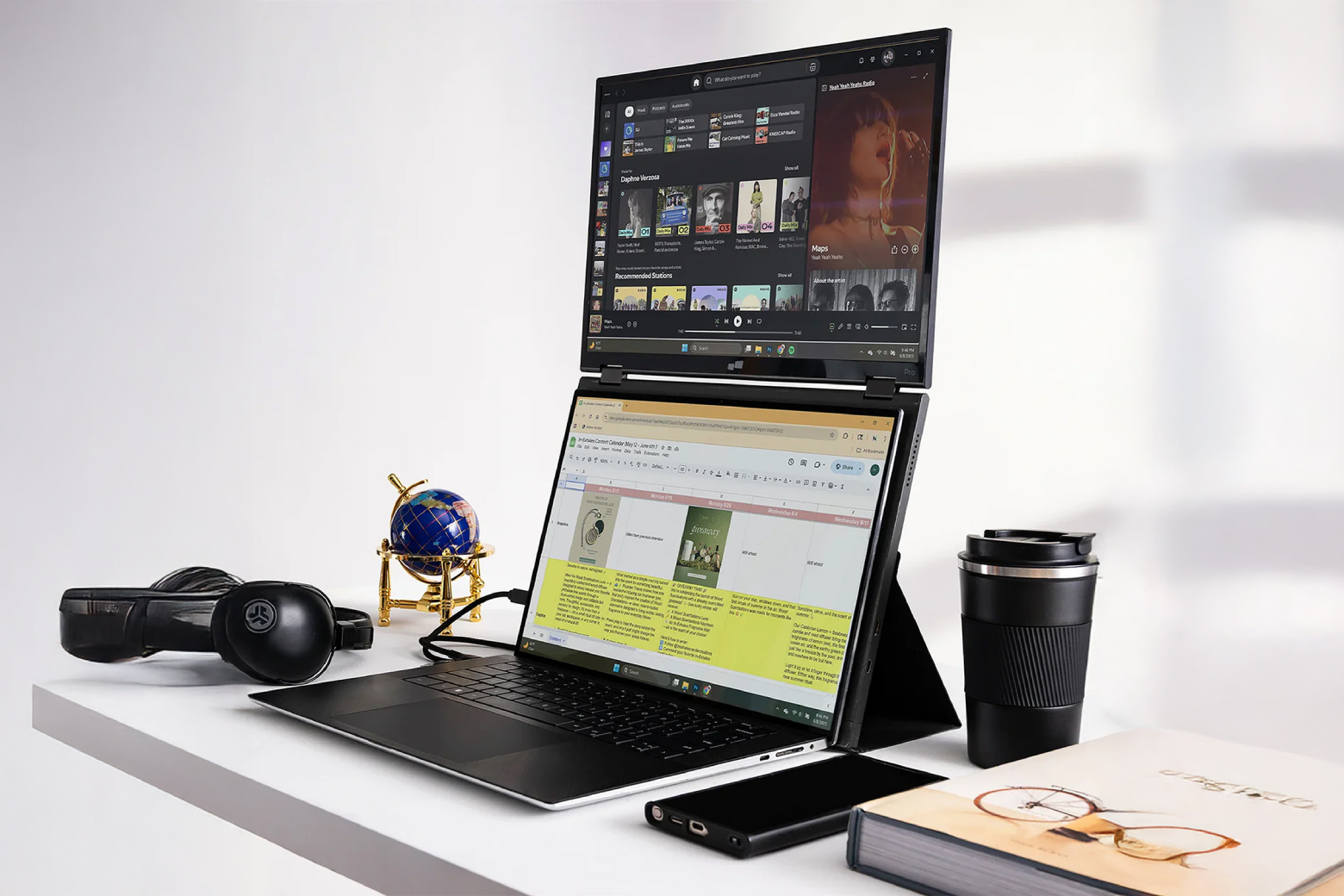
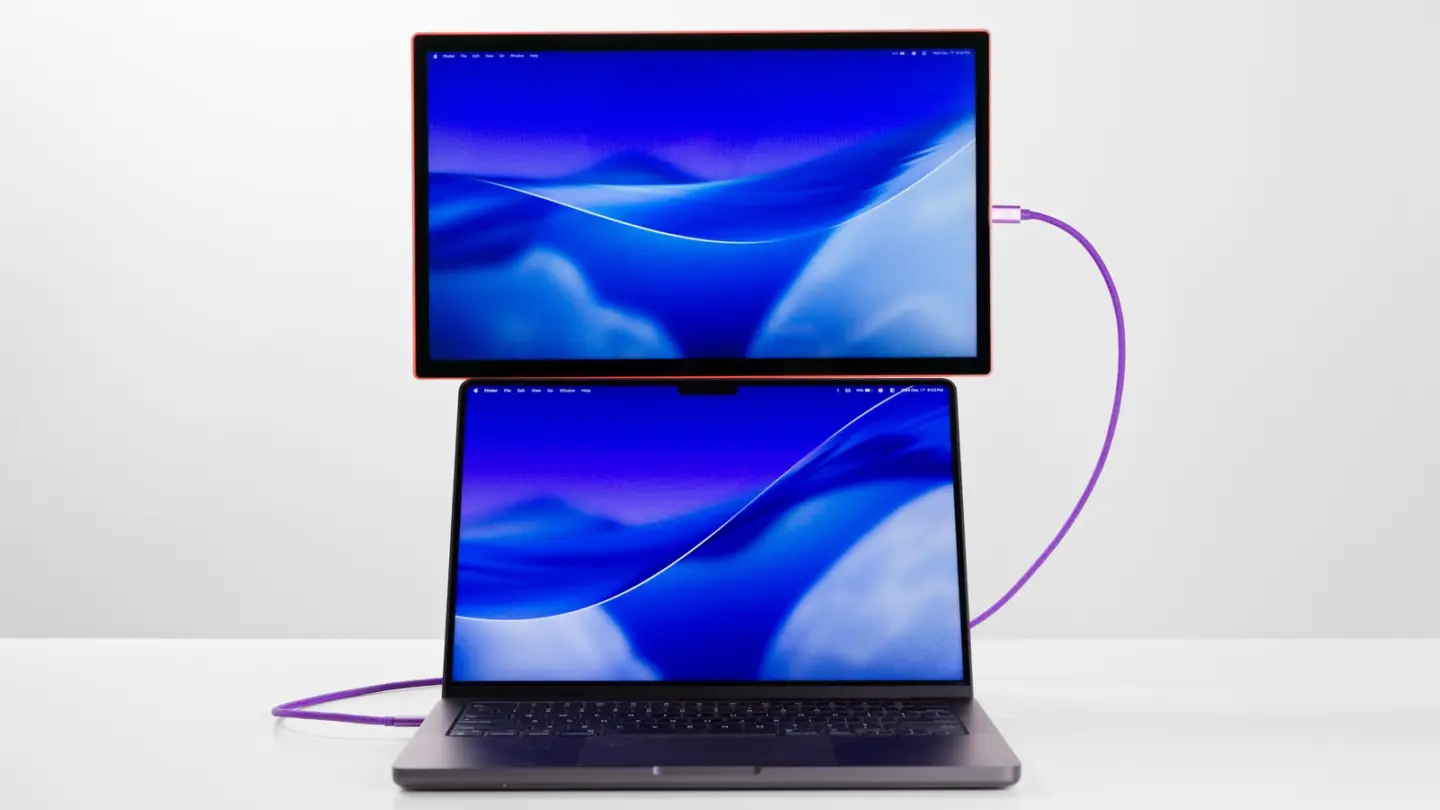
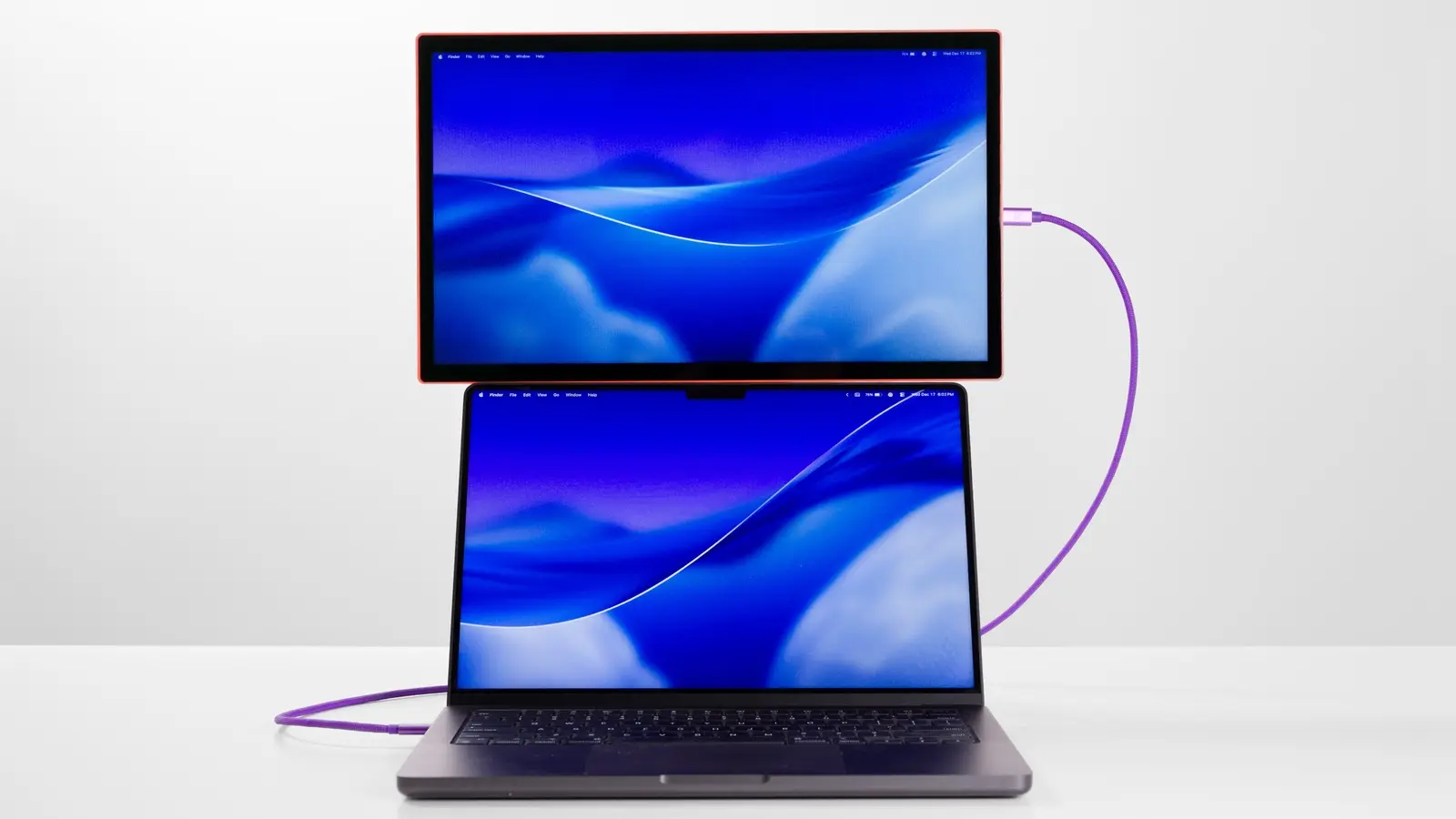
ViewSonic is a well-known player among the best portable monitors, and we’ve reviewed several of its entries. The latest to grace our lab is the VG1457. This is a dual-display monitor that is quite different from the typical competitors in this space. Rather than having the two displays flank a laptop’s built-in screen with a “spine” connecting them, the VG1457 features two panels stacked on top of each other, joined by a 360-degree hinge.

Due to this design, the VG1457 can be used in several types of orientations across multiple screen modes. And with a sub-$350 price tag, it represents a relative bargain for mobile warriors.

Design of the ViewSonic VG1457

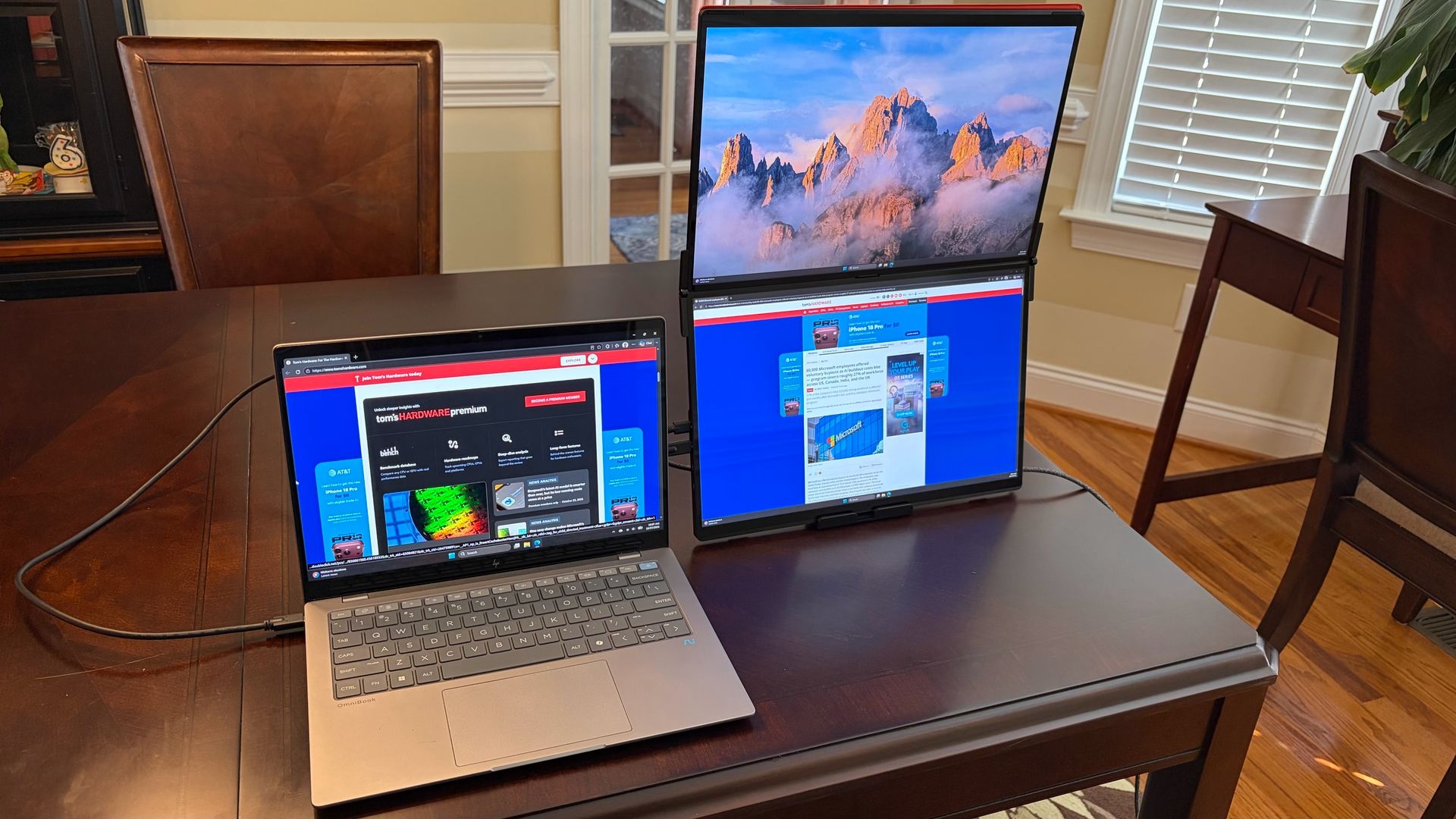
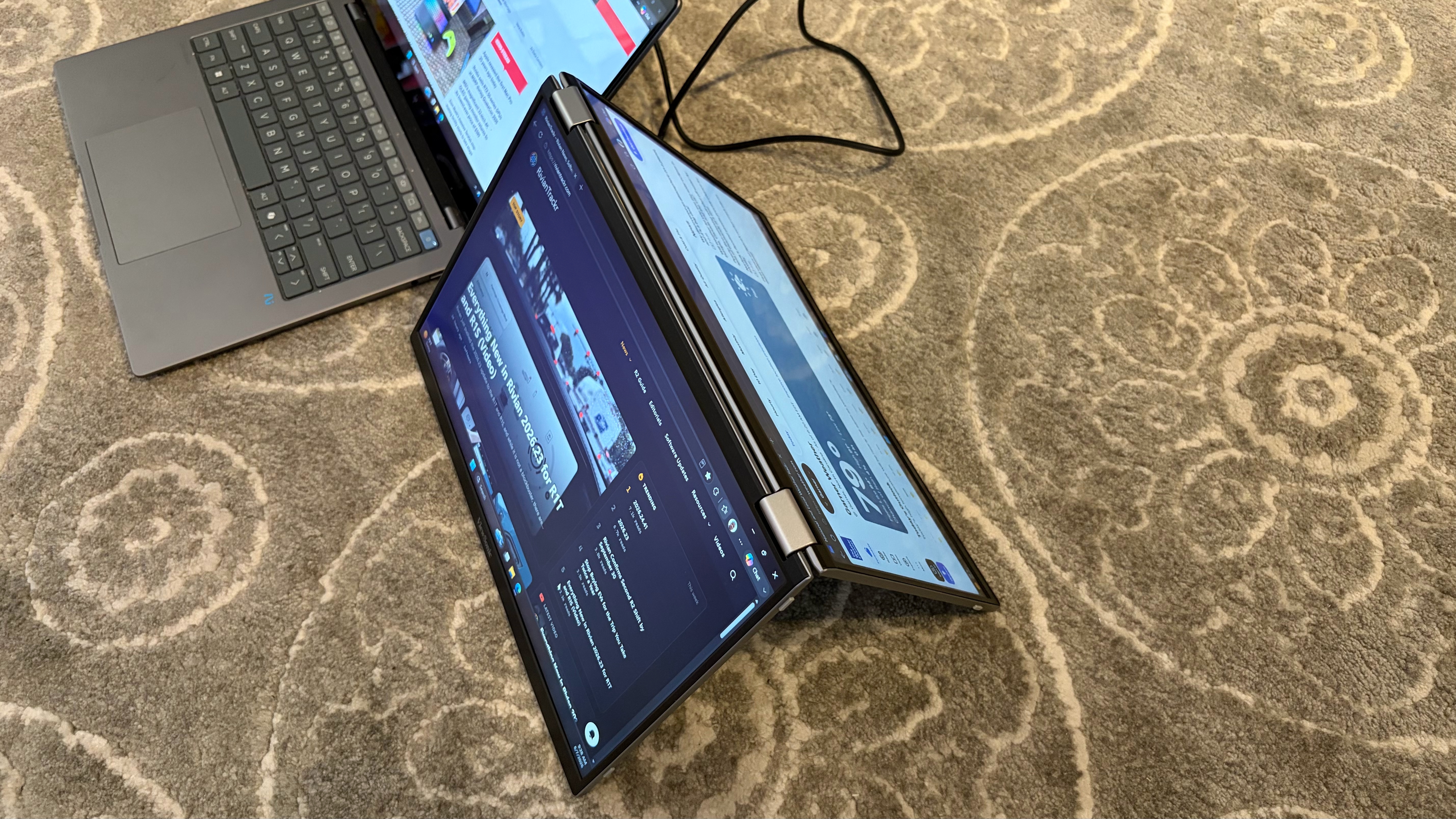
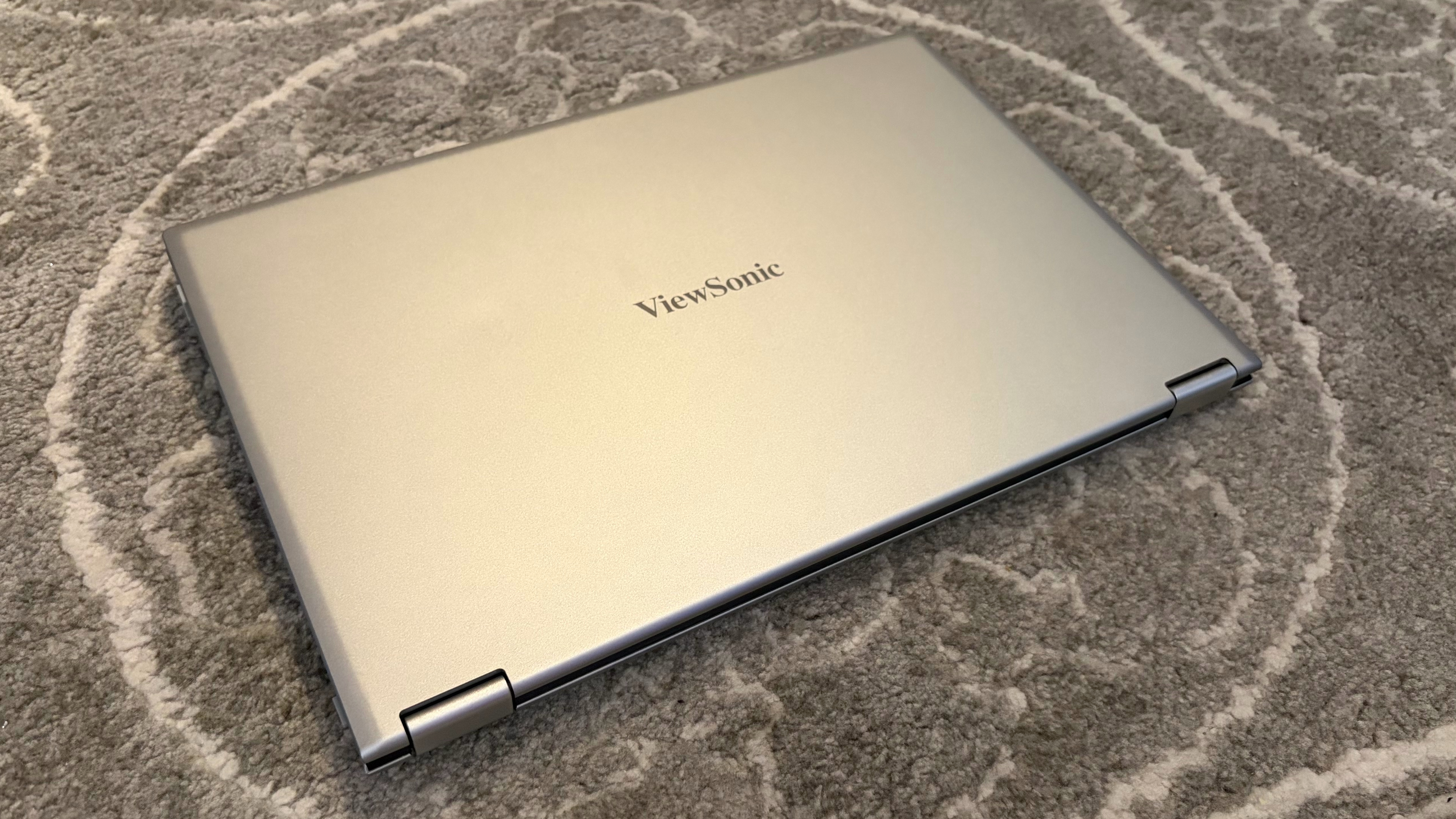
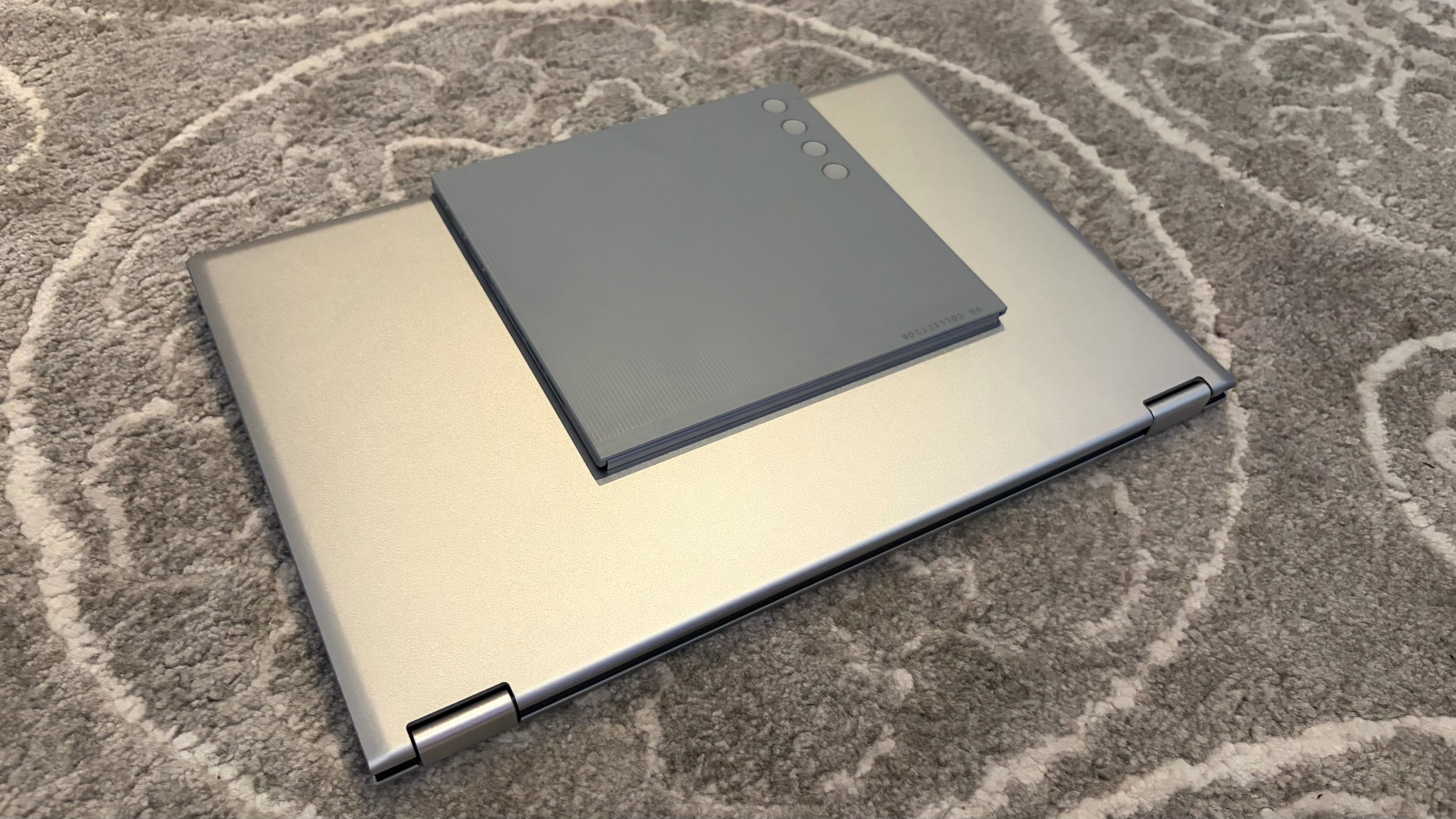
The VG1457 features a remarkable design, incorporating two display panels in a relatively light and compact form factor. Since ViewSonic doesn’t have a thick and heavy frame that needs to support two outstretched panels, the VG1457 only weighs 2.6 pounds (about double that of a portable monitor with a single display). And when folded, it has roughly the same footprint as a single-panel portable monitor (albeit thicker).

Each panel measures 14 inches across and features 1200p resolution. In its default landscape orientation, the VG1457’s panels are stacked on top of each other, with two 360-degree hinges connecting them. However, if you prefer, you can stand the panels up so that they are in portrait mode, with the two panels sitting next to each other, book-style.

Viewsonic VG1457
Tom's Hardware
Viewsonic VG1457
Tom's Hardware
Viewsonic VG1457
Tom's Hardware
Viewsonic VG1457
Tom's Hardware
Viewsonic VG1457
Tom's Hardware
Viewsonic VG1457
Tom's Hardware
Viewsonic VG1457
Tom's Hardware
Viewsonic VG1457
Tom's Hardware

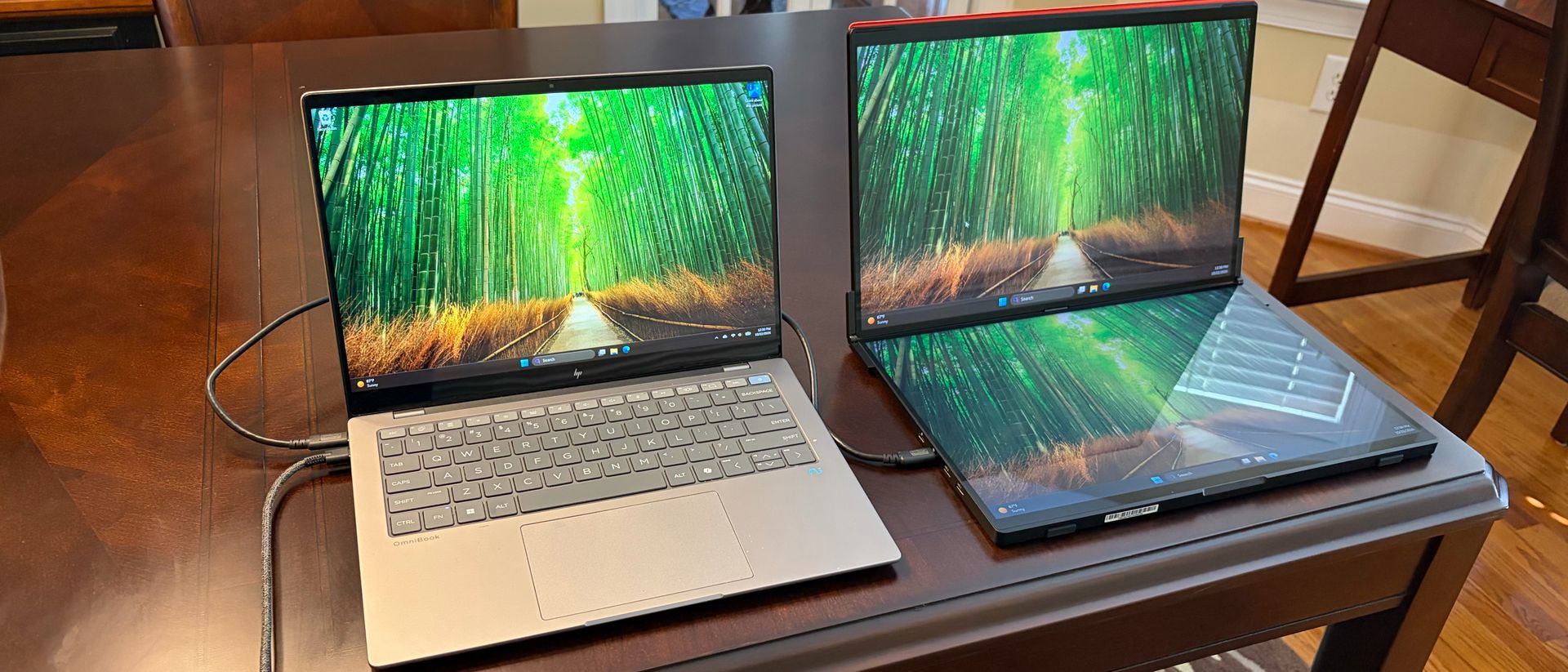
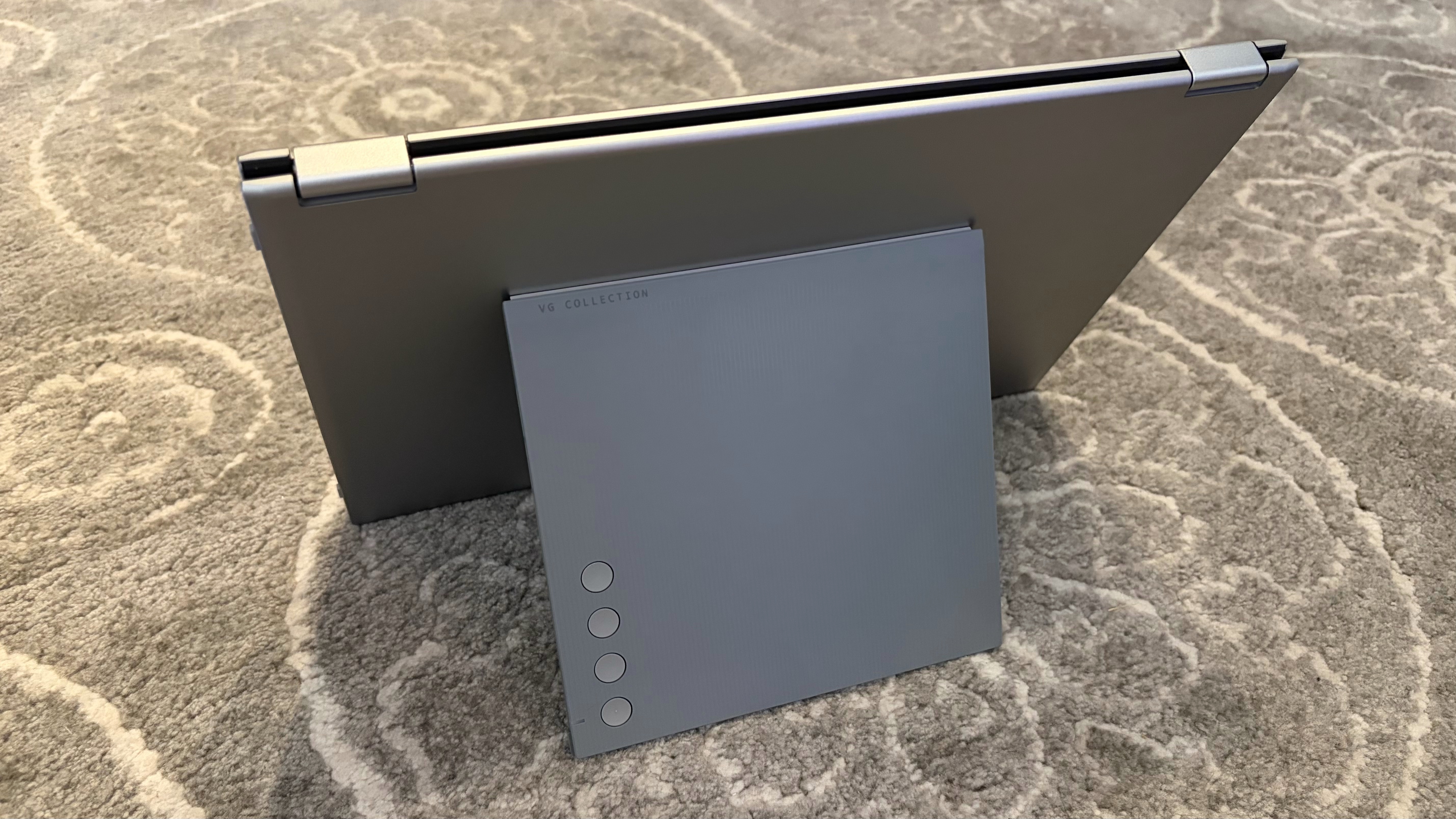
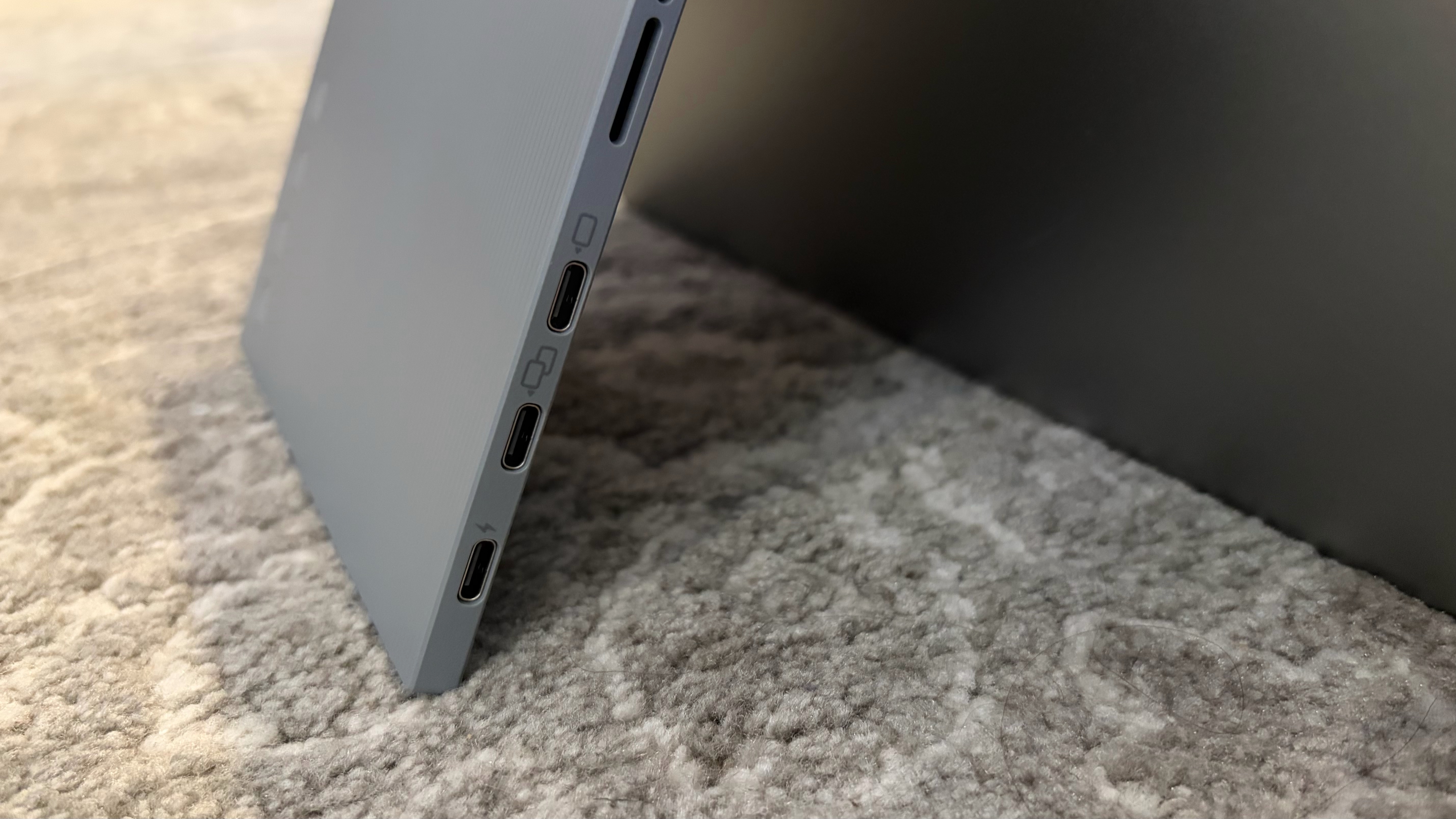
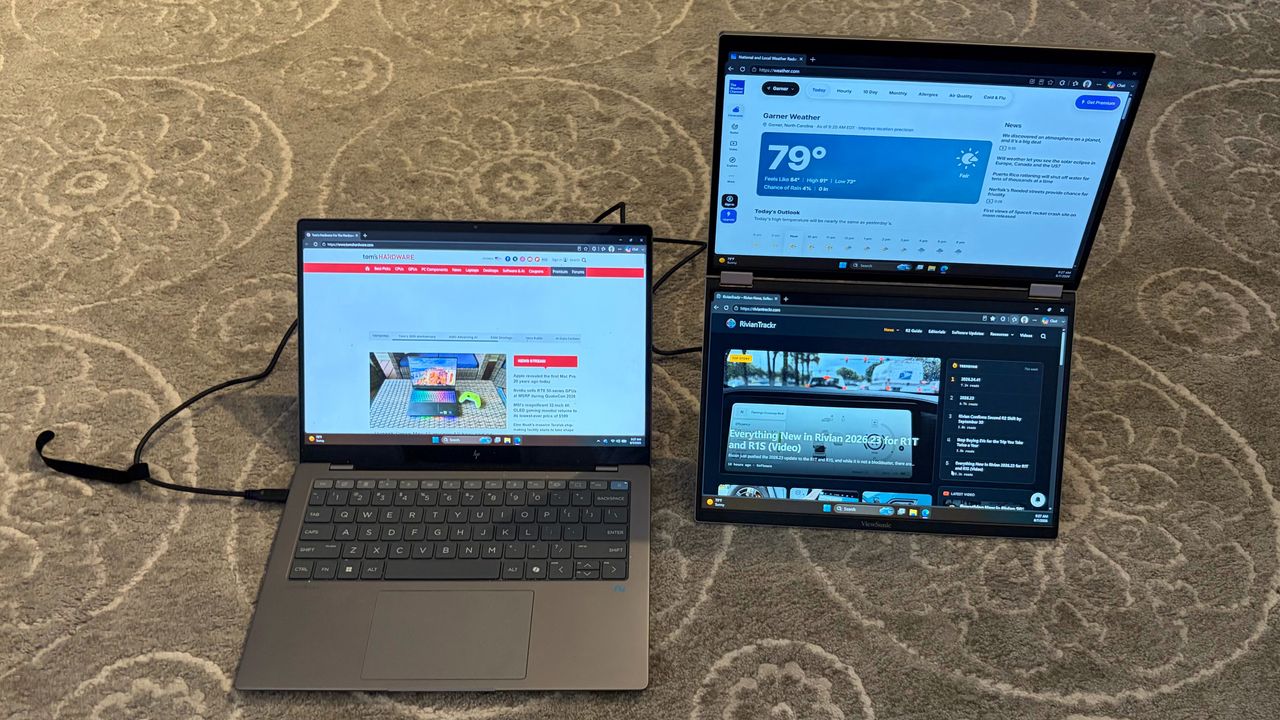
In either viewing mode, the twin panels are supported by an adjustable kickstand. The kickstand incorporates dual 2-watt speakers and three USB-C ports. The bottom USB-C port is used exclusively to power the monitor, while the other three USB-C ports can handle power and video, including two-way power delivery up to 65 watts. I was able to power the VG1457 using a single USB-C cable connection to an HP OmniBook X laptop.

ViewSonic includes two USB-C cables and a 65-watt USB-C wall adapter in the box. A felt carrying case is also included, which is sufficient for protecting the VG1457 while traveling. It’s not substantial enough to protect the displays from damage if you drop it, but it should prevent more superficial damage to the displays.

ViewSonic VG1457 Specifications

Panel Type / Backlight

IPS

Screen Size / Aspect Ratio

14 inches / 16:10 x2

Max Resolution & Refresh Rate

1920 x 1200 @ 60Hz

Typical Brightness

250 nits

Contrast Ratio Typical

800:1

Ports

3x USB-C

Speakers

2x 2-watts

Weight

2.6 pounds

Warranty

3 years

ViewSonic VG1457 Operating Modes and OSD

The 360-degree hinge design allows the VG1457 to be used in various orientations. The most popular will likely be landscape mode, with the panels stacked. Portrait mode has the two panels side by side, which would be beneficial for editing two Word documents simultaneously, for example.

There’s also a “tent” mode, which would allow you to have one display facing you, and the second facing away from you (i.e., for someone sitting on the opposite side of the table from you). The VG1457 can automatically rotate the screens to the correct visual orientation using the Auto Pivot feature.

In addition to these orientations, there are also several operating modes. Mirror Mode will simply duplicate what’s on your laptop’s screen to both of the VG1457’s displays. Extend will allow you to have a separate image across each display (laptop and both VG1457 displays). Full Screen mode will display one source/image across both of the VG1457’s displays. Finally, dual source mode allows each of the VG1457’s panels to take input from a separate source. For example, one panel could use a laptop as a source, while the second panel could use a tablet as a source.

Viewsonic VG1457

(Image credit: Tom's Hardware)

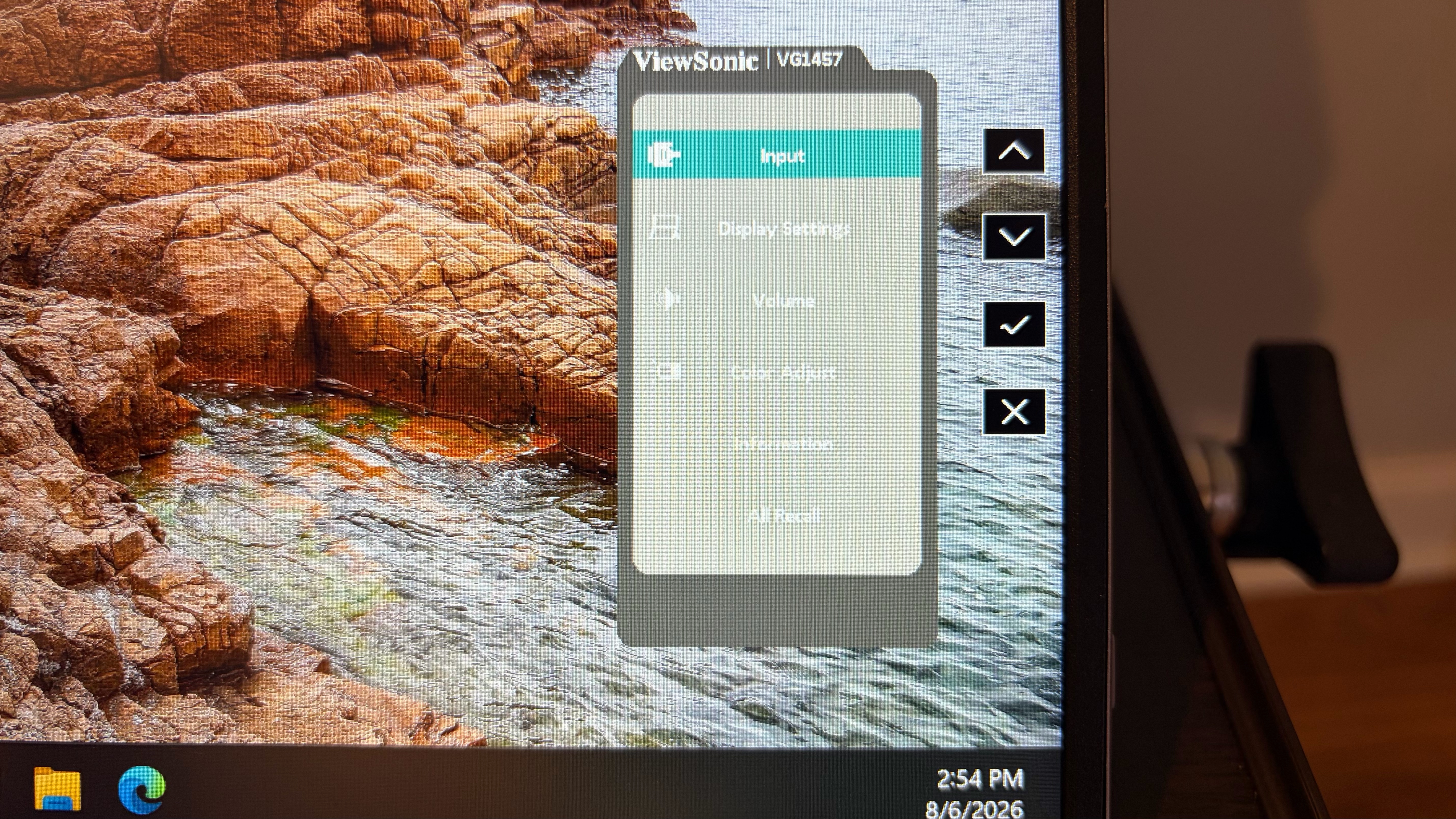
As for the OSD, it’s controlled by four circular buttons on the right side of the kickstand. It took a little while to get used to, as once a button is pressed, you have to pay attention to the position of the on-screen menus and what button they correspond to. I had to do some mental gymnastics to navigate the interface somewhat smoothly.

The Display Settings menu allows you to choose between Mirror, Extend, Full Screen, and Dual Source modes. The only other configurable options are under the Color Adjust Menu, where you can only adjust Contrast and Brightness. When you’re not in the OSD, you can use the buttons to individually control brightness and speaker volume.

Display Performance on the ViewSonic VG1457

The VG1457 uses twin 14-inch 1200p IPS panels with a standard 60 Hz refresh rate. Both panels are covered with an anti-glare finish to reduce distracting reflections.

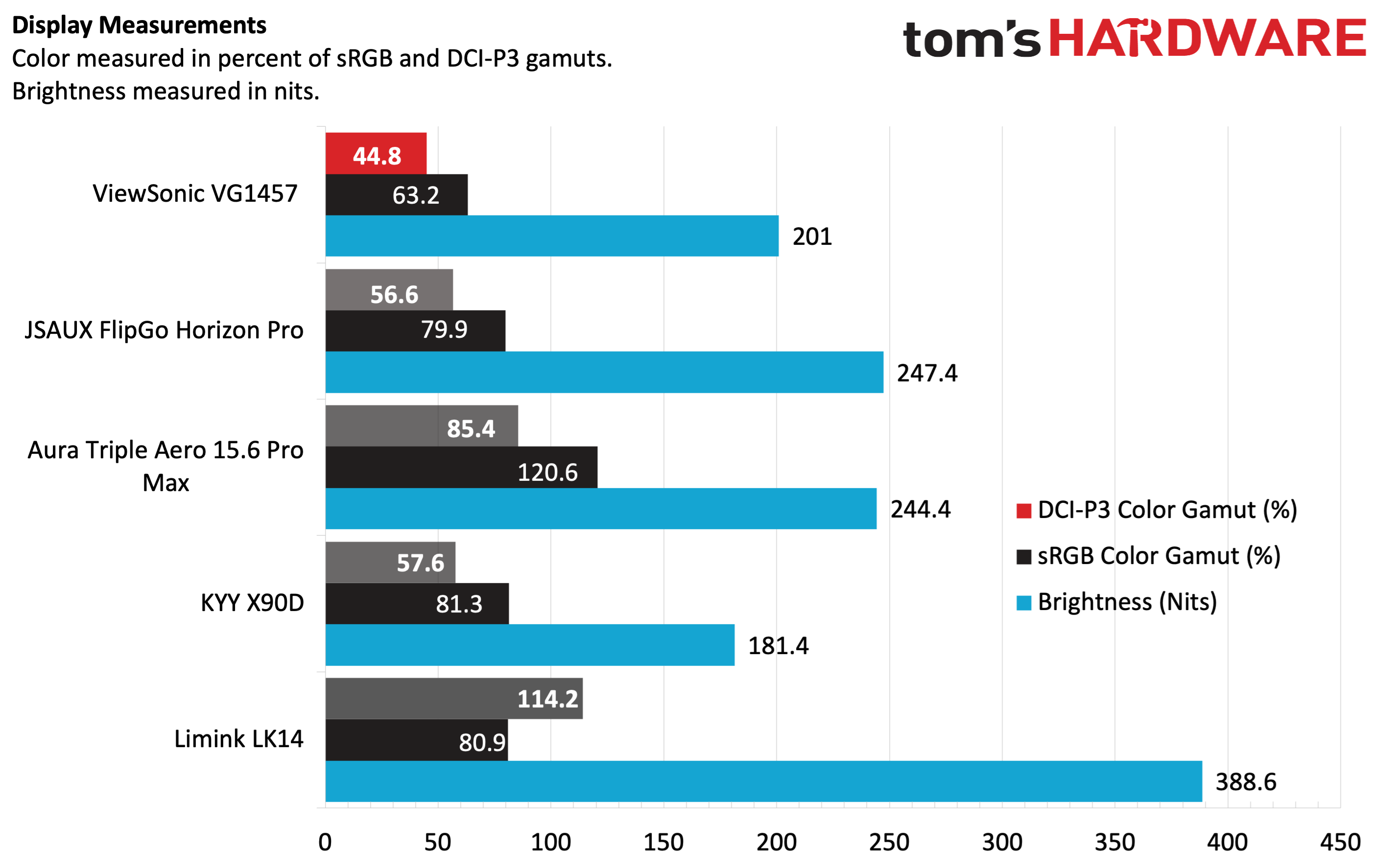
ViewSonic says that the panels are rated for up to 300 nits maximum brightness, but that wasn't the case with our review unit. Instead, we saw just 201 nits, ranking it in fourth place of five dual-screen portable monitors that we've recently tested. Only the KYY X90D was dimmer at 181.4 nits at full power.

Viewsonic VG1457

(Image credit: Tom's Hardware)

Color performance was also not up to par compared to its peers; we measured just 44.8 percent coverage of DCI-P3 and 63.2 percent of sRGB. Both figures put it at the back of the pack, and by a large margin.

It's one thing to be able to boast (or not boast) about color performance with instrumented tests, but how does the VG1457 look in real-world applications? For my needs, I spend a lot of time in Word, Excel, Microsoft Edge, and Pixelmator Pro. And for those use cases, it was "fine." Colors weren't particularly vibrant, and I wished that the brightness of the VG1457's panels at least matched the brightness of the native 14-inch display on the OmniBook X that I was using as a test system.

Watching movies was also just an "OK" experience, with muted colors and lots of grey undertones when watching dark scenes.

The VG1457 also includes a pair of 2-watt speakers, which sounded OK. They're serviceable for handling your Google Meet or Zoom calls, or listening to some music in the background while you work. However, they are by no means high-quality speakers that will blow your socks off.

Bottom Line

The ViewSonic VG1457 has a lot of positive qualities that I appreciated. Its relatively compact and lightweight frame (for a dual-screen monitor) is a boon for travel. Many dual-screen monitors are “portable” in name only, and would be a chore to carry around; however, I was able to slip the VG1457 into my laptop backpack with ease. I also like that there are three USB-C ports supporting 65-watt power passthrough to your computer or other peripherals.

On the other hand, color performance and brightness were lackluster compared to the competition. You won’t be happy if you’re looking to use the VG1457 for watching videos or photo editing. Still, for more basic productivity tasks or presenting (which is its primary mission anyway), it’s more than adequate.

JSAUX FlipGo Horizon Pro dual-screen portable monitor review: Jack of all trades, master of some

2026年8月13日 18:05

While the overall portable monitor market has exploded over the past few years, one sub-segment that has seen increasing attention is the dual-panel market. We’ve already reviewed entries from several players in this space, but the latest from JSAUX might be one of the most versatile that we’ve seen so far.

The JSAUX FlipGo Horizon Pro is a dual-screen portable monitor with a large footprint. Still, it’s highly configurable in how you position the display panels, and it even includes an integrated hub with multiple USB-A ports and a gigabit Ethernet port. Those features are rare among the best portable monitors, so let’s see what makes the FlipGo Horizon Pro tick.

Design of the JSAUX FlipGo Horizon Pro

A lot is going on with the design of the FlipGo Horizon Pro, and for good reason. It's trying to accomplish a lot with its various operating modes, and it employs a rather ingenious system to execute on its mission.

At the heart of the FlipGo Horizon Pro is its black aluminum frame. It consists of a wedge-shaped base, on which your laptop rests. Not only does the weight of the laptop provide an additional anchor point (and stability) for the base, but it also positions the laptop on a slight incline.

JSAUX FlipGo Horizon

(Image credit: Tom's Hardware)

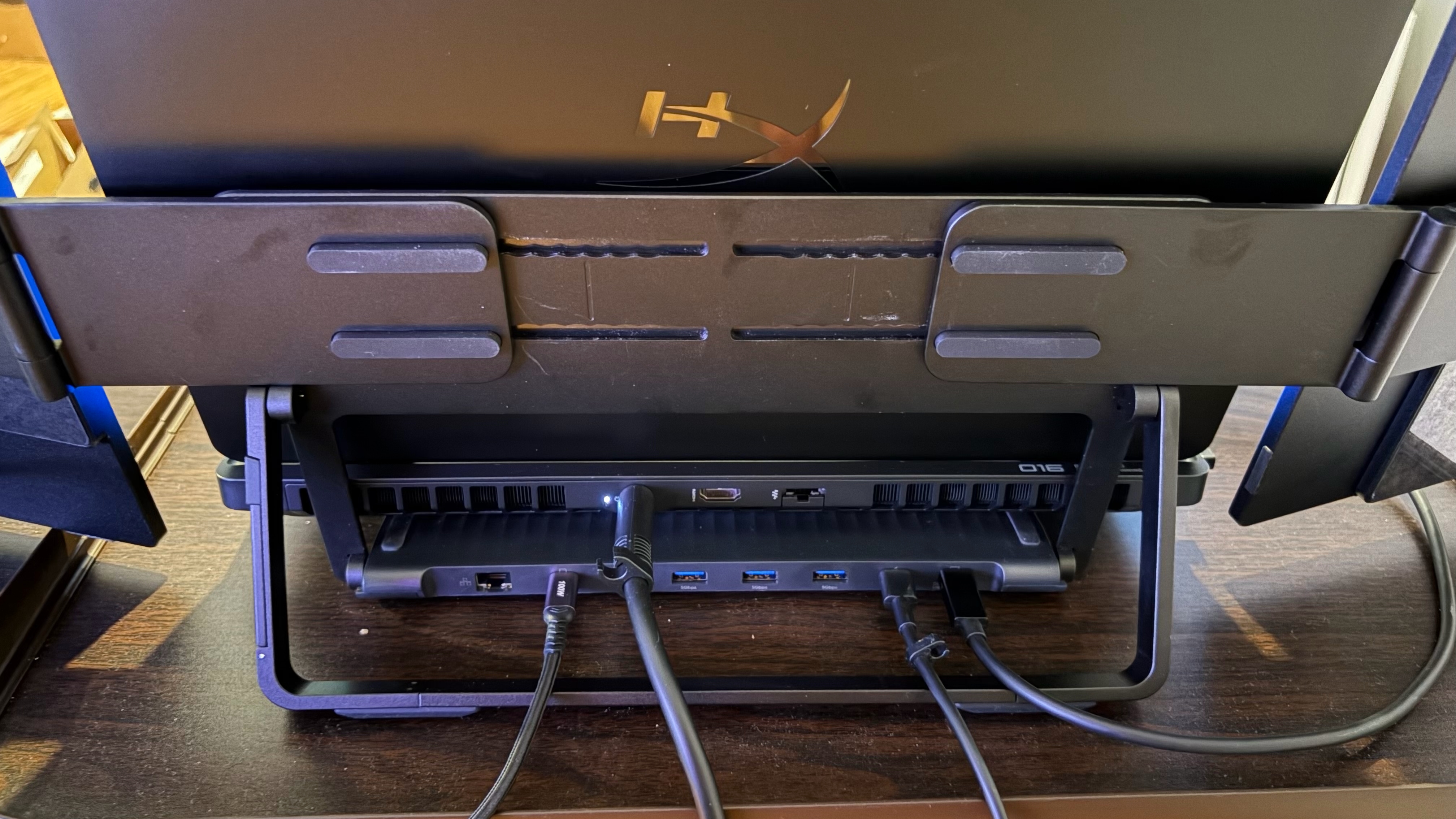
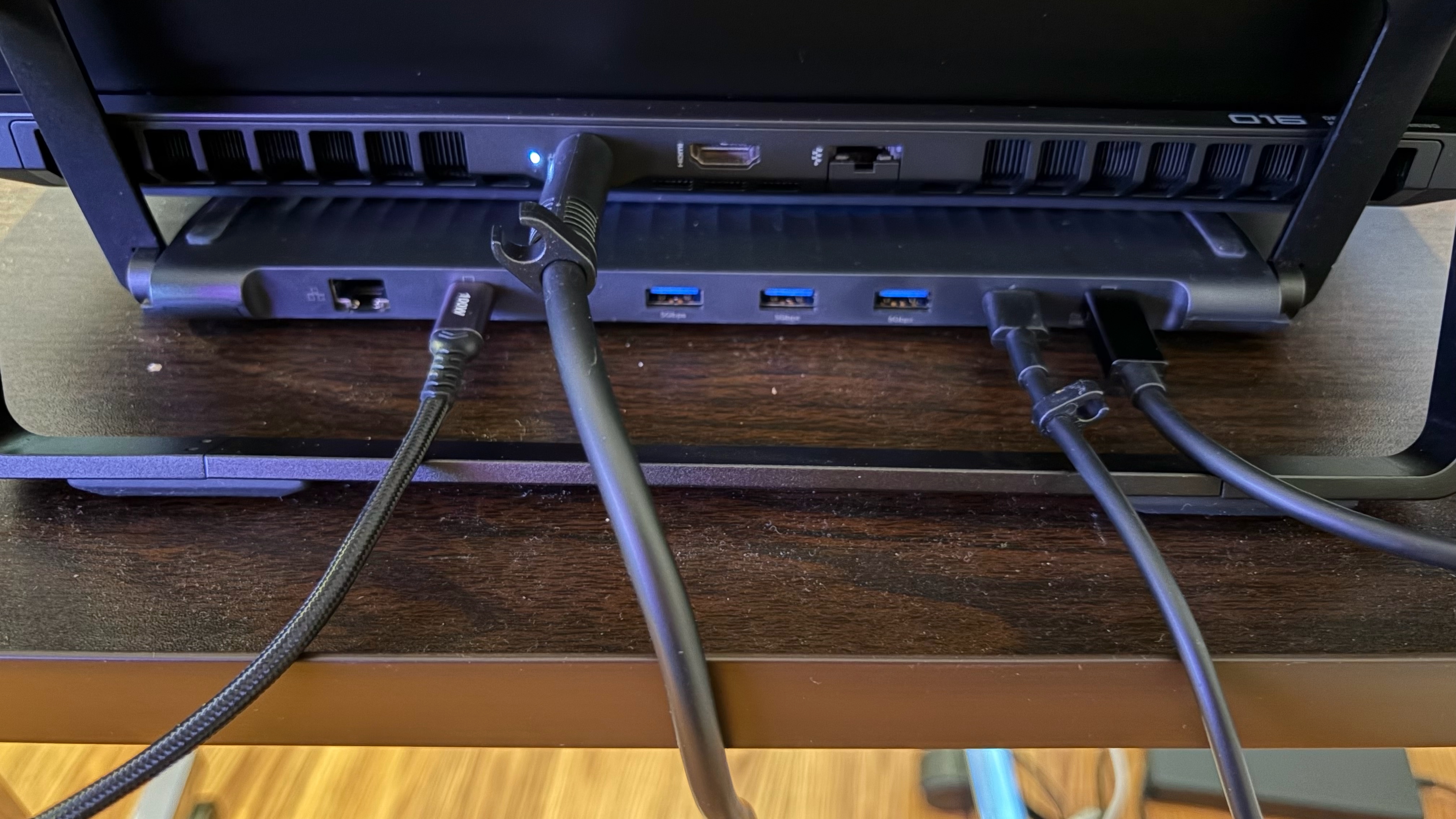
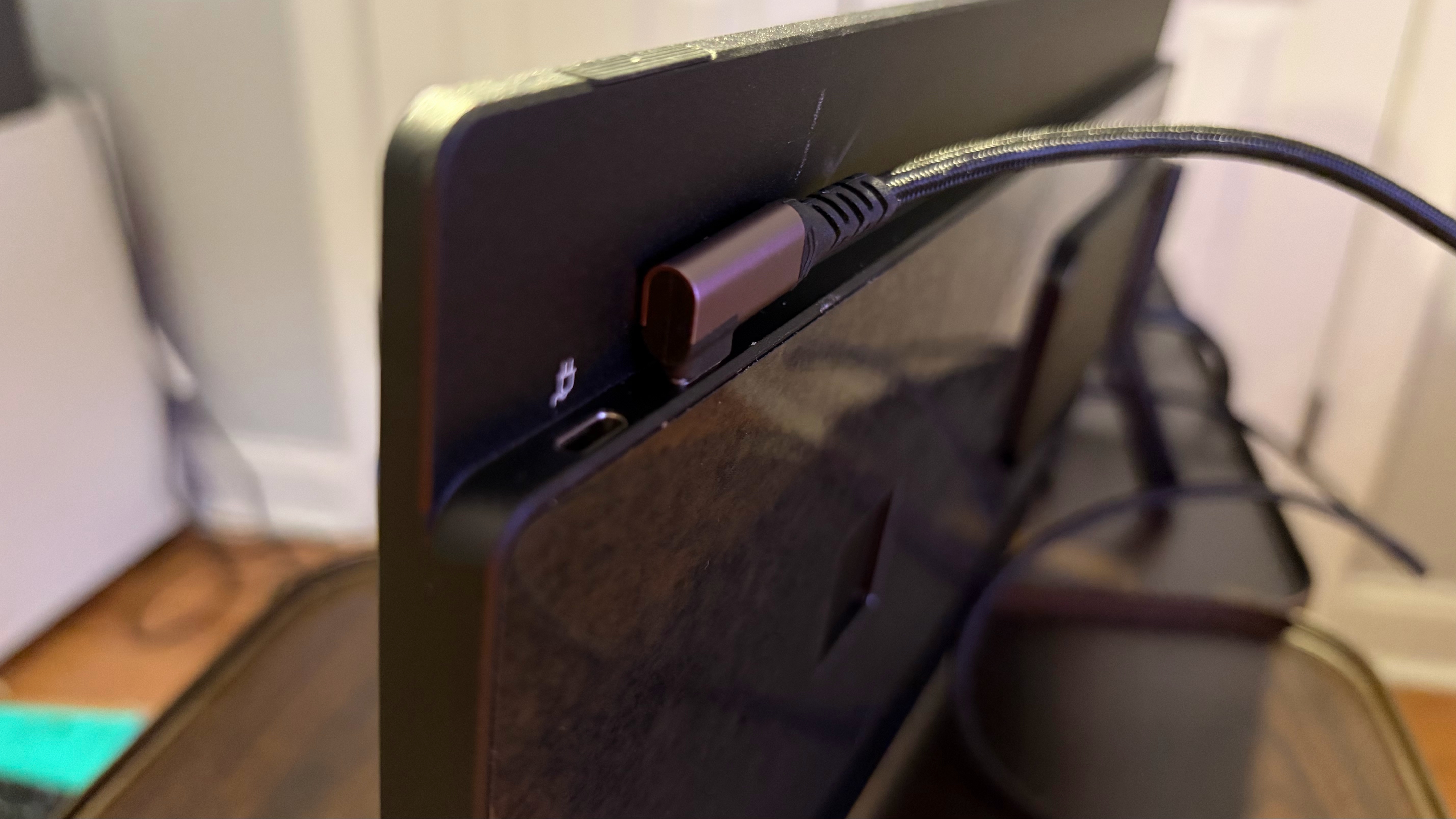
On the back of the base are several ports used for connecting the monitors and expanding port availability for your laptop. You’ll find two USB-C inputs for the monitors, a USB-C for power from the included 65-watt power adapter, and a USB-C port for data and video that connects directly to your laptop. In addition, there are three USB-A ports for peripherals and a Gigabit Ethernet port for networking.

JSAUX FlipGo Horizon
Tom's Hardware
JSAUX FlipGo Horizon
Tom's Hardware

Sprouting up from the base is a horizontal bar that forms the basis for mounting the monitors. Two sliding platforms attach to the horizontal bar: one for the left monitor and one for the right monitor. The sliders allow you to accommodate both large and small laptops. In addition, each slider can fold forward or back to suit your preferred viewing angle or enable a specific operating mode.
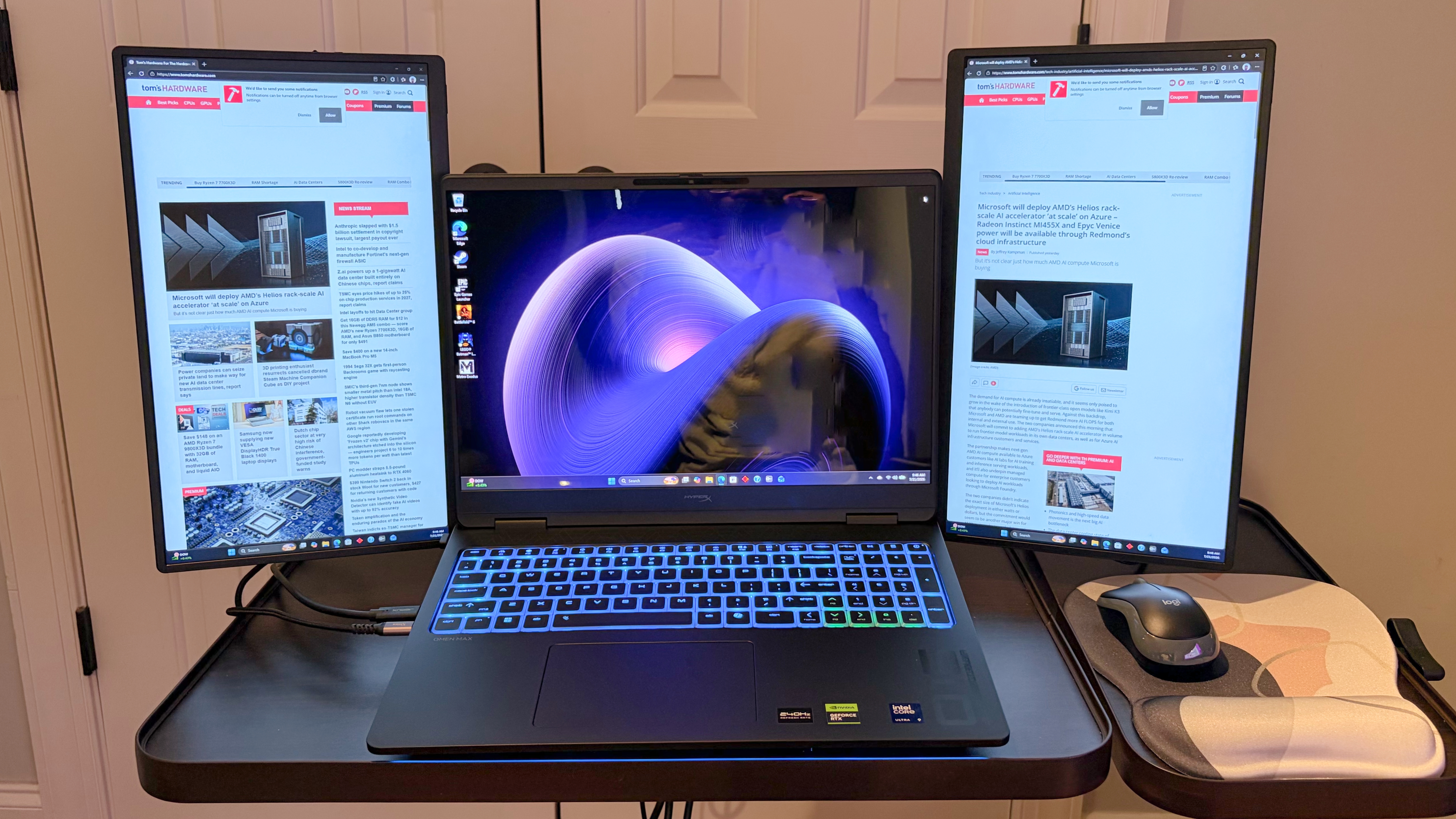
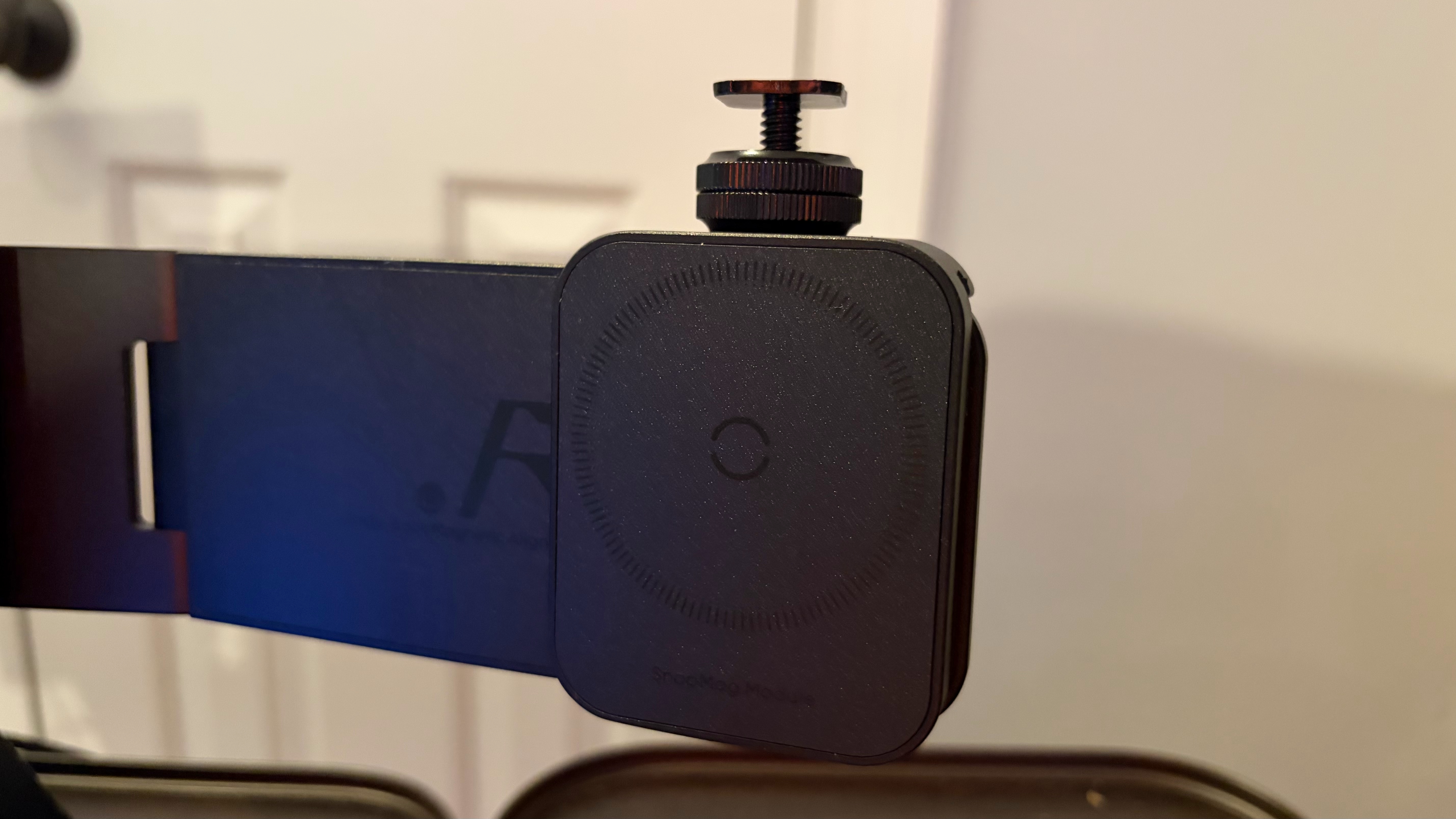
At the end of each slider are magnets that firmly hold each monitor panel in place, whether in landscape or portrait mode. The whole platform can then be adjusted for tilt thanks to the aluminum kickstand that attaches to the horizontal bar.

JSAUX FlipGo Horizon
Tom's Hardware
JSAUX FlipGo Horizon
Tom's Hardware
JSAUX FlipGo Horizon
Tom's Hardware
JSAUX FlipGo Horizon
Tom's Hardware
JSAUX FlipGo Horizon
Tom's Hardware

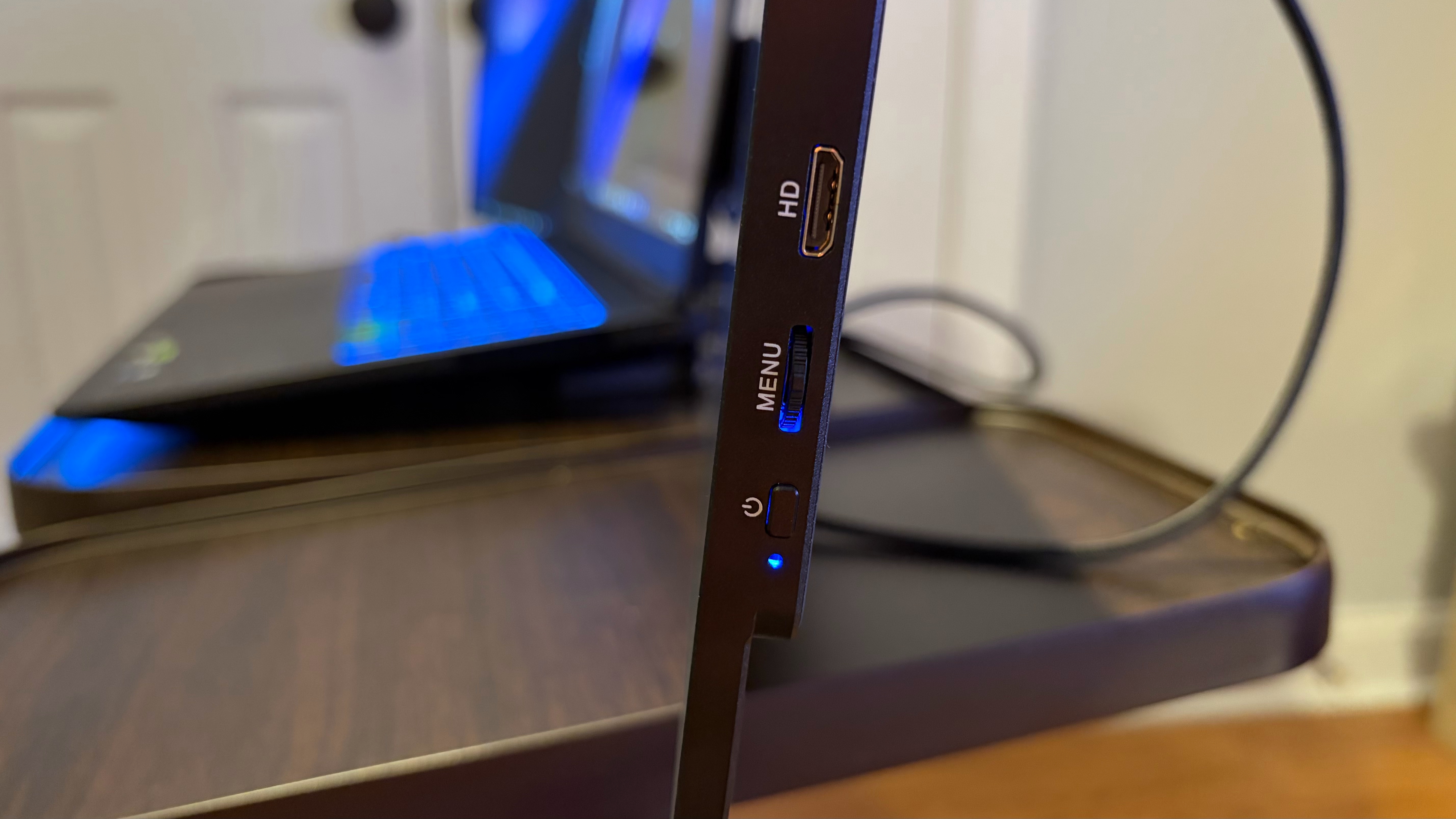
Each monitor is also constructed of aluminum and has two USB-C ports (one for video, one for power) and a micro-HDMI port. You’ll also find a jog wheel for the OSD and a power/menu button on each.

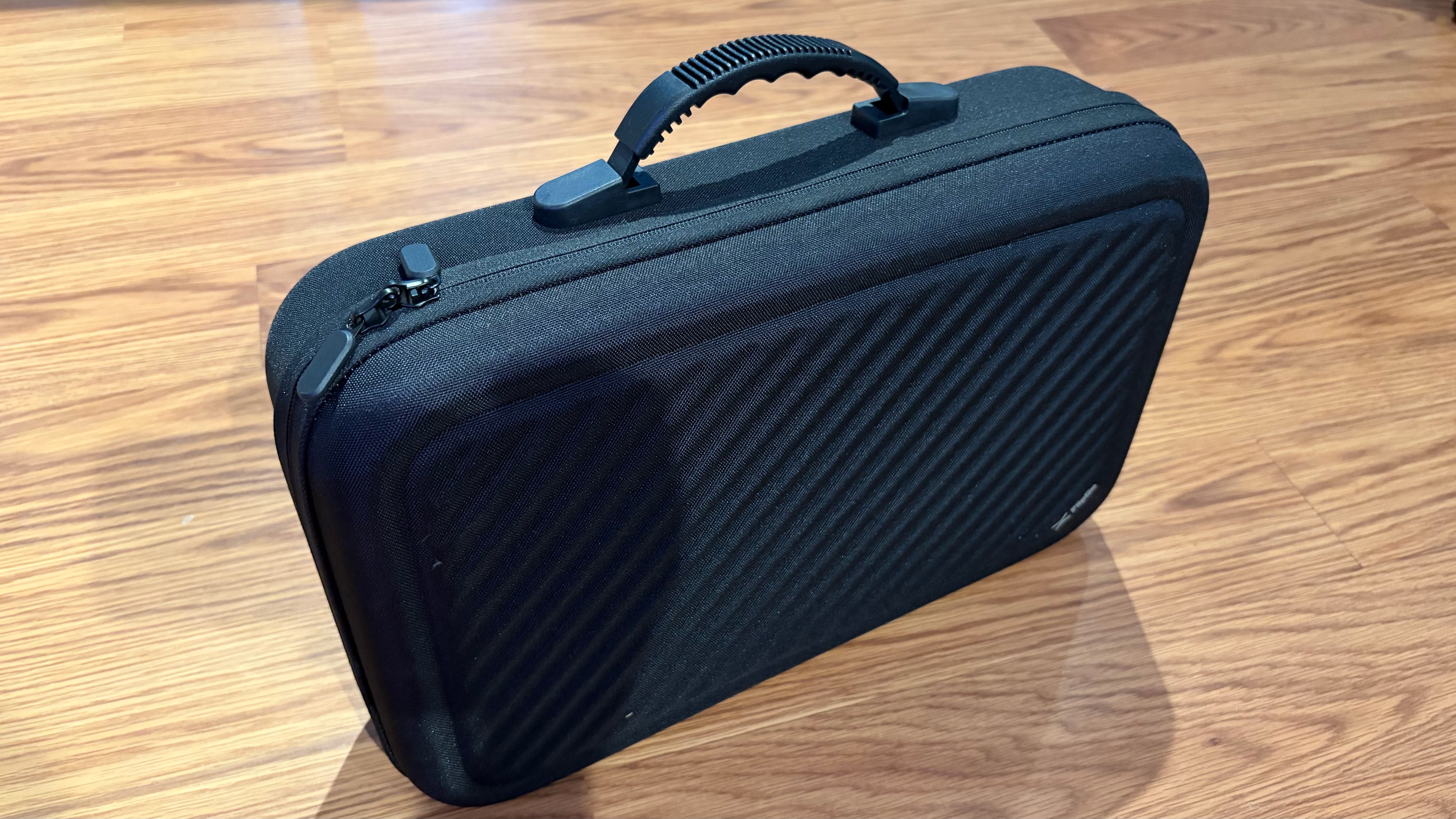
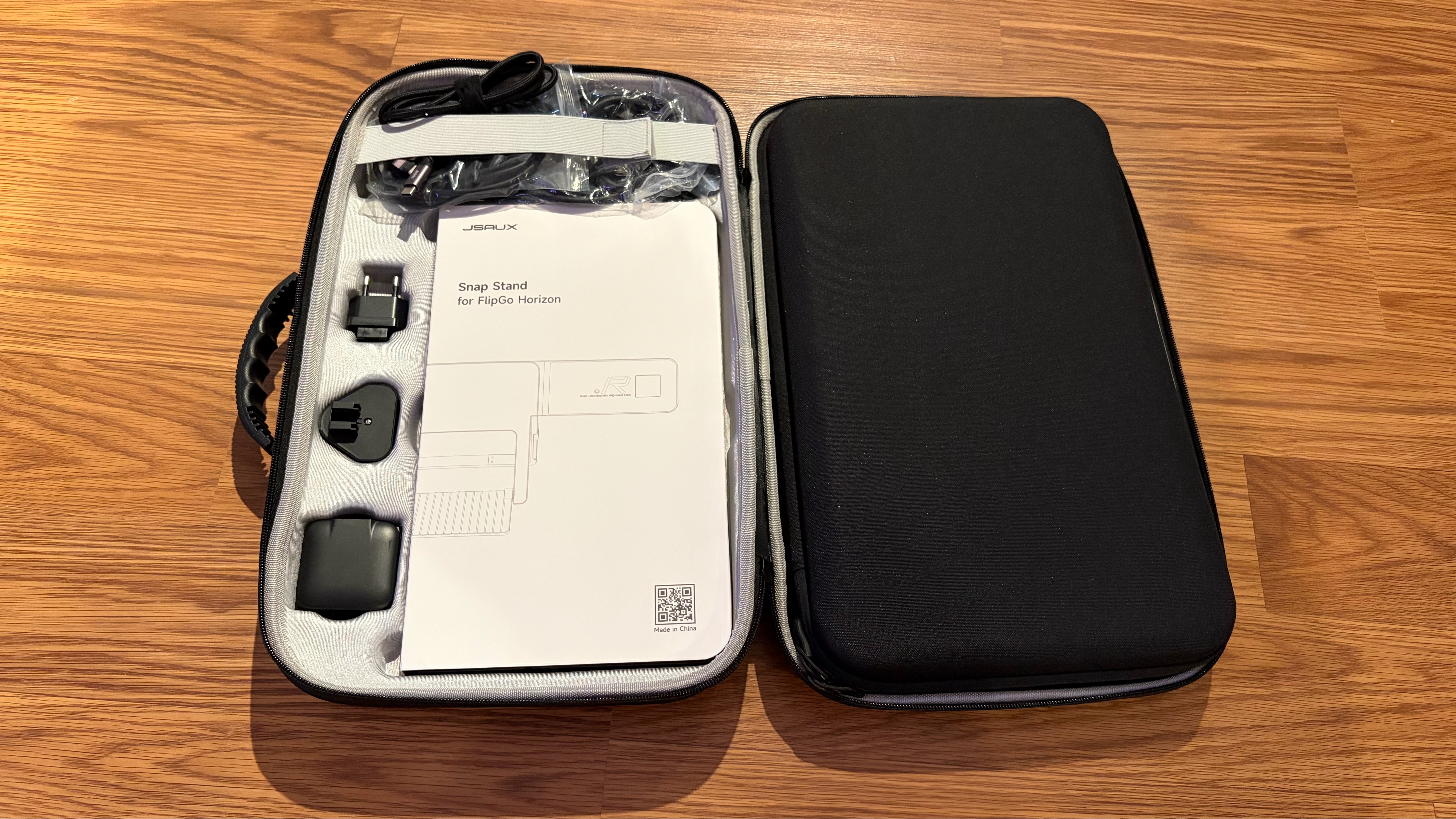
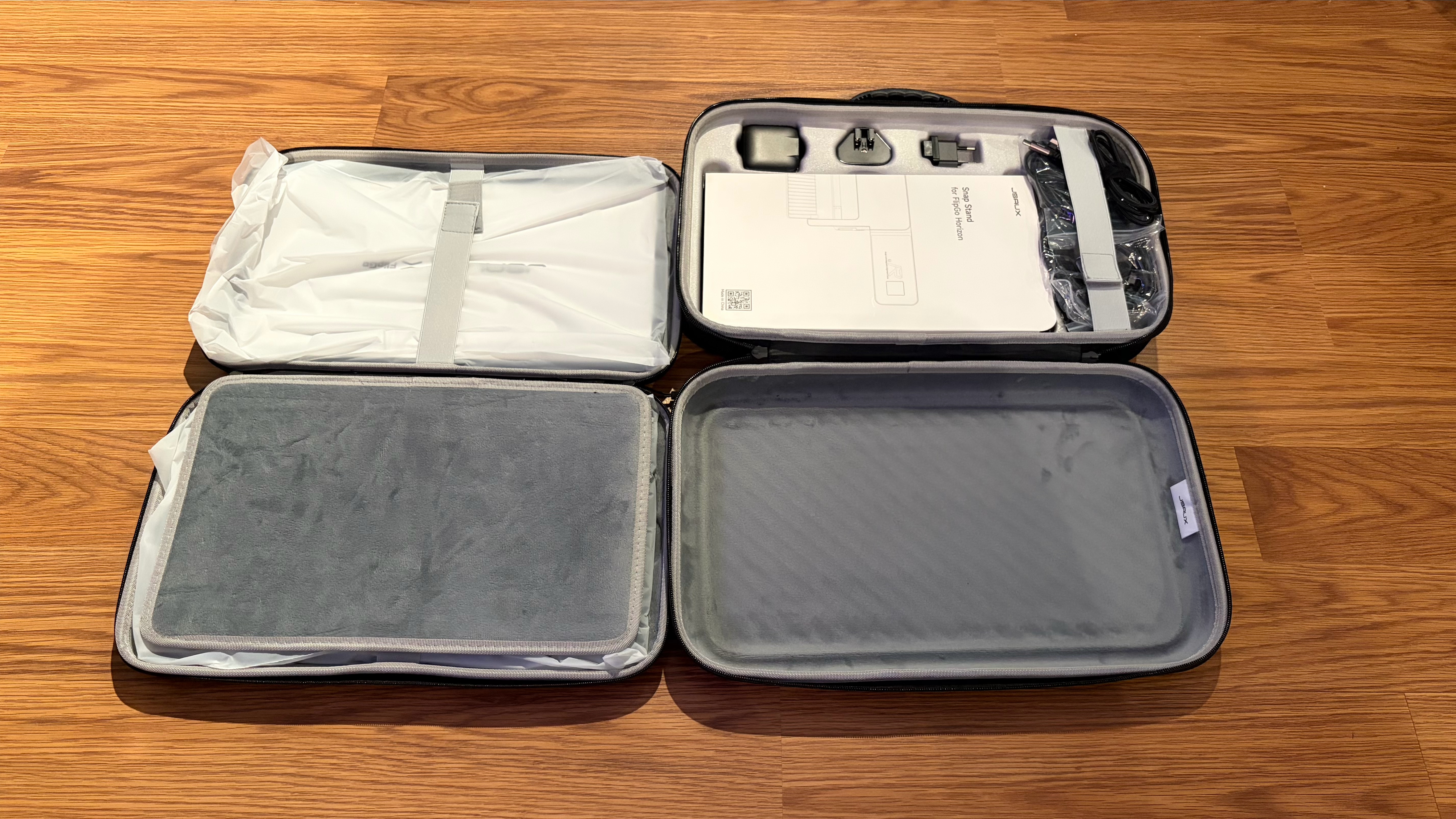
The whole setup comes in dual-carrying cases. A large, foam-padded carrying case opens to reveal a second carrying case that houses the two display panels. Elsewhere inside, you’ll find the 65-watt wall adapter, multiple USB-C cables to handle video and power, two HDMI cables, a MagSafe phone mount, and multiple power plug ends for global travel.

JSAUX FlipGo Horizon Pro Specifications

Panel Type / Backlight

IPS

Screen Size / Aspect Ratio

15.6 inches / 16:9 x2

Max Resolution & Refresh Rate

1920 x 1080 @ 60Hz

Typical Brightness

300 nits

Contrast Ratio Typical

800:1

Ports

2x USB-C, 1x micro-HDMI

Speakers

None

Weight

6 pounds (stand + 2 displays)

Warranty

1 year

JSAUX FlipGo Horizon Pro OSD

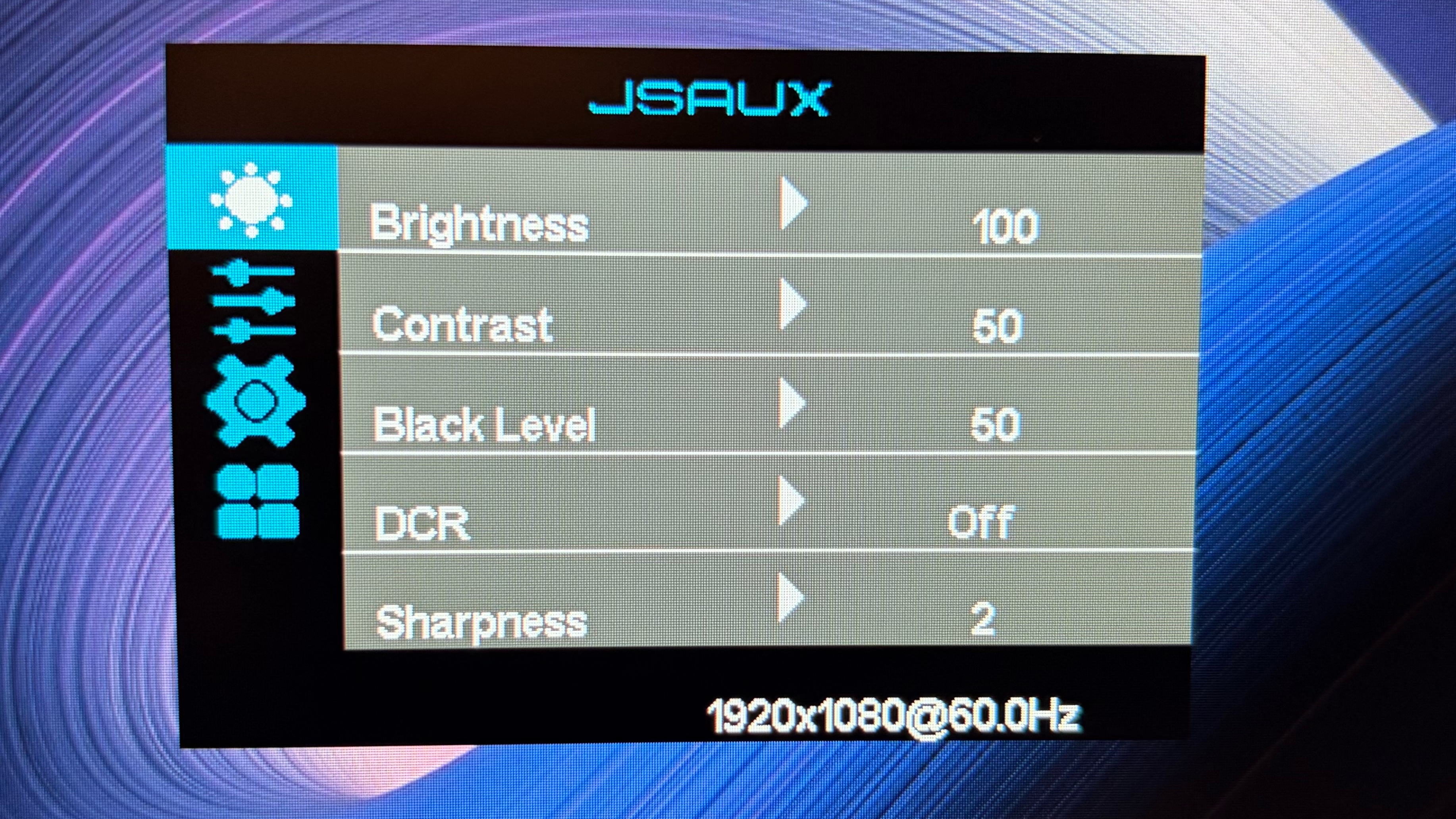
Since each display is independent, each has its own on-screen display (OSD). You can access the OSD by pressing in on the jog wheel. Moving up and down with the jog wheel navigates through the OSD, while pressing in goes one level deeper until you select an option. A single press on the power button goes back one menu, while a long press turns off the monitor.
JSAUX FlipGo Horizon

(Image credit: Tom's Hardware)

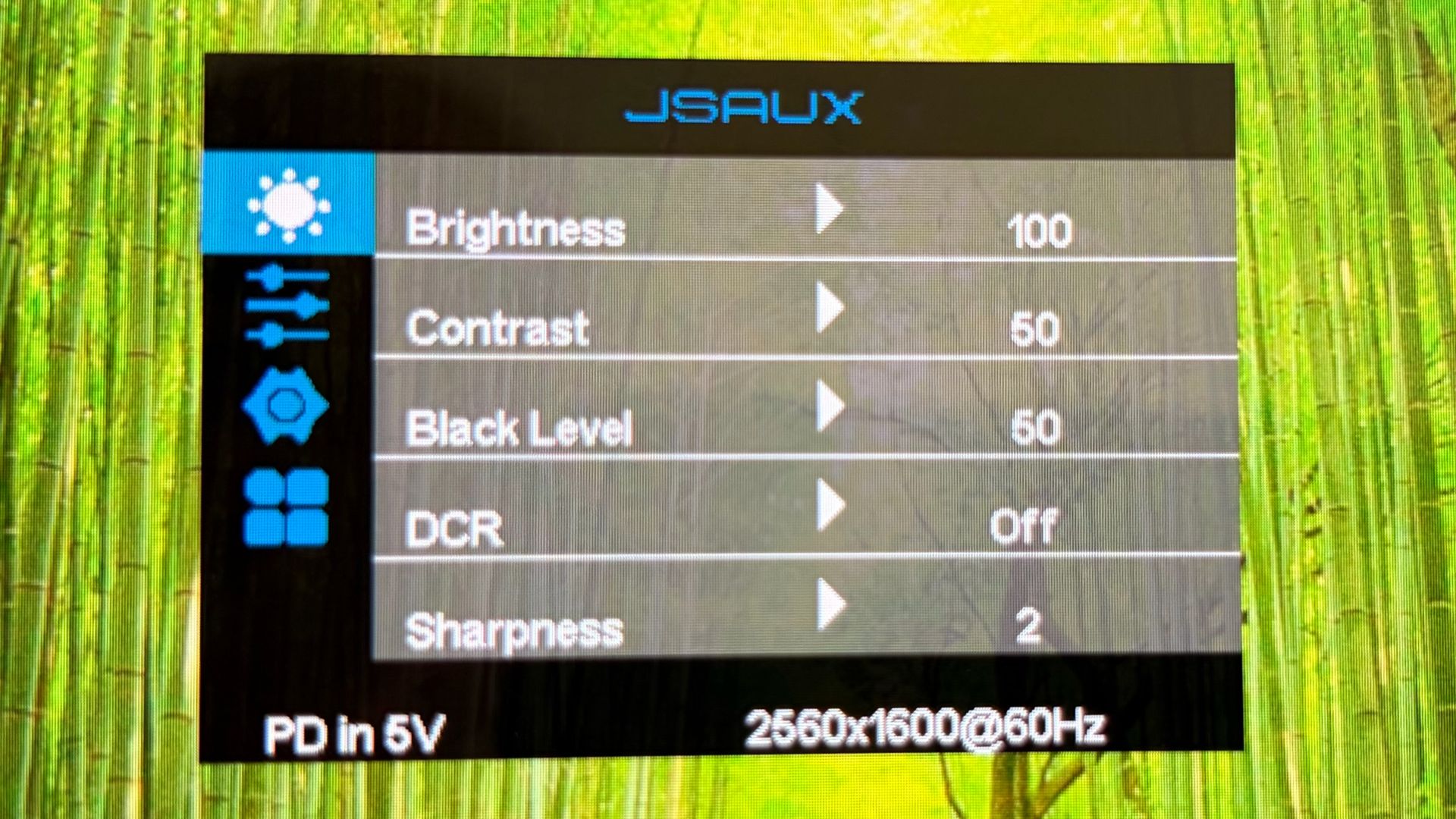
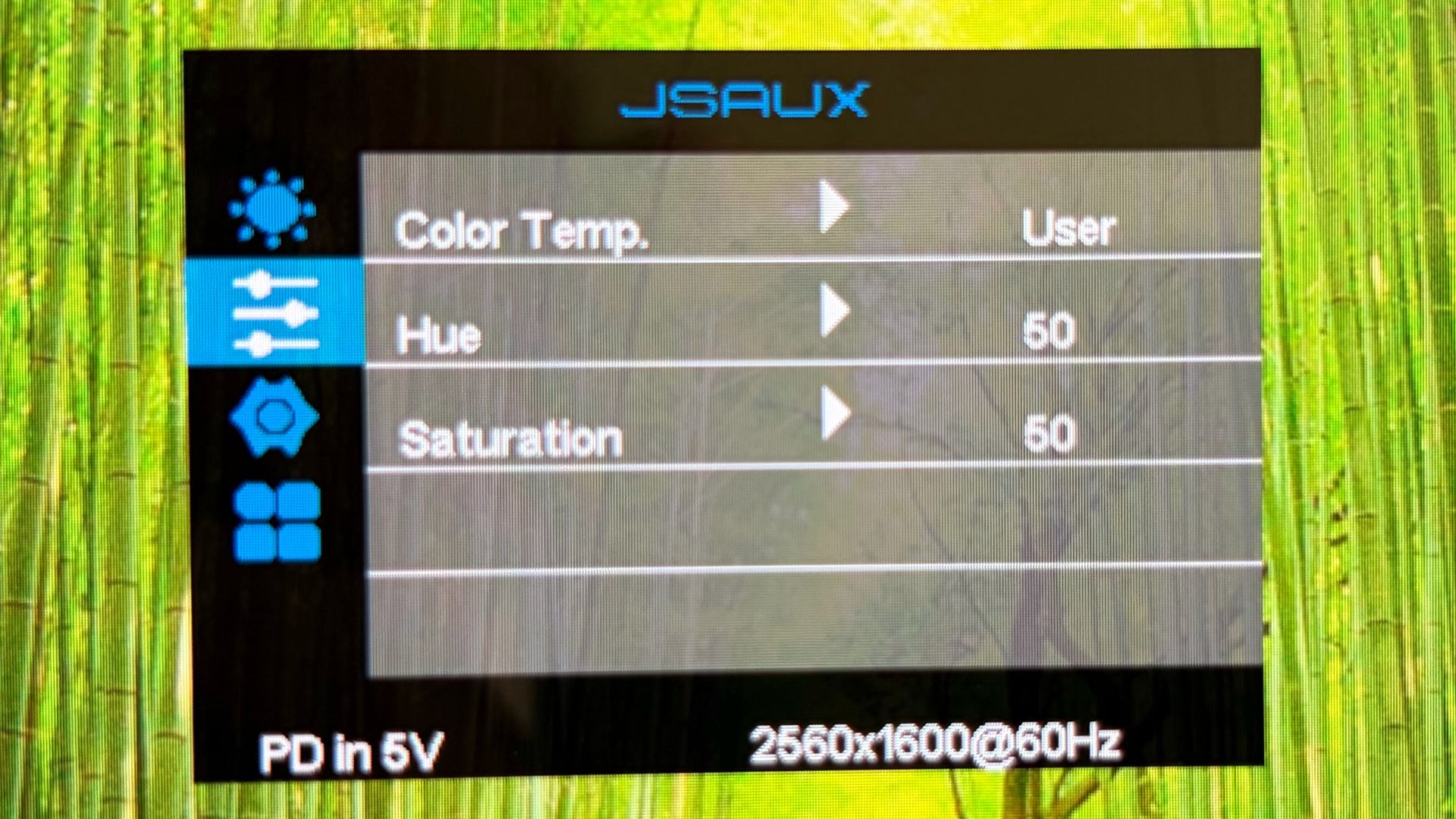
Once in the OSD, there are your typical adjustable settings, including brightness, contrast, and sharpness. There’s a separate menu for color temperature, saturation, and hue. You can also switch between HDMI and USB-C connections for the monitors.

JSAUX FlipGo Horizon Pro Operating Modes

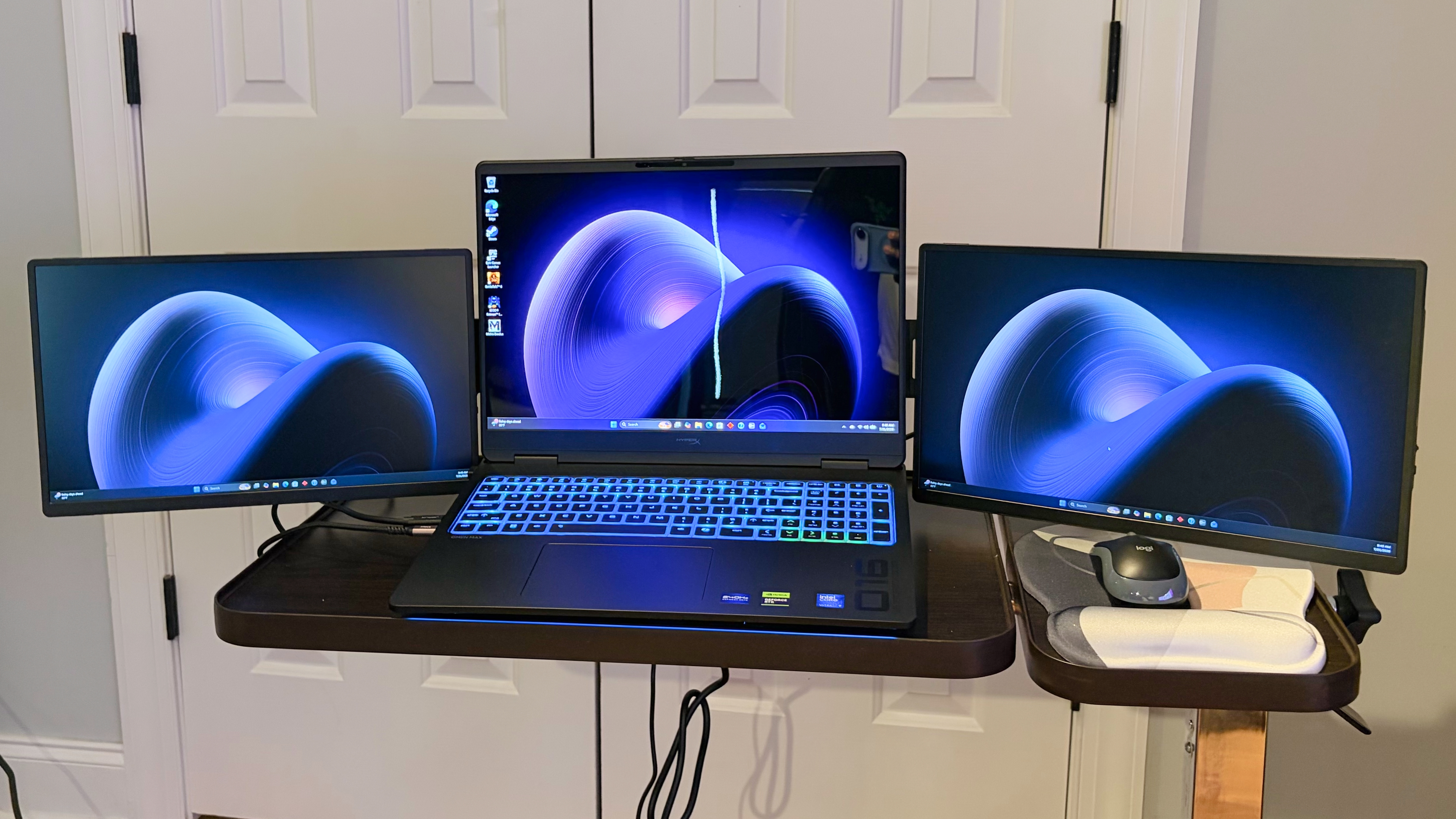
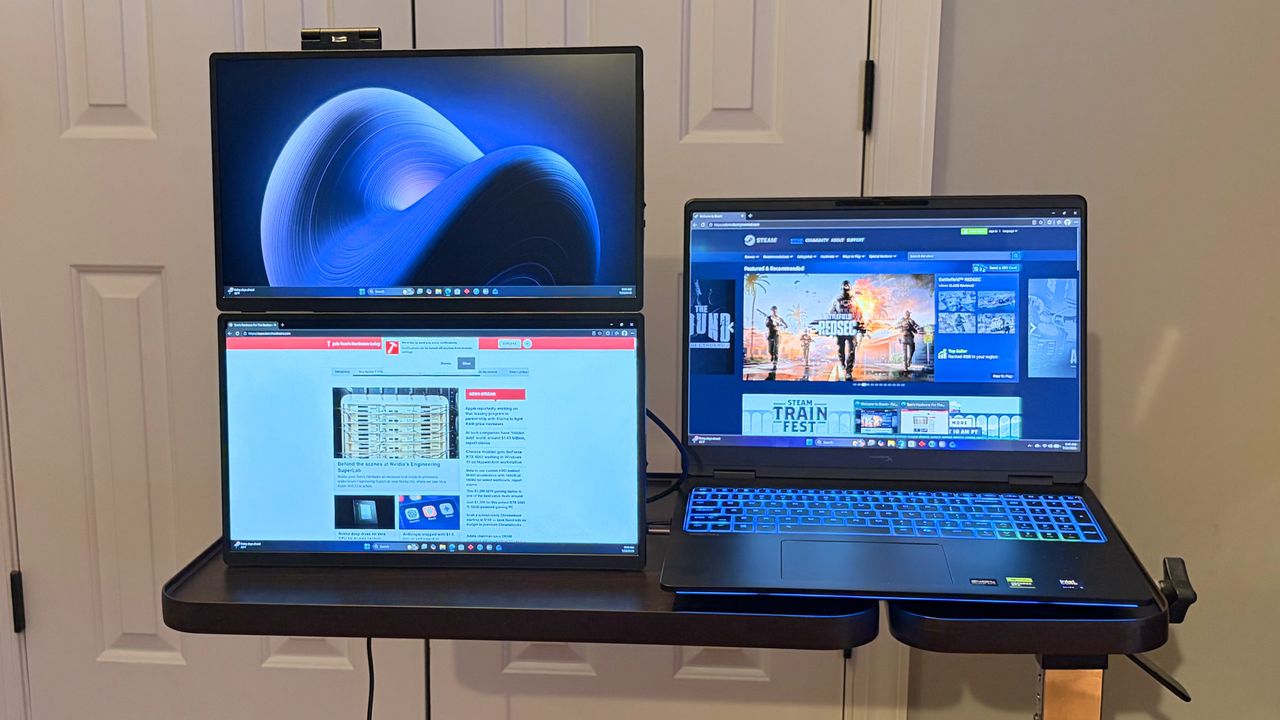
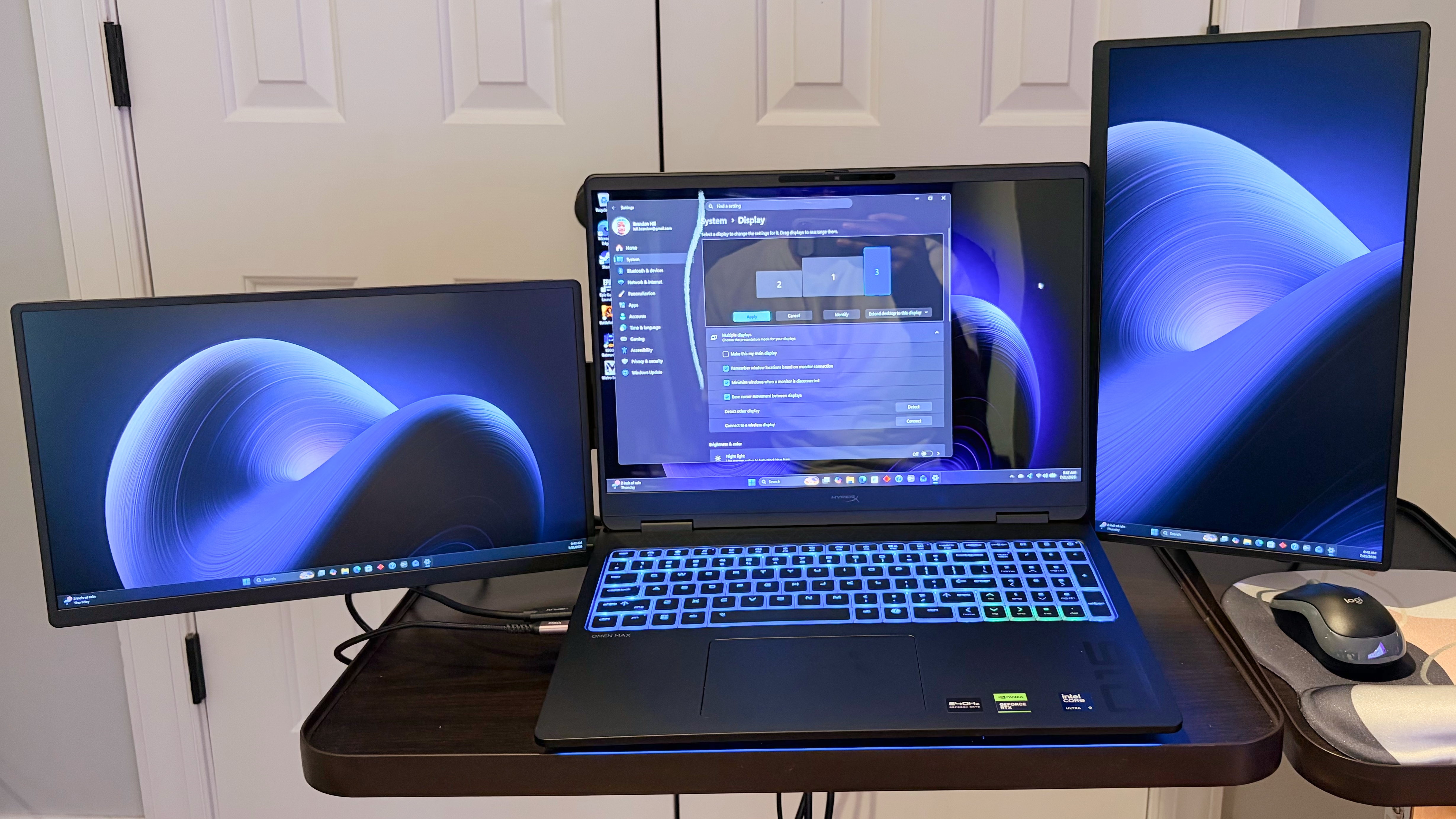
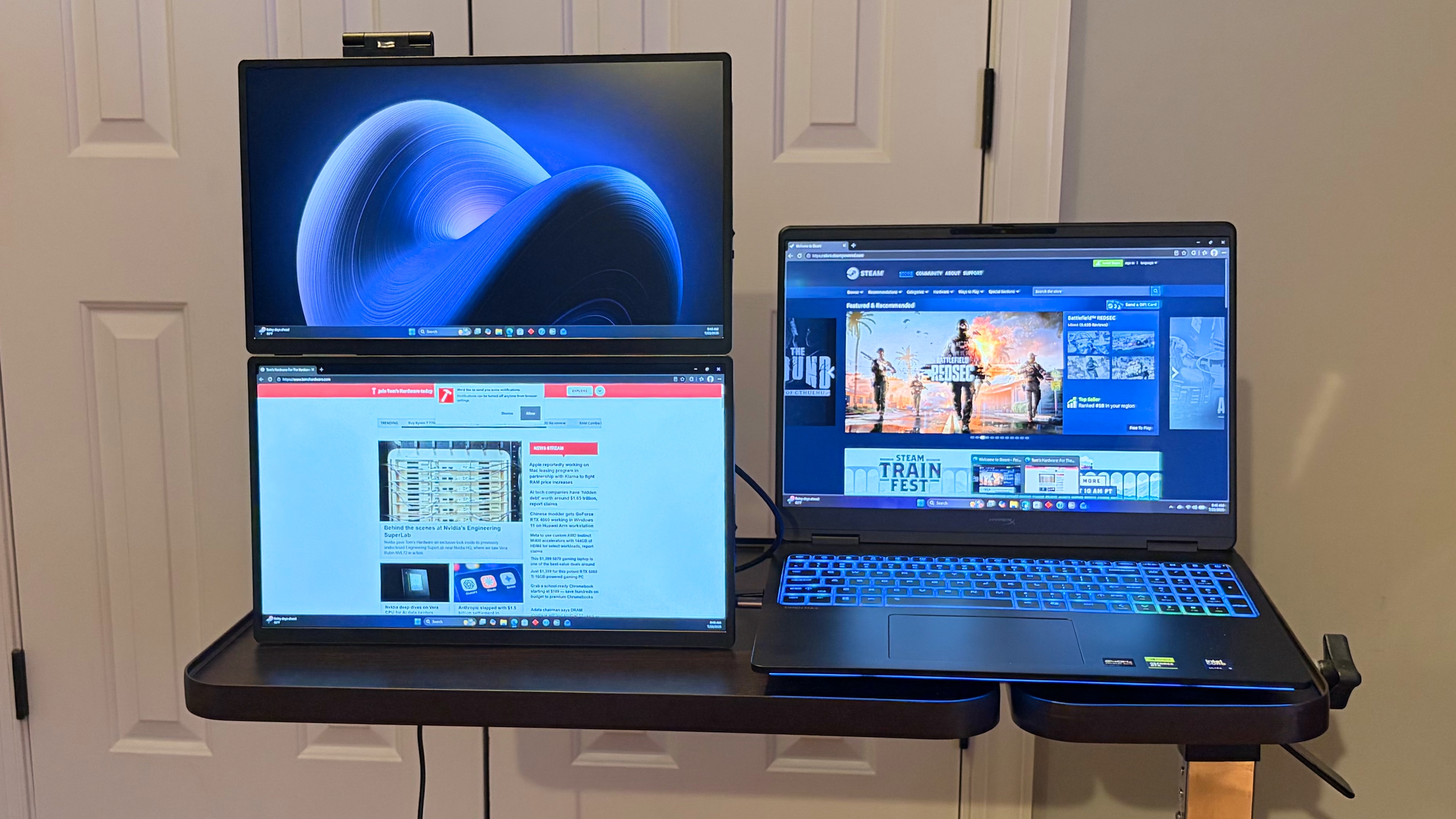
The FlipGo Horizon Pro has an extensive array of operating modes that you can use with a laptop and even a smartphone. Its namesake mode is “Horizon Mode,” which has both display panels sprouting out from either side of your laptop’s display like a big pair of ears. Each display can be presented in landscape mode, portrait mode, or any combination of the two (i.e., one landscape and one portrait or both in portrait).

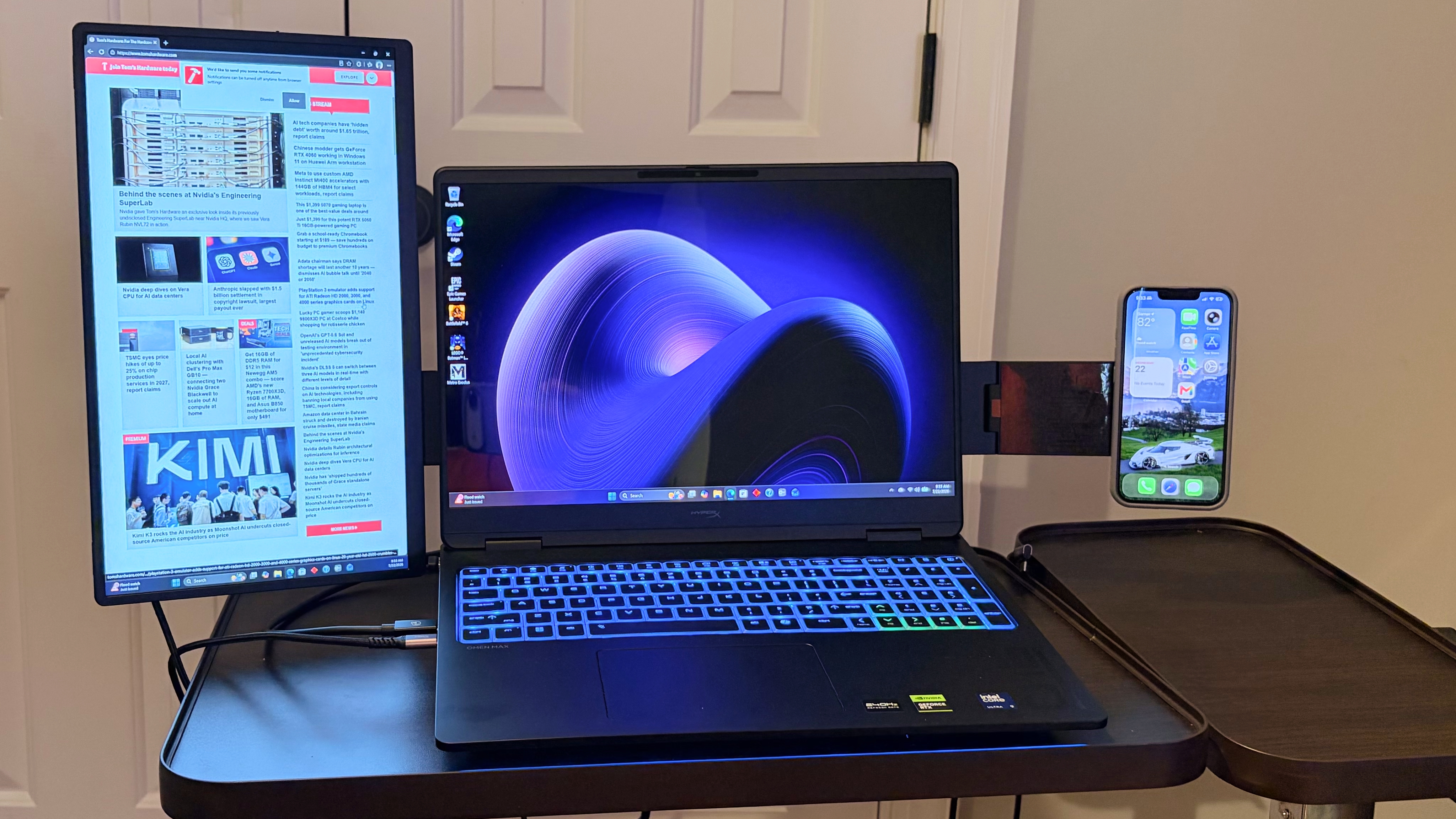
Stack Mode allows you to place the two panels standalone, side-by-side, in portrait orientation or on top of each other in landscape orientation. Solo Mode is for using just a single panel, while Creative Mode uses the included magnetic attachment to mount your smartphone in place of one of the monitors.

JSAUX FlipGo Horizon
Tom's Hardware
JSAUX FlipGo Horizon
Tom's Hardware
JSAUX FlipGo Horizon
Tom's Hardware
JSAUX FlipGo Horizon
Tom's Hardware
JSAUX FlipGo Horizon
Tom's Hardware

My preferred arrangement was to use Horizon Mode, with the two display panels in portrait orientation. Creative Mode just seemed like a waste to me, because the point of purchasing a FlipGo Horizon Pro is to have the expanded real estate of two monitors, and ditching one to use a smartphone in its place just rang hollow.

I had similar reservations about Solo Mode due to the unit's weight, even with one display, which is easily twice that of a traditional single-screen portable monitor due to the heavy frame.

With that said, we have to give JSAUX credit for providing a wealth of options for customers to choose from. In the end, having options is a good thing, even if they don’t align with my specific tastes.

Display Performance on the JSAUX FlipGo Horizon Pro

Before I get into the actual numbers, let me first talk about living with the FlipGo Horizon Pro. When I’m working at my desk, I use a 49-inch DQHD OLED monitor, which gives me plenty of real estate to have multiple Google Chrome and Microsoft Edge windows open, widgets strewn about my screen, along with my photo editing software. However, when I’m on the go, my go-to system is a 13-inch MacBook Air. Needless to say, the fall-off in screen real estate is jarring, which is why I usually travel with a 15.6-inch 1200p portable monitor.
With the FlipGo Horizon Pro, I was able to add two 15.6-inch 1080p monitors to flank my 13-inch MacBook Air. The extra displays are incredibly welcome, especially when I’m performing data entry or researching topics that I’m writing about. With that said, there’s room for improvement with respect to the actual panels that JSAUX uses on the FlipGo Horizon Pro.
JSAUX FlipGo Horizon

(Image credit: Tom's Hardware)

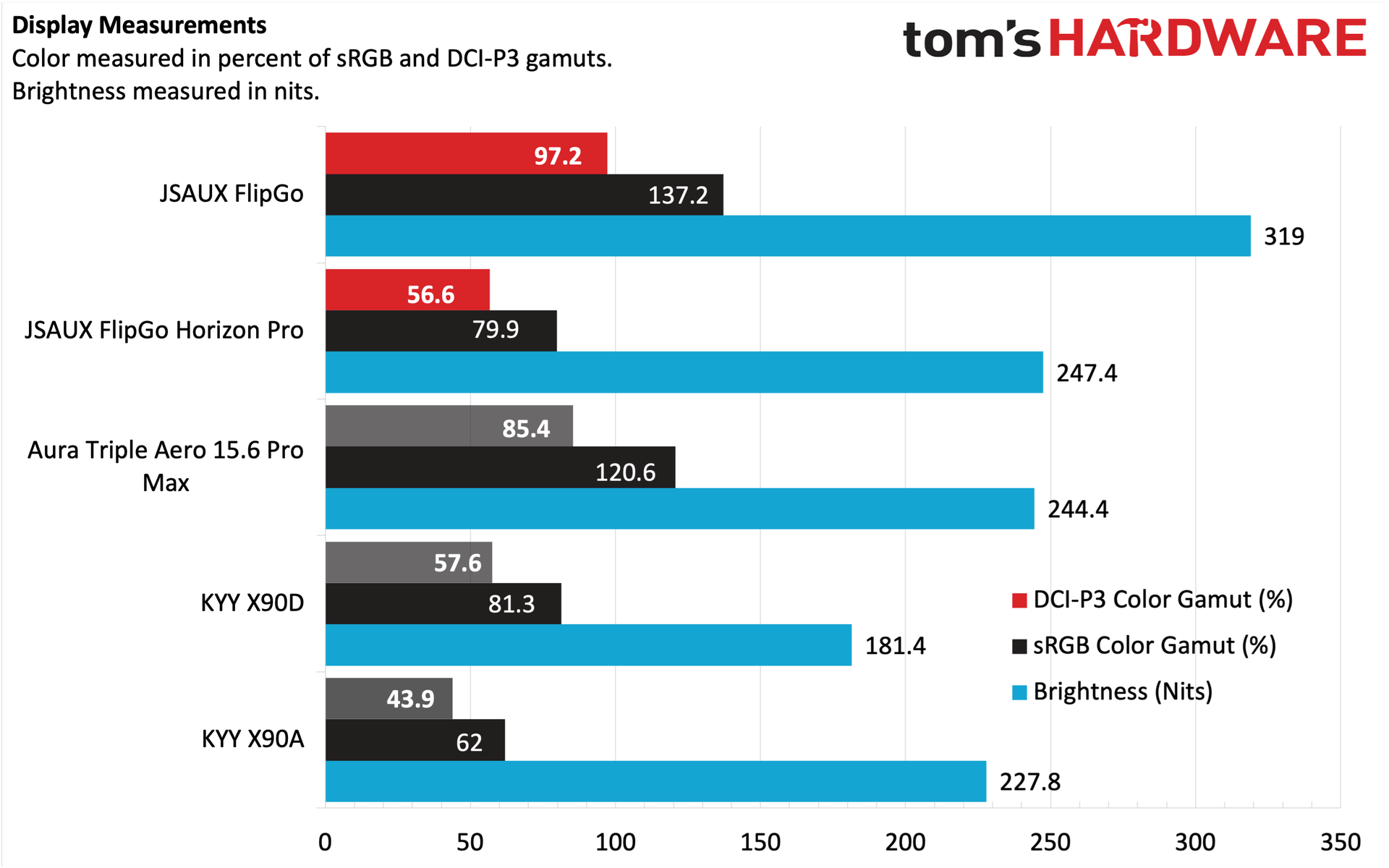
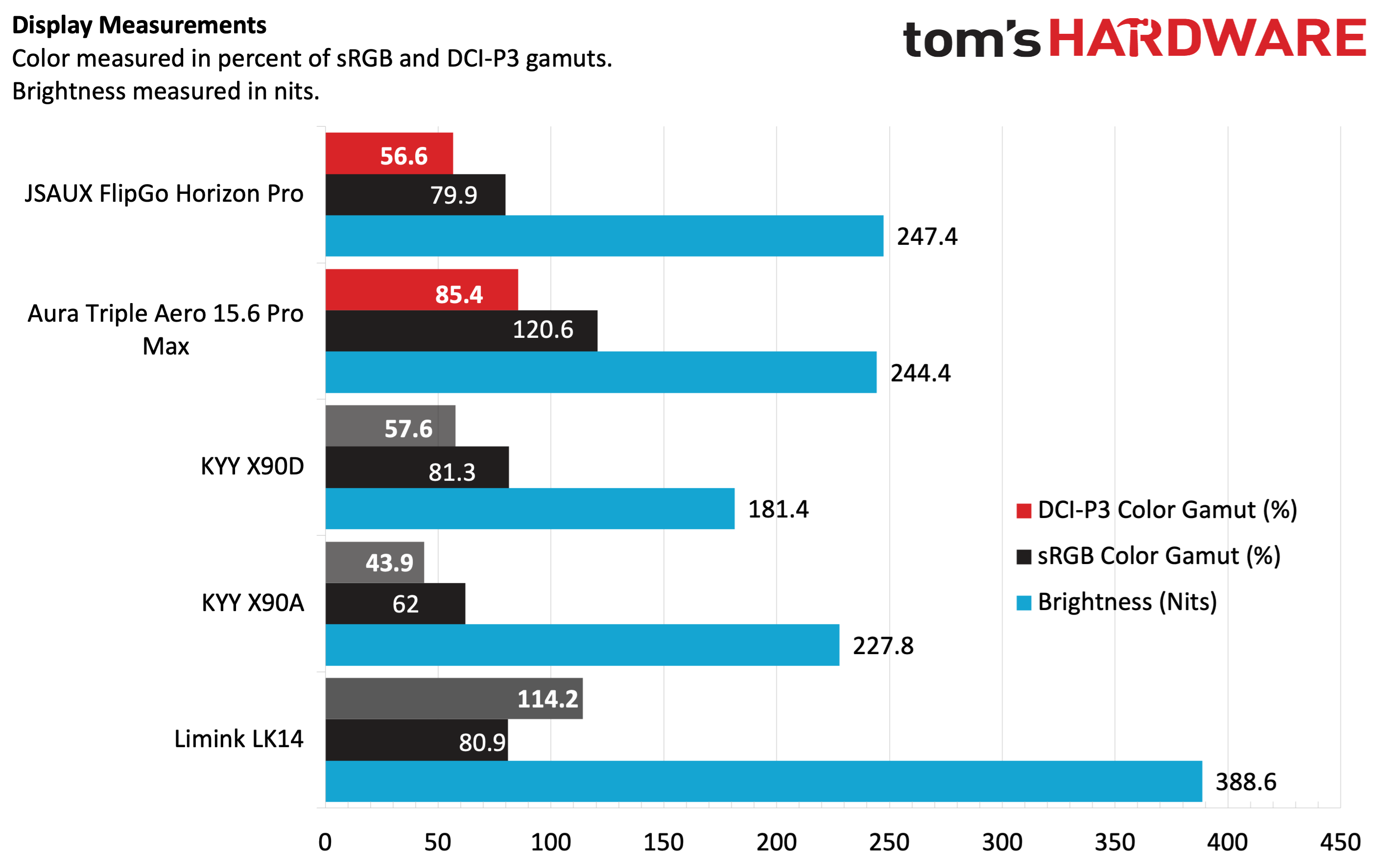
JSAUX claims that each panel is rated for 300 nits of maximum brightness; however, our instrumented test showed just under 250 nits in its default picture mode. Even using the custom setting in User mode, we maxed out at 276 nits. Likewise, color performance was dismal at best. We recorded 79.9 percent coverage of sRGB and just 56.6 percent of DCI-P3. The numbers tell one story, but real-world performance was also rather lackluster. Photos looked lifeless, and colors (particularly reds) seemed off-kilter. In addition, the stark difference in color reproduction between my MacBook Air's native IPS panel and the two panels on the FlipGo Horizon Pro was stark. I saw similar disparities when using the FlipGo Horizon Pro with a HyperX Omen 16 gaming laptop.

With that said, my needs for a portable monitor while traveling aren't incredibly demanding. When I'm editing photos, I do so on my MacBook Air's native display, while the secondary display panels are used for spreadsheets, my word processor, and browsing websites. In other words, the relatively poor quality of the panels did not put a damper on the actual functional usefulness that they provided.

Bottom Line

JSAUX FlipGo Horizon

(Image credit: Tom's Hardware)

The JSAUX FlipGo Horizon Pro is a do-everything mobile accessory, offering two screens, a built-in hub, and multiple configuration options. It seems as though JSAUX thought of everything, providing all the necessary cables and a two-tier storage case with separate padded storage for the two display panels.

I encountered no issues while using the displays, although the cable management can get a bit overwhelming. And despite the included suitcase, because of the weight of the entire apparatus, the FlipGo Horizon Pro is more of an accessory that I’d want permanently sitting on my desk than lugging around when traveling.

With that said, the FlipGo Horizon Pro carries a price of $449.99 direct from JSAUX, although the company is currently offering a coupon that takes off $40. For comparison, the KYY X90D is $224; while it doesn’t allow the screens to pivot independently into portrait mode, it represents a huge cost saving if all you want are two additional screens. But if you want the added versatility, including features like additional USB ports and an Ethernet port, there aren’t many options superior to the FlipGo Horizon Pro in the dual-screen space.

These four portable monitors are on sale for Prime Day: Get a second screen for your PC or console for as little as $39

2026年6月24日 22:57

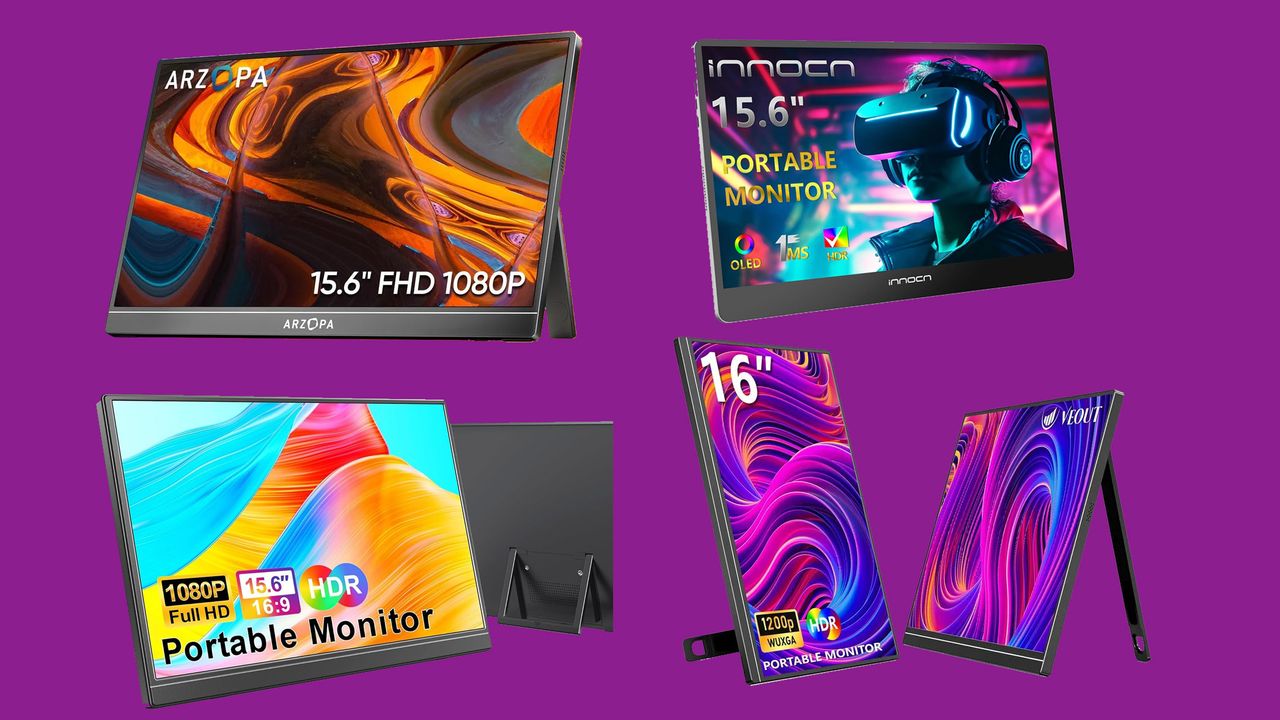
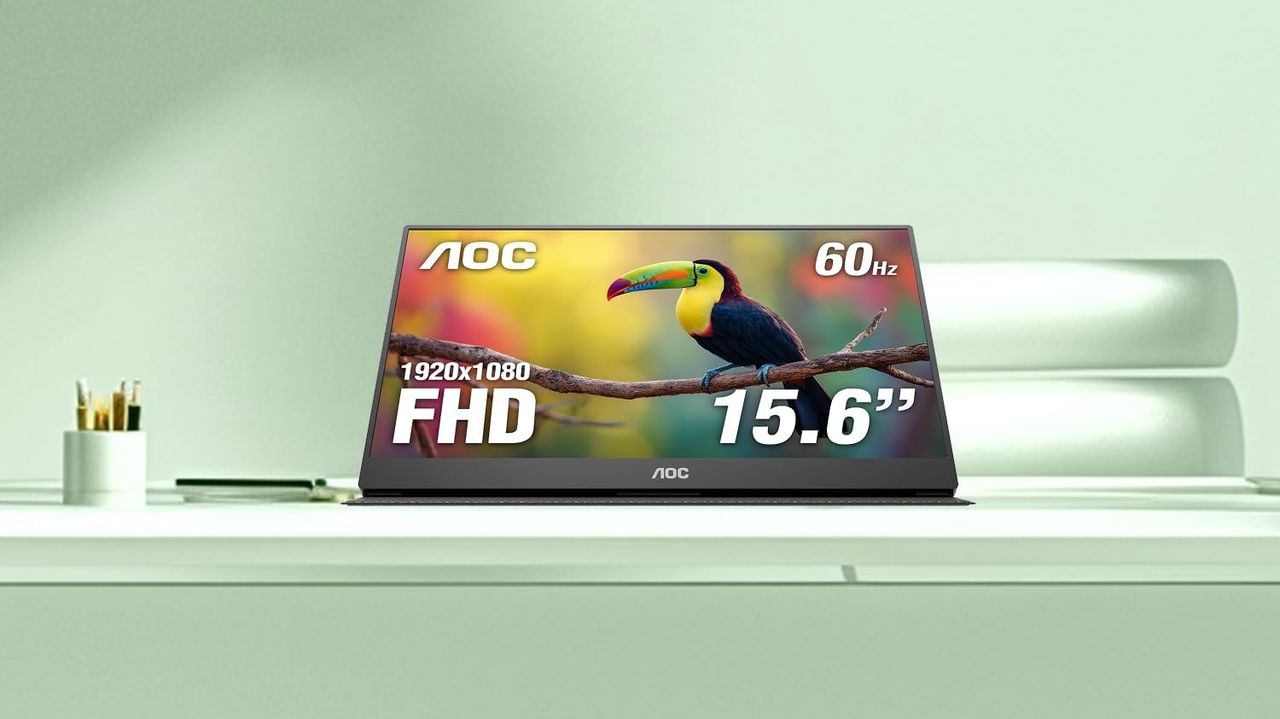
If you ever travel with your laptop, want to game on a console in places where you don't have access to a TV, or just want a second (or third) screen for your desk, a portable monitor is a must-have. And with many screens at all-time lows, veering into impulse-buy territory (this 15-inch model is incredibly $39), there's never been a better time to pick one up.

But how do you know what to buy when there are dozens of brands (especially on the low end) that you've probably never heard of (I haven't, and I've covered tech for 20 years)? Below are a few quick portable monitor shopping tips, followed by four of our favorite current deals.

  • LCD, IPS, or OLED? OLED is the best in terms of color saturation and deep blacks, but it costs much more. IPS has better viewing angles than lesser screen technologies, and is becoming the standard even on budget screens. So you should stick to IPS or OLED at this point.
  • Get a monitor with a kickstand. Most portable monitors still have floppy folding covers that double as stands. I've had a screen with one for years and it's awful. A rigid kickstand that's attached to the back and swings out will make you want to use your monitor more often and in more places. All of our deal picks below have kickstands.
  • Pay attention to brightness. This spec is often buried on product pages, but it matters a lot, especially if you use the monitor in bright spaces. If using it with your laptop, try and get something that is close to the brightness of that screen. You don't want a washed-out second display.
  • Get a cover or sleeve. Since these screens have a kickstand, they likely don't come with a protective cover. But you'll certainly one something to at least protect the screen while traveling. So budget in some extra money to protect your second-screen investment.

Productivity pick: Veout VE-1 16-inch portable monitor

This 16-inch IPS portable monitor sports a 1920 x 1200 resolution, a built-in kickstand, is just 0.3 inches thick and weighs 1.58 pounds. You'll want to get a case for it, but this is a great screen for productivity on the go.View Deal

The VE-1 isn't the cheapest deal of this bunch, but I'd argue it's the biggest bargain. It's a little larger than most, thanks to its 16:10 display, which also gives it more pixels for getting work done. It's also rated to 300 nits of brightness and is slim and light for travel. It also comes in different colors for a few dollars more. I like this deal so much that I bought one in late 2024 to replace my aging portable monitor from 2018.

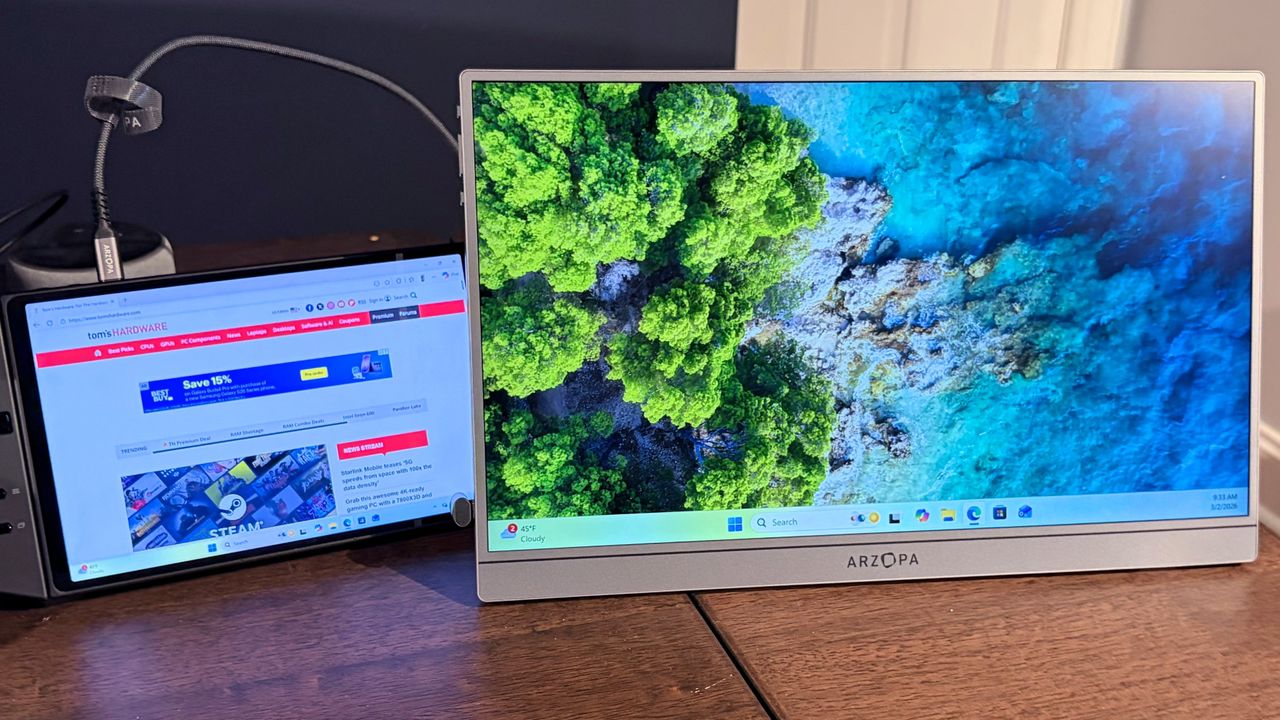
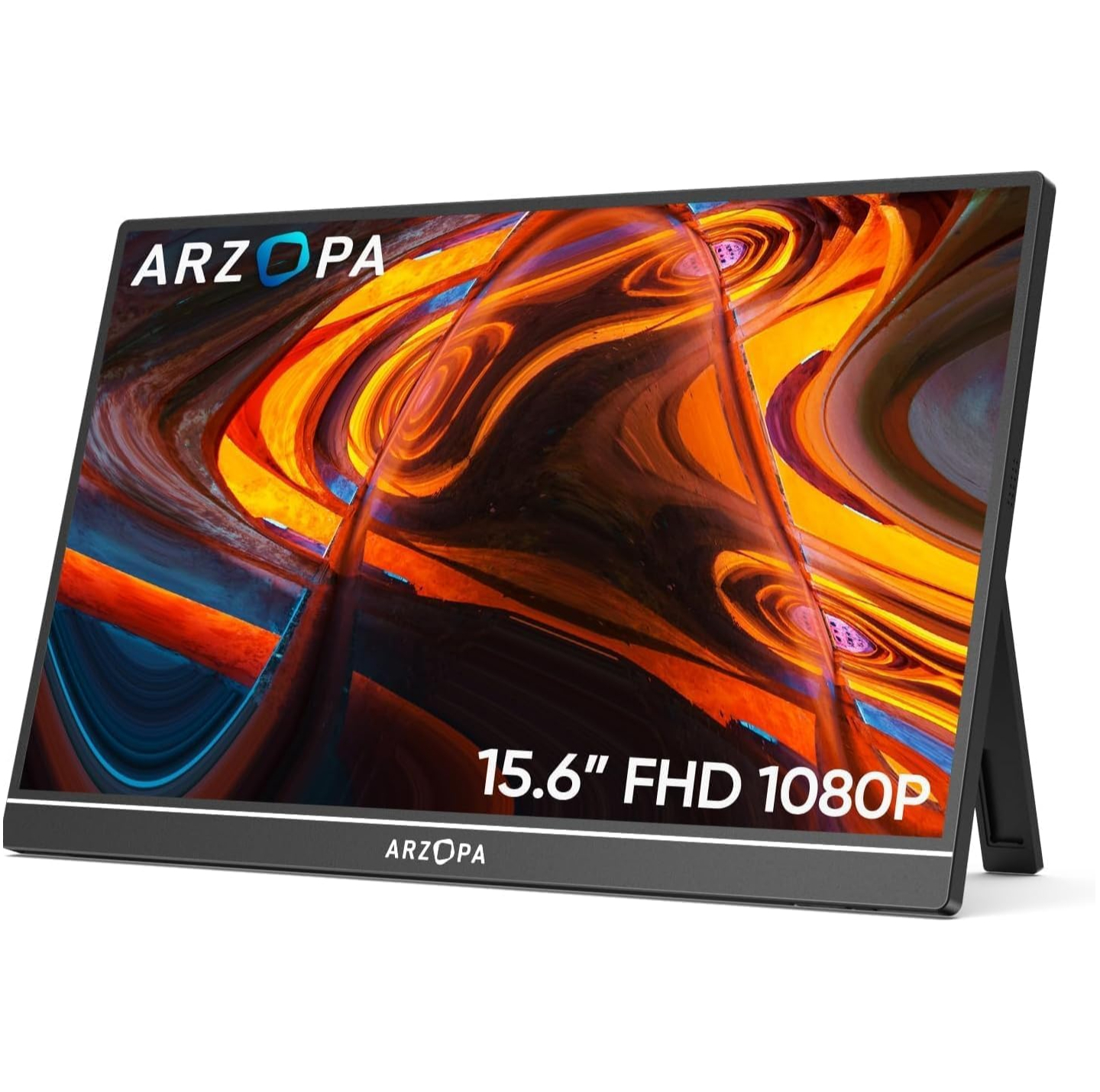
Better for movies and games: Arzopa A1 15.6-inch portable monitor

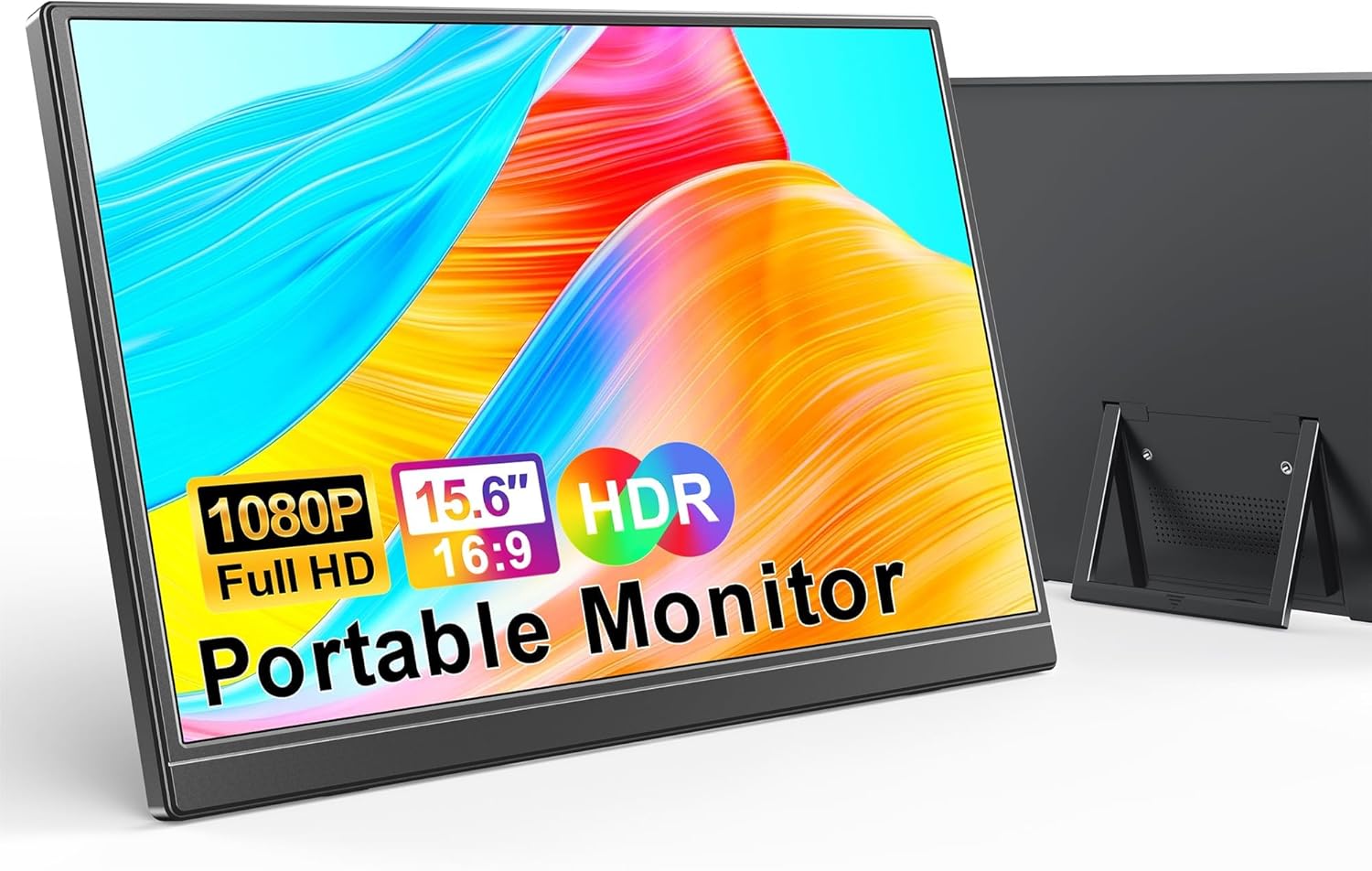
This 1080p, portable monitor connects via HDMI or USB-C and has a built-in kickstand.View Deal

This glossy FHD model is better for movie watching and games, as it's 16:9 and has a glossy screen. I couldn't find a brightness spec for the A1, but most of the over 1,100 reviews on Amazon seem to be happy with its brightness. It's also light at just 1.6 pounds.

The sub-$40 budget king: WGK W156F1

This 15.6-inch matte IPS screen sports a 1080p resolution, two USB-C ports, Mini HDMI, plus a built-in kickstand and two screw holes on the back for VESA mounting. While not technically on sale, $39 is shockingly cheap. And we know for a fact this model was selling for over $80 a couple of years ago, because we covered it then when it was on sale for $59.View Deal

This screen has a few things going for it, other than its shockingly low price. It has a kickstand and VESA mounts so you can attach it to an arm. It also sports a matte screen, which is better for work and for use under bright lights. Don't believe the spurious claims of HDR and surround sound from the tiny speakers. But for the price, this portable screen is a steal.

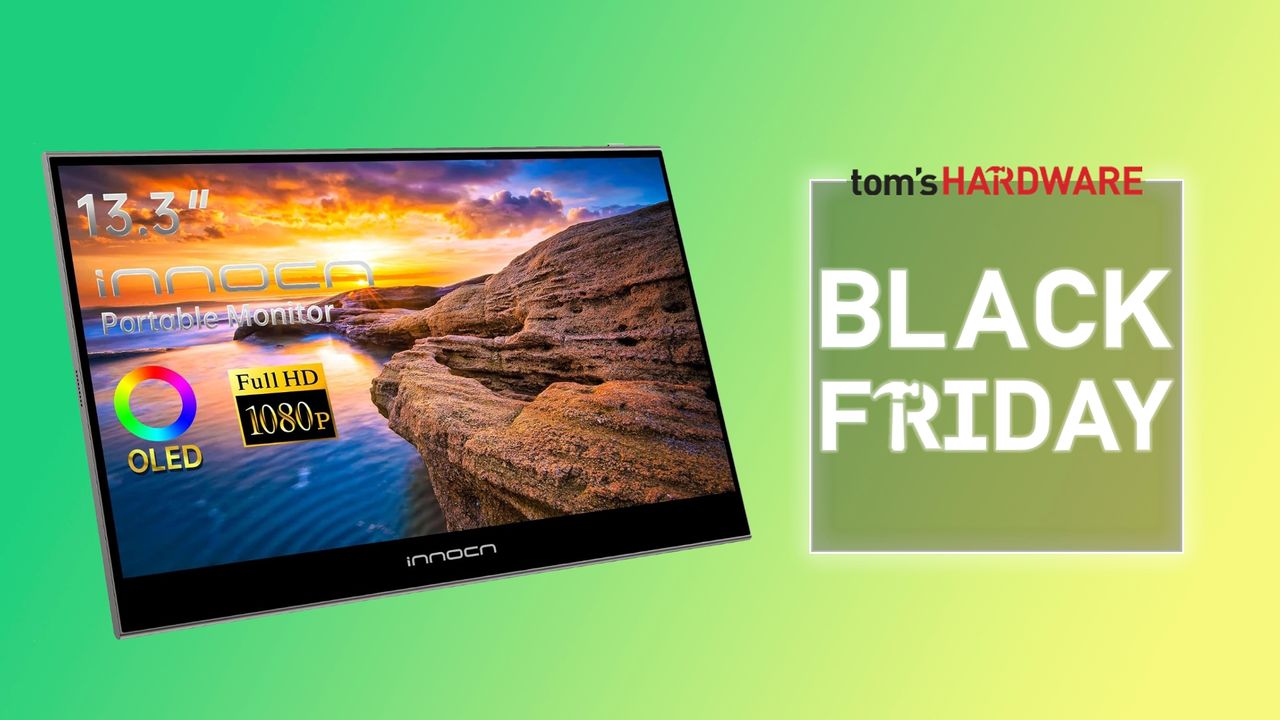
The OLED champ: Innocn 15A1F

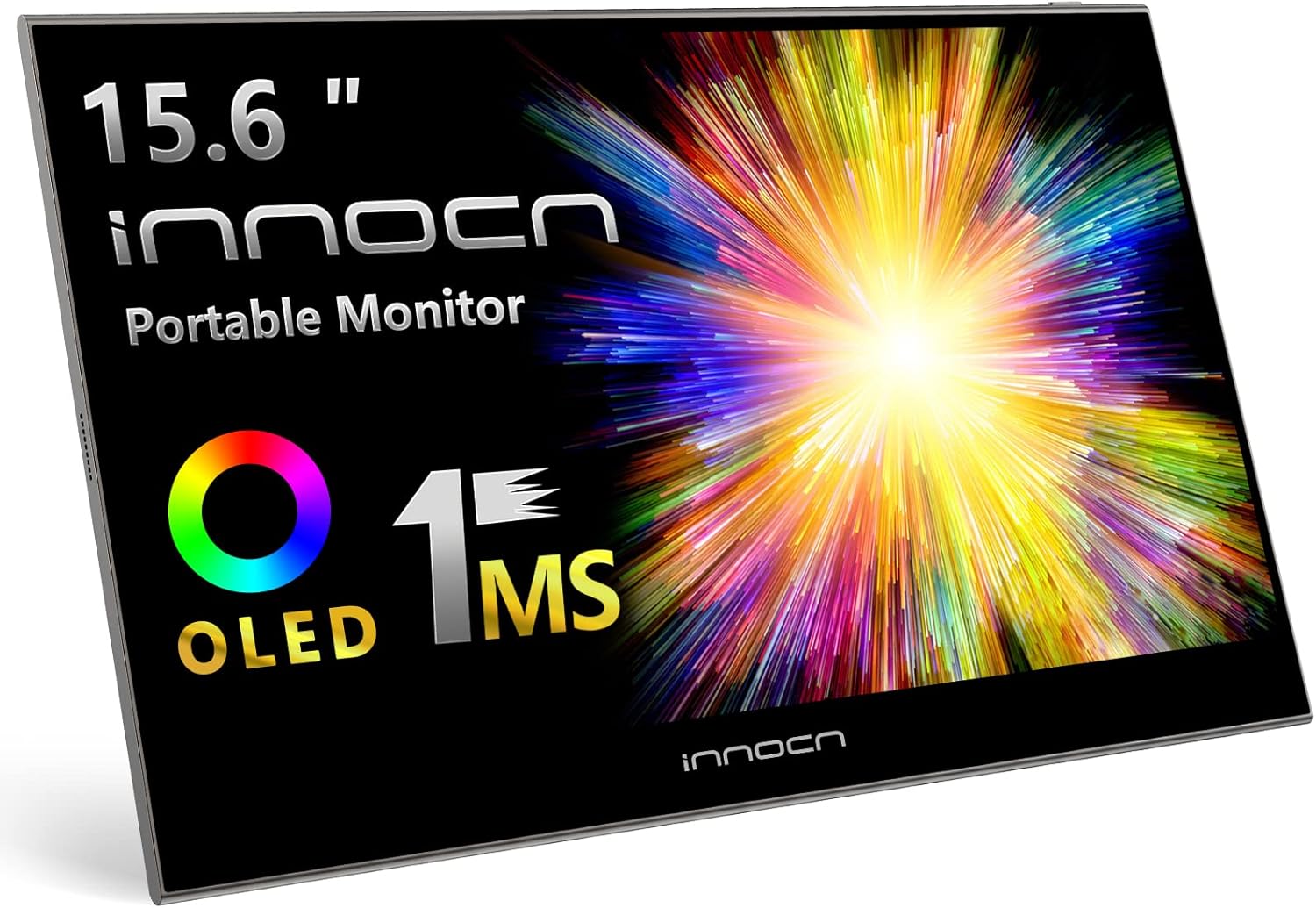
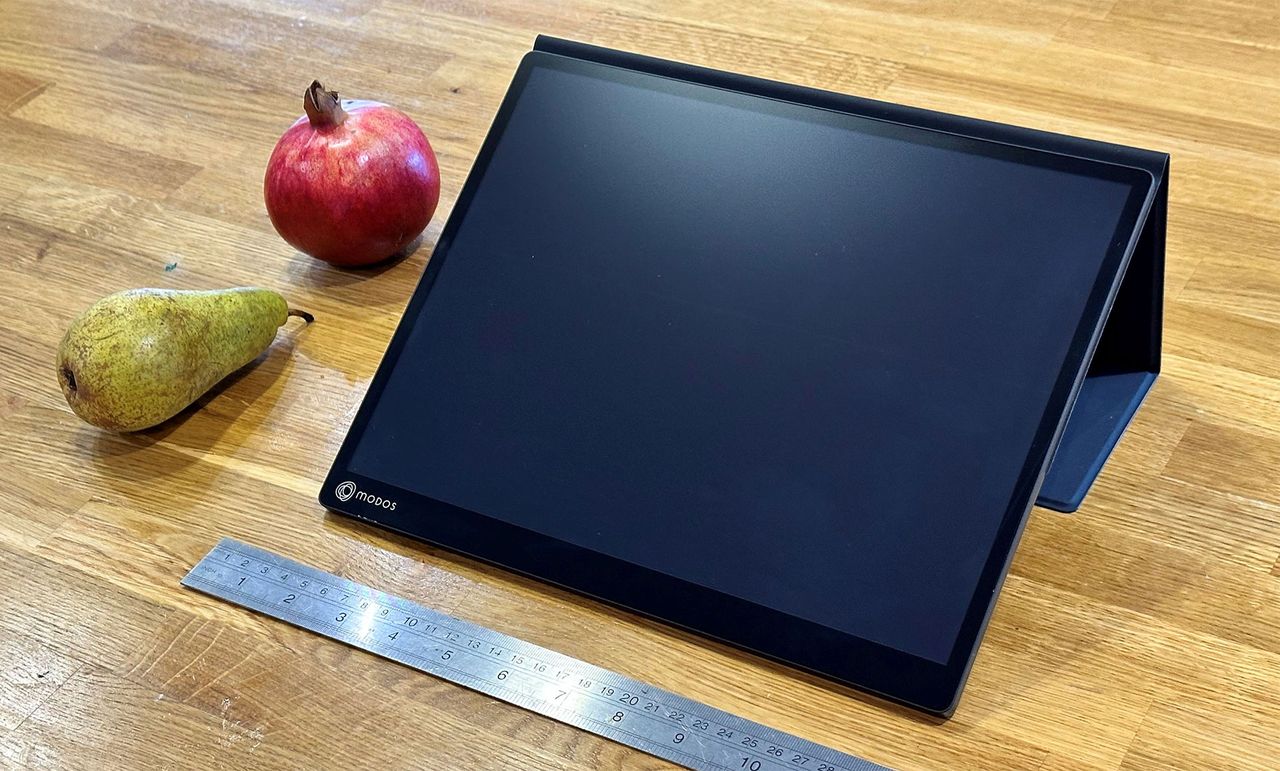
This 15.6-inch OLED monitor delivers brilliant colors and contrast, and is rated for 400 nits of brightness. While it sadly lacks a kickstand, it does come with a protective sleeve that also functions as a stand.View Deal

Yes, the Innocn 15K1F is more than $100 more expensive than some other deals here. But it's also OLED, for deep blacks and vibrant colors, with a rated 400-nits of brightness that puts it ahead of most portable monitor competition.

If you're a photo or video editor on the go or you just want a screen that will look good next to your laptop's OLED display, which also doesn't cost a lot, this is one of the best options we've seen so far this Prime Day. The main downside seems to be that this model lacks a kickstand, so you'll have to use the included wrap-around sleeve as a stand, and those tend to be fiddly or flimsy (and sometimes both).

More Prime Day Tech Deals

Best Tech and PC deals | Best gaming PC deals | Best RAM combo deals | Best 3D printer deals | Best RAM deals | Best gaming laptop deals | Best monitor deals | Best Wi-Fi Router deals | Best GPU deals | Best SSD deals | Best hard drive HDD deals | Best CPU deals | Best gaming chair deals | Best PC building tool deals | Best PC peripherals deals | Best filament and resin deals | Best motherboard deals | Best CPU cooler deals | Best PC case deals | Best Dell and Alienware deals | Best USB charger deals | Best gaming and productivity laptop deals under $1,000 | Best laptop PC deals

Also, you can join the Tom's Hardware deals Discord for up-to-the-minute hardware deals.

Asus ZenScreen MB27ACF monitor review: A slick portable screen with solid gaming performance

2025年9月13日 22:00
Asus delivers solid performance and flexibility in its transportable ZenScreen MB27ADF. It sports an IPS panel with QHD resolution, 100 Hz, a folding stand and a desk mountable arm. It’s light and thin with quality sound and solid gaming performance.

❌
❌