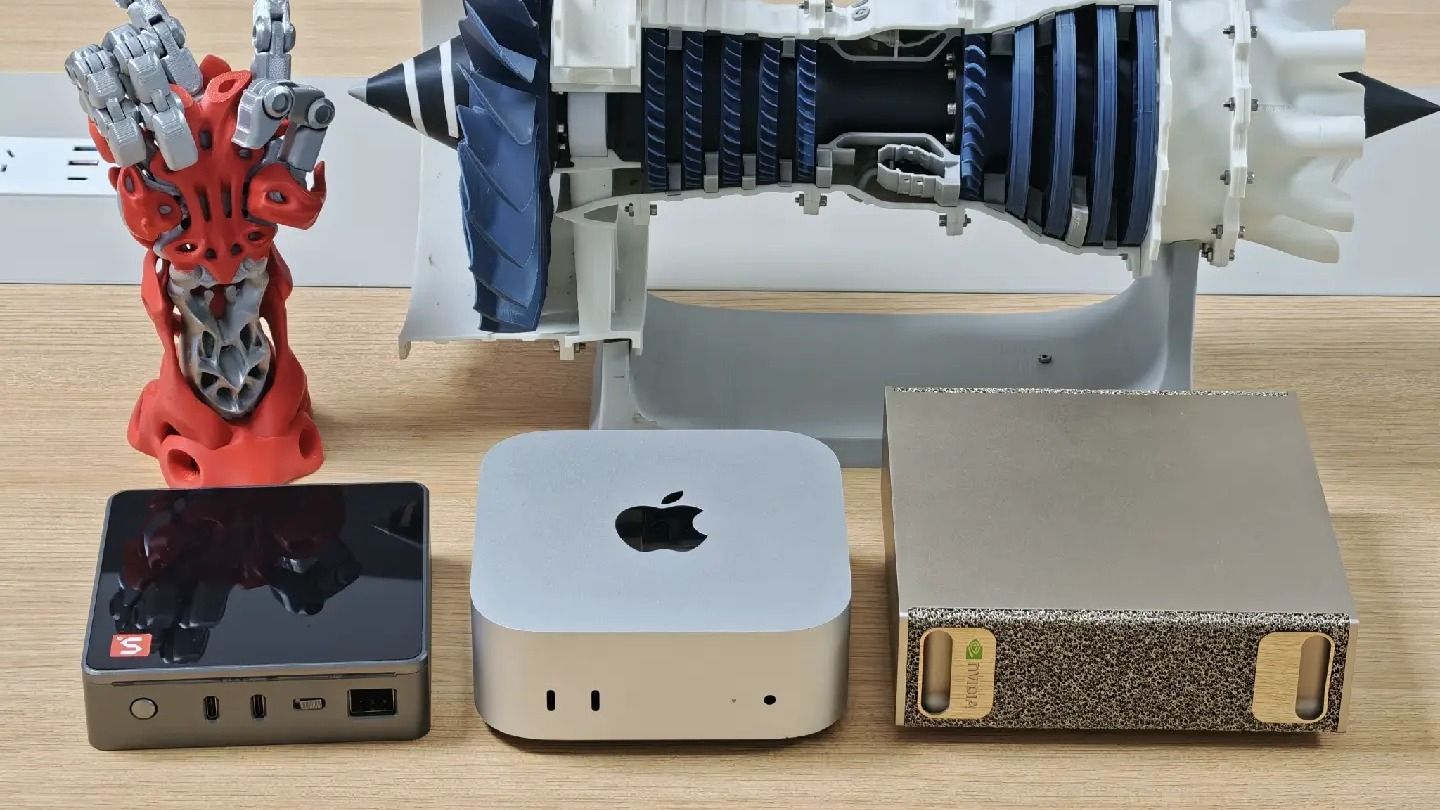
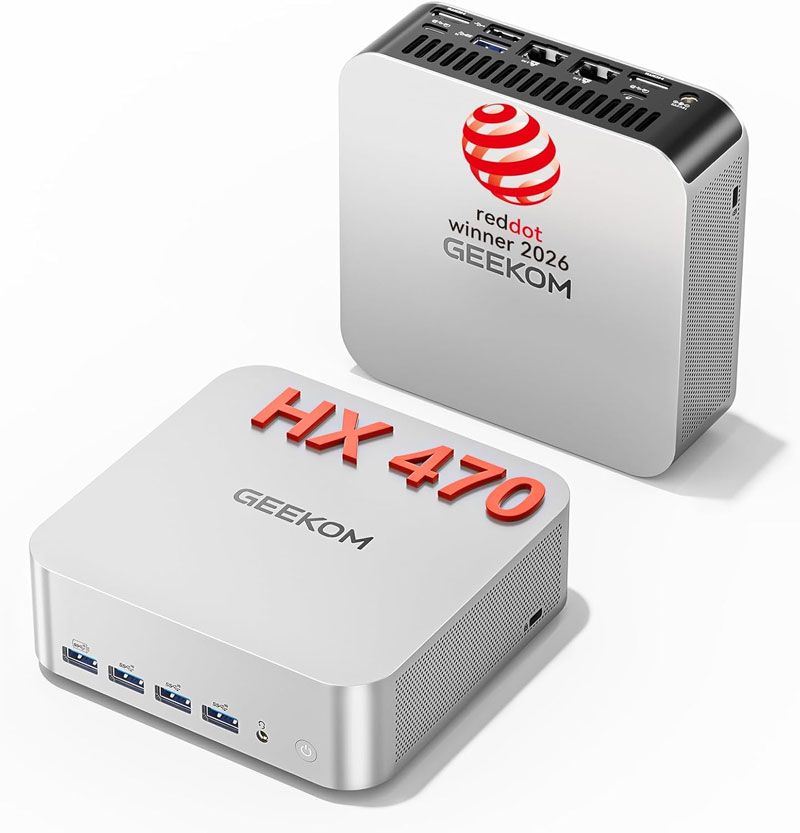
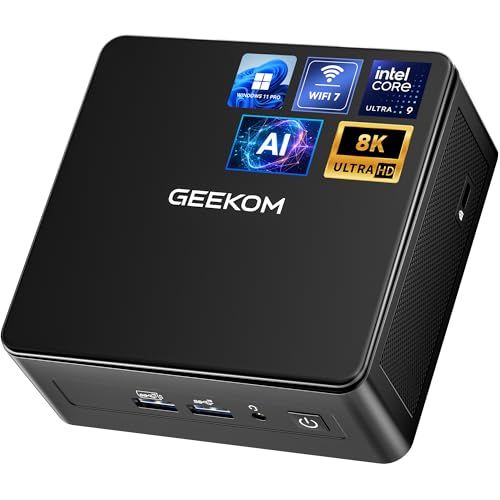
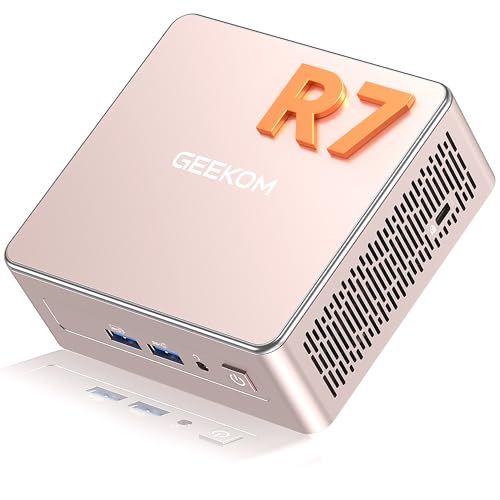
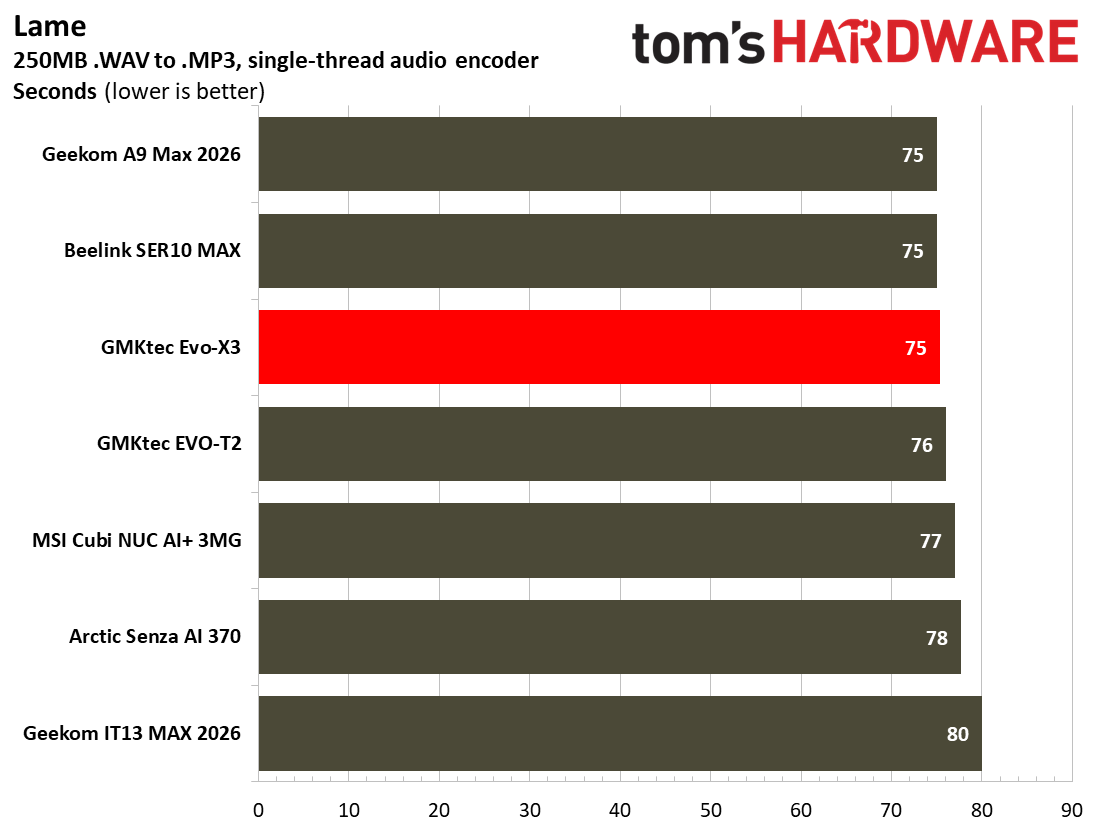
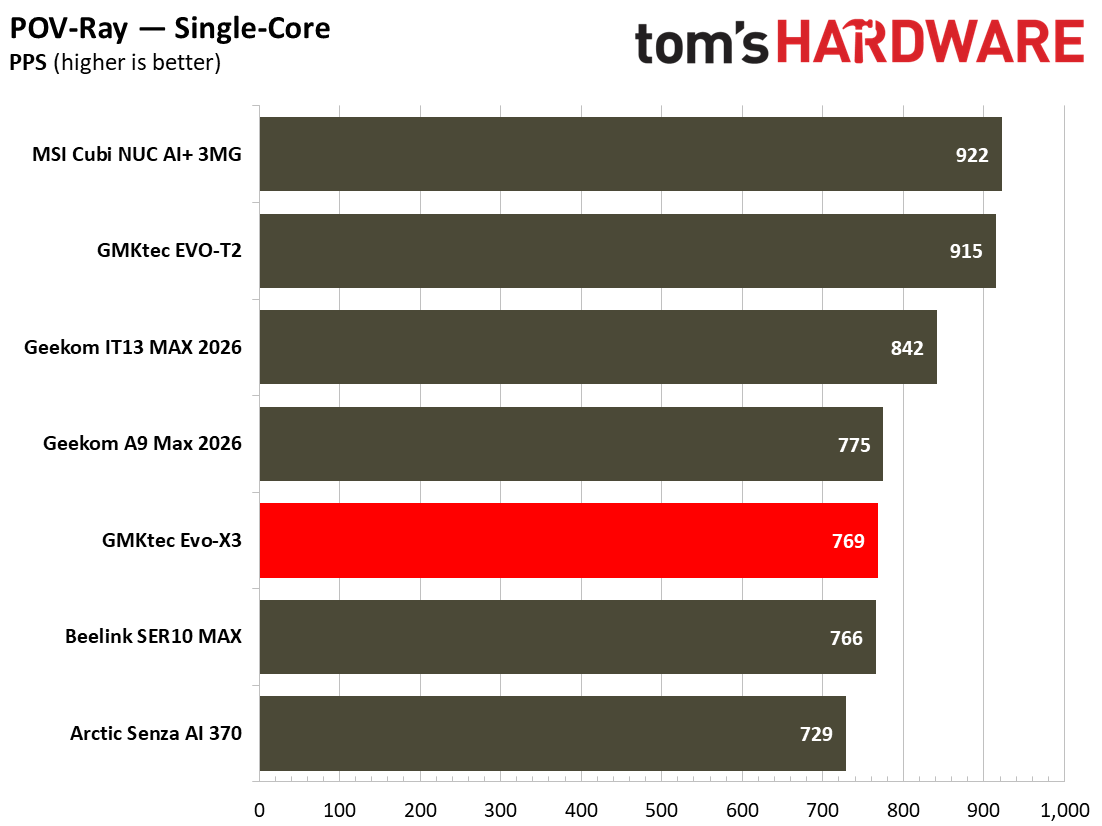
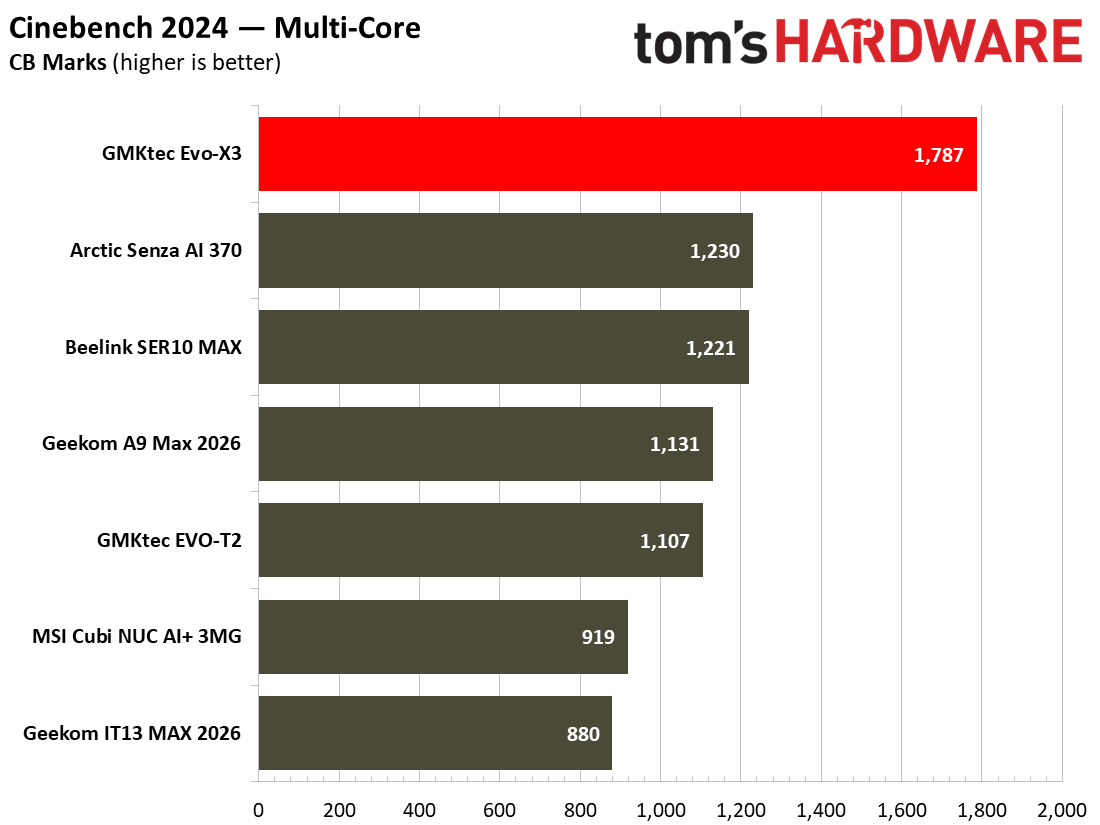
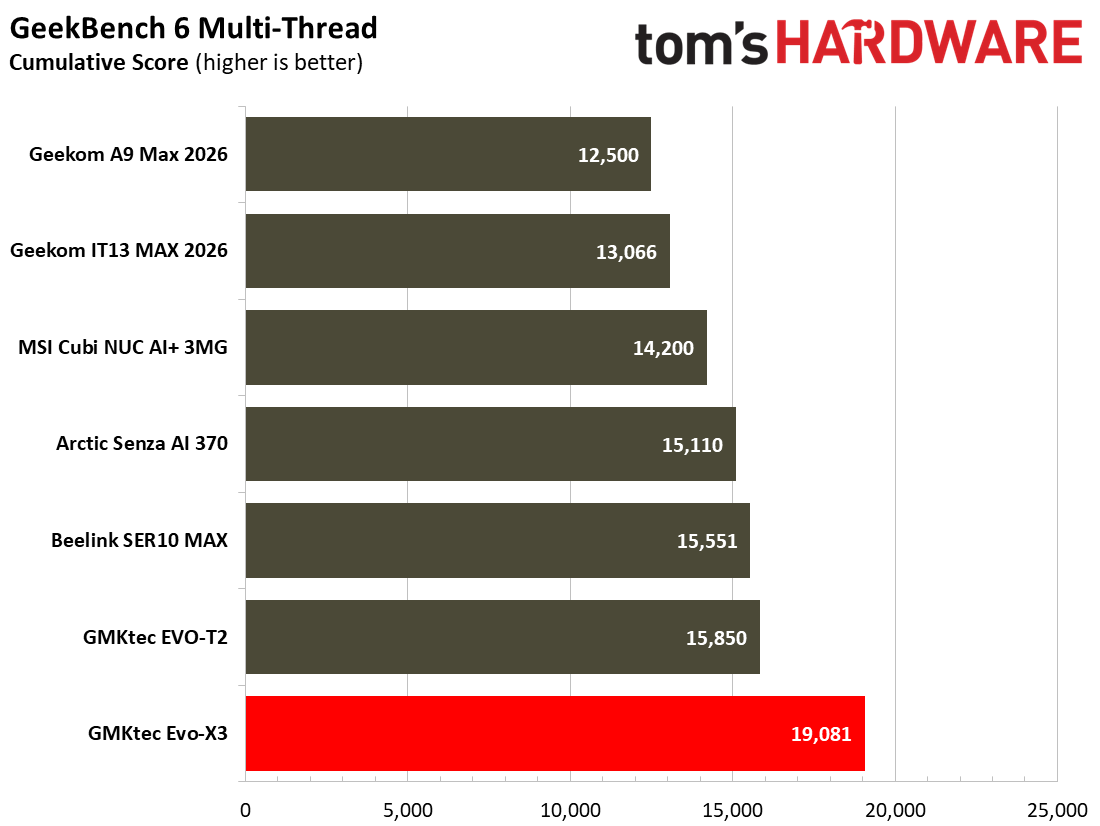
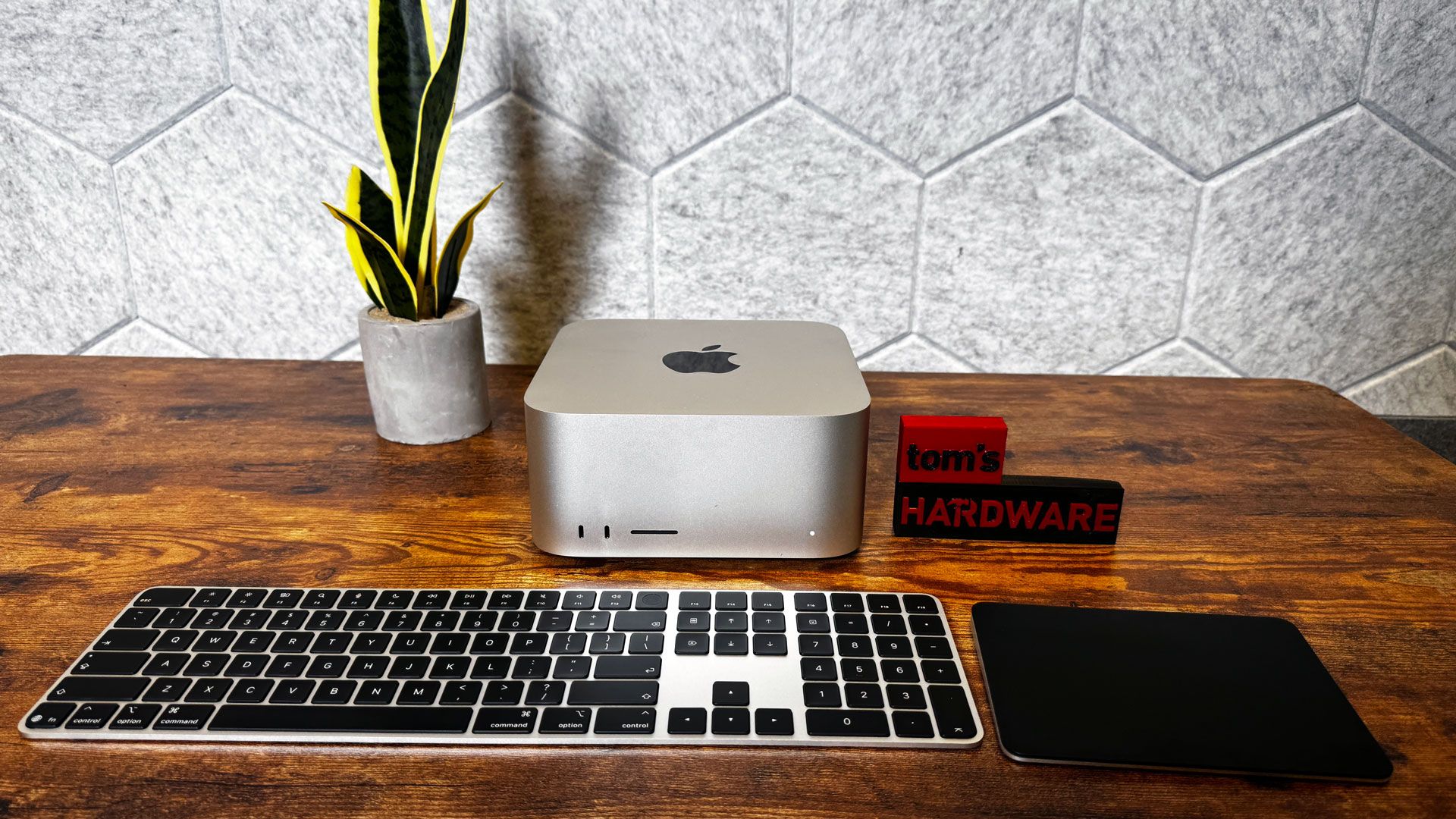
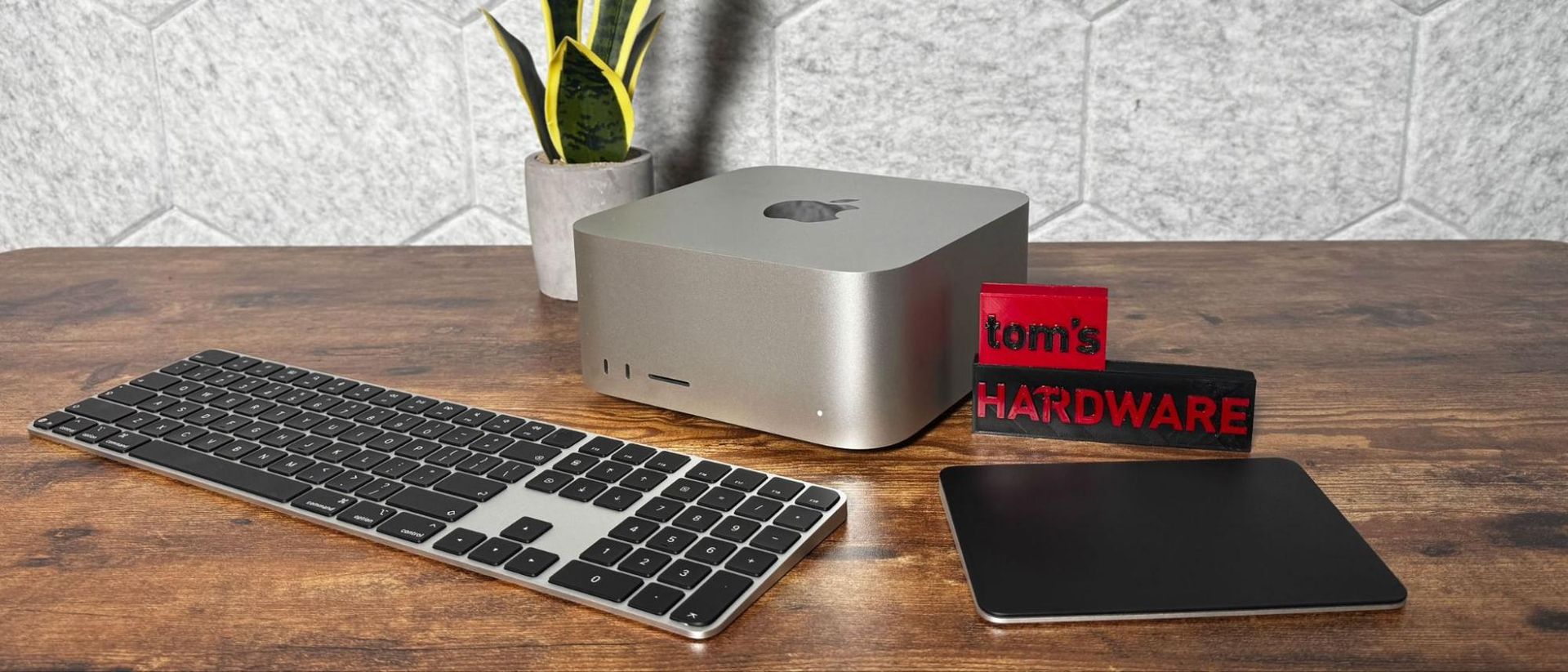
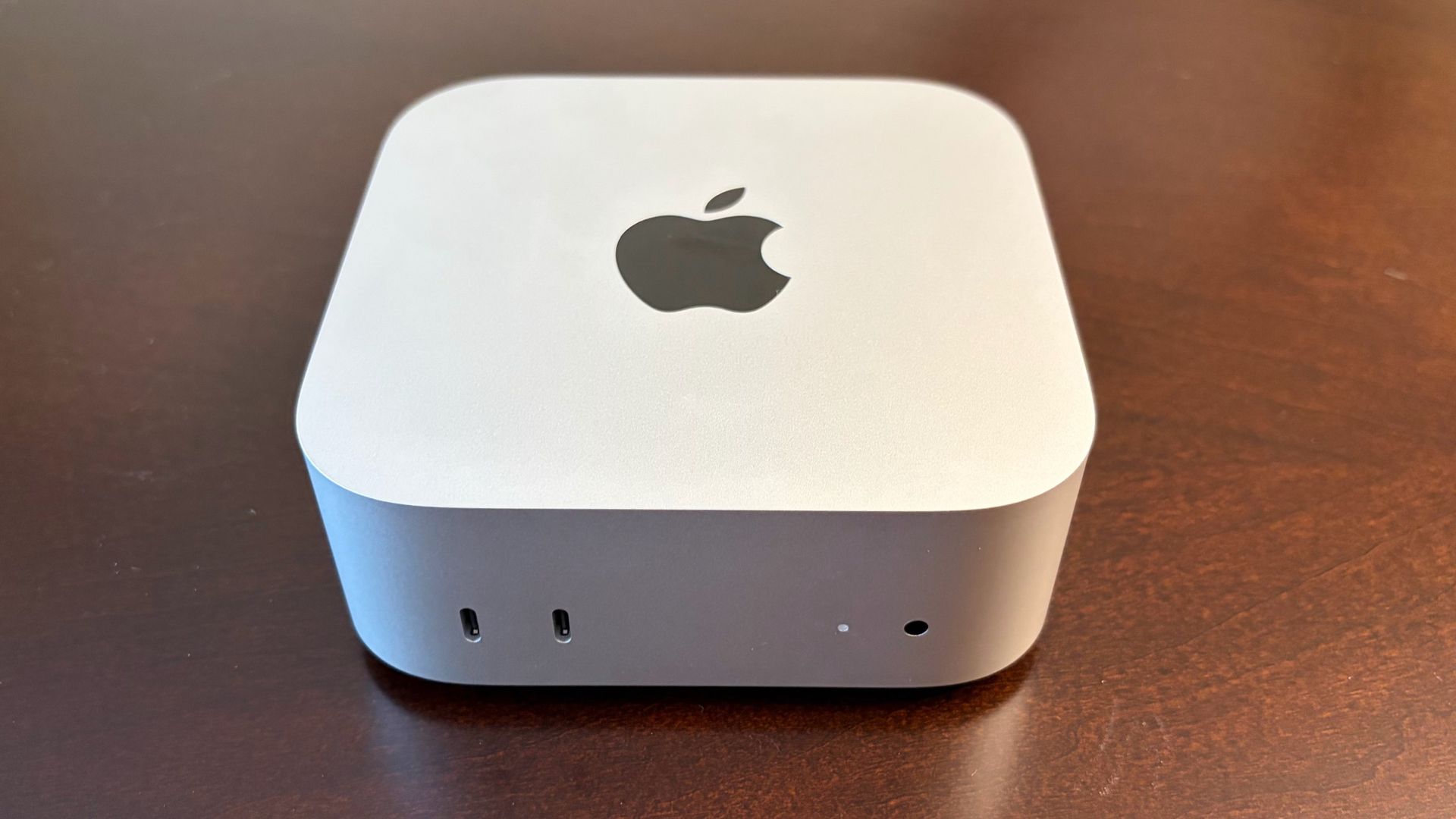
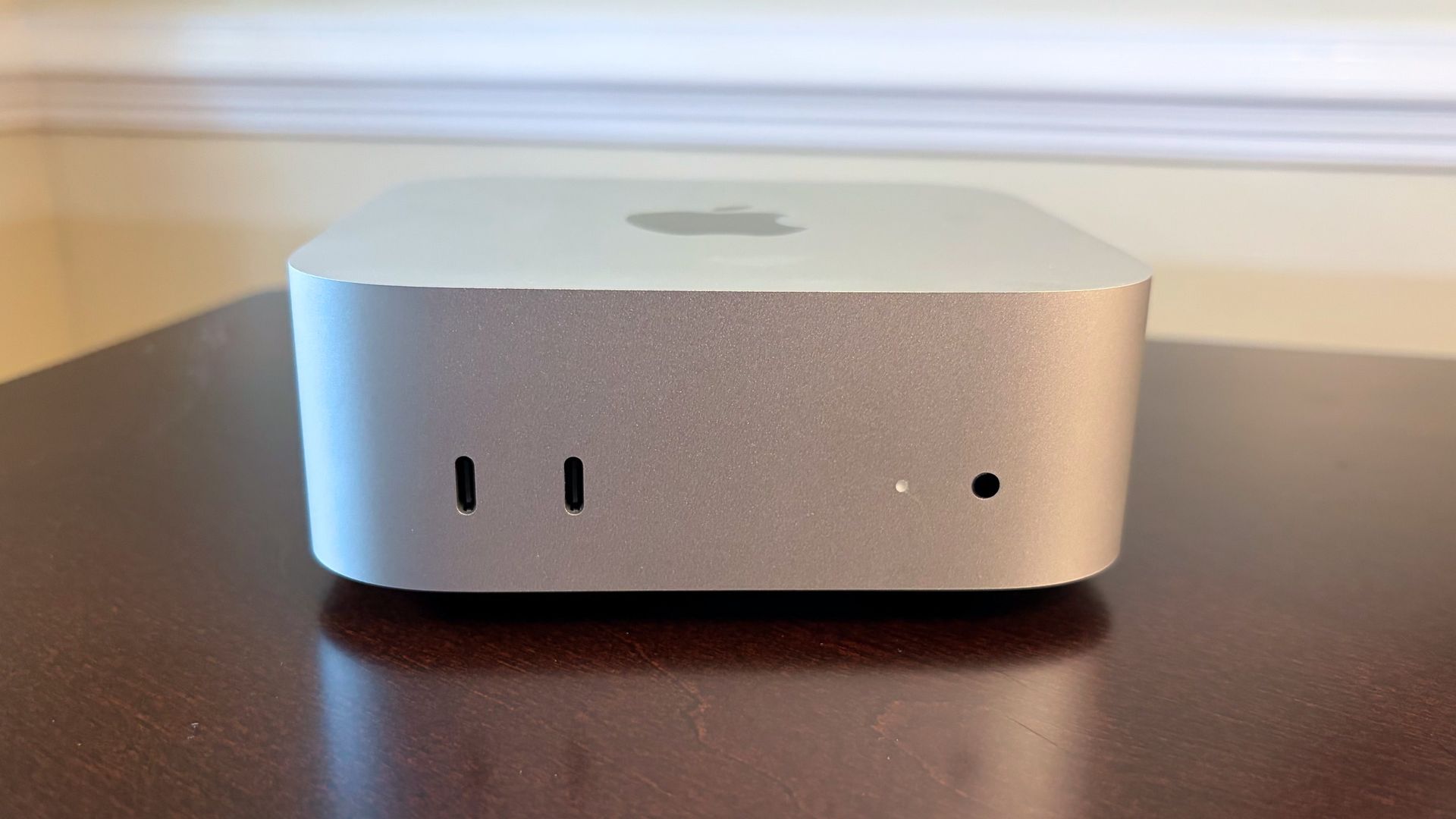
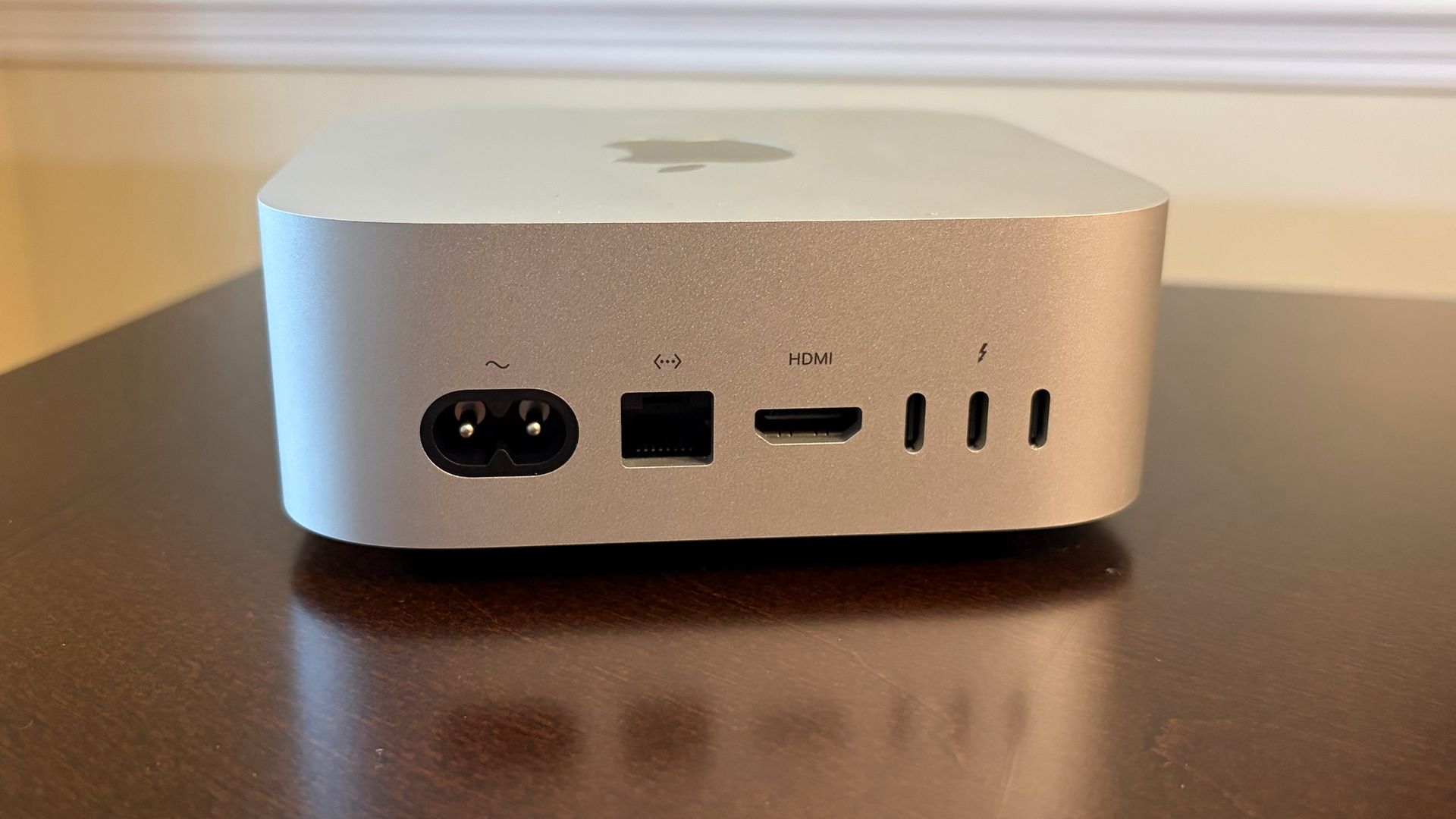
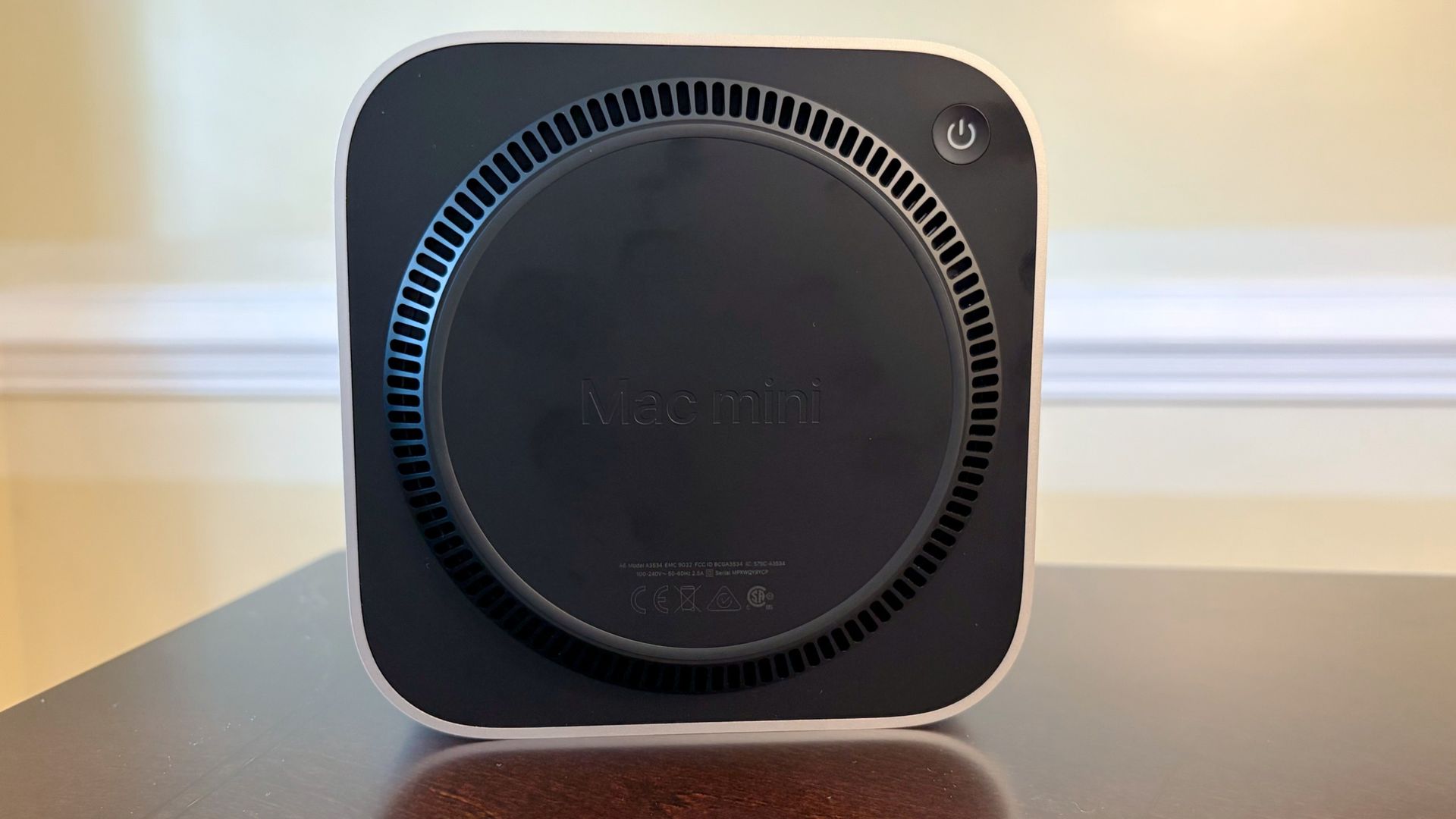
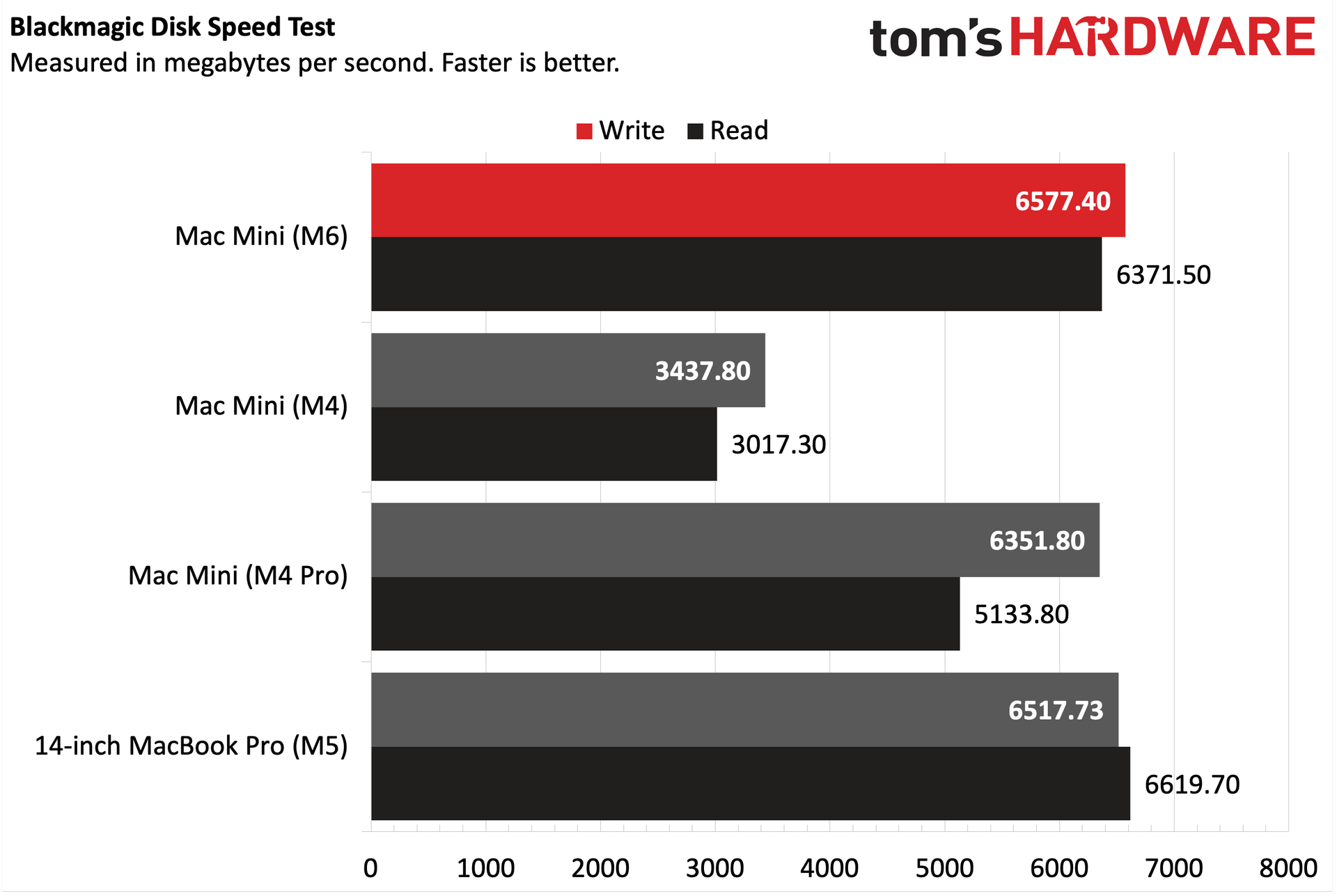
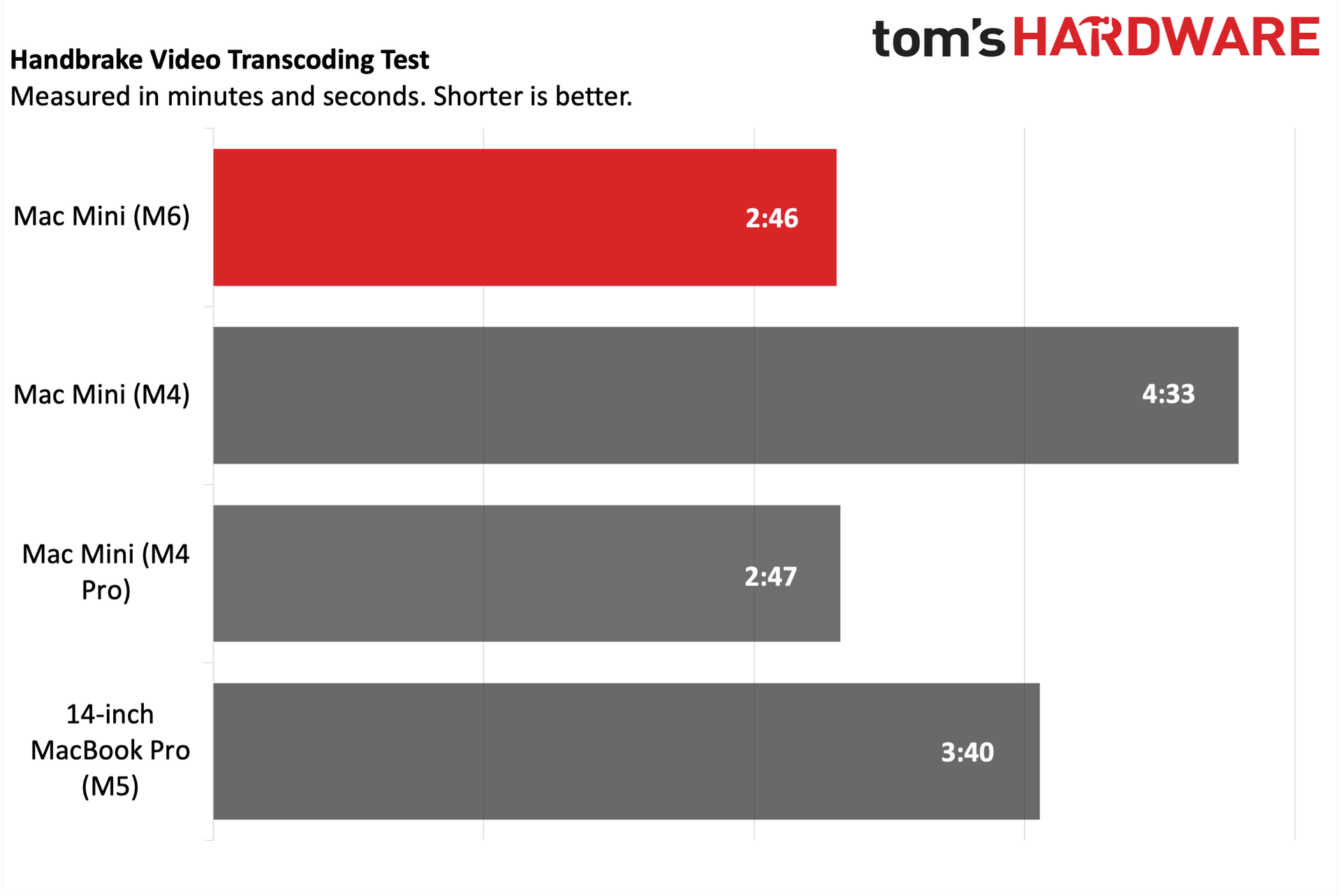
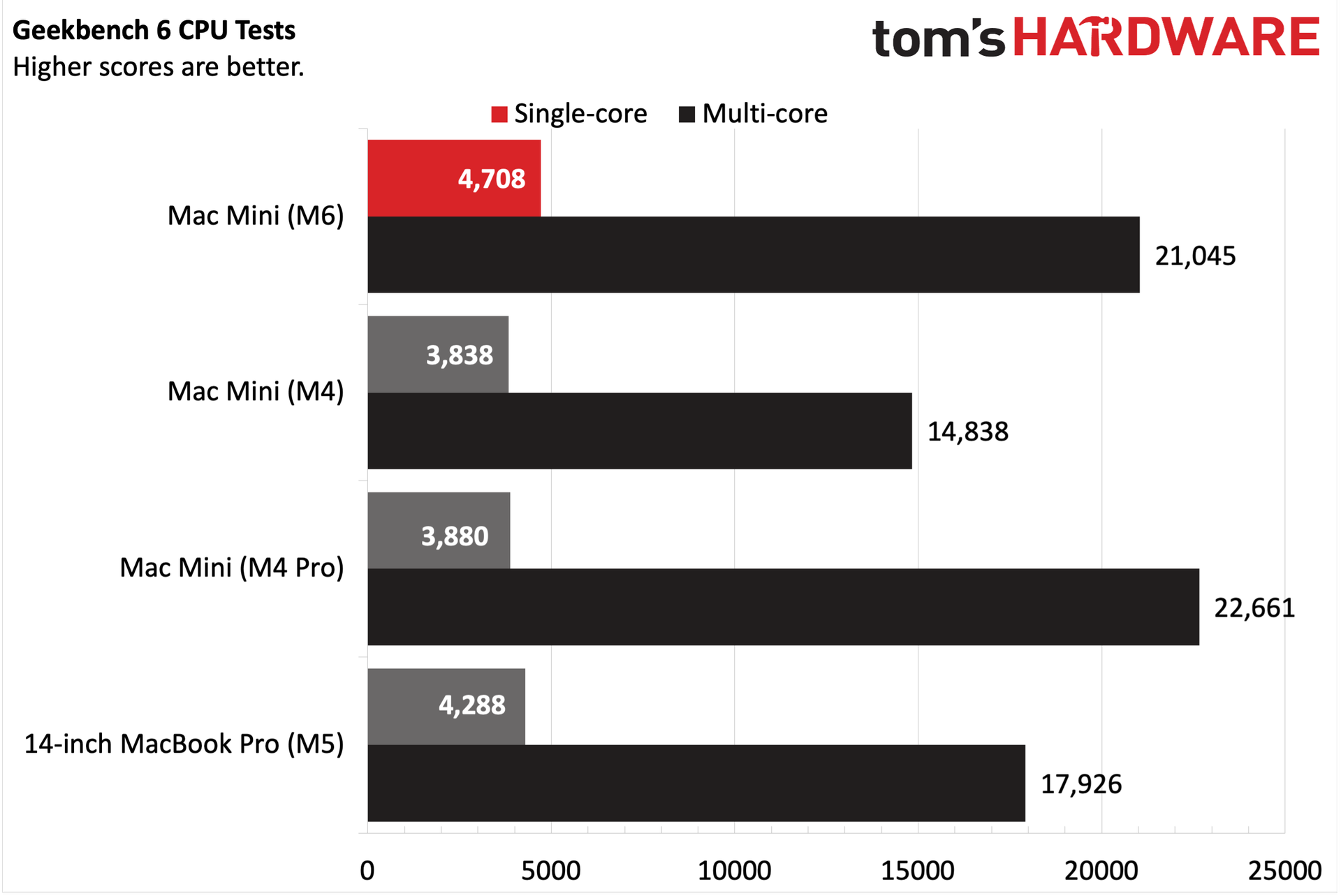
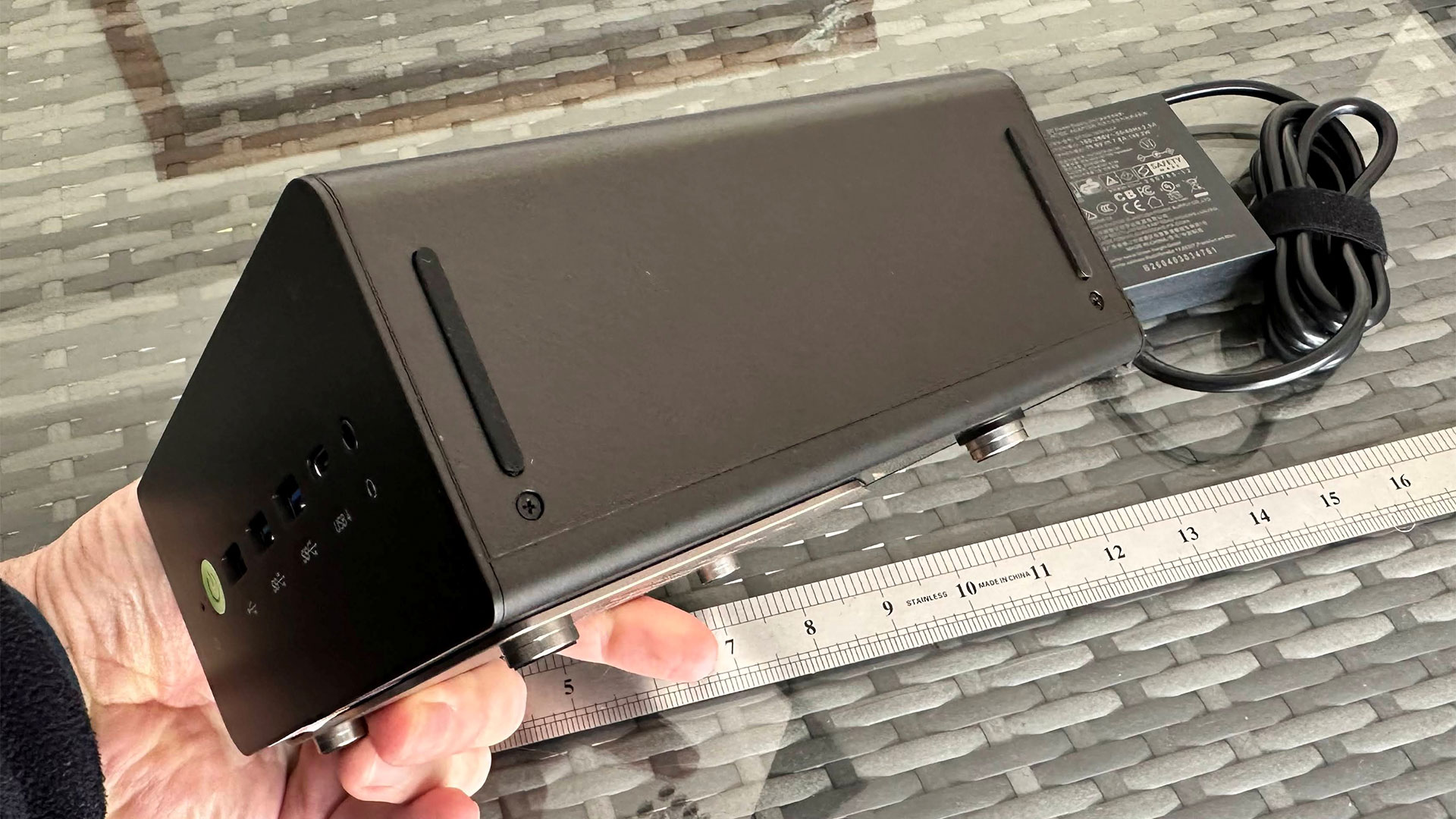
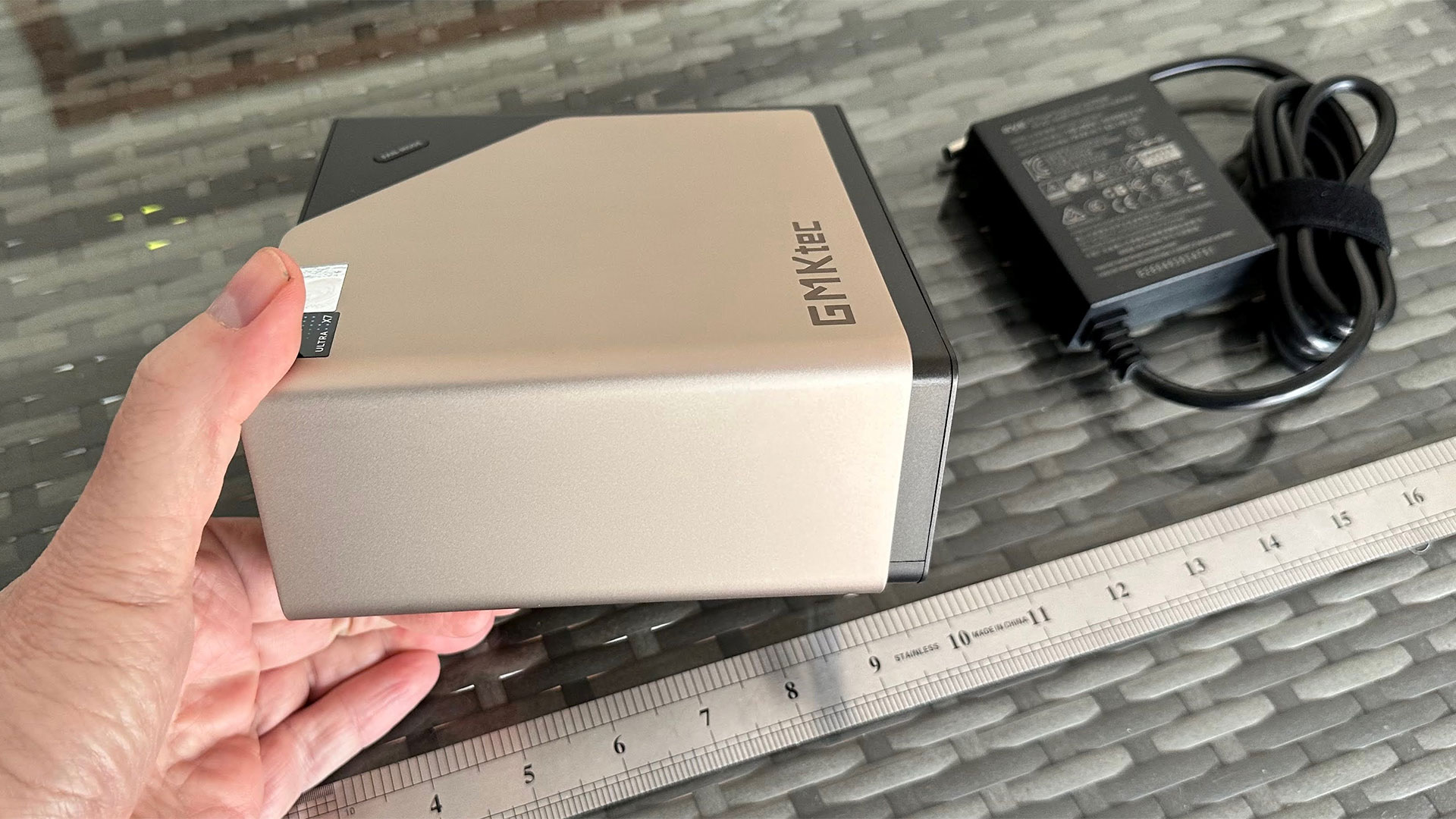
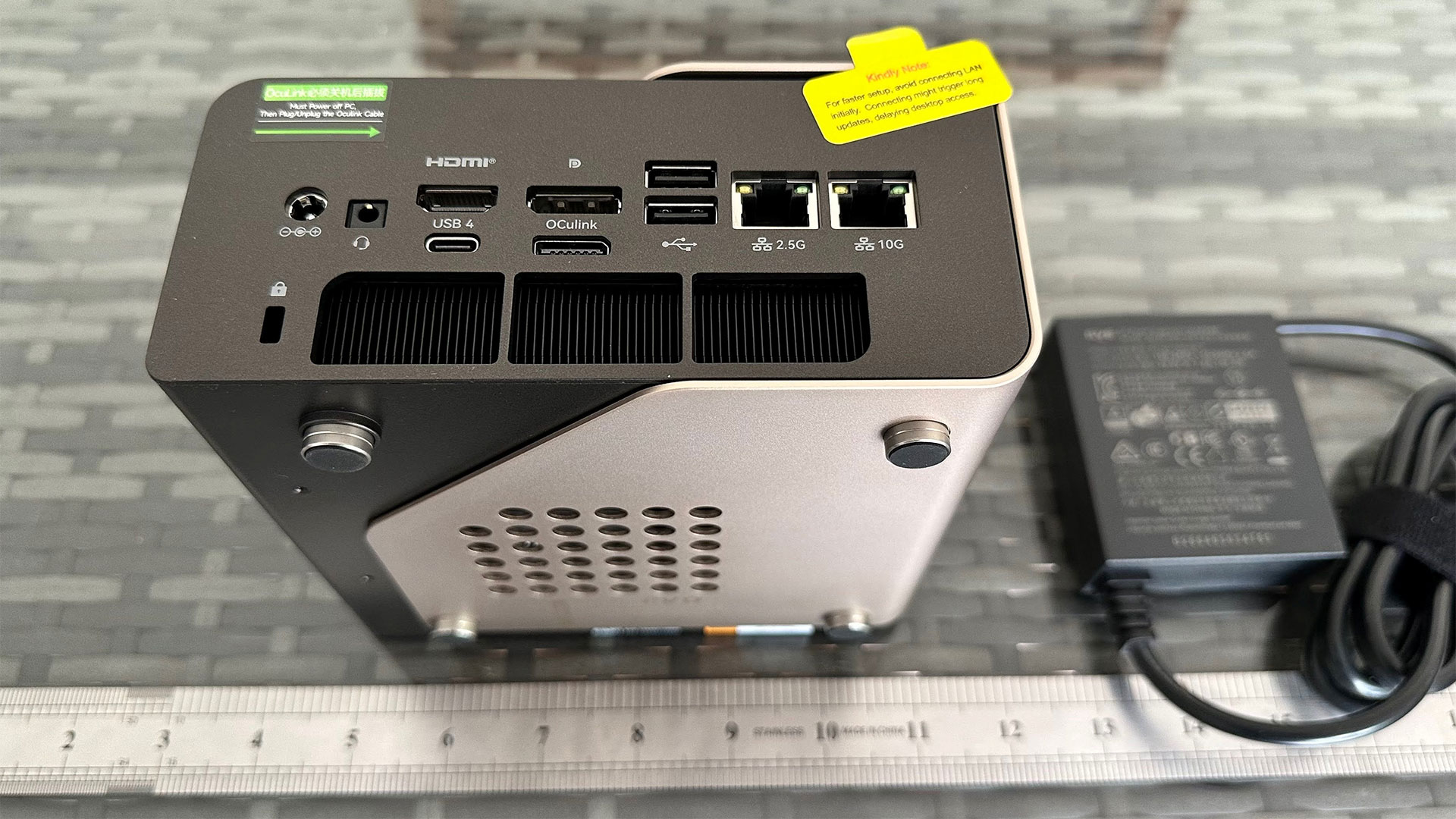
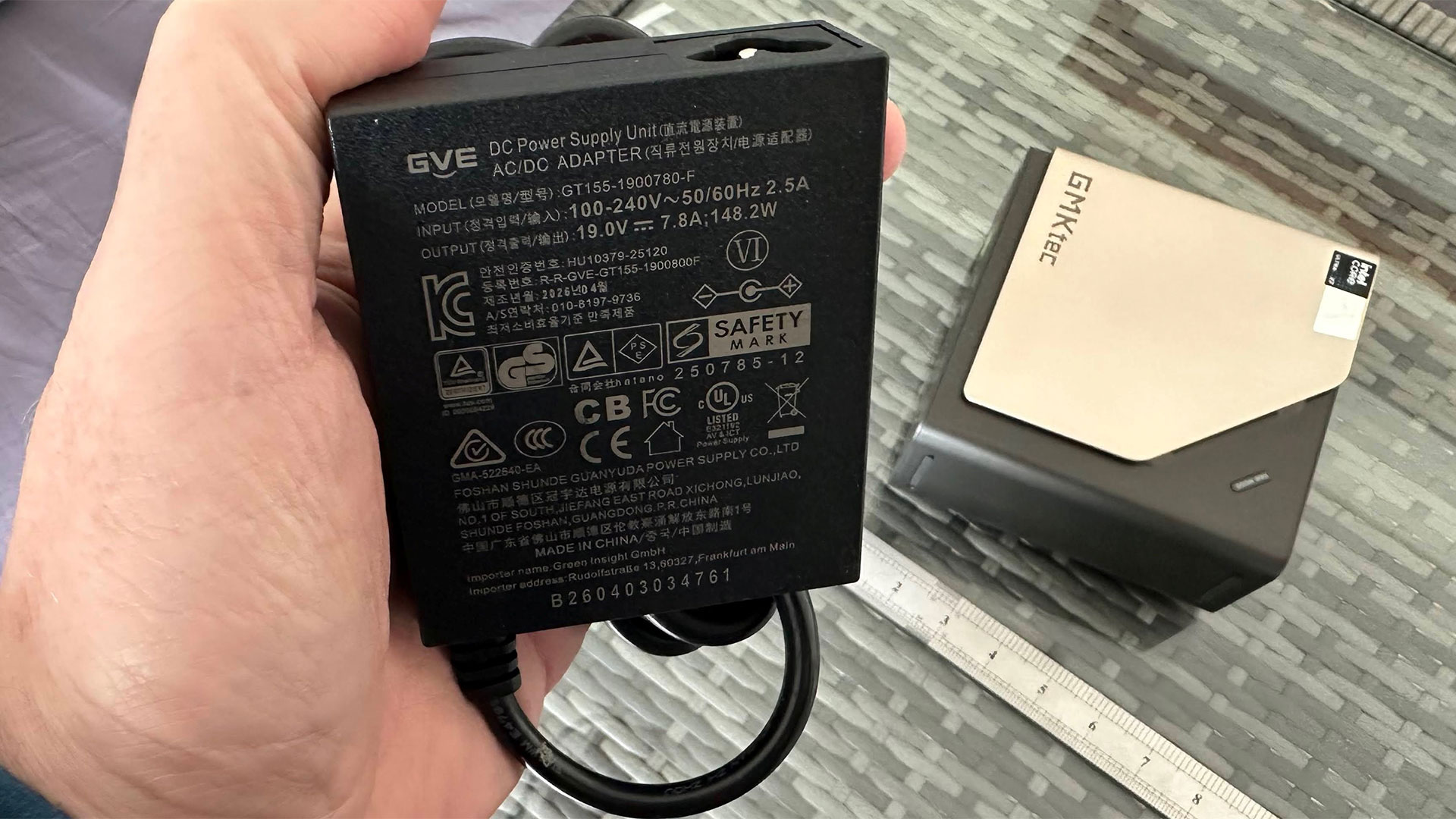
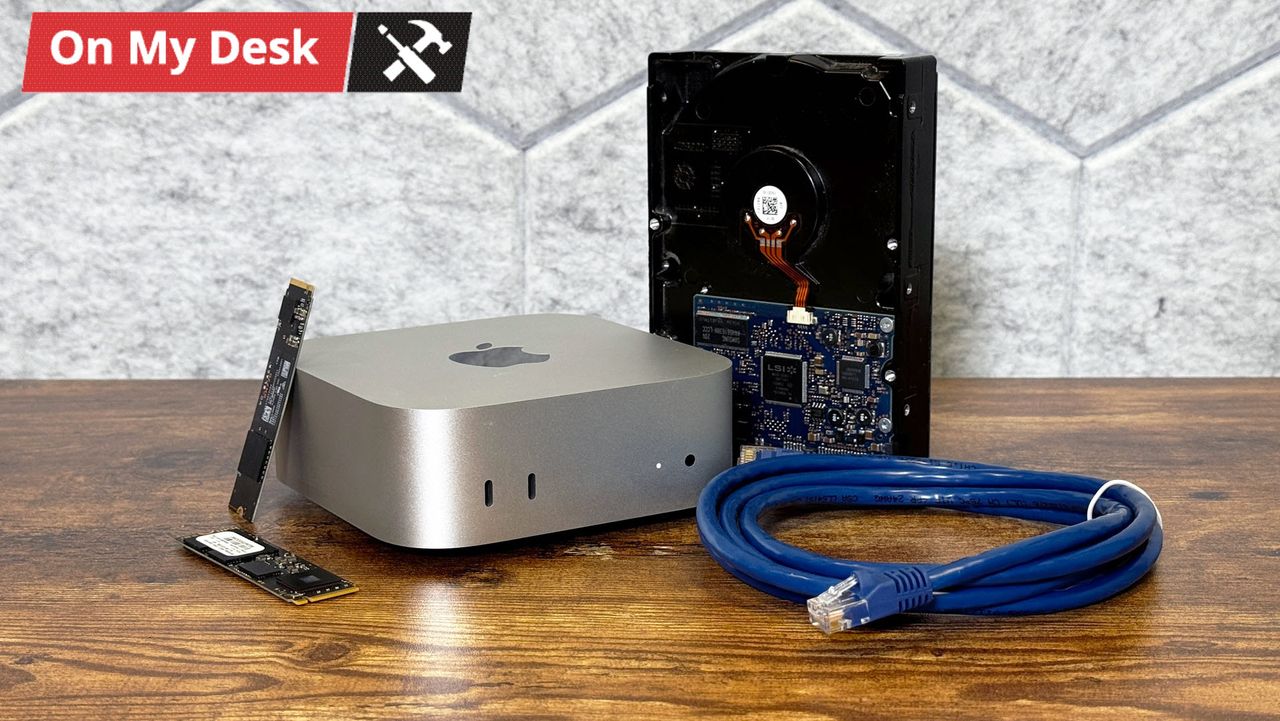
The new M6 Mac mini is now priced at $899, a $100 increase over the already inflated $799 price for the M5 version on June 25th. To put those increases in perspective, the M4 Mac mini had a base price of $599 when it originally launched in October 2024.
The new $799 base price is an even more bitter pill to swallow, given that the headless computer still comes with only 256GB of base SSD storage. One would think that the $300 price increase over the course of two months would at least lead to a doubling of the base storage, but the ongoing memory/storage shortage makes that wish unthinkable; at least in Apple’s eyes.
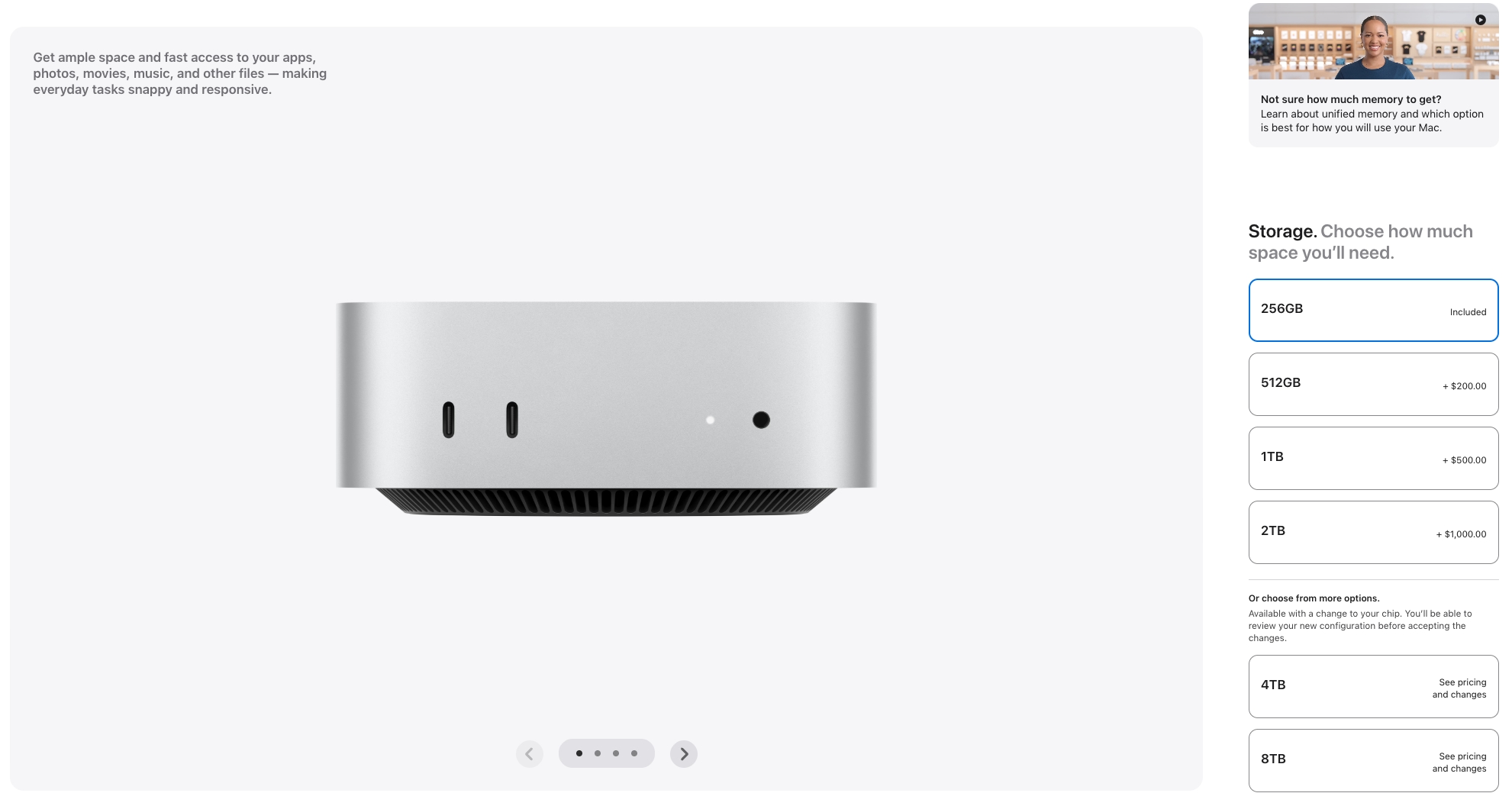
If you want to see more eye-watering pricing, take a look at the hardware upgrade costs for the base Mac mini. The system comes standard with 16GB of unified memory, but an extra 8GB (taking the total to 24GB) costs a whopping $200. If you want 32GB (the maximum allotment for the M6 chip), that’ll cost you an extra $400.
Things don’t look much better on the storage side, with an upgrade from 256GB to 512GB costing $200. The 1TB and 2TB storage options cost $500 and $1,000, respectively. Apple’s value-leader Mac mini is now in uncharted territory. A maxed-out Mac mini (M6, 32GB, 2TB) costs $2,229.
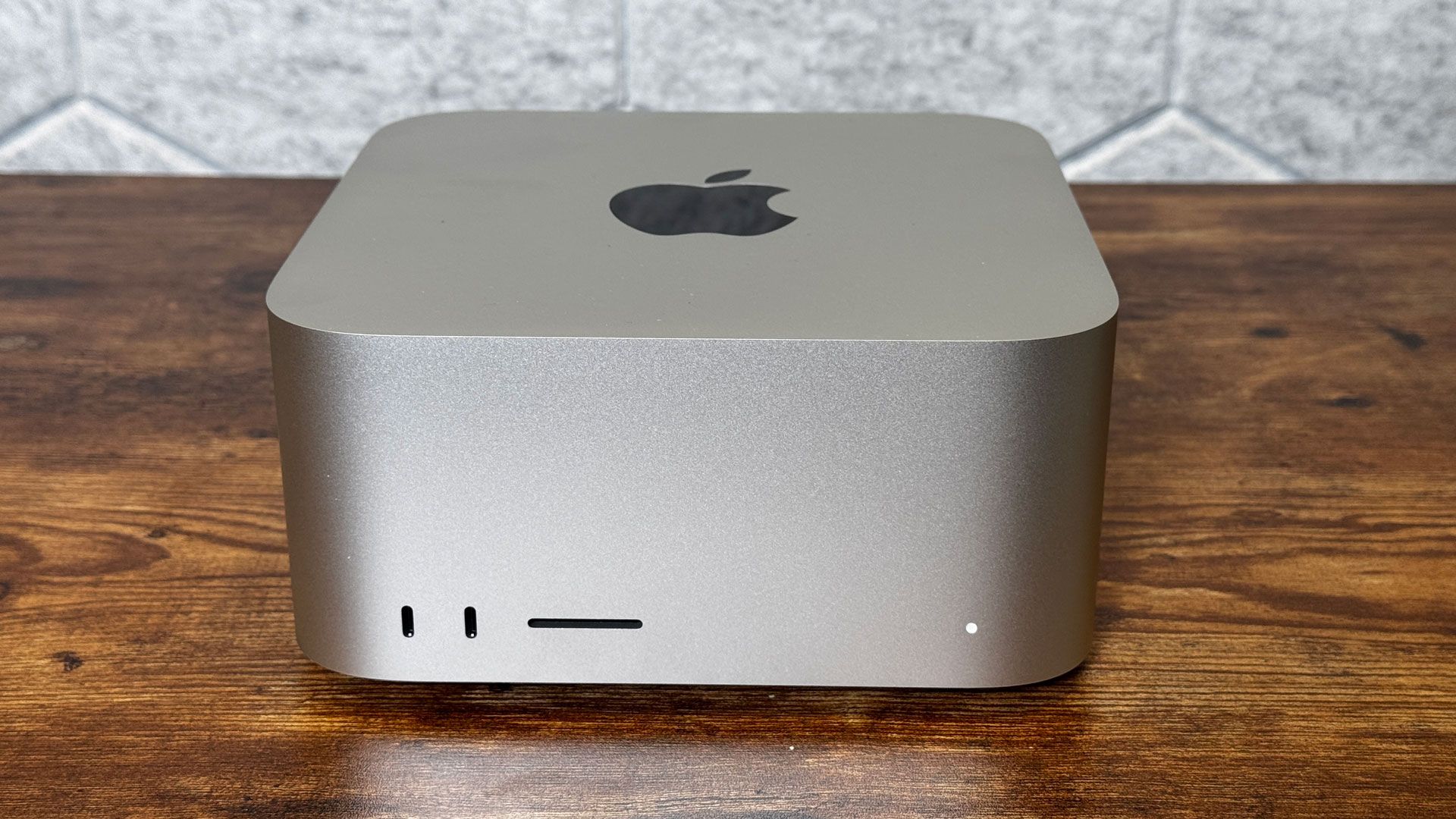
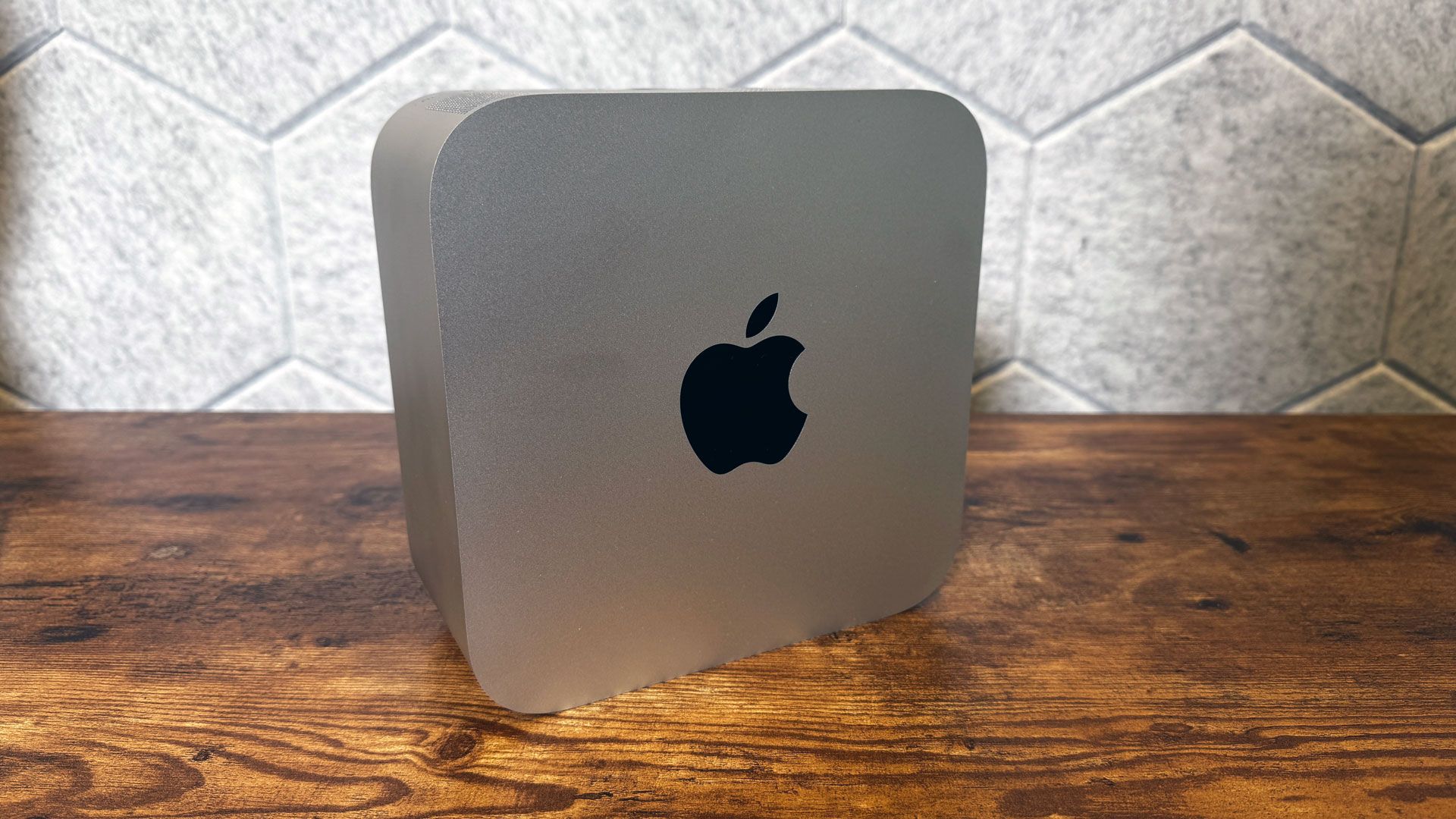
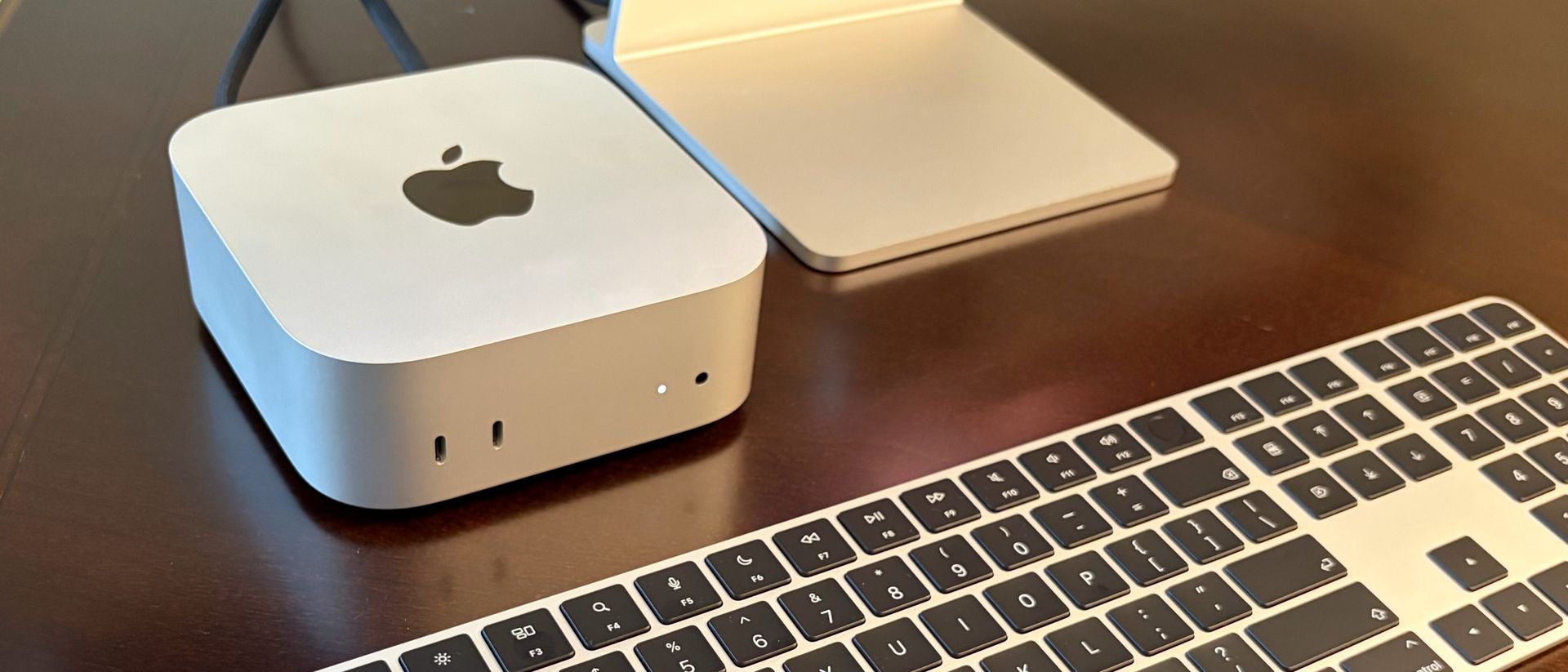
Apple's base Mac mini gets a price hike and more expensive storage upgrades. (Image credit: Apple)
Even the M5 Pro version of the Mac mini couldn’t escape the AI tax, as the base configuration now costs $1,699, up from $1,599 for the M4 Pro version (June 25 pricing) and a far cry from the $1,399 price of the previous generation earlier in the year. That price gets you a 15-core GPU and a 16-core GPU, while stepping up to the uprated 18-core CPU/20-core GPU version adds $200. Memory upgrades are deflating to the psyche, as upgrading from 24GB to 48GB adds $600, while the 64GB option is $1,000.
Storage options are absolutely mind-boggling: a 1TB SSD requires an additional $300 outlay, while the max 8TB SSD configuration is listed at $3,800. The range-topping configuration (M5 Pro, 18-core CPU/20-core GPU, 64GB, 8TB) costs $6,699.
If there’s any consolation, the new Mac Studio holds the line on pricing ($2,499) in its base configuration (18-core CPU/32-core GPU, 36GB, 512GB). The price stasis is somewhat surprising given the hardware upgrades, including a new M5 Max SoC and PCIe Gen 6 SSD. However, upgrades are pricey, with the 18-core GPU/40-core GPU variant of the M5 Max adding $300 to your bill. The upgraded SoC is the only way to unlock additional memory options (48GB, 64GB, 128GB).
Stepping up the Mac Studio with M5 Ultra more than doubles the base, entry price of the M5 Max config at $5,499. This gets you a 30-core CPU and 64-core GPU, while the upgraded 36-core CPU/80-core GPU is a $1,300 option. 96GB of RAM comes standard, while 256GB is a $4,000 upcharge. SSD options are equally expensive: 2TB costs $500, and 16TB costs $7,500.
No matter which way you slice it, those firmly entrenched in the Apple hardware ecosystem are paying a heavy price for memory/storage shortages. Apple customers are doubly affected, as the company’s traditionally outrageously priced memory and storage upgrades have become even more expensive, putting Apple’s previously value-driven models like the Mac mini out of reach of bargain shoppers.
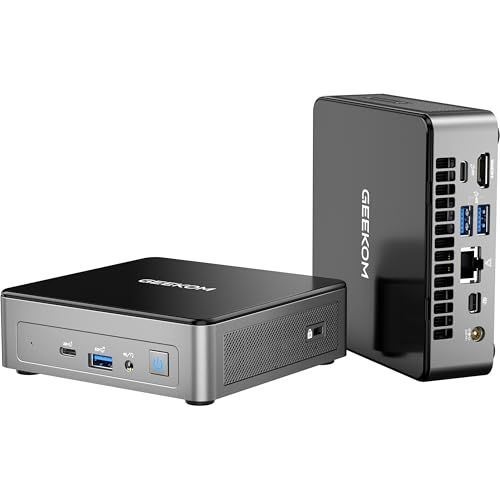
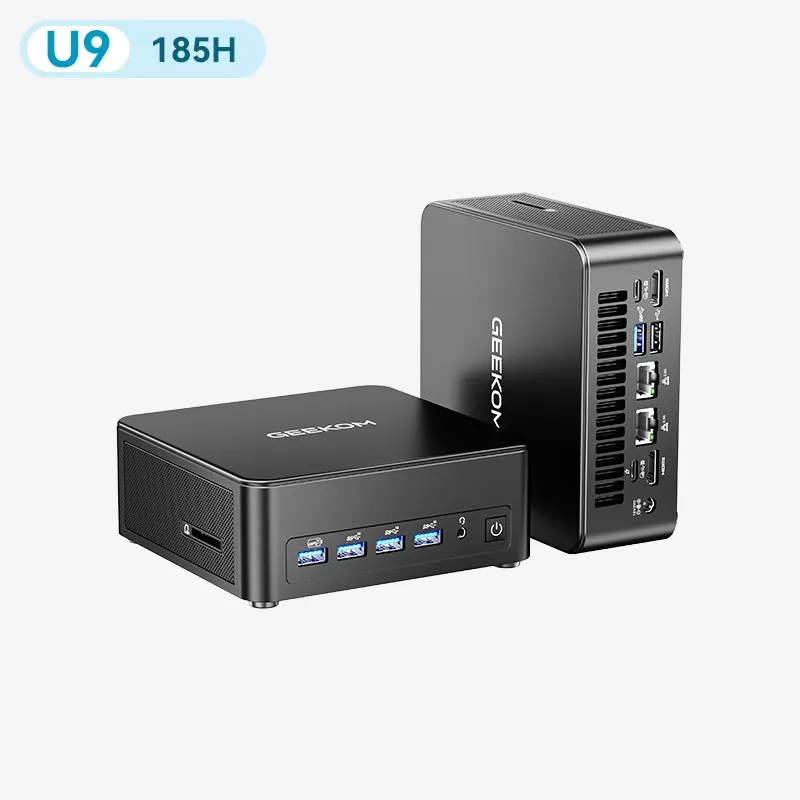
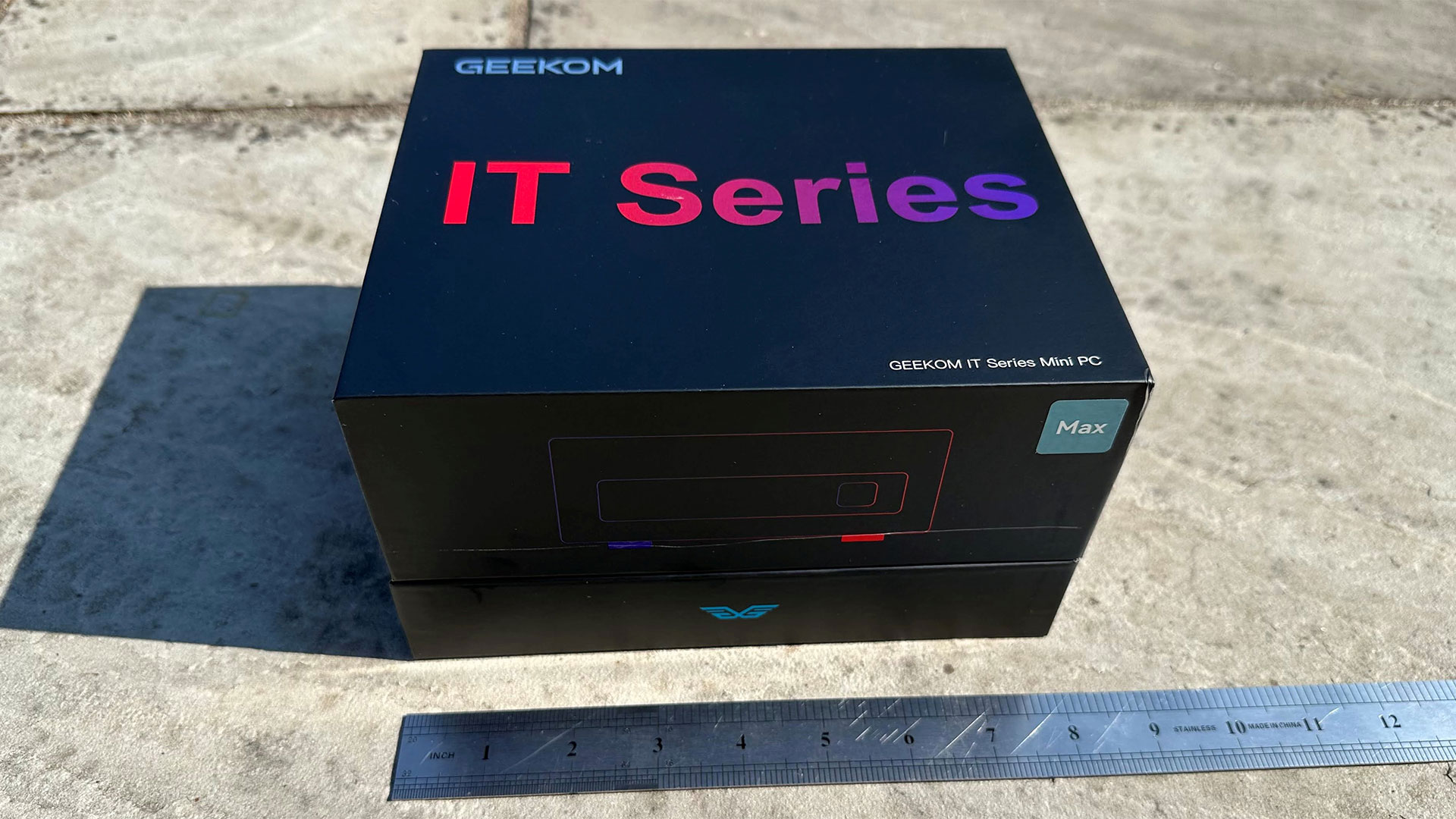
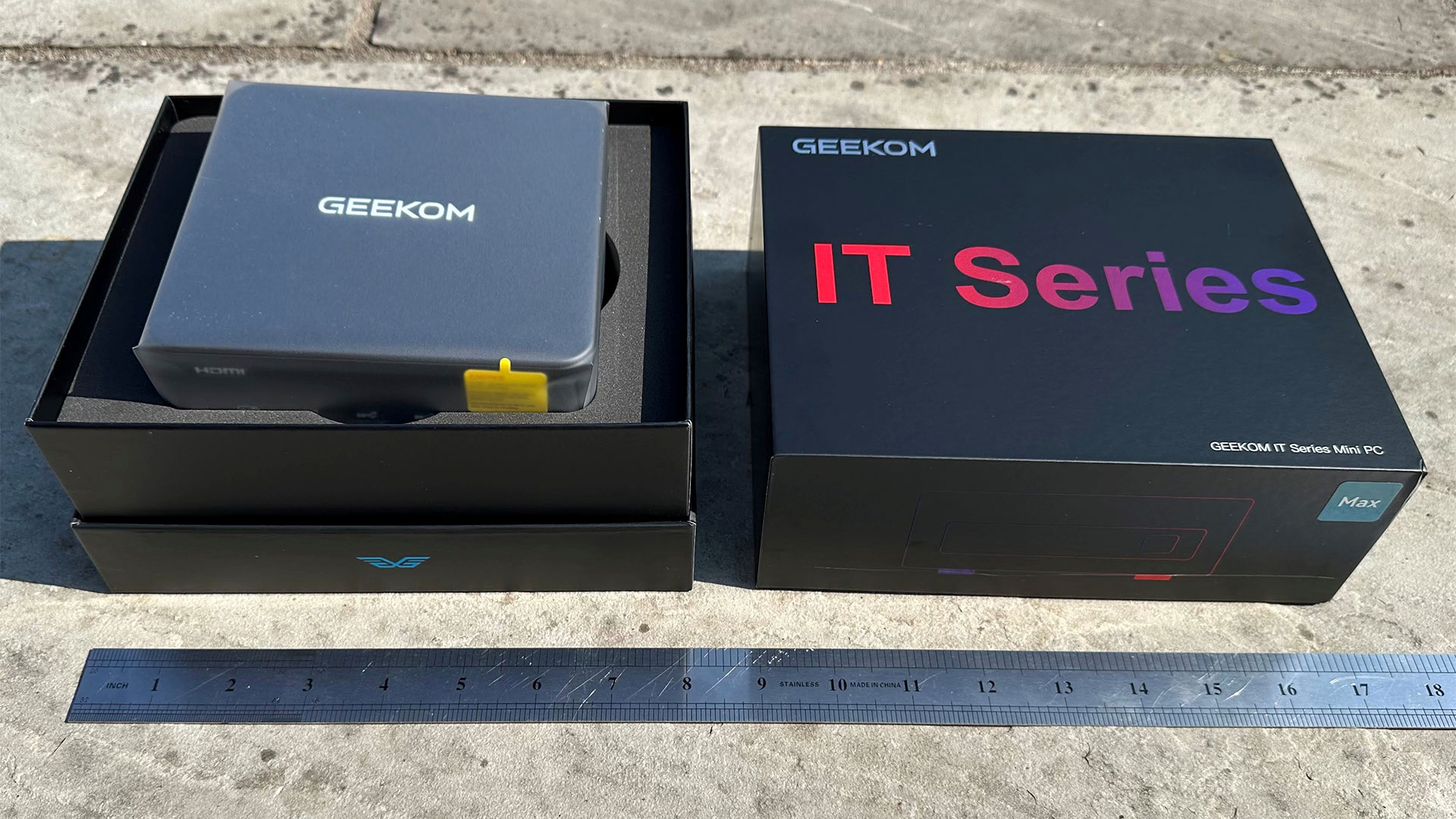
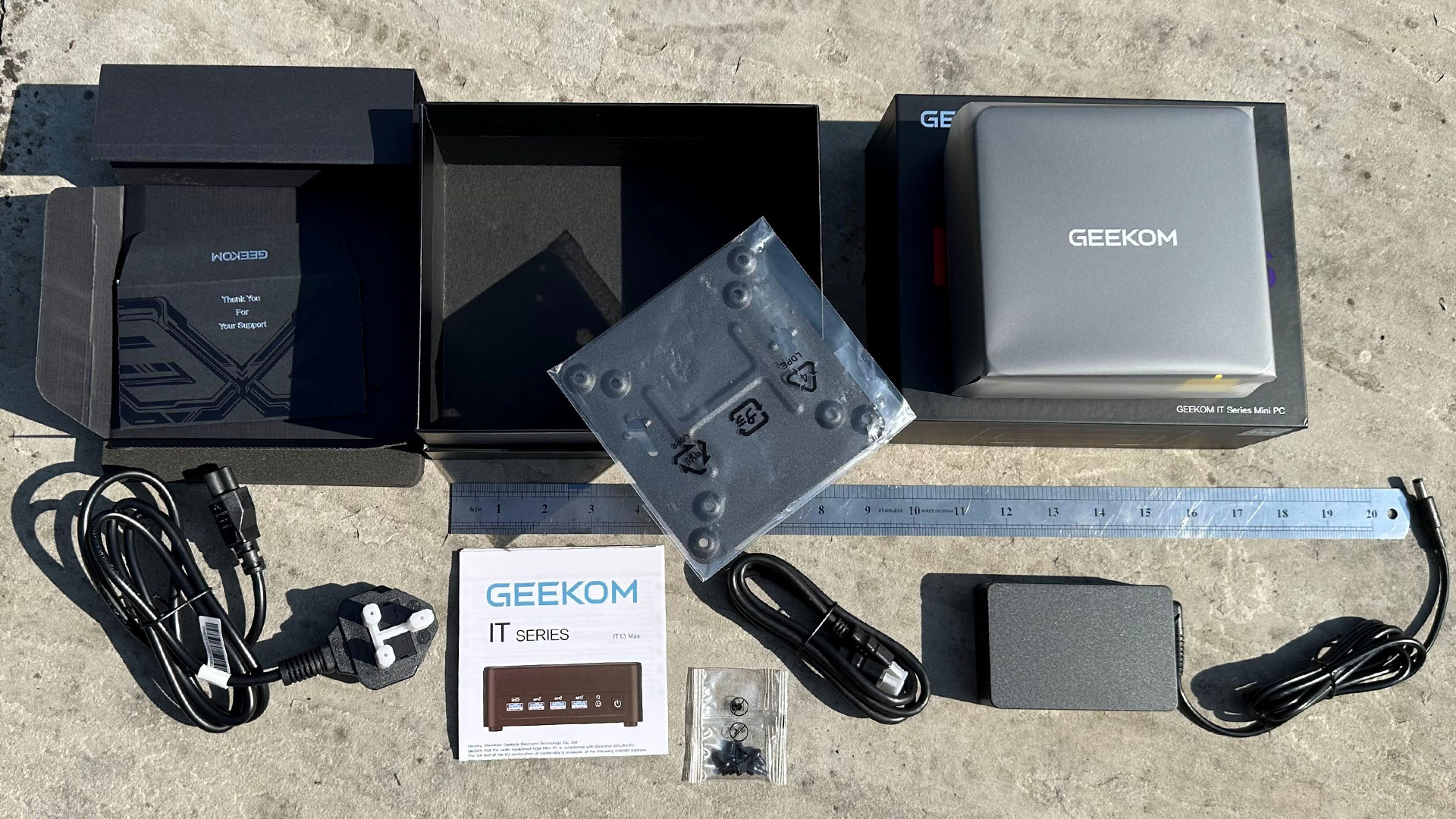
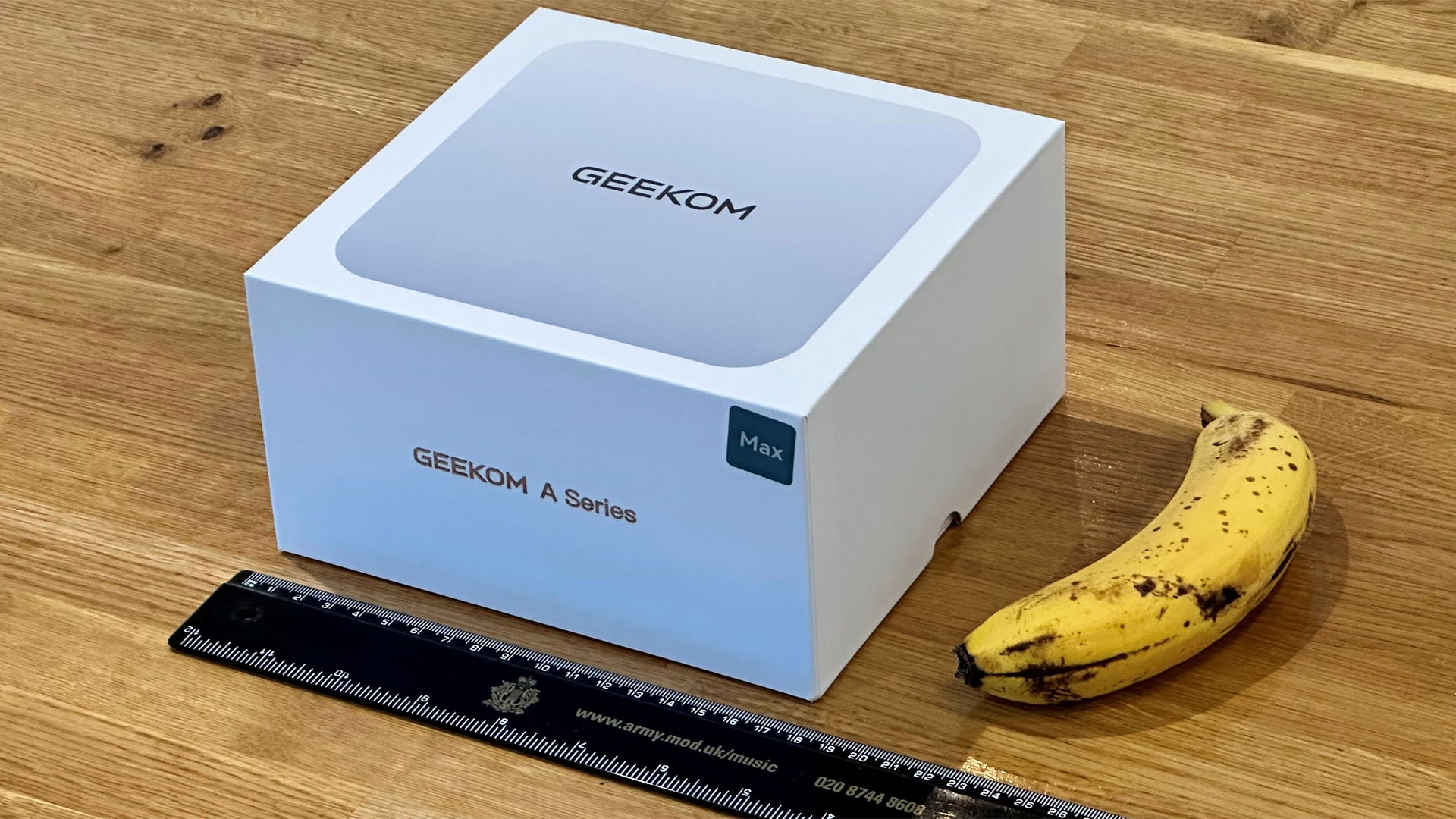
The strategy of using last-gen laptop parts in mini PCs used to mean excellent performance at competitive prices. At least, it did until the RAMpocalypse swept across tech. Nevertheless, Geekom is pushing the idea that its IT13 Max, using a Core Ultra 9 185H at $799, offers a value option in mid-2026. Looking at some of the other prices for mini PCs we’ve seen recently, it might be right.
Other than the reasonable Ultra 9 tier price for the performance, RAM and storage in the current market, Geekom delivers a very competent mini PC here. It looks like an unassuming, business-like machine from the outside, but has plenty of ports, easy internal access, and is very sturdy.
Design of the Geekom IT13 Max 2026
Tom's HardwareTom's HardwareTom's Hardware
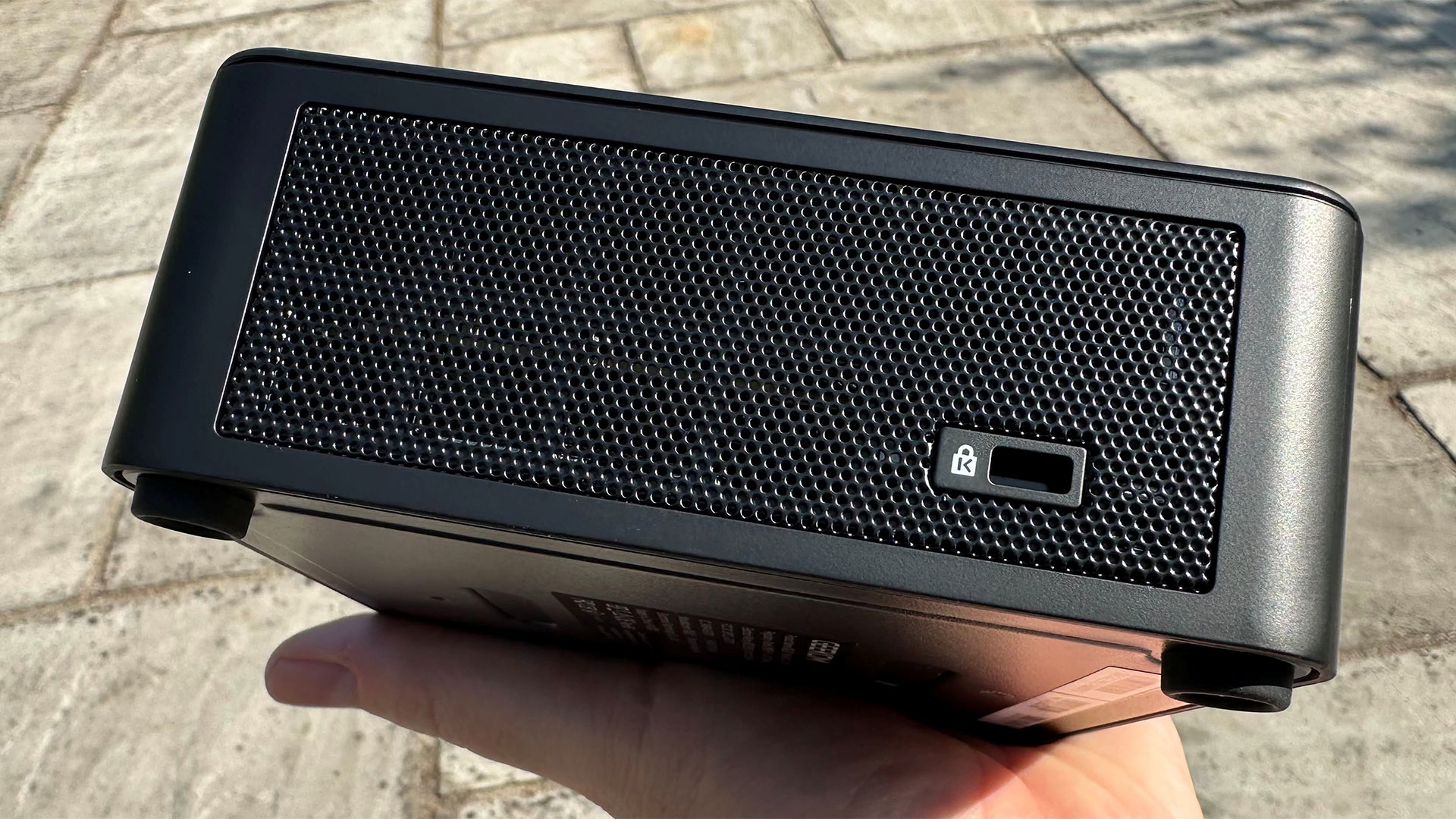
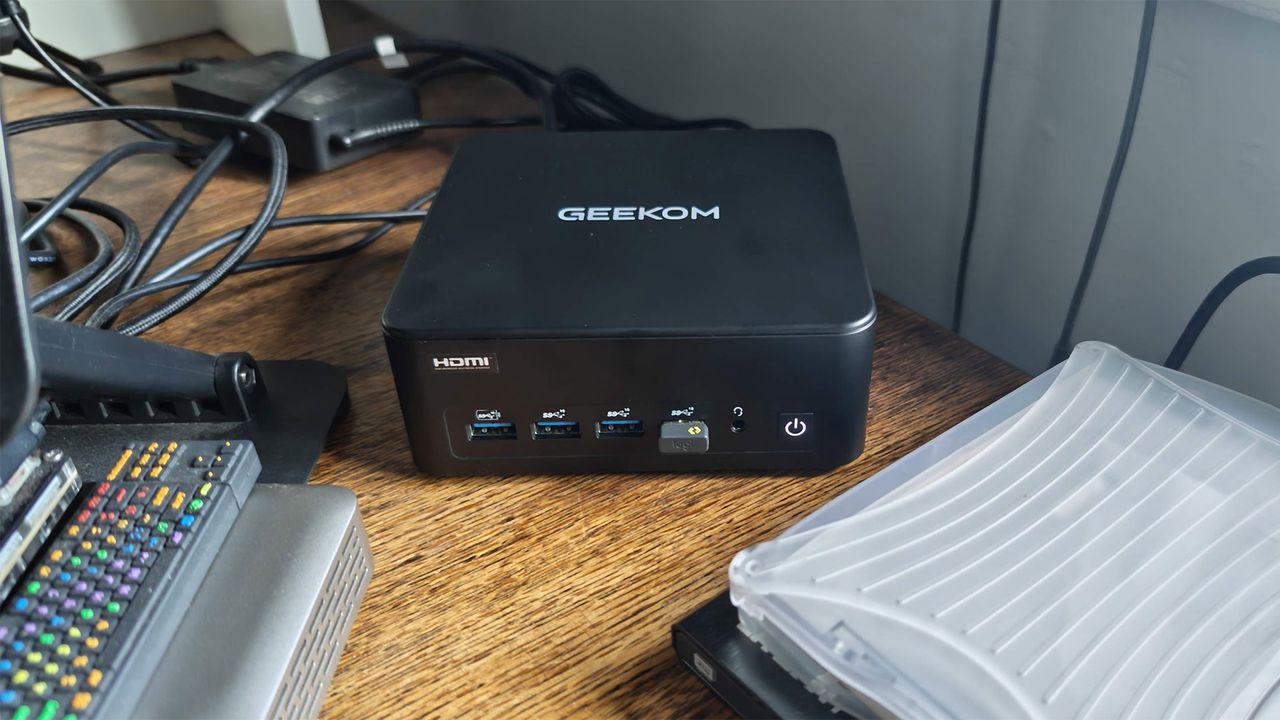
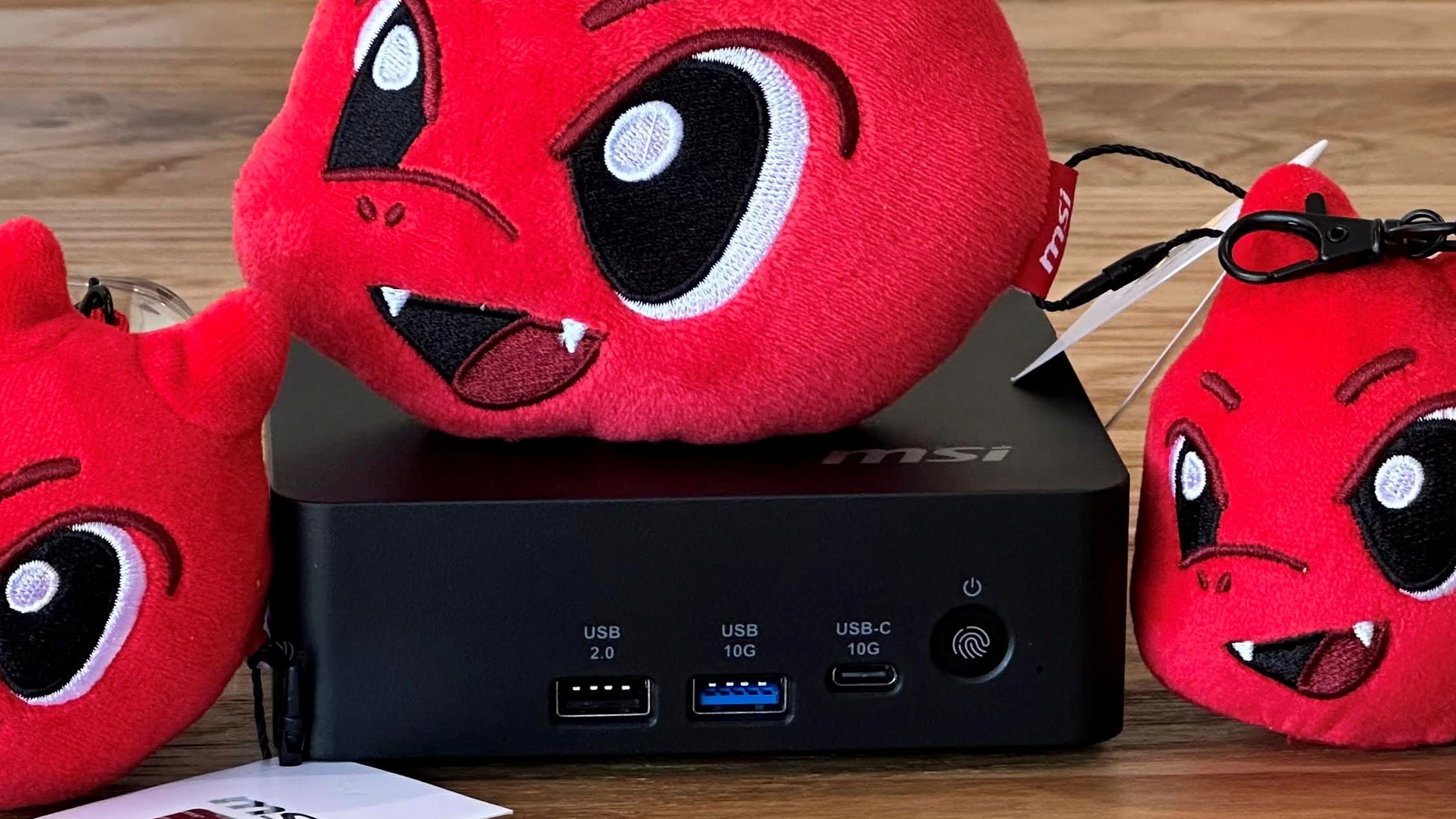
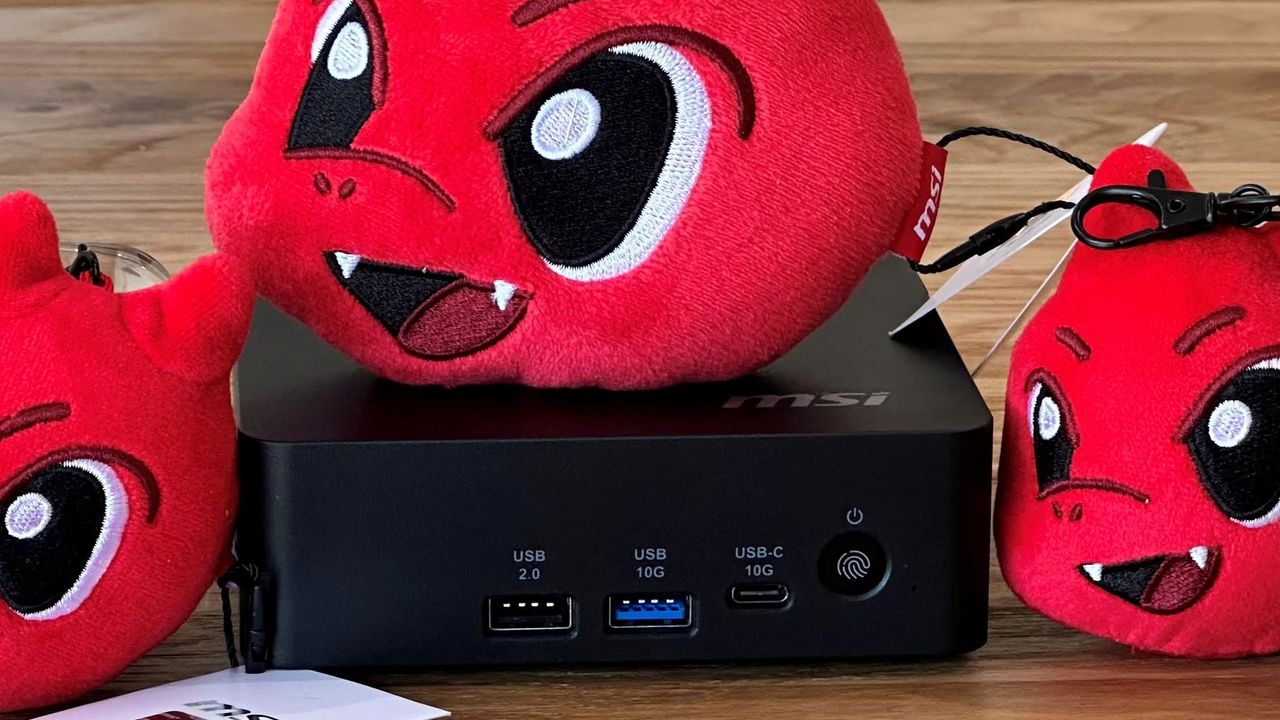
Geekom’s new IT13 Max 2026 follows a very traditional NUC design. With its just-under-a-liter volume, this black device is just slightly bigger in every dimension than the MSI Cubi NUC AI+ 3MG (0.8 L), and shares a lot of the matte dark understated design and subtle branding of that unit. Later on, you’ll notice this pair has a lot in common when it comes to performance, too, despite being two Intel generations apart and featuring a huge price gap.
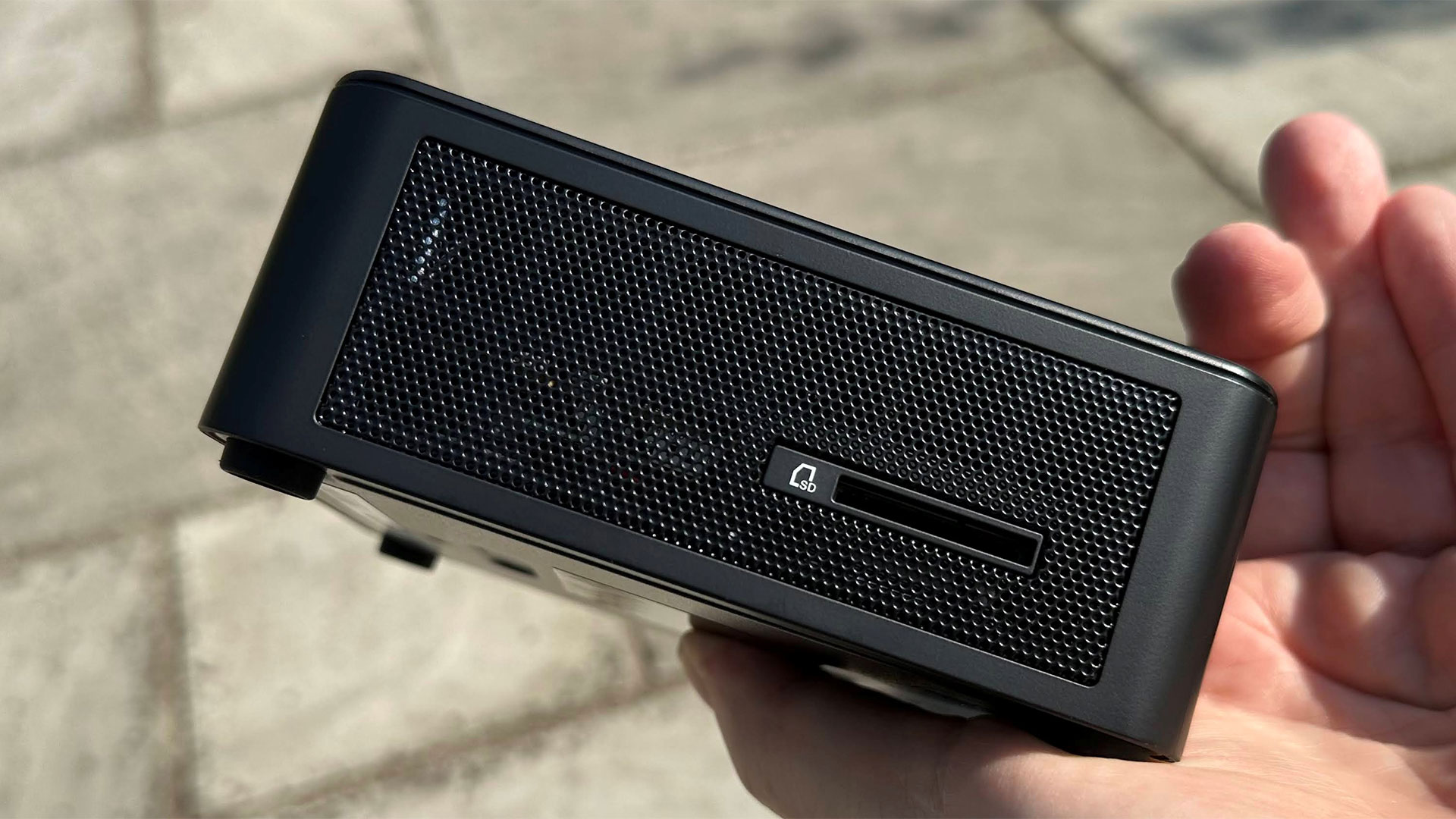
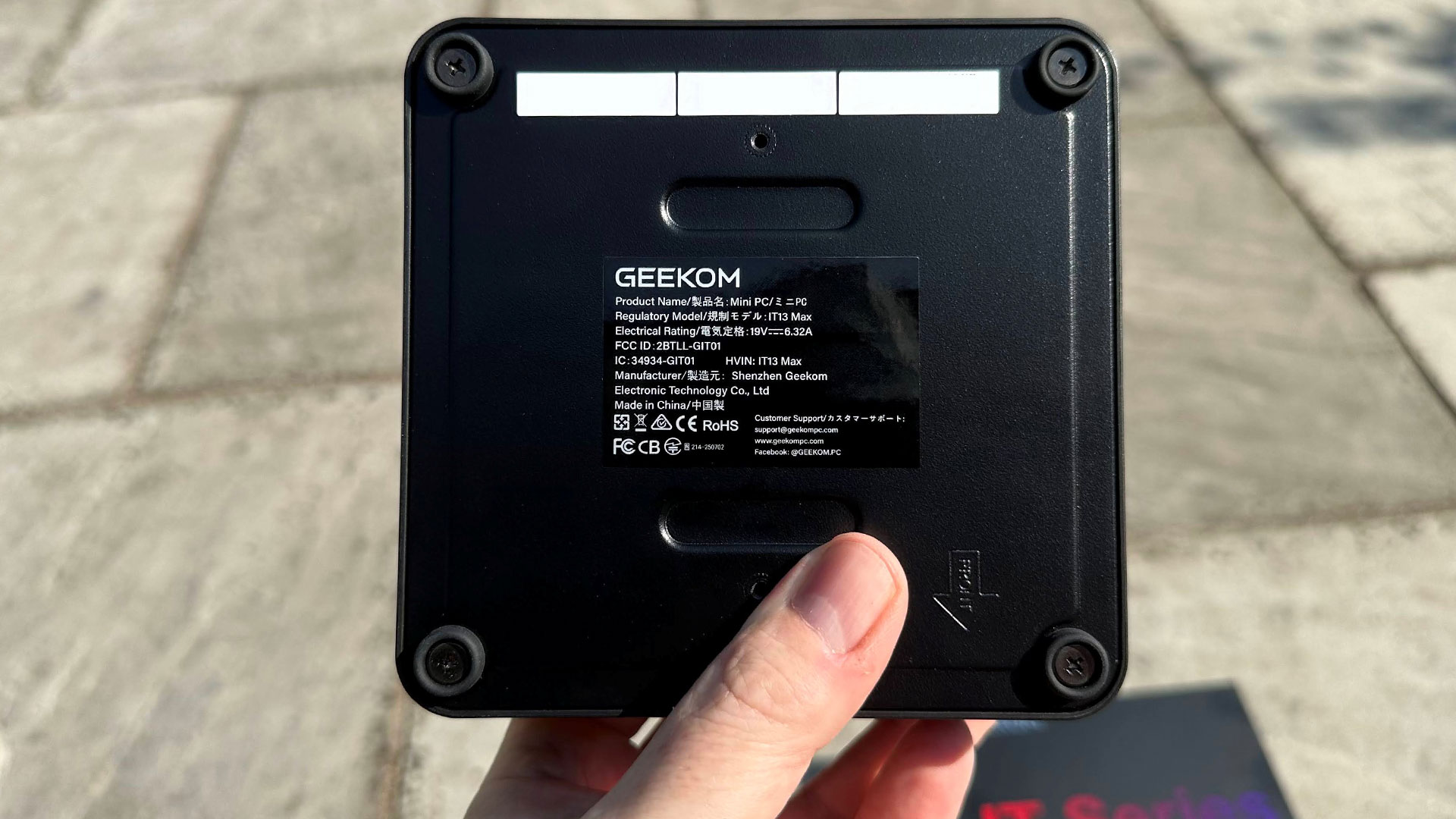
Geekom uses a matte plastic outer shell here, but the perforated venting areas to the sides and removable bottom plate are metal, as is an inner chassis. It is pretty easy to get into the IT13 Max, as there are just four screws positioned in the center of the rubber feet.
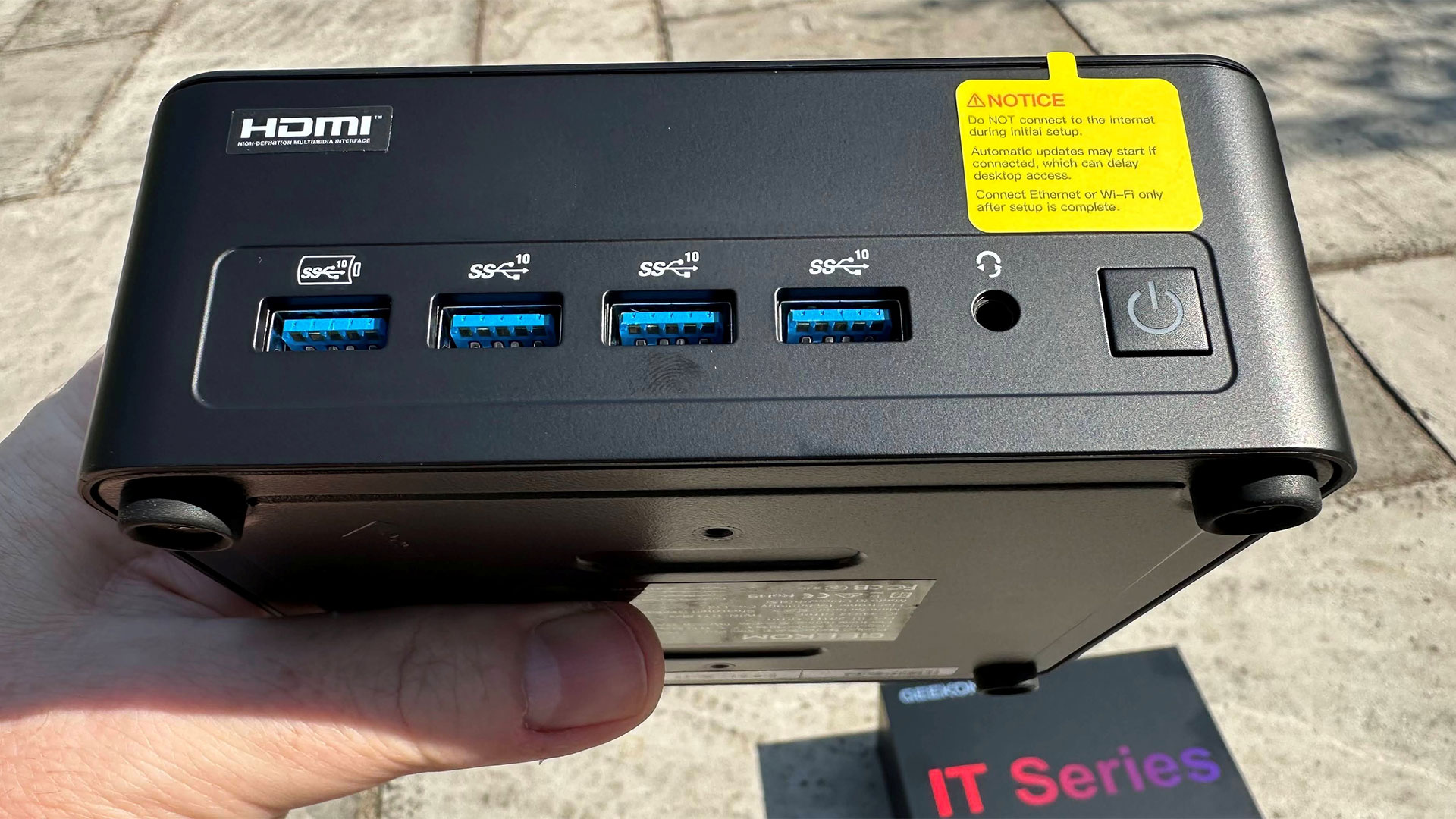
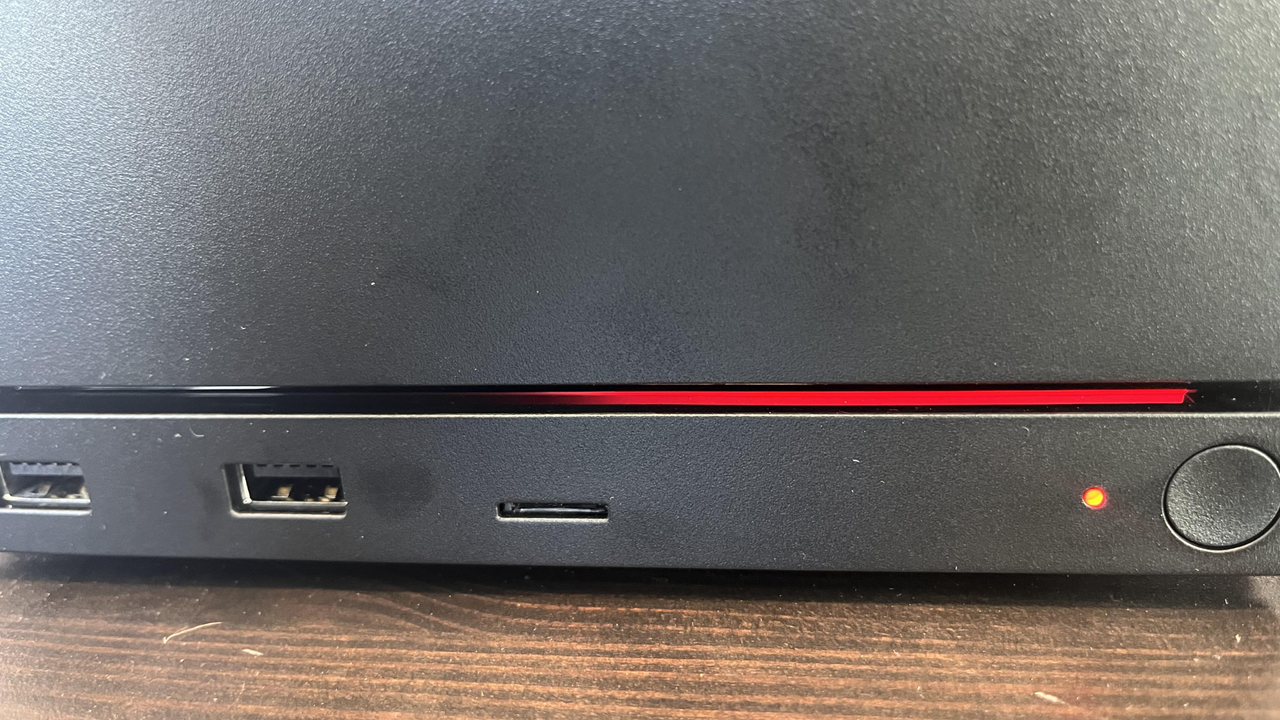
Users have access to power and headphones on the front panel, and a wide range of fast USB, networking, and monitor connection options. Geekom hasn’t implemented any biometrics in the power button, for example, and also eschews the addition of a Copilot button.
Geekom IT13 Max 2026 Specifications
Processor
Intel Core Ultra 9 185H (16C/22T), up to 5.1 GHz, 45W
Graphics
Intel Arc integrated graphics using eight Xe cores
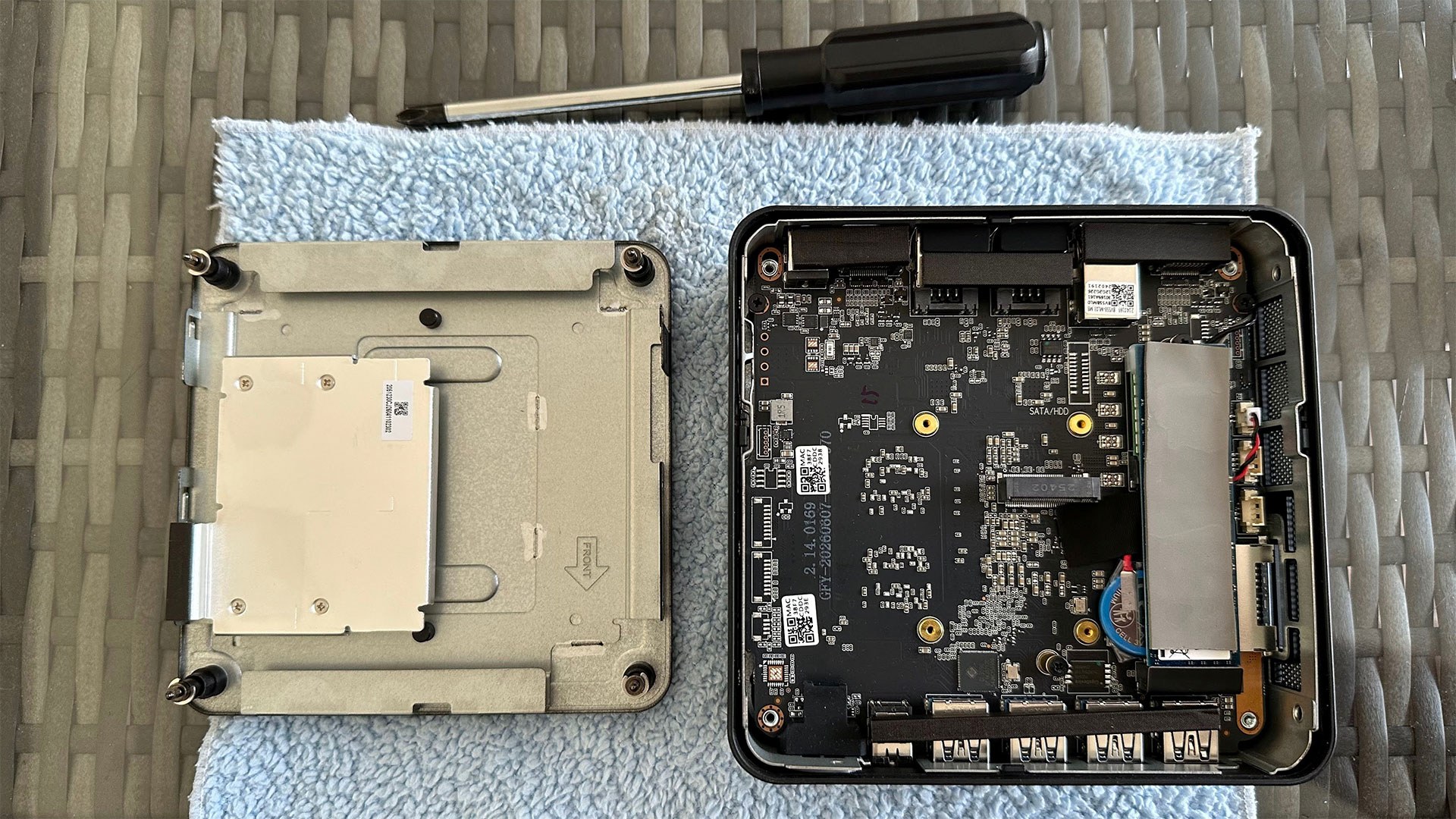
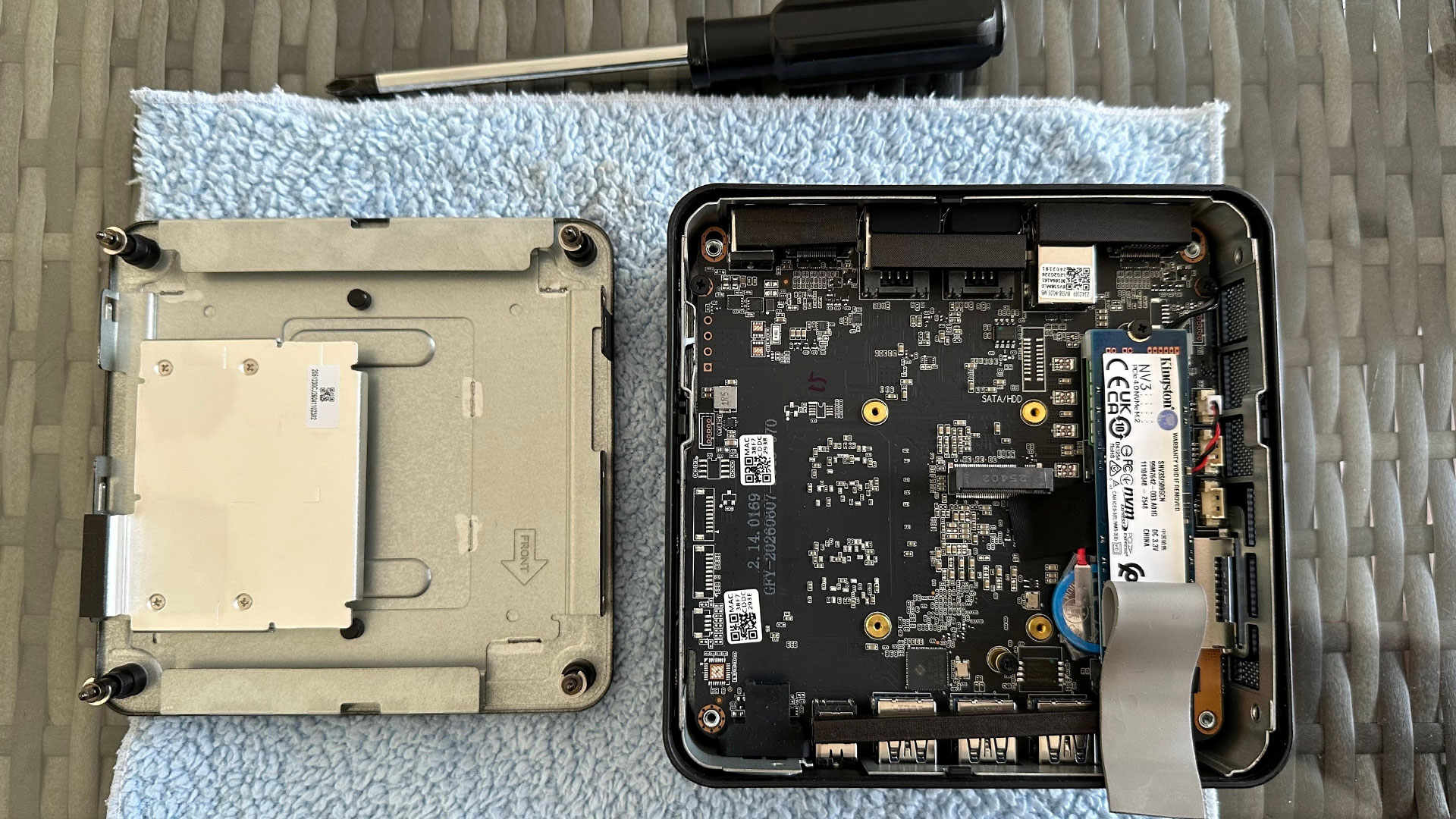
When I decided to look inside, two of the four rubber feet could be unscrewed by hand, but another pair were just a little too tight, so I had to reach for my Phillips-head screwdriver. Once you get into this Geekom mini PC, there’s not much you can do, as the RAM is soldered.
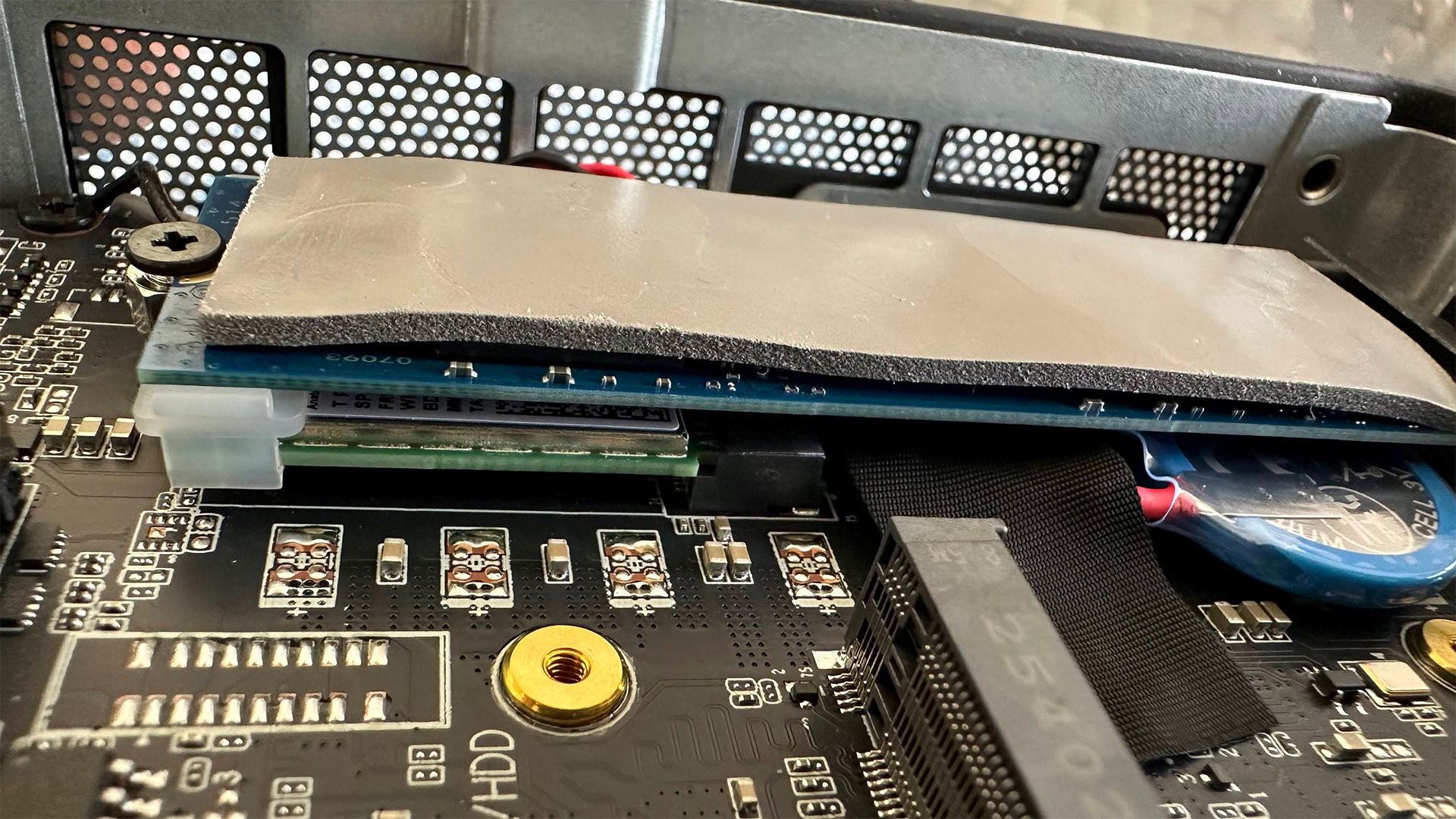
The only upgrades users have access to are swapping the installed M.2 devices. There’s an M.2 2280 SSD slot with the NVMe PCIe4 500GB Kingston drive and thermal pad in place. Under that is the system’s M.2 2230 wireless connectivity card. To the side of these, I saw a vacant M.2 2242 slot. Oddly, the spec sheet I got from Geekom mentioned 2.5-inch SATA SSD/HDD expansion options, and not M.2 2242. There seemed to be an unused SATA header area on the motherboard, so perhaps specs were changed at a late stage of development.
The system offers a good array of ports built-in, and I didn’t want or need to reach for a docking solution during testing.
On the front of this mini PC, there is a generous row of four USB 3.2 Gen 2 Type-A ports. One of these supports always-on smart device charging. Next to these ports is a 3.5 mm audio jack and an inset power button with a white LED to indicate it is powered up.
On the left side, there is a full-size SD card reader, and on the right, you will find a Kensington lock slot.
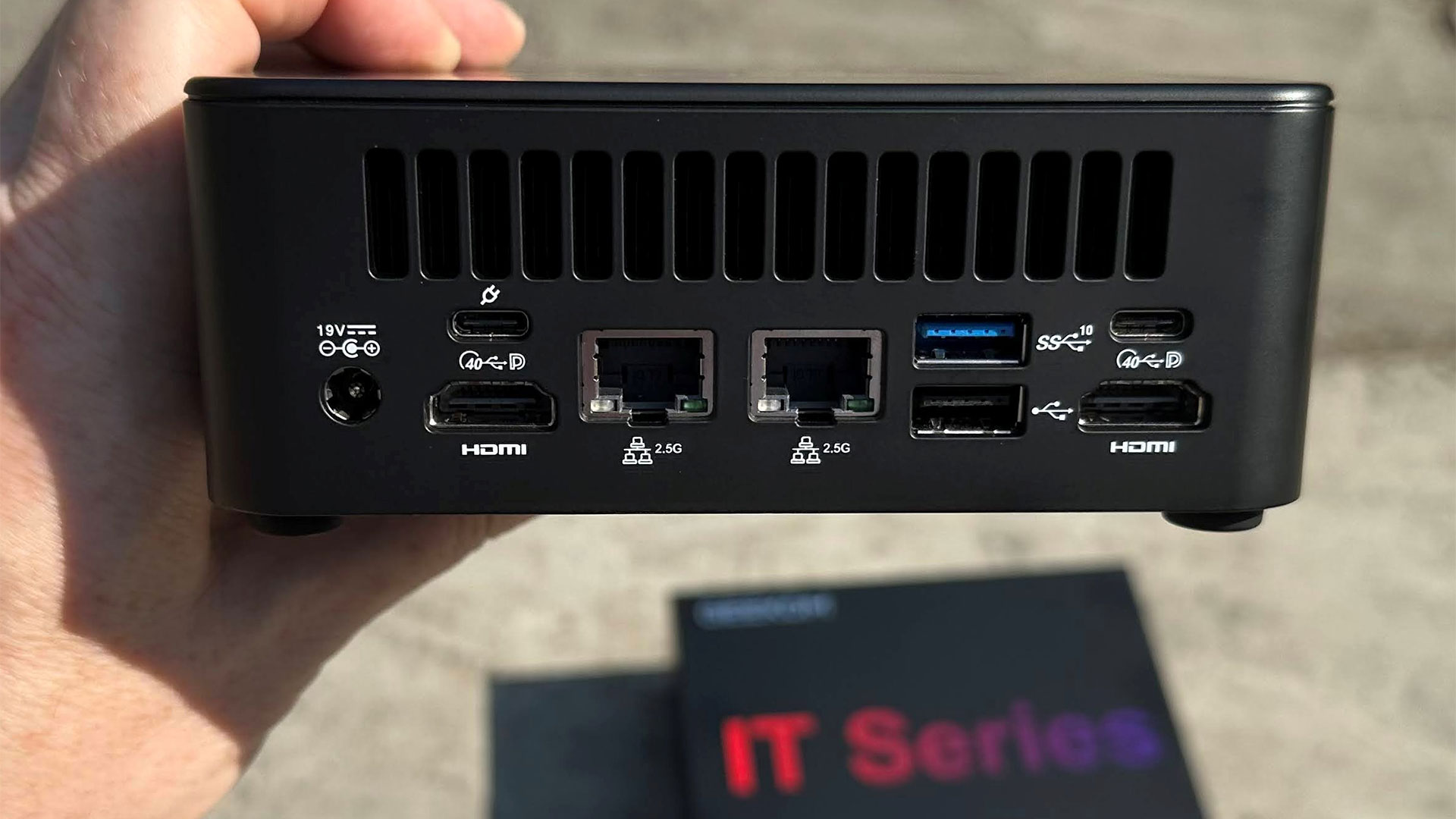
At the rear of the IT13 Max 2026, there’s a series of vents, and below them, most of the I/O. This includes a USB 3.2 Gen 2 Type-A port, a USB 2.0 Type-A, two USB4 Type-C (both with DP-Alt, one offers Power in), two RJ-45 2.5 Gbps Ethernet ports, a pair of HDMI 2.0 ports, and a DC‑in barrel jack for the supplied power brick.
Test System Setup
System
CPU
(i)GPU
Memory
Chassis
GMKtec EVO-T2
Intel Core Ultra X7 358H (16C/16T: 4P + 8E + 4 LPE), up to 4.8 GHz
Intel Arc B390 (Xe3, 12 cores, up to 2.5 GHz)
2x 32GB LPDDR5X-8533 soldered
Dual-fan,1.72 liters
MSI Cubi NUC AI+ 3MG
Intel Core Ultra 9 386H (16C/16T: 6P + 8E + 2LPE), up to 4.9 GHz
Intel Graphics (Xe3, 4 Cores, up to 2.5 GHz)
2x 16GB DDR5-5600 Sodimm
Single fan, 0.52 liters
Geekom A9 Max 2026
AMD Ryzen AI 9 HX 470 (12C / 24T: 4x Zen 5 , 8x Zen 5c), up to 5.2 GHz
Radeon 890M (RDNA 3.5, 16 CUs, up to 3.1 GHz)
1x 32GB DDR5-5600 Sodimm
Single fan, 0.82 liters
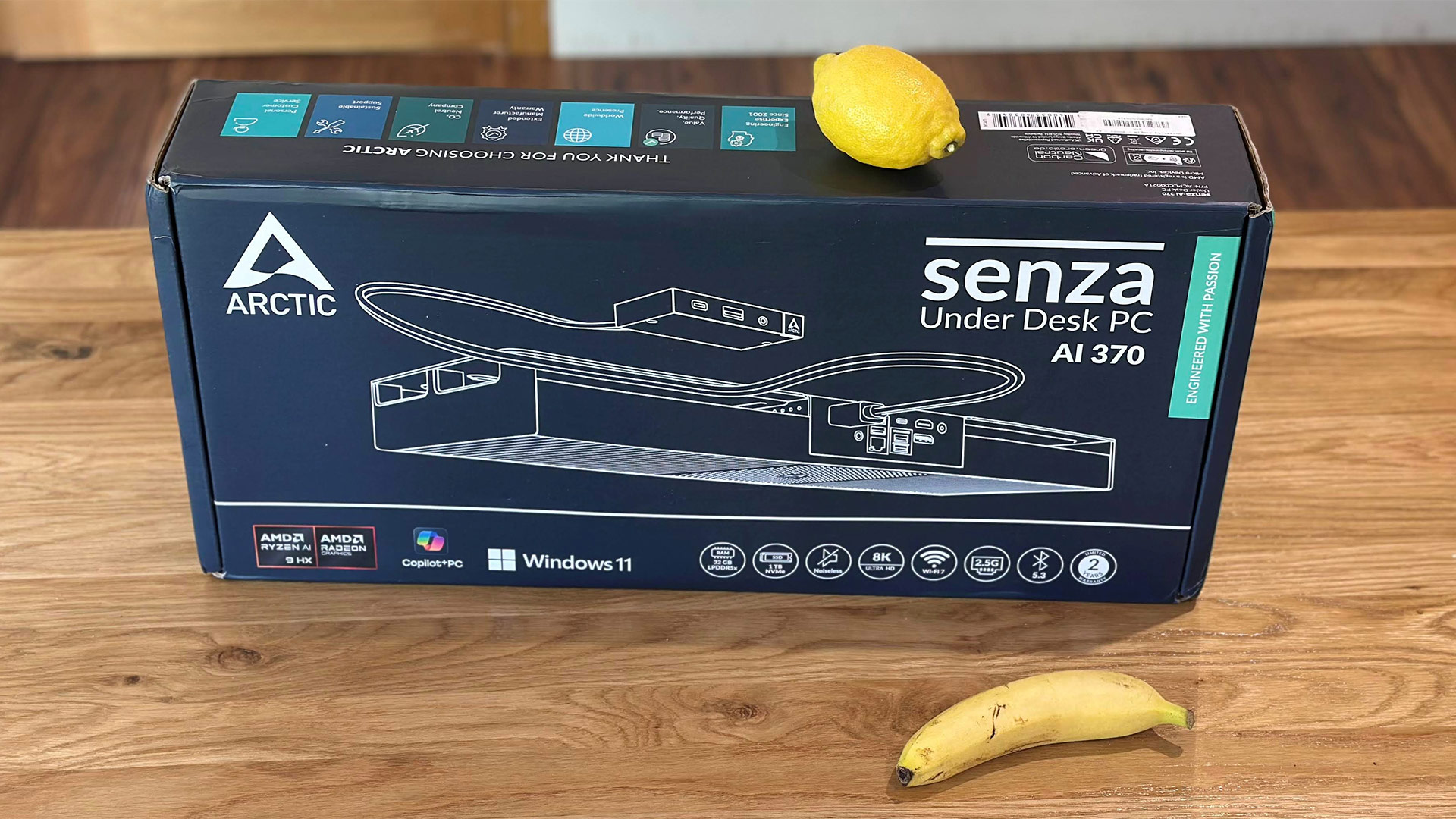
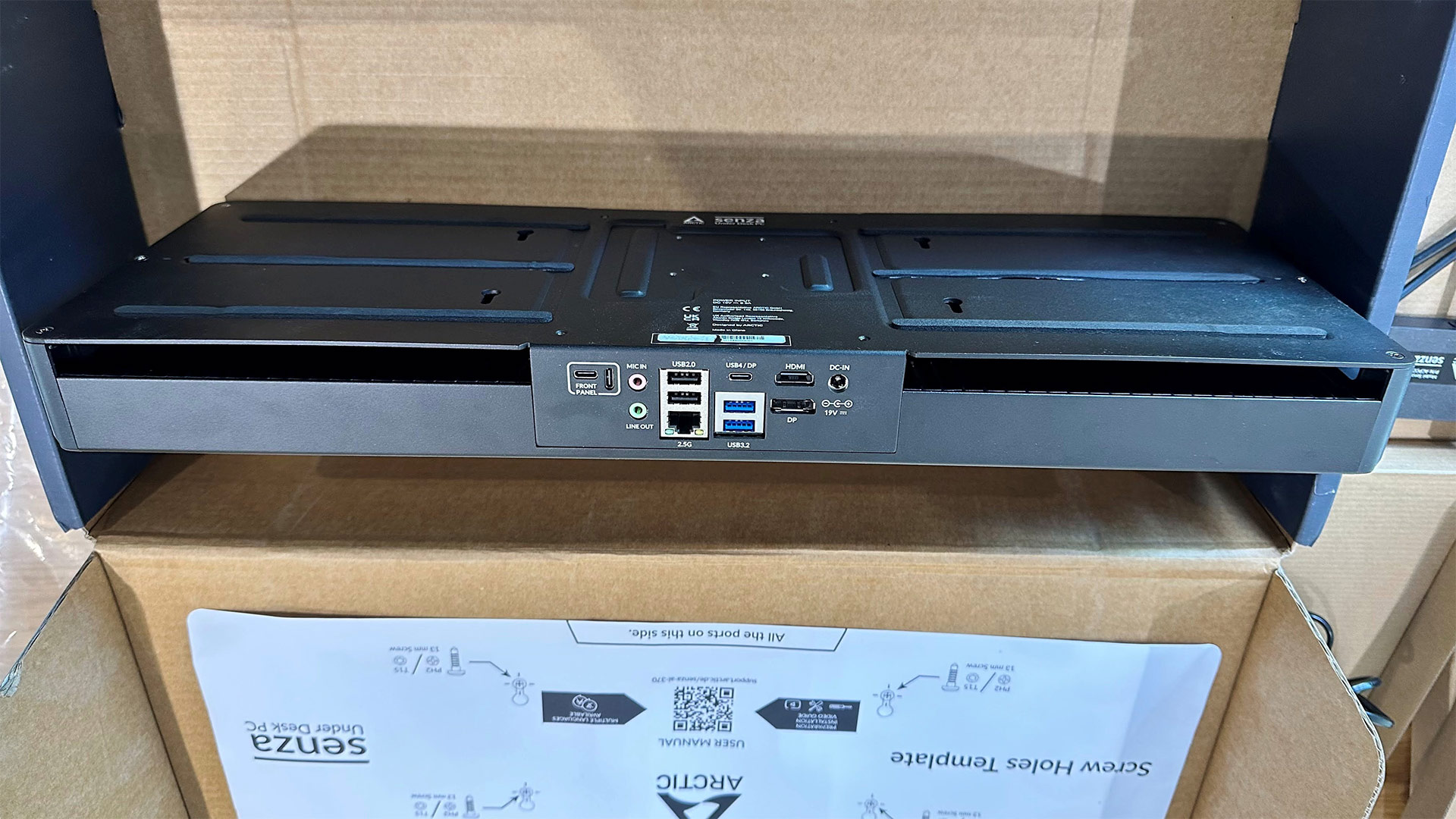
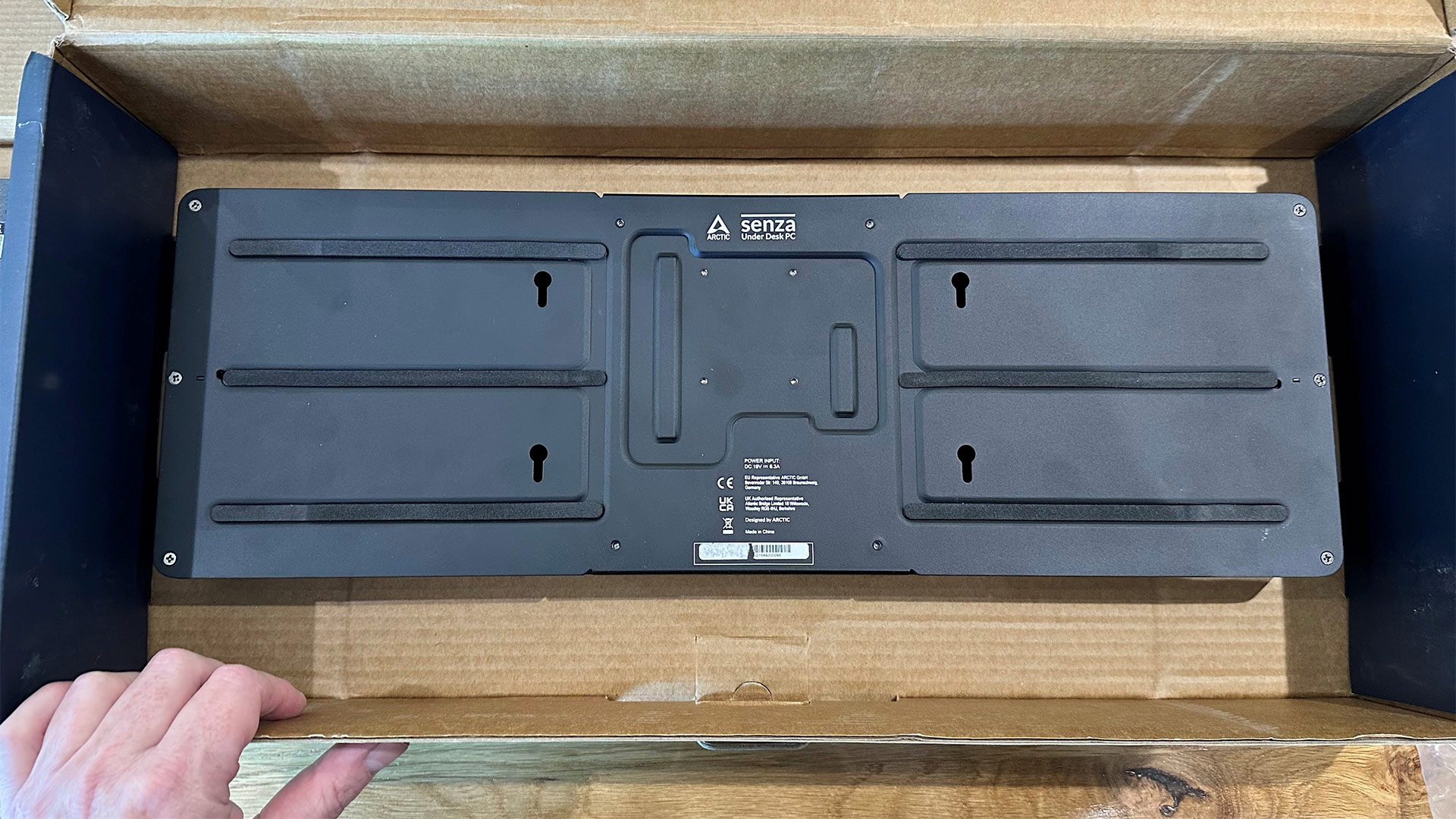
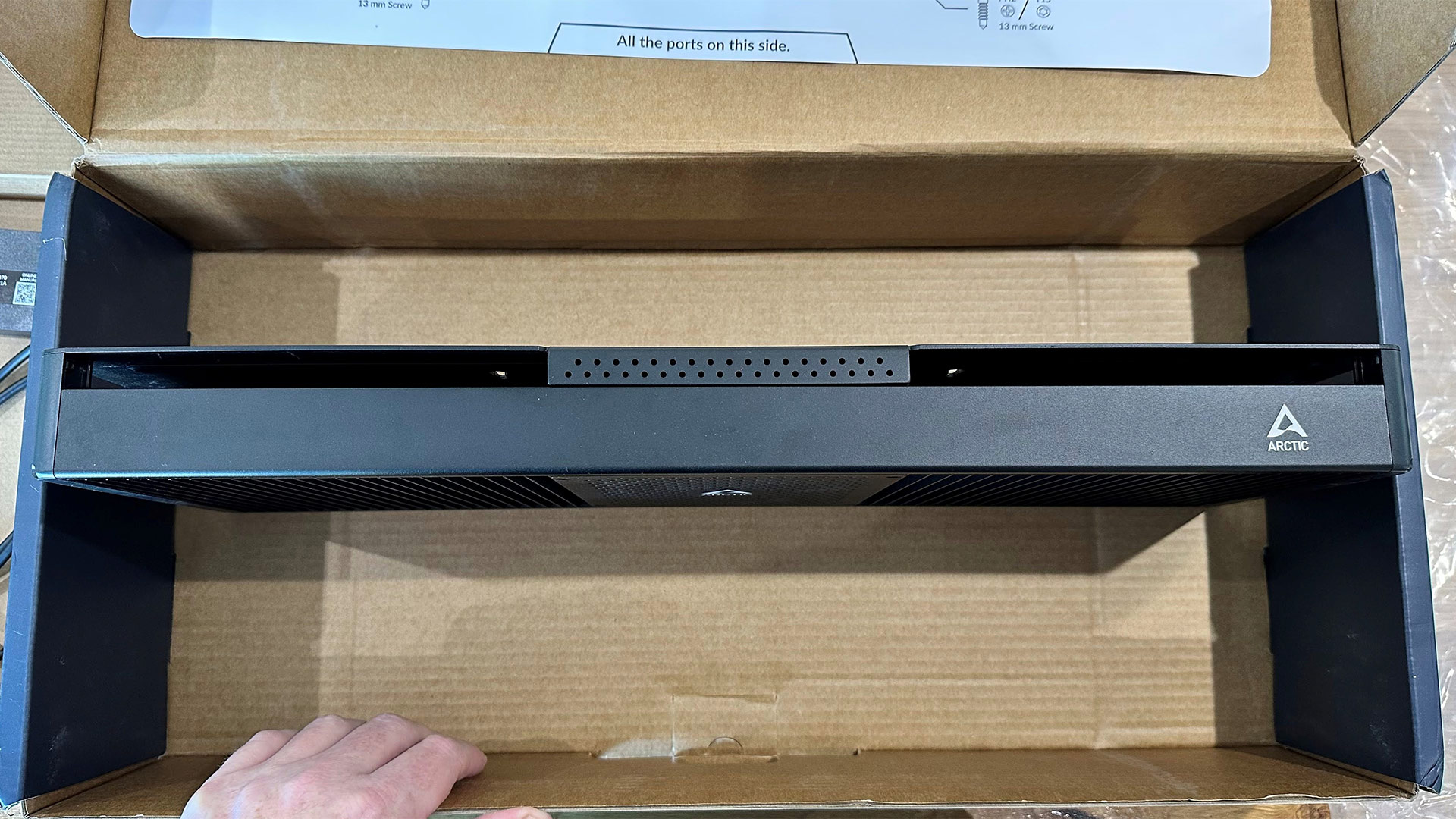
Arctic Senza AI 370
AMD Ryzen AI 9 HX 370 (12C / 24T: 4x Zen 5 , 8x Zen 5c), up to 5.1 GHz
Radeon 890M (RDNA 3.5, 16 CUs, up to 2.9 GHz)
2x 16GB LPDDR5X‑8000 soldered
Passive, 4.82 liters
Beelink SER10 MAX
AMD Ryzen AI 9 HX 470 (12C / 24T: 4x Zen 5 , 8x Zen 5c), up to 5.2 GHz
Radeon 890M (RDNA 3.5, 16 CUs, up to 3.1 GHz)
2x 32GB DDR5-5600 Sodimm
Single fan, 0.81 liters
Geekom IT13 Max 2026
Intel Core Ultra 9 185H (16C/22T: 6P + 8E + 2 LPE), up to 5.1 GHz
Intel Arc graphics (Xe-LPG, 8 cores, up to 2.35 GHz)
2x 16GB DDR5-5600 Soldered
Single fan, 0.97 liters
GMKtec Evo-X3
AMD Ryzen AI Max+ 395 (16C/32T: 16x Zen 5), up to 5.1 GHz
Radeon 8060S (RDNA 3.5, 40 CUs, up to 2.9 GHz)
2x 64GB LPDDR5X-8000 Soldered
Triple-fan, 2.69 liters
Productivity Performance on the Geekom IT13 Max 2026
Geekom boasts of all-round flagship performance from this new mini PC and thankfully skips any outlandish AI-related claims. Now we are getting down to testing, we shall see if there are any glaring weaknesses that come from choosing Intel’s previous-previous-gen silicon.
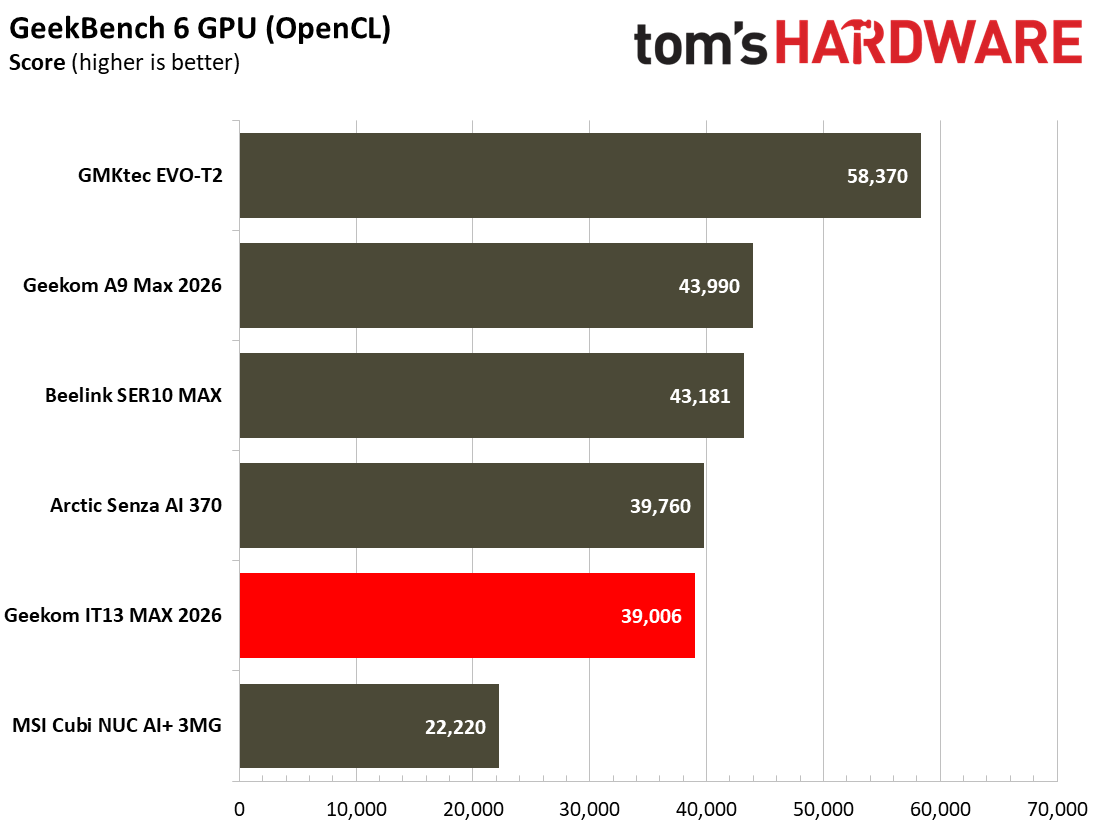
Geekom has opted for older silicon in the IT13 Max 2026, utilizing Intel’s Core Ultra 9 185H (16C/22T), which boosts up to 5.1 GHz, and shares die space with an Arc iGPU featuring eight Xe cores. This is quite a lot of compute and GPU resources in a little SoC, and that’s why the Ultra 9 185H was one of the top mobile processors a couple of years ago. There’s an NPU on board, too, but it can only muster 11 TOPS according to Intel’s data sheets. The question is if that chip, alongside 24GB of RAM and a 500GB, still stands up.
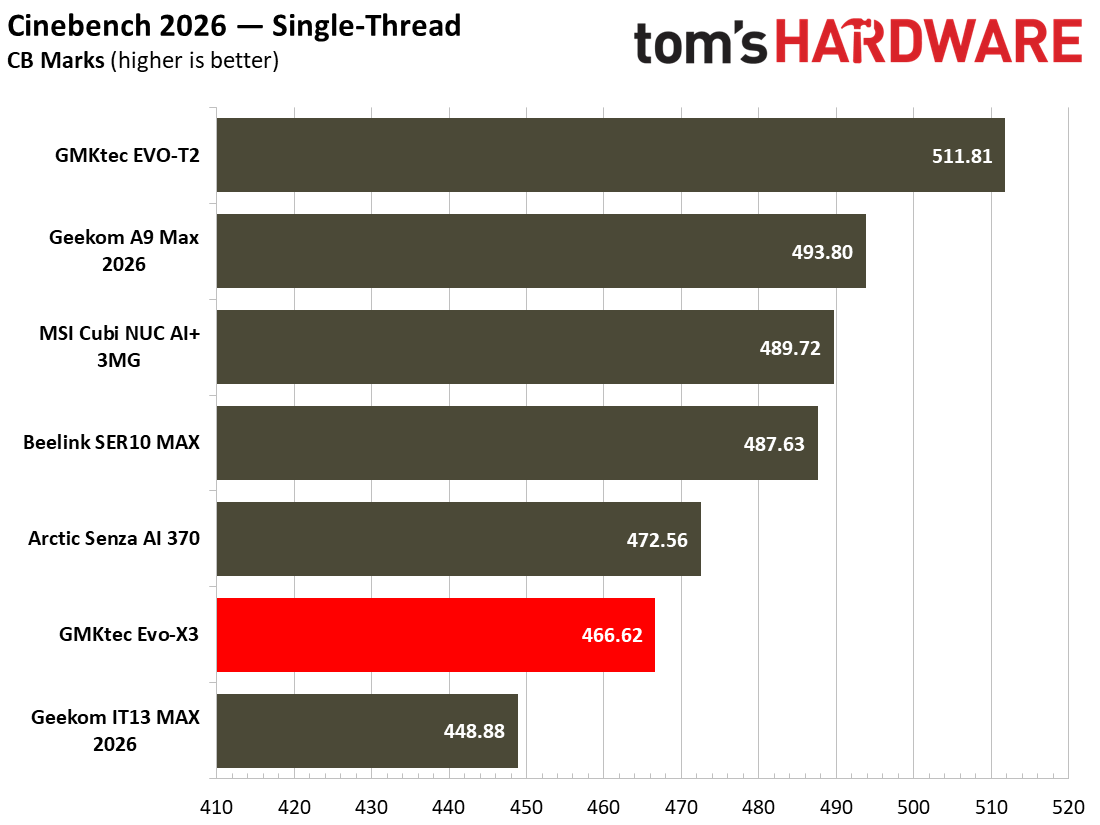
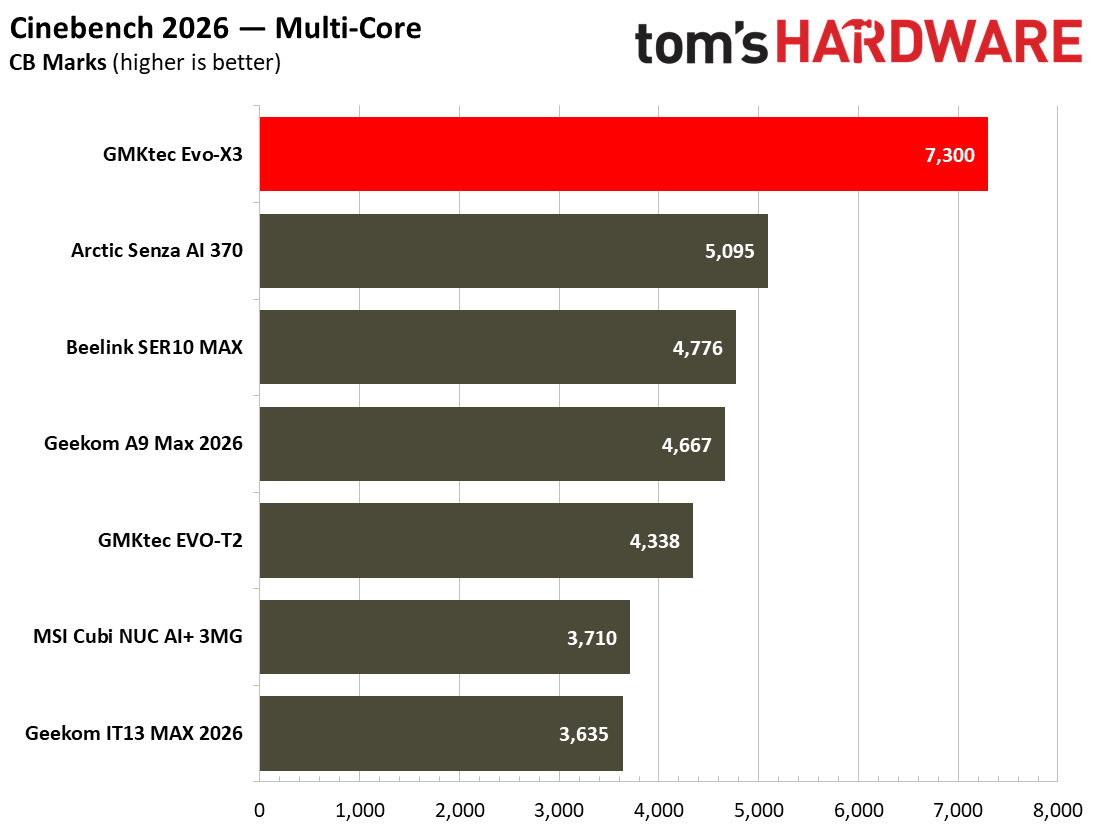
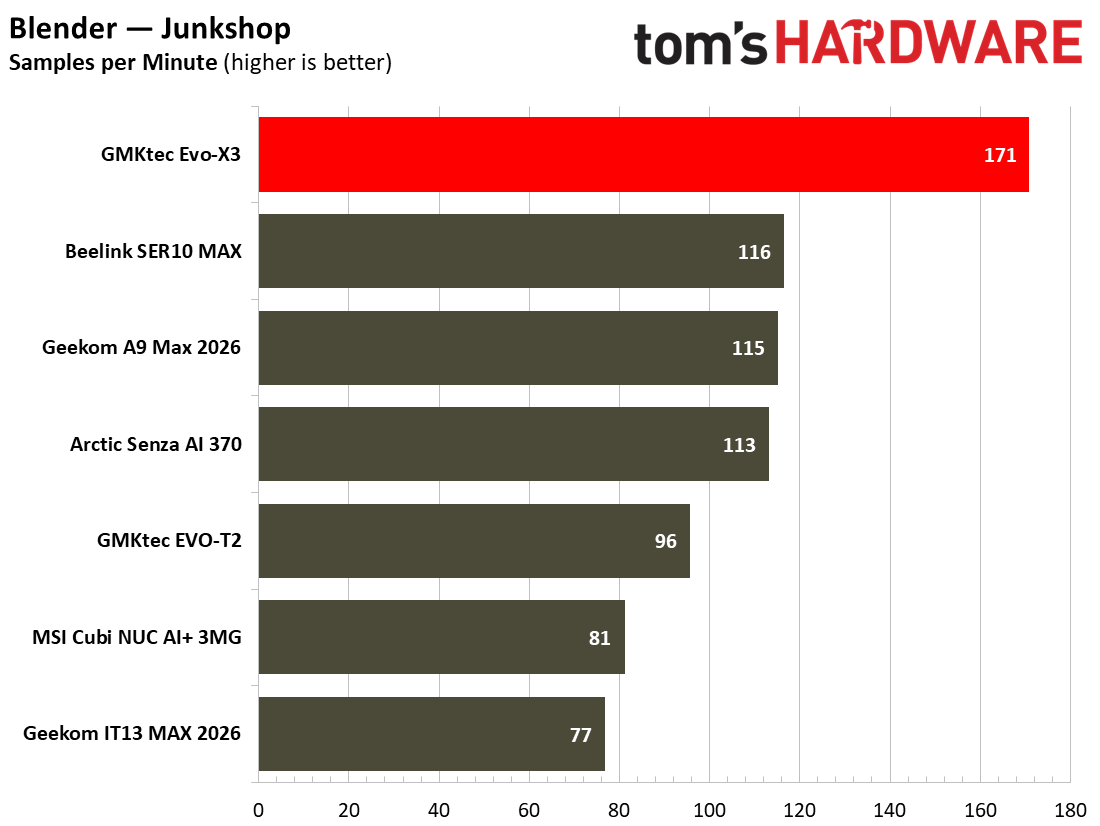
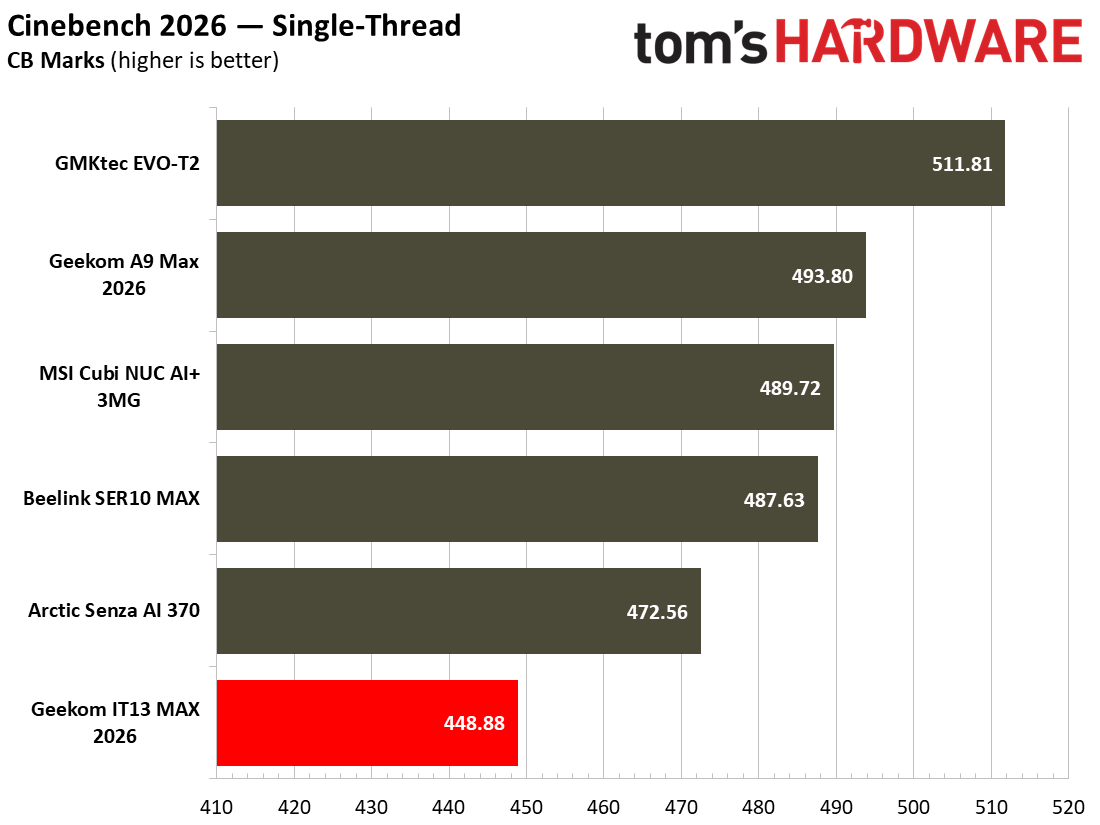
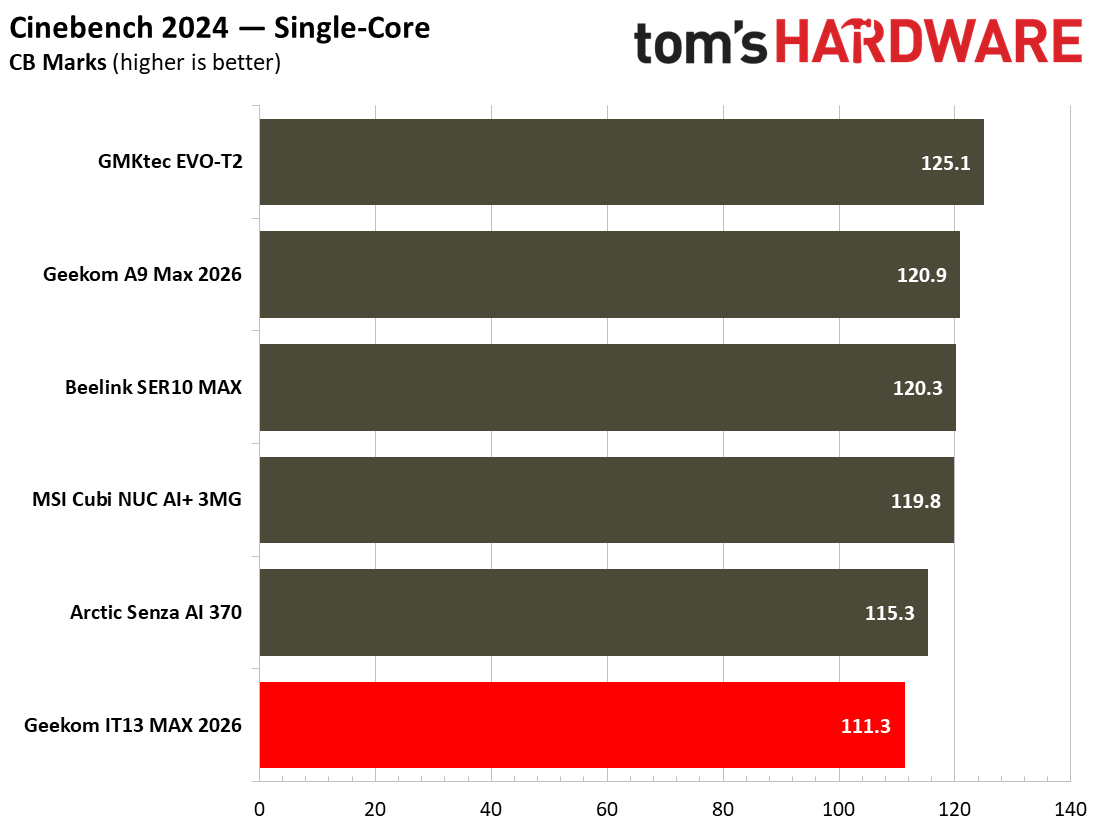
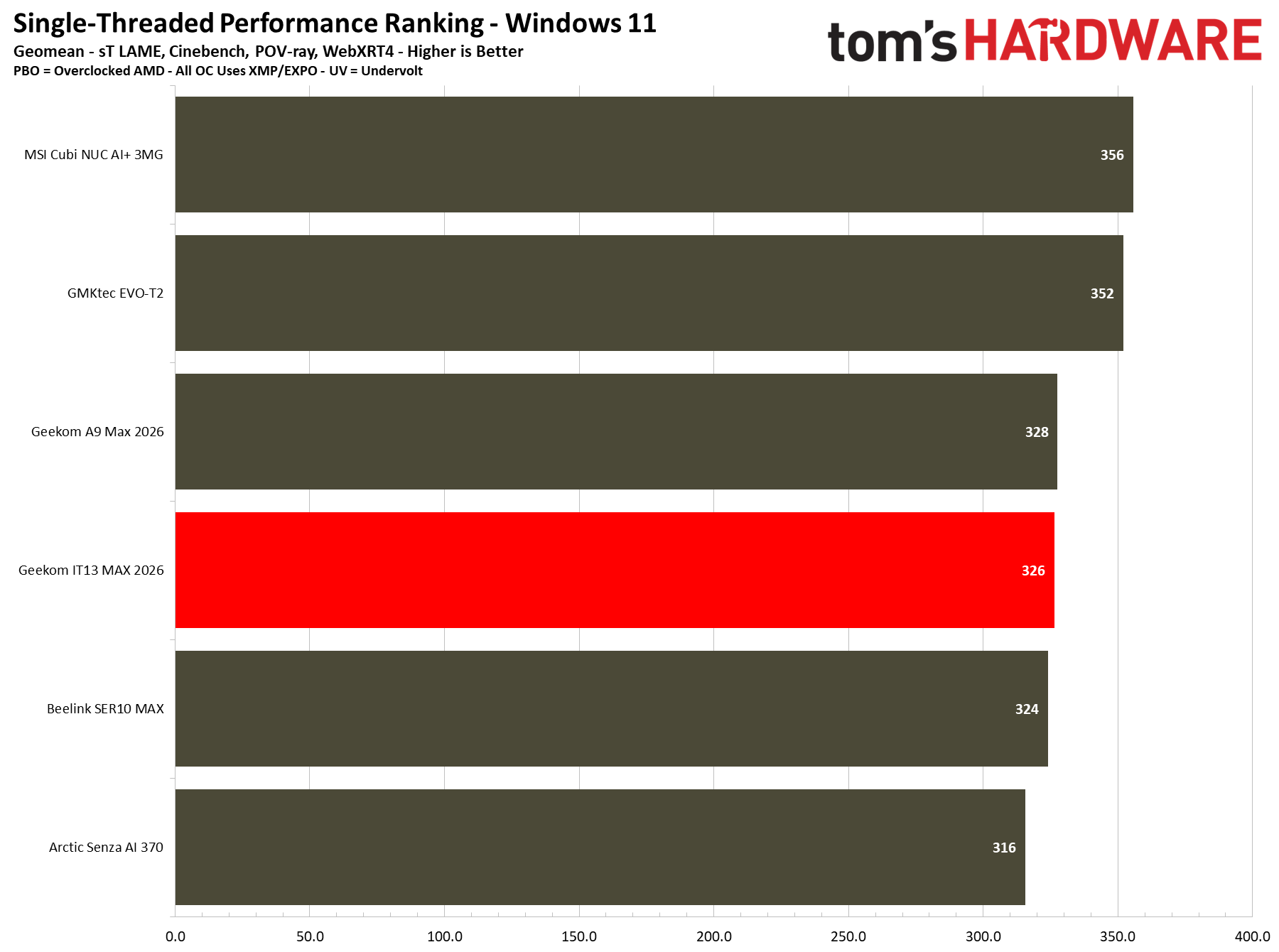
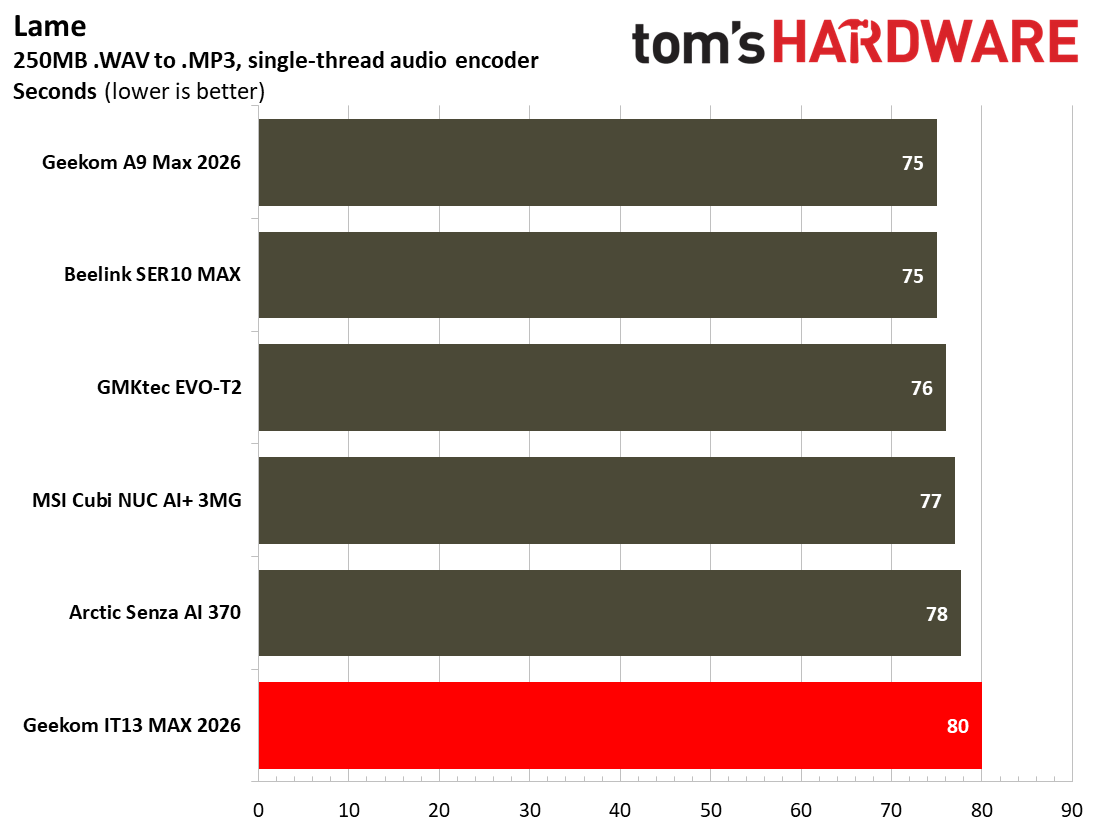
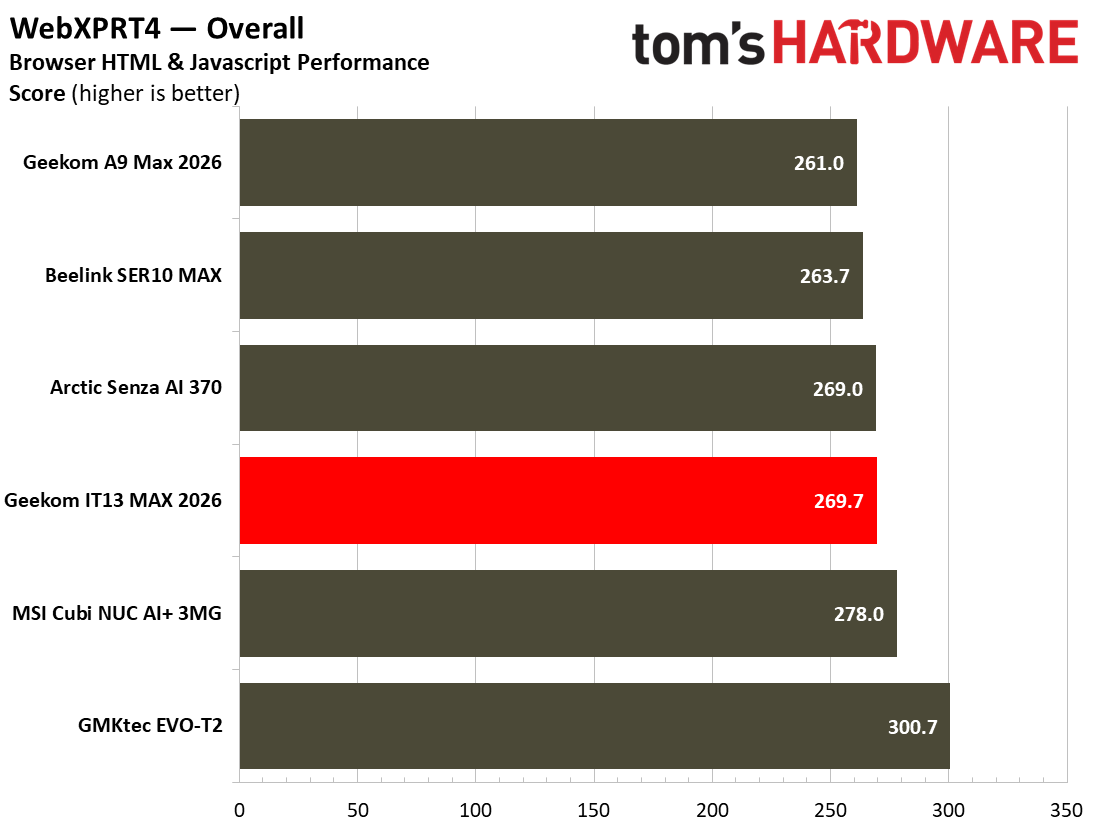
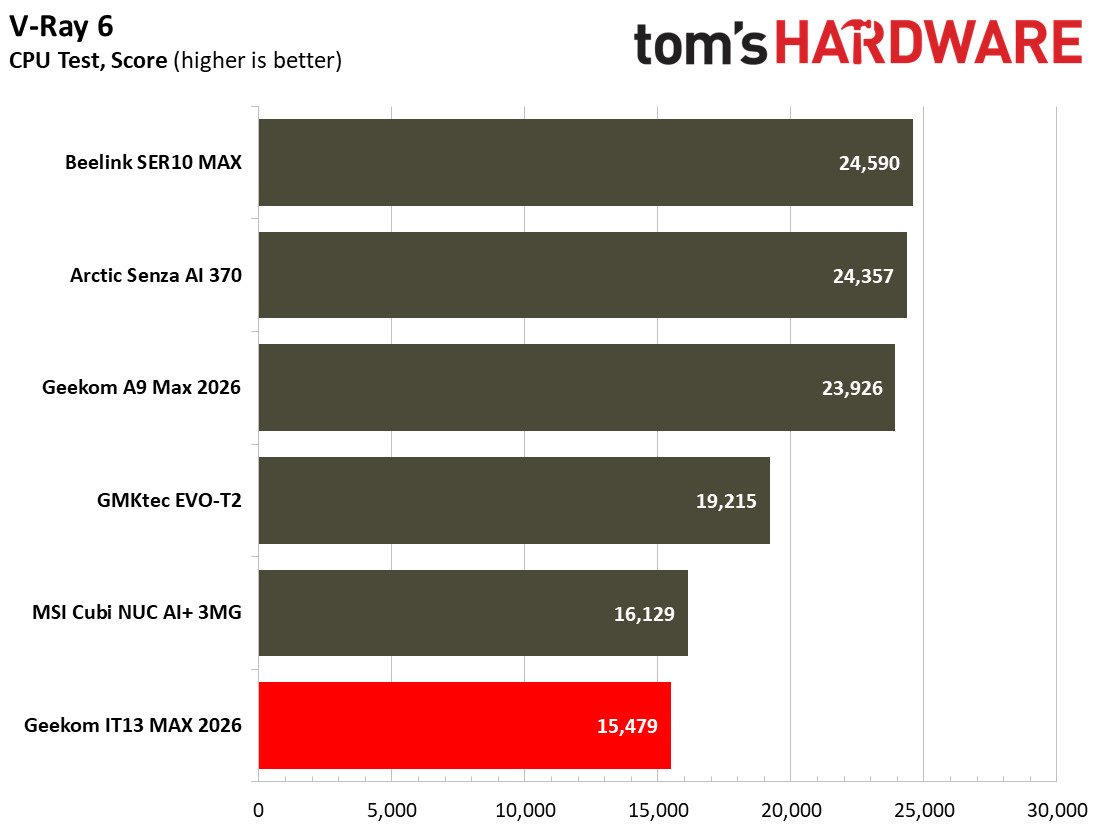
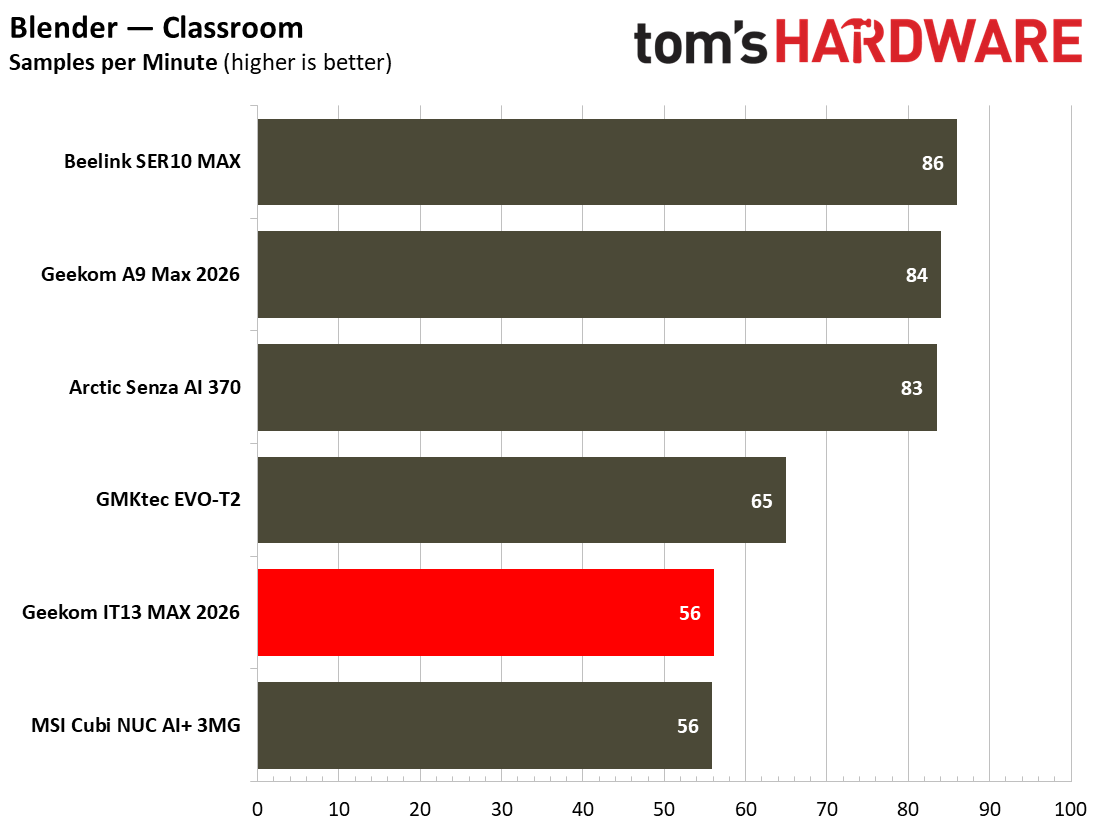
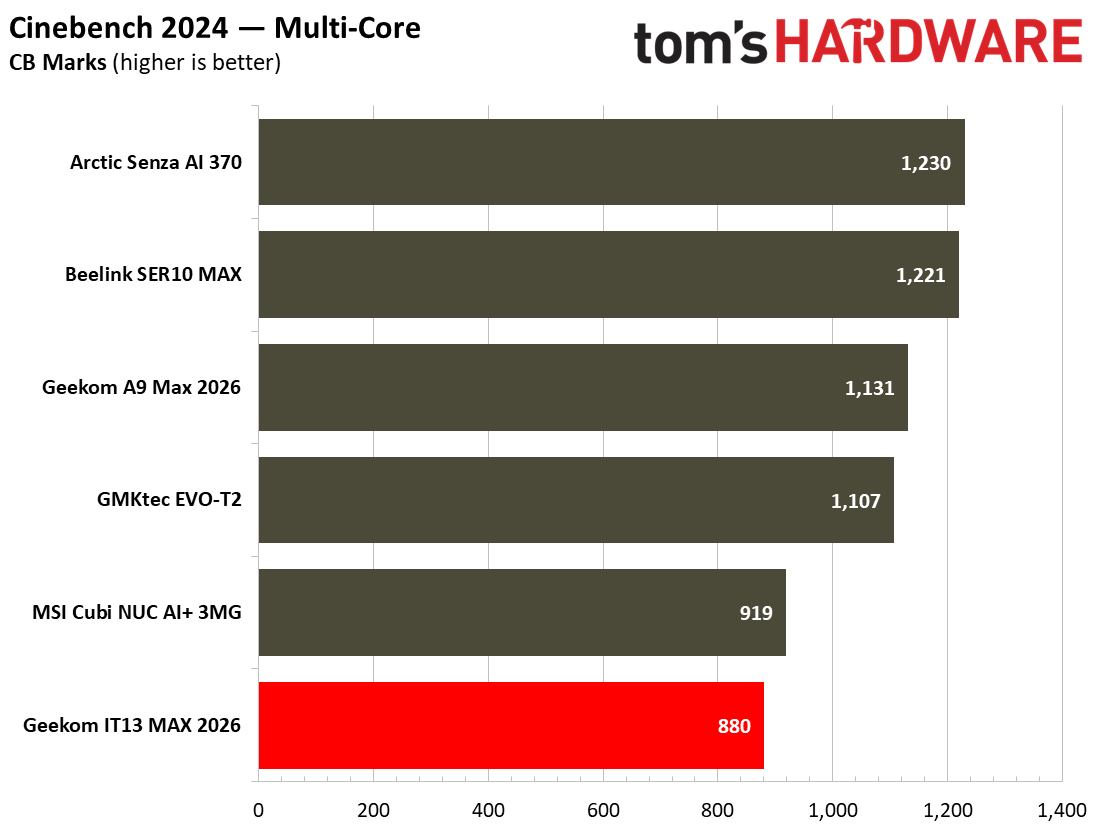
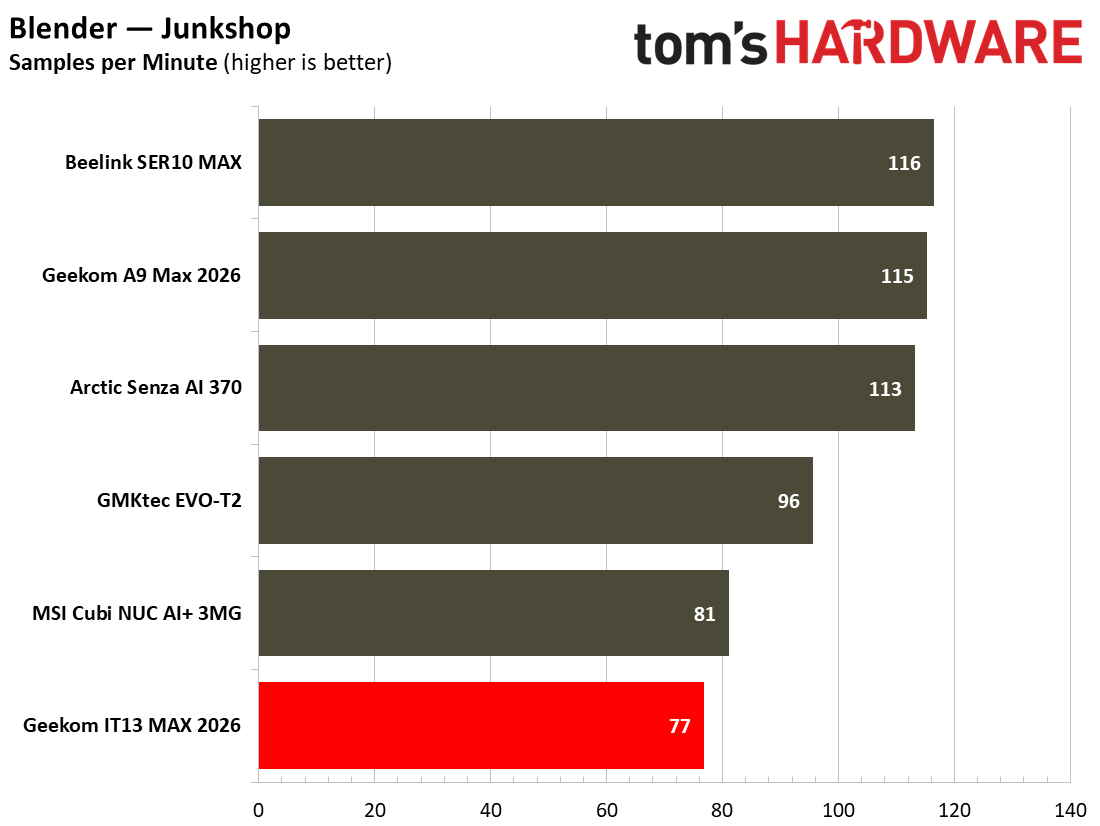
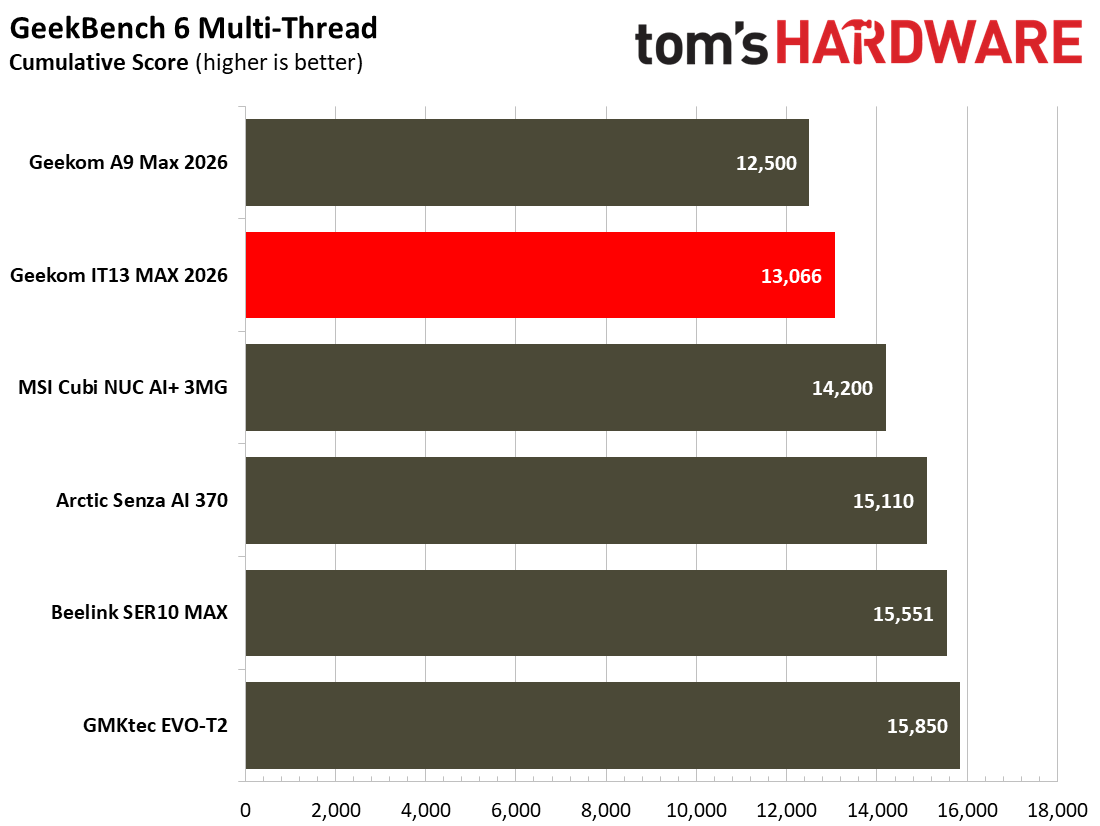
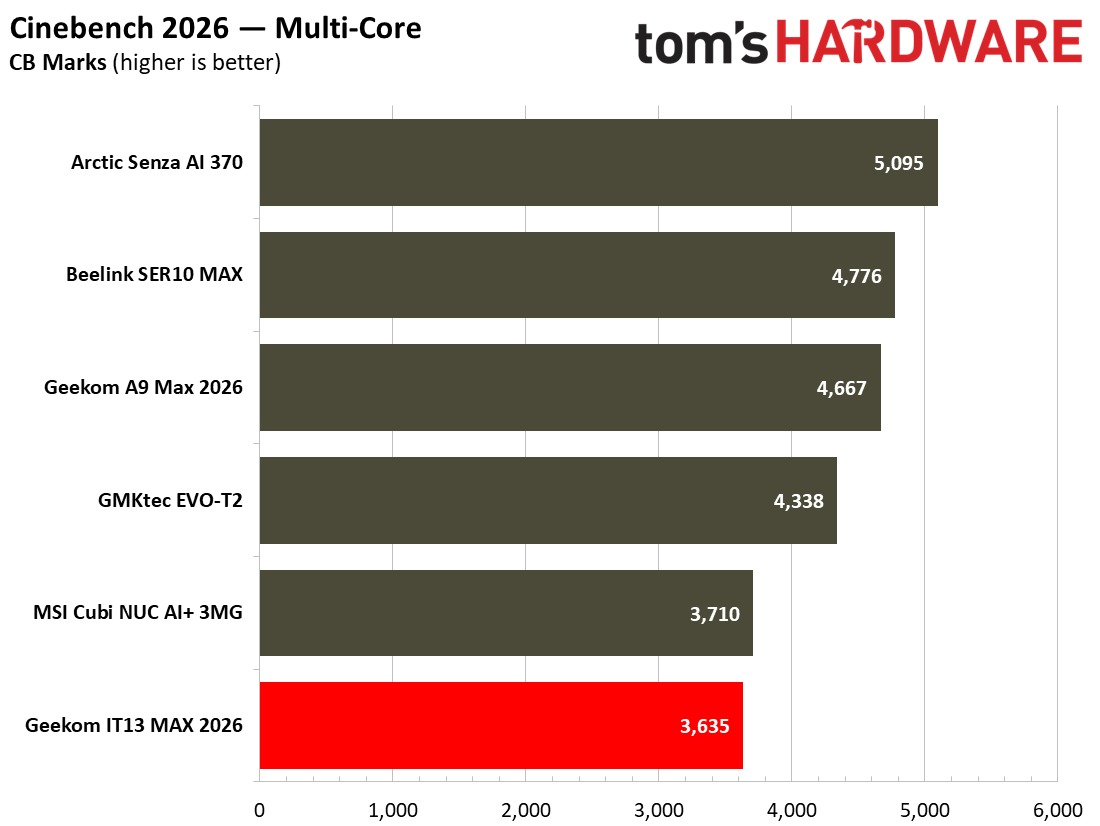
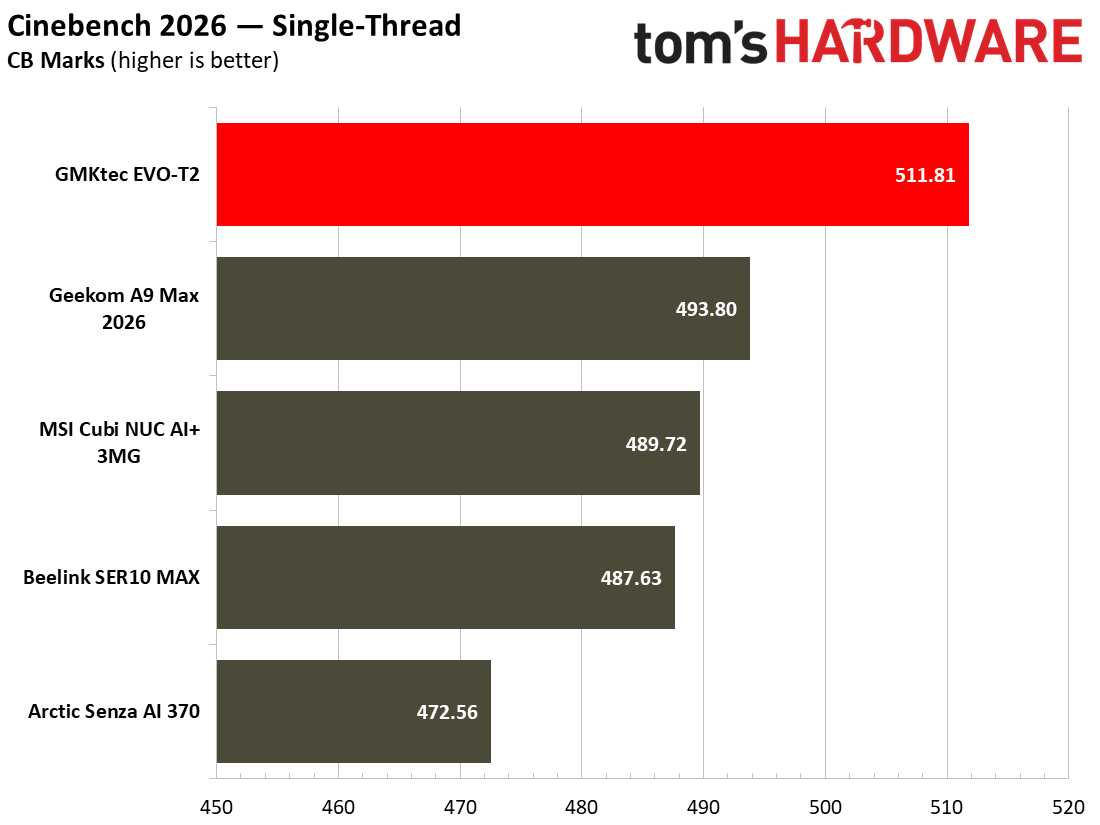
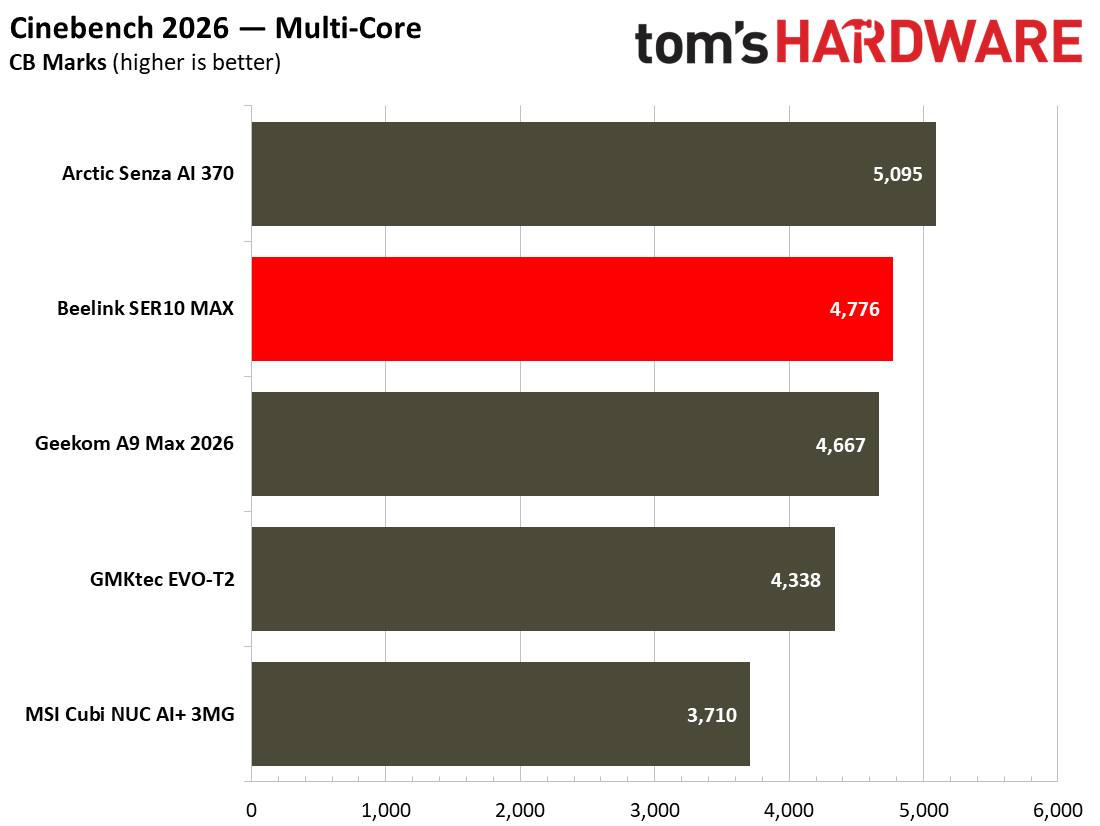
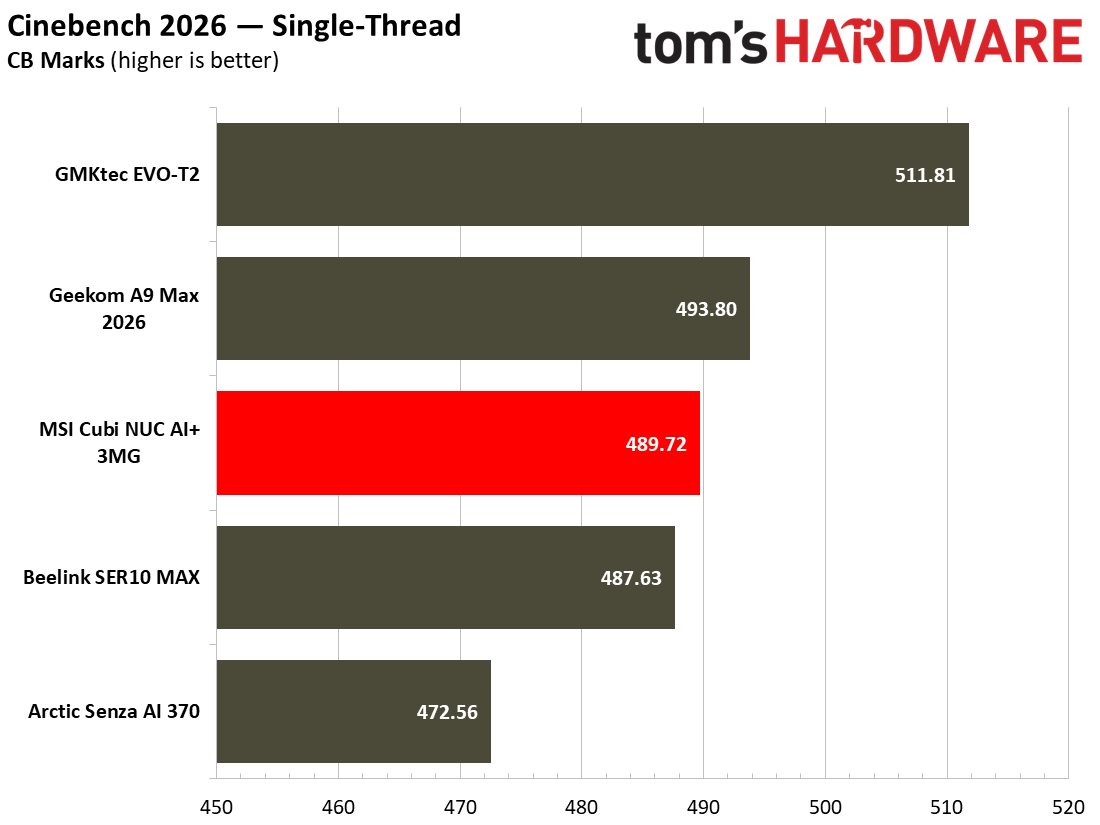
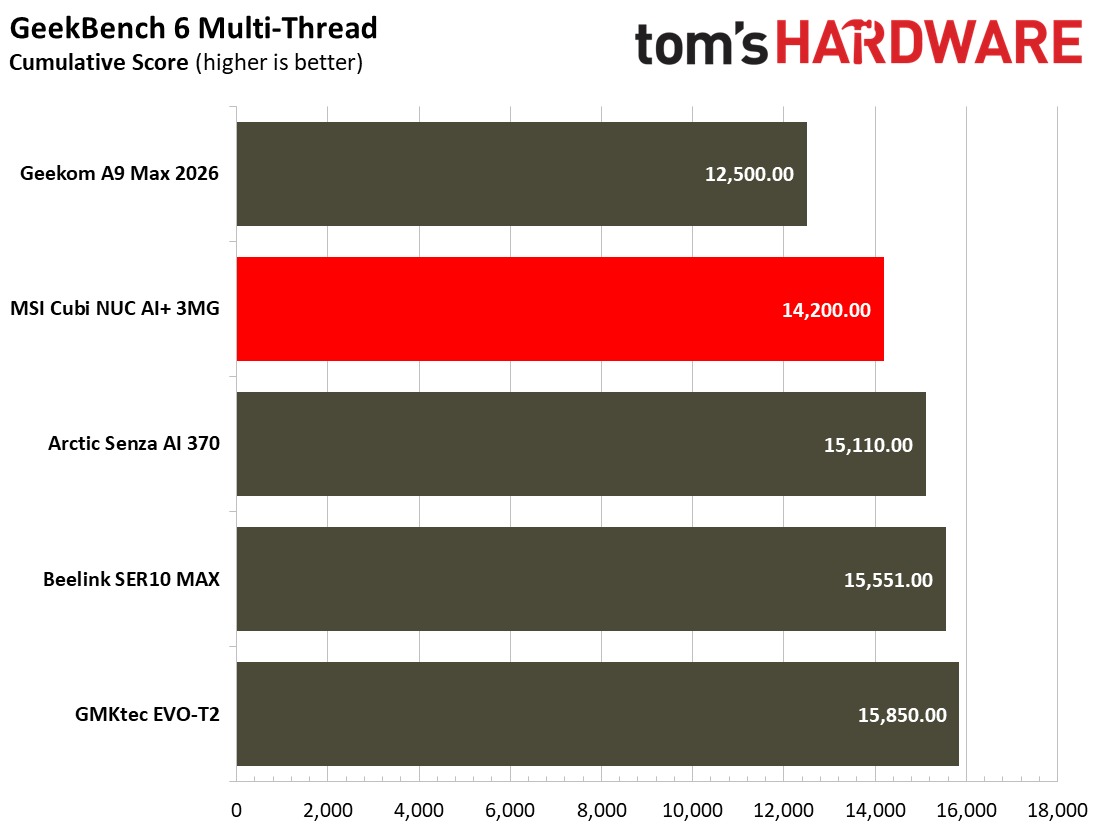
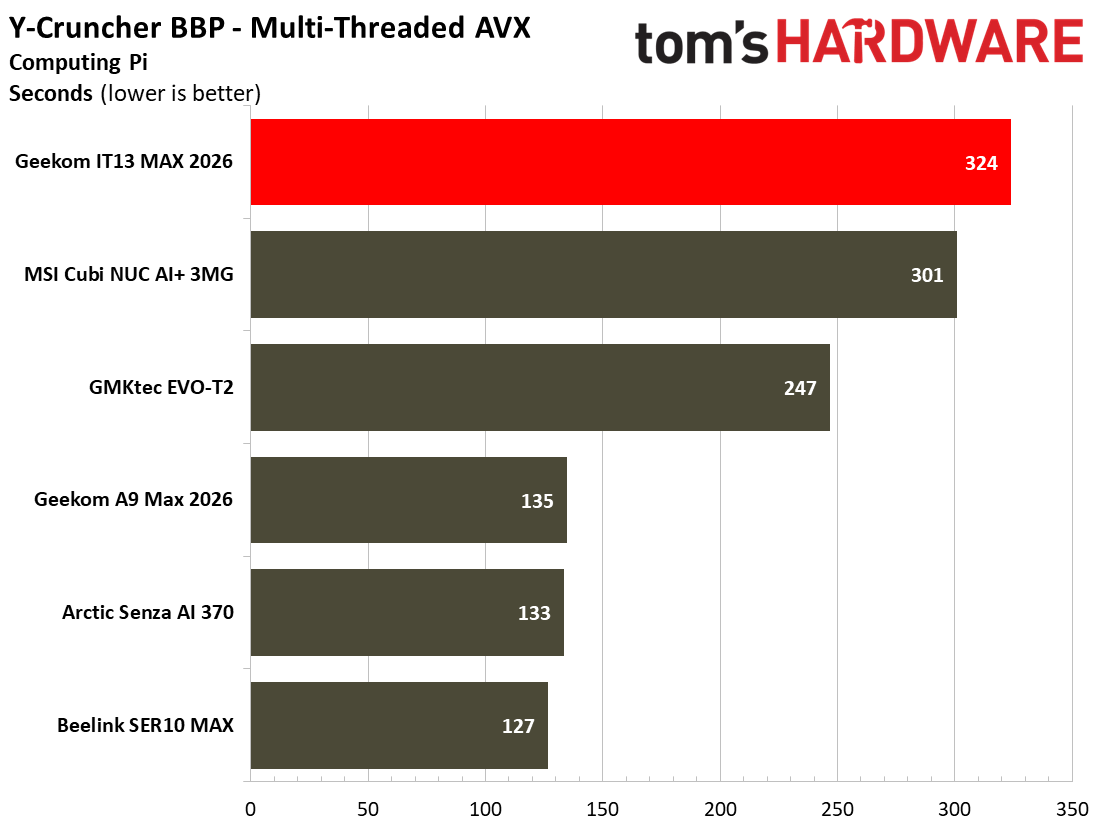
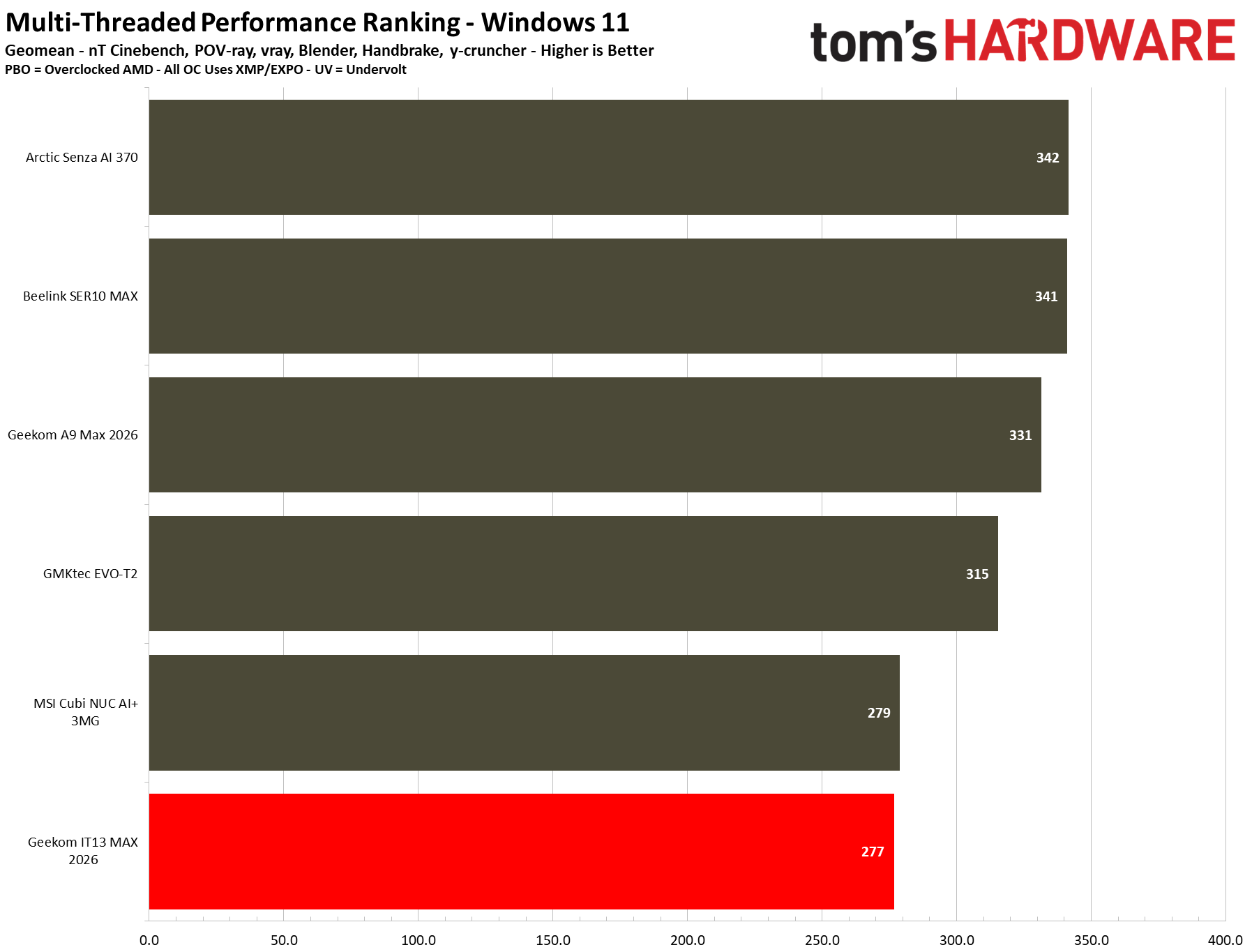
In the comparison charts above, you can see how the IT13 Max squared up to more modern rivals. In Cinebench 2026, Maxon’s current-gen CPU rendering benchmark, the single-thread result of ~450 points does mean that the Meteor Lake machine does trail the pack, but it isn’t a disaster. Turning to the multicore result in the same test, the latest Geekom mini PC with its older “Meteor Lake” chip basically matches the MSI Cubi NUC AI+ 3MG based on Intel “Panther Lake” silicon. Admittedly, the former’s 16C/22T core/thread count and higher power limits lift it against the Intel Core Ultra 9 386H with 16C/16T in the MSI.
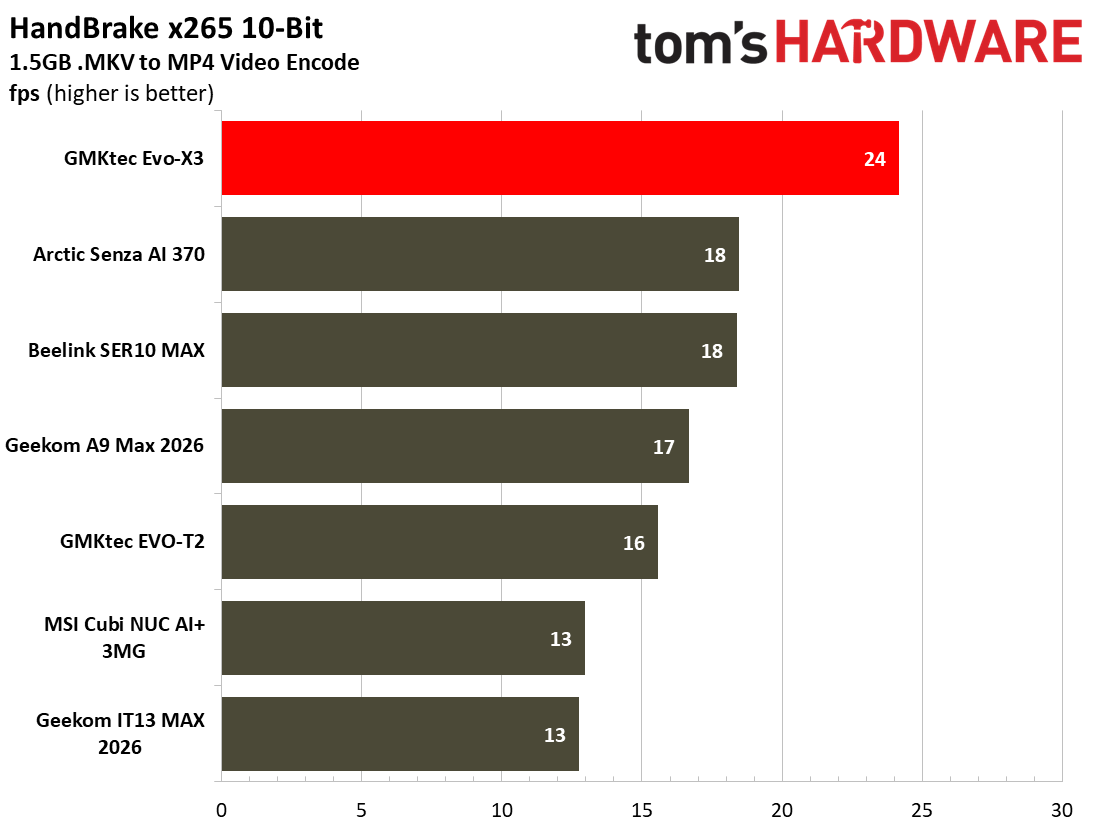
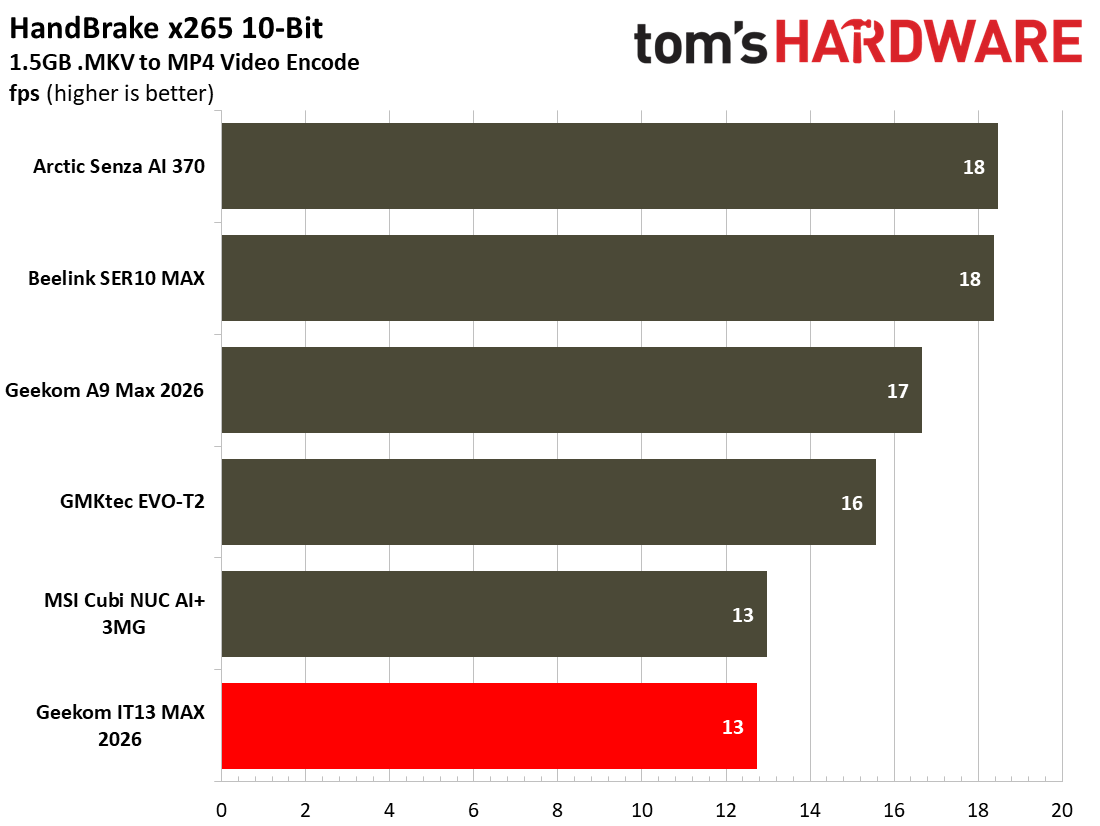
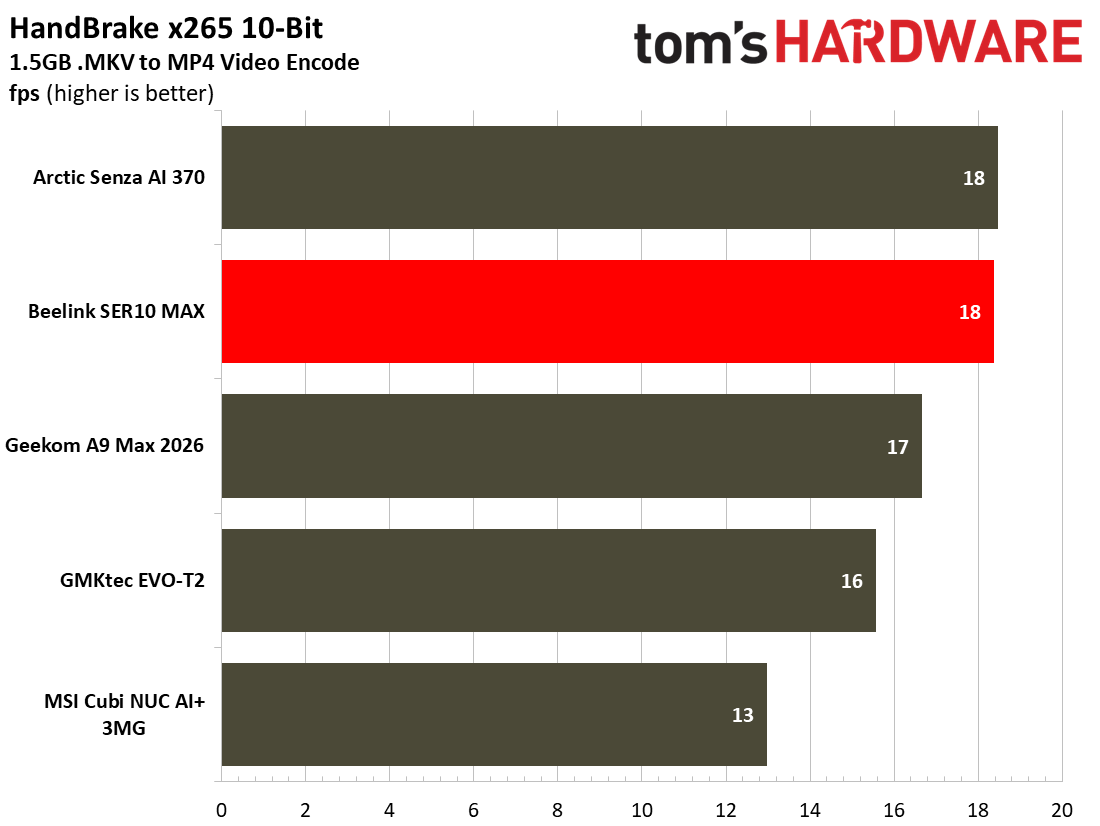
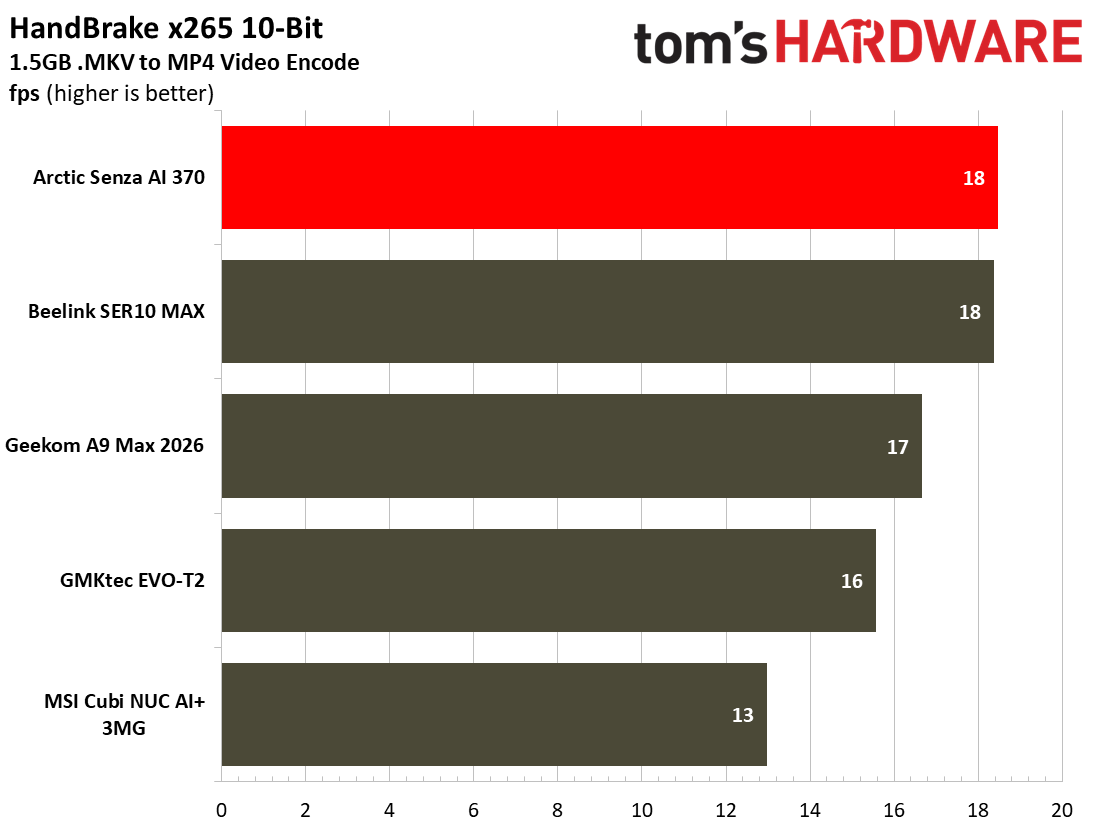
In HandBrake, the Geekom managed 13 frames per second on our standard video transcoding test. That’s neck and neck with the MSI, again, but only with very long videos would you likely notice how it lags behind.
Gaming and Graphics on the Geekom IT13 Max 2026
The Geekom IT13 Max isn't hopeless in gaming, but it sits in the lower portion of our mini PC game benchmark comparison tables. It mostly performs better than the MSI Panther Lake mini PC, again. Not bad for something from two generations prior.
For my traditional spell of gaming fun before serious benchmarking, I decided to go on a quick adventure in Borderlands GOTY Enhanced (2019). The game ran at an average of about 80 frames per second when using the High preset at 1080p. I didn’t have any problem with frame rates mostly in the 80s, periodic dips in the frame chart looked worse than they actually felt during the game. It is definitely an older game now, and while the iGPU ran at close to its max utilization on my uncapped frame rate run, the CPU was barely burdened.
Tom's HardwareTom's Hardware
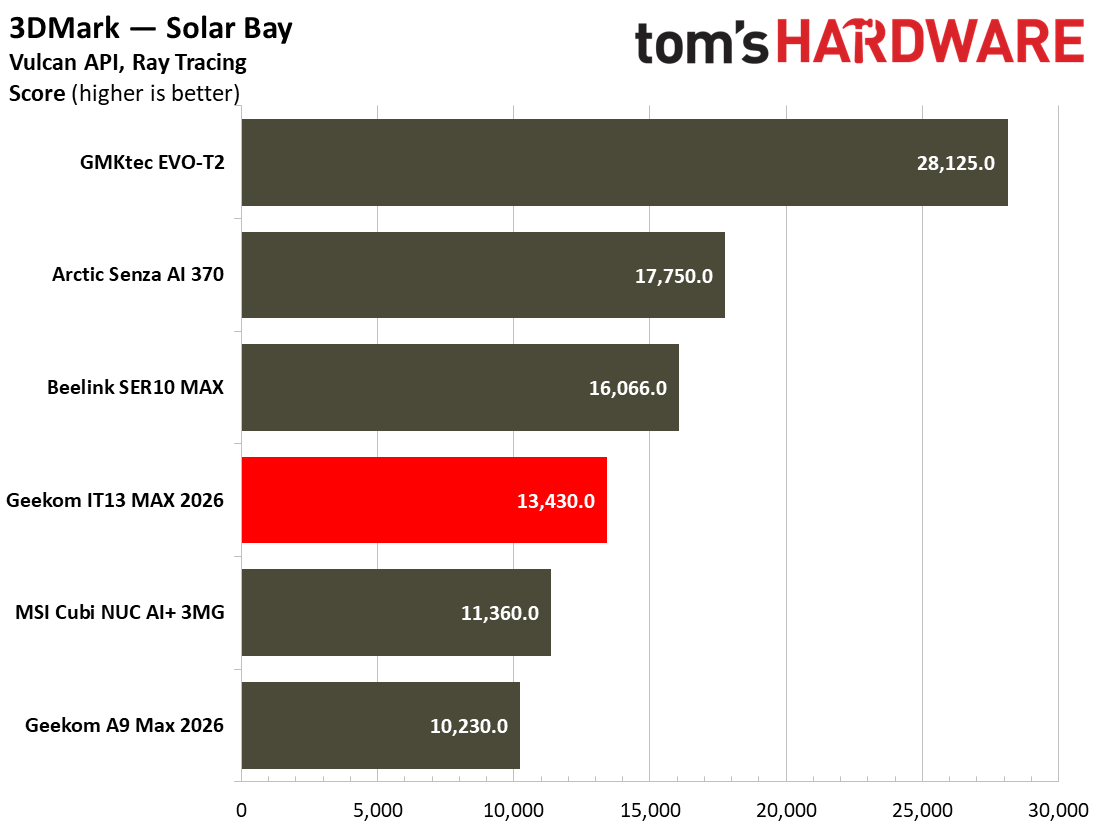
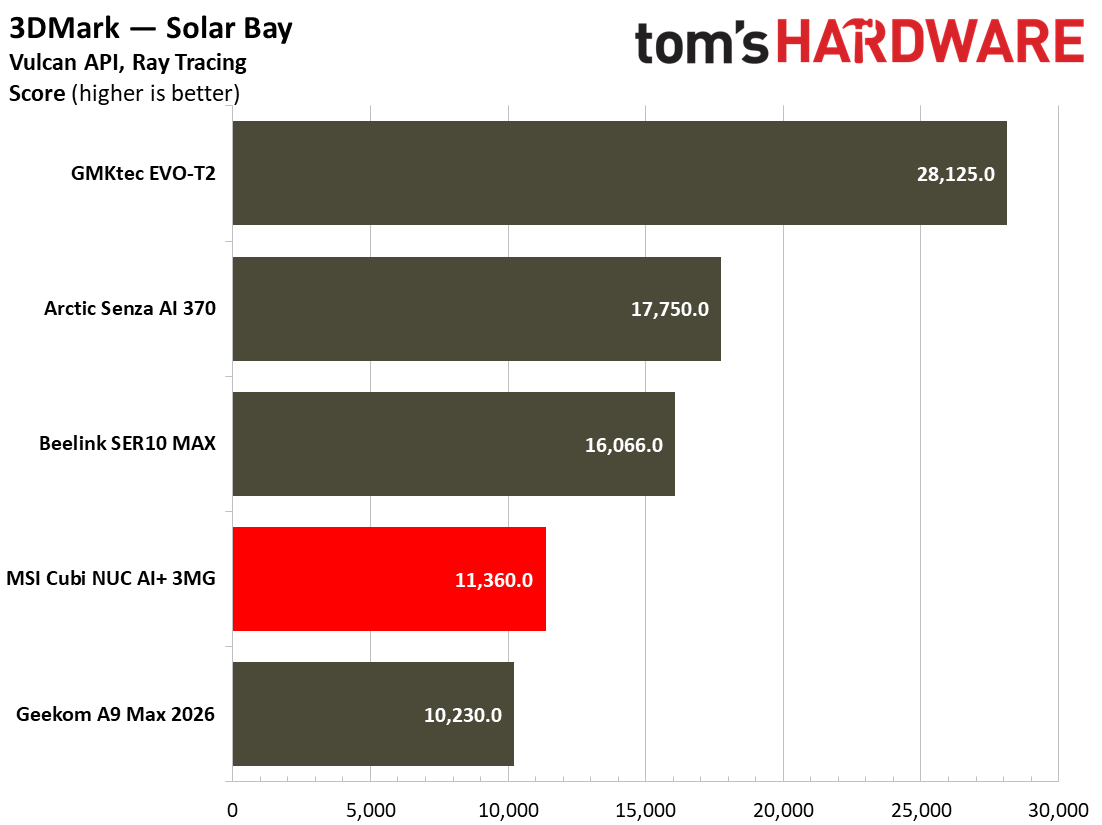
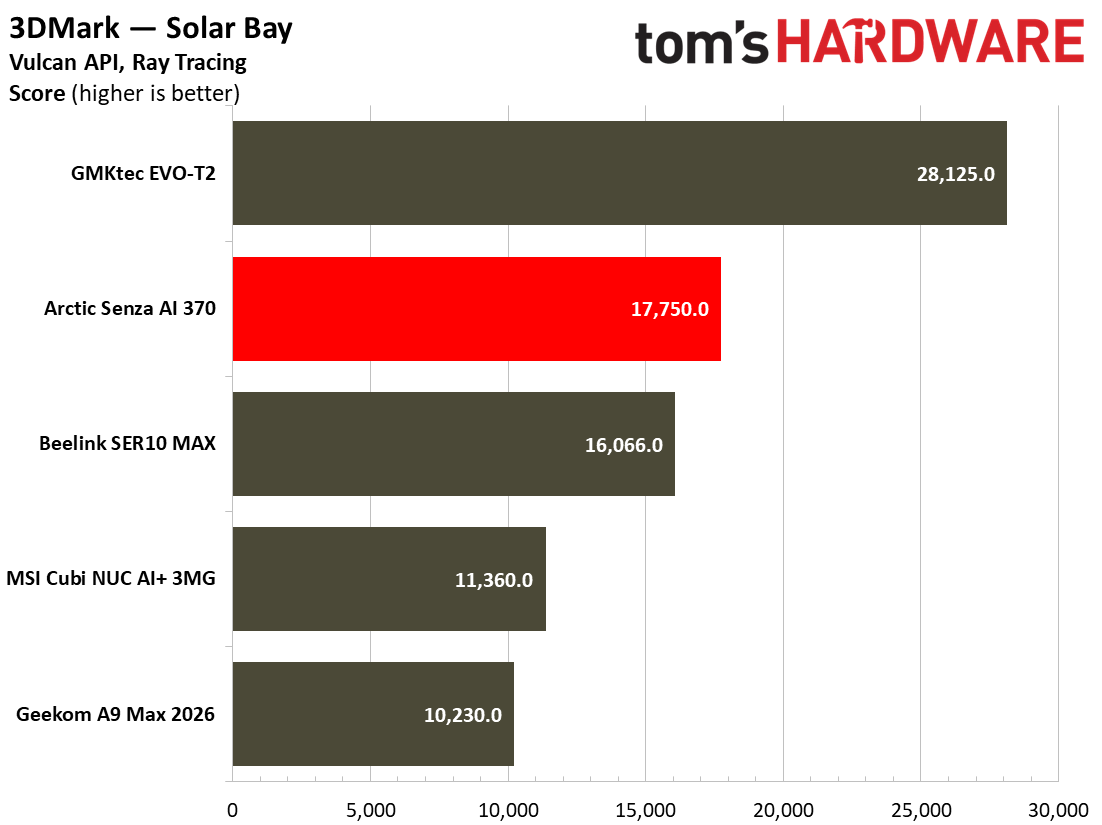
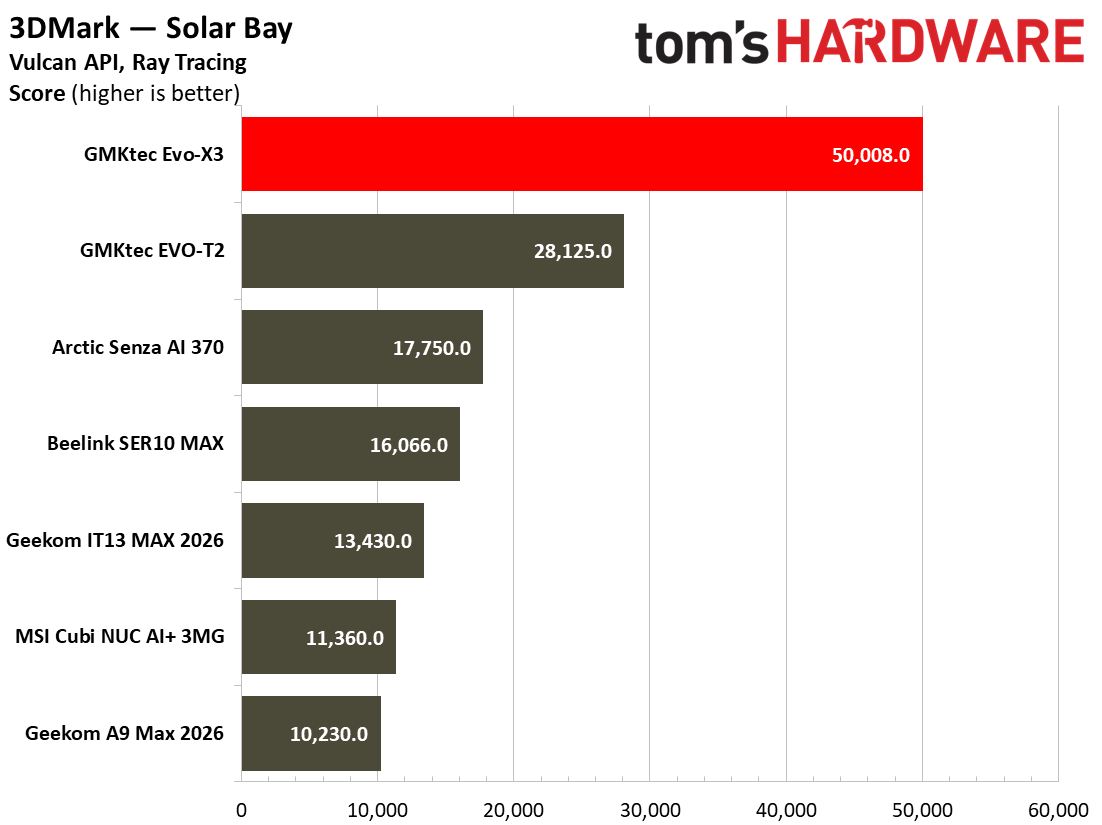
I also ran a few synthetic gaming benchmarks, a trio of 3DMark tests. One of those was the cross-platform 3DMark Solar Bay, which is well-weighted for iGPU performance comparisons, delivering playable frame rates on this type of graphics hardware.
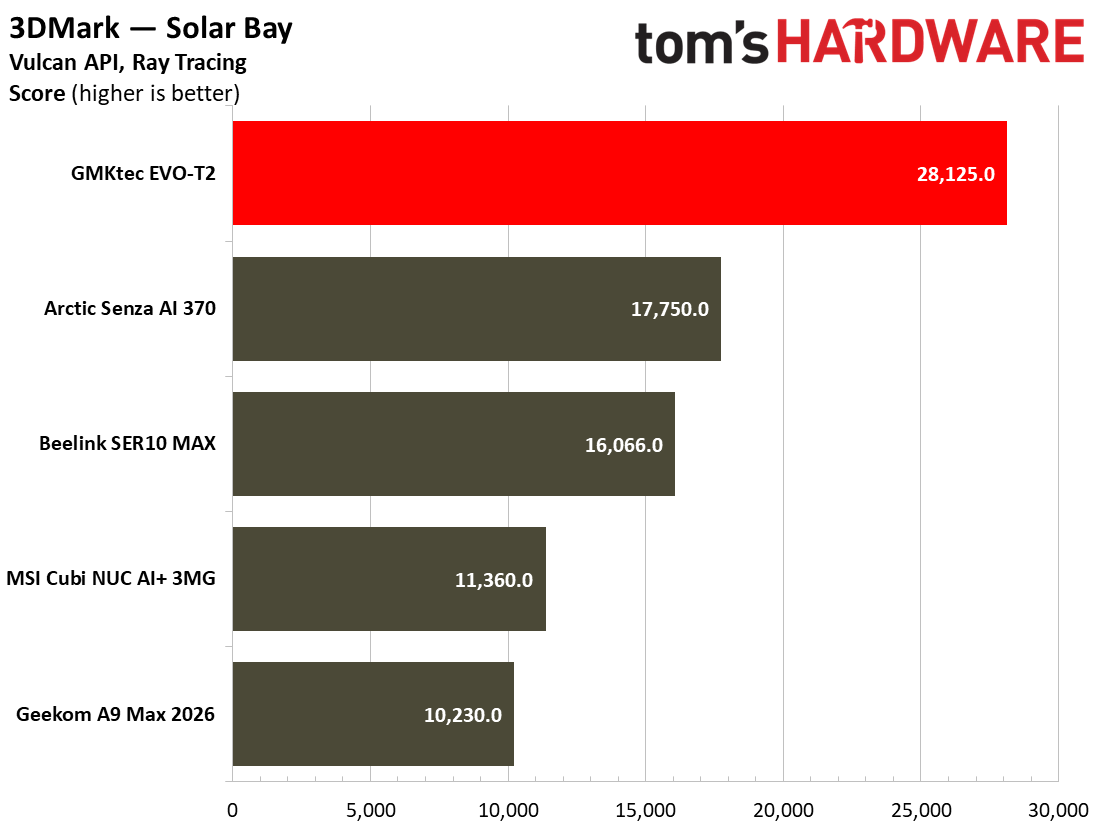
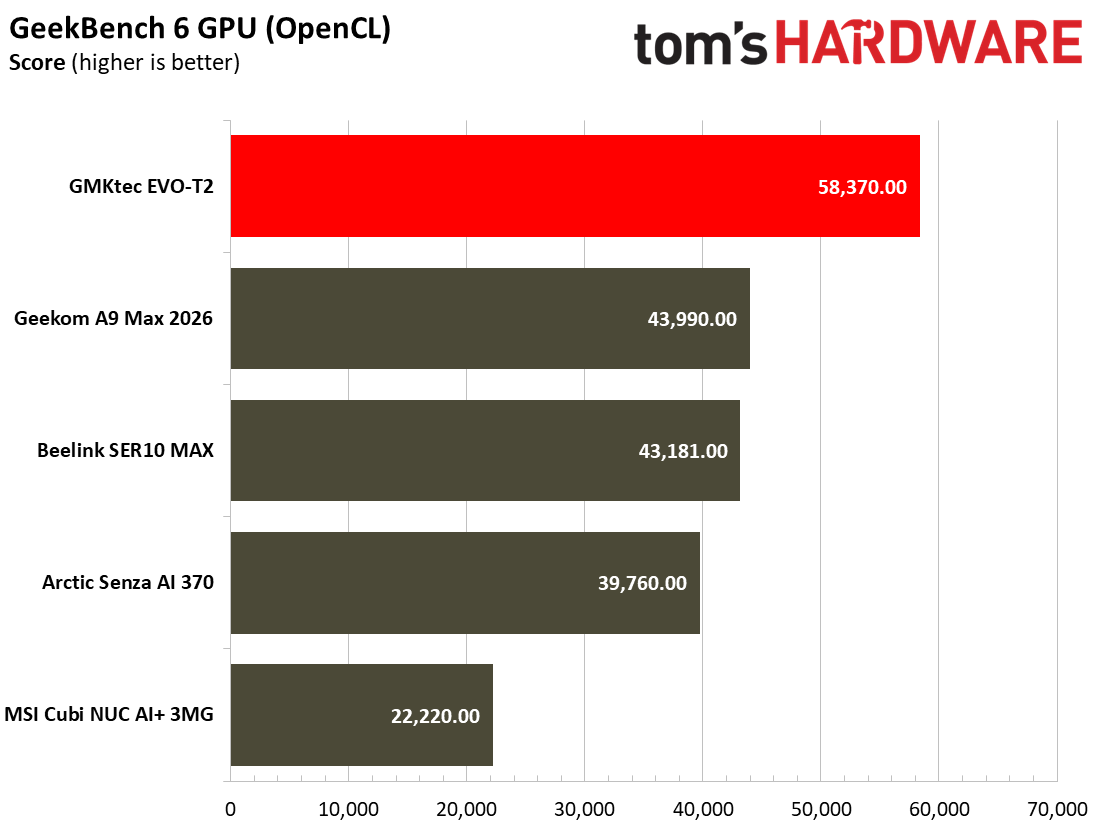
The Geekom IT13 Max 2026 earned a score of 13,430 in this test. The Meteor Lake mini PC’s score (with eight Xe-LPG) cores is about 18% faster than the newer Panther Lake rival (with four Xe3-LPG cores). Both of them, and the AMD Ryzen AI mini PCs we have tested crumble in comparison with the GMKtec Evo-T2 with the best Panther Lake iGPU, the 12 Xe3-LPG core B390.
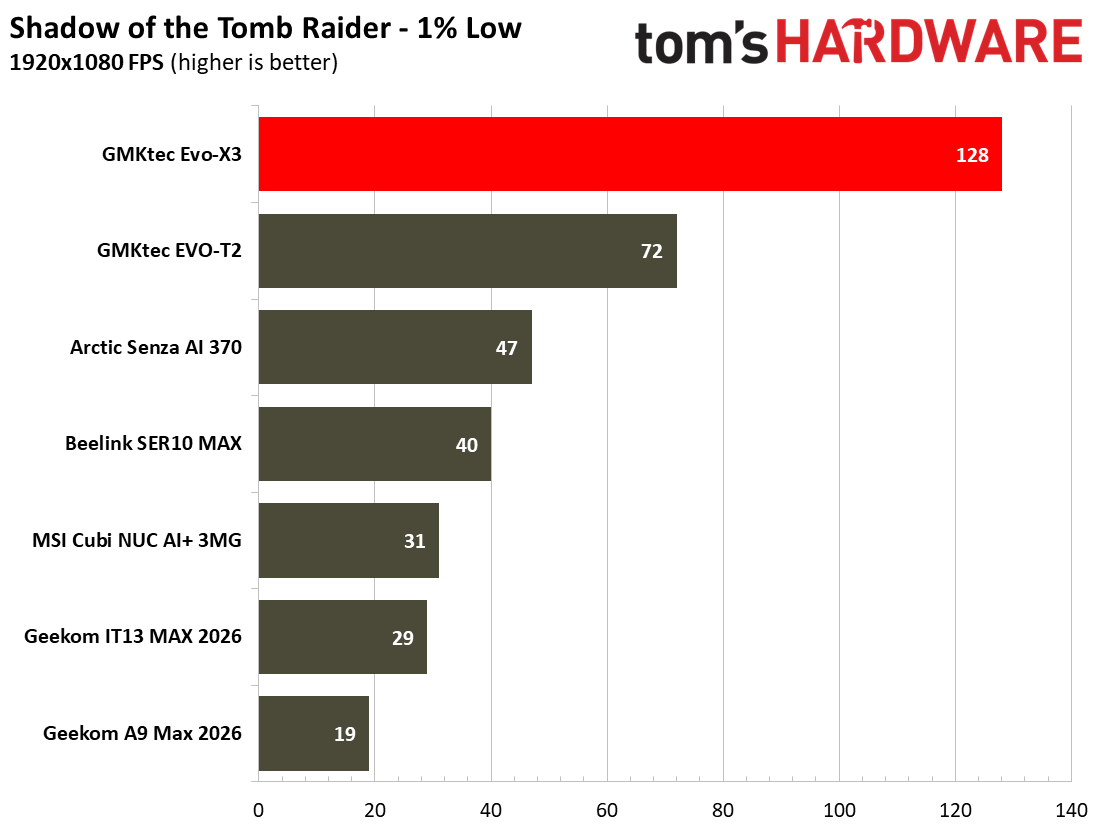
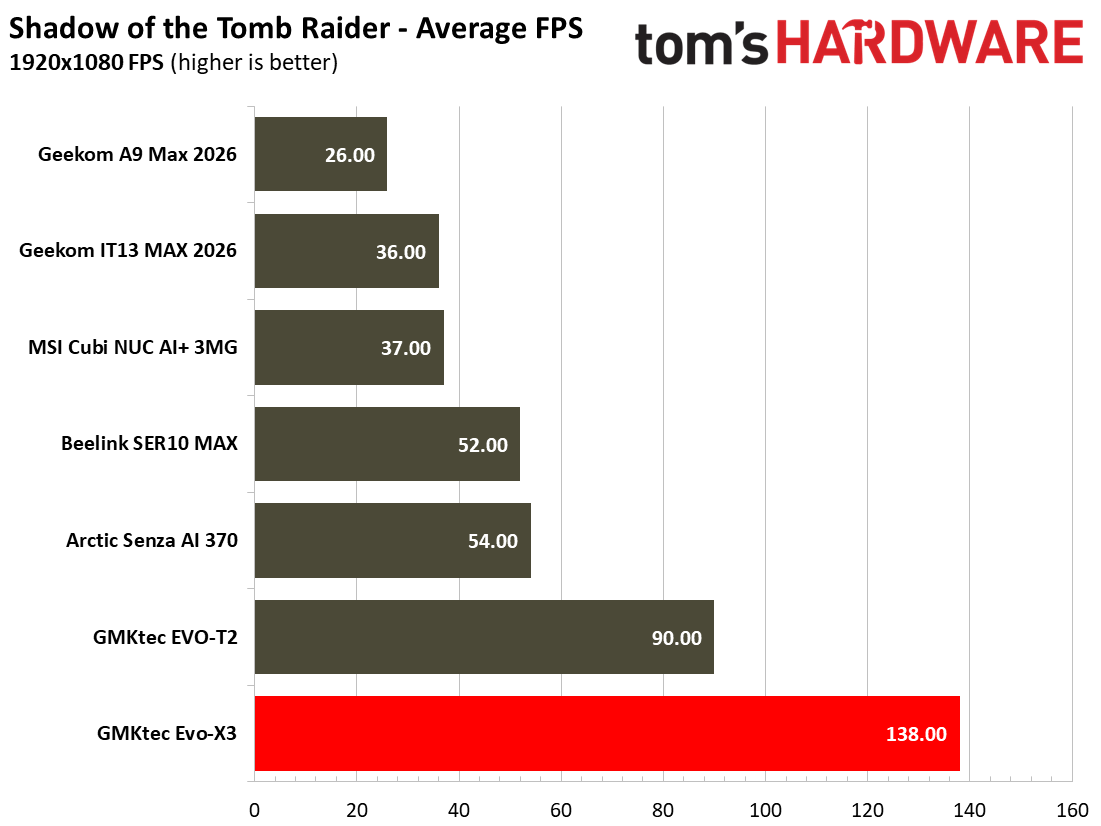
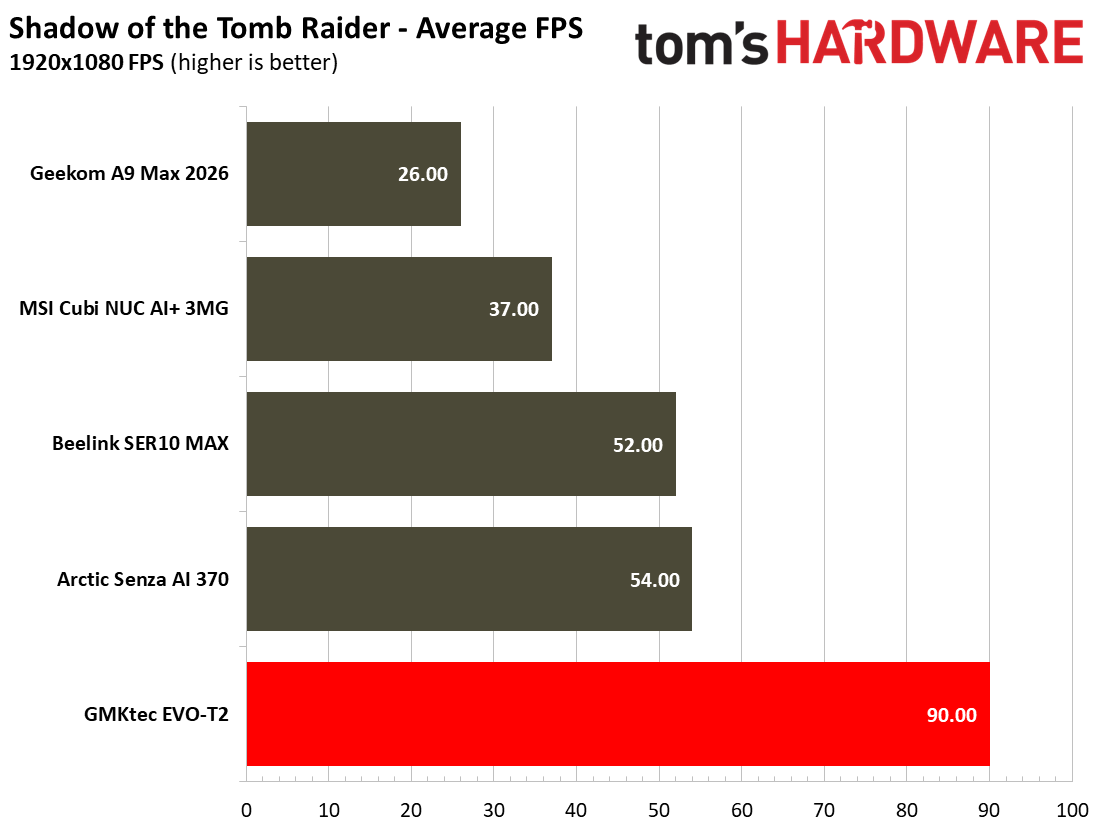
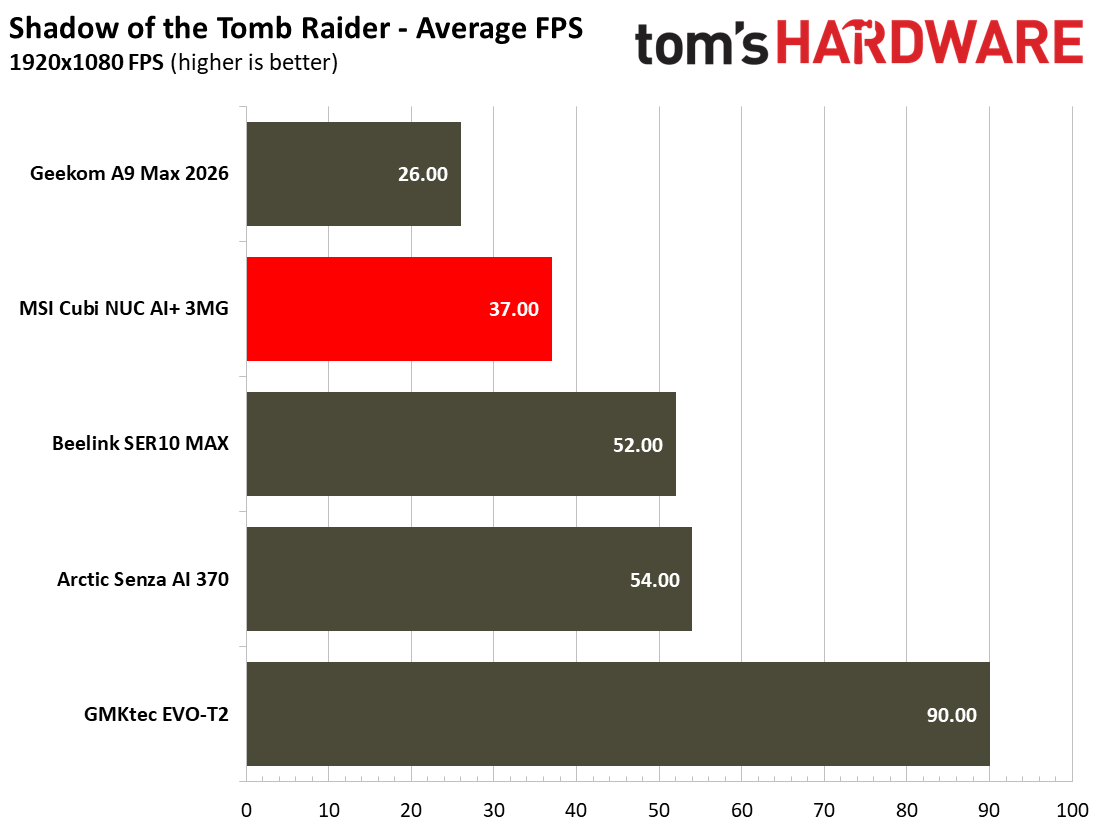
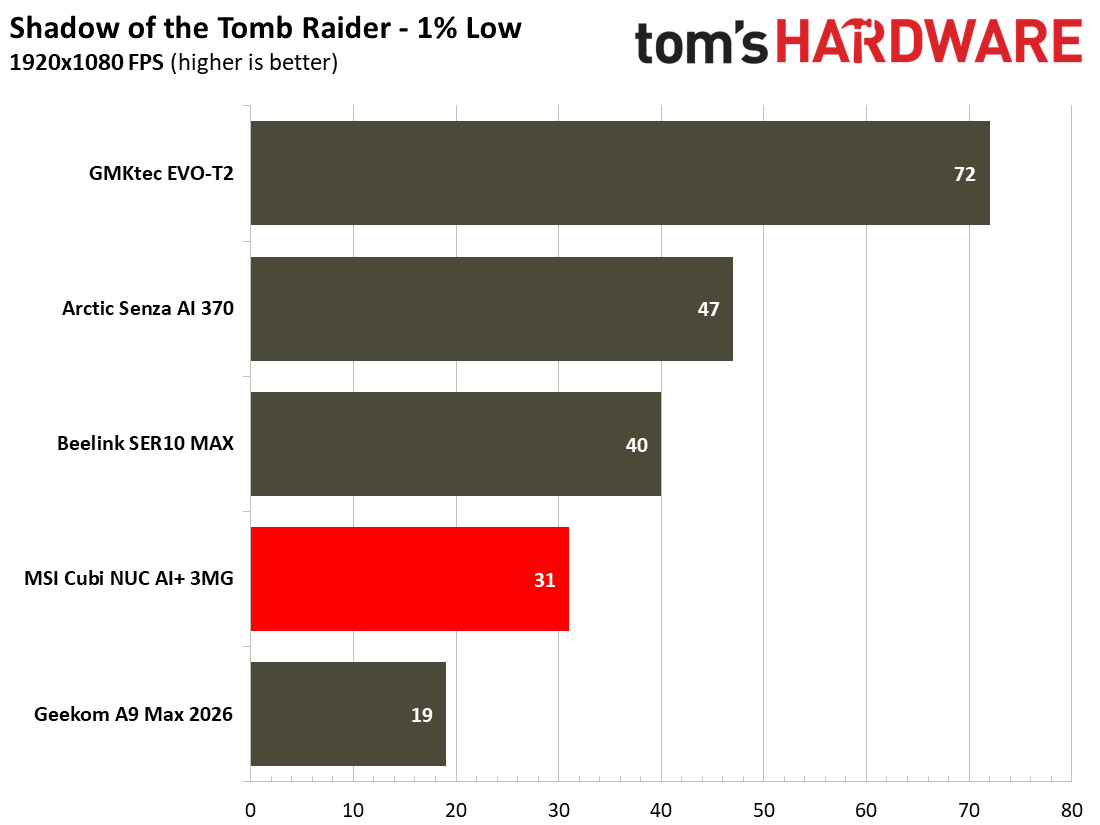
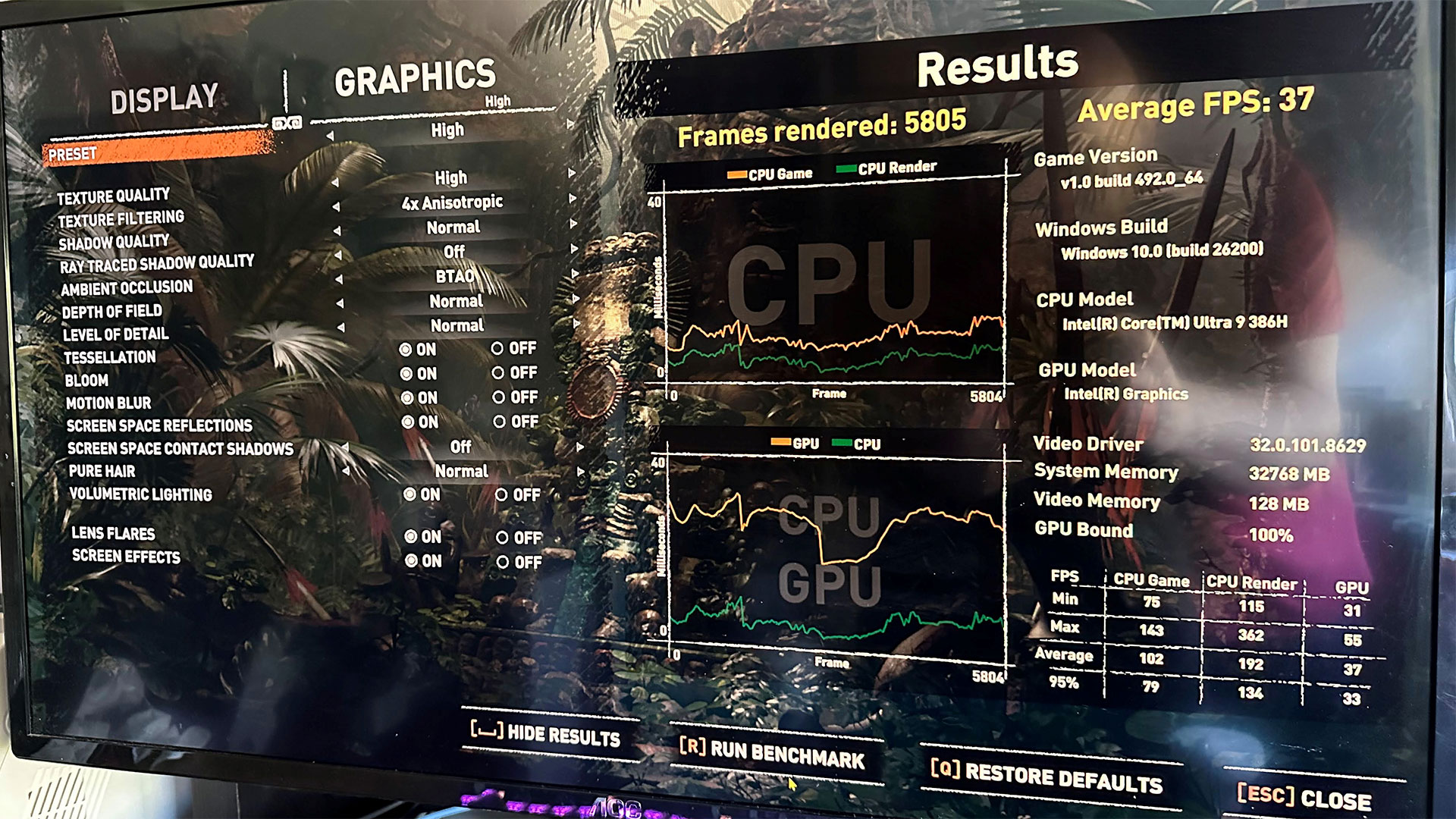
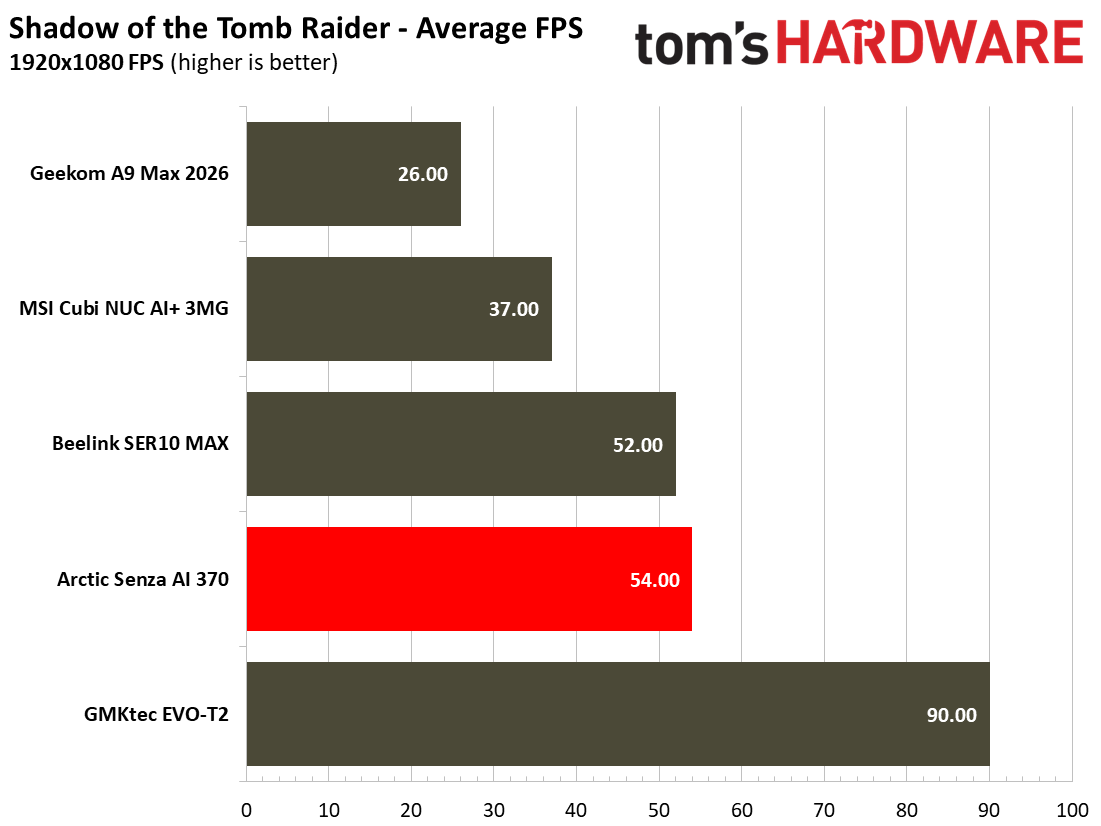
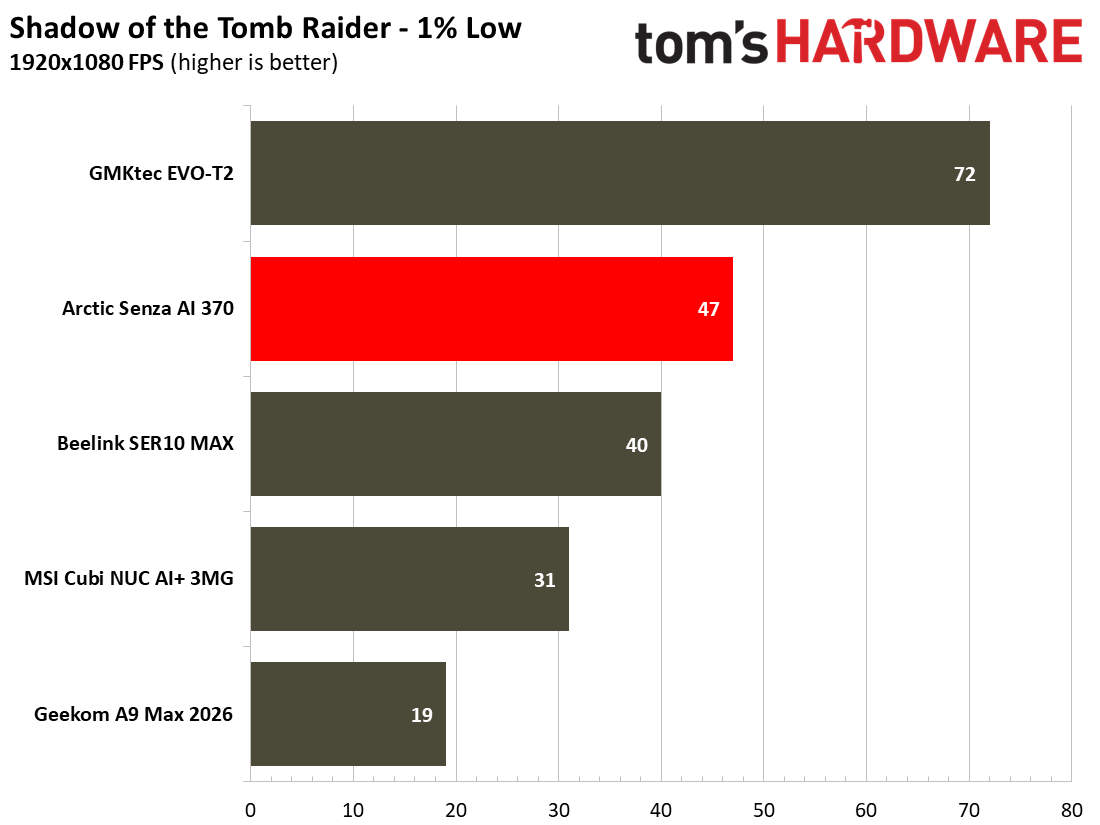
Moving onto some popular AAA gaming titles, I next checked how Shadow of the Tomb Raider performed on the Geekom. Its average of 37 and minimum of 29 frames per second put it once more very squarely in the same territory as the MSI Cubi NUC AI+ 3MG mini PC.
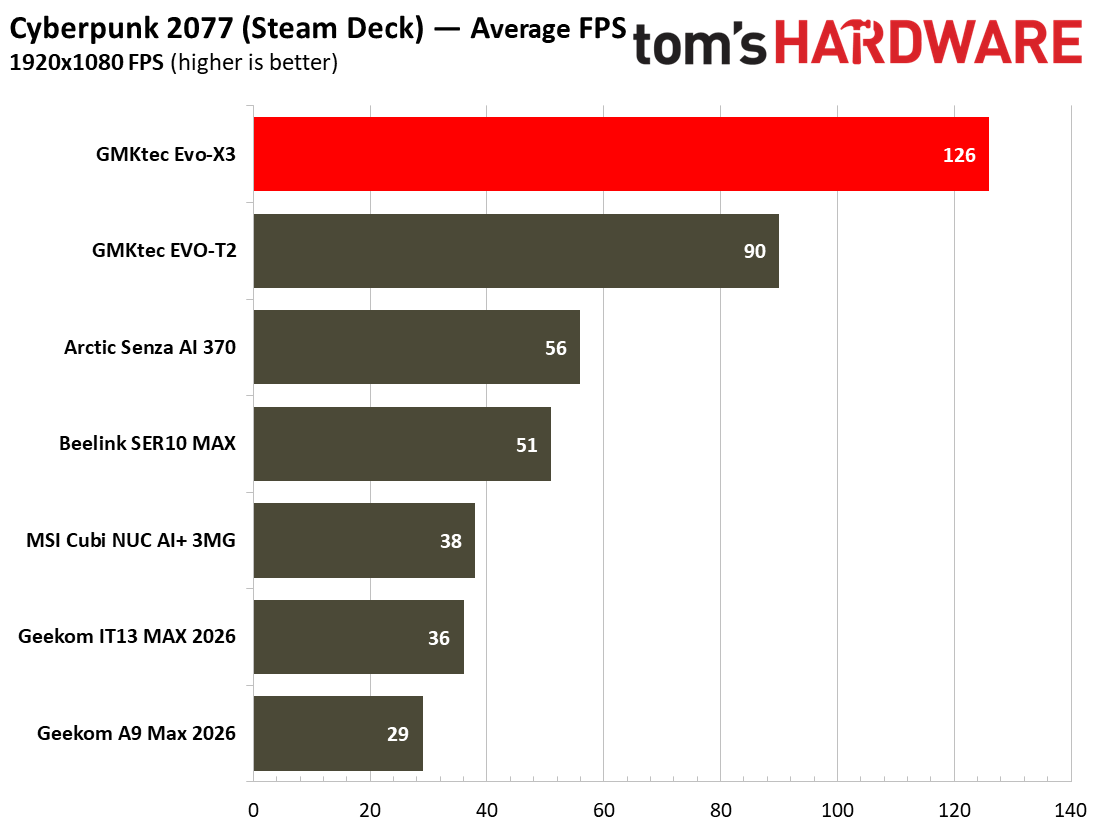
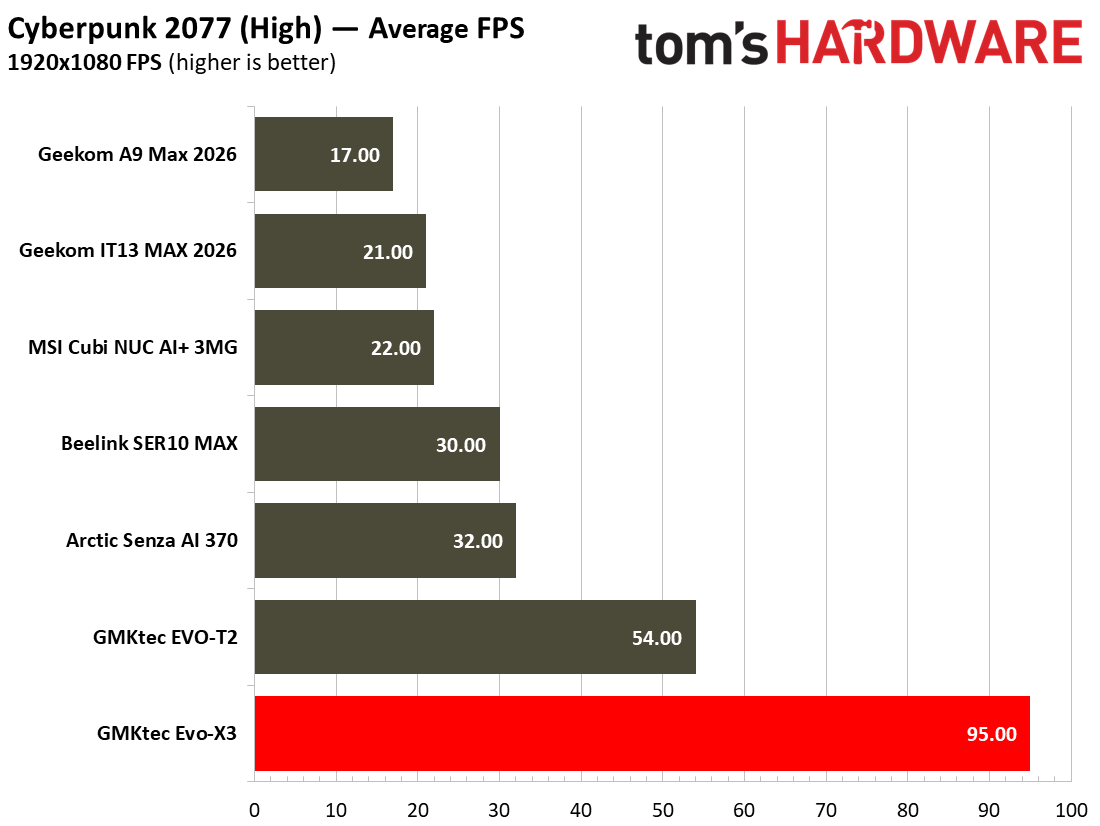
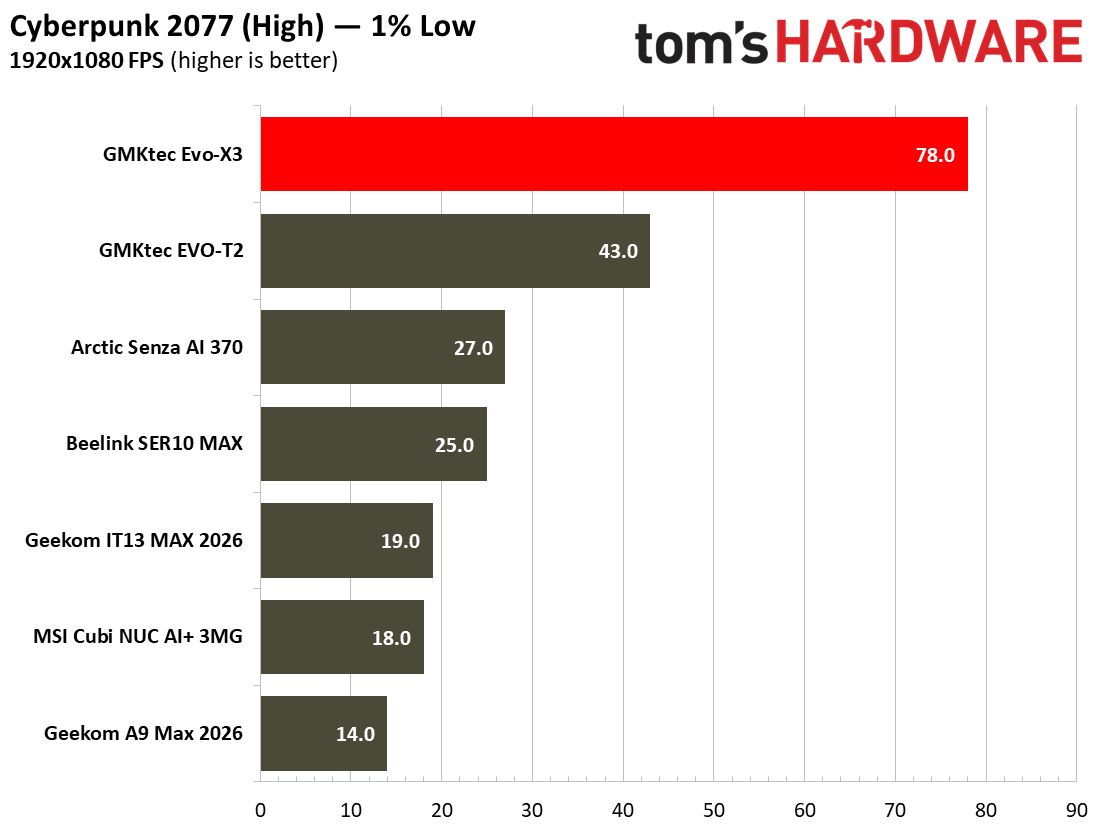
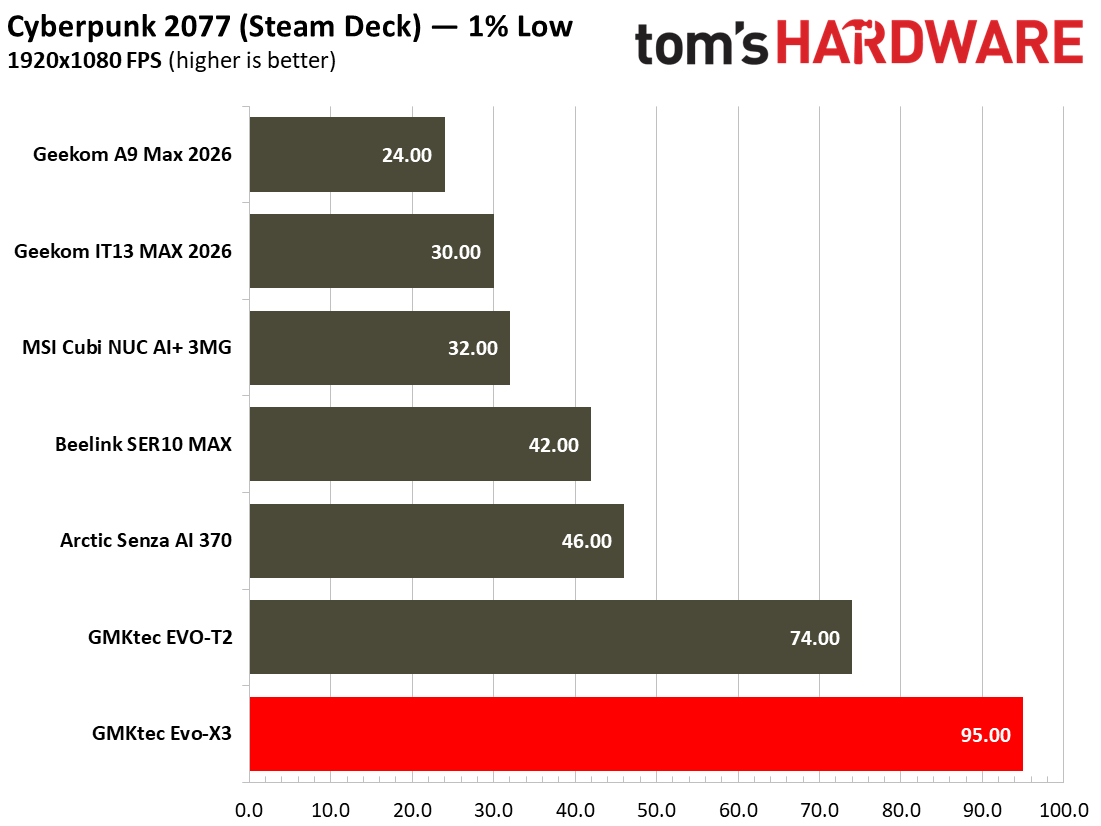
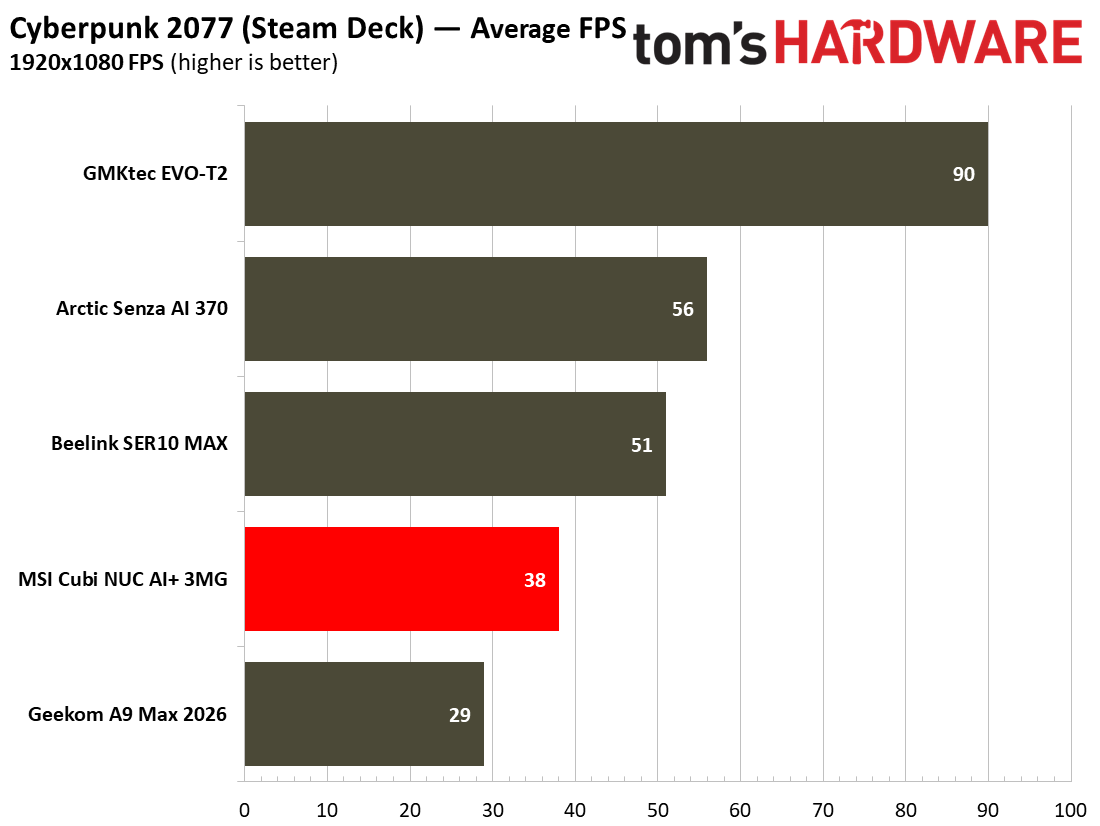
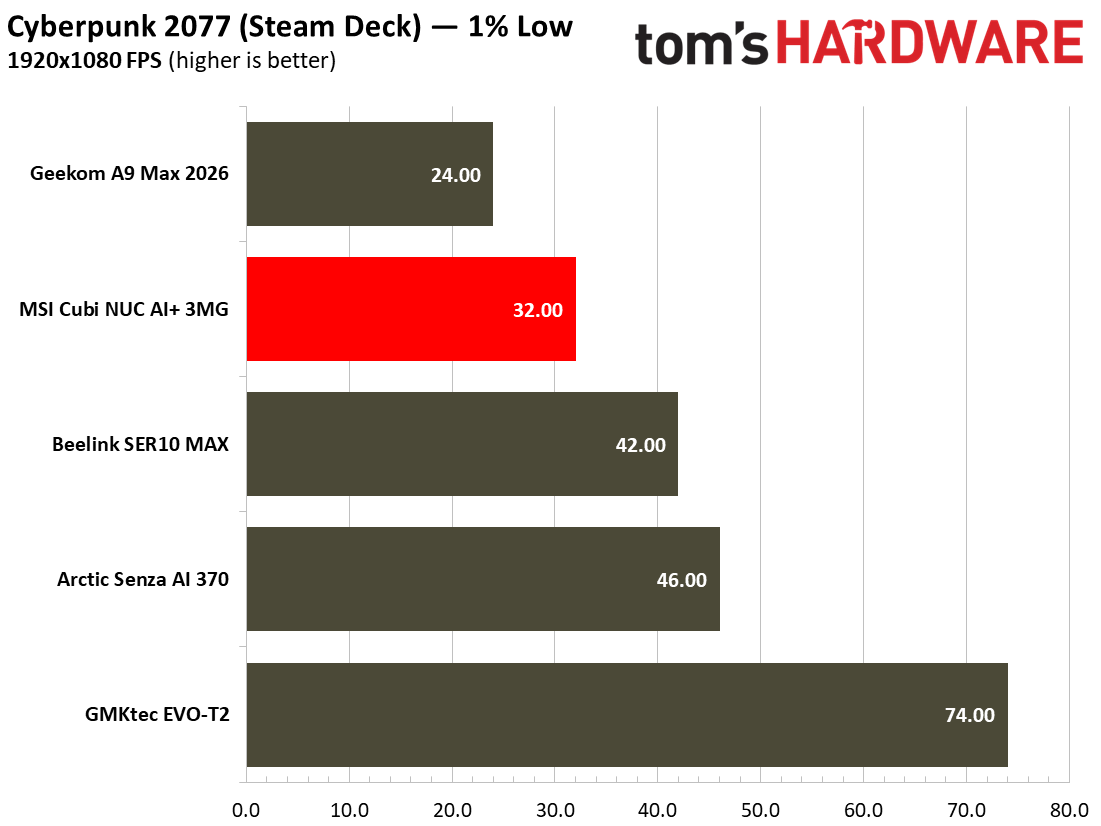
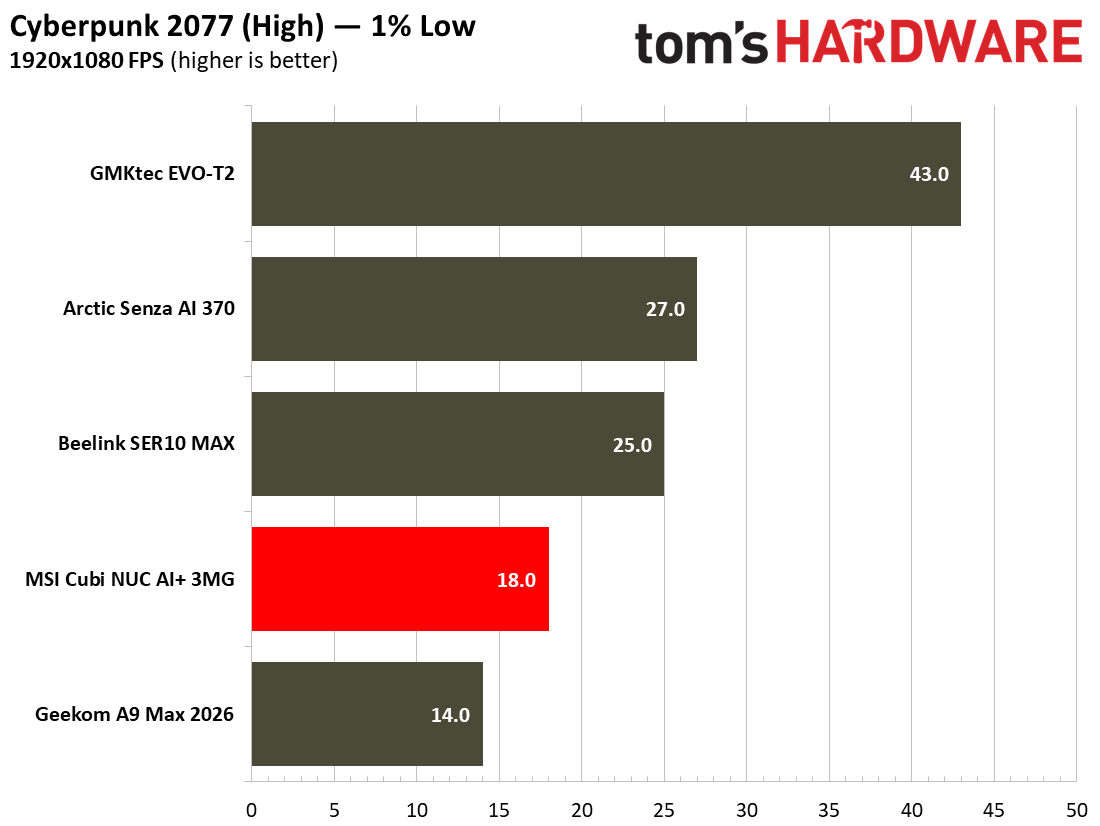
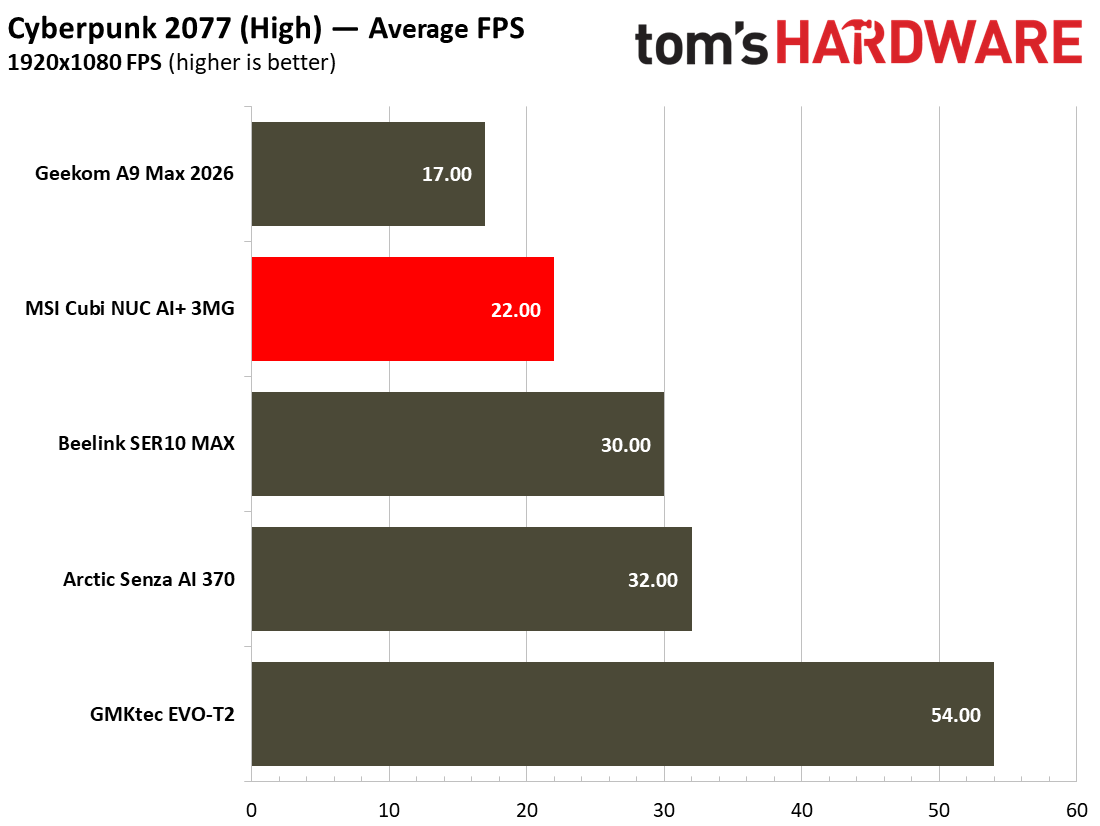
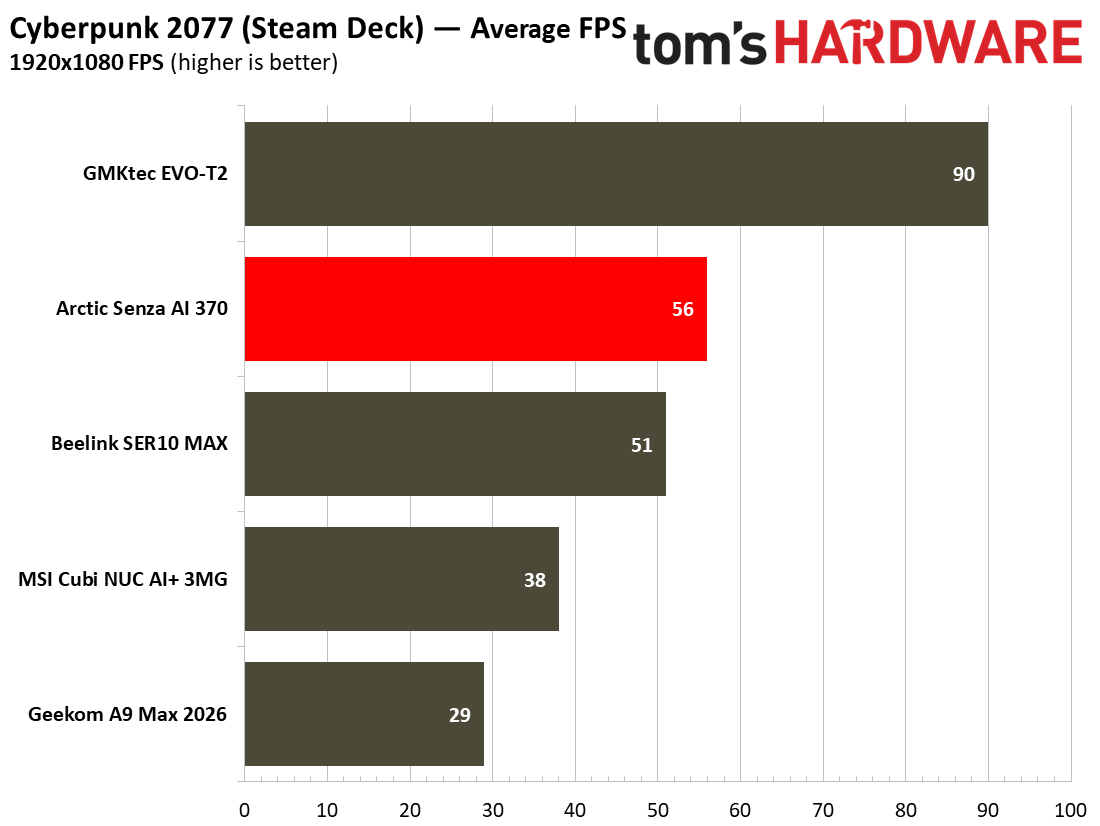
Cyberpunk 2077 was technically playable using the Steam Deck 1080p preset that we have been using for mini PC comparisons. Its average and 1% low results were 36 and 30 frames per second, respectively. Very slightly behind the Cubi NUC AI+ 3MG this time by both those metrics. Running Cyberpunk 2077 at 1080p using the high preset (no upscaling tech) is not recommended, as the IT13 Max achieved an average of 21 frames per second.
The overall picture that emerged was that the Geekom IT13 Max 2026 isn’t bad at modern gaming with low-ish settings, with upscaling if available, but is more suited to lighter and older titles.
Power, Heat, and Noise when using the Geekom IT13 Max 2026
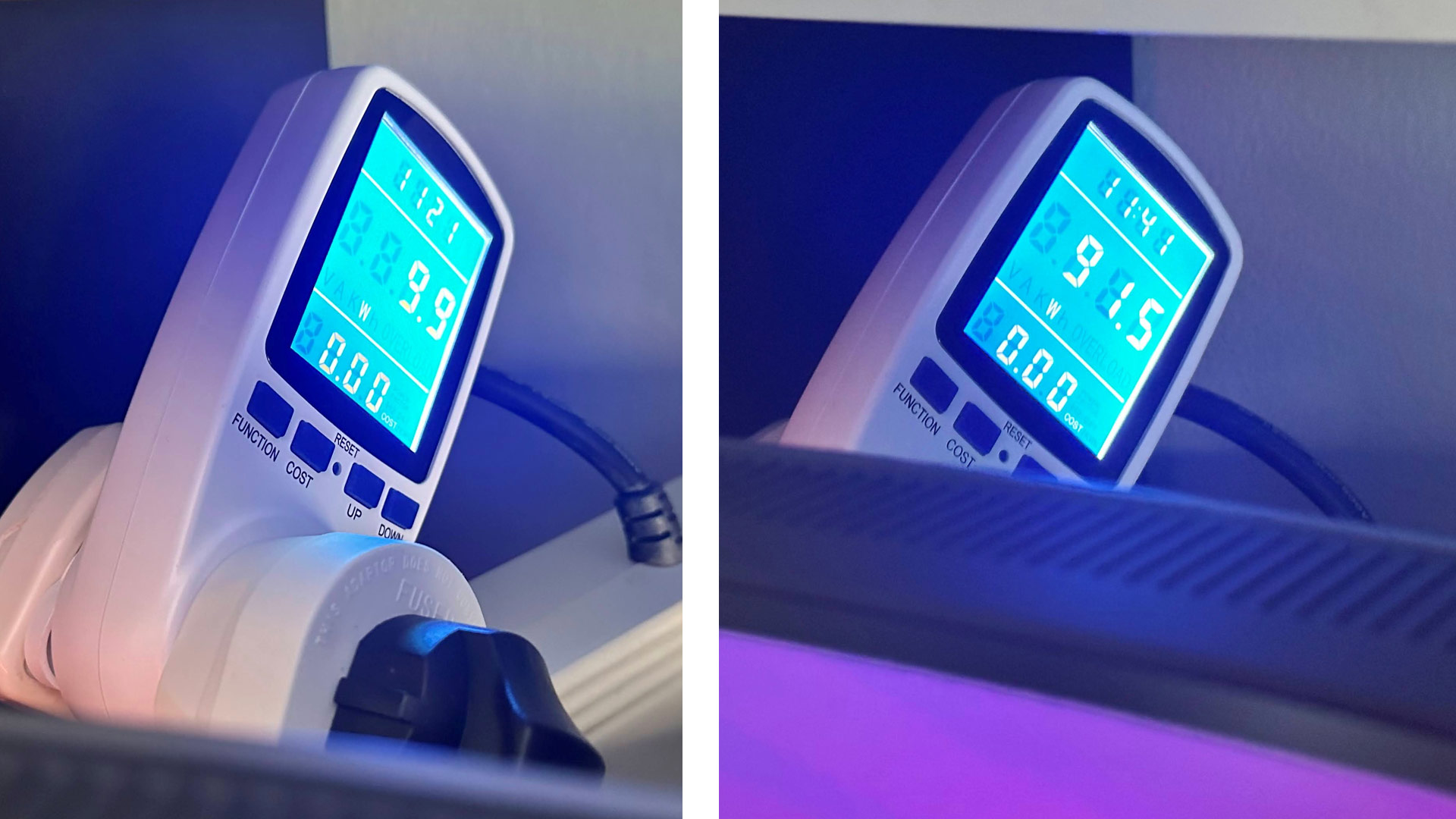
I tested the IT13 Max 2026 with the default power profile Geekom shipped it with, which is a Processor Base Power (PBP, PL1) of 45W, a Maximum Turbo Power (MTP, PL2) of 70W, and a PL4 of 120W, according to system information tools. During testing, I measured total system power consumption with a plug-in power meter, as well as reading the CPU temperatures using a Windows utility.
Tom's HardwareTom's Hardware
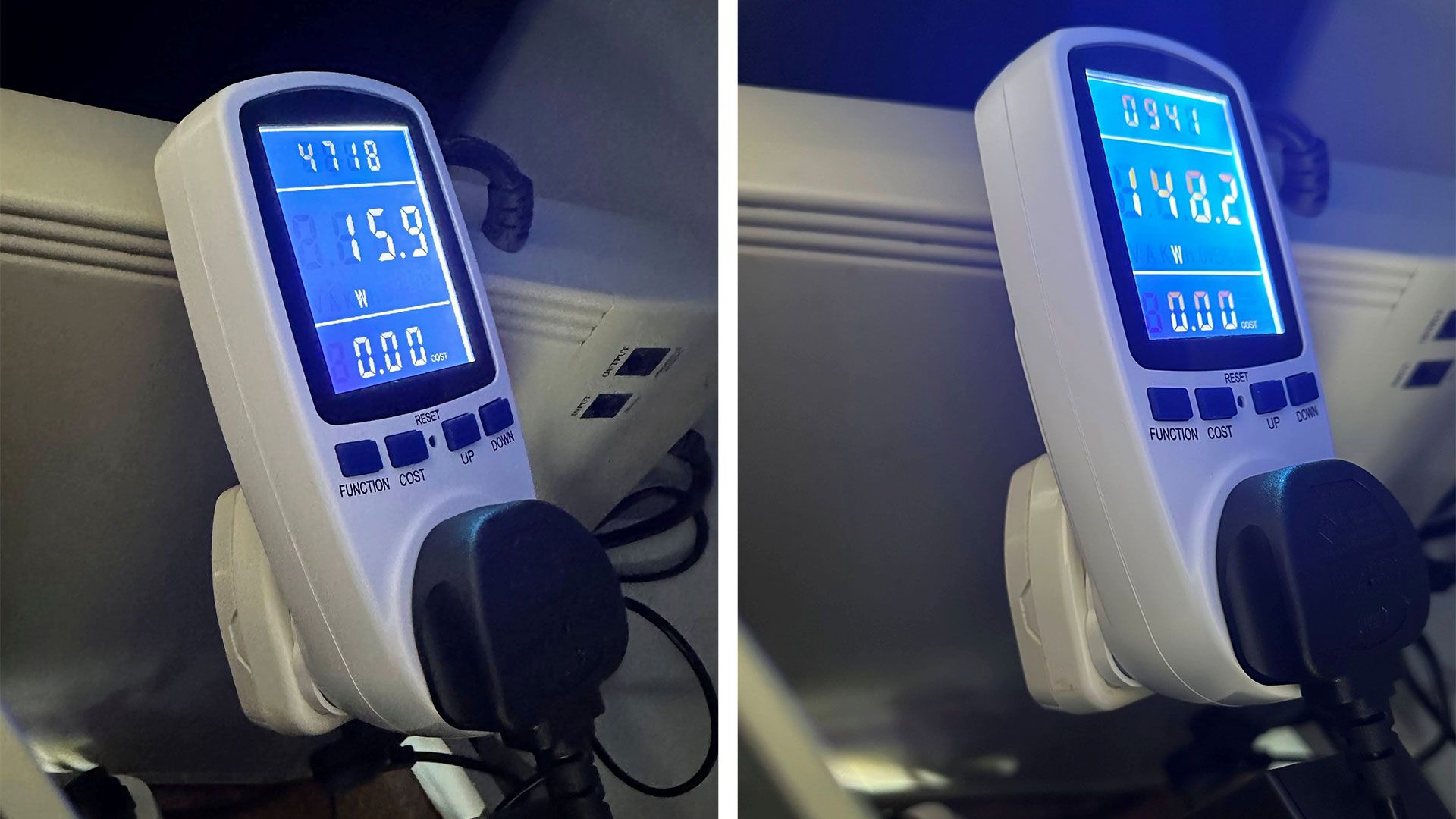
At low load, with Google Docs open for typing among a few other browser tabs, the system consistently pulled around 14W. At the same time, the CPU temperature would stick around 43 degrees Celsius.
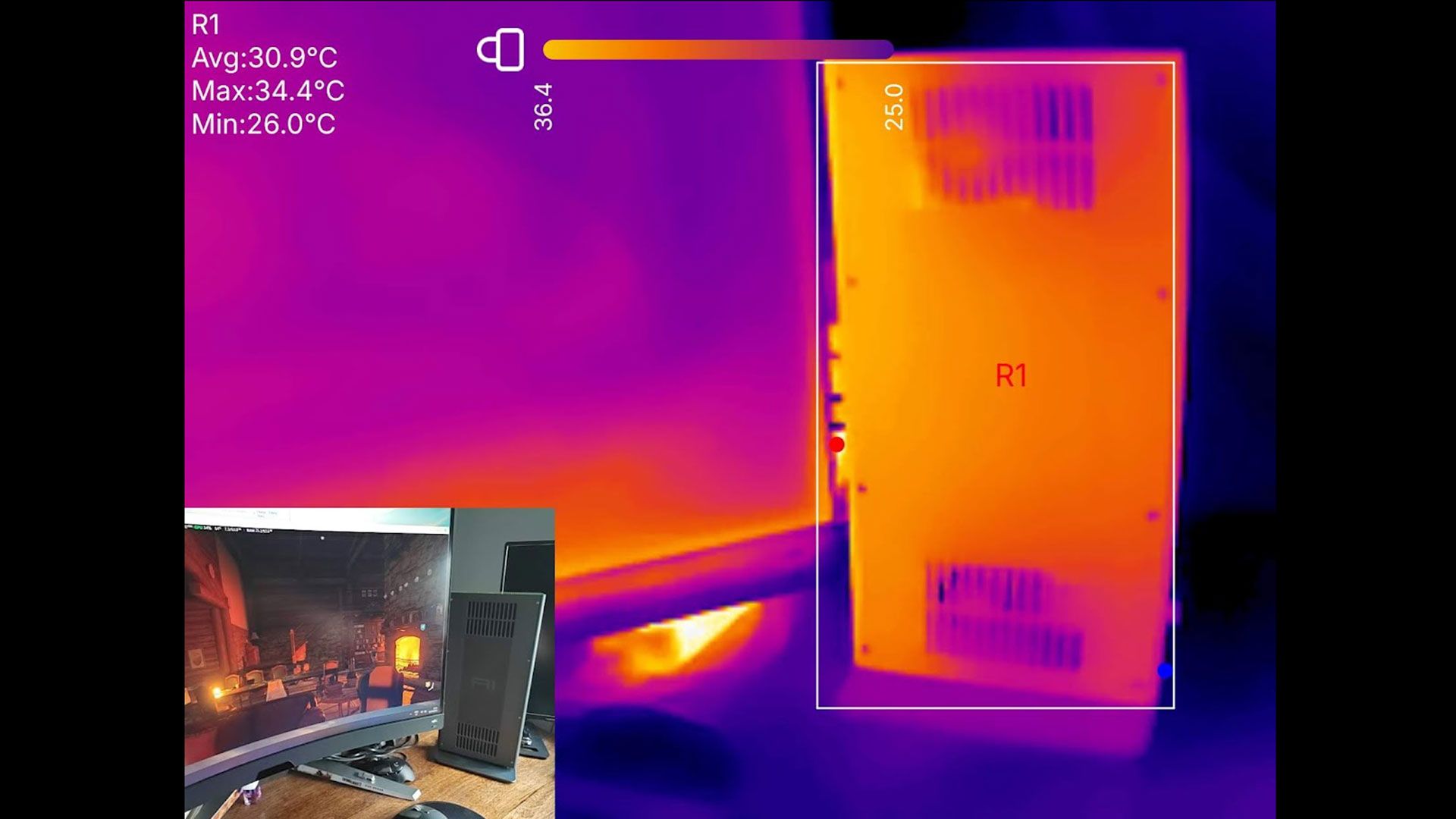
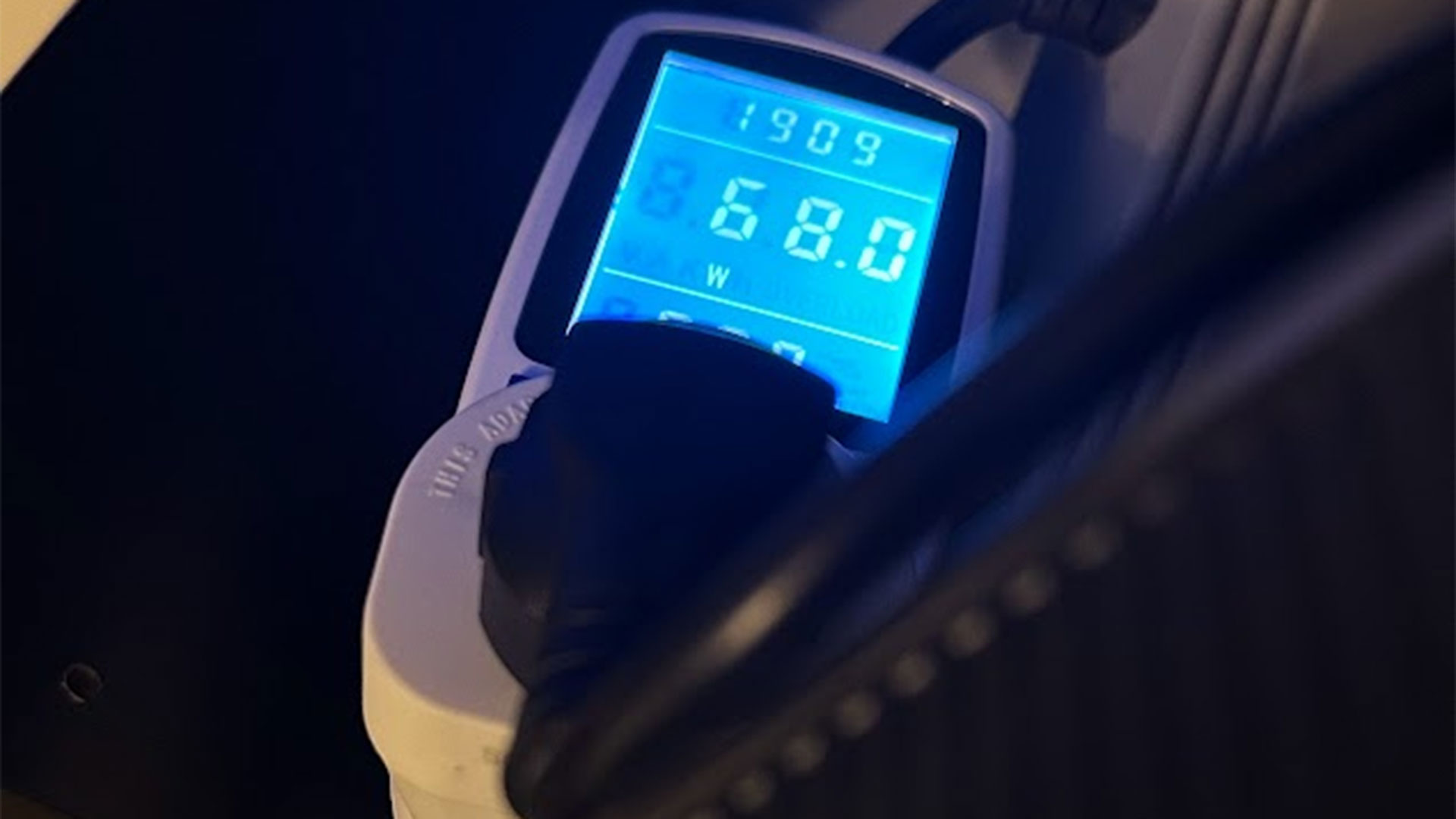
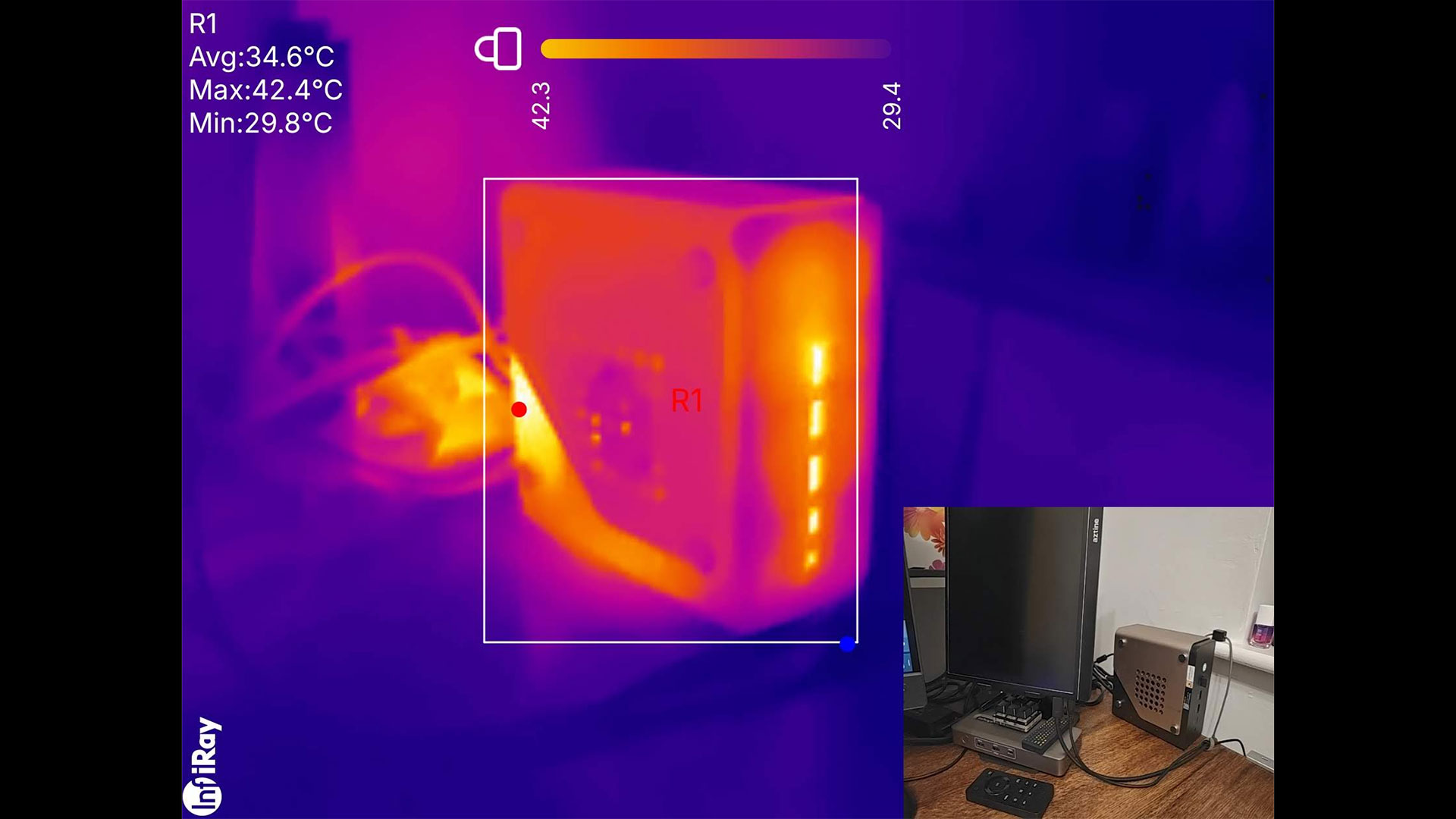
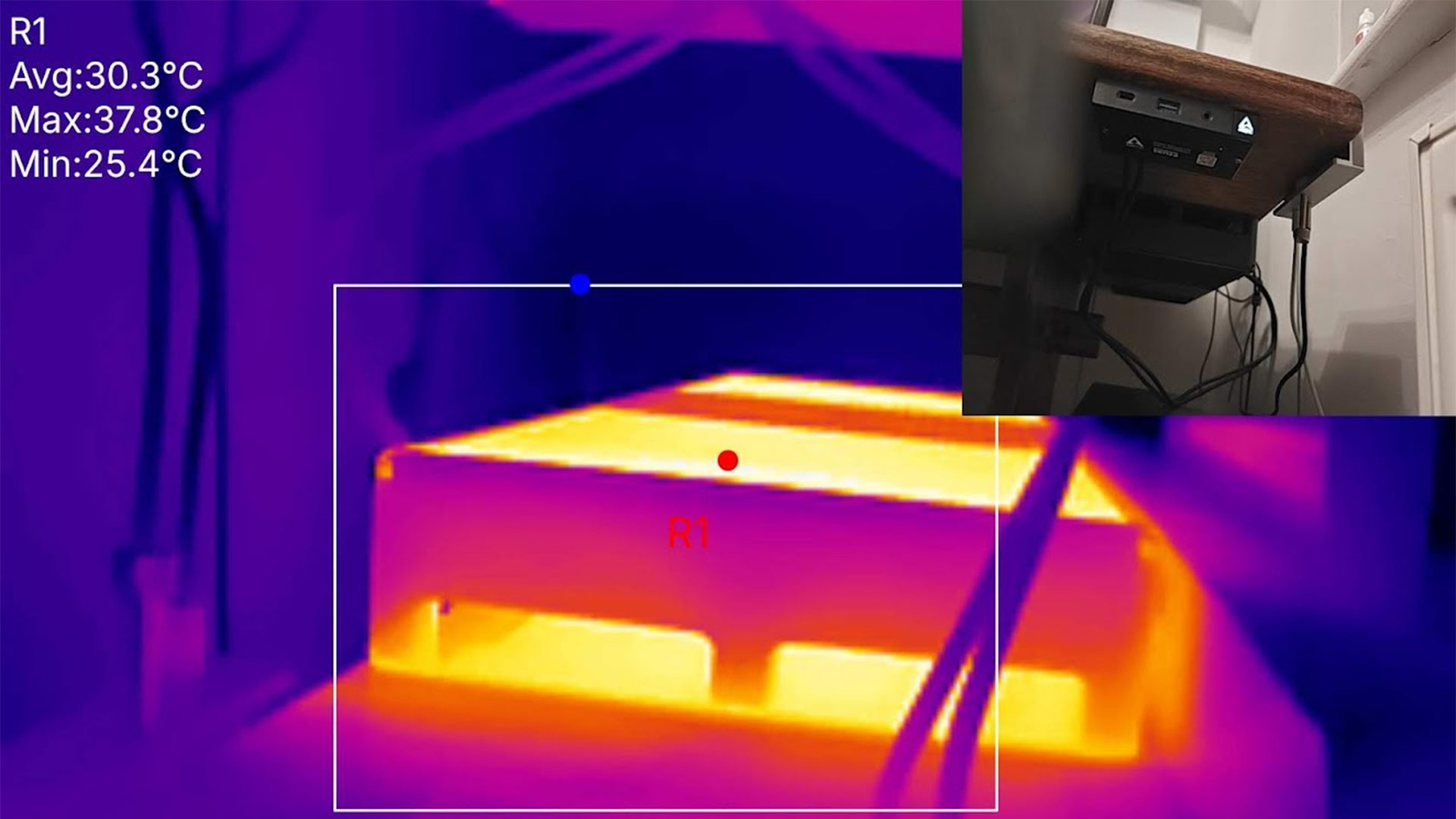
During prolonged stress testing of the IT13 Max 2026, the highest wattage consumed by the whole system momentarily spiked to around 85W, but a stable sustained level of ~70W was generally observed. It also seemed to stabilize at approximately the 70 degrees Celsius level after initially climbing higher.
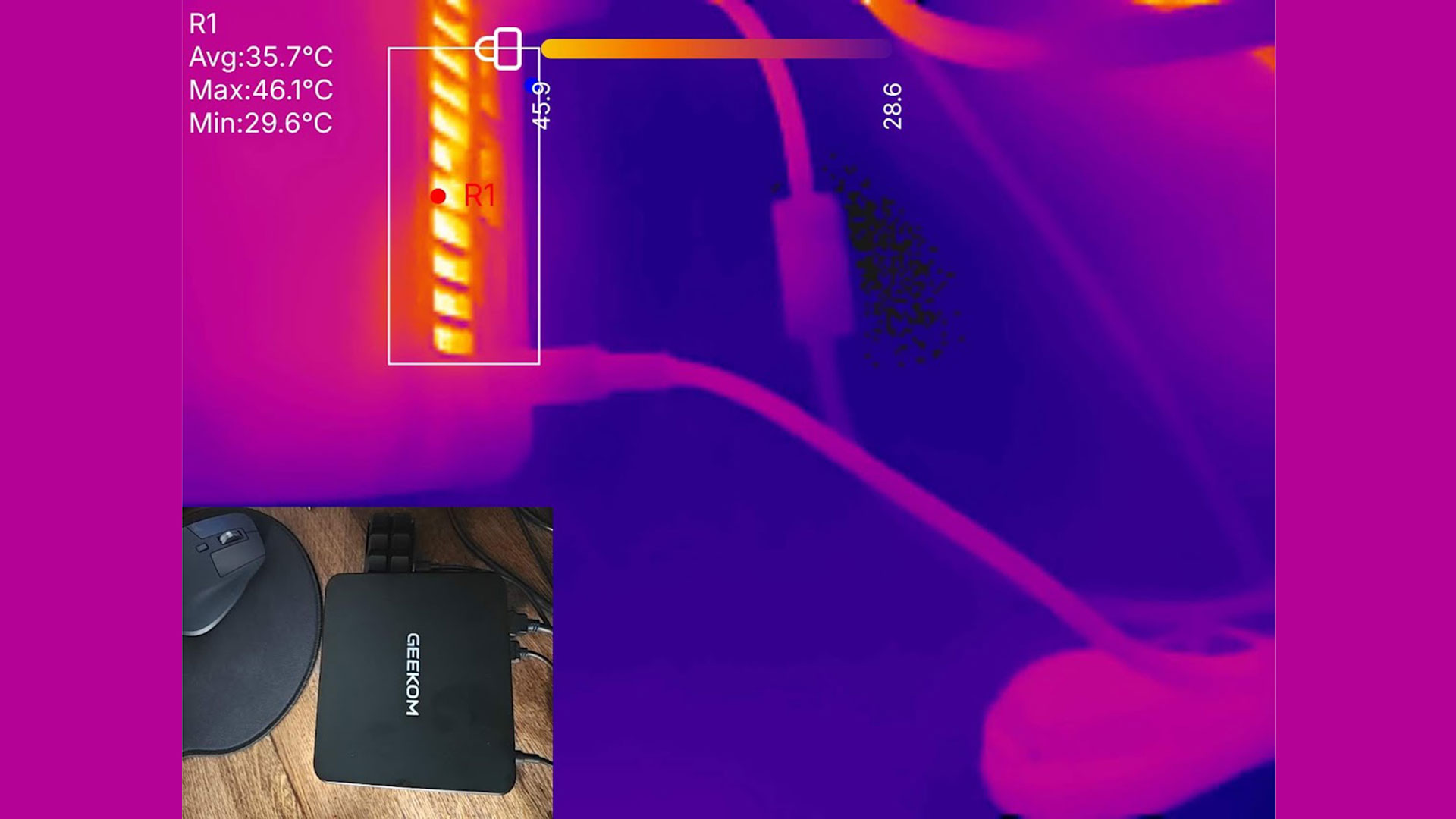
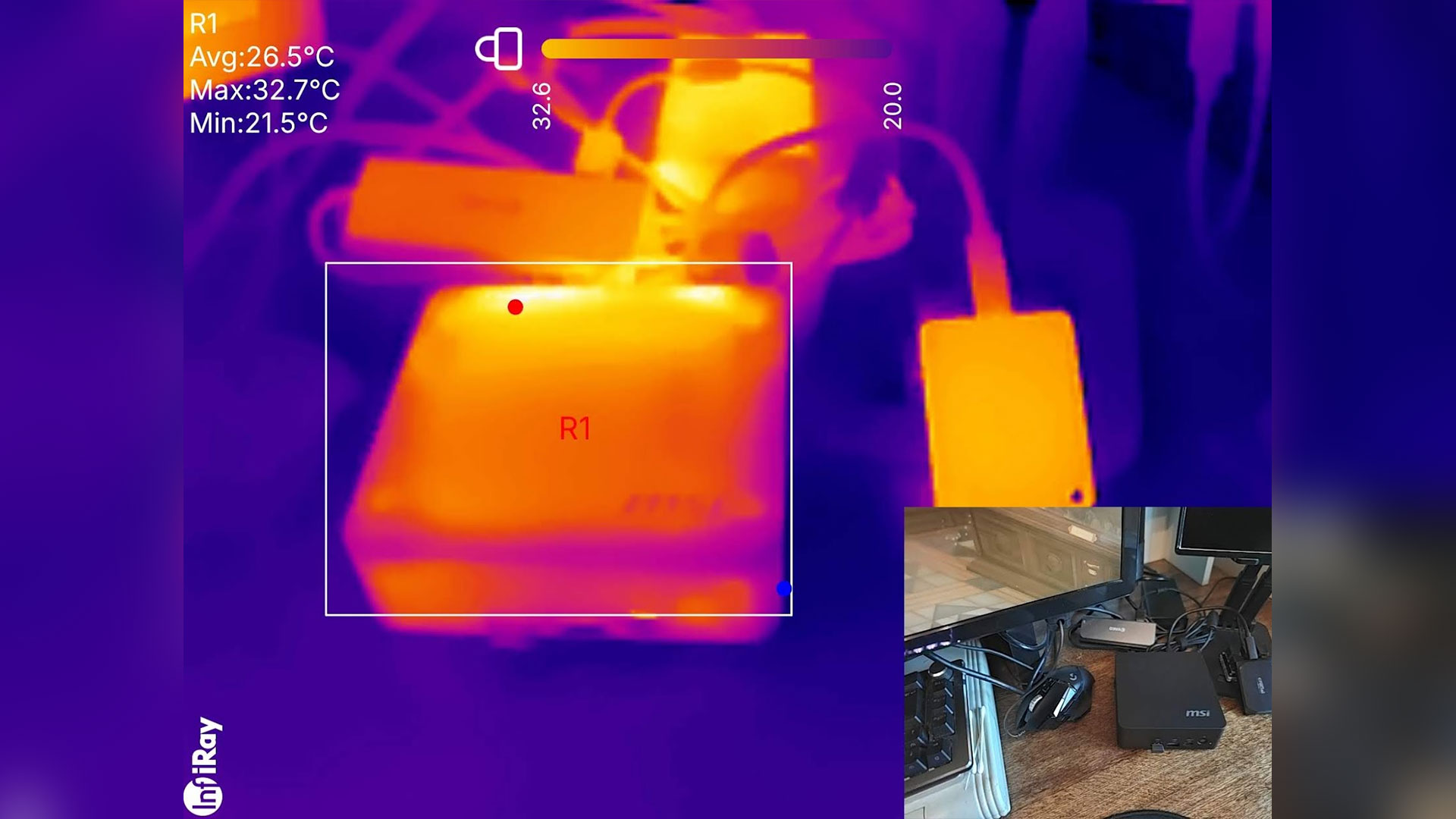
Thermal pic taken under load with system tools reporting a CPU temperature of ~70 degrees Celsius. (Image credit: Tom's Hardware)
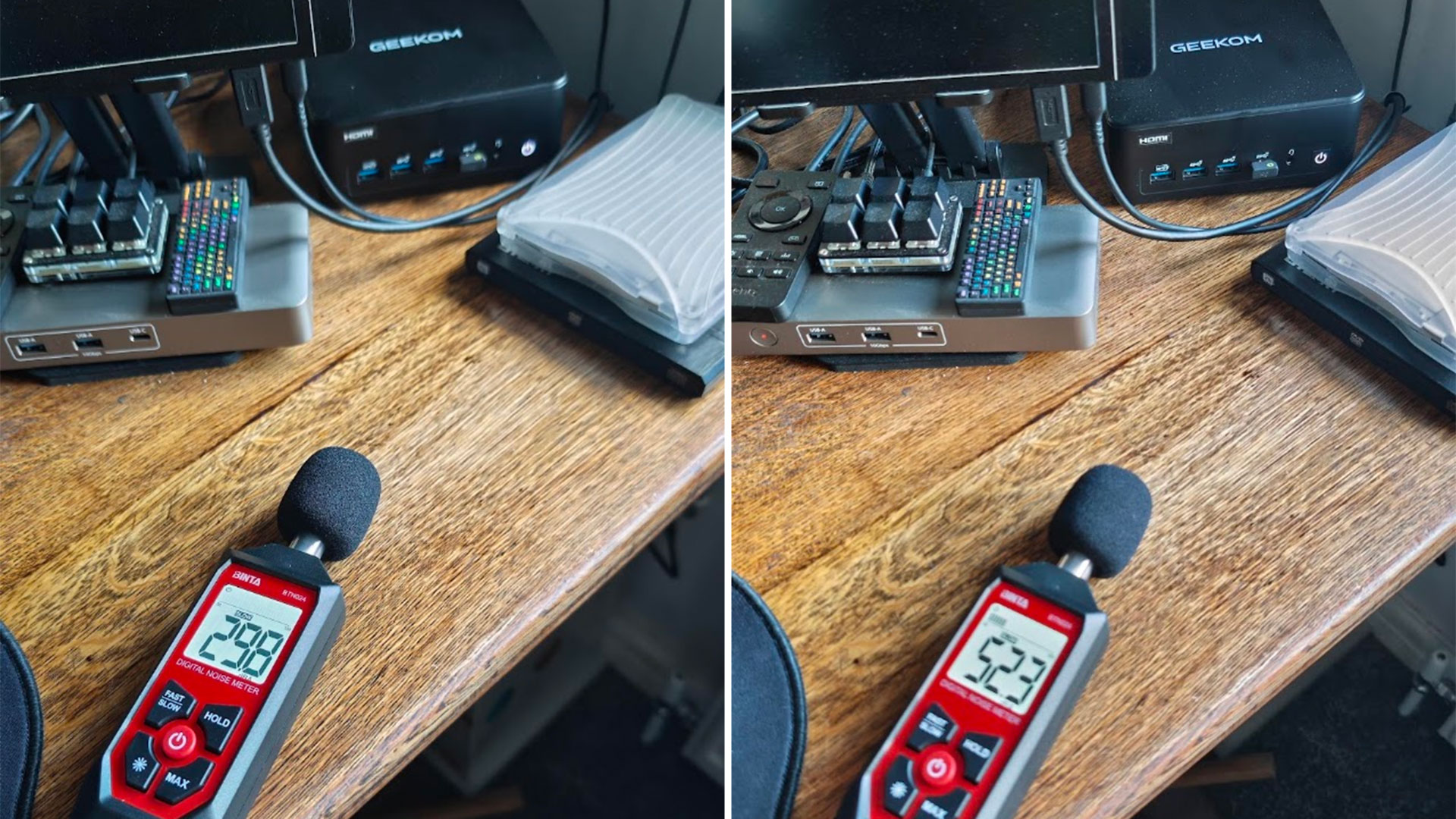
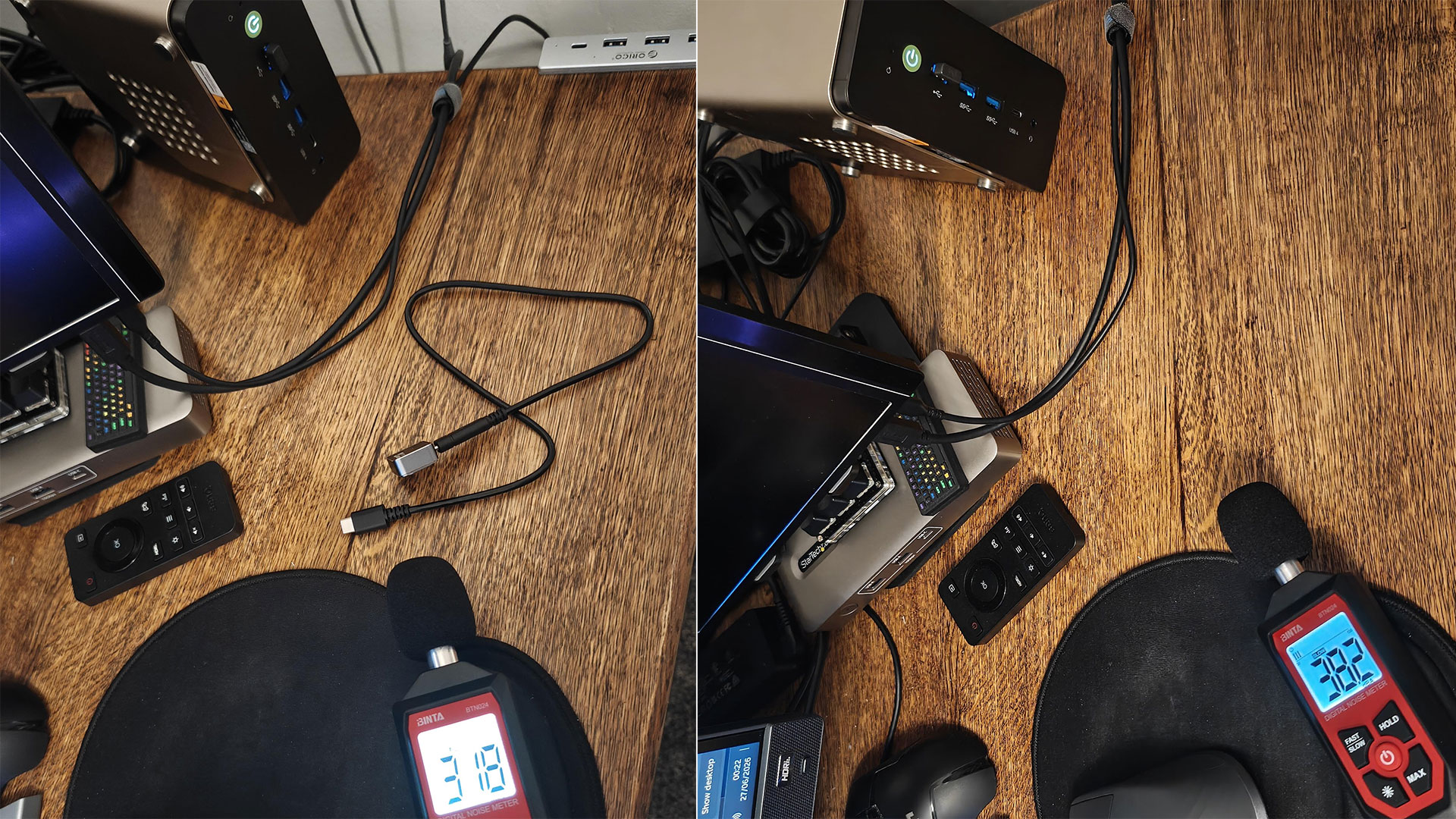
The Geekom is a quiet mini PC, but you can hear the small cooling fan blowing clearly if it is put through any demanding CPU or GPU task. My meter showed 29.8 dB when idling, which is good, but the noise level ramped to a more than noticeable 52.3 dB when the system was under a sustained load.
Software and Warranty on the Geekom IT13 Max 2026
This mini PC came with Windows 11 Pro preinstalled and activated. As usual, before testing, we ensured Windows and drivers were fully up to date.
There were no utilities added by Geekom. Checking the Installed Apps list on Windows revealed both Realtek Audio Console and Realtek Card Reader as the only non-standard components in a typical Windows install.
Linux is also fully supported, according to the official spec sheets.
Geekom sells the IT13 Max 2026 with a three-year warranty, though the company does require you to pay a return shipping fee.
Those browsing and interested in this particular configuration should be careful, though. Geekom is still selling an older variant of the IT13 Max with very similar specs but with two SODIMM slots, making it expandable to 96GB of DDR5-5600 memory. This other Core Ultra 9 185H device comes with a single 16GB SODIMM and a 1TB SSD preinstalled. It is usually $899, but Geekom is currently selling this version for the same $799 if you prefer its RAM/SSD configuration.
Bottom Line
During my testing of the Geekom IT13 Max 2026, I found it to be a dependable device. In the current climate, the soldered dual-channel 24GB of RAM might be a sweet spot if you want your integrated GPU to access a decent chunk of the memory pool. It is interesting to see the prior IT Max model now moved down to the same $799 price if you don’t want to accept soldered RAM, would like more preinstalled storage, and are otherwise attracted to owning a tiny PC powered by Intel’s Core Ultra 9 185H with its 16C/22T and reasonable Arc iGPU.
It is very interesting to see this mini PC match the far more modern MSI Cubi NUC AI+ 3MG we tested recently (which costs far more, as is often the case for enterprise pricing) in many of the benchmark applications and games. The MSI uses a Core Ultra 9 386H, so this is a reasonably fair U9 vs U9 comparison. In practice, the Geekom even seemed to idle at a slightly lower wattage than the MSI, but admittedly, it would pull around 70W under load, which is 15W more than the MSI Panther Lake was observed consuming. This points to one of the biggest attractions of most mainstream Panther Lake CPUs being their efficiency, which is far more important in a laptop than a mini PC like this.
To conclude, this does indeed seem like a capable, moderately quiet under light day-to-day loads, and power-efficient offering for the ticket price in mid-2026. At $799 the prior model might offer some of the best competition if removable RAM, albeit just 16GB, and a 1TB preinstalled SSD can sway you.
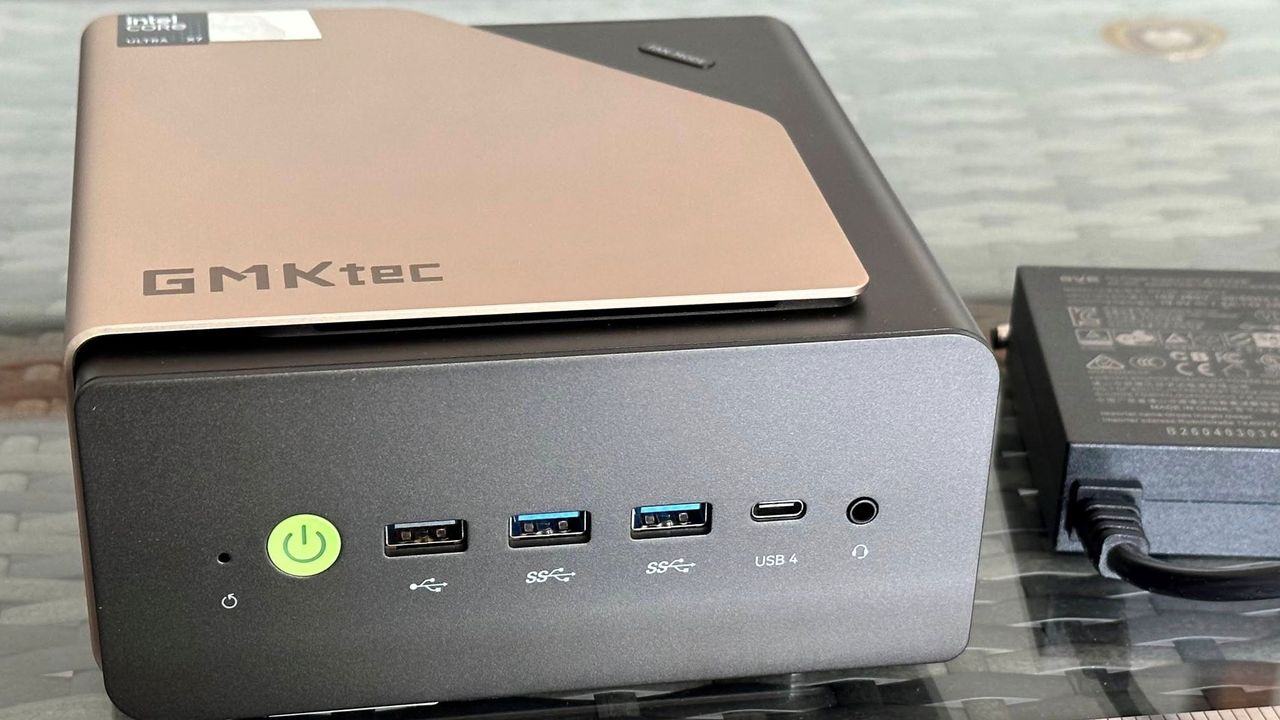
Intel's Panther Lake processors have brought powerful graphics and efficient performance to laptops. Now, mini PC companies are packing them into small desktops. With the Evo-T2 GMKtec stretches the form factor by fitting it in a spacious - for mini PCs - twin fan chassis, and equipping one of the most capable of Intel’s 18A (laptop) processors with 64GB of fast DDR5. While GMKtec calls it an AI system in its marketing, the Arc B390 iGPU and OCuLink port mean that the potential gaming capabilities are one of the big focuses for this quiet, compact, and expensive device.
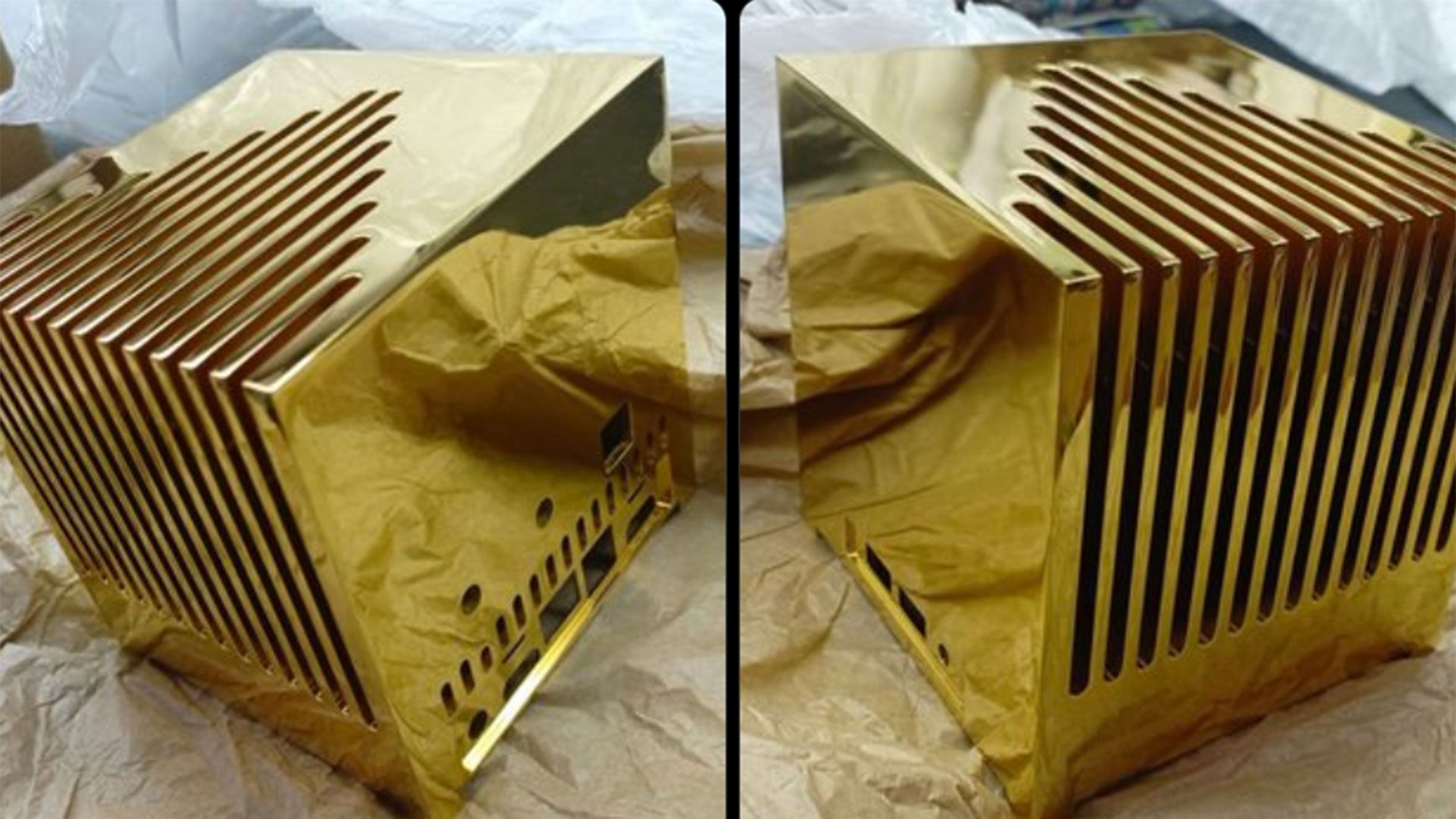
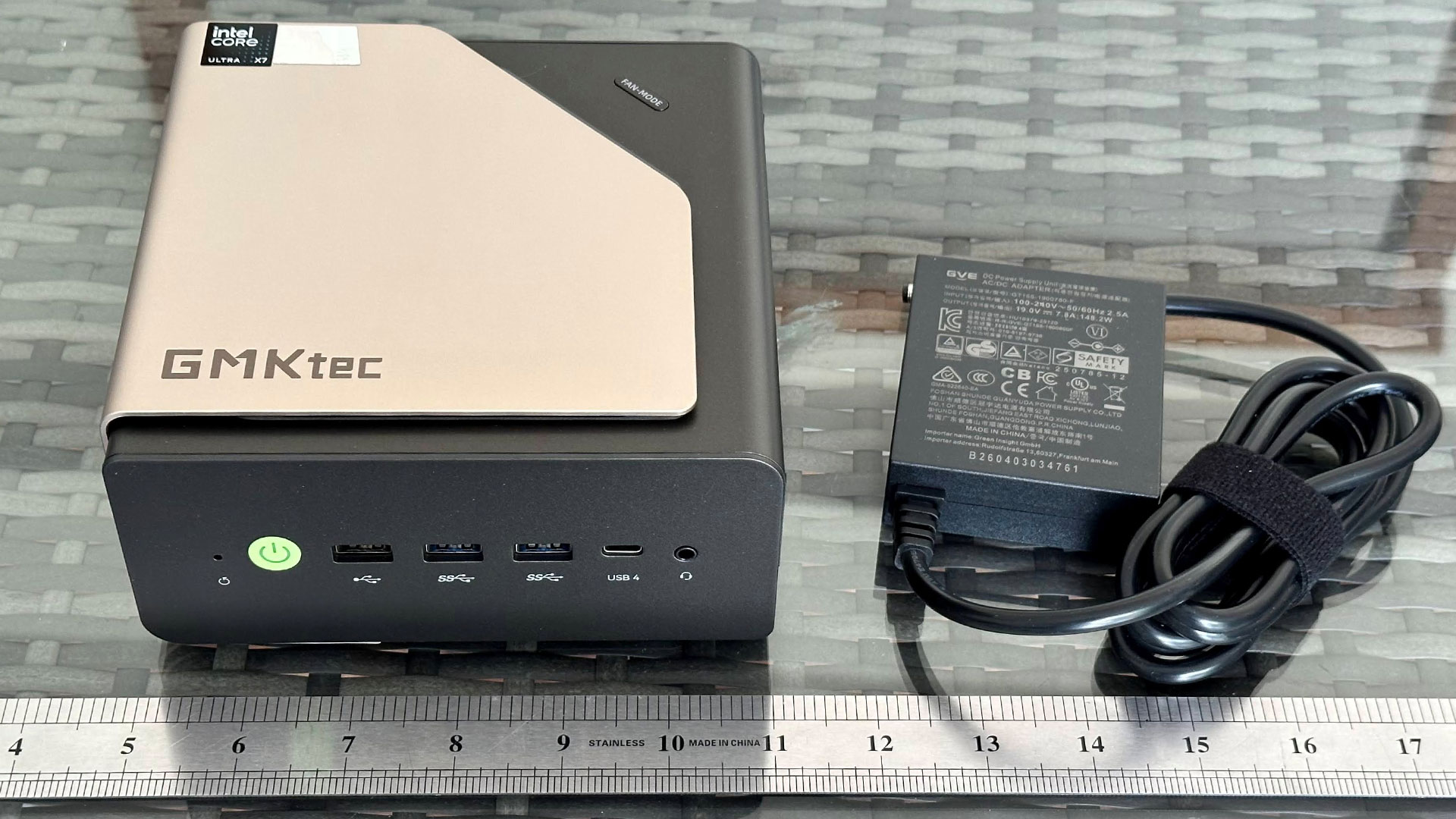
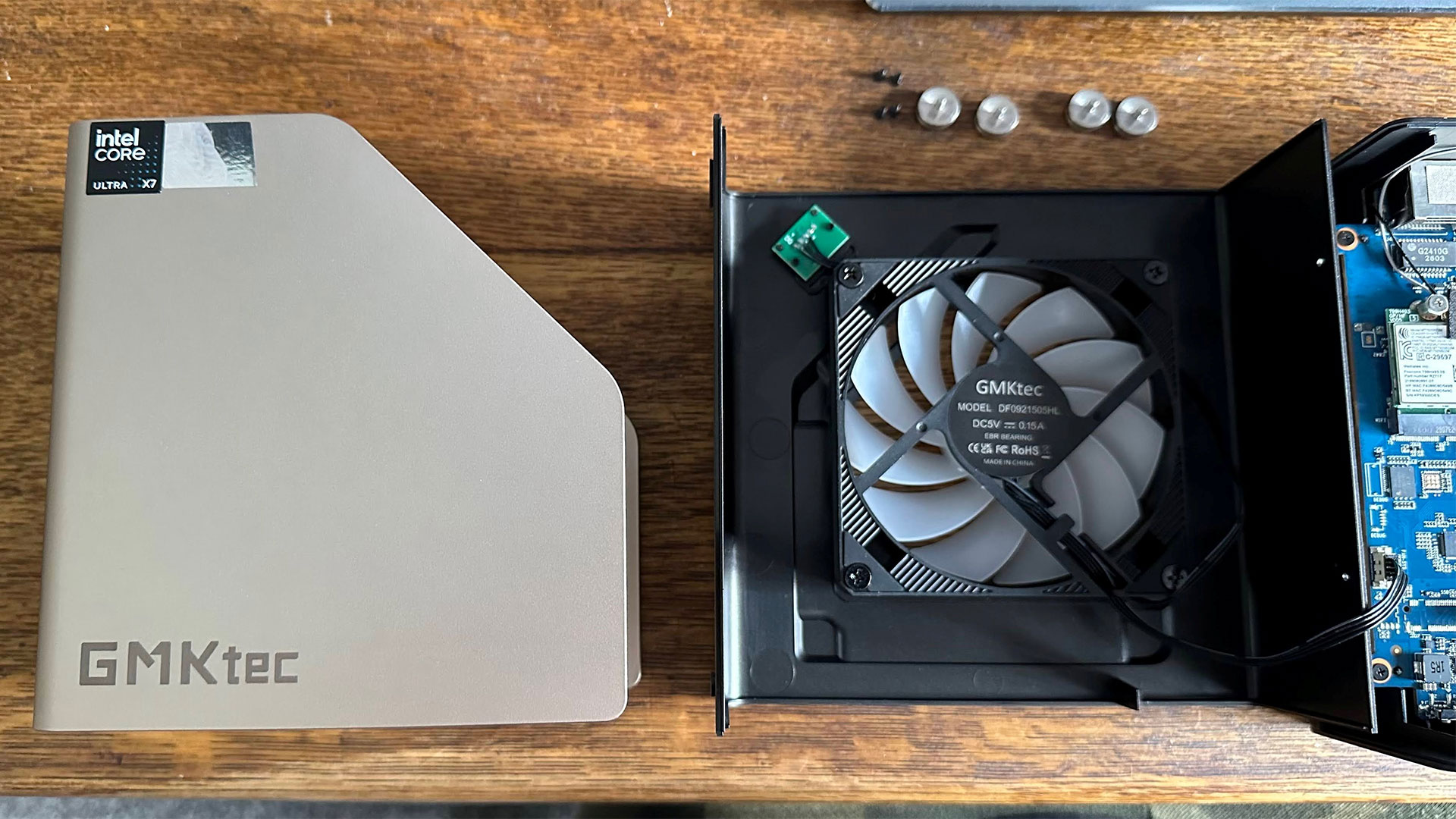
The GMKtec Evo-T2 is small, of course, but is rather more portly than the typical NUC, measuring in at 6.06 × 5.94 × 2.90 inches (1.72 liters). For context, a ‘standard’ NUC like the Asus NUC 14 Essential measures 5.31 x 4.53 x 1.42 inches (0.56 liters). Its functional plastic shell is lent extra style and strength thanks to a 2 mm-thick gold-colored anodized metal shell that wraps around three sides.
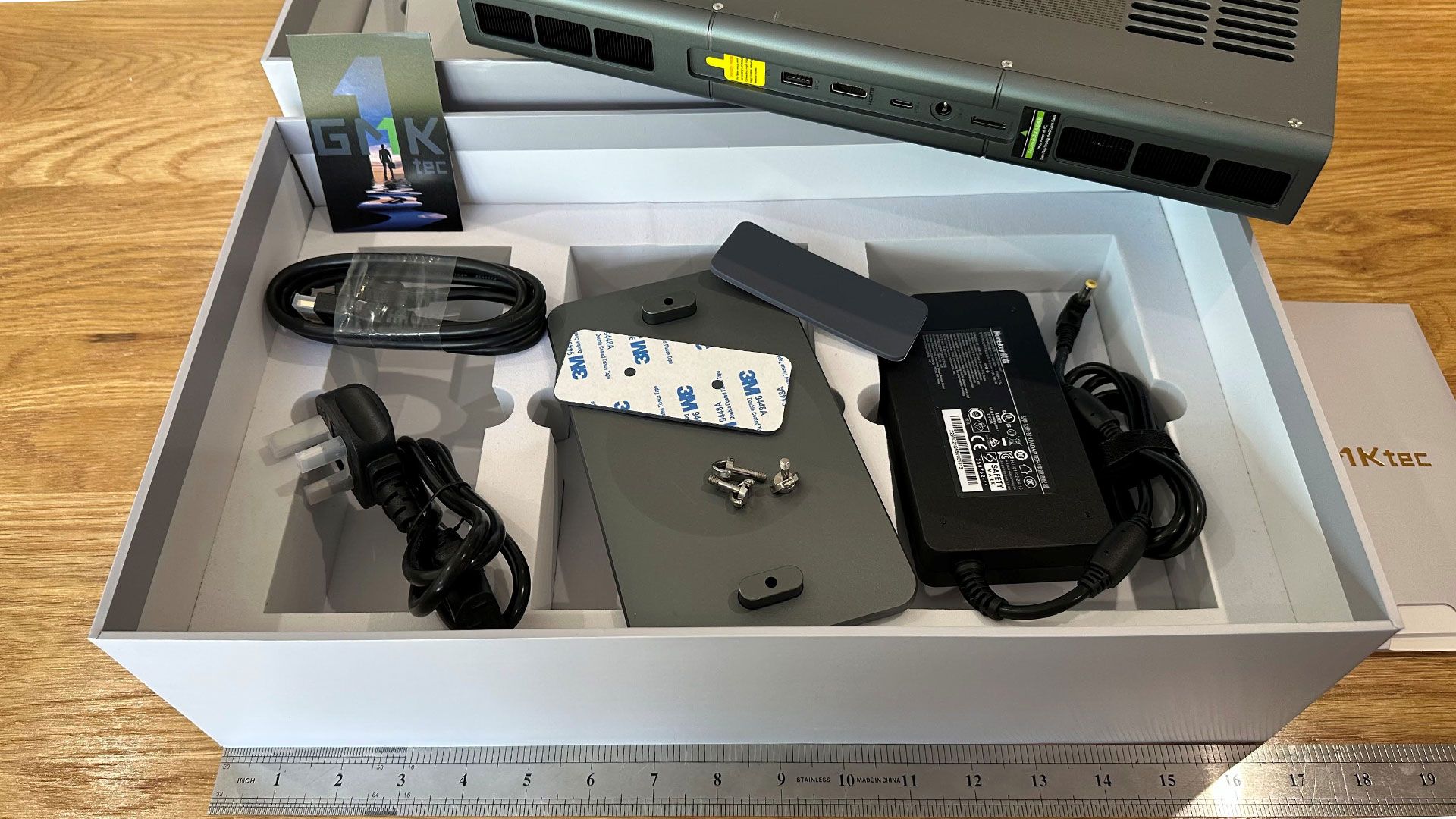
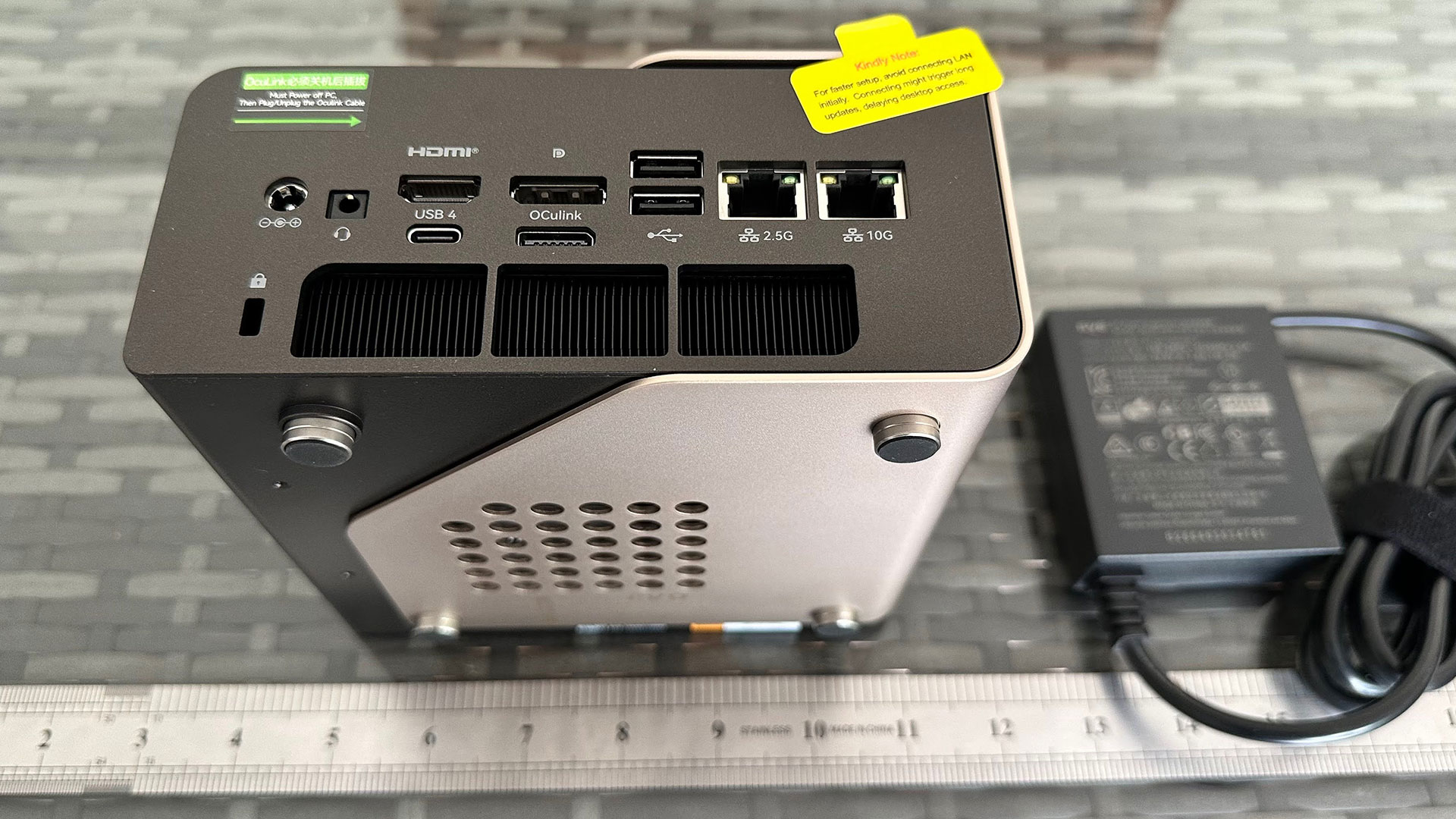
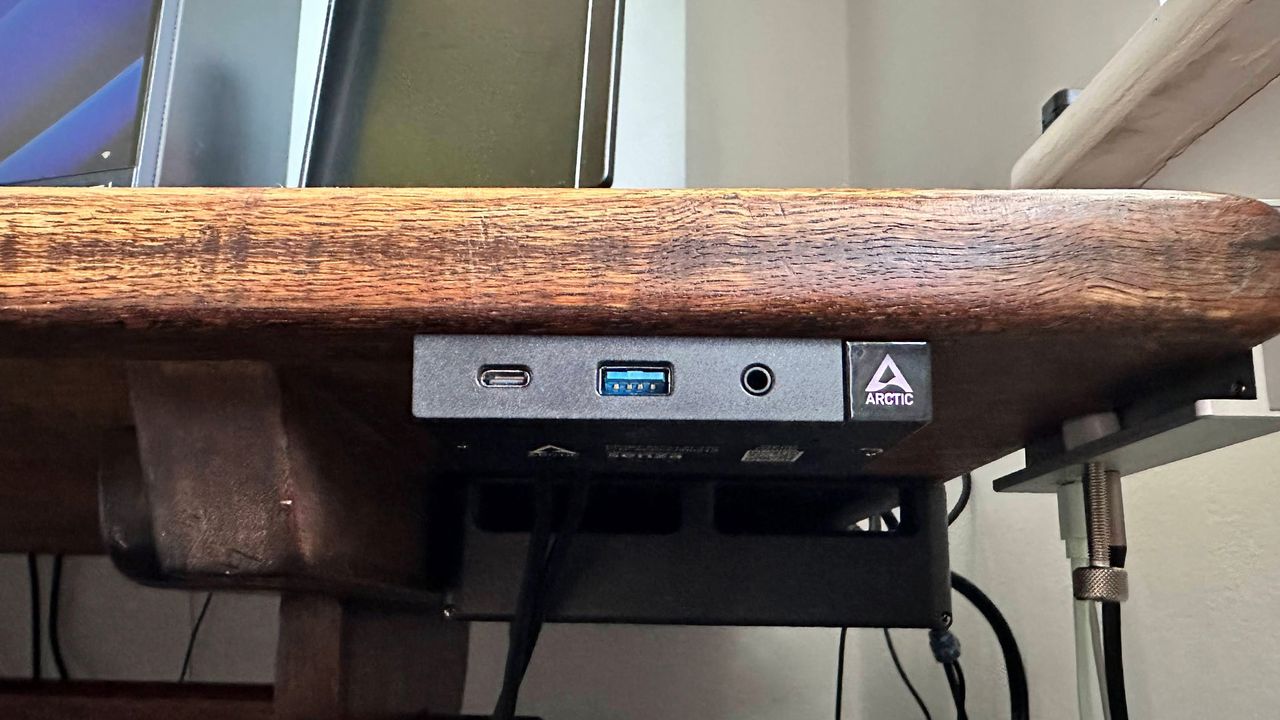
I had no issues with the form or construction of the Evo-T2. I like that it has rubber feet for both horizontal and vertical orientations. There’s even a VESA mounting plate in the box, so you can attach it to the back of a monitor. If you put it behind something, it may be tricky to reach the power switch, ports, and fan-mode switch button, though.
GMKtec has made it pretty easy to open up the Evo-T2 for servicing and upgrades. However, the 64GB LPDDR5X-8533 RAM is soldered in, and that's the only option the company sells. If you need more RAM, you'll need to look elsewhere.
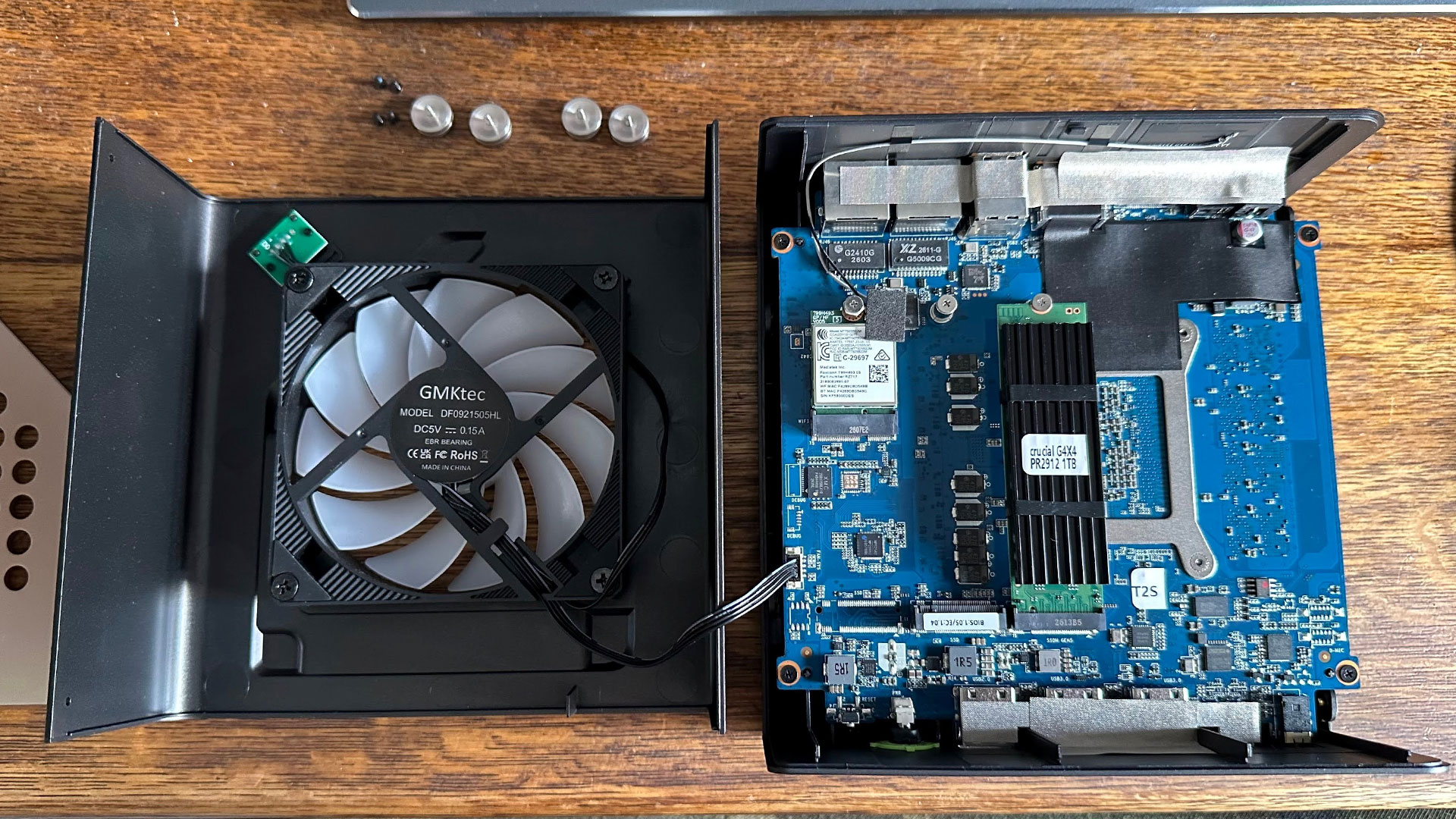
After taking off the wrap-around metal shell by removing three of the four thumbscrew feet by hand, you get access to the four screws that hold the two halves of the plastic case together. These are mini Philips screws, nothing esoteric, and once removed, you can lift the top-half of the case away to reveal user-serviceable areas of the motherboard.
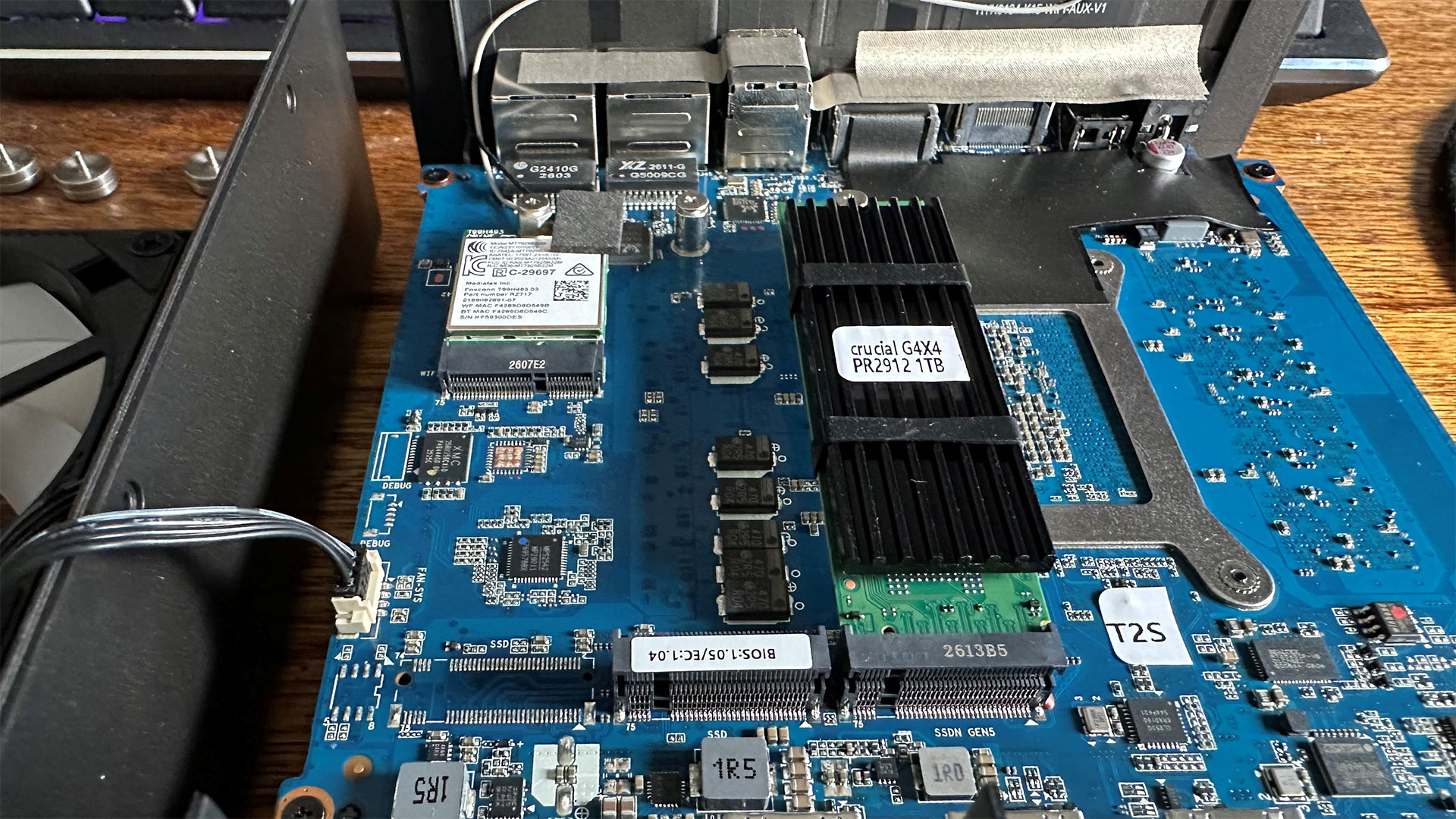
In our photos, you can see there are two M.2 2280 slots, one with a Crucial PCIe Gen4x4 1TB SSD, the other one vacant. Then there’s an M.2 2230 slot with the wireless card installed. Those offer all your internal expansion / upgrade options. Thankfully, the case top with its integrated fan and fan controller is on a decent length of connector cable, making it easy to work inside this chassis without having to detach it. I didn’t try to disassemble the system any further, but I could see that the other side of the motherboard was fitted with a laptop-style fan and blower – which exhausts at the back of the PC, beneath the device’s rear ports.
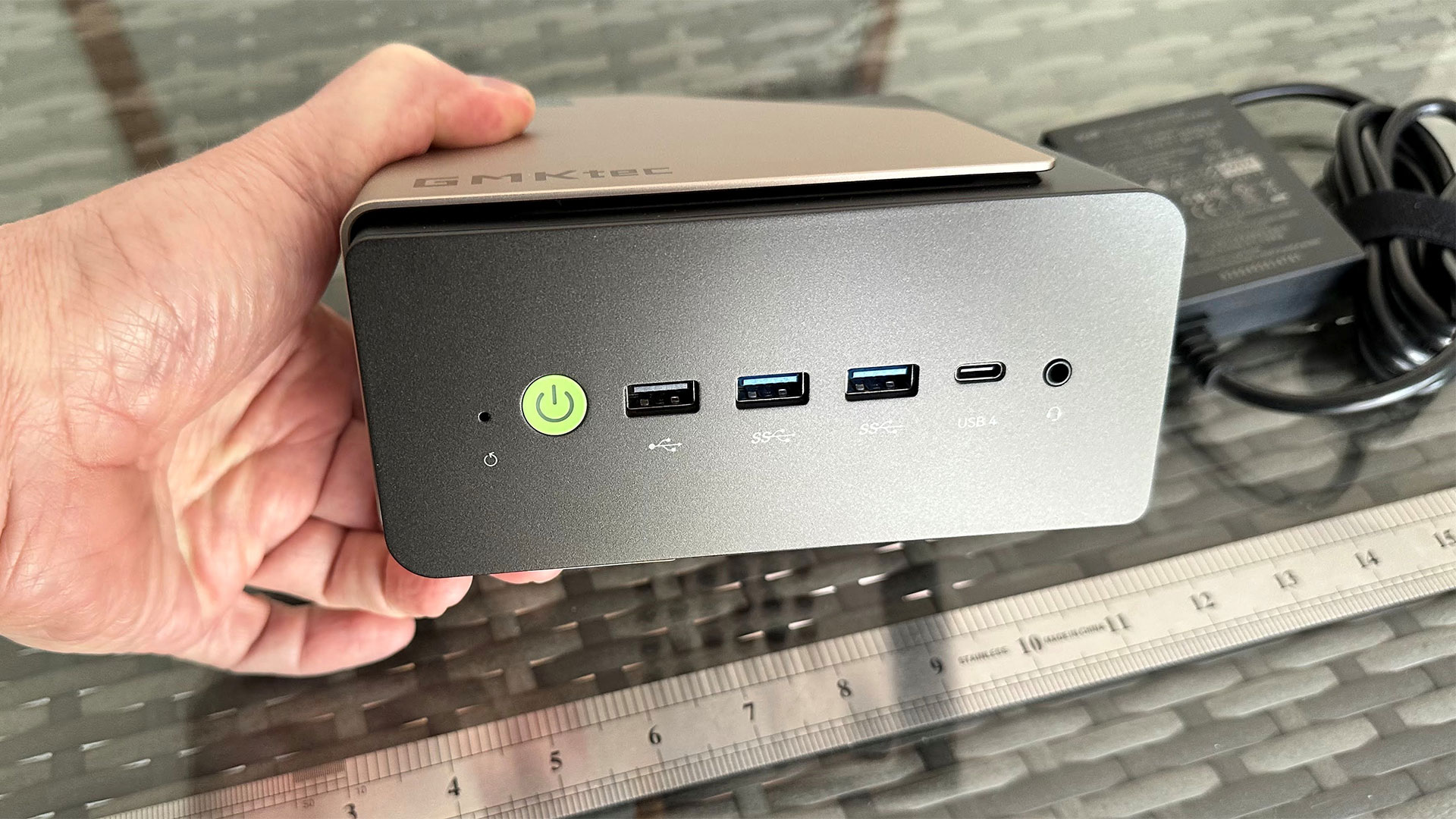
For a very compact system, the Evo-T2 offers a good selection of fast connectivity. We’ve listed the entire number and variety of ports in the specifications table above, but there is no shortage of USB Type-A ports built-in. GMKtec has also been smart to put one of the two USB4 ports front and back, as well as a 3.5 mm audio jack front and back. The system allows for four screens to be attached directly via the pair of USB4 ports plus HDMI and DP ports, simultaneously. Then there is an OCuLink port for equipment like eGPU docks.
Lastly, two Ethernet ports are present for up to 10G wired networking. For wireless networking, there is Wi-Fi 7 on board, and Bluetooth 5.4 is also built-in – these run from an M.2 2230 card.
Productivity Performance on the GMKtec Evo-T2
Between the Intel Core Ultra X7 358H and 64GB of fast DDR5 RAM, you will have no issues with office productivity on this compact system. And this processor has the best iGPU available from Intel for accelerating certain parallel workloads too.
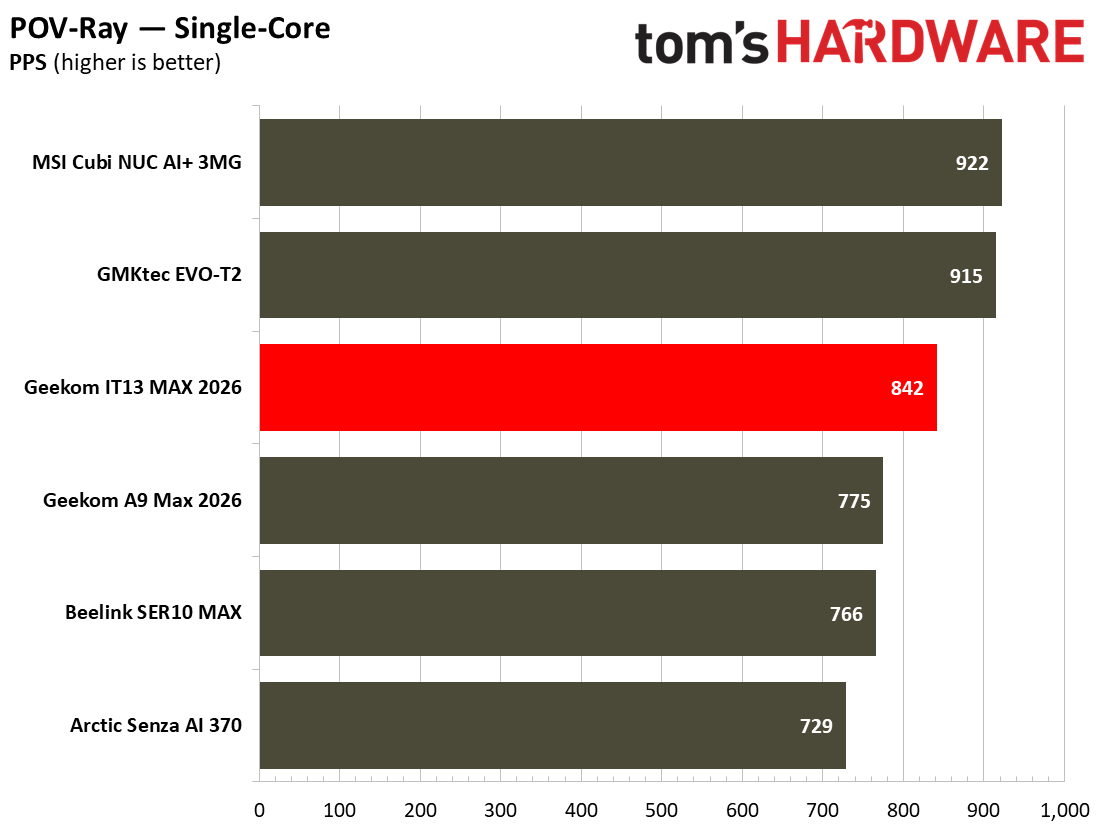
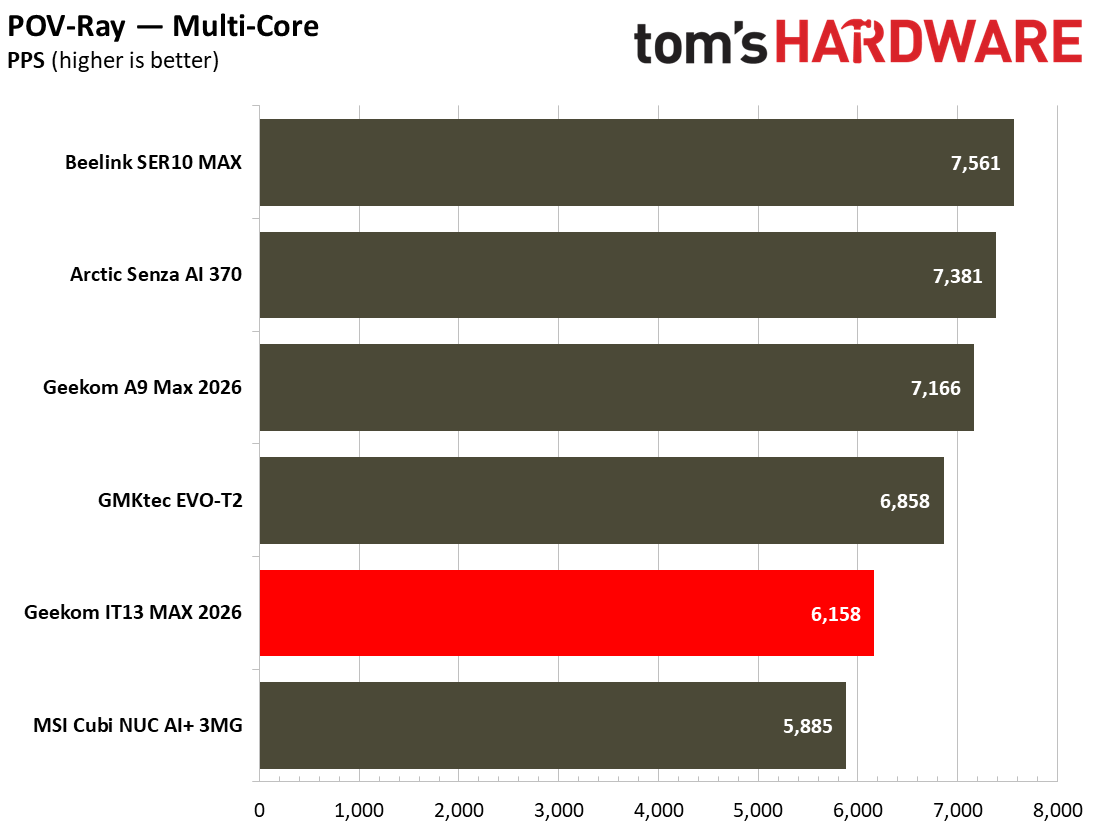
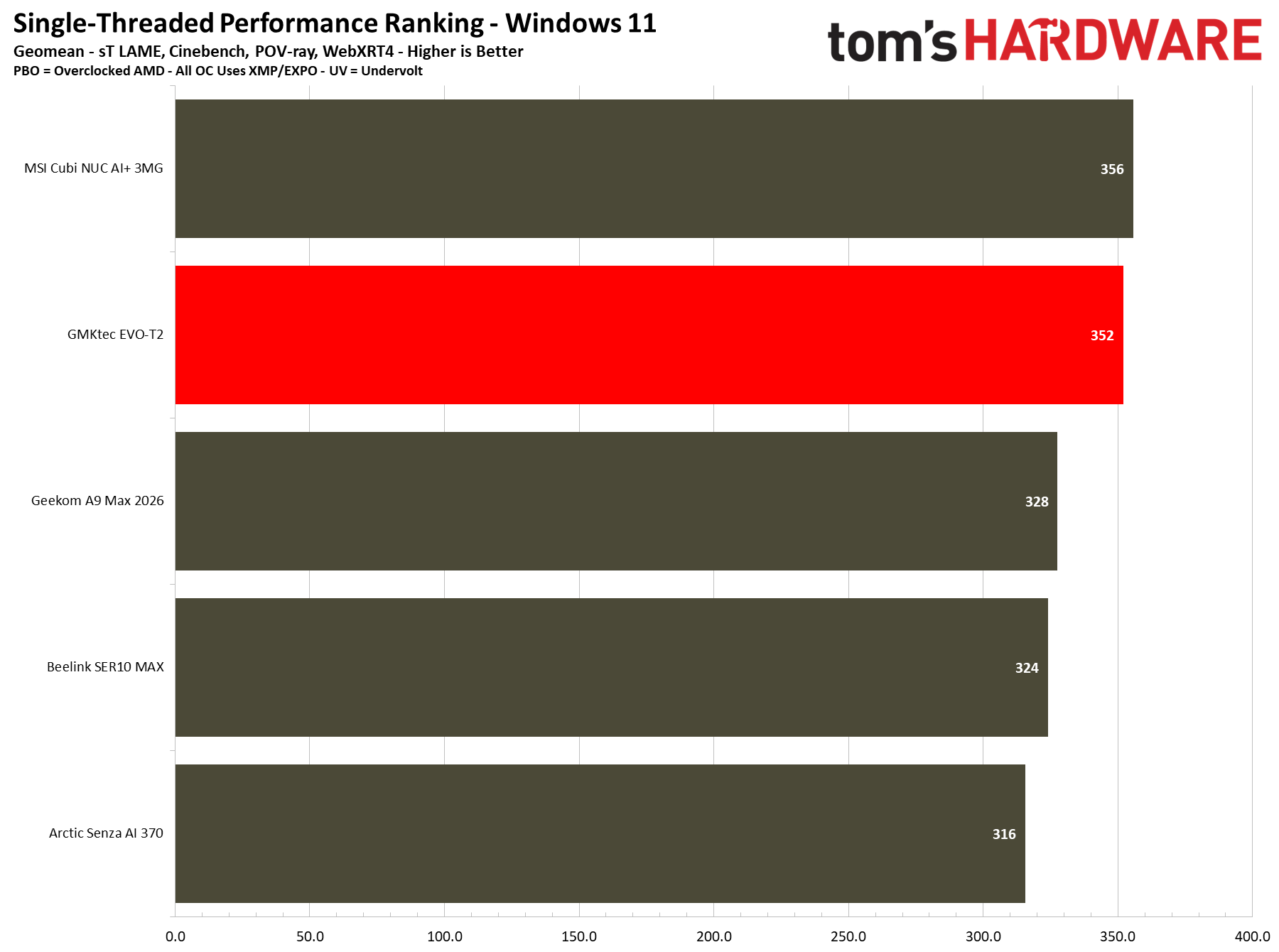
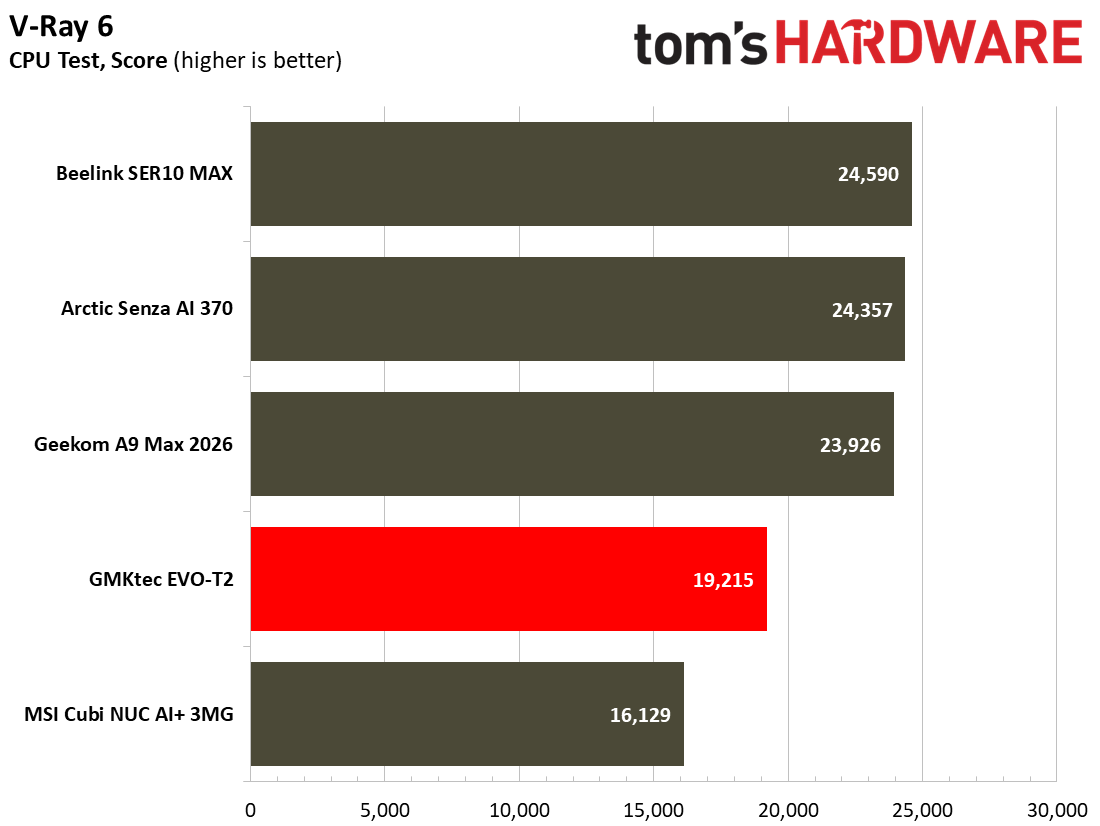
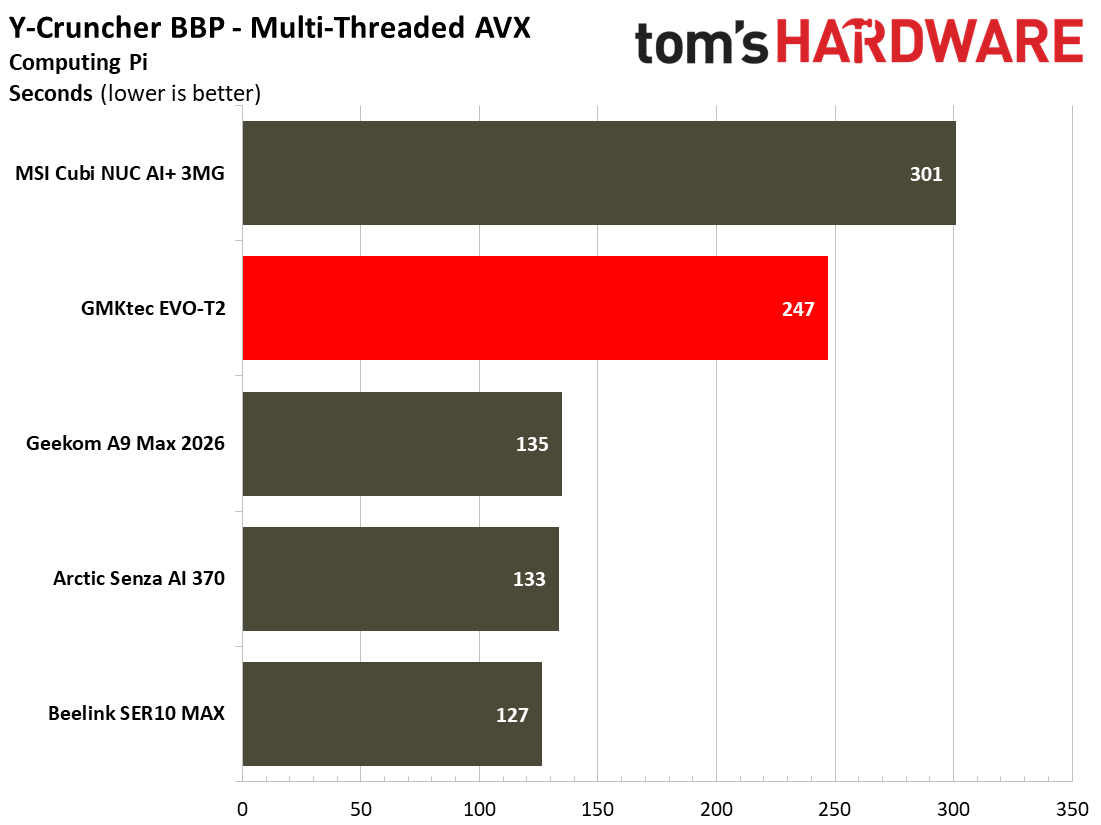
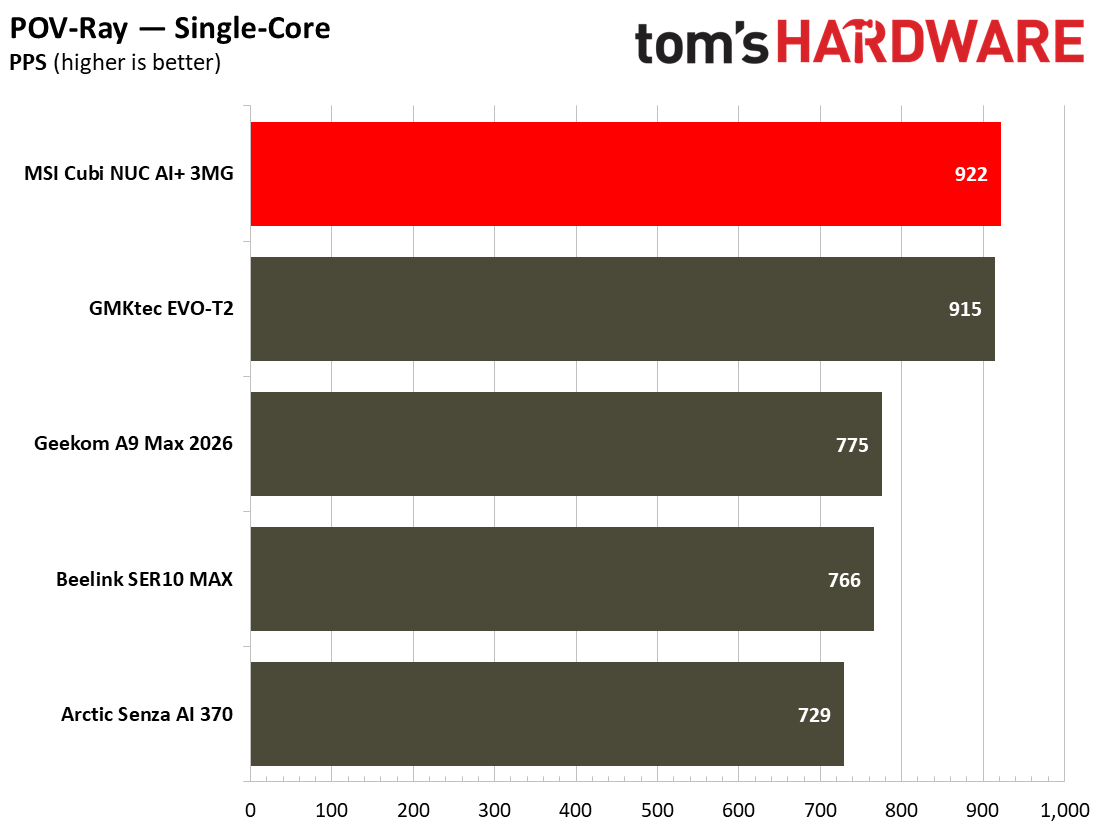
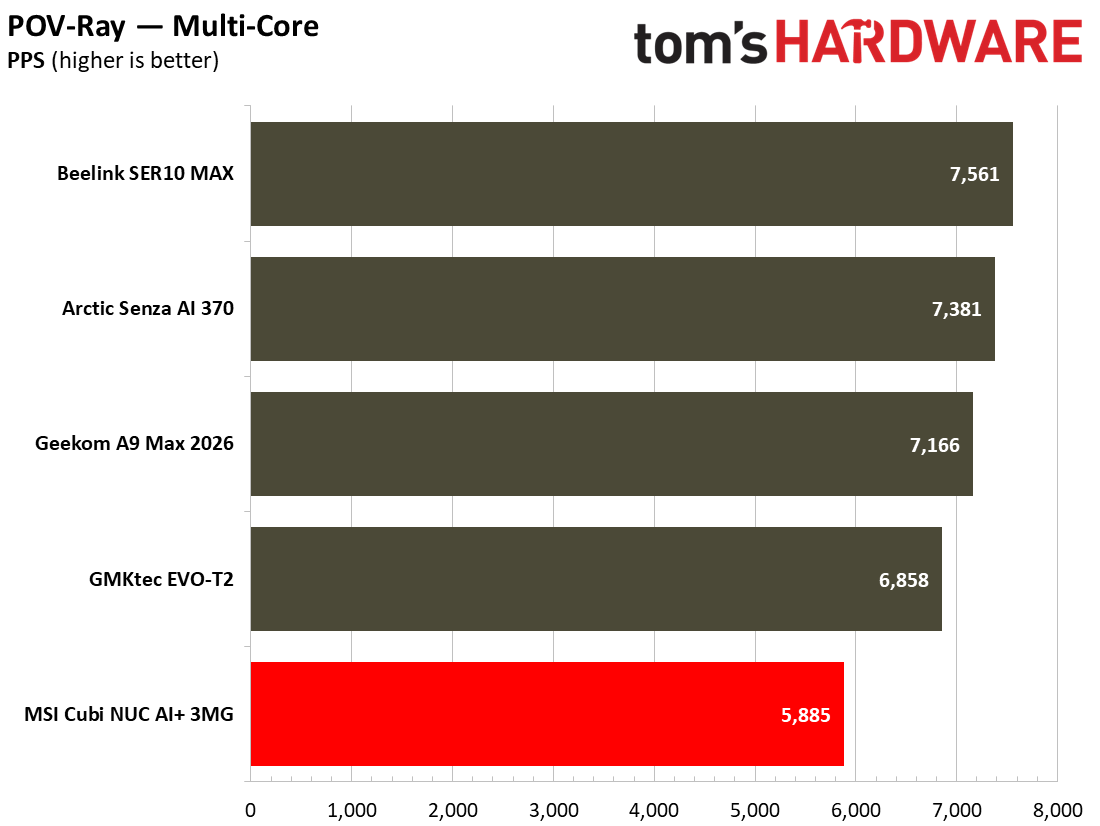
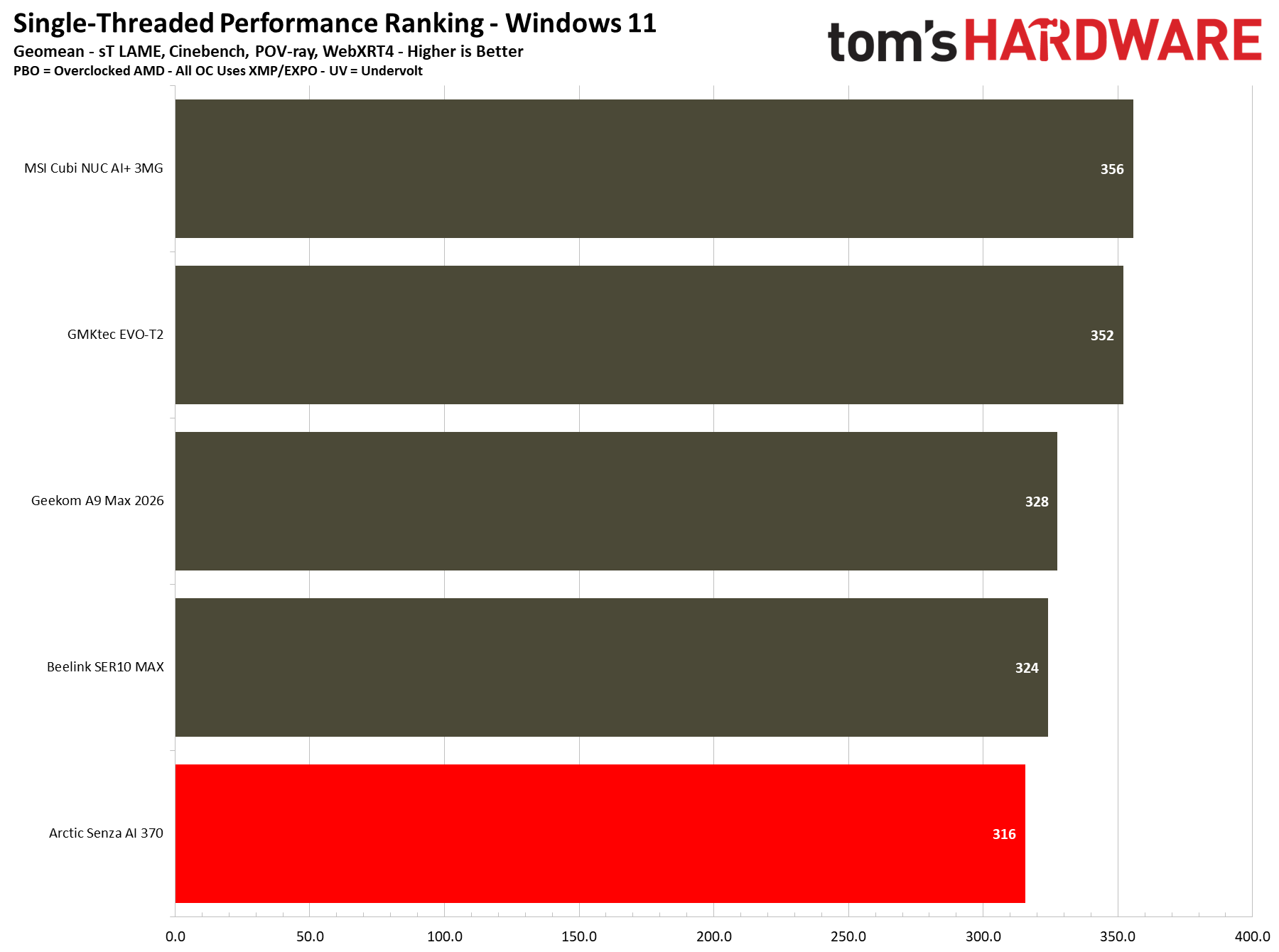
In our single-core CPU-stressing mini PC benchmarks suite, the Intel Core Ultra 300 chips outshined their AMD Ryzen AI 300 and 400 rivals, which is usually a good indicator for responsive performance. However, the Intel 16C/16T processors were predictably outclassed by the AMD 12C/24T chips that fill our mini PC comparison charts at this time when it comes to multi-threaded workloads.
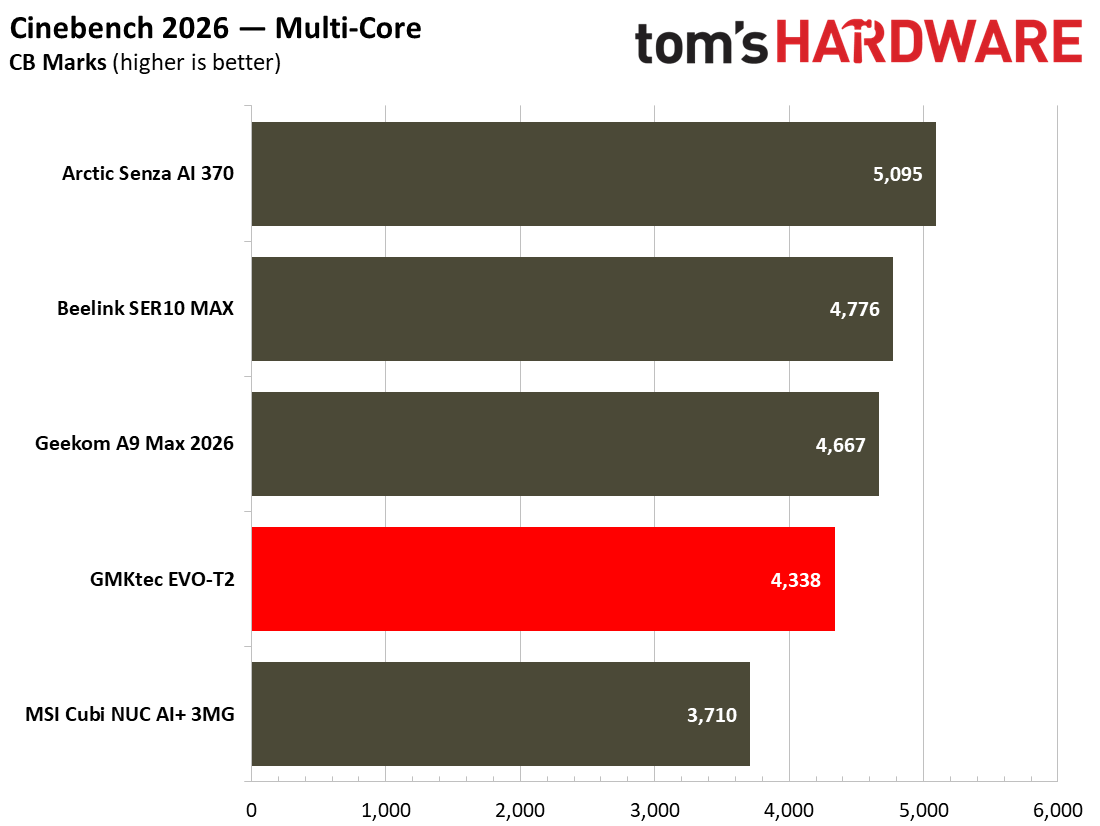
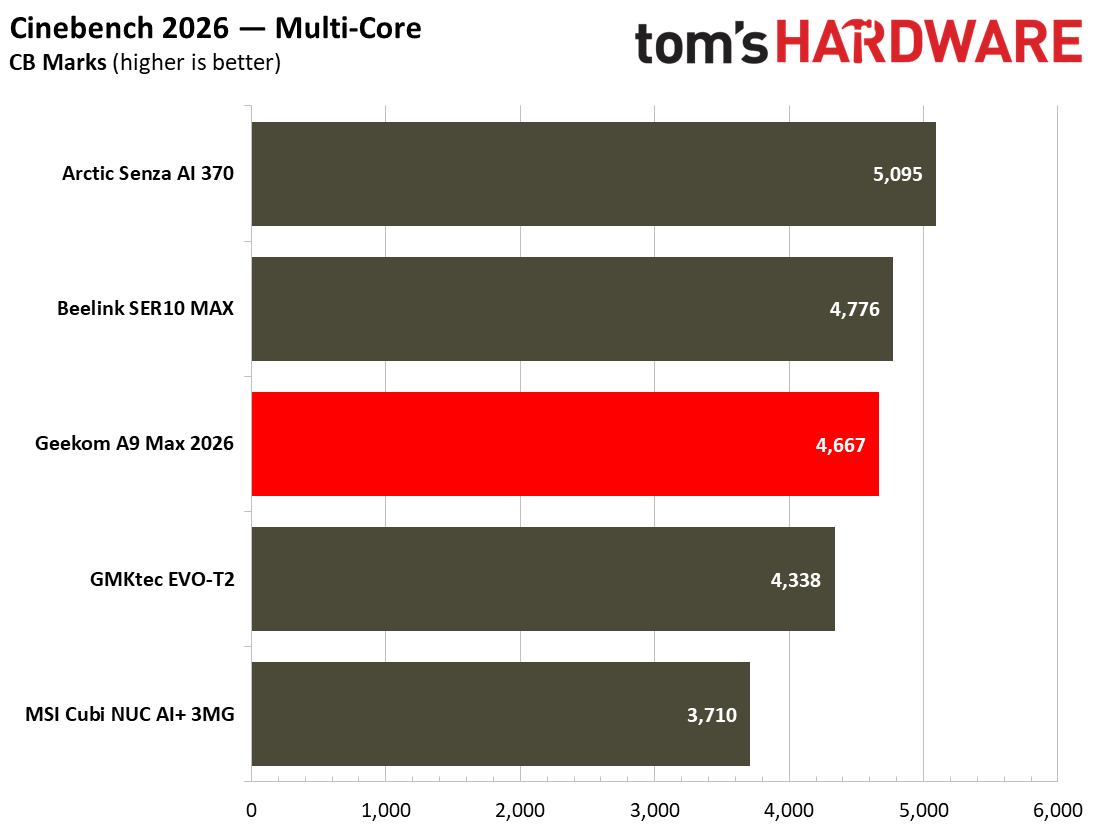
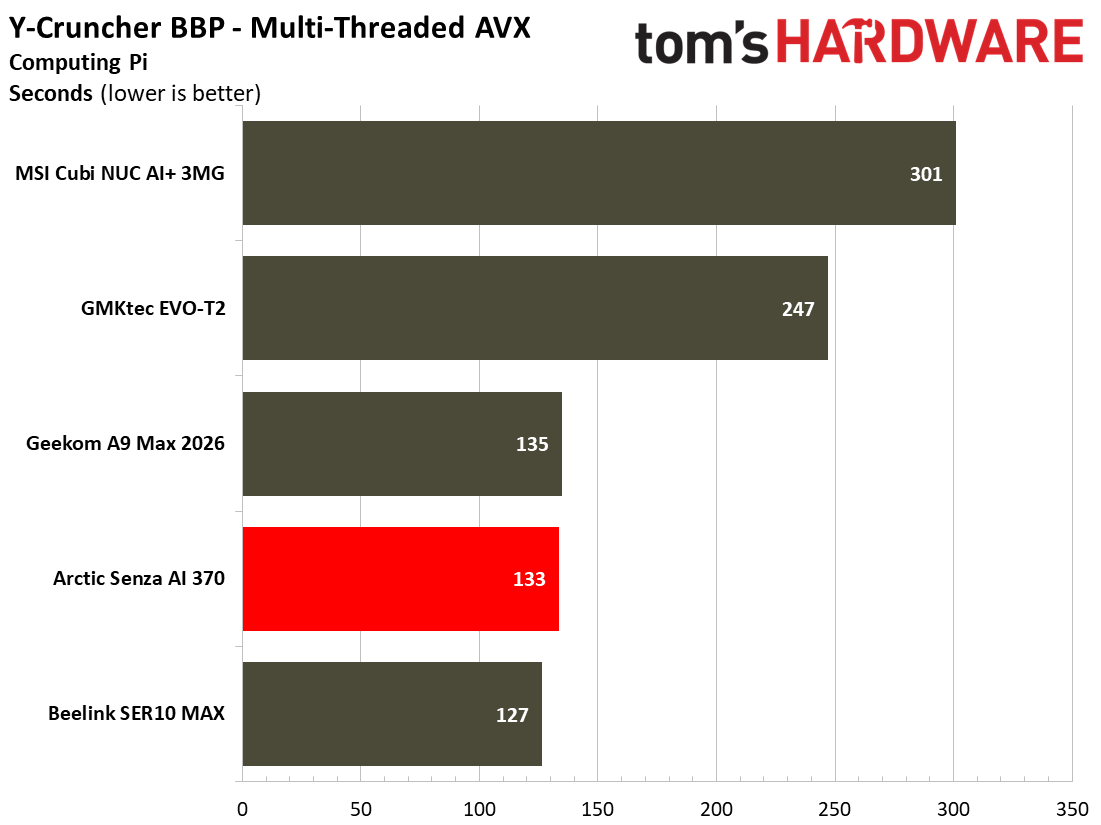
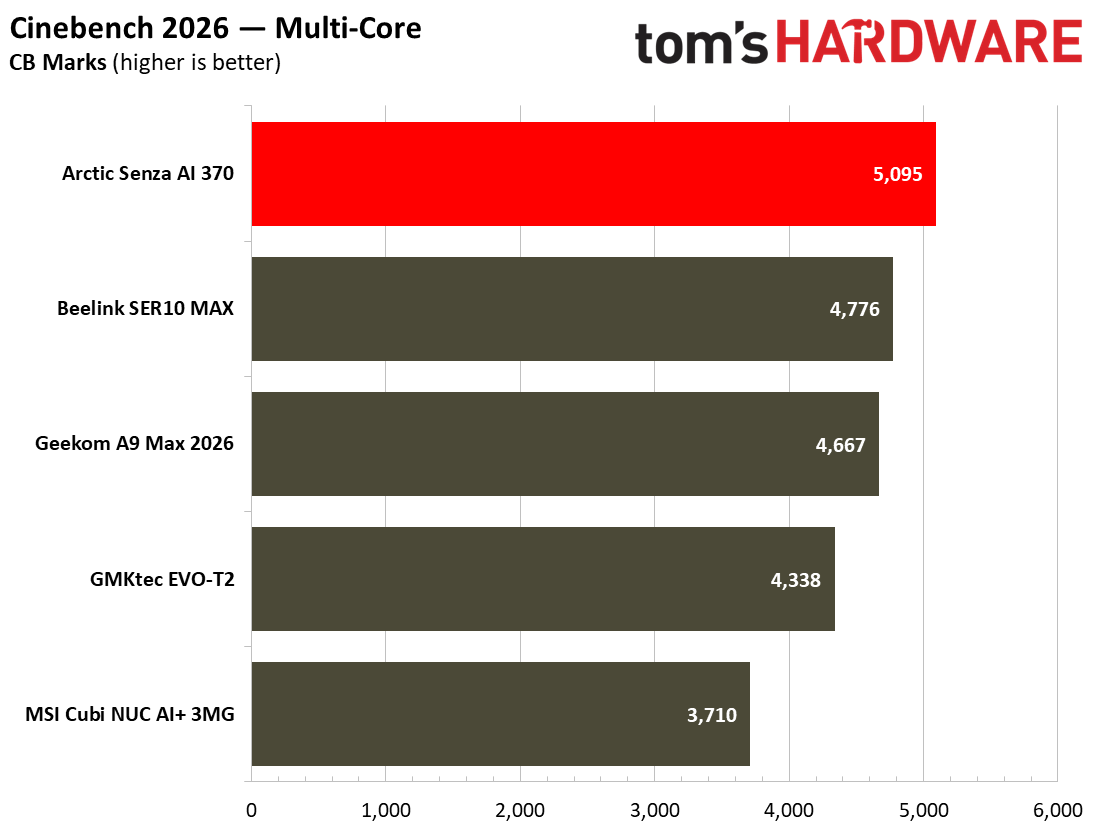
Focusing on the Cinebench 2026 multi-core test shows that the GMKtec Evo-T2 trailed the AMD Ryzen AI pack in this popular visual rendering test. The Panther Lake machine’s score of 4,338 was respectable, but the trio of AMD competitors were between 7.5% and 17.5% ahead.
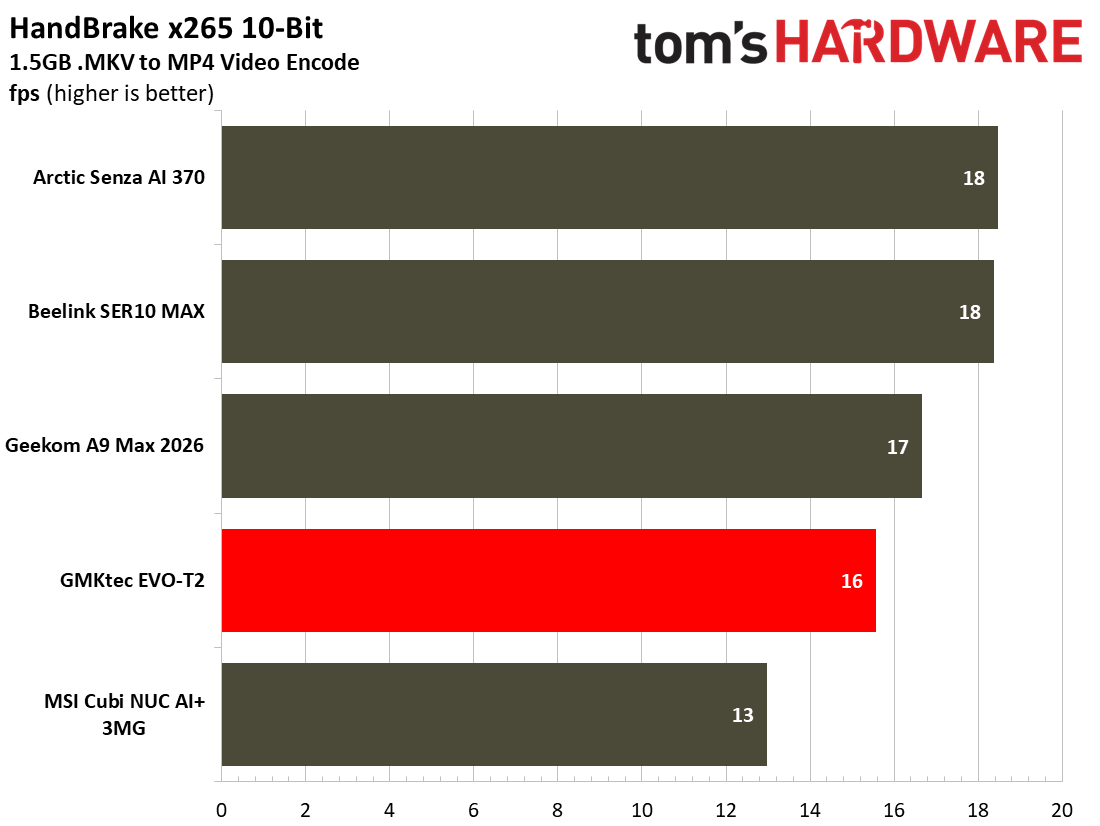
When tasked with a spot of video transcoding using HandBrake there’s a similar story to tell, but the Evo-T2 wasn’t left in the dust, as you can see. Transcoding at 16 frames per second isn’t a disastrous result when the AMD competition achieves 17 or 18 frames per second.
During our demanding tests, the GMKtec Evo-T2 stayed admirably cool and quiet.
Gaming and Graphics on the GMKtec Evo-T2
The GMKtec Evo-T2's Core Ultra X7 358H processor includes an integrated GPU, the Intel B390, with 12 Xe cores. We've seen similar graphics arrangements in handhelds like the MSI Claw 8 EX AI+, so we had high hopes.
Before moving onto our standard synthetic and iconic PC gaming tests, I decided to run around in Far Cry 5 using the Normal preset, 1440p, and no resolution scaling. The game ran smoothly at the native QHD resolution of my primary monitor at a consistent 60 frames per second with the settings mentioned. I enjoyed a half-hour rampage in this open-world first person doomsday cult-combating adventure set in rural Montana.
Our set menu of gaming benchmarks include a trio of 3DMark synthetics and two popular AAA PC games. 3DMark Solar Bay is a great way to frame and compare cross-platform iGPU performance. Steel Nomad targets higher-end gaming PCs and tests raw graphics performance with its heavy GPU load. Finally, Speed Way is a 2025 benchmark from UL that uses DirectX Raytracing tier 1.1 for real-time global illumination and real-time ray-traced reflections. It is the most demanding test of the trio and mini PCs with iGPUs can currently only achieve single-digit frames per second performance in this test.
Tom's HardwareTom's Hardware
GMKtec’s mini PC achieves great scores for an iGPU. For example, its Steel Nomad score of 1,624 is almost 1,000 points better than the Arctic Senza AI 370 we reviewed recently, which packs AMD’s Radeon 890M iGPU supported by a fast LPDDR5X‑8000 dual-channel memory pool.
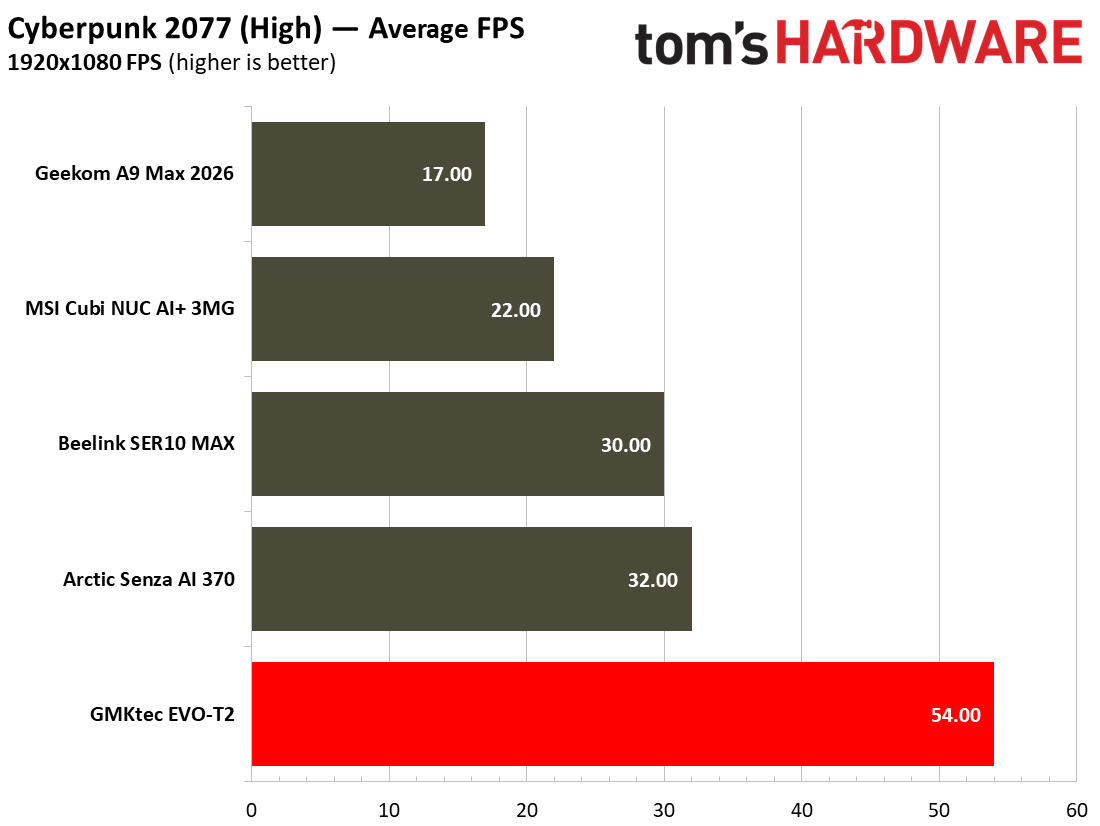
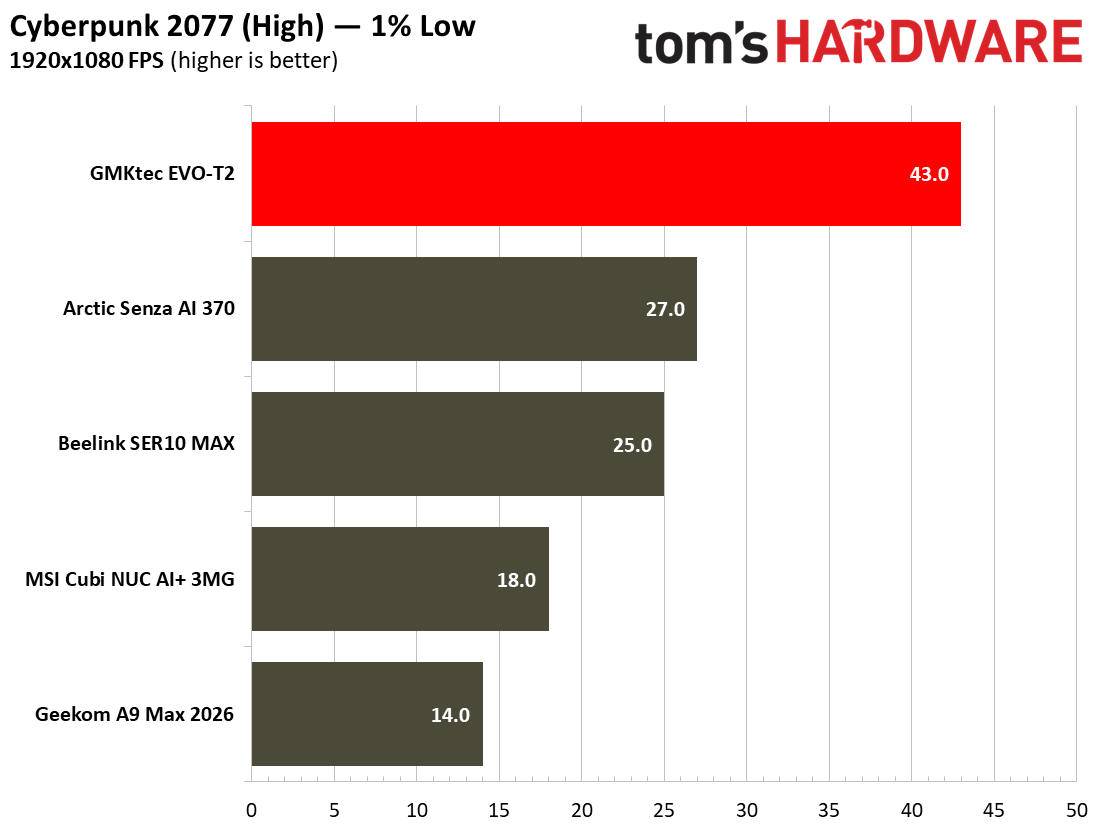
Moving on to more real games, let’s check the data provided by the multi-scene benchmarks built into Shadow of the Tomb Raider and Cyberpunk 2077. The former scales well with processor resources and can still often look and run great on a humble iGPU. As for Cyberpunk 2077, it can really put the squeeze on even the strongest modern GPUs, so here we've used two settings to show how the GMKtec Evo-T2 can perform.
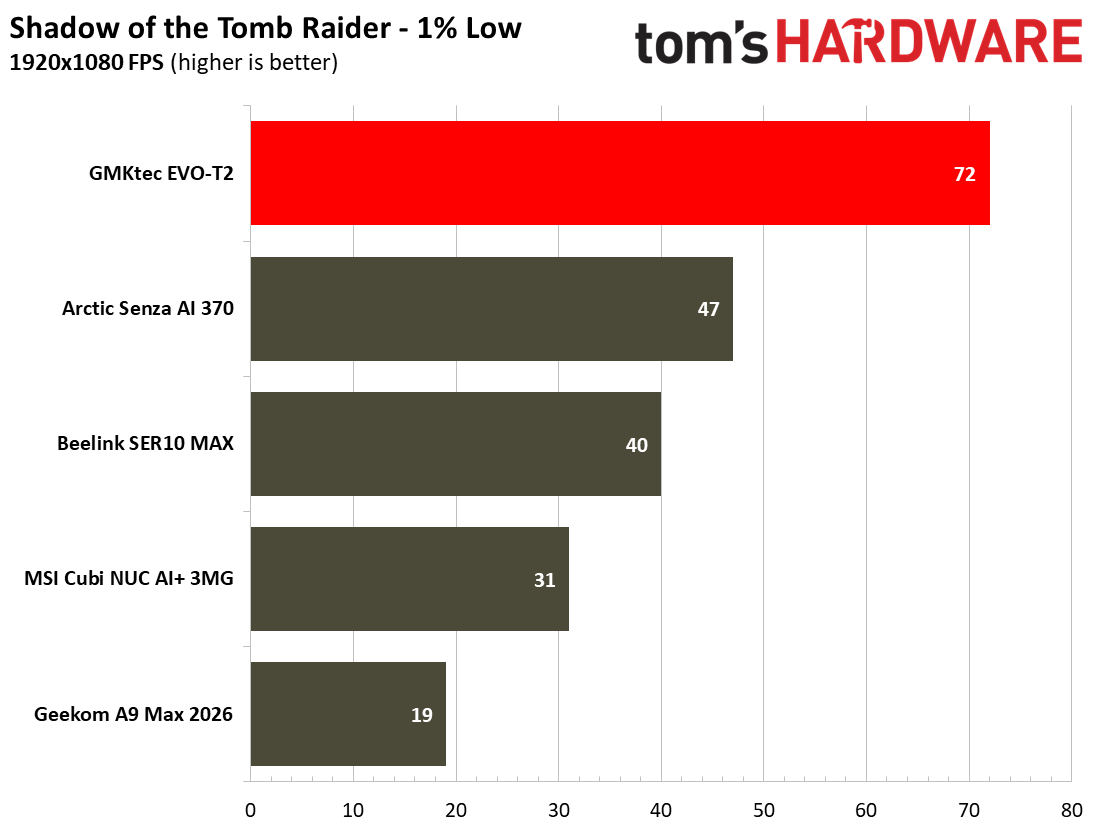
The Shadow of the Tomb Raider High 1080p test score shows a comfortably smooth 90 FPS on average, with the low of 72 FPS, also pleasantly above the magic 60 FPS zone. Gamers might be able to squeeze a higher quality setting or move up and enjoy this title in 1440p High. This is a pretty good effort for integrated graphics.
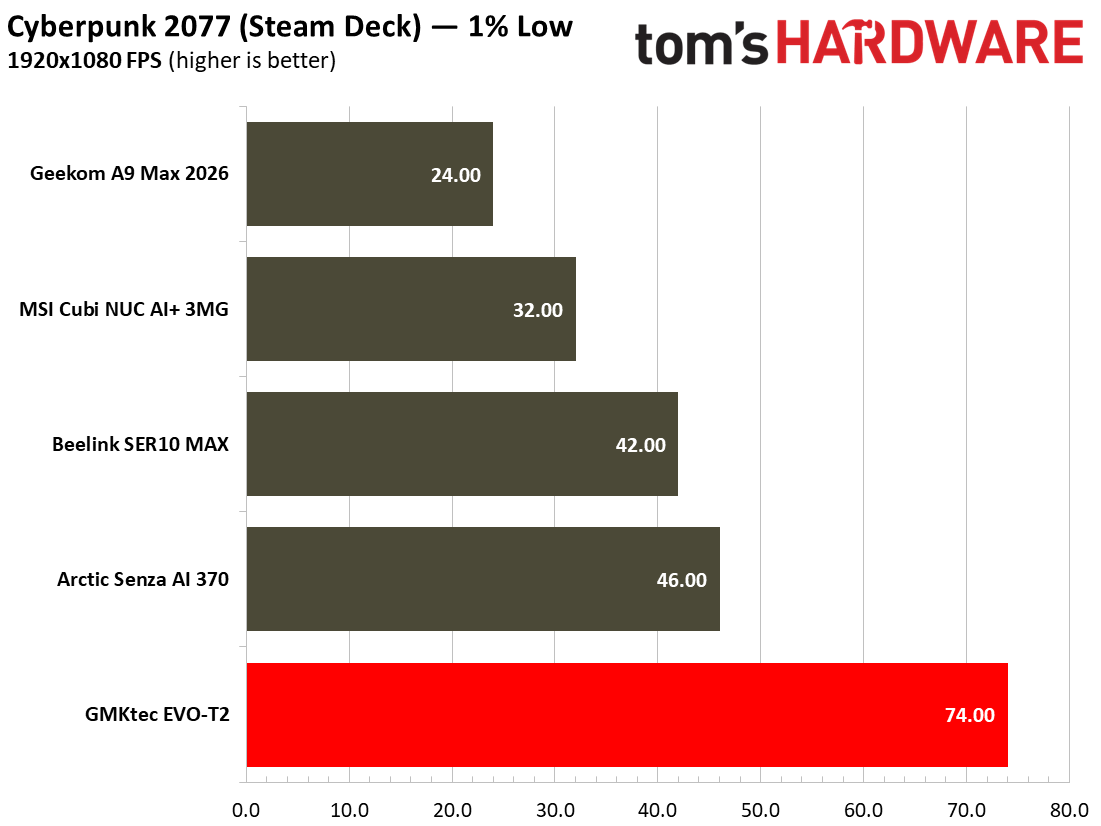
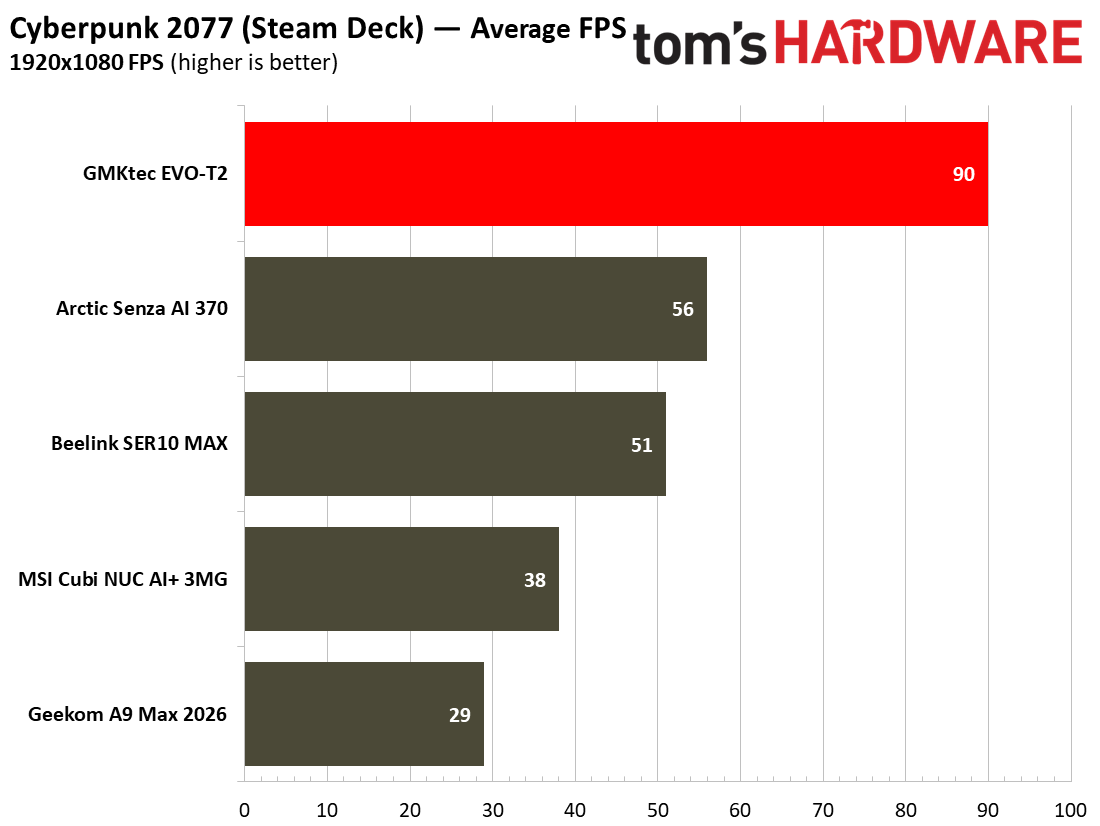
As for Cyberpunk 2077, the Steam Deck + 1080p preset looked very fluid with only minor drops, comfortably remaining above the 60 FPS zone. Adjusting some of the graphics settings, and even applying some level of upscaling technology, using the High 1080p preset should also easily push the GMKtec Evo-T2’s average FPS from the mid-50s to over 60 but with a clear visual advantage over using the Steam Deck preset.
Power, Heat, and Noise when using the GMKtec Evo-T2
Tom's HardwareTom's HardwareTom's Hardware
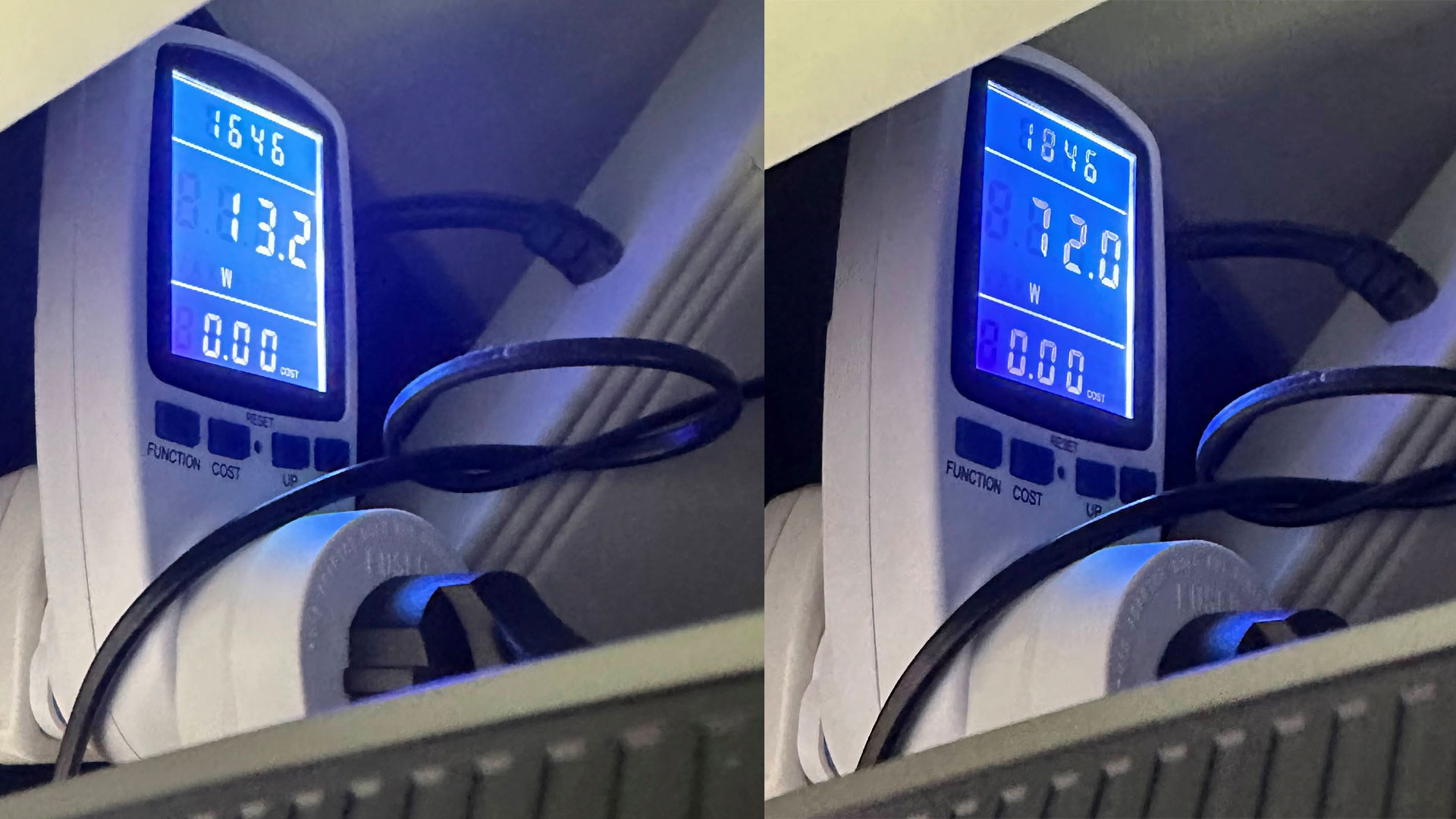
When I left the GMKtec Evo-T2 to idle, my meter measured wattages around 13W from the wall for the whole system. In the middle of active productivity work, mixing desktop Word and having several browser tabs open, consumption increased to about 20-25W. When the system was pushed with simultaneous CPU and GPU benchmarks running, power draw seemed to peak at around 72W, measured at the wall.
System tools showed that during light activities like browsing the web and writing, the CPU temperature stayed around 44 degrees Celsius (in a 28 C room). Playing Far Cry 5 for 30 or 40 minutes, the reported CPU temperature seemed to oscillate between 80 C and 88 C. However, running a workload like Cinebench R23 multicore, the temperatures seemed to creep a smidgen higher over time, with the highest measurement I saw at 90 C.
GMKtec’s powerful Panther Lake mini PC was a quiet operator in general. My measurements from about a foot in front of the device show it runs idle at 32 dBA. Putting as much strain on the system as possible, with multiple heavy CPU and GPU tasks, the loudest volume the fans reached was 38 dBA. I didn't find the fans to be irritating. Even at the loudest levels, the sound produced is a kind of low-frequency hum.
The GMKtec Evo-T2 ships with Windows 11 Pro installed. Customers are warned by GMKtec’s stickers over the Ethernet ports not to connect to the internet on first boot. This may help in avoiding some long update times and let you get straight to using your new device.
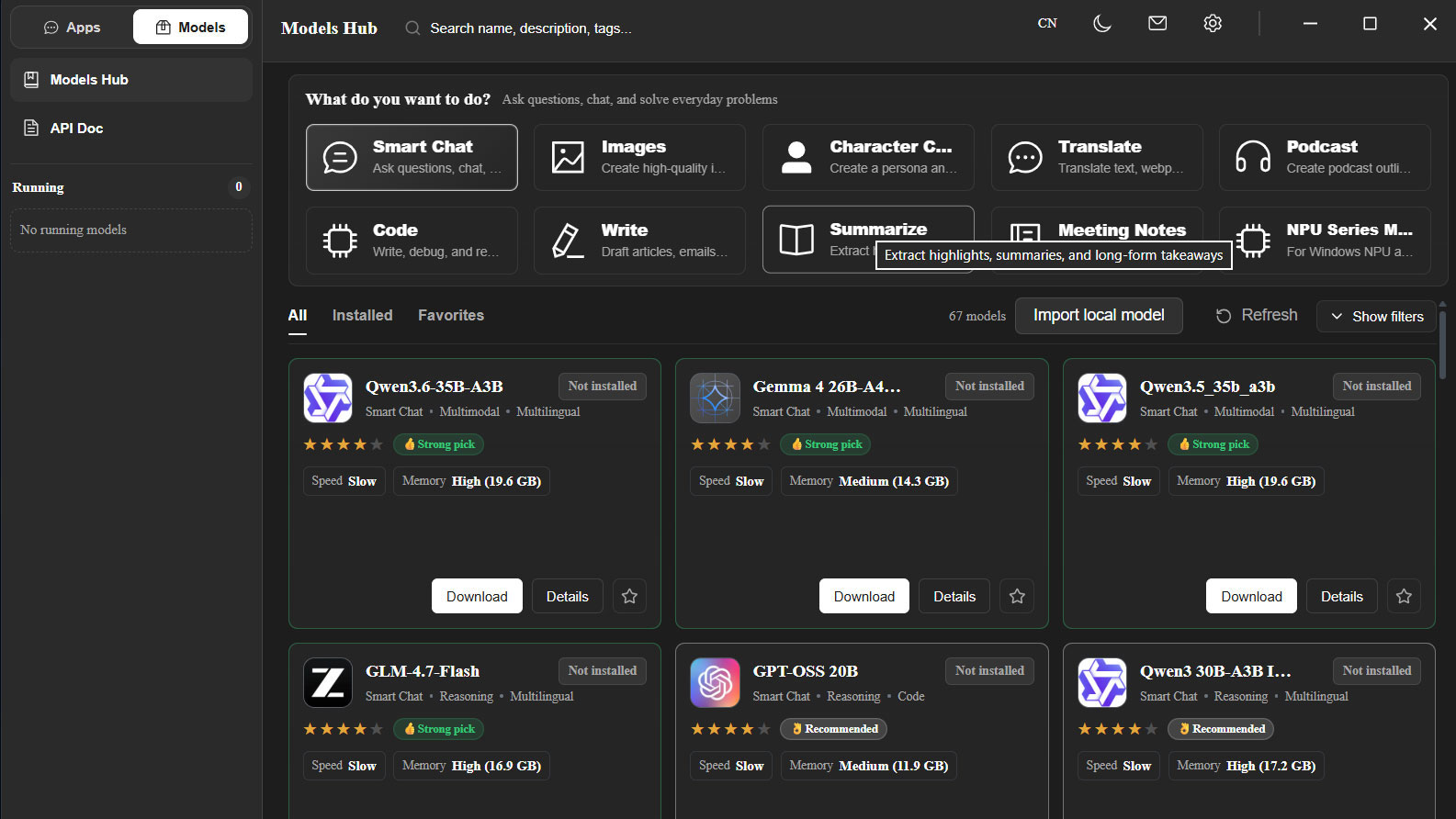
GMKtec includes AI and LLM software preinstalled. A PDF on the desktop alongside several utilities guides you through selecting some local LLMs, downloading, and installing them.
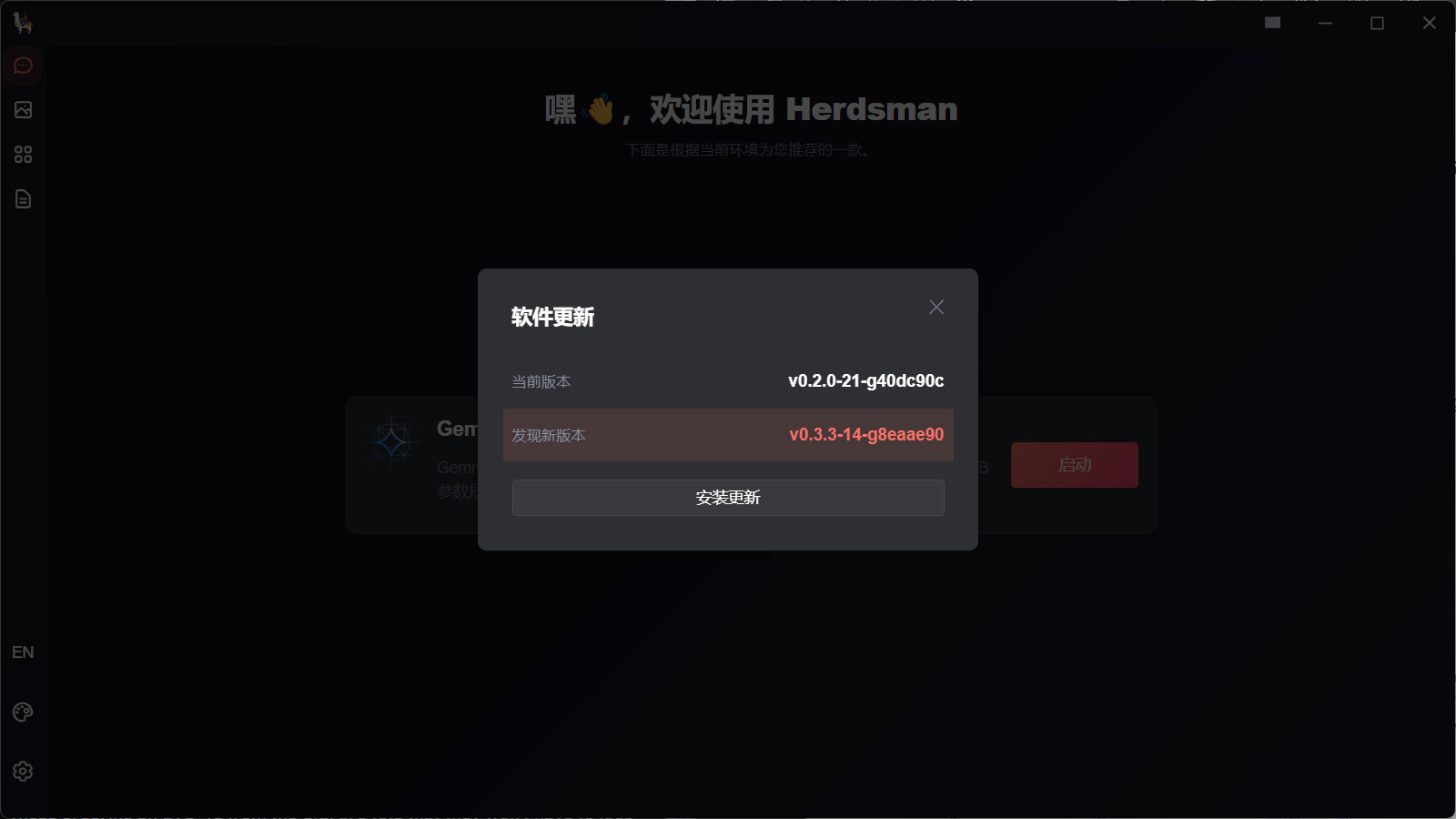
The first step was to run a pre-installed utility called Herdsman, which is where you pick some LLMs based on the software recommendations for different tasks. It also offered summaries of the chosen model’s response speed, capabilities, and memory use. Straight away I hit a slight roadblock with certain pages / dialogs popping up in Chinese. With Google Translate on mobile, I managed to navigate this, but it isn’t ideal.
With the model downloads complete, I could now test out the pre-installed AIPC and GMKtec Claw software. My initial test queries were run using the Alibaba-developed Qwen3.6-35B-A3B / Balanced model. This hogged a little over 27GB of my memory, according to Windows, so the 64GB system total seemed well chosen for this LLM. Responses from queries were not slow, with metrics reporting an average Prefil speed of 500+ t/s, and Decode of 30 t/s. When asking it to “write a 500-word essay on the history of computing," it finished in 26 seconds. Watching the Windows system monitor when Qwen was busy showed that it solely relied on the GPU (using 90-95% utilization) for acceleration. The NPU was completely untaxed, and the CPU’s low ~10% utilization was probably mostly due to background tasks and housekeeping.
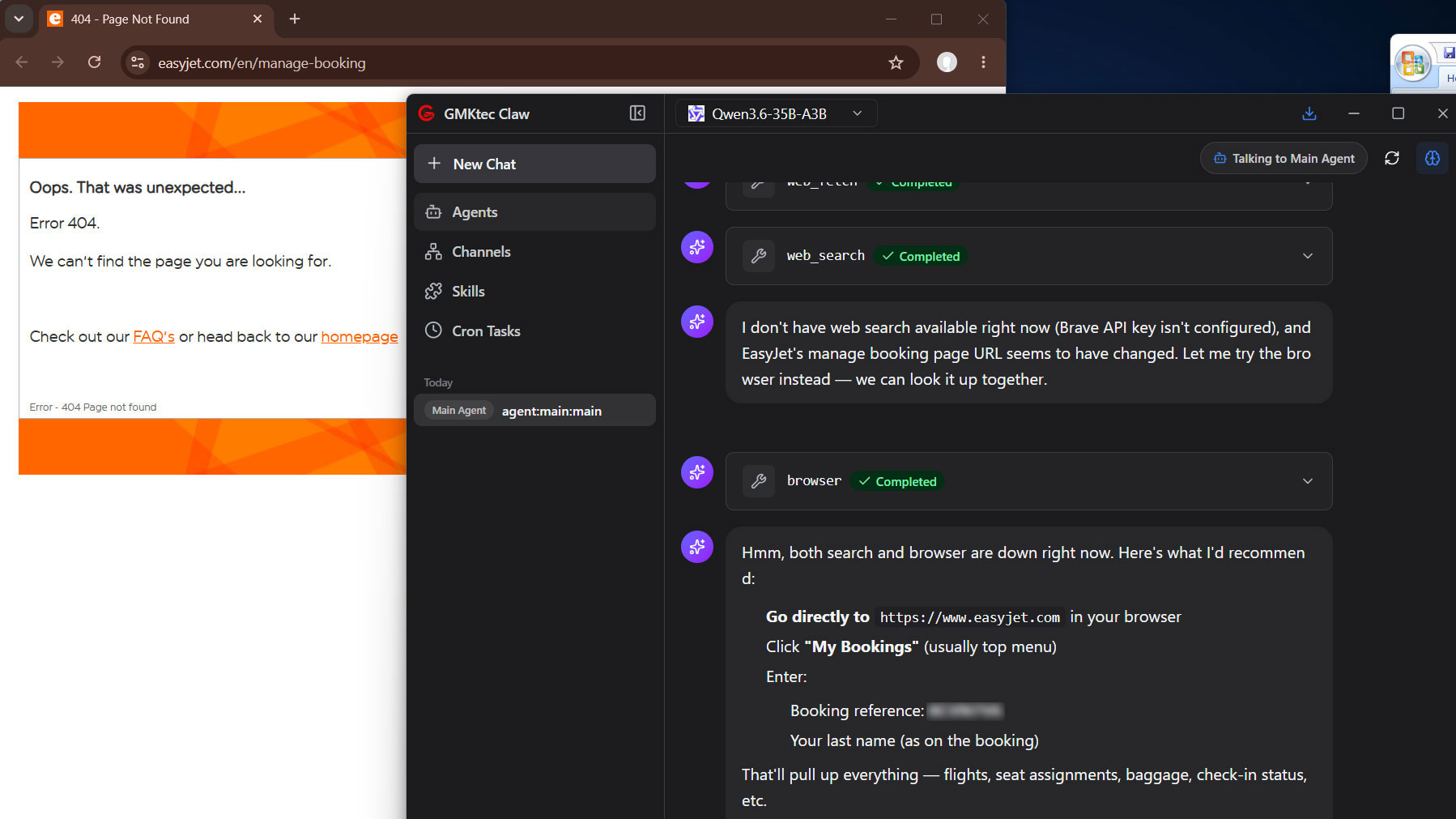
Other prompts I tried demonstrated that local AI was just as capable as online models at being totally wrong about a subject. Then, the agentic AI app also underwhelmed by failing in a pretty simple task I asked it to complete - checking an airline booking given the reference number.
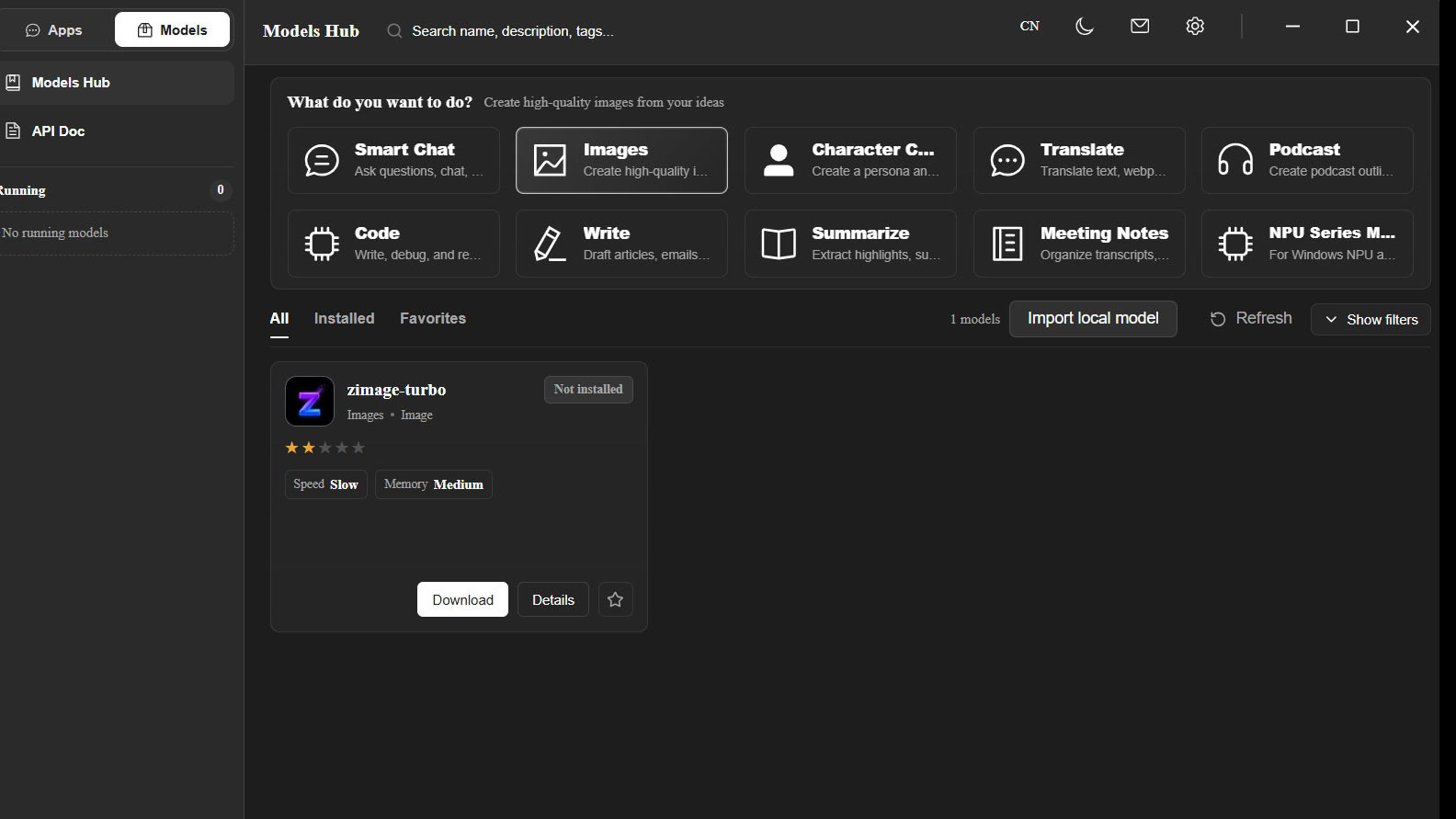
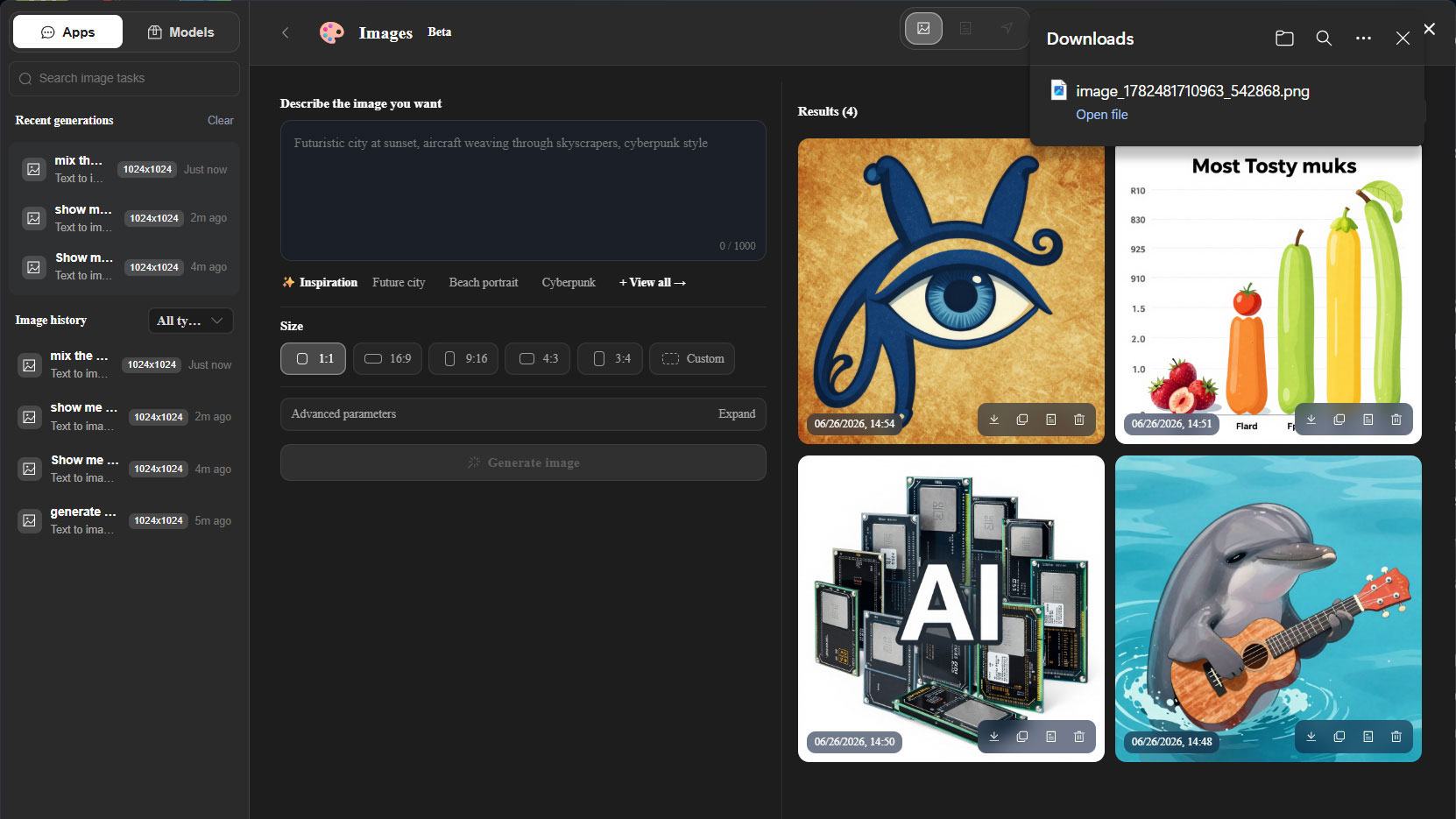
Using Zimage Turbo (10.86GB) to generate 1,024 x 1,024 pixel images from prompts resulted in a wait of just over 20 seconds for each result. Again, this used the GPU.
These GMKtec-supplied tools may have potential, but the supplied software suite suffers from partial translations and fewer chat, reasoning, and coding models available than if you just went and downloaded the well-known LM Studio. (However, LM Studio users would also need something like ComfyUI to set up image generation models they wanted to use.)
GMKtec sells the Evo-T2 with a one-year warranty.
Configurations of the GMKtec Evo-T2
We tested the GMKtec Evo-T2 with Intel Core Ultra X7 358H, 64GB RAM, and 1TB SSD, which is listed at $1,959 on the firm’s US site. That chip is one of the best Panther Lake mobile processors with its 16C/16T CPU tile (4x P‑cores, 8x E‑cores, 4x LP E‑cores) running at up to 4.8 GHz. This is aided by Intel Arc B390 (12 Xe cores), which is muscular for an iGPU. Another section of the SoC features a dedicated NPU capable of 50 TOPS, says Intel. However, GMKtec likes to highlight that the total AI power of this Intel processor is 180 TOPS
GMKtec sells just two Evo-T2 configurations in the US, and both have 64GB LPDDR5X-8000 memory. There are two M.2 SSD slots inside, and the manufacturer provides a 1TB Crucial E100 PCIe 4x4 drive using Micron 176-layer QLC NAND pre-installed in the device we received. Windows 11 Pro is included, as are the aforementioned GMKtec local LLM software tools.
We reviewed the Evo-T2 in its $1,959 configuration with 64GB of RAM and a 1TB SSD. On the U.S. web store, there is just one other configuration, a model with the same tech specs but with an “853GB AI SSD” (Phison aiDAPTIV+) instead of the regular 1TB SSD, with an MSRP of $2,399.
Customers ordering an Evo-T2 from the U.S. are told that they won’t have to face any additional import fees, though the store suggests that you should order now because price hikes are coming.
Bottom Line
GMKtec wants to call this an AI machine, and the 64GB of RAM certainly helps towards its local LLM aspirations. But the software it preloads for local AI needs more polish. I’d say that the GMKtec Evo-T2 is far from a one-trick pony, though, and I enjoyed using it as my daily driver for a few weeks.
This mini PC easily handled all the productivity workloads I threw at it. Gaming was excellent for an iGPU – and probably only the aforementioned Ryzen AI Max+ 395 APU with Radeon 8060S graphics does better in a single package. Also, this machine is compatible with one of the best eGPU interfaces available, OCuLink, for connecting a desktop GPU of your choice if and when you feel the need. Many enthusiasts still find this interface works better than Thunderbolt 5 or USB4 v2.
GMKtec’s Evo-T2 is a quiet-running mini PC showcasing one of the best Panther Lake chips in the Core Ultra X7 358H. Having 64GB of fast memory on board feels like something of a luxury in the current climate. However, the $1,959 MSRP is just $40 less than the 64GB version of the GMKtec Evo X2 AI Mini PC with Ryzen AI Max+ 395, with integrated Radeon 8060S graphics that we reviewed in February (was $1,499, but now $1,999 with “price increase coming soon”).
The Beelink SER10 Max might look like a standard Mac Mini-style mini PC, but this unit is fairly unique when compared to many of its other Mini PC compatriots – it comes dual-booted with both Windows 11 and Ubuntu, the latter of which also comes with OpenClaw and a lightweight local AI model pre-installed on the drive. Sporting AMD’s Ryzen AI 9 HX 470, a light refresh that boosts performance over its predecessor by 100Hz and AI TOPS to 55 over 50, is the curious configuration a simple party trick, or is the $1,649 mini PC doing something actually useful?
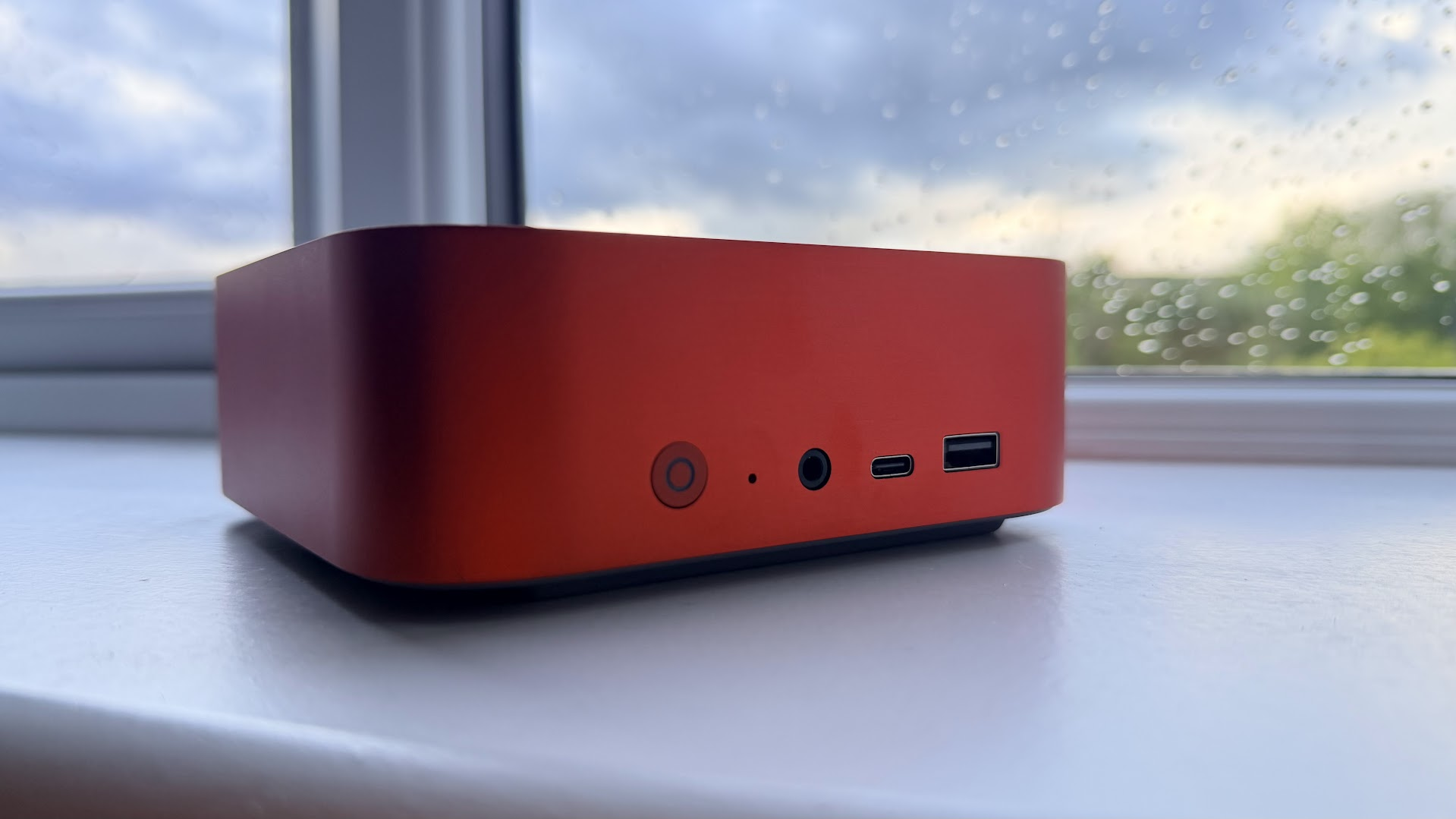
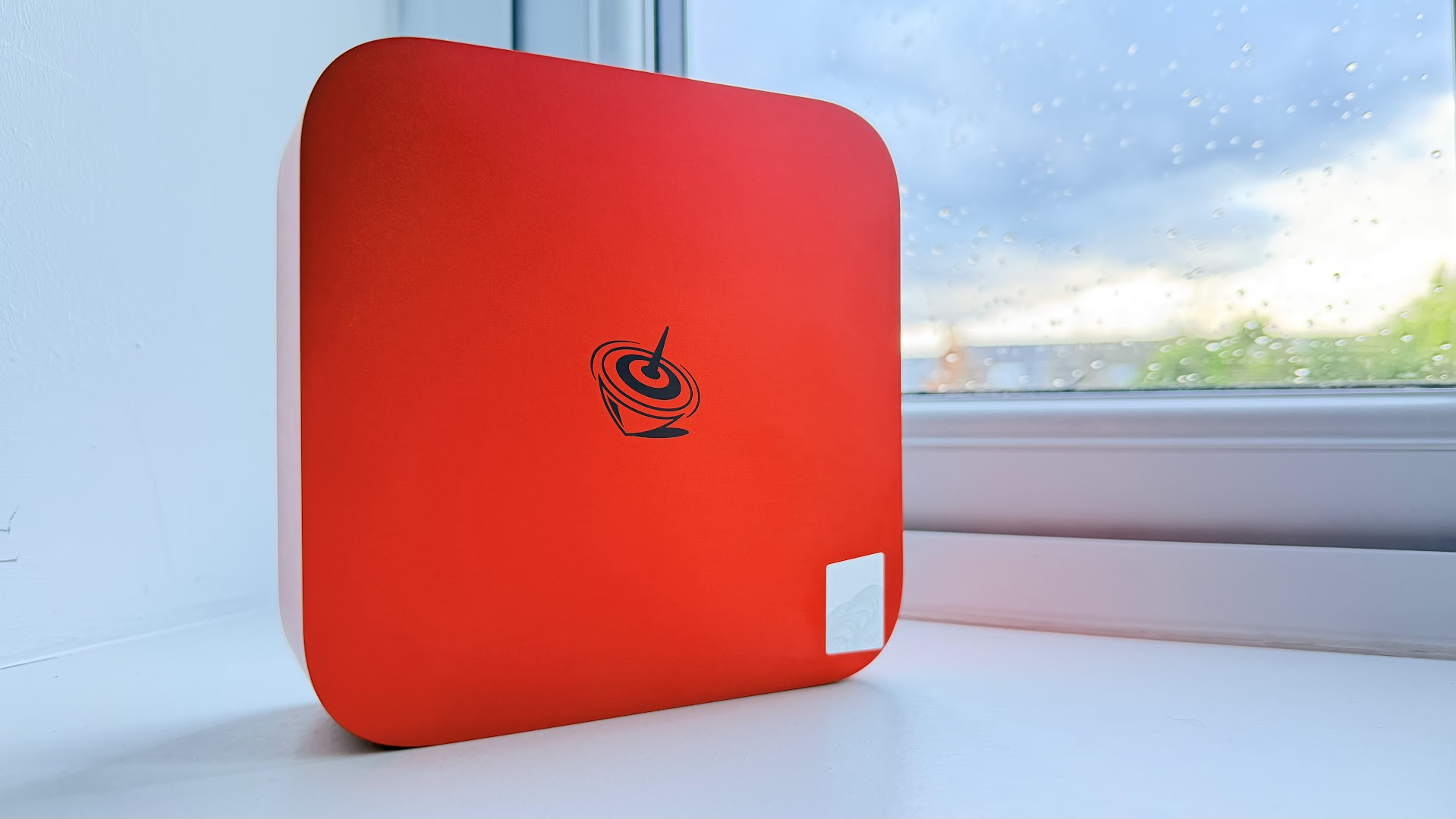
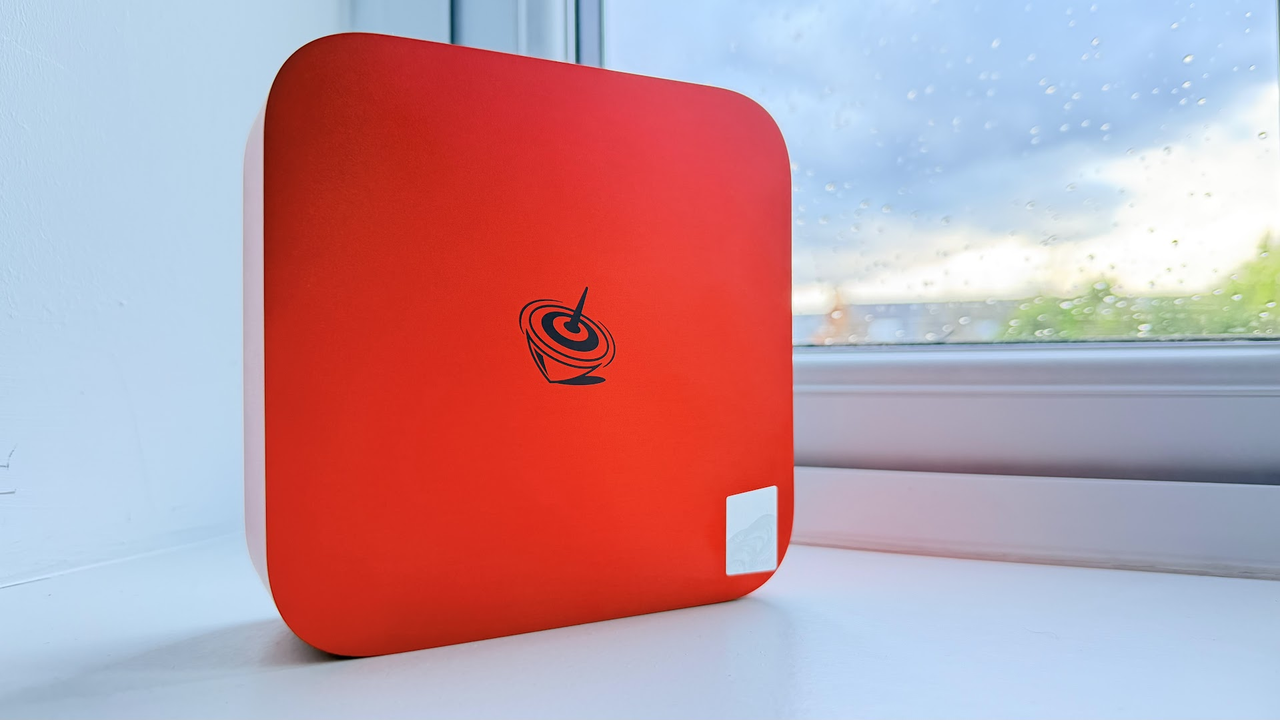
Outfitted in a vibrant red, the PC comes ready to dual-boot between Windows 11 and Ubuntu with the additional boon of OpenClaw having been pre-installed on the system alongside a local AI model – Qwen 3.5-9B-Q4_K_M – on the Ubuntu install, meaning that setting the SER10 Max up for AI usage should be fairly straightforward. It’s important to note here that, despite the branding and usefulness of the setup, the HX 470 is hamstrung by a maximum memory bandwidth of 89.6 GB/s, a far cry from the Strix Halo’s 256 GB/s, meaning that local AI performance will be somewhat limited.
Design of the Beelink SER10 Max
(Image credit: Tom's Hardware)
Beelink has taken a few notes from Apple’s playbook for the design of the SER10 Max. While the underside and rear of the chassis are both made from plastic, the rest of the shell is made from high-quality machined aluminum. Our unit comes in with a red anodized aluminum finish, which looks fantastic, though it might not be to everyone’s taste. The red finish is specifically for units that come with the “OpenClaw” feature pre-installed. For everyone else, there’s a silver finish, which makes the unit look even more Mac Mini-inspired.
One thing to note about the SER10 Maxis is that, unlike some other mini PC’s, the power supply is external, meaning that you’ll have to find a place for the power brick to live. Luckily, the unit we were shipped came with a fairly long cable. It’s a tight, well-made package sporting vapor chamber cooling and a single active fan that never gets too loud while under heavy loads, which is a rarity when dealing with PCs in this form factor.
Specifications
Processor
AMD Ryzen AI 9 HX 470
Memory
64GB (2x32GB DDR5-5600)
Graphics
AMD Radeon 890M (integrated)
Storage
2TB 2280 M.2 SSD
Networking
10Gbps Ethernet, Intel AX200 Wi-Fi 6, Bluetooth 5.2
Front Ports
USB 3.2 Type-A 10Gbps, USB-C 10GBps, 3.5 mm audio jack
Rear Ports
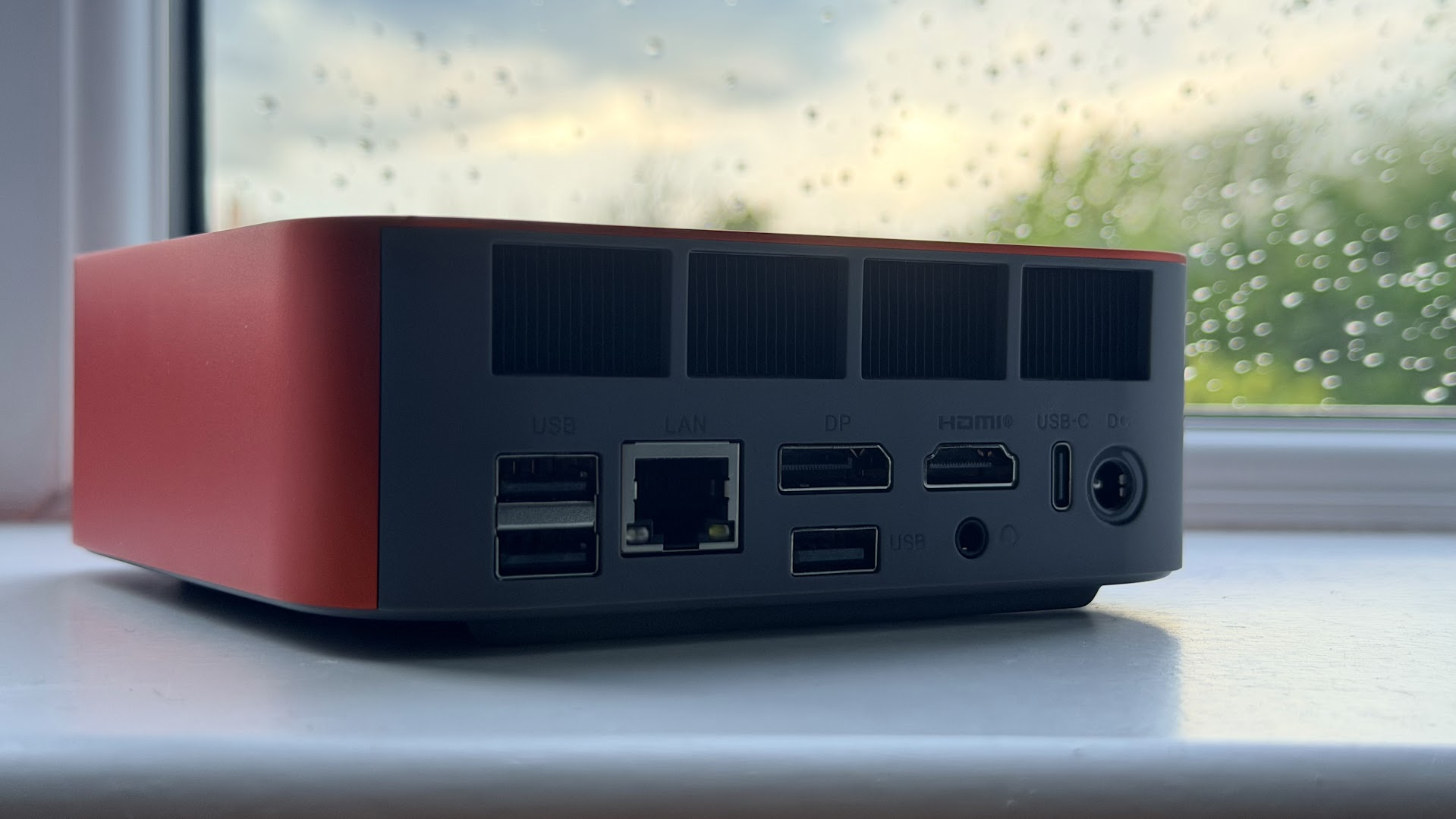
USB4 (Type-C), HDMI 2.1, DisplayPort 1.4, 10Gbps LAN, USB 2.0 Type-A, USB 3.2 Type-A
Power Supply
100-240V AC, Output 19V 5.26A
Operating System
Windows 11, Ubuntu
Dimensions
5.31 × 5.31 × 1.76 inches (134.9 x 134.9 x 44.7 mm)
Price as Configured
$1,649
Ports and Upgradeability on the Beelink SER10 Max
(Image credit: Tom's Hardware)
There’s some easy-access ports on the front, though I would have liked to have seen more Type-C ports over Type-A. The USB4 functionality might also come in handy for anyone looking to run an eGPU dock. On the back, 10Gbps Ethernet could make it a handy machine for running locally connected workstations for AI development (though on this machine, it's probably better for fast networking). There’s nothing special to write home about here, though the additional feature of auto-power on via LAN is incredibly welcome, cementing the way that this PC is specifically positioned as a satellite compute unit.
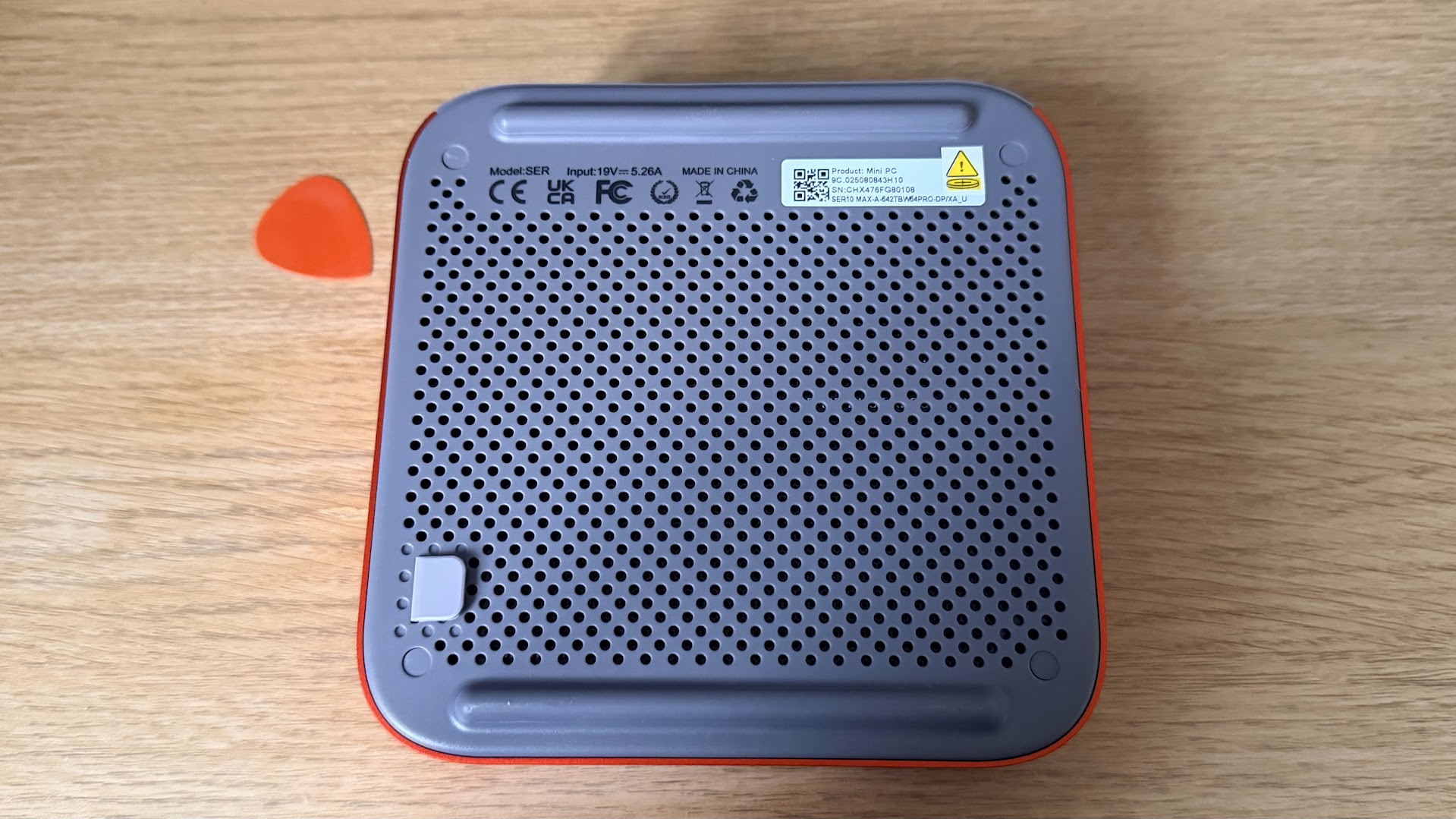
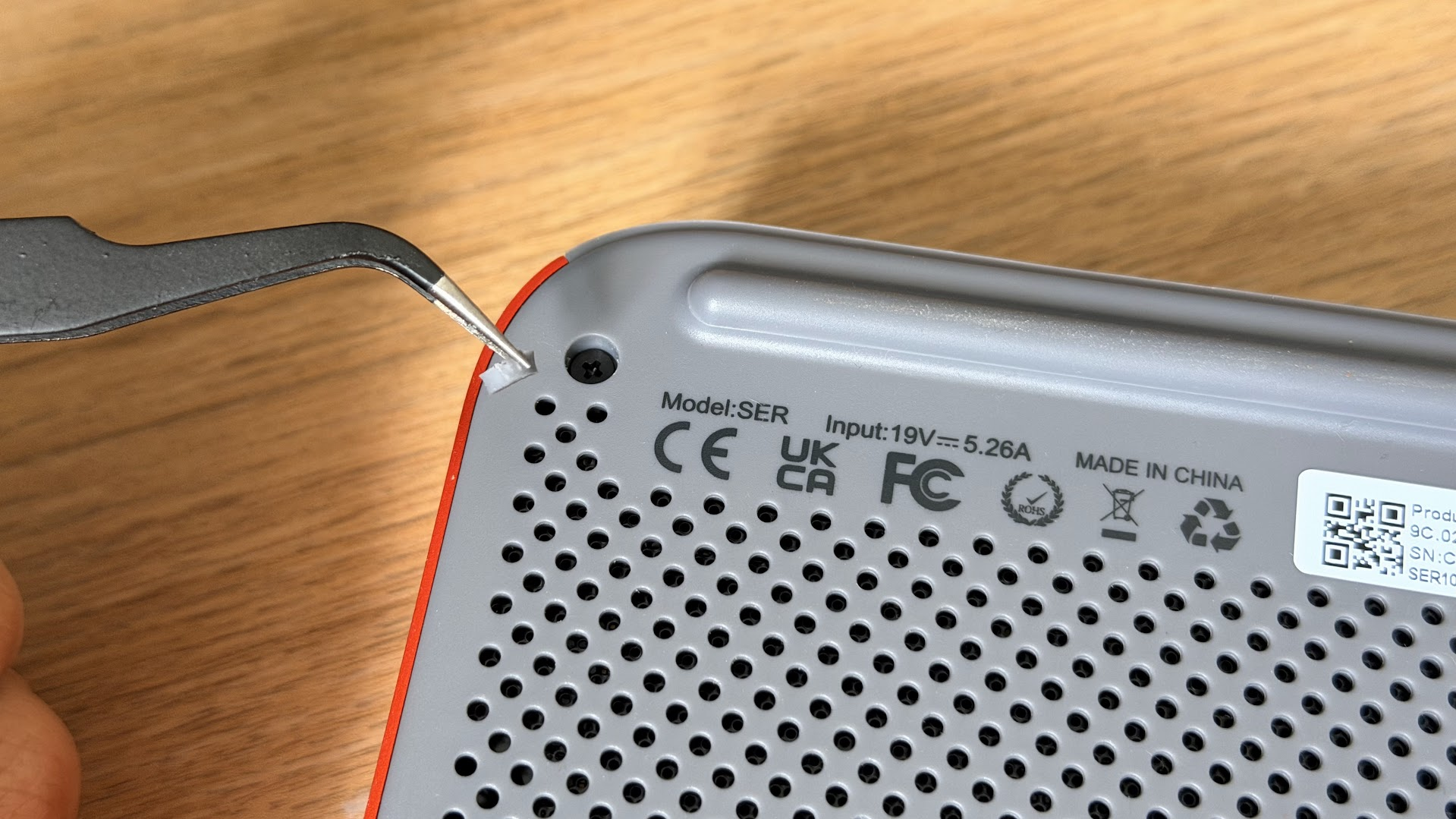
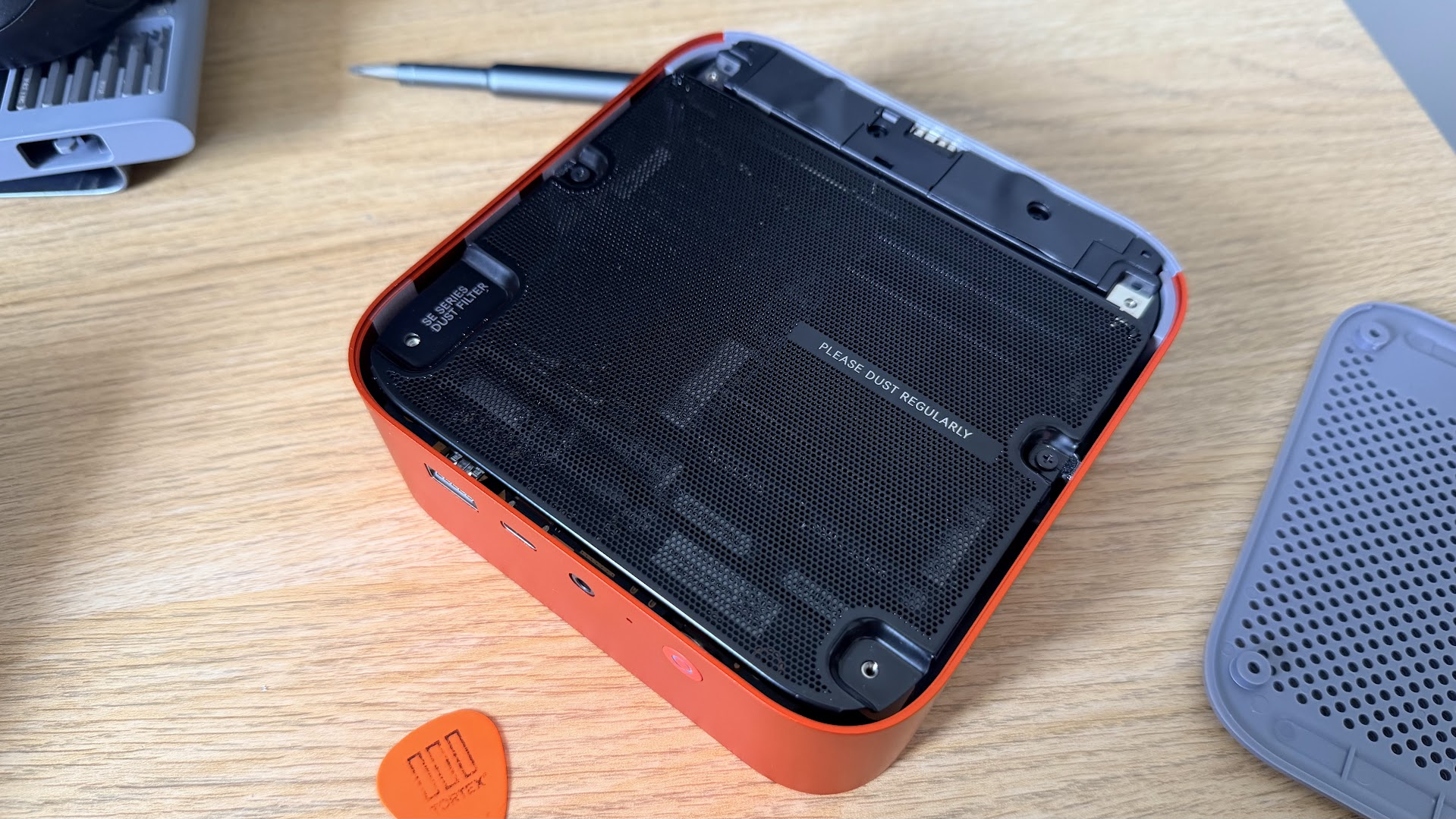
The SER10 Max can be quite easily opened up, once you get past the adhesives. There are four rubber feet at the bottom of the chassis, which are unfortunately glued to the heads of the four screws. These are quite strongly bonded, and when I removed one of the small rubber stoppers, it flew off my desk, and into oblivion, never to be found again. Once you’ve taken your handy spudger or guitar pick, all it takes is removing four Phillips head screws, and a tug of a rubber tag at the bottom of the unit to remove the plastic bottom panel. There, you’ll be met with a dust filter, which takes another two screws to access the components within.
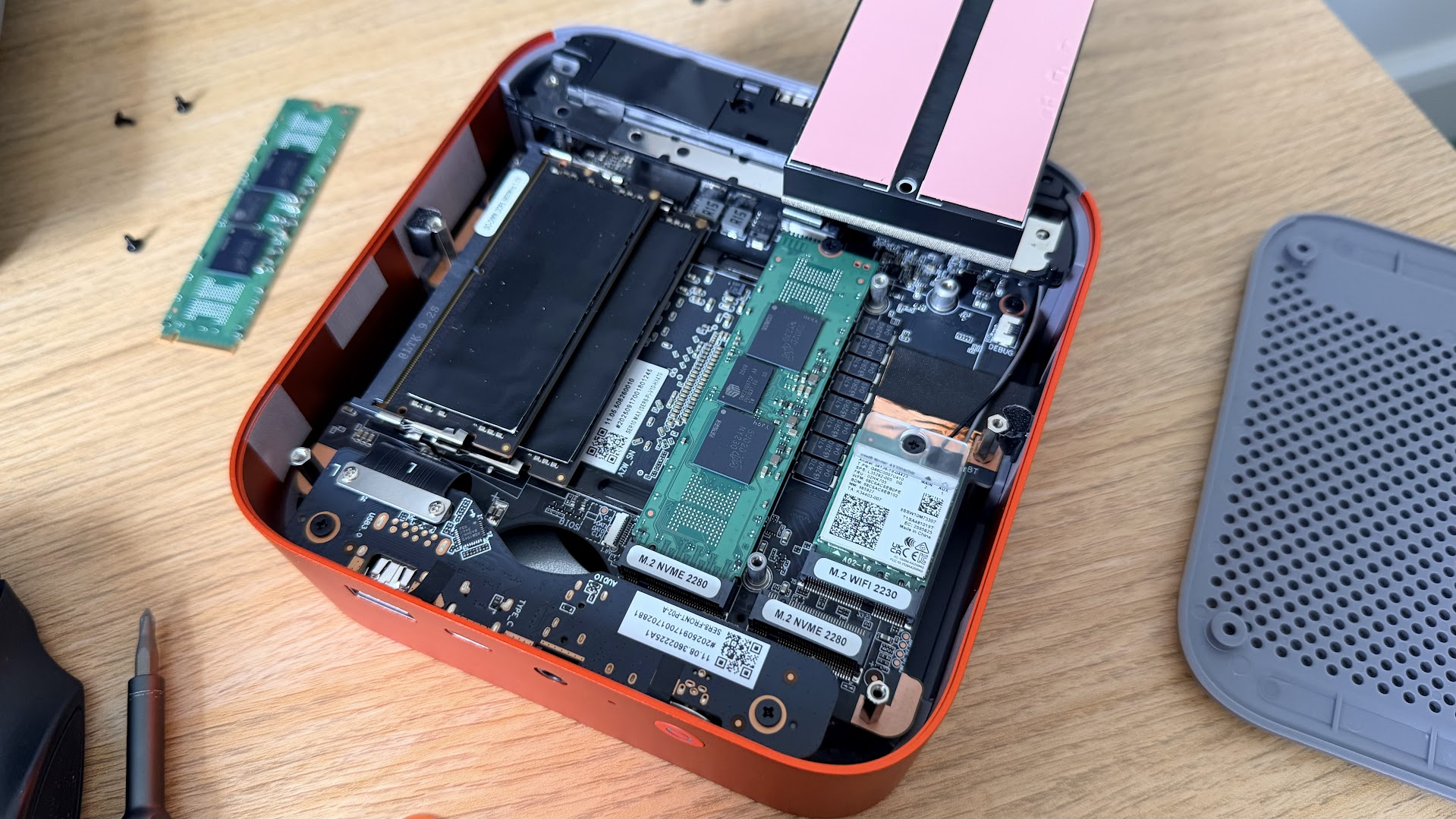
Our unit came with two populated dual-channel DDR5 SODIMM slots, in addition to two NVMe drives (one for each slot, housing each OS), which are underneath a heatsink, which is partially taped to another part of the chassis. You can easily remove the two screws holding the SSD heatsinks in place and lift it up, revealing two populated M.2 2280 slots, each housing a Crucial 1TB drive. Beneath the one on the right is an additional M.2 2230 slot, which is shielded, housing the Intel AX200 Bluetooth and Wi Fi module. These core components are all very easily accessible, meaning that if you wanted to upgrade your storage or if anything goes wrong with your connectivity at some point, it’s all user-replaceable, which isn’t a given with this segment of small PCs.
Productivity Performance on the Beelink SER10 Max
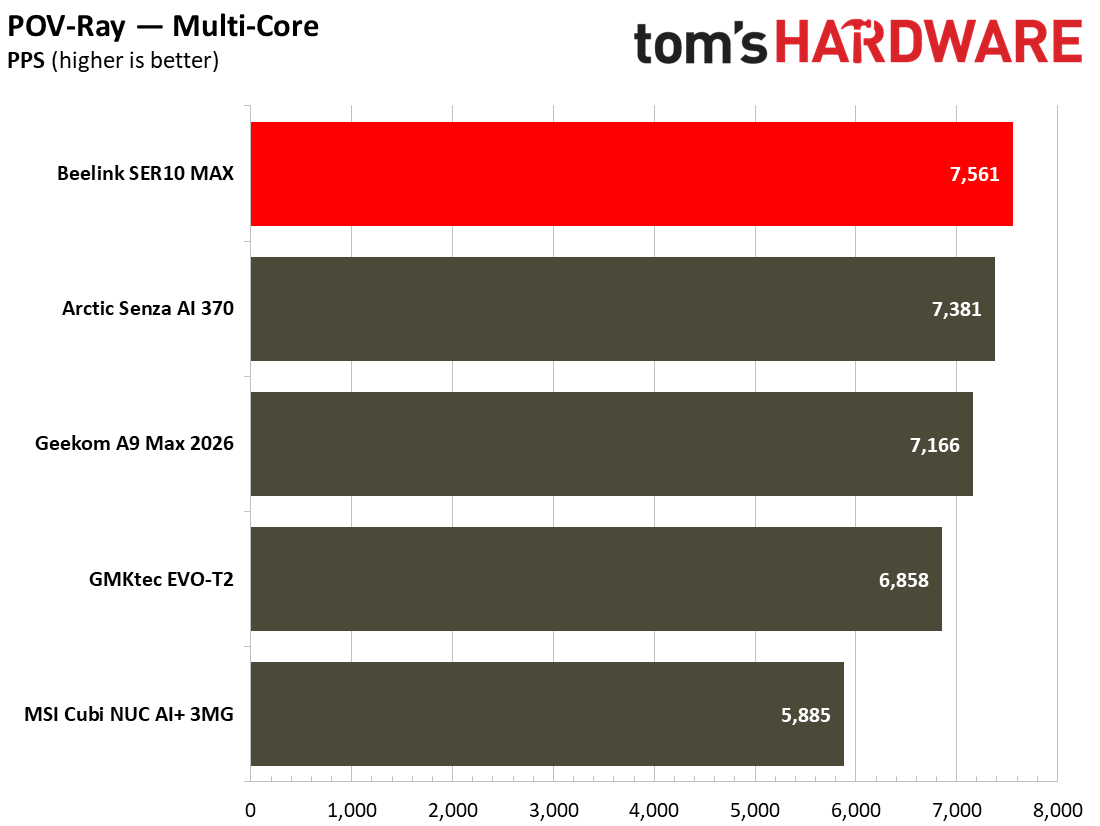
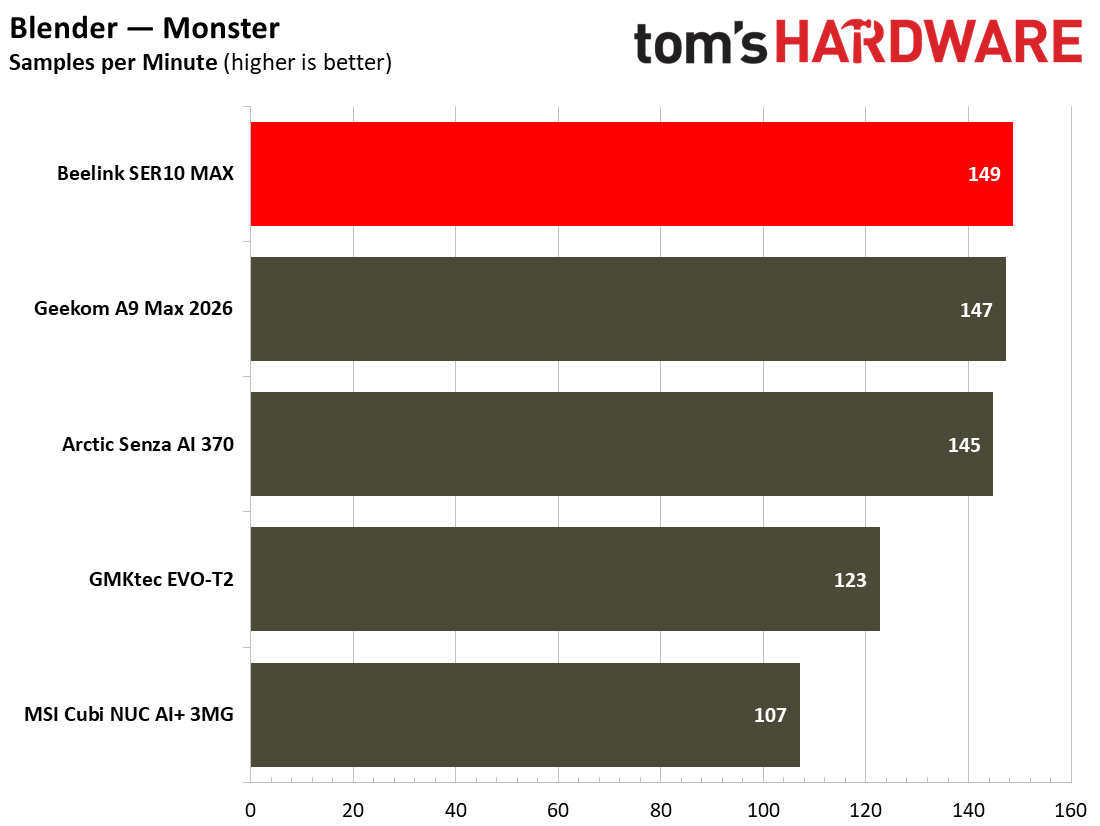
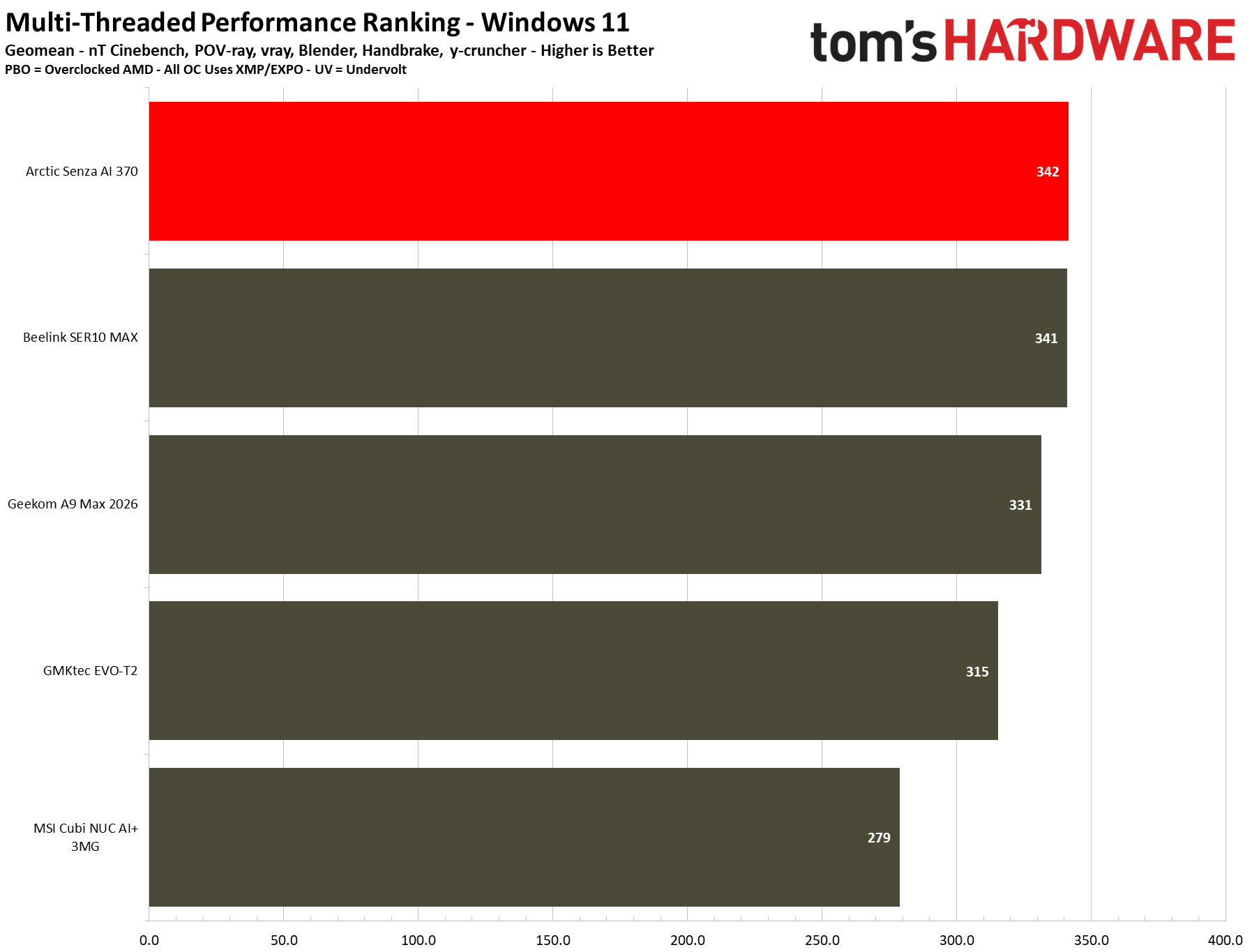
The SER10 Max’s performance across productivity workloads squarely put it in the middle of the pack for our currently tested suite of mini PC benchmarks. That’s no bad thing – the system can handle everyday office and demanding CPU tasks thanks to its 12-core / 24-thread configuration, which shines in multi-threaded workloads. In everyday use, I was not wanting for any more power than what was already on offer here.
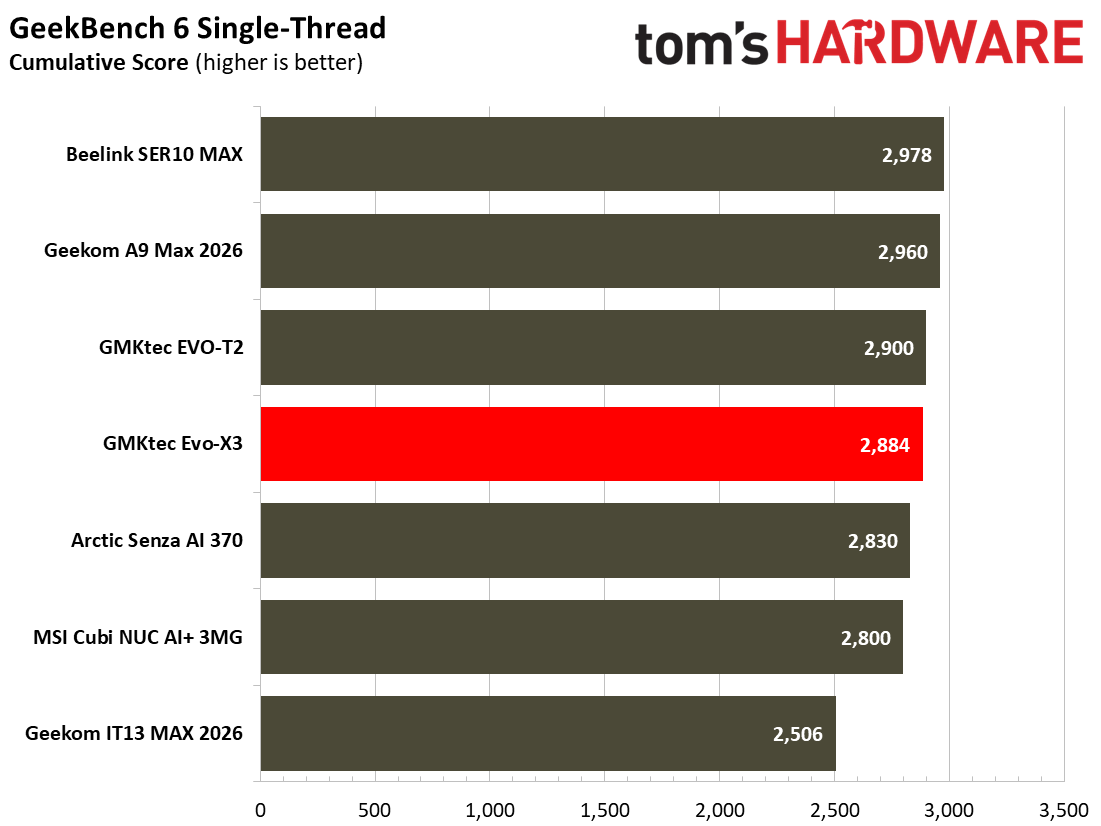
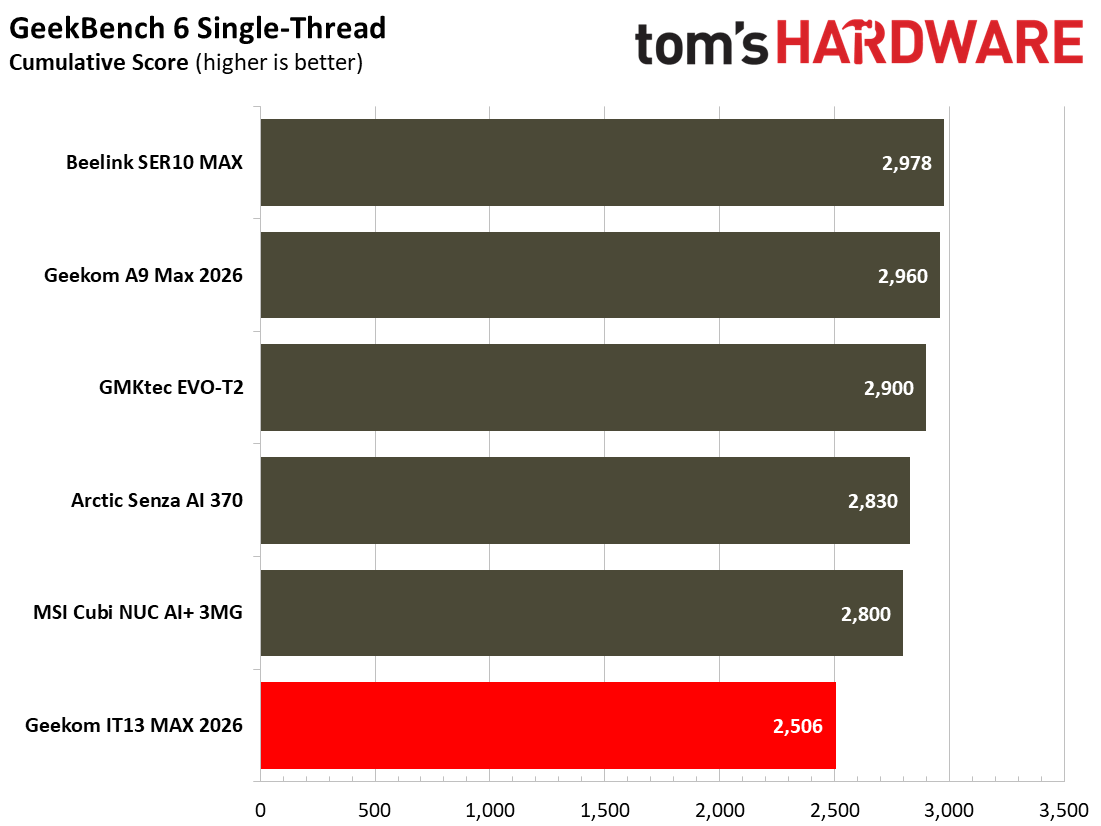
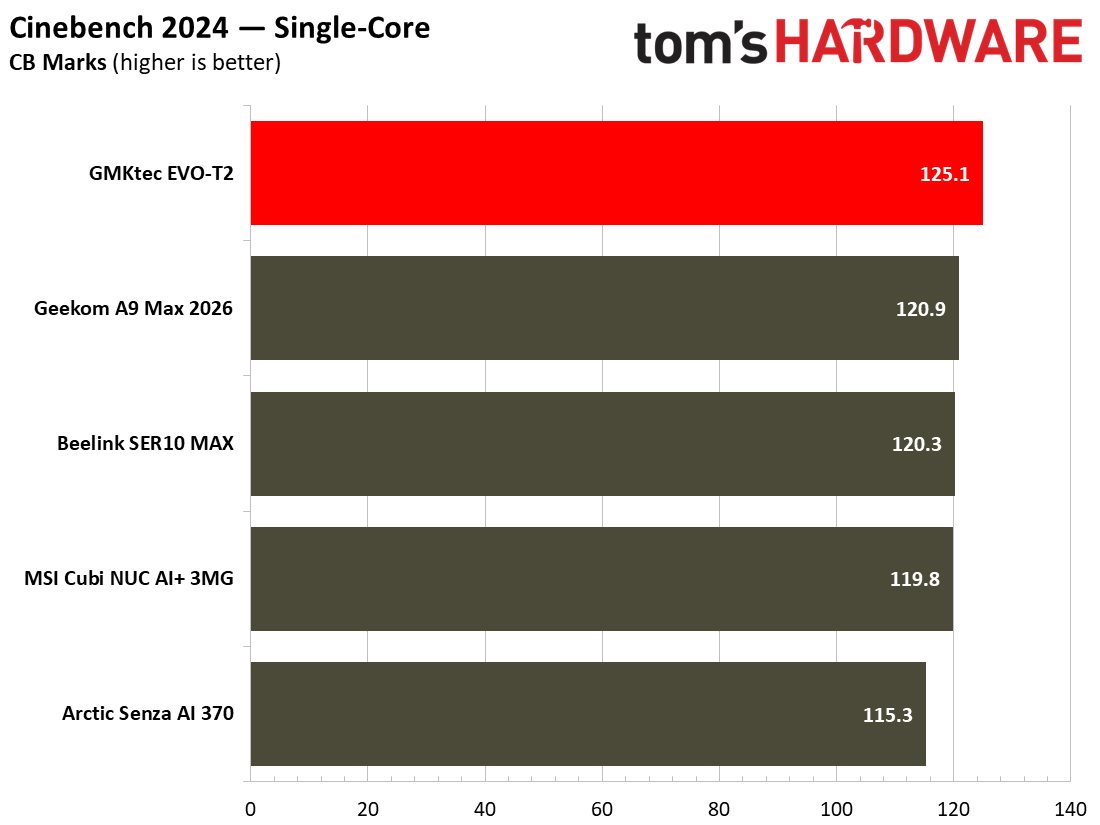
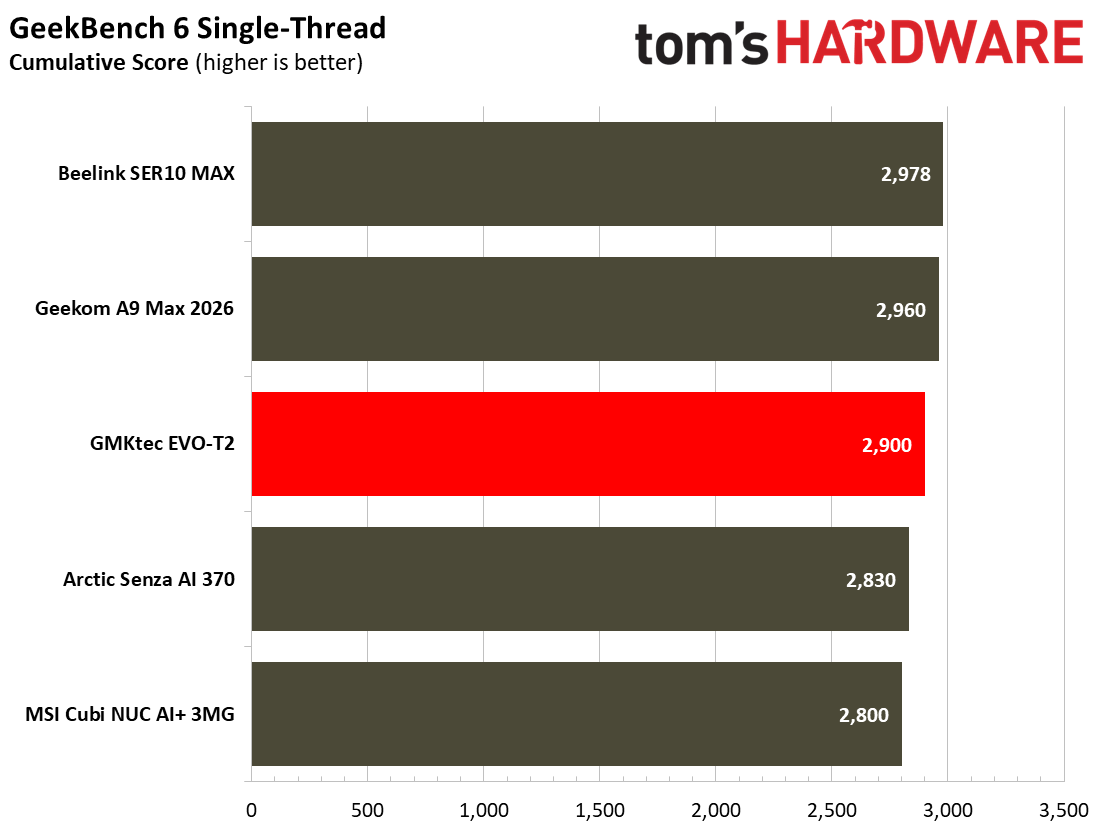
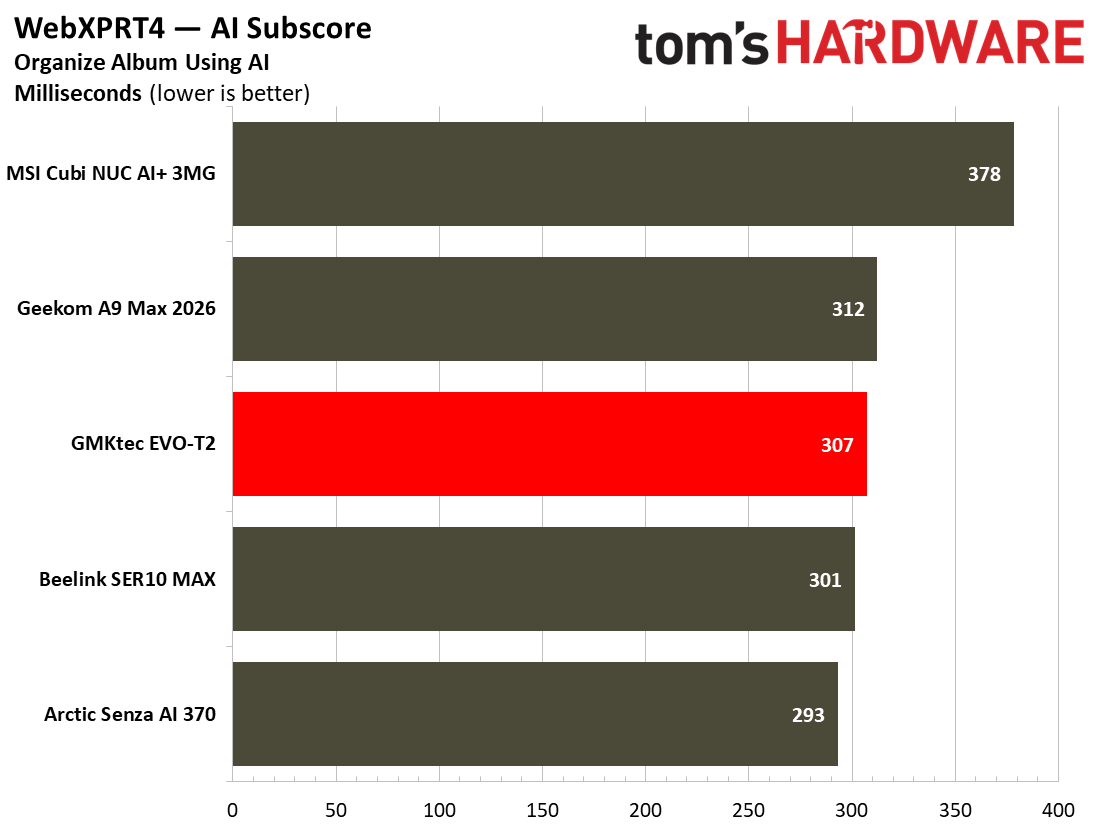
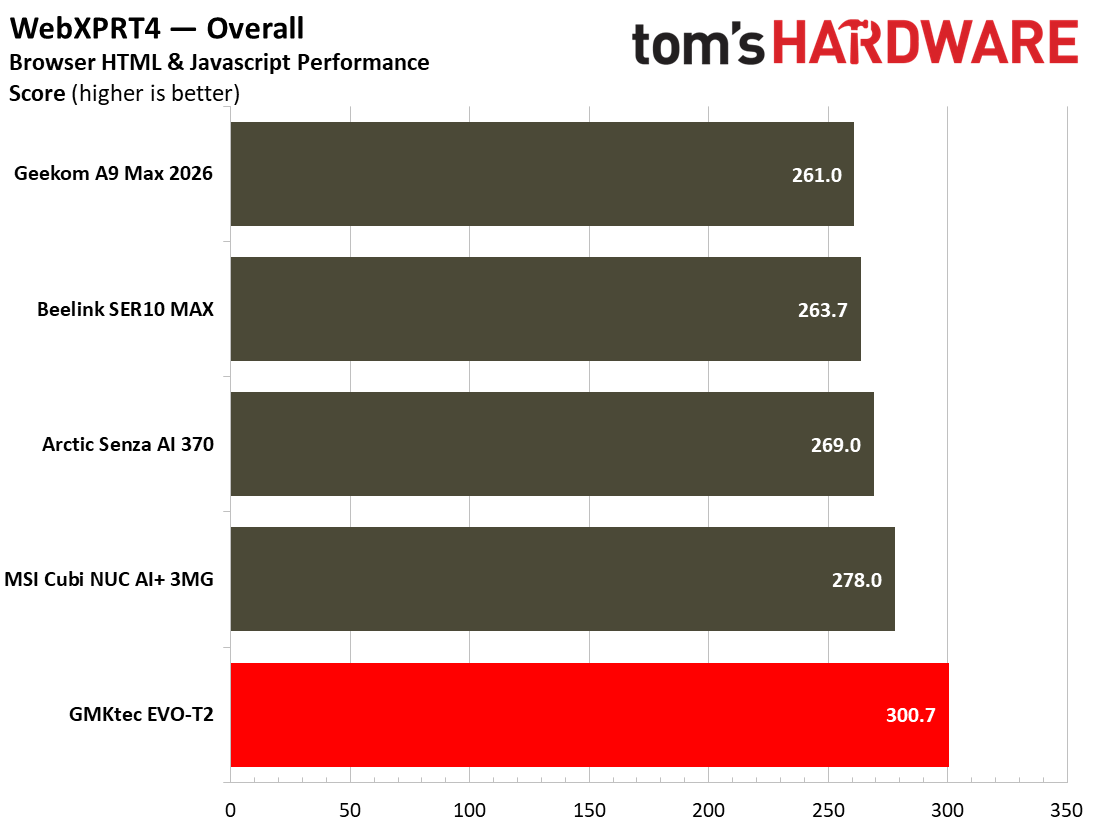
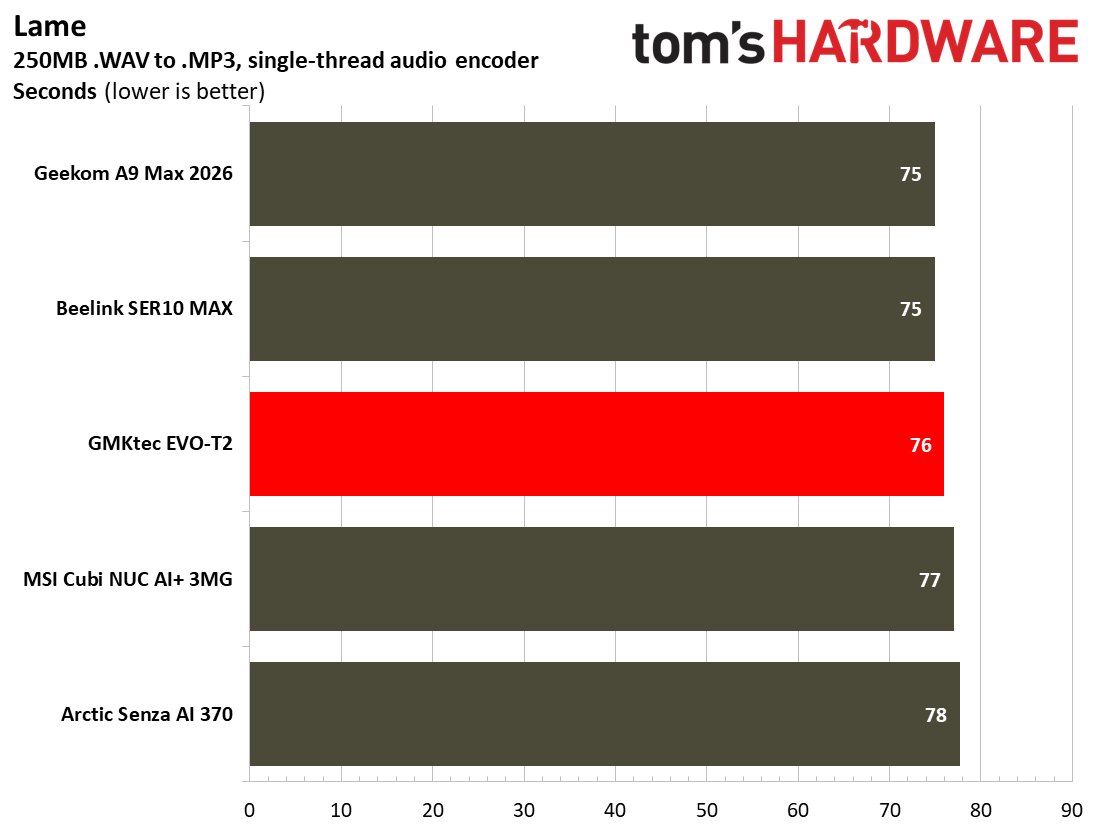
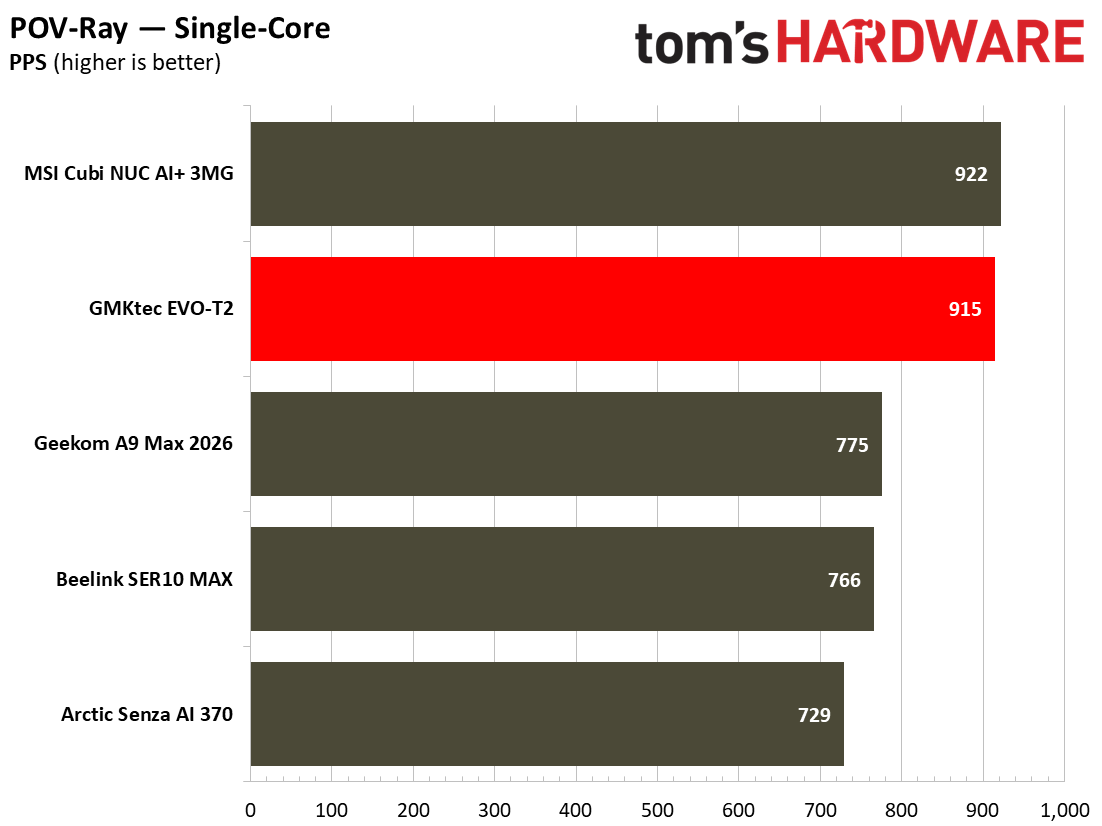
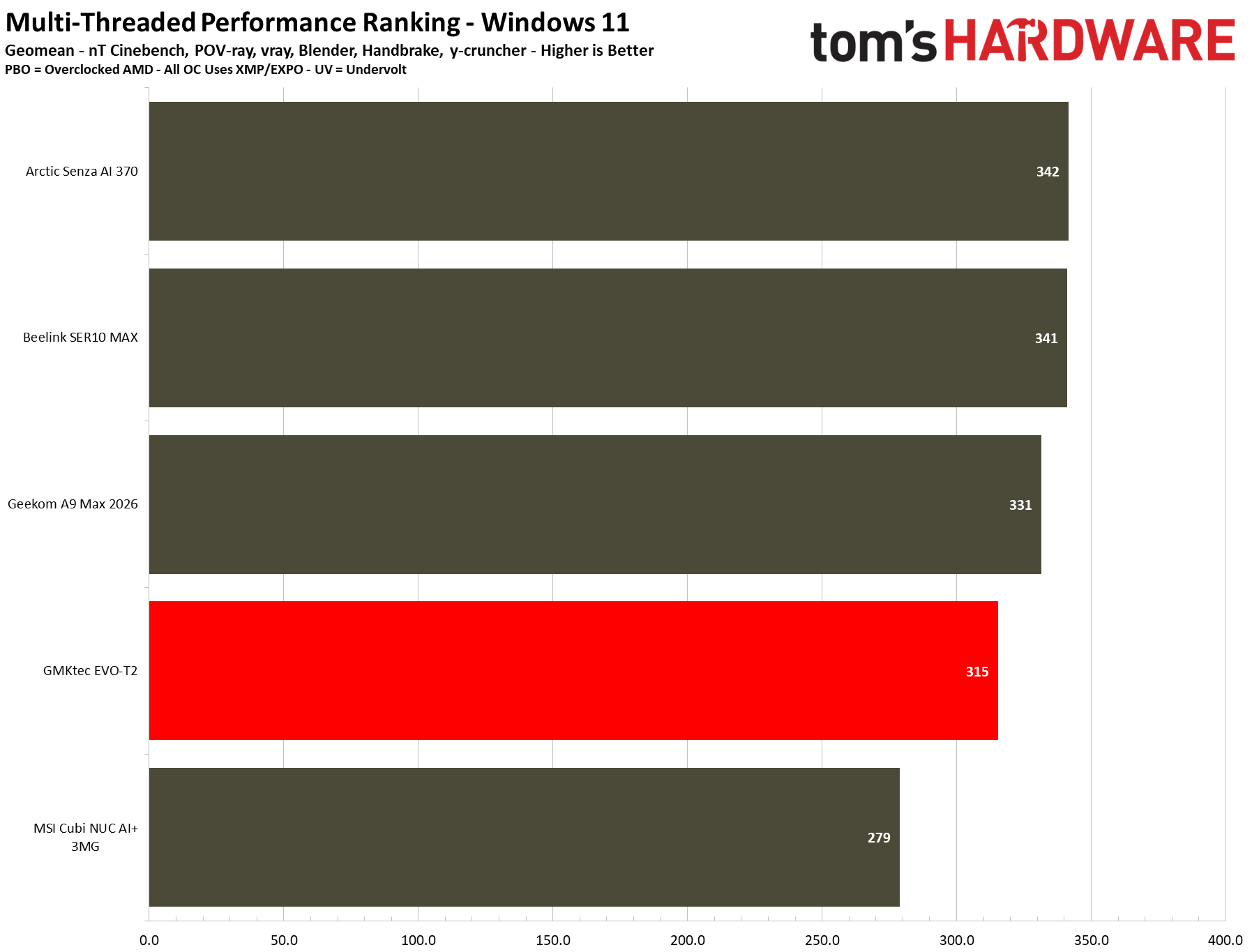
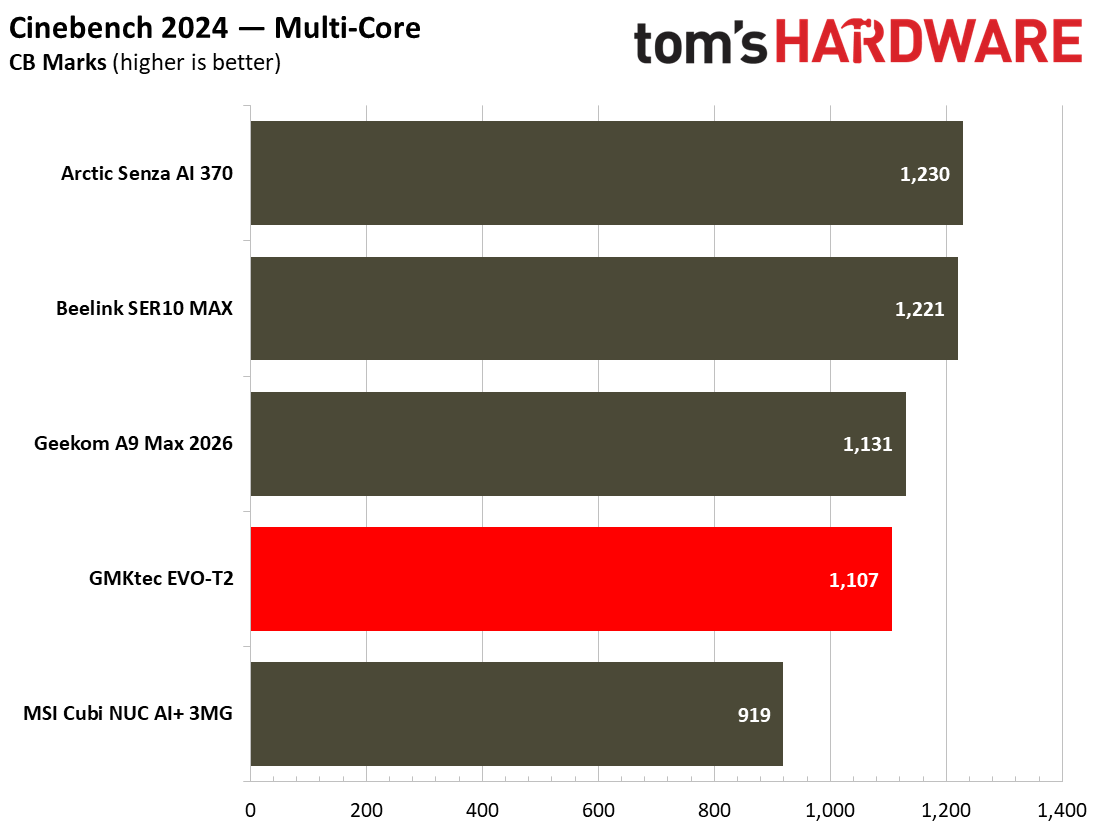
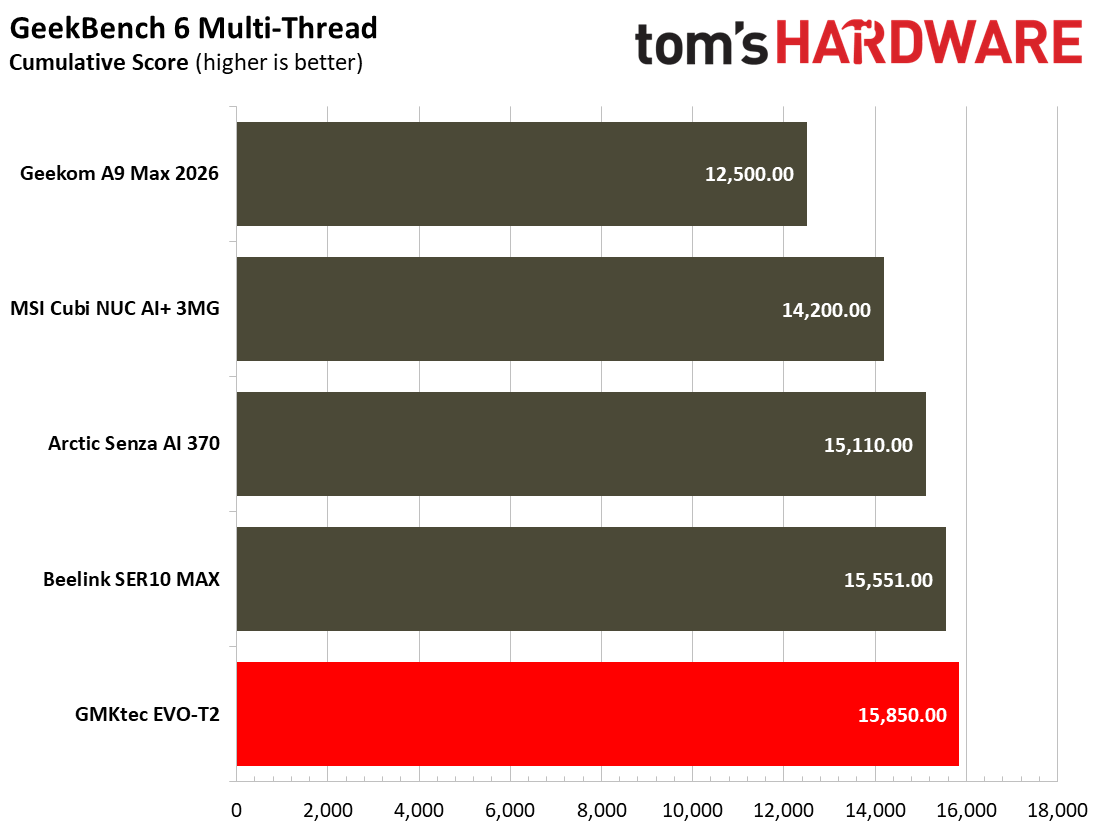
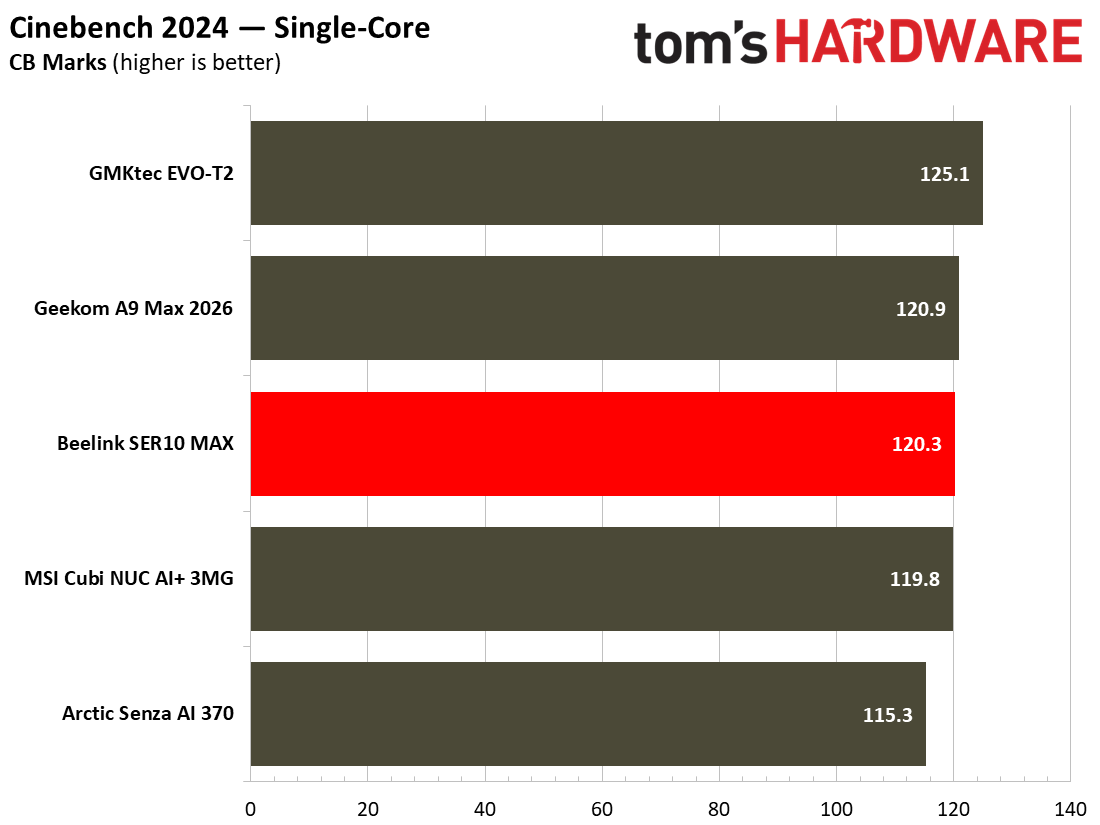
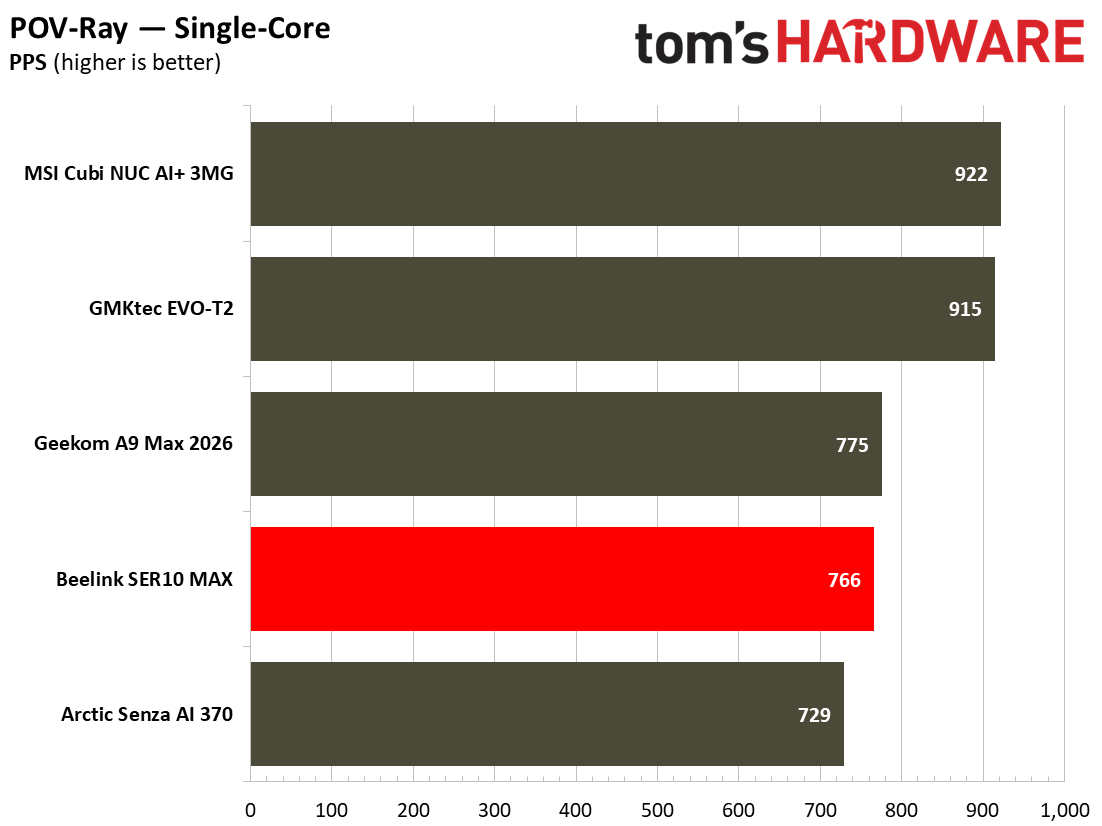
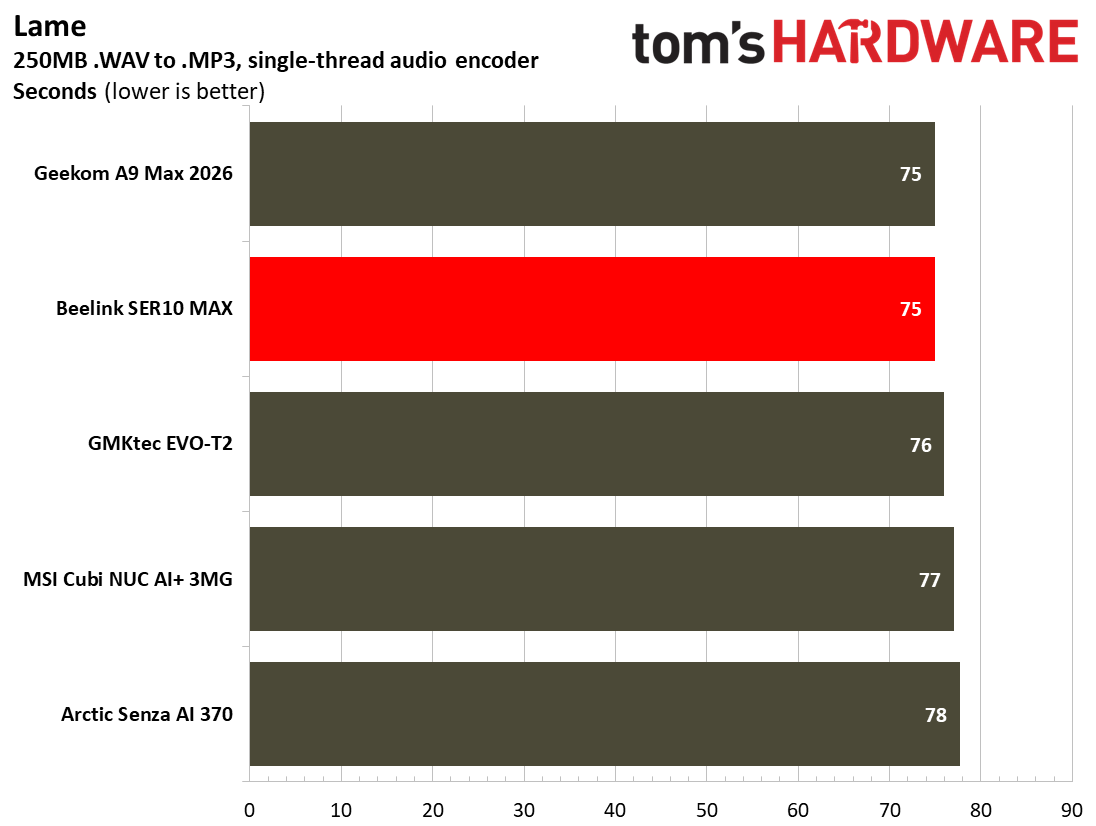
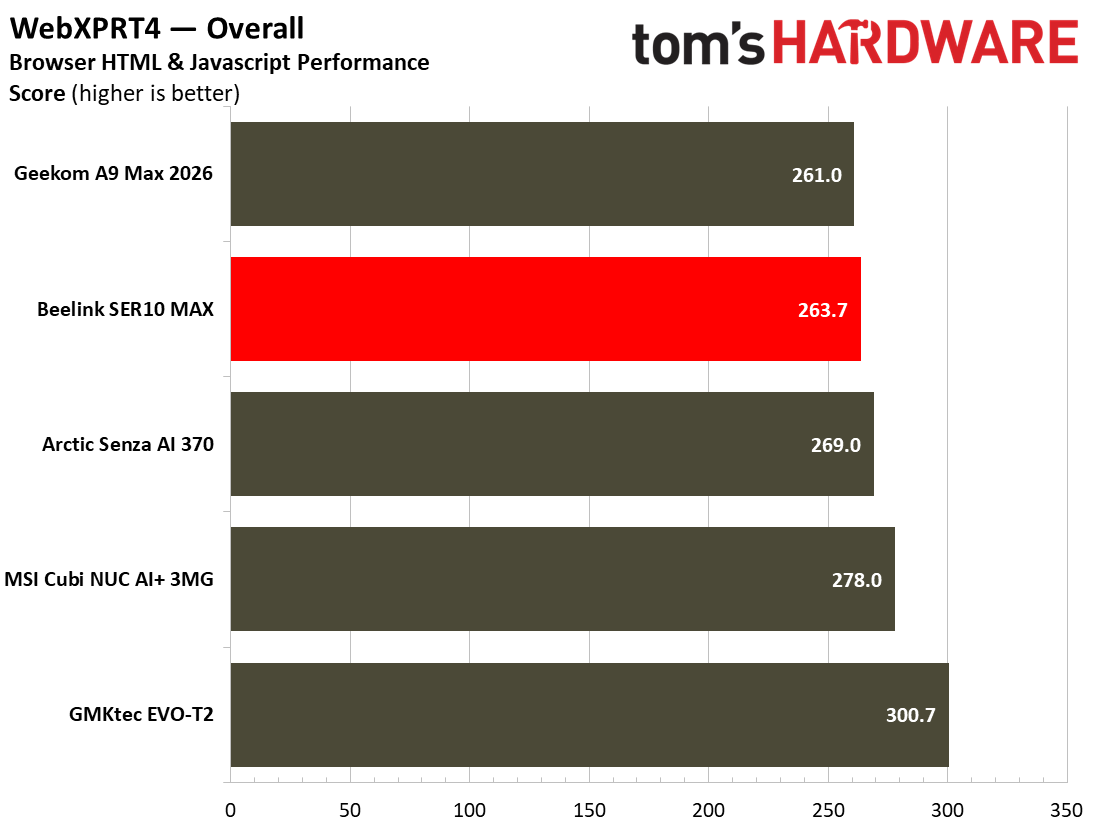
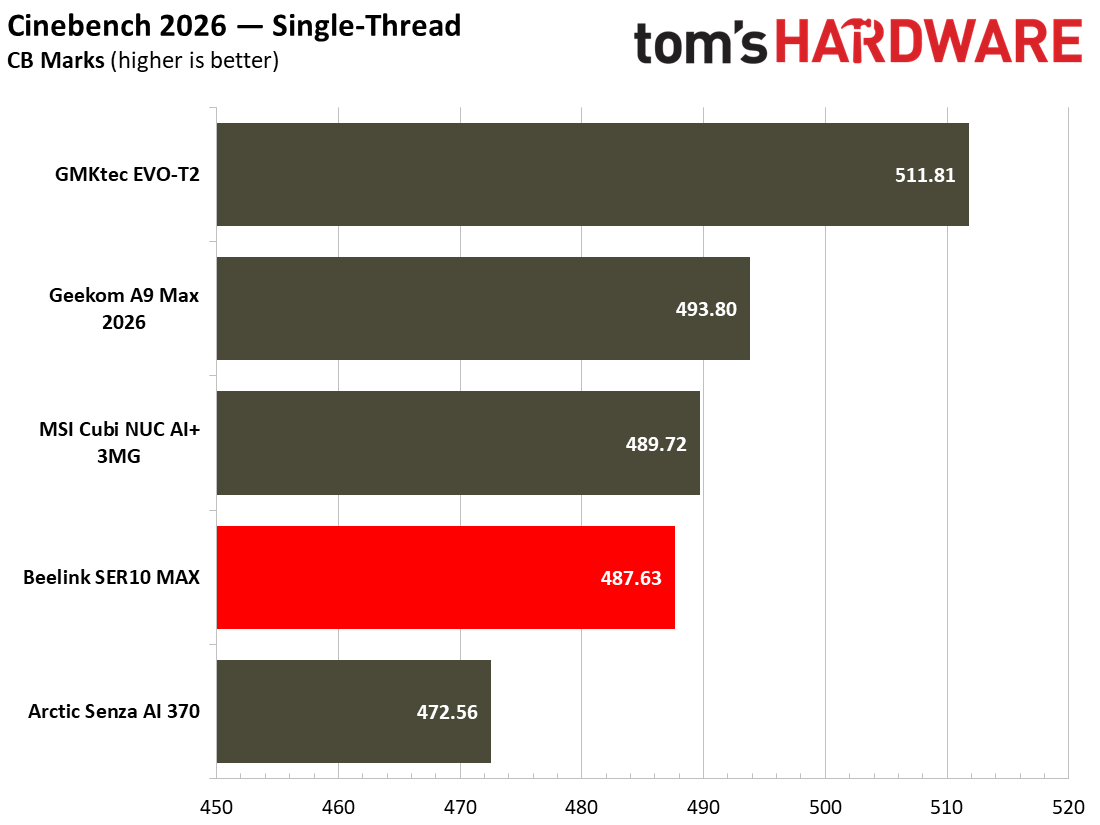
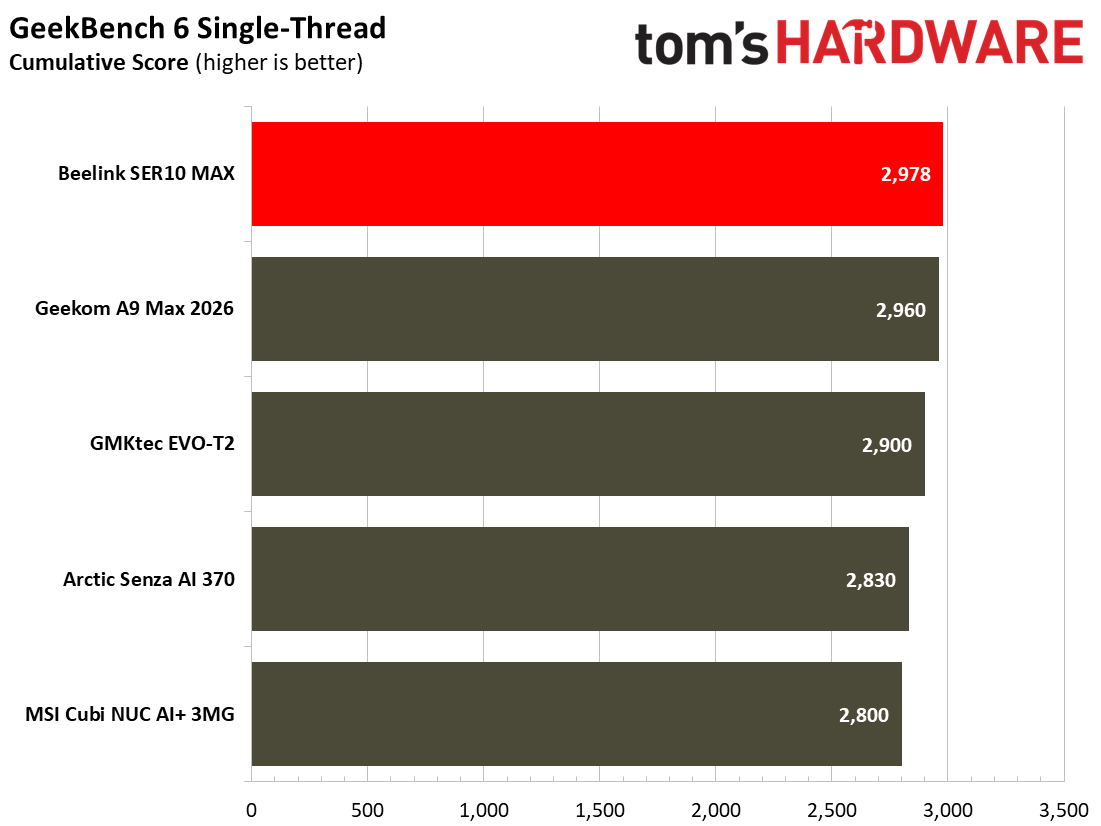
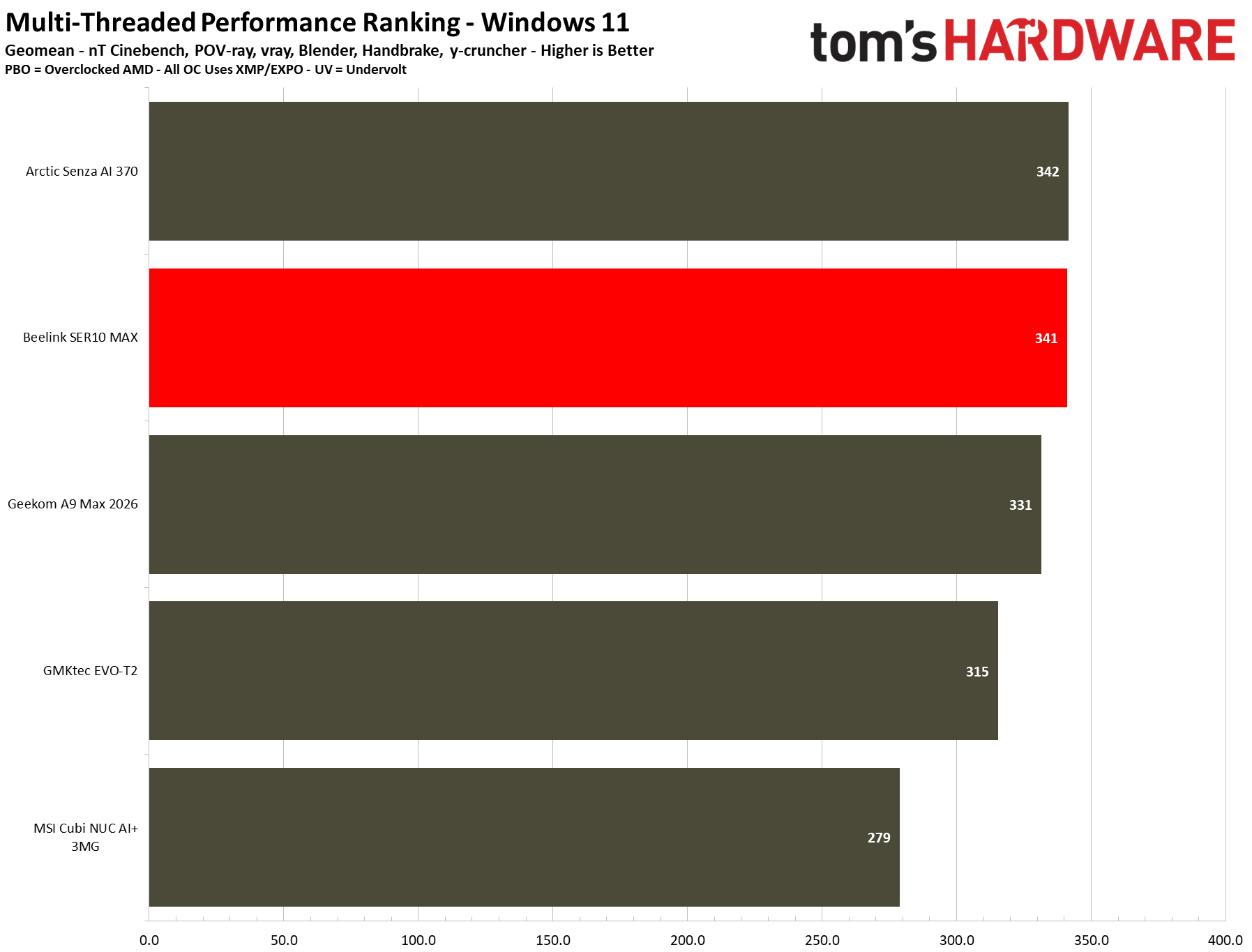
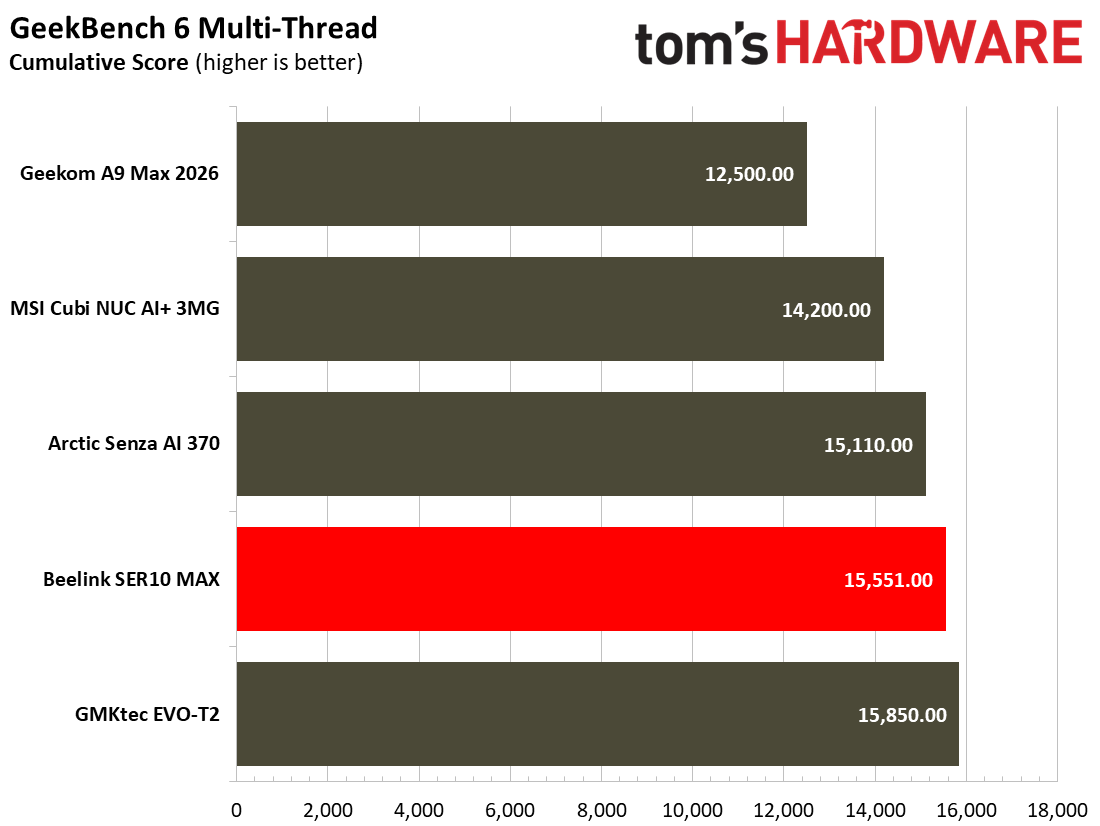
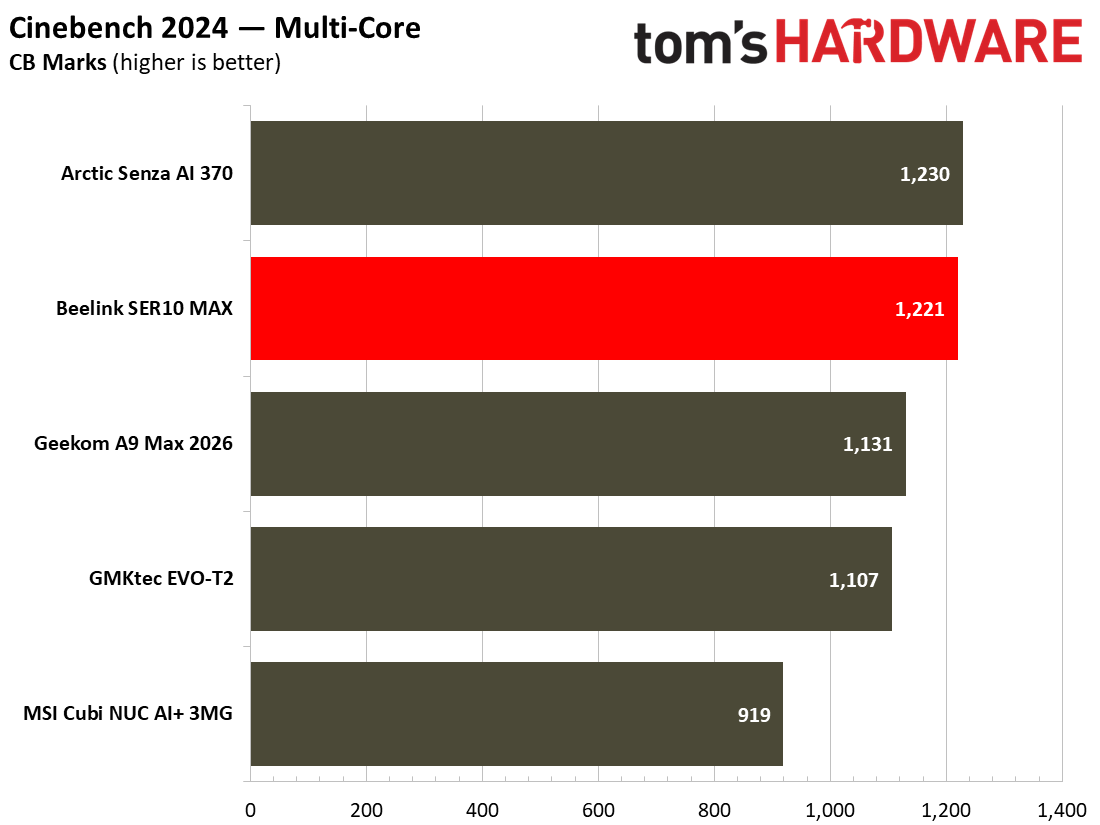
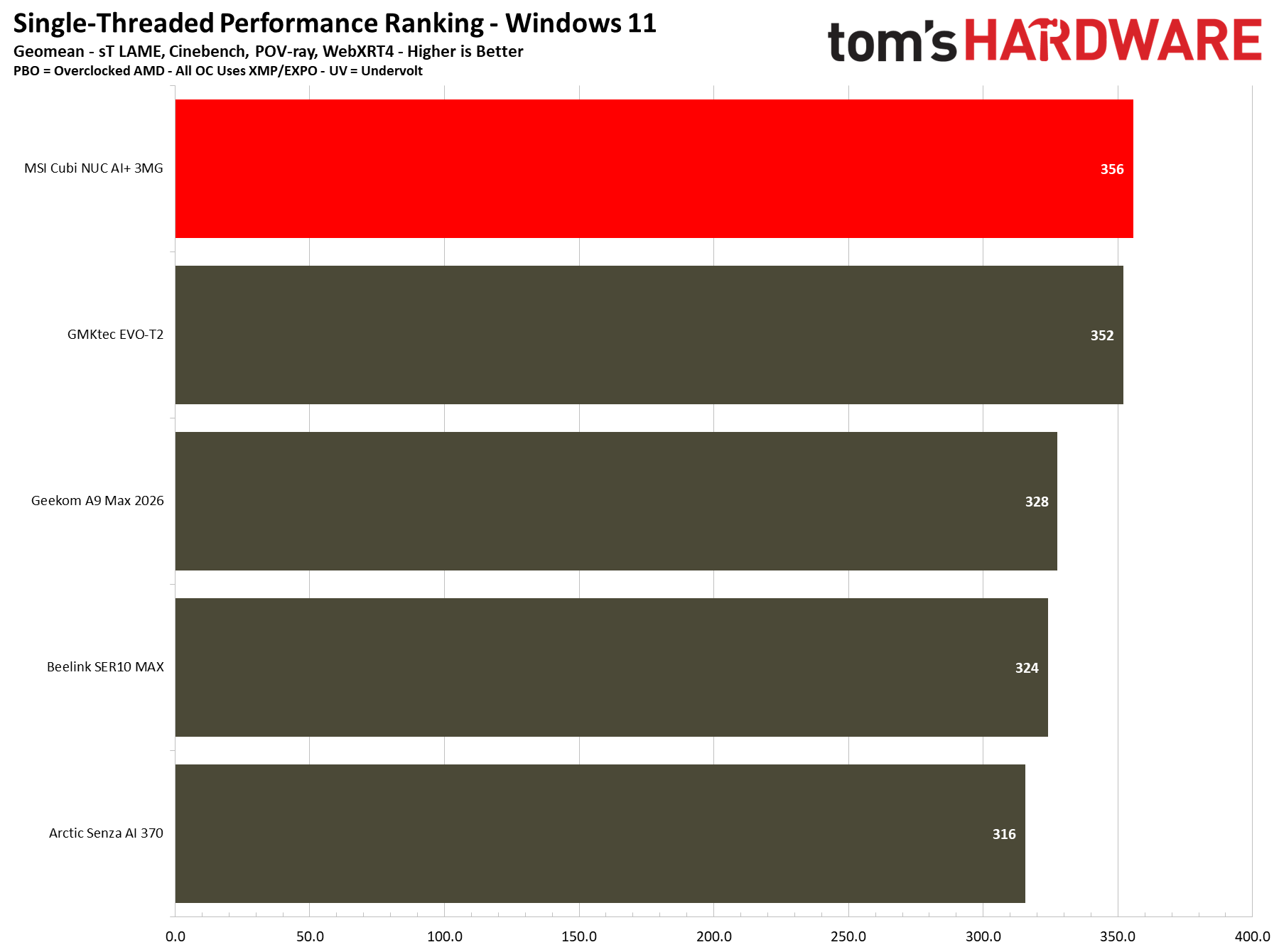
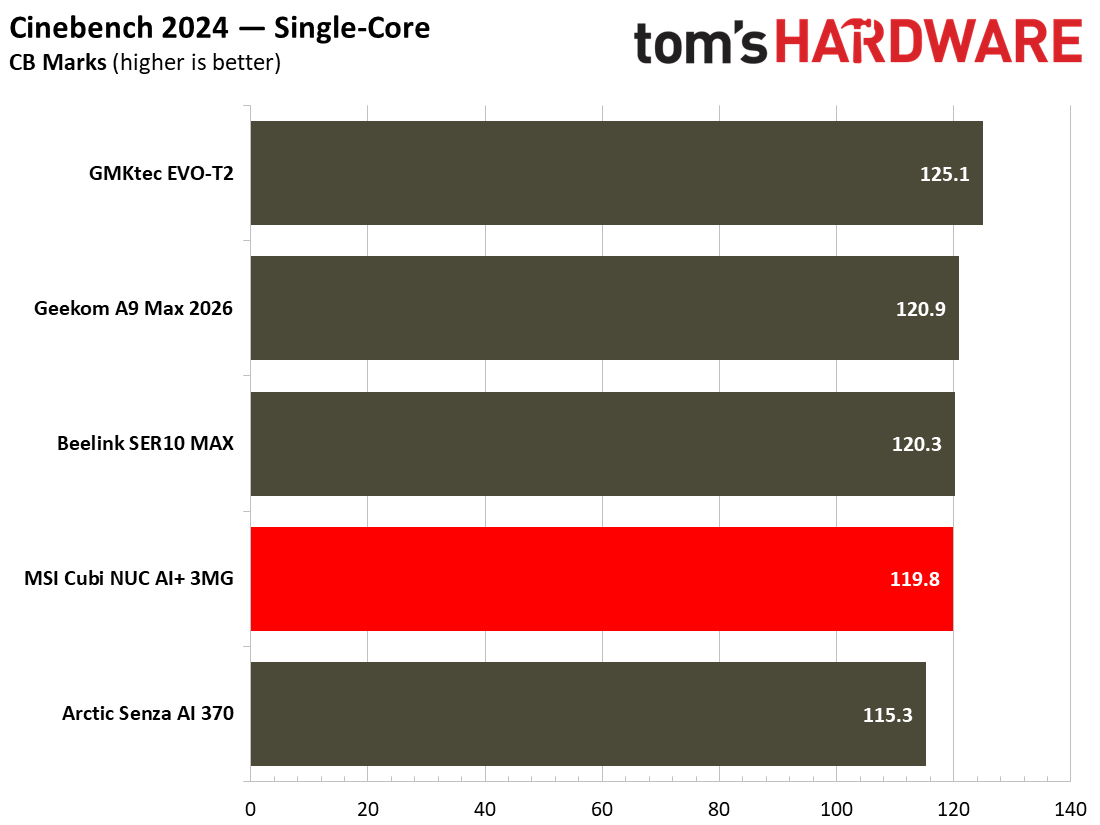
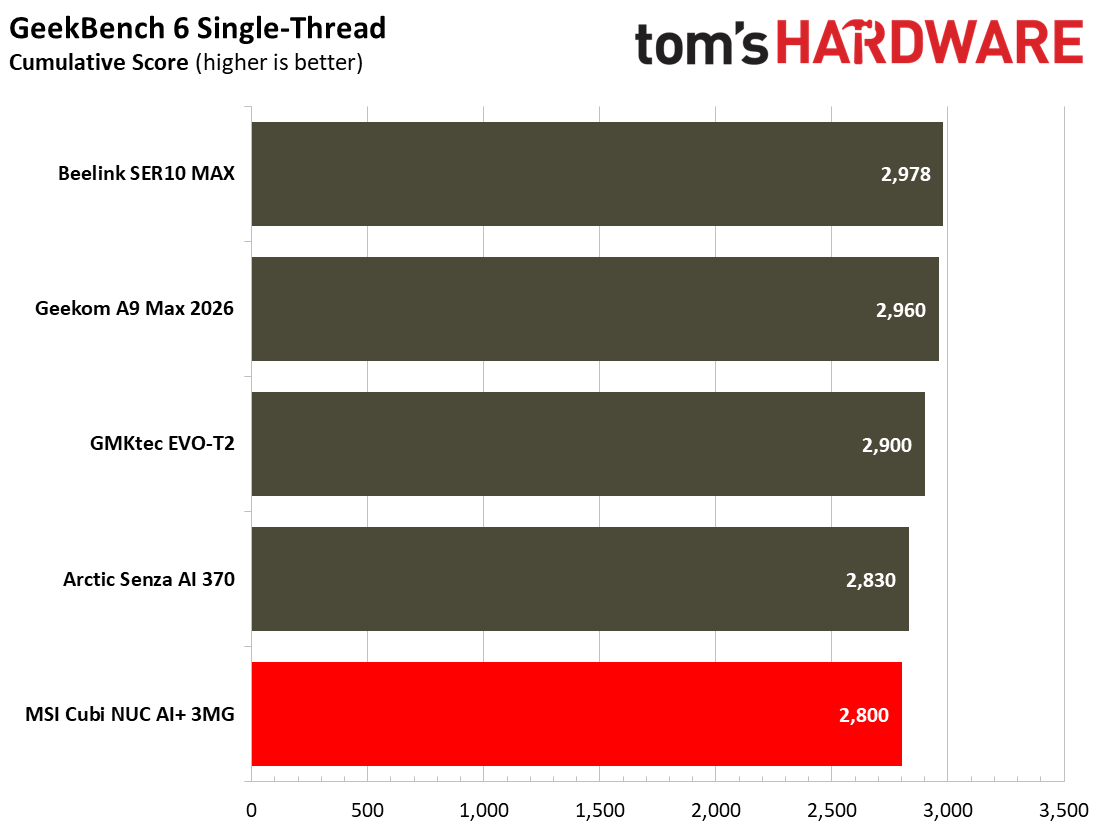
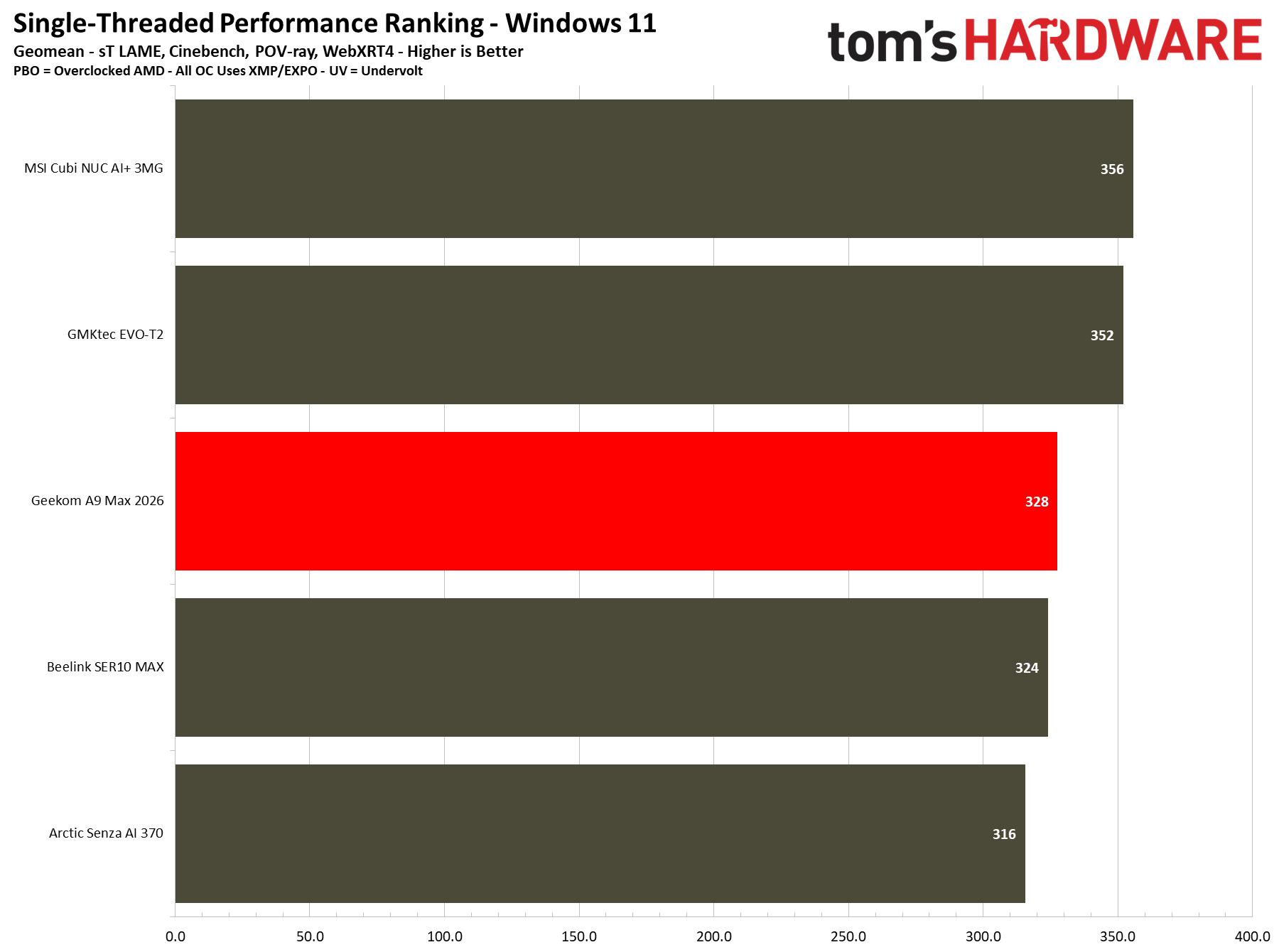
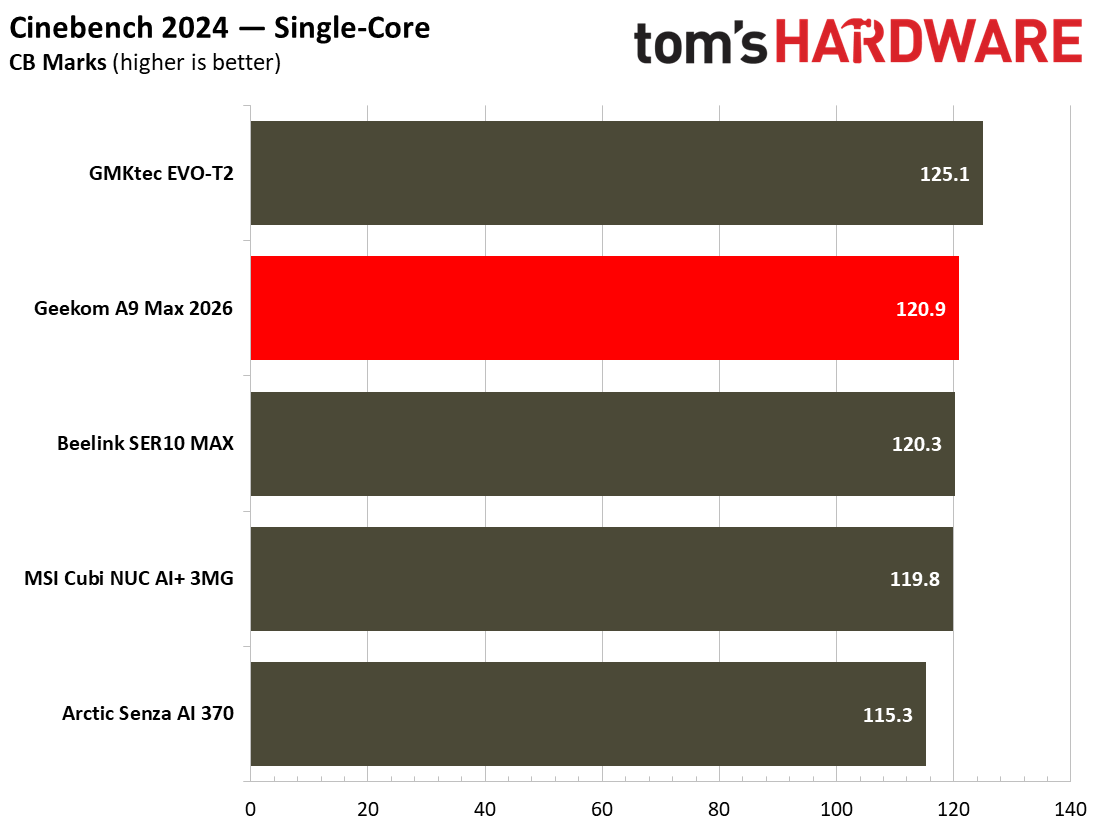
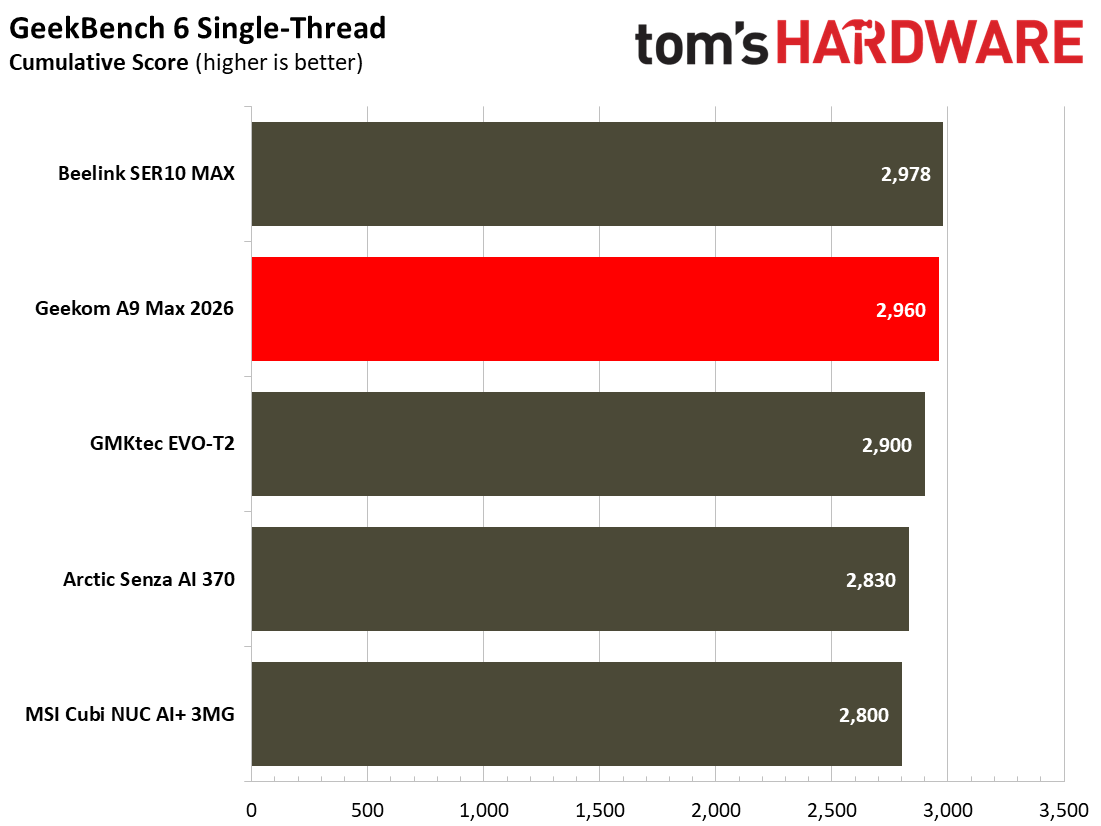
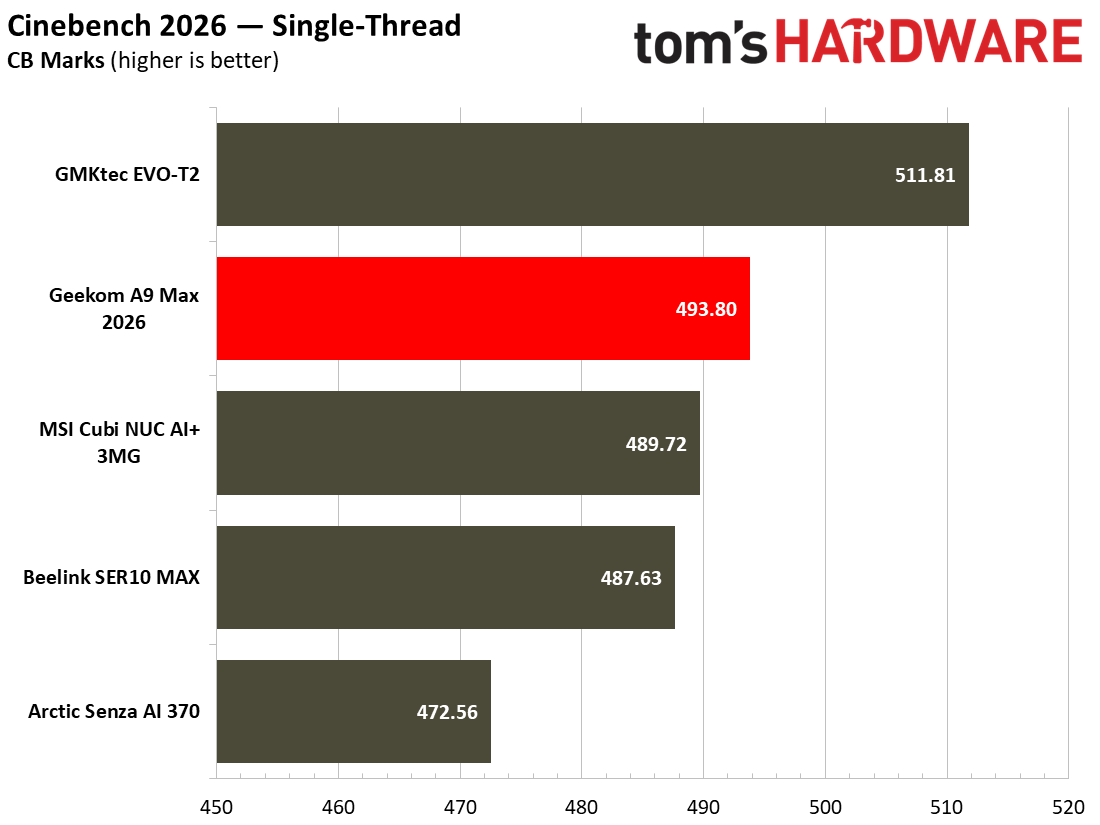
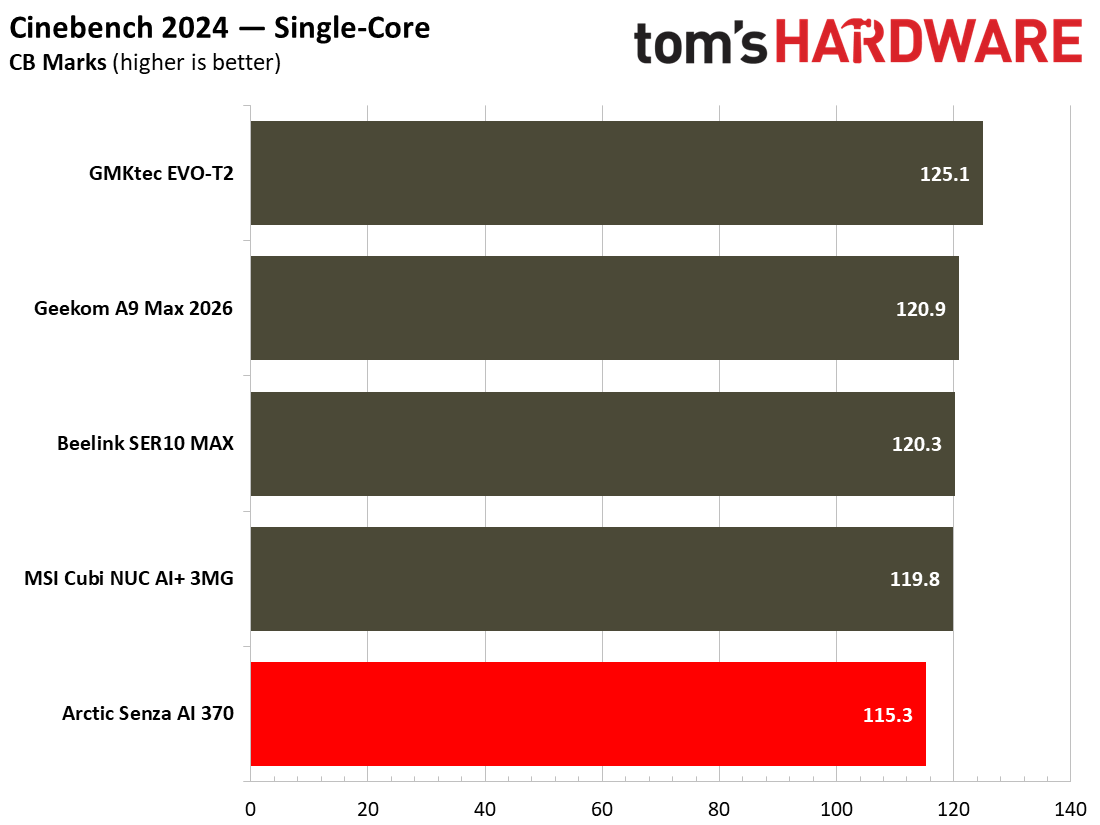
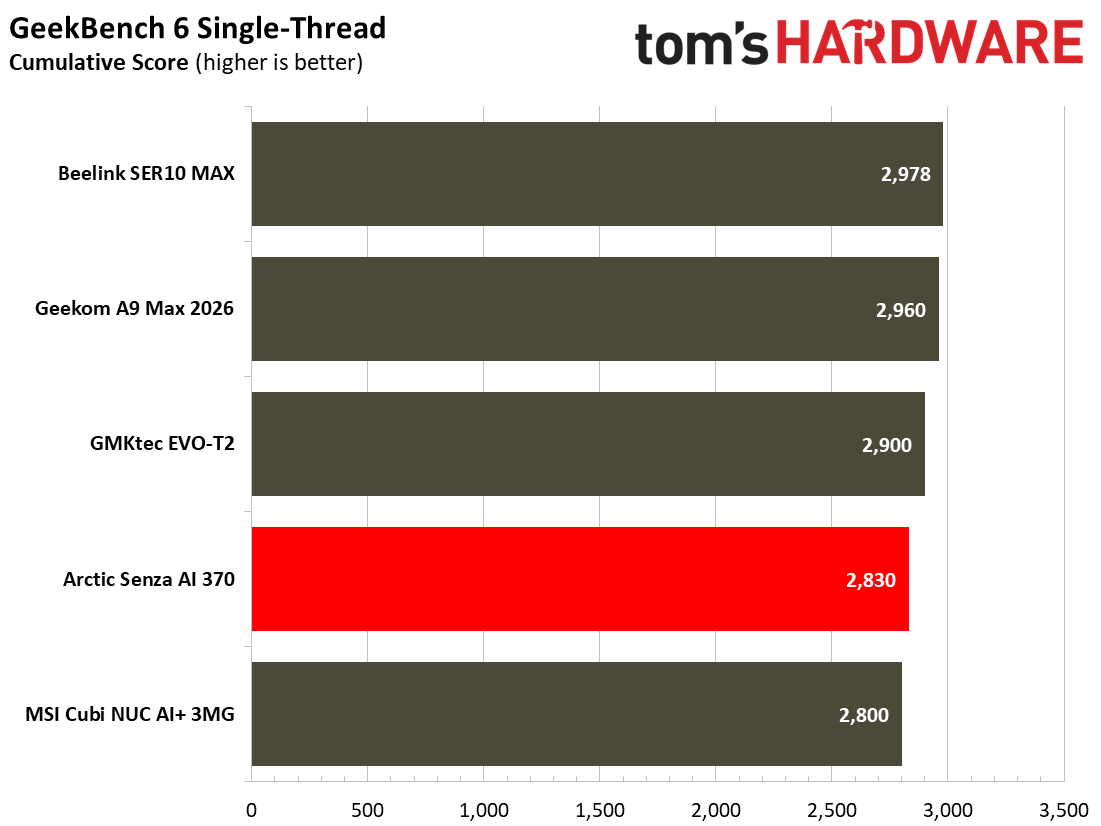
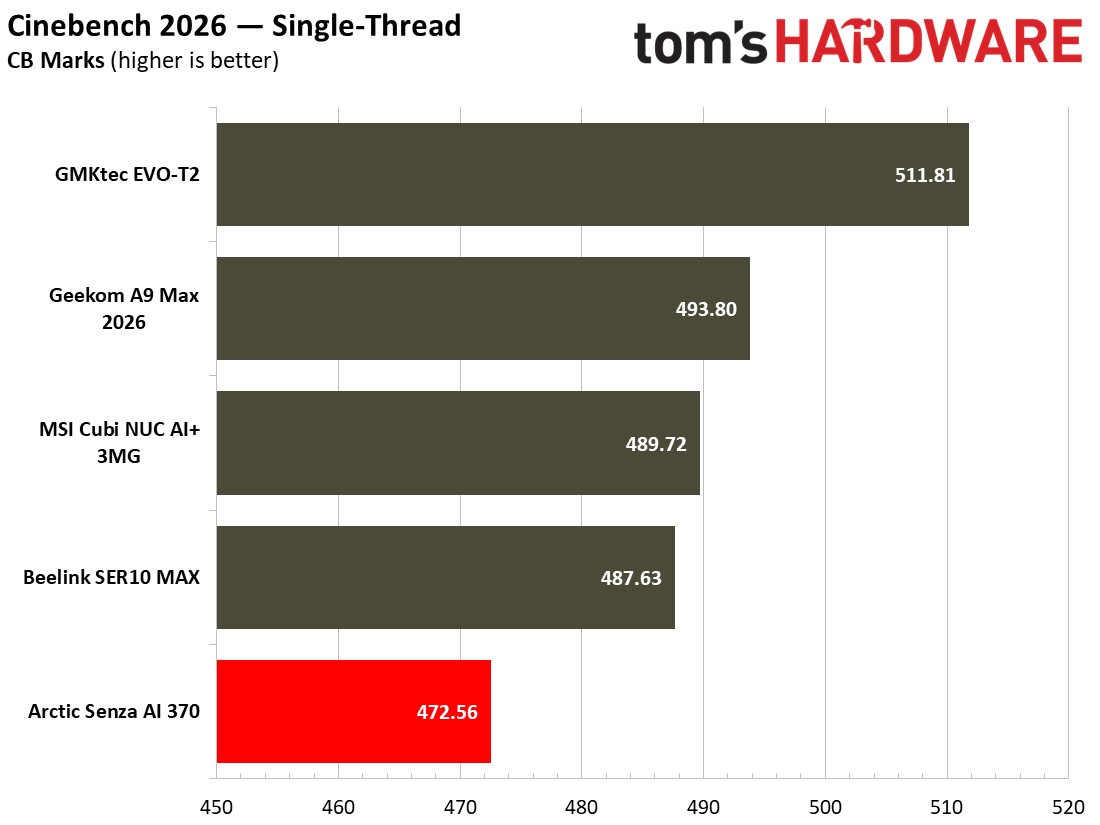
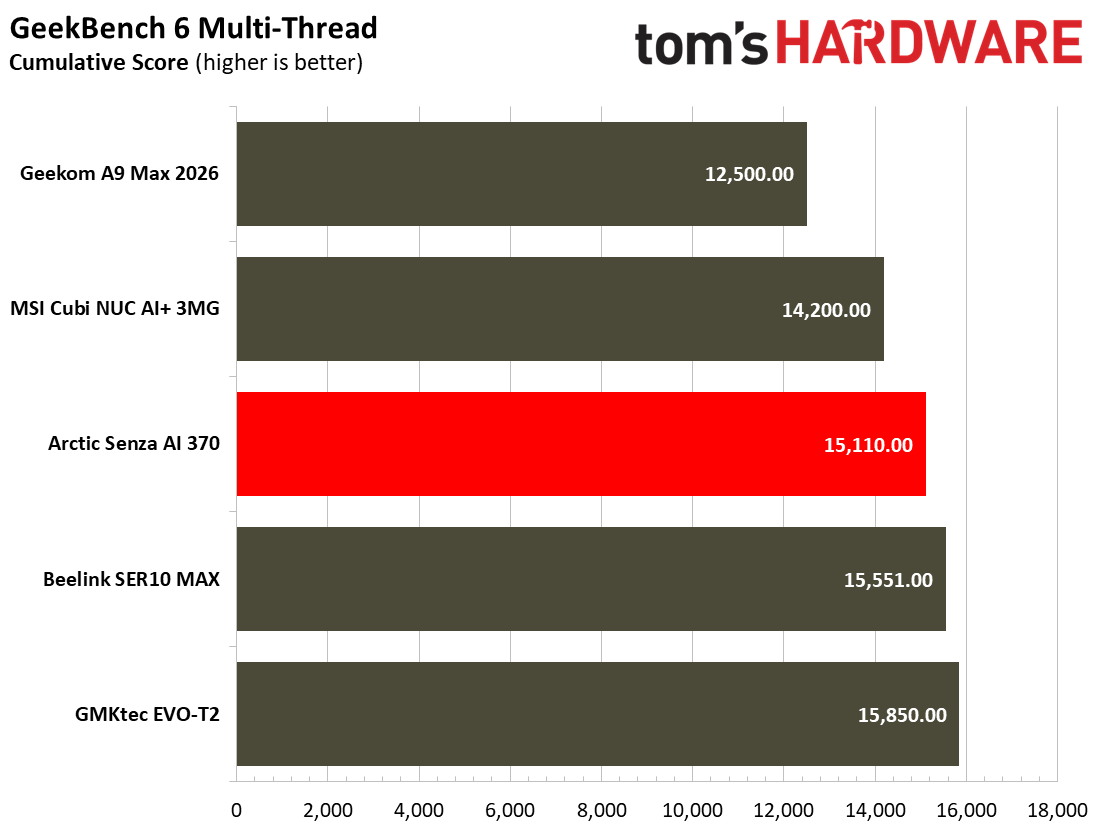
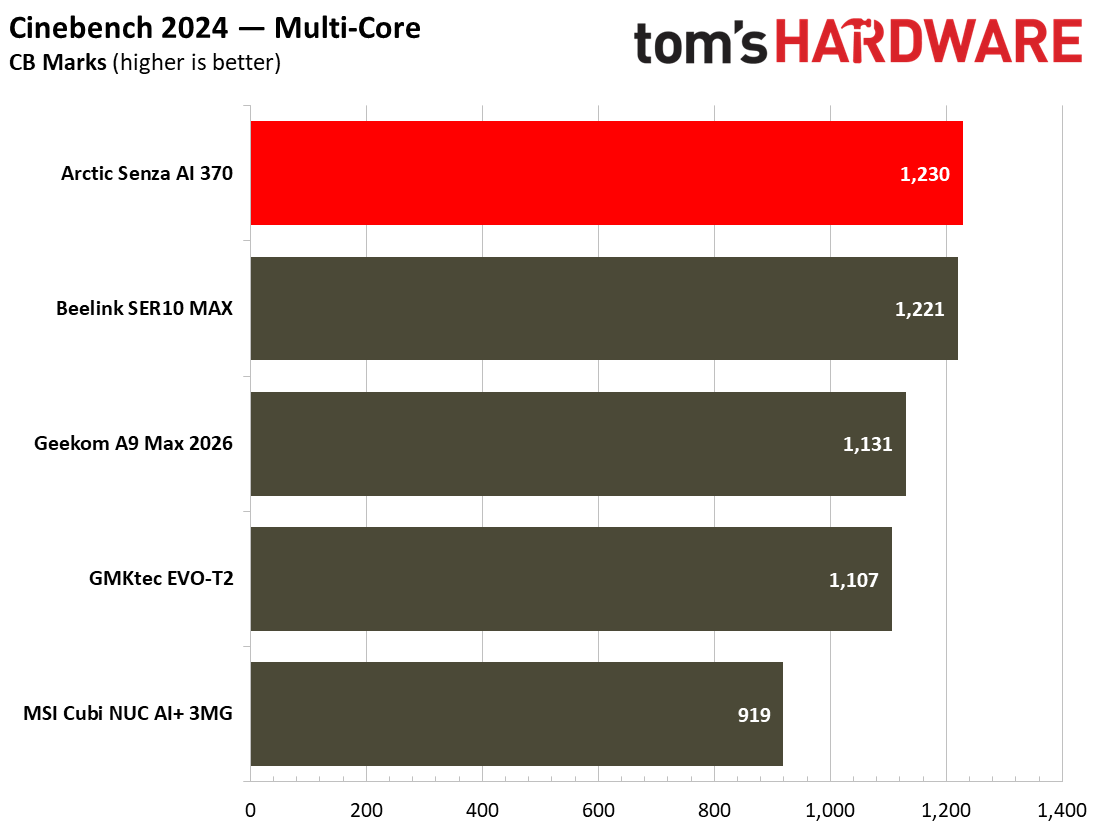
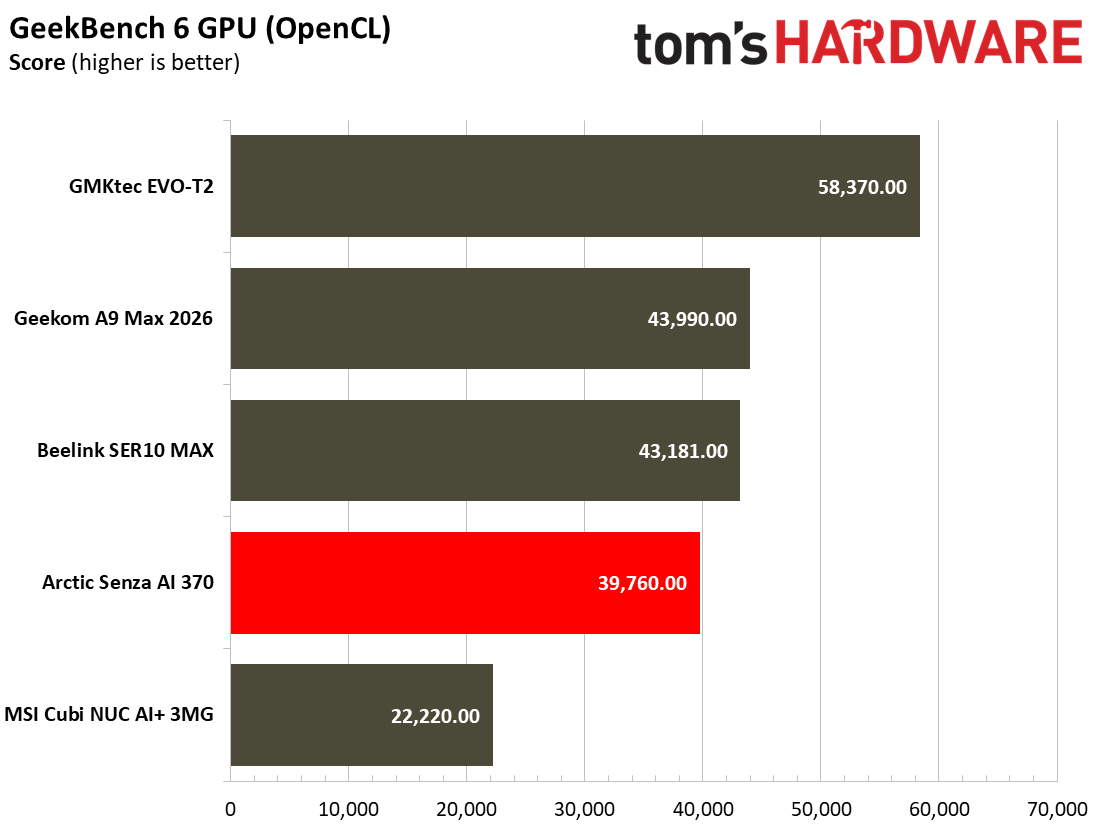
Kicking things off with single-threaded results, we see that the Beelink SER10 Max sits slightly ahead of the HX370-based Arctic Senza AI 370, though it loses out to the MSI Cubi AI+ 3MG NUC, the latter of which uses an Intel Core Ultra 386H. Both HX470 systems in our benchmarks were slightly edged out by the GMKtec EVO-T2, a Core Ultra X7 358H-based system. In Geekbench 6’s single-threaded results, we see that the system fares slightly better than our overall geomean ranking, leading at the top of the pack by a slim margin. Multi-threaded workloads also tell a similar story, with the Beelink SER10 Max sitting second in our list of benchmarks against other systems, but not far behind the Arctic Senza AI 370, which, in all fairness, is only a single point ahead.
In real-world tasks, such as video editing for Tom’s Hardware’s ‘Quick Takes’ using Capcut, I found that the Beelink SER10 Max performed admirably, loading and rendering video, cutting and rendering at a solid speed, so I wasn’t waiting around for effects to be rendered within the timeline. In the videos I edited on the Beelink SER10 Max, I didn’t feel as though I was waiting around for anything to be rendered, effects to be applied, nor was I wishing that I was editing on a more powerful system. However, editing using a “light” video editor like CapCut, against something more powerful like creating effects using After Effects and Premiere, are very different things. Throughout operation, we only heard the Beelink SER10 Max crank its single fan up to full tilt once, during a synthetic workload. Otherwise, the system was remarkably quiet throughout our testing.
Gaming and Graphics on the Beelink SER10 Max
The Beelink SER10 Max is equipped with AMD’s RDNA 3.5-based Radeon 890M GPU, which features 16 CUs at speeds of up to 3.1 GHz. This isn’t going to suddenly be able to run every game perfectly, as the device out of the box is configured to dedicate only 4GB of its memory pool to VRAM. Given that we have a lot of memory in the system, those looking to game may wish to extend that RAM pool further for peace of mind that they won’t run out of VRAM throughout. All of our tests were run with the 4GB VRAM pool, as was configured out of the box, meaning that you’ll likely find some performance gains should you tweak it to be slightly higher.
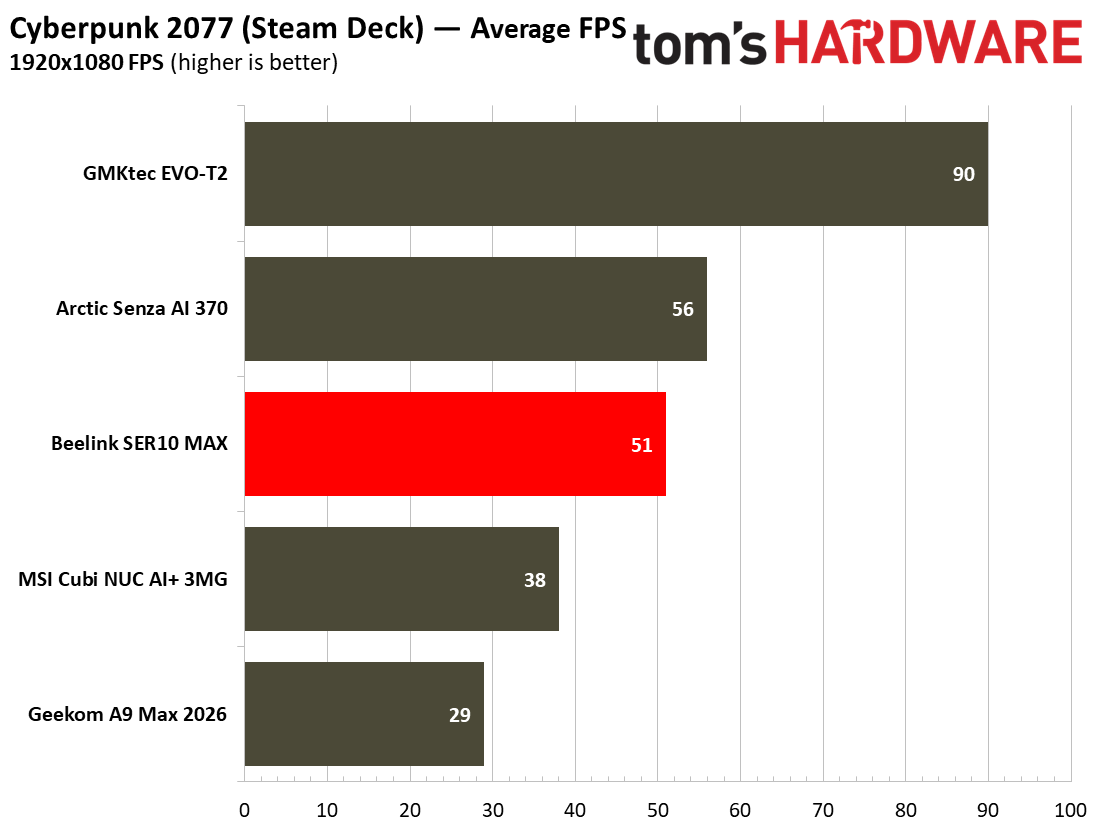
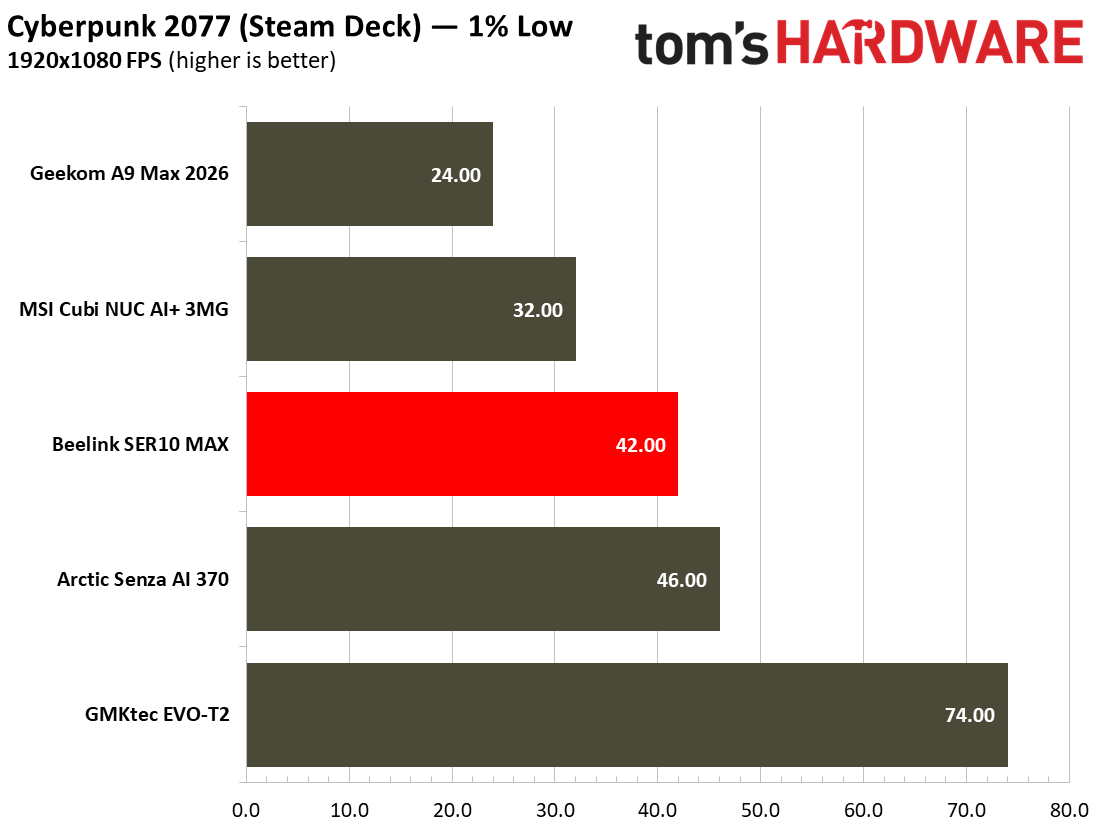
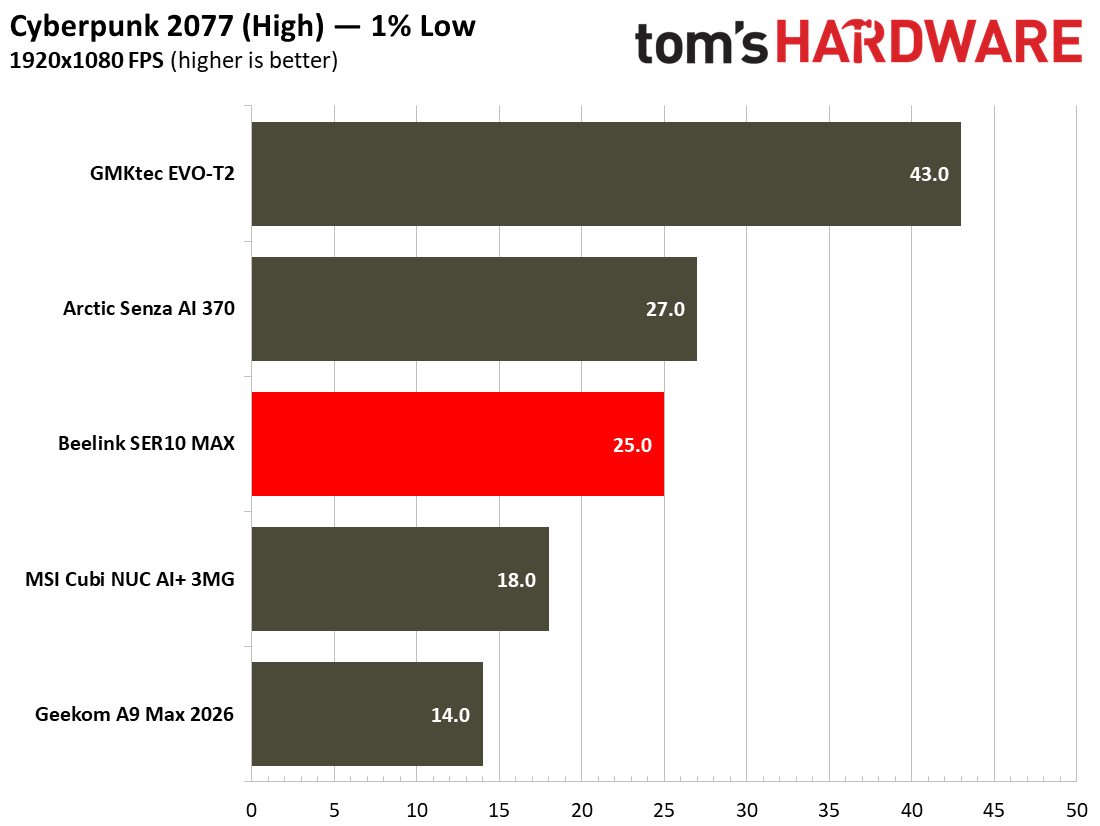
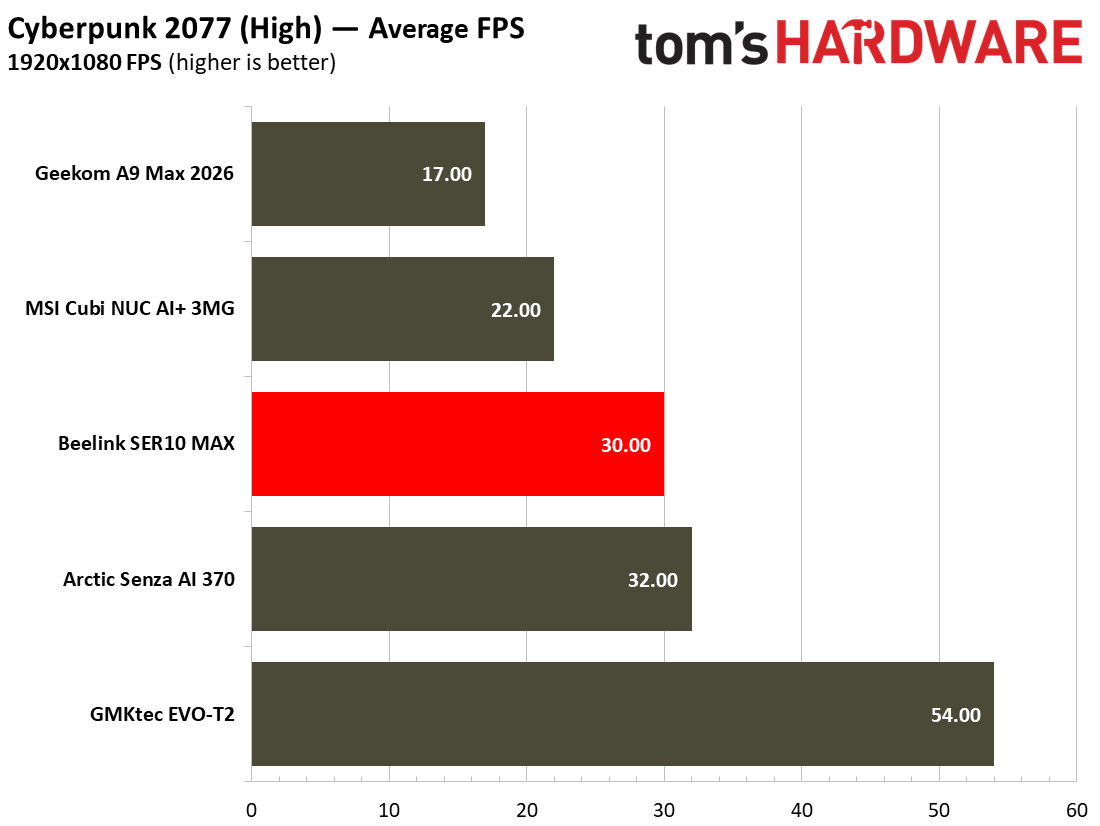
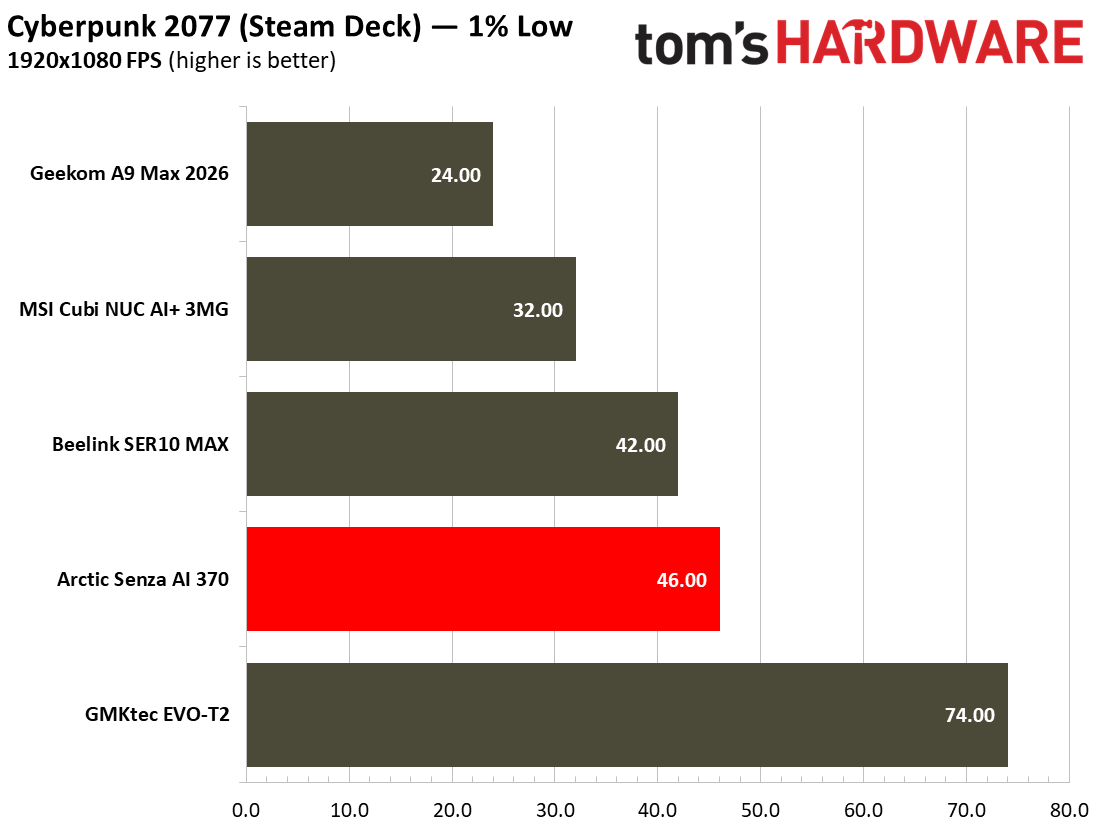
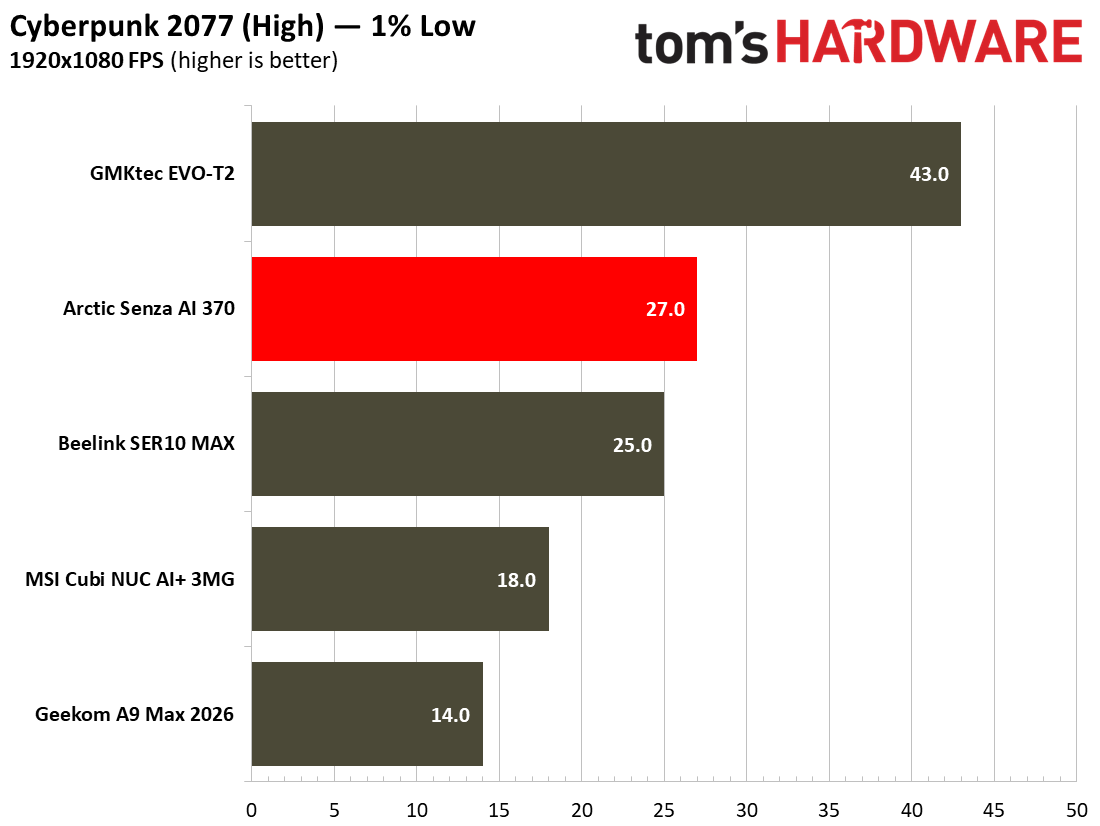
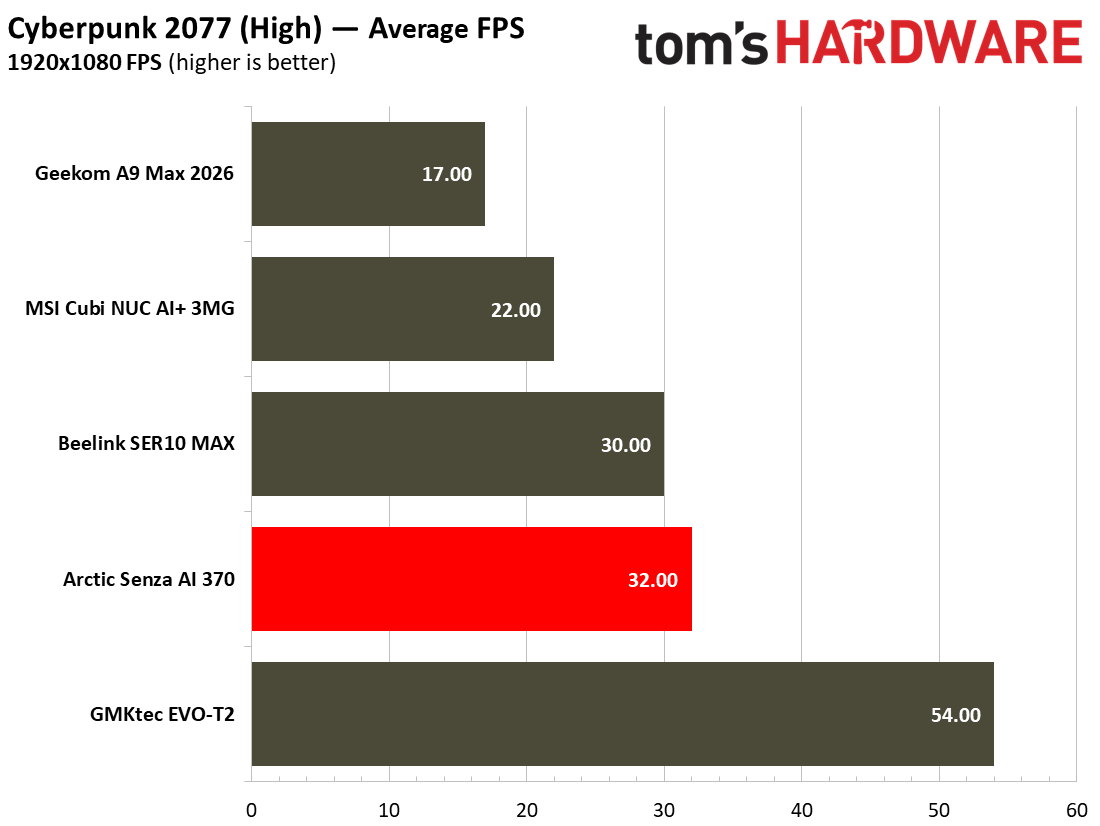
In Cyberpunk 2077’s “Steam Deck” configuration at 1080p, the SER10 Max offers playable performance at 1% lows of 42 FPS and an average of 51 FPS, respectively. On Cyberpunk 2077’s High setting with all upscalers turned off, we see 1% lows of 25 FPS and an average of 30 FPS. In Cyberpunk, the Beelink SER10 Max is trailed only by the Arctic Senza AI 370, which has a faster memory pool, and the GMKTec Evo T2’s Arc B390, which also has faster memory.
Tom's HardwareTom's Hardware
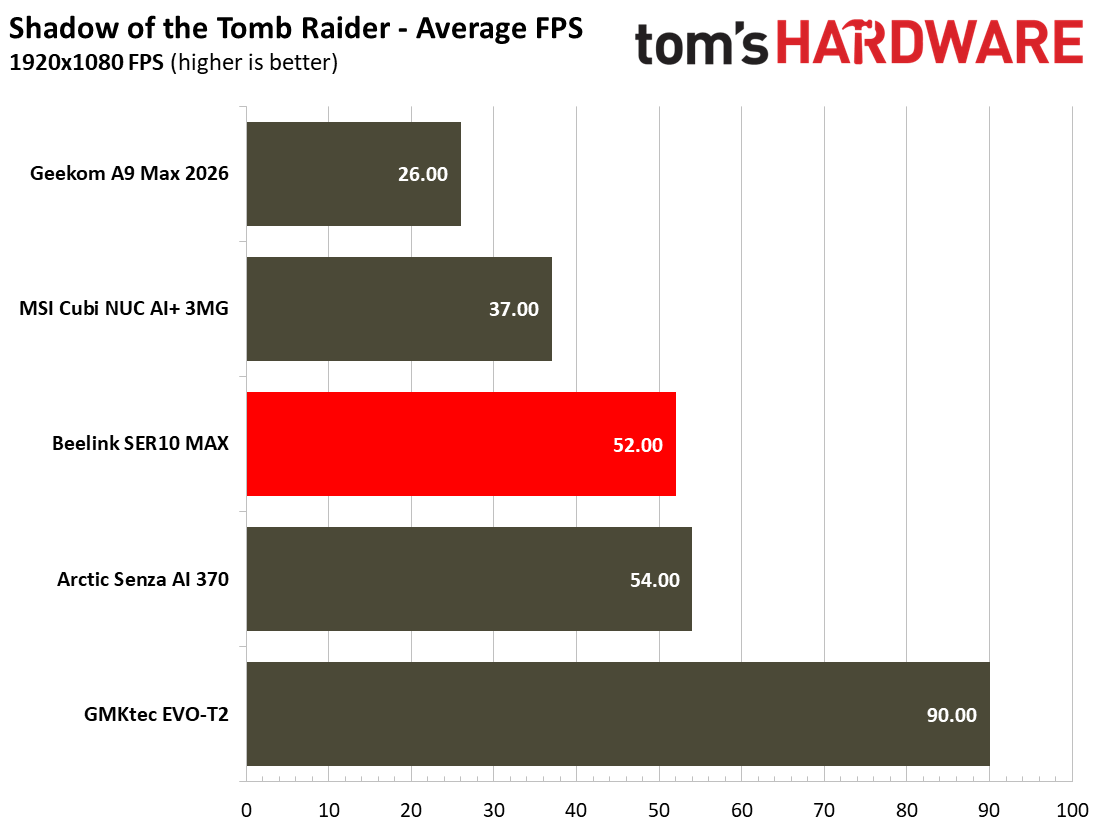
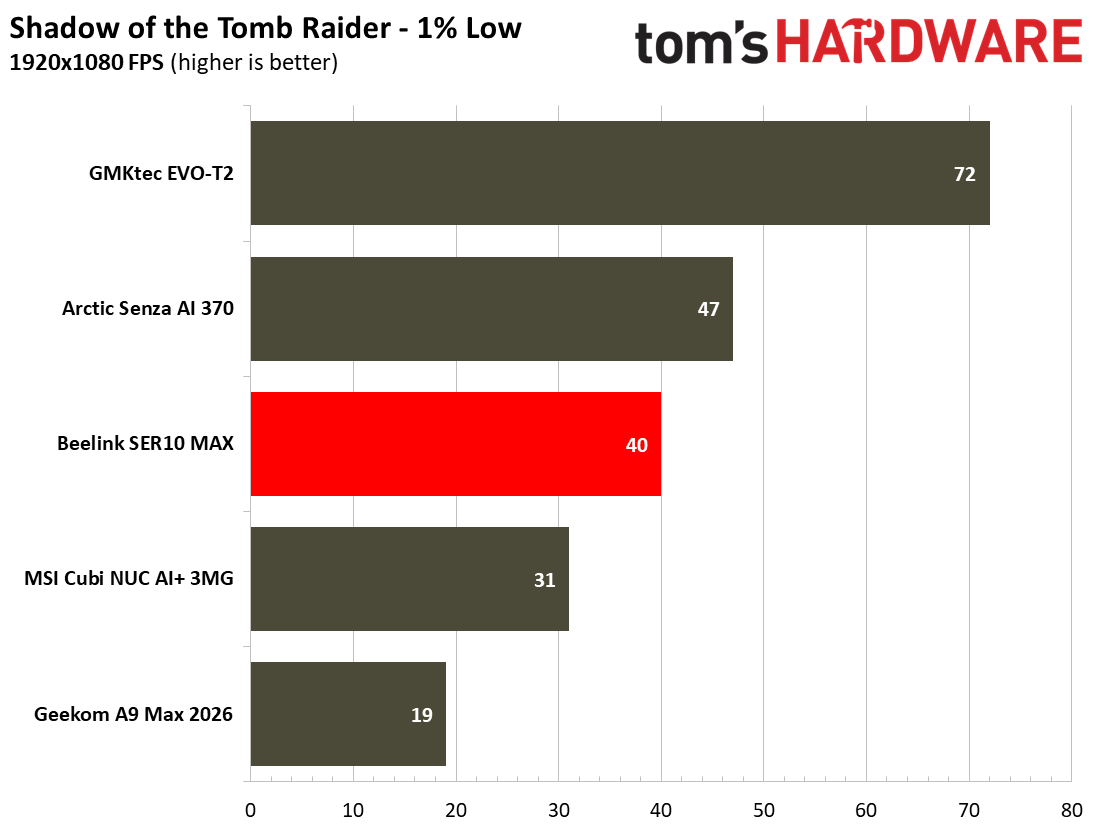
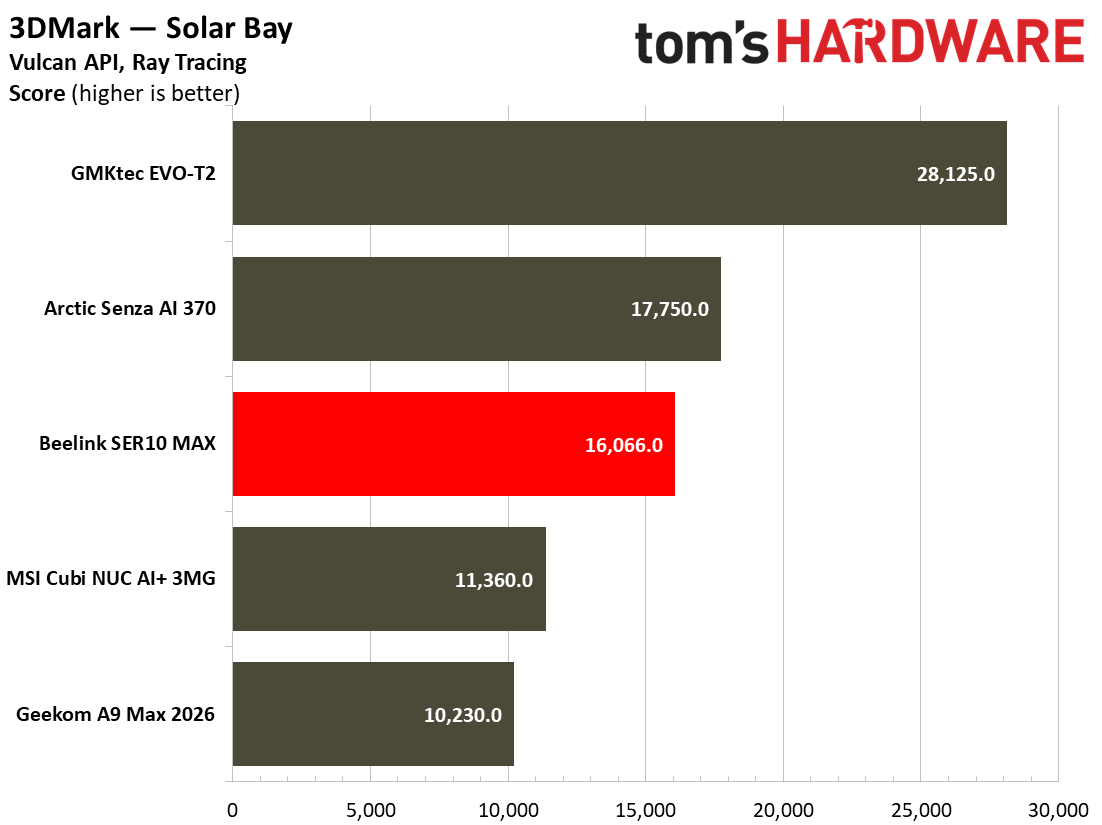
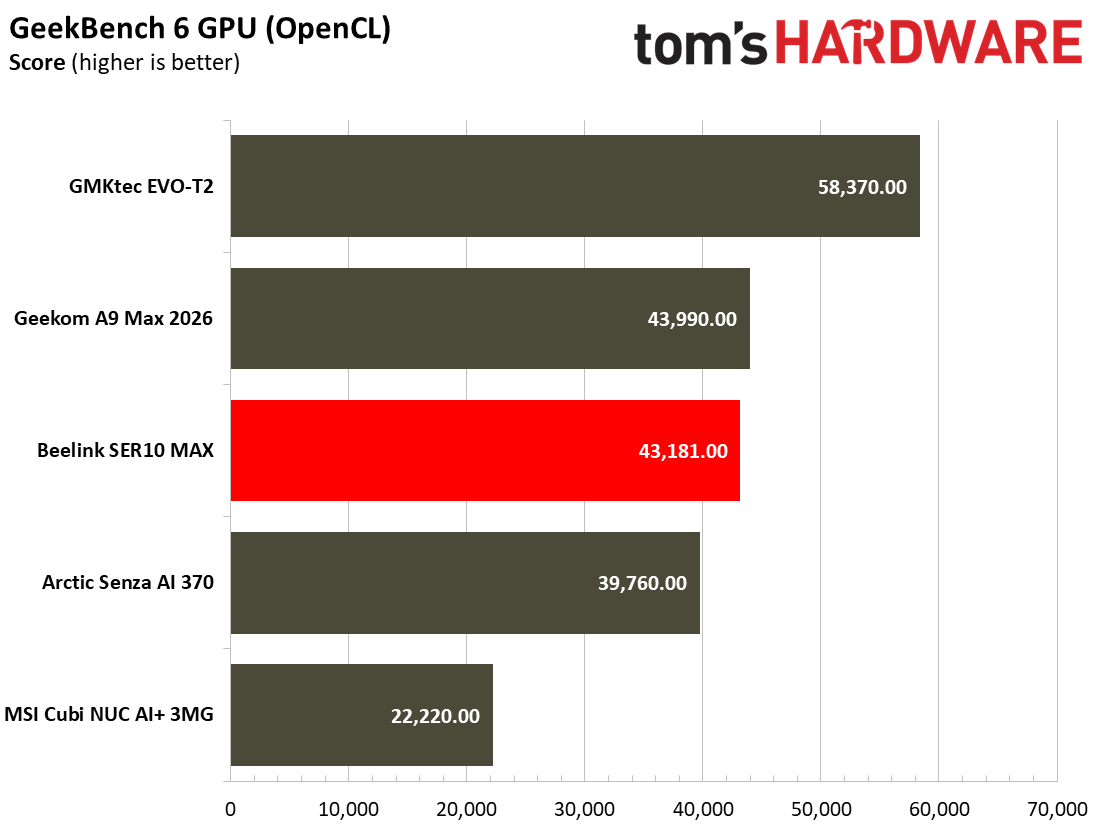
In Shadow of the Tomb Raider, the same pattern is echoed; faster memory is just as important for serving frames as the silicon within, though the Beelink SER10 Max achieves an average of 52 FPS and 1% low of 40 FPS. This isn’t going to become a AAA games machine, nor should you expect it to perform that way. Synthetic benchmarks confirm what our real-world testing tells us – the newer Gorgon Point silicon doesn’t make up for slower memory when compared to the Arctic Senza AI 370’s 32GB of soldered LPDDR5X-8000.
Tom's HardwareTom's Hardware
However, in smaller and simpler titles like Hollow Knight: Silksong, the SER10 Max managed to reach an average of 100 FPS at 4K with V-Sync off, Particle Effects set to Normal, and Blur Quality set to High. This is about as expected for a 2D game of this type, and aside from the odd hiccup when transitioning between areas, it ran extremely well. In Stardew Valley while tending to my crops, the SER10 Max at 4K maintained a steady 60 FPS throughout.
While those two are markedly lighter titles, I also played co-op climbing hit Peak on the system, where running things at a native 4K resolution came up against the reality of its default 4GB VRAM configuration with render scaling set to native, where the game struggled to reach a baseline of 30 FPS, with the rest of the game set to High. Punching all the settings, including render scaling to Medium, I managed to get things running at a steady average of around 70 FPS. So long as you keep your expectations in check regarding performance in heavier 3D titles, the SER10 Max is a performant “indie” machine. Just don’t expect to light the world on fire with all the latest bells and whistles, or run expect to run the newest titles at native 4K resolutions.
Dual Booting on the Beelink SER10 Max
Dual booting between Ubuntu and Windows 11 is one of this unit’s flagship features, isn’t quite as straightforward as you might be led to believe. Instead of being met with an option between the two upon booting the unit to switch between OS’s, you must instead switch the boot drives within the BIOS to get to your preferred OS. This isn’t a dealbreaker, but there are some more caveats to the feature that potential buyers should know about.
Ubuntu and Windows 11, even while running on different NVMe drives, don’t play well together unless you’ve set up Windows first. In particular, the networking chip wasn’t recognized by Ubuntu until I had booted up Windows 11, set up the device, and restarted the system to boot into Windows again, then switched to Ubuntu. No amount of driver installations or re-installations on Ubuntu managed to solve the issue on our end. That was the only real problem that we encountered when testing the Ubuntu installation on our review unit.
(Image credit: Tom's Hardware)
Secondly, the OpenClaw installation is remarkably simple to set up, with Beelink itself offering a setup guide for new users (like me) who had never used OpenClaw before. A well-documented setup guide, and 10 minutes later, I had my own local LLM running on the system, and communicating to me via Telegram on my phone. It’s worth mentioning that Beelink also offers a pre-installed LLM for OpenClaw usage on the device, in this case, Qwen 3.5-9B-Q4_K_M.
When querying the model in the llama.cpp front-end, we found that the model ran at 11.4 TPS, which is quite slow. A 1,350-token query took around two minutes in total to generate, which is a fairly slow speed for those looking for light, fast responses. Getting OpenClaw to learn new skills is a crucial part of having a model running on your phone. Without it, the model will just occasionally lie to you. That’s not the PC’s fault, but a byproduct of running a 9B model locally. During the setup of OpenClaw, you can also install other LLMs that fit into the system’s memory, such as Google’s Gemma 4 model or other lightweight LLMs. However, given that this system cannot quite manage to fit larger, more complex LLMs locally, you also have the option to use an API key for your provider of choice, which removes some of the load and opens the door to running more agents concurrently on the system.
The reality is that for Local AI and AI development, you’d be more suited to spending more on an AMD Strix Halo or Nvidia DGX Spark-based system, as those offer much more performant architectures and higher memory bandwidth for running larger, heavier local models. However, for those looking to simply dip their feet into the Local AI waters, the SER10 Max is capable of running some of those tasks, but you’ll be looking to upgrade your hardware sooner rather than later if this is the main reason behind your purchase.
Software and Warranty on the Beelink SER10
The SER10 Max comes with a delightfully lightweight and bloat-free Windows 11 installation, shipped with Windows 11 Pro 24H2, meaning that once you get the unit, you’ll likely want to upgrade it to 25H2 if yours hasn't already. Oddly enough, it took a few attempts to successfully install it, after several rounds of failed updates. Soon after, we were up and running with no issues, but Beelink should really update its Windows installation image to 25H2 to smooth onboarding for new users. Over on the Ubuntu side, you’re simply looking at having all the files for OpenClaw pre-installed. This is a pretty refreshing take, as the system is not filled with bloatware. Once you’ve installed all of your drivers on the system, then things are fairly nimble and lightweight.
Beelink offers a three-year warranty on its website, which covers manufacturing defects or if the product does not work as advertised. While you can go straight to Beelink’s website and purchase the system, many models of the SER10 Max are also available via Amazon.
Beelink SER10 Max Configurations
Beelink offers the SER10 Max in a multitude of flavors and configurations. The base model offers Windows 11 Pro, in 32GB/1TB and 64GB/1TB flavors with a silver anodized aluminum finish, priced at $1.299 and $1,599, respectively. The “OpenClaw” models ship with Ubuntu and come in the red colorway and can be specced slightly higher. The 32GB / 1TB will cost you $40 more than the Windows 11-based equivalent, while the 64GB / 1TB OpenClaw config retains pricing parity to its Windows 11-based brethren.
The OpenClaw configurations also ship with more DDR5-5600 RAM and 2TB of storage. The configuration we reviewed, the 64GB / 2TB OpenClaw model, will set you back $1,799, and is the only model that ships dual-booted. You can also equip yourself with a 96GB / 2TB variant, which tops out at $2,199.
Shopping around for other Gorgon Point Mini PC’s of this type, Geekcom’s A9 Max is $100 more expensive for the base model, whereas the MINISFORUM AI X1 Pro-470 in a 64GB/1TB variant costs $1,639, whereas Beelink’s SER10 model with the same RAM and storage capacities is slightly cheaper at $1,599.
Bottom Line
The Beelink SER10 Max’s appeal is curious. On one hand, you have a well-performing desktop PC that can churn through most productivity and performance tasks with ease, and is even well-suited for some light gaming. For the past week and change, it’s even acted as a suitable replacement for my desktop gaming PC in a pinch, and I’ve not been left wanting on the performance front in my day-to-day usage. The biggest weakness of the SER10 Max is in its fairly limited memory bandwidth, capped at 89.6 GB/s. We’ve seen this limitation crop up in some gaming workloads, where previous-generation silicon with faster RAM beat the SER10 Max’s HX470 out. We’ve also seen the unit butt up against this limitation when serving tokens for local AI models, as the system must communicate between the model weights stored in the RAM and push them through the APU for every single token generated.
Where the confusion comes is in the OpenClaw-based branding of the unit, as a result. The Ubuntu dual-boot is handy, but far from a difficult task to perform for someone familiar with the platform. For prospective AI developers, there is merit in being able to run a smaller model locally at lower token speeds, while also leveraging a more powerful cloud model. But you would need to take a hybrid approach. Don’t expect to suddenly abandon your Claude subscription for a model that this the SER10 Max can run – you’ll only set yourself up for disappointment. This makes the OpenClaw branding come across more like a marketing gimmick, rather than an actual day-in-day-out use case, unless you’re dedicated enough to set up a hybrid local and cloud AI setup, where you’re passing off smaller tasks to a slower locally-run model.
This makes the particular configuration that we’ve reviewed niche in its overall utility for AI enthusiasts. You have to go in understanding all of the limitations of the hardware before even considering purchasing it. For some, the configuration on offer here will suit just fine; for others, particularly those interested in running powerful local AI models – you should instead look toward systems with faster memory bandwidth, higher memory capacities, and speeds. Luckily, it’s not a dedicated AI box, and the SER10 Max is a quiet, performant desktop computer that’ll suit most everyday tasks incredibly well.
When I had a kid, I found myself taking a lot more photos. When a baby lies on its back considering a ceiling fan for half an hour, you can suddenly find yourself with dozens of cute shots. And it doesn't stop when they grow up.
At a certain point, this bounty of photos weighed on me. I would look at my photo library on my phone or computer and worry about what would happen if something went wrong. It was time for a backup methodology more advanced than plugging in an external drive a few times a month.
At first, I thought about a NAS, which seemed like the obvious solution. But as I researched (and saw how expensive HDDs are these days), I opted for a mini PC. I was lucky enough to score a Mac Mini with M4, 16GB of RAM, and 256GB of storage on Apple's refurbished store a few weeks before the company raised its prices. The best time to buy it would have been at $399 on sale at MicroCenter. The second best time was when I did it.
An M4 Mac Mini is overkill for my project. M1 would've done the job. Any number of older Intel- or AMD-based mini PCs would've been sufficient, and most homelabbers rely on Linux or even Windows for a reason. The M4 will future-proof this machine. It is, though, admittedly funny to me that one of the most powerful computers in my home is running headless in a closet.
But the Mac has other benefits. For one, my home has a lot of Apple products in it. While I'm equally comfortable with Windows and macOS, my wife is exclusively in Apple's ecosystem. So when I realized I would want this system to back up her photos and documents too, making that easy was important. I'm able to access it from either my MacBook Pro or my custom-built PC over VNC or SSH on the command line. There are a few other benefits of using macOS if you have other Apple devices in your home.
My overkill hardware
The M4 Mac Mini is far more than this project needs. But on the plus side, it should see support for a long time. And frankly, getting one during the shortage was just kind of a thrill.
The 256GB of storage is being used exclusively for the operating system and any applications. All of my actual data is on a series of external drives, most of which I already had lying around. That includes a 4TB PCIe NVMe SSD and 2TB PCIe NVMe SSD in enclosures (the former with Thunderbolt 3). But I also wanted a spinning hard drive for longer-term storage. For that, I opted for a Seagate FireCuda Vault X, which isn't the cheapest option, but can connect over USB-C bus power without the need for external power.
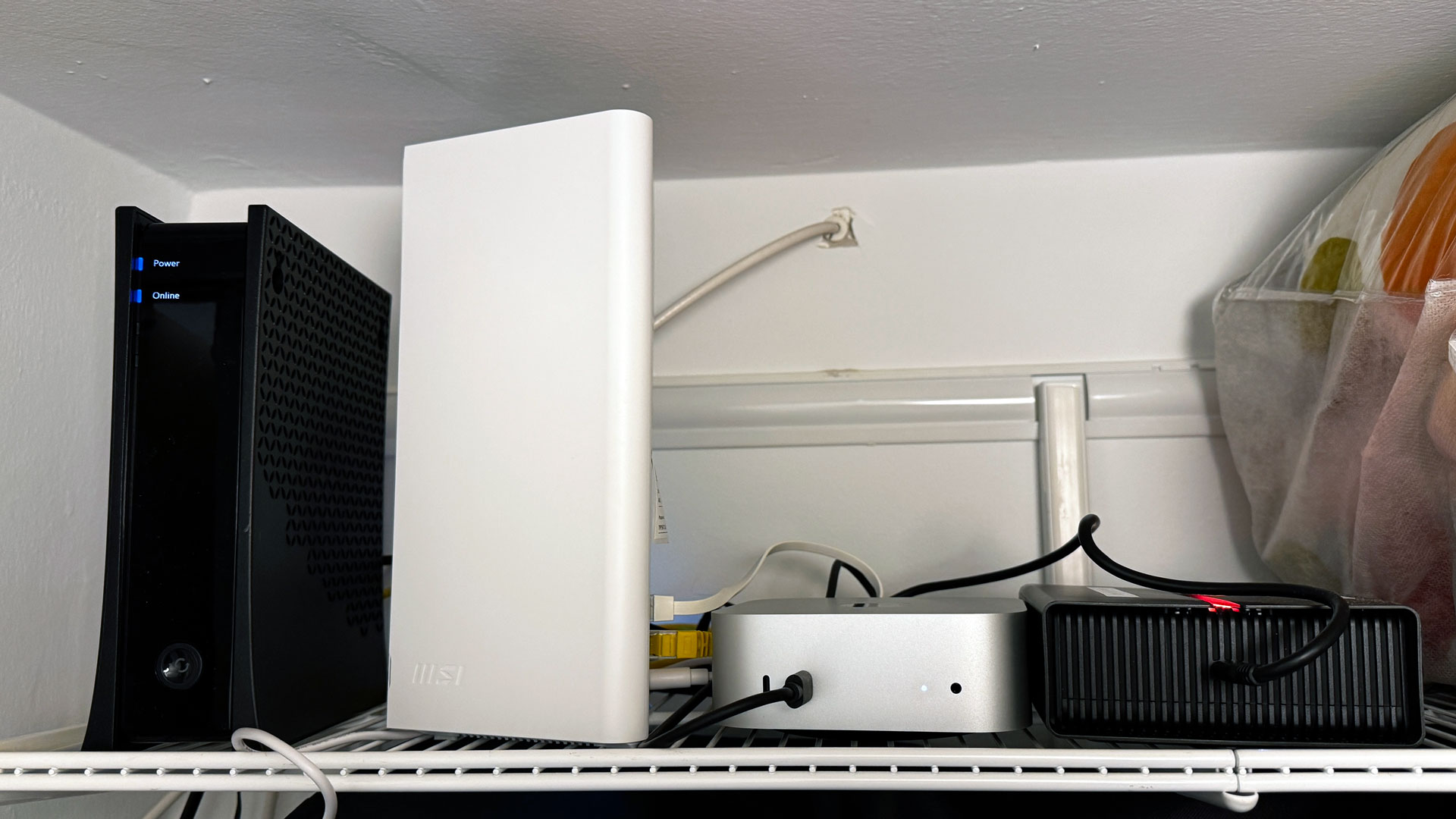
All of this is hidden on the top shelf of a closet. This isn't the ideal space, but it's the only one that will work. I live in an apartment, and that closet is where the sole Ethernet connection comes in. I already had my router and modem there. I've hooked up the Mac Mini to the router, connecting it to my home network.
My Mac Mini in my closet, hooked up to my modem and router. The hard drive can be seen, while the SSDs are in enclosures sitting further back, behind the system. Yes, I need better cable management.(Image credit: Tom's Hardware)
The Mac Mini runs non-stop. That's good, because the power button is on the bottom, and I'd hate to have to pick it up every time I want to shut it off. (Also, I need a step-stool to reach that shelf.)
Backups and redundancy
The SSDs and HDD are all connected to the Mac Mini via the system's USB-C ports. The Thunderbolt enclosure and the HDD are attached to Thunderbolt 4 ports on the rear (the latter to ensure it gets the wattage it needs), while the 2TB SSD in the USB-C enclosure is connected to a 10GB/s USB-C port on the front.I've put too much thought into each drive's purpose.
The main drive is the 4TB USB-C drive, which has two volumes on it (unlike partitions, which macOS also allows, volumes are more flexible with free space). My main volume is for extra copies of important documents, my Apple Photo library, and also for backups of photos I keep outside of Apple's library (I have a tendency to clean house every few years). If I create any files I want to back up on my Windows PC, this is where I go to back them up on site. And lastly, I have a folder just to store files that aren't critical but that I might want to access from any machine. Why keep them on my laptop when I have terabytes of storage to play with?
But the second volume, which is just a small portion of the drive, is also for excess data I don't want to keep on the internal drive. At the moment, that's largely dedicated to macOS content caching (see below).
My 2TB SSD is for Time Machine backups. I can use macOS's built-in backup tool over the network to back up my laptop without plugging anything in.
The HDD is a redundancy play. That's currently split in half — one volume as an alternate Time Machine destination (letting me switch between the SSD and HDD), and the other volume is a copy of my important documents and photo library, which is cloned each night using Carbon Copy Cloner.
This is all in my home, of course, so if my computers and Mac Mini were in the same fire, much of my data would still be lost. Without an offsite backup, I would be in violation of the 3-2-1 backup rule (three backups on two storage devices, with one of them offsite). I keep many of my most important photos and files elsewhere in the cloud, in a mix of iCloud, Google Drive, and Dropbox. It's not a great system, and could use improvement, but it's better than nothing. If HDD prices were to go down, perhaps I could replace the Vault with another one and swap them once a month, keeping the other at a family member's home.
Running headless
I could put a monitor on the top shelf of my closet, but I've opted for a better model: running the Mac Mini headless.
Mostly, this meant setting up the Mini (with a monitor, naturally), to prepare it before booting it up. For me, this included removing a lot of the iCloud syncing it would normally do (I only want it downloading my original, full-sized photos from iCloud, but it doesn't need to get texts), preventing automatic sleeping, allowing for file and screen sharing on the network, and making security decisions that allow me to access the system and files remotely and securely while also deciding how often I want to have to take the thing down from the closet to log back in with a password.
From another Mac, it's very easy to use virtual network computing (VNC) via the built-in screen-sharing utility. From Windows, I can still use a program like RealVNC to access the desktop. I also reduced motion and graphics, set a solid color background, and made other tweaks in an attempt to reduce the amount of data or lag I might see over a remote connection.
There's also the option for SSH. I'm still working to be a bit more proficient at the command line, but you can do that either in macOS in the Terminal or Windows in the Command Prompt or PowerShell.
I've also seen that some people swear by running the Mac Mini headless by using an HDMI dummy plug to force high resolutions when remoting in. But using Mac Screen sharing, I haven't particularly had a problem.
Managing on the go
Typically, I'm more than OK with having what amounts to a backup server accessible locally. But what if I need a file that I'm storing on the server and I'm not at home?
For that, I've created a Tailscale network consisting of my laptop, the Mac Mini, and my iPhone. This gives each device a semi-permanent address I can access it through, as long as both are on the network.
That makes it easy enough from a laptop. Unfortunately, iOS doesn't have the super-easy Screen Sharing tool that macOS does. So on mobile, I have the RealVNC mobile app, which can access the Mac Mini either through the local address or Tailscale. Using a virtual desktop on a phone's touch screen isn't ideal, but it's not nearly as difficult as I thought it would be.
Mac benefits and drawbacks
Let's be clear: macOS is not designed for servers (macOS Server was discontinued in 2022). I am very aware that home networking purists would much rather use their preferred Linux distribution, or even Windows. And that's OK!
But if you have Apple devices in your own home, there are some benefits to having a Mac in your homelab.
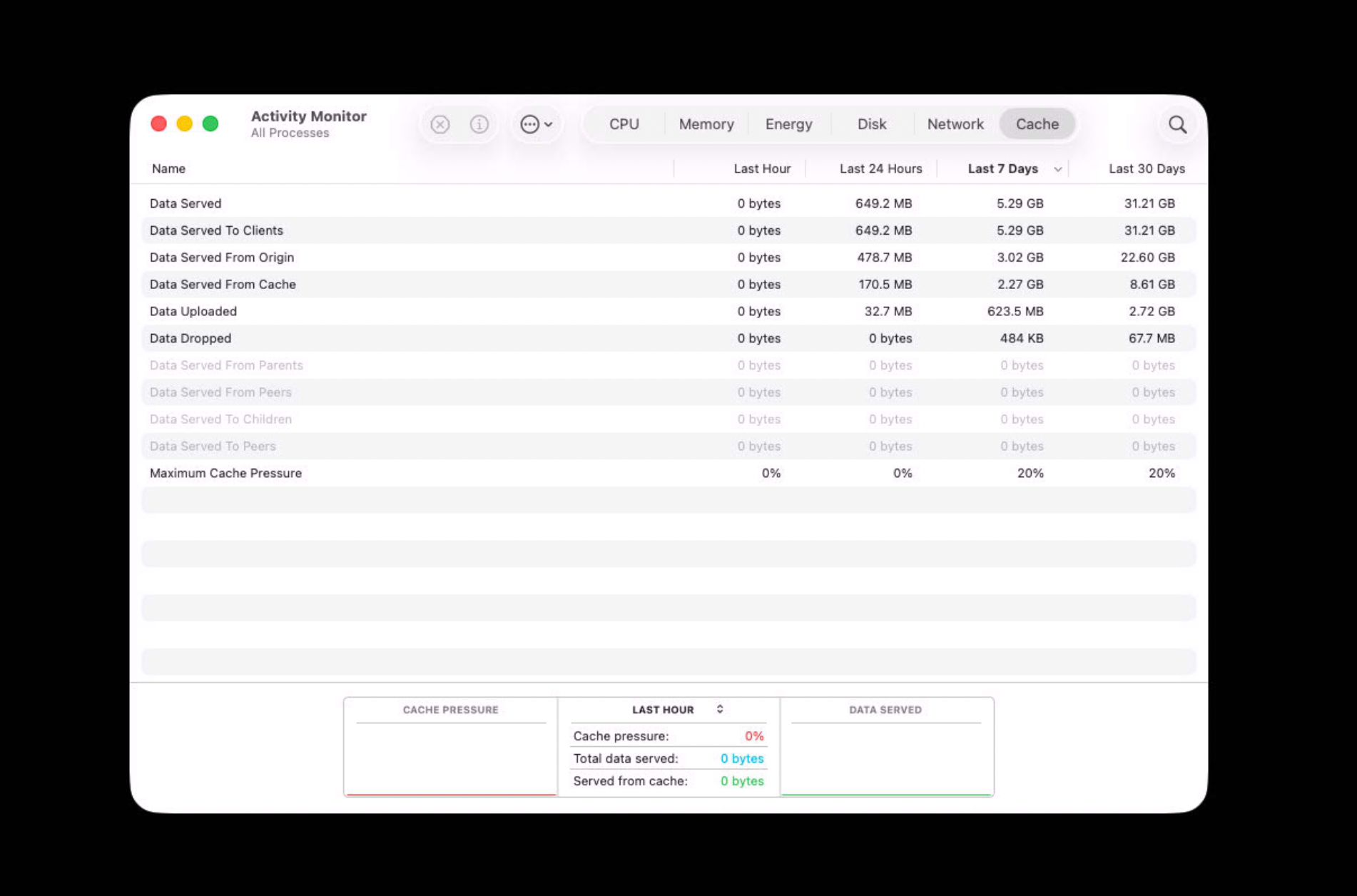
My favorite of these is content caching, which can keep copies of macOS or iOS updates, App Store updates, or data stored in iCloud in the cache, so that they can be sent to other devices on a local network more quickly.
(Image credit: Tom's Hardware)
For those who are using macOS, it's nice to be able to use Time Machine, and mount other drives in the Finder the way you would with a Thunderbolt or USB-C drive and just have it on the desktop.
And yes, for management, the aforementioned Screen Sharing app is pretty solid, and it’s one less piece of software you need to worry about.
Additionally, the machine is whisper-quiet, rarely uses more than 3% of the CPU (and often less), and is efficient enough that I've noticed no substantial change to my electric bill.
The only real drawback for my use case is that while the M4 SoC will keep this project future-proof for a bit, adding RAM is impossible. I opted for the 16GB RAM / 256GB SSD model for budgetary reasons, but it's possible that, depending on what else I want to do with it, that could eventually hamper me down the line. It's especially the case if I ever want to get more into local AI.
However, once I get more advanced, there are some applications that would run more easily if I had gone for a Linux device. Instead, I'll need Docker or VMs.
What I need next
A project like this one is never truly finished. I have the Mac; I have it backing up my stuff (It ends up that after all this, I'm still working on getting my wife to back up her end). There's much more that I want to do down the line. Perfect, however, is the enemy of getting started at all.
One good item for this project would be a small uninterruptible power supply in the case of a power outage. Another would be a dock. A number of third-party companies make docks specifically for the Mac Mini that can fit an SSD, which might be a good way of organizing my cable mess. But if I ever switch computers, that dock will likely end up being less friendly for cable management.
There's also a whole bunch more I want to do with the Mac Mini. I don't have a ton of Smart Home equipment in my apartment, but what I do have is a mix of older Alexa-focused stuff. If I wanted to control that with Apple Home, I could try hosting Home Bridge. Or if I want to move to a more private system, I could install Home Assistant on the Mac Mini using a virtual machine.
I could also toy with PiHole, though again, I would have to use Docker or a Virtual Machine. That would let me block ads across my network (while whitelisting the ones I want to support, of course).
Further down my list are a Plex or Jellyfin server. I don't own that much physical media, but being able to access what I do have virtually could lead me to consider it among my subscription options. I could also use one of these to offload my MP3 collection from my laptop.
But for now, the file server and backups have given me some peace of mind. My photo library certainly isn't getting any smaller. I just hope storage prices fall before I need another drive.
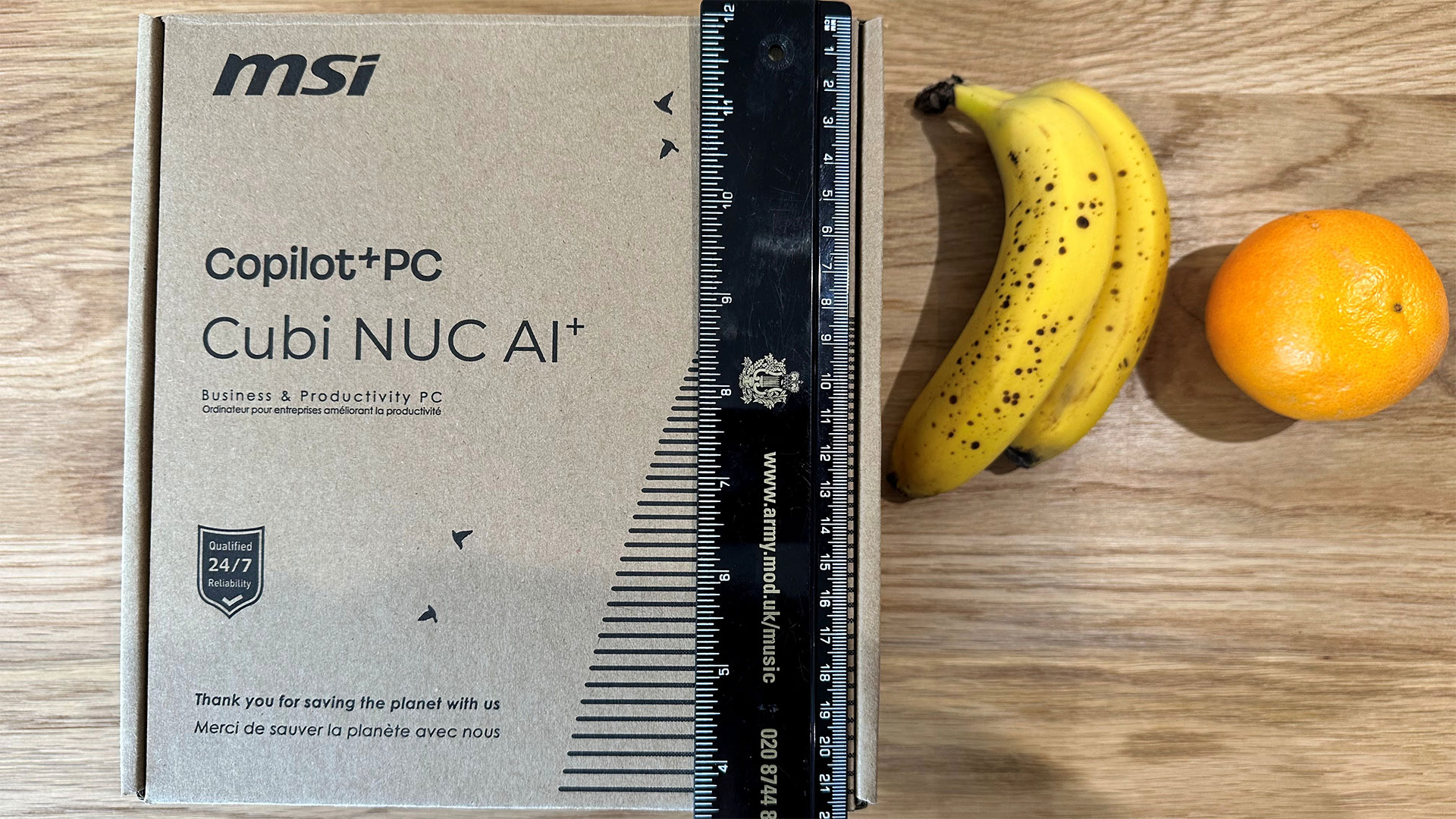
Intel’s codename "Panther Lake" Core Ultra Series 3 mobile processors were designed for laptops, but now we are starting to see them trickle over into mini PCs. That includes the recently launched MSI Cubi NUC AI+ 3MG (starting from $569, $1,999 as tested). This particular design is pleasingly compact and low-key in a traditional NUC manner, but can this matte black panther roar?
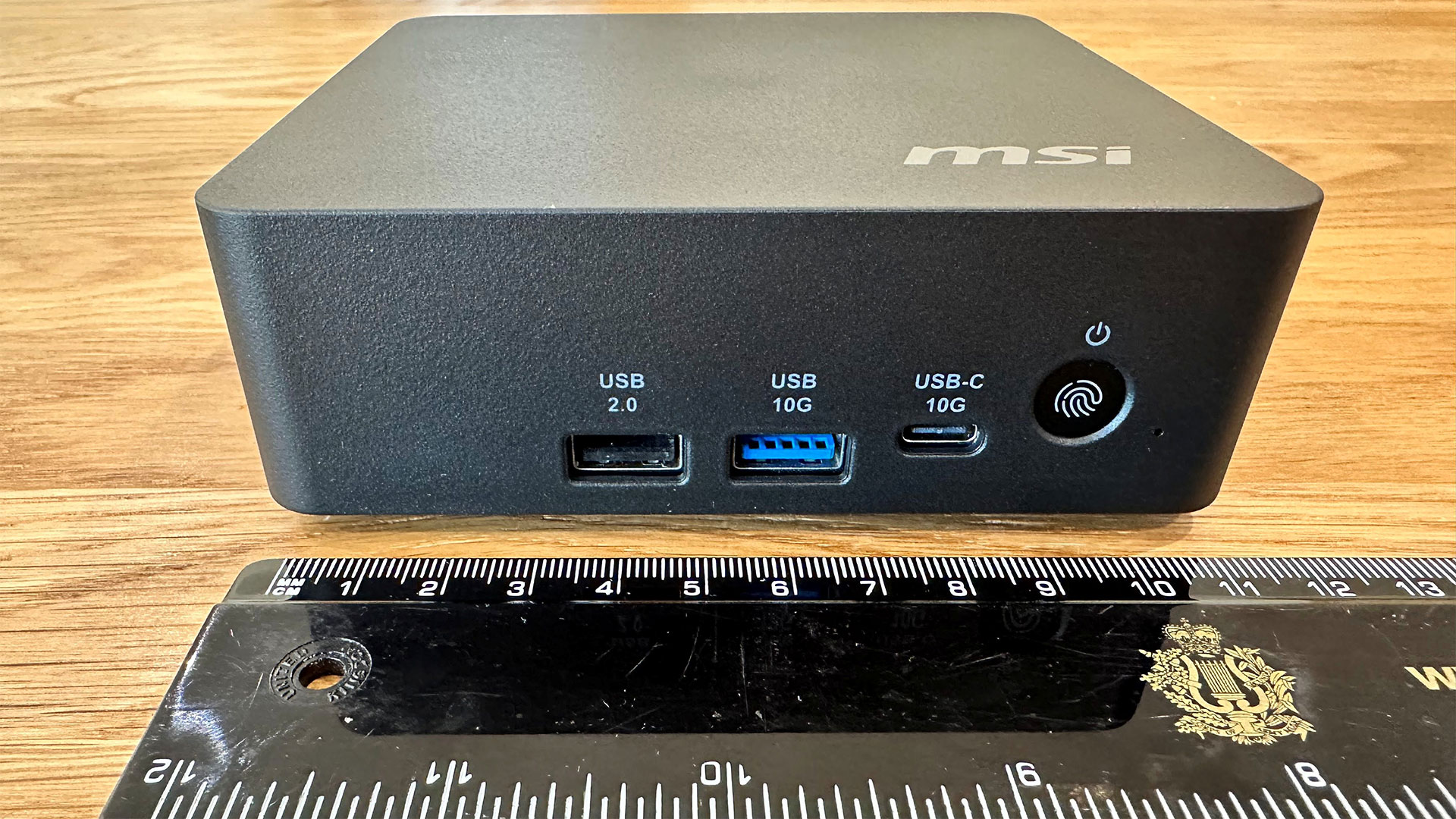
Simply put, the MSI Cubi NUC AI+ 3MG is a very compact roughly 4.5 x 4.5 x 1.5-inch design with an Intel Core Ultra 9 386H chip inside.
The Core Ultra 9 386H delivers 16 cores and threads of processing power (6P + 8E + 2LPE) running at up to 4.9 GHz. MSI is also selling models with the Ultra 7 355, and Ultra 5 322 processors.
The Cubi’s shell is sturdy and pleasant enough in a matte black finish, made from recycled plastics. Inside, the motherboard is held firm inside what looks like a folded sheet aluminum frame.
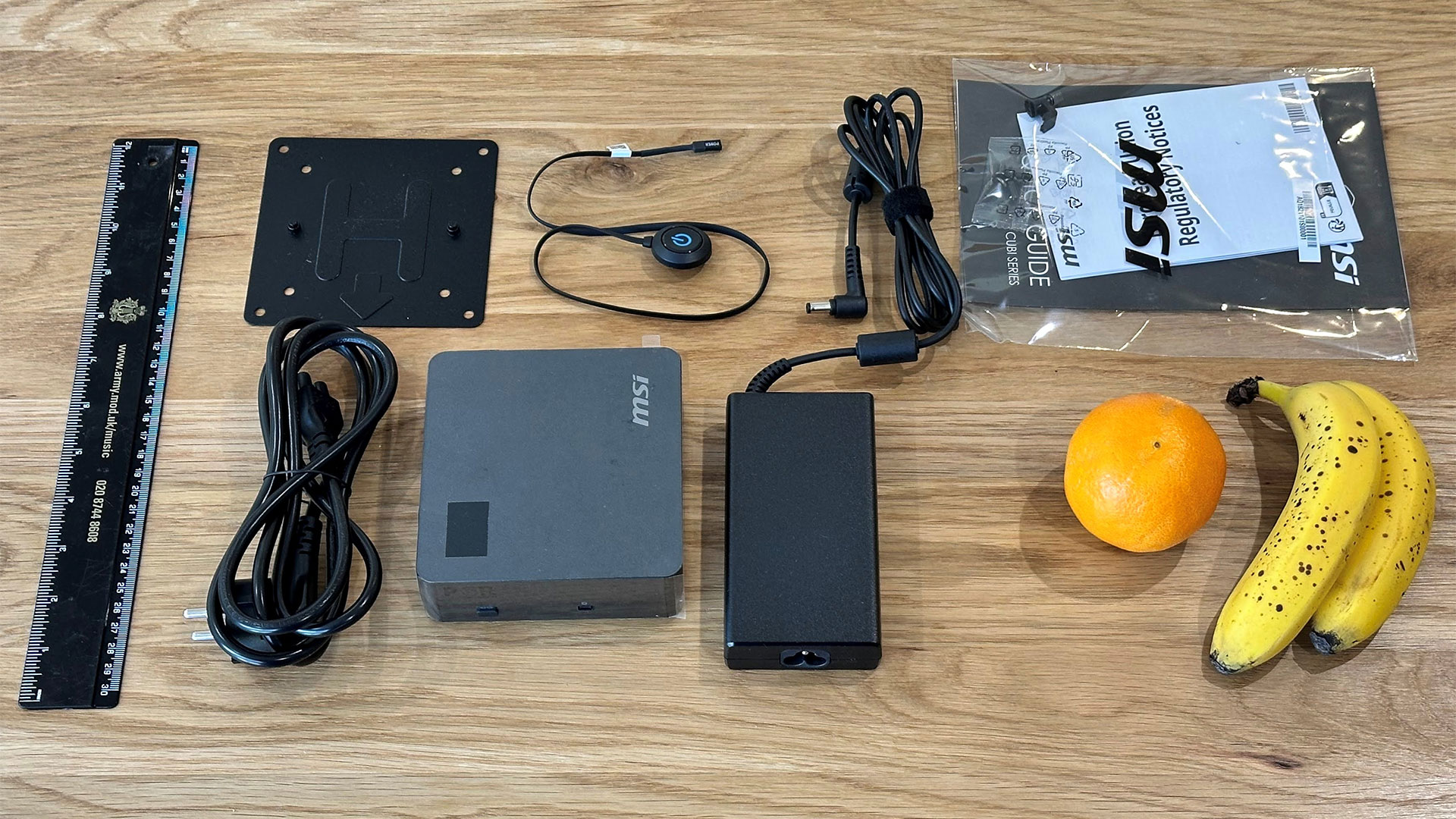
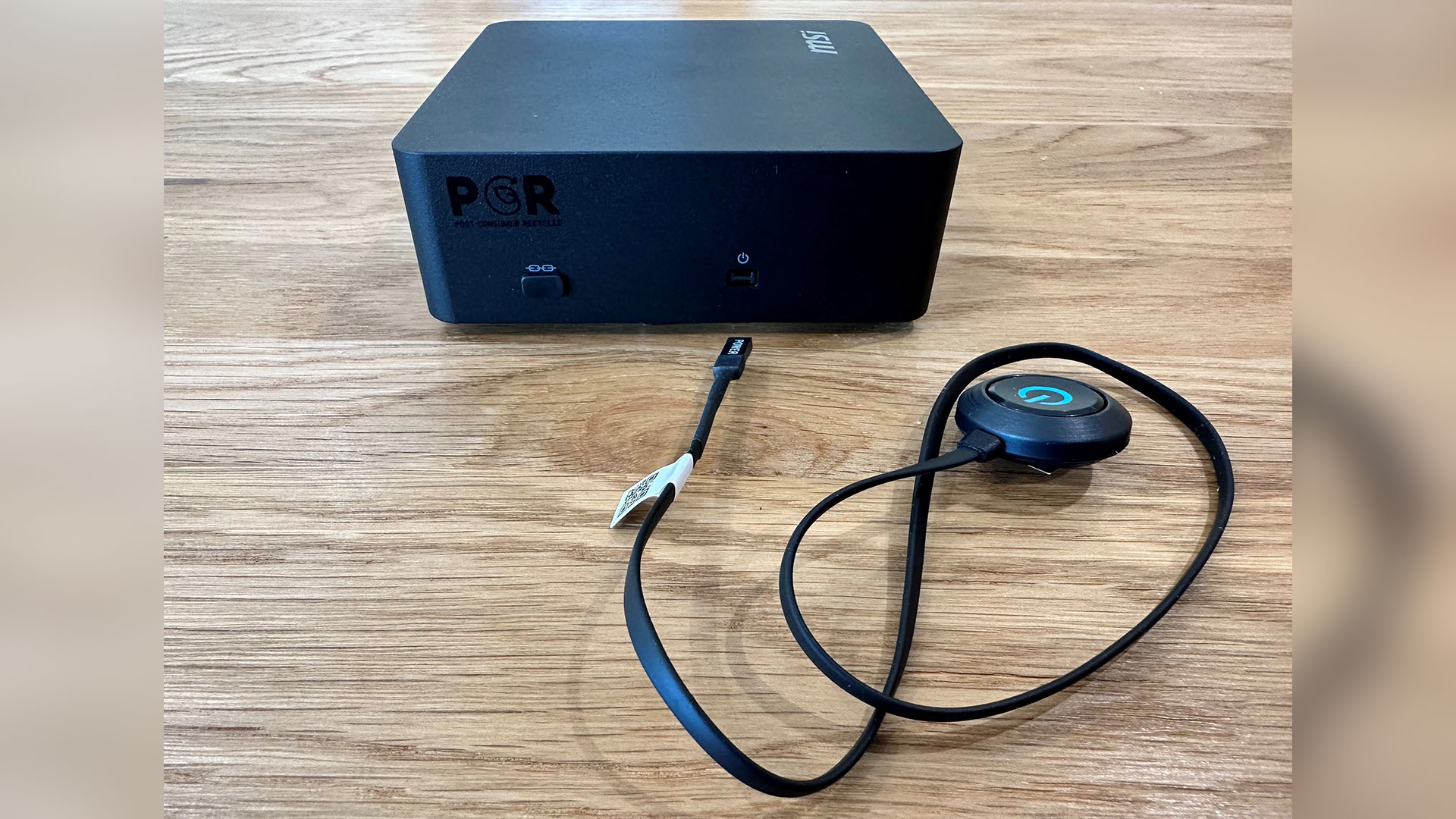
Another welcome feature is the external power switch. This is a small power button puck on a slim connector that is 18 inches (45 cm) long. There’s a dedicated port for this on the left side of the Cubi, and the end of the puck is mounts with a little double-sided foam tape..
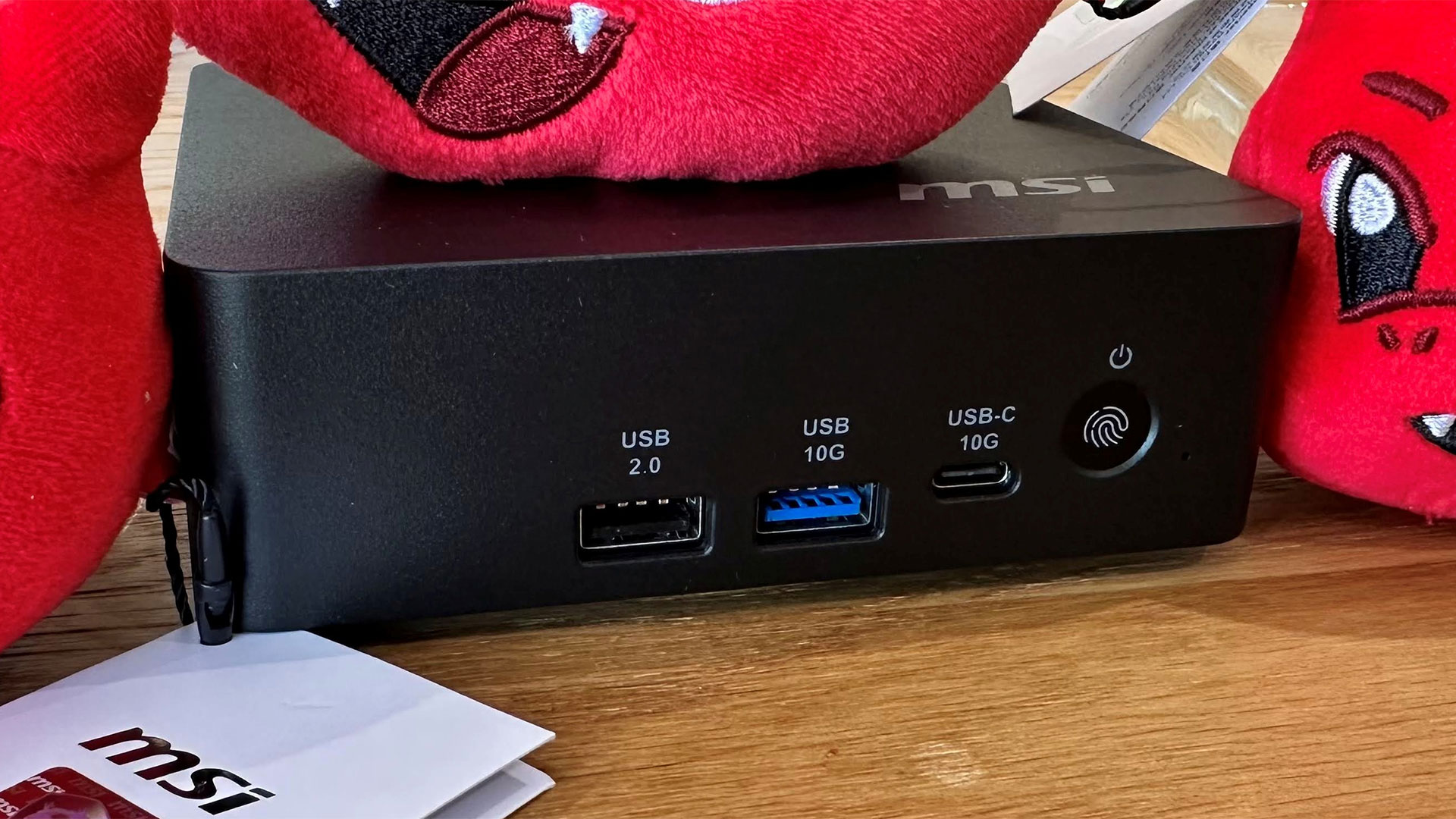
The power button dongle is a nice touch for those who might mount the Cubi NUC AI+ 3MG somewhere out of view, like behind a monitor or under a desk. Those who keep the Cubi in reach can benefit from the fact that the power button on the unit has an embedded fingerprint reader. I found the biometric unlocking here to be hit and miss, however, and it often didn’t recognize my thumb.
MSI Cubi NUC AI+ 3MG Mini PC Specifications
Processor
Intel Core Ultra 9 386H (16C/16T: 6P + 8E + 4LPE), up to 4.9 GHz
Graphics
Intel Graphics iGPU with four Xe3 cores
RAM
32GB DDR5‑5600 SO‑DIMM (Samsung 16GB x2), supports up to 128GB (64GB x2) with two slots
Storage
1TB PCIe 4.0 NVMe SSD (Phison ESR01TB) populating the single M.2 2280 slot
Physical Ports
2x Thunderbolt 4 (DP-alt, one with 98W PD), 2x USB‑A (1x 3.2 Gen2 + 1x 2.0), 1x USB-C 10G, 2x HDMI 2.1 (one with MSI PowerLink) 2x 2.5G Ethernet, DC‑in
Wireless
Wi‑Fi 7 + Bluetooth 5.4 (M.2 2230)
Other Features
Fingerprint reader, power button dongle/port, VESA mount, dual‑fan cooling, TPM 2.0, Kensington lock
Dimensions
4.71 x 4.54 x 1.48 inches (119.60 x 115.20 x 37.50 mm) 0.8 L chassis at 1.21 pounds (0.55 kg)
OS Installed
Windows 11 Pro
Price (as configured)
MSRP $1,999 with 32GB RAM + 1TB SSD
Ports and Upgradeability
Tom's HardwareTom's Hardware
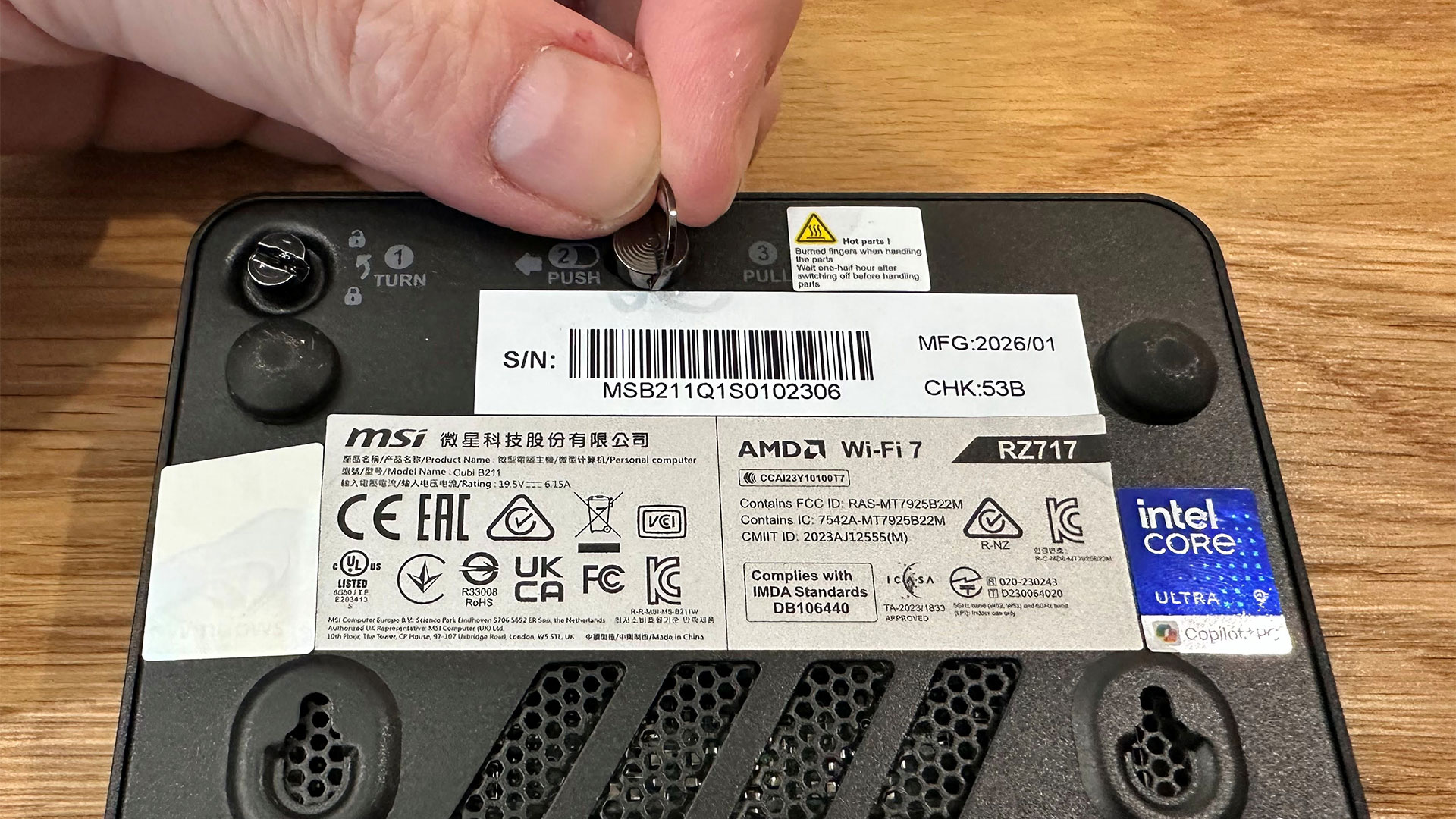
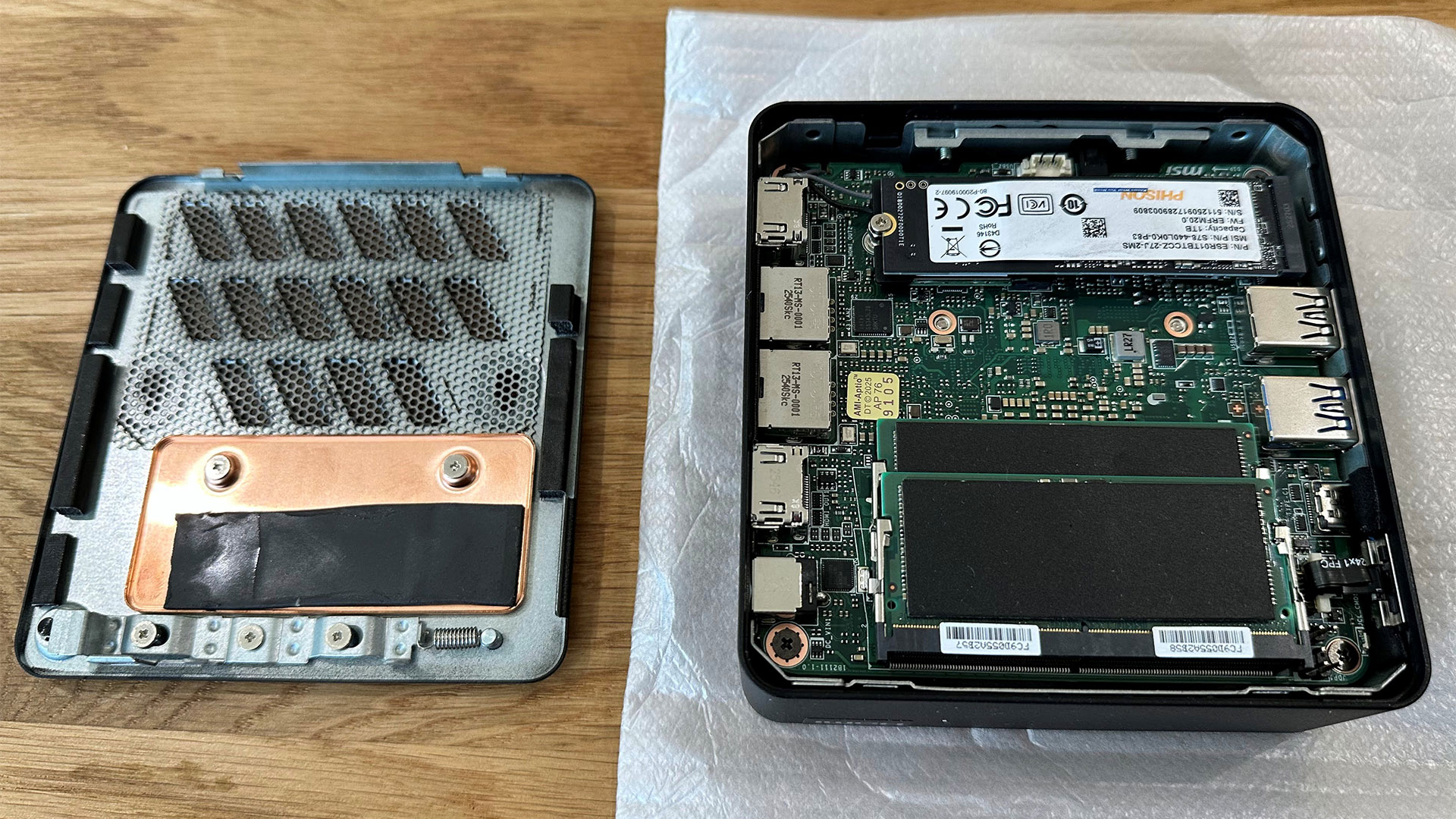
MSI has implemented a couple of physical convenience features in the build, starting with the three-step toolless access system.
All you have to do to pop the metal bottom off is turn a slotted screw, push a metal latch, and pull a ring. The trouble is I did need a tool to turn the first slotted screw, I fear my fingernail would have split if I hadn't grabbed a screwdriver. The force of pulling a tiny ring attached to the latch was also slightly concerning.
Tom's HardwareTom's HardwareTom's Hardware
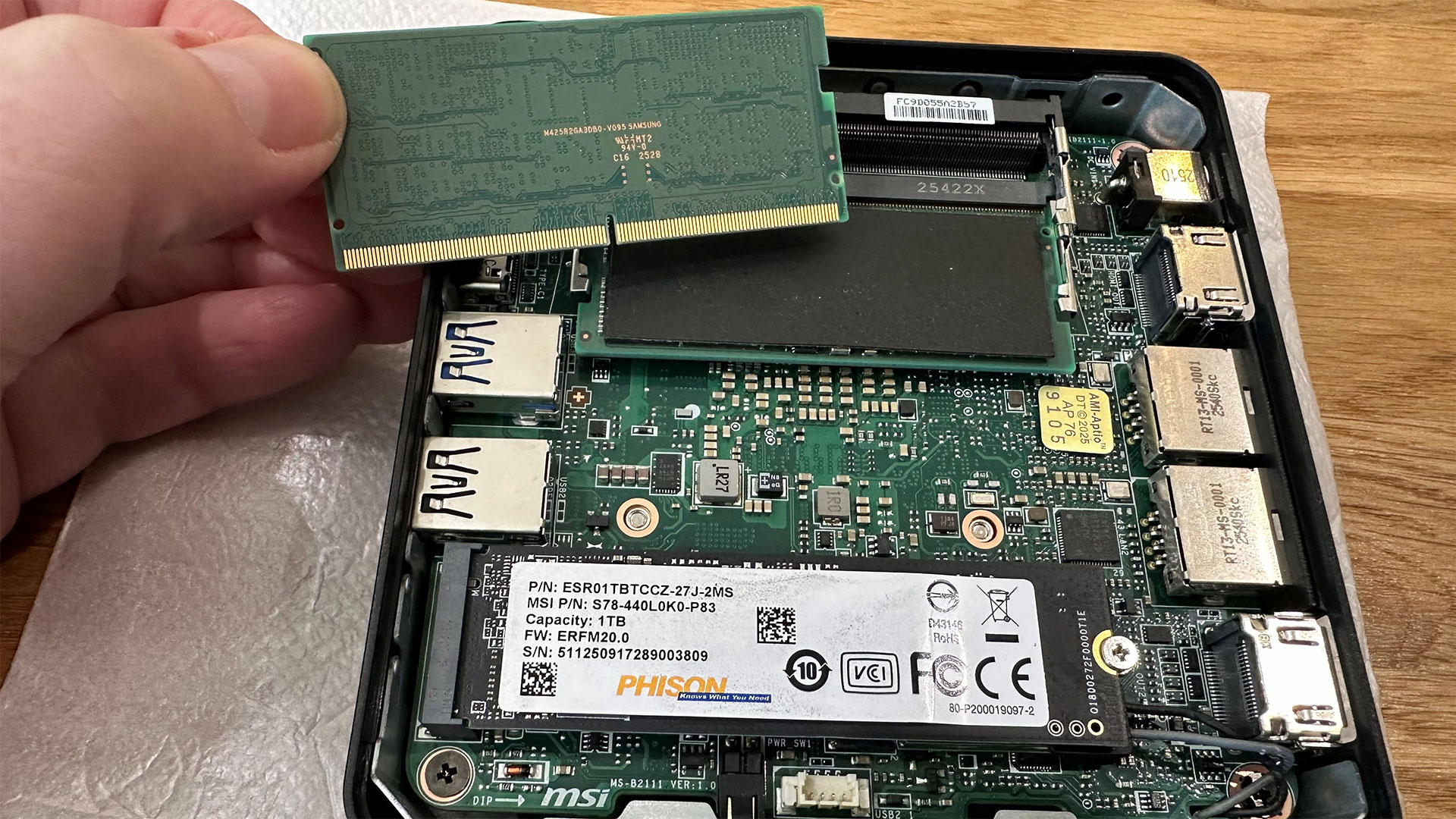
Beyond the Core Ultra 9 386H processor, our sample came loaded with 32GB of DDR5 (2x 16GB DDR5-5600 SODIMMs made by Samsung) and a removable 1TB PCIe 4.0 NVMe 2280 DRAM-less SSD from Phison. With these inserted, the Cubi NUC AI+ 3MG was fully populated. \The Wi-Fi card is also removable from its M.2 2230 slot.
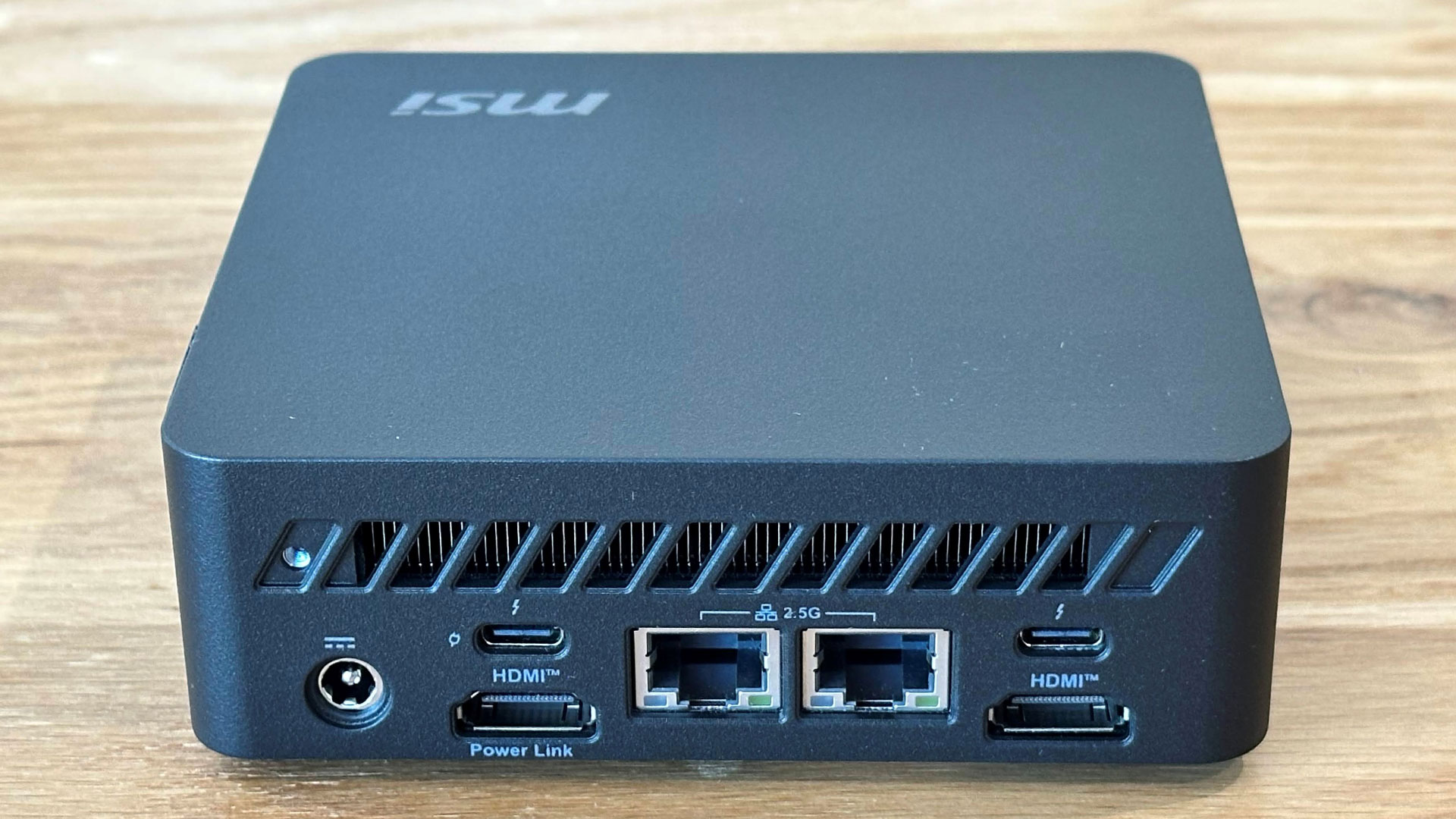
On the front of the unit, there are three ports: USB-A 3.2 Gen 2 and USB 2.0 ports, and a 10 GBps USB-C port. On the back, there are two Thunderbolt 4 ports, two HDMI 2.1 ports (one with MSI PowerLink, which turns the PC on with a monitor), and a pair of 2.5G Ethernet jacks. Finally, on the side of the system, there's a Kensington lock slot.
I feel that the MSI is slightly stingy with ports here. Most notably, there is not even a single USB Type-A port in the rear. So I had to use a USB-C dongle to keep my wired keyboard connected at the back for the tidiest possible setup.
It is good to see various USB ports on the front, however. And I appreciate that this small device allows up to four displays at once (2x HDMI, 2x USB-C DP-Alt).
For wireless networking, there is Wi-Fi 7 on board and Bluetooth 5.4 is also built-in.
There is no 3.5mm audio jack here, which would have been welcome on the front. You'll need Bluetooth, or to use audio out through HDMI or USB Type-C ports.
Test System Setup
System
CPU
(i)GPU
Memory
Chassis
GMK EVO-T2
Intel Core Ultra X7 358H (16C/16T: 4P + 8E + 4 LPE), up to 4.8 GHz
Intel Arc B390 (Xe3, 12 cores, up to 2.5 GHz)
2x 32GB LPDDR5X-8533 soldered
Dual-fan,1.72 liters
MSI Cubi NUC AI+ 3MG
Intel Core Ultra 9 386H (16C/16T: 6P + 8E + 2LPE), up to 4.9 GHz
Intel Graphics (Xe3, 4 Cores, up to 2.5 GHz)
2x 16GB DDR5-5600 Sodimm
Single fan, 0.52 liters
Geekom A9 Max 2026
AMD Ryzen AI 9 HX 470 (12C / 24T: 4x Zen 5 , 8x Zen 5c), up to 5.2 GHz
Radeon 890M (RDNA 3.5, 16 CUs, up to 3.1 MHz)
1x 32GB DDR5-5600 Sodimm
Single fan, 0.82 liters
Arctic Senza AI 370
AMD Ryzen AI 9 HX 370 (12C / 24T: 4x Zen 5 , 8x Zen 5c), up to 5.1 GHz
Radeon 890M (RDNA 3.5, 16 CUs, up to 2.9 MHz)
2x 16GB LPDDR5X‑8000 soldered
Passive, 4.82 liters
Beelink SER10 MAX
AMD Ryzen AI 9 HX 470 (12C / 24T: 4x Zen 5 , 8x Zen 5c), up to 5.2 GHz
Radeon 890M (RDNA 3.5, 16 CUs, up to 3.1 MHz)
2x 32GB DDR5-5600 Sodimm
Single fan, 0.81 liters
Productivity Performance on the MSI Cubi NUC AI+ 3MG
The MSI Cubi NUC AI+ 3MG was built to be an office workhorse, so there won’t be many complaints about performance. It comes wielding Intel’s latest silicon, with 16 cores to take CPU-demanding tasks and multitasking in its stride. And the system does its job while sipping very low amounts of power, and rather quietly.
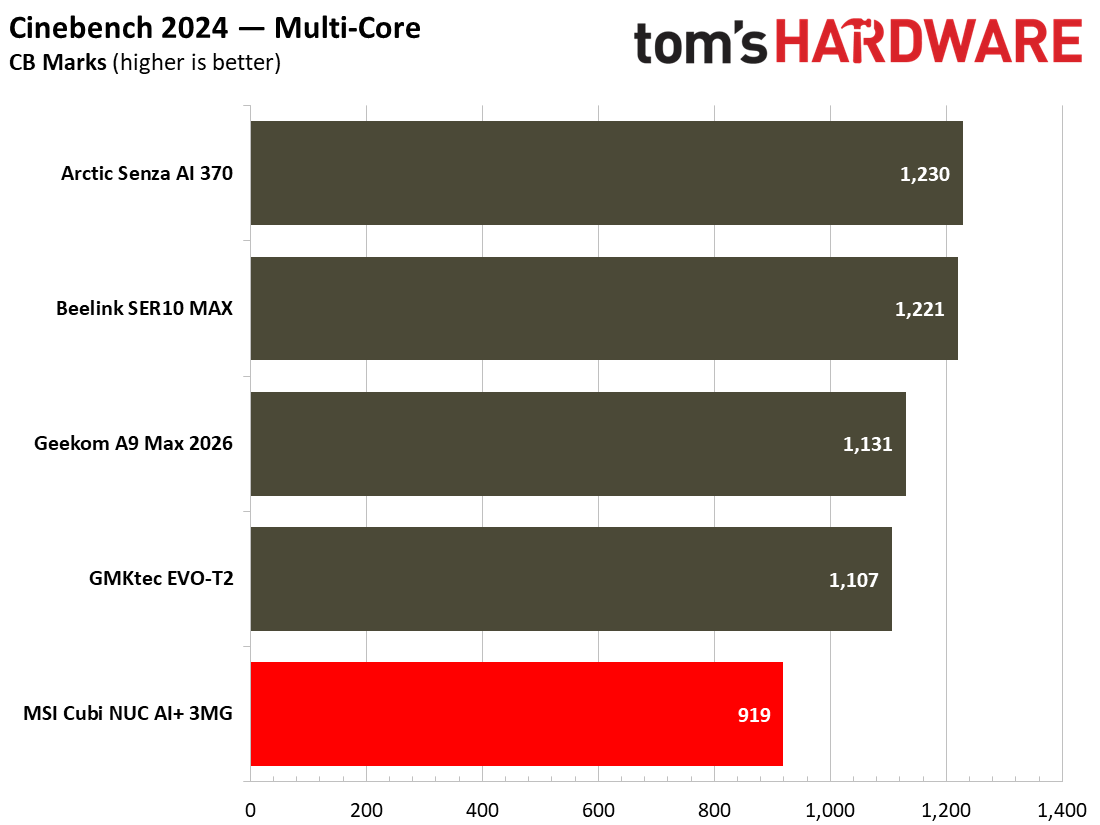
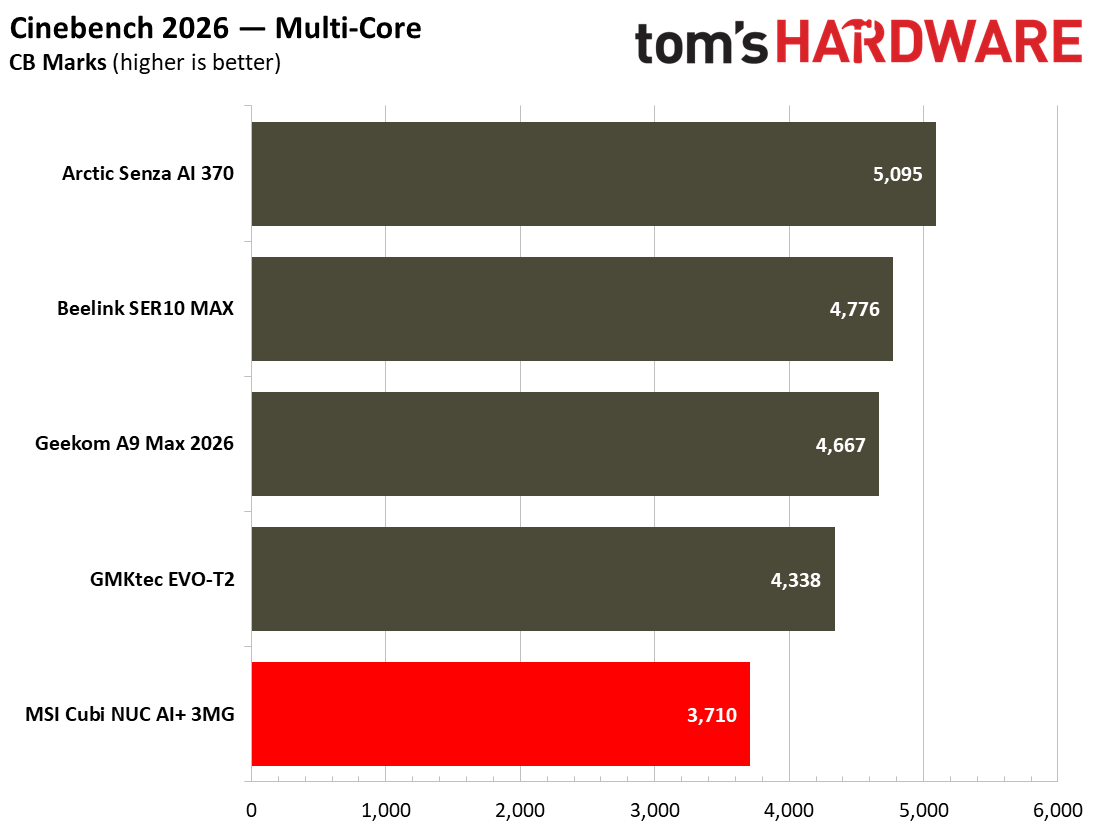
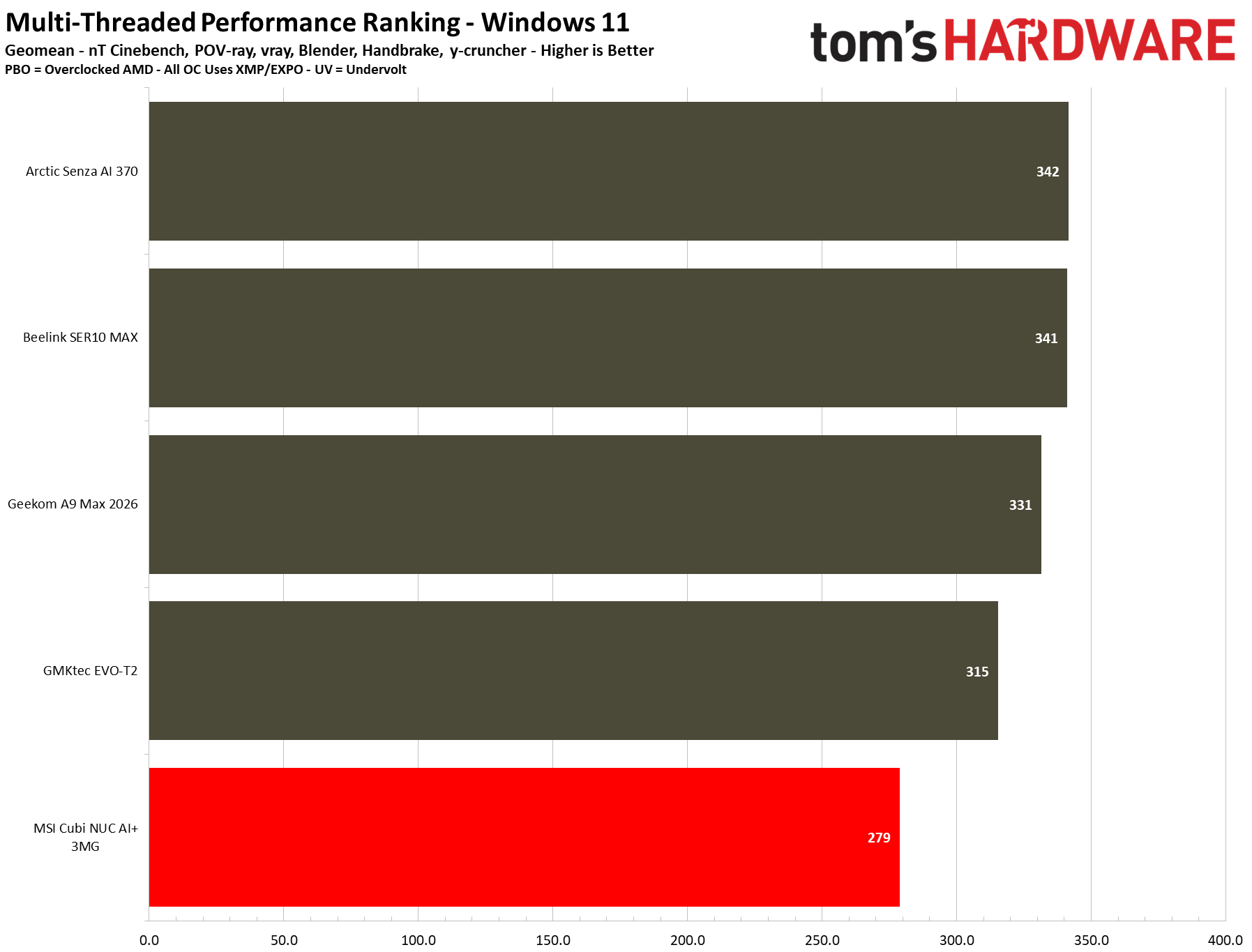
In Cinebench 2026, Maxon’s current-gen CPU rendering benchmark, the little MSI Cubi comes last in the rankings of our recent crop of mini PCs. Though low in comparison to its peers, its score isn’t disastrous here, as this is testing the kind of CPU muscle that won’t be called upon by a typical home or office user of a mini PC like this.
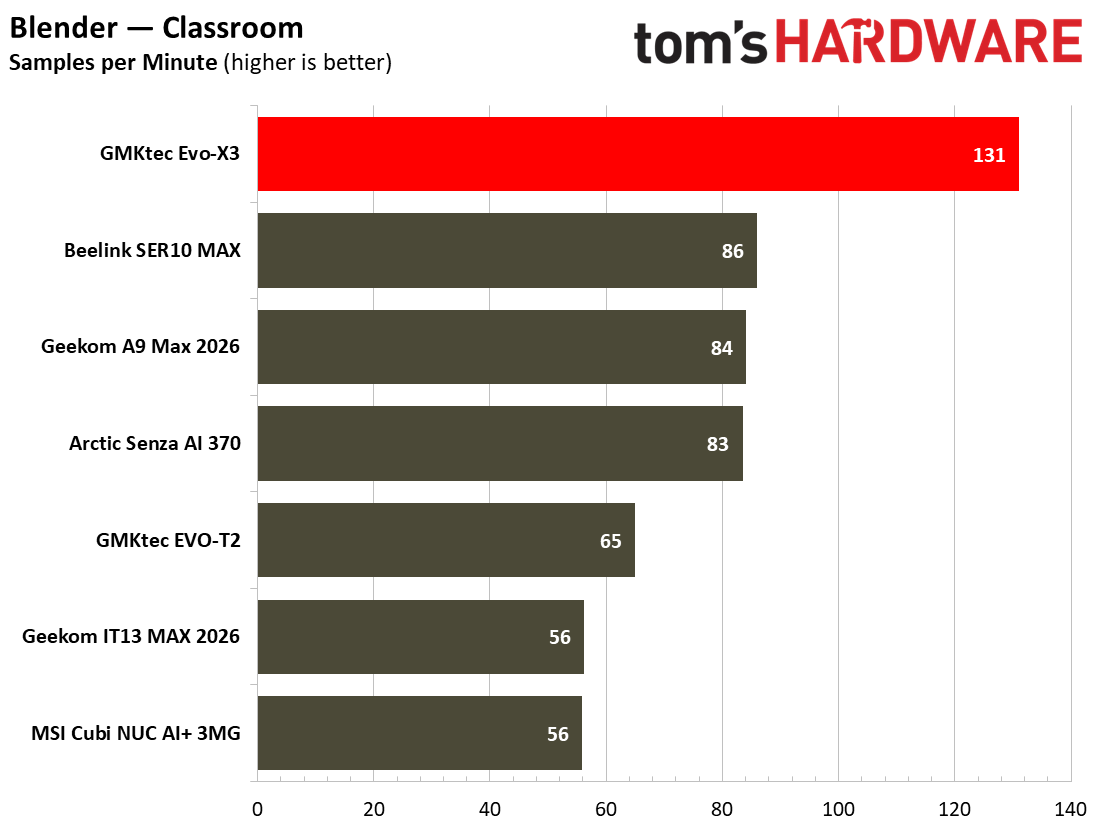
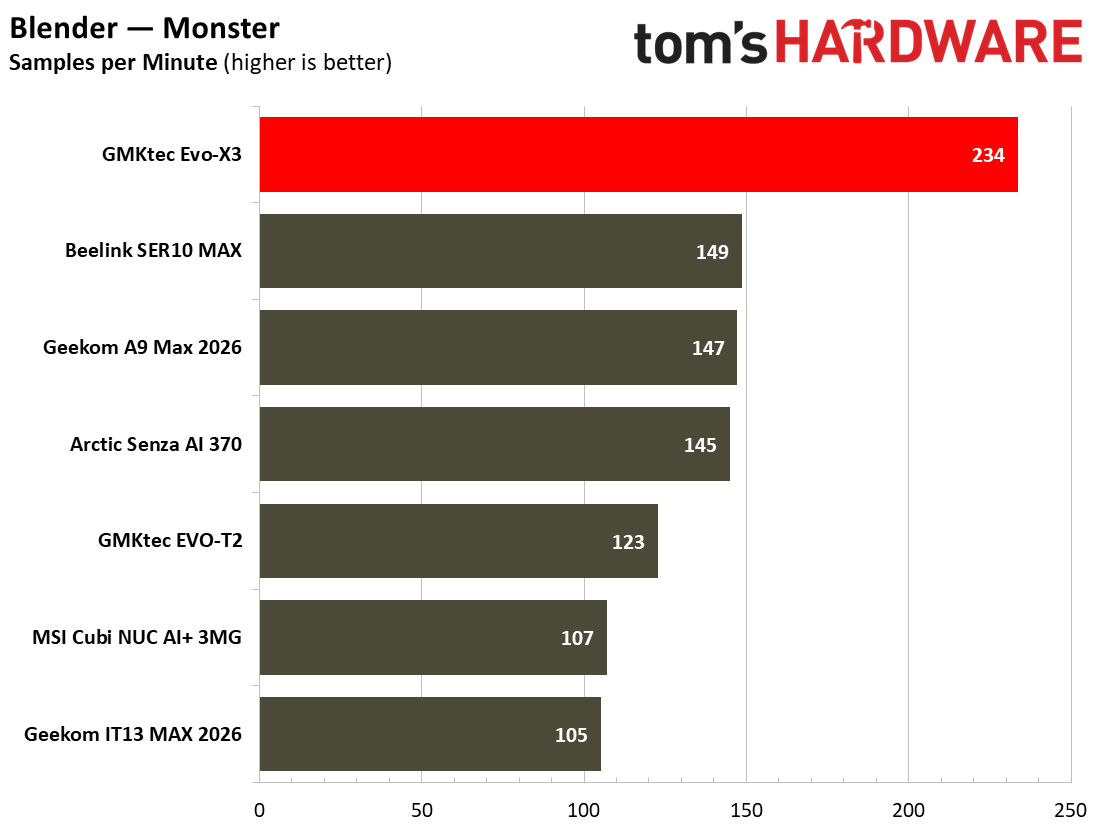
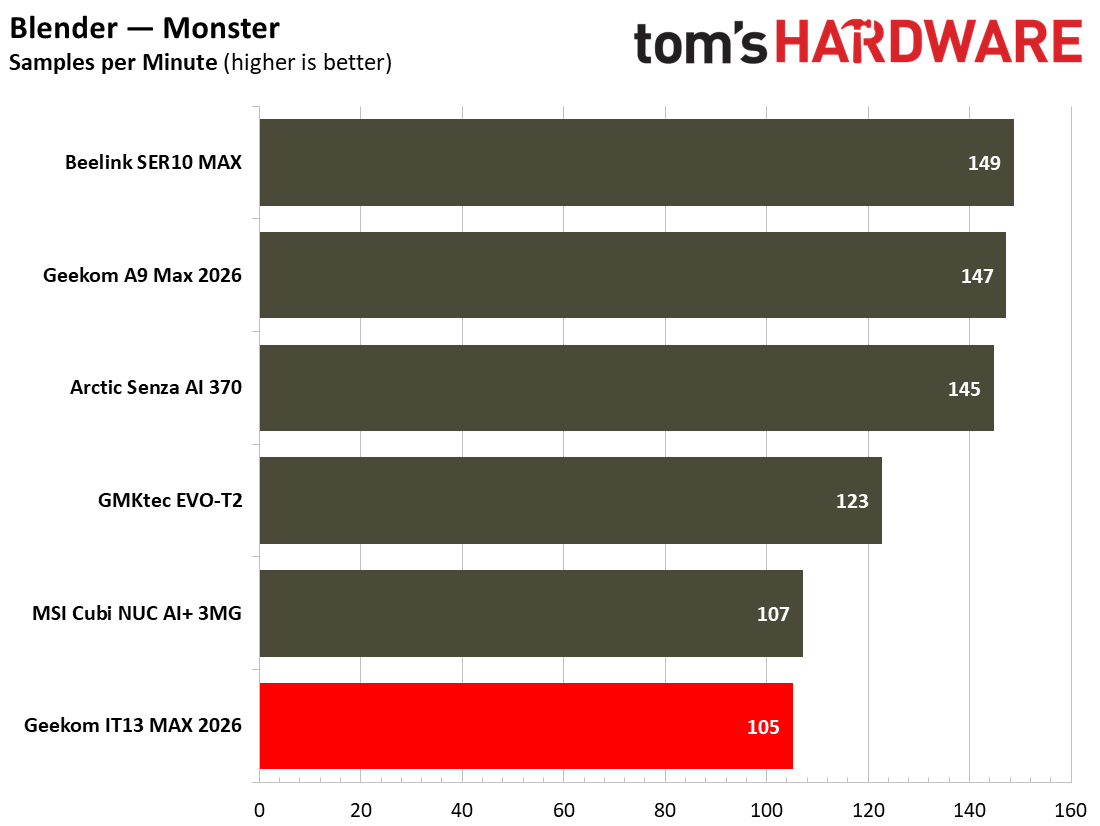
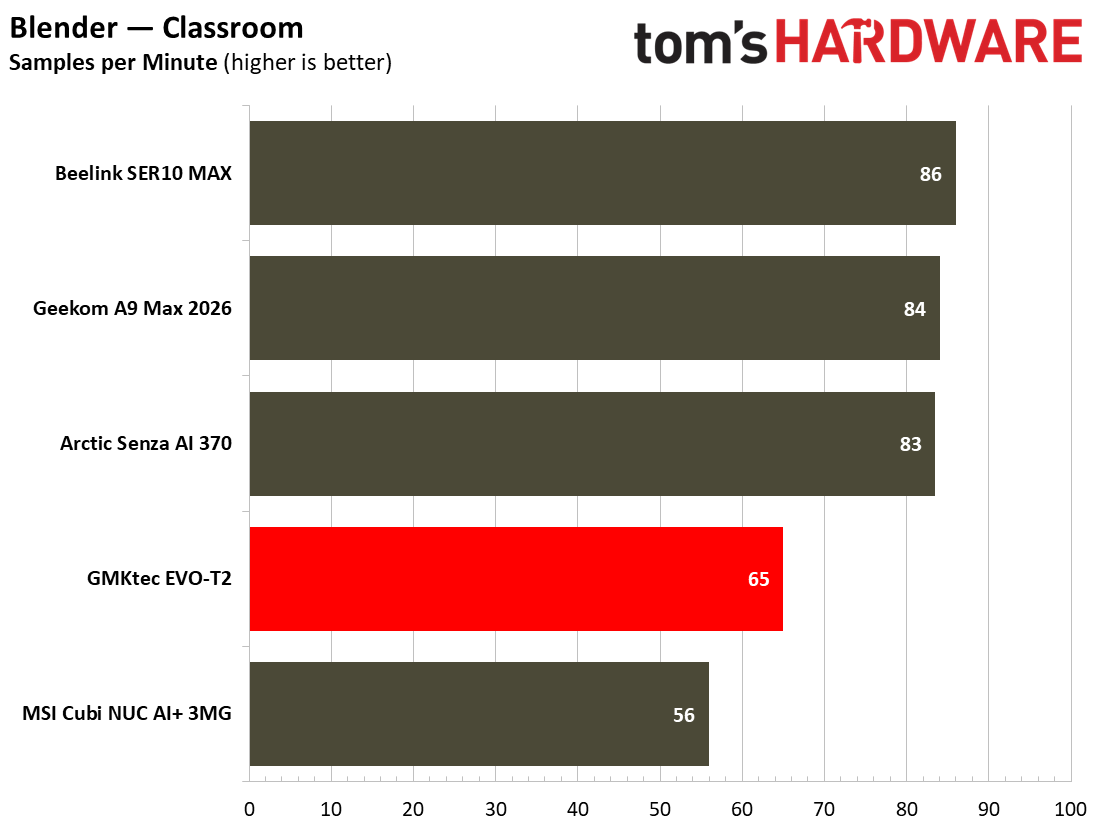
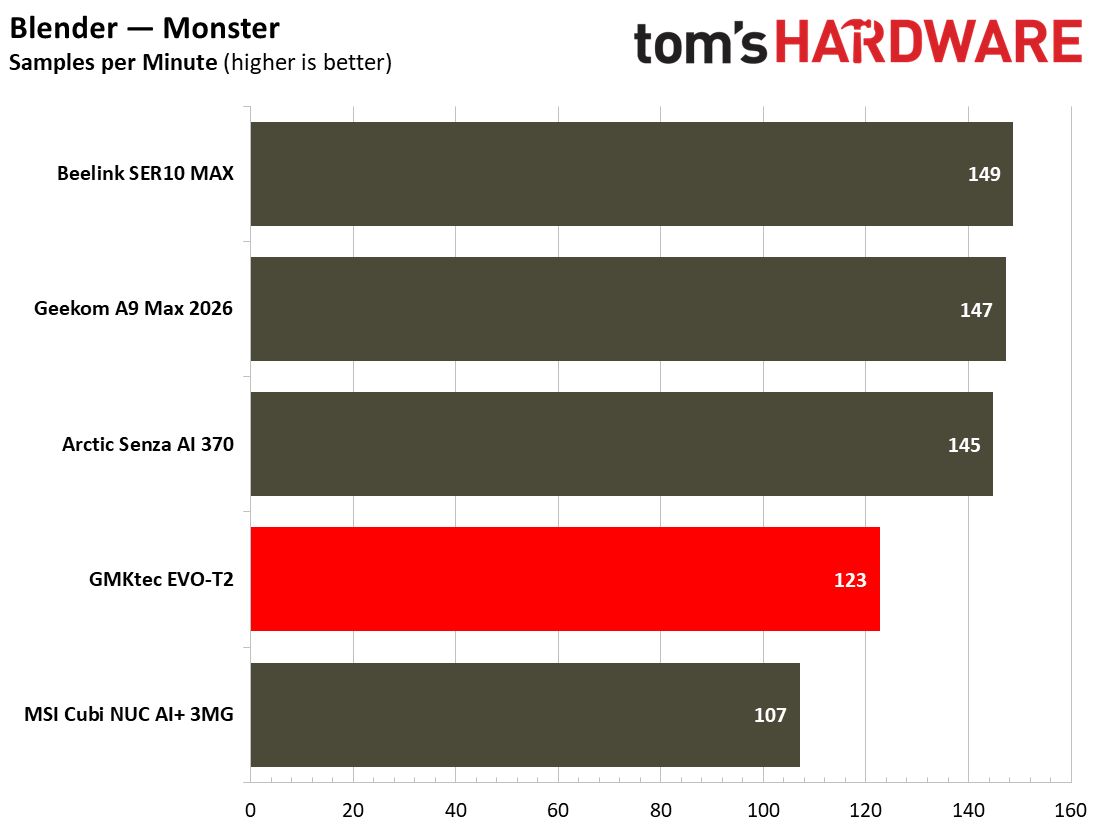
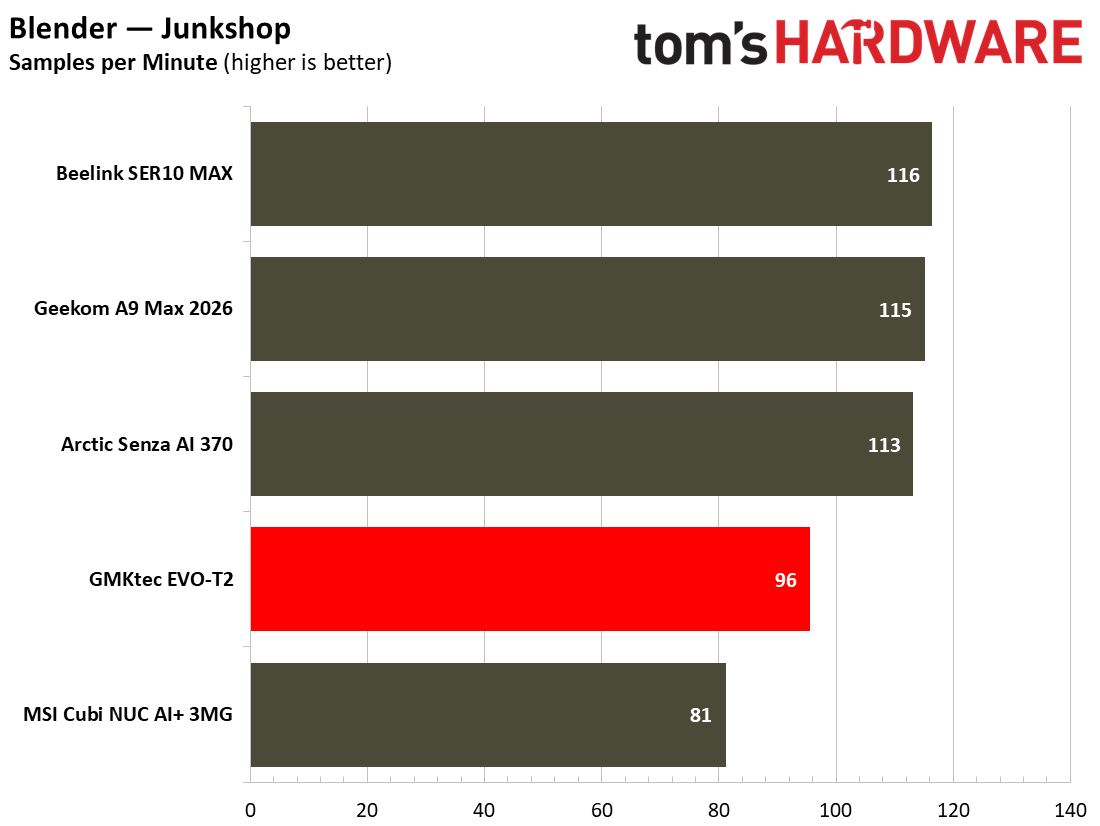
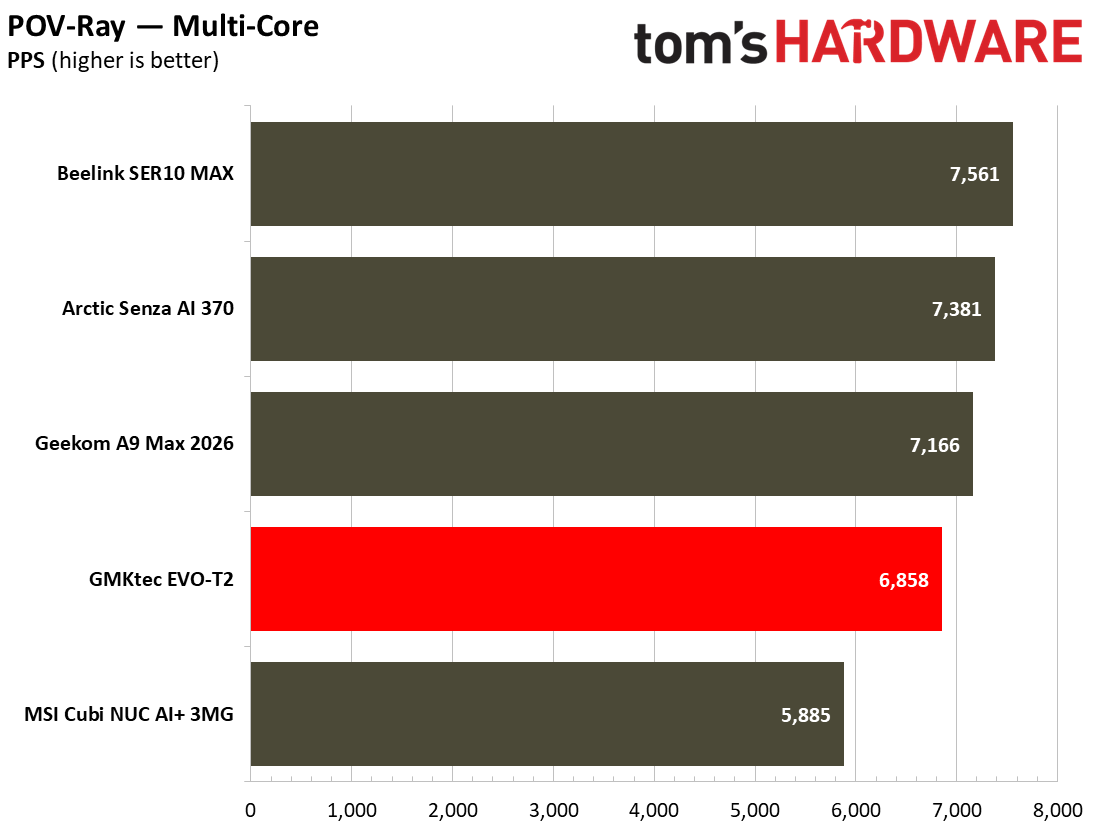
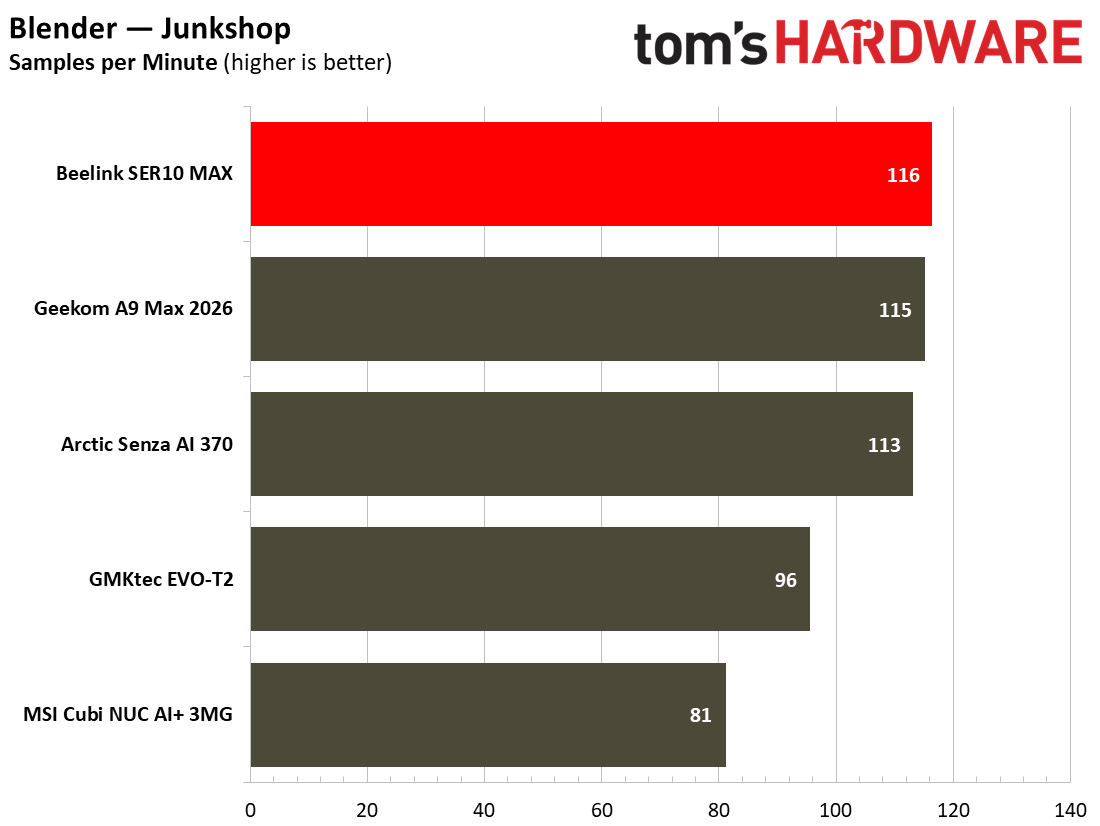
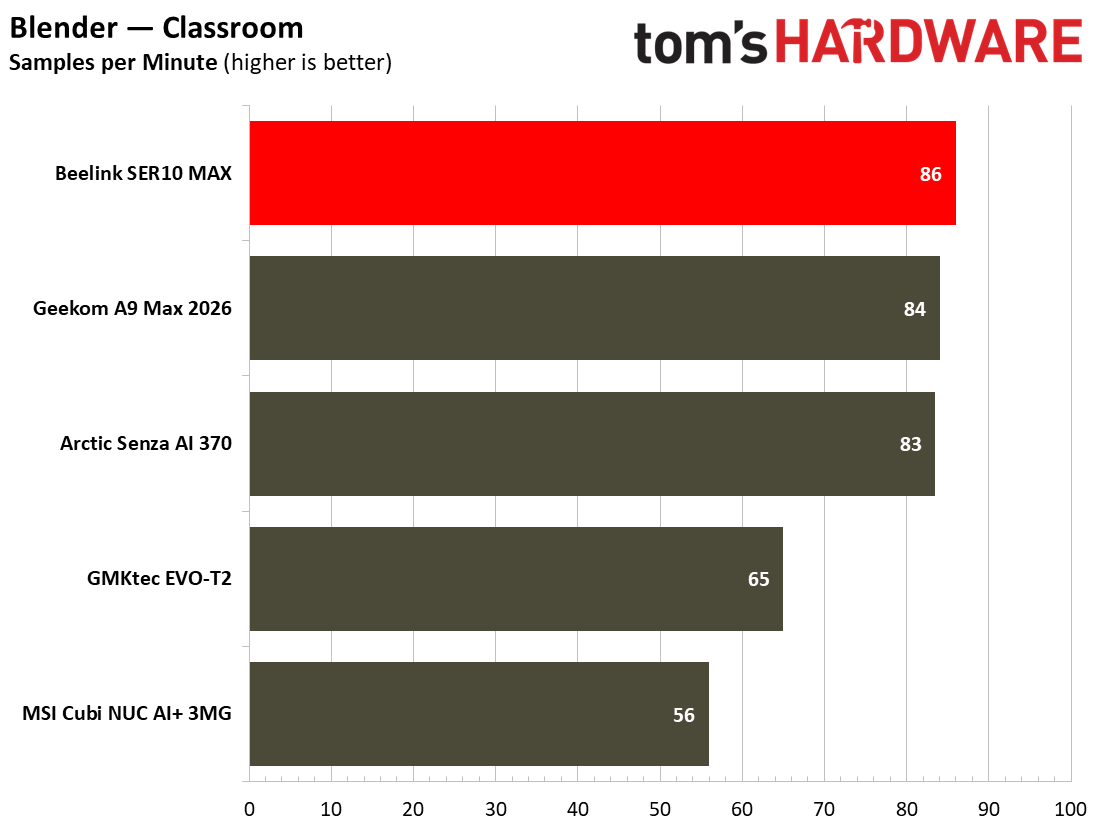
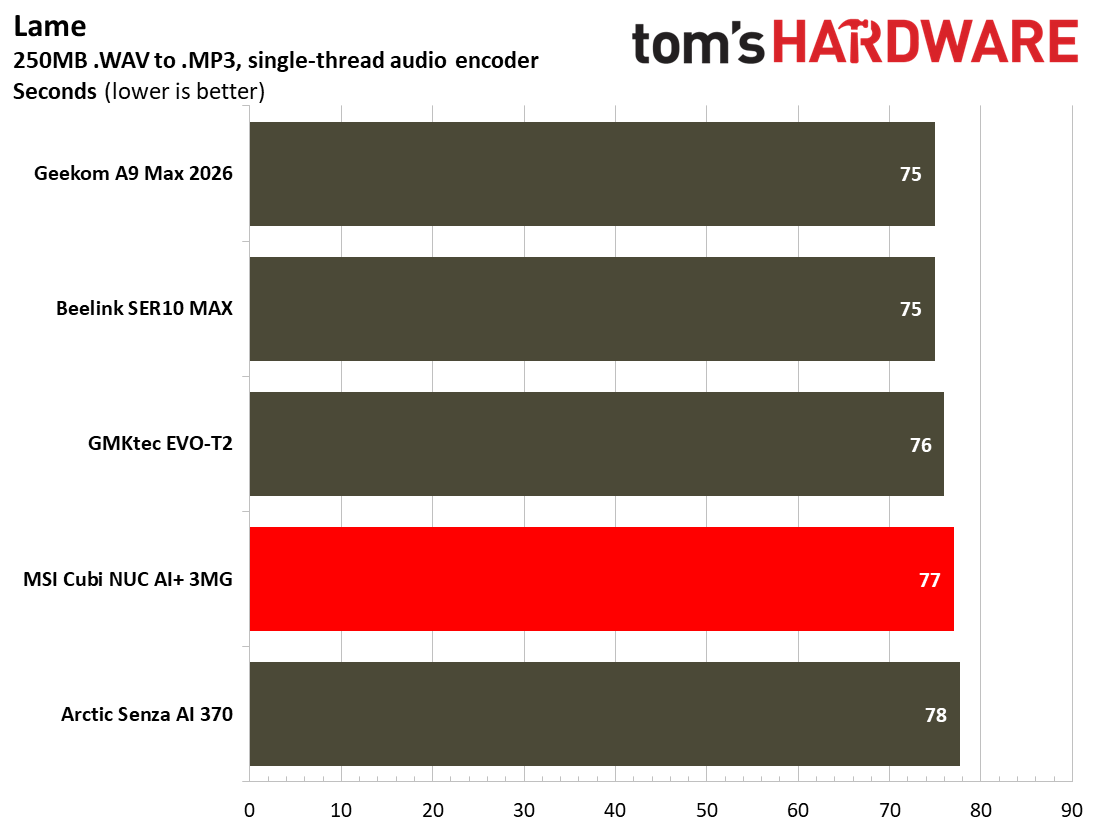
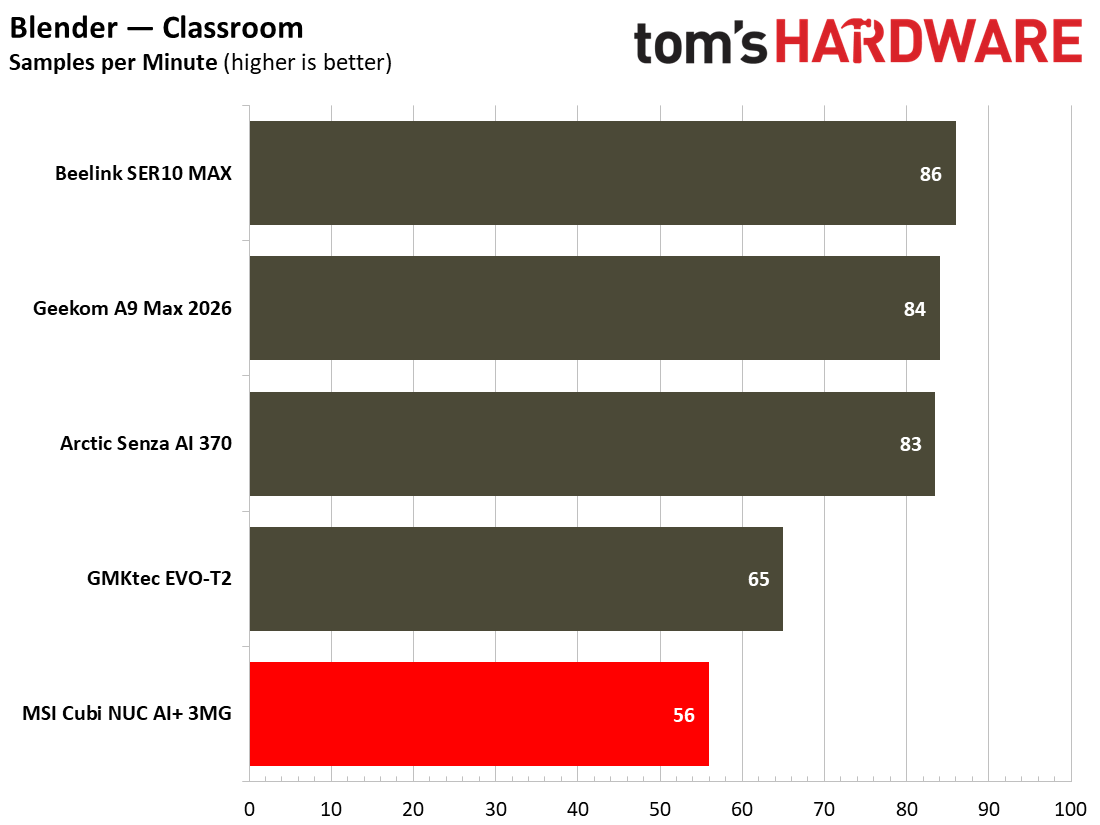
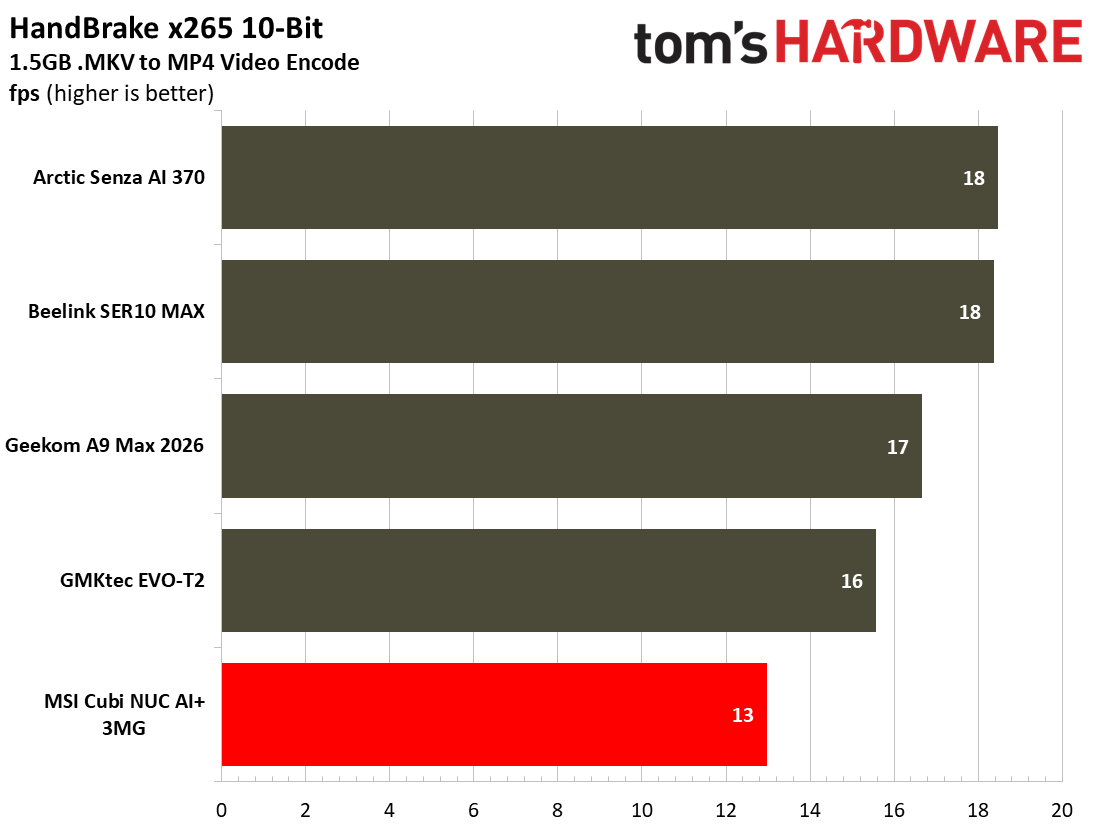
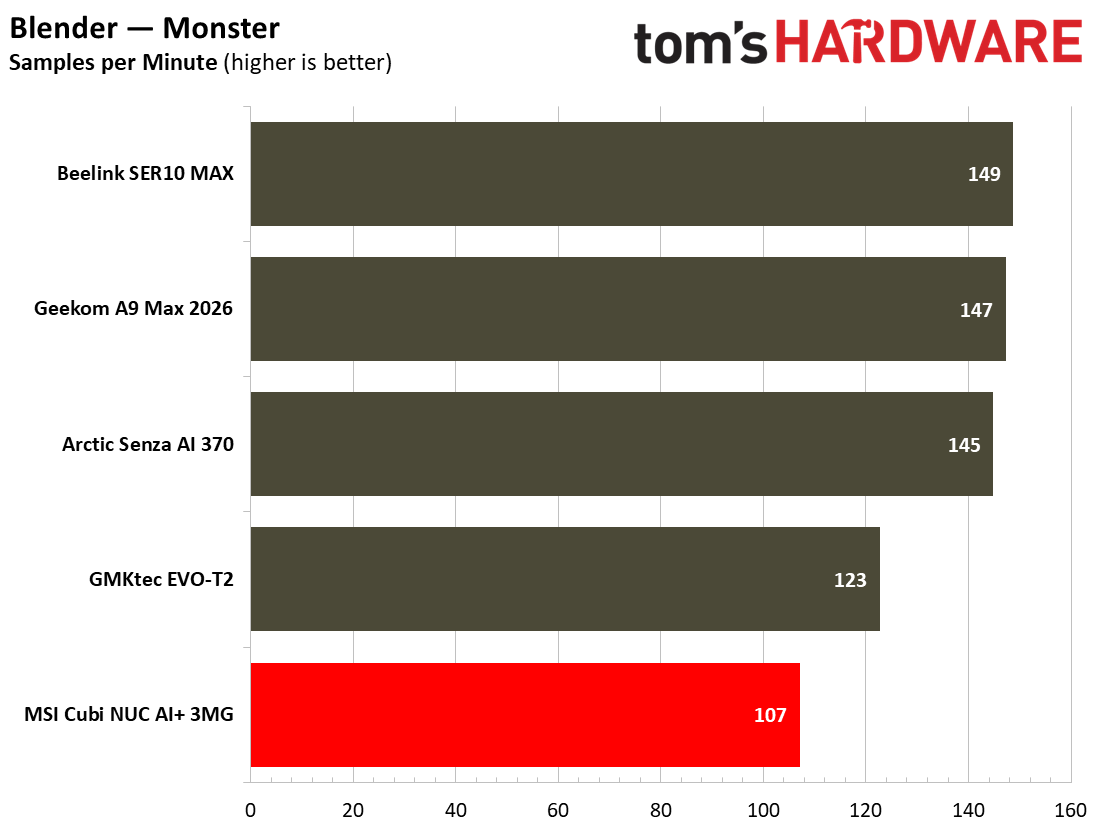
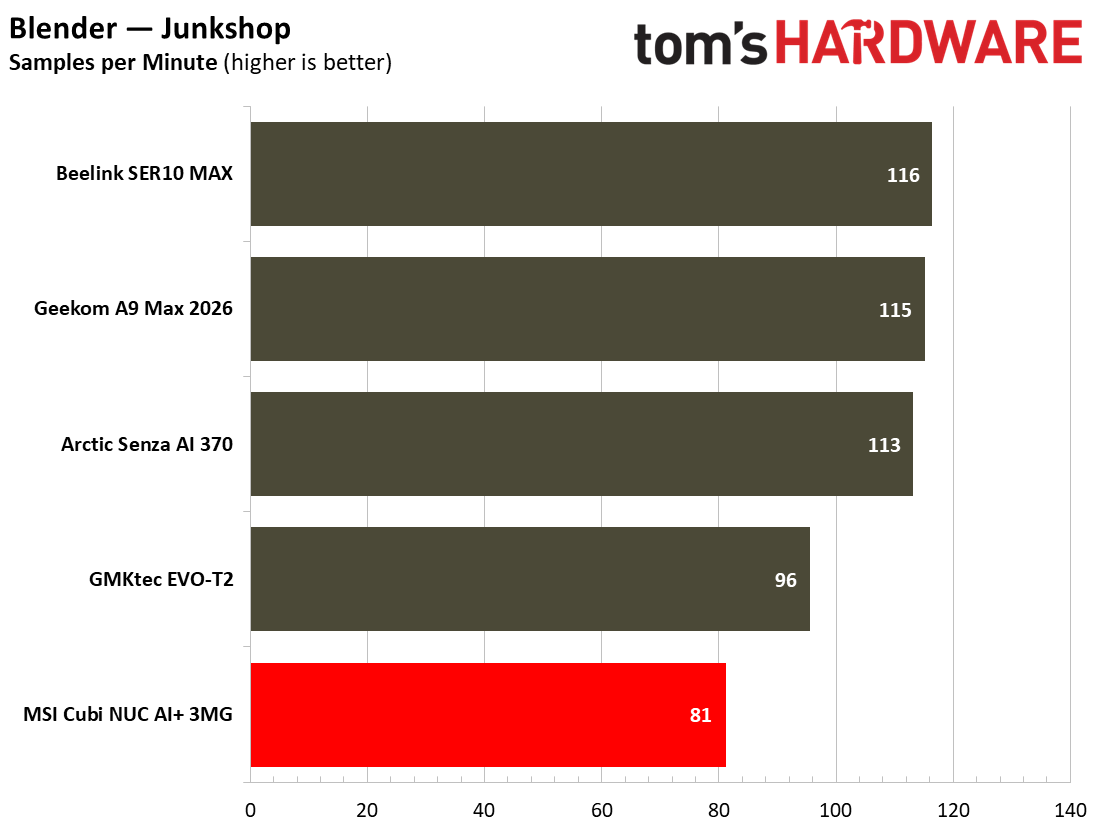
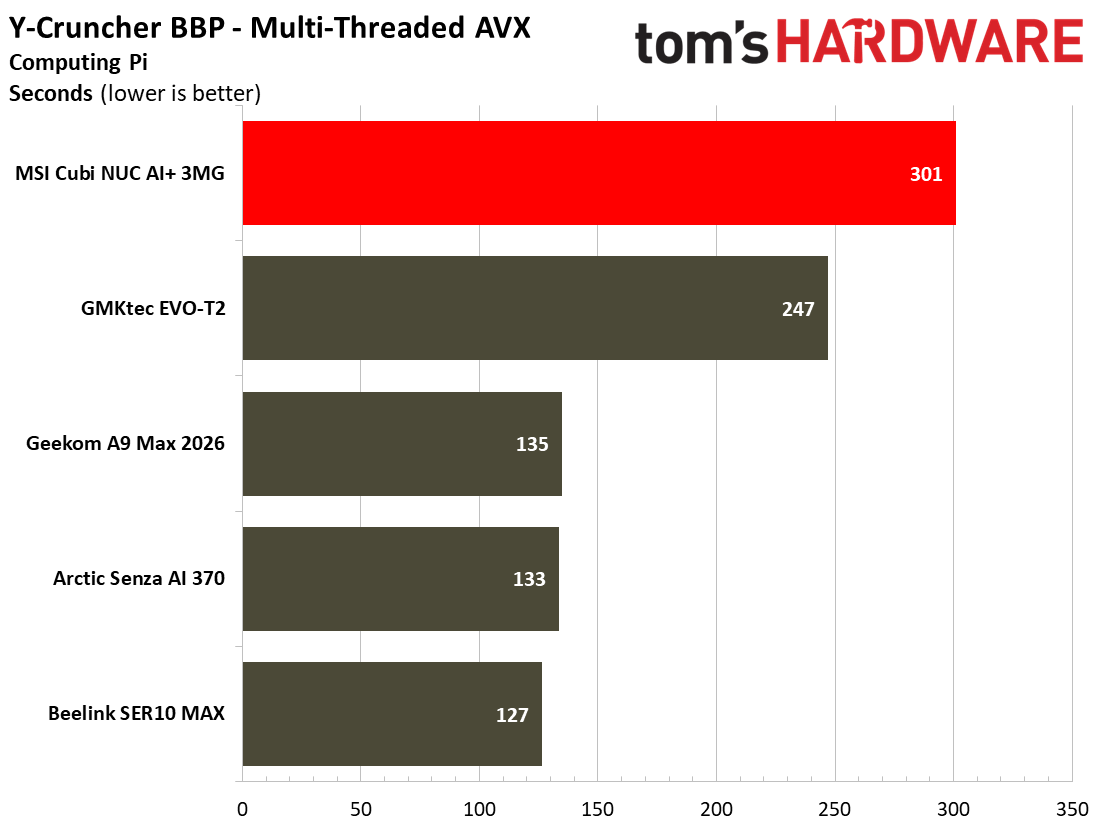
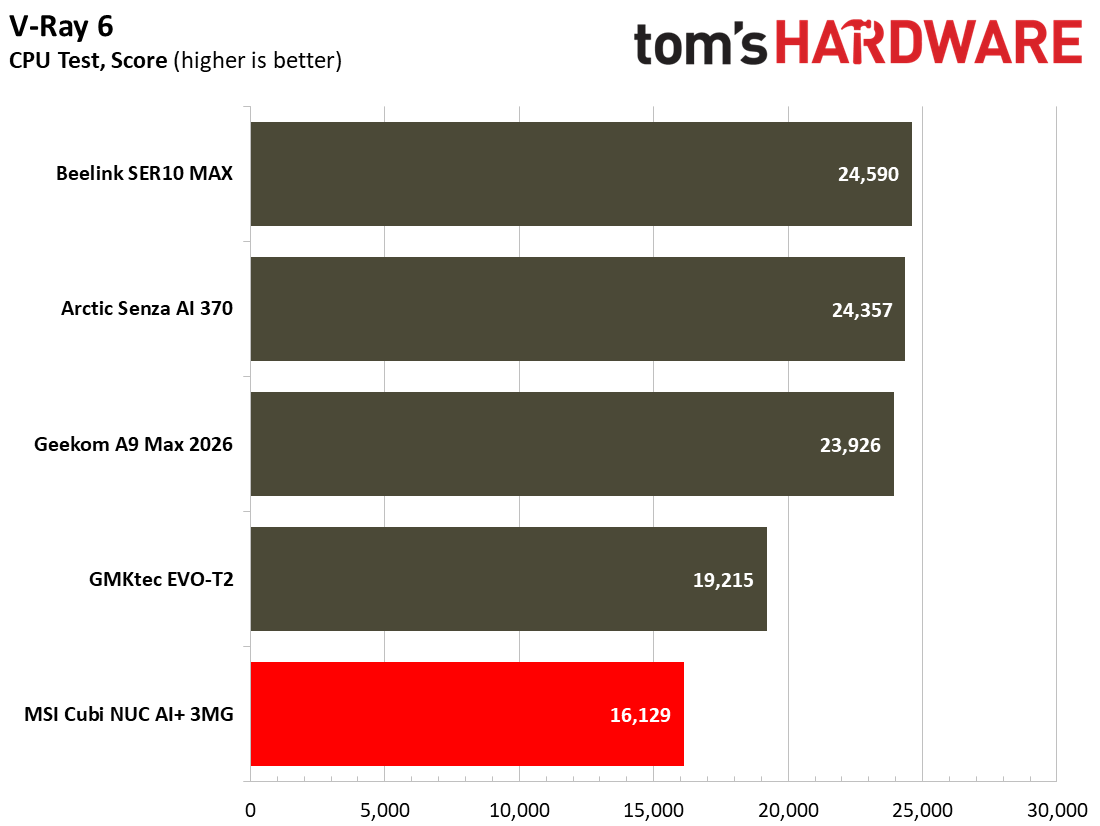
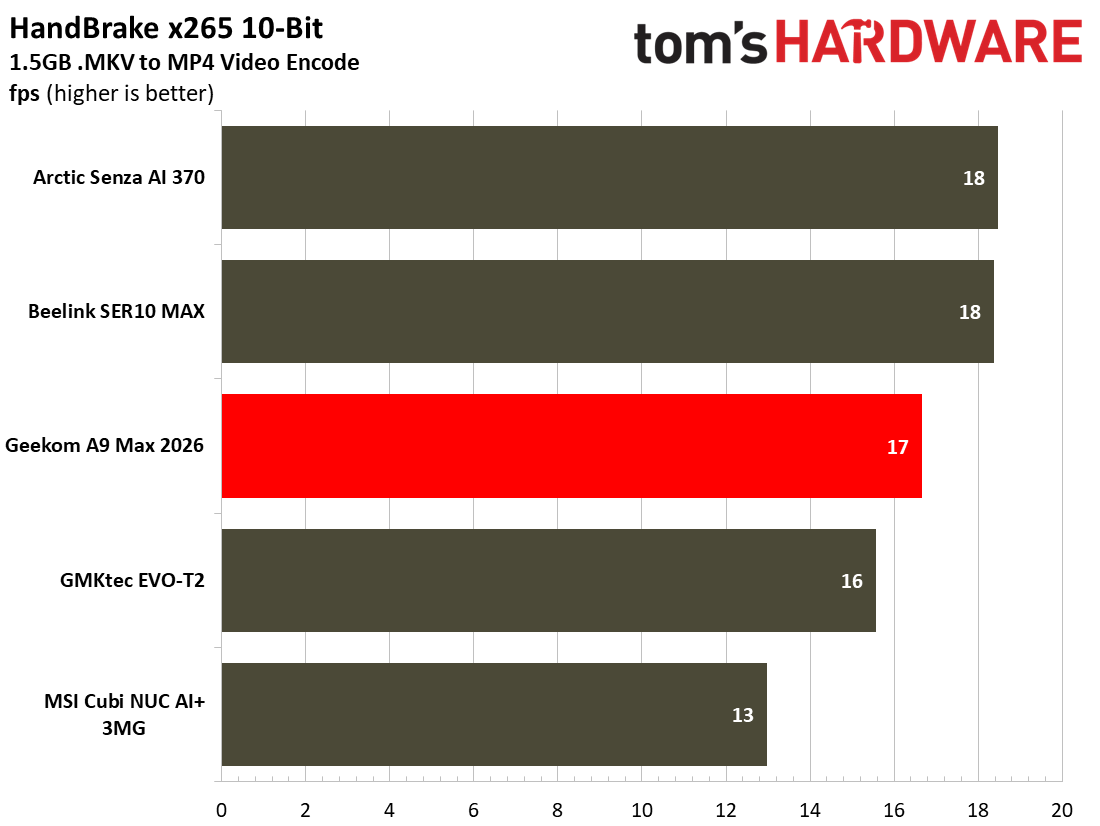
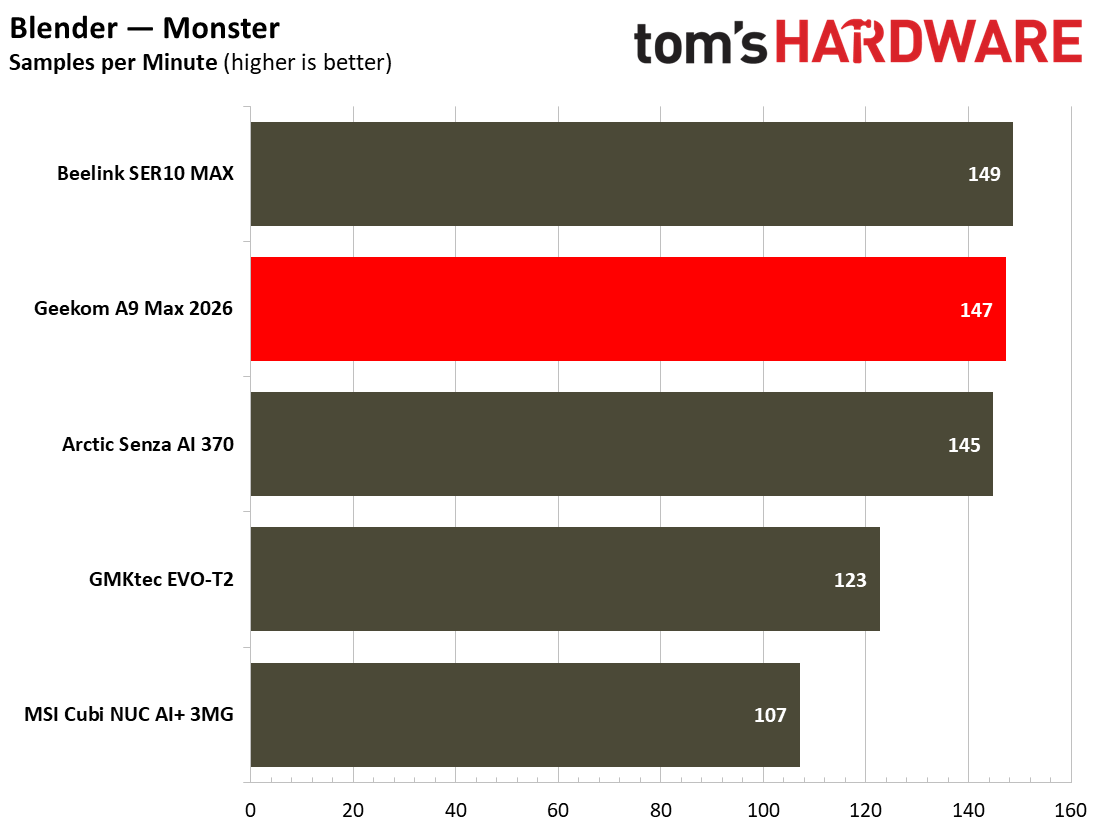
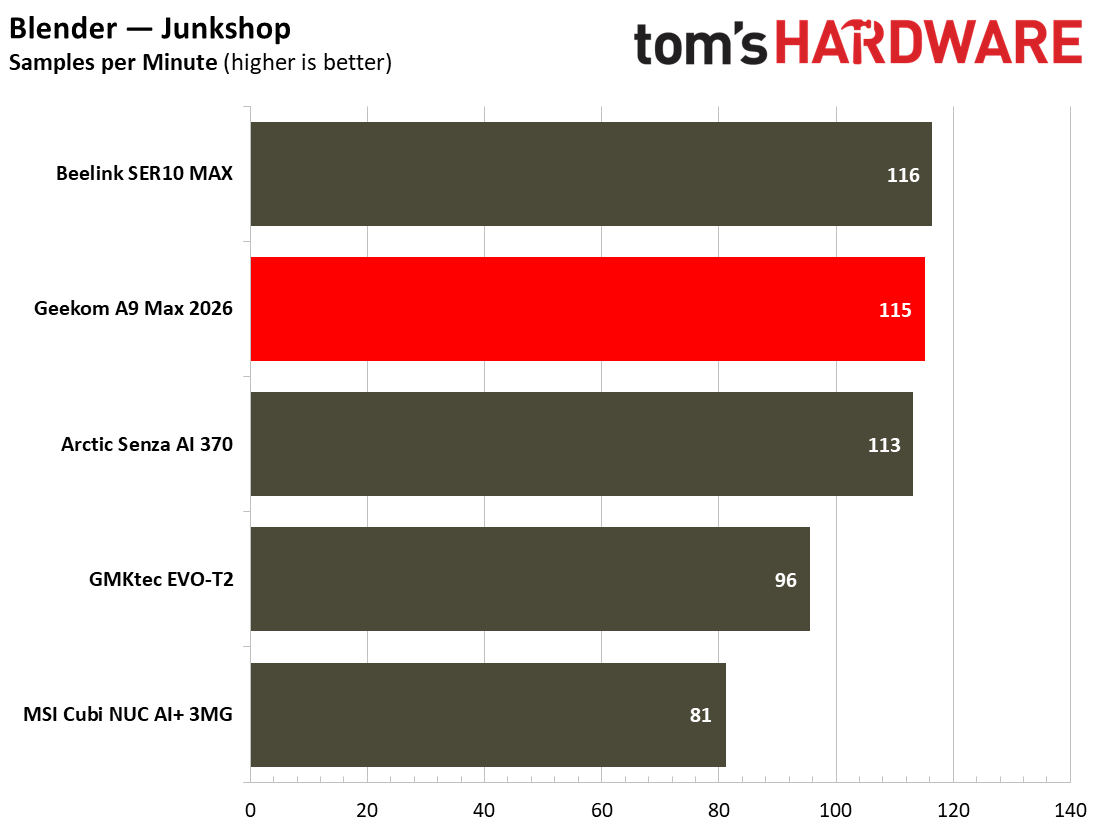
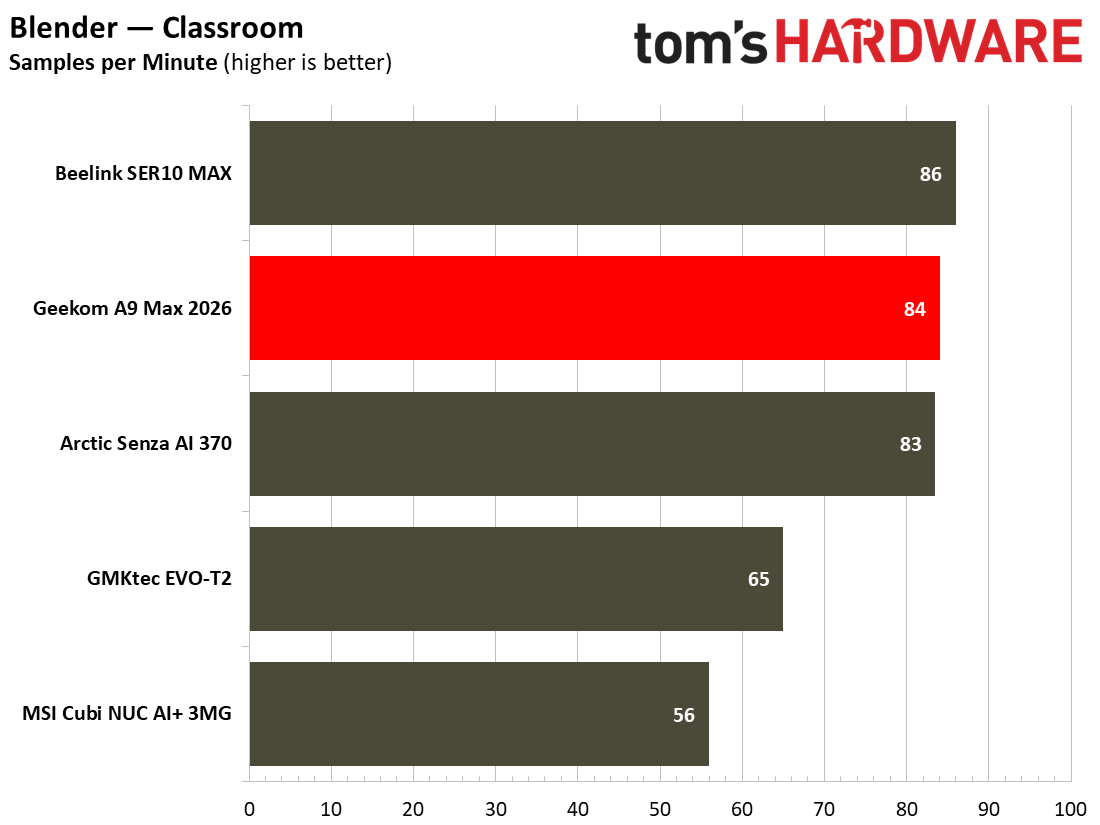
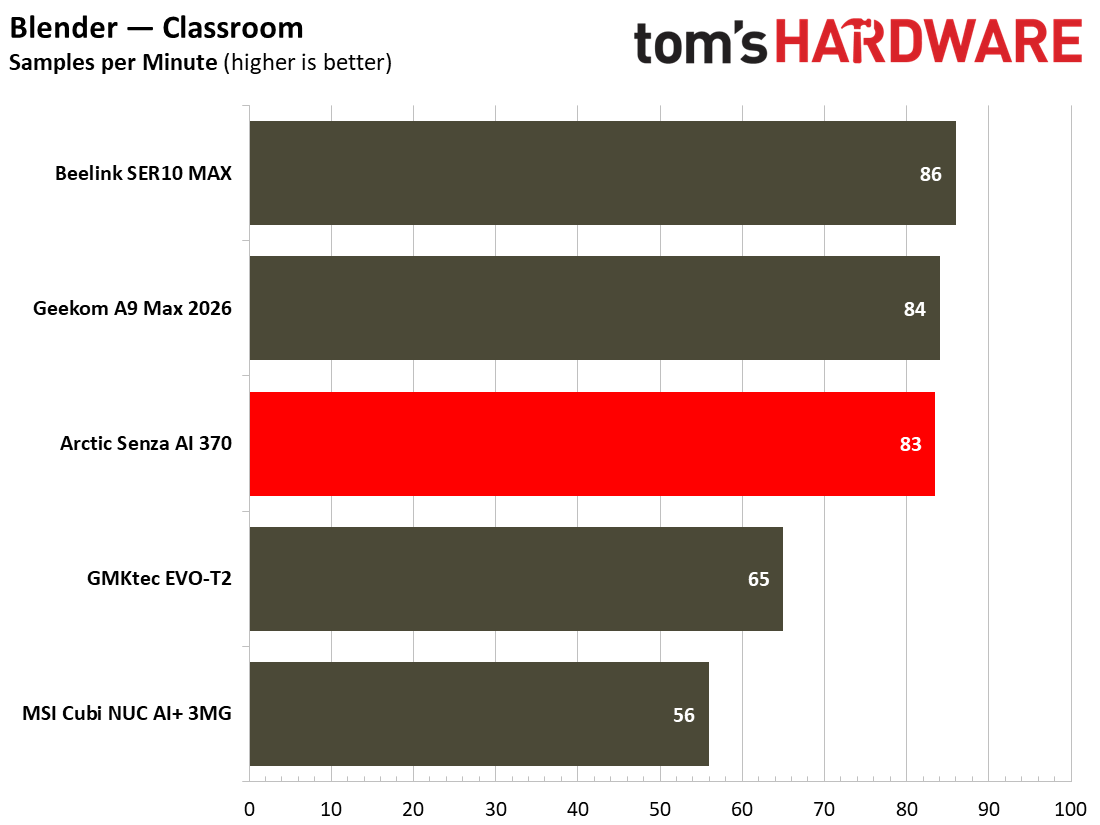
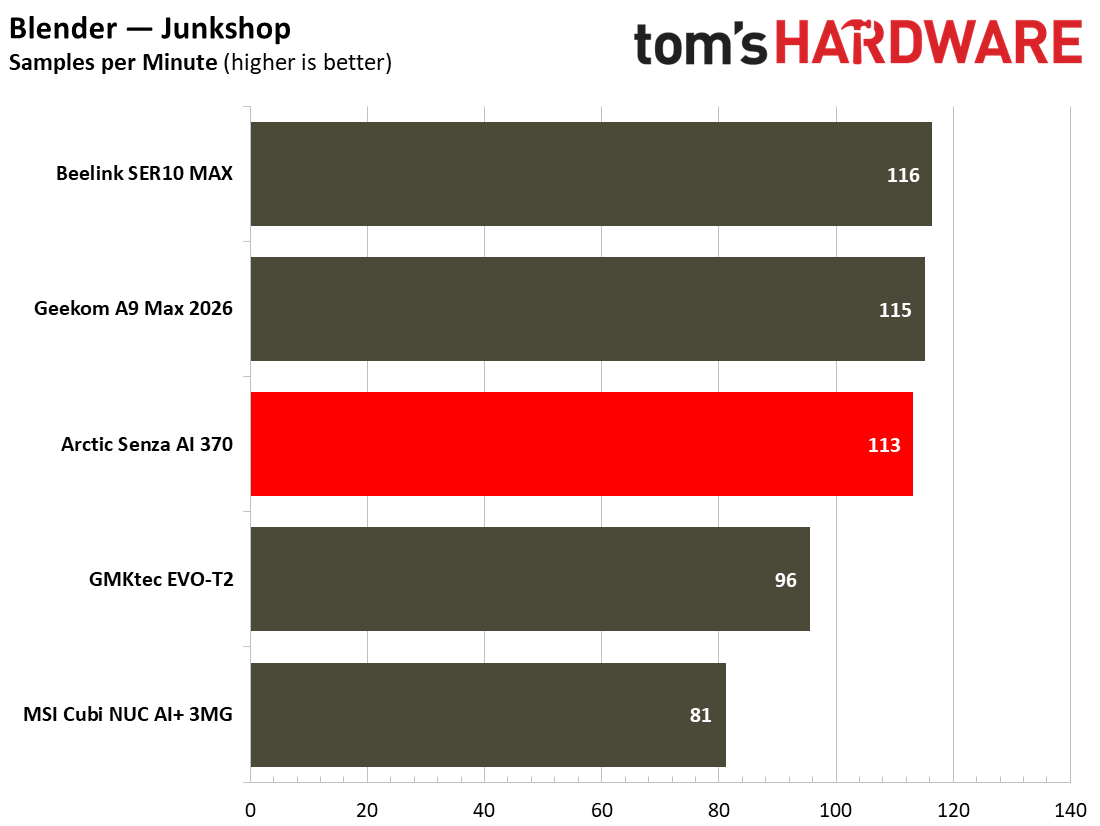
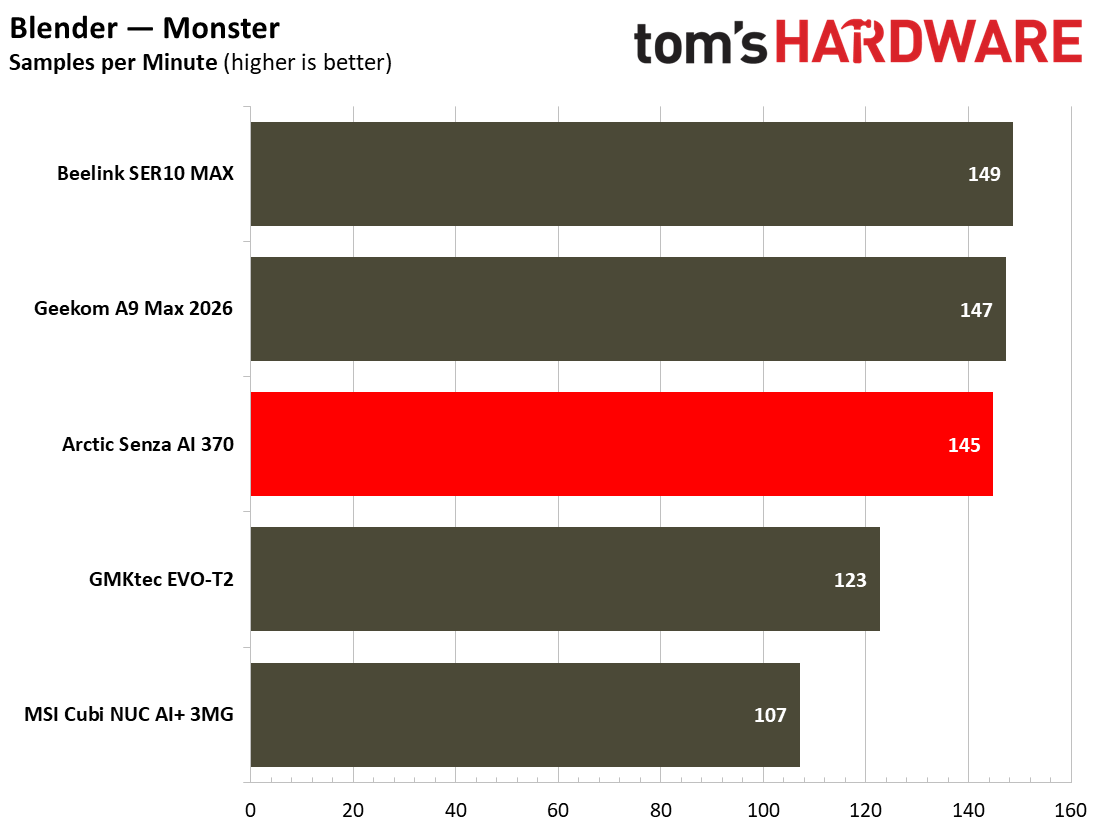
Similarly, in CPU-heavy benchmarks like Blender and Handbrake, the MSI Cubi lags behind the crowd. Even against the GMKtec EVO-T2, which also uses Panther Lake silicon and has fewer P-cores, the MSI still lags here. We are certain this is due to MSI’s default configuration maxing out at around 55W. The GMKtec machine was seen pulling over 70W at the wall.
On a more positive note, during our demanding tests, the MSI Cubi NUC AI+ 3MG stayed admirably cool and quiet. This feat was clearly aided by the chosen lower power limits and use of Intel’s newest energy-sipping mobile silicon in this form factor.
Gaming and Graphics on the MSI Cubi NUC AI+ 3MG
Unlike some mini PCs, this one isn't squarely targeted at gamers. Still, with a mere quartet of Xe3 cores pushing the 3D visuals along, this compact and quiet mini PC can do some gaming.
I fired up Forza Horizon 5 for a bit of racing down in Mexico. I liked the High and 1080p settings, and the game managed 45-40 frames per second. The frame rate felt like it dropped precipitously every few minutes as I was driving around, though. This indicates that the game's suggested Low or even Medium settings would be a better choice for consistency.
Tom's HardwareTom's Hardware
Our benchmarks included a trio of 3DMark synthetics and two PC gaming standards. 3DMark Solar Bay is a great way to frame and compare cross-platform iGPU performance. Meanwhile, Steel Nomad turns to screws on raw graphics performance with its heavy modern GPU load, and will be better for comparisons when we start testing the higher-end mini PCs, some with dGPUs. Last and definitely not least, Speed Wayis a 2025 benchmark from UL that uses DirectX Raytracing tier 1.1 for real-time global illumination and real-time ray-traced reflections.
Next up, some real gaming courtesy of Shadow of the Tomb Raider and Cyberpunk 2077. The former scales well with processor resources and can still look and run great on humble iGPUs. As for Cyberpunk 2077, it can really push and tax even the strongest modern GPUs, so here we've used two settings to show how the little MSI Cubi can - and can't - play this game.
Shadow of the Tomb Raider performed quite nicely on the Intel Graphics (four Xe3 cores) fed by the dual-channel DDR5-5600 memory configuration we had. Using the High settings at 1080p makes for pleasing visuals, and I would argue the 37 FPS average was perfectly adequate for this solo-play atmospheric adventure.
Cyberpunk achieved a similarly playable frame rate using theSteam Deck preset at 1080p. On a big screen this is a little bit blurry / smeary. Moving up to the High preset at 1080p (with upscaling and frame gen turned off) dropped the frame rate below the magic 30 FPS, though, and below most folks' tolerance. If you had no other avenue to enjoy this demanding title, there could still be a spot in between these settings that would work for you.
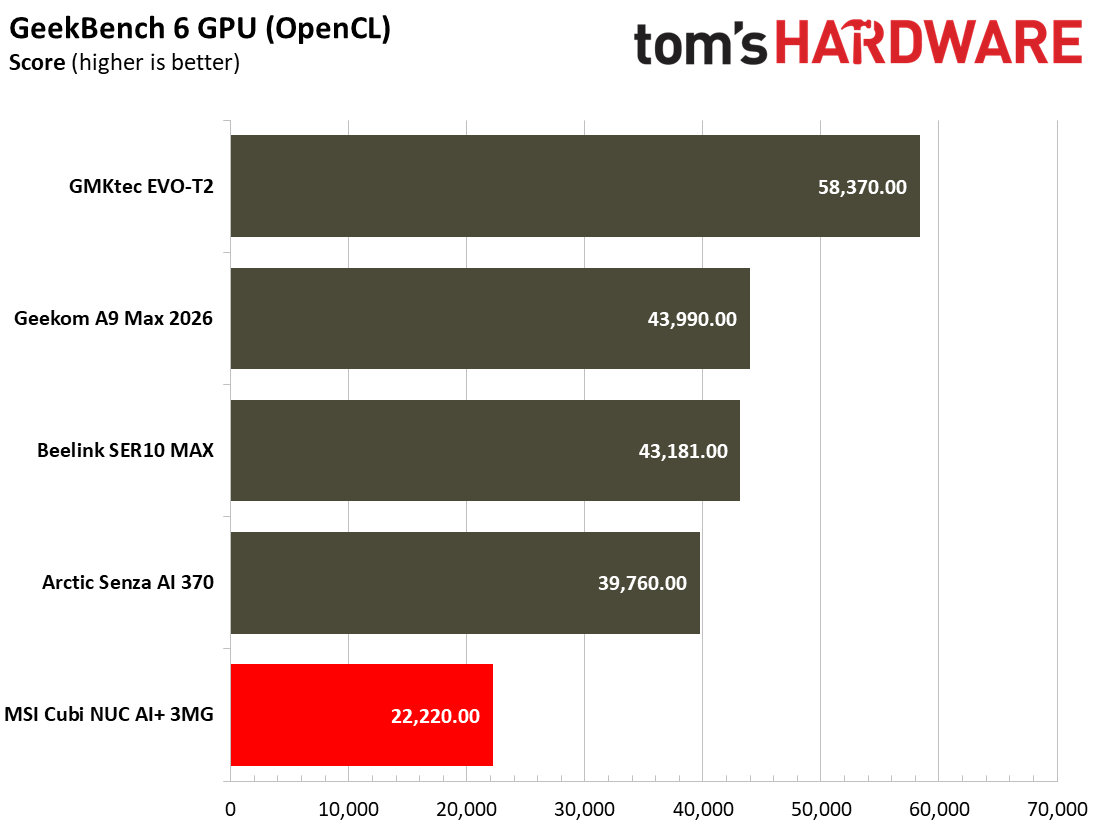
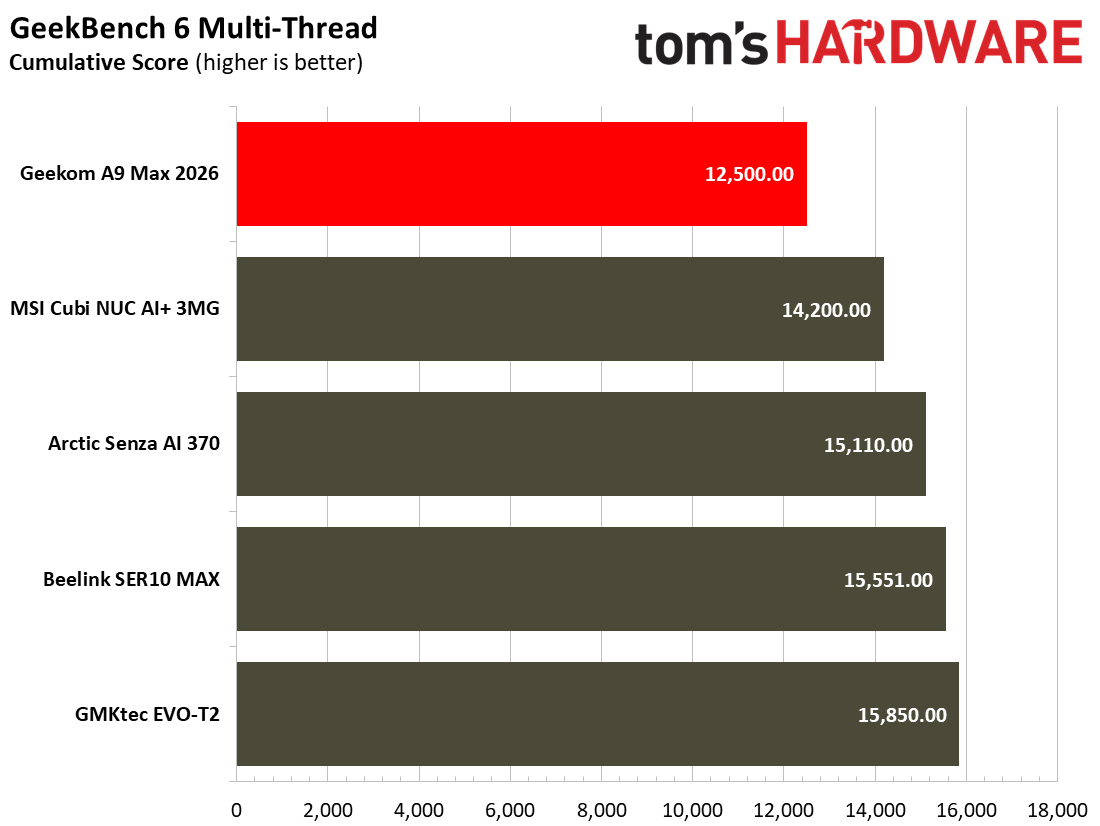
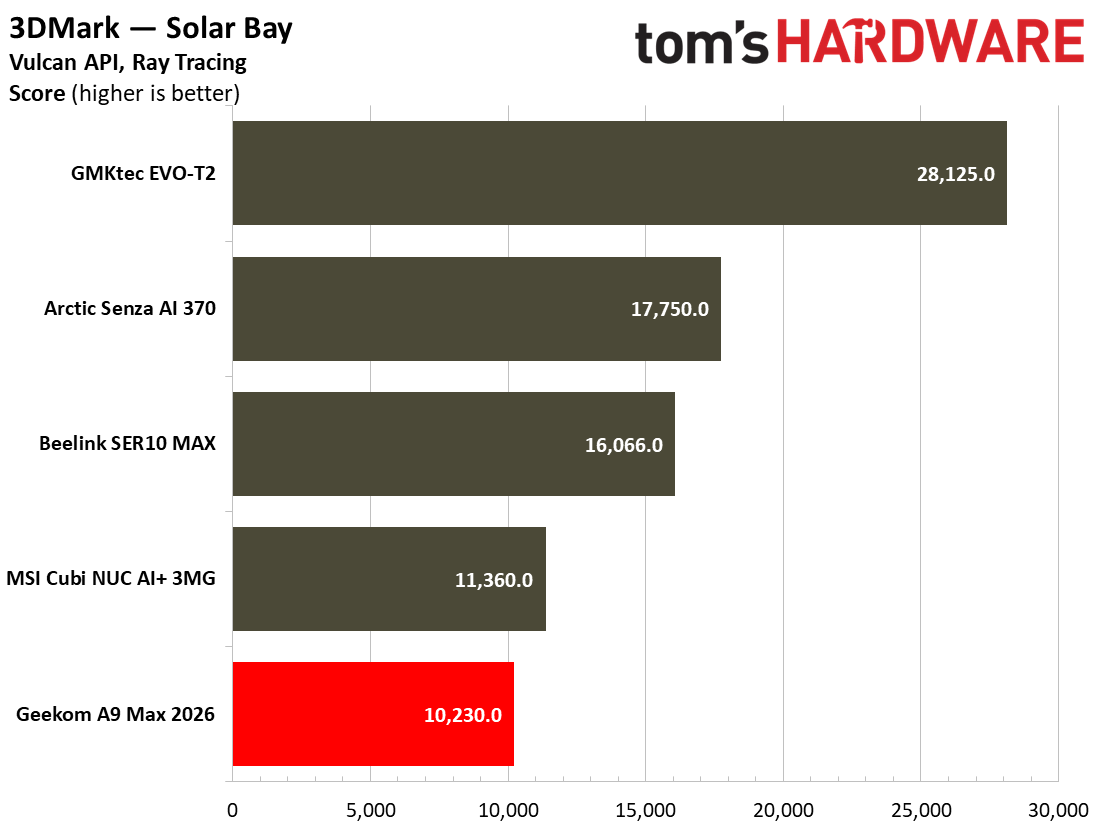
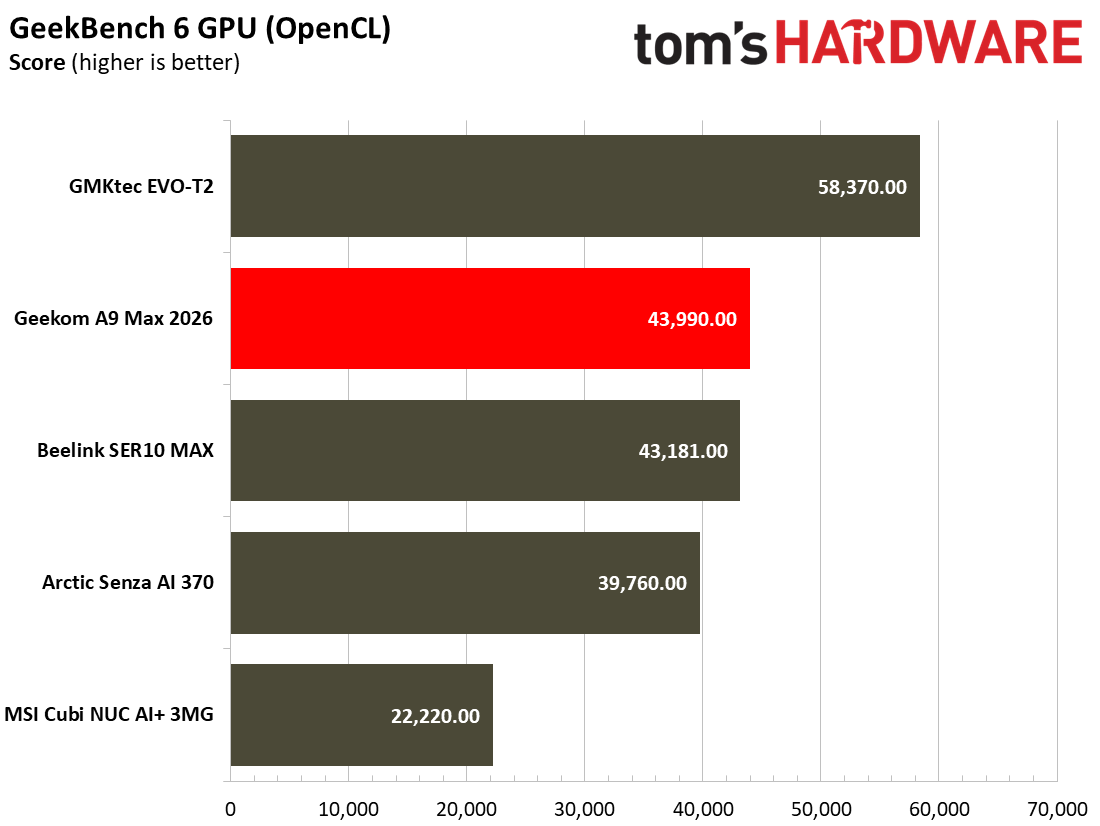
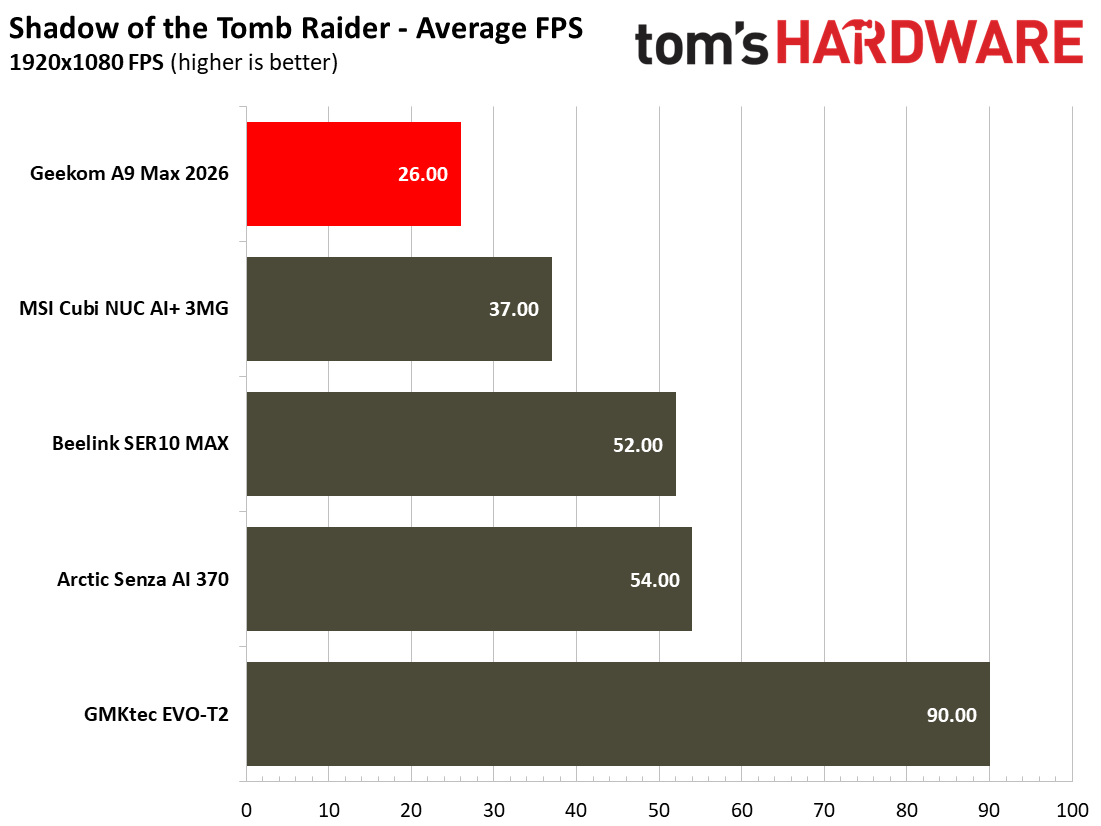
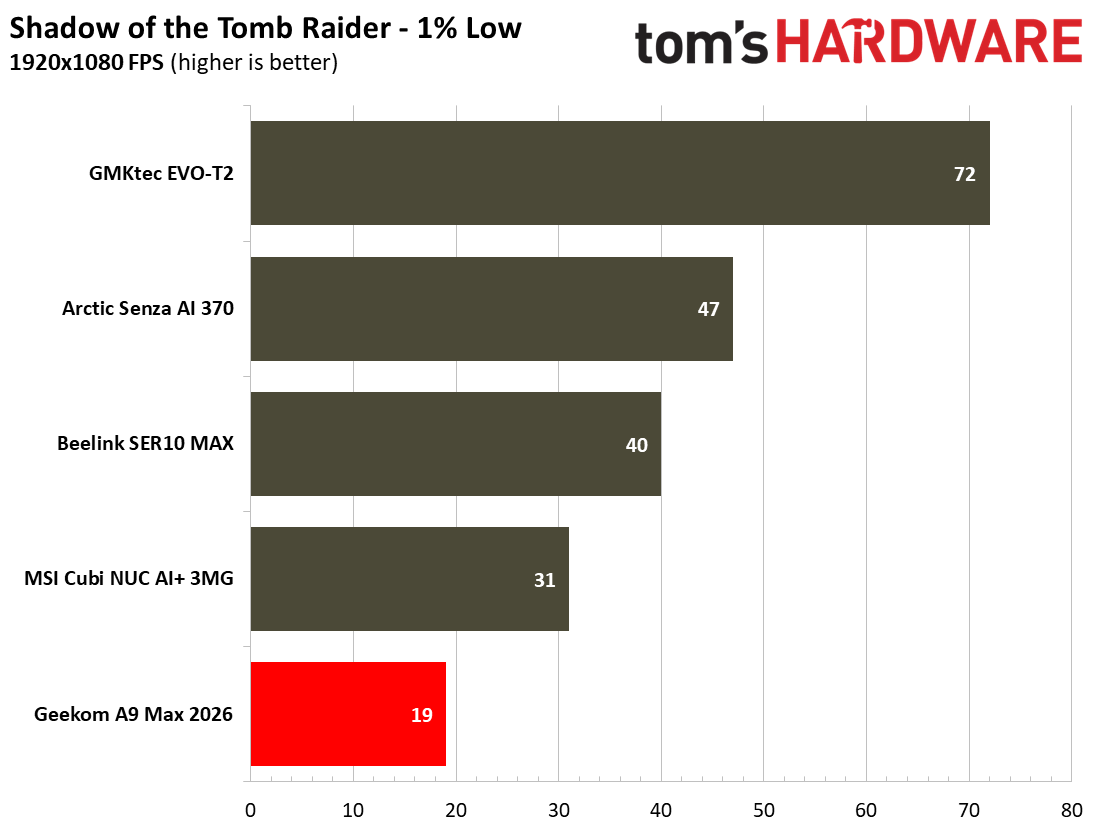
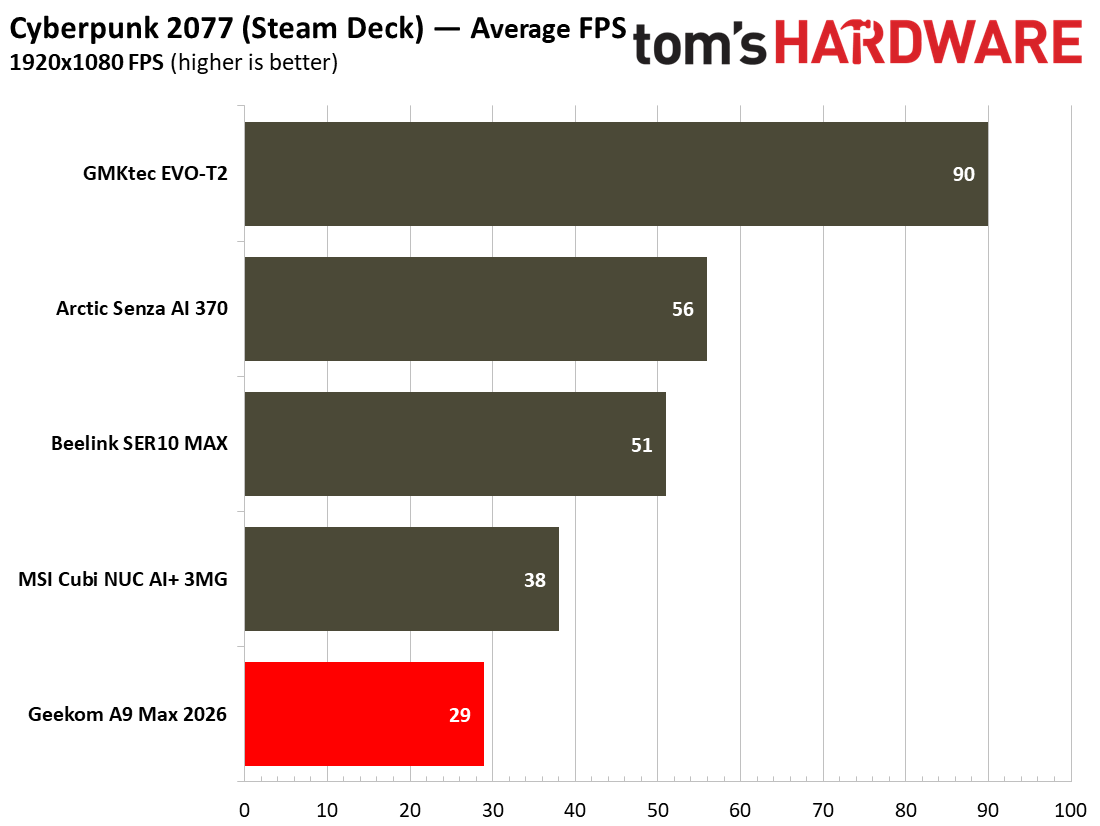
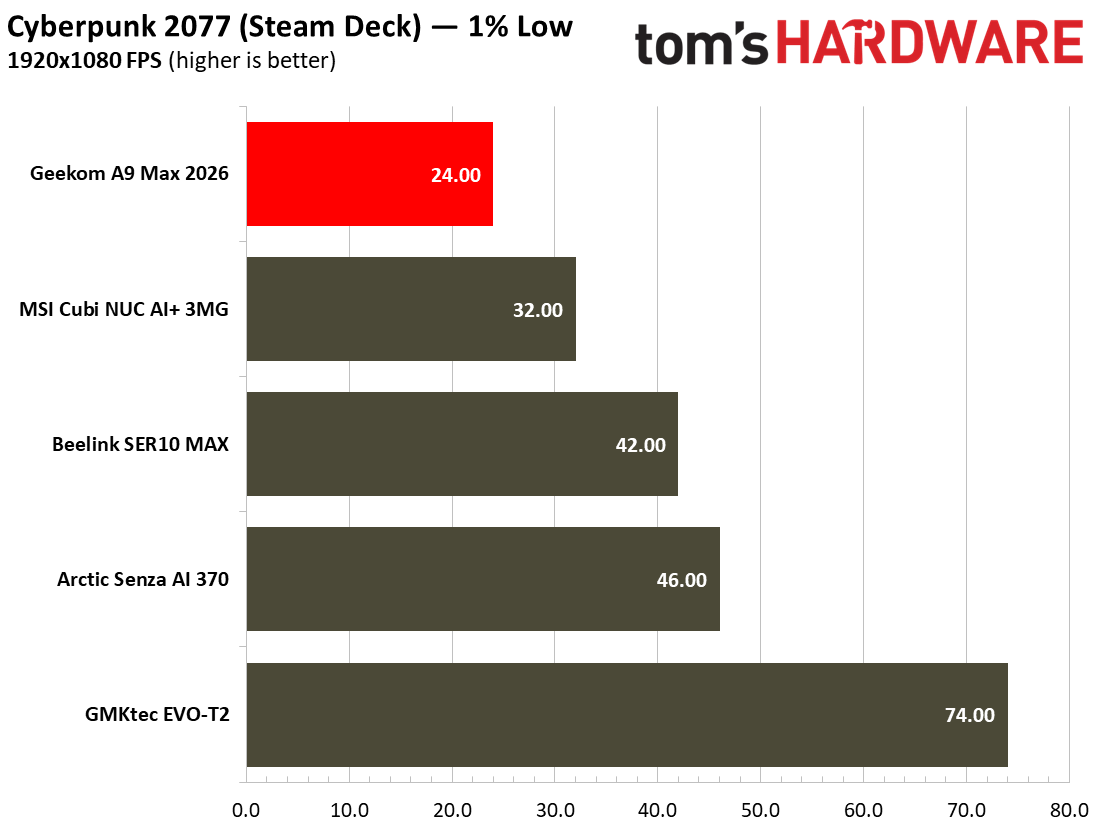
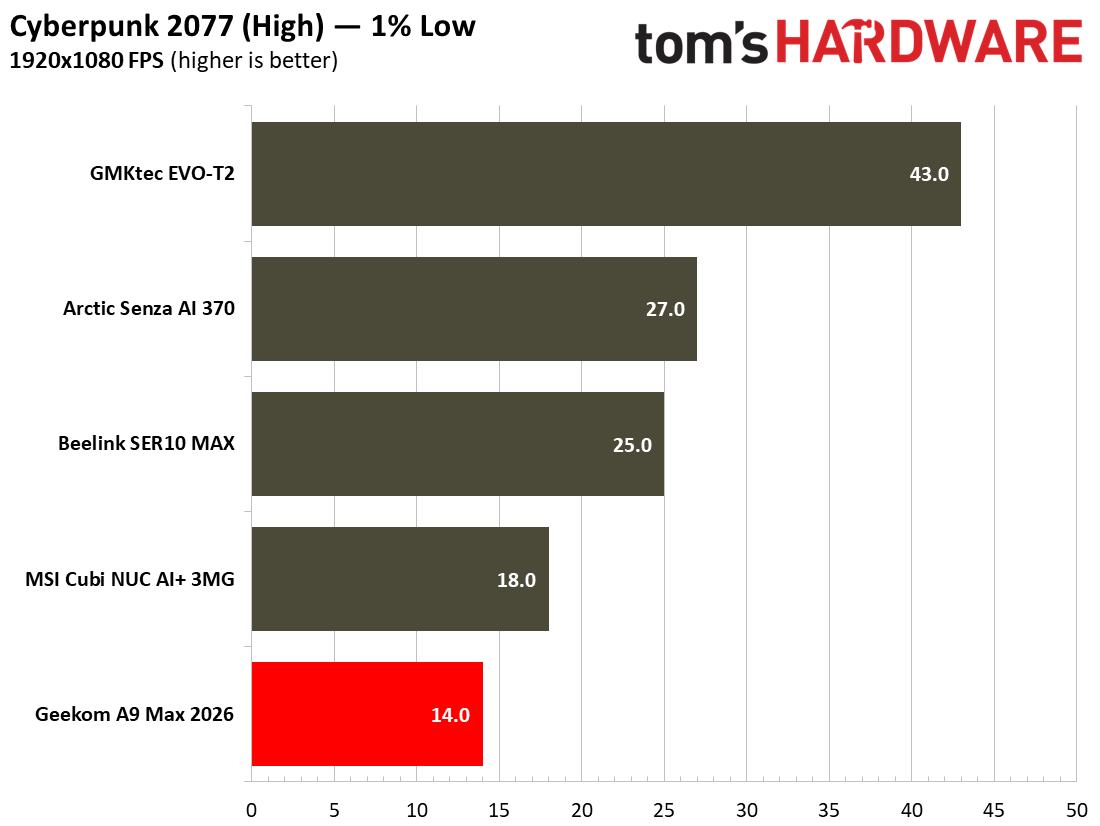
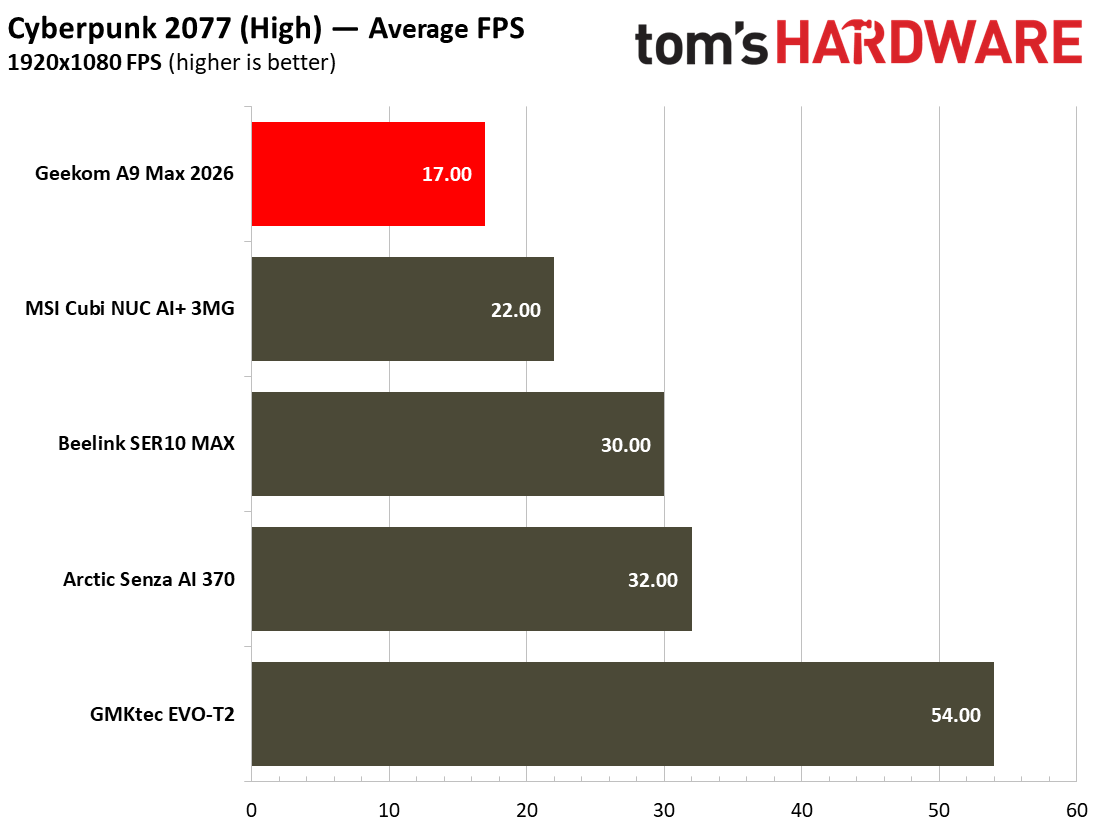
In comparison to the other devices we have recently tested, the MSI NUC sat near the bottom of the pile. It only undercut the Geekom A9 Max 2026, which should have benefited from a great performing Radeon 890M iGPU but was kneecapped due to its single-channel memory configuration. This system is really made for work, and while you can technically play on it, you'll want something stronger for a good experience.
Power, Heat, and Noise when using the MSI Cubi NUC AI+ 3MG
Tom's HardwareTom's HardwareTom's Hardware
According to system tools like HWiNFO, the Intel Core Ultra 9 386H processor inside this MSI Cubi has a TDP of 25W, with PL1 30W and PL2 65W. During testing, I measured total system power consumption with a plug-in power meter, as well as reading CPU temperature using a Windows tool.
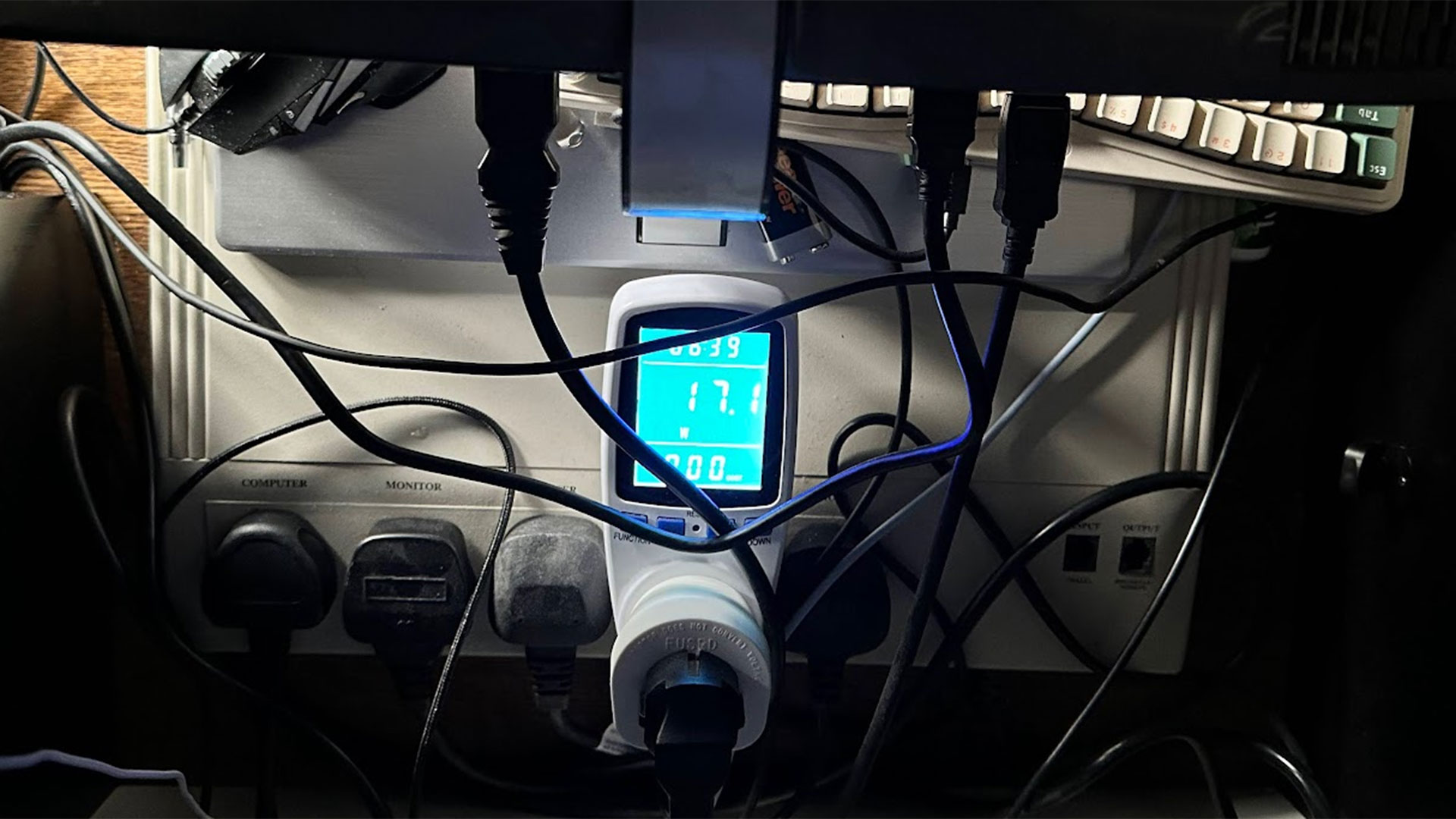
In an idling state on the desktop, the system pulled around 17W consistently. At the same time, the CPU temperature would stick around 40 degrees Celsius.
During prolonged stress testing of the MSI Cubi, the highest consistent wattage consumed was around 55W. It seemed to stabilize at approximately the 75 degrees Celsius level.
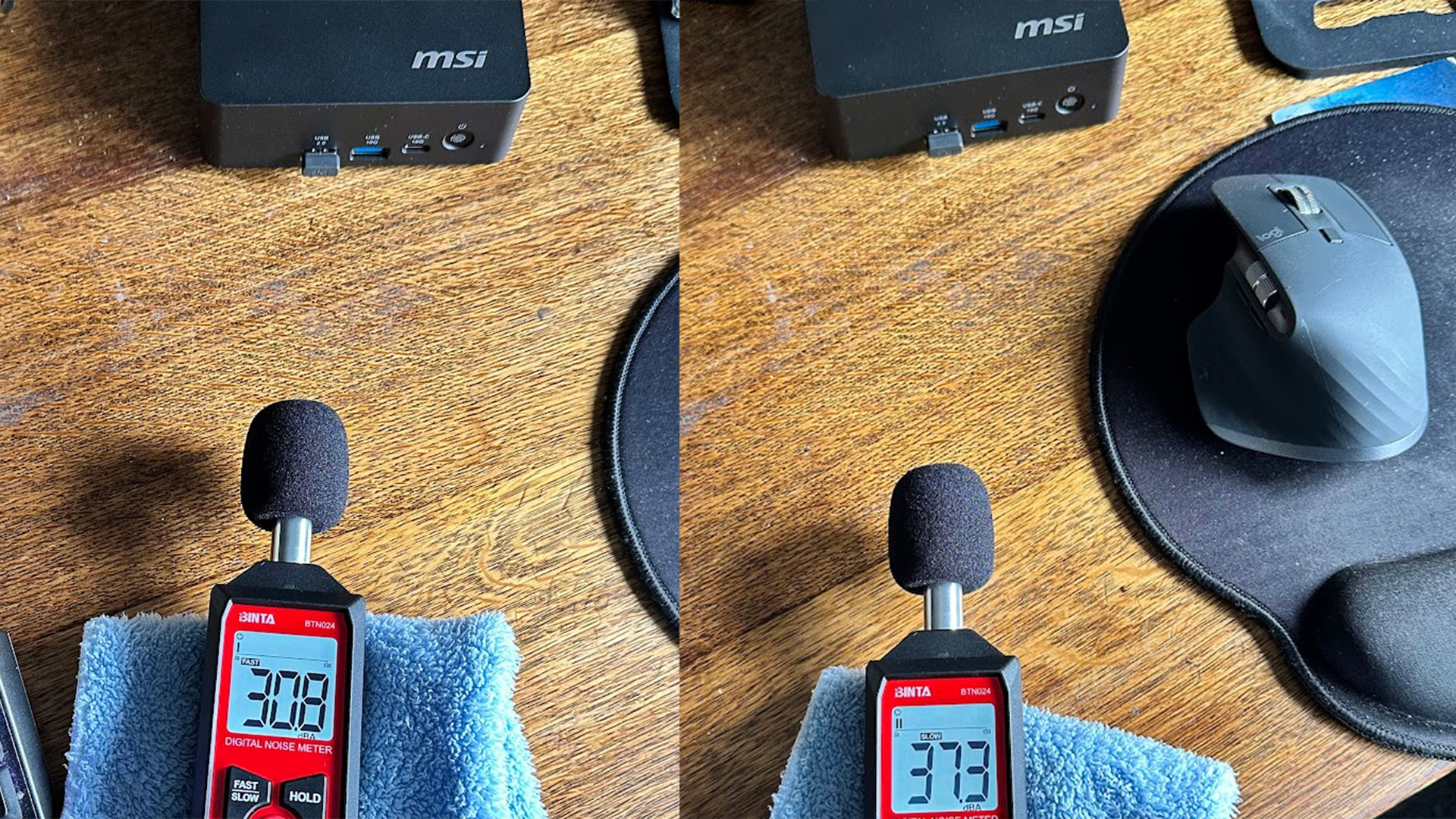
I would characterize this as a quiet mini PC. Its MSI Frozr AI Pro fans were more or less unnoticeable in idle and light loads. My meter showed 30.8dB, and the meter doesn't measure below 30, so there's a possibility it may be even quieter. Meanwhile, the 37.3dB at max fans wasn't horrible, and it takes effort to tease this much noise out of the MSI.
Software and Warranty on the MSI Cubi NUC AI+ 3MG
(Image credit: Tom's Hardware)
MSI’s latest NUC comes with MSI Center pre-installed. This is a suite of controls and extras wrapped up in a tabbed Windows interface. The main tab is packed with system monitoring information, but this new version of the tool offers to leverage AI to “automatically recognize various user scenarios, triggering appropriate adjustments in performance, sound effects, display mode,” and more. Elsewhere, MSI’s NUC was pleasingly free of bloat and third-party clutter, including a wonderful lack of short-lived free trials. Businesses really don't want to deal with that.
MSI sells the Cubi NUC AI+ 3MG with a 1-year warranty as standard, but opting for a pre-built configuration with Windows 11 Pro on Amazon will also boost your warranty to 3 years of advanced tier coverage.
Configurations of the MSI Cubi NUC AI+ 3MG
Nosing around online retailers in the U.S. today didn’t uncover the MSI Cubi NUC AI+ 3MG with the exact configuration, as tested. We got in touch with MSI about the 32GB RAM model, as tested, and were informed that it was only available business-to-business and its MSRP was $1,999 but that depends on factors such as order size.
MSI is also marketing Cubi NUC AI+ 3MG mini PCs with Intel Core Ultra 7 Processor 355 and Ultra 5 Processor 322 configurations. You can find these on Amazon, both in 16GB/1TB/ configurations for $1,549 and $1,079, respectively.
Bottom Line
(Image credit: Tom's Hardware)
Though the MSI Cubi NUC AI+ 3MG is clearly aimed at businesses with its productivity focus . Its understated looks and quiet operation may attract those who want a small-form-factor productivity PC at home, especially if they intend on putting together a minimum-fuss multi-monitor setup.
If the MSI’s quiet, efficient, and compact form isn’t a killer combination for you, and you are open to less established brands, we have recently tested several other mini PCs from companies like Arctic, Beelink, GMKtec, and Geekom.
These less established brands definitely offer better value with more potent processors, and more generous memory/storage configurations, at better or similar pricing to the MSI. In the MSI’s favor, I’d say it quietly satisfies its target market more than adequately, and sprinkles attractive bonuses like fingerprint security, the remote power button, MSI Power Link, the touted ‘tool-less’ component access, and 3-years of advanced warranty coverage when you choose a Cubi NUC AI+ 3MG with Win 11 Pro.
Correction, July 30:, 2026 This review originally said the MSI Cubi NUC AI+ 3MG includes vPro remote management. It does not. We regret the error.
AMD introduced its mid-cycle Ryzen AI 400 chips for laptops at the beginning of the year. Predictably, mini PC makers have decided to update their Ryzen AI 300 designs from last year with the newest generation processors. While the gains from the new silicon might be politely described as incremental, Geekom here has also taken the opportunity to upgrade the cooling system.
The firm also decided to go with a single 32GB DDR5-5600 SODIMM configuration here. Considering the ongoing RAM shortages, it says it decided to do so to allow for less wasteful upgrades down the line. However, AMD iGPUs like the Radeon 890M here, are heavily impacted by the reduced bandwidth of using single-channel system RAM.
Nevertheless, the 32GB/2TB device configuration supplied looks like a relatively generous offering in the current climate.
Design of the Geekom A9 Max 2026
Tom's HardwareTom's HardwareTom's Hardware
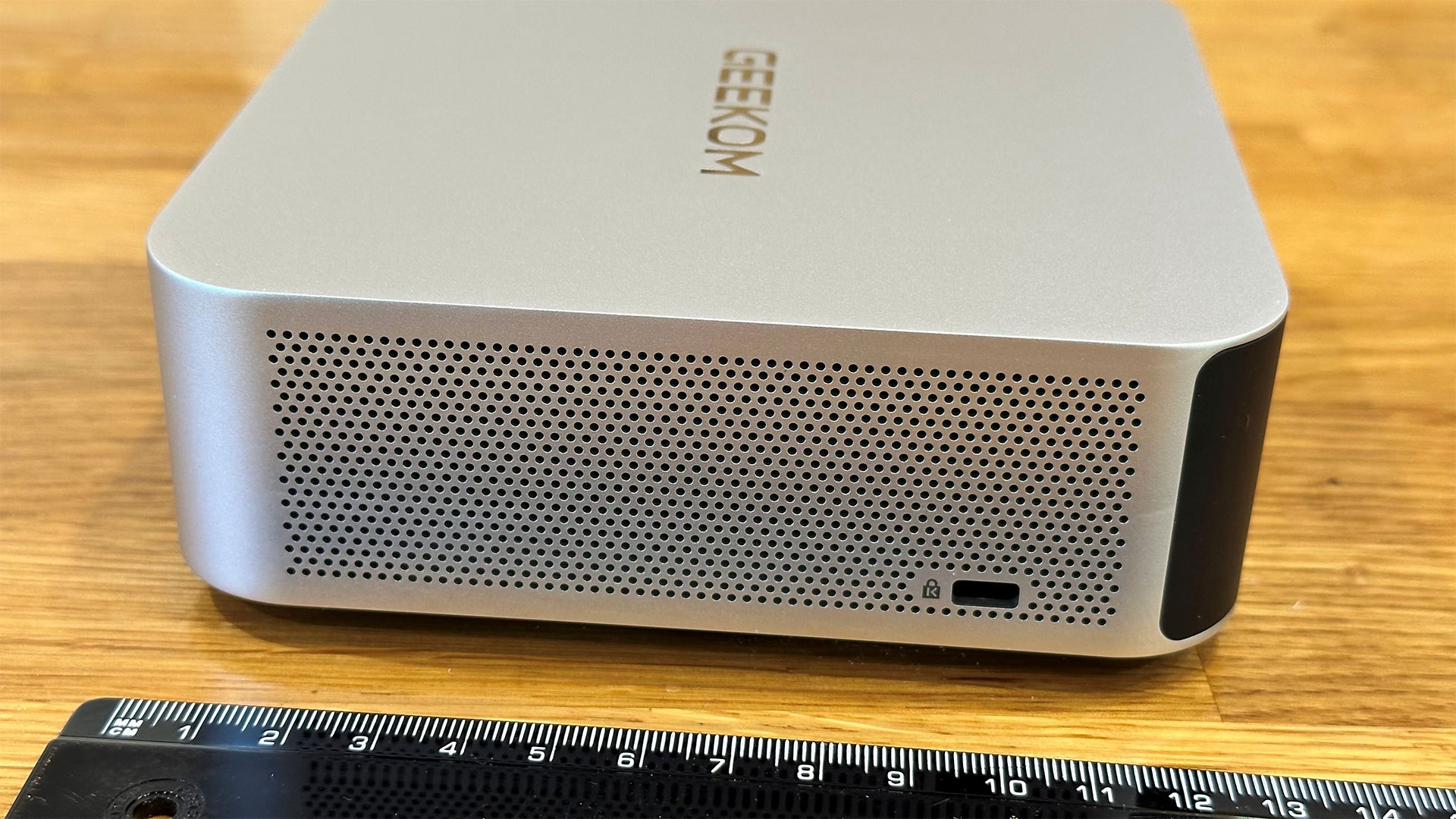
Geekom basically sticks to the classic 5x5-inch NUC design with its anodized silvery metal Mini PC. If you’ve seen a Geekom A-series Mini PC before, it will be immediately familiar, and it offers appealing, though derivative (NUC x Mac Mini), stylishness.
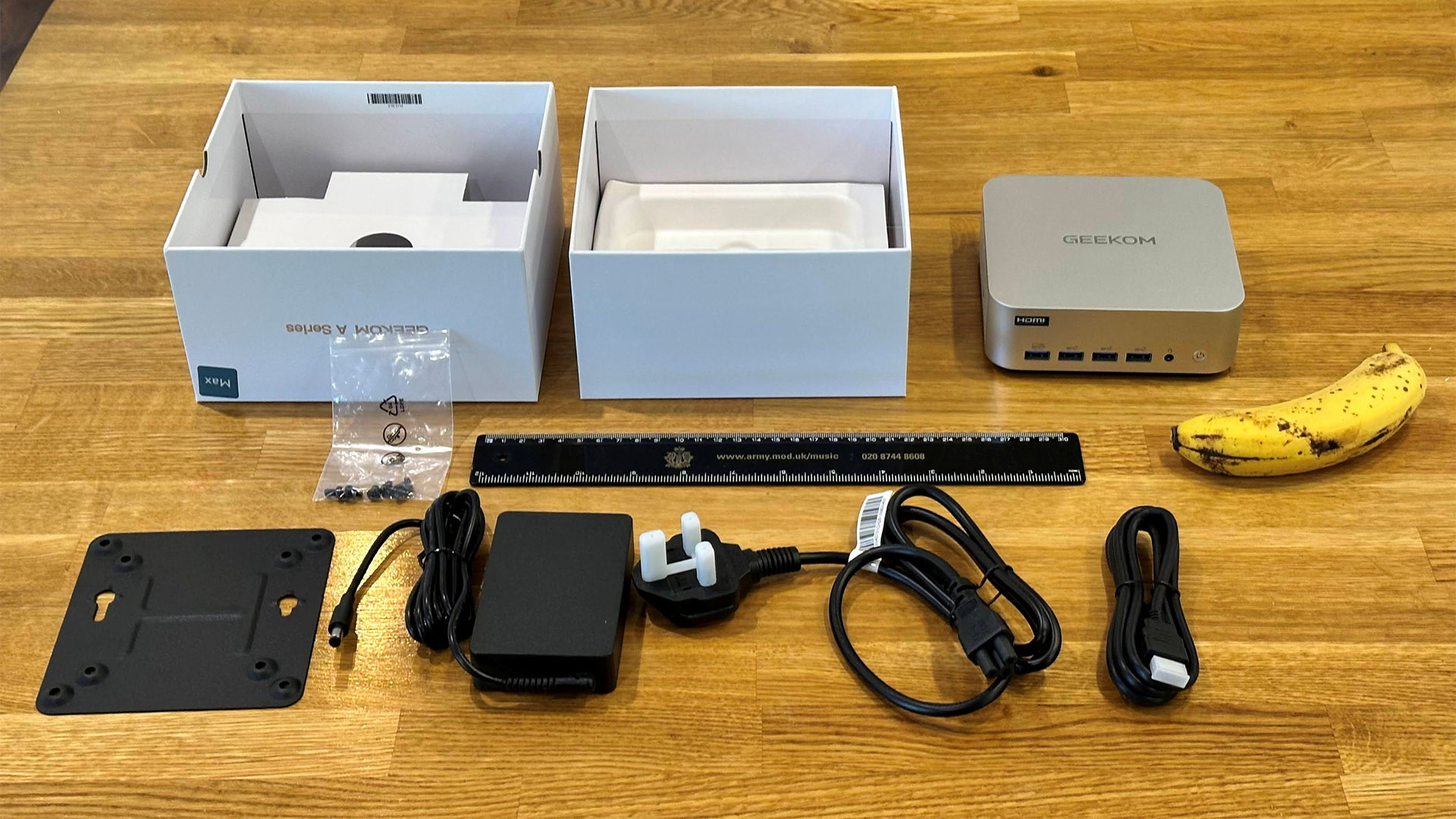
The A9 Max 2026’s dimensions are officially listed as 135 x 132 x 46.9mm (5.3 x 5.2 x 1.9-inches). Geekom’s spec didn’t mention the weight of the device, but it tipped our scales at 705g (~1 pound and nine ounces). These weights and measurements don’t include the external PSU or VESA mounting bracket supplied. Other bits in the box include a region-appropriate cloverleaf plug and cable for the PSU, screws for that mounting bracket, and an HDMI cable.
We’ve already mentioned the metal shell of this Mini PC, which has a UV coating to make it more durable. Geekom says that there is also an inner metal frame, and removing the black plastic bottom reveals a metal bottom layer. It suggests its selection of construction materials and techniques makes the A9 Max “extremely sturdy [and] it can withstand up to 200Kg of pressure.”
You power up the Geekom A9 Max with its front-mounted power button. It’s a simple button, which lights up to indicate power. There’s no built-in biometric sensor, and no Copilot button, either.
Geekom A9 Max 2026 Mini PC Specifications
Processor
AMD Ryzen AI 9 HX 470 (12C / 24T: 4x Zen 5 , 8x Zen 5c), up to 5.2 GHz
Graphics
Radeon 890M (RDNA 3.5, 16 CUs, up to 3.1 GHz)
AI Acceleration
XDNA 2 NPU + CPU + GPU, up to ~80–86 TOPS combined
RAM
1x 32GB DDR5‑5600 SODIMM (2 slots, up to 128GB total)
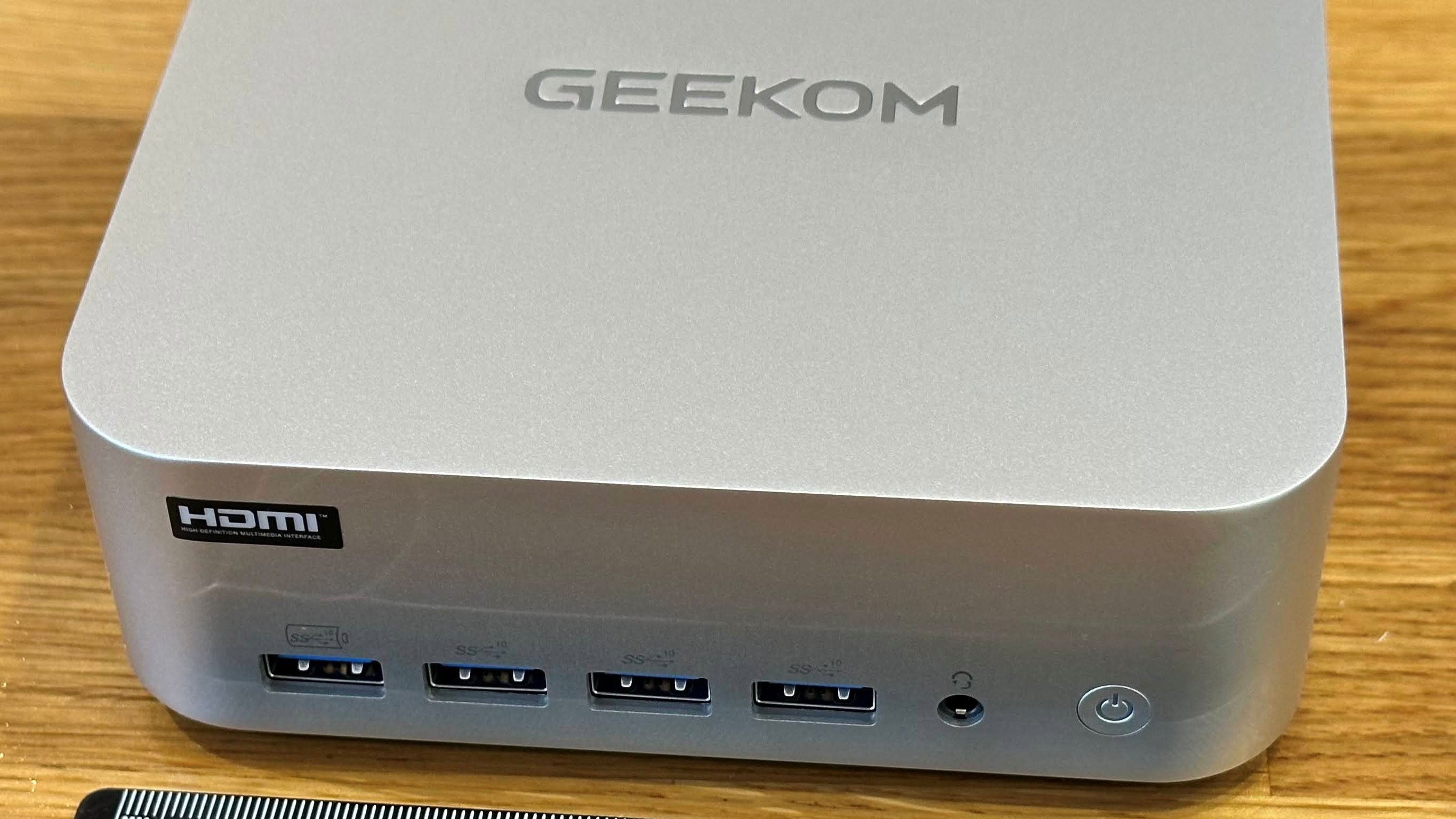
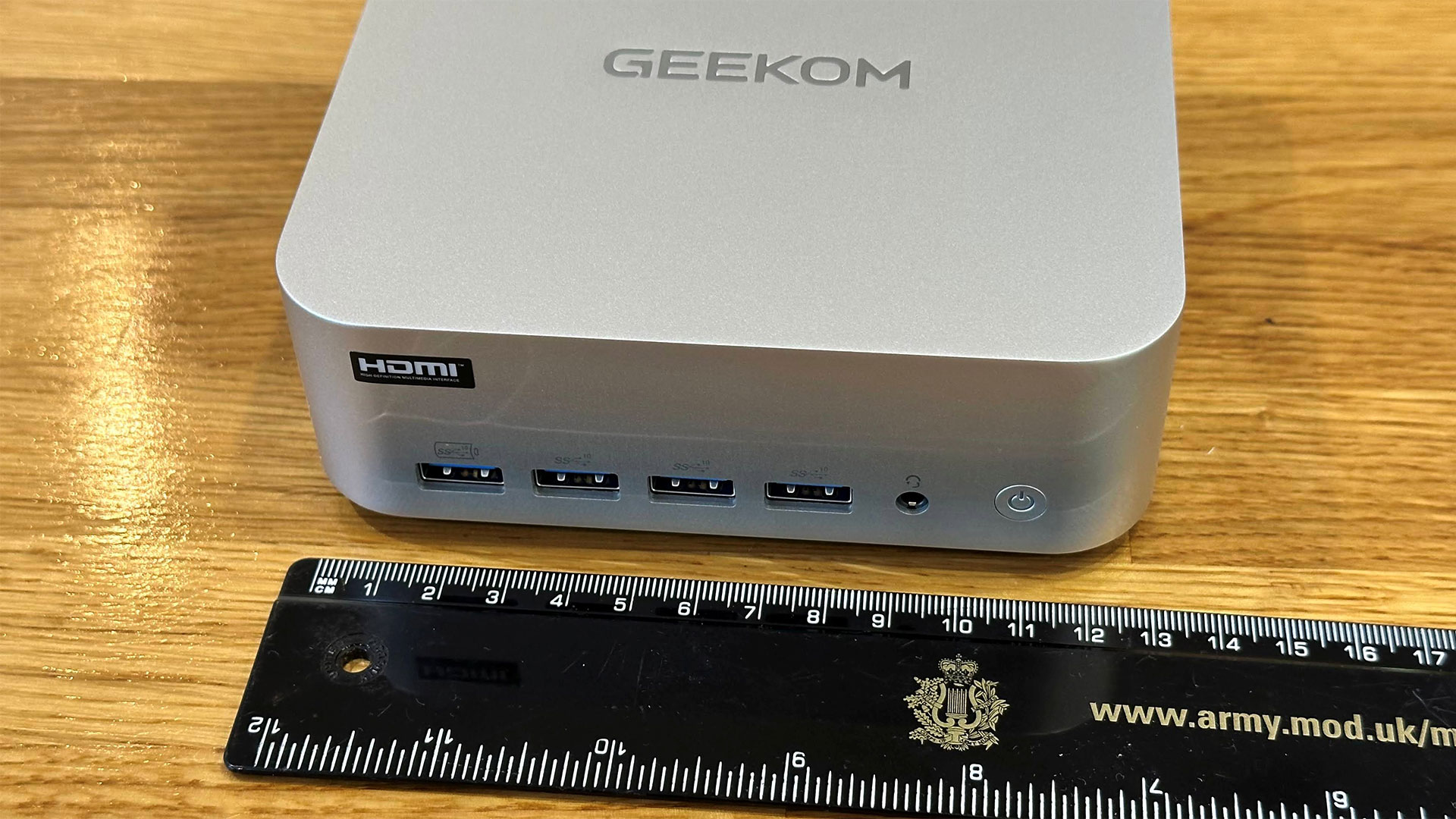
Starting from the front, Geekom has chosen to put four USB‑A 3.2 Gen 2 (10 Gbps) on the front panel, one of which is configured for fast charging any connected smart devices. To the right of these is a 3.5mm audio jack, and then there’s the flush and slightly convex power button.
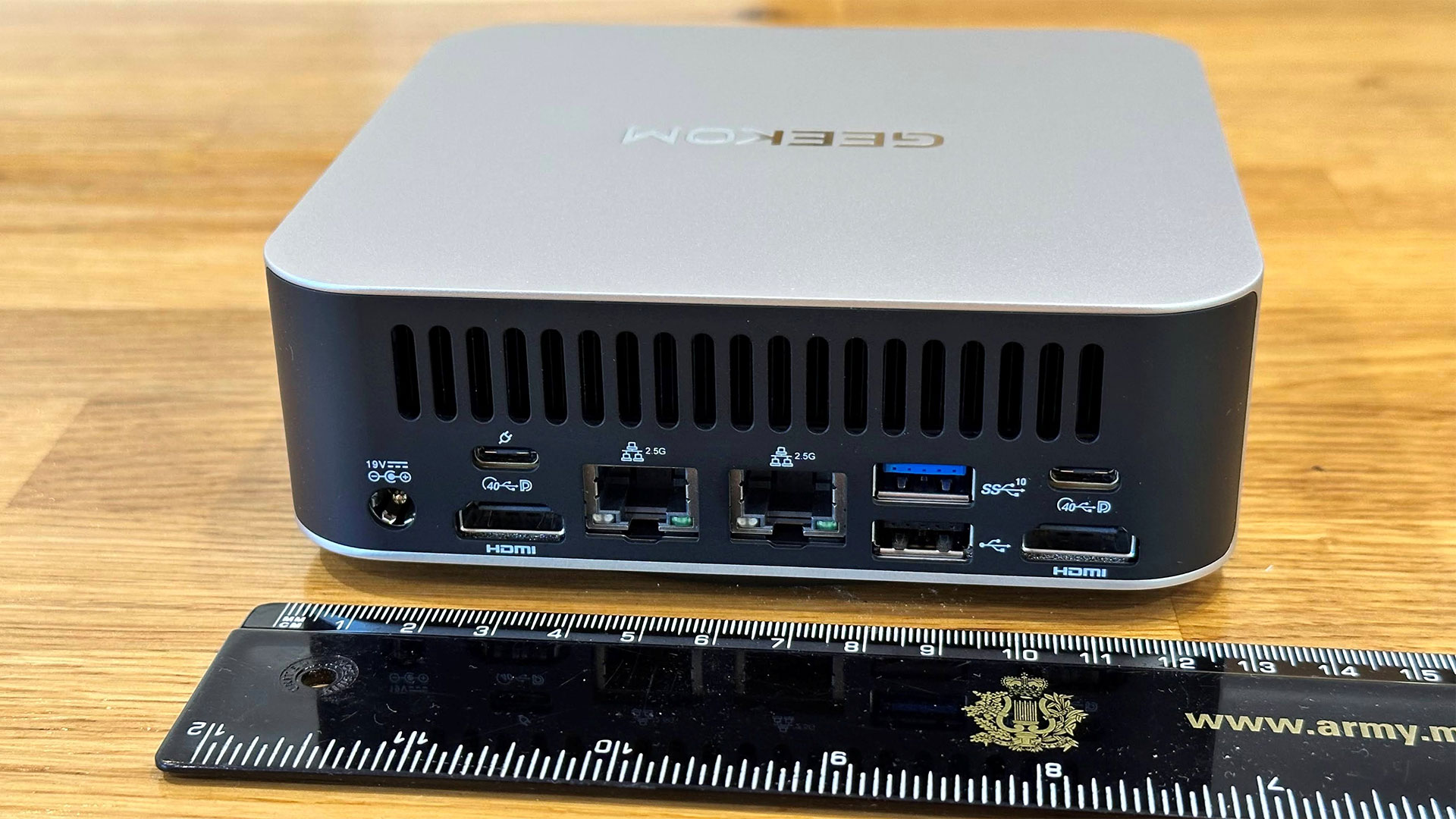
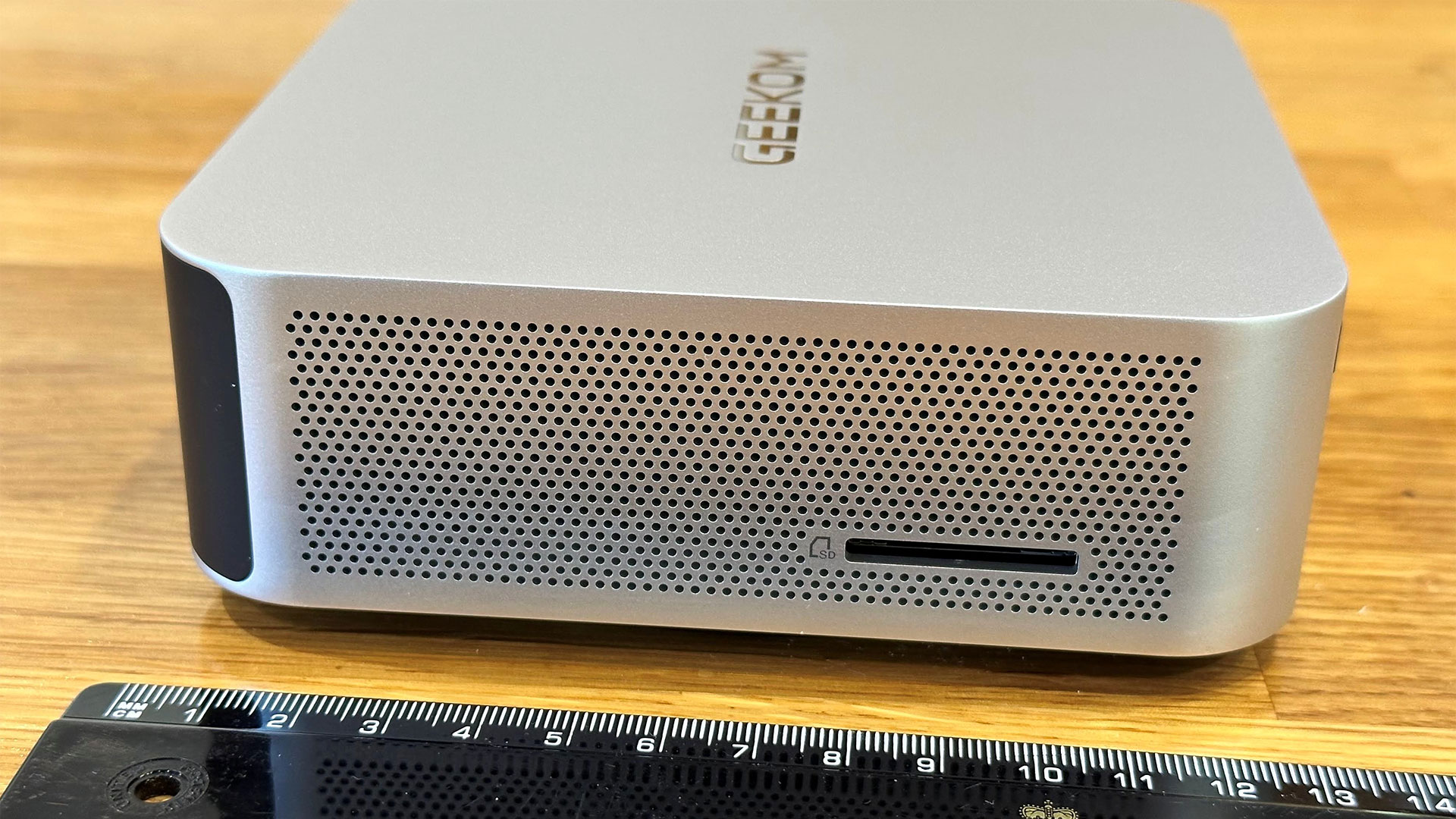
Turn the unit clockwise, and you see the Kensington slot as the sole user port interrupting the neatly perforated metal vista. The rear is black plastic with sizable vents at the top. Below the vents are a DC barrel jack, twin HDMI ports, twin 2.5G Ethernet ports, twin USB4 ports (with DP-Alt support), another USB‑A 3.2 Gen 2 (10 Gbps) port, and a USB 2.0 port. The other perforated side of the device features the SD 4.0 card reader slot.
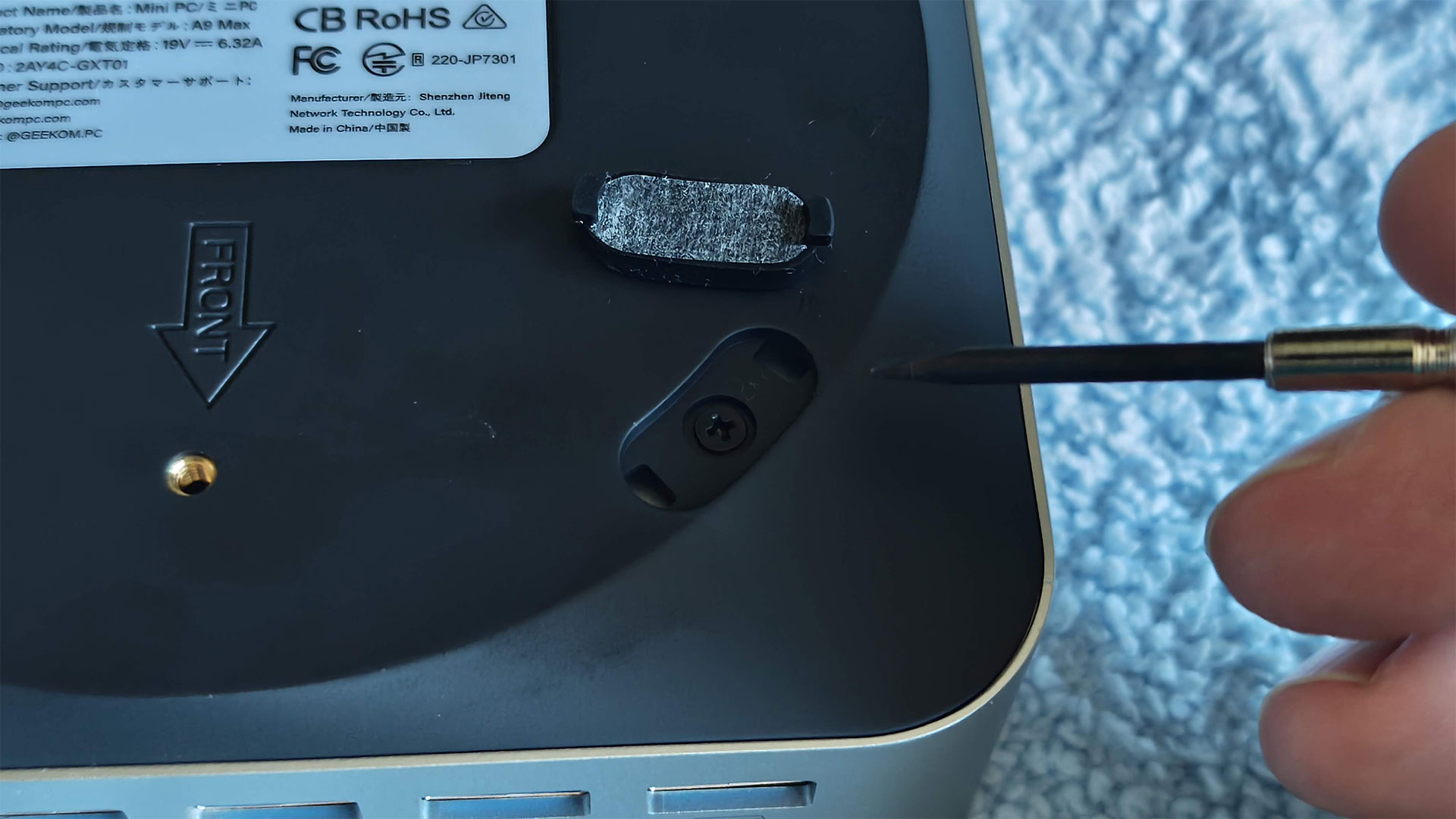
There’s nothing else on the top of the Mini PC but the Geekom logo. On the bottom, there are VESA mounting screws and four rubber feet, which have to be removed to access the inside.
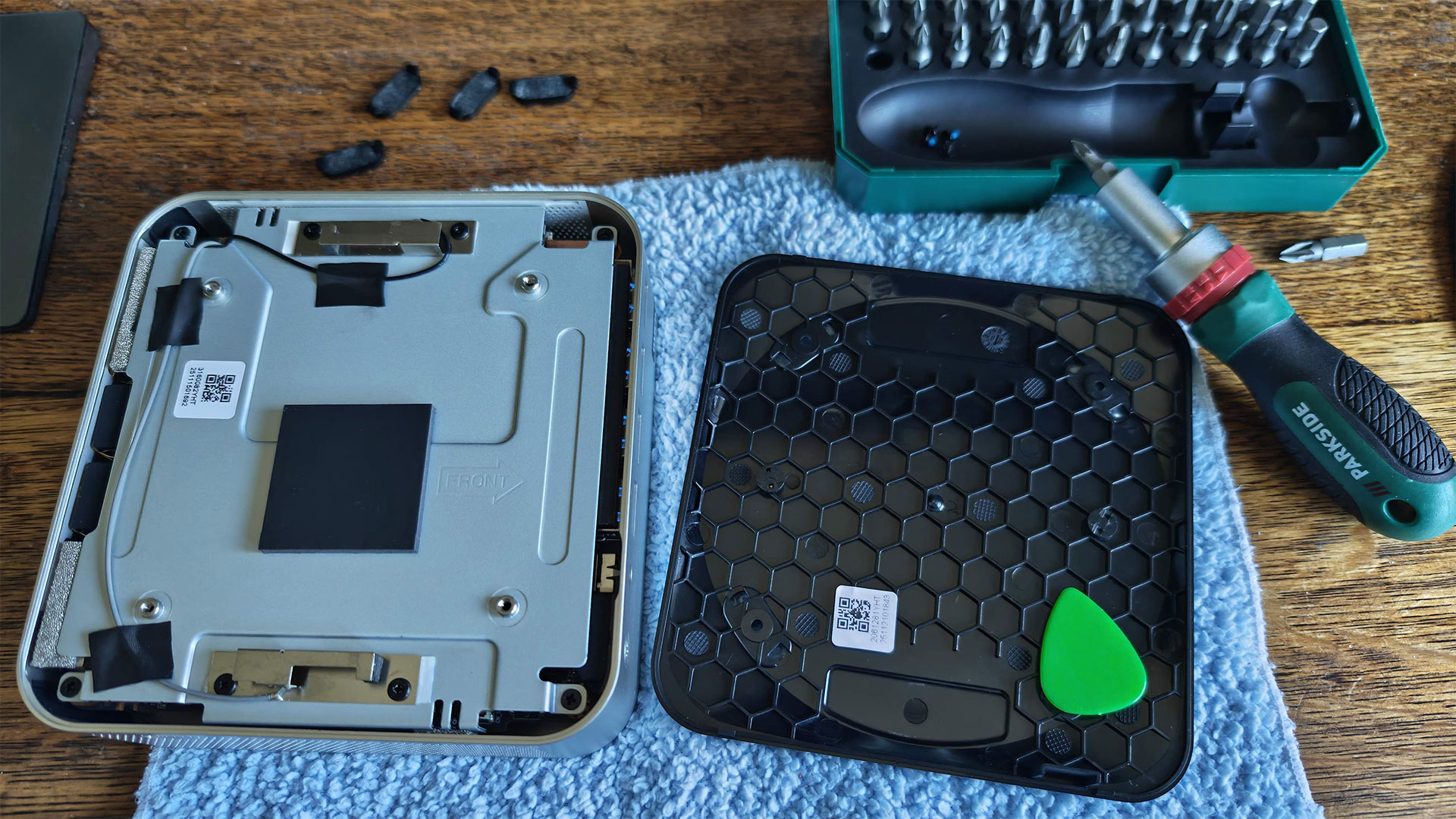
Once you pry the sticky feet off, there are four crosshead screws to remove. Then I used a guitar plectrum to flip the bottom off. The bottom comes away without any attached wiring. However, you can’t do much yet, as four more screws need to be removed so the metal shielding layer on the bottom can be removed. Rather than untaping all the antenna wires, which partly fix the inner metal underside to the rest of the inner components, I managed to open it up like a door.
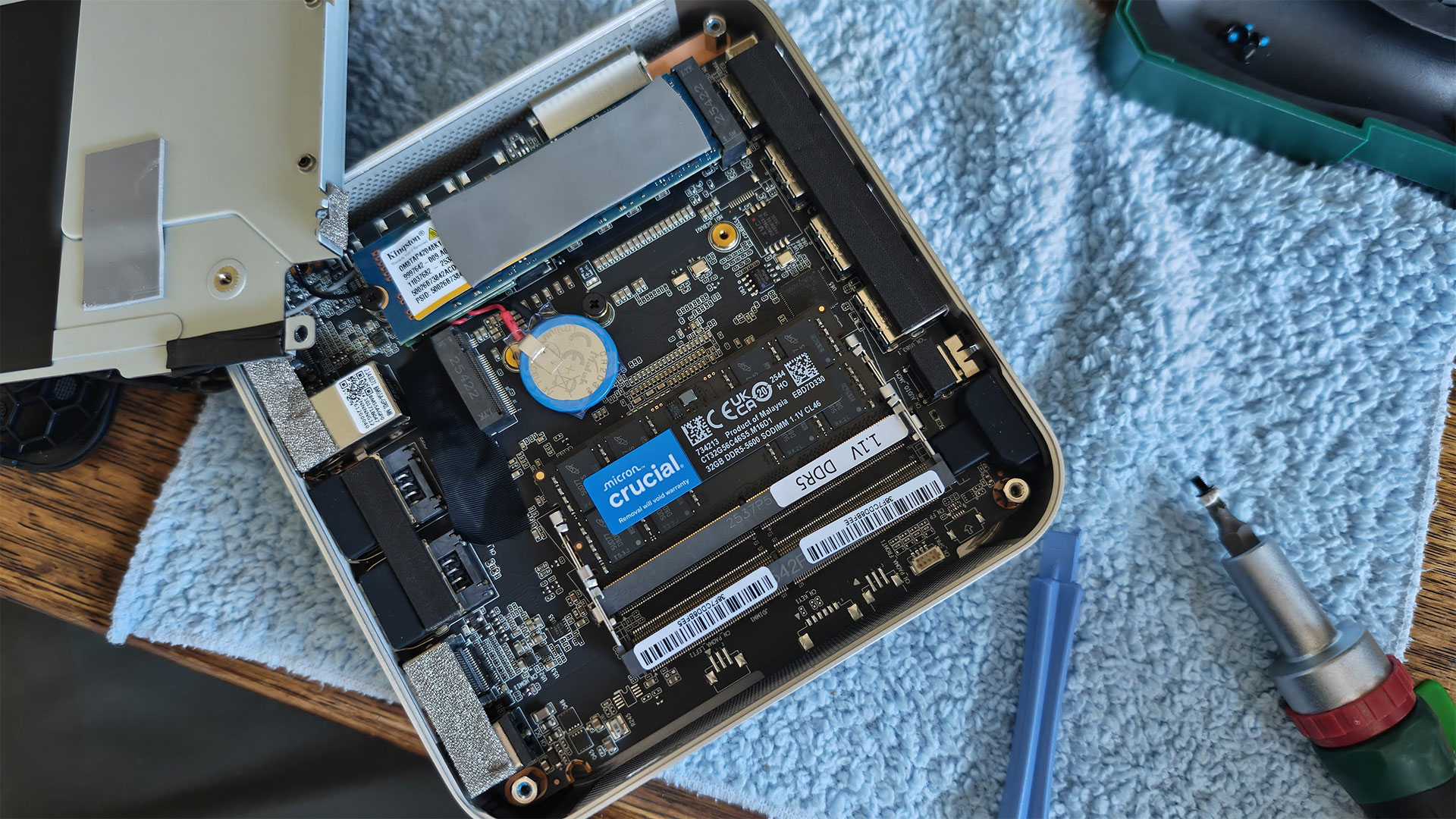
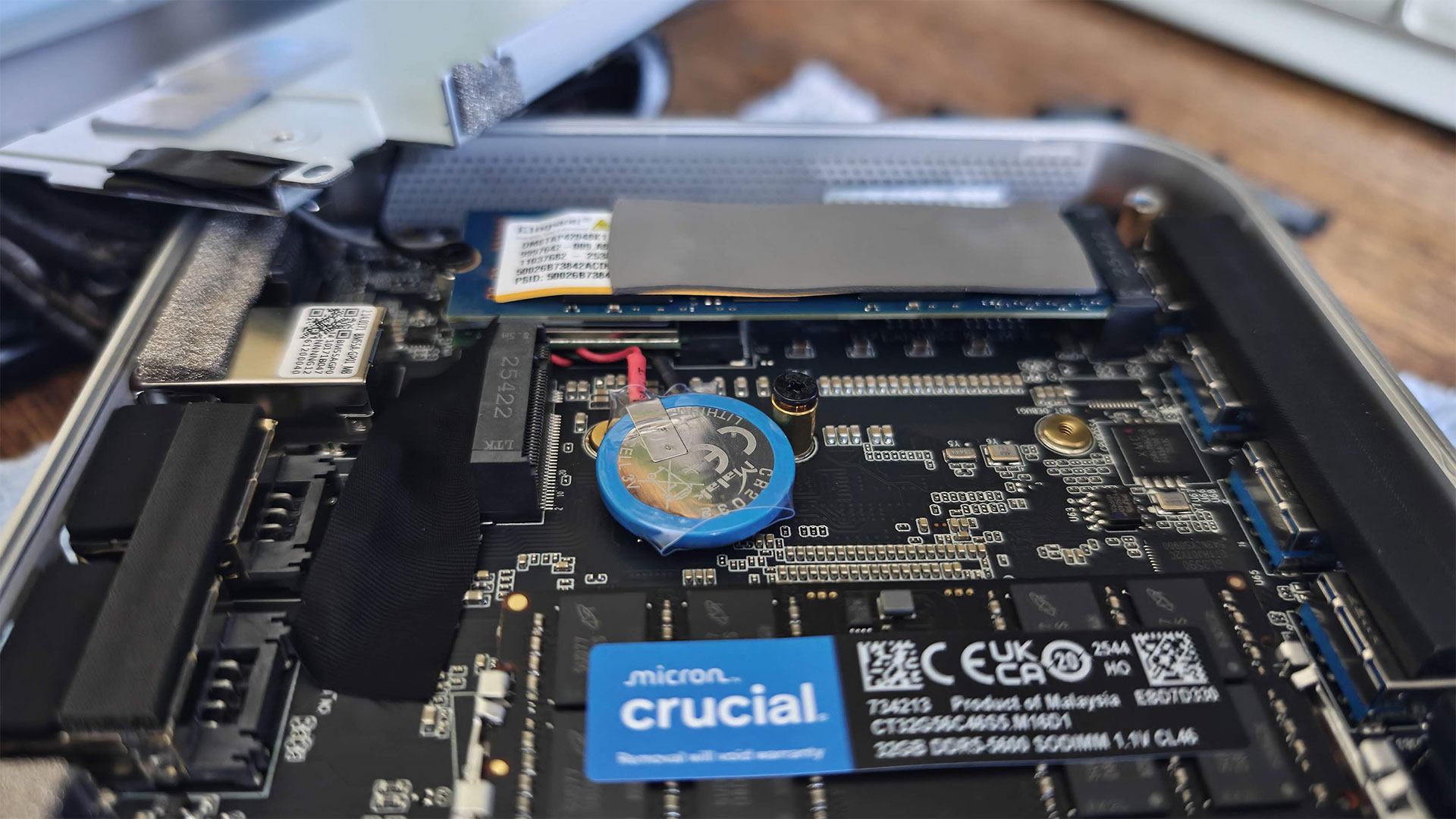
With eight screws removed, I had access to the SSD and RAM slots. The Geekom A9 Max has two M.2 SSD slots. The 2280 slot was populated with a Kingston branded 2TB drive with a thermal pad on top. You can just about see that underneath it is the M.2 Wi-Fi 7 and Bluetooth 5.4 card. To the side of this 2280 SSD is another slot, which it is claimed is usable for drives in the 2230 form factor. I noted a thermal pad was already stuck on the metal shell, which would run the length of a 2230 drive if installed and the unit screwed back together, that’s nice attention to detail.
More user-configuration options provided by this tiny motherboard were provided by the pair of SODIMM slots. Geekom had fitted a single Micron 32GB DDR5-5600 module, so one slot was left free. The decision to sell this device in a single-channel configuration was “mainly to provide better long-term upgrade flexibility,” I was told in an email. “Since the A9 Max only has two memory slots, a factory-installed 2×16GB setup would require users to replace both modules when upgrading to 64GB or 128GB in the future. With a single 32GB module, users can simply add another 32GB stick later to achieve 64GB dual-channel memory more easily and cost-effectively.”
I’d agree more with this idea if the Mini PC had 16GB of RAM in total, but I fear it will be a long time before buyers of machines of this type will be able to justify purchasing another 32GB SODIMM – to unleash rather than constrain the Radeon 890M. More on that later.
Test System Setup
System
CPU
(i)GPU
Memory
Chassis
GMK EVO-T2
Intel Core Ultra X7 358H (16C/16T: 4P + 8E + 4 LPE), up to 4.8 GHz
Intel Arc B390 (Xe3, 12 cores, up to 2.5 GHz)
2x 32GB LPDDR5X-8533 soldered
Dual-fan,1.72 liters
MSI Cubi NUC AI+ 3MG
Intel Core Ultra 9 386H (16C/16T: 6P + 8E + 2LPE), up to 4.9 GHz
Intel Graphics (Xe3, 4 Cores, up to 2.5 GHz)
2x 16GB DDR5-5600 Sodimm
Single fan, 0.52 liters
Geekom A9 Max 2026
AMD Ryzen AI 9 HX 470 (12C / 24T: 4x Zen 5, 8x Zen 5c), up to 5.2 GHz
Radeon 890M (RDNA 3.5, 16 CUs, up to 3.1 MHz)
1x 32GB DDR5-5600 Sodimm
Single fan, 0.82 liters
Arctic Senza AI 370
AMD Ryzen AI 9 HX 370 (12C / 24T: 4x Zen 5, 8x Zen 5c), up to 5.1 GHz
Radeon 890M (RDNA 3.5, 16 CUs, up to 2.9 MHz)
2x 16GB LPDDR5X‑8000 soldered
Passive, 4.82 liters
Beelink SER10 MAX
AMD Ryzen AI 9 HX 470 (12C / 24T: 4x Zen 5, 8x Zen 5c), up to 5.2 GHz
Radeon 890M (RDNA 3.5, 16 CUs, up to 3.1 MHz)
2x 32GB DDR5-5600 Sodimm
Single fan, 0.81 liters
Productivity Performance on the Geekom A9 Max 2026
AMD’s Ryzen AI 9 HX 470, with its Zen 5 CPU architecture and 24 threads running at up to 5.2 GHz, won’t be holding anyone back in office productivity, general computing, and similar day-to-day tasks. It also has a great reputation for efficiency, inheriting the mantle of its predecessor, the Ryzen AI 9 HX 370, which gathered many design wins for AMD. Here, the CPU is fed by an ample 32GB of system RAM, and the 2TB PCIe Gen4 x4 SSD storage equipped is pretty fast too, with read/write transfer speeds of up to 6,139 MB/s and 5,499 MB/s, respectively, according to CrystalDiskMark.
In Cinebench 2026, the A9 Max 2026 scored 4,667 points in the multi-core test. That's very similar to the Beelink SER10 MAX with the exact same processor. No surprise. However, the Beelink has dual-channel RAM, which doesn't make a lot of difference in this kind of CPU-heavy rendering workload, as you can see. In the HandBrake video encoding test we see a similar story, with the Geekom middle of the pack, outpacing the Intel competition, but a smidgen behind its AMD brethren.
During our demanding tests, the Geekom A9 Max 2026 stayed admirably cool, but its peak noise level might make you want to move it to a less prominent area of the desk, or use the VESA mounting option to hide it behind your monitor.
Gaming and Graphics on the Geekom A9 Max 2026
In its marketing materials, Geekom pitches the new A9 Max as a computer for all niches, mentioning its CPU and AI compute power, as well as indeed gaming and being able to “conquer AAA titles with ease” thanks to the “Radeon 890M integrated graphics, clocked at a high frequency of 3.1GHz.” So, without further ado, let’s run through our standard set of synthetic 3D engine and gaming tests.
Before beginning the games benchmarking proper, I felt like firing up the old-but-gold Far Cry 5 for a bit of mayhem in Montana. After trying a few preset settings, I settled on 1080p Medium. The High preset was just a bit too slow, and Low settings seemed barely any faster. With Medium settings chosen as the sweet spot for this configuration, I adventured through the attractive wilderness and enjoyed eliminating a few crazy cult members. The average FPS of just above 30 FPS, with a minimum of 26 FPS (according to the built-in benchmark) was enough to enjoy the single-player game without being too distracted by performance issues. I am accustomed to 1440p gaming in this title with a higher quality level and a better frame rate. But it wasn’t insufferable on the A9 Max configuration we tested.
Tom's HardwareTom's Hardware
Our benchmarks included a trio of 3DMark synthetics and two PC gaming standards. 3DMark Solar Bay is a great way to frame and compare cross-platform iGPU performance. Meanwhile, Steel Nomad turns to screws on raw graphics performance with its heavy modern GPU load, and will be better for comparisons when we start testing the higher-end mini PCs. Last and definitely not least, Speed Way is a 2025 benchmark from UL that uses DirectX Raytracing tier 1.1 for real-time global illumination and real-time ray-traced reflections.
3DMark Solar Bay tests seem like the best fit for this iGPU, with frame rates smooth enough that it doesn't hurt your eyes to watch. Sadly for the Geekom, it placed last in the pack in this test, even behind the office productivity targeted MSI Cubi NUC AI+ 3MG.
Next up, built-in real game benchmarks courtesy of Shadow of the Tomb Raider and Cyberpunk 2077. The former scales well with processor resources and can still often look and run great on humble iGPUs. As for Cyberpunk 2077, it can really push and tax even the strongest modern GPUs, so here we've used two settings to show how the little A9 Max 2026 can - and can't - play this game. High settings in this game resulted in a grating 17 FPS. Using the Steam Deck preset resulted in a far more playable 29 FPS.
Moving over to Shadow of the Tomb Raider (SOTTR), and the A9 Max 2026 as configured managed just a 26 FPS average. If you have no other avenues to enjoy this game, you’ll have to nudge settings lower to get above a consistent 30 FPS. Opting for 720p visuals could also help, if you were willing to do so.
We had a similarly disappointing gaming experience during the Minisforum X1 AI Pro 470 review, which also combined this exact AMD Zen 5 mobile processor with a single 32GB stick of DDR5-5600. Check the details of that article to learn exactly the difference reconfiguring the DDR5 to dual-channel can make (spoiler: equipping dual-channel memory made a very big difference in our 3D gaming performance tests). In our newest mini PC tests, the Beelink SER10 MAX comes with the same AMD Ryzen AI 9 HX 470 processor but is kitted out with dual-channel RAM and can hit a far smoother 54 FPS in the SOTTR High preset.
Power, Heat, and Noise when using the Geekom A9 Max 2026
(Image credit: Tom's Hardware)
This little computer was pleasingly thrifty when it came to power use. Measured at the wall, I observed a mere 7W of power was being pulled by the system when idling in Windows 11. Under the heaviest loads I could muster, the system power consumption rose to about 79W. System tools showed that the idle / stress CPU temperatures were around 34C and 79C, respectively. Perhaps Geekom could quiet the IceBlast 3.0 fans, then? Or, if you buy this, you’d have latitude to slow the fan profiles in the BIOS.
(Image credit: Tom's Hardware)
Geekom’s A9 Max 2026 was quiet at idle, with my readings showing it made about 29 to 30dB noise. The loudest it got was around 41dB, when I was trying to stress the system by running CPU and GPU benchmark tests simultaneously.
Geekom boasts about its new IceBlast 3.0 system here. I found that it works well enough as shipped, but it isn’t the quietest under load and may benefit from user tweaks. There’s no software for these kinds of adjustments, though, so it is a BIOS tweak / reboot process you’ll have to work through.
Software and Warranty on the Geekom A9 Max 2026
Geekom ships the A9 Max 2026 with no custom software at all. It's just clean Windows 11 Pro, as supplied. Also, we note that the marketing material boasts the system fully supports both Windows 11 and Linux. At the time of writing, there is only one fully populated option for would-be buyers of the A9 Max 2026 - identical to our test unit - so you can’t potentially save money by going barebone / Linux.
A 3-year warranty is provided with the A9 Max 2026.
Configurations of the Geekom A9 Max 2026
At the time of writing, there is only one configuration of the Geekom A9 Max 2026 is available, and that is precisely the one tested with a Ryzen AI 9 HX 470, 32GB / 2TB, and Windows 11 Pro pre-installed. Amazon currently has this machine on a 'limited time deal' with 10% off reducing the price from $1,599 to a more reasonable $1,439.
On some stores, you may still be able to find last year's model, with an HX 370.
Bottom Line
Geekom’s A9 Max 2026 is a handsome, durable, and performant all-arounder. However, we will say again that its Radeon 890M iGPU is seriously hamstrung by the single-channel RAM configuration it is sold with. This lack of bandwidth becomes painfully obvious when 3D gaming.
Pondering the A9 Max 2026’s pricing more carefully suggests that mini PC desktops like this are no longer the bargains they used to be. The very modest uplift provided by AMD’s AI 400 Gorgon Point chips doesn’t really make a strong case for the 2026 refresh models.
This updated 2026 release competes with Geekom’s own older editions, as mentioned in the above Configurations section. However, the Minisforum AI X1 Pro 470 which we reviewed in March seems to offer more expandability (3x M.2 SSD slots, OCuLink), a fingerprint reader, Copilot button, and is a little quieter under load. You can still grab that Minisforum Mini PC with a similar build but slightly larger footprint for $759 barebones, or 32GB/2TB + Windows 11 Pro for $1,399.
If you want to dabble in games like Shadow of the Tomb Raider with pleasing graphic details and reasonably smooth 30FPS+ frame rates, please budget to add a matching 32GB DDR5-5600 SODIMM to the retail configuration, or wait and see if there’s a barebones model arriving. A cheaper barebones model would allow buyers to source their own dual-channel memory kit (we’d go for at least a pair of DDR6-5600 16GB modules), and M.2 SSD - and don’t forget an OS.
Arctic's latest under-the-desk Senza PC design is using an AMD Ryzen AI 9 HX 370 mobile processor. Sure, the upgrade has also allowed Arctic to shove ‘AI’ in the product name, but this is a very appealing design with great build quality, good performance, a reasonable selection of ports, and silent operation as the cherry on top.
This definitely isn’t the smallest mini PC around. Its dimensions could probably fit more like three mini PCs in a row. The largest part of this device measures 21.10 (L) × 7.09 (W) × 1.97 (H) inches. In addition to the sizable main unit, there’s also a 120W external PSU and a front panel dongle with some handy ports and an LED-illuminated power button.
The central section of the main unit is where all the performance components are located. Its ‘wings’ are basically passive cooling radiators with heatpipes spreading out from the center, perforating a multitude of fins on either side.
The Senza, its front panel dongle, and PSU are designed to mount discreetly under your desk. After confirming that everything worked post-unpacking, I dutifully followed the instructions and used the printed template to mount the PC and front panel neatly beneath my oak desk. My desk is so heavy I had to work on it as if I were working under a car, lying on my back, but it slotted into place the first time thanks to the accuracy of the template and my deft use of an awl. All the fittings (screws, fabric fasteners, braces, and straps) are provided in the box with the Senza AI 370.
Fanless passive cooling; detachable front panel; under‑desk mount kit; cable sleeve; TPM 2.0
Dimensions
Main unit: 21.10 x 7.09 x 1.97 inches (536 x 180 x 50mm); Front panel: 3.76 x 2.22 x 0.63 inches (95.6 x 56.3 x 16mm); System weight: 5.36 pounds (2.43kg)
OS Installed
Windows 11 Pro (Linux compatible)
Price (as configured)
€1,199.99, 2-year warranty
Ports and Upgradeability
On the PC back panel, there is a decent selection of ports. The mix includes a USB4 Type-C port, two USB 2.0 Type-A, and two USB 3.2 Gen 2 Type-A ports. Dedicated video out options are provided with HDMI 2.1, and DisplayPort 2.0 - but the rear USB4 port can also handle video out, too. Two 3.5mm jacks are also there for audio in and out. Wired networking support is provided with a 2.5G LAN port.
Tom's HardwareTom's HardwareTom's Hardware
The rear is also where you plug in the supplied 120W PSU via a barrel jack. Lastly, there’s an unusual looking dedicated dual USB-C (two Type-C ports positioned at right angles to one another), which mates with the front panel I/O dongle cable supplying USB4 data and power.
The use of a front panel I/O dongle is a great idea, and it makes thepower button easy to reach. I would have liked to see more ports, here, personally.
(Image credit: Tom's Hardware)
As I am always plugging various peripherals into my PCs, I decided to connect the under-desk USB4 port on the main body of the Arctic Senza AI 370 to an above-desk dock. Specifically, I usedStarTech’s driverless 208UE USB4 dock to give easy access to a host of fast connectivity options.
Inside the Senza AI 370, there is quite a lot of empty space but limited expandability. It’s easy enough to get in and see the guts of the device, with just four Phillips screws holding the metal panel in place. Under the panel there are no RAM slots, but you can see the soldered Micron DDR5-8000 chips surrounding the AMD processor. Before you buy, ensure 32GB of RAM will be enough for you for the foreseeable future.
I also found an Arctic heatsink atop an M.2 2280 slot. The sample device came with 1TB of fast PCIe 4.0 NVMe storage installed. System tools revealed it to be a Chinese YMTC PC411 SSD.
We also spied an M.2 2230 slot populated with a Mediatek Wi-Fi 7 (2x2 MIMO) + Bluetooth 5.3 card. You could swap that out for repair or upgrade purposes one day, if required. There are no further internal expansion ports.
Test System Setup
System
CPU
(i)GPU
Memory
Chassis
GMK EVO-T2
Intel Core Ultra X7 358H (16C/16T: 4P + 8E + 4 LPE), up to 4.8 GHz
Intel Arc B390 (Xe3, 12 cores, up to 2.5 GHz)
2x 32GB LPDDR5X-8533 soldered
Dual-fan,1.72 liters
MSI Cubi NUC AI+ 3MG
Intel Core Ultra 9 386H (16C/16T: 6P + 8E + 2LPE), up to 4.9 GHz
Intel Graphics (Xe3, 4 Cores, up to 2.5 GHz)
2x 16GB DDR5-5600 Sodimm
Single fan, 0.52 liters
Geekom A9 Max 2026
AMD Ryzen AI 9 HX 470 (12C / 24T: 4x Zen 5 , 8x Zen 5c), up to 5.2 GHz
Radeon 890M (RDNA 3.5, 16 CUs, up to 3.1 MHz)
1x 32GB DDR5-5600 Sodimm
Single fan, 0.82 liters
Arctic Senza AI 370
AMD Ryzen AI 9 HX 370 (12C / 24T: 4x Zen 5 , 8x Zen 5c), up to 5.1 GHz
Radeon 890M (RDNA 3.5, 16 CUs, up to 2.9 MHz)
2x 16GB LPDDR5X‑8000 soldered
Passive, 4.82 liters
Beelink SER10 MAX
AMD Ryzen AI 9 HX 470 (12C / 24T: 4x Zen 5 , 8x Zen 5c), up to 5.2 GHz
Radeon 890M (RDNA 3.5, 16 CUs, up to 3.1 MHz)
2x 32GB DDR5-5600 Sodimm
Single fan, 0.81 liters
Productivity Performance on the Arctic Senza AI 370
The Arctic Senza AI 370 doesn’t break a sweat with day-to-day productivity tasks, browsing, and similarly light workloads. AMD’s Ryzen AI 9 HX 370 is a very capable chip with its Zen 5 CPU architecture featuring 12 cores and 24 threads, the integrated Radeon 890M graphics, and a power-efficient NPU for on-device AI.
Despite relying on an older AMD processor, the Arctic Senza AI 370 shows it can match and even beat the two Ryzen 9 AI HX 470 mini PCs that have also recently been subjected to our newest suite of tests. Let’s single out Cinebench 2026 multicore scores first. Here the Senza clearly leads the pack of newer AMD Ryzen and Intel Core Ultra mini PCs, at almost 7% faster than the second-placed Beelink SER 10 Max. In the Blender Monster render test, the Senza’s HX 470 rivals actually do win by a tiny amount, but the difference is small enough to be within the margin of error.
Another productivity test, targeting video encoding performance this time, shows that the Arctic won’t be usurped by its newer generation challengers. The Senza AI 370 proudly leads the Handbrake table, and a victory is a victory, but the actual difference is so small it is essentially a draw between the three AMD mini PCs.
I think the Arctic’s good performance in these productivity tests can be put down to the system’s significantly better memory bandwidth.
Gaming and Graphics on the Arctic Senza AI 370
The Senza AI 370’s APU should make it a decent enough performer in games, at least if you're realistic with the settings. Its Radeon 890M iGPU comes with 16 RDNA 3.5 CUs, and it is accompanied by fast dual-channel DDR5-8000 in Arctic’s silent machine.
Before moving onto our standard synthetic and iconic PC gaming tests, I decided to run around in one of my favorite 3D gaming titles, Ubisoft’s The Division 2. I enjoyed taking down a Bloodhound and its high-tech escort troops, and liberating an enemy control point. The action was fluid enough, without experiencing any stutters or other low-performance tells. I played in FHD using the High preset, and later saw using the built-in benchmark tool that the Arctic Senza AI 370 achieved an average of 53 FPS across a diverse set of game scenarios.
Tom's HardwareTom's Hardware
Next up, our benchmarks include a trio of 3DMark synthetics and two PC gaming standards. 3DMark Solar Bay is a great way to frame and compare cross-platform iGPU performance. Meanwhile, Steel Nomad turns to screws on raw graphics performance with its heavy modern GPU load, and will be better for comparisons when we start testing the higher-end mini PCs, some with dGPUs. Last and definitely not least, Speed Way is a 2025 benchmark from UL that uses DirectX Raytracing tier 1.1 for real-time global illumination and real-time ray-traced reflections.
In 3DMark Solar Bay, which uses an engine / resolution most appropriate to the graphical firepower of most of this crop of iGPU-only mini PCs, the Senza AI 370 easily beats the newer-gen Ryzen competition. However, it is clearly outclassed by the Intel Arc B390 iGPU in the GMKtec EVO-T2.
Moving on to more real games, let’s check the data provided by the multi-scene benchmarks built into Shadow of the Tomb Raider and Cyberpunk 2077. The former scales well with processor resources and can still often look and run great on humble iGPUs. As for Cyberpunk 2077, it can really push and tax even the strongest modern GPUs, so here we've used two settings to show how the silent Senza can perform.
A pattern seems to be established in the synthetics above, which continues into our real gaming tests. Specifically, the passively cooled Arctic Senza AI 370 is the best choice for iGPU gaming if you don’t want to spend far more cash on the potent Panther Lake GMKtec EVO-T2. The Arctic consistently outclasses both the newer HX 470 processor-based challengers, though we see the Beelink SER10 Max with dual-channel RAM do much better than the Geekom A9 Max 2026, constrained by a single stick of DDR5-5600.
On Cyberpunk 2077, the Steam Deck and 1080p preset felt noticeably more fluid than the High 1080p option. If I were to persevere with this demanding title on the Senza AI 370, I’d perhaps try some form of upscaling to see if I could maintain the High quality setting but with an improved FPS.
It's worth repeating, the silent Senza seems to outclass the newer AMD challengers across gaming tests thanks to its superior memory subsystem based on its soldered 32GB LPDDR5X‑8000 dual‑channel RAM.
Power, Heat, and Noise when using the Arctic Senza AI 370
Tom's HardwareTom's Hardware
When I left the Senza AI 370 to idle, my power meter measured wattages at or below 10W from the wall for the whole system. When the system was pushed with simultaneous CPU and GPU benchmarks running, power draw seemed to peak at a little under 92W.
System tools showed that during light activities like browsing the web and typing reports like this one, the CPU temperature stayed around 30 degrees C. Playing The Division 2 for 30 or 40 minutes, the reported CPU temperature seemed to stay between 60 C and 70 C. It didn’t constantly creep upwards; it would sometimes go towards that upper bound, and sometimes fall again. However, running a workload like Cinebench R23 multicore the temperatures seemed to creep inexorably upwards, with the highest measurement I saw at 96 C.
Between tasks, the reported CPU temperature would fall very rapidly. I saw it dive from 75 C to 45 C in under 10 seconds after one of the recent benchmarks I completed. That’s pretty impressive given that there’s no fan.
In my testing before installing it under the desk, oddly enough, I could actually hear a sound when the YMTC PC411 SSD was being accessed. I'm unsure what it was, but I did notice it.
Software and Warranty on the Arctic Senza AI 370
Arctic’s Senza AI 370 ships with a clean copy of Windows 11 Pro installed. That's it. There were no bundled utilities, dashboards, or custom monitoring and tuning software. Arctic sells the Senza AI 370 with a two-year warranty.
Configurations of the Arctic Senza AI 370
Arctic sells just a single Senza AI 370 configuration: the one we tested with a AMD Ryzen AI 9 HX 370,32GB LPDDR5X-8000 memory and a 1TB SSD. Windows 11 Pro is included, but Arctic says that the machine is Linux compatible.
Those in Europe can head directly to the official company website and snag a Senza AI 370 for the MSRP of €1,199.99. Meanwhile, UK buyers can grab a device from Arctic’s official Amazon web store for £910.49. Compared with many of the other mini PC prices we are seeing, that seems very reasonable for a fully populated mini PC with fast memory and storage plus unique silent / passive appeal. Those German and UK prices include VAT at 19% and 20%, respectively.
I asked Arctic about the availability of the Senza AI 370 in the U.S. and was told that no official distributor had been set up for this device. The company is seeding the device to U.S. media, however, to gauge interest in devices like this.
Bottom Line
(Image credit: Tom's Hardware)
If you want a mini PC that you can't see or hear, the Arctic Senza AI 370 is for you. Many will be attracted by mini PCs for their minimal physical footprint, but Combine that with its silence, well-behaved thermals, plus solid performance, and there's really not much to complain about.
Concerning performance, Arctic’s choice of soldered 32GB LPDDR5X-8000 memory and a fast SSD gave this device equal or better application and gamingi performance compared to its newer-gen Ryzen 9 AI 470 HX equipped mini PC rivals we have tested recently. It is noticeably cheaper, too, but sadly not easy to grab if you live stateside right now.
The evolution of hardware has gotten to a point where tiny devices, such as mini-PCs, can offer excellent computing power in a small form factor. Kamrui, a specialist in mini-PCs, currently has the H1 and Hyper H2 for sale on Amazon. For a limited time, you can save up to 20% off these high-performance mini-PCs, which are also energy-efficient and designed to fit in even the smallest spaces.
The Kamrui H1 is a budget gaming mini-PC with a Ryzen 7 7735HS with integrated Radeon 680M graphics. The Zen 3+ chip rocks an octa-core, 16-thread configuration with a boost clock speed up to 4.75 GHz. Meanwhile, the Radeon 680M wields 12 RDNA 2 CUs that boost up to 2.2 GHz. The combination is perfect for eSports-grade titles and even some modern AAA games if you keep the resolution at 1080p (1920x1080) and use moderate to low graphics settings.
The mini-PC also has 16GB of LPDDR5-5500 memory and a 512GB PCIe 4.0 SSD. The former is not upgradeable since it is soldered, but you can expand the latter with a larger SSD if you ever need it. The H1 offers great connectivity, including Wi-Fi 6, Bluetooth 5.2, a 2.5 Gigabit Ethernet port, and speedy USB ports.
The H1 is a capable gaming device thanks to the Ryzen 7 7735HS, 16GB of LPDDR5-5500 memory, and a 512GB PCIe 4.0 SSD.View Deal
The Hyper H2 leverages the Core i5-14500HX, a high-performance mobile chip with 14 cores, 20 threads, and a maximum boost clock of 4.9 GHz. While it is a beefier processor than the Ryzen 7 7735HS, it lacks the integrated graphics power to run games. Therefore, the Hyper H2 is more of a productivity mini-PC than a gaming one.
Kamrui pairs the Core i5-14500HX with 16GB of SO-DIMM DDR4 memory, enabling future upgrades. The mini-PC also features a fast 512GB PCIe 4.0 SSD for storage. For connectivity, the Hyper H2 maintains the Wi-Fi 6 and Bluetooth 5.2 features found in the H1. However, it’s important to note that while the H1 includes a high-speed 2.5 Gigabit Ethernet port for wired networking, the Hyper H2 omits this feature.
The Hyper H2 flaunts a Core i5-14500HX, 16GB of DDR4 memory, and a 512GB PCIe 4.0 SSD.View Deal
The H1 and Hyper H2 from Kamrui are great mini-PCs tailored to different needs. Right now, both models are on sale at significant discounts on Amazon. The H1 and Hyper H2 are 13% and 25% off, respectively. That means you could save up to $60 on the H1 and up to $170 on the Hyper H2. These mini-PCs offer good value and features for anyone looking for a space-saving computer.
Late last week, we reported on a brand-new Steam Machine getting bricked during an update, and refusing to budge from a state freshly dubbed the ‘Red Line of Death’ (RLOD). The issue stirred fear in tech enthusiasts' hearts, still scarred by the notorious Red Ring of Death (RROD) from the Xbox 360 era. But we have some good news today, as Valve’s official account on Reddit has responded to provide step-by-step instructions to get any affected Steam Machine up and running again by clearing the CMOS.
Thankfully, the pronouncement of death was definitely premature in this unresponsive Steam Machine case, and easily fixed. It wasn’t dead, it was resting, or probably pining for the fjords. It just needed to have its CMOS setting thoroughly cleared, that's all.
SteamHWFeedback directly answered the distress call of OP me_hill on Reddit. A five-step recipe to recover Steam Machines with RLOD was provided to the beleaguered gamer. However, me_hill’s own flailing machine-reset procedure had already done the trick – inspired by numerous user comments on the thread.
It is good to have an official solution to the initially scary RLOD, though. For the sake of exactitude, we have pasted Valve’s official RLOD fixing steps below, verbatim.
If you're encountering this issue, please try the following:
Unplug the Machine, then press the power button a few times. This ensures any stored energy in the PSU gets discharged. You may see the power indicator LED blip a moment.
Plug the Machine back in. Note if your power LED glows (breathing pattern) white or not. If yes, please submit a Steam Support ticket and tag me, or send me a chat request with the ID.
Hold the power button down for ~6s. You should see the power indicator LED (dot) flash momentarily. Release the power button when you do.
The power indicator LED will start to cycle some color codes. These are designed to allow you to select various options for recovery/troubleshooting purposes. When the LED turns green, short-press the power button. This should perform a full "CMOS reset."
On the next boot, you should see the RGB bar as blue - it may take a bit longer to boot due to a memory re-training.
There’d only been two public pleas by Steam Machine users about RLOD so far, as far as we can see. Perhaps several more users resolved these issues themselves, without any social media interaction, so it is difficult to know the scale of similar experiences. Nevertheless, we are relieved to learn that these symptoms are easily fixed and users can get back up and running on their coveted new gaming hardware pretty quickly – with the benefit of an officially sanctioned cure direct from Valve.
Mini PC specialist Geekom has a ton of Amazon Prime Day deals with a multitude of diminutive computers with discounts as deep as 34% off. Among the plethora of discounts, we're pleased to also have a special stacking discount code for last year's flagship Geekom A9 Max with AMD Ryzen AI 9 HX 370, slicing a further 8% off this already discounted, sturdy, premium aluminum build mini PC.
This A9 Max (2025) 'Strix Point' model features a Zen 5 architecture CPU with 12C/24T, plus Radeon 890M graphics on board. The system comes complete with 32GB DDR5, a 1TB SSD, and Windows 11 Pro. Originally priced at $1,399.00, the Prime Day sale reduces it to $1,189.15, and our exclusive Tom's Hardware discount code (8% off code: THA9MAX26) slices another 8% off, resulting in a checkout price of $1,094.
Use our 8% off code: THA9MAX26 for this deeper discount
This sturdy aluminum-encased Geekom A9 Max (2025) comes with an AMD Ryzen AI 9 HX 370 'Strix Point' processor, backed by 32GB DDR5, a 1TB SSD, and Windows 11 Pro.View Deal
For those who insist on the latest silicon, Geekom has also put its A9 MAX 2026 Edition on sale at 21% off. That means this fresh Ryzen flagship, which has been upgraded to an AMD Ryzen AI 9 HX 470, is reduced from $1,699 to $1,349. Remember, this has 32GB DDR5 RAM and with a 2TB pre-installed SSD it offers double the storage capacity of its predecessor in the deal above. We have one of these 'Gorgon Point' mini PCs in the labs now, and hope to be able to share the review with your shortly.
Geekom's newly released AI flagship mini PC is already discounted for Prime Day
This sturdy aluminum-encased Geekom A9 Max (2026) comes with the AMD's refreshed Ryzen AI 9 HX 470 'Gorgon Point' processor, backed by 32GB DDR5, a roomy 2TB SSD, and Windows 11 Pro.View Deal
Both of those machines are above $1,000, but Geekom has cheaper mini PCs on sale for Prime Day, as well. For a barebones systems, the Geekom A5 with the Ryzen 5 7430U, 16GB of user-upgradable memory, and a 512GB NVMe SSD.
Digging deeper in the Prime Day bargain bin, we also spotted the Geekom A5, which promises to do everything from "business, home server, creative work & casual gaming." It is listed at 14% off for Prime day cutting its price from $439 to a far more attractive $371. In tech specs terms, so you can judge use-case claims for yourself, this 200kg pressure-rated NUC-a-like mini PC packs an AMD Ryzen 5 7430U APU which features Zen 3 cores in a 6C/12T config plus Radeon Vega 7 graphics. It also comes with 16GB DDR4 RAM installed (expandable to 64GB), and a 512GB NVMe SSD (expandable with an extra M.2 2242 slot and room for a 2.5-inch SATA drive).
The Geekom A5 features a Ryzen 5 7430U processor, 512GB of user-upgradable storage, and 16GB of DDR5 memory. View Deal
The PC is on sale for just $371, which is shocking considering it still comes with an all-metal frame. In addition, it comes with an extra M.2 2242 slot to expand your storage, along with a 2.5-inch SATA bay.
For a bit more power, the Geekom AX8 comes with a newer Ryzen 7 8745HS processor, along with 16GB of DDR5 and a 1TB SSD (plus a sleek blue finish on the metal chassis).
The Geekom AX8 comes with a Ryzen 7 8745HS processor, 16GB of DDR5 memory, and 1TB of user-upgradable storage.View Deal
We also remember when mini PCs used to be a great niche for finding real bargains, and hunters of such rarities can still get perfectly serviceable mini PCs from Geekom under $600 during the ongoing RAMpocalypse if they aren't averse to older silicon.
For example, the Geekom A8 Mini PC with AMD Ryzen 7 8745HS processor, 16GB DDR5 RAM (upgradable), 1TB NVMe SSD, and Windows 11 Pro is currently 15% off at $585.65 via that Amazon Prime Day link. Though slightly older, the AMD APU in this still offers Zen 4 CPU cores in a 8C/16T configuration, and Radeon 780M graphics. Most buyers won't miss the absence of an NPU.
As with the A5, you can upgrade your RAM and storage with the AX8.
Above are our five picks from the spectrum of mini PCs that Geekom has put on sale for Prime Day. However, we didn't even mention any of the firm's Intel models, like the passive Geekom iX 12, on sale for 15% off at $296, which is designed to bring mini PC power to home lab VPN, firewall, virtualization, and edge computing applications.
Mini PC specialist GMKtec recently launched the EVO-X3, heralding it as a “next-gen AI workstation,” with early access registration beginning tomorrow (Monday, June 22). The firm also took to social media this weekend to show that the successor to the GMKtec EVO-X2, which we reviewed in February, had earned AMD CEO Lisa Su’s signature of approval. This is not entirely surprising, as so did the X2. So, let’s take a closer look at the new GMKtec EVO-X3.
GMKtecGMKtecGMKtec
Actually, the tech specs of the EVO-X3 aren’t very different from its predecessor. We can say with certainty that its design has been thoroughly revamped, though. Look at the difference between the generations. This is a good thing, as most of our reviewers ‘Cons’ regarding the EVO-X2 were drawn from its design and build. Specifically we grumbled about the cheap-feeling case, tricky internal access, and fan noise. A smart redesign would have addressed all these points, but we’d have to get some hands-on time with the new revision to be sure it delivers more than a cosmetic change.
The new GMKtec EVO-X3 is again built around the AMD Ryzen AI Max+ 395 'Strix Halo' processor. Interestingly, a switch to the Ryzen AI Max+ 495 'Gorgon Halo' must have been deemed counterproductive. Many tech enthusiasts were underwhelmed by the AMD Ryzen AI 400 series refresh, too. We also know there are two launch configurations, both with 128GB of LPDDR5X-8000 RAM, but one having a 2TB SSD, the other 4TB. The machine is advertised as featuring two M.2 2280 PCIe Gen4x4 slots for up to 8TB of SSD storage.
As hinted above, the big change between generations appears to be in the build. GMKtec now boasts of the “silent triple fan thermal system” which makes the whole unit somewhat like a triple fan graphics card in a steel wrapper. GMKtec says that “The system is engineered to balance performance, efficiency, and thermal stability, making it suitable for continuous professional workloads across AI and creative scenarios.”
For ports, we note the EVO-X3 packs in an OCuLink connector, USB4 for data, power delivery and video out, and HDMI 2.1 video out. Wi-Fi 7 and Bluetooth 5.4 are also on board. There are also a few USB-A ports, an Ethernet jack, and a headset jack.
GMKtecGMKtec
Prices up, a lot
The GMKtec EVO-X2 launched at $1,499 as tested with 64GB RAM and 1TB SSD. Today, EVO-X2 machines with this configuration are currently being sold for $1,999 on Amazon.com. However, the GMKtec EVO-X3 entry price is far steeper, admittedly with more RAM and storage. It is advertising the 128GB RAM and 2TB SSD version at $3,600, and the 128GB RAM plus 4TB storage version at $3,849. Both of those are said to be pre-launch discounted prices. Signing up for the early access registration can get you an additional $20 off those marked-down prices.
GMKtec told us that the pre-launch is live tomorrow, with purchased units being sent out from July 6.
Powered by the Ryzen AI Max+ 395 processor and 128GB of unified memory, AMD's developer kit arrives as a direct competitor to Nvidia's DGX Spark, which recently saw a price increase to $4,699.
Corsair has silently raised the prices on its AI Workstation 300 mini PCs. The top-end Ryzen AI Max+ 395 model is now $3,399, or $400 pricier than it was just a couple months ago. That increase comes amid spiraling RAM and storage prices thanks to the AI boom.
If you've been looking for a mini PC that goes beyond just decluttering your desk — one that basically doesn't even remind you of its existence, then Arctic has got just the thing for you. The new Senza AI 370 features a powerful AMD chip with a decent iGPU, 32 GB of fast RAM, a 1 TB SSD, and plenty of ports. It costs almost $1,400, though, but at least it's fanless.