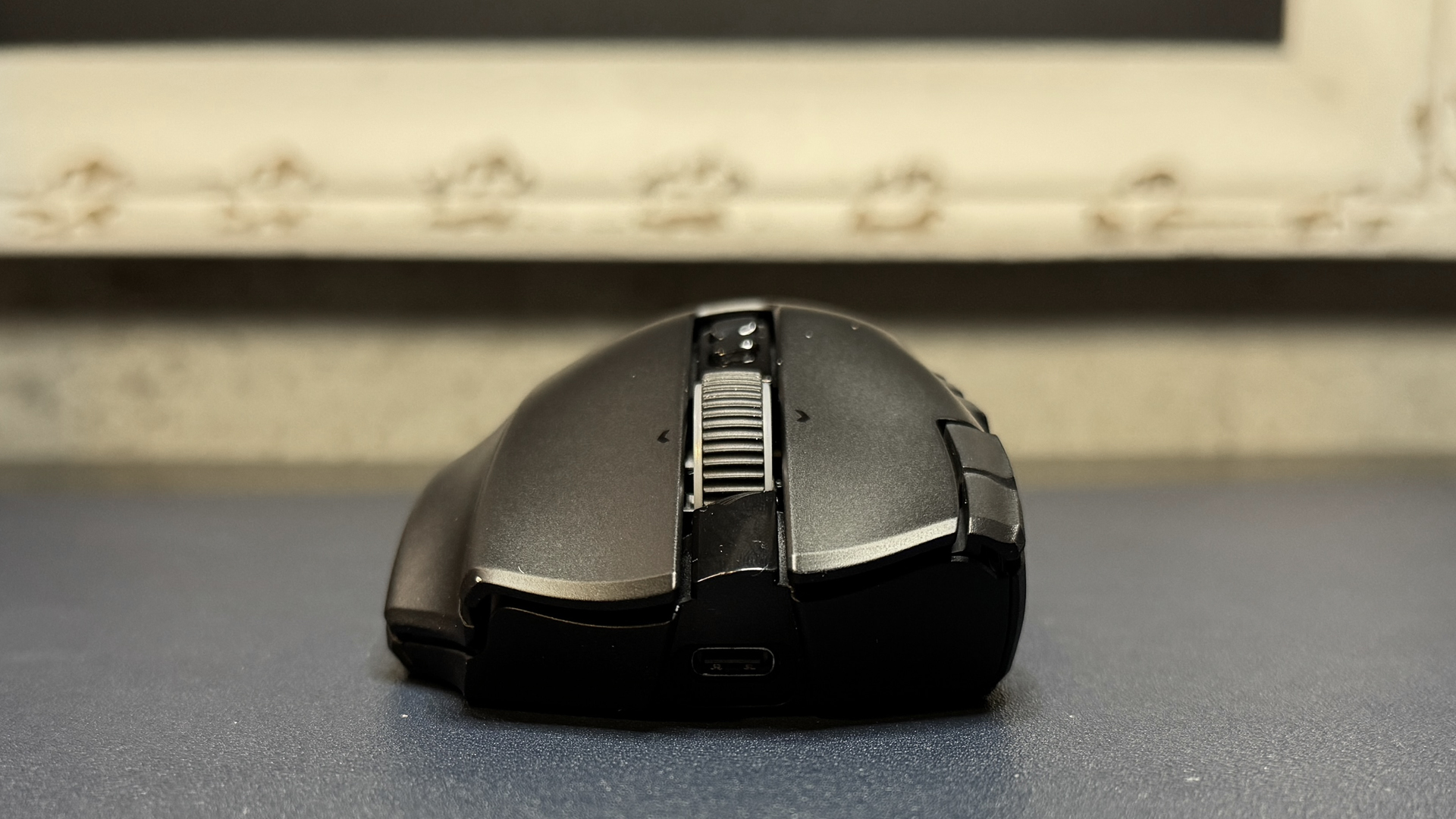
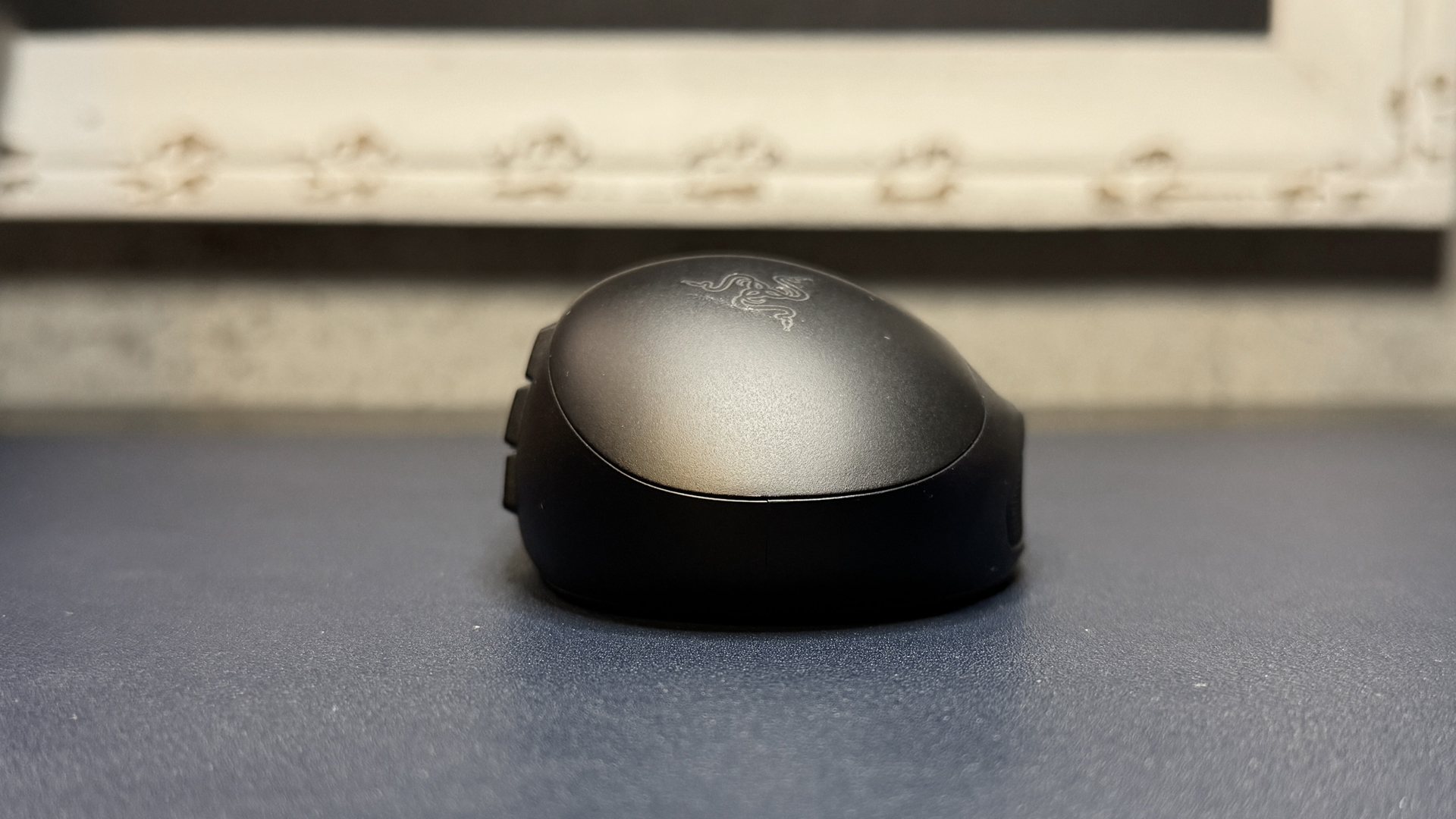
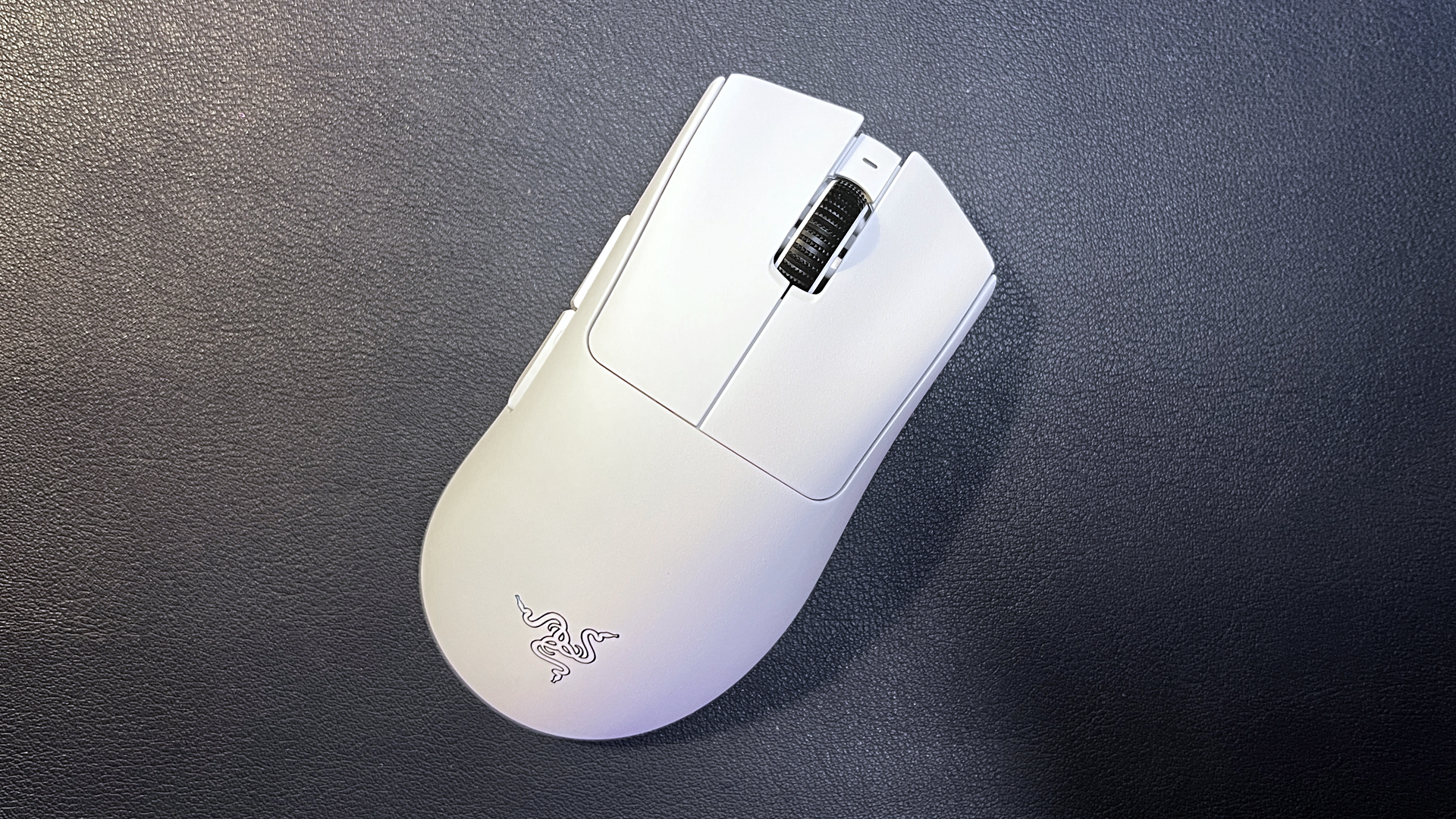
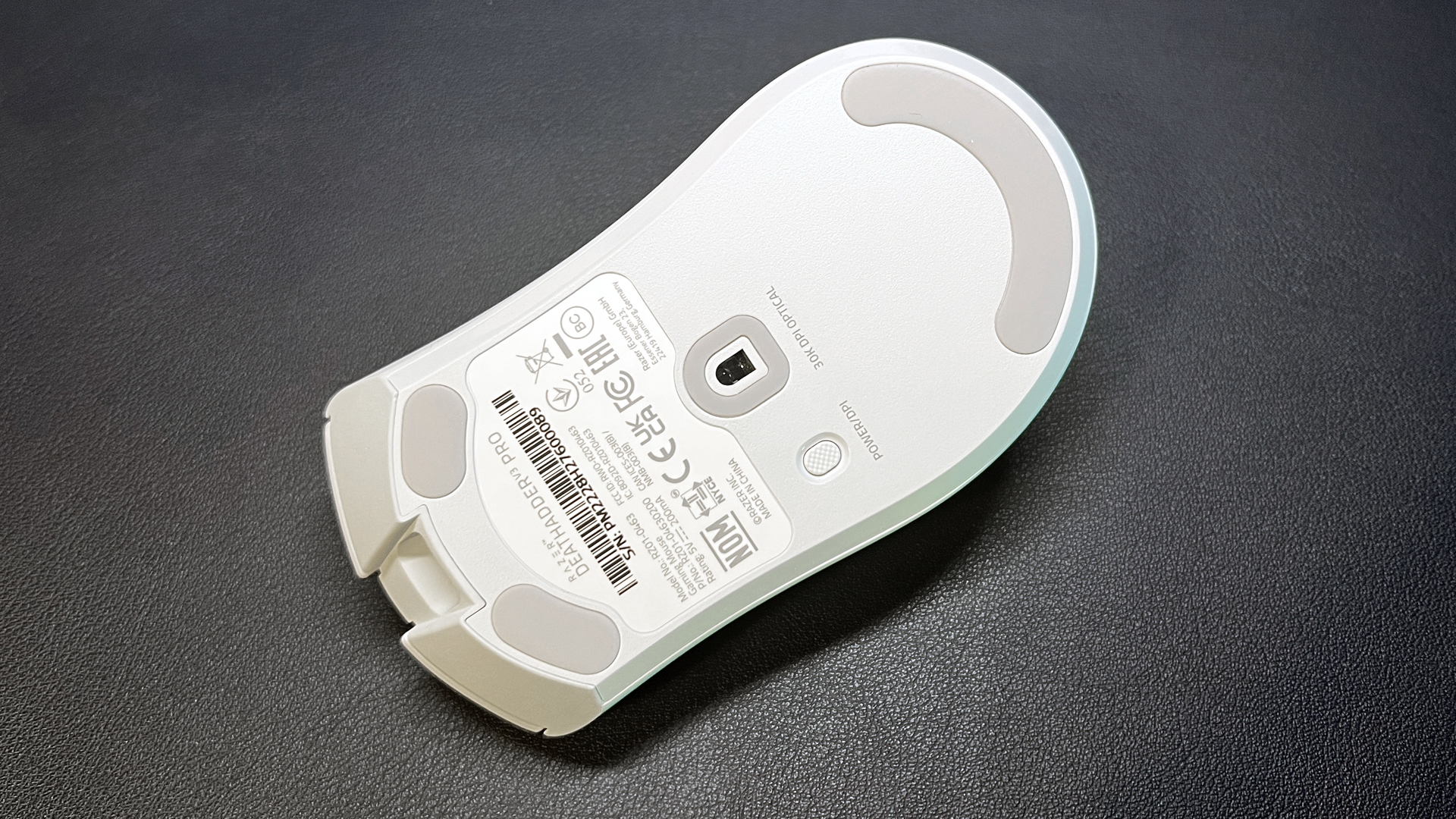
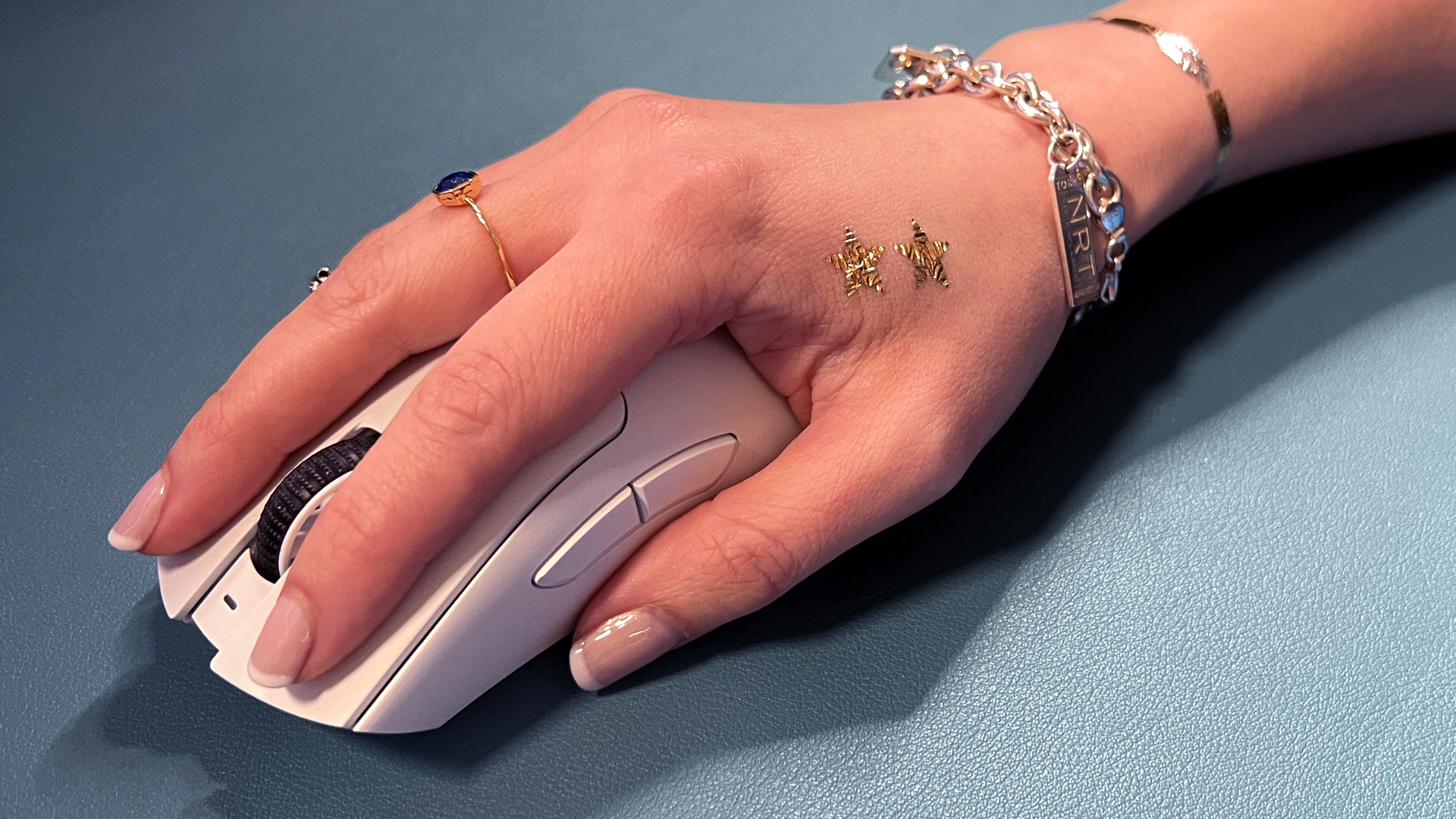
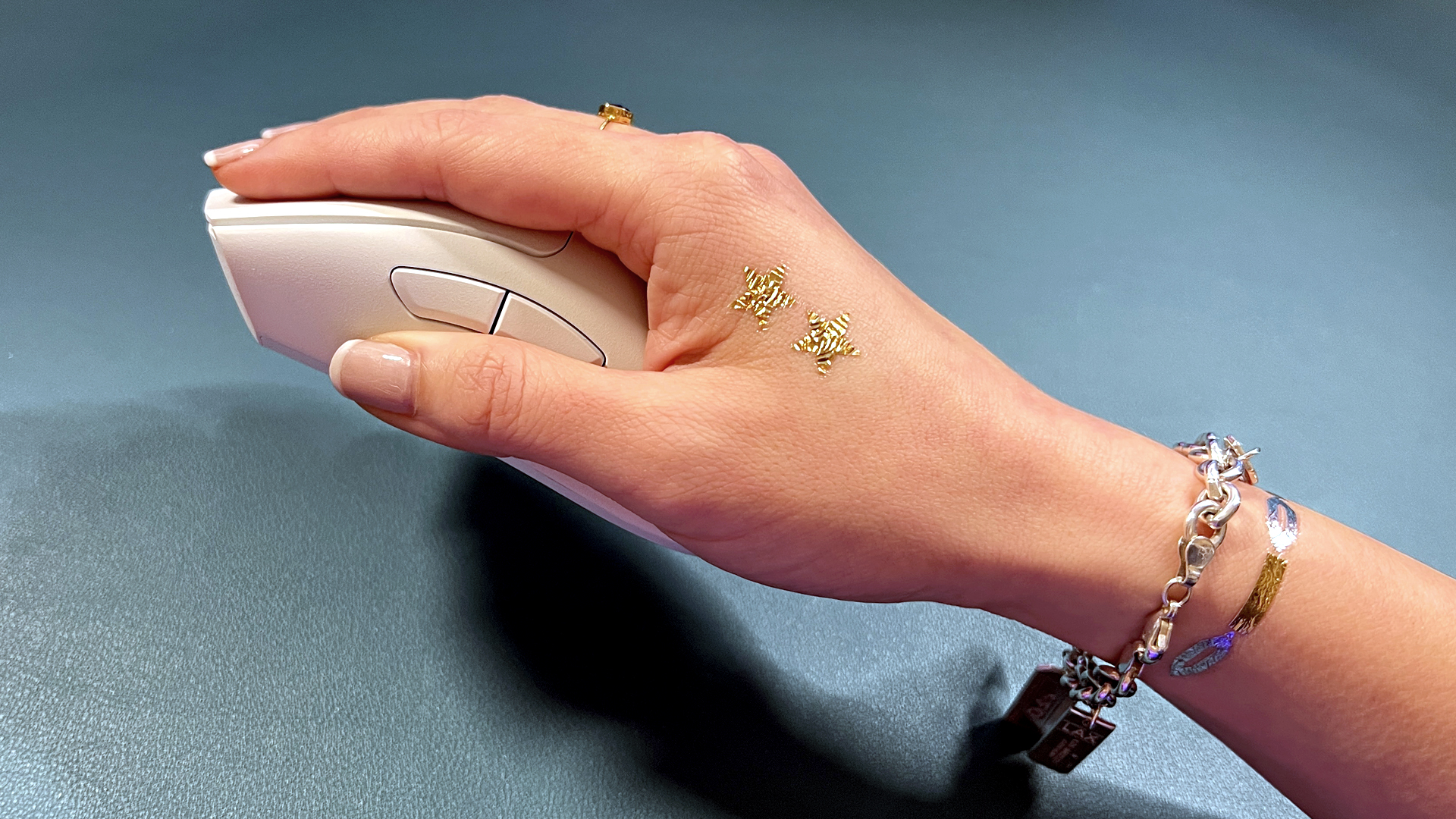
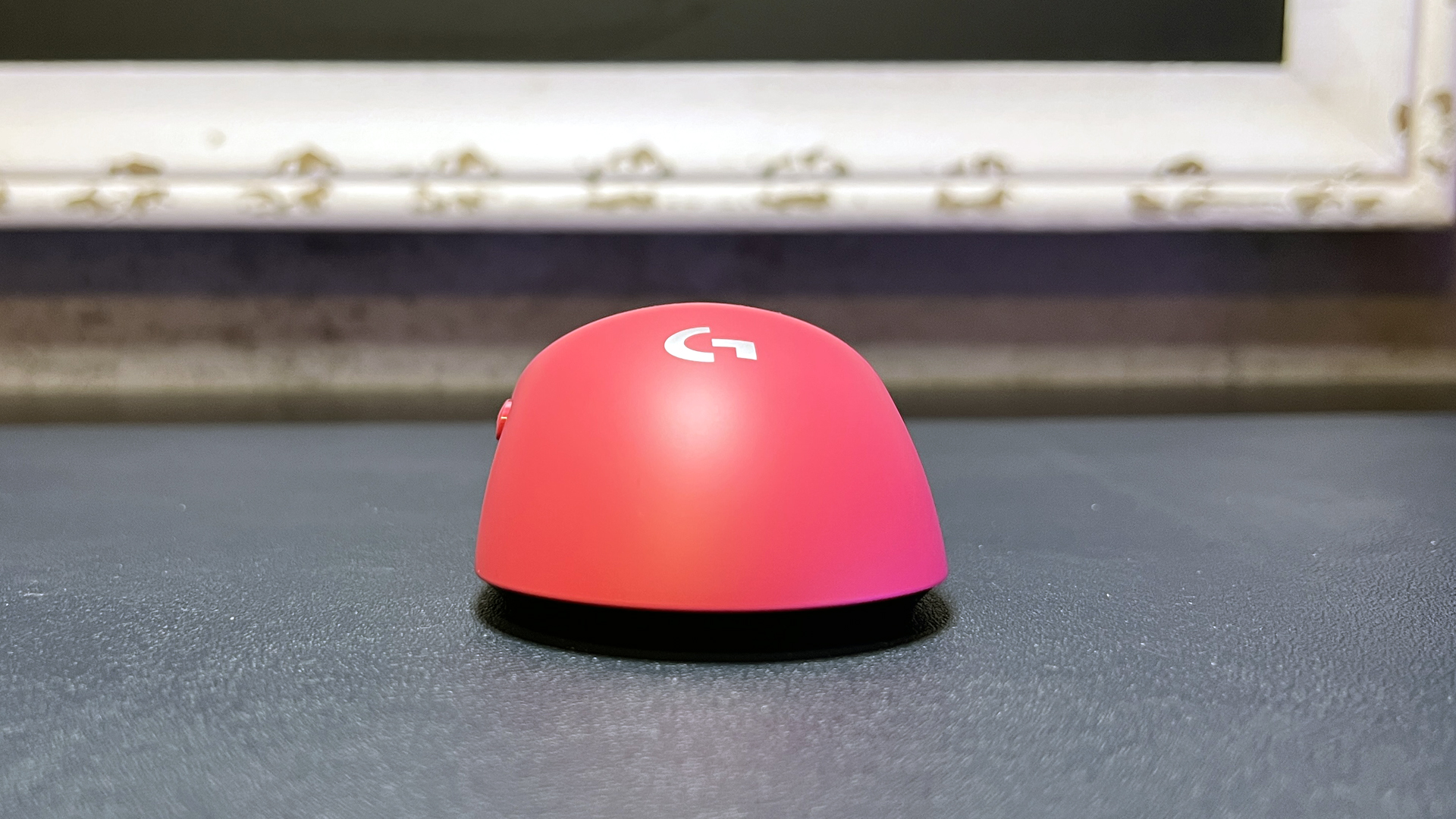
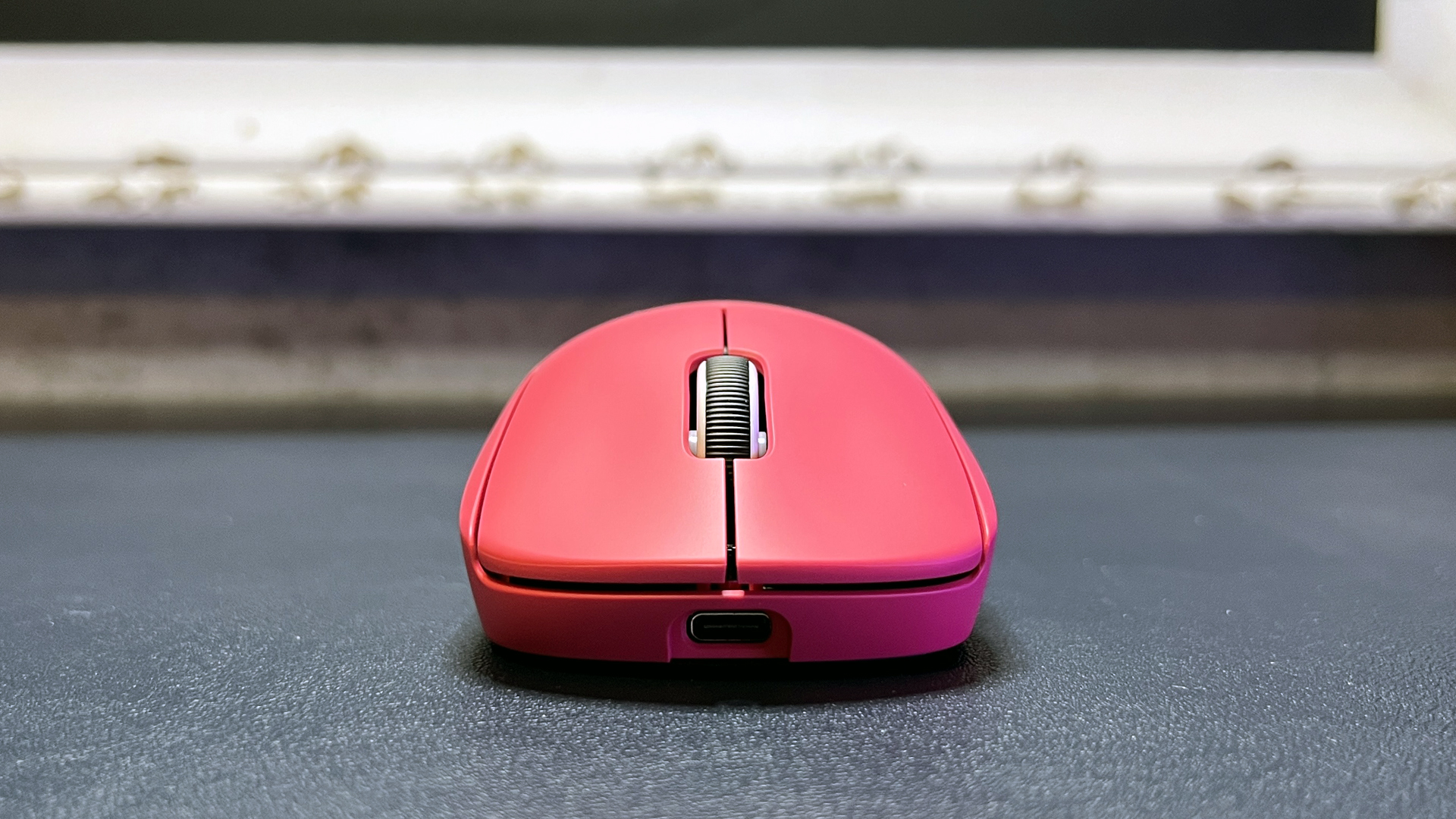
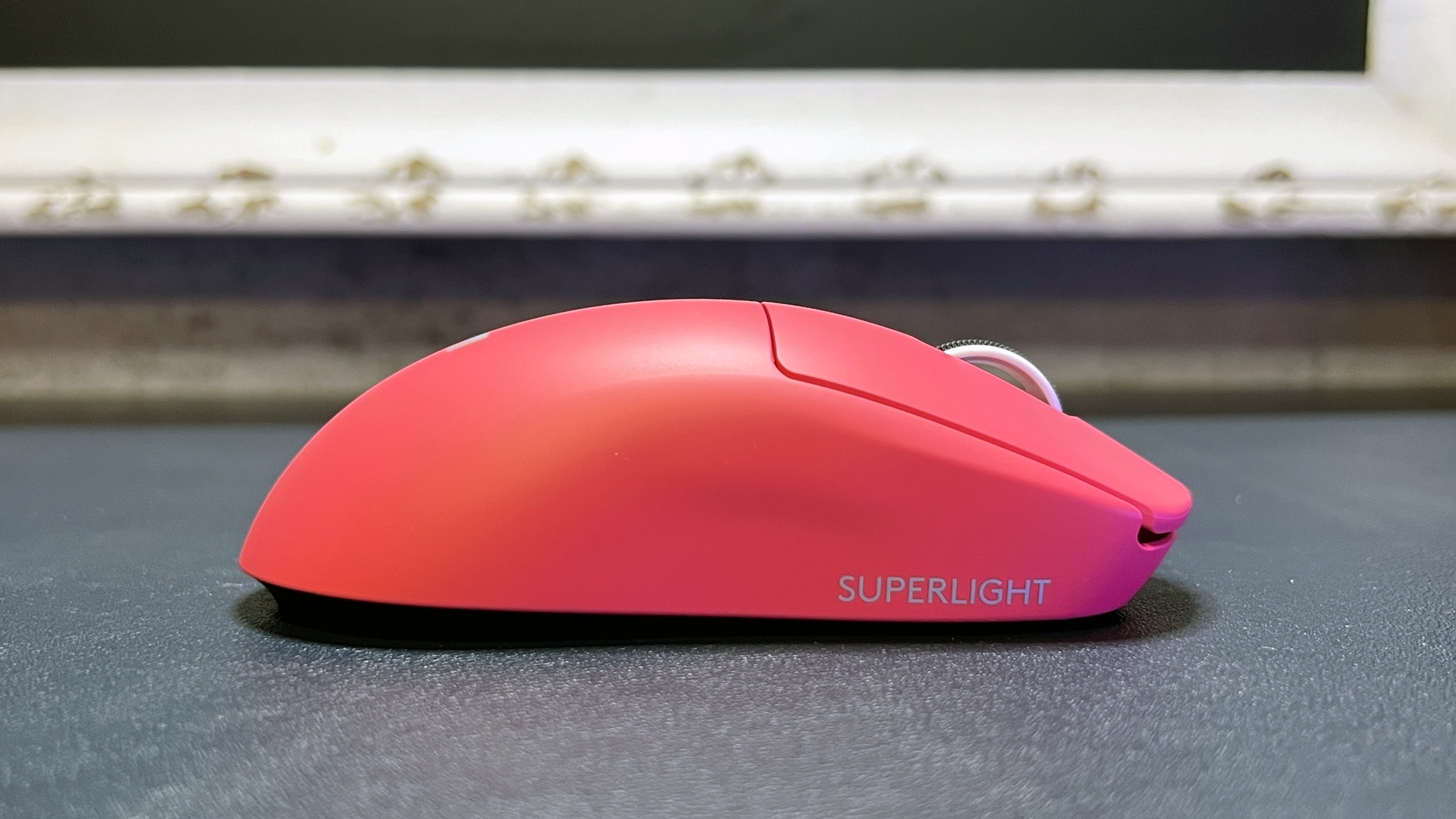
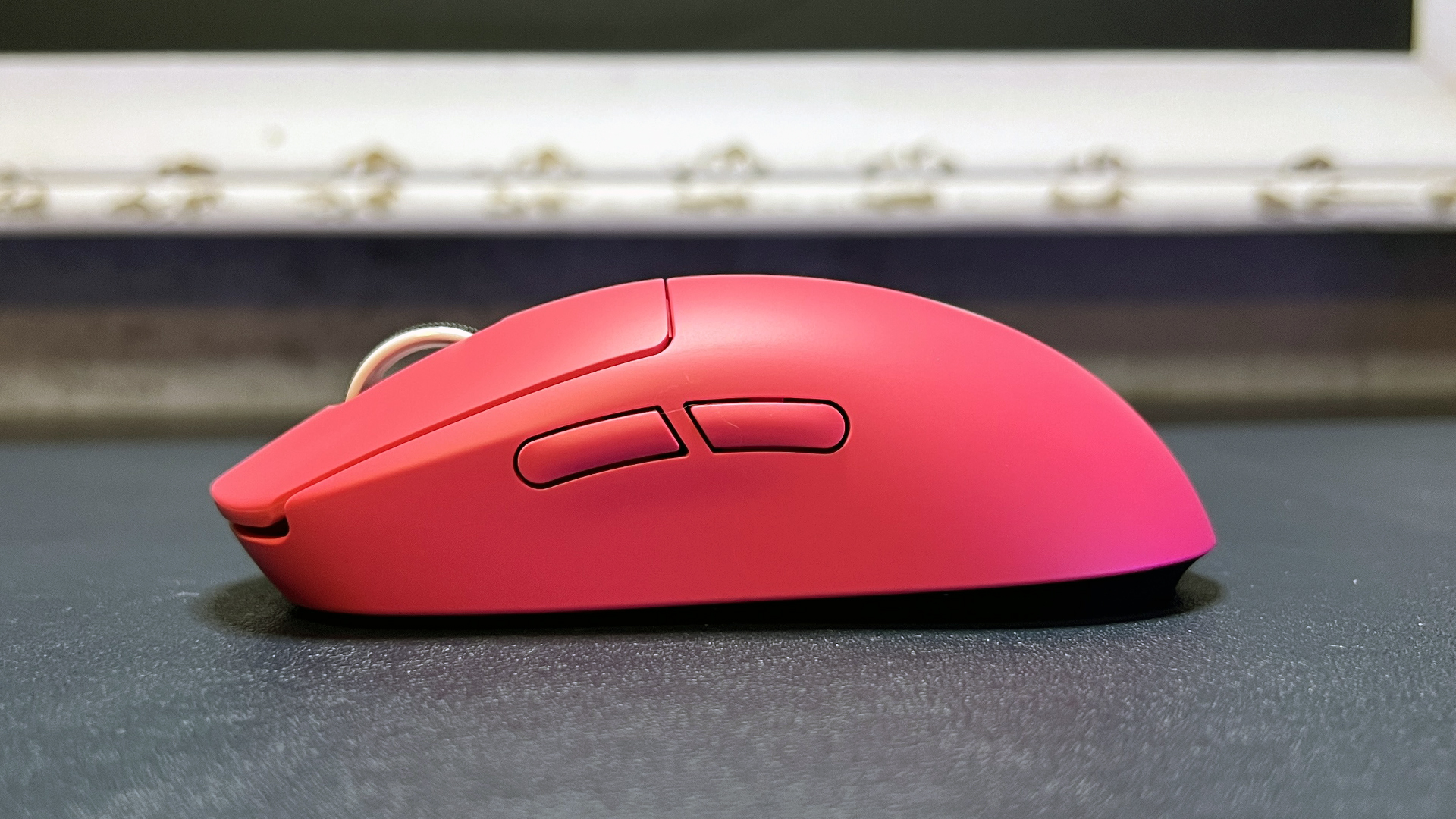
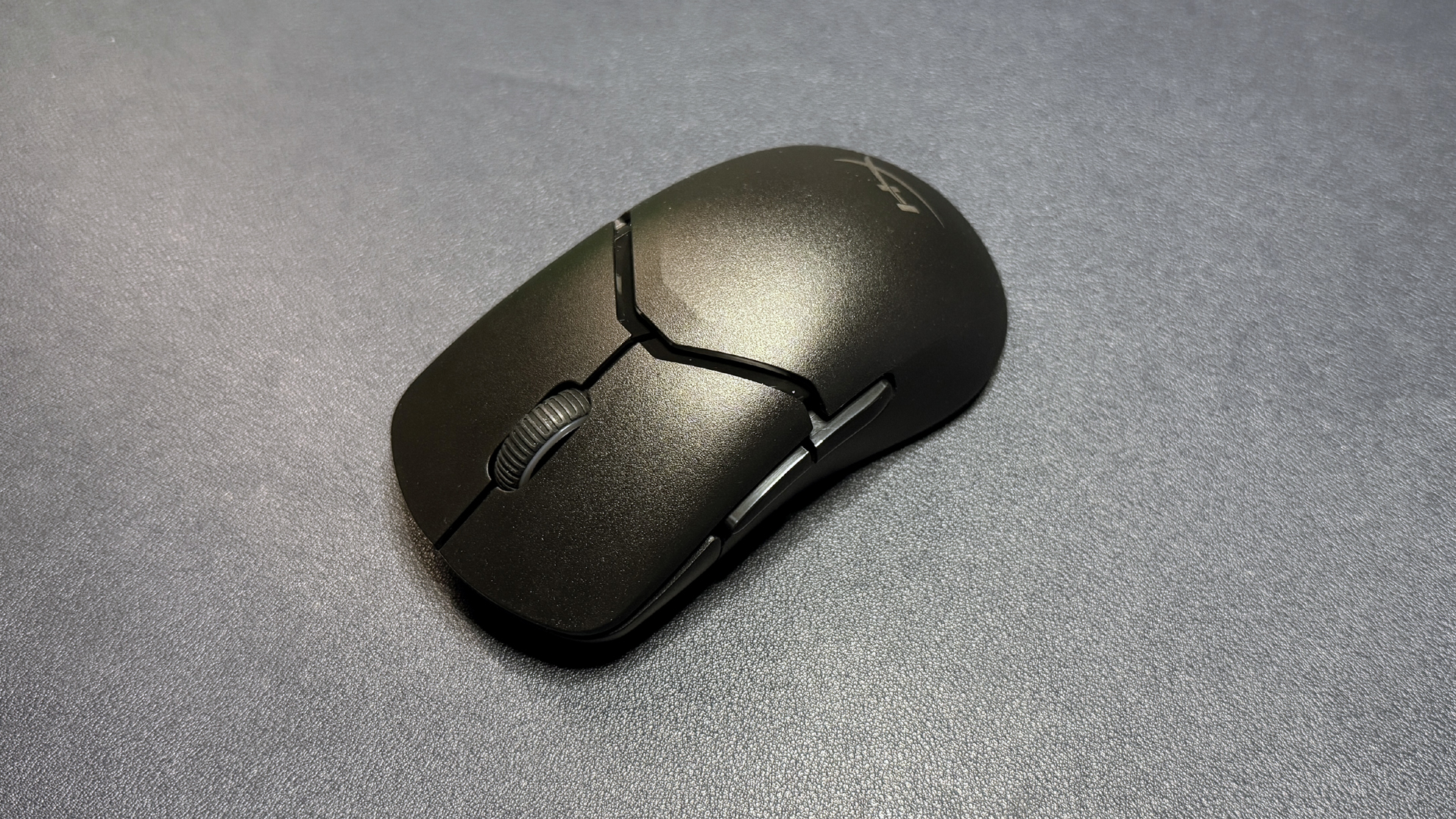
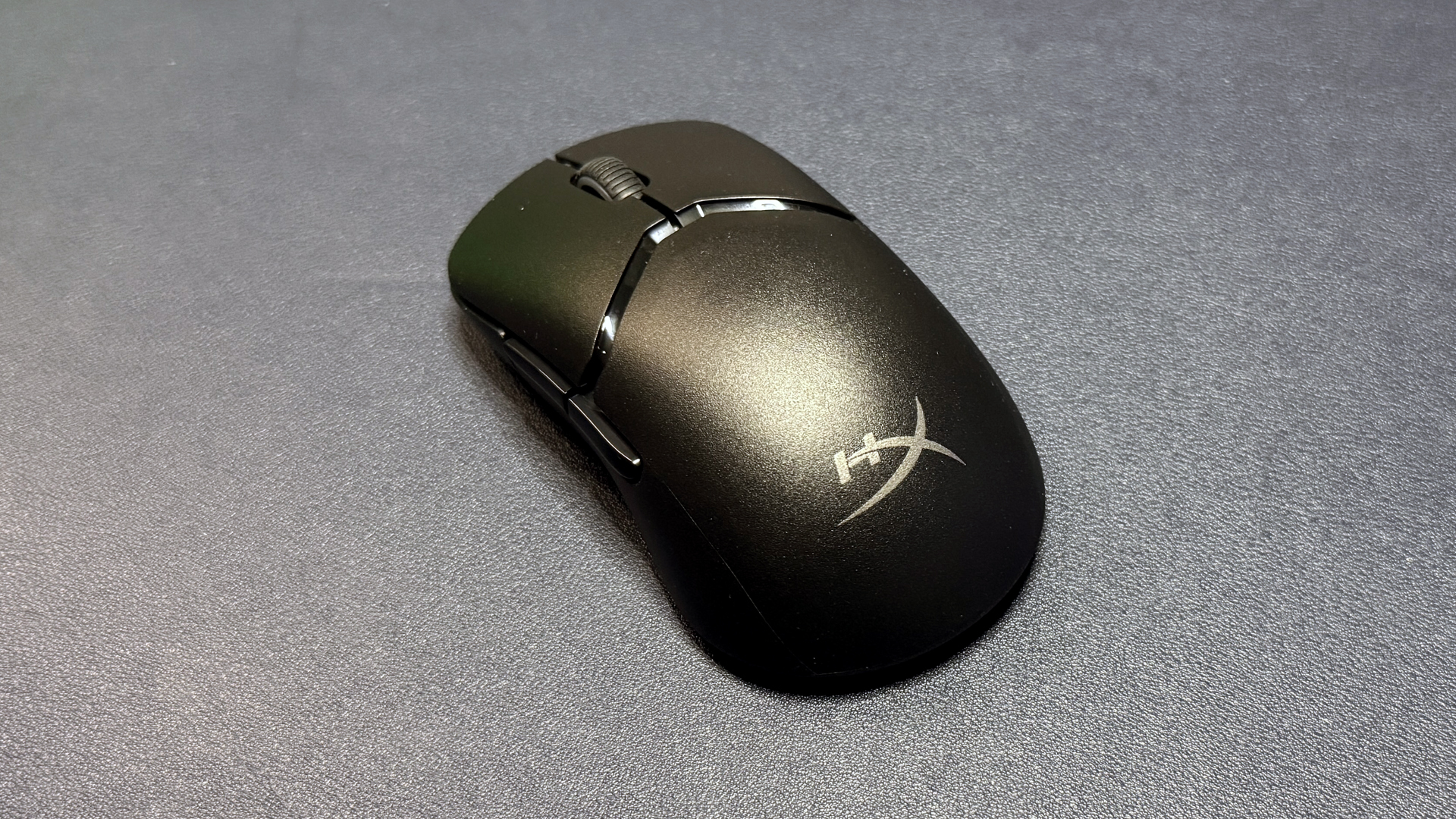
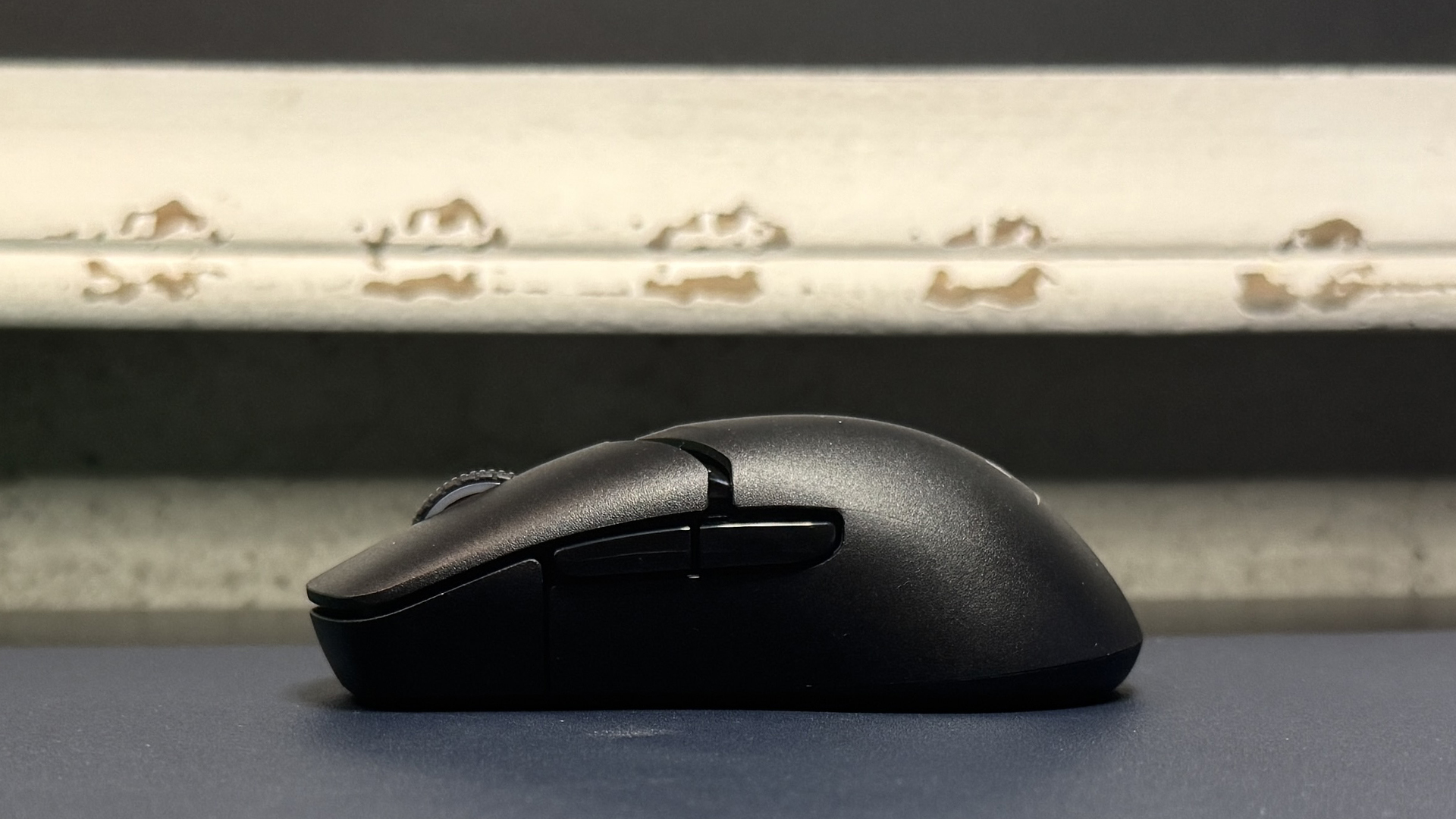
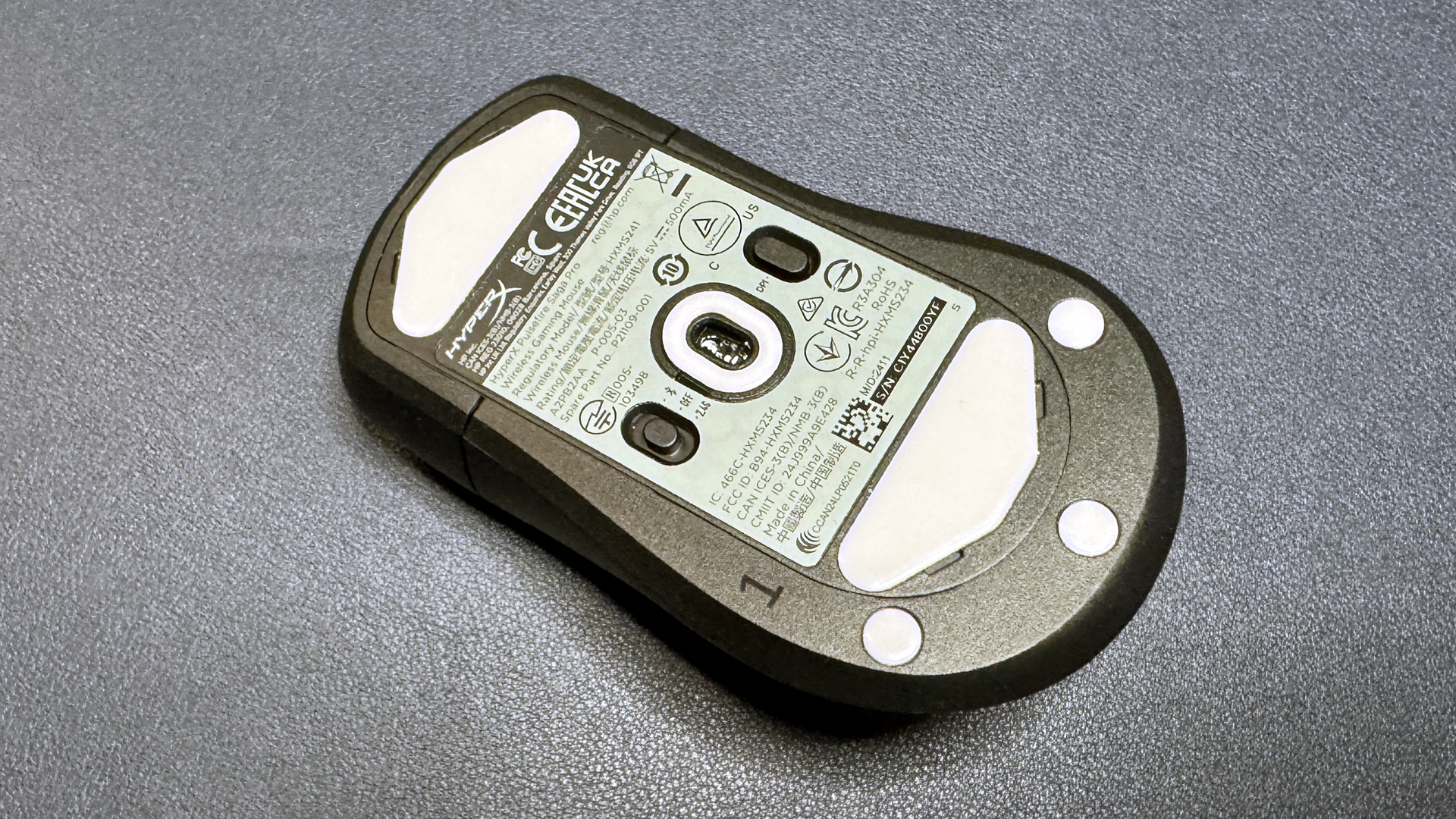
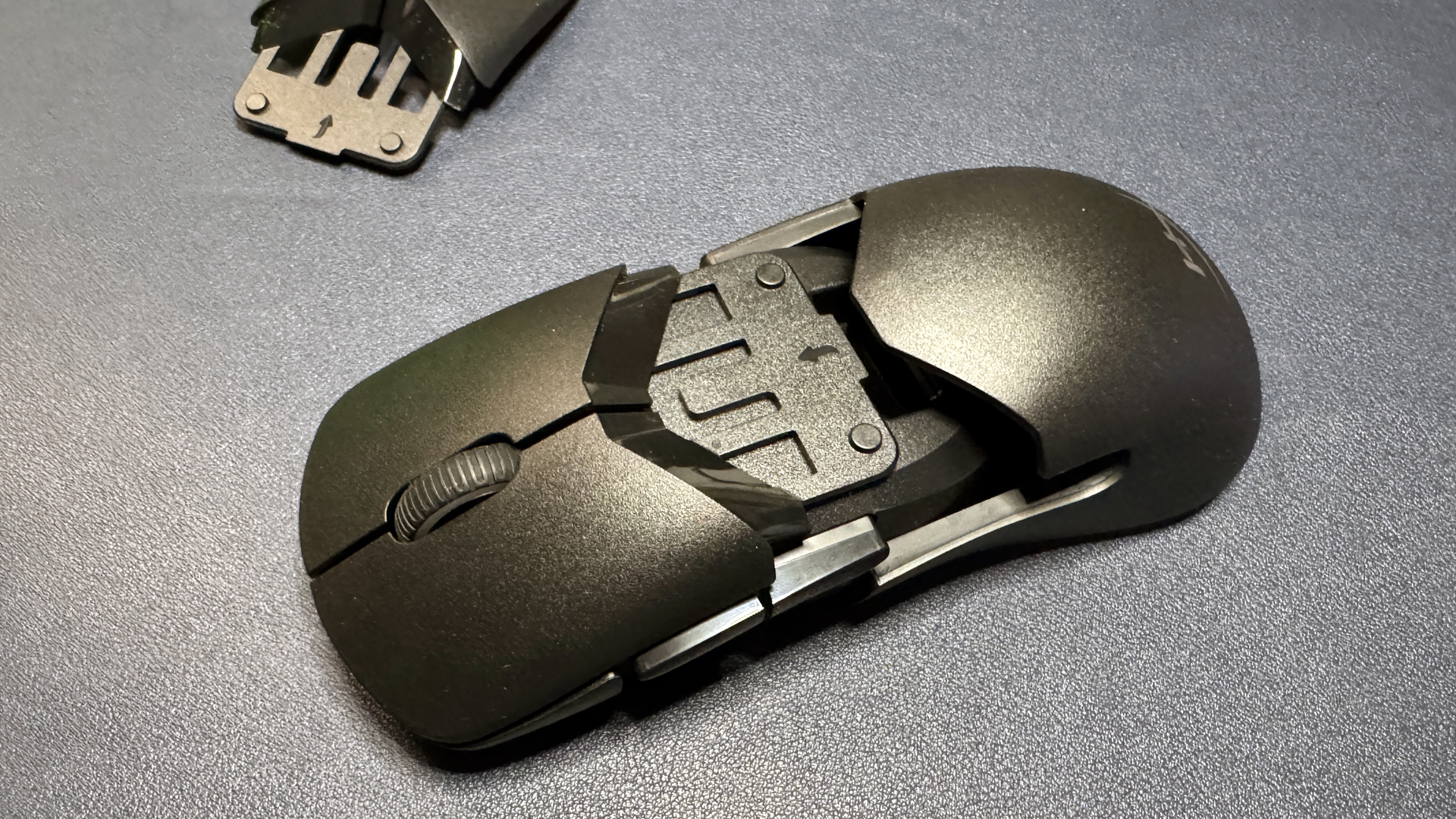
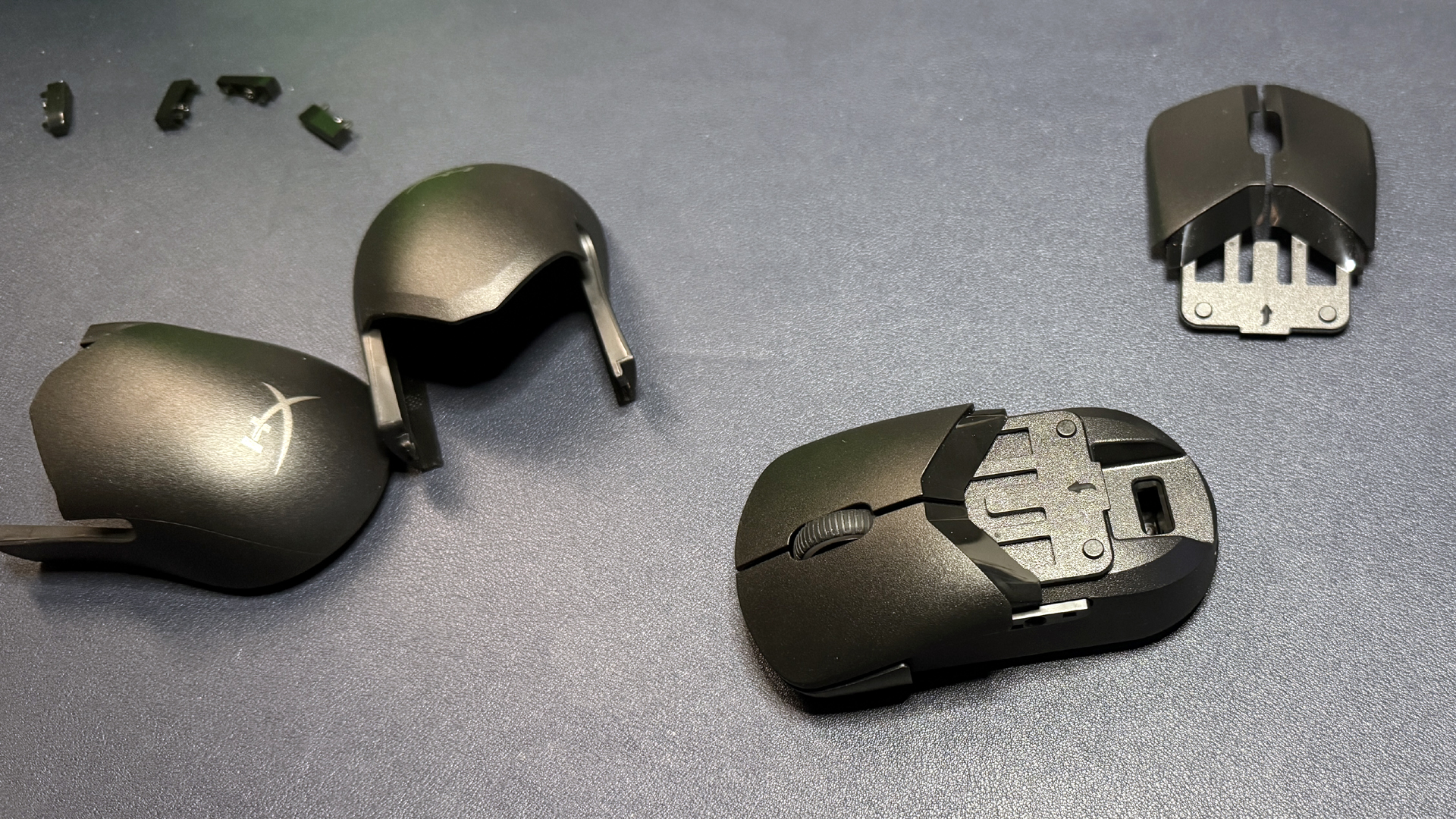
Bastian Recha, “Unskilledcast,” is a German former CS:GO commentator, tech reviewer, and 3D printing enthusiast. On October 28, he posted a demo of his “Mausstudio” project on X that generates a customizable mouse shell around an imported 3D model of a mouse PCB intended for 3D printing — all running locally and not generated using AI.
Bastian posted on X after six days of inactivity, stating that he’s been busy working on Mausstudio, his custom 3D-printed mouse shell generator. His post shows a video of him demonstrating the software, playing around with the ways users can customize their mouse.
This is why I’ve been a little quiet on social media lately.Meet mausstudio.Import your mouse PCB as an STL and start designing your own mouse shape.The tool runs locally, using maths and algorithms. No AI involved in generating the geometry.Still a work in progress. https://t.co/UpO3YvfNGlOctober 27, 2026
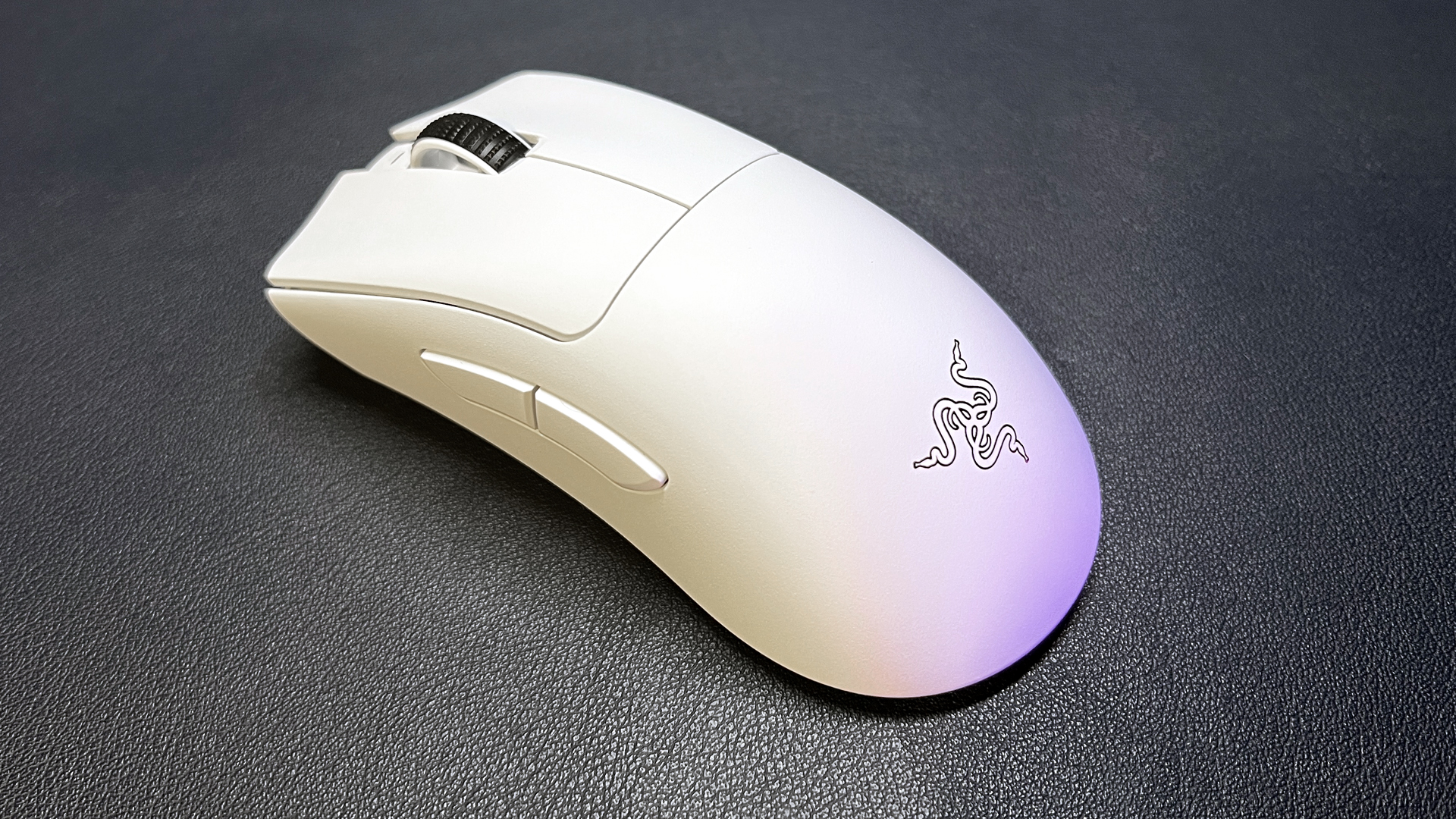
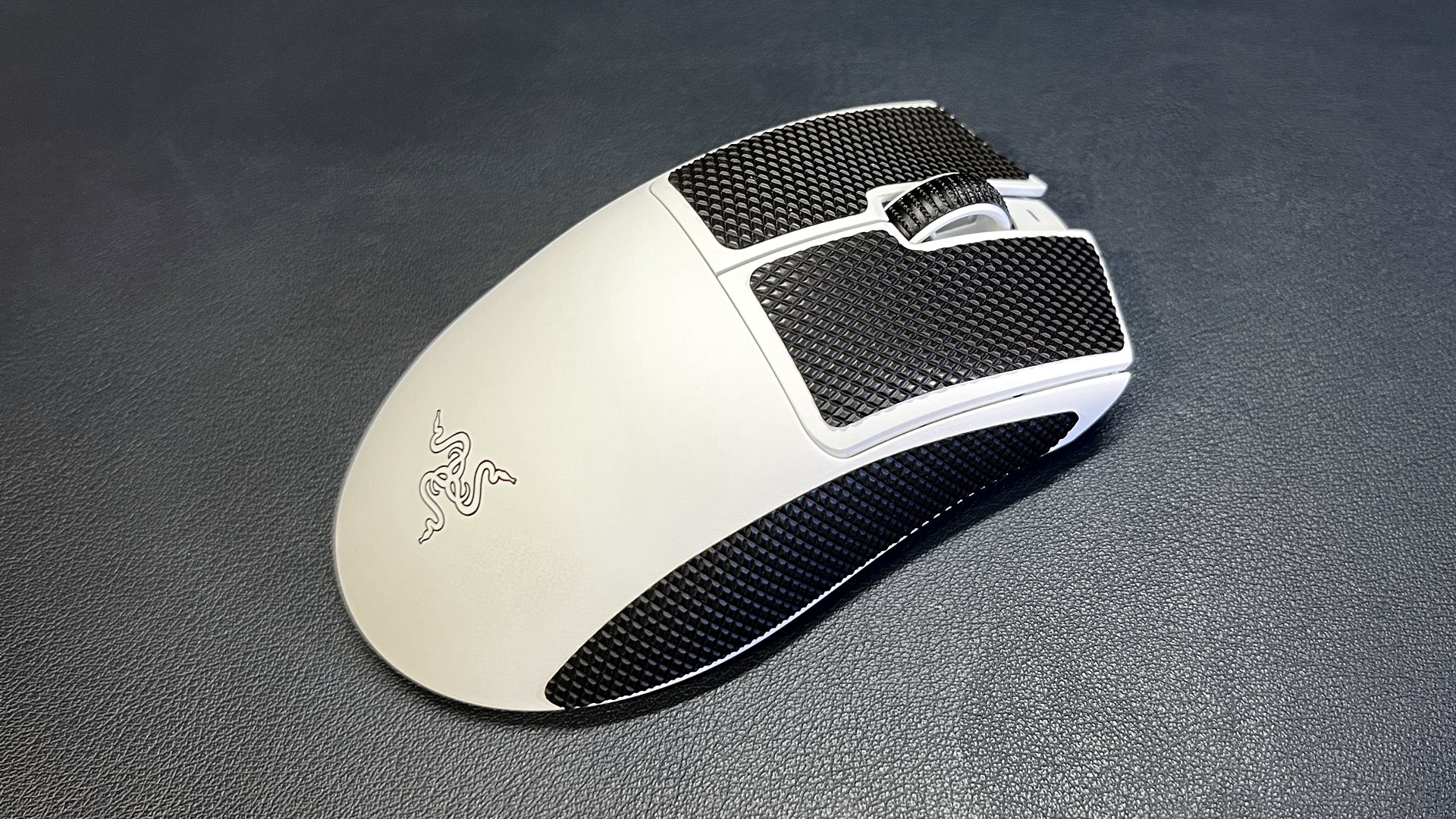
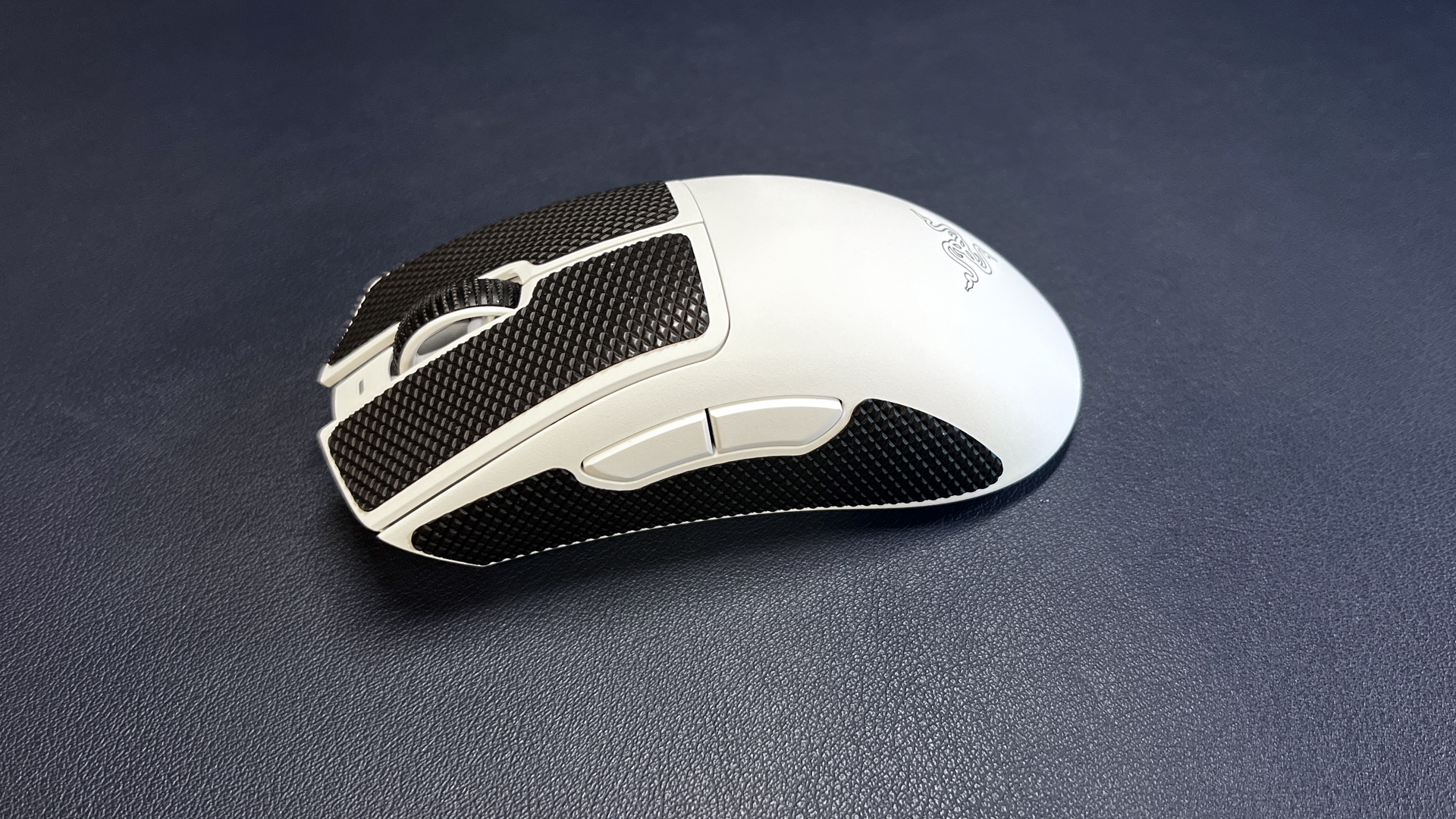
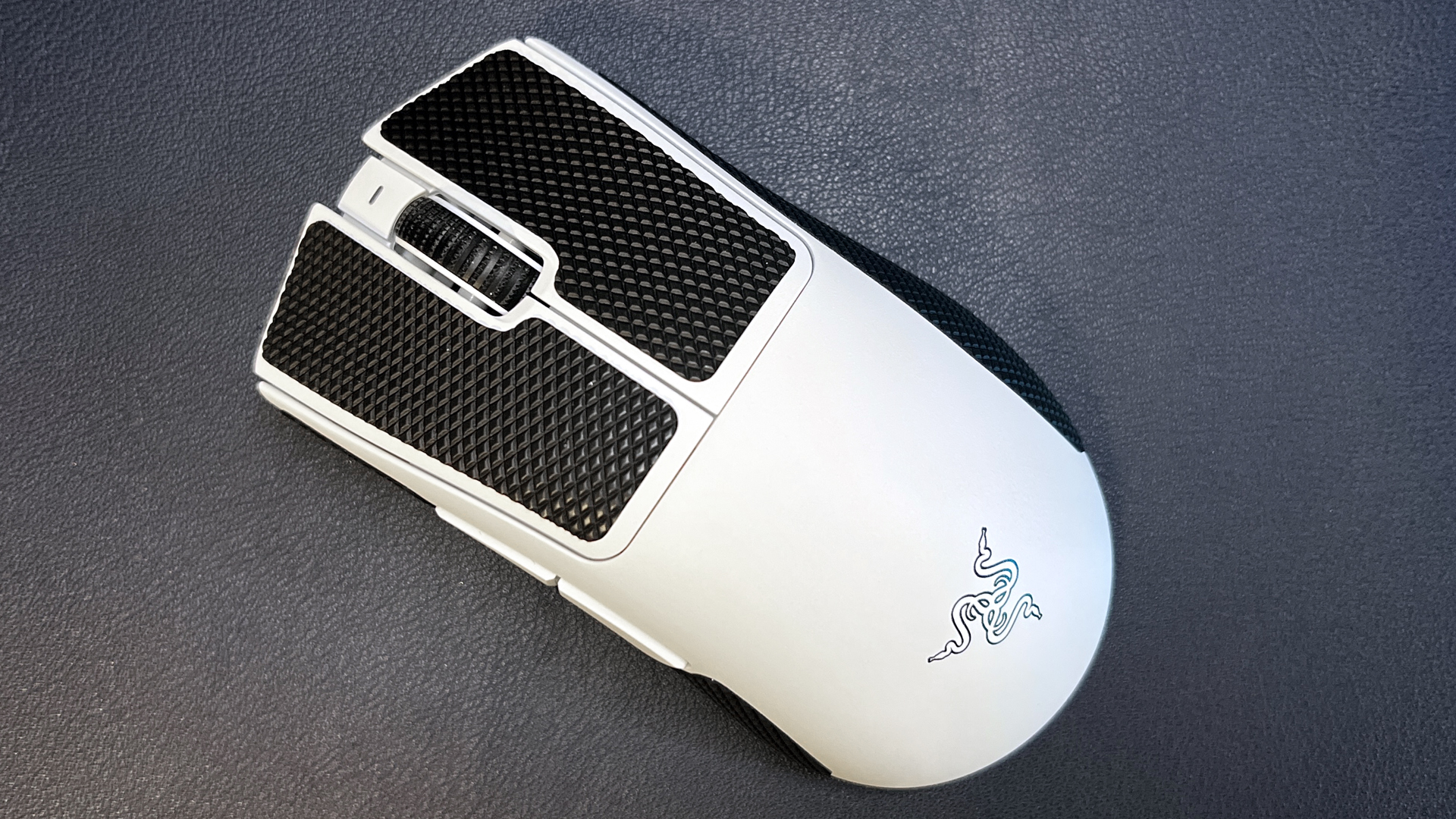
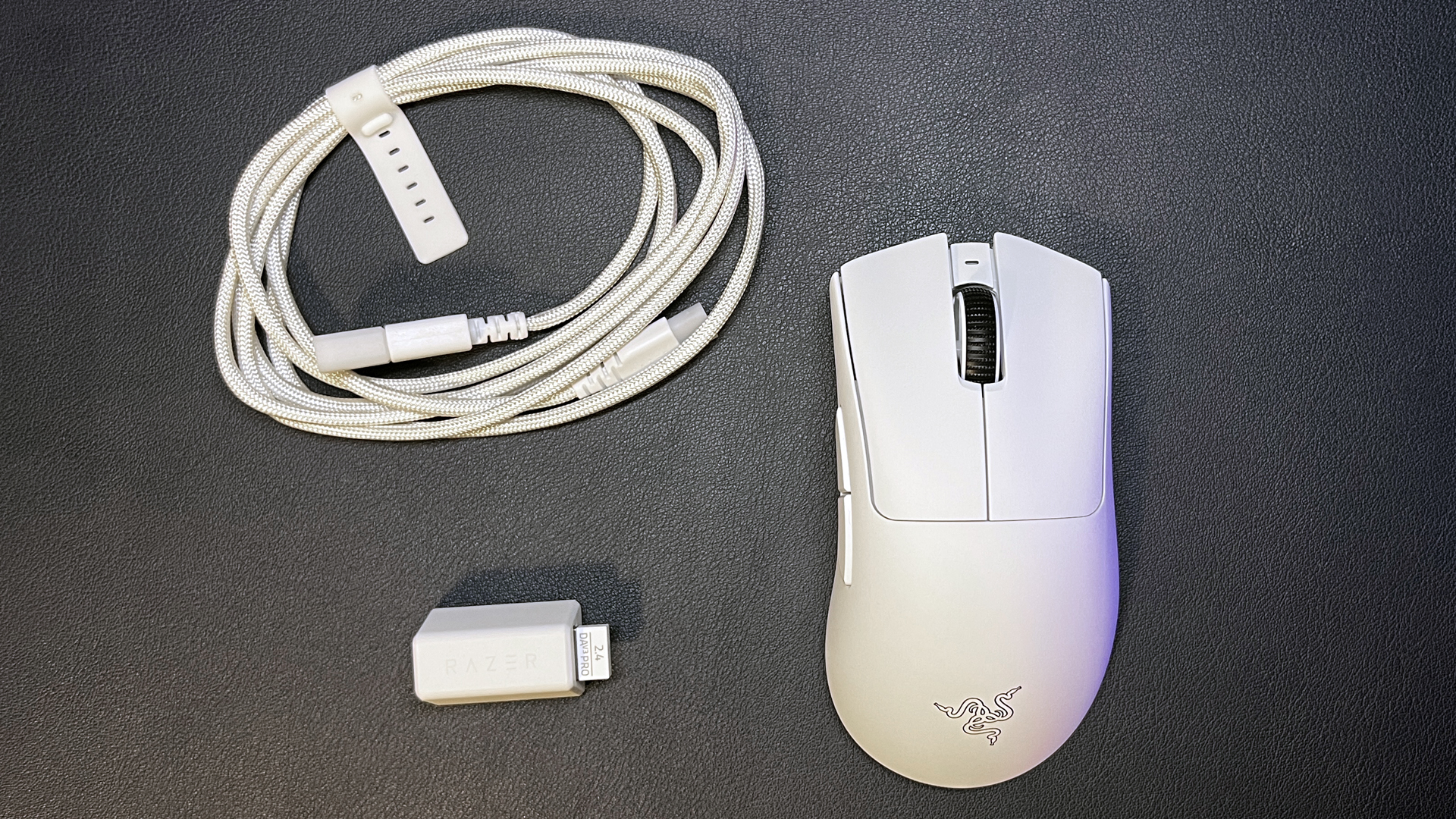
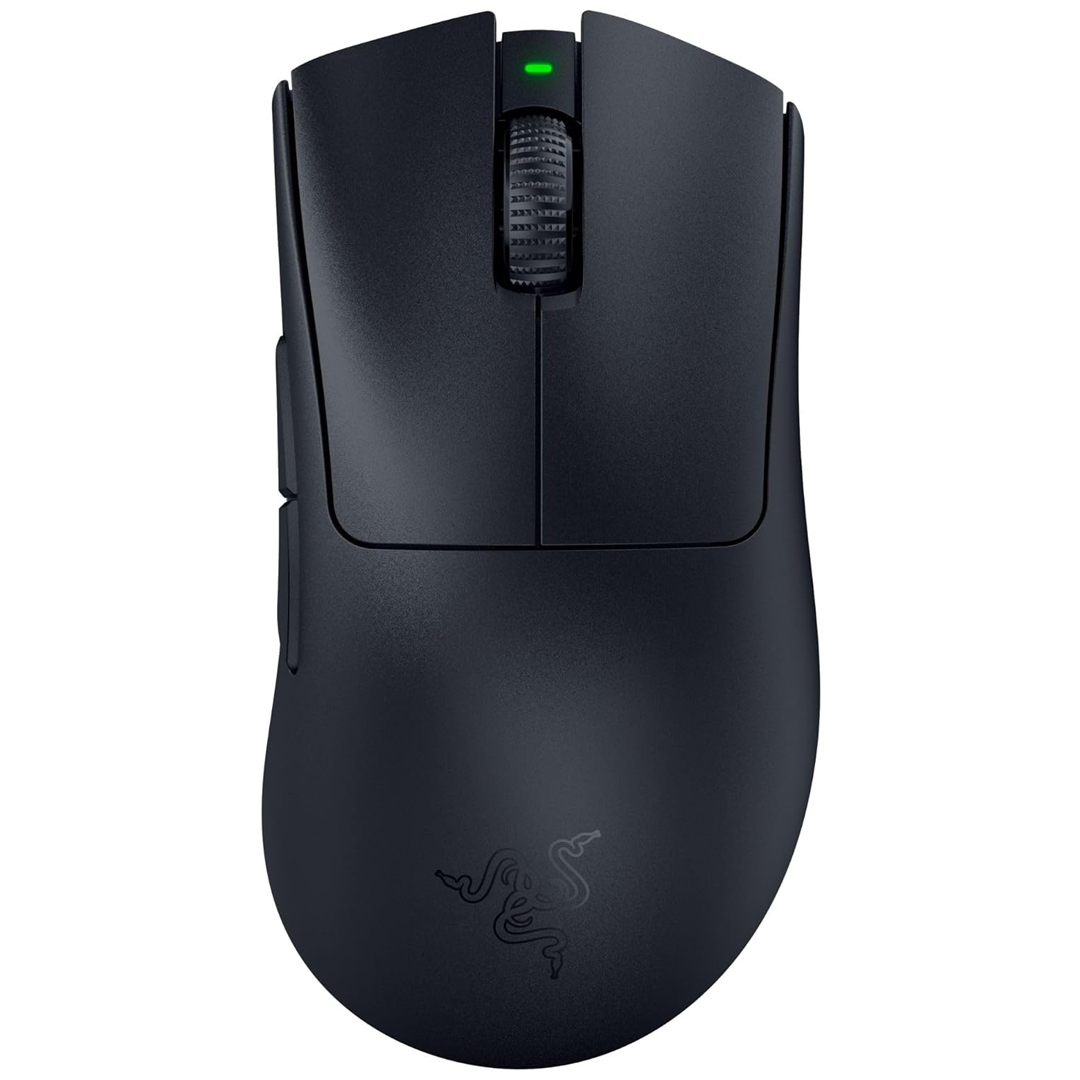
Mausstudio works by importing an STL 3D file of a mouse PCB, like the Razer Viper V2 Pro and Zaunkoenig M2K PCBs in Bastian’s demo, from which the software detects the location of several key components: Mouse button switch locations, sensor location, scroll wheel location, and screw hole locations. It then generates a shell around those key components, placing stems to reach the switches, cutouts for the scroll wheel, buttons for the side switches, and base cutouts for the sensor.
Bastian’s demo also showed how users can adjust the width, length, and height of the mouse, including the location of the hump. Further customizations include weight-reducing cutouts for the upper and lower shell, with options to have a fully enclosed shell without the cutouts. To demonstrate the level of customizability, Bastian also showed a battery shelf option, allowing you to customize the location of the battery and the shelf’s size by inputting the battery’s dimensions — this feature, Bastian emphasizes, is lacking in many custom 3D-printed mice, and battery placement is treated as an afterthought, often just using hot glue or double-sided tape to adhere it.
Bastian also boasts that Mausstudio runs completely locally and without generative AI, just math and algorithms.
Bastian has not yet announced a release date for this project, nor has he announced whether this is paid or free, but he has posted an update on what has been changed since his demo, including being able to edit detected component assignments, more side button control, saving shell designs to be used on other PCBs, and cleaner geometry. We’re not sure if it can handle split PCBs like on the G Pro X Superlight, but support for that may come in the future as well.
This project looks to be a great way for users to create a mouse that’s closer to their ideal shape; good gaming mice are not cheap, and it’s a costly endeavor to buy many mice just to try out various shapes. This project may be able to let users experiment with more shapes more affordably with their existing mouse without needing CAD skills or hoping that someone has designed a mouse shell for their PCB that fits their needs. We will have to see how good the software is when it releases, and how it will improve and mature with future updates.
Razer has been updating its gaming mouse lineup systematically over the past two years, and it's finally the Basilisk's turn to get a real update. The last update we saw to the Basilisk line was the Basilisk V3 Pro 35K in October 2024, which was basically just the Basilisk V3 Pro with a new sensor.
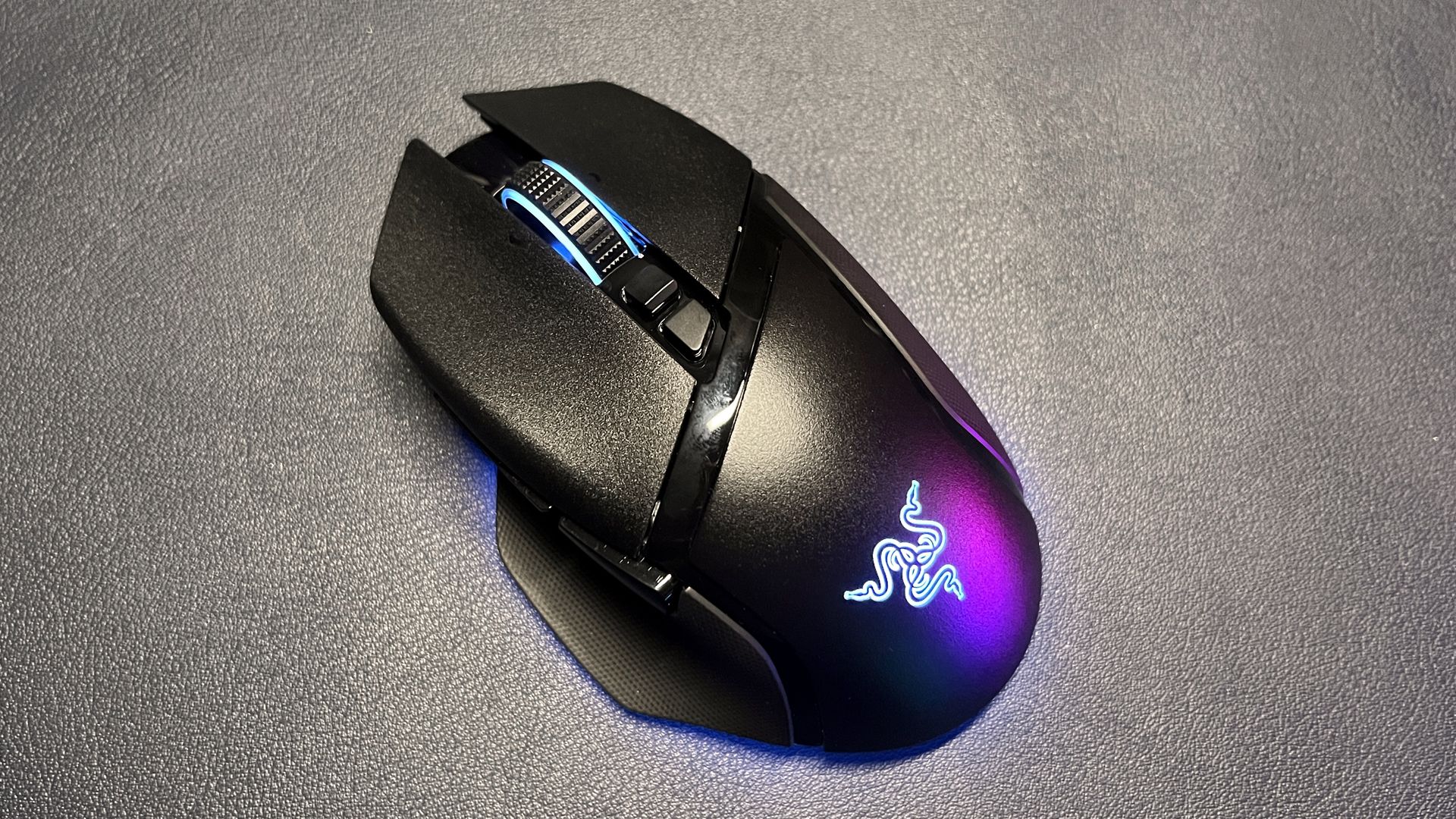
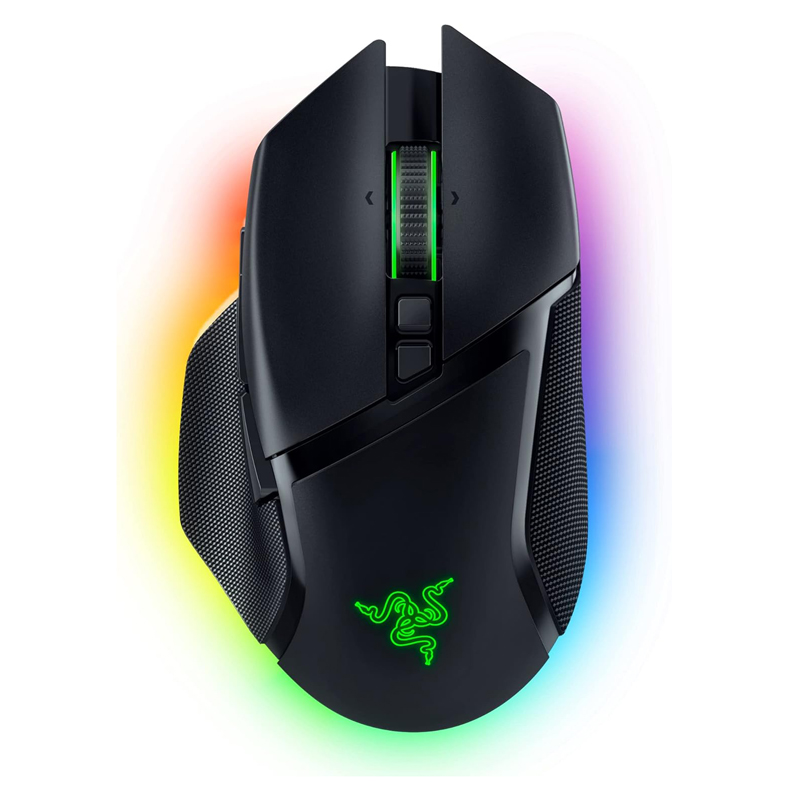
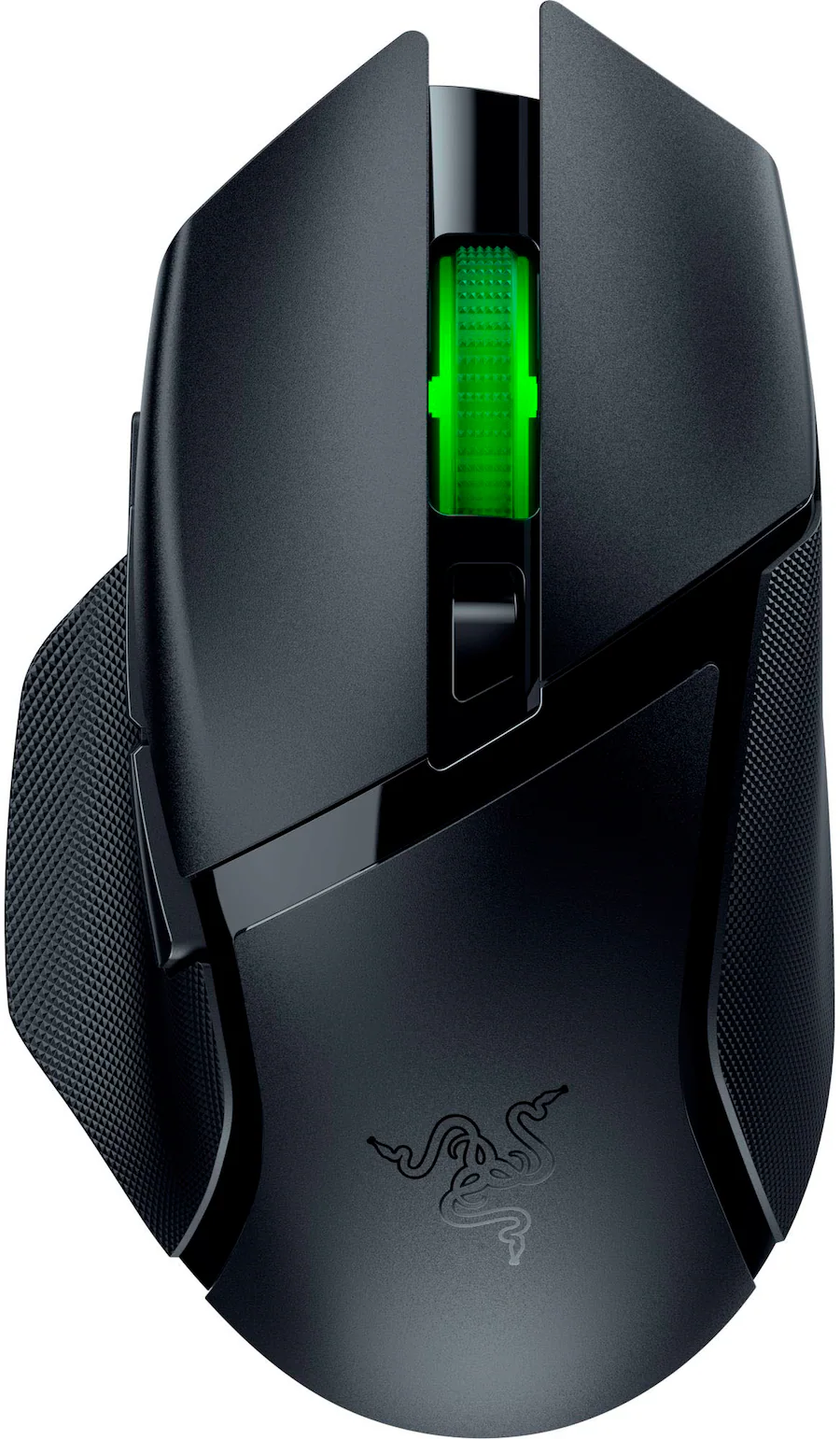
The Basilisk isn't Razer's most popular gaming mouse line, but it is the more versatile, all-rounder line for people who aren't chasing performance above all else. The Basilisk V4 Pro maintains the general design of its predecessor — a contoured, right-handed gaming mouse with bright RGB lighting and a handful of extra buttons, for the serious gamer who isn't trying to break esports records. It features Razer's newest Focus Pro 50K optical sensor, gen-4 optical mouse switches, and up to an 8,000 Hz polling rate, plus multiple forms of connectivity and up to 200 hours of battery life (over 2.4GHz at 1,000 Hz).
It is admittedly pricey, like all of Razer's flagship mice, at $169.99 for both colorways (black and white), and it launched with Razer's Mouse Dock V2 Pro — which is sold separately for $69.99.
Design and Comfort of the Basilisk V4 Pro
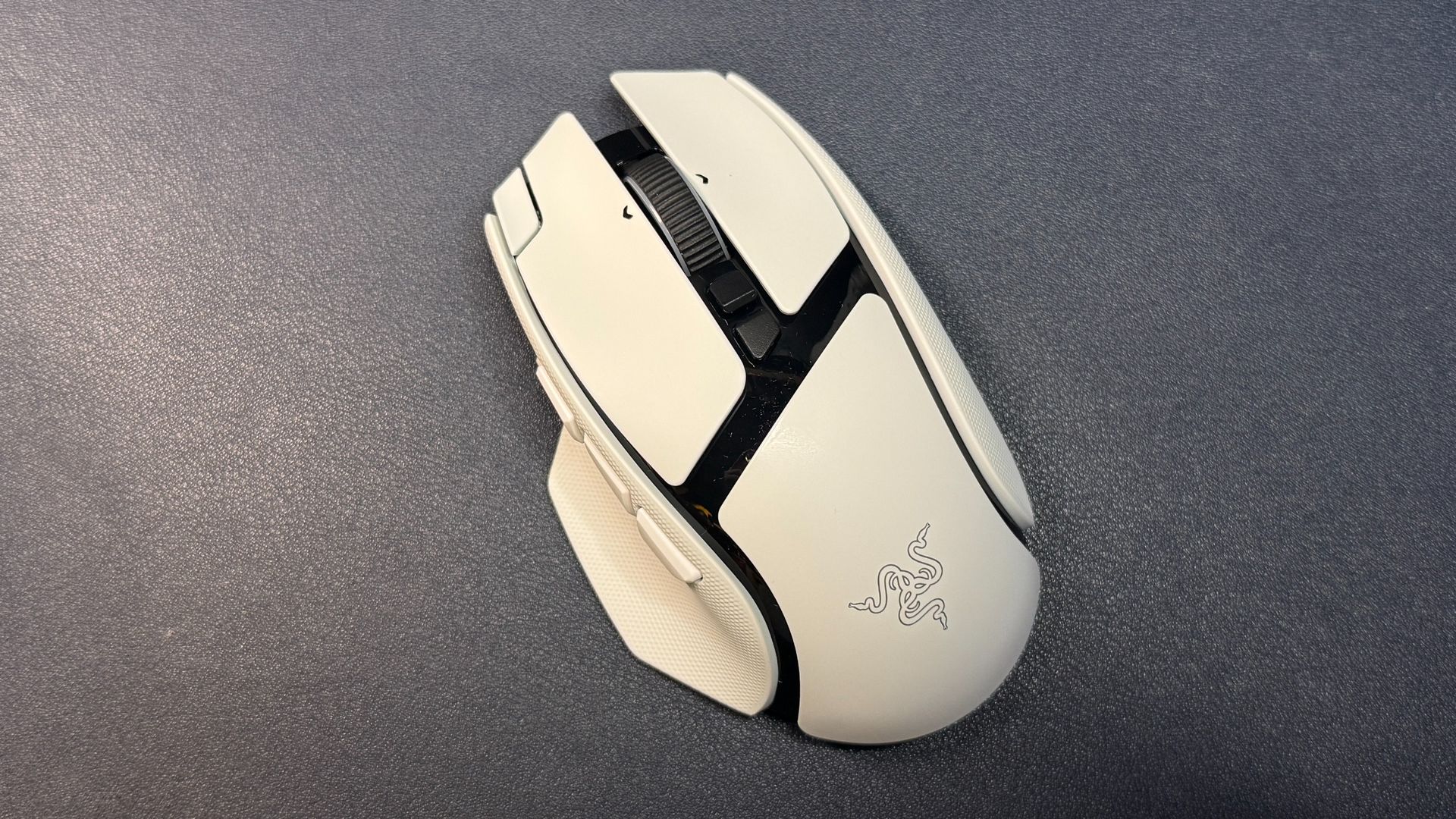
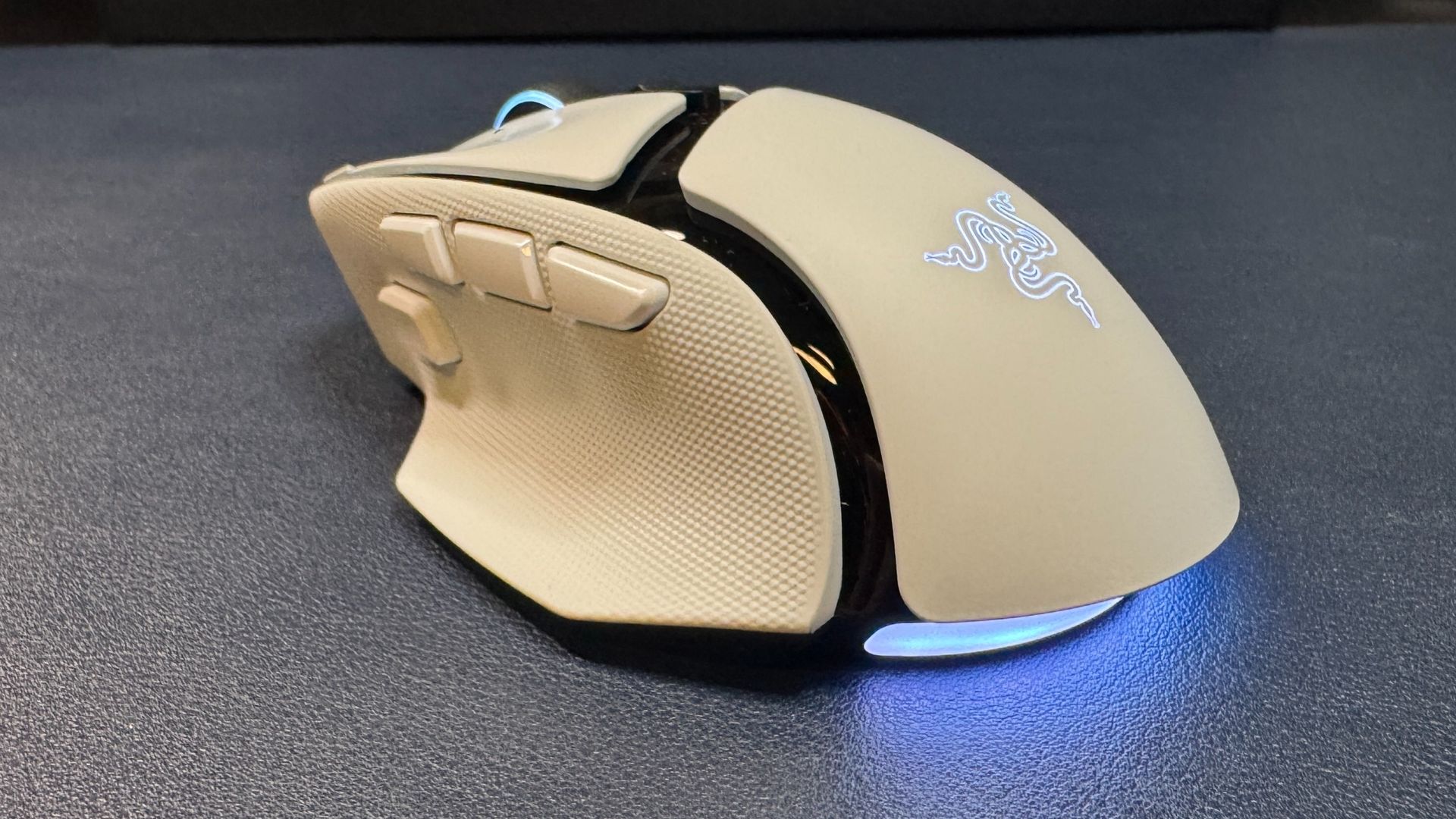
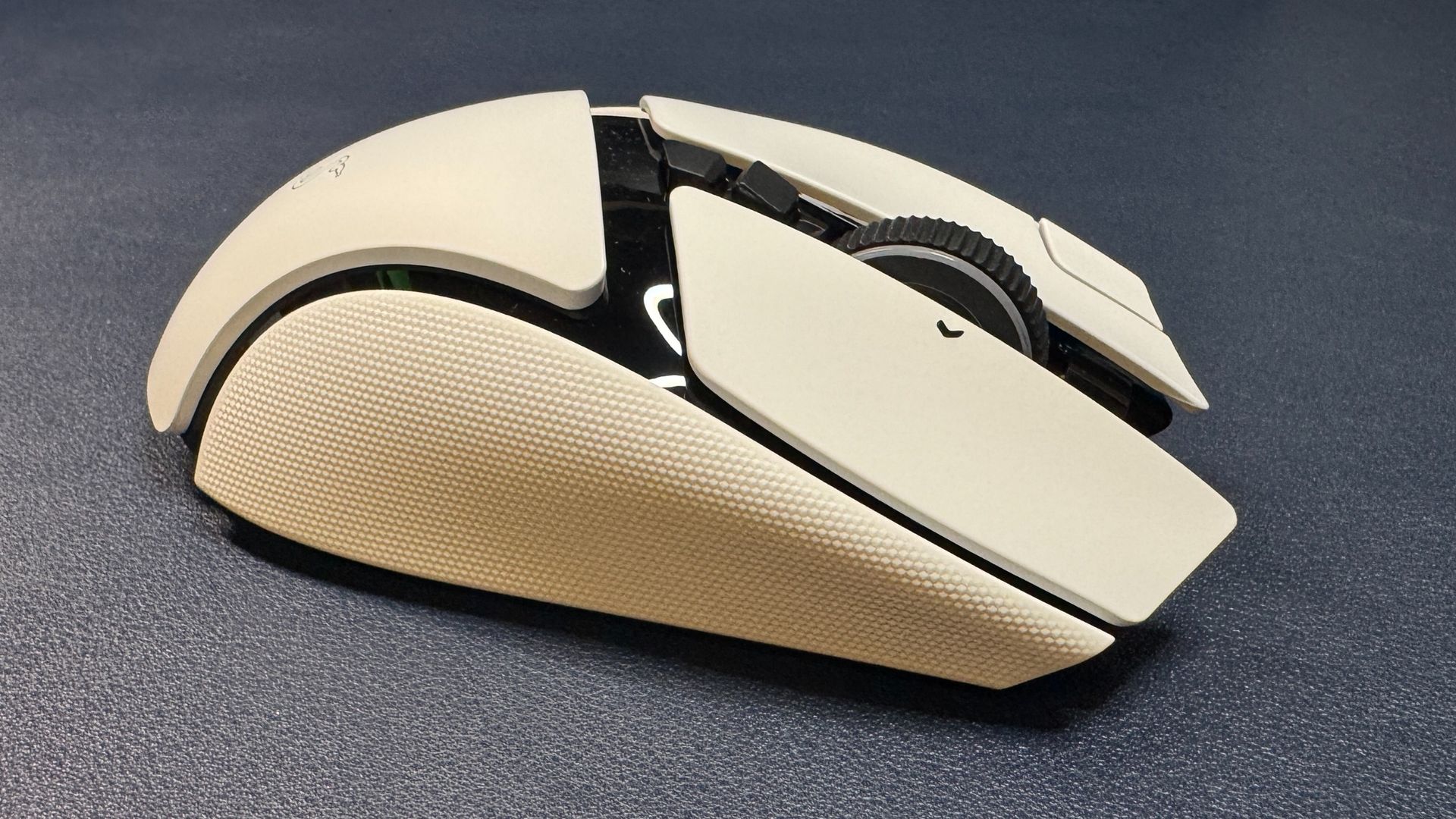
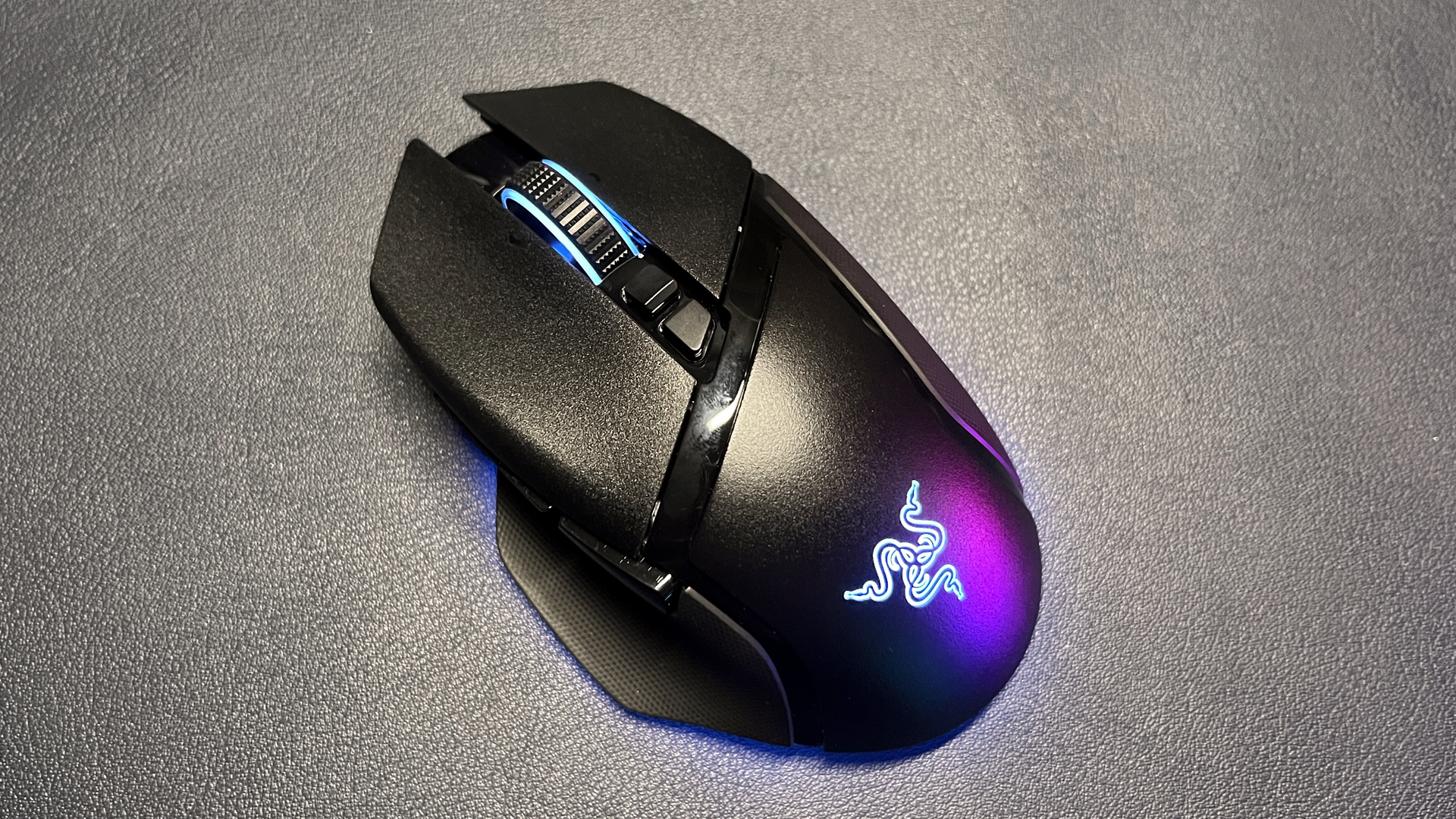
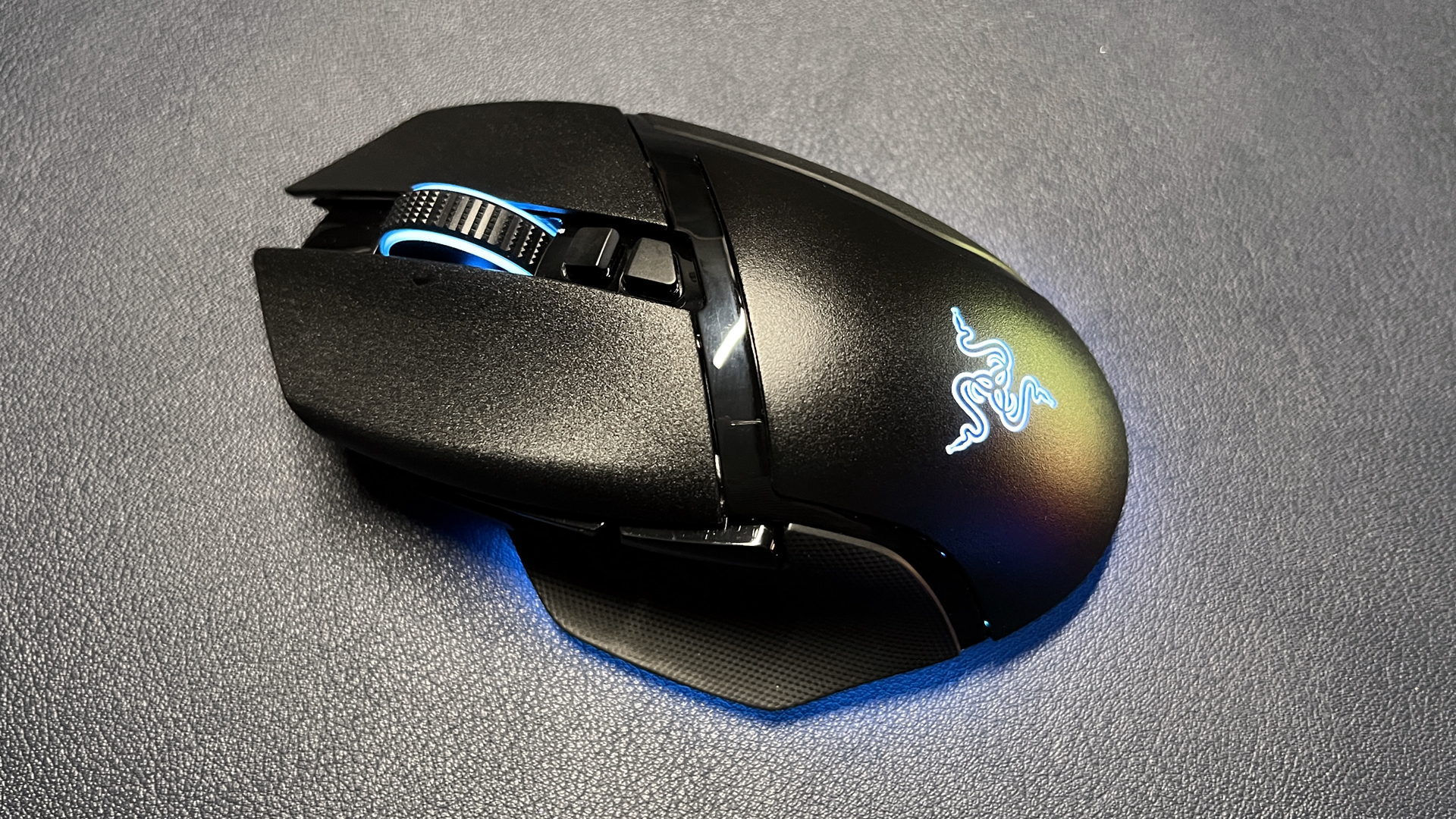
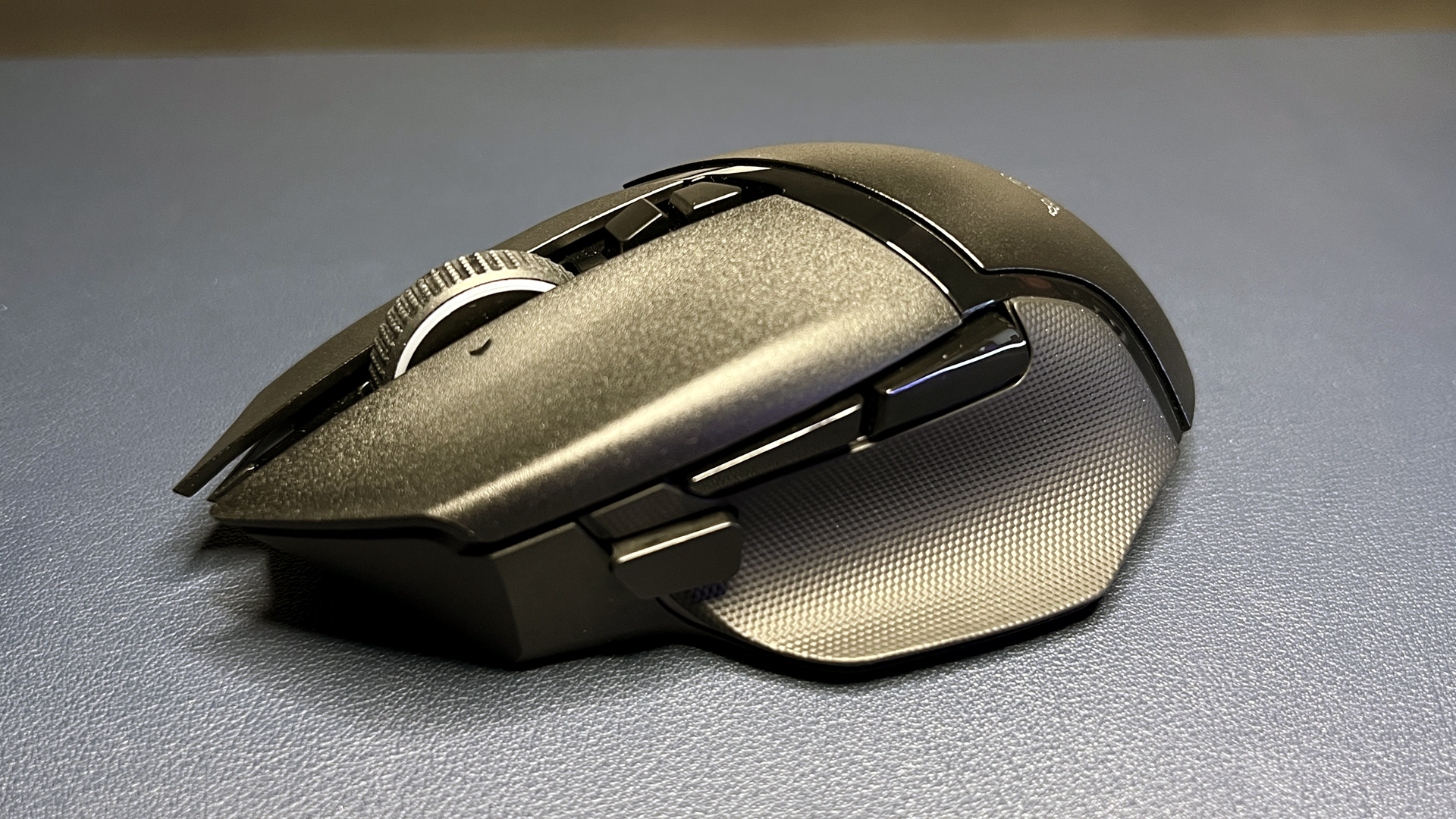
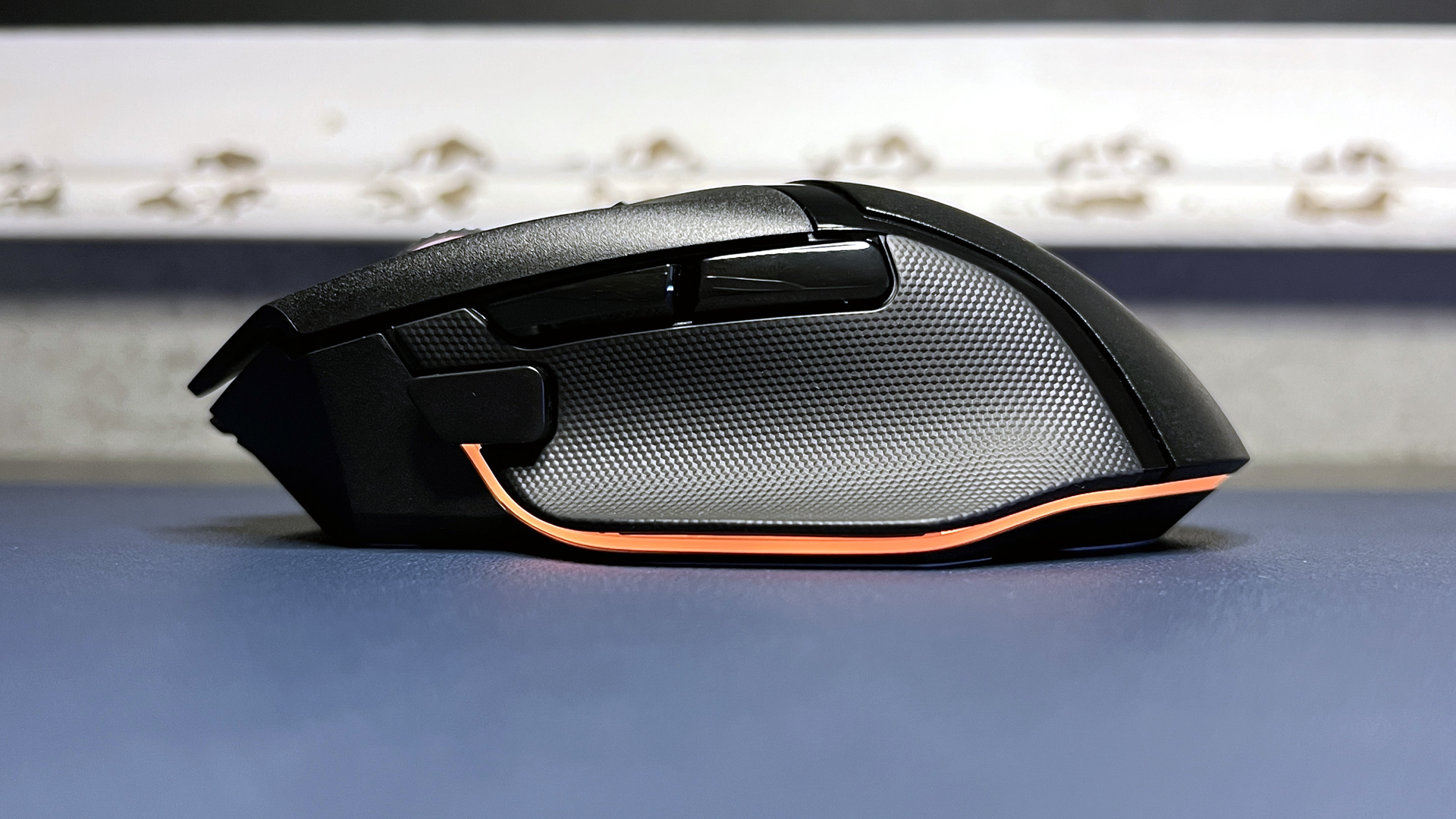
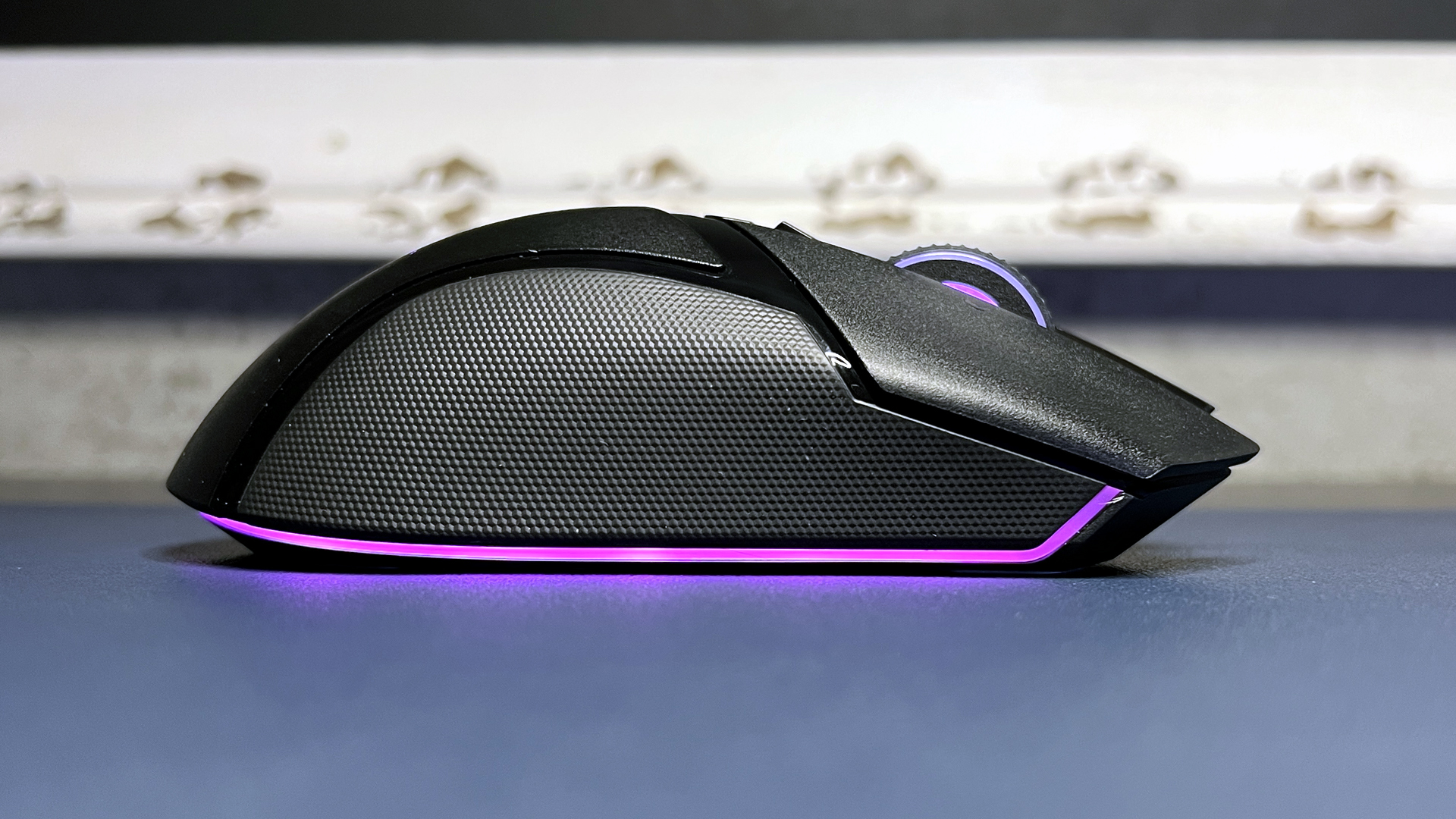
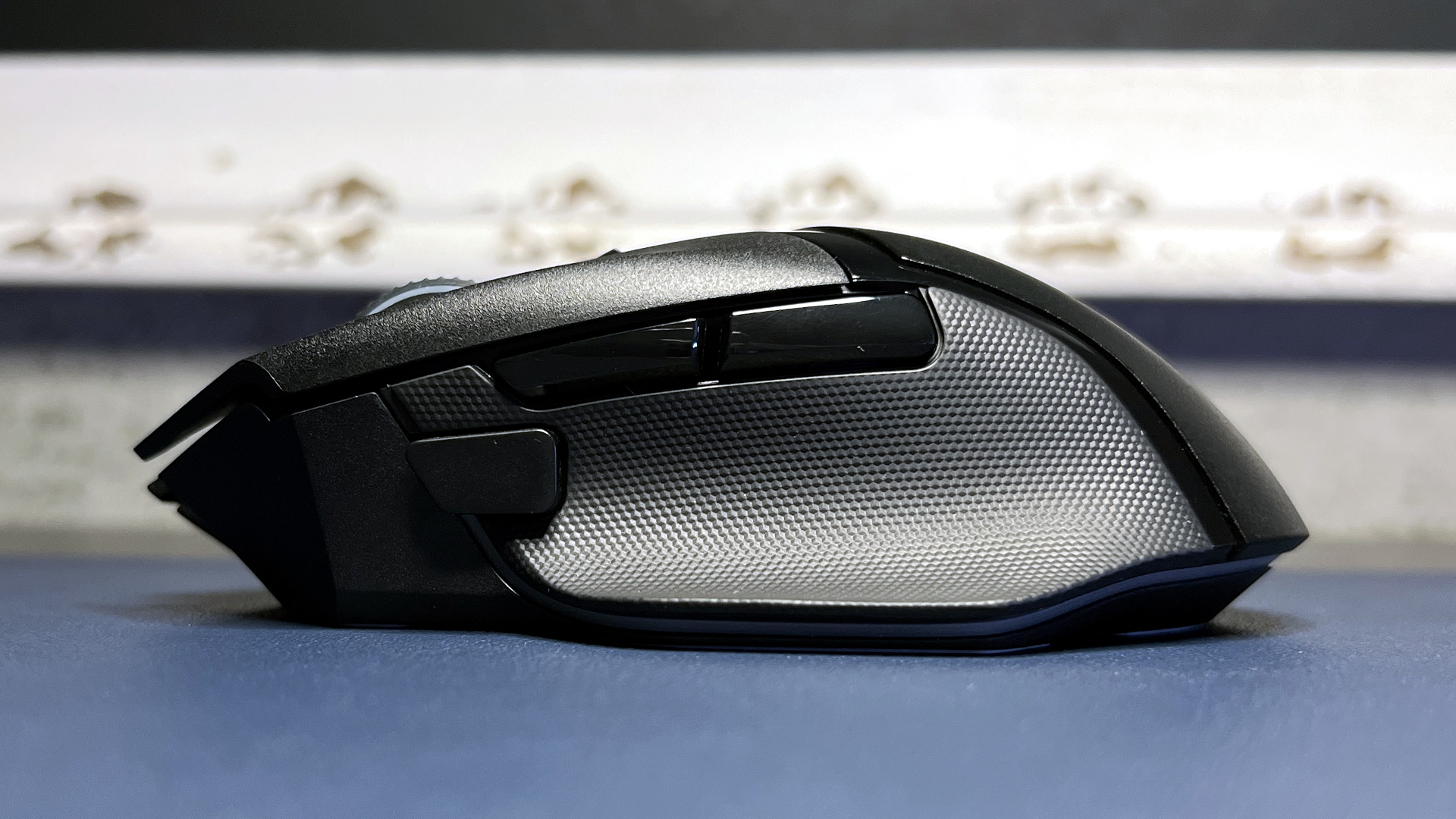
Following in the footsteps of its other recent next-gen mouse launches, Razer has kept the design of the Basilisk V4 Pro largely the same. The Basilisk V4 Pro has basically the same size and shape as its predecessor — it has a right-handed ergonomic shape with a contoured thumb rest and a hump that sits slightly back and to the left. It has large primary mouse buttons with shallow finger grooves, and a slight contour on its outer edge that makes it relatively easy to pick up and move.
(Image credit: Tom's Hardware)
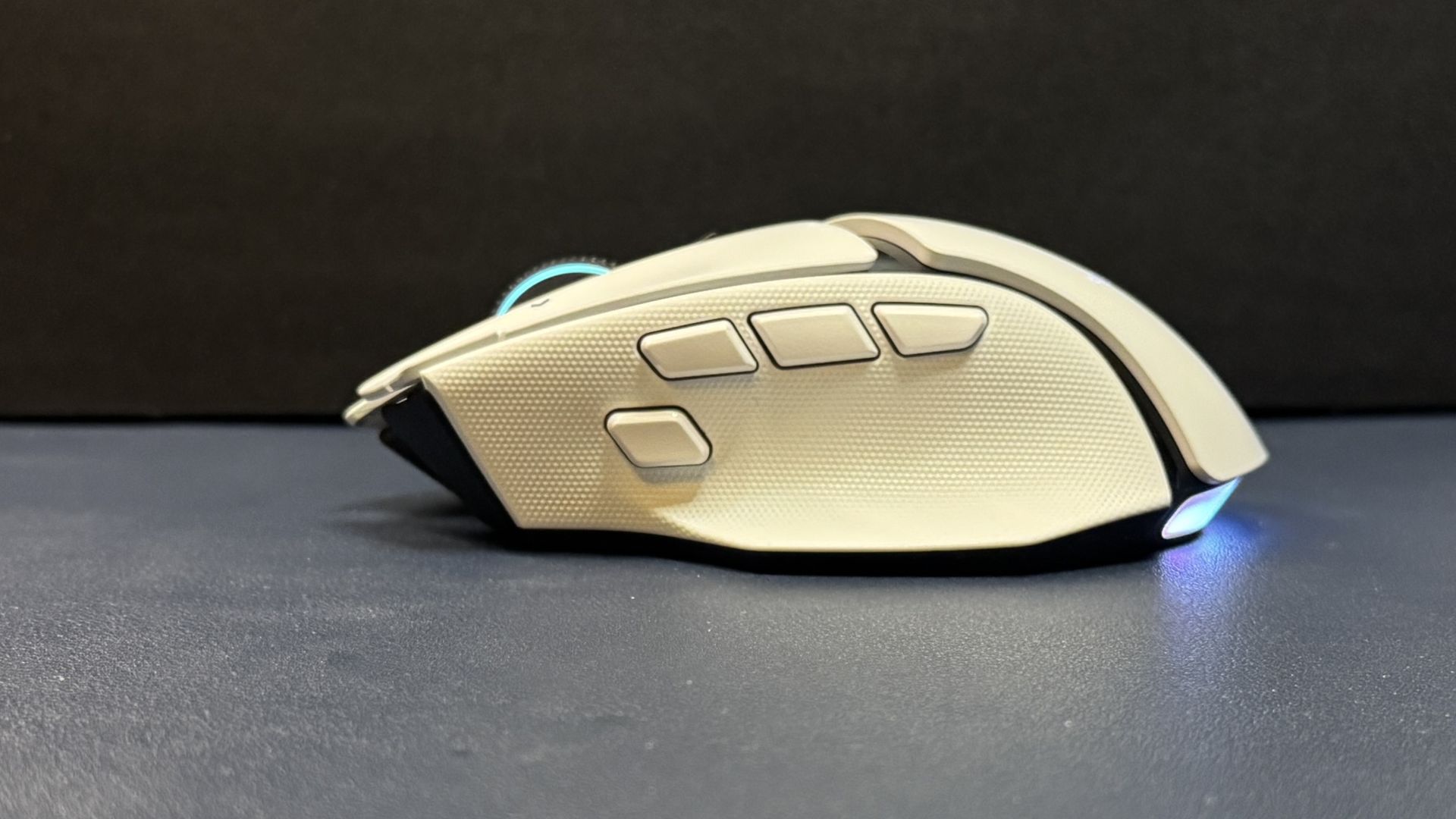
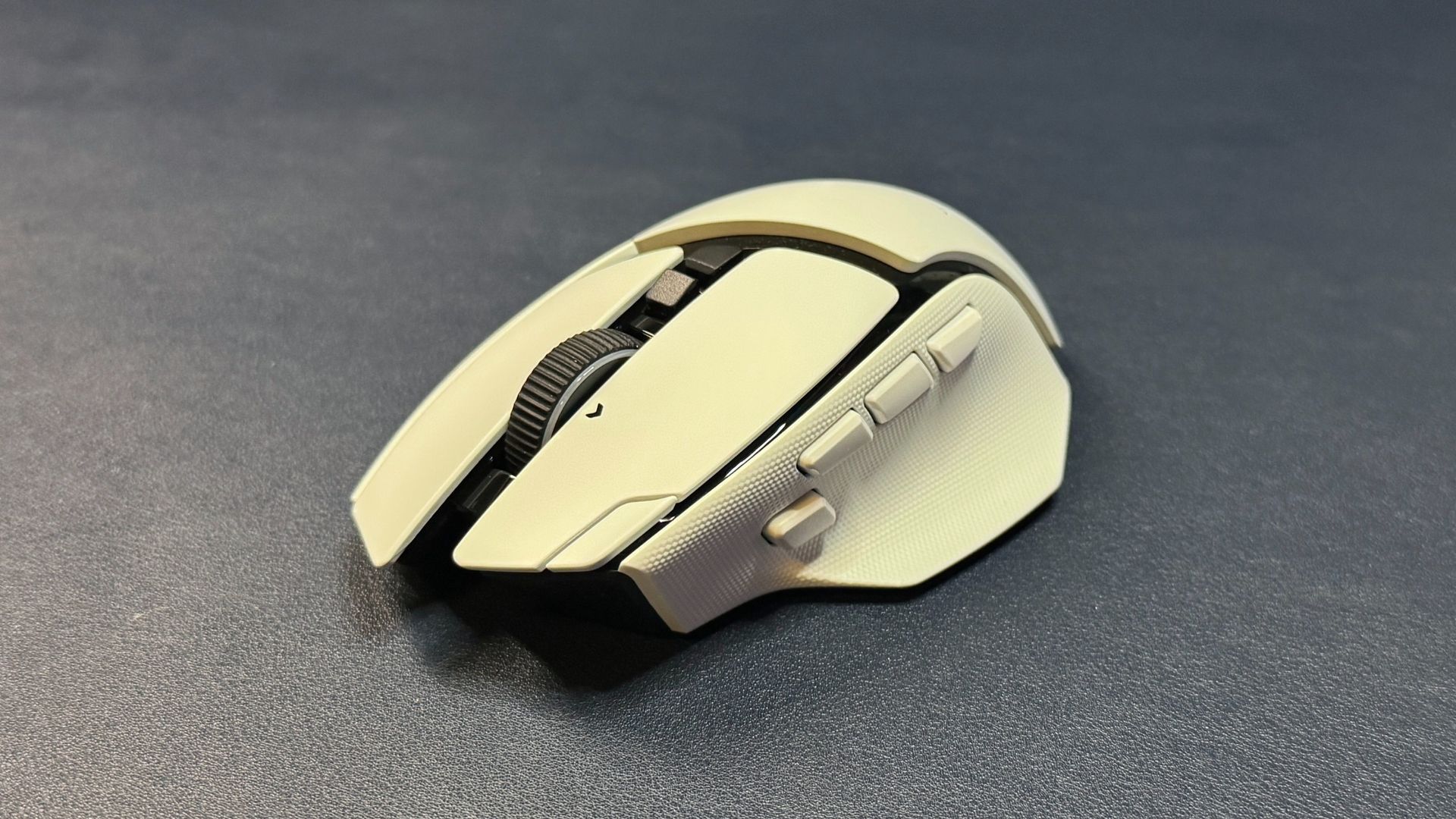
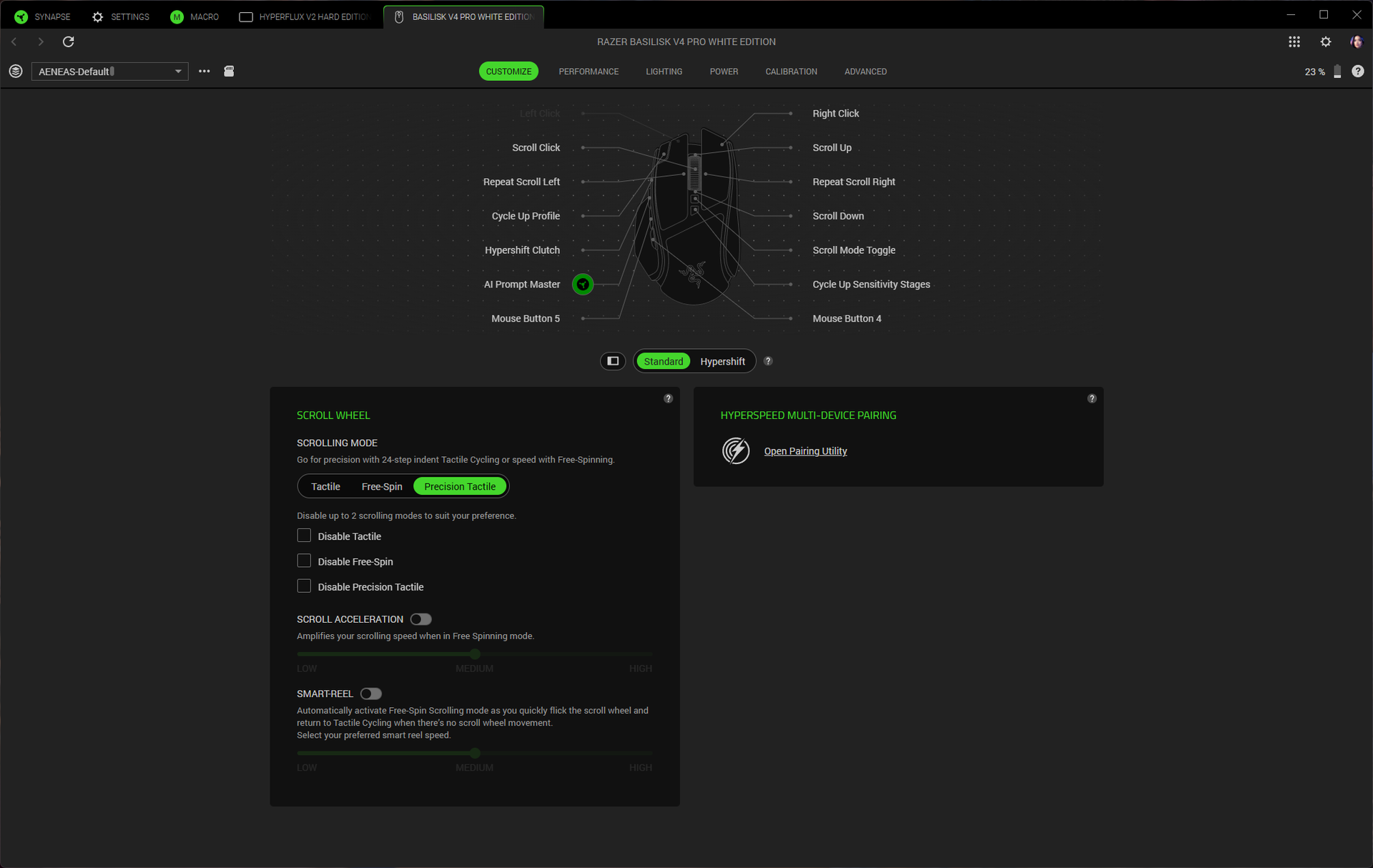
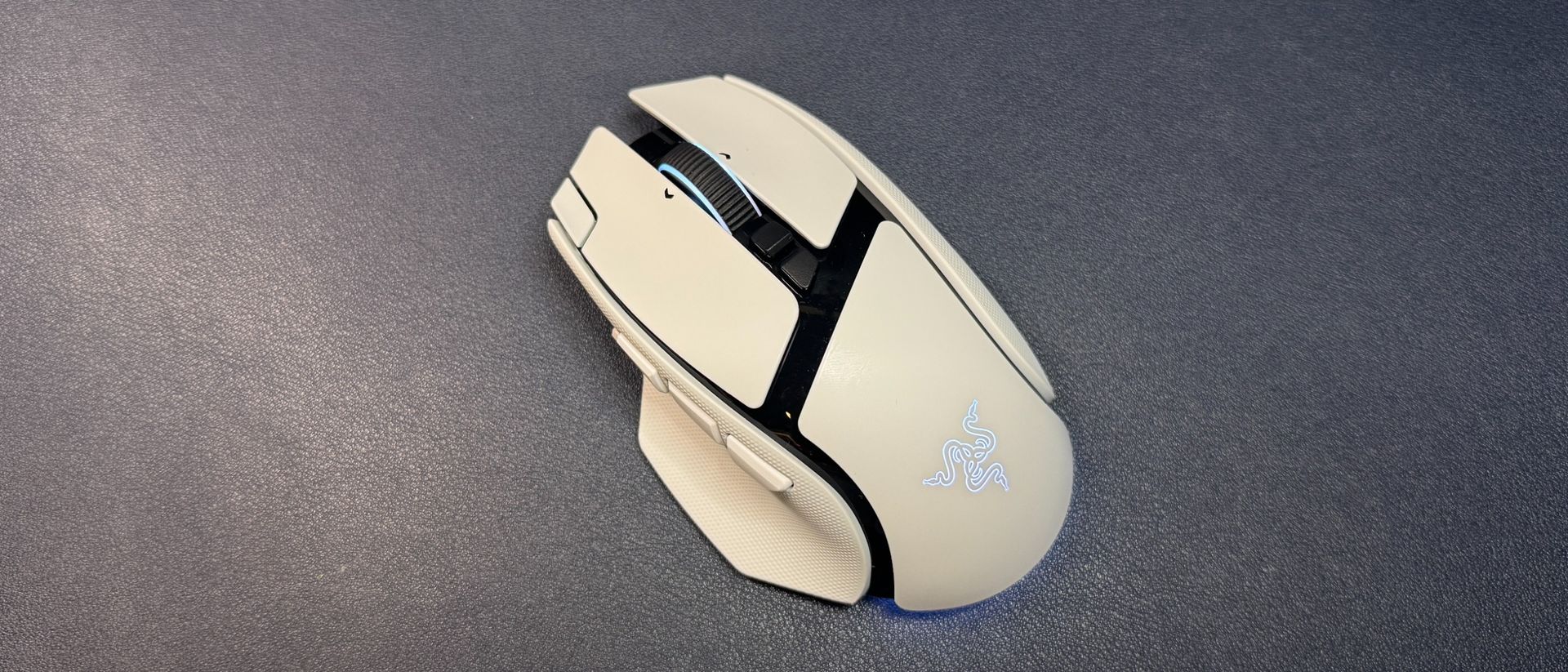
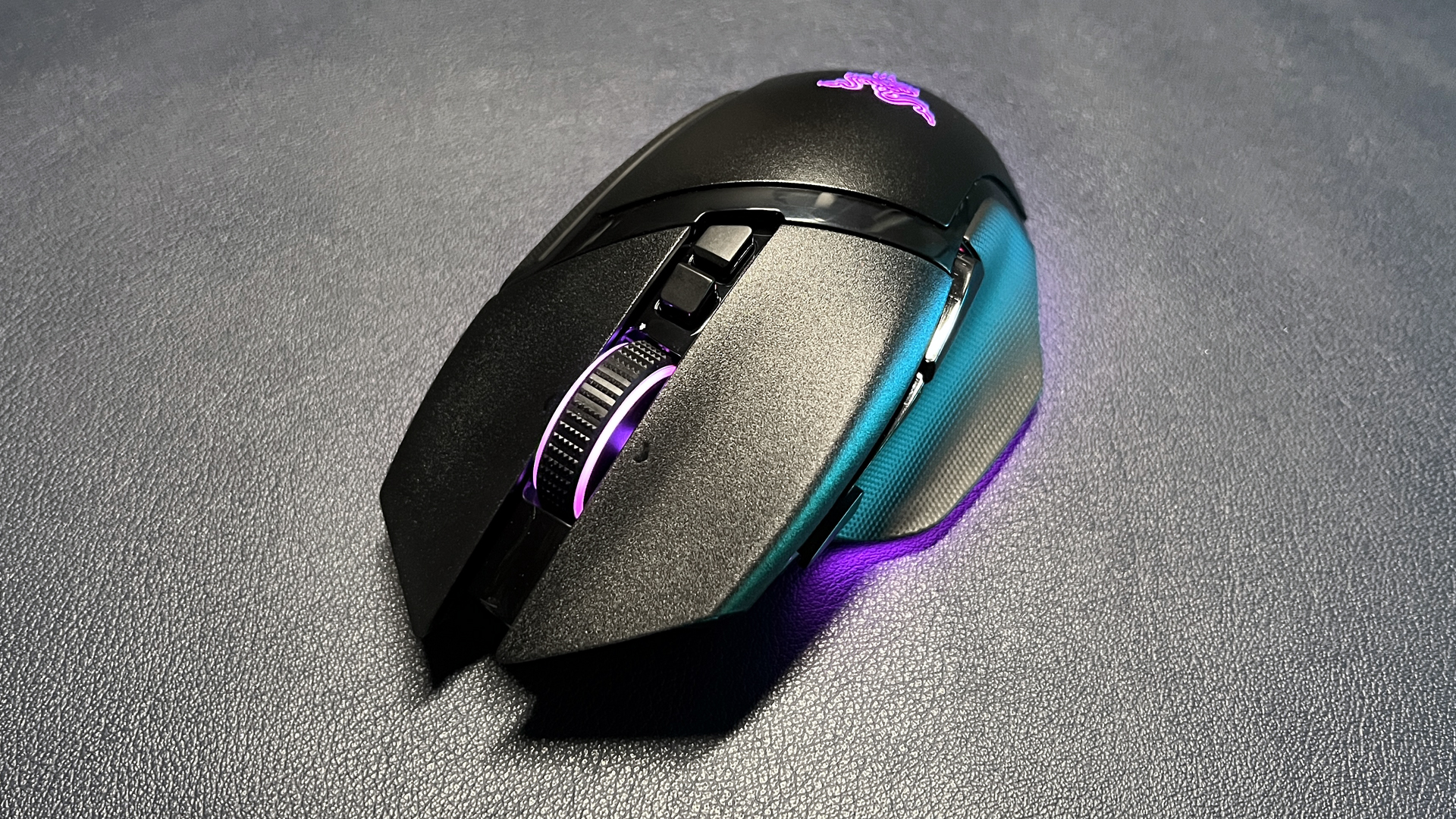
It's not exactly the same as the V3 Pro, however. The V4 Pro has two new buttons, for a total of 12 programmable buttons on the mouse: the left and right primary buttons, three thumb buttons (instead of the usual two) and a trigger button in the thumb groove, a clickable tilt wheel (three "buttons" — center click and left/right click), two buttons above the tilt wheel, and an extra button on the left side of the left mouse button. The third thumb button and the extra button on the left mouse button are the new ones; the third thumb button sits in front of the first two and is set to open up Razer's AI prompt by default, while the extra button on the left mouse button is set to switch through profiles by default.
Tom's HardwareTom's HardwareTom's Hardware
I'm... actually not a big fan of the new buttons. Or, well, I don't really think they're necessary — the Basilisk already had plenty of buttons for a mouse that's not all about having buttons, and I don't really see myself incorporating these new buttons into my workflow in the near future. The extra button on the left mouse button is a little too far forward — this is a very long mouse (it measures 5.02 inches / 127.5mm long), and the extra button is right at the front edge. I have medium-sized hands and relatively long fingers, and the button felt too far for me to press comfortably. It's not a big deal if you plan to leave it set as a profile switch button (which are often located on the bottom of mice), but it's not really viable as a real extra button.
(Image credit: Tom's Hardware)
Worse, however, is the location of the third thumb button — the AI prompt button — which is located in line with the other two thumb buttons. I generally have no issue with three rows of thumb buttons, as my daily driver is the Razer Naga V3 Pro, but this new AI button is the same size as the other thumb buttons and it pushes everything back a little. This puts the first thumb button (MB4) back too far to press comfortably (and that's a mouse button I use often). And while you can swap the buttons around, the AI prompt button is slightly too far forward. Basically, there are now three buttons where there should be only two, and they all feel slightly off.
The tilt wheel has three different modes you can switch through with the button right above it: two tactile modes (24 and 48 steps), and free-spin mode. I generally love free-spin mode, but the tilt wheel on the Basilisk V4 Pro is a little too sensitive and will backscroll if you even think about moving your finger near it. The precision-tactile scroll hits a great balance and feels great, however, so this didn't bother me too much.
Tom's HardwareTom's Hardware
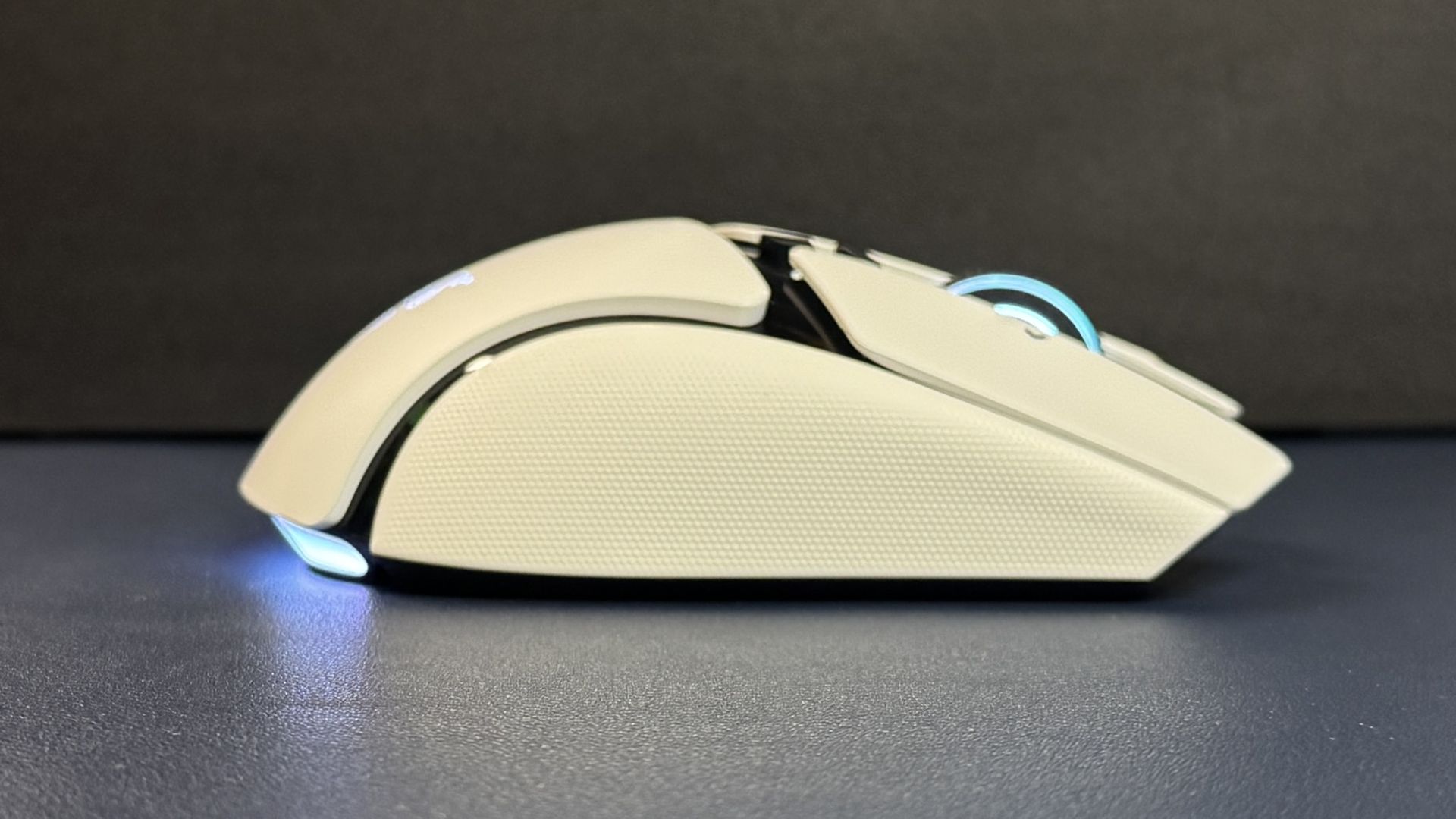
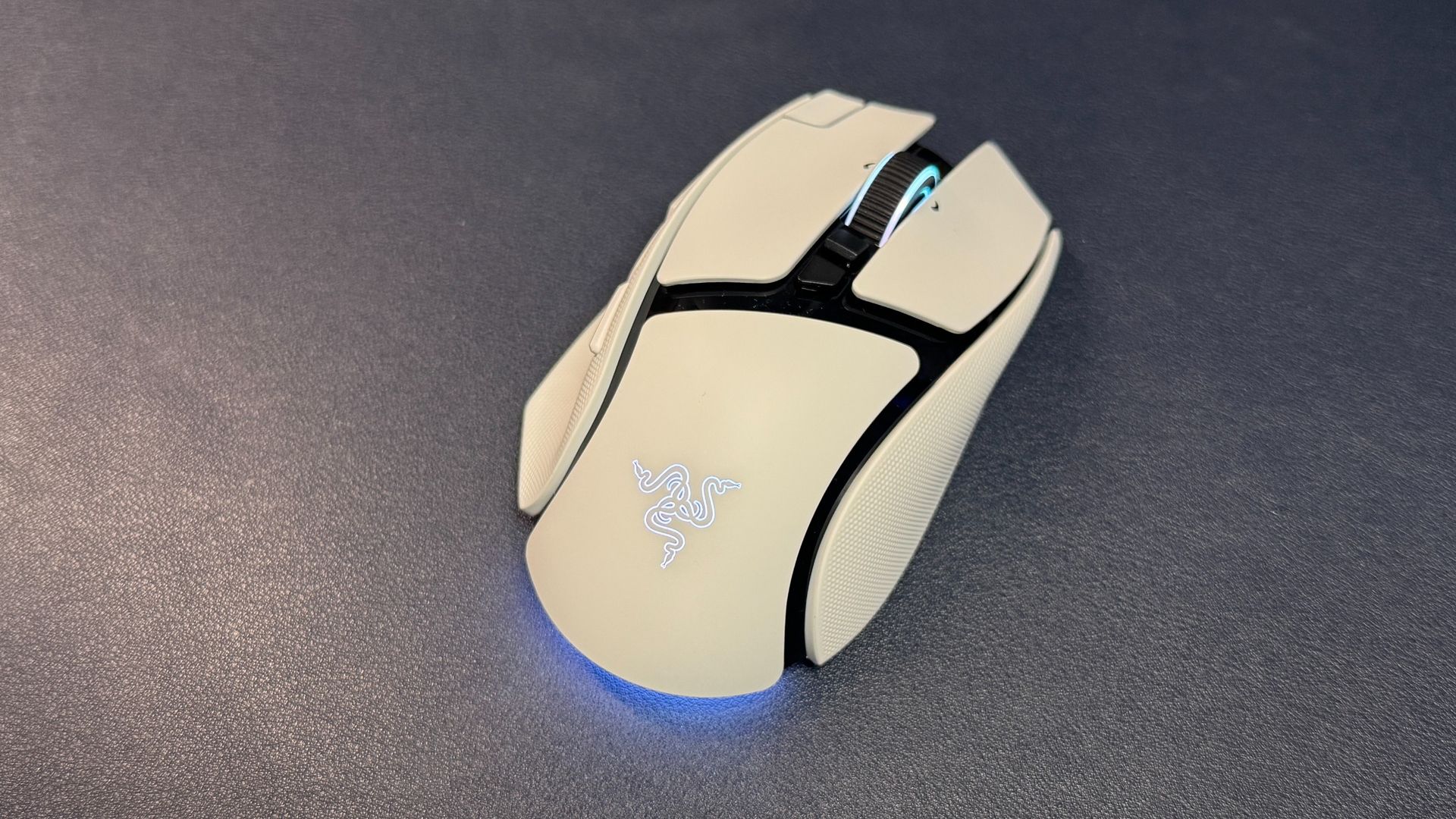
The Basilisk V4 Pro comes in both black and white colorways; ours came in white, which has shiny black accents so it's a little more Stormtrooper than iPod. It has a smooth matte white body with dimpled rubber texturing for grip on both sides. While it's nice to have built-in side grips, I suspect they will wear down like the grips on the V3 Pro — and then you'll have to find or make your own grip tape, as the mouse comes with none. The mouse is roughly the same size as its predecessor, but it weighs less: the black version weighs 3.53 ounces (100g), which is almost half an ounce lighter than the V3 Pro 35K (3.95oz / 112g). It's not an ultralightweight mouse (or anywhere close), but the weight difference is noticeable and the mouse is definitely easier to pick up.
Tom's HardwareTom's Hardware
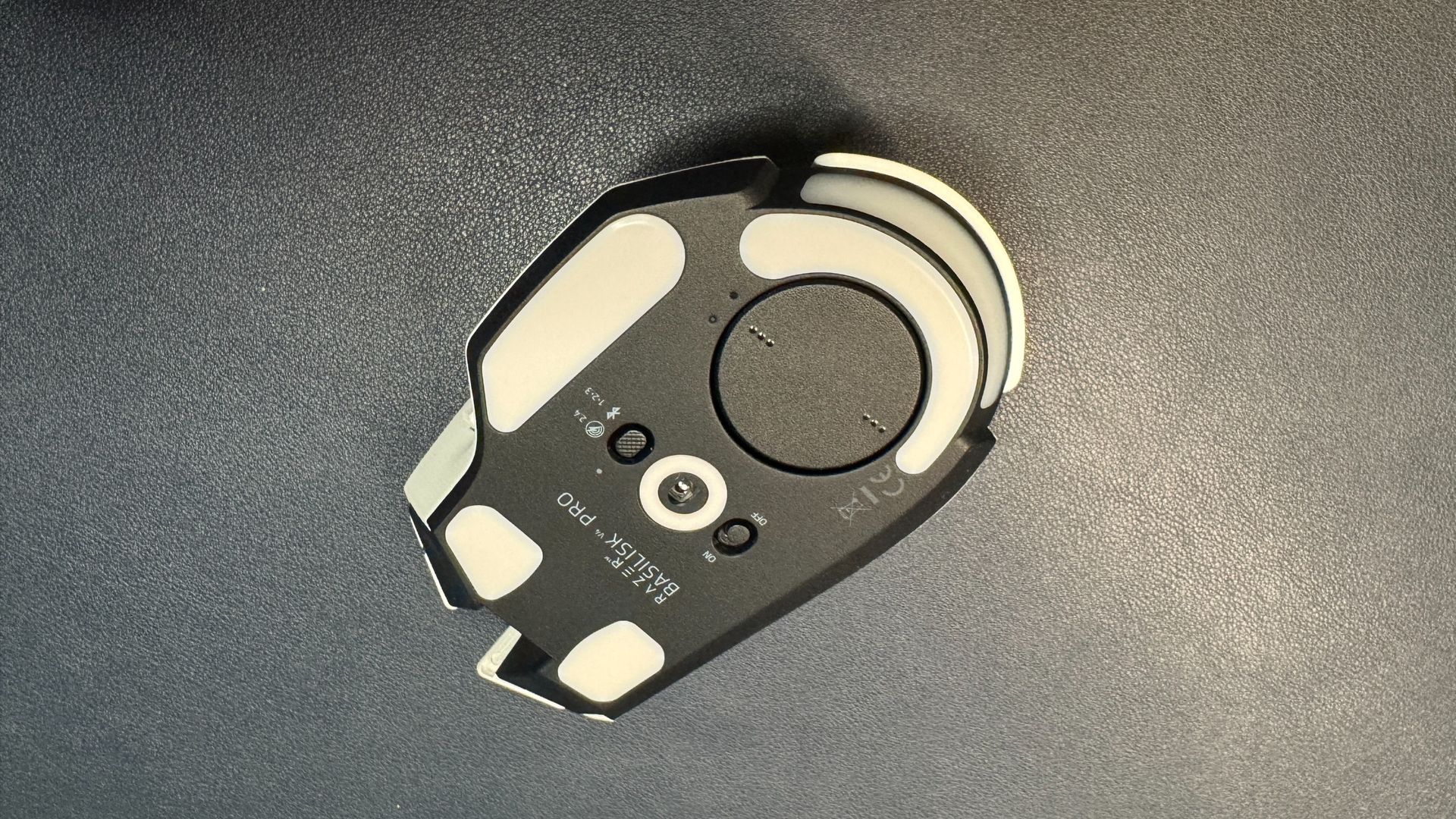
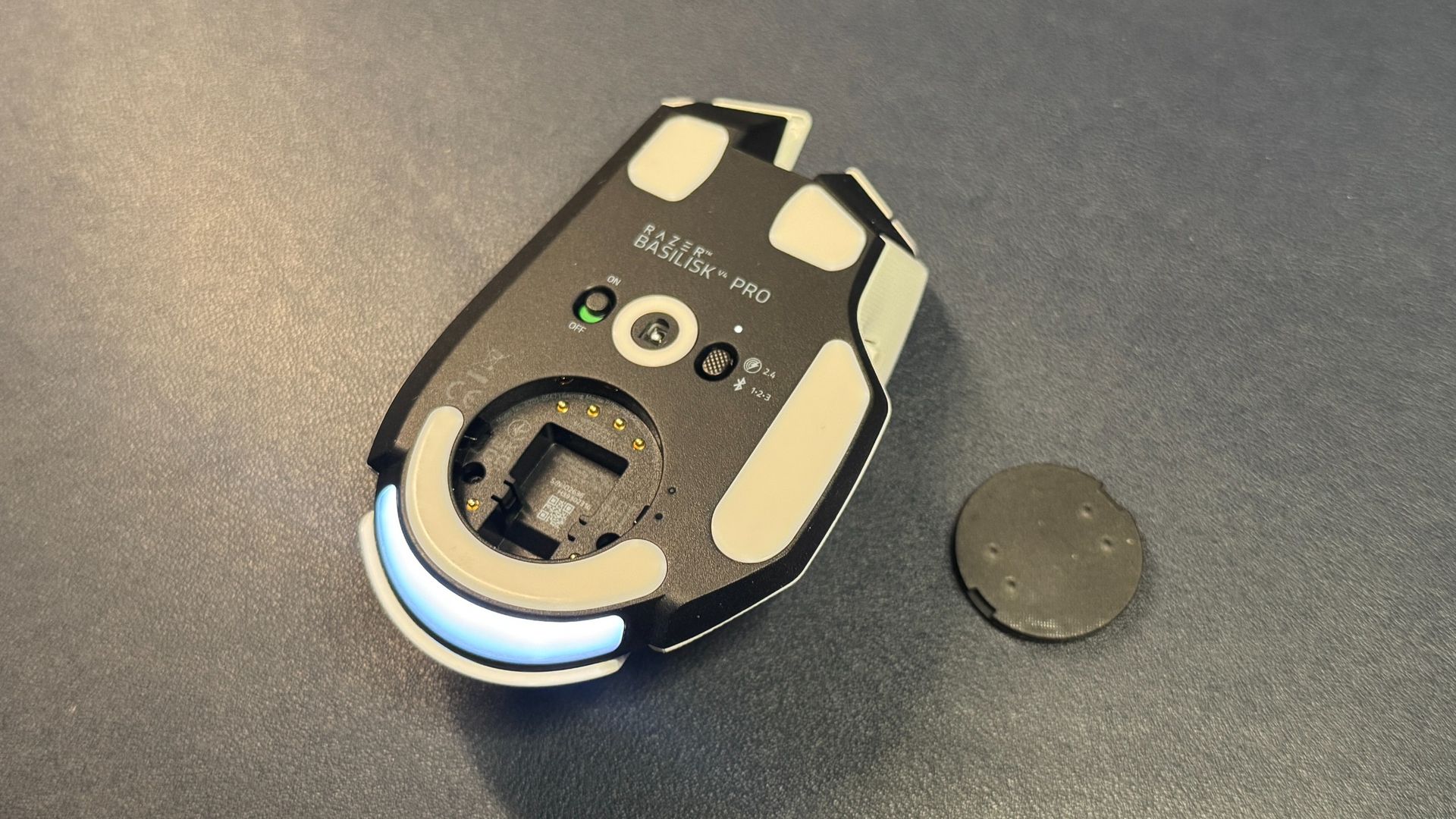
On the bottom of the mouse, you'll find pure PTFE feet — two near the front, a strip at the back, and a strip under the thumbrest, as well as a strip around the sensor, a power switch, and a connection switch button that is not programmable.
(Image credit: Tom's Hardware)
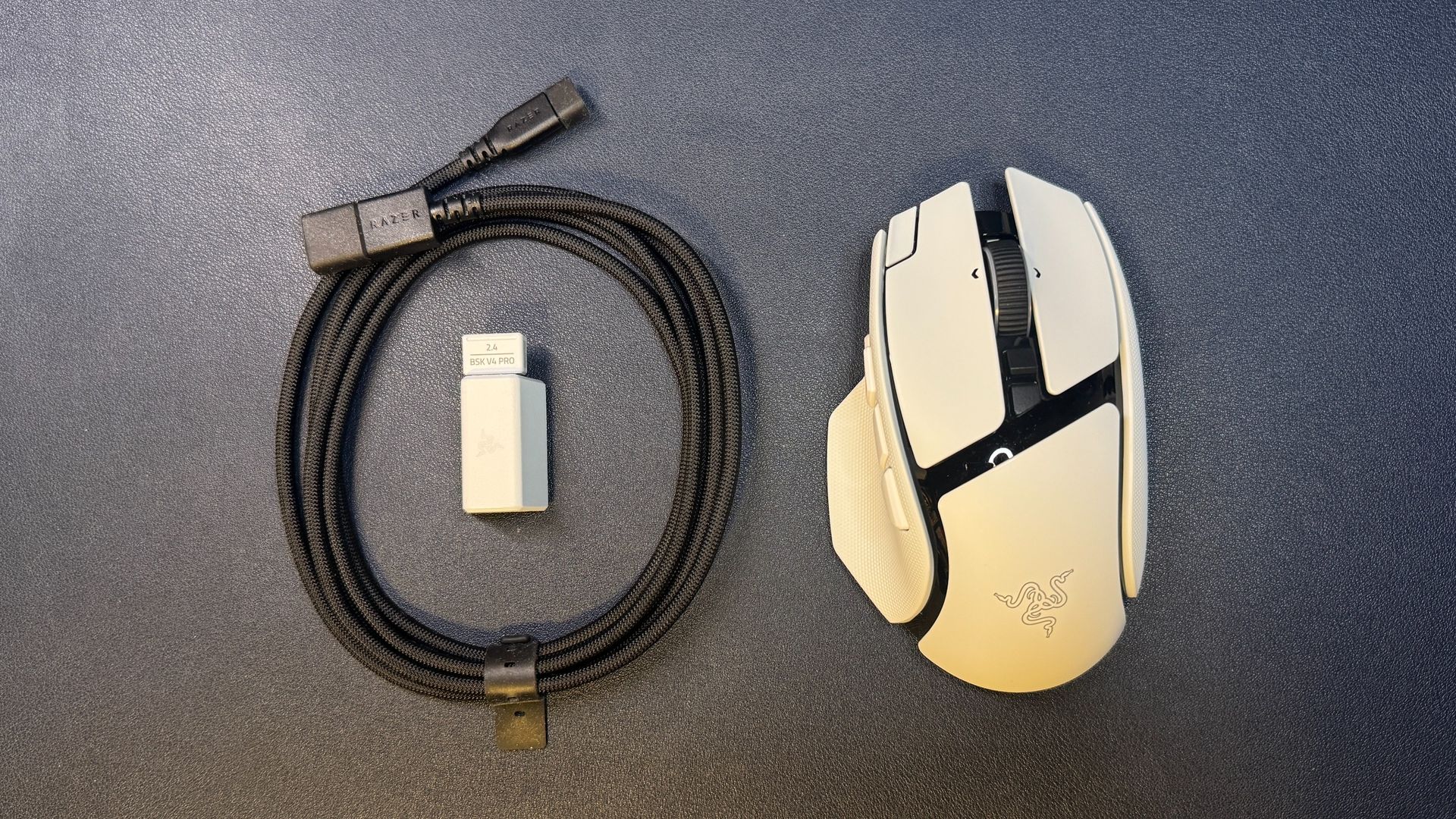
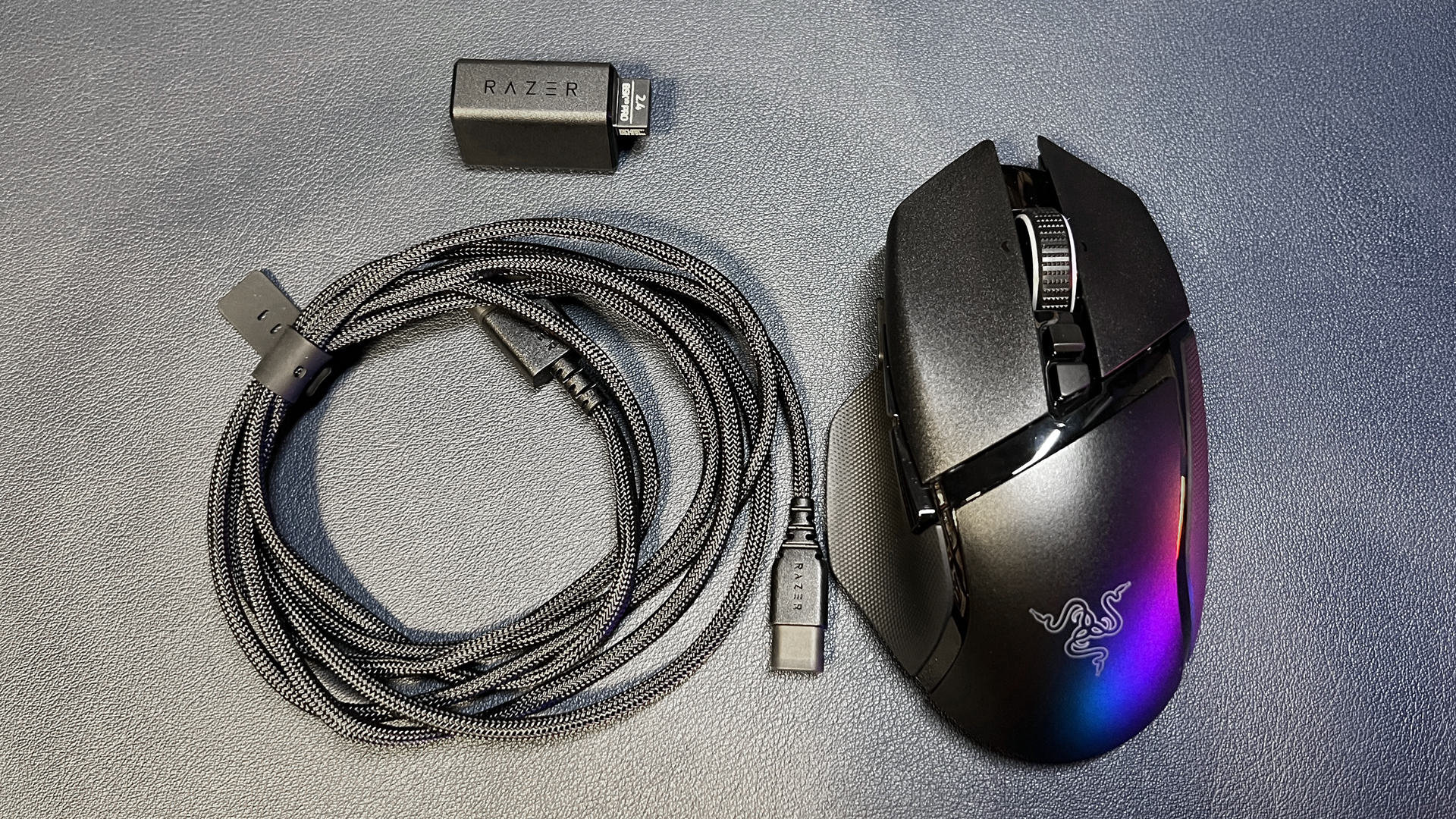
In the box, the Basilisk V4 Pro comes with a USB-A dongle, a USB-A to USB-C converter, and a 6-foot (2m) braided USB-C to USB-A cable. While the cable is braided, it is not one of Razer's flexible HyperFlex cables — it's meant for charging the mouse and plugging the dongle into your PC, not for using the mouse in its wired form.
Specs
Sensor Model
Focus Pro 50K Gen-3 optical sensor
Max Sensitivity
50,000 DPI
Max Speed (IPS)
930 IPS
Max Acceleration
90 G
Polling Rates
8,000 / 4,000 /
Programmable Buttons
12
LED Zones
7
Cable
USB-C to USB-A
Connectivity
2.4GHz wireless, Bluetooth, wired (USB-C)
Measurements (L x W x H)
5.02 x 2.98 x 1.68 inches / 127.5 x 75.8 x 42.5 mm
Weight (excluding cable)
100g
MSRP / Price at Time of Review
$169.99
Release Date
Oct. 2026
Performance of the Basilisk V4 Pro
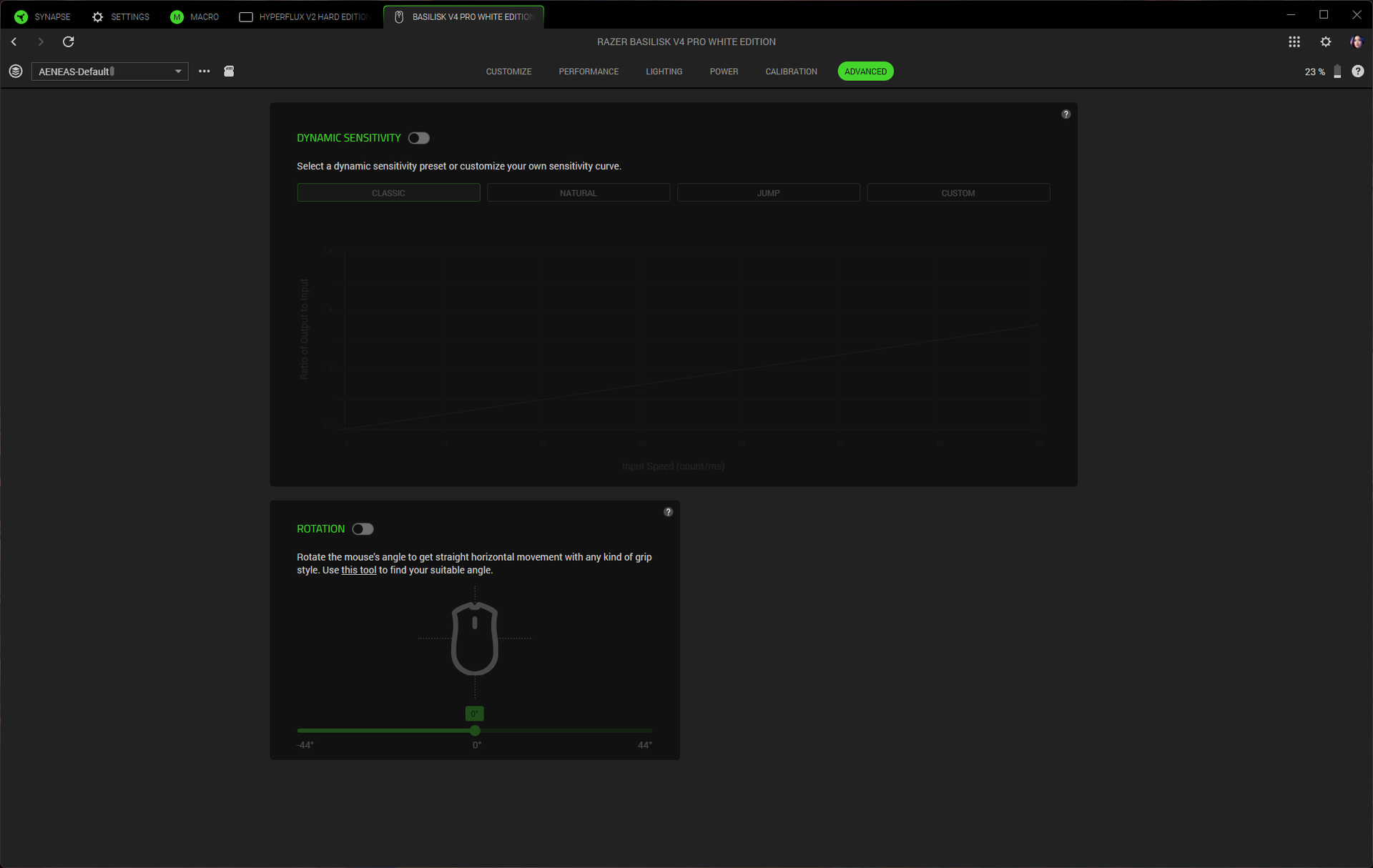
The Basilisk V4 Pro sports Razer's latest optical sensor, which is the Focus Pro 50K Gen-3 optical sensor. It has a maximum resolution of 50,000 DPI and a maximum speed of 930 IPS, and it can handle up to 90 G's of force. This is the third Razer mouse to feature this sensor (others are the Viper V4 Pro and the Naga V3 Pro), and it's a solid sensor that works with Razer's dynamic sensitivity (the sensitivity can be set up to change based on how quickly you move your hand) and rotation tool in Synapse. It tracks well across just about every surface, including glass that's at least 4mm thick.
The Basilisk V4 Pro isn't an ultra-lightweight mouse, but its shape and grippiness mean it's pretty easy to pick up and move quickly if you're playing an FPS. The trigger button is right under your thumb, however, so you may accidentally trigger (haha) it if you have a tendency to pick up your mouse a lot. The Basilisk's shape isn't quite as natural-feeling as that of the DeathAdder V4 Pro, but it's a comfortable mouse for a variety of games — from multi-button-needing MMOs to competitive shooters (though, perhaps not for peak competition). While I still take issue with the placement of the new buttons, it is nice to have a few extra buttons without jumping straight to 19.
The Basilisk V4 Pro sports Razer's Gen-4 optical mouse switches, which are rated for over 100 million clicks. The switches have a nice, crisp sound that's not too loud (not as loud as Logitech's, anyway), though it's not a mouse for those trying to minimize mouse clickiness. The primary buttons have a solid, tactile feel, and I had no issues with misclicks or double-clicks while I was testing. While the tilt wheel's free-spin mode was too sensitive for me to get to work properly, I love the precision tactile mode — it blends speed and tactility perfectly.
Features and Software of the Basilisk V4 Pro
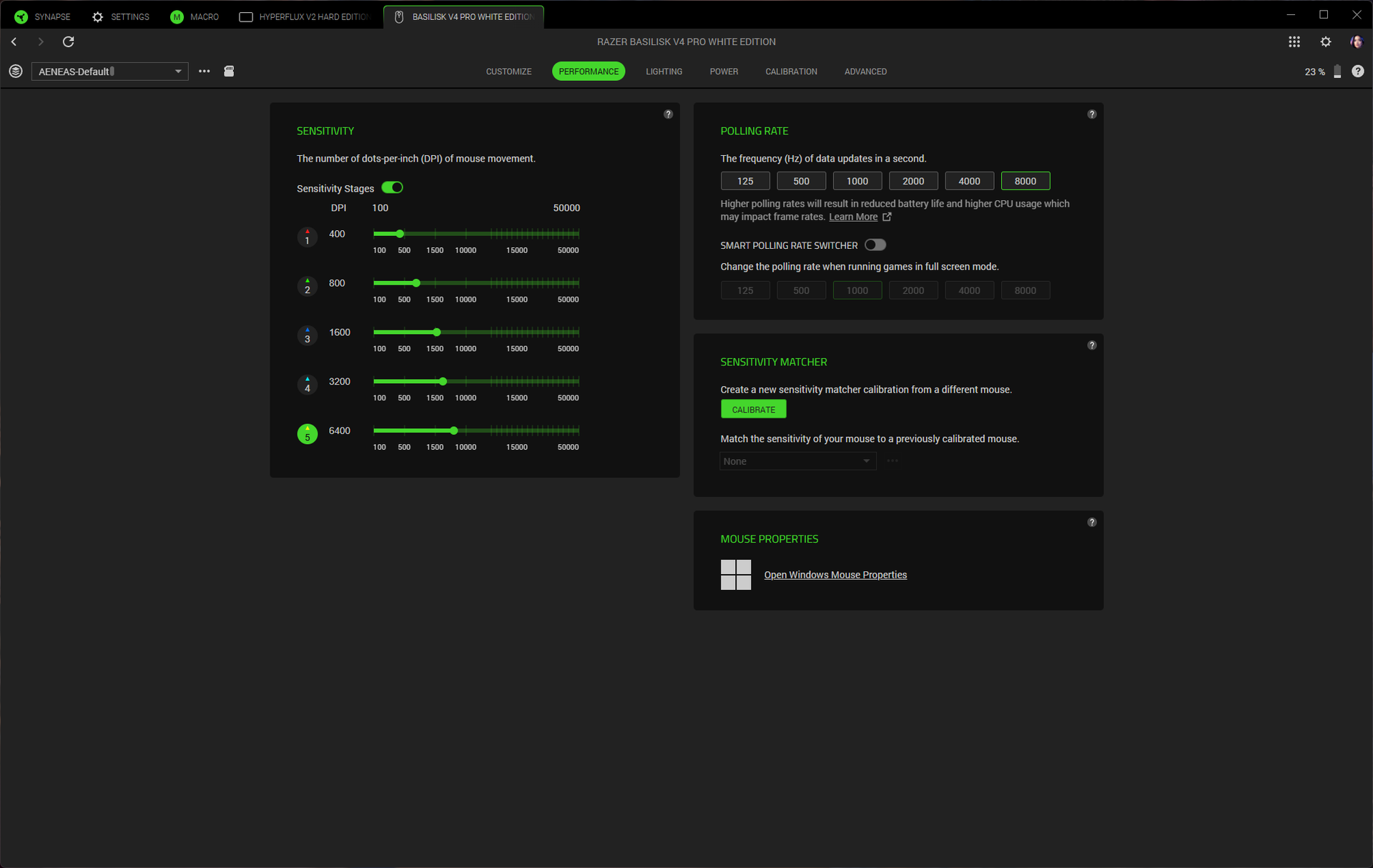
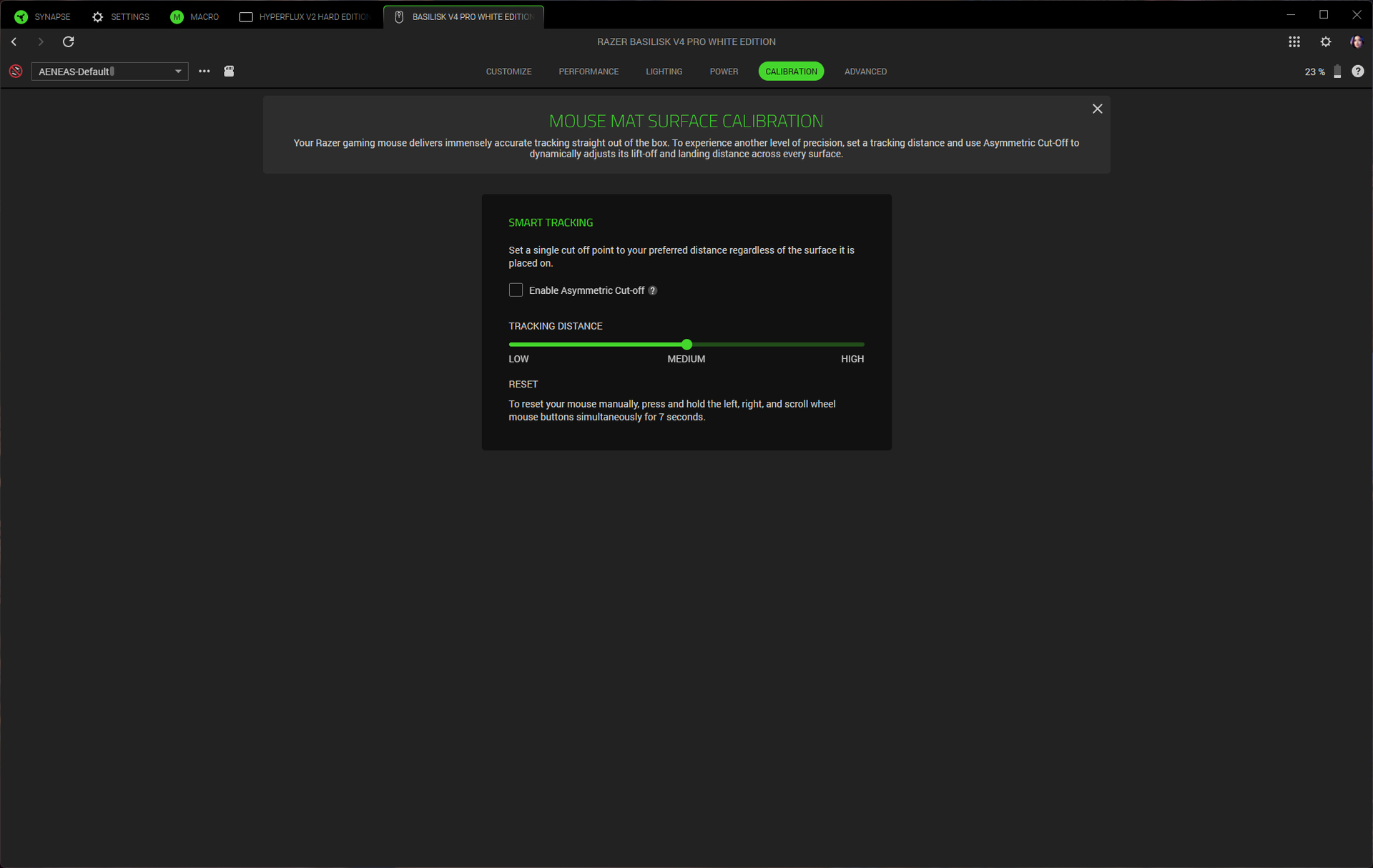
The Basilisk V4 Pro is programmable with Razer Synapse 4 (not Razer's web-based version of Synapse). You can use Synapse to remap the mouse's 12 programmable buttons (14 programmable controls, if you include scroll up/down; the connection switch button on the bottom of the mouse is not programmable). Synapse has a variety of remap options, as well as a built-in macro recorder / editor. Synapse is also where you'll be able to customize the mouse further by tweaking things like the scroll wheel, DPI stages, and surface calibration. There's also a sensitivity matcher that will match the Basilisk V4 Pro's sensitivity to match that of your old mouse.
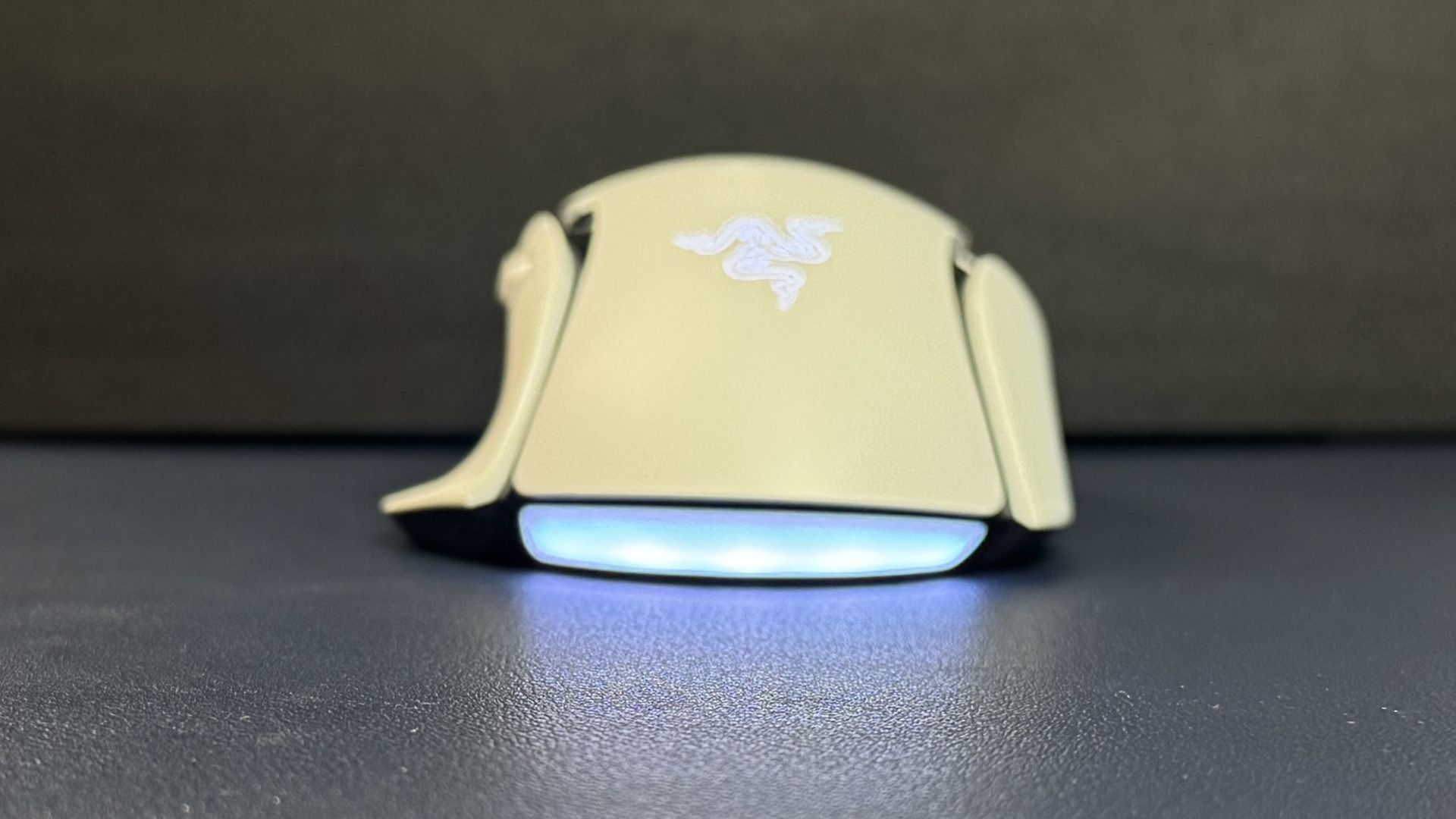
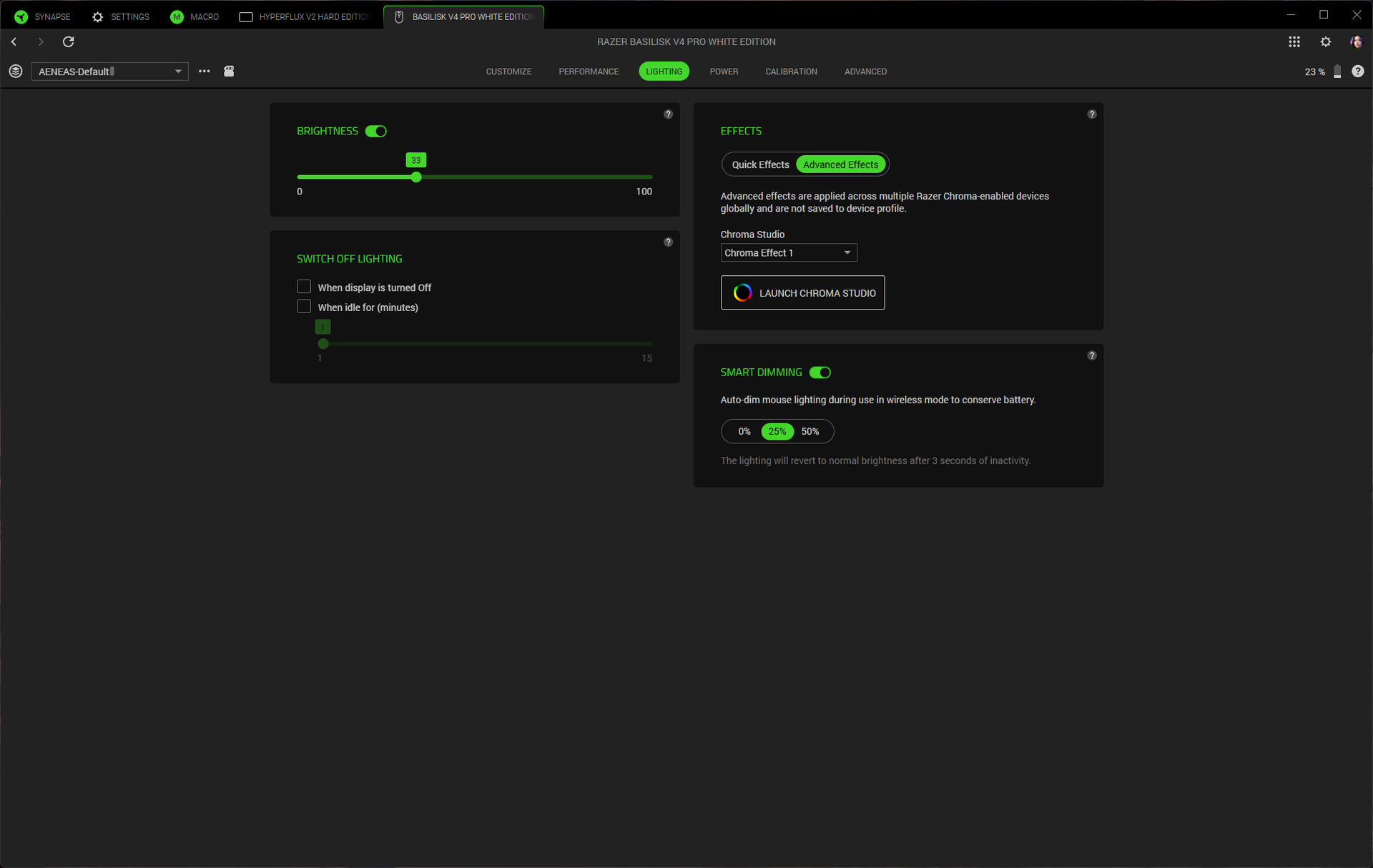
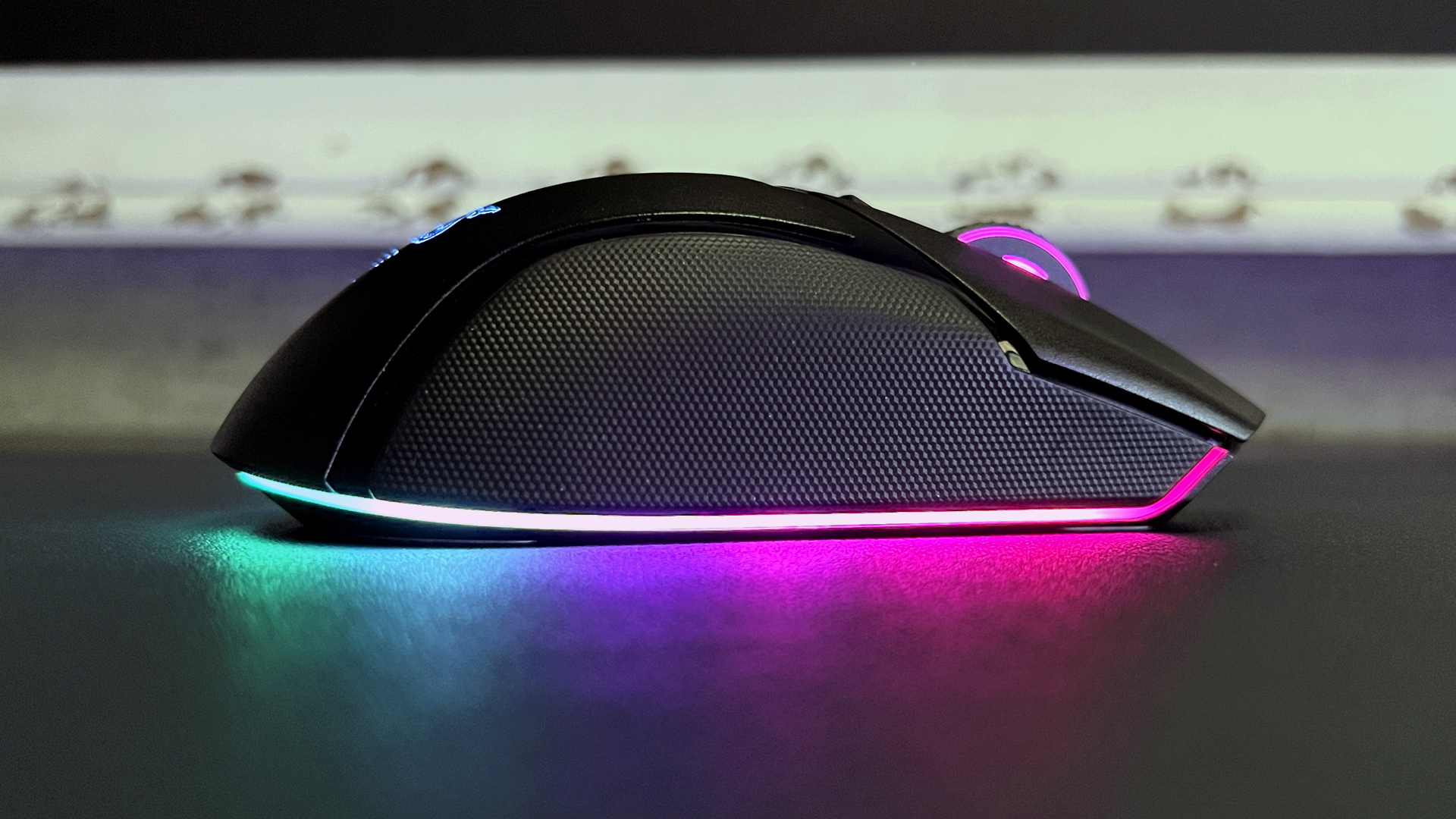
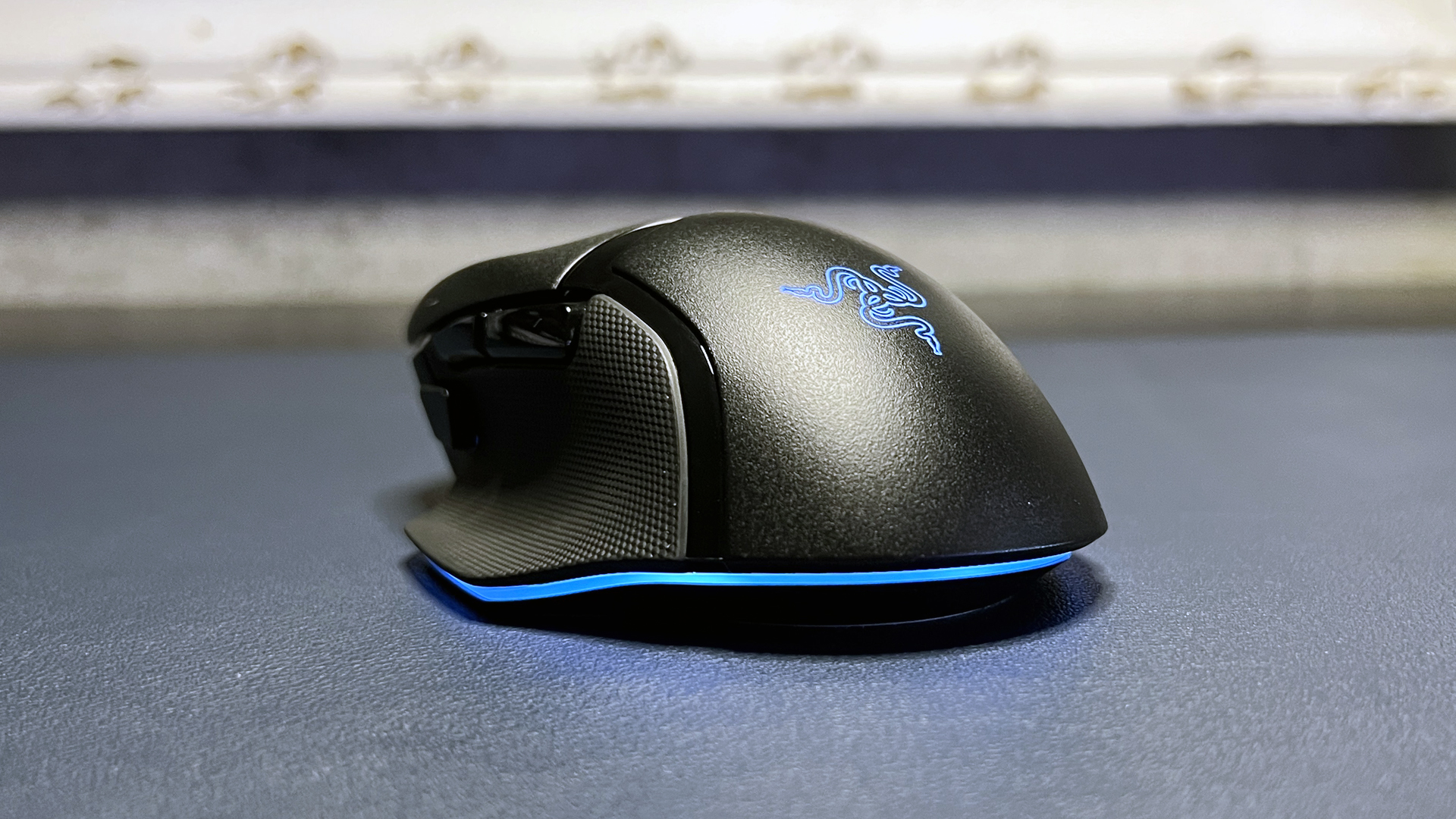
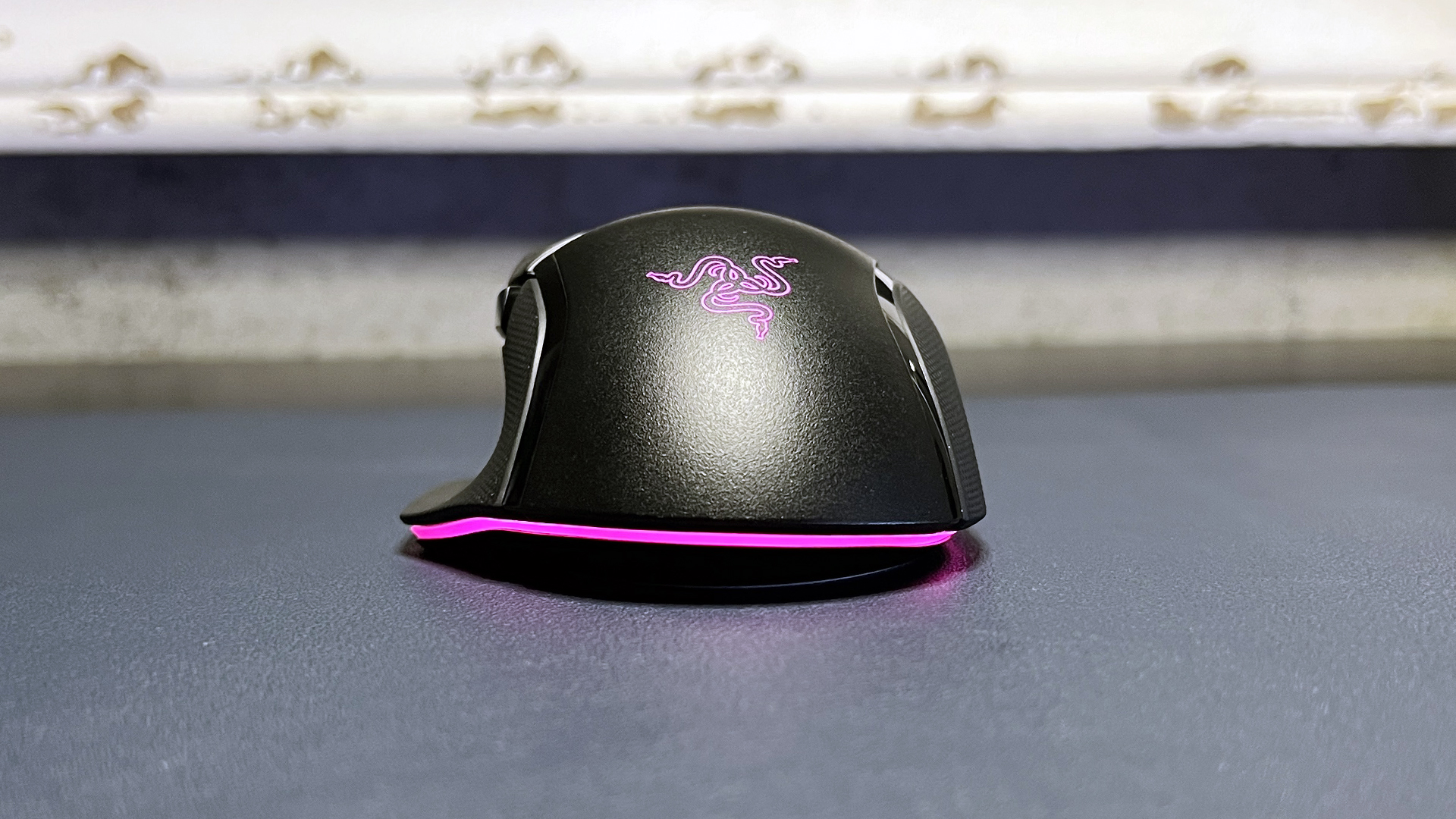
You can also use Razer's Chroma Studio to customize the mouse's lighting and sync it with games and/or your other Razer peripherals. The Basilisk V4 Pro has seven RGB lighting zones: a five-zone underglow strip along the bottom curve of the mouse, as well as one in the scroll wheel and one in the logo on the palm rest. The lighting is bright and the underglow's five zones blend nicely — the underglow strip is tilted outward so it's pretty visible when the mouse is just sitting on your desk.
Wireless Experience and Battery Life of the Basilisk V4 Pro
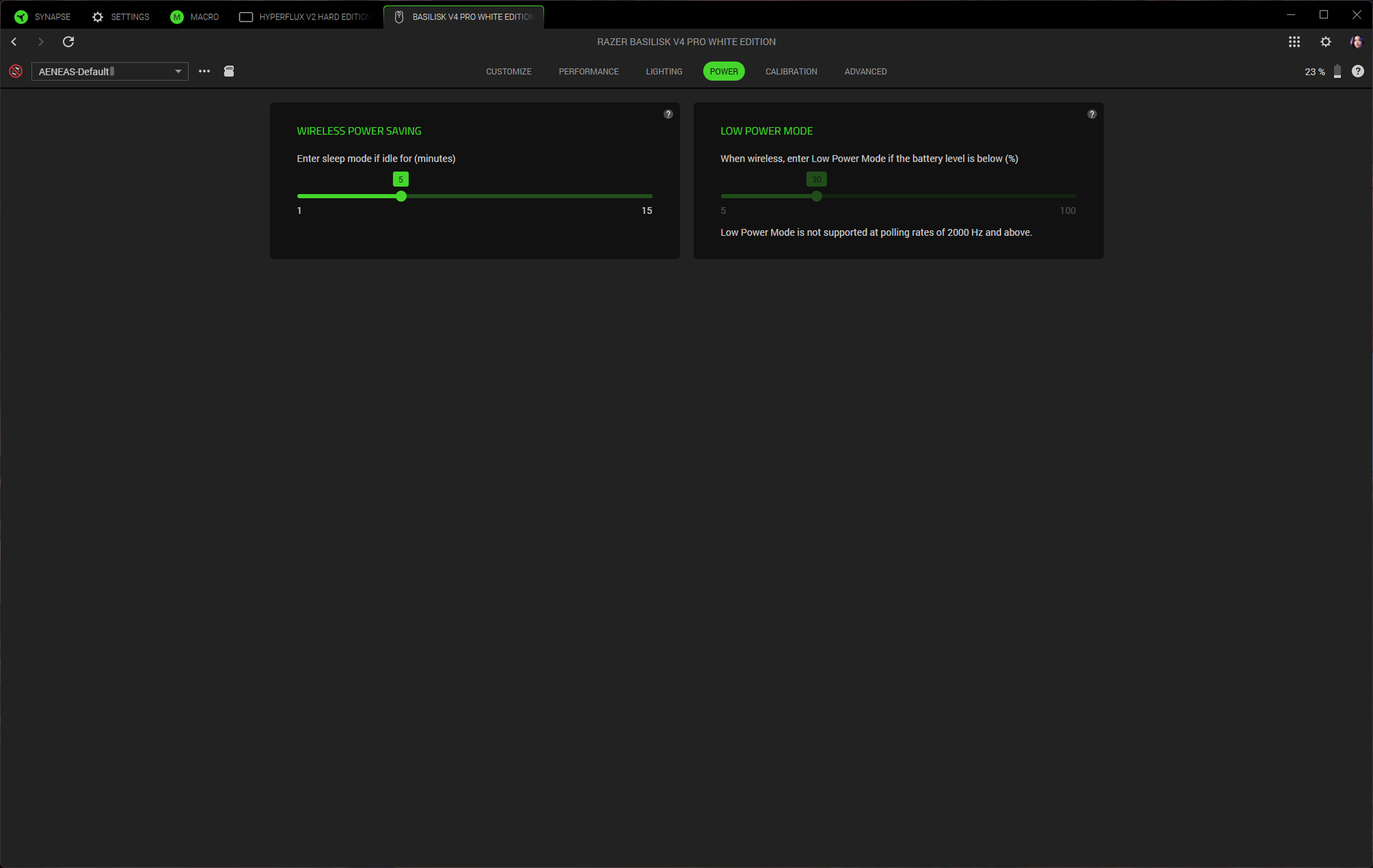
The Basilisk V4 Pro has three forms of connectivity: 2.4GHz wireless, Bluetooth, and wired (via USB-C), though it doesn't really come with a mouse-ready USB-C cable. Razer rates it at 200 hours of battery life over a 2.4GHz wireless connection with a 1,000 Hz polling rate, which is excellent. This number does drop to 54 hours at an 8,000 Hz polling rate, which is... still pretty good, to be honest.
(Image credit: Tom's Hardware)
The Basilisk V4 Pro launched alongside Razer's Mouse Dock V2 Pro, which is a wireless charging dock with built-in RGB lighting and an integrated 8,000 Hz wireless receiver. The Mouse Dock V2 Pro is sold separately for $70, and comes with a wireless charging puck that slots into the bottom of the mouse. It sits on your desk (it's small — 3.28 x 2.2 x 1.71 inches / 83.5 x 56 x 43.5mm) and serves as a magnetic dock and wireless receiver for your mouse. It has eight RGB lighting zones around the base, and it lights up to indicate battery level (flashes red when the battery is low). It's made for the Basilisk V4 Pro and V4 HyperSpeed, but it will also work with the Basilisk V3 Pro 35K, the Basilisk V3 Pro, the Cobra Pro, the Cobra HyperSpeed, the Naga V3 Pro, and the Naga V2 Pro (up to 8,000 Hz polling rate for all except the Naga V2 Pro).
The Basilisk V4 Pro is also compatible with Razer's HyperFlux V2 charging mouse pad, but you'll need to connect to your PC via the mouse's dongle for 8,000 Hz polling.
Bottom Line
The Razer Basilisk V4 Pro is an expected update to the Basilisk V3 Pro / 35K. The bump in battery life, from 150 hours in the Basilisk V3 Pro 35K to 200 hours in the Basilisk V4 Pro, is very nice (and 54 hours with an 8,000 Hz polling rate isn't bad, either). While I didn't like the new buttons, I'm sure some people will (although I find it difficult to believe that every mouse and keyboard needs a dedicated AI prompt button), and the reduced weight feels good even if, at 100g, it's still nowhere near the ultra-lightweight category. The Basilisk V4 Pro is a great gaming mouse for gamers who want something a little more exciting and versatile than a DeathAdder V4 Pro, but not as button-heavy (or as heavy) as a Naga V3 Pro.
For years, the standard polling rate for gaming peripherals — mice, keyboards, etc. — has been 1,000 Hz, which equates to a delay, or latency, of 1 millisecond. This is significantly higher than the standard polling rate for non-gaming peripherals, by the way, which is 125 Hz (8ms latency) — in fact, it's eight times as fast.
Well, over the last couple of years, gaming companies have been asking: What if we made the polling rate even faster than 1,000 Hz? What if we made it eight times as fast?
And now just about every single ultra-lightweight, esports-oriented gaming mouse that comes out has up to an 8,000 Hz polling rate. And, of course, this raises the question every time: Do you actually need a mouse with an 8,000 Hz polling rate?
And the answer is... probably not.
What is polling rate, and what does it mean?
Polling rate is, simply put, how often your mouse communicates with your PC. That is, how often it reports mouse movement and clicks to your CPU. At a standard gaming mouse polling rate of 1,000 Hz, your mouse is communicating with your PC 1,000 times per second — or, once every millisecond. Hence, a 1,000 Hz polling rate means 1ms latency. At a standard non-gaming mouse polling rate of 125 Hz, your mouse is only communicating with your PC once every eight milliseconds — or an 8 ms latency. At a polling rate of 8,000 Hz, your mouse is communicating with your PC once every 0.125 milliseconds — a 0.125 ms latency.
Polling Rate
Mouse Report Rate
Latency
125 Hz
125x / second
8 ms
500 Hz
500x / second
2 ms
1,000 Hz
1,000x / second
1 ms
2,000 Hz
2,000x / second
0.5 ms
4,000 Hz
4,000x / second
0.25 ms
8,000 Hz
8,000x / second
0.125 ms
Polling rate affects both mouse movement (if the polling rate is low enough, mouse movement might be jerky) and, more importantly, click latency — you want your mouse clicks to translate instantly.
But it's important to keep this in perspective, because higher polling rates yield increasingly diminishing returns. Going from 125 Hz to 1,000 Hz is definitely noticeable — it cuts your latency from eight milliseconds to just one. But while going from 1,000 Hz to 8,000 Hz cuts your latency by the same factor, we're now talking about fractions of a millisecond. The average gamer can tell if their mouse is lagging by several milliseconds, but can they tell if their mouse is lagging by less than one millisecond?
Maybe. But probably not.
Why not?
Well, inability to distinguish whether your mouse is lagging by 0.875 milliseconds aside, there are some potential downsides to ultra-high polling rates. The main one being that your system may not be able to handle it. A higher polling rate means that the mouse is communicating with your PC more frequently, so this can affect CPU performance — if you don't have a pretty solid gaming CPU, you may see more of a performance hit than is worth the infinitesimal lower latency (which may not even end up being lower if performance issues cause latency). And if you don't have a gaming monitor with a high refresh rate (at least 240 Hz, if not higher), any perceived smoother mouse movement will be just that — perceived. (Of course, with a higher refresh rate you'll need an even better system to keep up with that and the 8,000 Hz polling rate, and... well, you get the point).
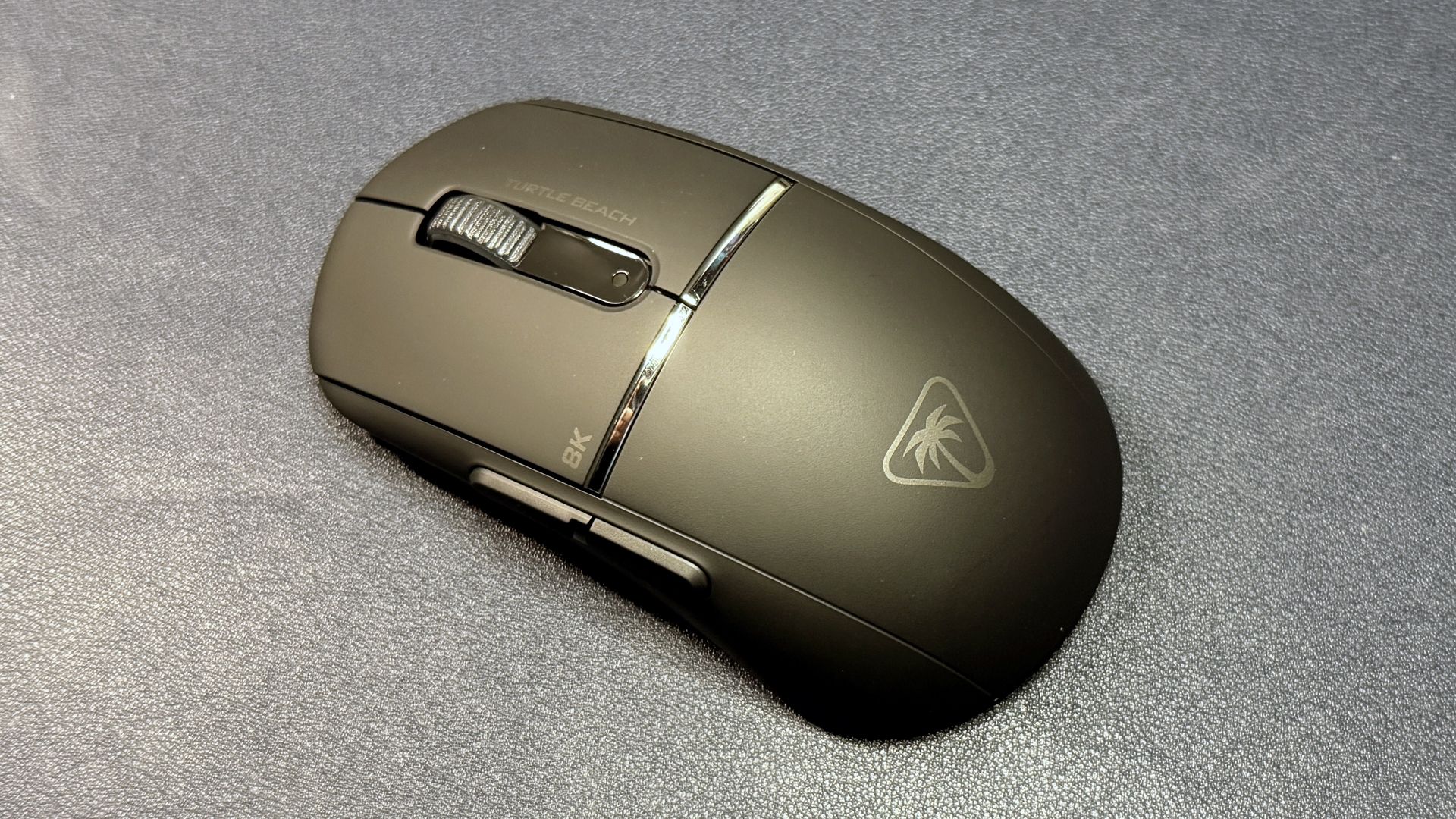
Turtle Beach Burst II Pro (Image credit: Tom's Hardware)
Another downside to an 8,000 Hz polling rate is battery life, because it drops significantly on wireless gaming mice. The battery life of the Corsair Sabre v2 Pro Wireless is a pretty impressive 120 hours at 1,000 Hz, but this drops to just 21 hours at 8,000 Hz. The Razer Basilisk V3 Pro 35K gets up to 150 hours at 1,000 Hz, and just 28 hours at 8,000 Hz. The Turtle Beach Burst II Pro does a little better, going from 150 hours at 1,000 Hz to 40 hours at 8,000 Hz, but it's still a significant drop.
Razer HyperFlux V2 (Image credit: Tom's Hardware)
And while you can cheat the system with select Razer and Logitech gaming mice by pairing them with either the Razer HyperFlux V2 or the Logitech PowerPlay 2 wireless charging mouse pads, you will need to pair the mice to your PC using their included (or, in some cases, sold separately) 8,000 Hz dongles — neither the HyperFlux V2 nor the PowerPlay 2 offer 8,000 Hz polling rates if you connect through the built-in receivers.
But... 8,000 Hz!!
You may not need an 8,000 Hz polling rate, but maybe it will make you feel better.
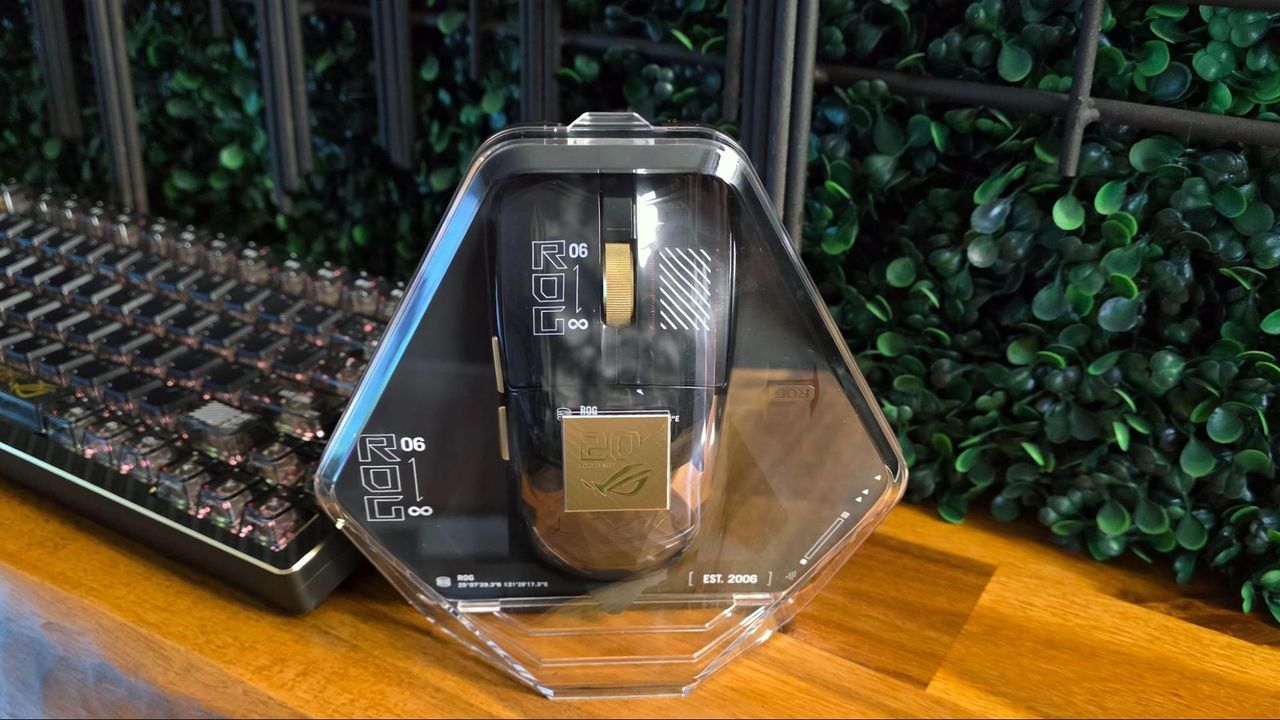
If any category of gaming mouse is going to benefit from lower latency, it's the esports category — where mice need to be lightweight so they can fly across surfaces, relatively small so they can be picked up when sliding them is too time-consuming, and hyper speedy and accurate so competitors can shoot people in the head without missing a beat. And so it's not surprising that flagship gaming mice like the Razer DeathAdder V4 Pro or the Asus ROG Harpe Ace Extreme (or the Asus ROG Harpe II Extreme Edition 20) tout 8,000 Hz polling rates.
Razer Basilisk V3 Pro (Image credit: Tom's Hardware)
But you don't have to spend a ton on an extreme edition flagship gaming mouse to max out your polling rate — several of Razer's older mice work with the company's Mouse Dock Pro and/or HyperPolling Wireless Dongle to get up to 8,000 Hz wireless polling rates, including the Razer Basilisk V3 Pro, and many of its newer mice come with 8,000 Hz polling out of the box (e.g. the Razer Viper V3 Pro, which is currently on sale for $110 at Amazon — 31% off its retail price of $160).
If you don't need a wireless mouse, Razer's DeathAdder V3 wired gaming mouse gets up to an 8,000 Hz wired polling rate (and is currently on sale for $45 at Amazon — 36% off its retail price of $70). Even Redragon, one of our favorite budget-friendly peripherals companies, has a mouse with an 8,000 Hz polling rate: the Redragon M916 ULT, which is wireless and ultra-lightweight (49g) and retails for just $50.
Razer Naga V3 Pro (Image credit: Tom's Hardware)
Ultra-high polling rates are creeping in everywhere, not just in the competitive esports market. Even Razer's recently launched V3 Naga Pro, which isn't even an ultra-lightweight, esports-oriented gaming mouse (it's a relatively hefty 23-button mouse for games that definitely do not need to worry about ultra-smooth, accurate mouse movement or click latency), can get up to an 8,000 Hz polling rate if you pair it with either the company's Mouse Dock Pro or HyperPolling Wireless Dongle (both are sold separately, naturally, because — again — you don't need this).
Corsair recently showed off its Nightsword v2 Wireless SD, a mouse with a built-in Stream Deck (sort of), which also has up to an 8,000 Hz polling rate (170 hours of battery life at 1,000 Hz, which drops to 47 hours with the lighting turned off and 25.5 hours with the lighting turned on at 8,000 Hz). And if you think that you can tell the difference between half a millisecond but not that extra quarter, there are also mice with up to 4,000 Hz polling rates, such as the HyperX Pulsefire Saga Pro and the SteelSeries Aerox 3 Wireless Gen 2.
And as for whether you need a keyboard with an 8,000 Hz polling rate, the answer is: absolutely not.
There aren't too many wireless charging mouse pads on the market, which is perhaps a little surprising given how many wireless gaming mice there are. Possibly there just isn't that much demand for wireless charging mouse pads. After all, not many people want to pay $100+ when the best gaming mouse pads start at much, much lower prices.
The Razer HyperFlux V2, introduced about a year ago, is the current version of the brand's wireless charging mouse pad lineup, which debuted back in 2018. The HyperFlux V2 supports several of Razer's current mice from three of its lines — Naga, Basilisk, and Cobra — but not from the DeathAdder or Viper lines. It comes in hard and soft editions, both of which are priced at $119.99.
Design of the HyperFlux V2
The HyperFlux V2 comes in two variations — a hard edition, which has a hard, polycarbonate surface designed for speed; and a cloth edition, which has a soft, cloth surface for control. Both versions share the same specs, aside from surface type. For this review, we tested the hard edition.
(Image credit: Tom's Hardware)
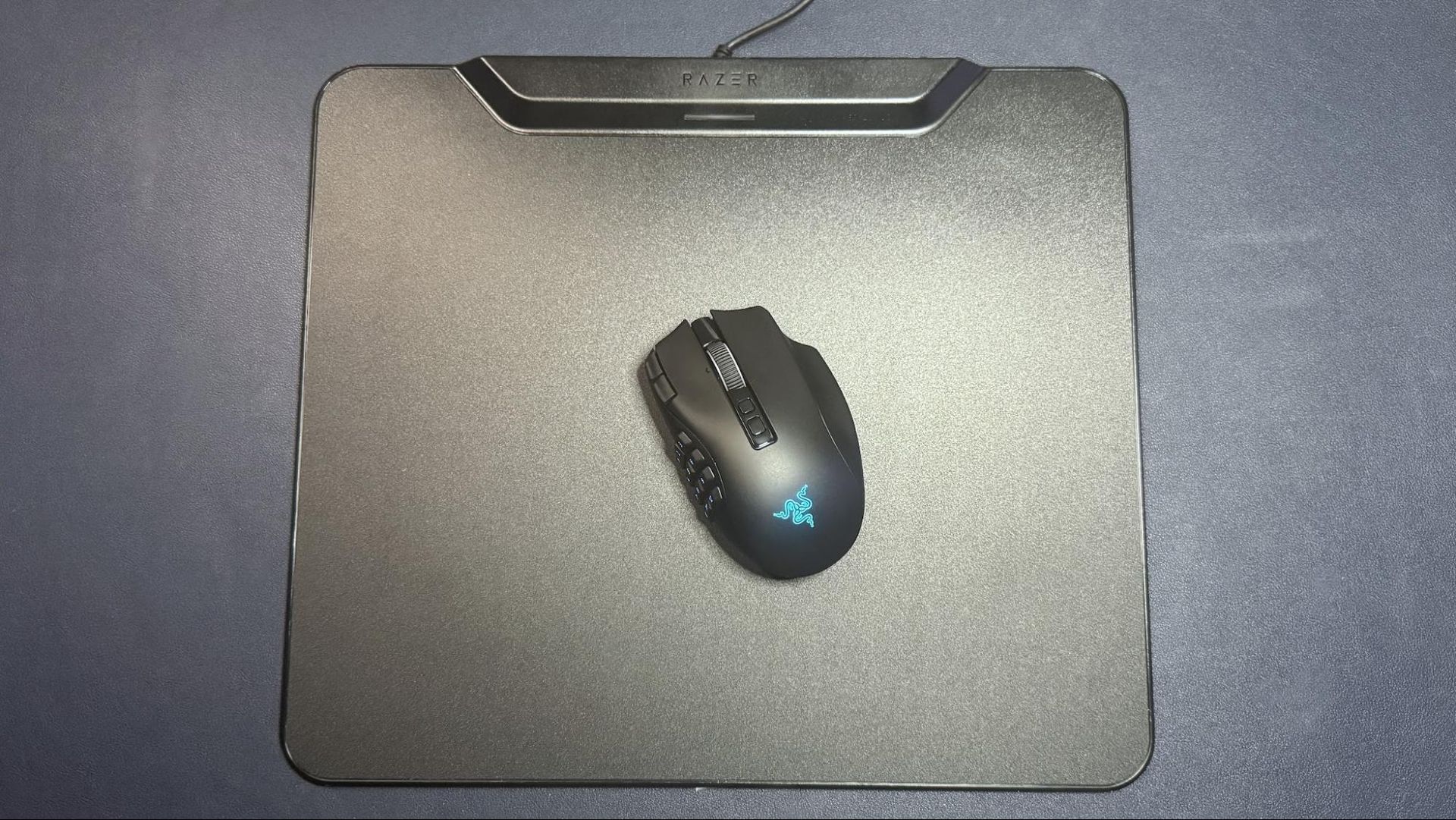
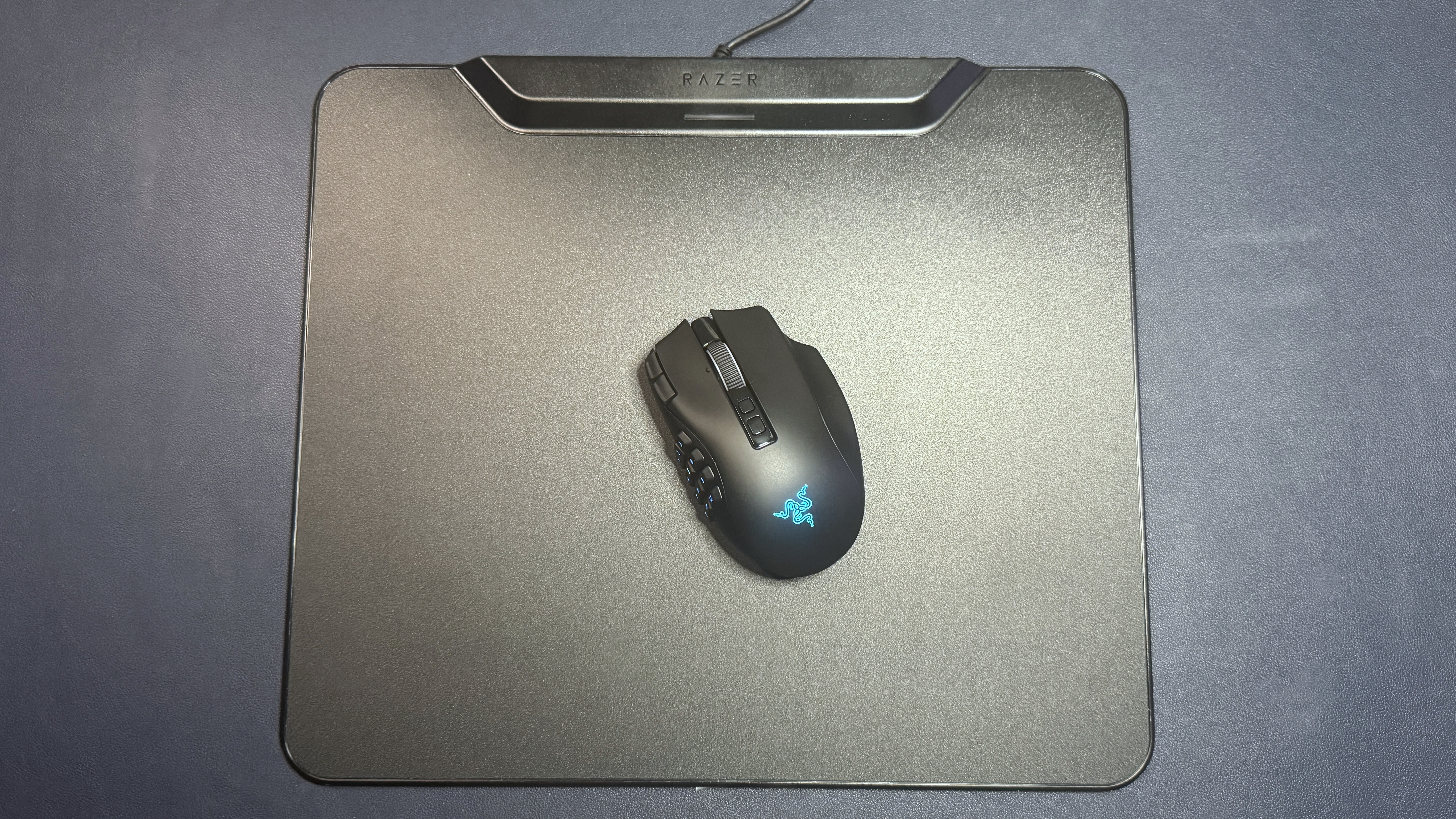
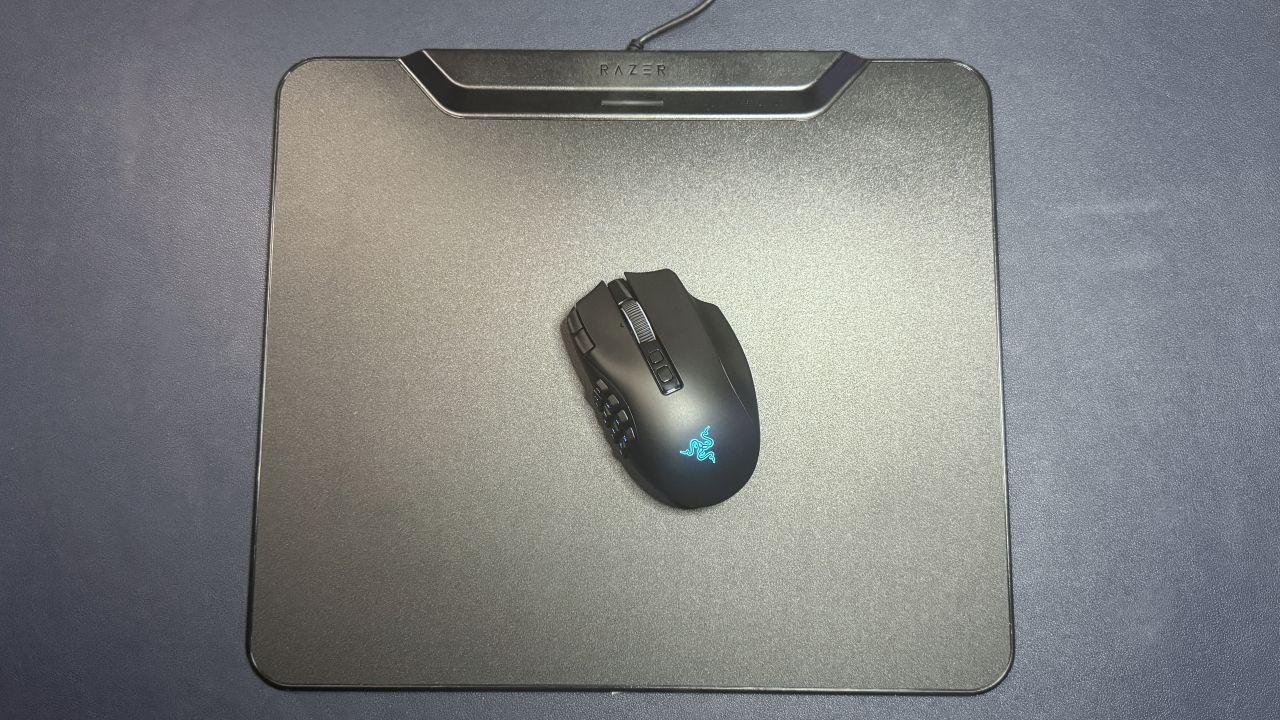
The HyperFlux V2 is a medium-sized gaming mouse pad that's a little larger than other medium-sized gaming mouse pads. It measures 16 inches (360mm) wide by 12.24 inches (311mm) long, so it shouldn't take up too much space on the average gaming desk. The surface itself is only 0.2 inches (5mm) thick, though the power/charging module at the top is around 0.52 inches (13.3mm) thick. The HyperFlux V2 is slightly larger than Logitech's PowerPlay 2, which measures 13.54 x 11.14 x 0.14 inches (344 x 238 x 3.5mm). But both should fit on your desk pretty easily.
Tom's HardwareTom's Hardware
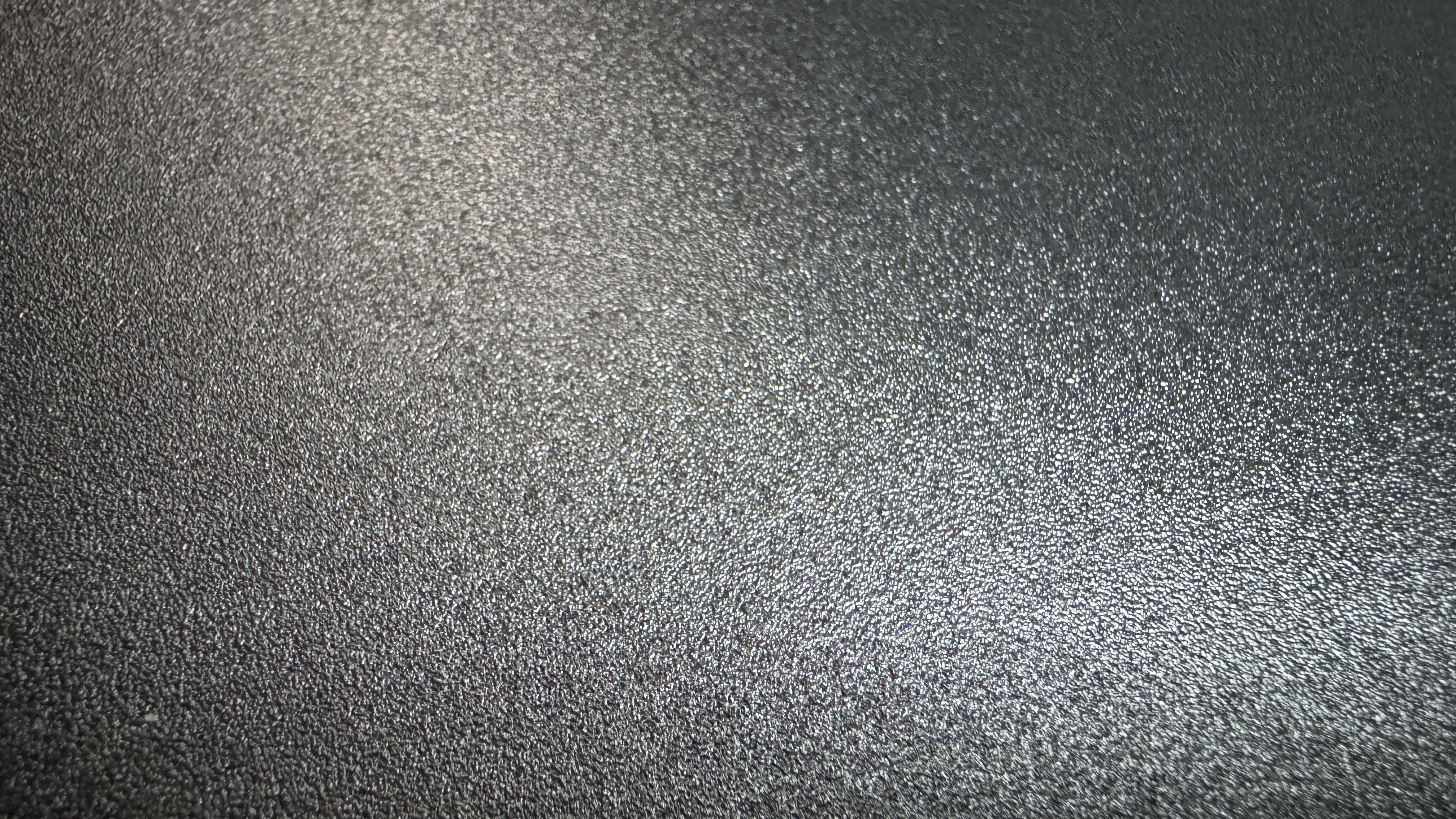
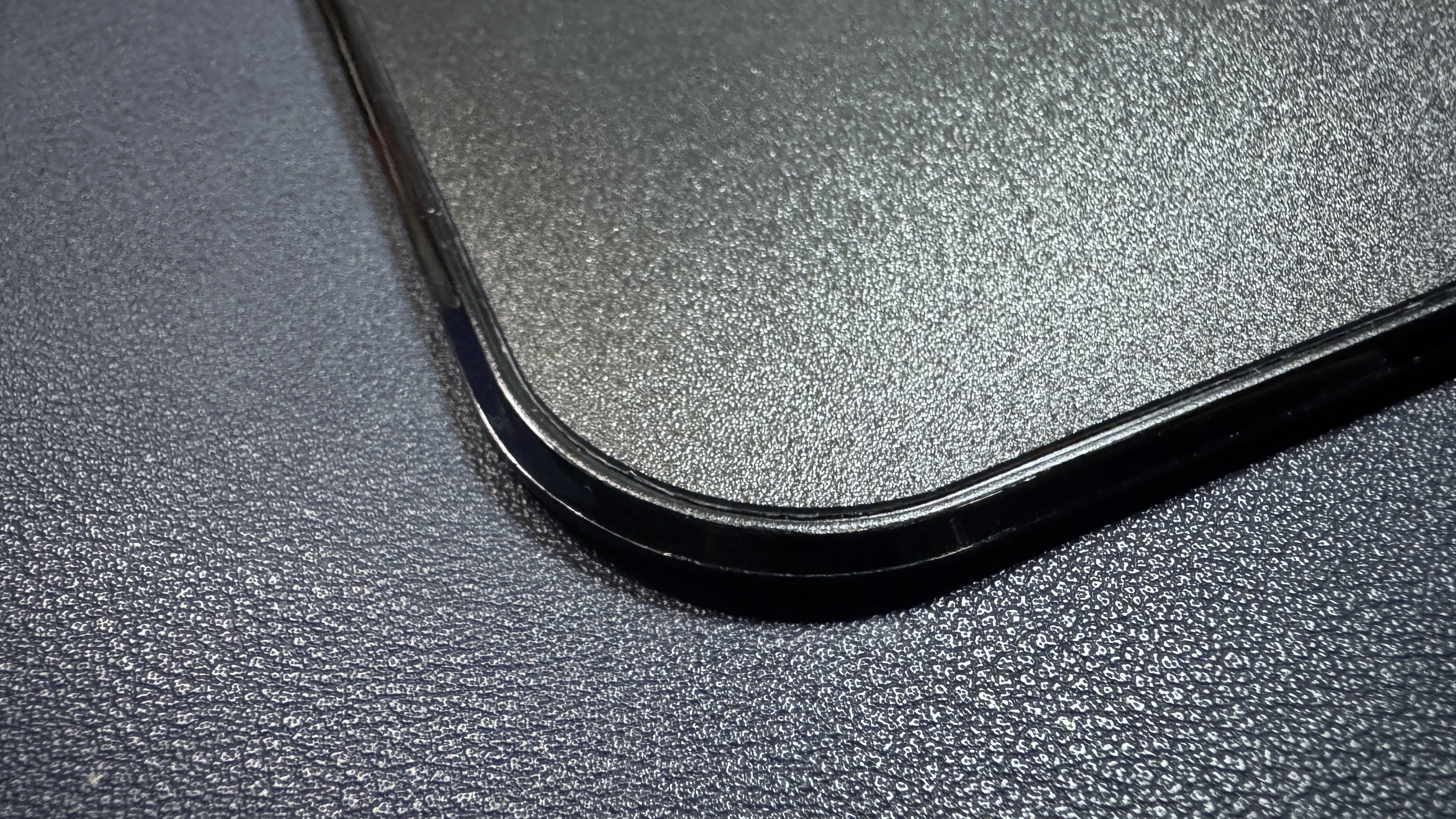
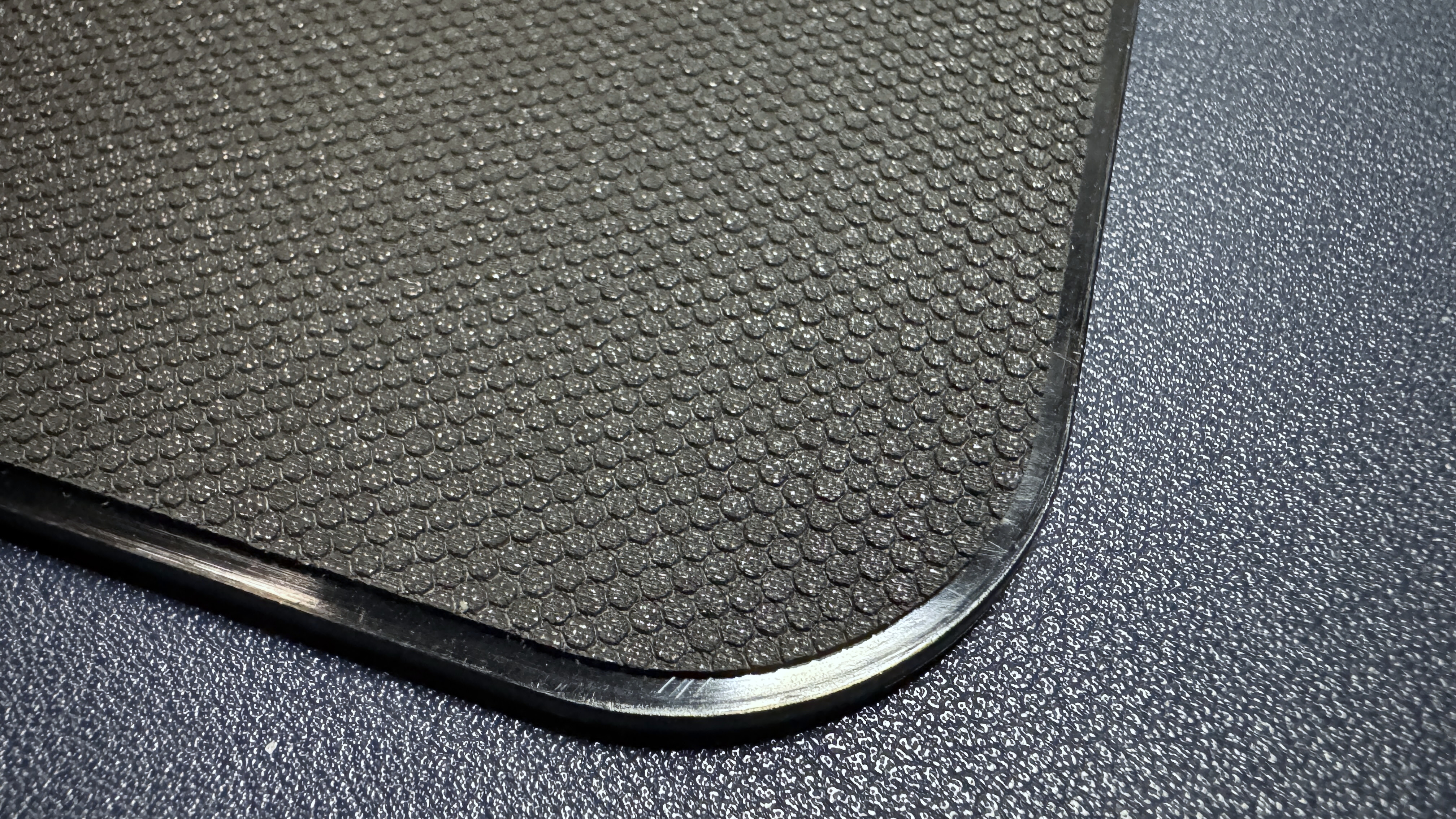
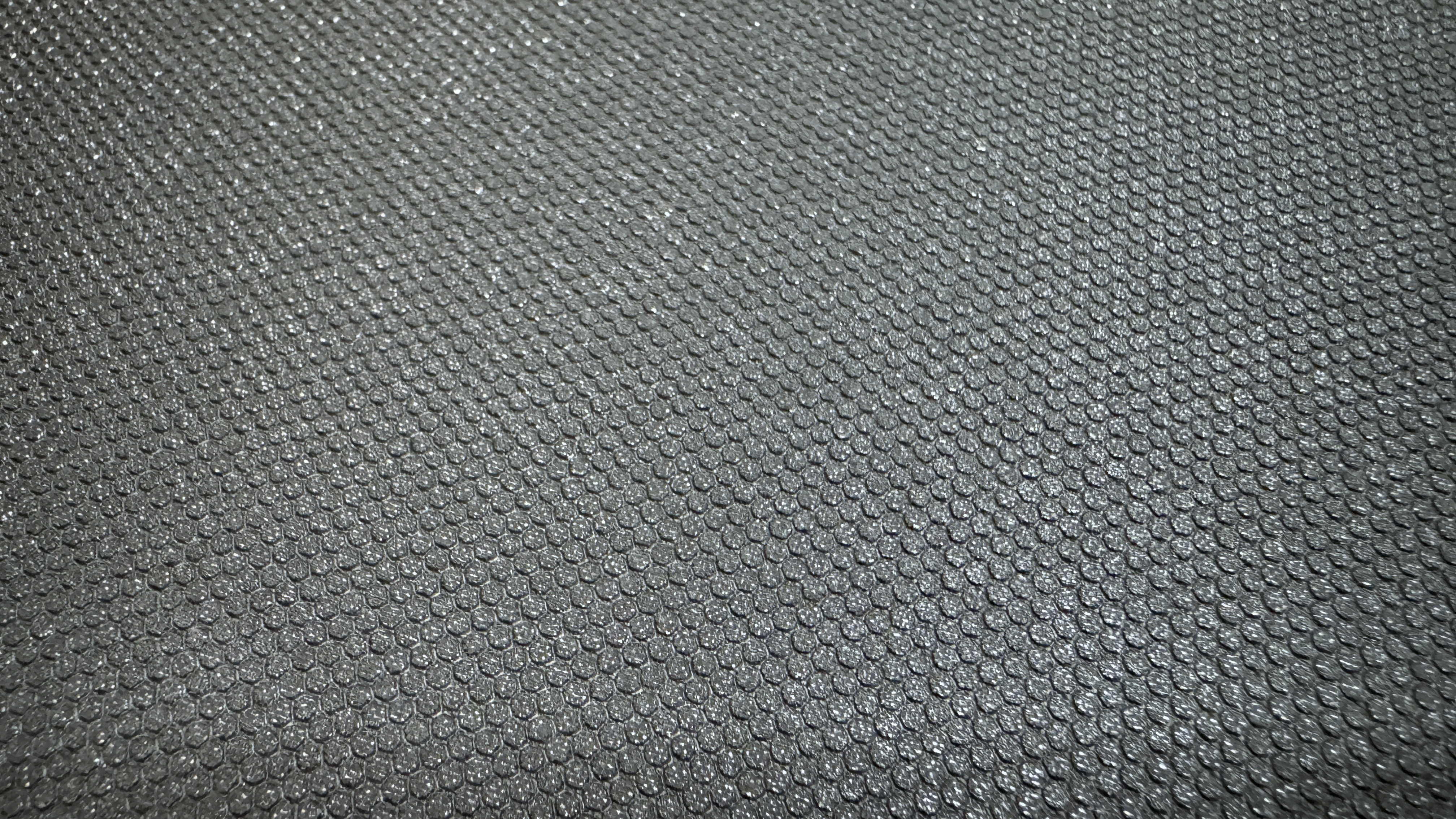
The mouse pad has a hard, microtextured polycarbonate surface surrounded by a shiny plastic bezel. It's not particularly luxurious-looking, but the surface is flat and consistent and seems fairly easy to clean, though dust does seem to gather in the (very tiny) gap between the surface and the bezel.
Tom's HardwareTom's Hardware
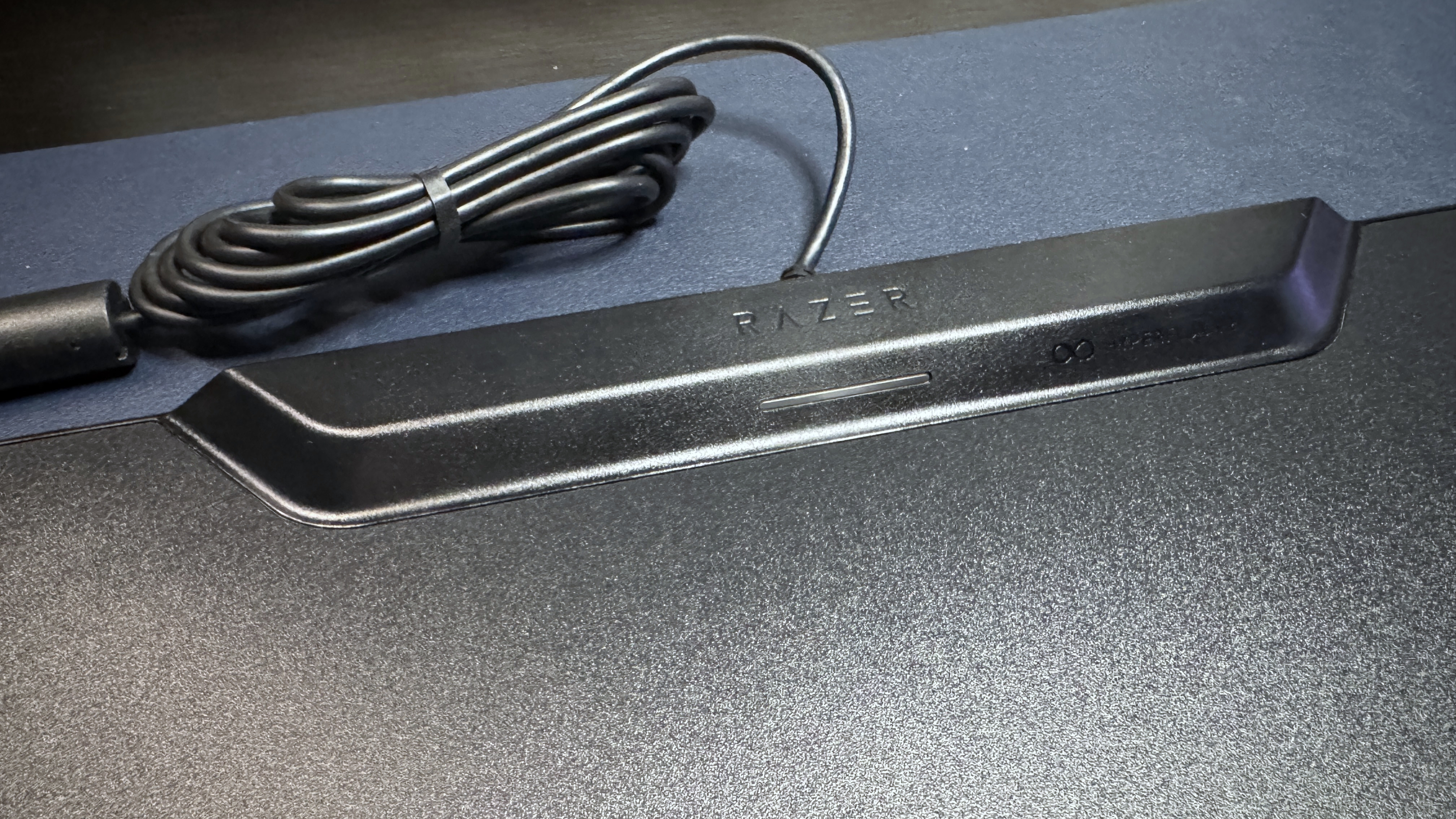
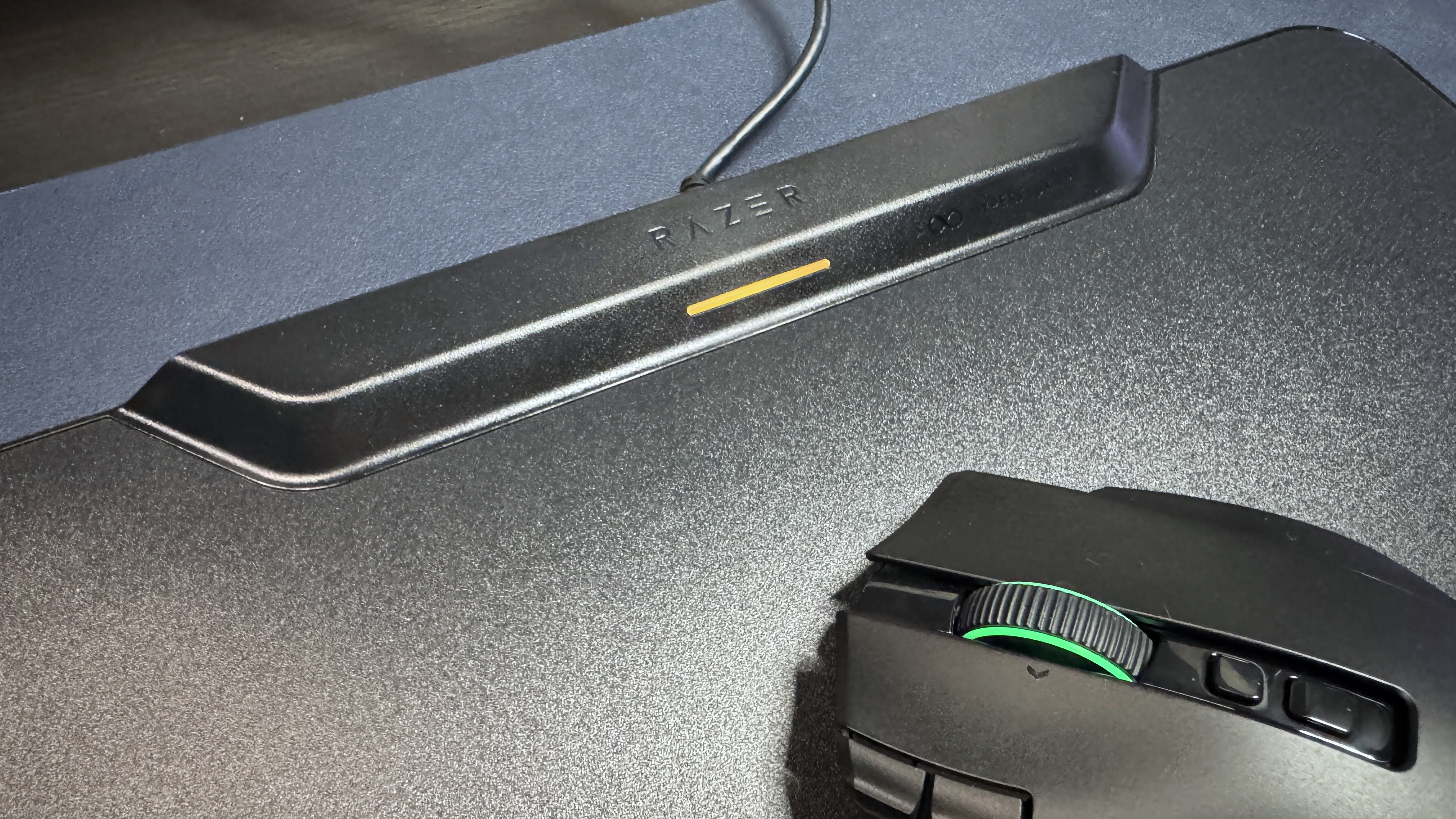
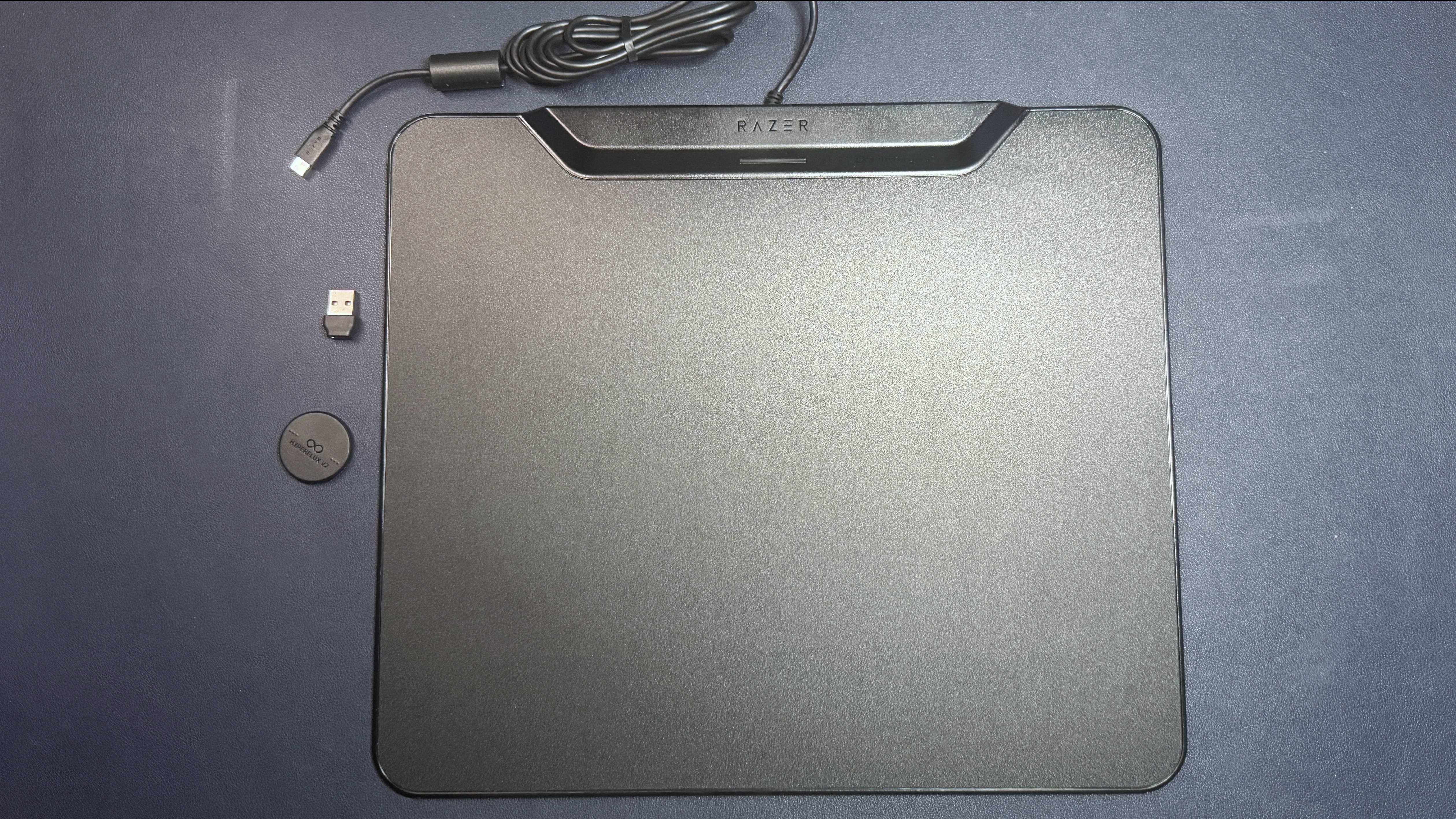
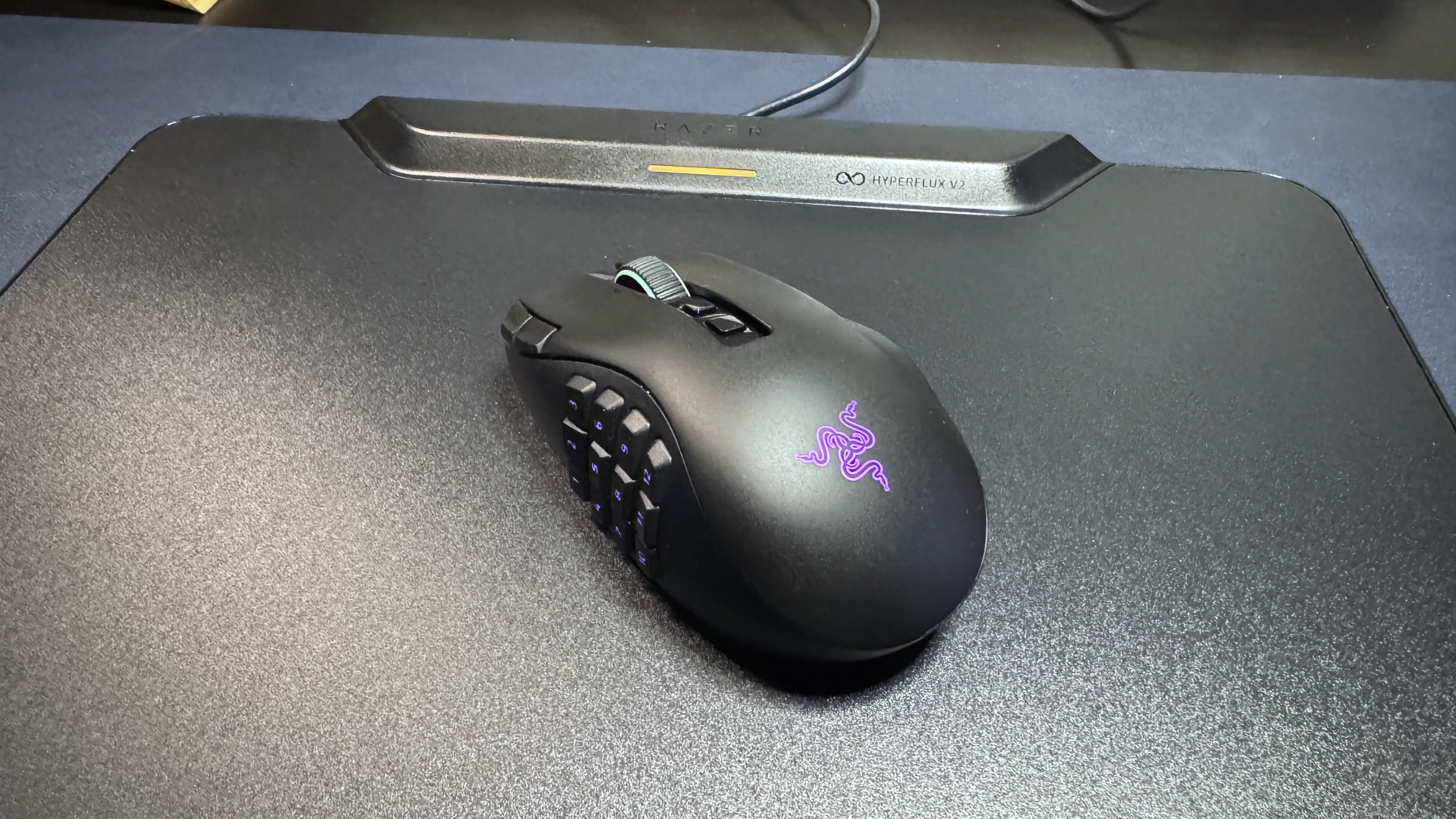
There's a long, thin charging module at the top of the mouse pad, in the center. It's longer and more prominent than the PowerPlay 2's charging module, but it's also better integrated into the design. It's very similar to the power module in the Razer Firefly V2 Pro. In the center of the charging module, there's a 1.25-inch (32mm) LED indicator light, which lights up to indicate the mouse's charging status and battery level.
Tom's HardwareTom's HardwareTom's Hardware
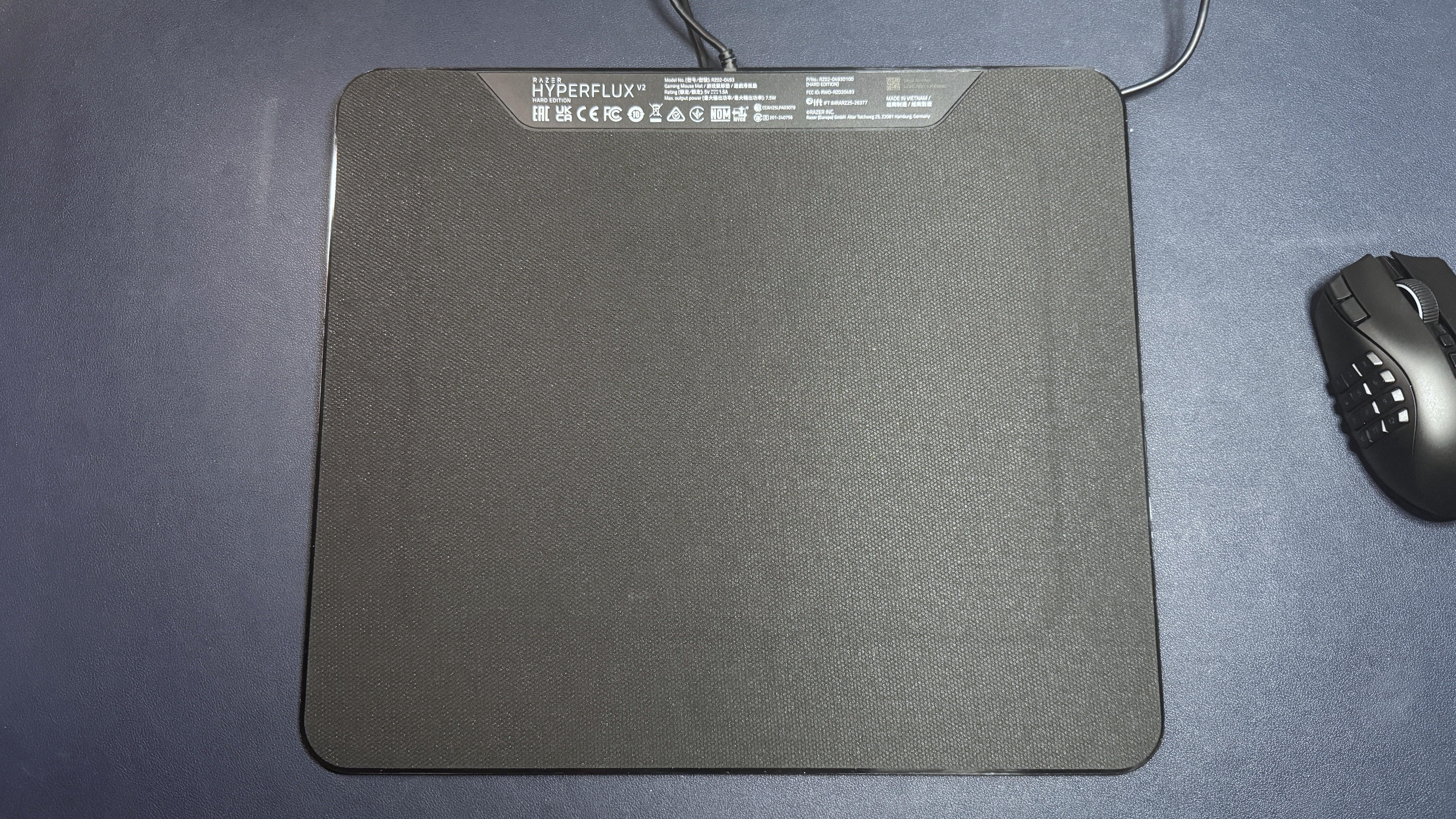
The bottom of the mouse pad is fully lined with an anti-slip rubber base to keep it from moving around on your desk.
(Image credit: Tom's Hardware)
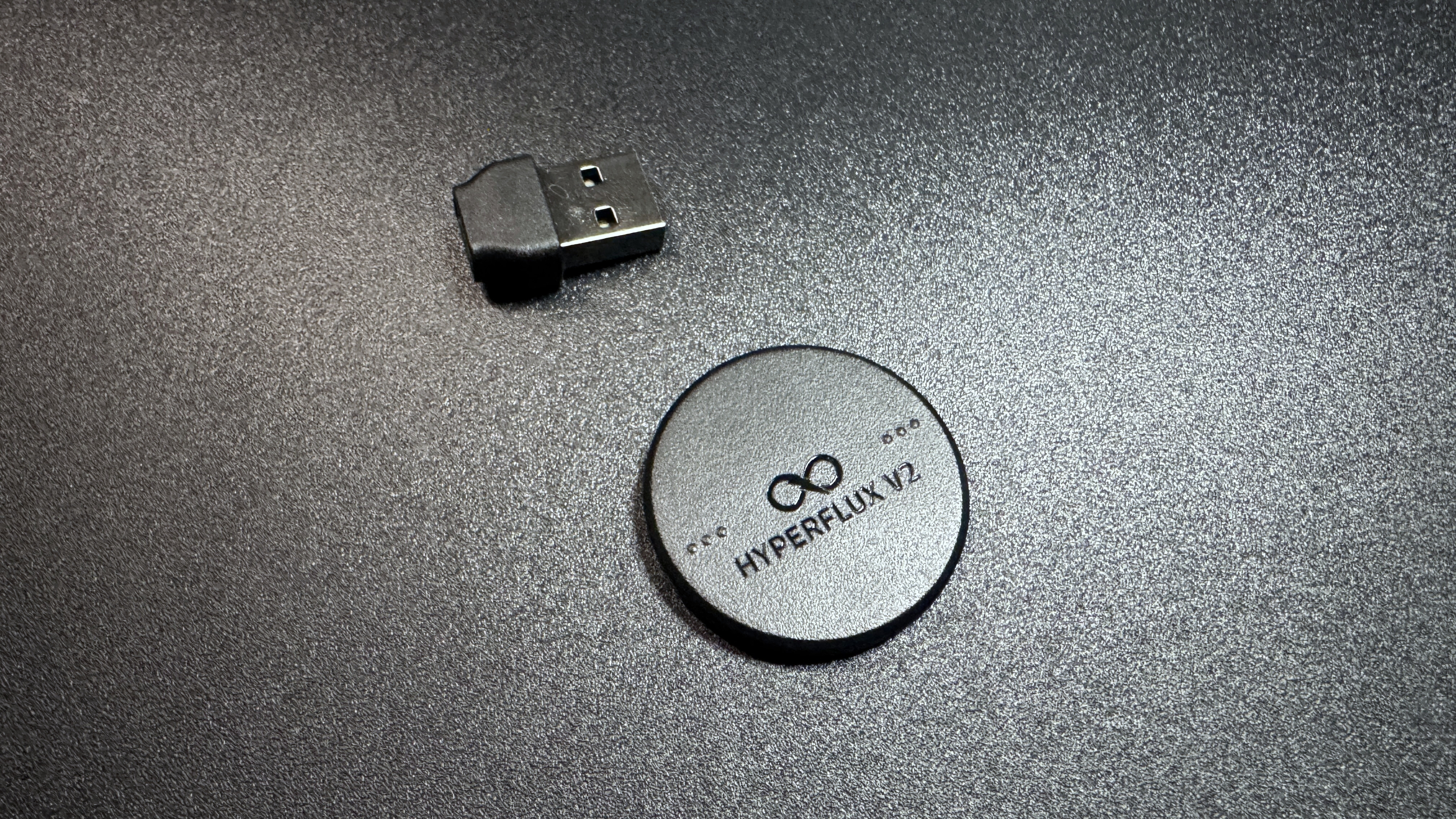
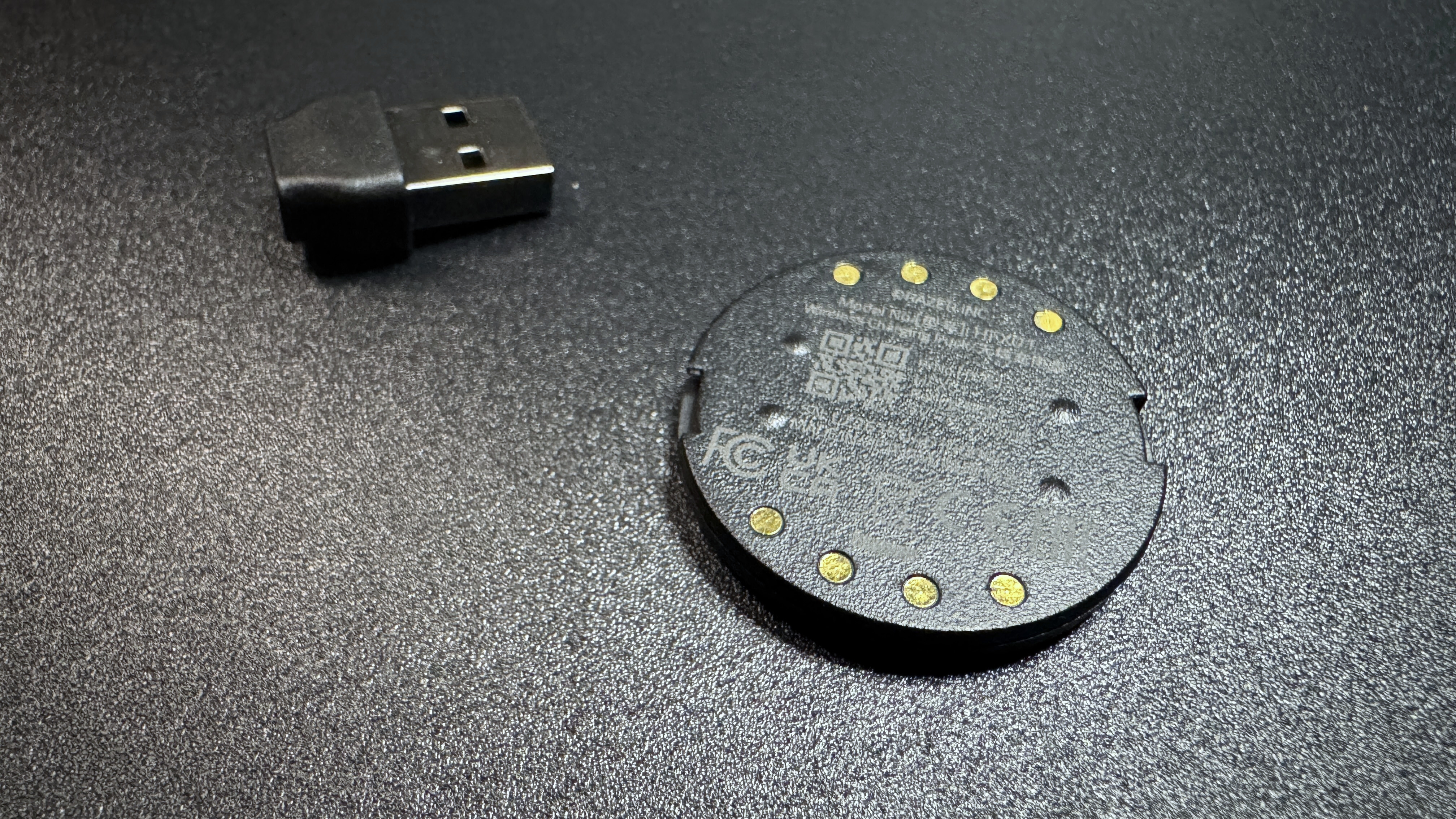
The HyperFlux V2 comes with just two accessories — a wireless charging puck and a USB-C to USB-A adapter, as the mouse pad has a non-detachable USB-C cable. The cable is similar to the non-detachable, rubber cable on the PowerPlay 2.
Specs
Surface
Hard (microtextured polycarbonate)
Cable
6ft / 1.8mm non-detachable, USB-C
Size (W x L x D)
16 x 12.24 x 0.2 inches / 360 x 311 x 5 mm
Price
$119.99
Release Date
June 2025
Performance of the HyperFlux V2
The point of the HyperFlux V2 is to eliminate the need for you to manually charge your wireless Razer mouse, and it executes this... exactly as expected. All you need to do is replace the puck on the bottom of your compatible wireless Razer mouse. I'm using the recently-launched Razer Naga V3 Pro, but other compatible mice include the Naga V2 Pro, the Basilisk V3 Pro, the Basilisk V3 Pro 35K, the Cobra HyperSpeed, and the Cobra Pro with the included wireless charging puck that comes with the HyperFlux V2. Then, place the mouse on the mouse pad and, assuming the mouse pad is plugged in, it will automatically detect the mouse and pair with it wirelessly. (I did have a minor hiccup with this process, but we'll talk about that later.)
(Image credit: Tom's Hardware)
I will point out that the HyperFlux V2 has a polling rate that tops out at the standard 1,000 Hz. If you want to get a higher polling rate, such as 4,000 or 8,000 Hz, with your mouse, you'll need to connect via Razer's HyperPolling Wireless Dongle ($40) or Razer's Mouse Dock Pro ($70), both of which are sold separately. You can still use the HyperFlux V2 as a wireless charging mat, even if you aren't connected through it.
As for the mouse pad's surface, I didn't have any complaints, but I also wasn't particularly impressed. The hard surface version of the HyperFlux V2 is hard, micro-textured polycarbonate with a slight sheen. It's designed for speed, and while it seemed fast enough, it wasn't anywhere near the smooth, speedy glide of a glass mouse pad such as Razer's Atlas. The mice I tested with it — the Naga V3 Pro and the Basilisk V3 Pro 35K — had no issues with tracking and accuracy, but that's not particularly surprising as the sensors in modern-day premium gaming mice are all pretty consistently great at tracking on any sort of traditional mouse pad surface. The surface is textured enough that precision wasn't an issue, though the mouse pad also comes in a cloth surface version for those who need just a little more control. And the full rubber backing ensured that the surface remained perfectly level at all times.
If you ignore the wireless charging part, the HyperFlux V2 is a decent mouse pad. It's not particularly impressive, exciting, or attractive to look at if you don't have a wireless mouse in need of charging. I do like the size. There's plenty of room for big mouse swipes, and the mouse pad still fits very easily next to a full-size keyboard setup. It's a few inches larger than the PowerPlay 2, and the difference in surface area is noticeable.
But let's be serious — you're buying this mouse pad for the wireless charging and connection. And it does do both of these things pretty seamlessly; it's definitely a "set it and forget it" type of product. But without the wireless charging/connection, you definitely wouldn't give it a second glance.
Features and Software of the HyperFlux V2
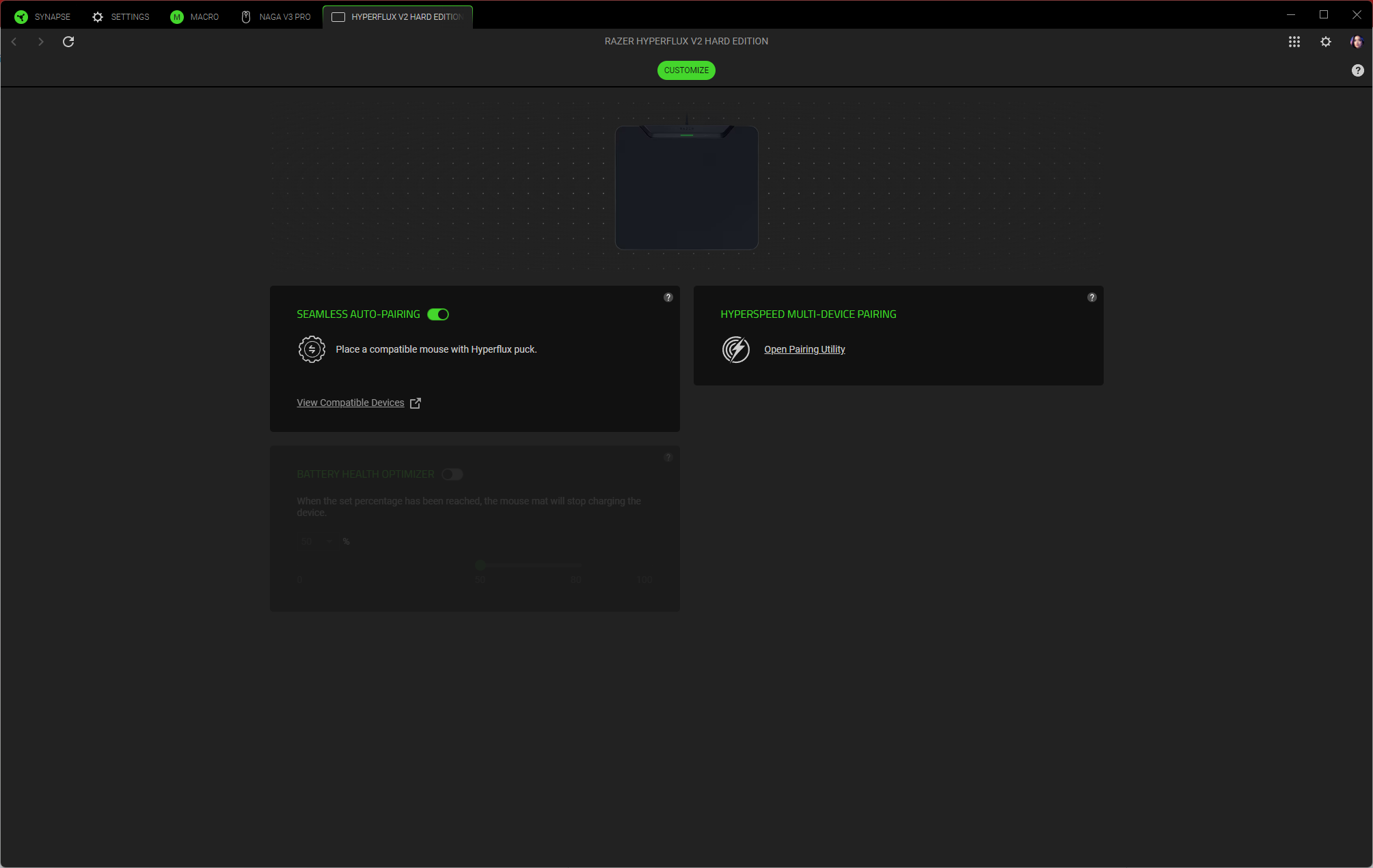
The HyperFlux V2 does connect to Razer's universal peripheral app, Synapse 4, even though it doesn't have a ton of customization options (it doesn't have any RGB lighting, for example). Still, it's useful for managing what devices are or aren't paired to the HyperFlux V2. The mouse pad features "seamless auto-pairing," which means all you have to do is put the charging puck in a compatible wireless mouse and place it on the mouse pad, and it should pair automatically.
(Image credit: Tom's Hardware)
This wasn't perfectly seamless for me, however, as I already had the Razer Naga V2 Pro with a wireless charging puck from the Razer Mouse Dock Pro inside it — and when I set it down on the HyperFlux V2 to put the charging puck in the Razer Naga V3 Pro, the mouse pad recognized and paired with the Naga V2 Pro. While the mouse pad is apparently compatible with other Razer charging pucks, it can only pair with one mouse at a time, so I had to unpair the Naga V2 Pro before I could pair the Naga V3 Pro (the Mouse Dock Pro puck also only appears to work for connecting, not charging).
Tom's HardwareTom's HardwareTom's Hardware
The HyperFlux V2 does support multi-device pairing, just not multi-mouse pairing. It can pair with a mouse (via the charging puck) and a compatible wireless Razer keyboard simultaneously, which lets you free up a USB slot.
There's also a battery health optimizer option in Synapse 4, which automatically turns off wireless charging when the mouse reaches a certain battery level percentage (adjustable, from 50% to 80%).
The Bottom Line
The Razer HyperFlux V2 works as intended — it charges compatible wireless Razer gaming mice as you use them, so you'll never have to worry about docking your mouse or plugging it in to keep the juice up. There's not a lot of competition on the market, aside from Logitech's PowerPlay 2, and there's basically no competition if you already own a Razer mouse.
The HyperFlux V2 shares some of the issues we didn't love on the PowerPlay 2; specifically, it feels a little cheaper, overall, than its $120 price tag would suggest. Like the PowerPlay 2, it has a non-detachable rubber USB-C cable and comes with a wireless charging puck that plugs into the bottom of your mouse. It's larger than the PowerPlay 2, though its charging module takes up more of the actual mouse pad real estate. Like the PowerPlay 2, it acts as both a wireless charging pad and a wireless receiver, and you can free up a couple of USB ports on your PC by connecting via this receiver. It can also simultaneously connect to a compatible wireless Razer keyboard, if you happen to be fully inundated in the Razer ecosystem.
Also like the PowerPlay 2, the HyperFlux V2 works best for those who are fully inundated in (or plan to be) the brand's ecosystem. At the end of the day, the best wireless charging mouse pad for you really comes down to which company made your wireless mouse of choice. Don't get me wrong, the HyperFlux V2 will remain on my desk for the foreseeable future, but only because my main mouse is the Razer Naga V3 Pro.
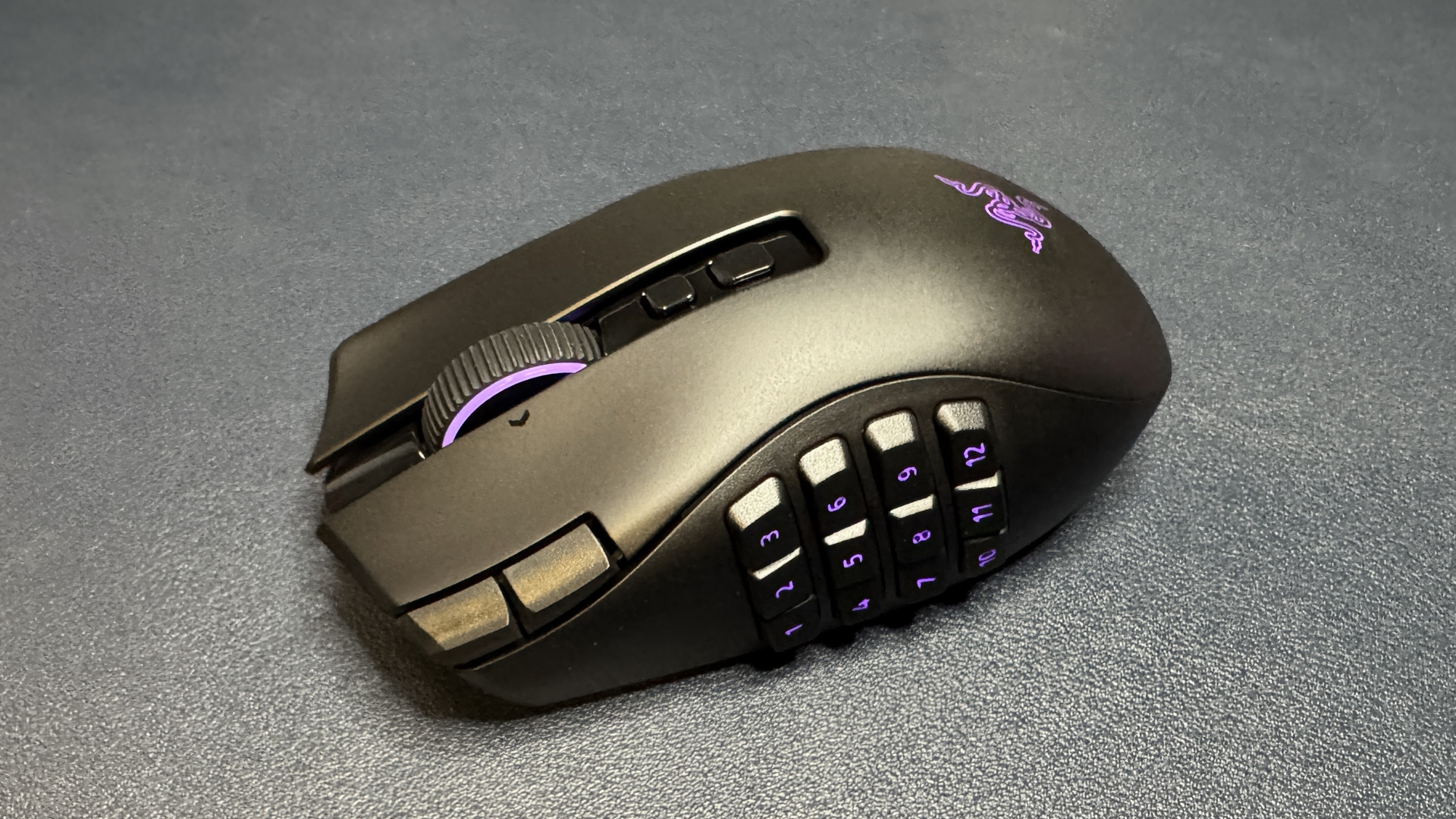
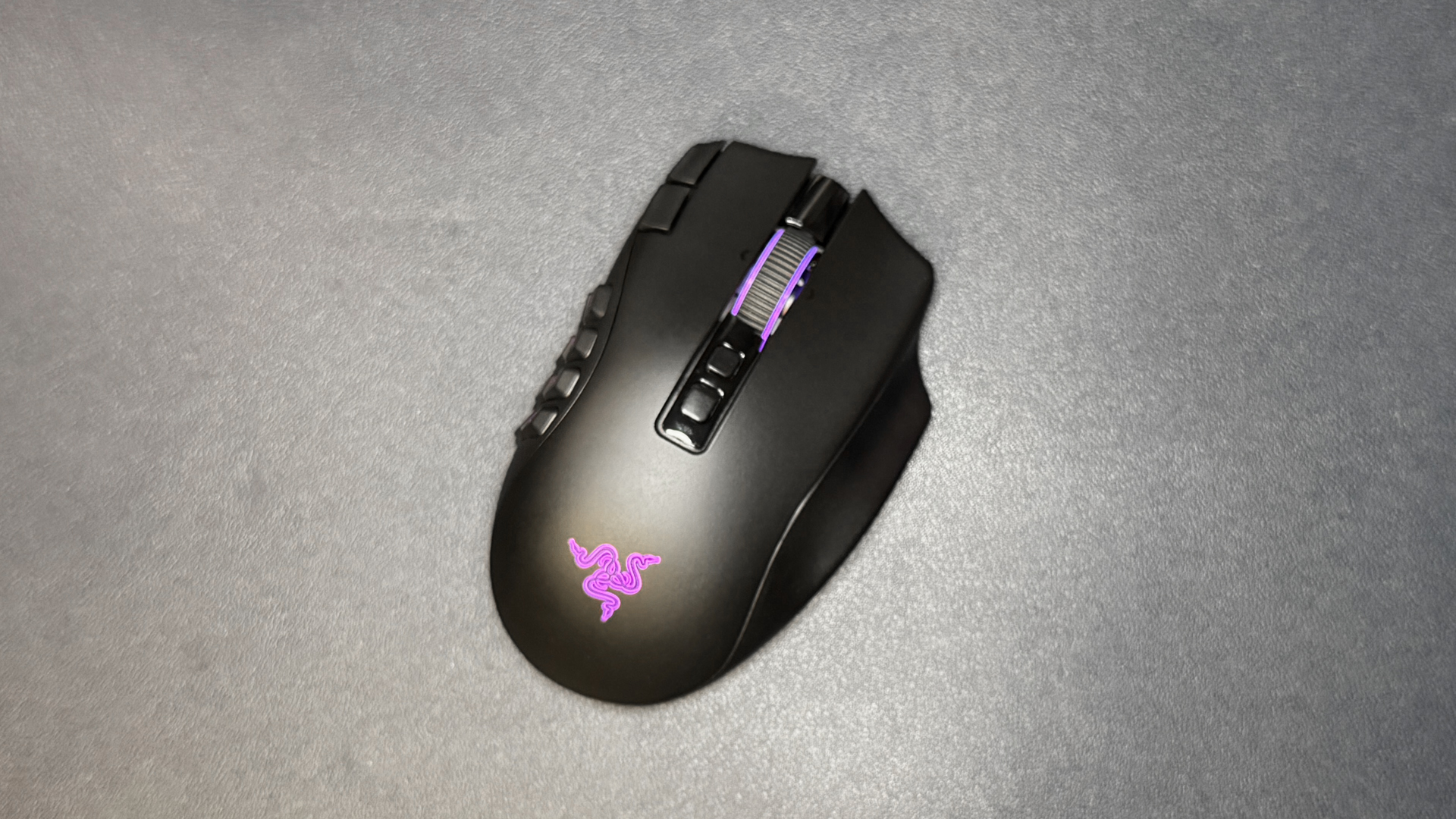
If you know anything about me, you know I love a mouse with 19+ buttons. That's why I've been using Razer's Naga V2 Pro as my daily driver for the past three and a half years — and I have no regrets; it's on our list of best gaming mice for a reason. Thankfully, Razer must've heard my V2 Pro begging for its life, because there's a new multi-button MMO mouse in town with up to 23 programmable buttons: the Razer Naga V3 Pro.
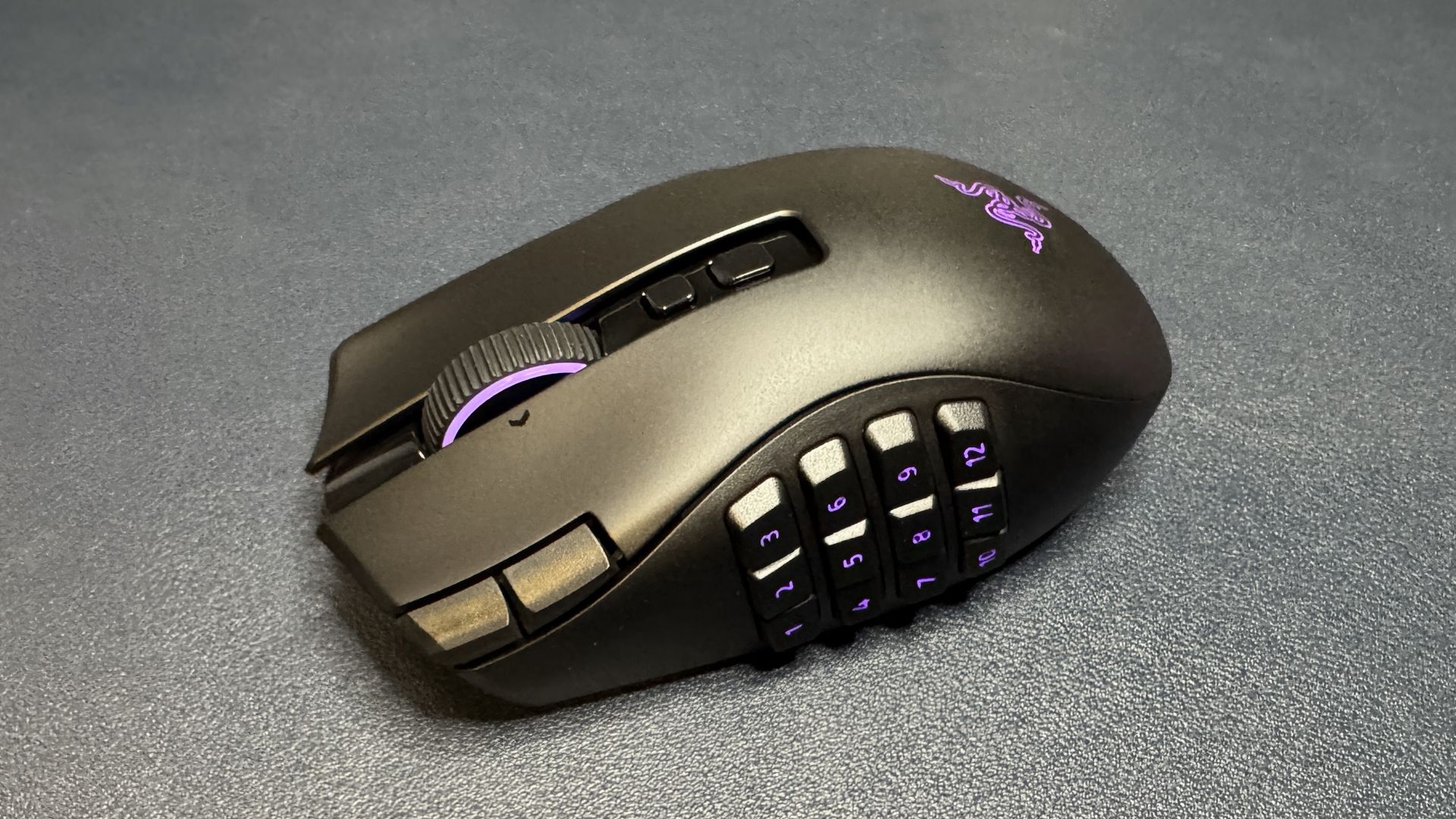
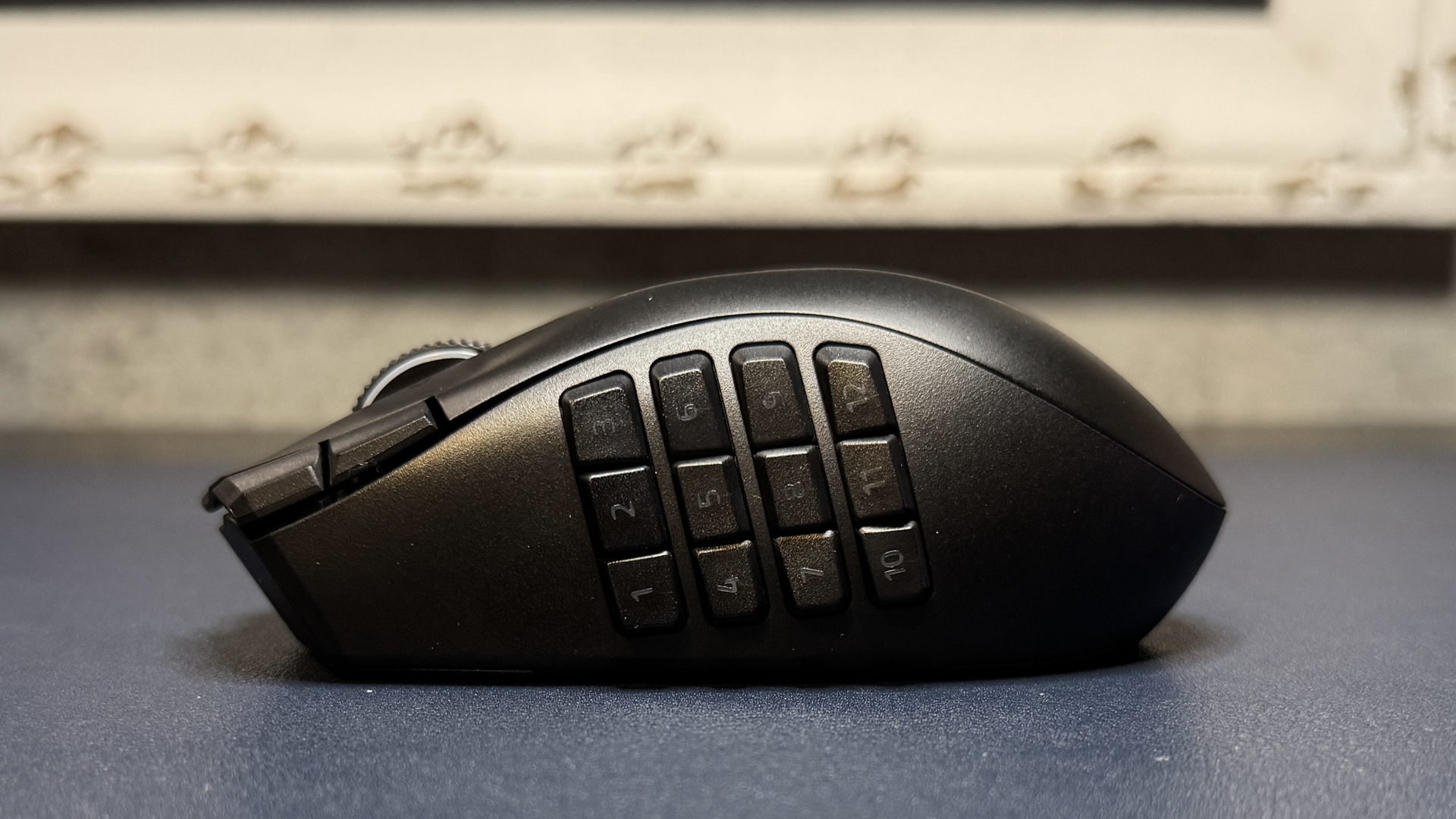
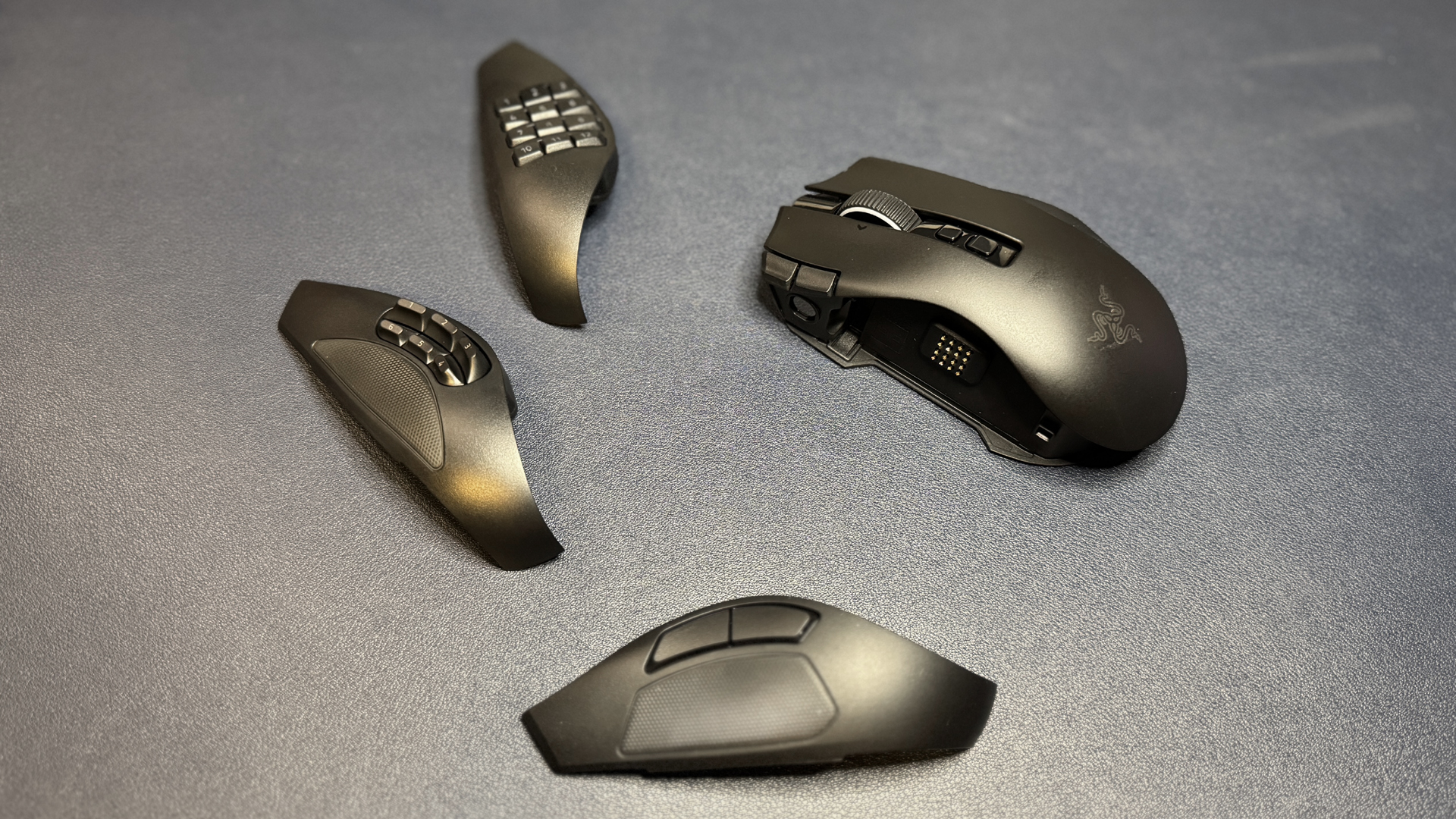
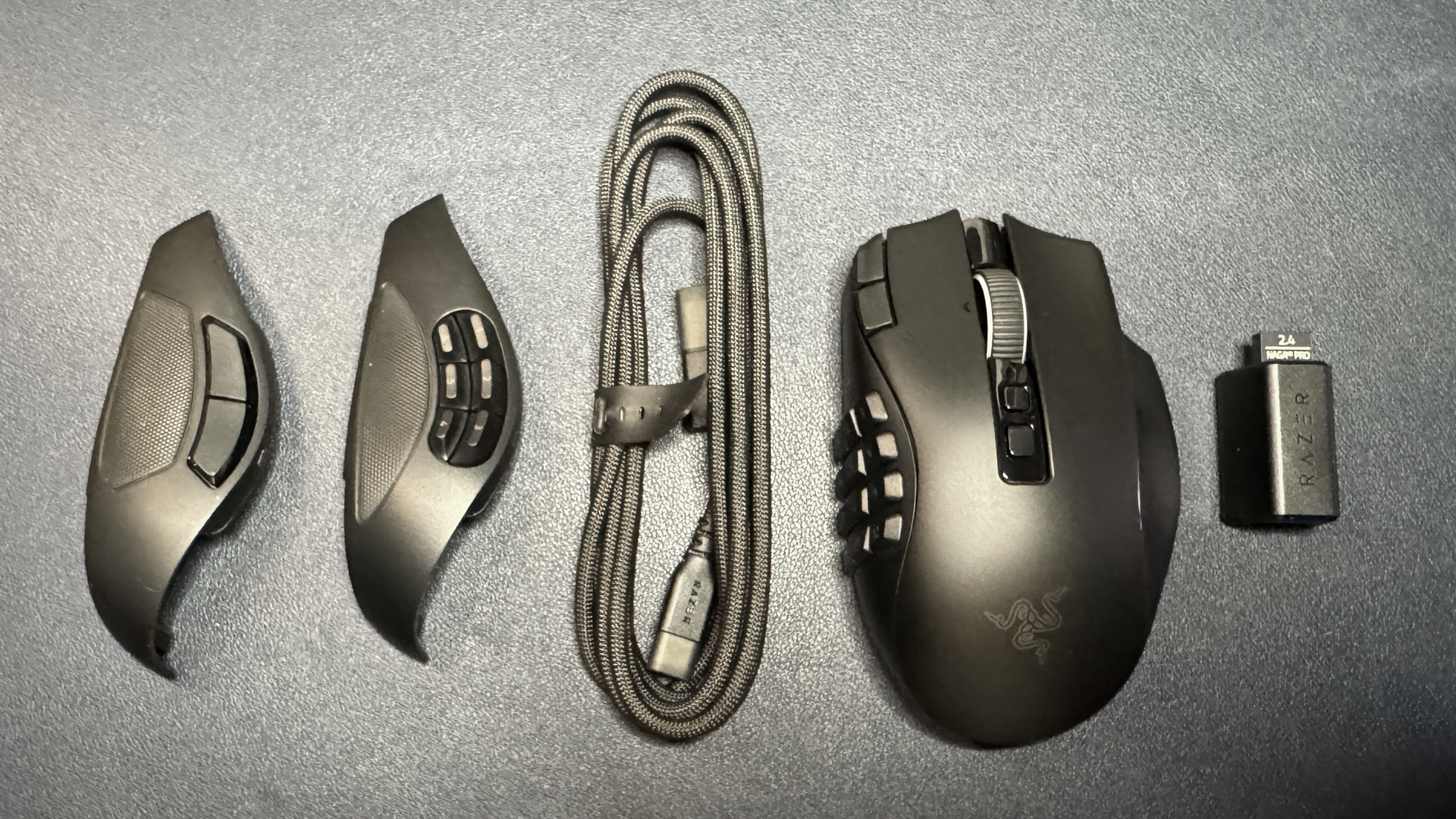
The Naga V3 Pro is very similar to its predecessor at a glance — because Razer hasn't changed the mouse's form factor at all. It still comes with three swappable magnetic side plates (in 2-, 6- and 12-button layouts), but that's where the similarities end. The new Naga V3 Pro sports Razer's latest Focus Pro 50K gen-3 optical sensor, which has a maximum sensitivity of 50,000 DPI and a maximum speed of 930 IPS, and can handle up to 90 G's of force. It's not cheap, as the Naga lineup never has been, with an MSRP of $180 — pricier than most premium flagship gaming mice because it is, after all, all about versatility.
Design and Comfort
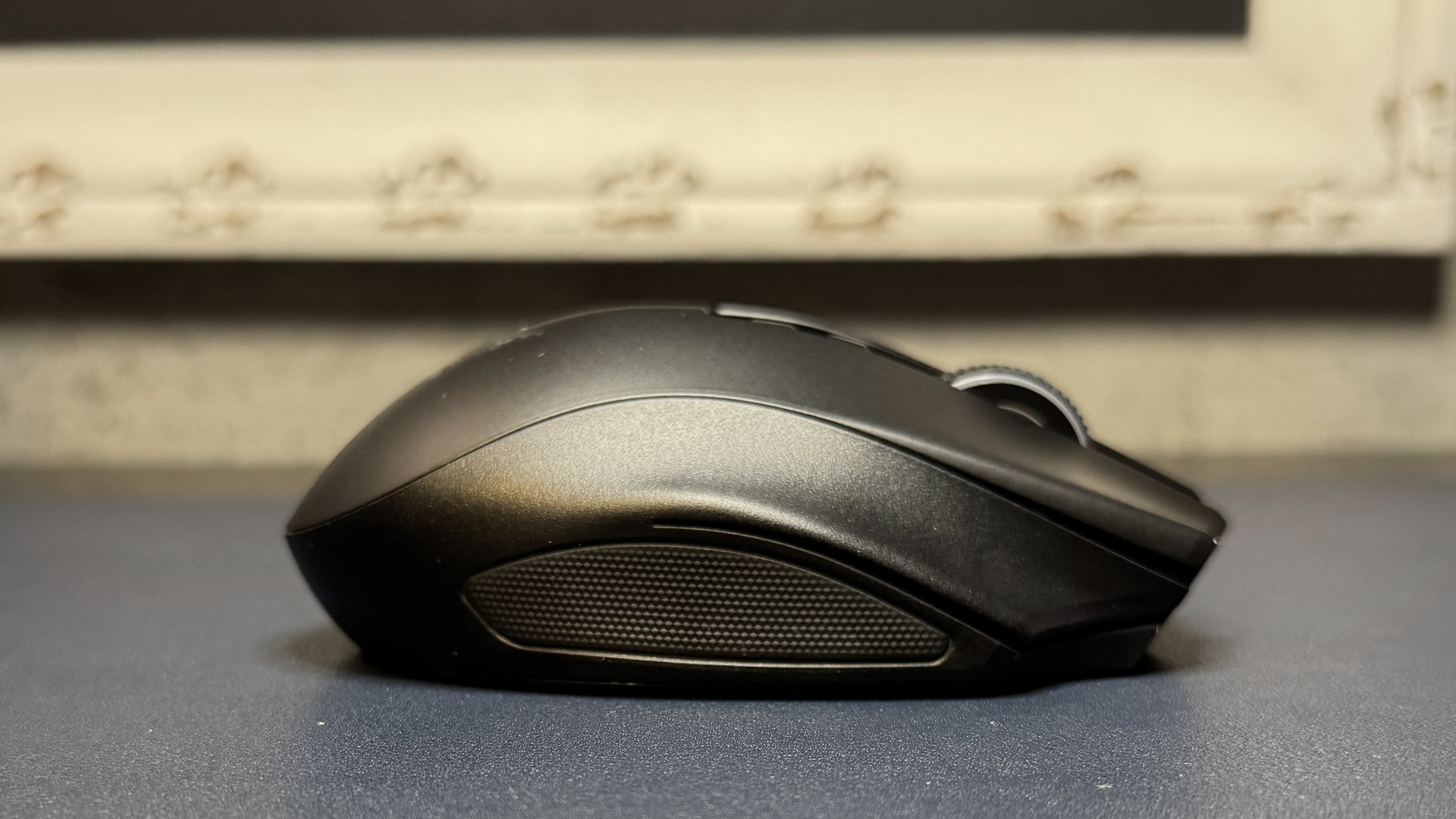
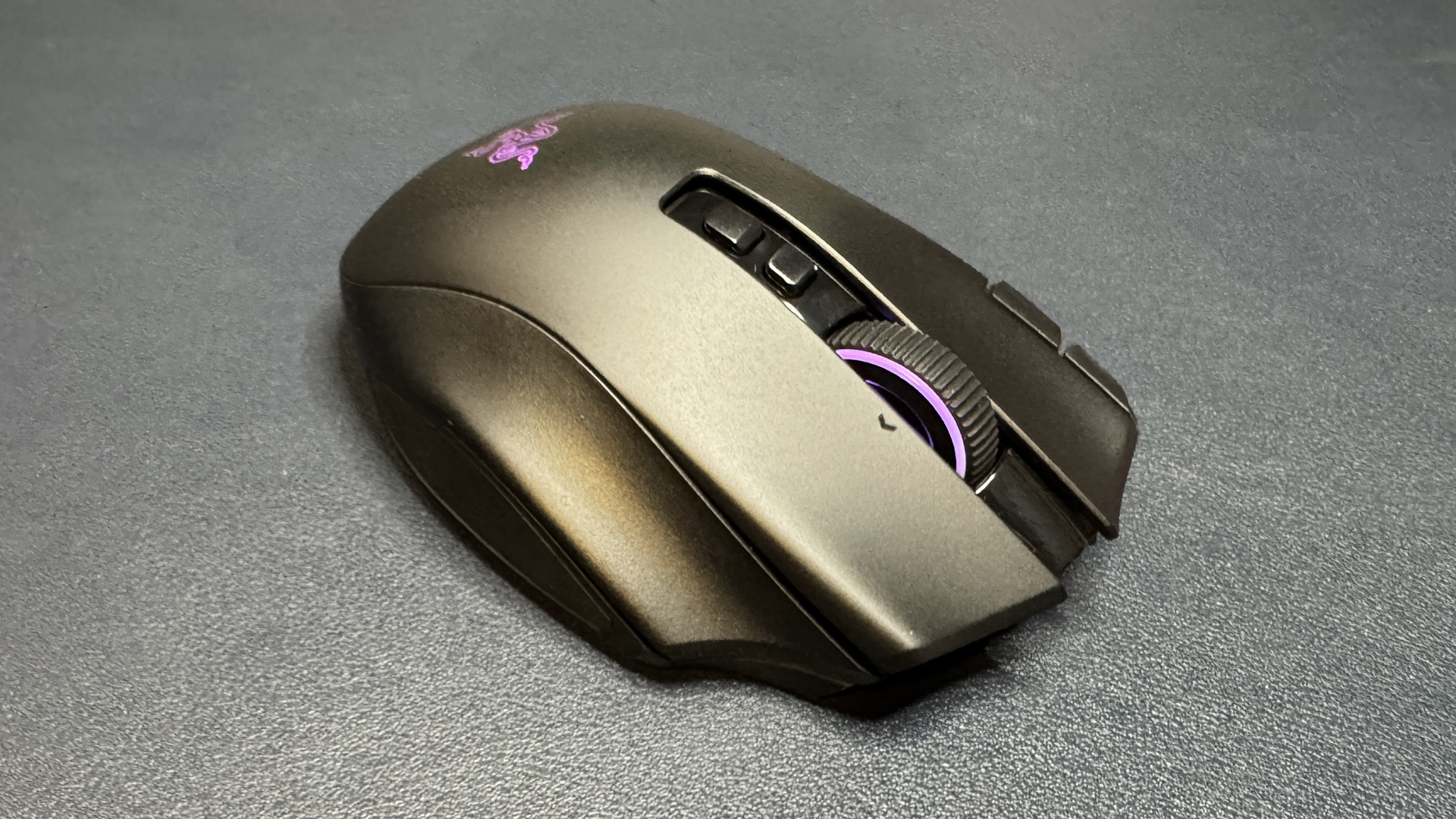
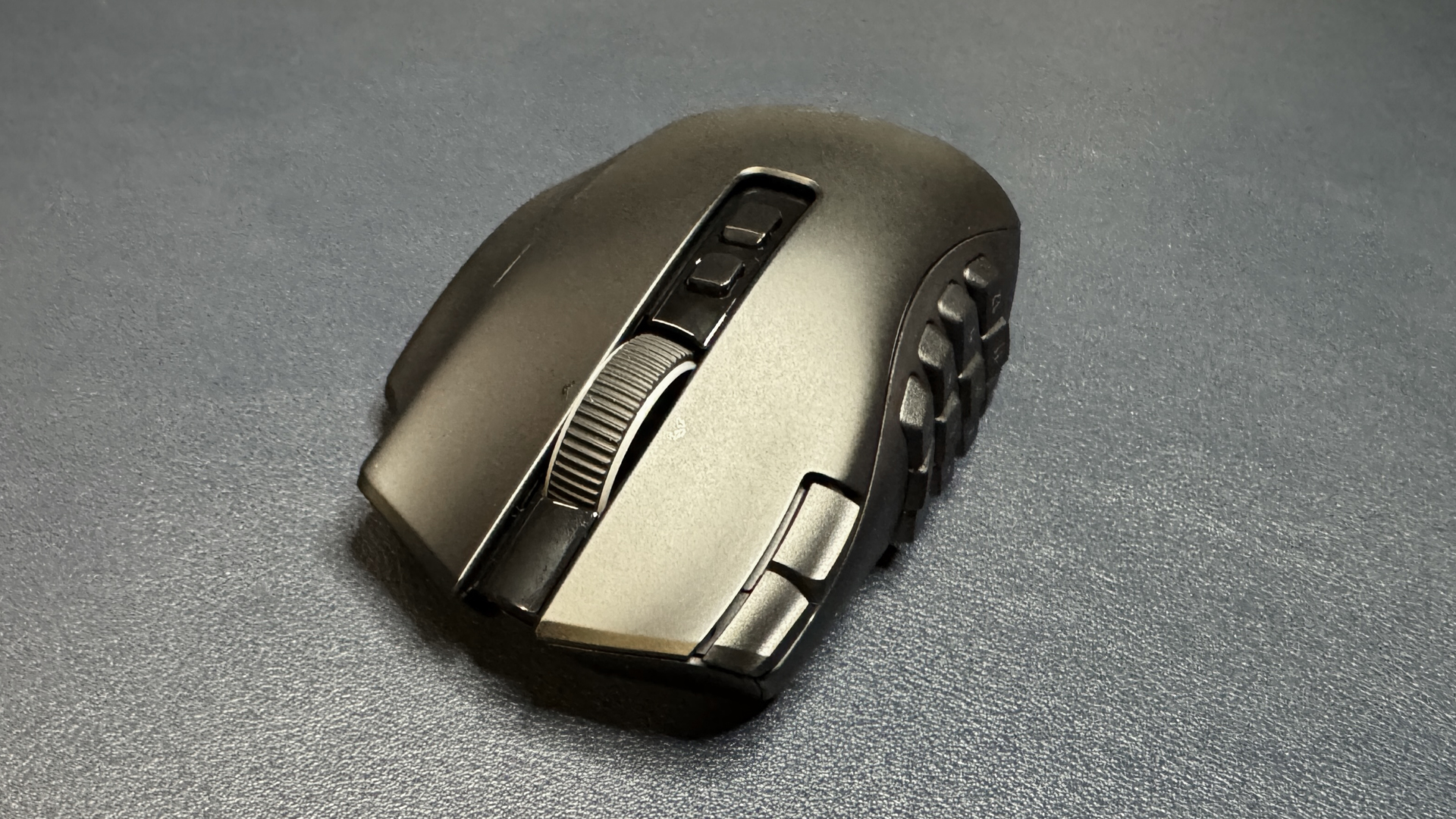
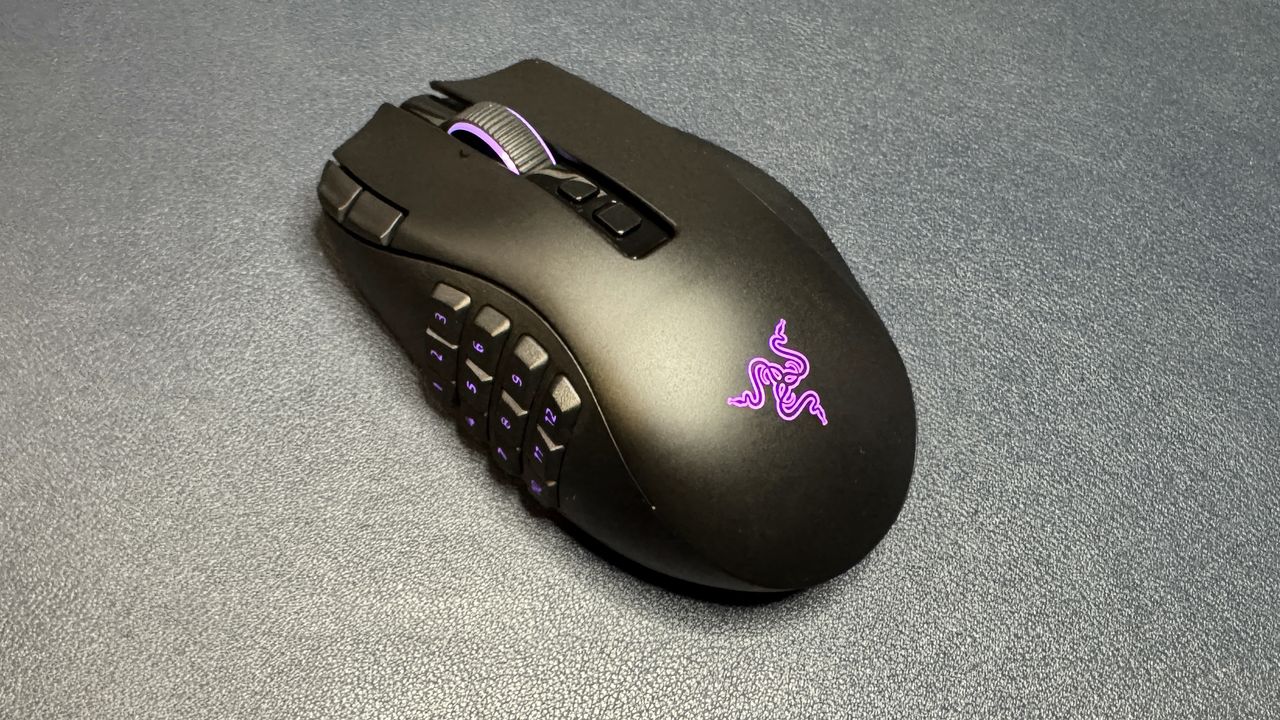
Like some of Razer's other new mice, the Naga V3 Pro has the exact same shape as its predecessor — it's a shorter, wider mouse than most flagship premium mice, measuring 4.7 x 2.97 x 1.72 inches (119.5 x 75.5 x 43.5mm). It's still a larger mouse overall, just a different shape. It has a right-handed ergonomic shape with a contoured thumb area, with interchangeable plates and a curved ring finger rest on the right side. It has a matte black plastic shell and features three RGB light zones in the scroll wheel, the logo on the palm rest, and on the side panel.
The mouse weighs slightly less than its predecessor: 3.9 ounces (112g) without the side plate or cable attached; the side plates weigh 20g (12-button), 17g (6-button), and 15g (2-button). The Naga V2 Pro weighed 134g regardless of the side plate. Its side plates — which are the same 12-button, 6-button, and 2-button layouts as the side plates from the Naga V2 Pro — now feature more durable double-shot molded keycaps, so they should last longer and the legends should remain crisp and readable throughout the mouse's lifetime (not that anyone is really looking at the legends on their mouse buttons).
(Image credit: Tom's Hardware)
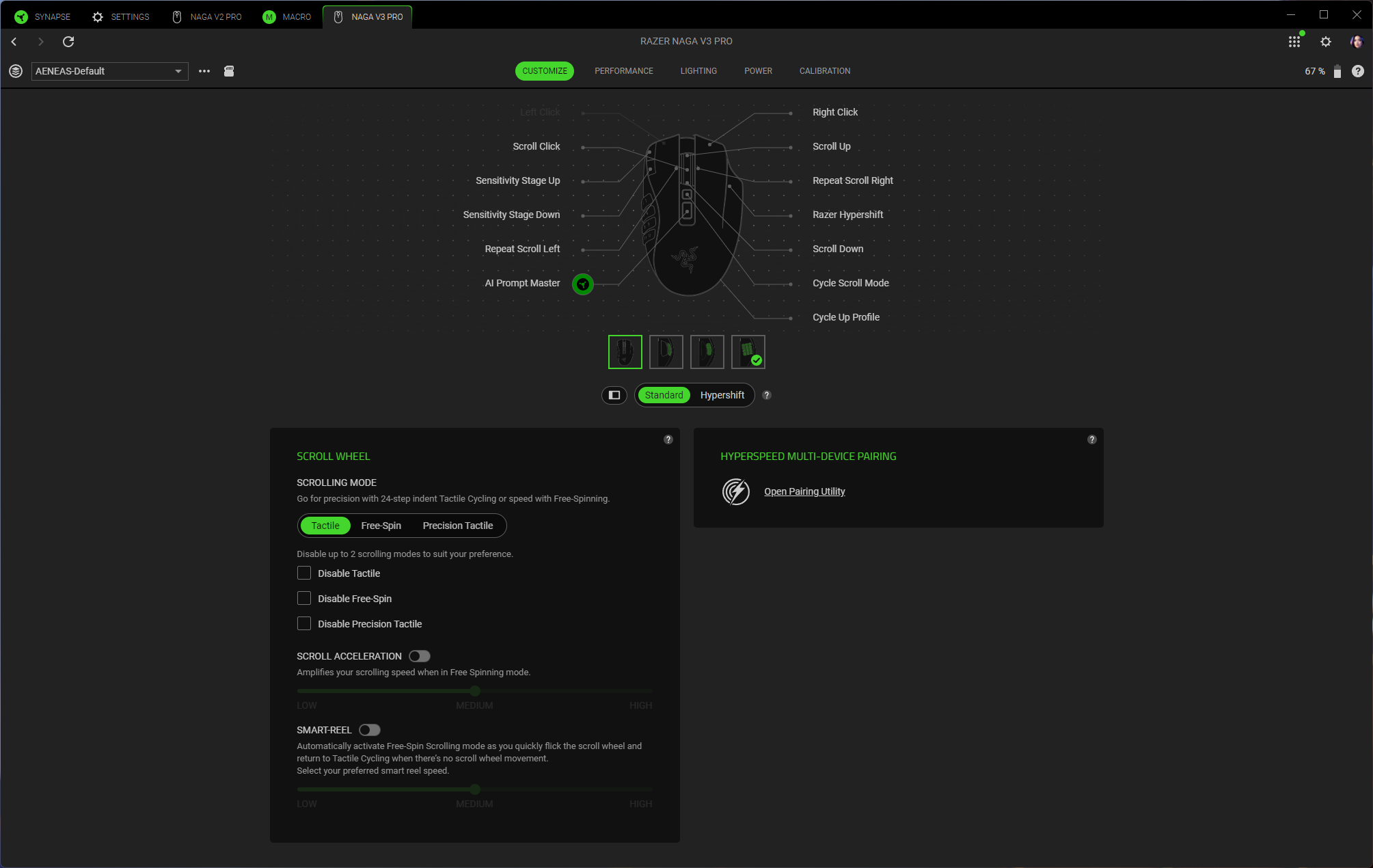
The mouse has three buttons the Naga V2 Pro doesn't have — in addition to its primary left/right buttons, tilt wheel, two buttons above the tilt wheel, and profile switch on the bottom. There are now two edge buttons on the left side of the left mouse button (set by default to scroll up and down through DPI steps) and the ring finger rest has also been turned into a button (set by default to activate Razer's HyperShift for multi-layer inputs). I didn't have any problems with accidentally pressing the ring finger rest button, but there is a locking switch that lets you quickly disable it (it actually stops it from clicking at all, which is nice) if you do have issues.
Tom's HardwareTom's HardwareTom's Hardware
The Naga V3 Pro has a multi-mode tilt wheel with three distinct modes: tactile, free-spin, and precision tactile. The scroll modes can be toggled off, but they aren't fully configurable like the customizable scroll feature in the Naga V2 Pro. This seems fine, though — the customizable scroll feature in the Naga V2 Pro seemed like overkill to implement with very minor benefits, and I prefer just a few distinct modes to something that you can fully customize.
That said, I kind of wish the distinct modes had been slightly better implemented, as I found the free scroll to be especially over-sensitive — even just resting my finger next to the scroll wheel often caused it to activate. There's a setting in Synapse 4 that automatically switches over to free scroll mode when you're scrolling fast enough, but I didn't like this because there's an audible click every time it switches. The button directly next to the wheel is set to move through scroll modes by default, while the button above that is set to open up Razer's AI Prompt Master.
(Image credit: Tom's Hardware)
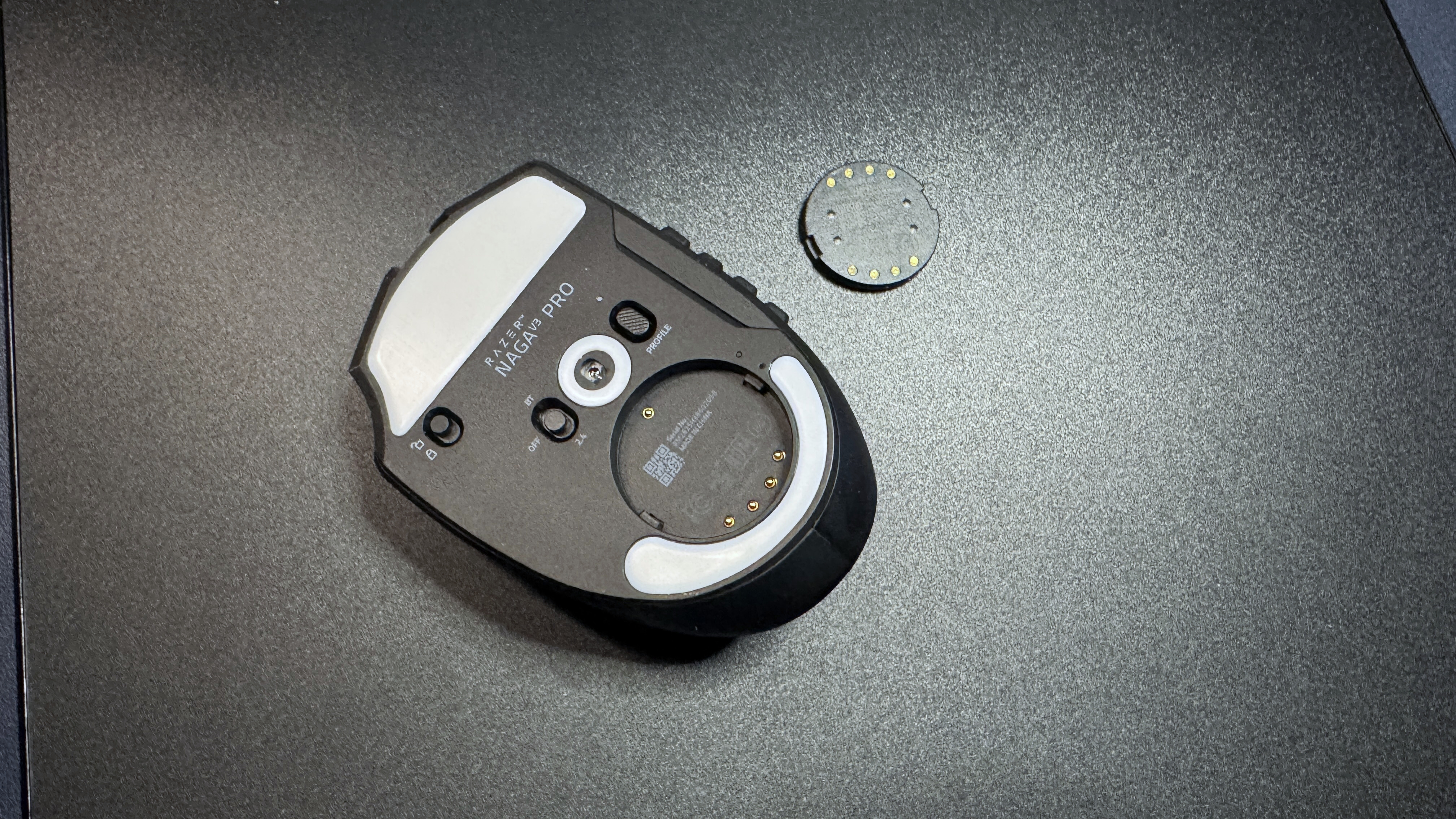
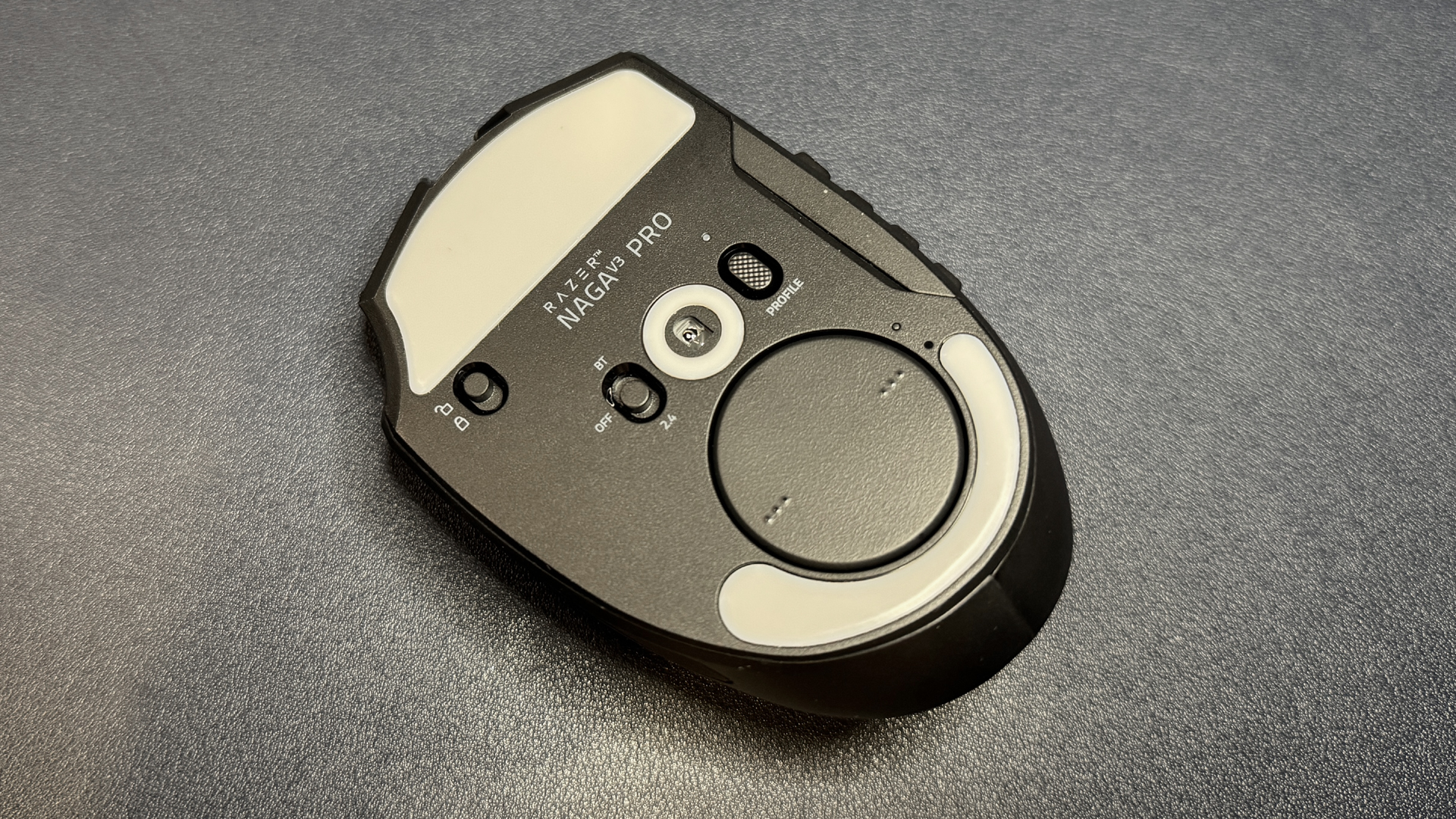
On the bottom of the mouse, you'll find a power switch, a programmable profile switch button, and the ring finger rest lock, as well as PTFE mouse feet and a dummy mouse puck that can be swapped in with charging pucks from Razer accessories.
(Image credit: Tom's Hardware)
In the box, the Naga V3 Pro comes with a 6-foot (1.8m) braided USB-C to USB-A cable, three interchangeable side plates, a USB-A dongle, and a USB-A to USB-C adapter. The cable is braided but it's fairly stiff — it's definitely not flexible or drag-free, like Razer's HyperFlux cables it usually bundles with its mice. You can use it as a mouse cable, but you probably won't want to.
Specs
Sensor Model
Razer Focus Pro 50K Gen-3
Max Sensitivity
50,000 DPI
Max Speed (IPS)
930 IPS
Max Acceleration
90 Gs
Polling Rates
Up to 8,000 Hz*
Programmable Buttons
Up to 23
LED Zones
3
Cable
6ft / 1.8m, detachable braided USB-C to USB-A
Connectivity
2.4GHz wireless, Bluetooth, wired (USB-C)
Measurements (L x W x H)
4.7 x 2.97 x 1.72 inches / 119.5 x 75.5 x 43.5 mm
Weight (excluding cable)
3.9oz / 112g without side plate; side plates weigh 20g (12-button) / 17g (6-button) / 15g (2-button)
MSRP / Price at Time of Review
$179.99
Release Date
Aug. 11, 2026
Performance
The Naga V3 Pro features Razer's latest Focus Pro 50K Gen-4 optical sensor, which has a maximum sensitivity of 50,000 DPI and a maximum speed of 930 IPS, and can handle up to 90 G's of force. These are kind of crazy specs for a mouse considering most people won't use a DPI above 3,200 or so — what you need to know is that it's a great sensor that tracks across a variety of surfaces with excellent accuracy. It's speedy, too, though this is not the kind of mouse most people will be moving around lightning fast and picking up, as it's more than twice the weight of ultra-lightweight mice such as Razer's DeathAdder V4 Pro.
(Image credit: Tom's Hardware)
The mouse also features Razer's Gen-4 optical mouse switches, which are rated for up to 100 million clicks and offer crisp, tactile feedback. The feedback does feel slightly crisper and more deliberate than the switches in the Naga V2 Pro, but it's not a very significant difference and you definitely can't tell unless you're using both side-by-side. Still, at 100 million clicks they should last as long as the mouse does.
These switches are only in the primary mouse buttons, not the side panel buttons — though the side panel buttons still felt fairly crisp and gave nice tactile feedback. The only buttons I didn't love on the Naga V3 Pro were the edge buttons on the left side of the left mouse button — they were a little too far to the left to be comfortable, and they had a very soft, mushy, lackluster click.
The Naga V3 Pro ships with a 1,000 Hz polling rate and a 1,000 Hz polling rate is the highest you're going to get unless you make a separate purchase. The mouse is capable of getting up to an 8,000 Hz polling rate, but you'll need to purchase either Razer's Mouse Dock Pro or its HyperPolling Wireless Dongle in order to achieve polling rates higher than 1,000 Hz.
Features and Software
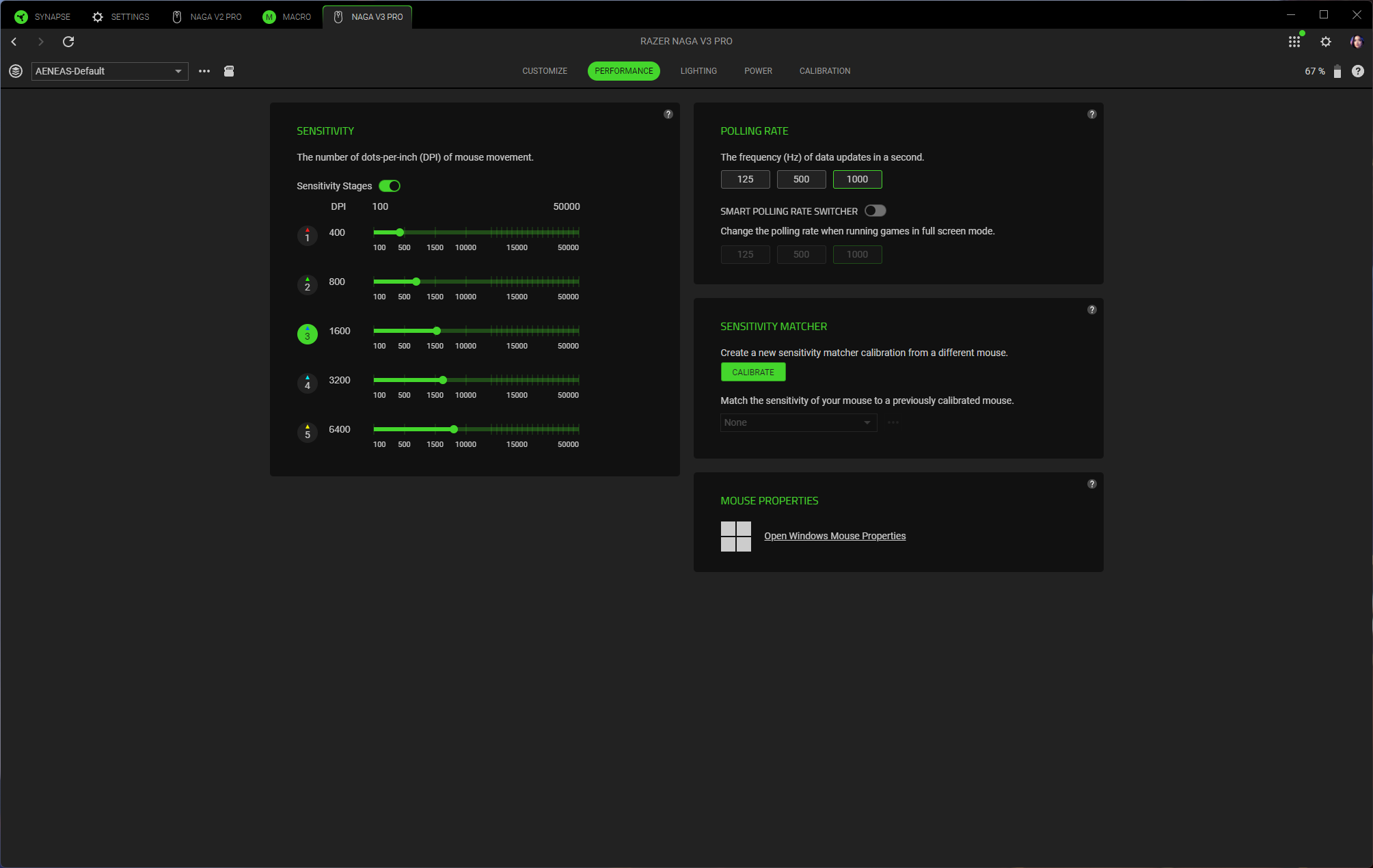
The Naga V3 Pro is programmable via Razer Synapse 4, and you'll almost certainly want to do some customizing since the default settings have the side panel buttons programmed to numbers (except for the two-button side panel, which is MB4 / MB5). Luckily Synapse 4 didn't give me too much trouble with calibration or bringing my Naga V2 Pro settings over to the Naga V3 Pro.
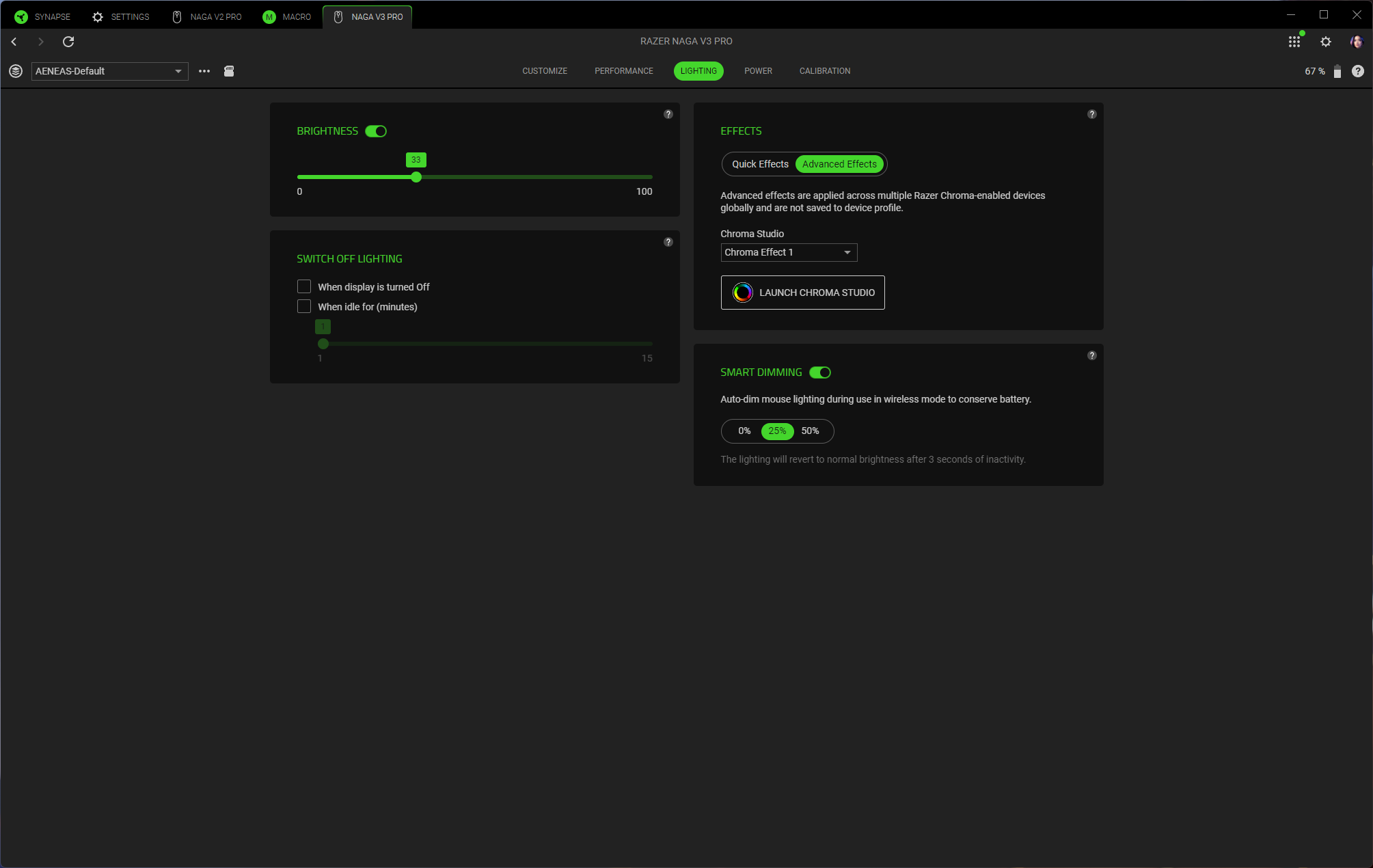
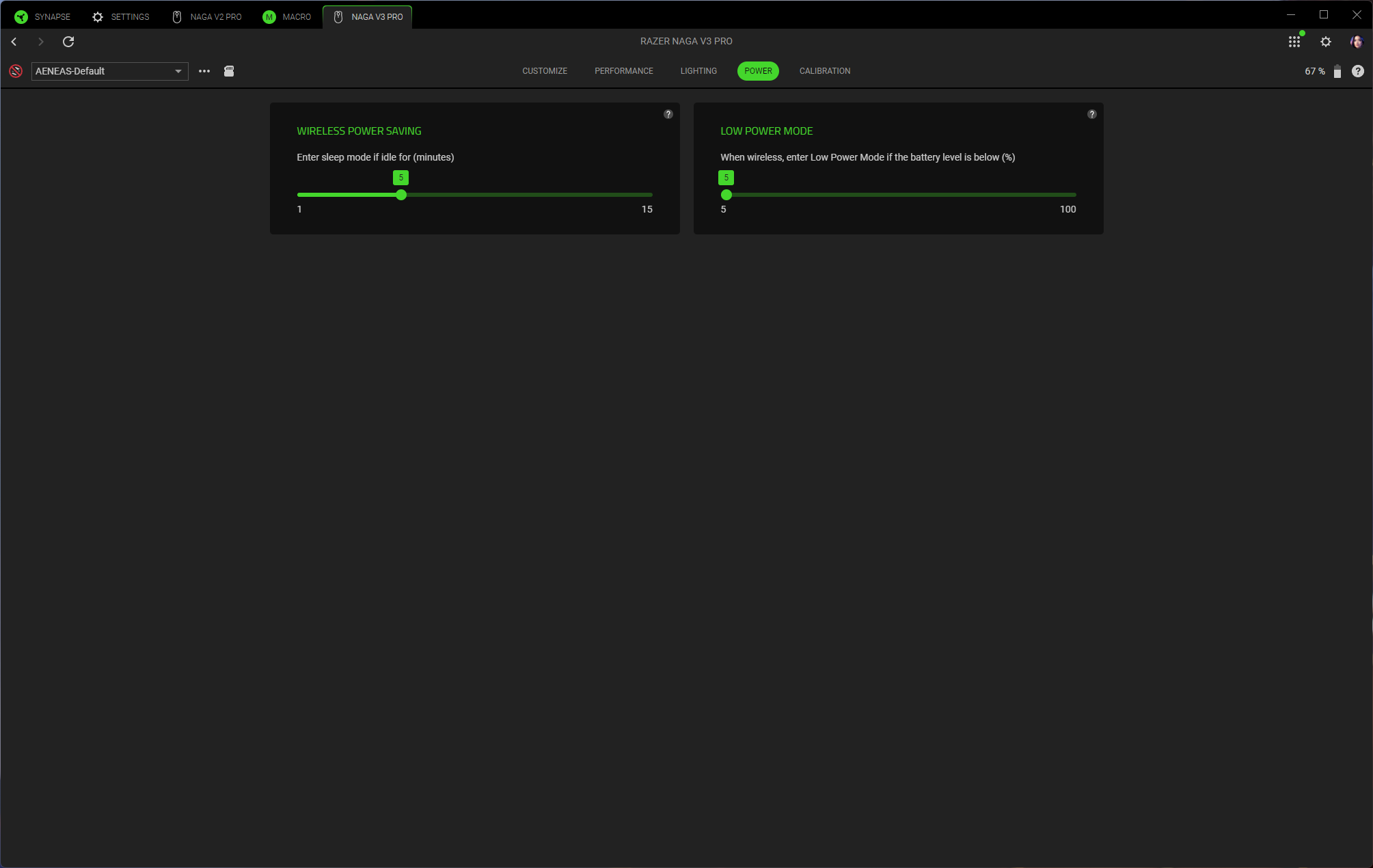
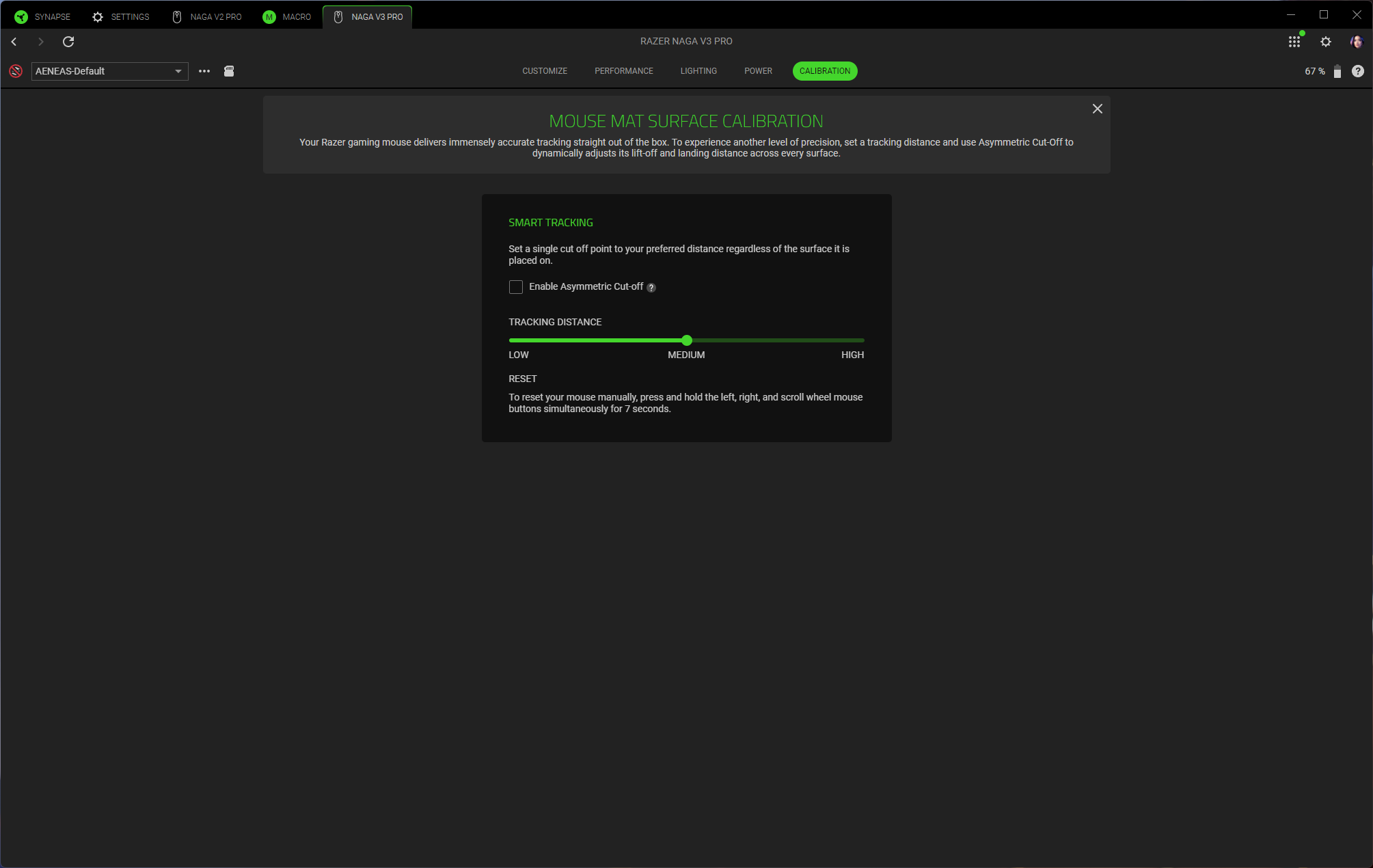
Synapse 4 lets you remap buttons, customize the tilt wheel, and adjust settings such as DPI steps and polling rate. It features a built-in automatic mouse calibration tool that lets you match your current mouse's DPI (this worked flawlessly for me, but I was matching the Naga V3 Pro to the Naga V2 Pro), as well as some surface calibration settings you can play with. You can also customize the mouse's RGB lighting zones, of which there are three — tilt wheel, side panel, and palm rest logo.
Wireless Experience and Battery Life
The Naga V3 Pro has 3 forms of connectivity — 2.4GHz wireless, Bluetooth, and wired (via USB-C). Razer rates its battery life at up to 155 hours over its 2.4GHz wireless connection, which is pretty solid for a wireless mouse with so much going on — though this will of course vary depending on your polling rate and lighting settings. It's compatible with Razer's HyperFlux V2 Wireless charging mouse pad, however, which makes its battery life technically endless.
Bottom Line
The Naga V3 Pro is a solid update to the Naga V2 Pro, which I've been using for (literally) years. It looks and feels almost identical to the Naga V2 Pro, which I appreciate — the Naga V2 Pro is a very comfortable, if not particularly speed-optimized, gaming mouse — and it's got some nice upgrades in the sensor, switches, and buttons.
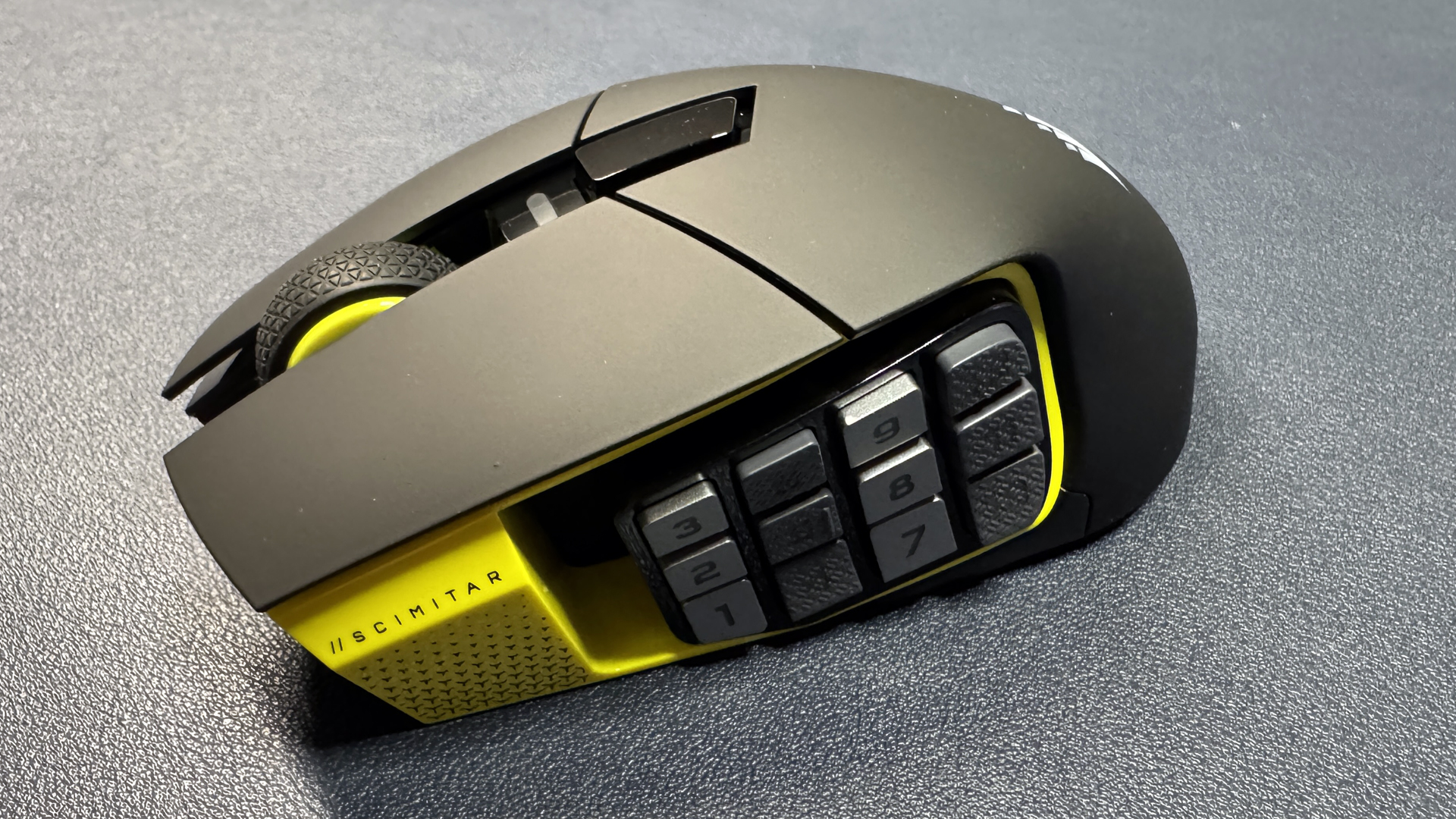
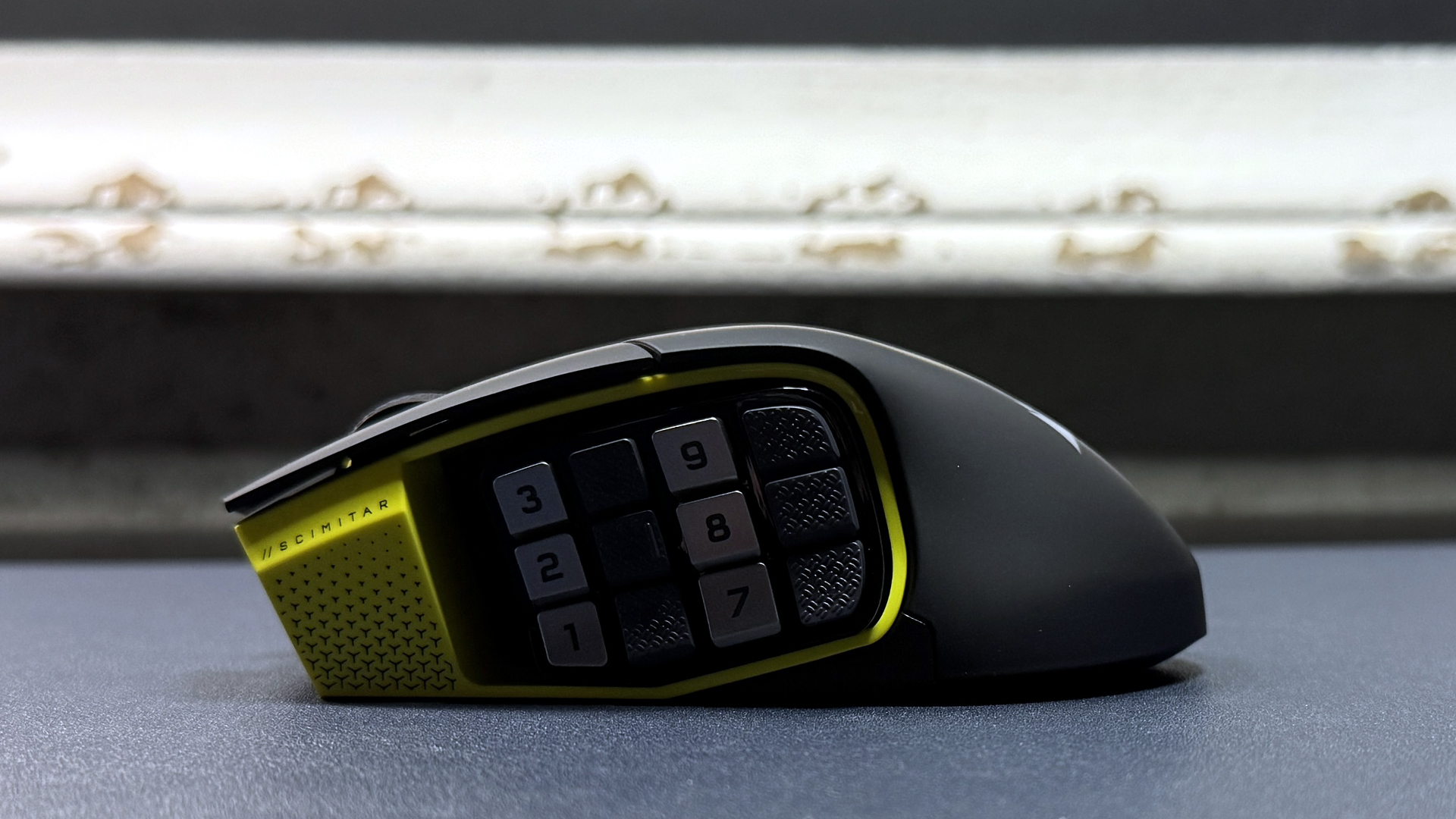
These days, the market is mostly dominated by stripped-down, ultra-lightweight eSports-oriented mice, and so it's nice to see that there's still a place for MMO-oriented mice with buttons in the double digits. The Naga V3 Pro isn't the only mouse with a 12-button side panel, but there isn't a ton of competition — we weren't wowed by SteelSeries' Aerox 9 Wireless, and Corsair's Scimitar Elite SE Wireless has an uncomfortably concave side panel (though it does move forward and backward, if that's something you're looking for). If you're looking for a mouse with a ton of buttons — not counting inputs that are duplicated via software — the Naga V3 Pro is now your best bet.
There are plenty of ultra-lightweight gaming mice in our best gaming mice picks — but there aren't any that have a built-in hand cooler.
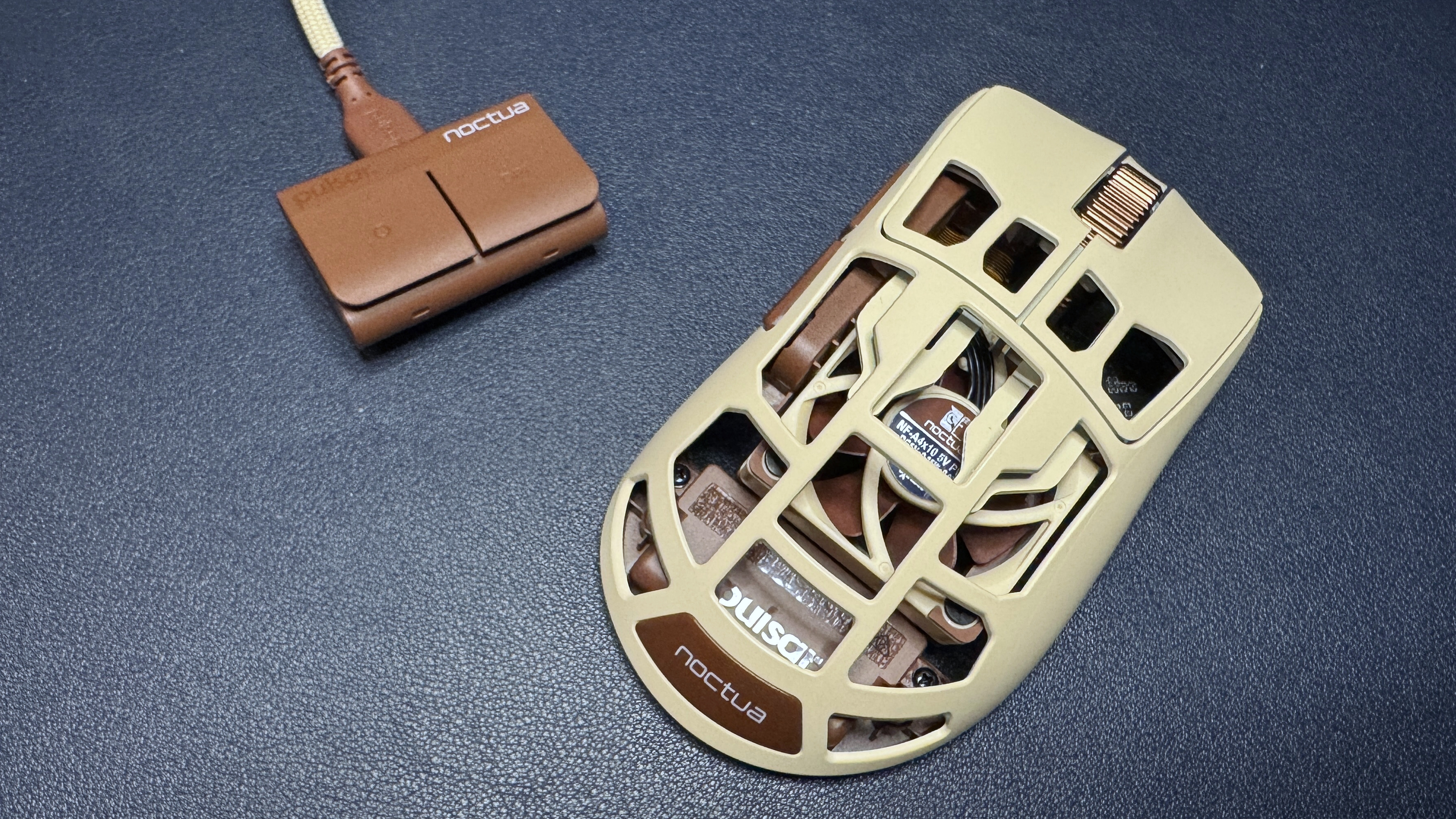
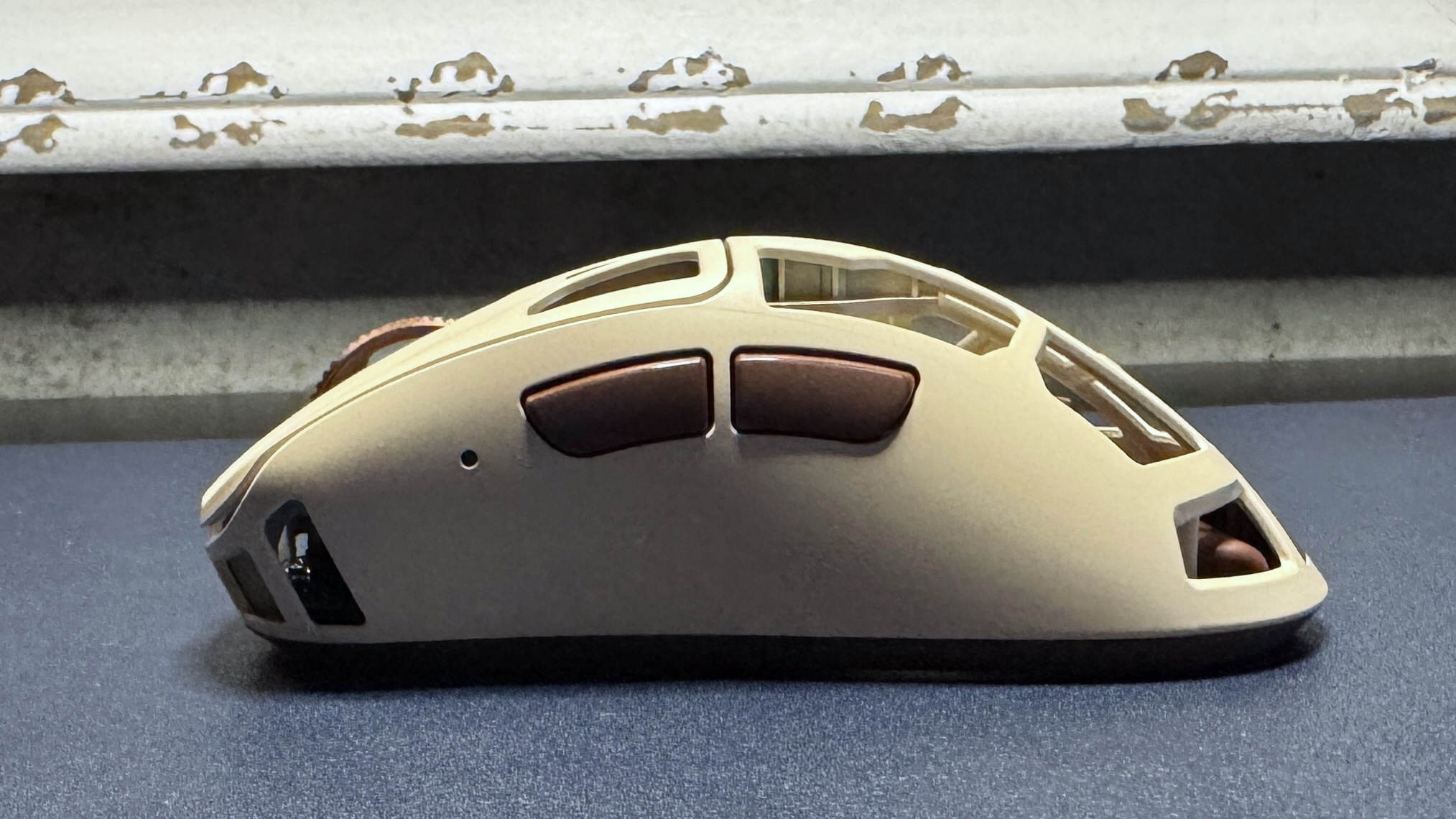
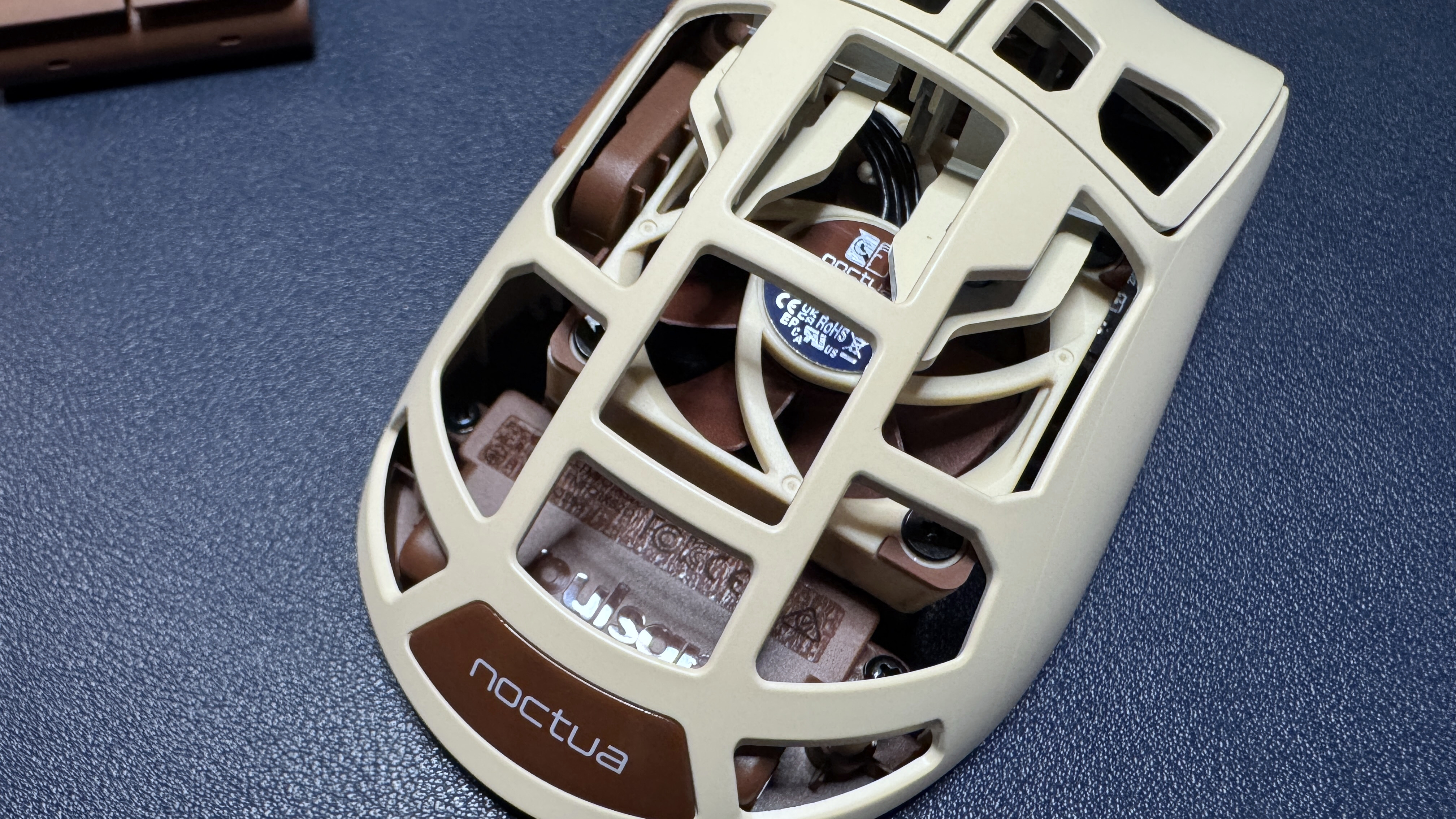
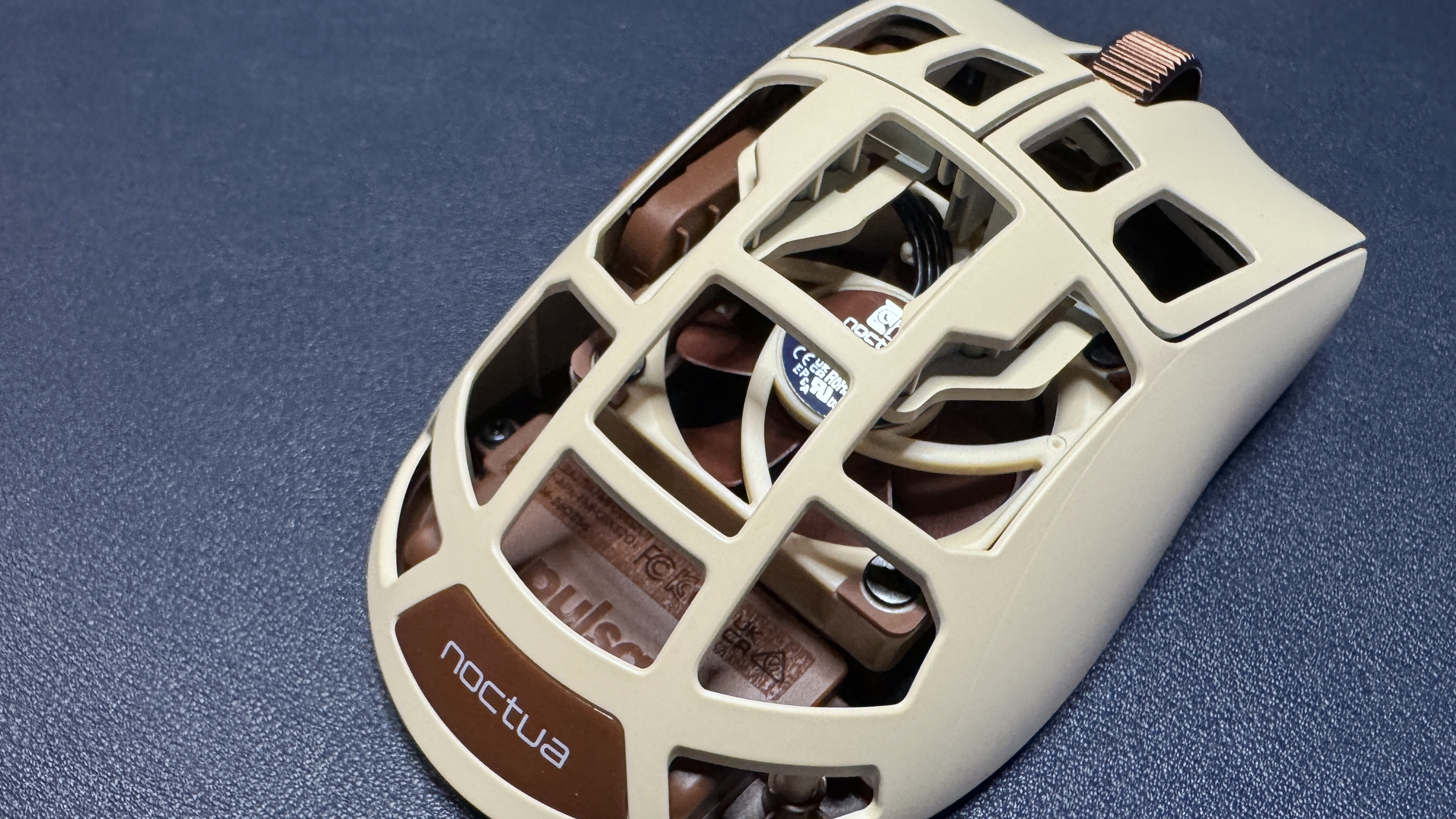
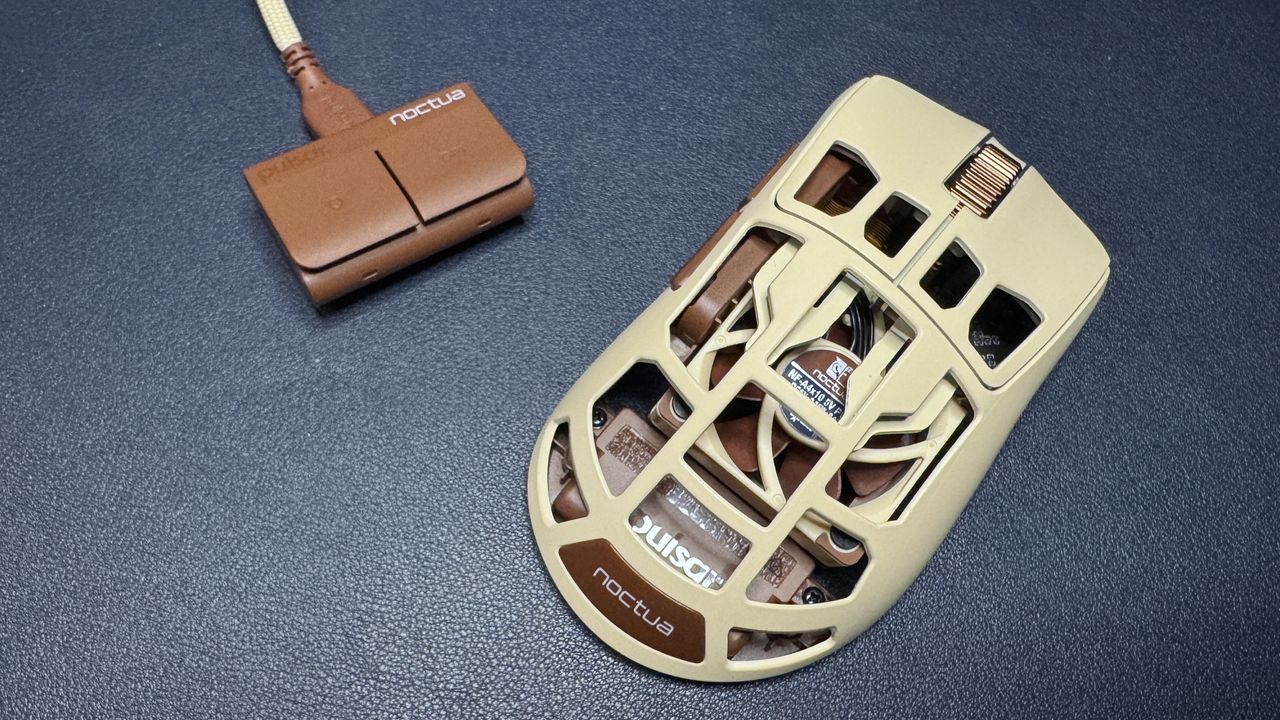
Pulsar recently released a collaboration with infamous air-cooling advocate Noctua — a beige and brown mouse full of top-tier hardware and holes and a built-in 40mm NF-A4x10 fan. For cooling your hand, not the hardware. This eSports-oriented gaming mouse features Pulsar's XS-2 sensor, which has a maximum resolution of 42,000 DPI and a maximum speed of 800 IPS, and can handle up to 70 G's of force. It also features up to an 8,000 Hz polling rate, and, of course, the built-in fan. It retails for the same price as the original Feinmann F01 gaming mouse, which is to say, it's pretty pricey at $179.99.
Design and Comfort of the F01 Noctua Edition
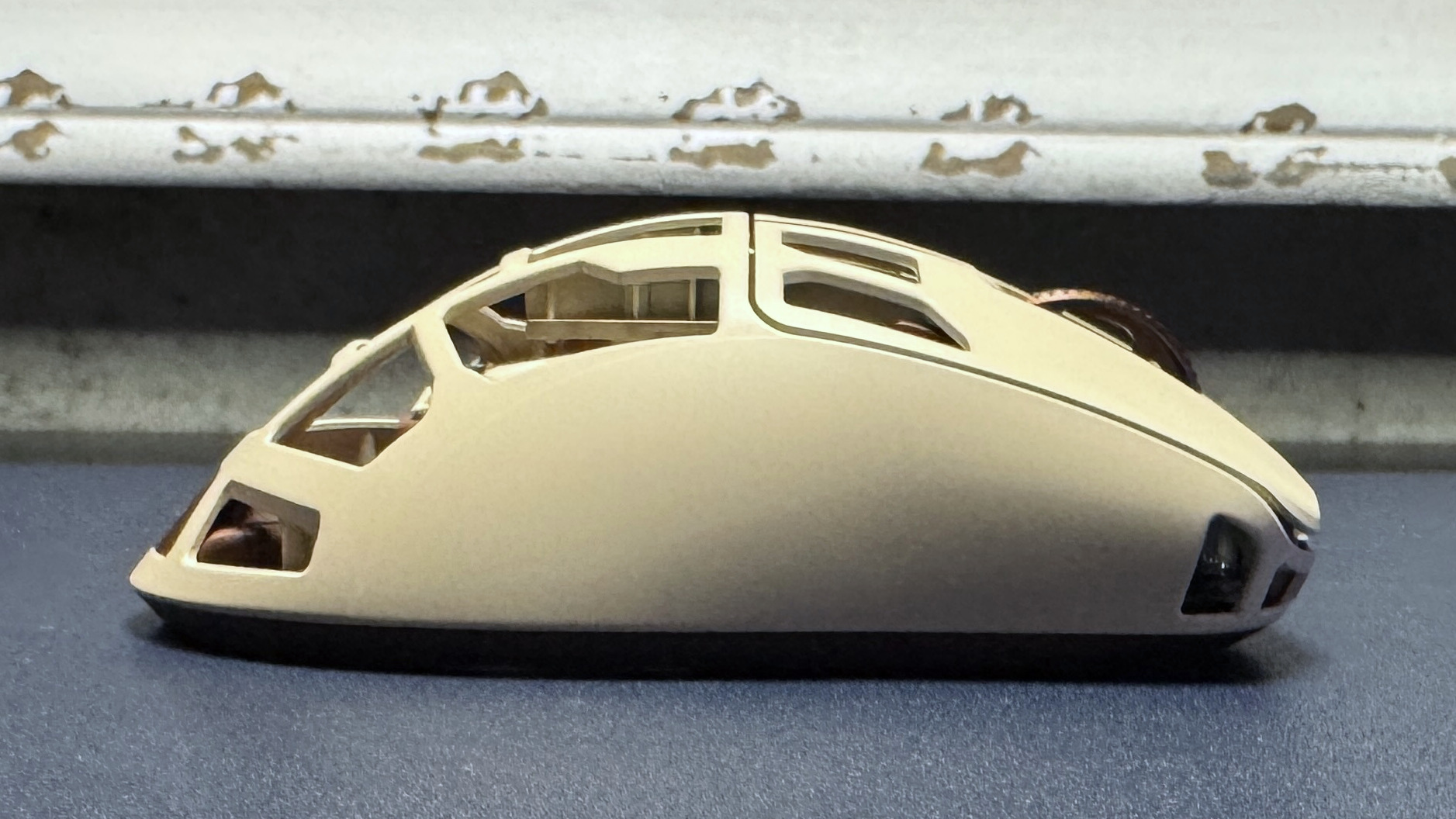
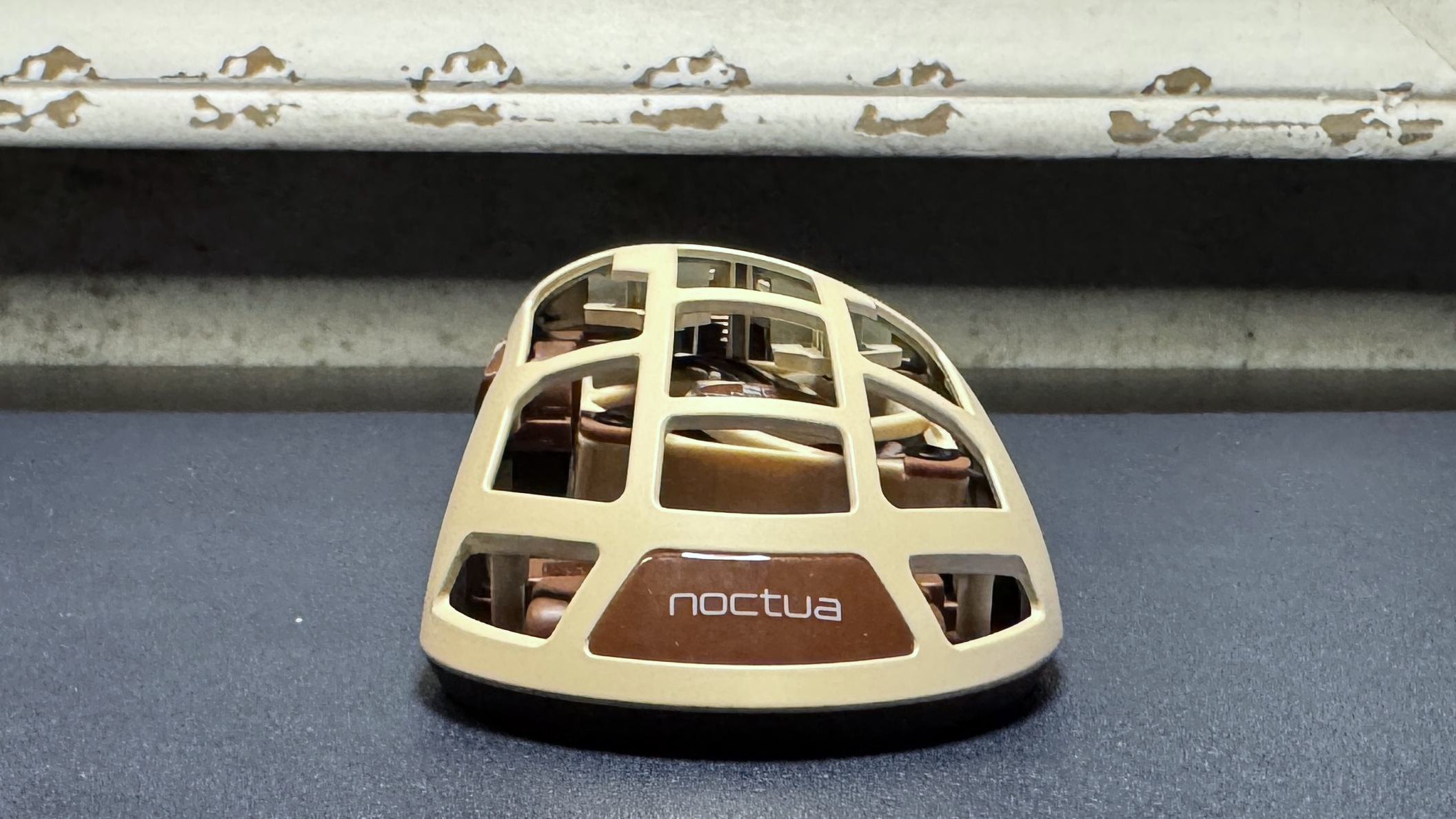
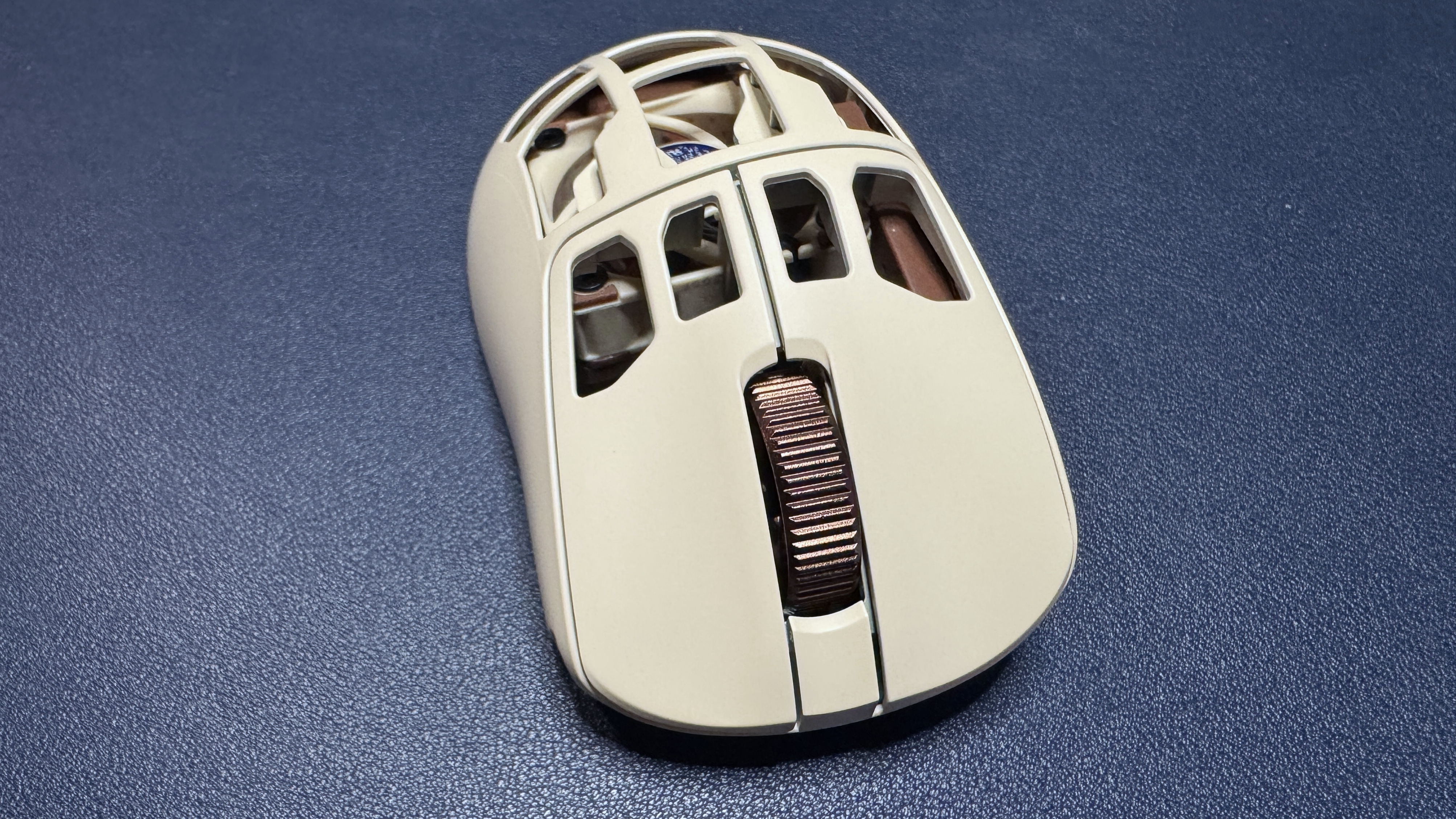
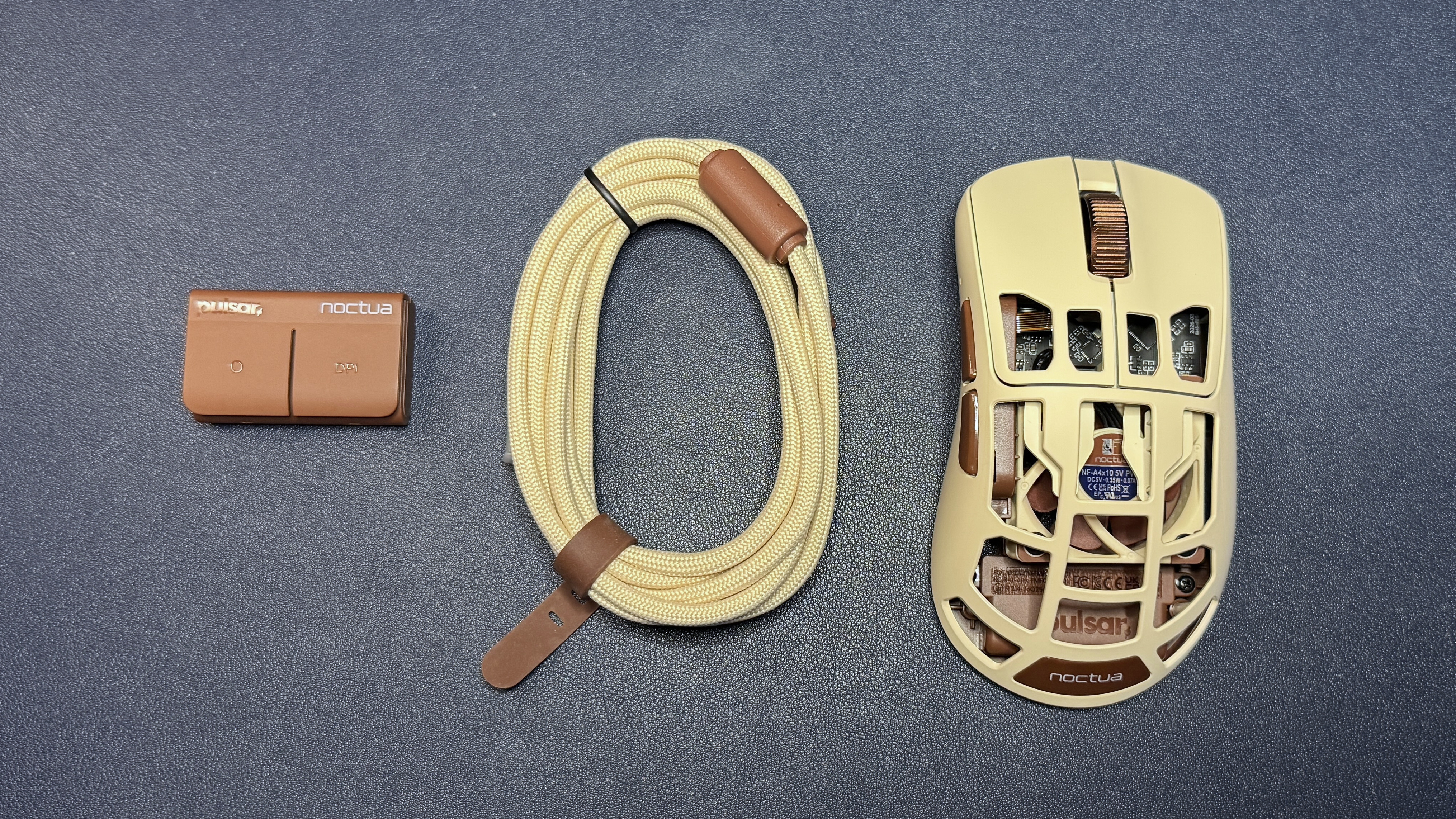
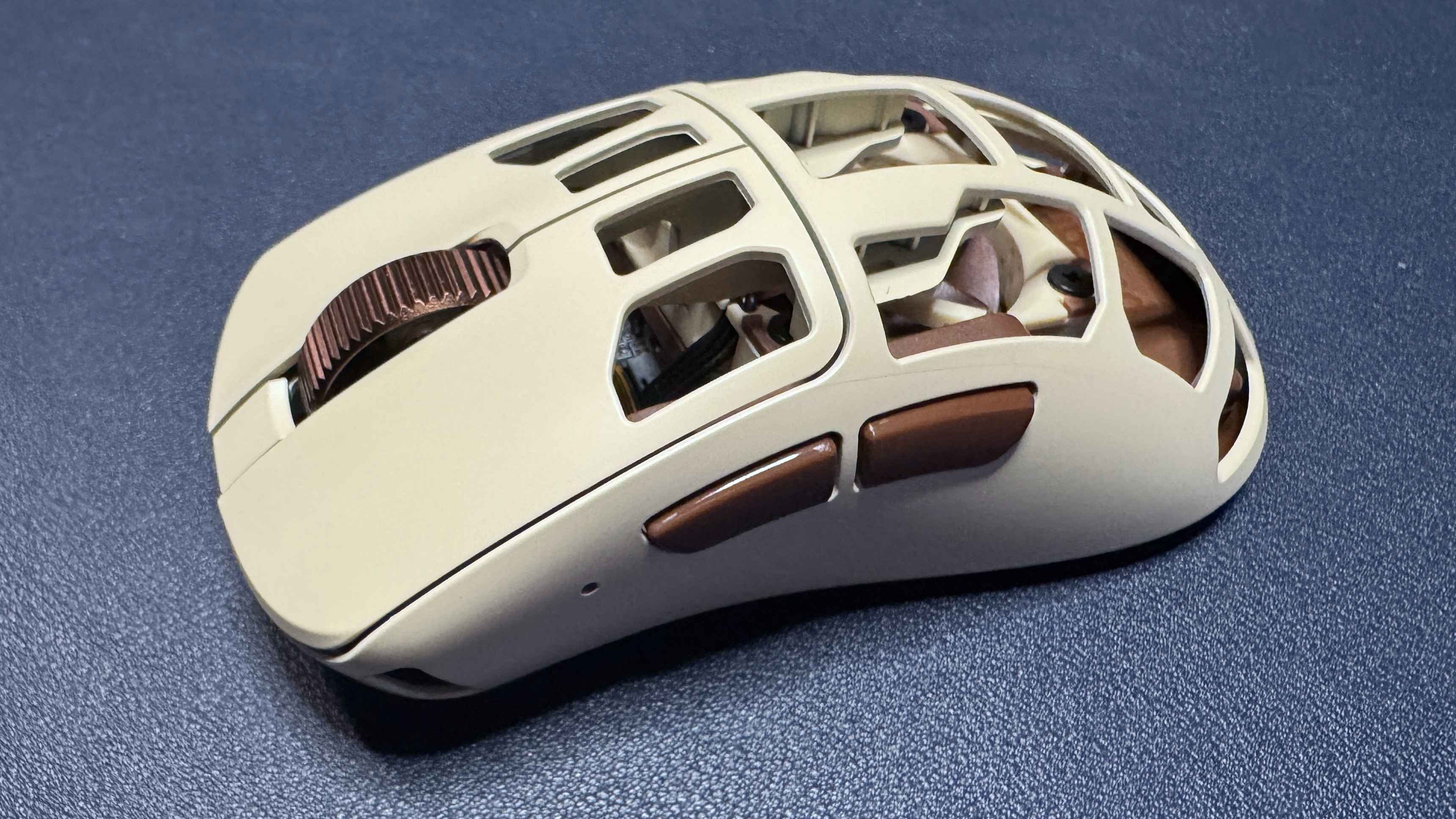
The F01 Noctua Edition is a lightweight wireless eSports gaming mouse with an ergonomic right-handed shape and a hole-filled chassis with a built-in fan. It comes in Noctua's signature beige-and-brown color scheme: The top part of the chassis is light beige, while the bottom and accents (side buttons, scroll wheel, Noctua's logo plate, and some interior elements) are brown.
(Image credit: Tom's Hardware)
The F01 Noctua Edition has a right-handed, ergonomic shape with contoured primary mouse buttons and an off-center hump. It's a little smaller than most mainstream gaming mice, measuring 4.79 inches (121.7mm) long by 2.62 inches (66.5mm) wide and 1.7 inches (43.3mm) high at its thickest point. It weighs 2.57 ounces (73g), which is on the heavier side for what is supposed to be an ultra-lightweight eSports mouse. It's about an ounce heavier than the regular Pulsar Feinmann F01, which weighs 1.62 ounces (46g), thanks to the built-in fan.
The mouse features a matte chassis made of a carbon composite material for durability. The chassis is full of holes, but at least they serve a purpose (sort of) other than reducing weight and triggering your trypophobia: they're also there to keep your hand cool. In the center of the mouse you'll see a mini Noctua fan that directs air upward — toward your palm. You can activate this fan by holding down both side buttons and scrolling up. There are four different fan speeds, indicated by the small LED indicator light on the left side of the mouse, which you can cycle through by scrolling up or down with both. Holding down both buttons and scrolling down turns the fan off.
Tom's HardwareTom's Hardware
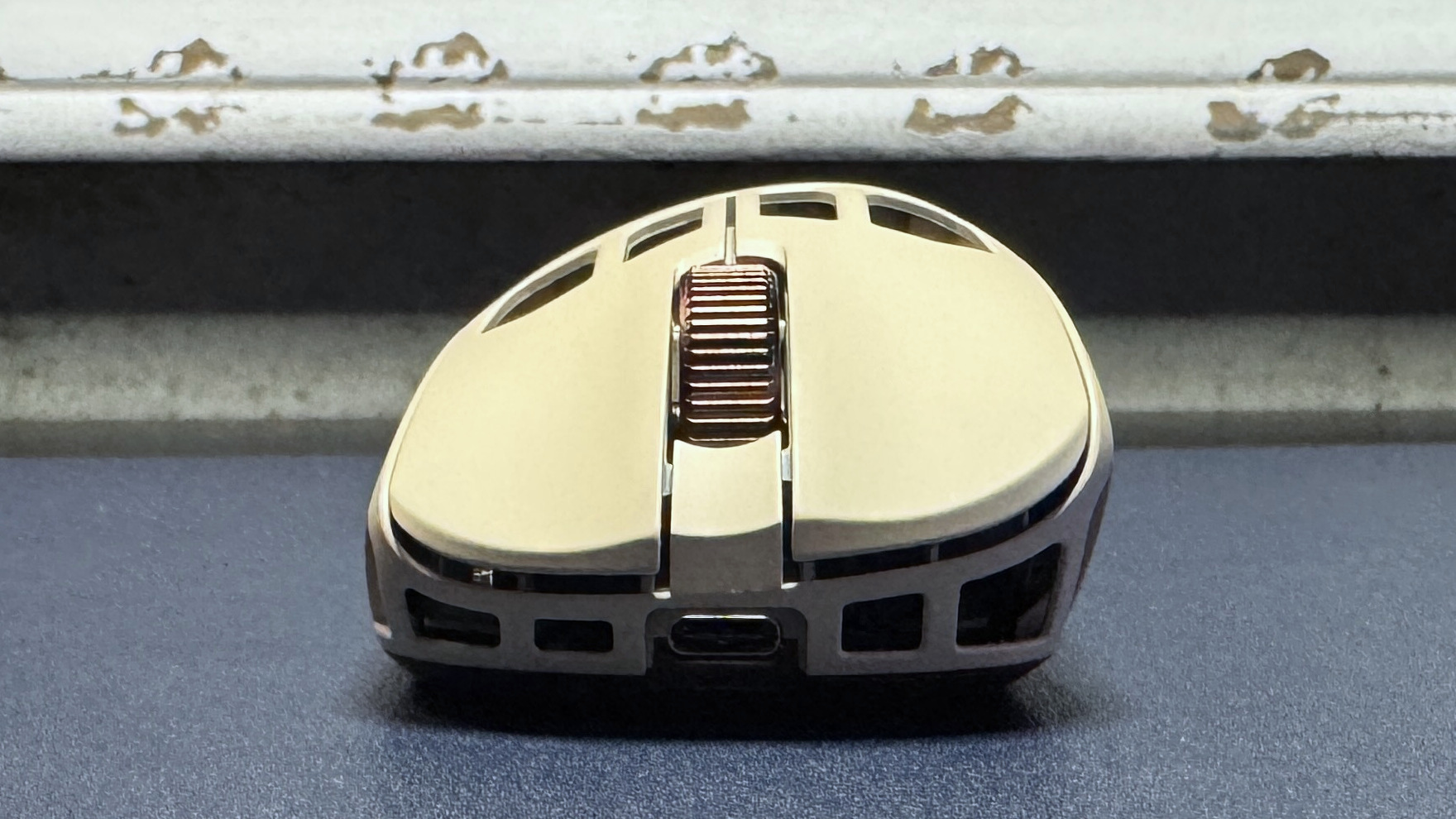
Button-wise, it's pretty standard: primary mouse buttons, two side buttons, a power button / DPI switch on the bottom, and a ridged, notched scroll wheel made of aluminum alloy. The mouse feels sturdy and the metal scroll wheel makes it seem a little fancier — it definitely looks and feels pretty premium. I did think the side buttons felt like they were placed a little too far back, but after comparing the F01 Noctua Edition with other mice, the actual issue is that the side buttons are larger than average — and this results in the back button sitting further back on the chassis. It wasn't a dealbreaker, but I found it mildly uncomfortable.
The bottom of the mouse features two large PTFE mouse feet at the top and bottom, as well as a strip of PTFE around the sensor. There are five geometric cutouts surrounding the sensor, as well as the power button / DPI switch.
(Image credit: Tom's Hardware)
The mouse comes with a separate 8K polling dongle, which has two buttons (a programmable profile switch button and a DPI switch), and a 6-foot (1.8m) detachable, braided USB-C to USB-A cable. Both the dongle and the cable come in Noctua's signature colors (the dongle is brown and the cable has a beige fabric covering with brown accents).
Specs
Sensor Model
Pulsar XS-2
Max Sensitivity
42,000 DPI
Max Speed (IPS)
800 IPS
Max Acceleration
70G
Polling Rates
8,000 Hz
Programmable Buttons
5
LED Zones
0
Cable
USB-C to USB-A, braided,
Connectivity
2.4GHz wireless, wired (USB-C)
Measurements (L x W x H)
4.79 x 2.62 x 1.7 inches / 121.7 x 66.5 x 43.3 mm
Weight (excluding cable)
2.73oz / 73g
MSRP / Price at Time of Review
$179.95
Release Date
July 2026
Performance of the F01 Noctua Edition
The F01 Noctua Edition mouse features Pulsar's XS-2 optical sensor, which has a maximum resolution of 42,000 DPI and a maximum speed of 800 IPS, and can handle up to 70 G's of force. The mouse also features Pulsar's optical switches in its primary buttons (rated for up to 100 million clicks), and can get up to an 8,000 Hz polling rate. The sensor doesn't disappoint — its tracking was accurate and speedy in my tests, and it worked perfectly across a variety of surfaces (including glass). The only thing I can see affecting performance in this mouse is its weight — it's not heavy, but it's heavier than most of its competition.
As I mentioned earlier, at 73g the mouse is on the heavy side for an ultra-lightweight eSports mouse — and it's an entire ounce heavier than the fan-less version. I guess that makes sense considering... there's a fan inside it, but still. If you're looking for an ultra-lightweight gaming mouse and you're not particularly intrigued by the fan, there are lighter, cheaper mice out there, such as my favorite Razer DeathAdder V4 Pro, which weighs 56g and costs $169.99.
Tom's HardwareTom's Hardware
I'll admit I was a bit skeptical about the fan — I'm not really a person who suffers from sweaty palms while I'm gaming, however, so I'm aware I'm not the target audience. But as someone who is not the target audience, I have to say that the fan is actually pretty cool (pun intended). It's small, yes, but you can definitely feel it — and even though I don't sweat much, it still felt pretty good. The fan has four speeds, and the first two are practically silent. You can hear the two fastest speeds, but it's not particularly loud — you'll notice it, but those around you probably won't.
Activating the fan using the two side buttons and scroll wheel was easy enough, though the side buttons will activate when you press them, so it's not perfect. You can also turn on and adjust the fan speed in the software and/or you can program one of the buttons on the dongle to cycle through speeds.
If you do get sweaty palms while gaming, or you just happen to live and game in a hot environment, the fan in this mouse definitely works. It takes a toll on battery life, of course, but you can always plug it in. That said, that part of the mouse is practically non-existent, the holes are so big (it's even more full of holes than the Corsair Sabre v2 Pro Wireless MG). The structure of the mouse honestly keeps your hand — or at least your palm — pretty cool, even without a fan.
Features and Software of the F01 Noctua Edition
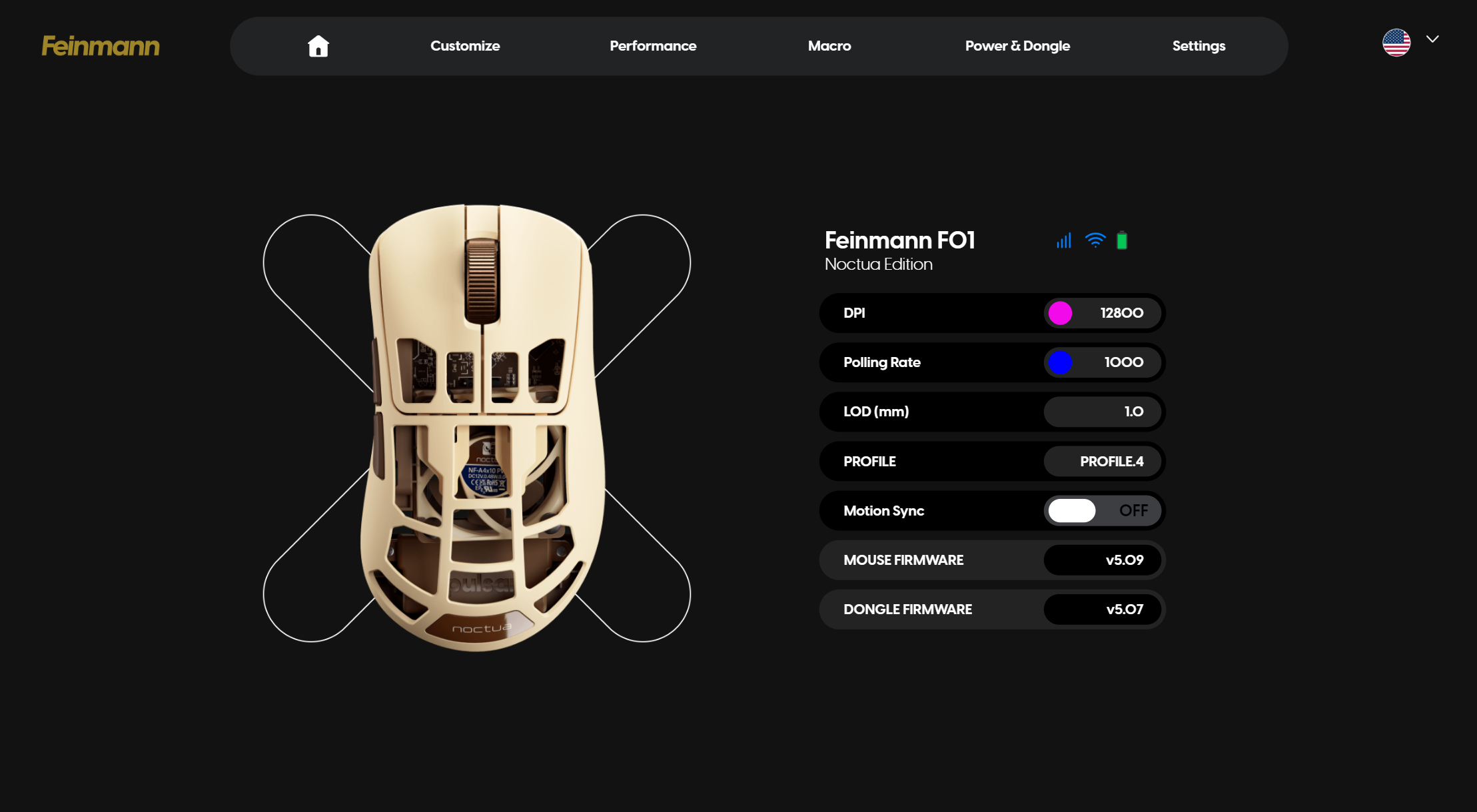
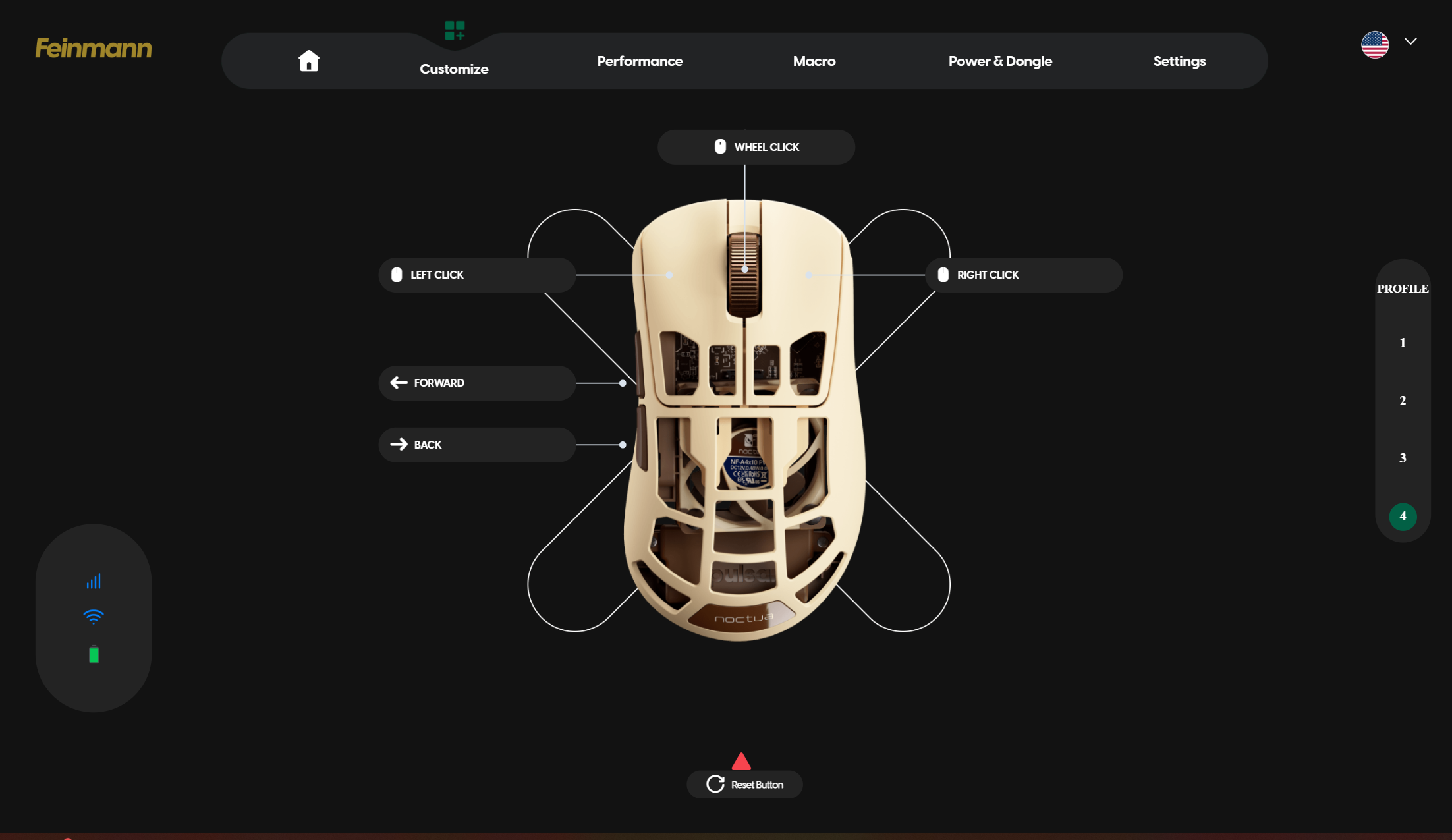
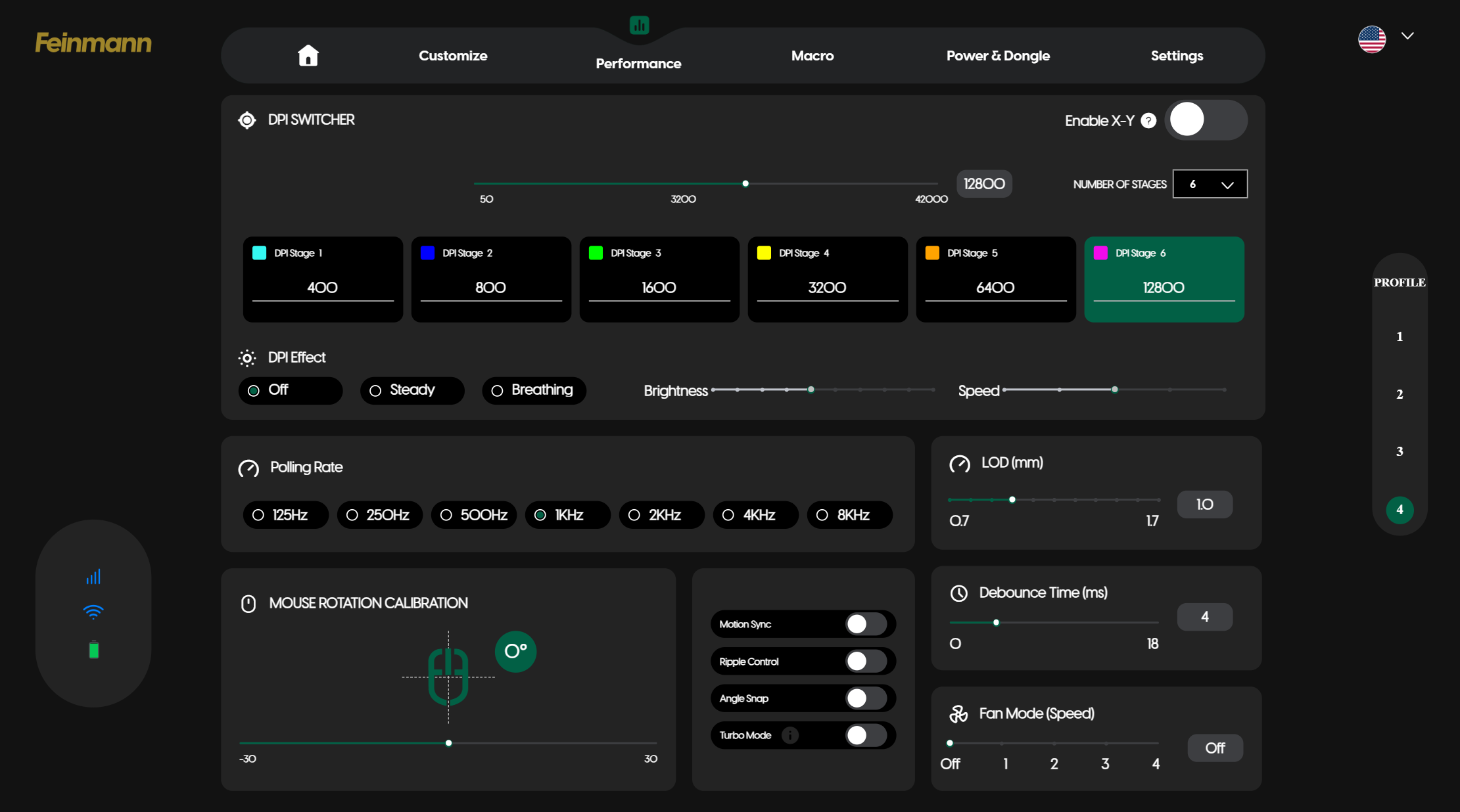
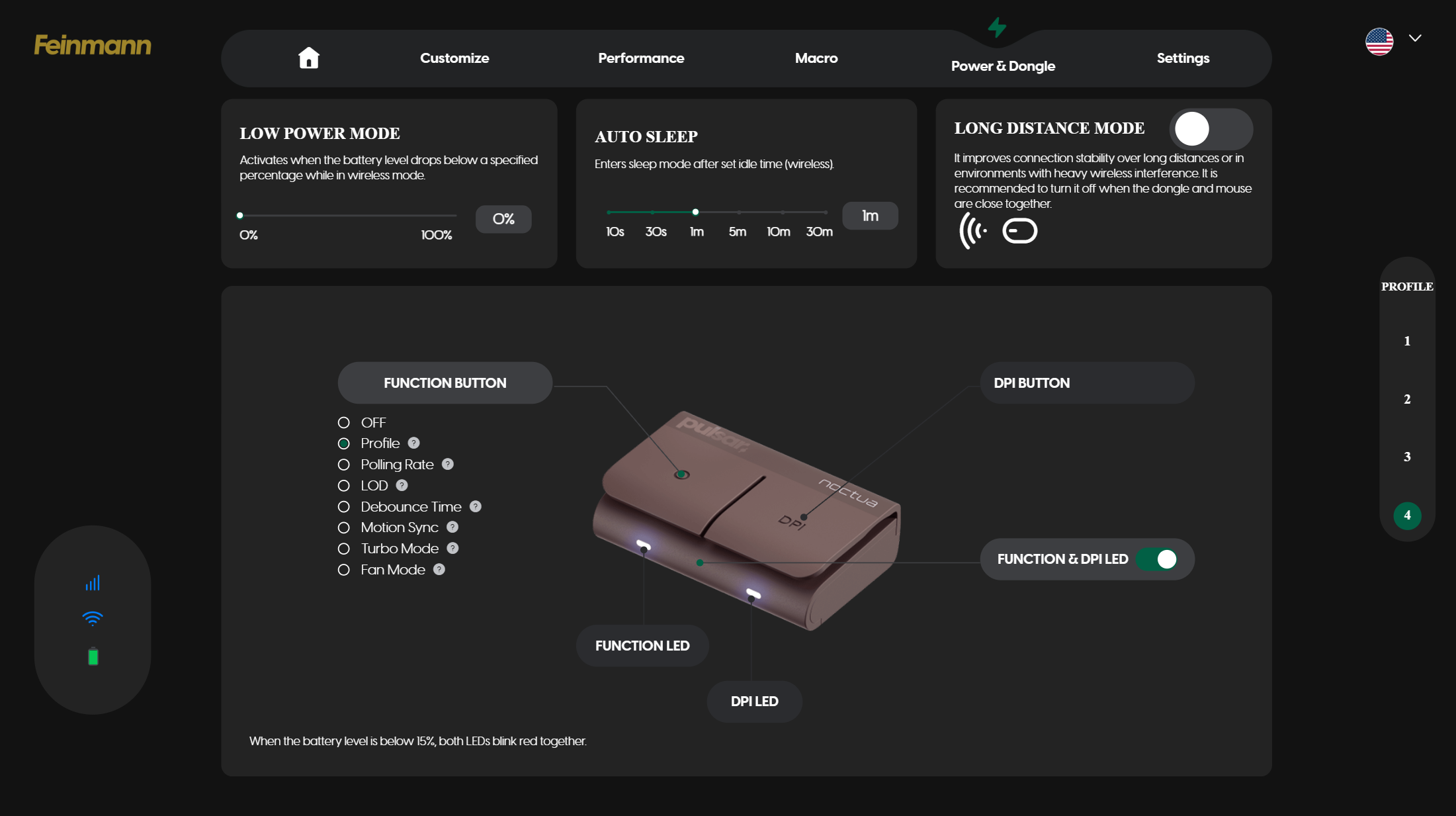
The F01 Noctua Edition is largely controllable via the hardware, which is nice. The fan can be activated and adjusted by holding down the two side buttons and scrolling, and DPI can be cycled through using the DPI switch button on the bottom of the mouse or the DPI switch button on the wireless dongle. The dongle also has a function button that cycles through onboard profiles by default — so you will need to connect to Pulsar's web-based peripheral software, Bibimbap, if you want to take advantage of this.
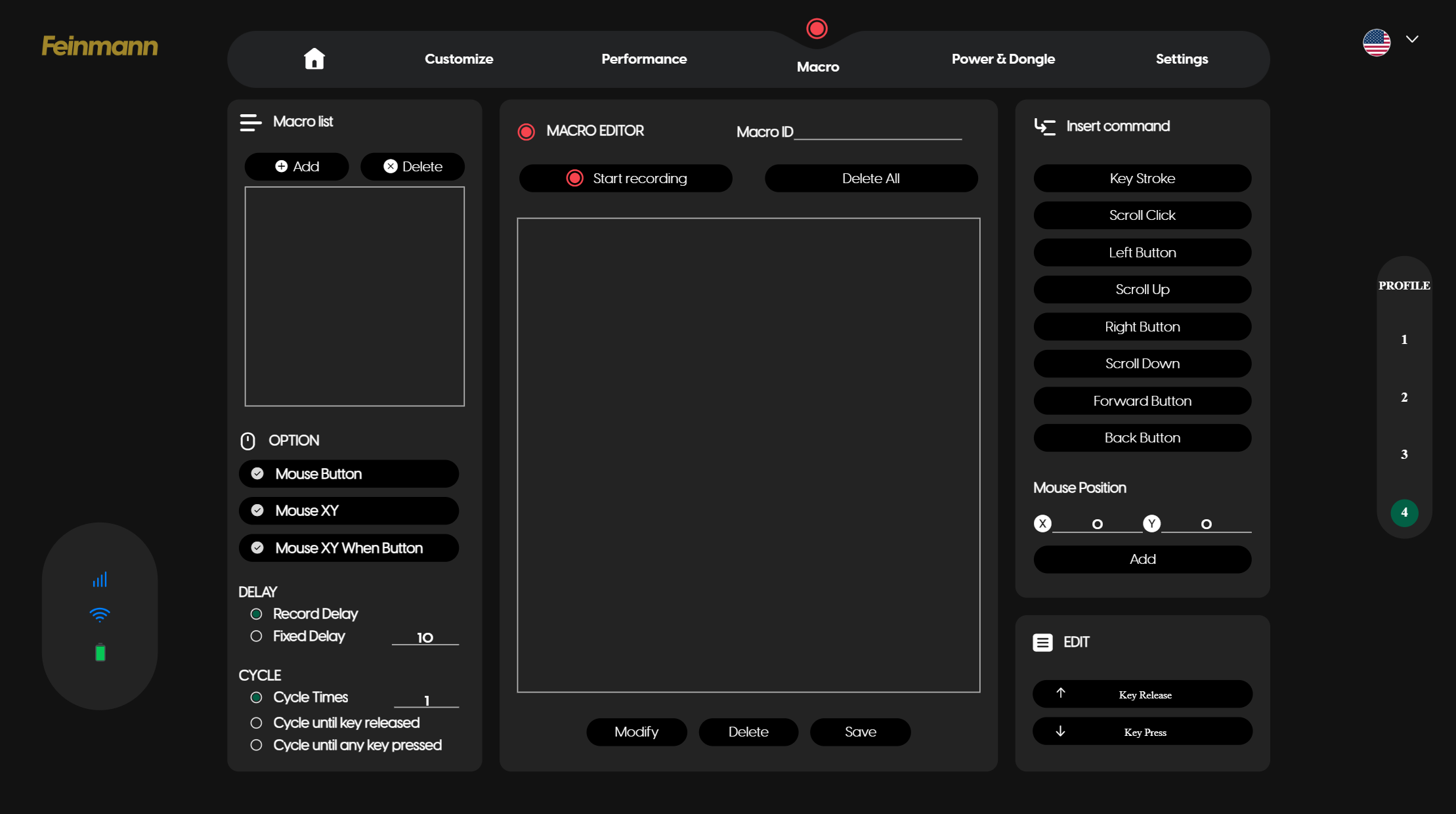
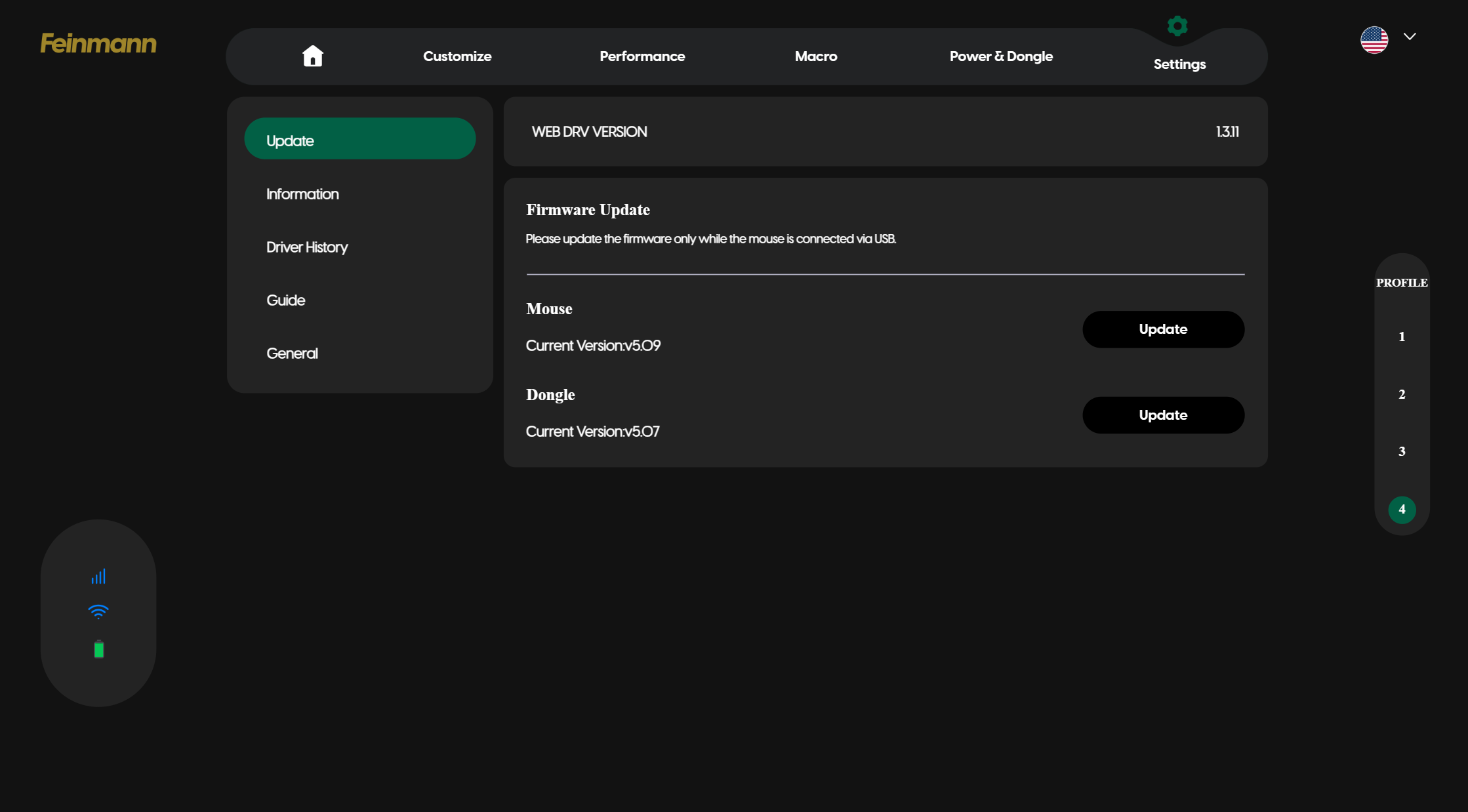
With Bibimbap — which you can connect to wirelessly — lets you remap keys (there are five programmable buttons, including the scroll wheel click) and has a built-in macro recorder. You can also adjust various settings, including DPI steps (up to 6), polling rate (ships with 1,000 Hz and goes up to 8,000 Hz), LOD or liftoff distance, and debounce time. You can also turn on the fan from this app, if you want. You can save up to five profiles directly on the mouse and cycle through them with the function button, or you can remap the function button to cycle through polling rate, LOD, debounce time, motion sync, turbo mode, and fan mode. That last one just does the same thing that holding down both mouse buttons and scrolling does, but it doesn't accidentally activate the side button functions.
Wireless Experience and Battery Life of the F01 Noctua Edition
The F01 Noctua Edition features two forms of connectivity: 2.4GHz wireless and wired (via USB-C). It doesn't have any RGB lighting, but it does have a built-in 40mm 5V PWM NF-A4x10 fan with four different speed settings. Oh, and an 8,000 Hz polling rate. Needless to say, its battery life varies quite a bit, depending on how you have it set up. Its built-in battery is 500mAh, which is... well, don't expect much when it comes to battery life. Based on my observations as I tested the mouse, I think you'll still be able to eke out a full day's worth of usage if you have the fan running at top speed, which is not a lot compared to most wireless mice, but not bad, considering.
Bottom Line
The F01 Noctua Edition is a very well-built lightweight gaming mouse, but its main selling point is definitely the built-in fan. And the built-in fan works pretty well — I was definitely impressed, even if I don't see myself using it very often (or at all, really). But if you don't need a mouse with a built-in fan, it's hard to recommend the F01 Noctua Edition over just about any other lighter, more affordable mouse, including Pulsar's own fan-free Feinmann F01. The Corsair Sabre v2 Pro Wireless, for example, weighs just 56g and has a shell full of holes, gets up to an 8,000 Hz polling rate and retails for $149.99.
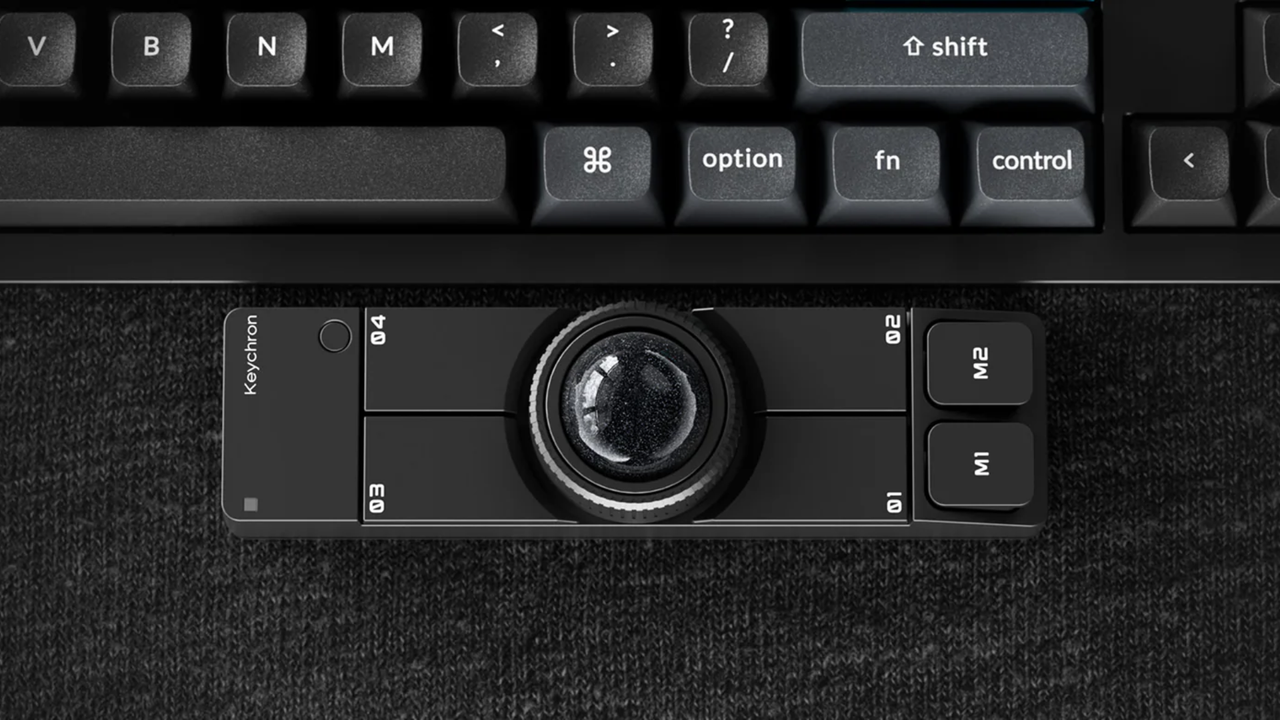
Keychron, which is known for its mechanical keyboards, just launched a wireless trackball mouse designed to comfortably sit underneath your space bar, complete with six programmable buttons. The Nape Pro wireless trackball mouse is now available on Amazon for $89.99. Although it may look pricey, with comparable ergonomic trackball mice often priced significantly lower, its unique rectangular design makes it the perfect companion for programmers, writers, and those who primarily use the keyboard for productivity. The placement means you don’t have to lift your hands from the keyboard to move the cursor, although it will get in the way if you prefer using a wrist rest.
The keyboard maker revealed the quirky trackball mouse earlier this year at CES, and it’s finally available for those who are interested. It’s wireless, sports six customizable buttons and a control dial, so you can also use it as a macro pad that you can place to the left or right of your keyboard or drawing tablet (or even center, if you have a split keyboard) and pair it with one of the best gaming mice for regular use. But what makes the Nape Pro more useful and powerful is the customizability that Keychron offers. You can change the functions of each button and the dial on the trackball mouse to exactly match what you need. It also has up to seven layers, so you can change what each button does based on what you need.
There are other trackball mice available on the market, like the Elecom Huge Plus with its 52mm ball and 10 programmable buttons (by comparison, the Nape Pro only has a 25mm ball), but they’re mostly designed to replace your mouse with their ergonomic designs. The Keychron trackball, on the other hand, feels like it’s there to complement your current ergonomic mouse and not replace it entirely.
This trackball mouse is another unique product from Keychron, which is known for making one of the best wireless and best budget mechanical keyboards. The keyboard company also makes different types of mice for basic use, productivity, and gaming, but it seems that it hasn’t hit the home run yet on these models. Perhaps the Nape Pro, which is like a hybrid macro pad and trackball mouse, would help elevate its mice to the same level as some of its mechanical keyboards, like the Keychron K3 Ultra.
What kind of mouse do you employ for your daily PC or laptop usage?
Is it a simple two-button mouse, or does it feature more buttons than you can shake a stick at?
Personally, I’m lucky enough to have a mouse for all occasions, as sometimes it’s great to have a peripheral that’s targeted to a specific task that it can excel at. An example of my personal usage is my Logitech G Superlight 2 - this is my current go-to mouse for when I get a little serious about playing my favourite FPS games. But this is the exception, as there are usually not that many buttons needed to be pressed and certainly no need for added functionality such as macros, although the software still supports it.
The main mouse I employ, though, has for years been an MMO/MOBA mouse of some description. For both gaming and a plethora of productivity applications, I’ve found that the intuitive functionality of a multi-button mouse offers me the best experience and streamlines my workflows, as well as saving my hand from cramping due to complex keyboard press combinations.
One of the first mice I started using this way was the Razer Hex when it first came out. This MOBA mouse had the usual left/right mouse buttons and a scroll wheel, but had an extra six buttons on the side panel nearest my thumb. There was a little changeable rubber nodule in the middle of the ring of six buttons to rest your thumb on and grip the mouse, so as not to accidentally press any of the side buttons. It took a while to get used to training the muscle memory of my thumb to use these extra buttons, but it was well worth the effort, as it freed up even more assignable buttons on my keyboard and also sped up my reaction times considerably in high-octane game sessions.
For games such as World of Warcraft and Final Fantasy XVI, the default spells and abilities start populating the number row on your keyboard from the 1 key to the =+ key (1-12), with further spells, abilities, and movement keybinds being assigned to other keys that are comfortable to reach with your non-mouse hand. There are also modifier key press combinations to double up on the number of things you can assign your buttons to on both the keyboard and the mouse, and that’s not even counting the fact that your free hand is also navigating WASD and the Space bar for movement.
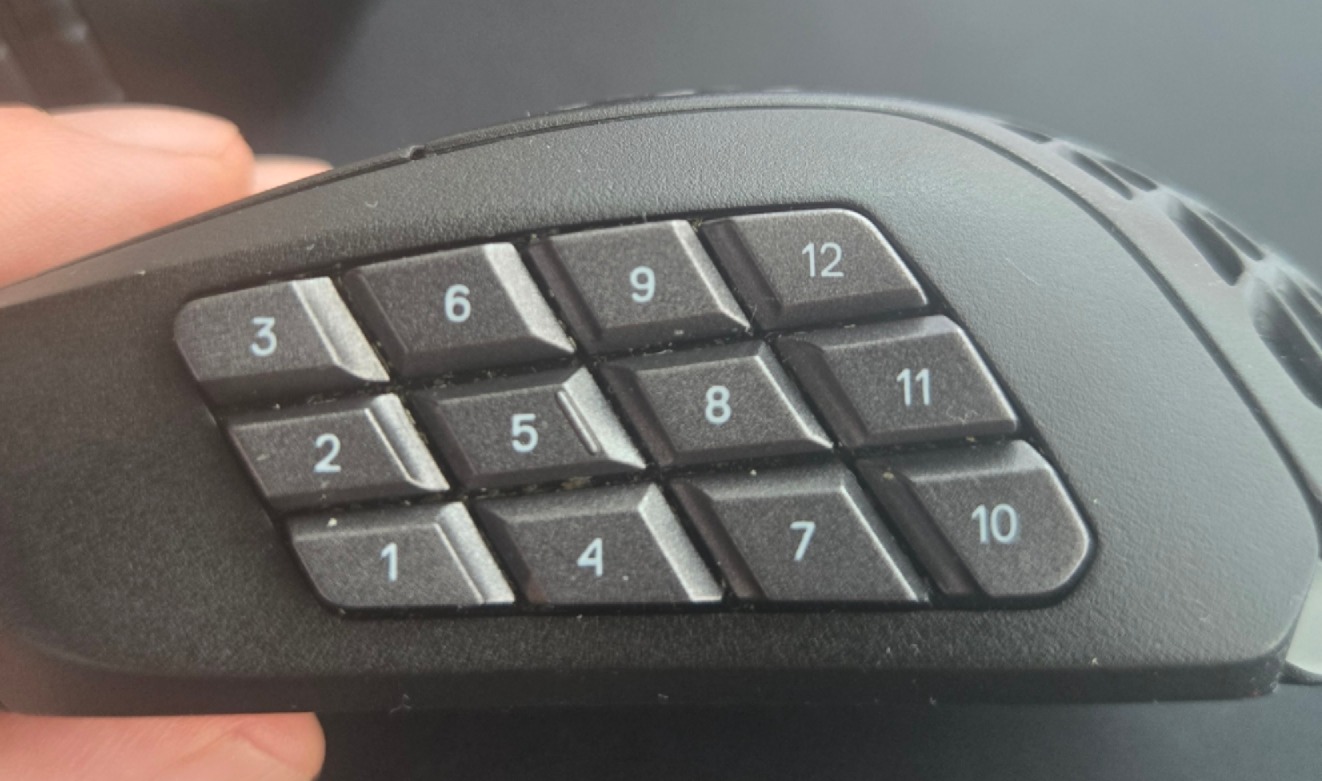
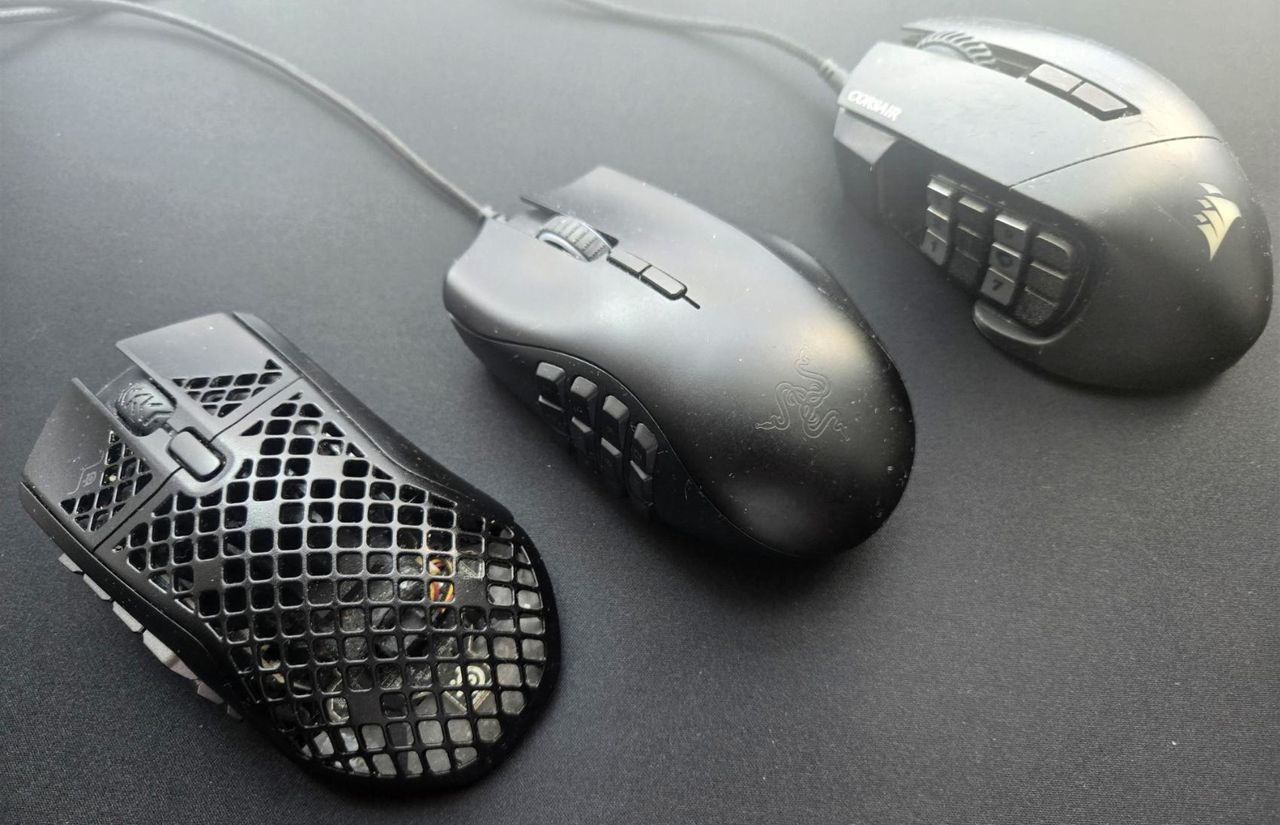
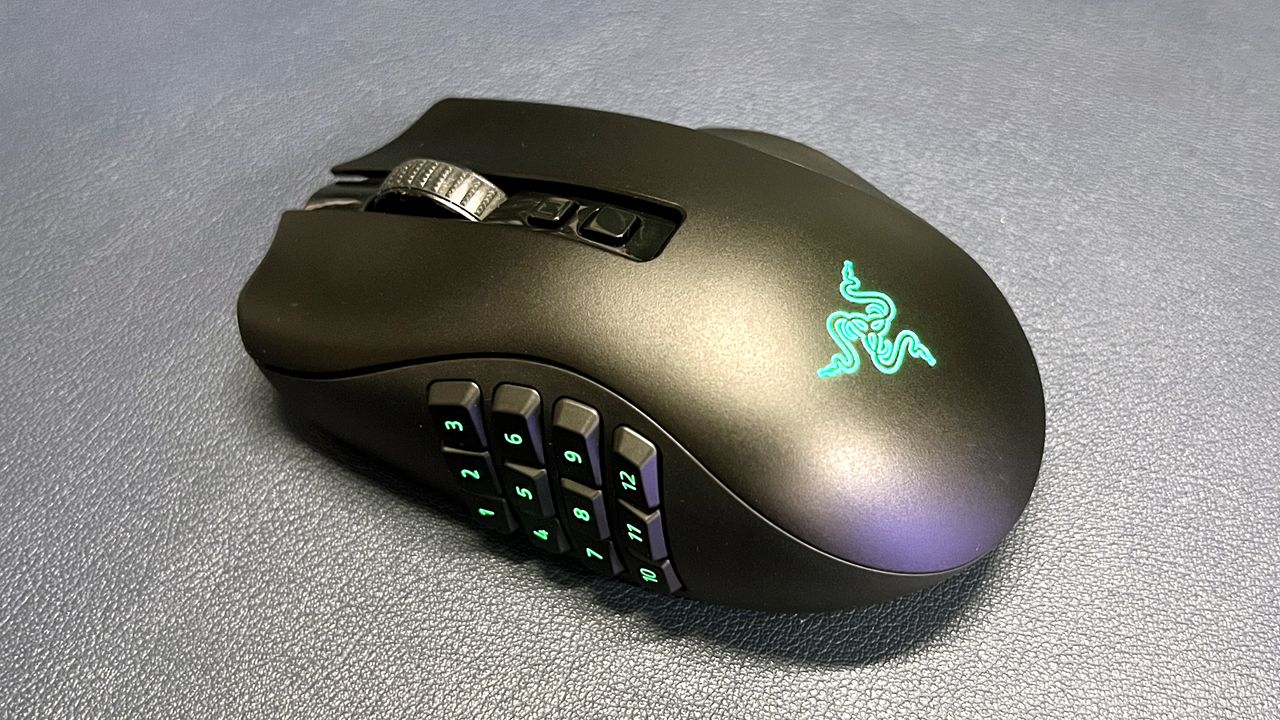
Although I persisted with the Razer Hex for a while, I soon desired more buttons and switched up to a Razer Naga, which sported the now-infamous 12-button side panel that's been imitated by almost every other MMO mouse since. Operating 12 buttons with just your thumb does take a lot of practice to commit the button positions to memory, with different manufacturers using slightly differing button design shapes to facilitate easier recognition.
(Image credit: Future)
Some of the most popular MMO mouse models are Razer’s Naga, SteelSeries’ Aerox 9, Corsair’s Scimitar, and Redragon’s M908 and M913. An honorable mention goes to Logitech’s G600, which is no longer in production but was a great entry in the MMO mouse lineup and can still be found online, albeit at inflated prices due to its rarity.
Using accompanying software such as Synapse, iCUE, or SteelSeries GG, you’re able to reassign almost every button on a mouse, including DPI buttons. Apart from using an MMO mouse as an 18+button spell-slinger in gaming, these mice are super handy in other areas.
I use my SteelSeries Aerox 9 for video editing and some serious spreadsheet action. Yes, you can do the same with a number pad on a keyboard, but having all your favorite commands at your fingertips just speeds everything up.
How many times do you copy and paste? How often do you use a certain formula? Repetitive tasks can be simplified by making a macro or even recording a process and assigning it to one of the 12 side buttons. To make the most out of the mouse, you can set up application-specific profiles. The mouse software will then automatically detect when you're using a program such as Premiere Pro or DaVinci Resolve and instantly swap your thumb grid to the specific shortcuts you’ve set up for each application.
Remember, you can also set a modifier key so that you can increase the number of assignable buttons. The more buttons, the merrier, and once you’re completely familiar with your setup and workflow, you can edit an entire rough cut without your left hand ever touching the keyboard. Take a moment to think of your most-used tasks, what buttons you press to achieve them, and then program them onto the mouse, turning multiple buttons into just one. Ta-da!
If you’ve never dabbled in an MMO game, you may not be aware of how much of a game-changer a multi-button mouse can be. If you’re using multiple keyboards or macro pads like the Stream Deck for your workflow, you should definitely consider trying out an MMO mouse to improve your efficiency. It does take a little time to fully acclimatize yourself to using a mouse with a 12-button side panel, but it’s worth it, and I certainly recommend giving it a try. I can’t imagine going back, so I hope they keep making MMO mice for many years to come.
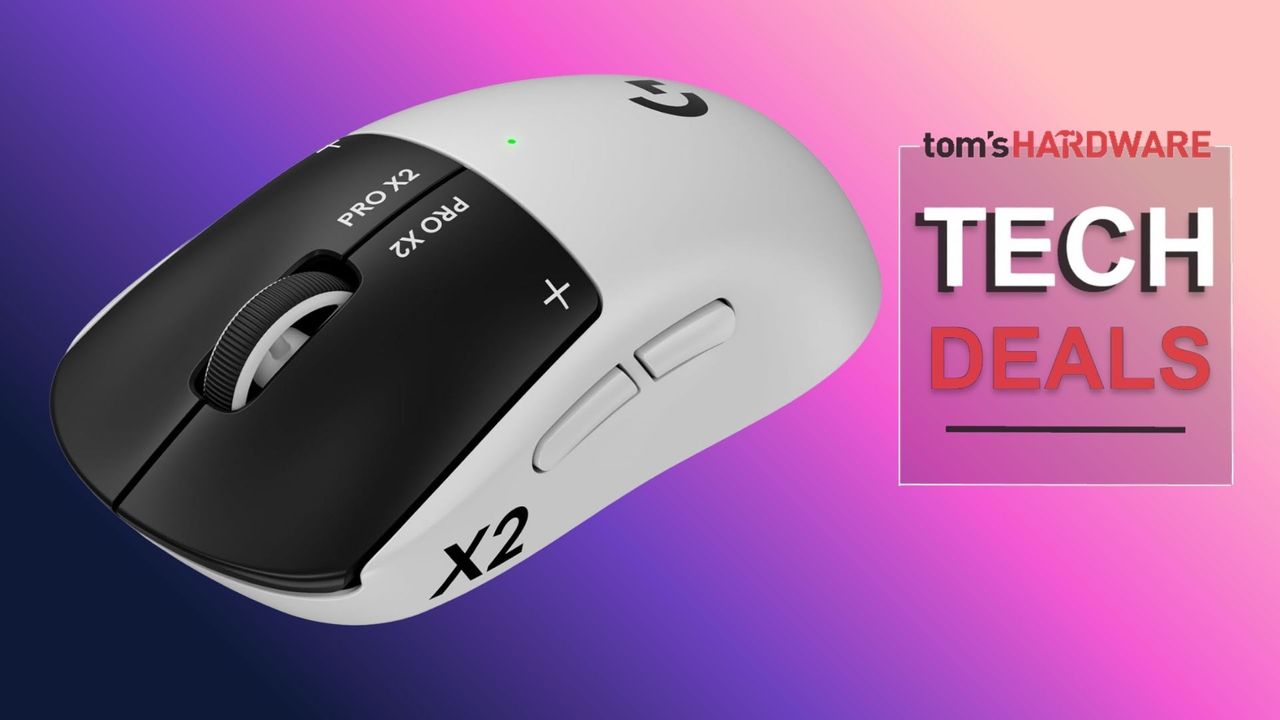
This is the first time that I can recall seeing a discount on Logitech's latest gaming mouse. It's a mouse I've been keeping a close eye on, as the launch price has not only stayed extremely stable but is also super expensive for a gaming mouse, making it very off-putting for the majority of gamers. However, if you want one of these high-tech gaming mice, then today at Amazon, you can grab $54 off the Logitech G Pro X2 Superstrike, bringing it to $125.99. The $54 discount is automatically applied when you click through to the checkout. This is the lowest price the mouse has ever been on Amazon.
The Superstrike’s standout feature is that it blurs the lines between the worlds of gaming keyboards and gaming mice. It's done away with the traditional analog mouse switch, and as a side effect, has removed mouse clicks. With the latest hall-effect tech beneath the left and right mouse buttons, click feedback is now produced by a haptic engine that Logitech calls H.I.T.S. (Haptic Inductive Trigger System). It combines tiny haptic motors with inductive sensors to create a customizable rapid-trigger system that can cut up to 30ms off your response times.
Logitech's top-tier gaming mouse introduces gamers to H.I.T.S (Haptic Inductive Trigger System), a customizable trigger system using hall-effect magnetic switches. The mouse also sports 8K polling, a 44,000 DPI Hero 2 sensor, and a super light weight of only 61 grams.View Deal
The Logitech G Pro X2 Superstrike packs all the latest and greatest tech in a very familiar chassis. See our review of the Logitech G Pro X2 Superstrike for more details. Keeping the shape and size of previous Superlight mice. The G Pro X2 Superstrike weighs 61 grams and uses magnetic sensors with a haptic trigger system for the left and right mouse buttons. The sensor is the Logitech Hero 2 sensor, with a DPI of up to 44,000, 888 IPS, and 88 g-force acceleration. The wireless dongle supports a very fast, lag-free 8 kHz polling rate for the lowest latency possible. To use the adjustable H.I.T.S system to the full, you must use the Logitech G Hub software to alter and customize any mouse settings to your preference.
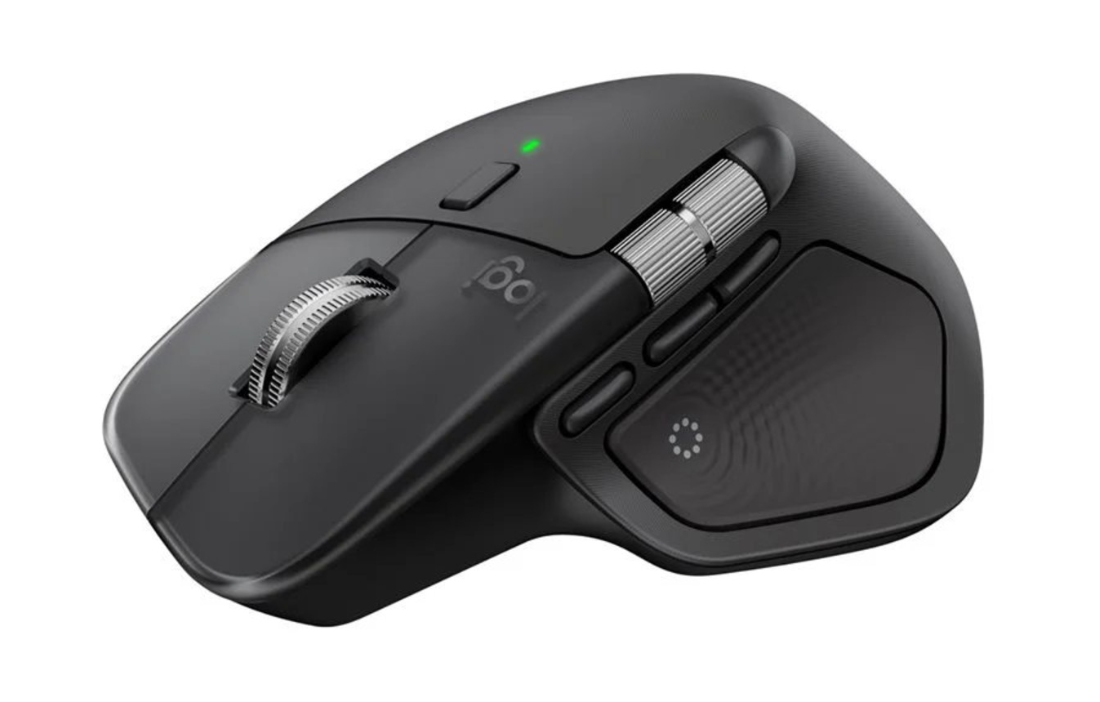
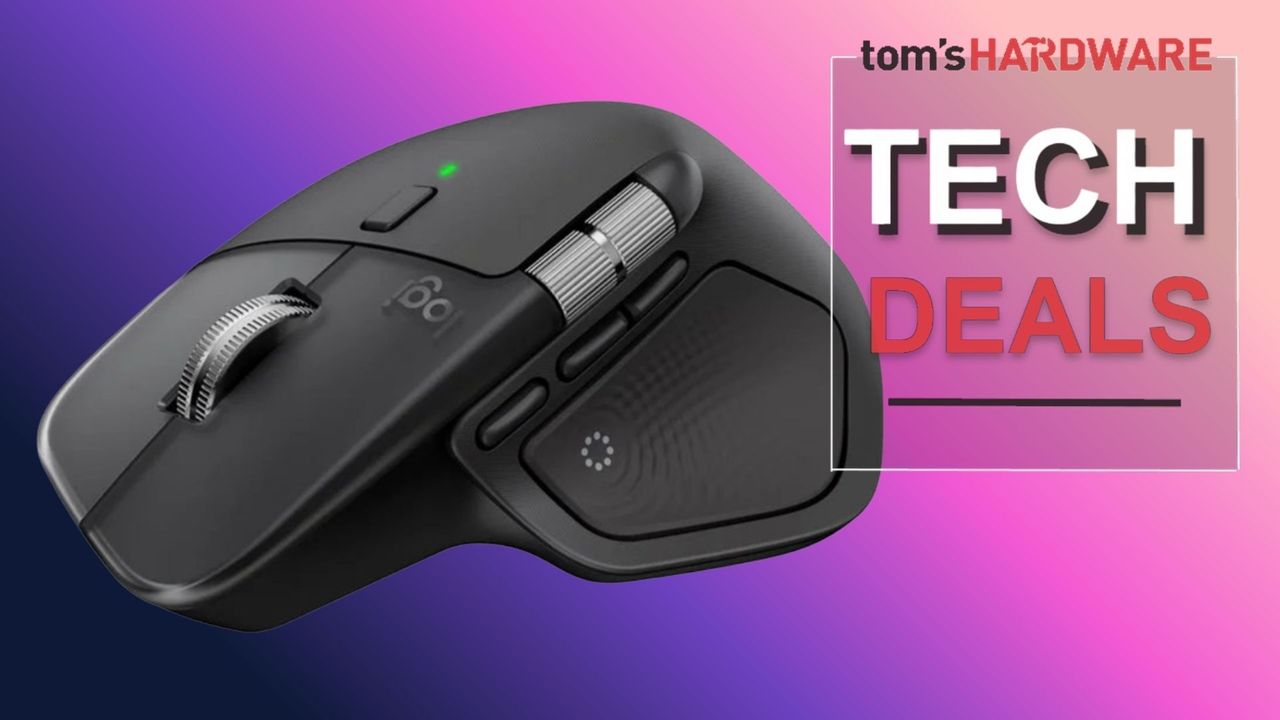
Logitech's current flagship productivity mouse, the MX Master 4, is available for just $102.59 at Lenovo when you stack codes EXTRAFIVE and SUMMERLIVE26 in the shopping cart. This adds a discount of $17.40, bringing the price down from the $119.99 list price and saving you 15% off this amazing mouse. It's not often that we see noticeable price drops on this model, as it's a particularly in-demand peripheral for productivity users.
This discount applies to the black version of the MX Master 4. It succeeds the MX Master 3S, which is still our top pick for the best overall wireless mouse. The new MX Master 4 model keeps many existing features from the previous MX Master 3S, including the dual-mode MagSpeed scroll wheel on the top and a horizontal wheel on the side, but adds a brand-new haptic experience.
The Logitech MX Master 4 uses an 8K DPI sensor, quiet click switches for almost silent operation, and better 2.4GHz wireless connectivity. The mouse offers both 2.4GHz wireless via the included USB transceiver and Bluetooth connectivity, with support for both Windows and macOS, as well as Linux and ChromeOS.
The MX Master 4 is the latest in Logitech's MX Master lineup, maintaining a similar ergonomic design along with dual MagSpeed scroll wheels and a new haptic feedback feature for those who prioritize productivity.View Deal
Logitech has added haptic feedback to the MX Master 4, which is located next to the thumb rest area of the mouse. Featuring four intensity settings to monitor your mouse, the haptic feedback feature is used to inform you when the mouse connects or disconnects from a device, during low battery, and for certain app-specific purposes.
Another new feature is the addition of the Action Ring, which is available via Logitech's Options+ software. It can be activated by pressing a dedicated button placed within the mouse's thumb rest, which brings up a circular menu giving users quick access to commonly used tasks. The ring is fully customizable through the Logitech software, so you can assign your favorite functions or actions for quick access.
If you're looking for a superb mouse for doing your work, getting creative, or for school, then the Logitech MX Master 4 at this $102.59 price is the best deal currently available from a major tech retailer.
Prime Day is a great time to pick up new tech — but instead of dropping a ton on a RAM bundle, why not buy something a little more wallet-friendly, such as a new gaming mouse? This is a great time to pick up a new gaming mouse, as a lot of companies released new versions that were more like updates last year. You can now find several great gaming mice on sale — they may not be the absolute newest versions on the market, but they'll still get you that extra edge.
Razer recently launched its DeathAdder V4 Pro, which has the same shape and size as the DeathAdder V3 Pro, because the shape and size of the DeathAdder V3 Pro were basically perfect. This lightweight wireless gaming mouse weighs just 2.22 ounces (63g) and features five programmable buttons and up to 90 hours of battery life over 2.4GHz wireless (with a 1,000 Hz polling rate).
The DeathAdder V3 Pro is a lightweight wireless gaming mouse with a fantastic shape, Razer's Focus Pro 30K optical sensor, and up to 90 hours of battery life. It weighs just 63g and is perfect for a range of gamers. View Deal
It sports Razer's Focus Pro 30K optical sensor and works with Razer's HyperPolling Wireless Dongle (sold separately) to achieve a wireless polling rate of up to 8,000 Hz (at the expense of battery life, of course). The DeathAdder V4 Pro is also excellent, but the V3 Pro is still one of our favorites — and it's currently on sale for just $66.49 at Walmart, which is $83.50 off its MSRP of $149.99 and the lowest we've seen it at yet.
Another one of our favorite Razer gaming mice is also on sale: the Basilisk V3 Pro, which is part of Razer's flagship Basilisk lineup. The Basilisk V3 Pro isn't as performance-focused as the DeathAdder V3 Pro — this ergonomically-contoured wireless gaming mouse also features Razer's Focus Pro 30K optical sensor, which has a maximum sensitivity of 30,000 DPI and a maximum speed of 750 IPS, and can handle up to 70G's of force. It has 11 programmable buttons and 13 zones of bright, customizable RGB lighting, and it weighs 3.95 ounces (112g).
Razer's flagship wireless Basilisk V3 Pro features Razer's Focus Pro 30K optical sensor, Gen-3 optical mouse switches, and 13 zones of bright RGB underglow lighting. It gets up to 110 hours of battery life and is compatible with Razer's HyperPolling Wireless Dongle and Mouse Dock Pro.View Deal
Razer's stripped down version of its Basilisk V3 Pro sports the Razer 5G 18K optical sensor, an ergonomic right-handed shape with 9 programmable buttons, and up to 285 hours o f battery life on a single AA battery. View Deal
Like the DeathAdder V3 Pro, this mouse also works with Razer's HyperPolling Wireless Dongle (sold separately) to get up to an 8,000 Hz wireless polling rate; it's also compatible with Razer's Mouse Dock Pro (sold separately), which integrates the HyperPolling Wireless Dongle and also allows for wireless charging (and also features 8 zones of customizable RGB lighting, because why not).
And if you want the stripped-down version of the Basilisk V3 Pro, Razer's Basilisk V3 X HyperSpeed wireless gaming mouse is also on sale at Best Buy for $37.99 — $32 off its retail price of $69.99.
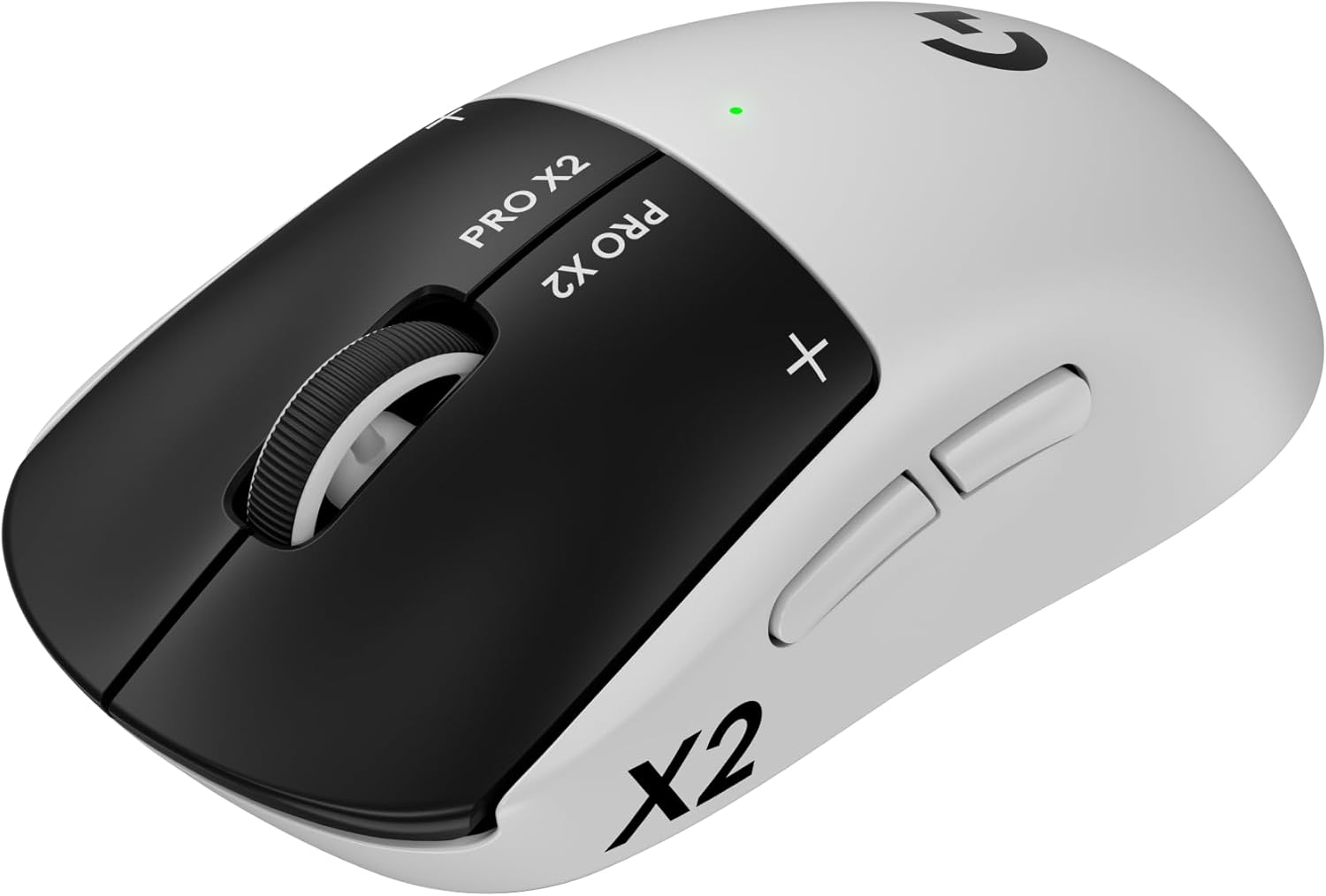
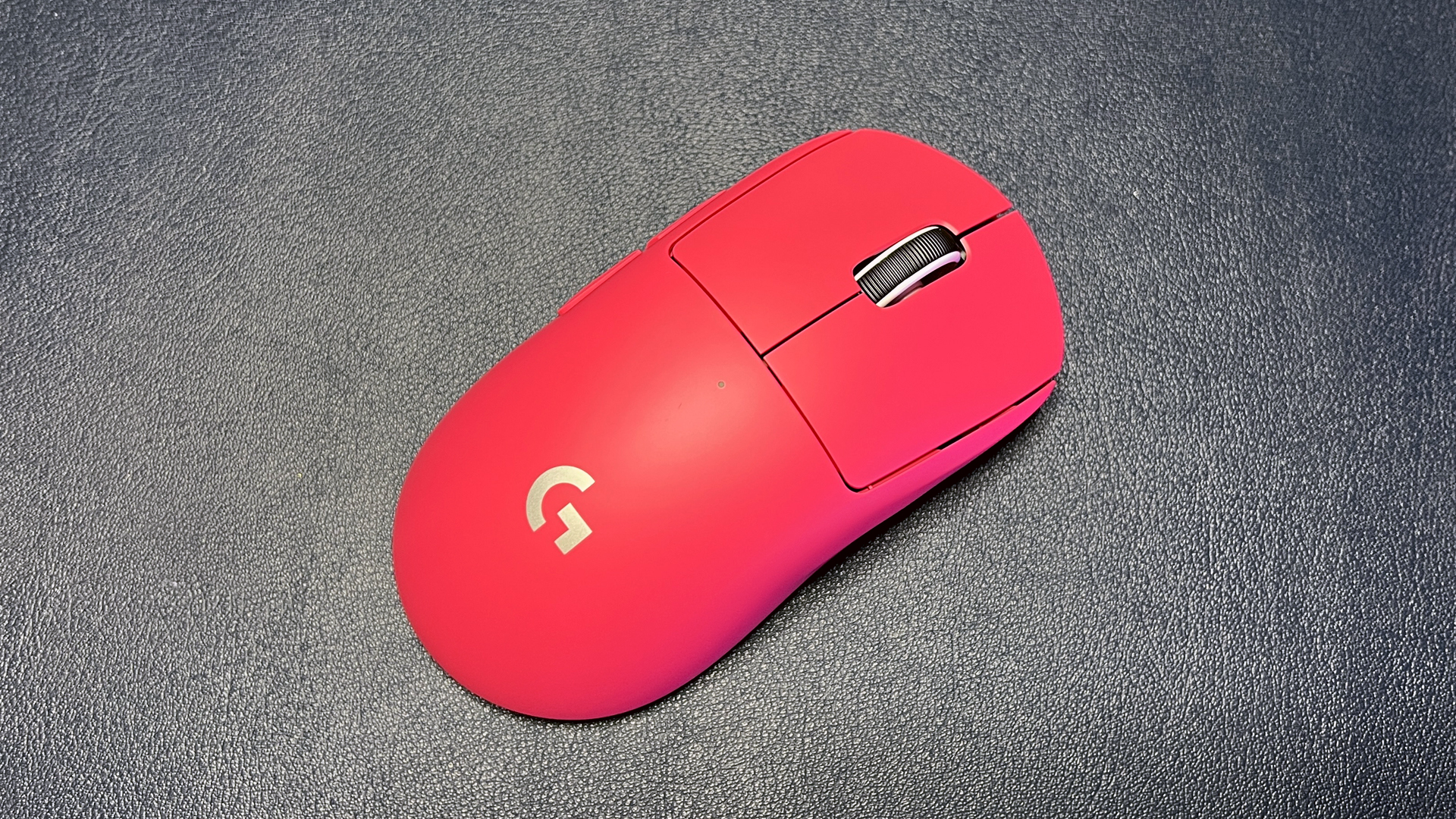
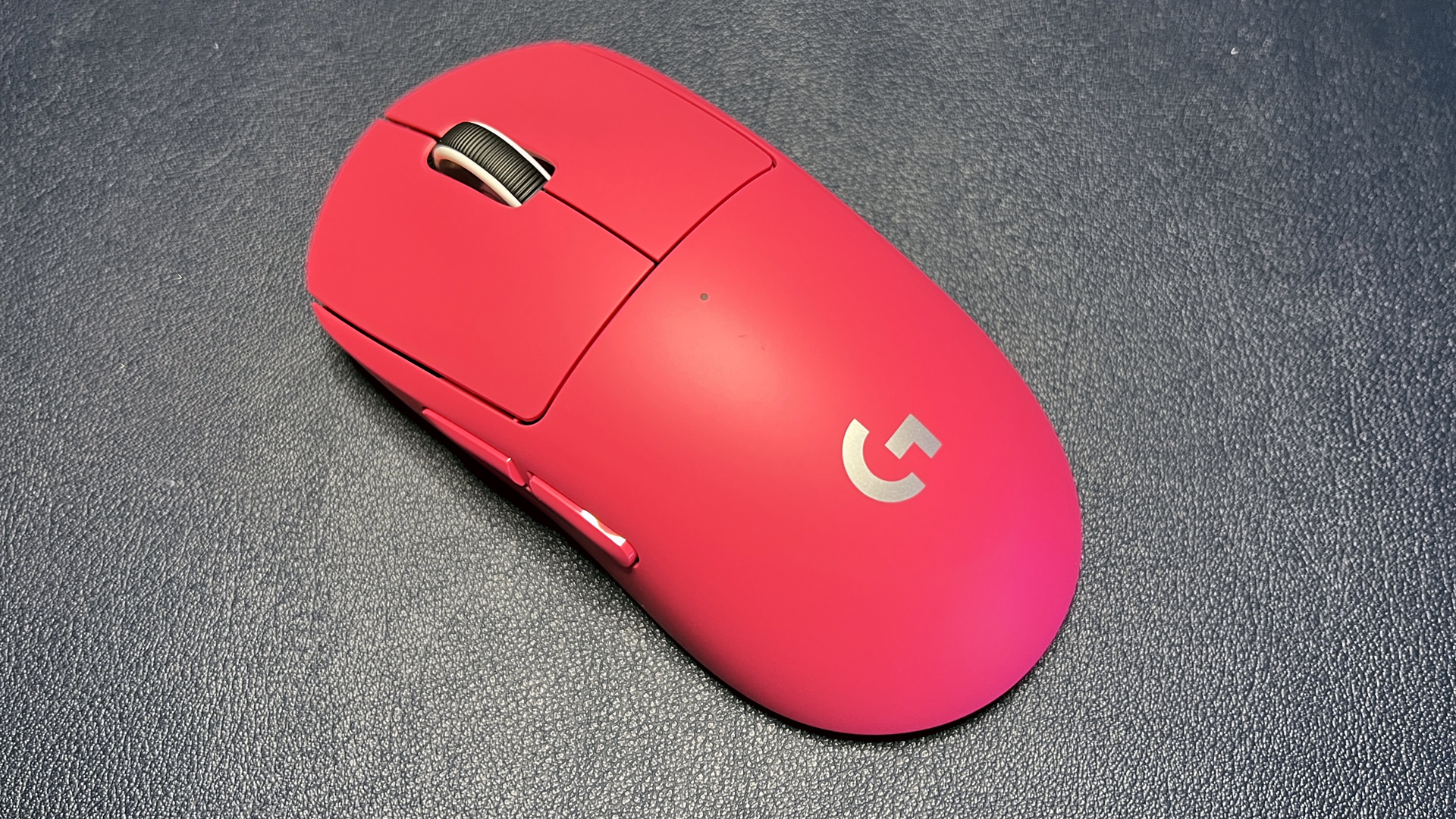
If you're looking for something ultra-light, well, it's in the name: the Logitech G Pro X Superlight 2 is a pseudo-ambidextrous ultra-lightweight mouse weighing just 2.12 ounces (60g) and designed for those who need speed above all else. It comes in three colors: black, white, and Logitech's bright magenta rose color (that I happen to love).
Logitech's ultralight 60g wireless mouse features a pseudo-ambidextrous symmetrical shape and sports the brand's Hero 2 optical sensor and Lightforce hybrid optical/mechanical switches. View Deal
The Pro X Superlight 2 has Logitech's Hero 2 optical sensor, which has a maximum sensitivity of 32,000 DPI and a maximum speed of 500 IPS, and can handle up to 40G's of force. It has five programmable buttons; its primary buttons feature Logitech's Lightforce hybrid optical/mechanical switches, which can actuate optically (for the lowest latency) and mechanically (for saving power).
Maybe ultralight and stripped-down gaming mice aren't your thing. If you're looking for a mouse with all the buttons, Corsair's newest Scimitar Elite SE Wireless is a good option, and it's currently on sale for 50% off at Best Buy — you can pick it up for just $69.99, which is 50% off its original MSRP of $139.99. That's $5 cheaper than it was last Black Friday, too.
This MMO / MOBA-focused mouse features 16 programmable buttons, 12 of which are on its customizable, movable side panel. It also sports Corsair's Marksman S 33K optical sensor, which has a maximum sensitivity of 33,000 DPI and a maximum speed of 750 IPS, and can handle up to 50G's of force.View Deal
The Scimitar Elite SE Wireless features 16 programmable buttons, 12 of which are on its movable side panel — you can move the side panel forward or backward, depending on your hand size and what's most comfortable for you. It sports Corsair's Marksman S 33K optical sensor, which has a maximum sensitivity of 33,000 DPI and a maximum speed of 750 IPS, and can handle up to 50G's of force. It weighs 4.02 ounces (114g), but let's face it — if you're looking for a mouse with 16 programmable buttons, weight is not your top priority. The Scimitar Elite SE Wireless also features a pretty solid battery life of 150 hours over its 2.4GHz wireless connection, which means you'll only have to charge it every couple of weeks (and that's if you're a serious gamer).
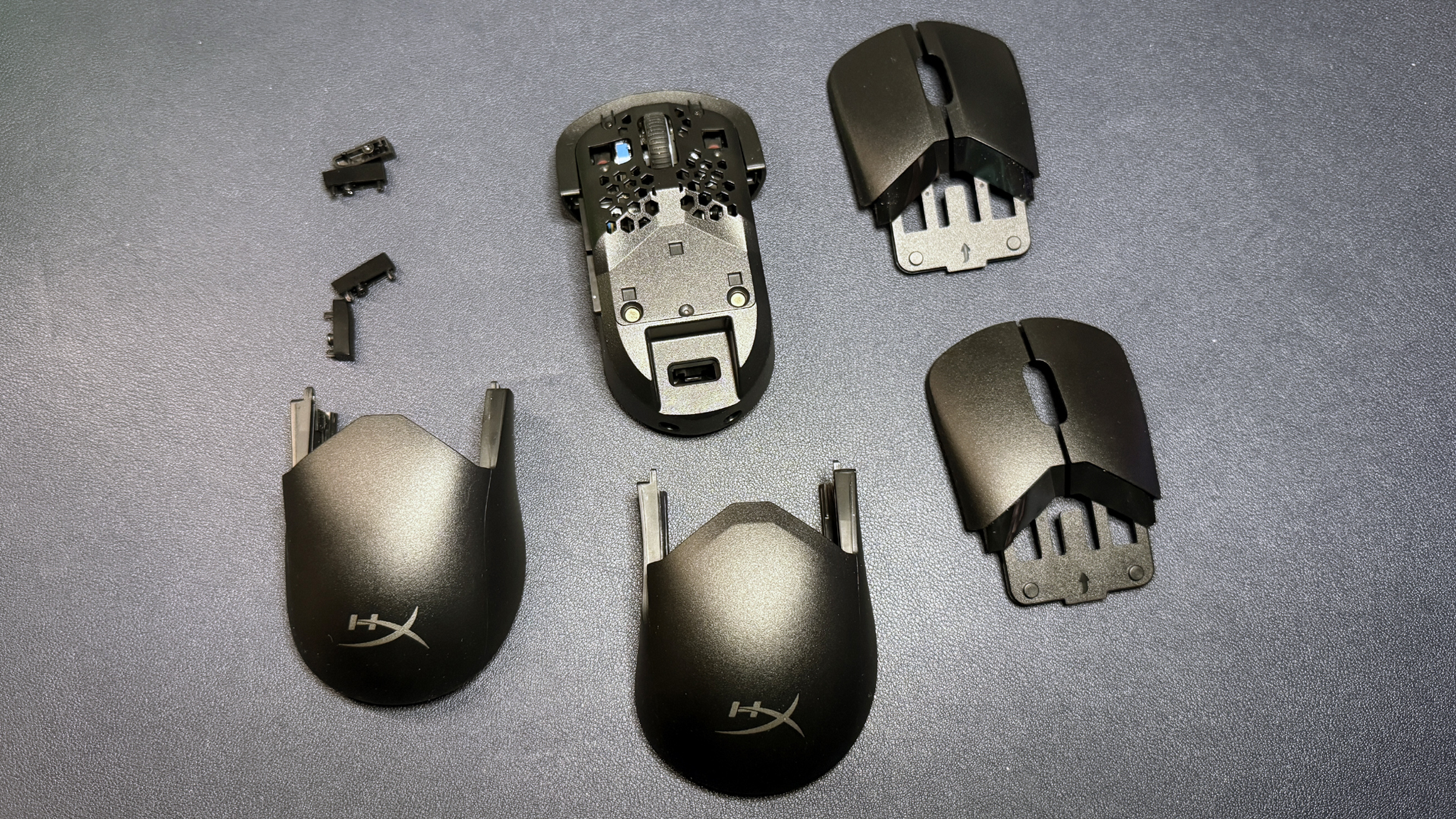
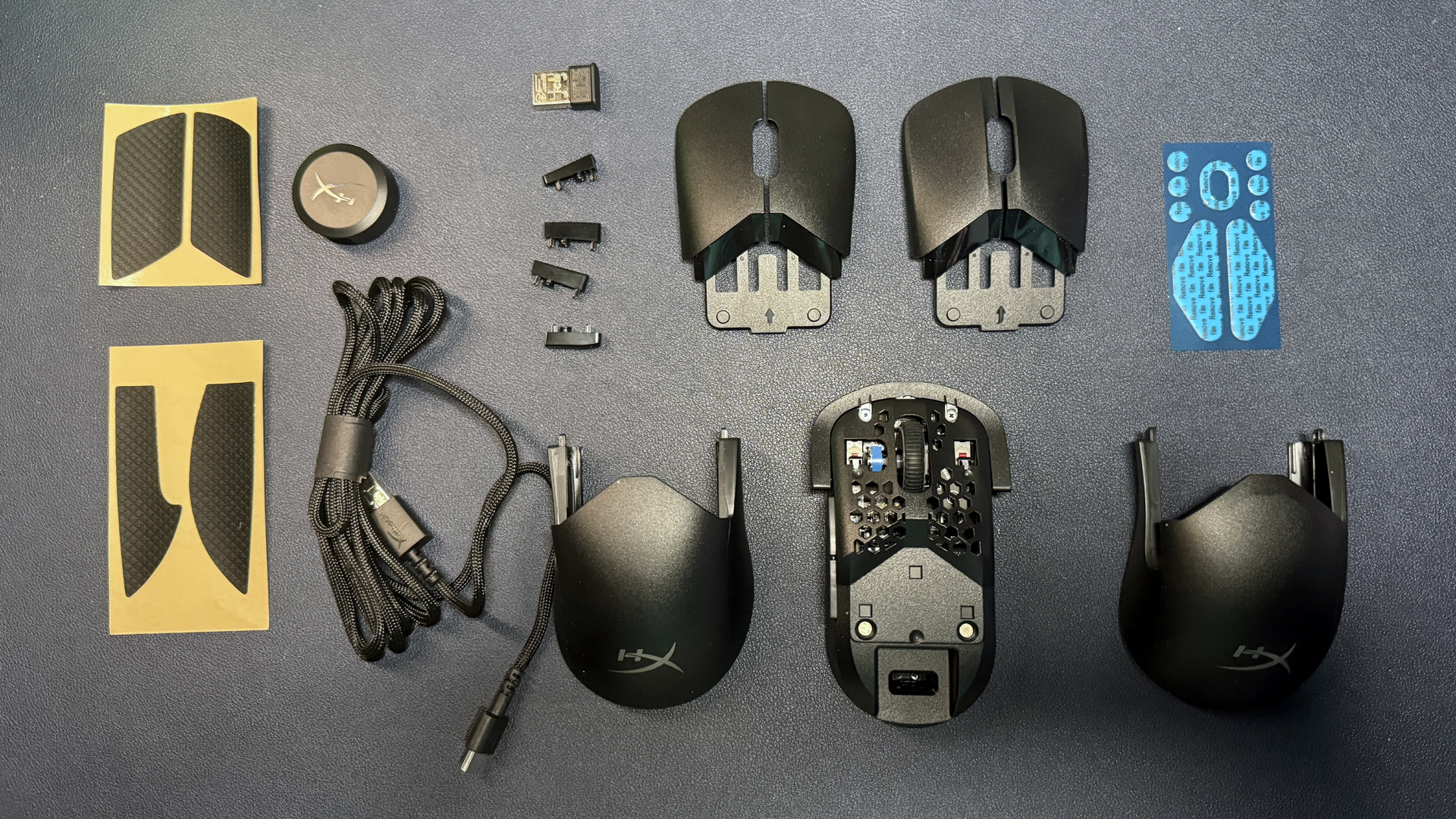
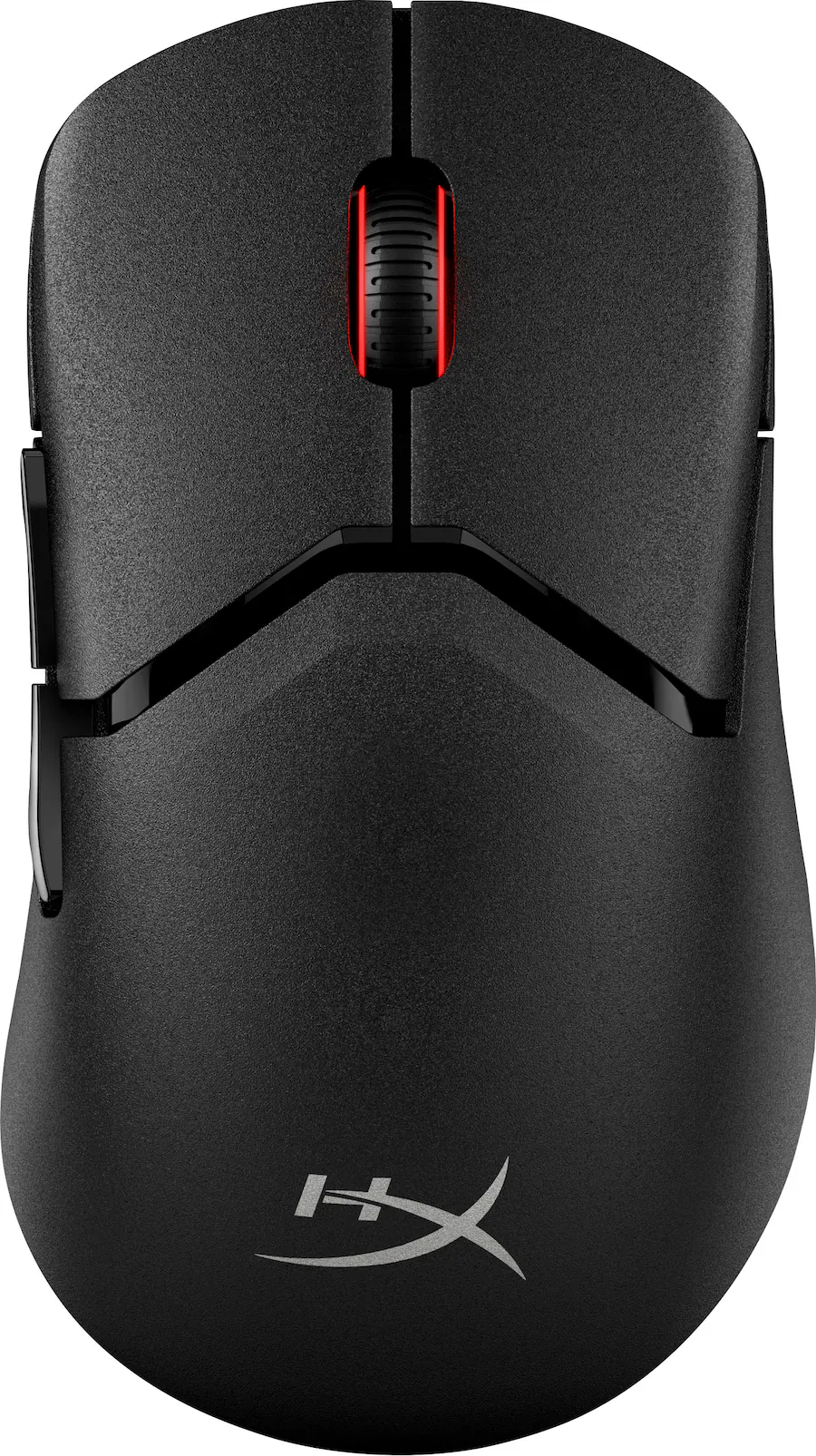
If you're looking for something modular, HyperX's Pulsefire Saga Pro is a wireless gaming mouse with just a couple of modular options (plus the ability to print your own pieces, coming soon). This lightweight gaming mouse also features five programmable buttons and up to a 4,000 Hz wireless polling rate, and it's currently on sale at HyperX for 79.99 — $40 off its MSRP of $119.99.
This ultra-lightweight wireless mouse is modular and comes with 2 humps, 2 sets of primary buttons, and 2 sets of side buttons. It features up to a 4,000 Hz wireless polling rate and HyperX's 26K sensor.View Deal
The Pulsefire Saga Pro sports HyperX's 26K sensor, which has a maximum sensitivity of 26,000 DPI and a maximum speed of 650 IPS, and can handle up to 50G's of force. This is the same sensor we've seen in HyperX's mice for a couple of years now — it's a solid sensor in terms of speed and accuracy, but it might not be for you if you're looking for the latest and greatest.
However, if you're just looking for lightweight modularity, the Pulsefire Saga Pro is where it's at: this mouse comes with two mouse humps, two sets of primary mouse buttons, and two sets of side buttons, and it implements its modularity well — everything fits together nicely and feels sturdy, and we had no issues with creaking or parts moving around in our testing. All configurations will give you a weight of 2.54 ounces (72g) — lightweight, but not quite as light as the Pathfinder.
Dr. James Ries, the founder of Twenty Mile Medical, proudly proclaims that he’s a Razer Naga V2 Pro user. The most surprising thing about this tidbit is that he uses it while seeing patients remotely. Before you get your pitchforks out, no, the doctor isn’t playing World of Warcraft while evaluating a patient — instead, he uses it to simplify his and the rest of his team’s workflow. Dr. Ries mentioned this interesting piece of trivia during TextExpander’s interview with the healthcare provider, where he showed how he used the service to standardize patient care, reduce the cognitive burden on medical professionals, and quickly write more accurate clinical notes.
Doctor fatigue is one of the biggest issues that telehealth faces today. “Discharge instructions going out at 8 am from a fresh provider look nothing like the ones going out at 4 pm from the same provider after eight hours of visits,” TextExpander said. Dr. Ries said that he addressed this by using master Snippets (a snippet is a short text command, like “;sig” that would run a programmable command, like inserting your signature).
Instead of typing out a fixed phrase, sentence, or paragraph, which is what TextExpander is usually used for, the shortcuts he created bring up the relevant clinical scenario and give options to select appropriate responses as needed. He’d have snippets for general patient communication, sinus infections, psych refills, and more, and then there are check boxes that he can click in each master snippet to ask questions, add instructions, write prescriptions, and more.
Each master Snippet has its specific command, and this is where Dr. Riesa’s Razer Naga V2 Pro comes in. Instead of having to memorize the commands needed to launch the workflow, he assigned them to the customizable buttons that sit on his right thumb. He also assigned other buttons to insert his most commonly used typed paragraphs, like his intro paragraph and signature. You might think that this is excessive — after all, you’re only saving a few seconds by typing four characters instead of pressing one button. But even if that is true, you’ll save a lot of time if you use the shortcut often enough.
More than saving time, it also reduces the cognitive load on doctors. Decision fatigue is a real phenomenon across industries and professions, where people make bad calls not because they’re poorly trained or careless, but simply because they’re tired. Combining the text shortcut with the macro keypad on the mouse helps reduce this, as you don’t even have to lift your hand off the mouse to launch the master Snippet.
Dr. Ries says that the functionality isn’t limited to gaming mice — you can also use a macro pad like the Stream Deck Neo to assign commands and shortcuts, too. Nevertheless, he still prefers the Razer Naga V2 Pro because he doesn’t have to lift his hand off the peripheral to insert what he needs.
Watch the video below to see how the doctor uses his gaming mouse for productivity.
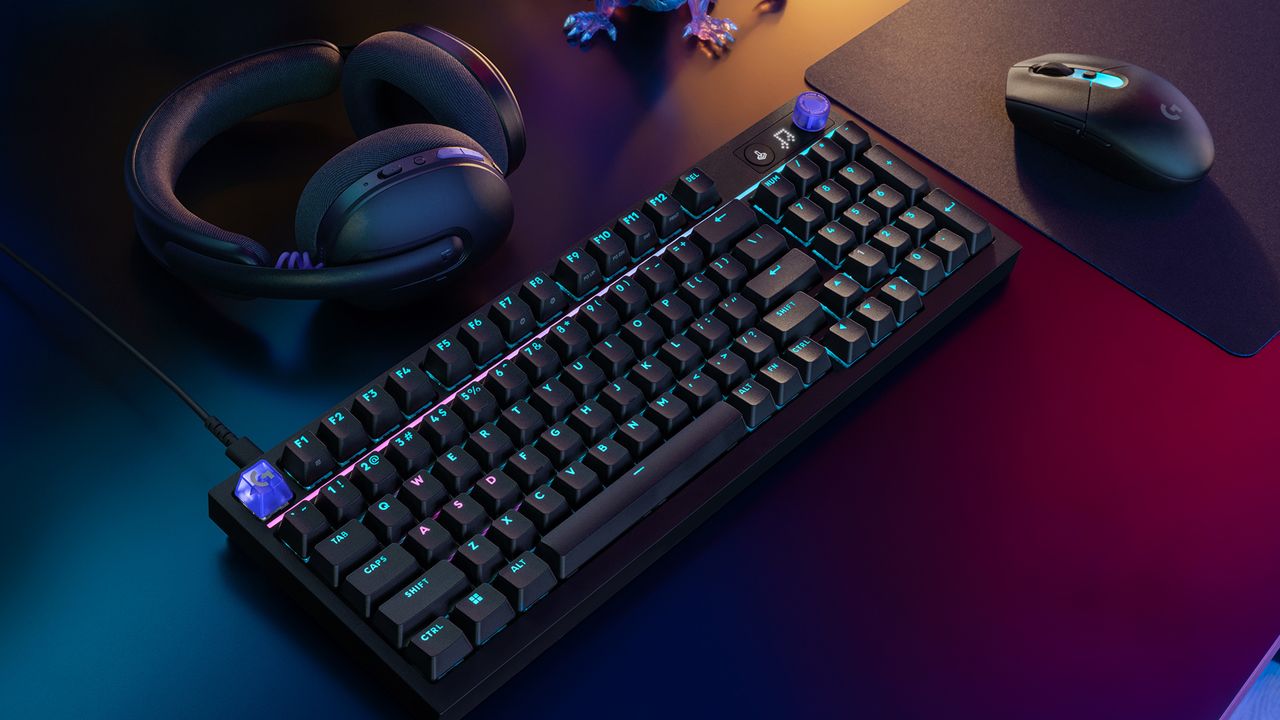
Logitech's latest gaming peripherals include a redesigned 59-gram G305 X Superlight mouse with 8,000 Hz polling and a customizable G316 X 98 mechanical keyboard featuring hot-swappable switches and a control dial.
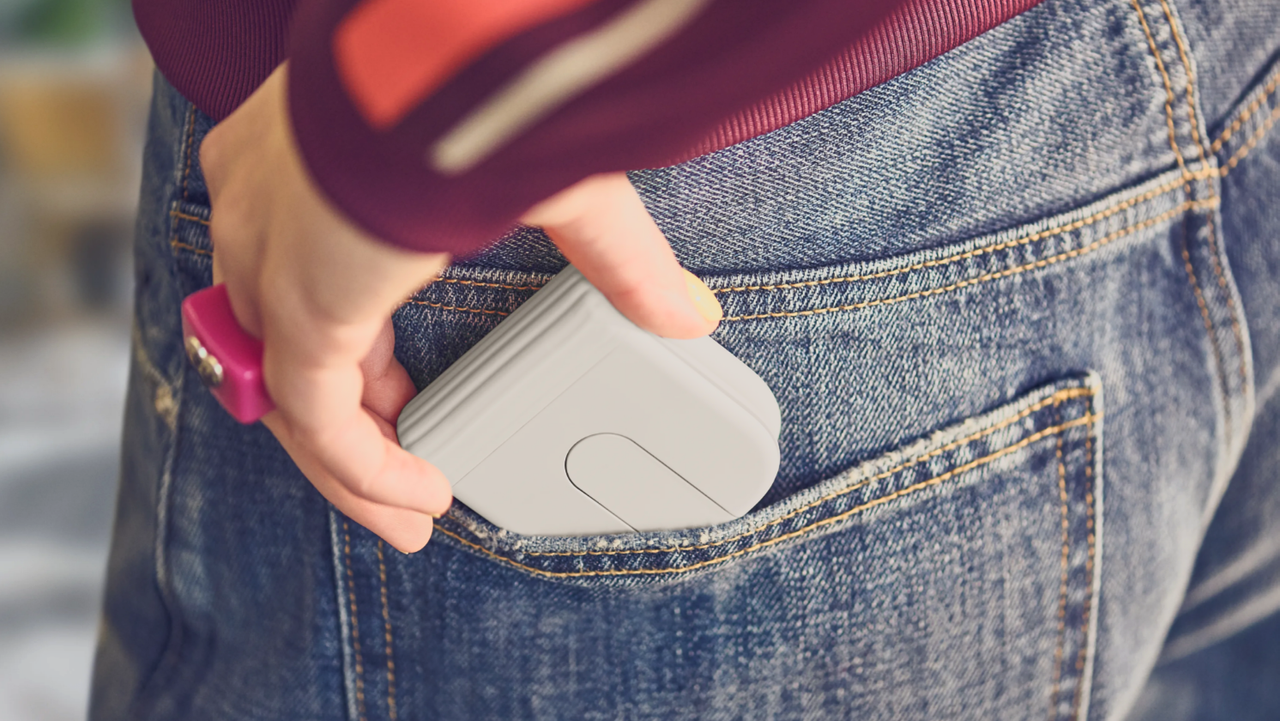
Logitech's new Mobi Fold mouse neatly bends in half and can be easily carried around in a pocket, making it ideal for laptop users on the go, and far less bulky than conventional offerings, while having an arguably more ergonomic shape.
 登录
登录