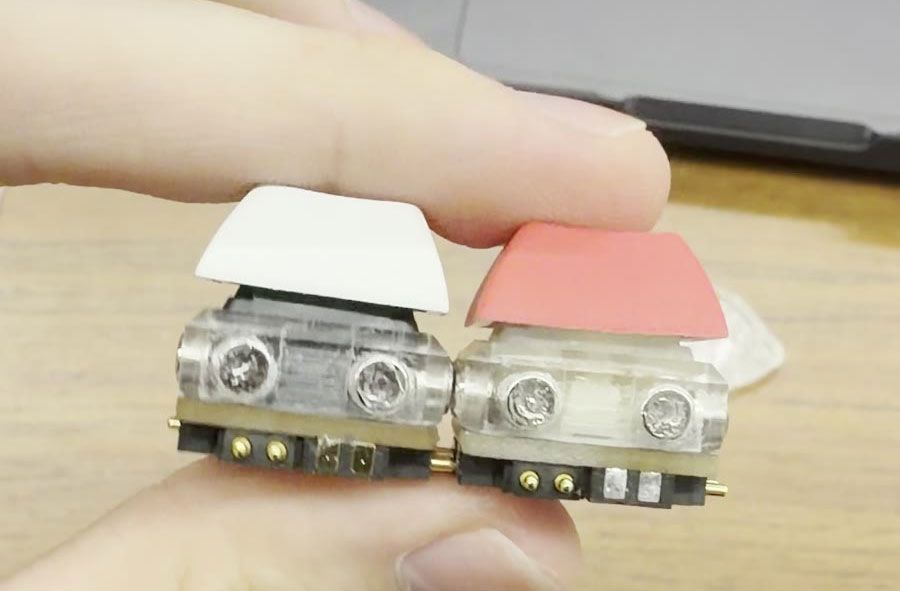
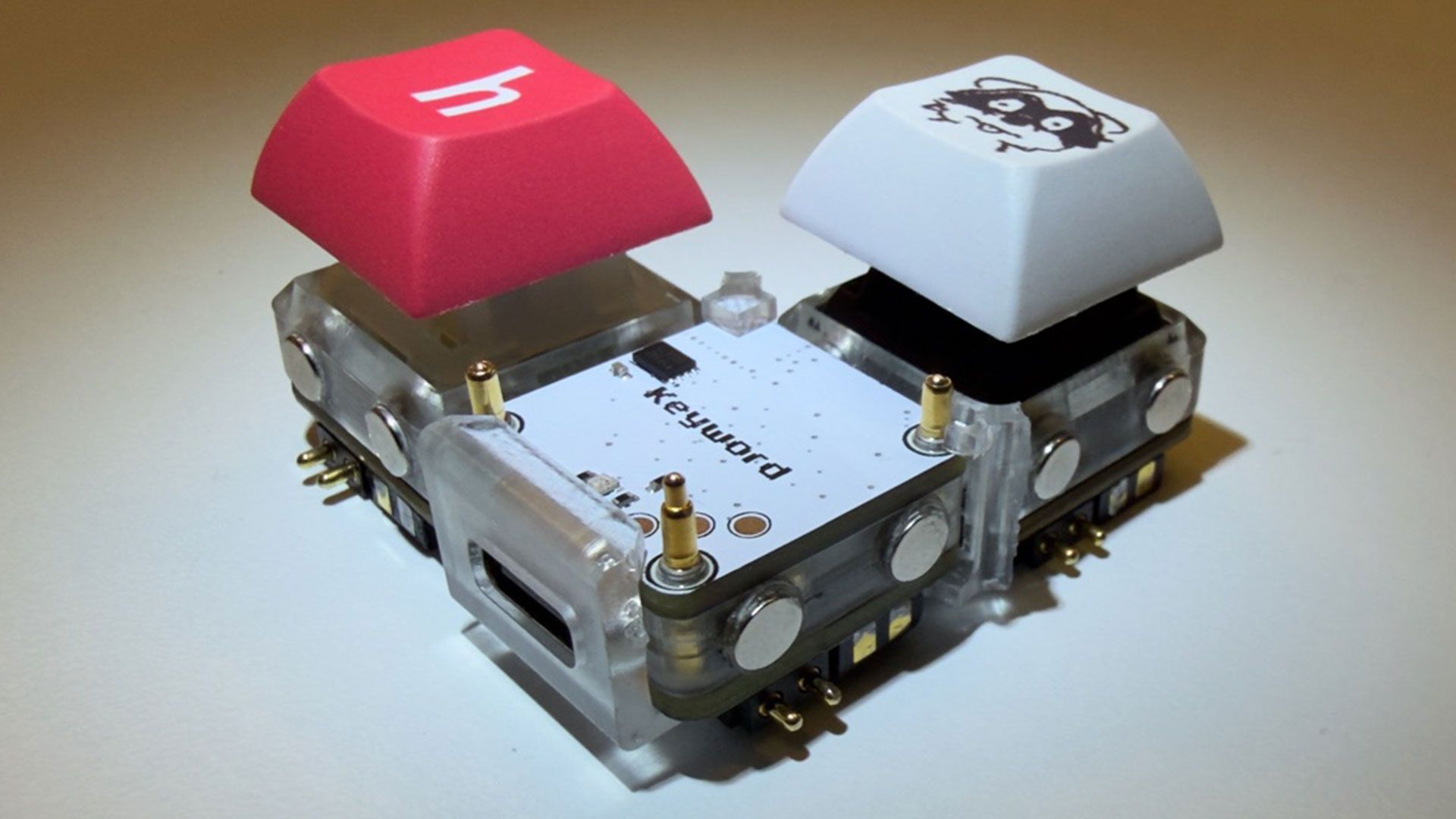
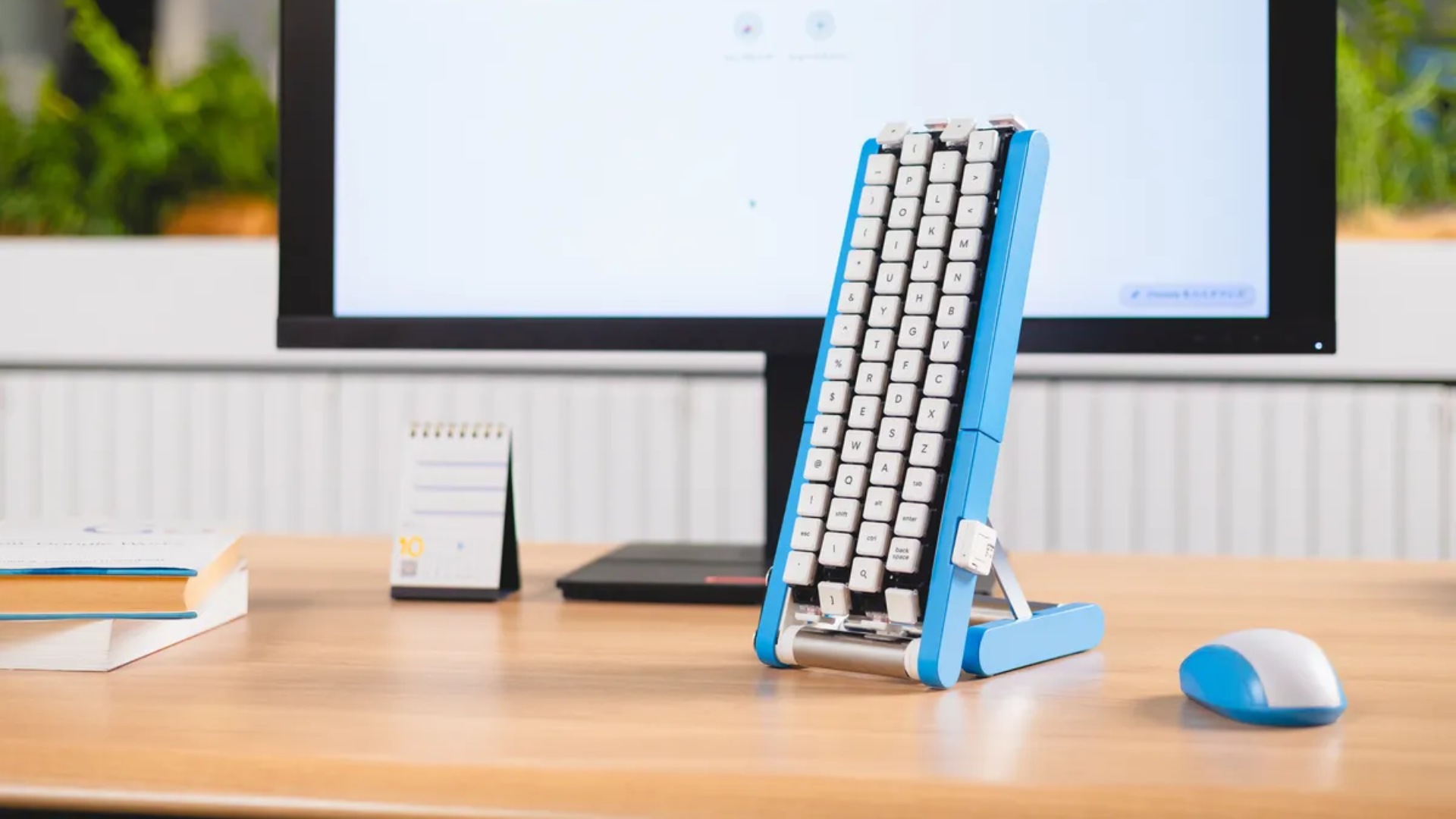
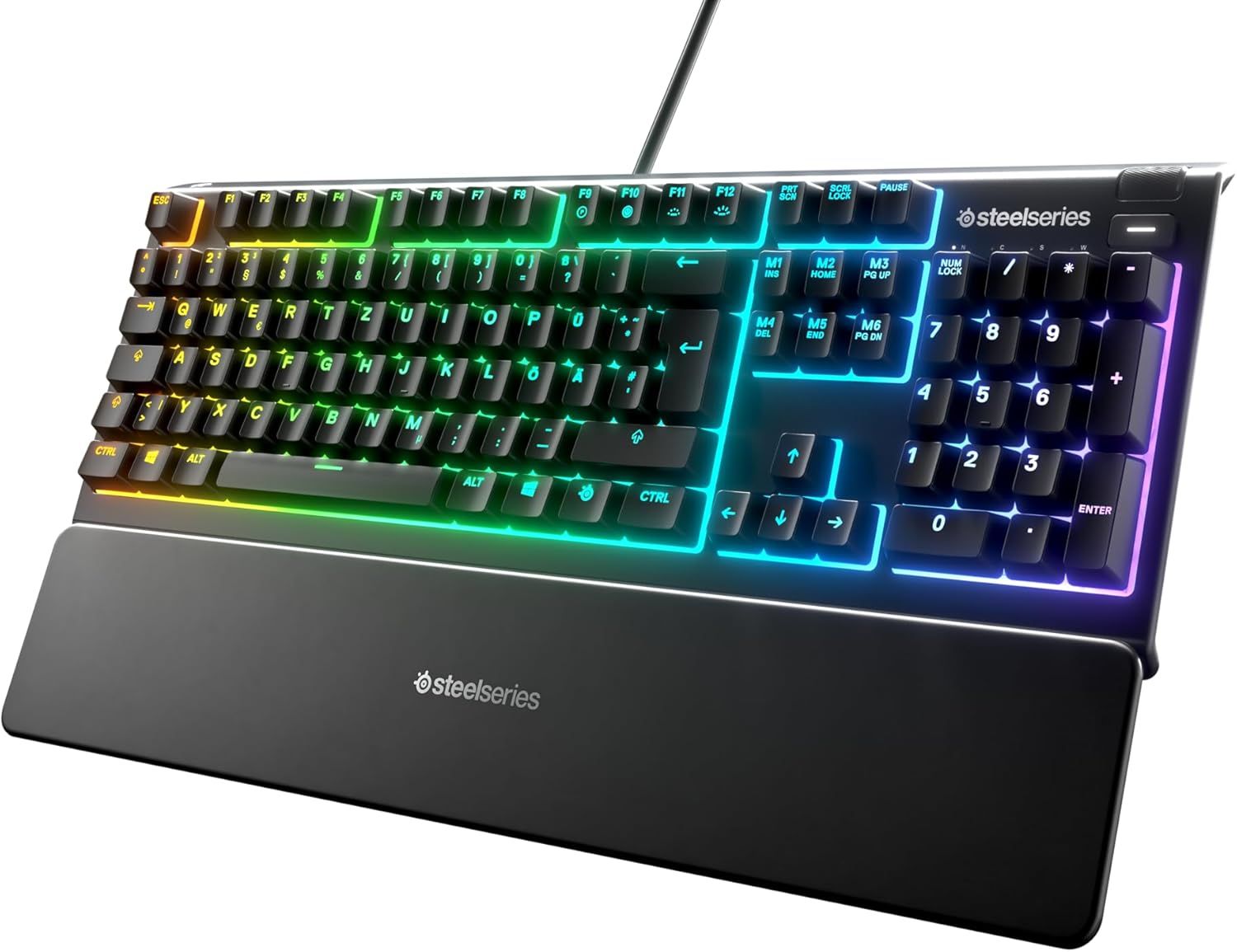
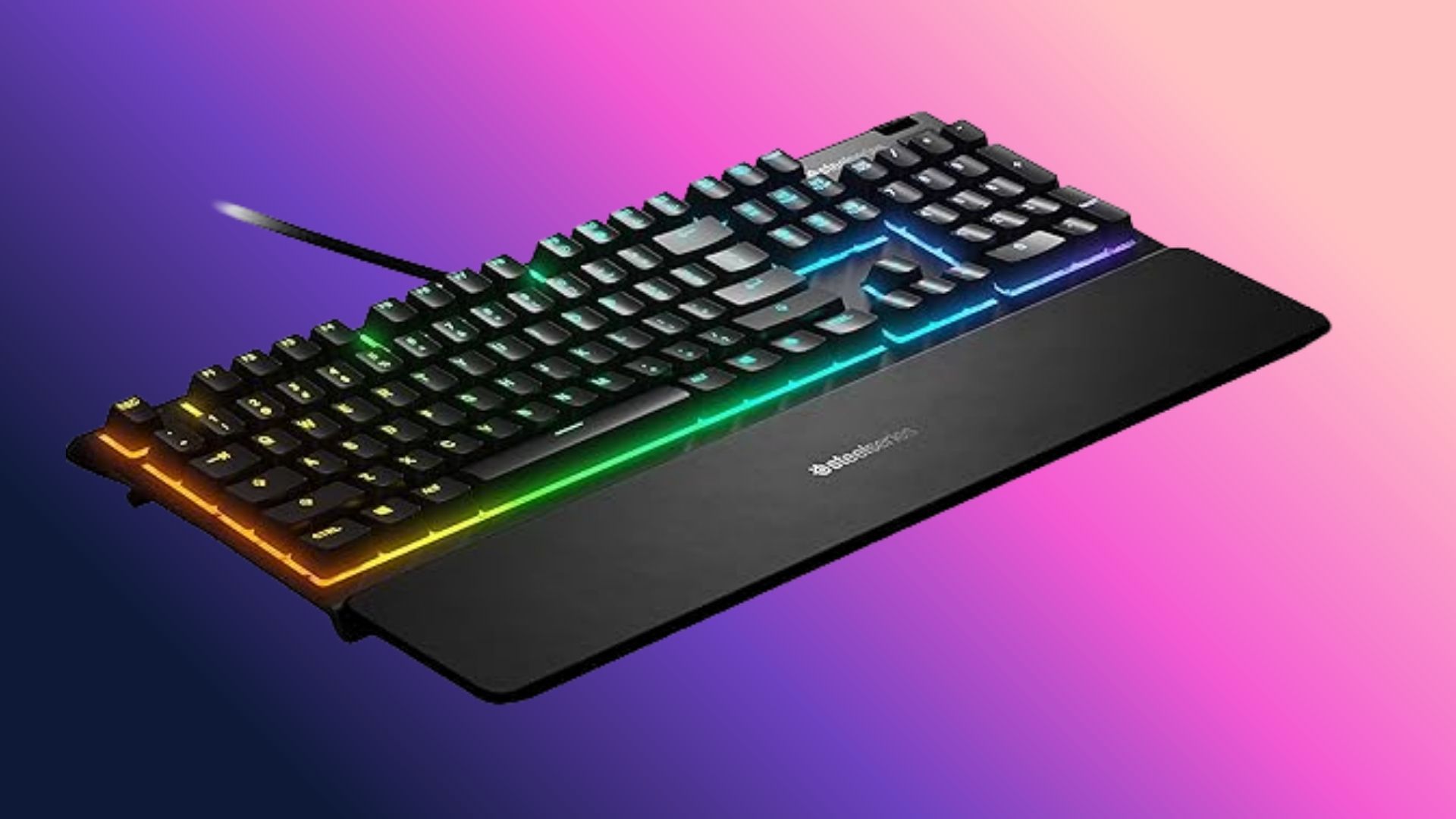
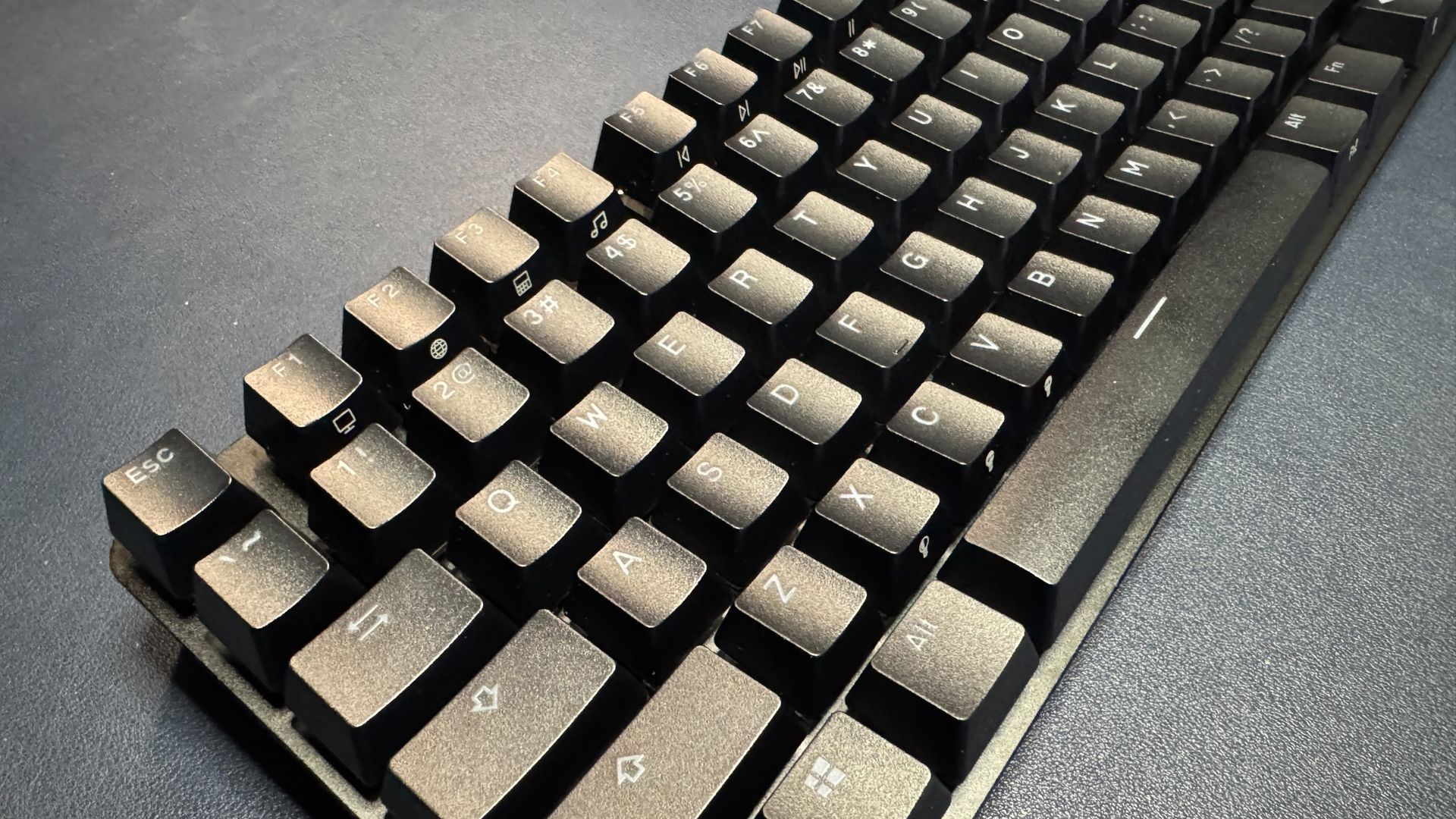
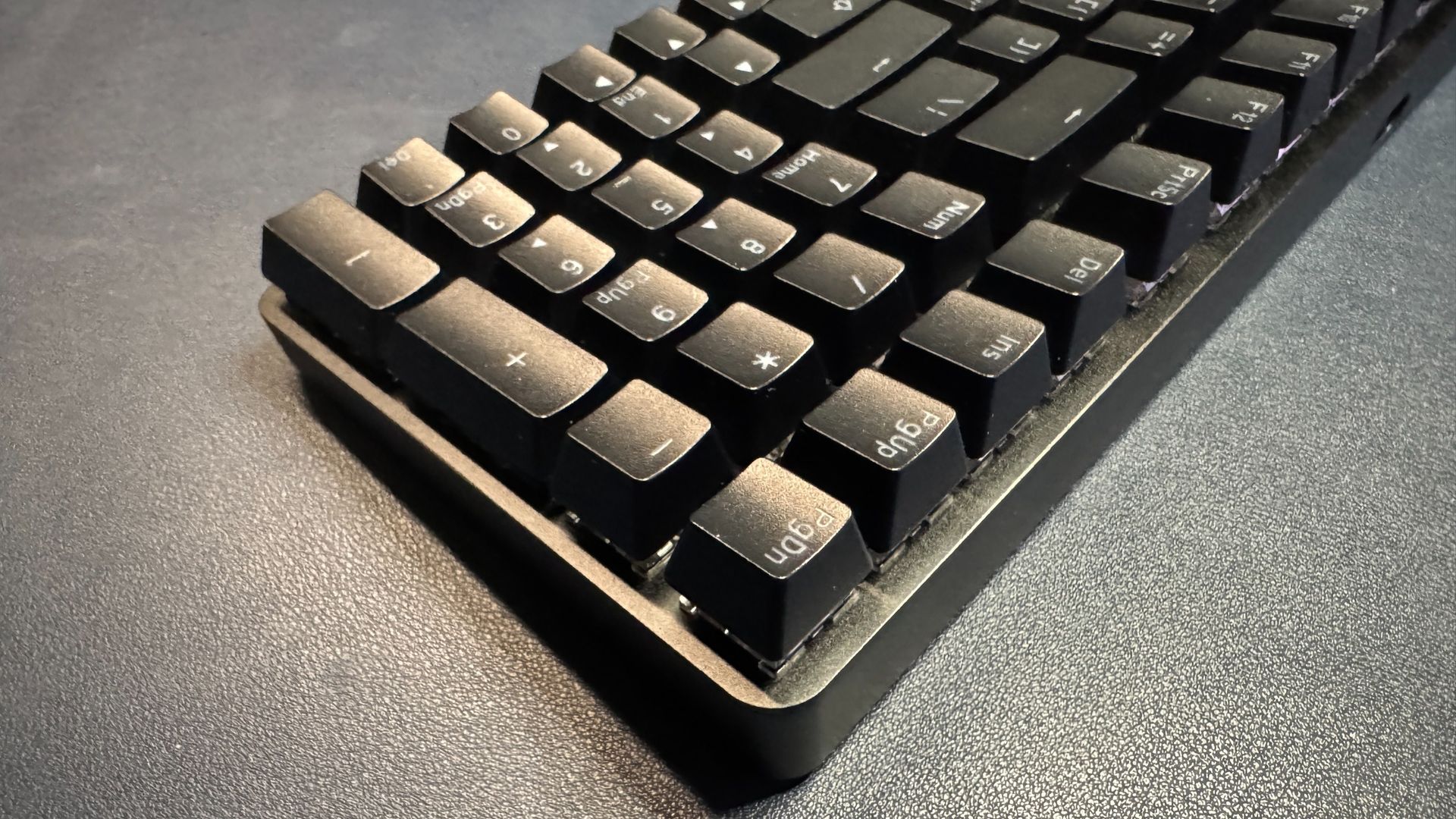
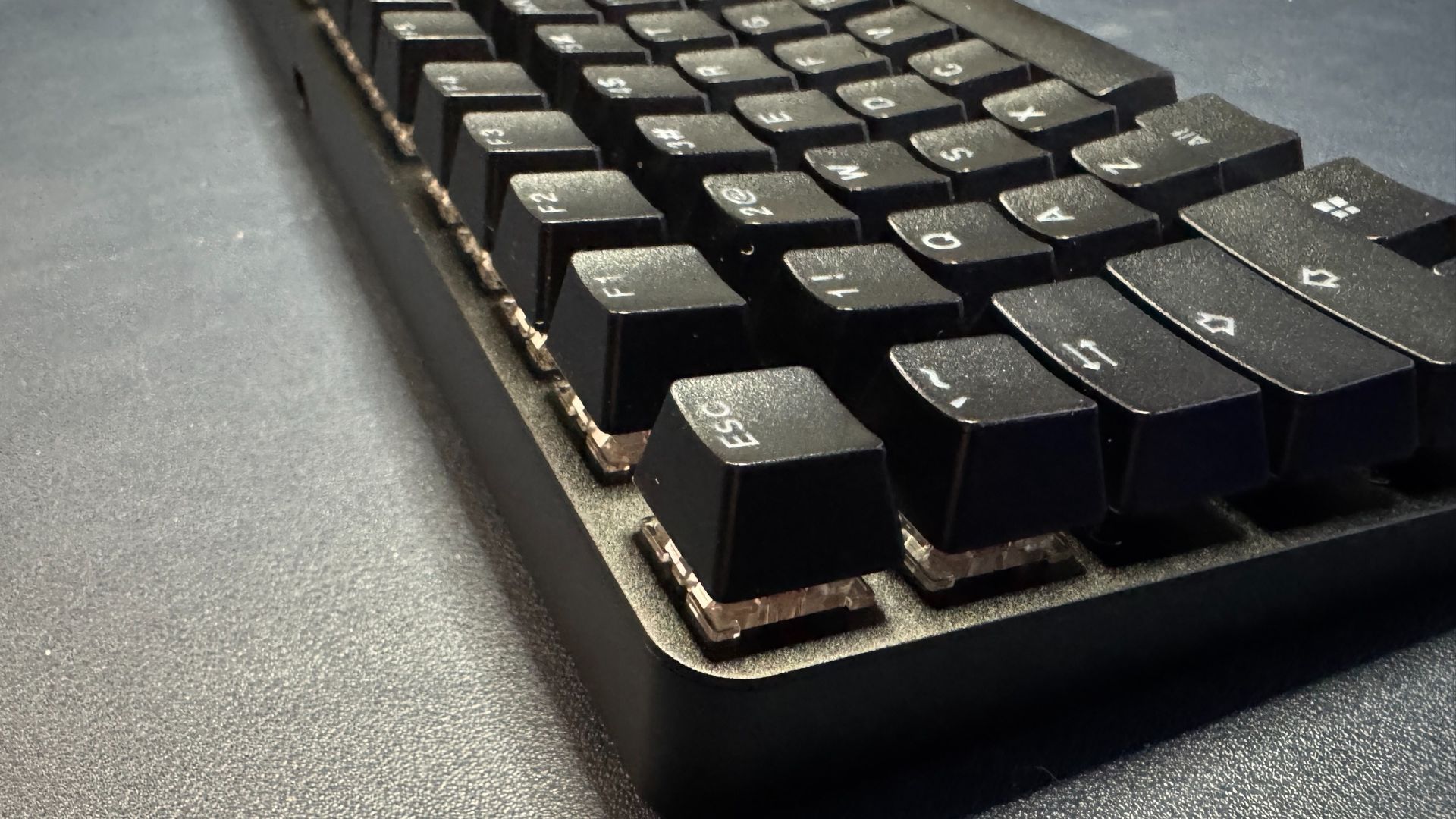
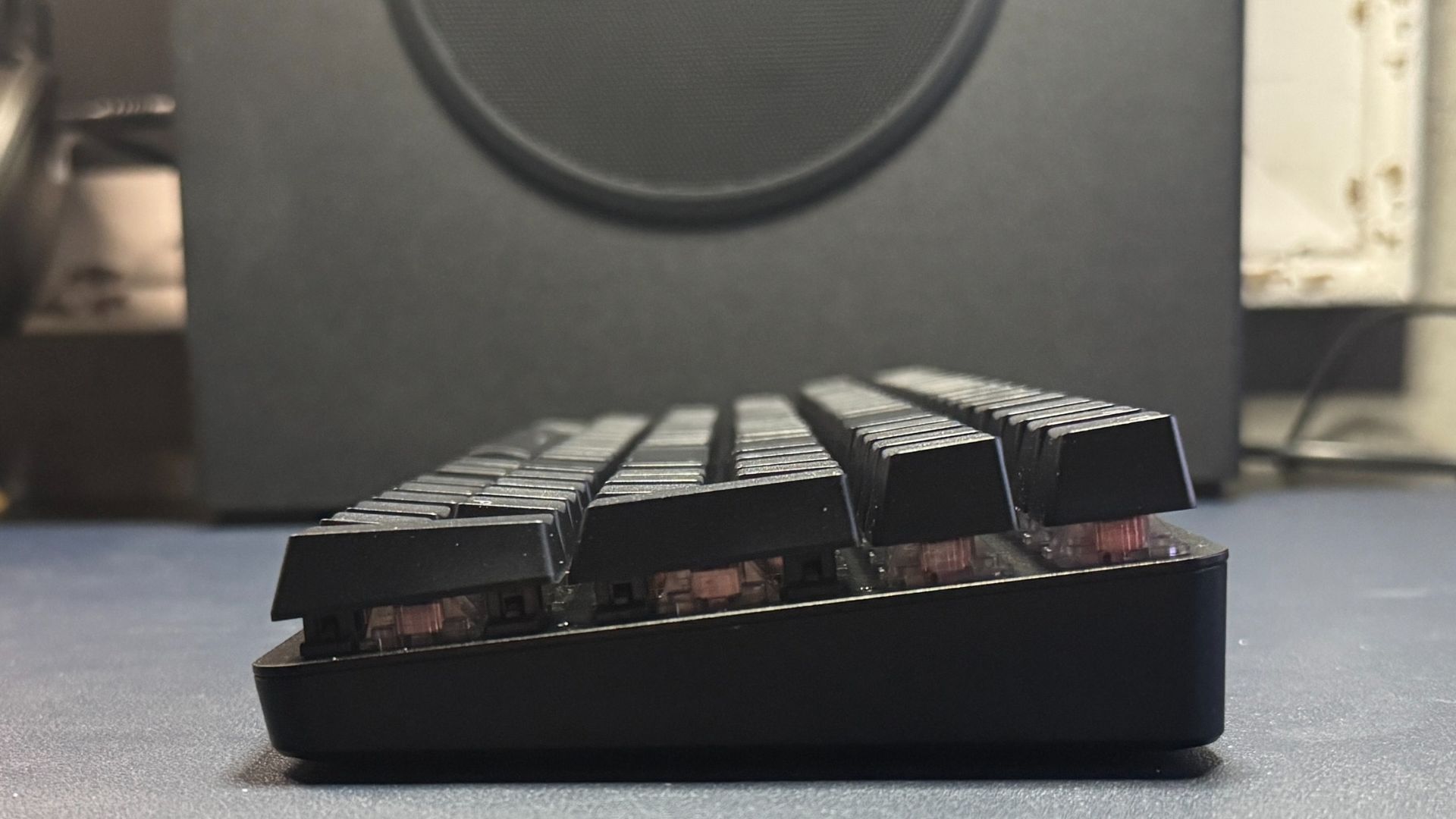
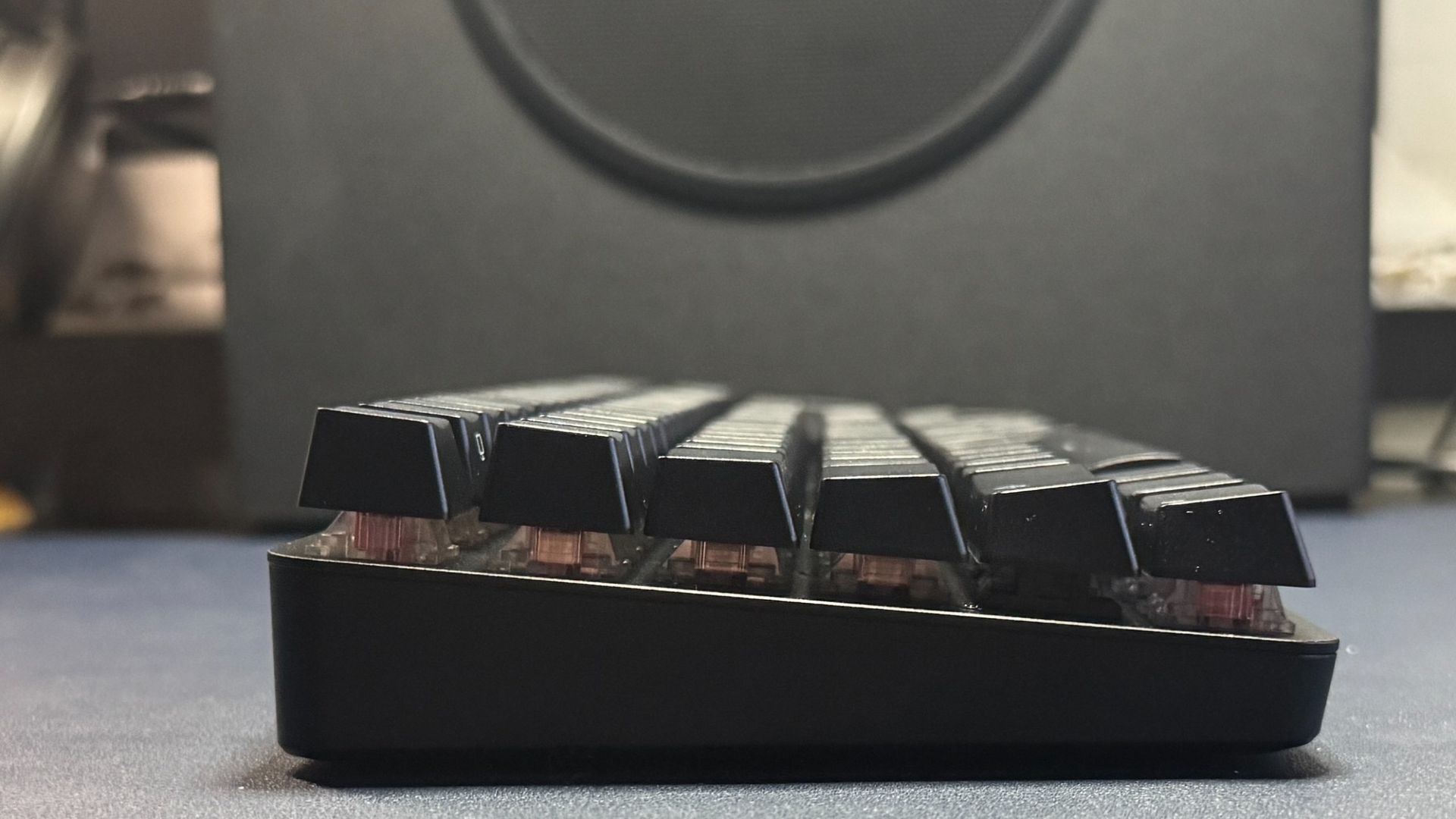
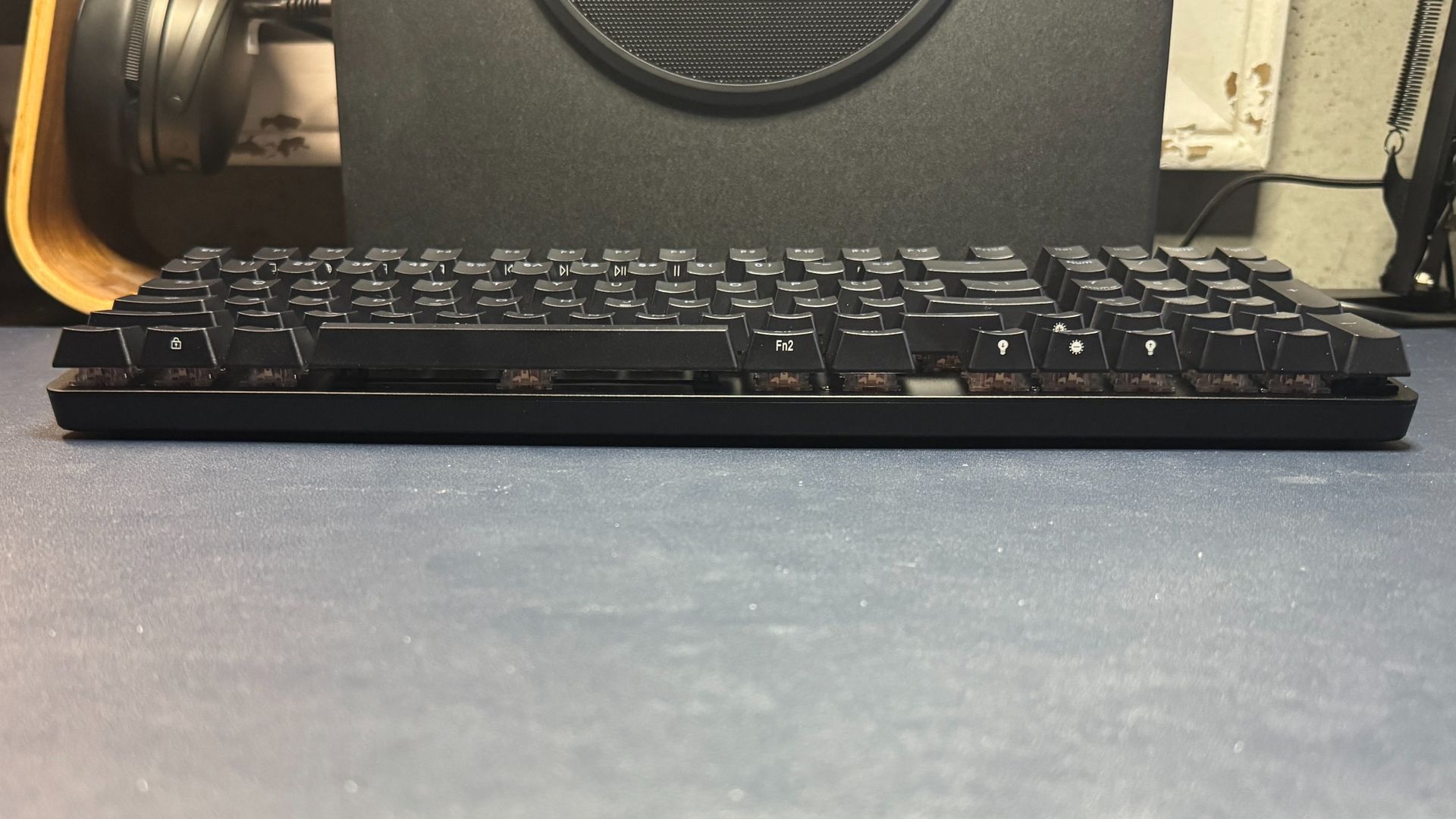
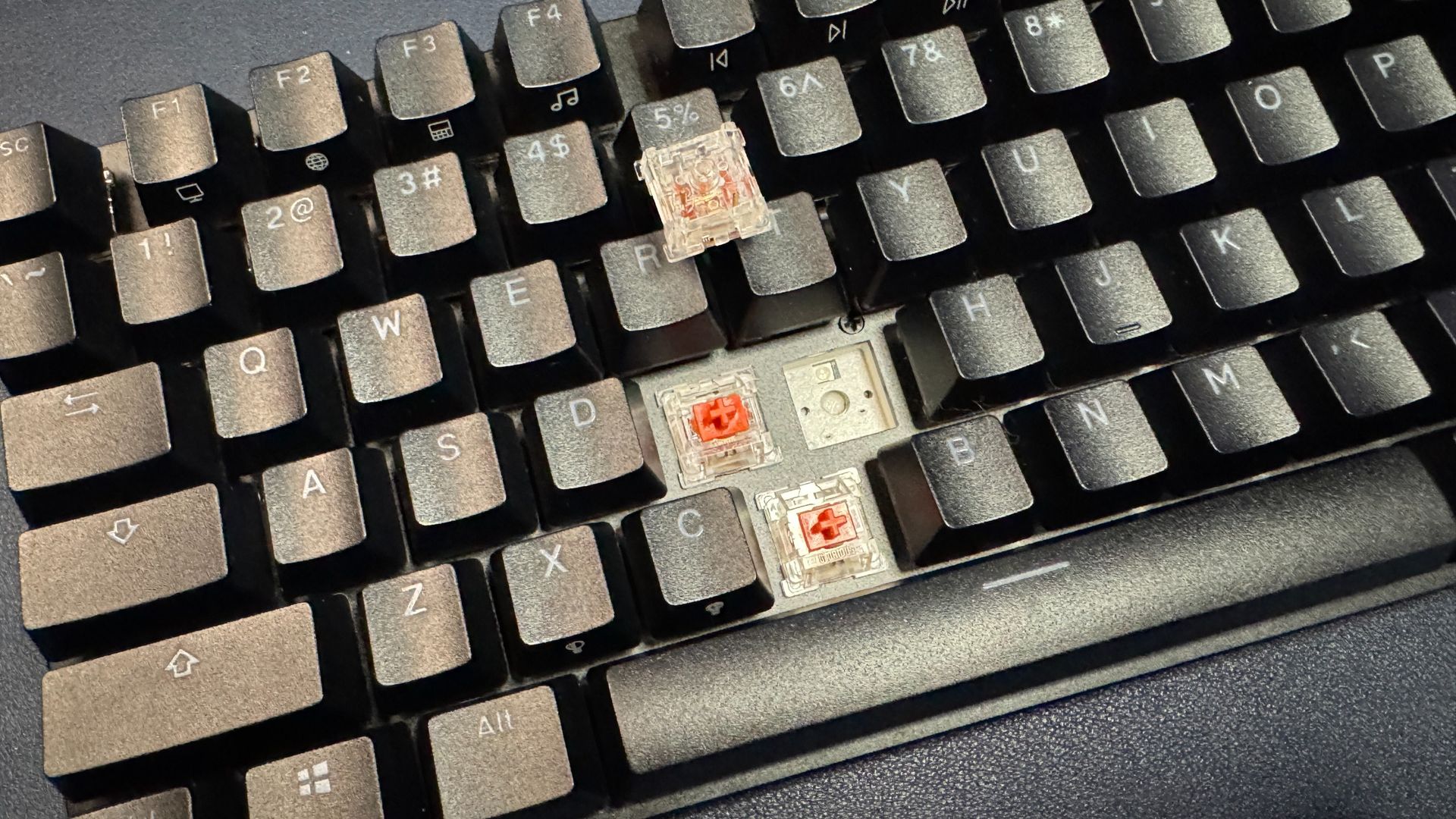
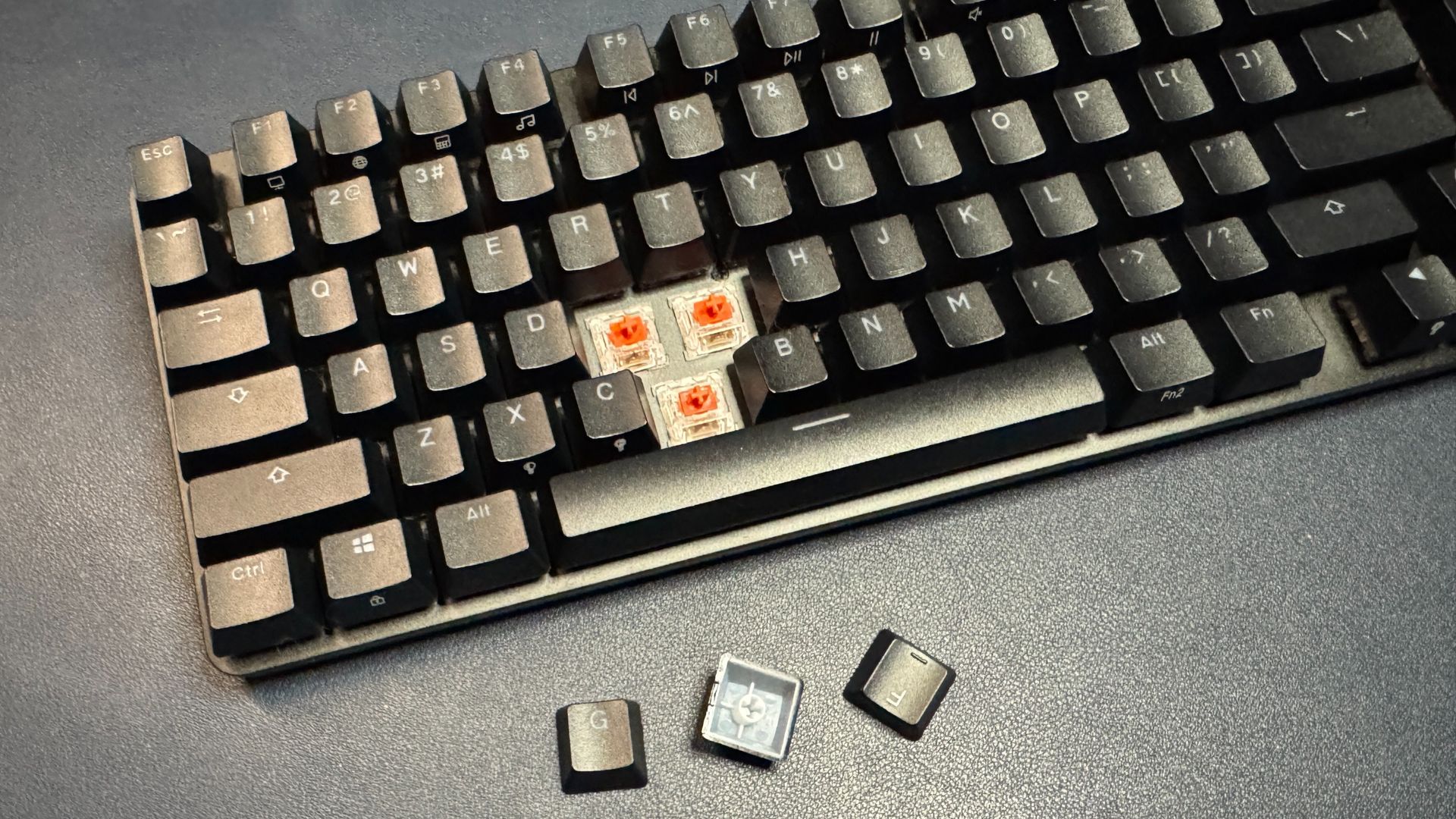
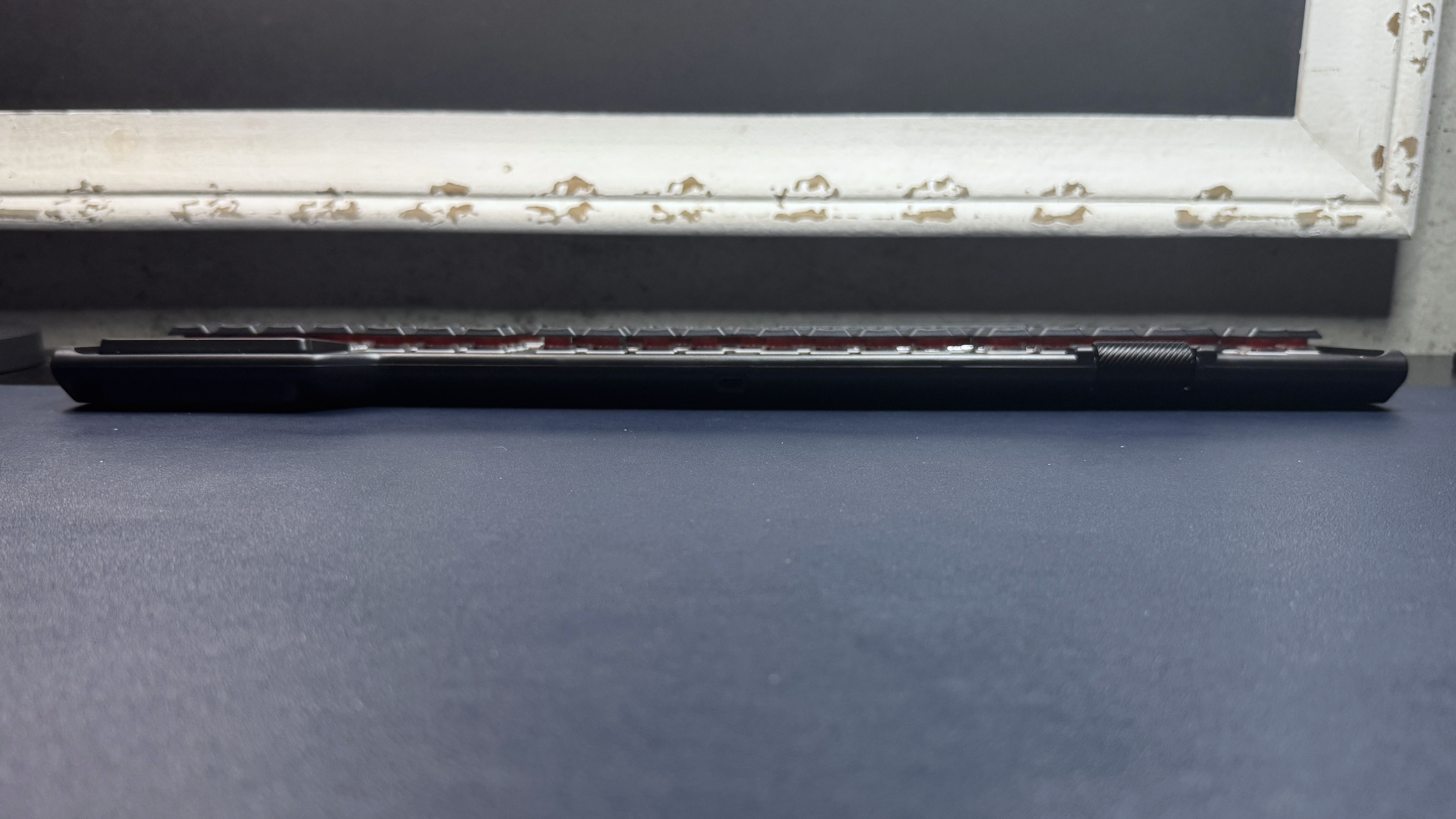
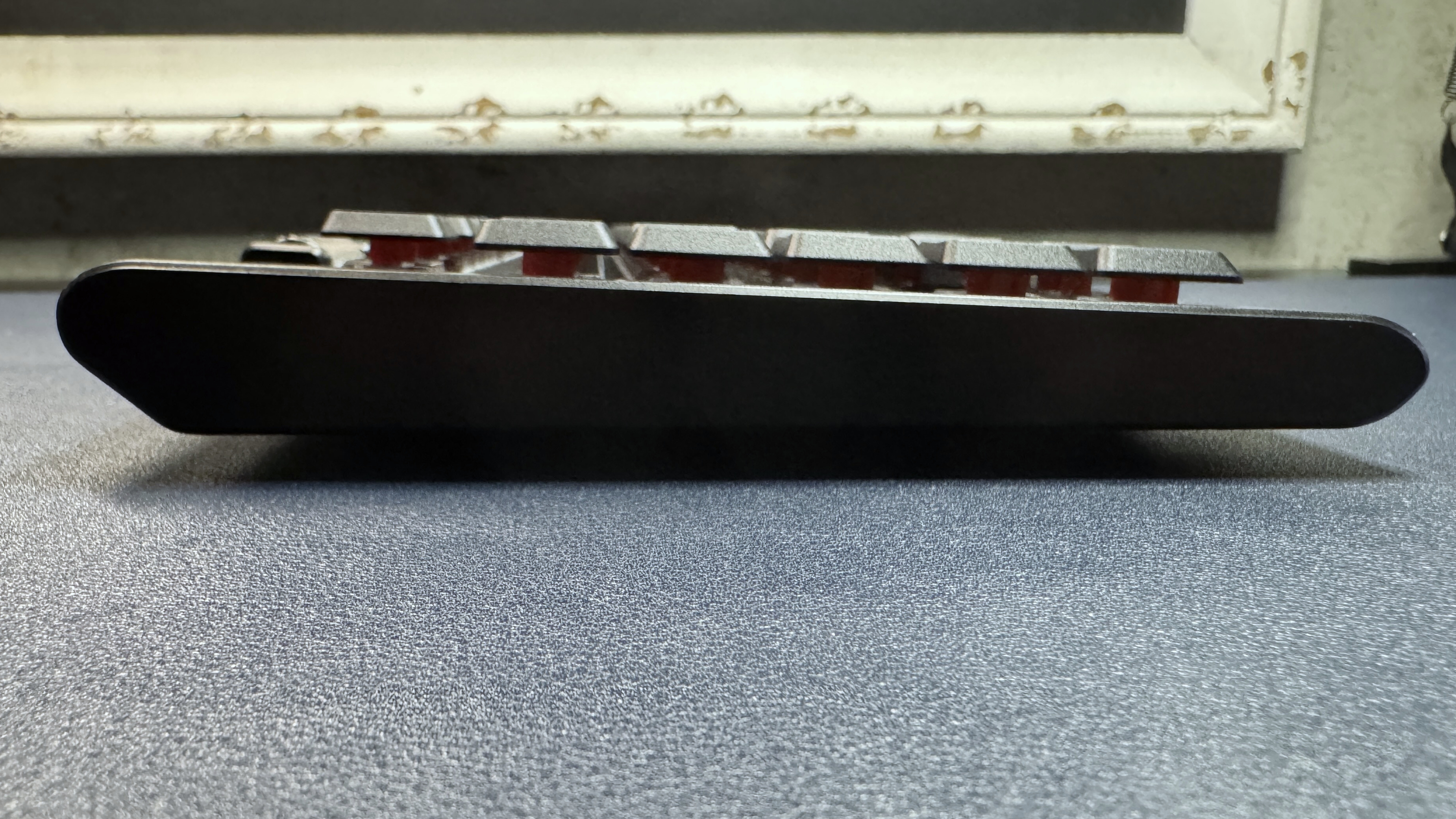
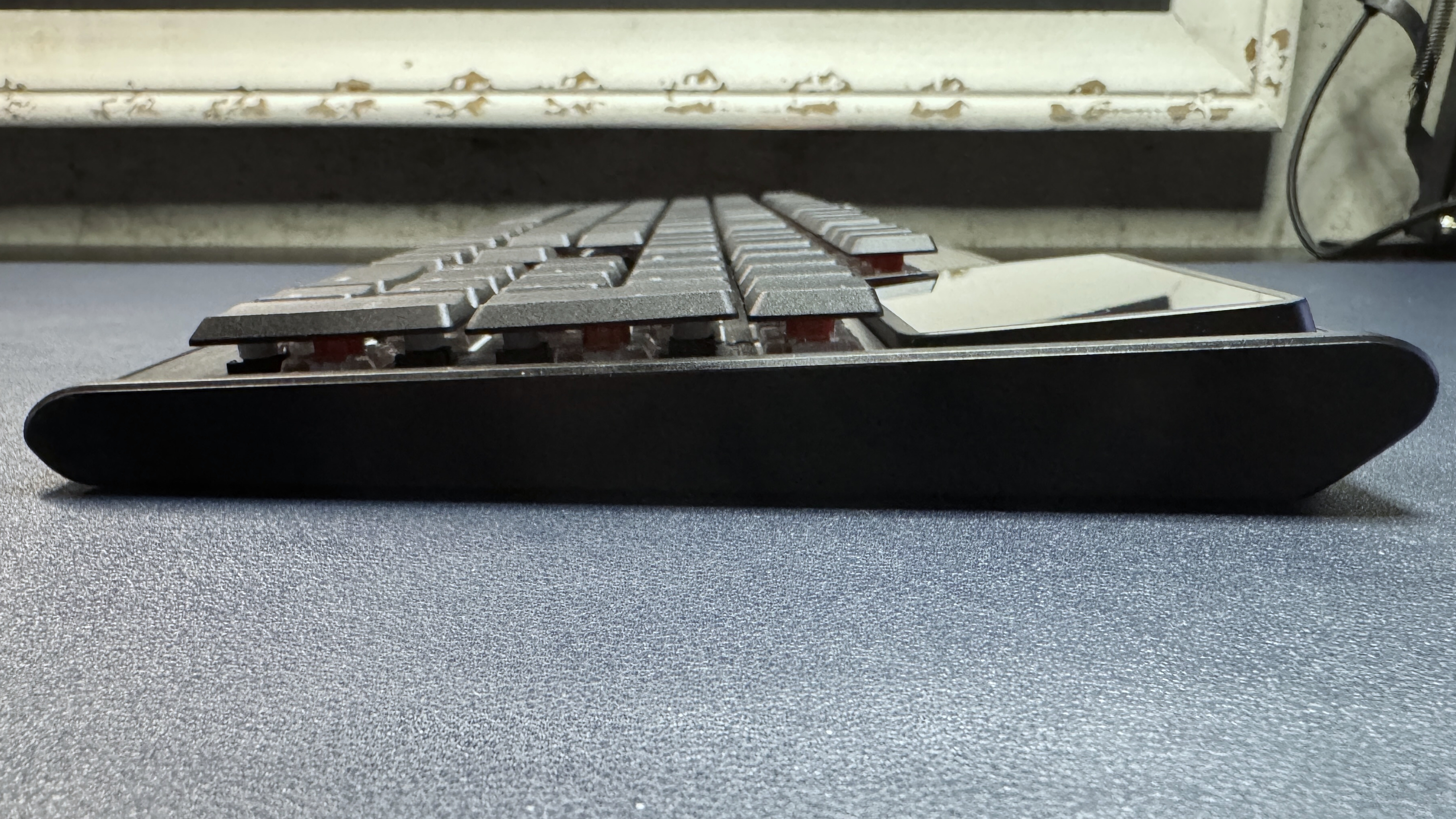
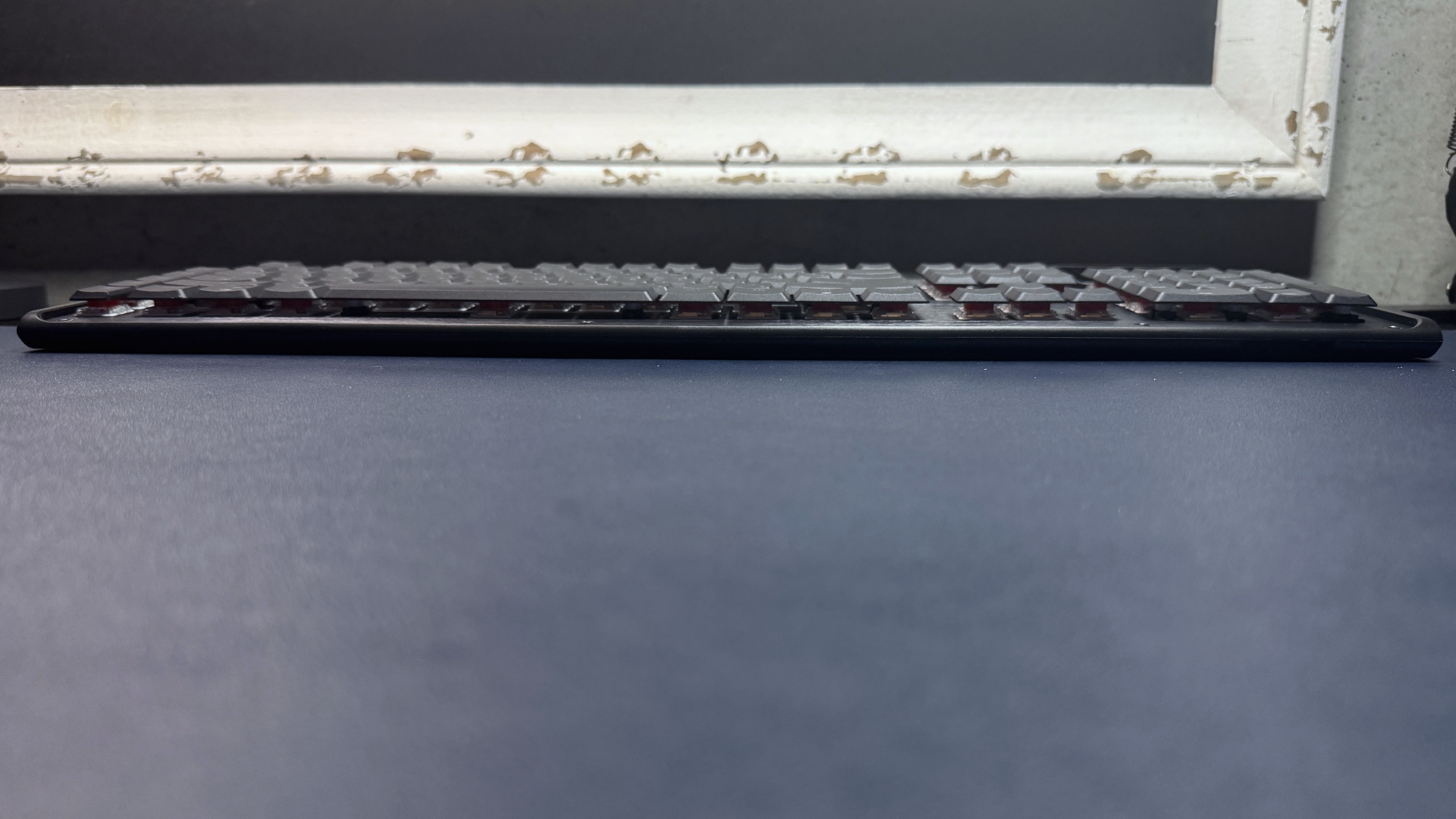
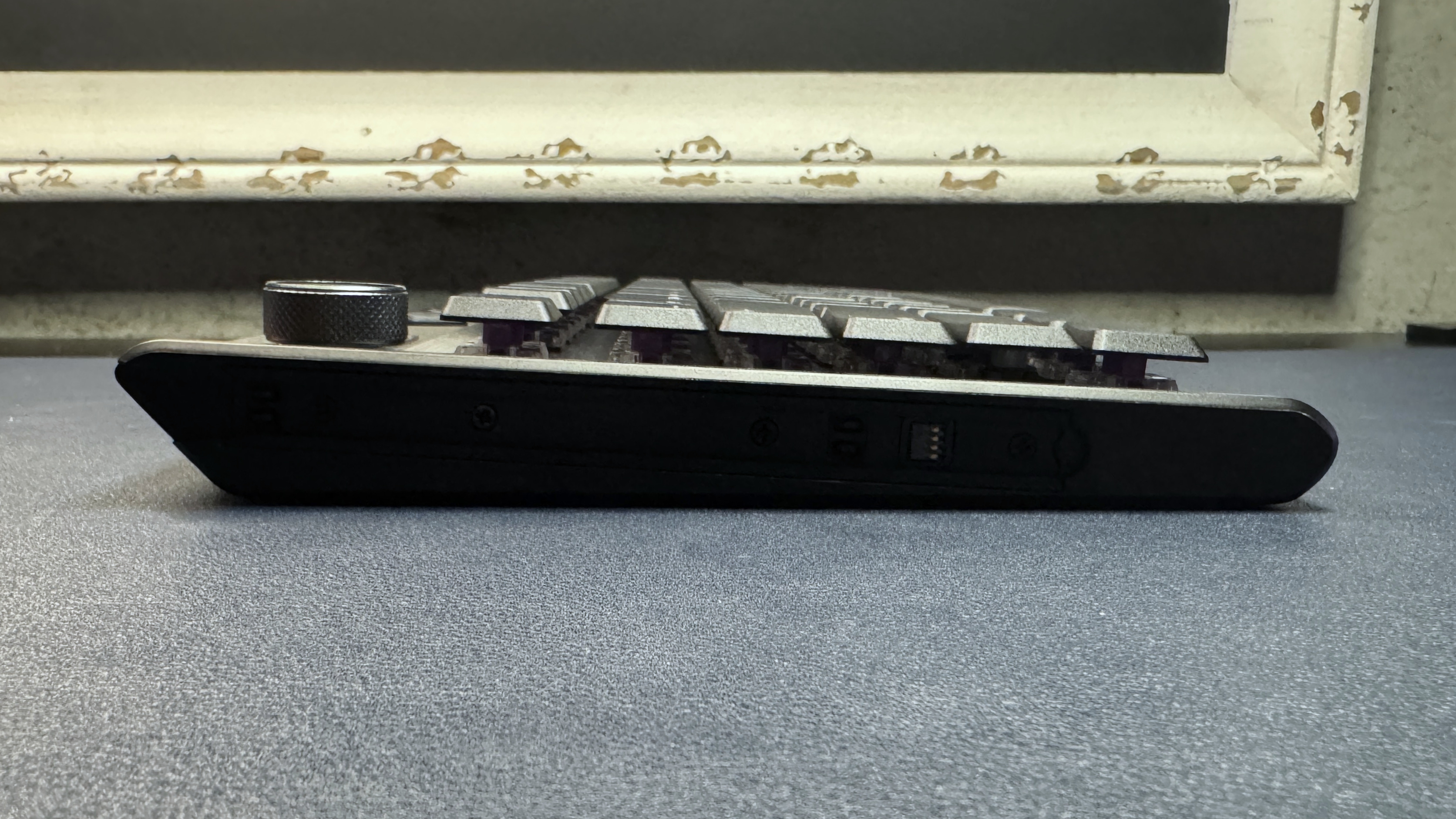
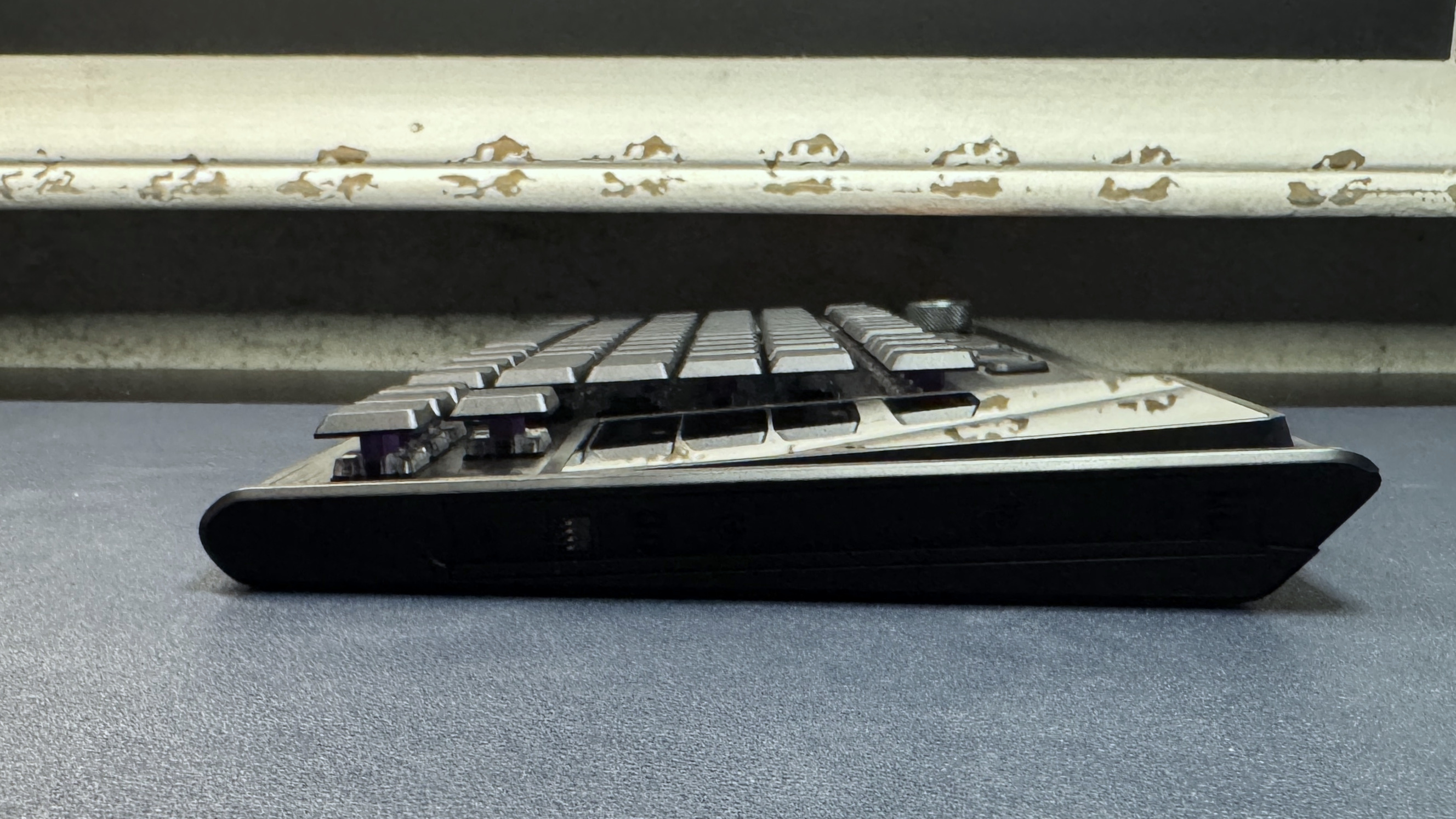
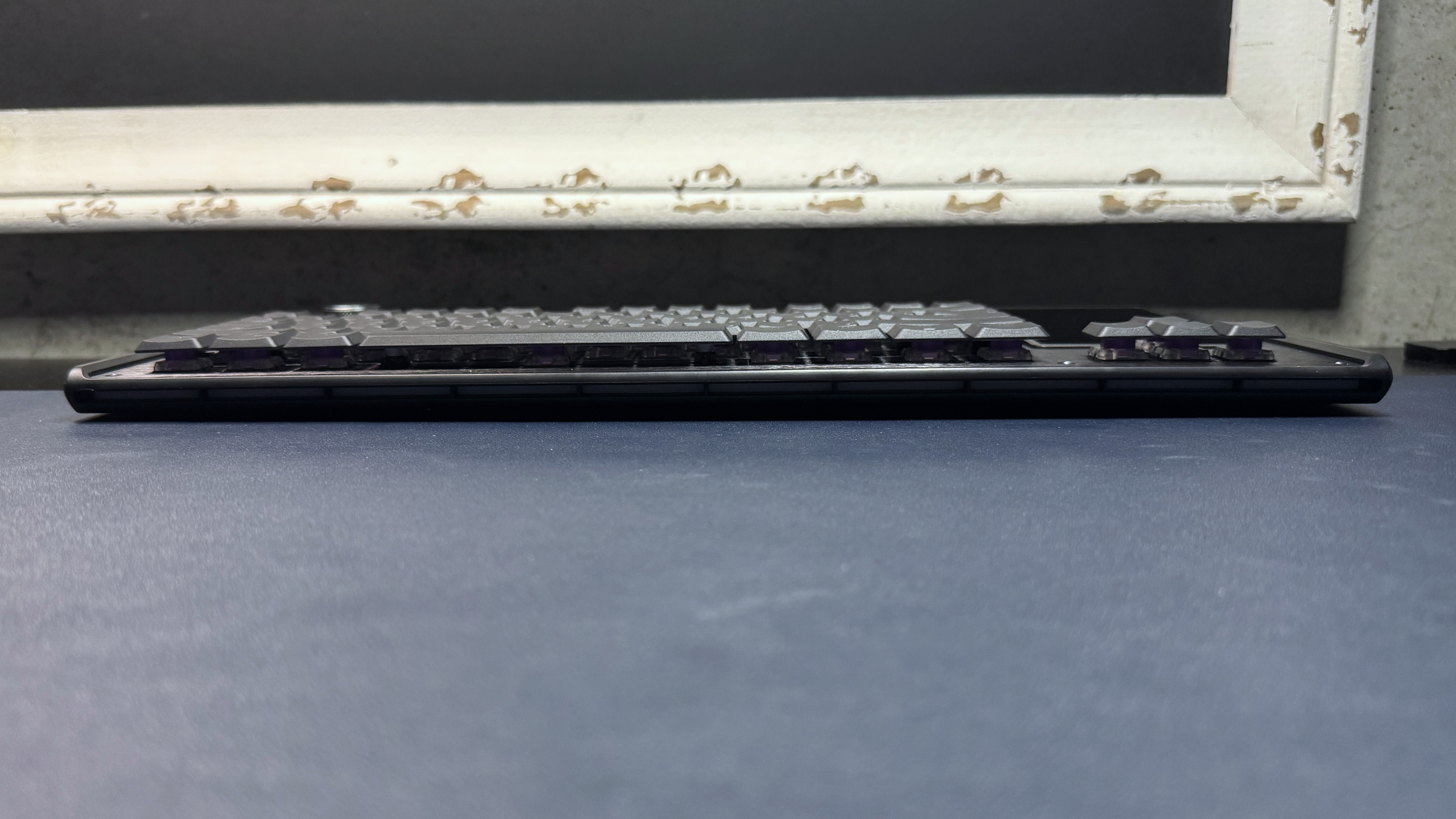
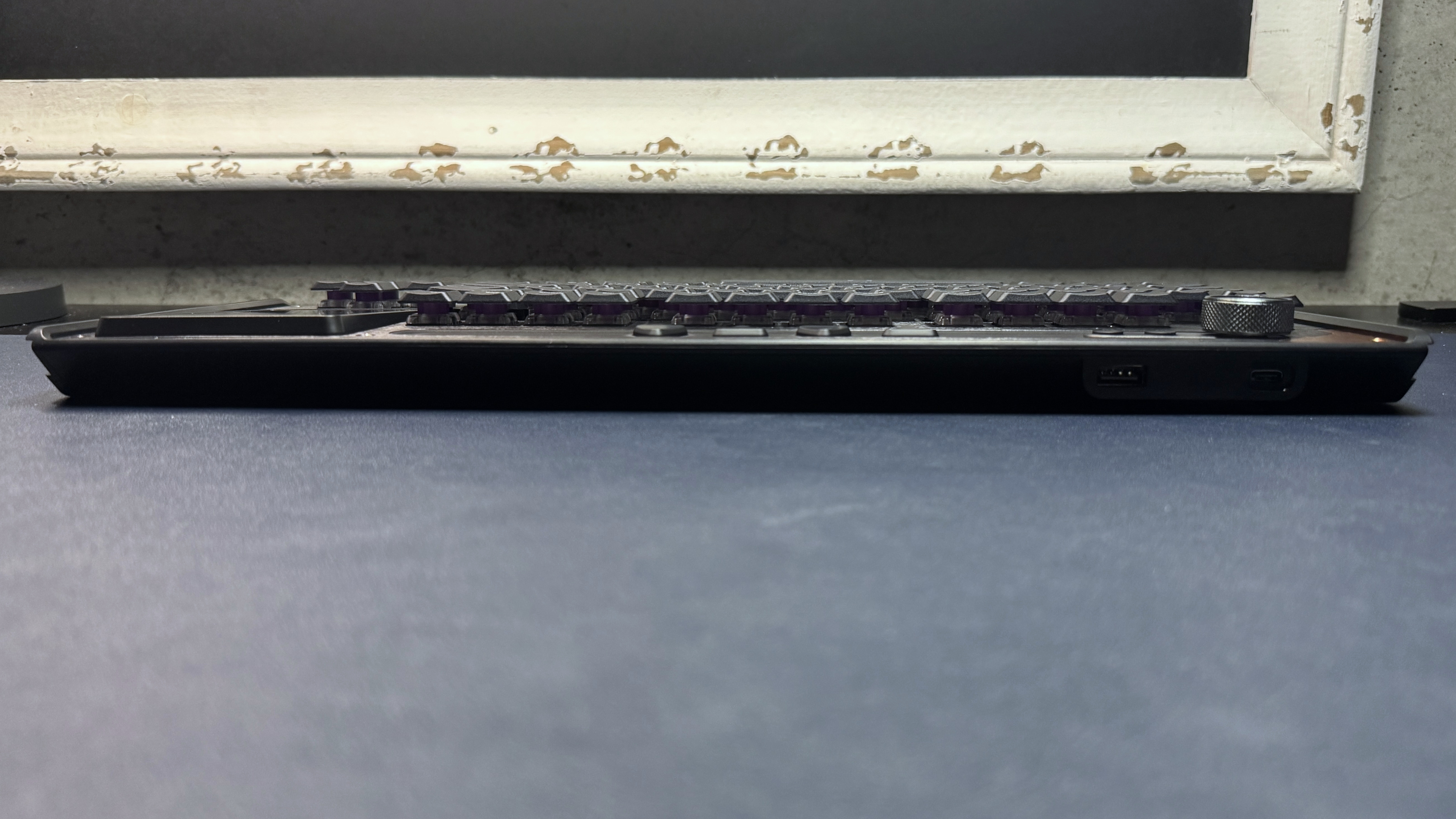
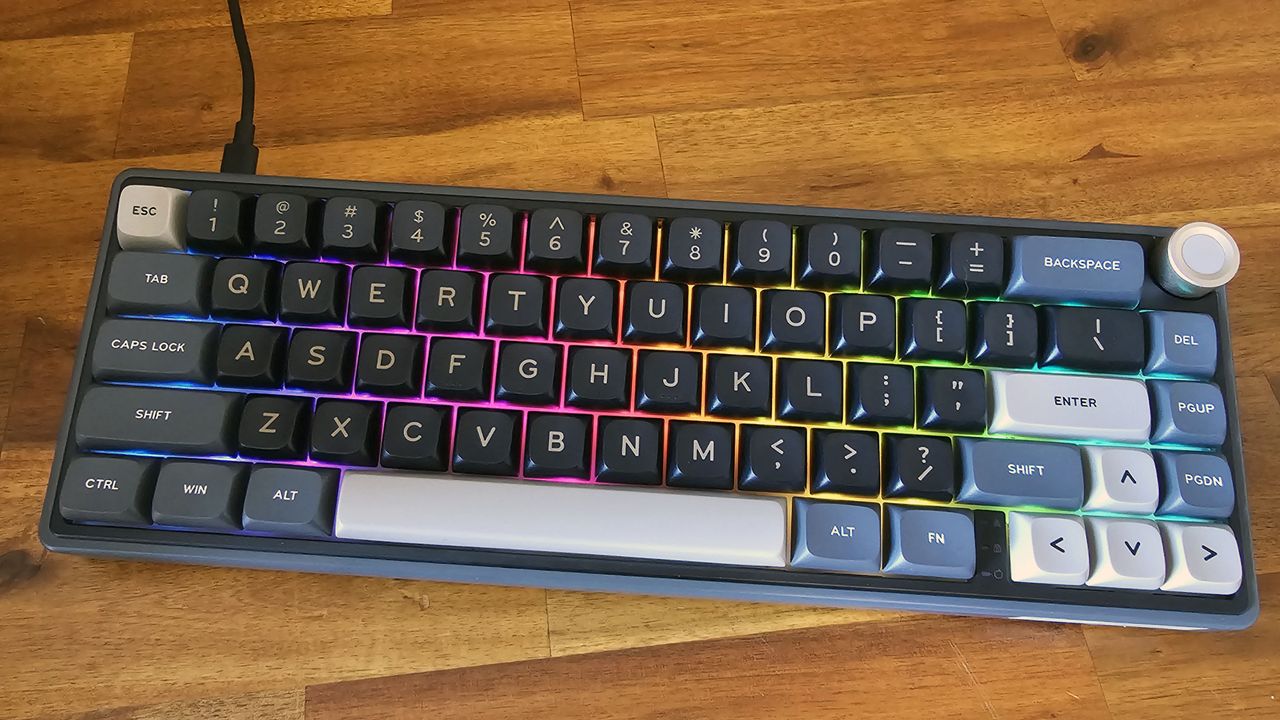
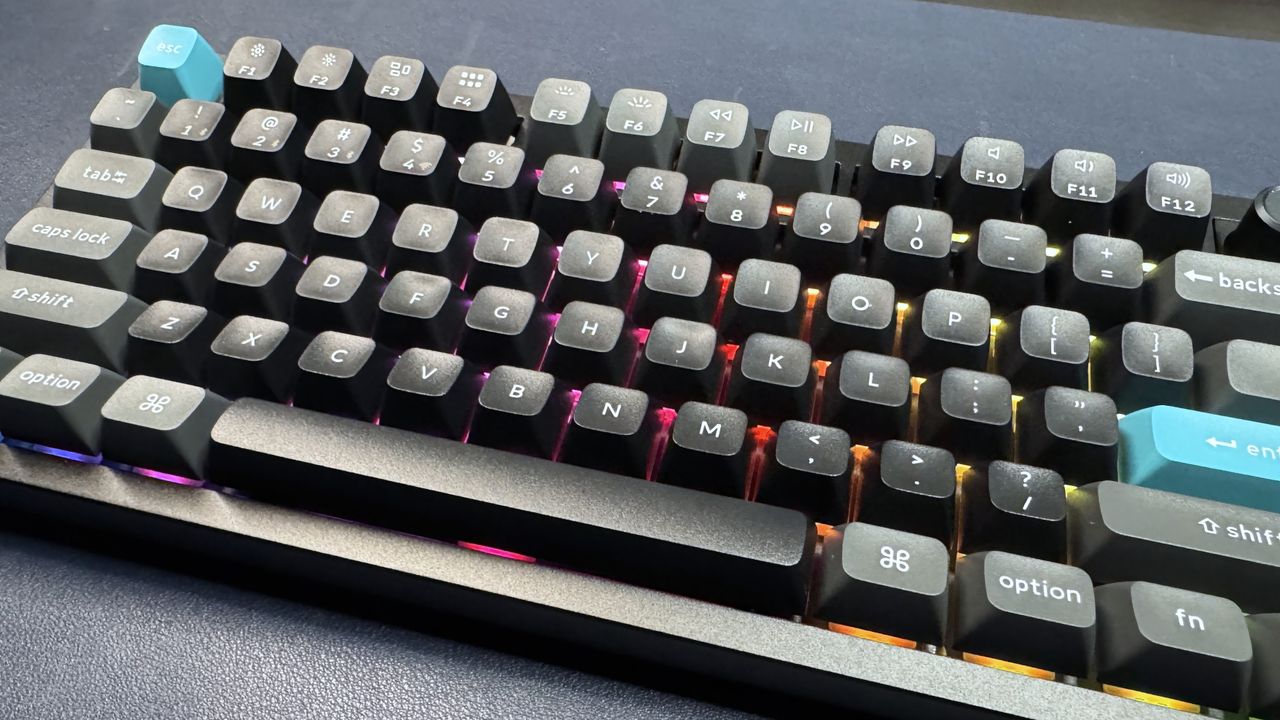
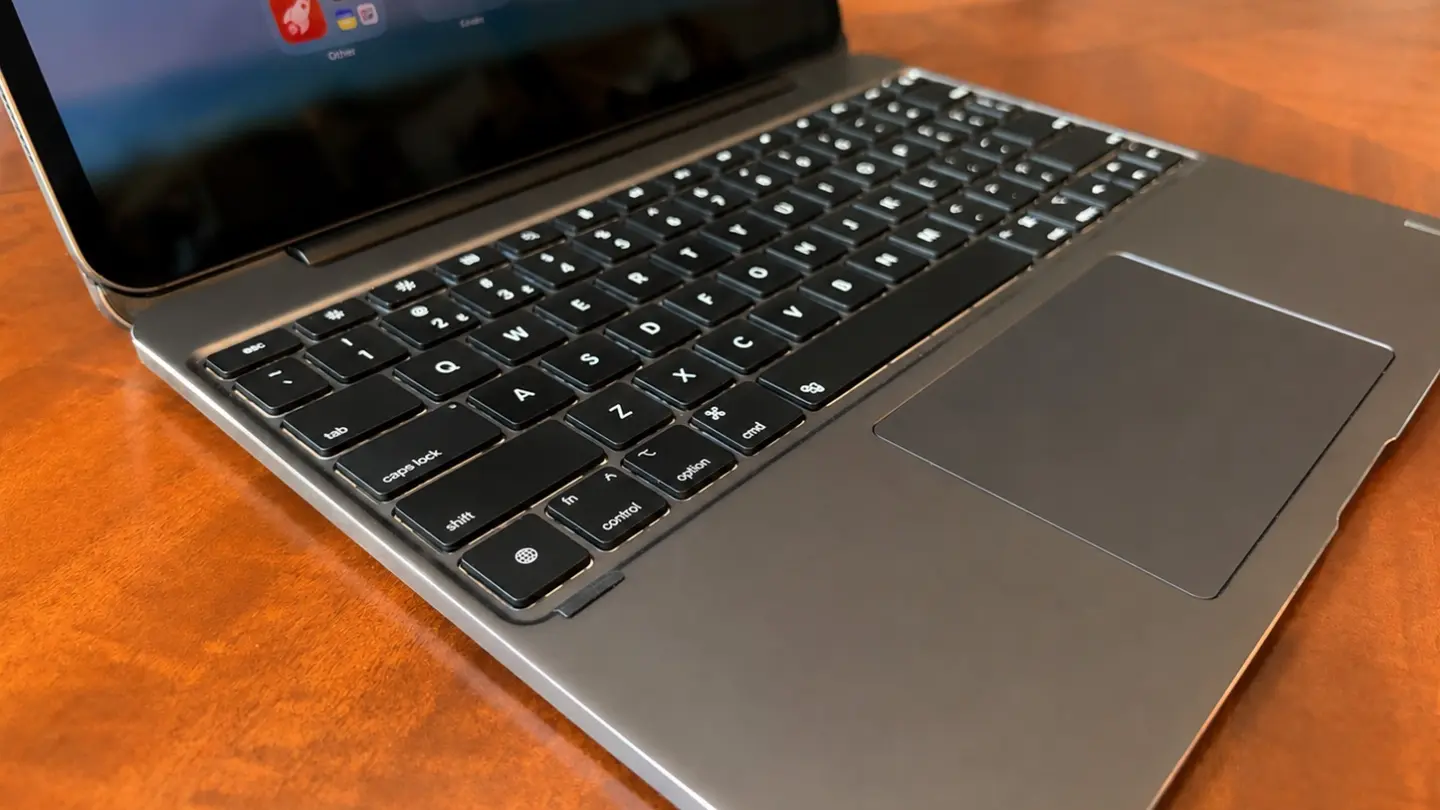
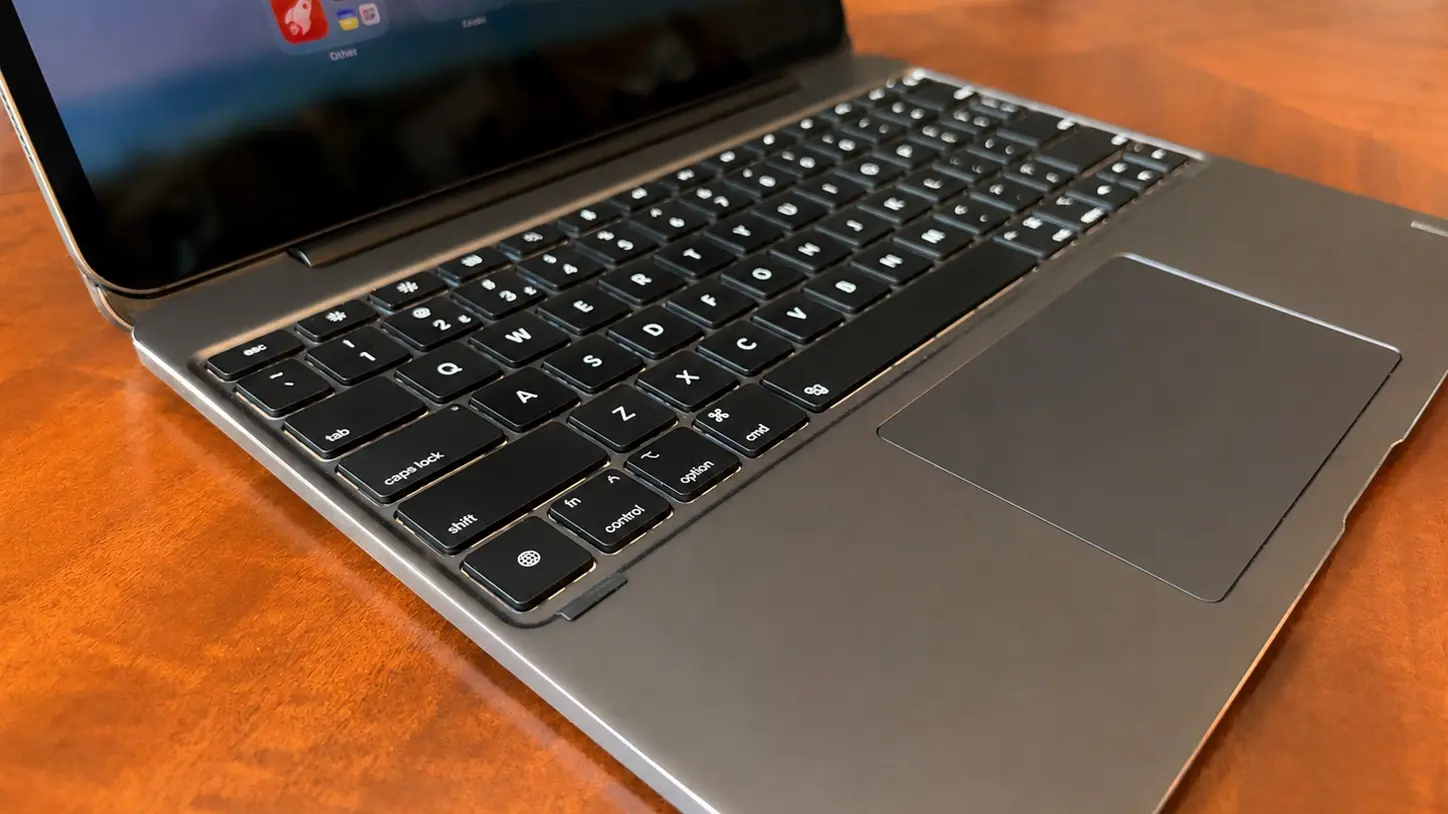
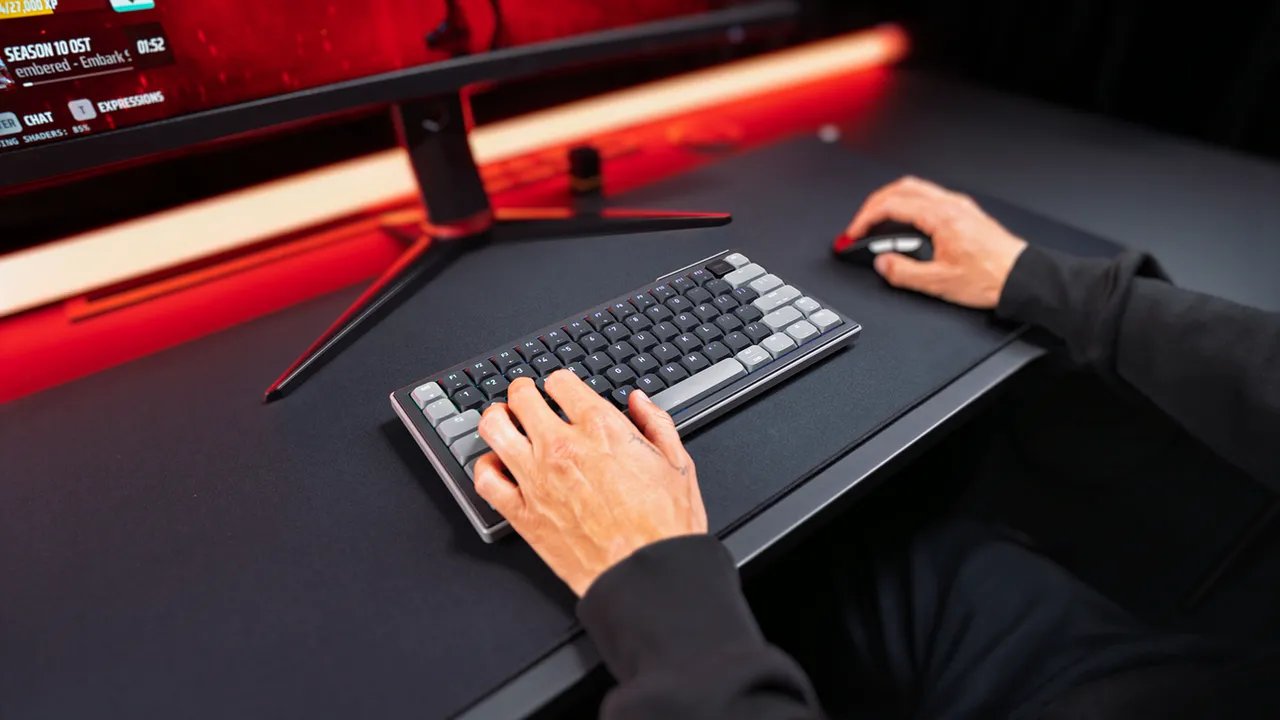
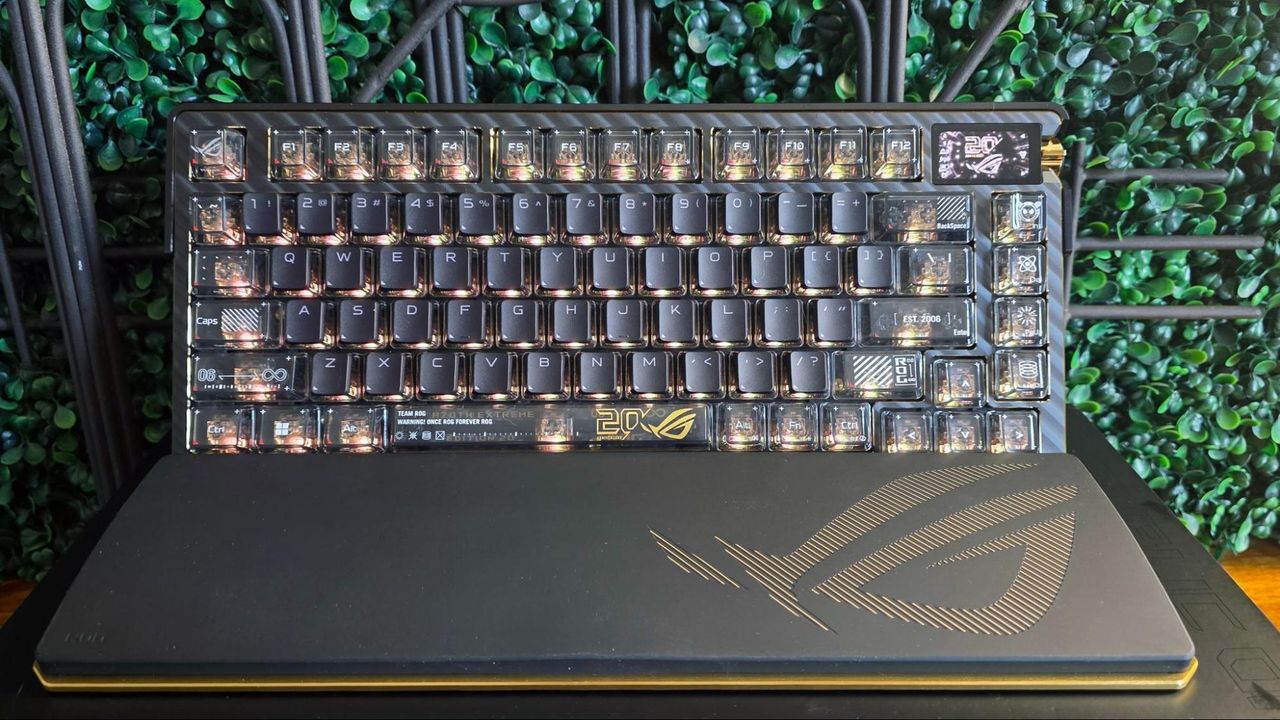
Developer notaroomba (AKA Nathan Alspaugh) has published details of his Keybytes project on GitHub. In essence, this is a modular project where a Keyword hub is magnetically connected to Keybit keys, and each key has its own microcontroller. Hence the number of keys and their layout are entirely up to the user, with a modular design akin to building Lego.
We’ve seen oodles of imaginative and truly excellent mechanical keyboards over recent years, but Keybytes probably offers the greatest flexibility with regard to layout and key selection we’ve ever seen.
notaroomba on GitHubnotaroomba on GitHub
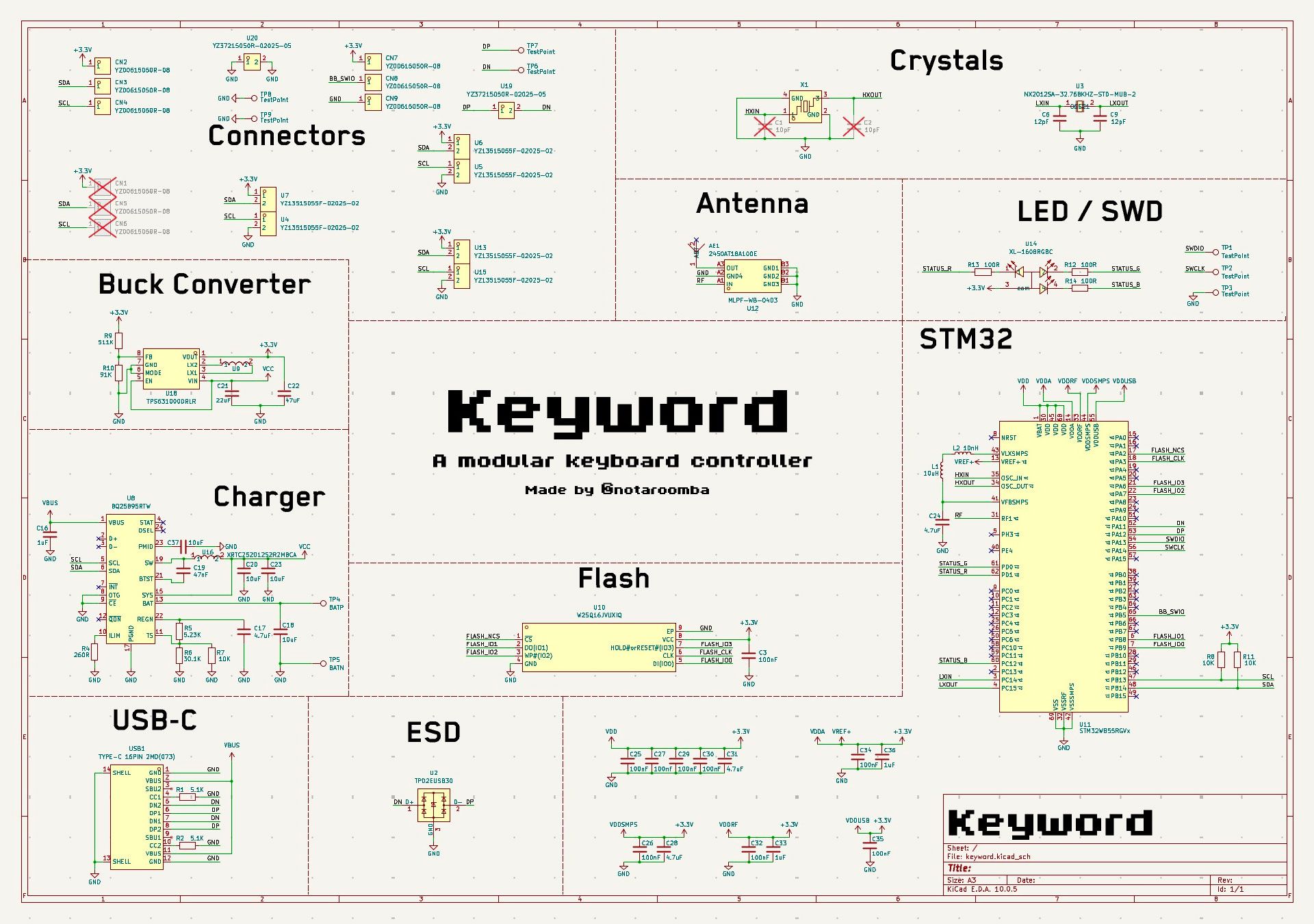
It starts with a Keyword, which is the main board that the Keybits connect to. This central component houses a stacked pair of PCBs. The top board packs an Arm Cortex M4-powered microcontroller, Bluetooth antenna, and flash memory. The lower board offers USB-C, charging, and a buck-boost converter.
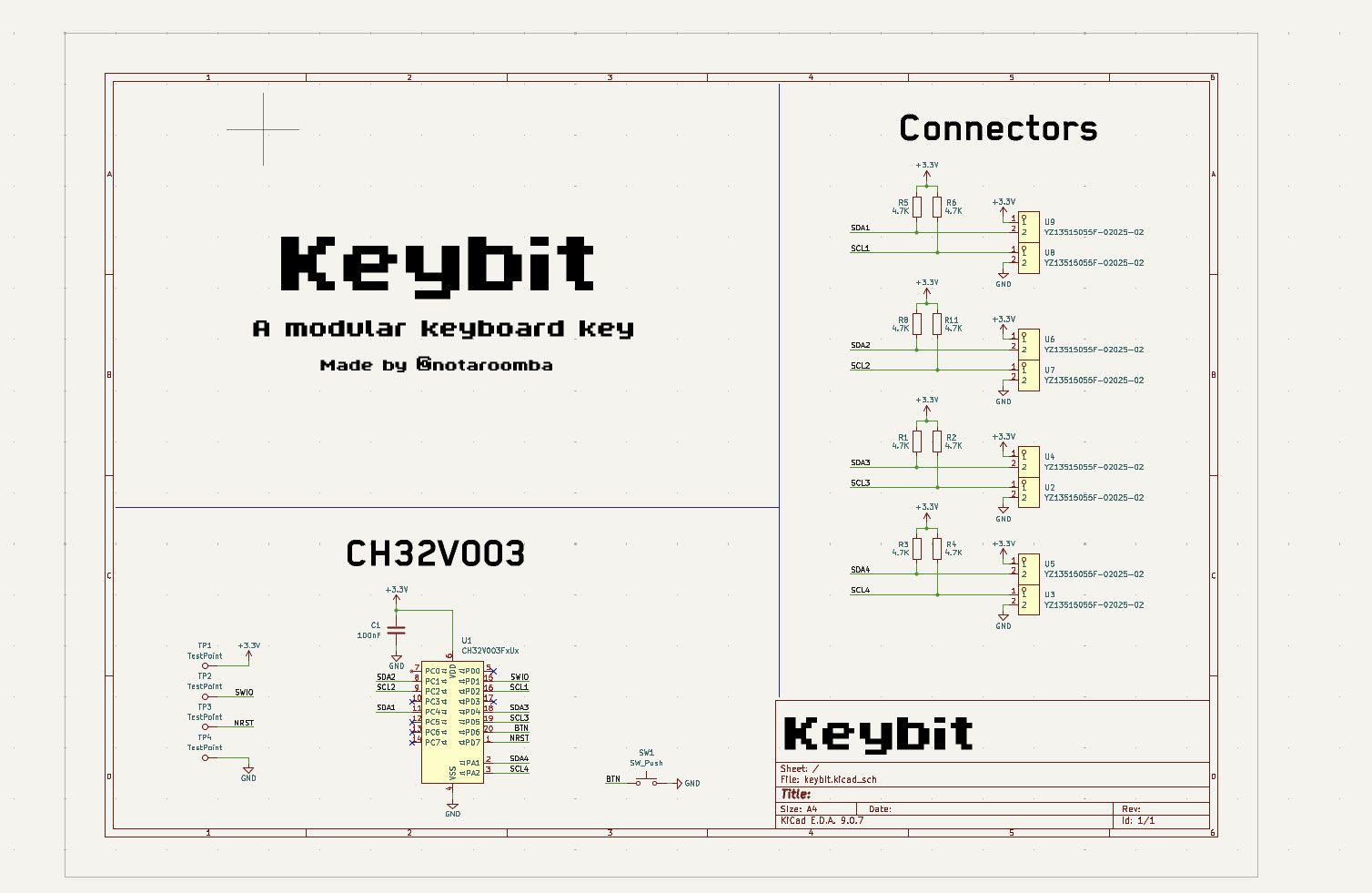
Adding keys seems like a cinch. Every Keybit, one of the modular keys, contains a CH32V003 RISC-V microcontroller. Moreover, it features pogo pins on all 4 sides of every key for power and I2C. The case is magnetic so you can connect it to any aspect of the Keyword and other Keybits. Atop the Keybit, a Cherry MX switch is installed. We guess you can follow the GitHub MIT-licensed plans for this project and use your preferred variety of mechanical switches.
On the GitHub project page, there are no more than two Keybits together with a Keyword, so you don’t get to see what crazy layout plans he’s hoping to conjure up. However, it is still early days. Per the project journal, Keybytes only became a thing back in March this year, and it was only over the weekend that the developer got to finally boast “it finally works!!”
notaroomba on GitHubnotaroomba on GitHub
Both the Keyword and the Keybit modules are 1U sized (19.05 x 19.05mm).
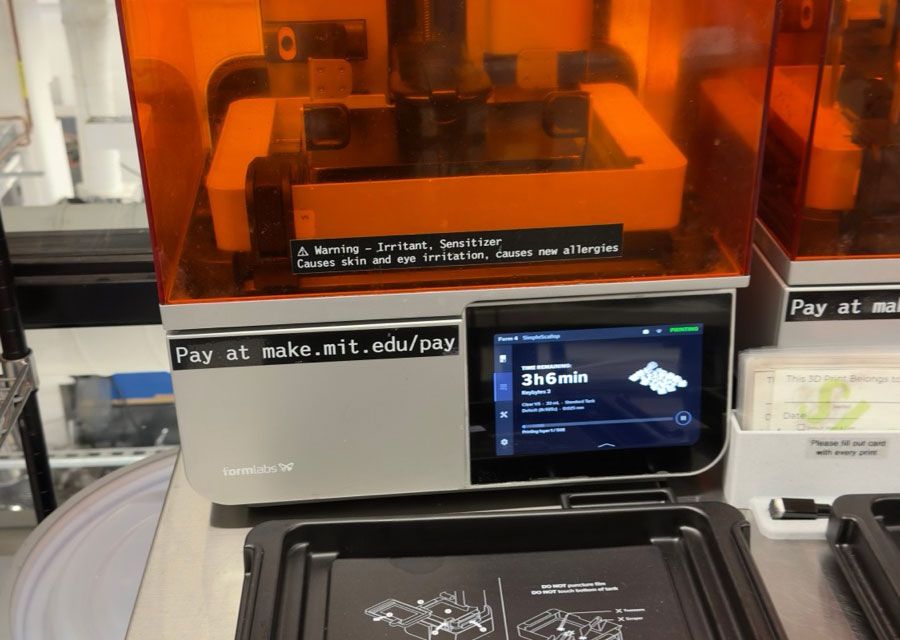
Alspaugh, a student at MIT, has shared all the assets, files, and details you might need to make your own Keybytes keyboard. The GitHub repository says that everything is released under the permissive MIT license.
It might quickly become expensive for individuals to put together a usable layout with, say, 60 keys. Getting the PCBs made, buying and soldering all the components, and 3D printing all the custom bits and pieces is also a considerable task when your proposed keyboard layout is more than a handful of shortcut keys. In the aforementioned journal, Alspaugh actually mentions that he priced up a “full sized keyboard (2 keywords and like 110 keybits) and it's around $900 assembled.”
Keyword has a status light, but the Keybits lack any kind of lighting. My wishlist for Keybytes 2.0 includes customizable RGB lighting, and I would also like to propose Dialbits, a Fingerprintbit, and a matching Touchpadbit.
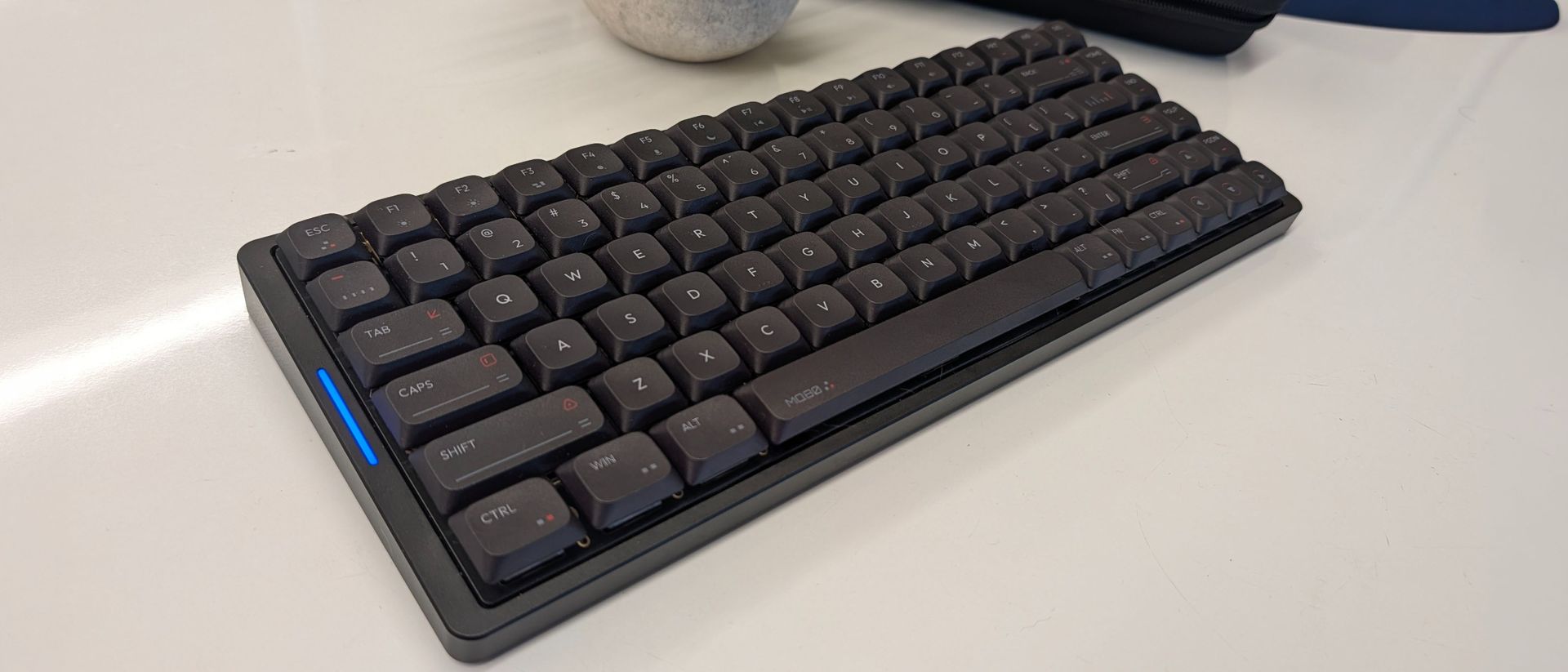
When it comes to mechanical keyboards, IQUNIX has always been ahead of the curve. Before COVID turned the mainstream onto mechanical keyboards, the company had already been releasing some of the best mechanical keyboards available, quietly making the case for PBT keycaps and premium materials that have since become the norm.
With a catalog of traditional mechanical keyboards under its belt, it’s not surprising that the company would be ready to branch into new territory. It has the Hall Effect demographic covered with its EZ series, but the MQ80 goes another direction entirely. It takes all of the lessons the company learned about how to create an exceptional typing and gaming experience and compressed it. It’s all aluminum, low profile, and offers some of the best-sounding keystrokes of its kind, but steep competition and poor portability hold it back from being the go-to pick it might otherwise be.
IQUNIX MQ80 Specs
Number of Keys
80
Switches
IQUNIX Rose Gold (Linear)
Backlighting
Per-key RGB
Onboard Storage
4 Layers/Profiles
Dedicated Media Keys
Fn Shortcuts
Additional Ports
None
Connectivity
USB, 2.4GHz, Bluetooth 5.1
Cable
Braided, 6 feet
Keycaps
High purity PBT plastic
Construction
Aluminum case, multilayer sound damping
Software
VIA (web)
Dimensions (LxWxH)
12.64 x 4.90 x 0.41 - 1.08 inches
Weight
2.6 pounds (1180 grams)
MSRP
$159.99
Release Date
February 25, 2025
Design and Construction of the IQUNIX MQ80
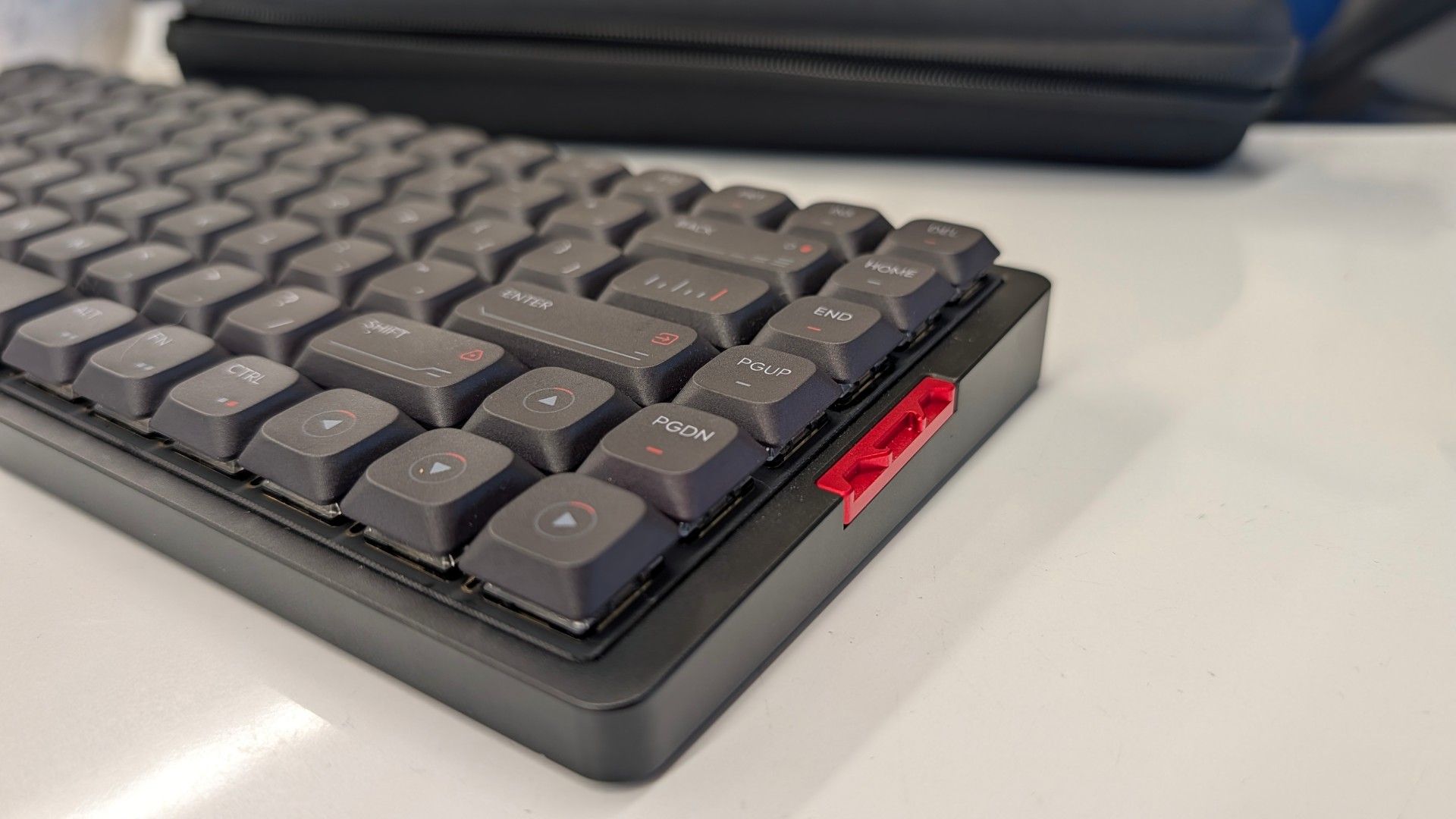
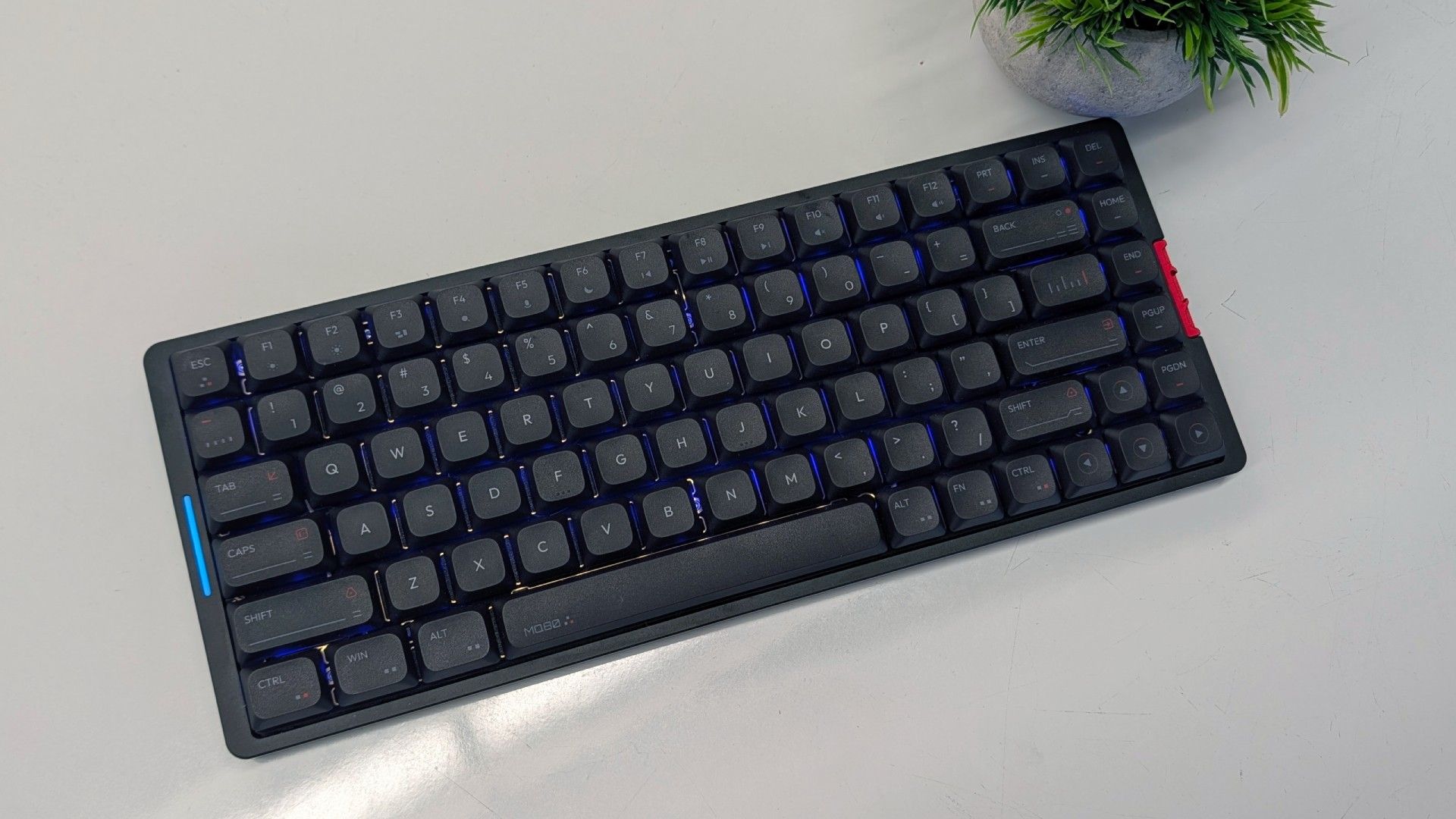
The IQUNIX MQ80 breaks the mold for IQUNIX, but carries the same 75-percent layout as countless mechanical keyboards before it. The form factor is sometimes referred to as a “Compact TKL,” since it shares most of the same keys — minus the blank spaces in between. The result is a condensed slab of keys, including a full function row, arrow cluster, and seven navigation and editing keys.
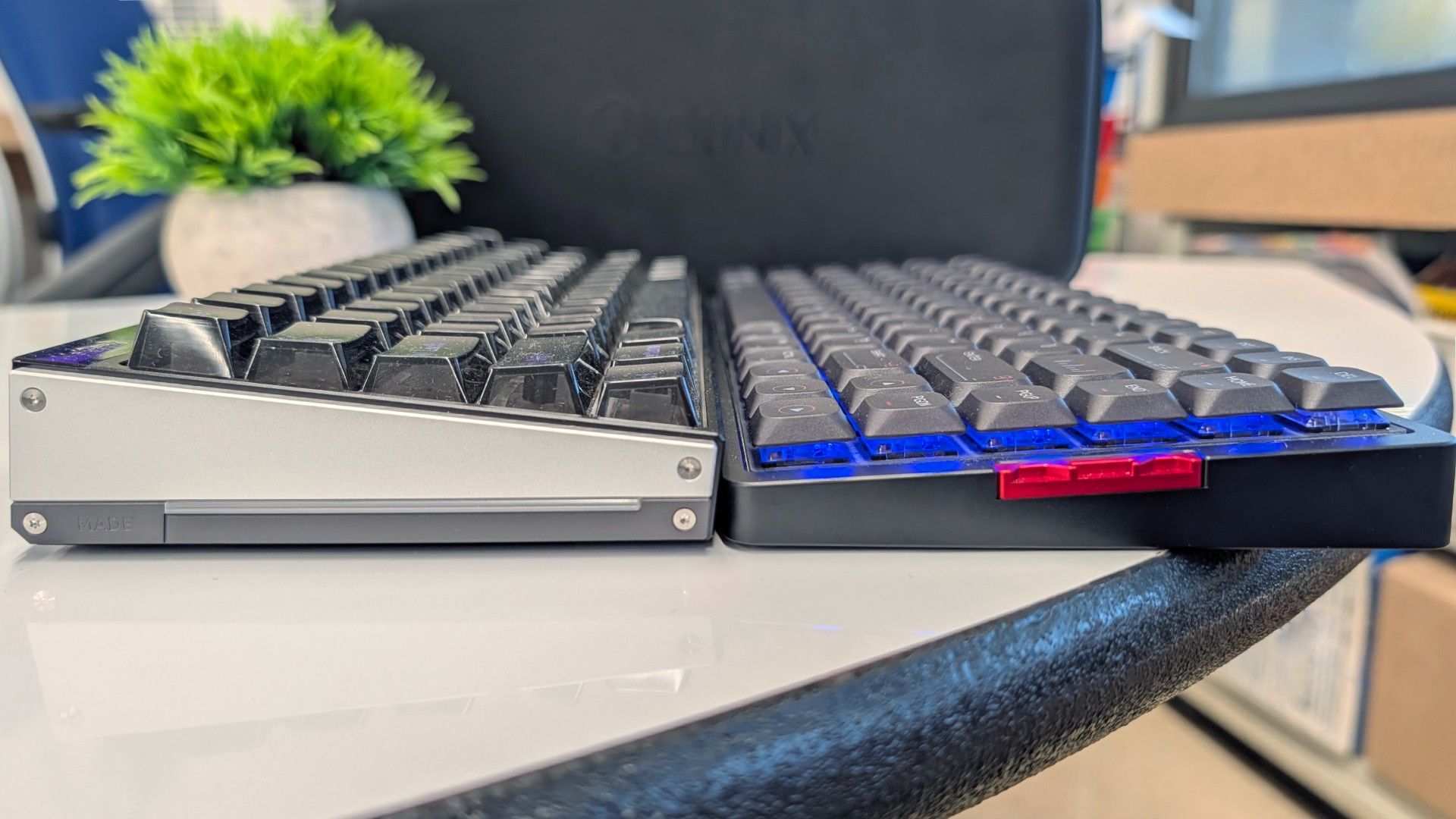
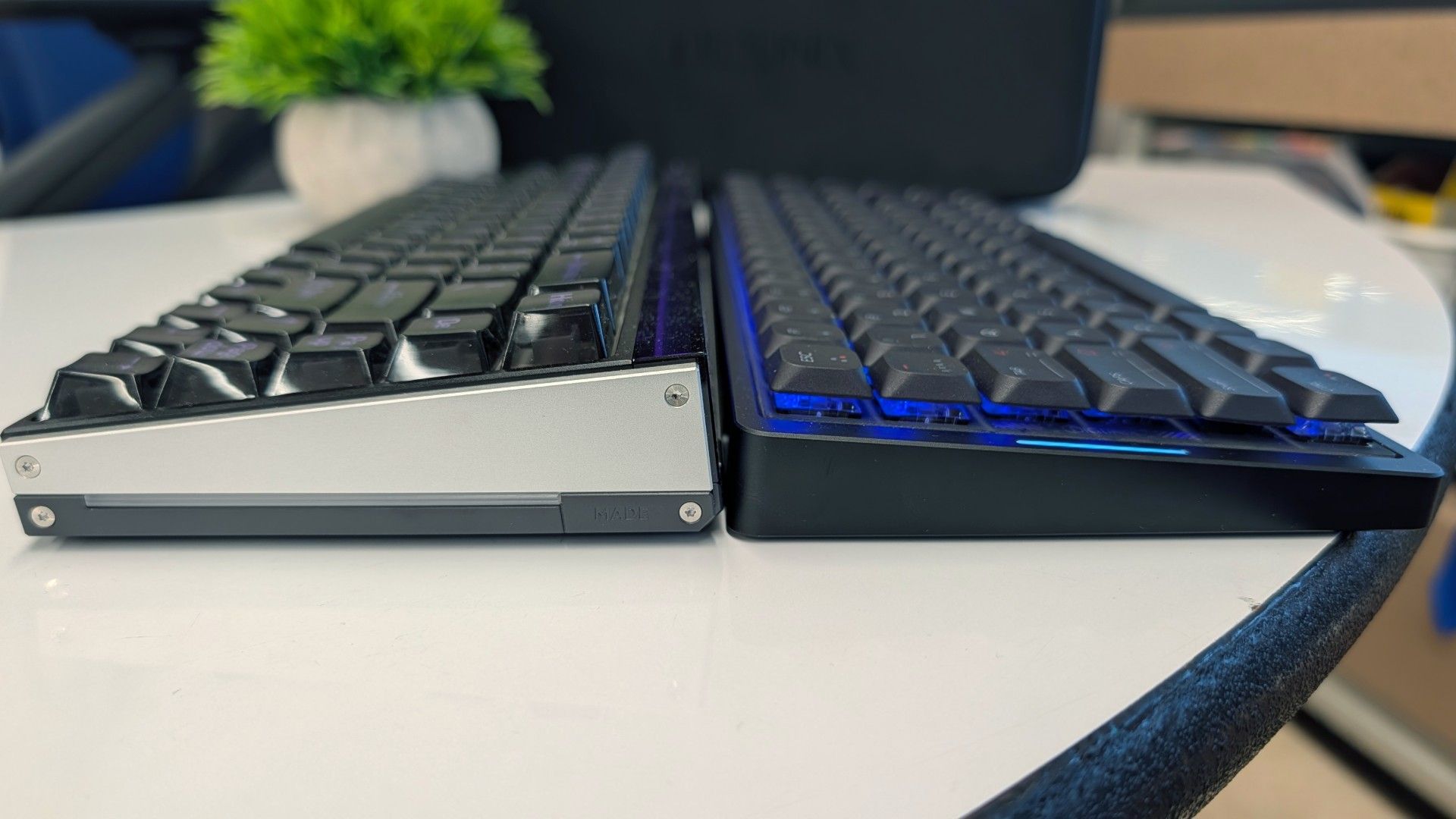
Nothing too out of the ordinary there, but the MQ80 marries that compact layout with an impressively low height of only 0.4 inches (10.8mm) at the front and 1.08 inches (27.5mm) in the rear. The keycaps are the same height across every row, and while they're scooped to keep your finger centered above the switch, they otherwise feel identical below the finger tip. This makes it an easy transition if you’re coming from a laptop or Apple Magic Keyboard, but first-time LP users should be prepared for a learning curve.
(Image credit: Tom's Hardware)
The keyboard is wireless and supports both 2.4GHz and Bluetooth 5.1 connections, as well as wired if you need to use it while it’s recharging. It sports a 4,000 mAh battery which IQUNIX claims can sustain the keyboard for up to 350 hours. This is with the usual caveats of that being over Bluetooth with all of the lighting disabled, etc. etc. — but I was able to use it for close to two weeks between recharges, even with the lighting on.
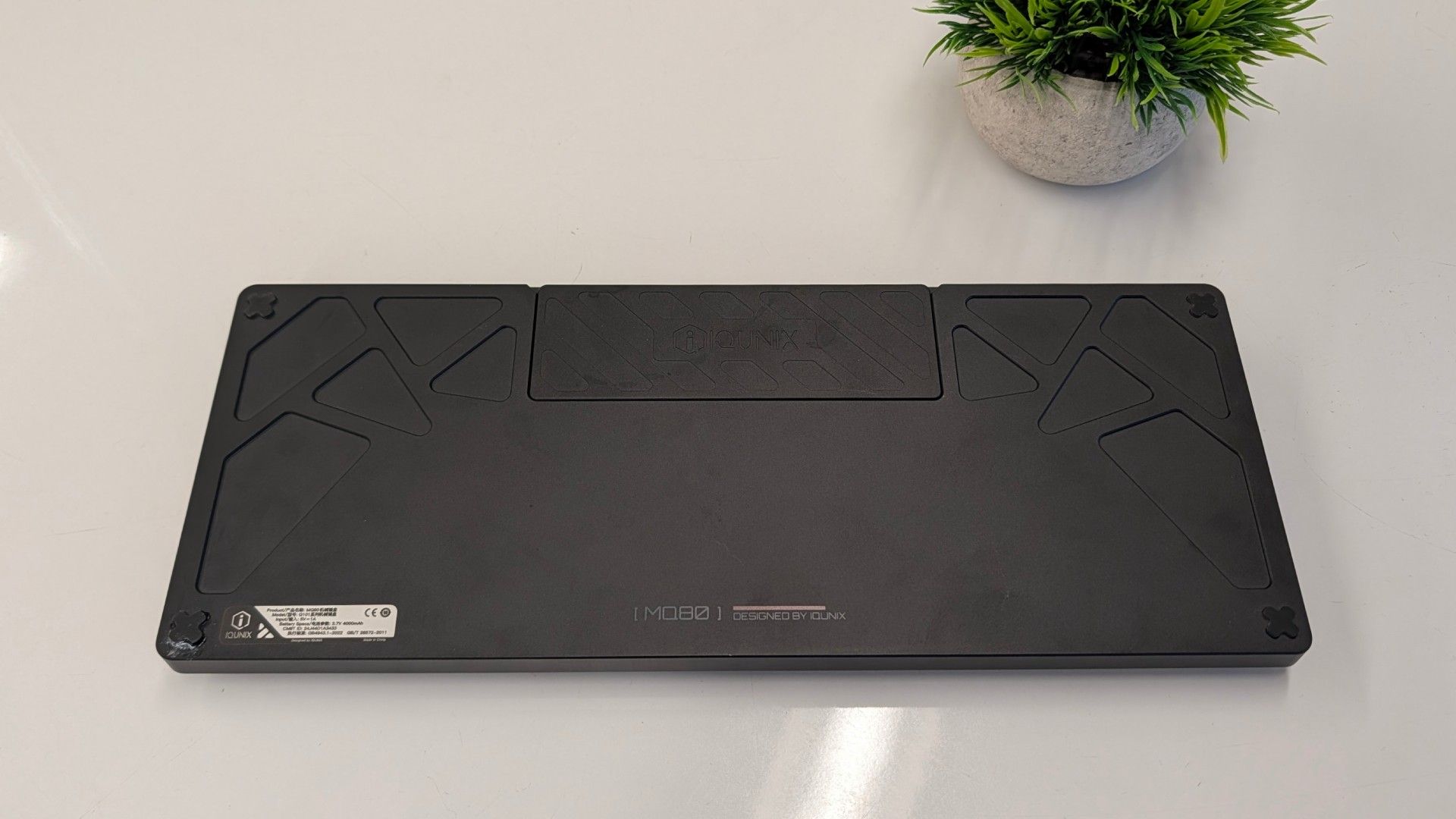
The MQ80 is a bit of a curiosity, if I’m being honest. It's thin, yes, but it’s certainly not light. It uses a heavy, CNC-milled aluminum case, just like the company’s prior models and countless others aiming for that “premium feel.” It’s a case study in how looks can be deceiving.
(Image credit: Tom's Hardware)
In fact, it has been a pretty common occurrence for people to comment on how surprising its weight is. The keyboard tips the scales at 2.6 pounds, which is around what you encounter with a full-size mechanical keyboard or nicer TKL. From a low profile keyboard that everyone assumes will be airy and effortless to carry around, it flies in the face of what you might expect.
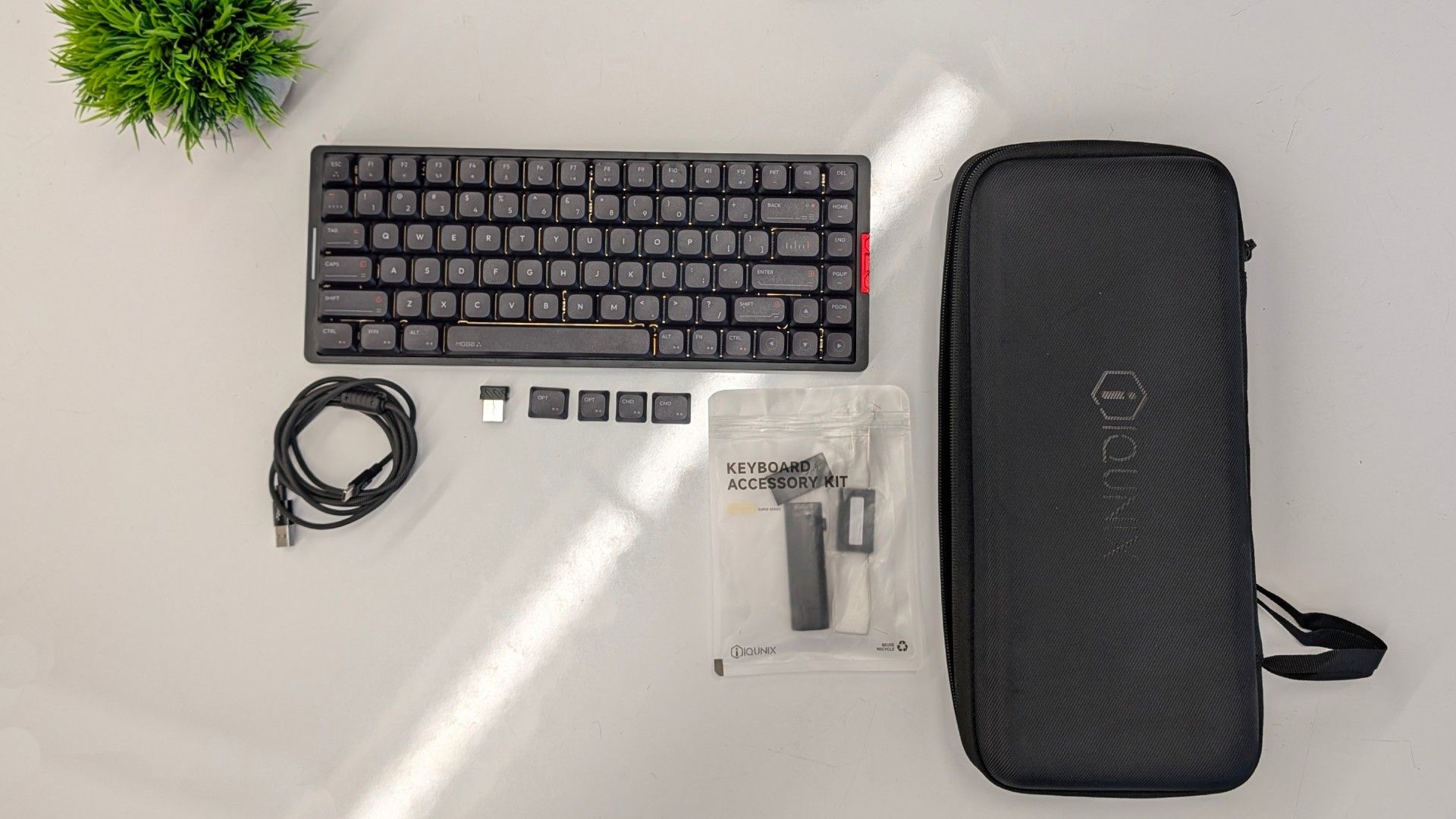
So while technically, yes, it’s a portable keyboard (IQUNIX even provides a nice hardshell carrying case to tote it around in), it's not one I could see most people wanting to carry every day. Instead, this seems designed to live on your desk, providing a solid option for fans of the profile who prefer to use it for all of their typing — not just on the go.
(Image credit: Tom's Hardware)
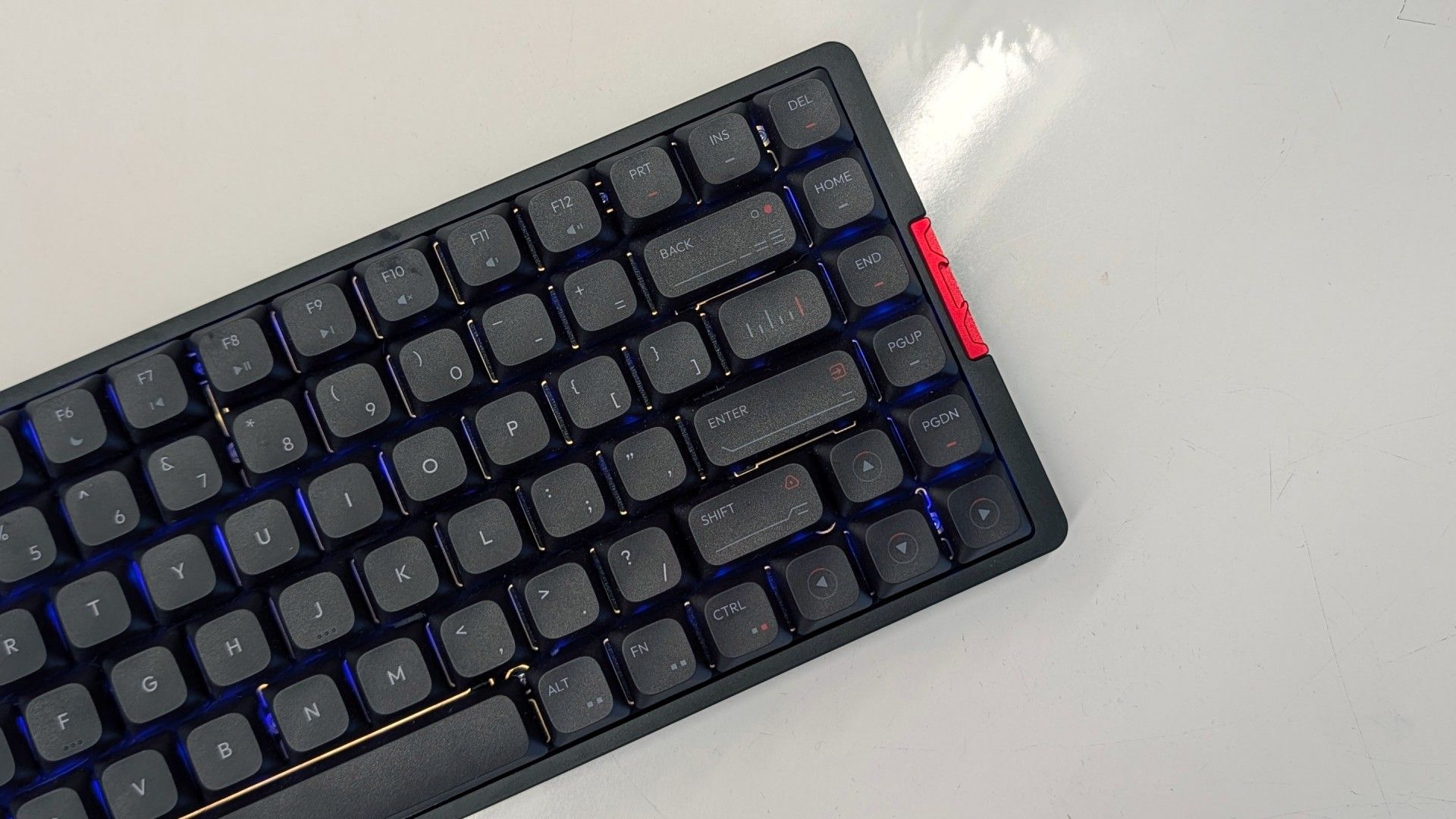
In typical IQUNIX fashion, the MQ80 is built to an enthusiast's standard. The case features intricate milling with plenty of small accents that lend it a vaguely cyberpunk impression. The keycaps feature colored legends and contrasting accents that complete its visual identity. The keyboard is available in white or black with keycaps to match, and both look fetching.
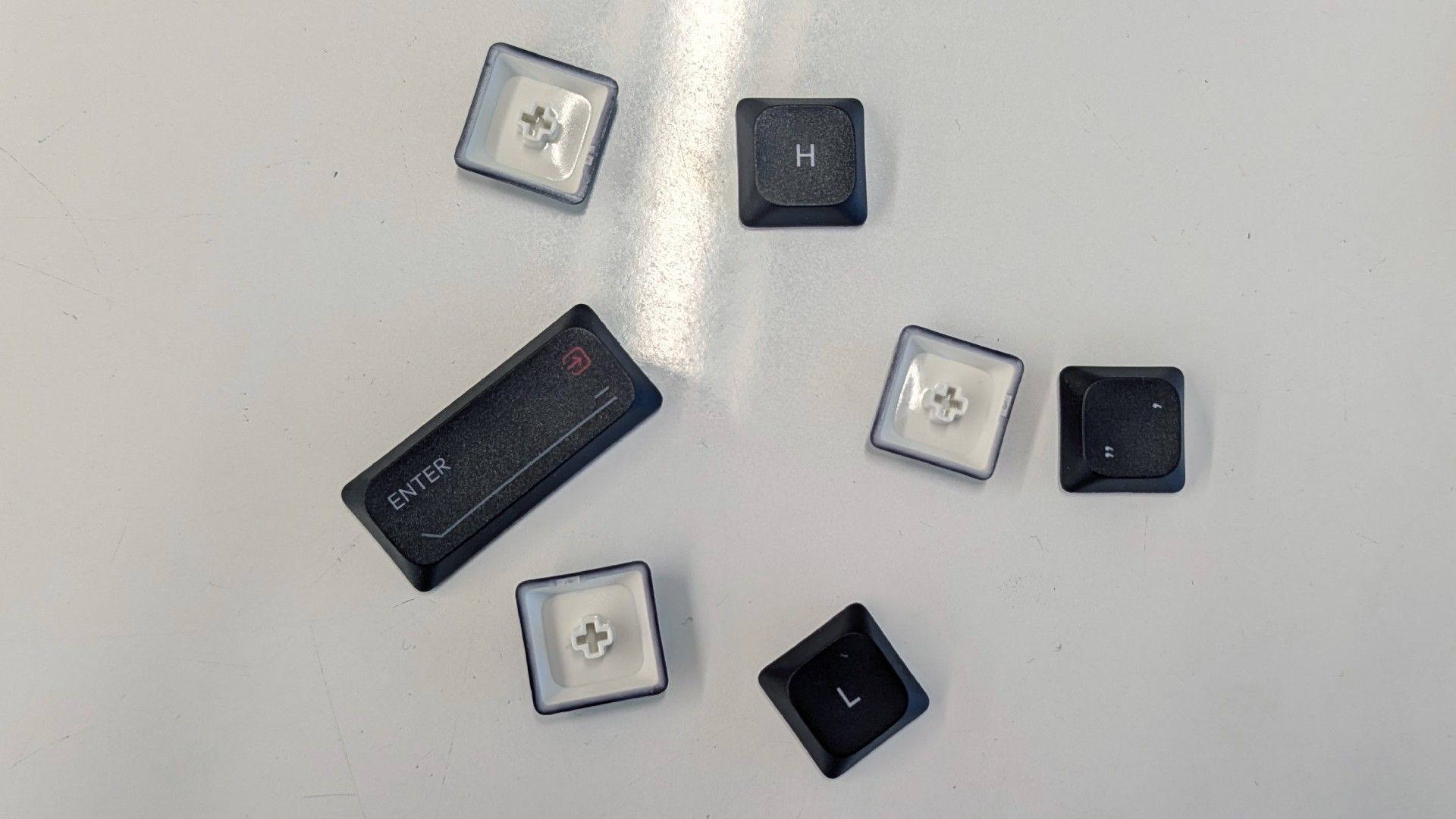
The keycaps are made of thick PBT plastic. They have a light texture to add some grip to your typing experience and use dye sublimated legends that won't chip or fade over time.
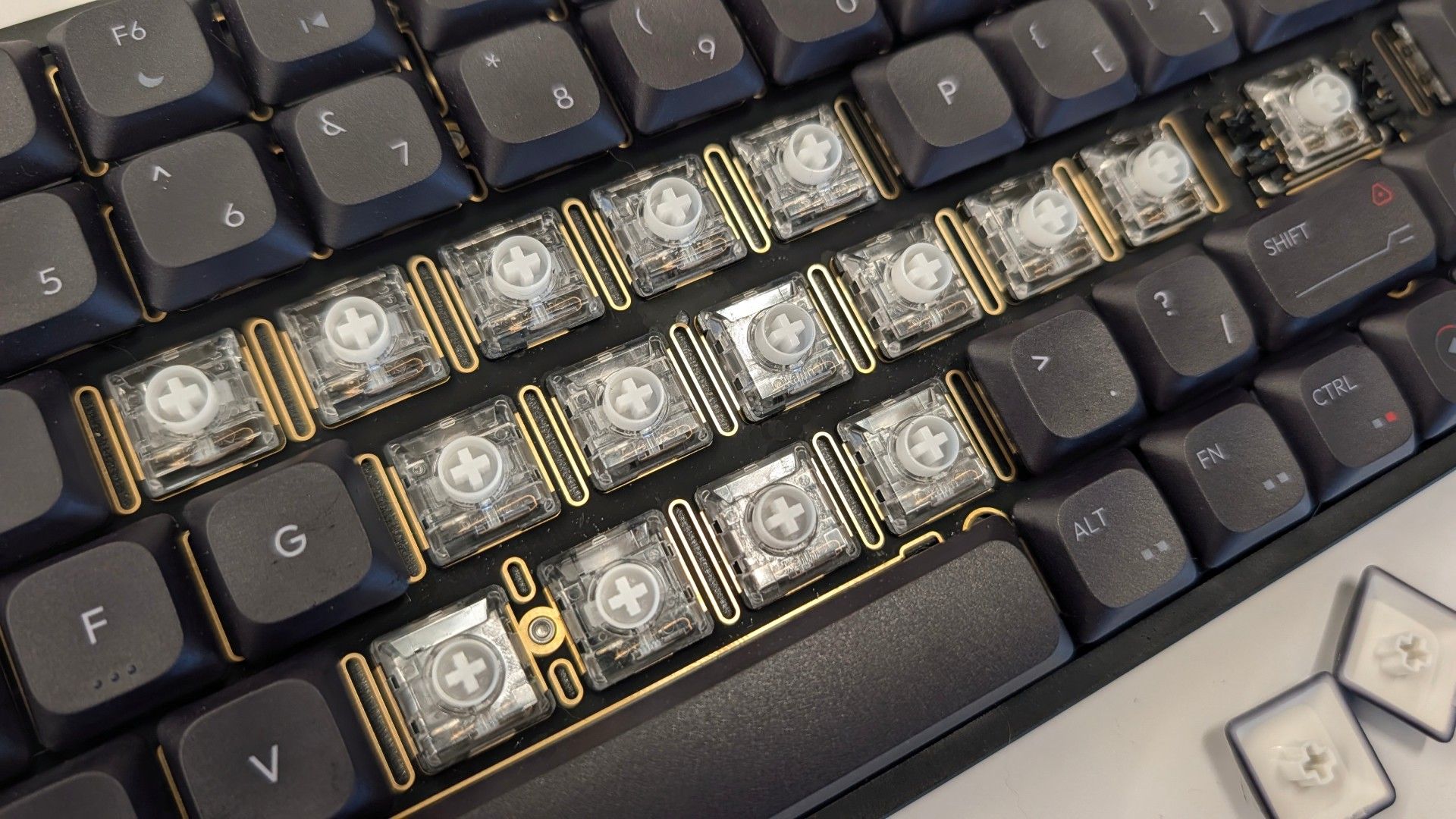
The switches below those keycaps are Kailh Rose Red, a lightweight linear switch with a 40g actuation force, 2.8mm of travel distance, and a 1.2mm actuation point. Despite their shortness, they offer 70% of the movement of a full-height switch. This makes them easier to transition to in how they feel to bottom out, but they still feel sensitive. This is a keyboard to use with a light touch or you'll find yourself with strings of single letters or running from cover before you mean to.
(Image credit: Tom's Hardware)
The switches are hot-swappable with any Kailh Choc V2 alternative, but there just aren't many options. Gateron has run away with the variety end of the low profile switch market, but you can swap them out if you're inclined to do so.
The keyboard features per-key RGB backlighting, customizable within the VIA web configurator or with shortcut keys. The keycaps aren't backlit, however, so it's not great for use in the dark if you aren't a touch typist.
The internal structure of the keyboard is where things get really interesting. The MQ80 came into the world following a run of pre-built custom keyboards IQUNIX produced under its SUPER product line. It pulled direct influence from the boutique, limited run, group buy custom keyboards popular on r/mechanicalkeyboards. All of those lessons come into play with the MQ80.
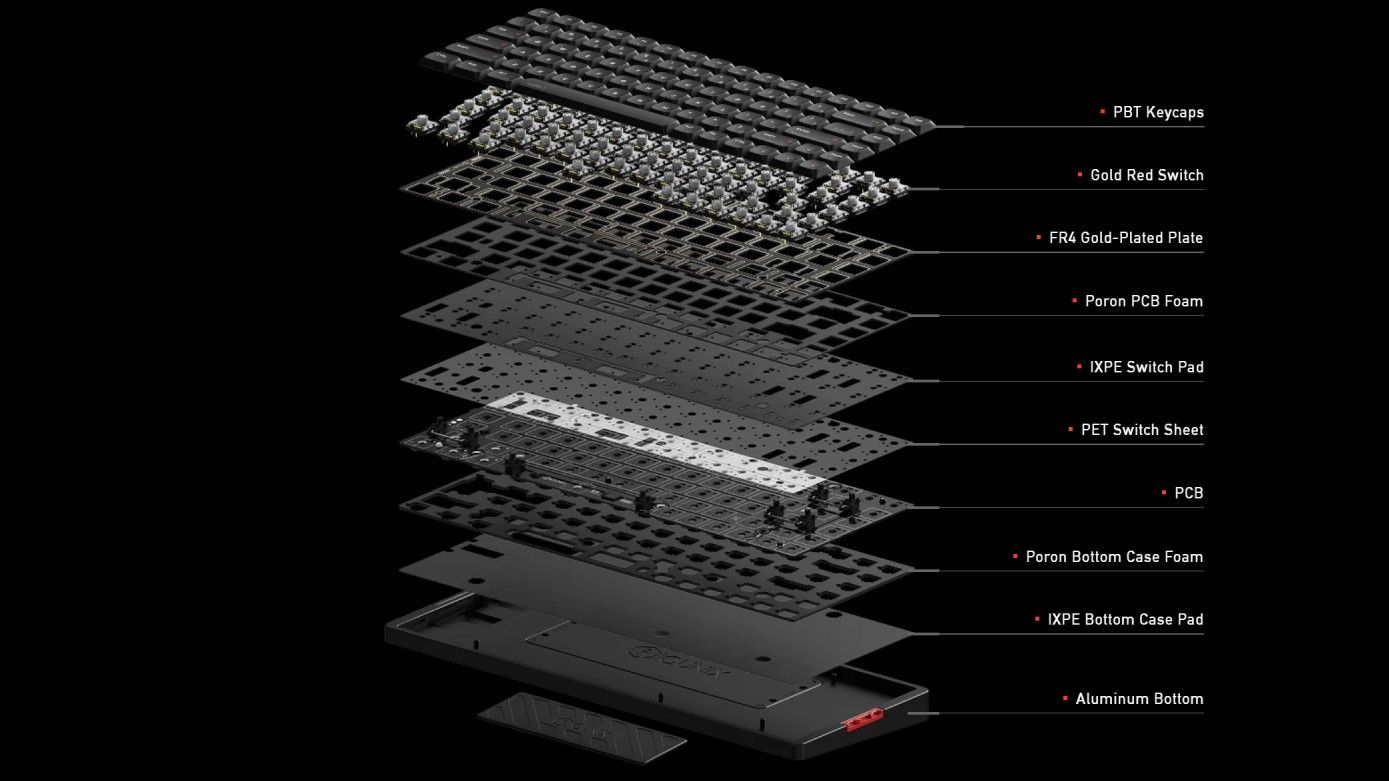
Beneath the keys lies a multi-layer assembly that makes even the best gaming keyboards look simple in comparison. It's an intentional system meant to filter and refine the sound and feel of every keystroke without the need to customize or adjust anything yourself.
(Image credit: IQUNIX)
Moving from the top down, the switches snap into a fiberglass (FR4) plate, a middle-ground material that balances firmness with crisp keystrokes.
Beneath the plate and PCB are two layers of foam, each with different acoustic properties, and a plastic film. The first layer of foam is thick PORON and fills in the empty space between the switches, plate, and PCB. It cuts reverb and helps isolate each switch. A much thinner, less dense sheet of IXPE foam and a plastic PET sheet sit below the switches to add a crispness and pop to each keystroke.
Below the circuit board is another layer of PORON foam that filters soundwaves that pass through and cushion each press. Finally, in the very bottom of the case is another layer of IXPE foam intended to reflect mid-range sounds and act as a final buffer before hitting the aluminum of the case.
(Image credit: Tom's Hardware)
It sounds like a lot and it is, but it doesn't end there. The PCB assembly attaches to the case with a modified gasket mount ("Le-Tray Gasket Mount") that imparts some of the qualities of gasket mounting into this much slimmer design. Six arms from the assembly attach to the case with silicone buffers, holding it aloft to deliver pillowy bottom outs.
As a wireless keyboard, IQUNIX also had to fit a battery into its slim frame. It's surprisingly large given the space constraints with a 4,000mAh capacity. This translates into 350 hours of rated uptime, but only when using Bluetooth and no RGB backlighting. In practice, keeping RGB on high and using 2.4GHz, it lasts around 45 hours but your specific figure will depend on use.
Typing Experience on the IQUNIX MQ80
While there's an obvious pre-requisite to prefer low profile keys, you'll also need to be a fan of linear switches. And not just that, you'll need to be a fan of lightweight, fast actuating low profile switches with keycaps that feel identical under your fingers.
If I sound a little salty, I'm not. It's just that I've used hundreds of mechanical keyboards and typed A Song of Ice and Fire worth of words on them, including more than a fair share of competing low profile keyboards, and it's still a pain in the ass to switch back to them.
(Image credit: Tom's Hardware)
At least at first, because you do get used to it and the light touch required. Before long, I remembered to pay special attention to the navigation bumps on the "F" and "J" keys. Once everything clicked, I honestly felt faster and more nimble as a typist.
Surprisingly, this didn't translate into actual WPM in my case. I average right around 110 WPM on my day-to-day full height keyboard. Swapping to the MQ80, my raw speed increased slightly, likely due to the lightweight switches and the floating posture I adopted to accommodate its height. My actual average words-per-minute on MonkeyType actually decreased to 105 WPM due to having to backspace to correct typos.
So, typing speed is a bit of a wash (at least for me) but it's hard to argue that the sound and feel of typing on the keyboard is less than exceptional. The multiple layers of sound dampening quiet and deepen the sound of each keystroke in a satisfying way. The Le-Tray Gasket Mount system also gives bottom outs a softness that's reminiscent of, but slightly stiffer than, the gasket mounts used on most full height gaming keyboards.
(Image credit: Tom's Hardware)
The thing is, since IQUNIX launched the MQ80 to Kickstarter in early 2025, Nuphy released the third iteration of its Air75 series, the Air75 V3, and it delivers a typing experience that I feel is at least as good and is objectively more customizable with its Gateron low profile switches and tactile and silent switch options at checkout.
As a heavy handed typist, I prefer a lot of tactility, especially on a keyboard with perfectly flat rows. The only option for "not a light tactile" were Kailh Black Cloud switches and would have run me half the cost of the keyboard itself.
None of this is to say that the typing experience is bad. It's genuinely not. IQUNIX knows its stuff. All of this is simply to say that there's an important trade-off and if you don't like light linear switches or paying a premium to replace them, the MQ80 probably isn't the keyboard for you.
If you like that light touch, the custom keyboard-esque feel of its keystrokes filtering through all of that foam and milled aluminum, then you're probably going to love it.
Gaming Experience of the IQUNIX MQ80
Most of the same considerations from the typing experience apply to gaming as well, but fragging enemies is really where the MQ80 felt most at home to me.
Those lightweight switches that were a liability to typing accuracy suddenly feel like hair triggers. If you're connected using the 2.4 GHz dongle or plugged in via USB, its 1,000 Hz polling rate ensures that every keystroke comes through instantly - though, it still doesn't compare to the growing number of 8,000 Hz keyboards out there on paper. Whether you'll be able to tell the difference is up for debate.
(Image credit: Tom's Hardware)
While the layers of cushioning and damping don't have a direct impact on how effective the MQ80 is for gaming, much like typing, they just make the experience that much more pleasant.
Apart from its switches, there's a dearth of dedicated gaming features unique to the keyboard. The keys are reprogrammable and support string macros, but you won't find a fancy software suite to support the experience here. Instead, IQUNIX went open source and the MQ80 is better for it.
Software for the IQUNIX MQ80
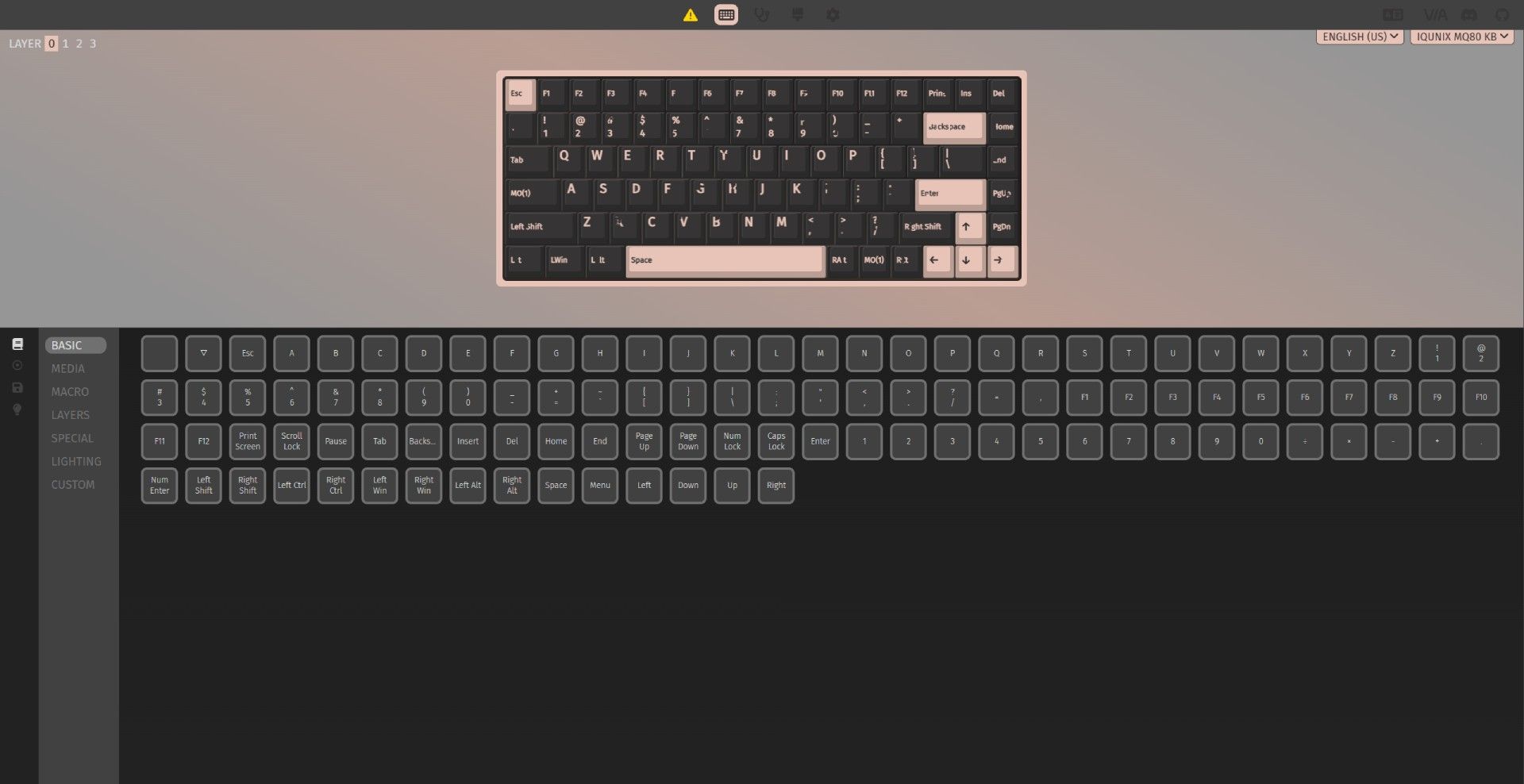
Where the MQ80 comes into its own is its programmability. Unlike many traditional gaming keyboards, it doesn't have downloadable software that needs to stay running in the background. Instead, IQUNIX opted to support VIA, a web-based configurator that allows you to make changes on the fly while also saving them to the keyboard.
It's simple on the surface, but is surprisingly powerful once you dive into it. Every key can carry up to four different actions or macros, broken into layers for quick shortcut access. Much like holding Shift, you hold or tap a key of your choice and access those additional layers of keymaps.
(Image credit: Tom's Hardware)
While this functionality isn't unique to VIA or the MQ80 by any means, big gaming companies usually require you to keep their software running to access layered functions (ex. Razer HyperShift). Here, every change is written directly to the keyboard's firmware and will work on any machine, exactly as programmed.
The web client itself is fairly simple. You have a graphic of your keyboard layout with all of your current mappings on display. Underneath are all of the different commands that can be mapped, including things like media controls, additional F-keys (all the way to F24), macros, RGB controls, and virtually anything else you might want to assign to a keystroke.
The biggest feature you'll miss out on, apart from proprietary features like game-synced RGB backlighting, is the ability to assign backlight colors to individual keys. It's possible to change the brightness, hue, and saturation across its dozen or so preset animations, but creating an entirely custom lighting scheme requires creating your own code and flashing it to the keyboard manually.
The Bottom Line
(Image credit: Tom's Hardware)
The IQUNIX MQ80 is a very good keyboard. For a lot of users, I'm confident that they would describe it as "Great" or even "Amazing." I wouldn't fault them for that. This is essentially the luxury option in the low profile space at this point.
But it's too heavy to easily tote around without questioning your life choices. If portability is important to you, I highly recommend the Nuphy Air75 V3. Or, if you're looking for something a little more office friendly than the Nuphy, the Lofree Flow 2 is another great choice that also comes with a tactile switch option.
At the end of the day, all three of these options are good for the money but only the MQ80 feels like a luxury option thanks to its heavy case. If you're not planning on carrying it back and forth to work and you like a fast switch, the MQ80 is a solid choice.
Sometimes you need a keyboard, and you need it now. That was where I found myself a couple months ago during local AI testing with one of the Nvidia GB10 boxes on my bench. Those systems are incredibly picky about which wired keyboards they'll work with for some reason, and moving the one known-good board I have on hand between systems under test was becoming a massive headache.
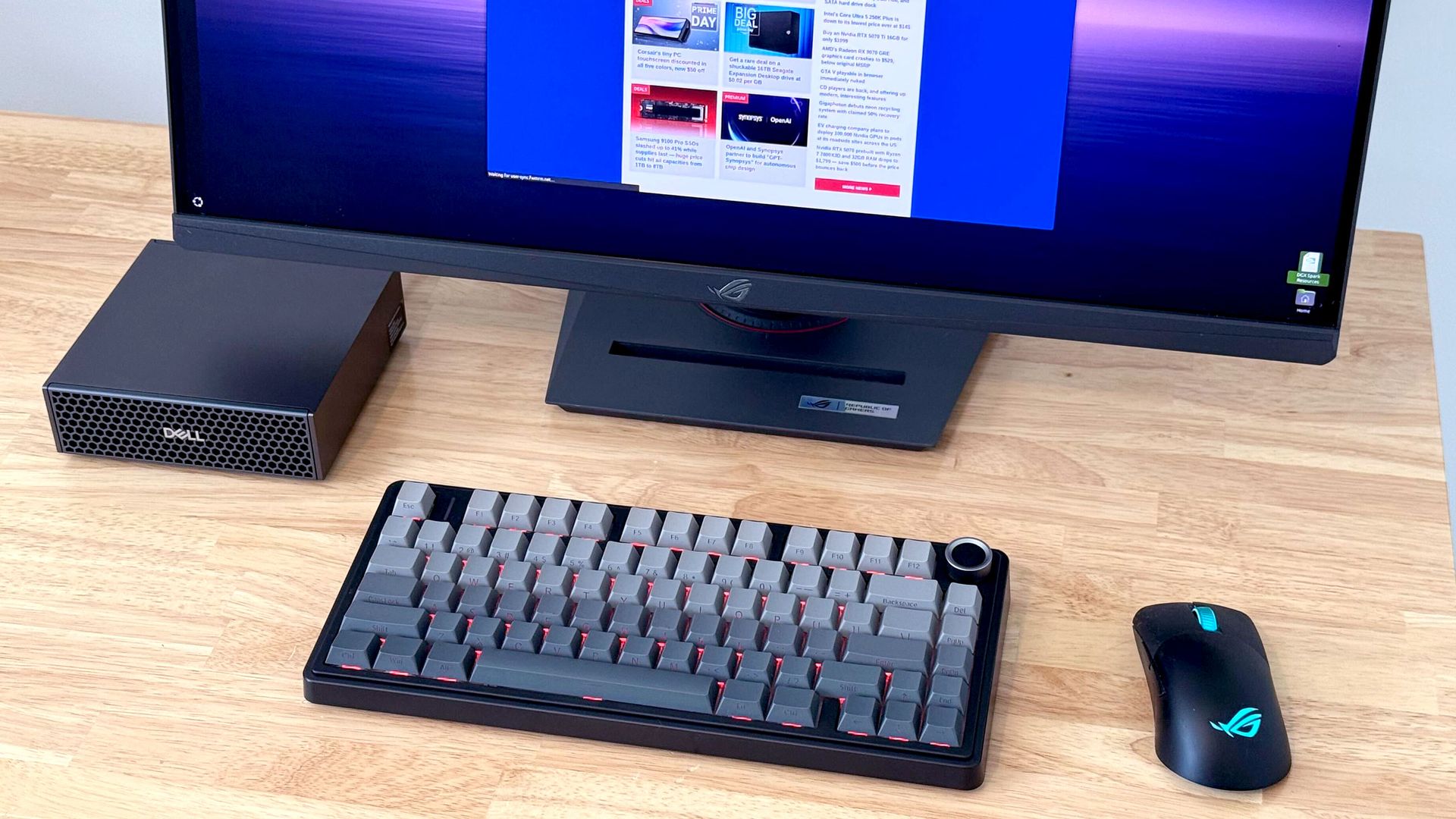
After one too many inconvenient keyboard swaps, I had had enough. I wanted a compact Bluetooth board that I could dedicate to my workbench, and I wanted it now. Testing on that GB10 system couldn’t wait, and I didn't want to get stuck in analysis paralysis. So I hopped on Amazon, filtered my choices down to items with same-day delivery, and found the Epomaker x Aula F75 Pro for just $65.
(Image credit: Future)
AULA
Aula F75 Pro Wireless Mechanical Keyboard
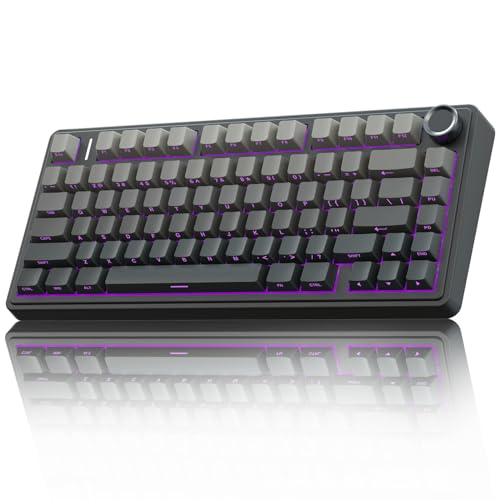
The Aula F75 Pro keyboard is feature packed with Leobog Reaper switches, dual-tone PBT keycaps, a volume knob, and wired, 2.4 GHz, and Bluetooth connectivity, among other features.
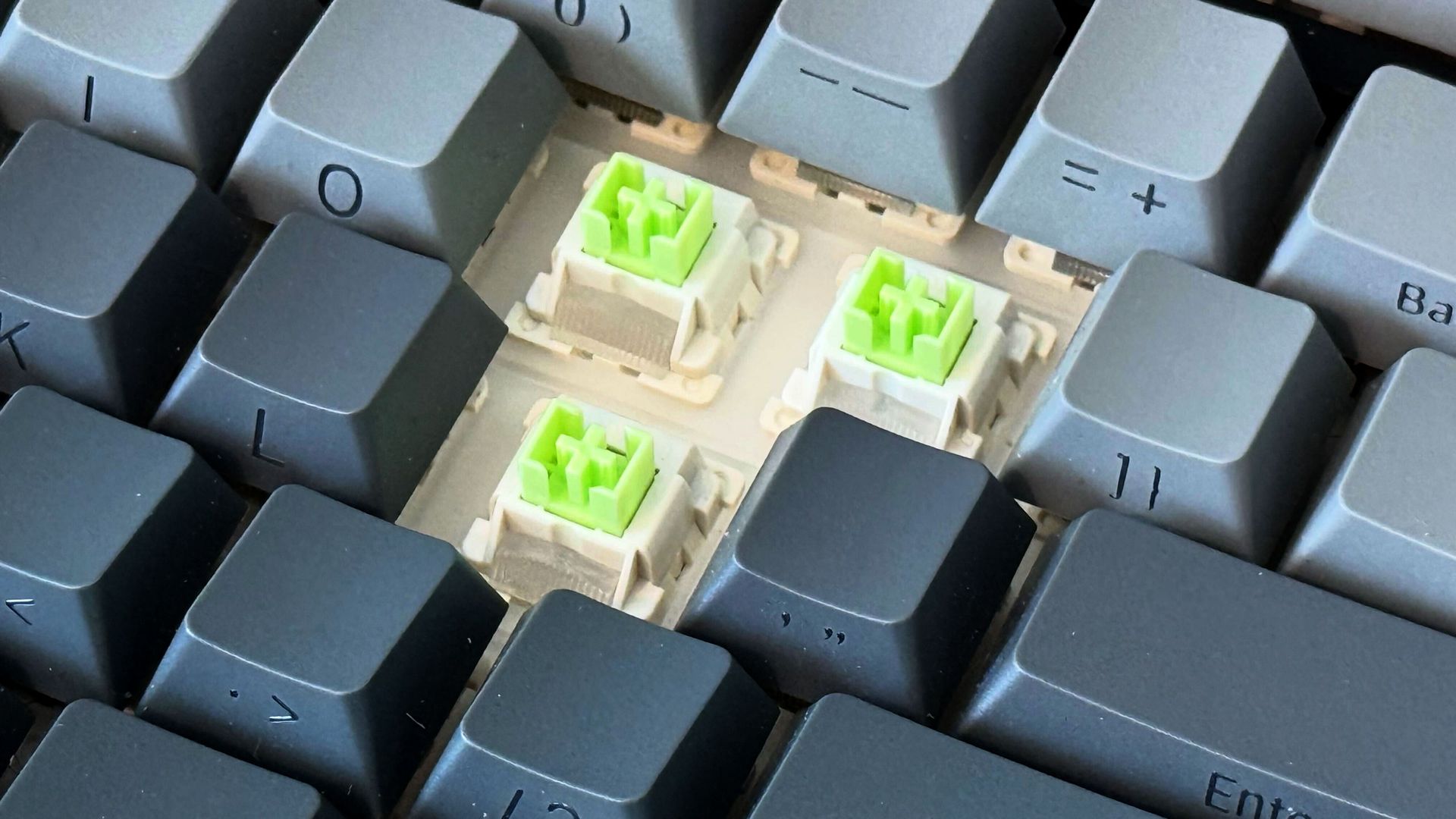
I was suspicious of this board at first, given the lack of in-depth independent reviews online and its unfamiliar switches. It uses Epomaker’s Leobog Reaper switches, which didn't map directly to any of the standard Cherry MX switches or their knockoffs that I'm used to.
But according to the spec sheet, they were linear and didn't have an incredibly heavy actuation force, which is the most important spec I look for in a keyboard when protecting my RSI-ravaged wrists. And they claimed to come pre-lubed, which is an upgrade I’ve never performed myself on any of my prior boards. So we were off to a good start.
The rest of the F75 Pro's feature list suggested custom keyboard DNA in its lineage. Spiffy dual-tone PBT keycaps with side legends? Check. A stack of noise-shaping and noise-reducing materials inside, including a cotton layer and a hefty silicone foundation? Check. A dedicated volume knob that doubles as a mute button? You got it.
Throw in wired, 2.4GHz wireless, and Bluetooth connectivity (with multiple Bluetooth pairing profiles), along with customizable RGB LED backlighting, and I was sold. And for such a low price, plus a few bucks extra for same-day delivery, I was willing to risk it if some aspect of this board wasn’t quite up to snuff.
A couple hours later, my Amazon delivery driver dutifully dropped the F75 Pro at my doorstep. And after a few minutes with the printed shortcut guide so I could pair it over Bluetooth, I had it connected to my GB10 box and was typing away in a terminal.
(Image credit: Future)
Despite this board’s low price, the Leobog Reaper switches underneath its keys are honestly the nicest I’ve ever felt. They’ve ruined me for every other board with MX-style switches I have. Whether it’s down to their pre-lubed treatment or inherent construction quality, they don’t have the tiniest bit of wobble or grit in their strokes like the red switch clones in many of my other mechanical keyboards.
The Reapers have a light 36gf initial force, a 45g actuation force and a 55gf bottom-out force, so they don’t place undue stress on my hands and wrists, and they have a nice, high-pitched audible “thock” at the bottom of their range that serves as pleasant reassurance for a successful keypress without rising to the level of a deafening click like blue-type switches might. The five-layer acoustic dampening stack within this board makes it the nicest-sounding one I own, too. And if I ever get tired of these particular switches, the Aula F75 has hot-swap support for easy modding.
I feel like I’m more accurate with these switches than I am with other boards in my office, and at 107 wpm with 99% accuracy on the MonkeyType test, I’m slightly faster than average on this board, too.
For all the thoughtful stuff that might be happening inside the F75 Pro's chassis, the outer plastic shell does feel a bit cut-rate. If you want the pleasure of knowing your board is clad in milled aluminum, carved stone, or some other exotic solid, this board doesn’t offer that satisfaction. But you're not touching the shell as you type. You're touching (and listening to) the keys. And I can attest that the tactile and auditory experience of typing on this board is far, far better than you would expect given its low price.
I also appreciate that most of the Aula F75’s functionality is available without installing any extra software. Although a utility is available, I’ve never felt the need to install it. I do have to refer to the included cheat card to figure out certain Fn combos, though, so don’t throw yours away if you get an F75 Pro of your own.
I do wish this board’s 75% layout dropped the volume knob for a dedicated Home key, but I can live with its existence on a Fn layer given the rest of this board’s virtues. And again, this board sells for $65 (and possibly even less during the current Prime Big Deal Days event). Given the hundreds of bucks that boards from big brands usually go for, I’ll enjoy what I hope is a long-lived and premium typing experience and keep the extra cash in my pocket.
Google Japan just showed off a quirky keyboard that has keys rolling on a conveyor belt to make typing “easier.” According to the company blog [machine translated], it built the Gboard Conveyor Belt Version so that the keys flow to your hand instead. That means you don’t have to move your fingers or arms as much, especially when you’re typing using a single hand. The keyboard comes with four belts, each containing 29 keys, making it quite “intuitive” to operate. The team behind it is also considering releasing various color variations, high-speed models, and even a shorter version for mobile devices. You can see the keyboard in action in the video below.
This weird keyboard is the latest addition to the Google regional office’s annual tradition of releasing a new model every first day of October. The local subsidiary has previously released these quirky designs as an April Fool’s Day joke starting in 2012. However, in 2021, it switched the release on the first day of October, or 10.1, in reference to the 101-key layout popularized by the IBM Model M. These include the Gboard Dial Edition, which is reminiscent of the rotary phones of the 1960s (good luck hitting 100 words per minute with that keyboard), the Double-Sided Gboard, designed to be always right-side up no matter how you orient it, and the Gboard bar version, which places all the keys on a single row to make characters easier to find. But even though most of the funny designs aren’t meant to work in real life, the Google Japanese Input Physical Flick Version actually looked promising.
All these models likely won’t make Tom’s Hardware’sbest gaming keyboards or even best budget mechanical keyboards lists, but they’re still a good addition to any keyboard collection if you want to have something unique (but not necessarily practical) on display. The plans for the Gboard Conveyor Belt Version are available directly from GitHub, including 3D-printable STL files, KiCad schematics and PCB layouts, and the firmware source code and projects needed to build a working copy of the keyboard. The schematics for previous Google Japan keyboard designs are also available in the main directory, allowing you to build all these eccentric pieces in your free time.
In a world where anything related to a PC seems to have risen 1000% in price, it's good to see that some things are still available at a discount. This keyboard will make enthusiasts wince at the use of membrane switches, but it's the perfect choice for the price and possible use case,, especially if the person you're buying it for has a habit of spilling drinks over their peripherals. With a hefty 40% discount off the original $49.99 list price, the SteelSeries Apex 3 is now priced at just $29.99, a solid price for a full-sized gaming keyboard from a reputable peripheral manufacturer.
The SteelSeries Apex 3 has an IP32 certification and is a water- and dust-resistant keyboard, which gives it an extra level of protection against the pitfalls of eating or drinking near your peripheral. The Apex 3 is a full-sized keyboard with a number pad on the right-hand side, a full function-key row, and multimedia controls.
Its keys aren't mechanical; they are membrane switches, so they are much quieter than clacky mechanical switches, but are still rated for up to 20 million keypresses. The keyboard looks very similar to its more expensive and feature-rich lineup, including the incorporation of a magnetically attached wrist rest that can be easily removed and reattached when needed.
This version of the SteelSeries Apex 3 does not feature per-key lighting, but instead has a 10-Zone RGB LED setup. These RGB zones can be programmed with custom colors or effects and saved to individual profiles. The brightness of the backlight LEDs can also be adjusted.
This SteelSeries Apex 3 full-sized gaming keyboard includes a number pad and a full row of function keys. The board uses membrane switches, which are quiet and have the bonus of making the keyboard highly water-resistant. View Deal
The SteelSeries Apex 3 is also capable of saving your custom macro combinations to individual profiles and has a dedicated key to swap between these profiles on the fly. There is also dedicated multimedia controls with a button and roller combination controlling the volume and play/pause/skip functionality.
At only $29.99, this is a great price for a gaming keyboard gift for kids who might be inclined to spill food or drink while at the PC, or for a cheap replacement keyboard in general if you're not adamant about having mechanical switches or the latest magnetic switch features.
Something, something, going back to your roots. I guess that's what Glorious is doing (or, thinks it's doing) with the GMMK Eternal — its new wired mechanical gaming keyboard.
The GMMK Eternal is, at a glance, pretty basic: it's wired, it has regular mechanical (not magnetic) switches and a standard 1,000 Hz polling rate. It comes with bright backlighting, double-shot ABS keycaps, and some gamer-friendly features such as multiple onboard profiles and macro-recording via Glorious Core. It also has a hot-swappable PCB and three layers of sound-dampening material in the case — it's not supposed to be a revolution, but it is a pretty solid option if you're looking for something compact and relatively budget-friendly. The GMMK Eternal is available now in black, with GMMK's Fox MX linear switches, for $99.99.
Design and Construction of the GMMK Eternal
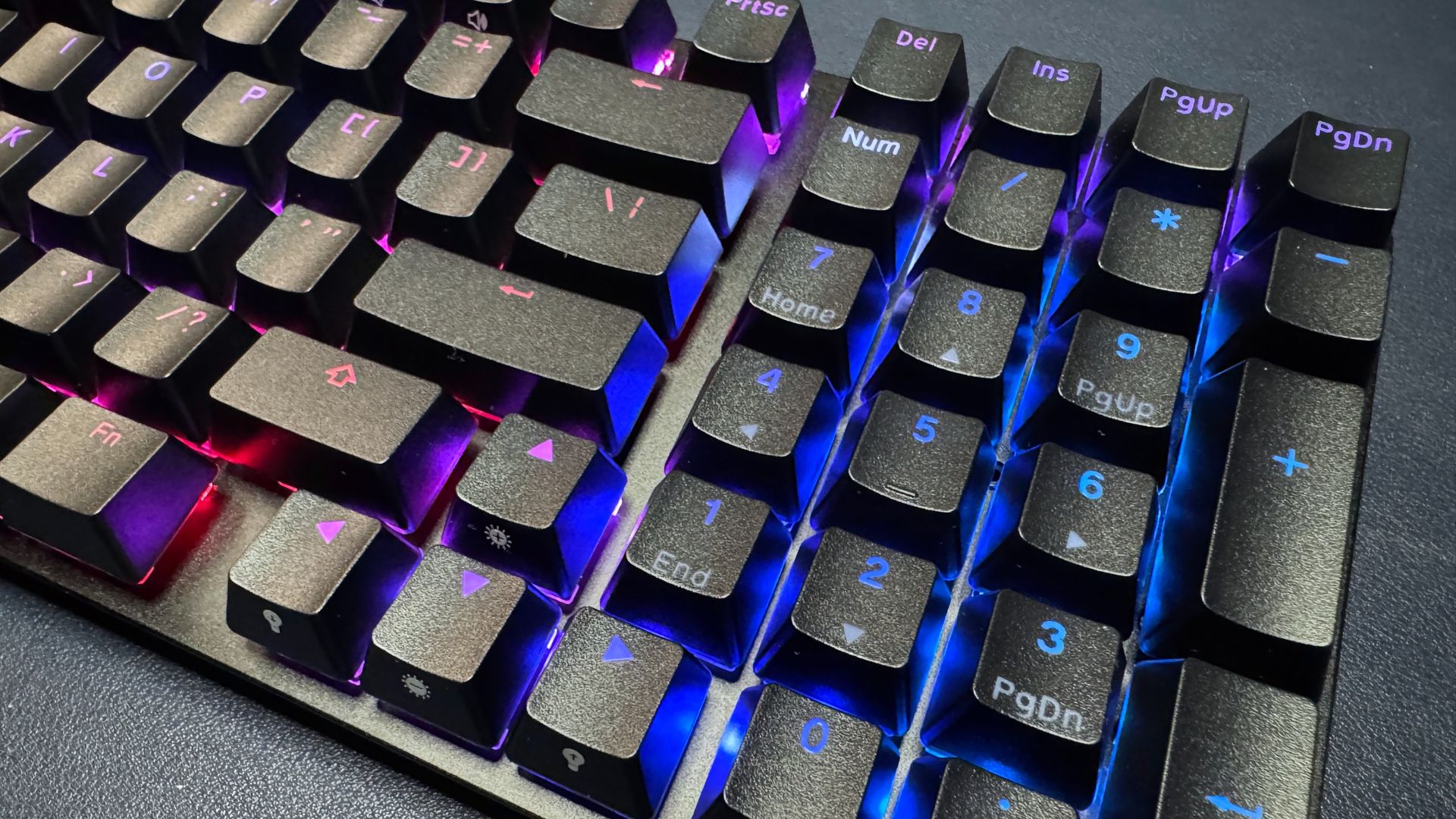
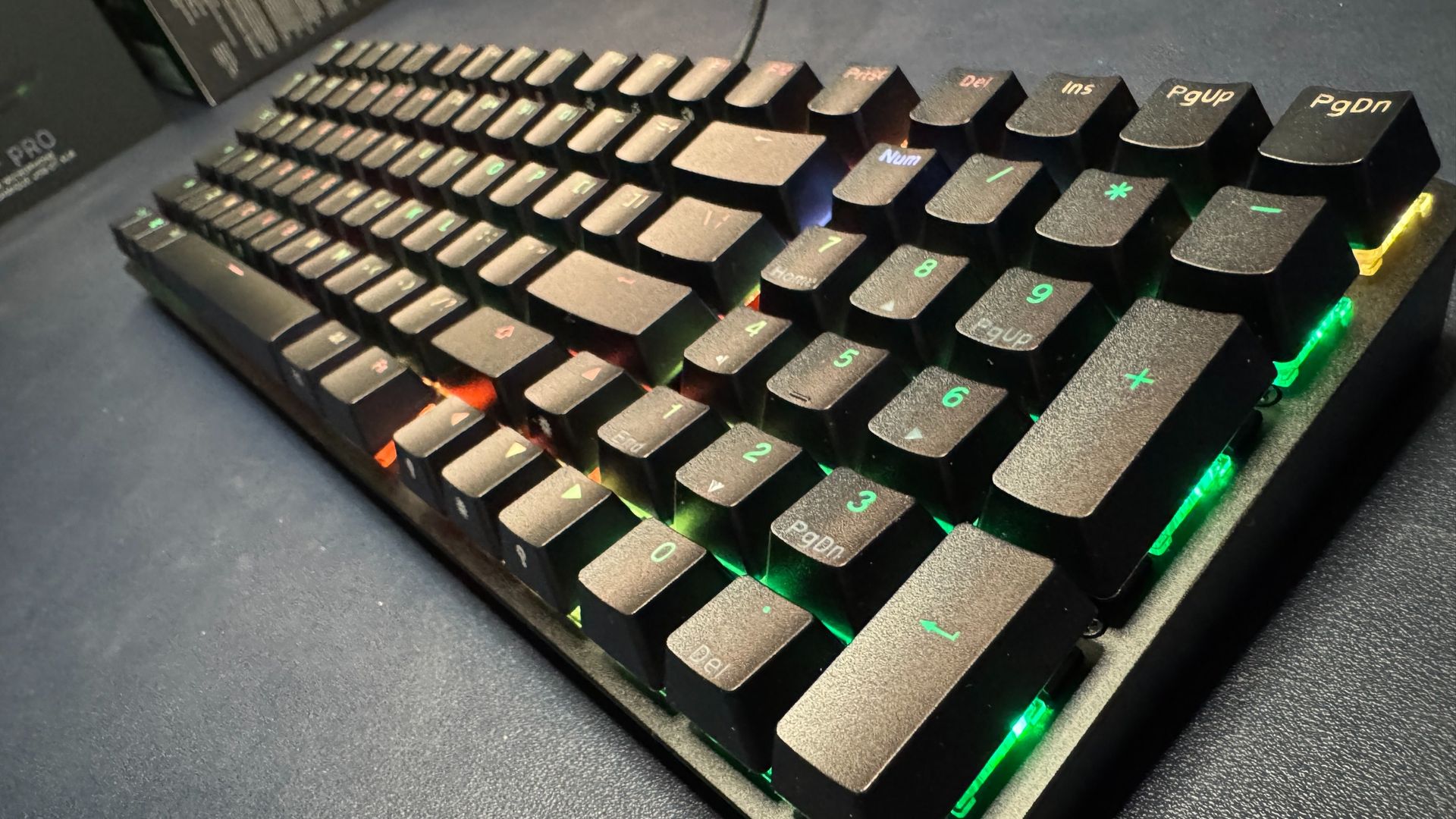
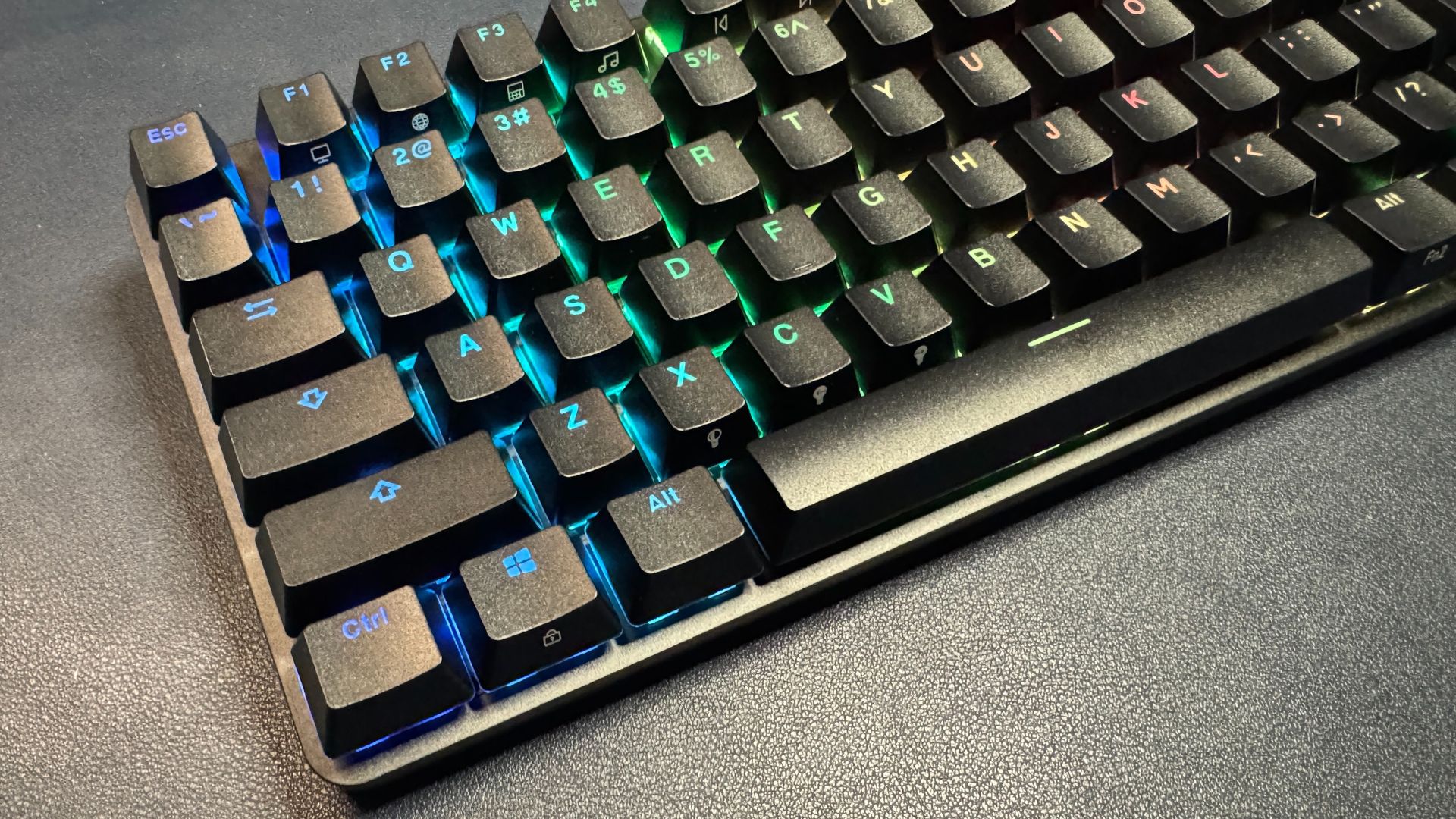
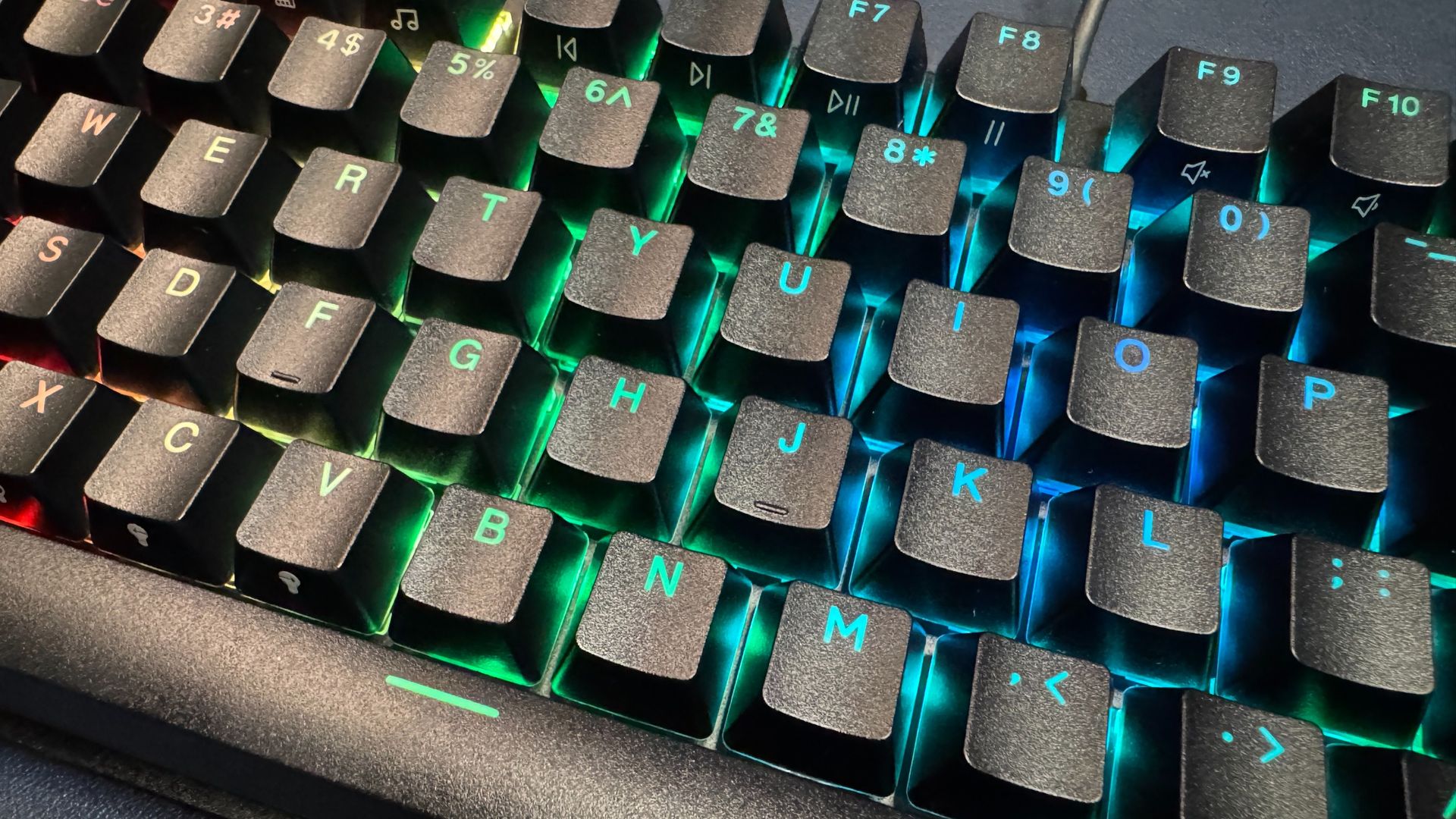
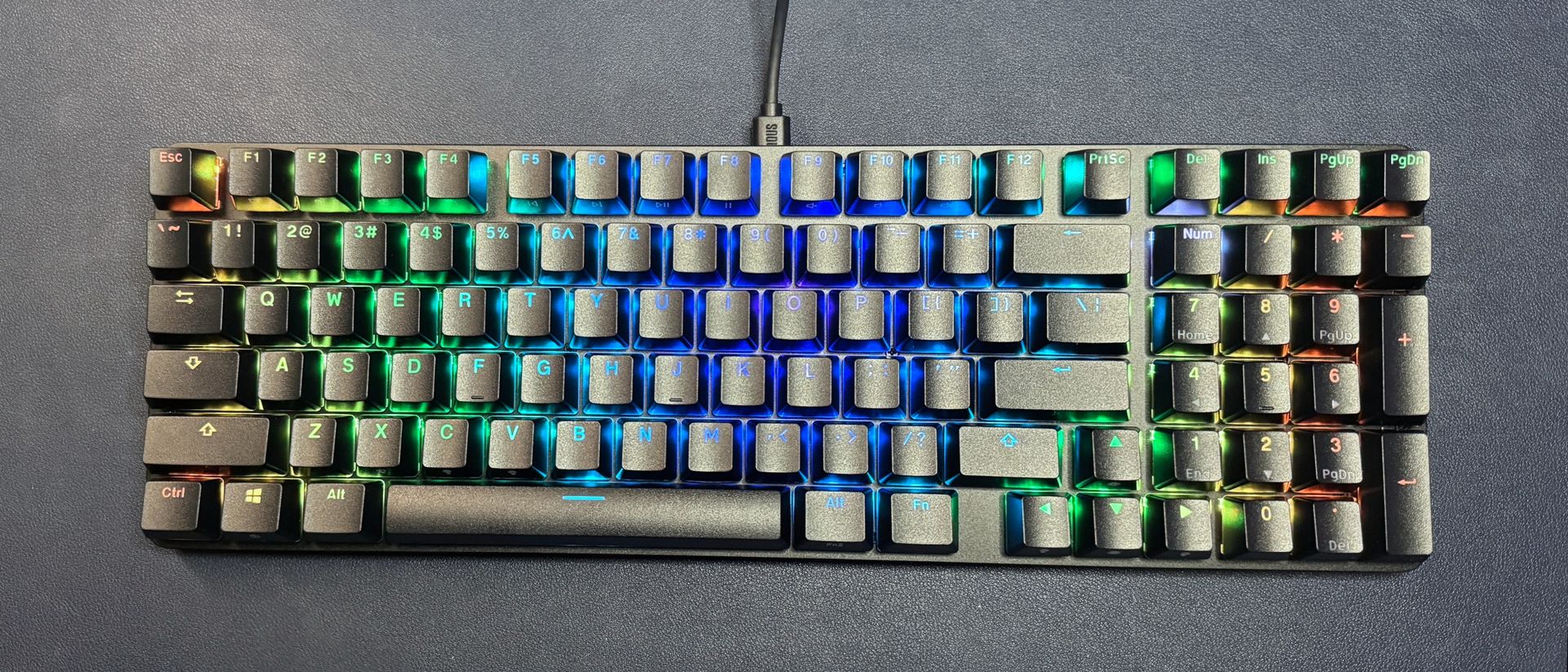
The GMMK Eternal is a wired mechanical gaming keyboard with a compact 96-percent layout — it has a full function row, arrow keys, and a 10-key numberpad, but everything is squashed together (and it ditches most of the navigation keys), so it takes up significantly less space than a full-size keyboard but has almost as many keys. It sports a fairly simple, minimalist overall design — edge-to-edge keys with virtually no bezel, black anodized aluminum top plate over a black ABS plastic bottom case, and no obvious branding on the top or sides.
Tom's HardwareTom's HardwareTom's Hardware
The keyboard measures approximately 14.6 inches (372mm) wide by 4.8 inches (122mm) deep, and is 1.7 inches (44mm) thick at its thickest point (including the keycaps). That's significantly smaller than a full-size keyboard, and is even small by 96-percent keyboard standards — perhaps my favorite 96-percent keyboard, the Asus ROG Strix Scope II 96 Wireless, is slightly larger than the GMMK Eternal at 14.84 x 5.16 inches (377 x 131mm), though at 1.57 inches (40mm) thick, it's slightly lower-profile. This is because the GMMK Eternal has double-shot ABS keycaps with shine-through legends in an OEM profile (the ROG Strix Scope II 96 Wireless comes with keycaps in a mid-height profile that's very close to the Cherry profile).
While the GMMK Eternal is pretty compact, even by 96-percent keyboard standards, you won't feel too cramped for space. There's enough room to leave some separation between the alphanumeric keys and the arrow keys (though not much), and there's enough room in the top row that the Function keys are grouped into visibly distinct groups of four. There are five navigation keys next to the Function row and above the numberpad: PrintScreen, Delete, Insert, Page Up, and Page Down. So you really shouldn't miss too much about your full-size board once you get used to the numberpad being right on top of you.
The GMMK Eternal has some weight to it, but it's not too hefty: it weighs in at just under two pounds (1.94 lbs / 879 g), which is about what we'd expect for a board of this size and construction. For comparison, the wired Corsair Vanguard Pro 96 weighs about 2.2 pounds (998g), while the wireless Asus ROG Strix Morph 96 Wireless weighs just under 2.5 pounds (2.48 lbs / 1,125 g). The GMMK Eternal is heavy enough that it shouldn't move around on your desk too much during heavy gaming sessions, but it's not so heavy that it would be difficult to travel with.
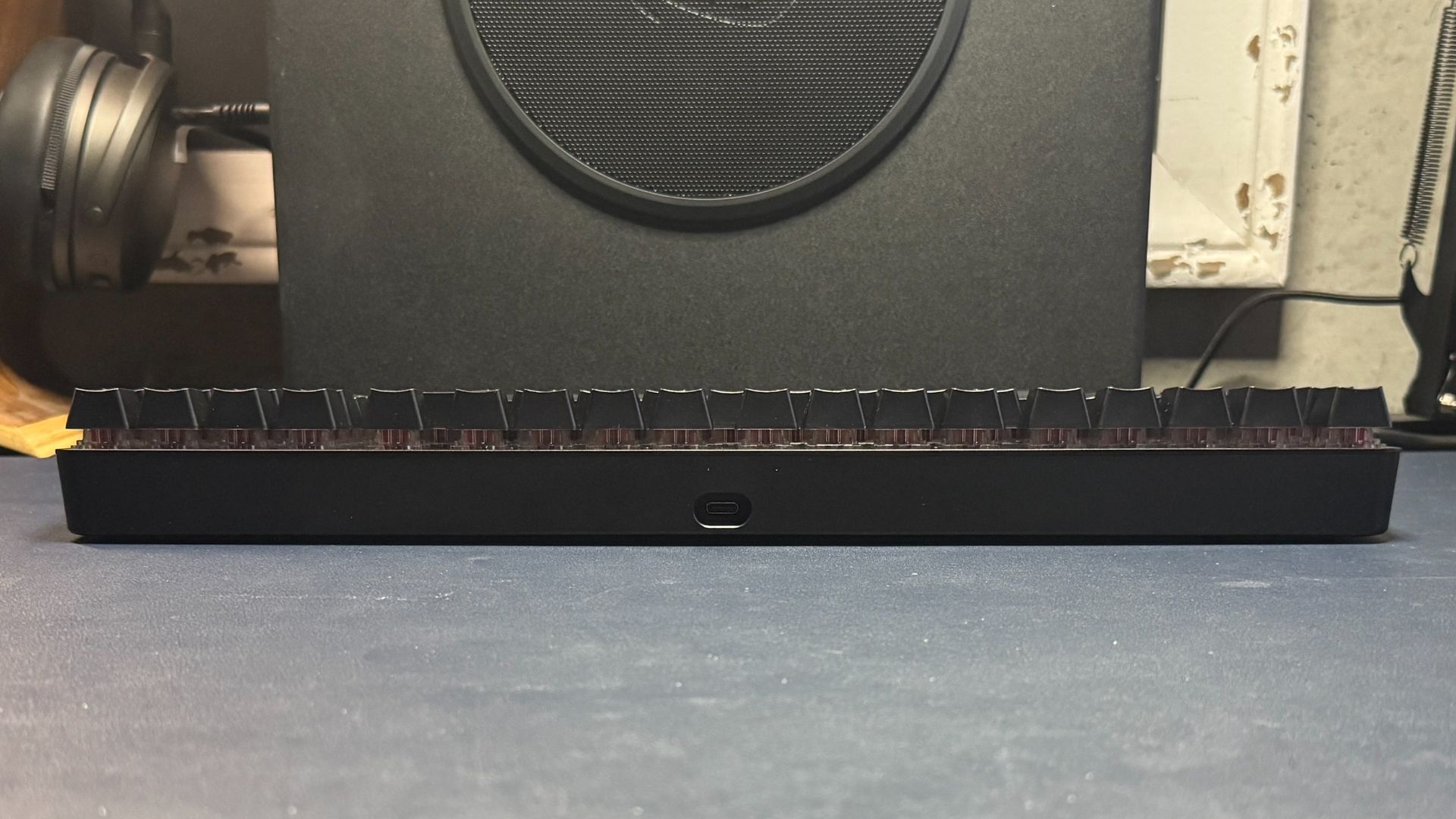
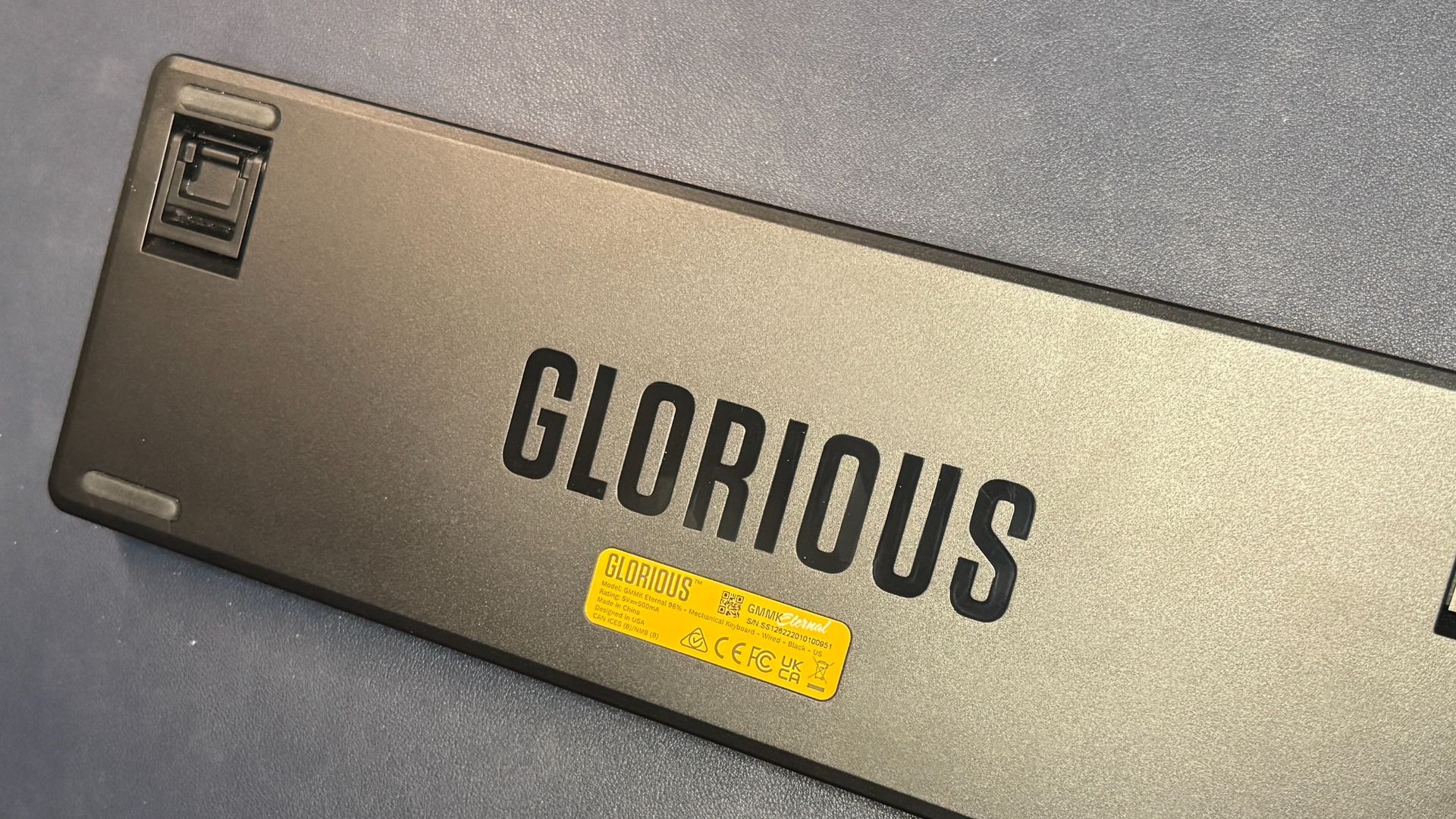
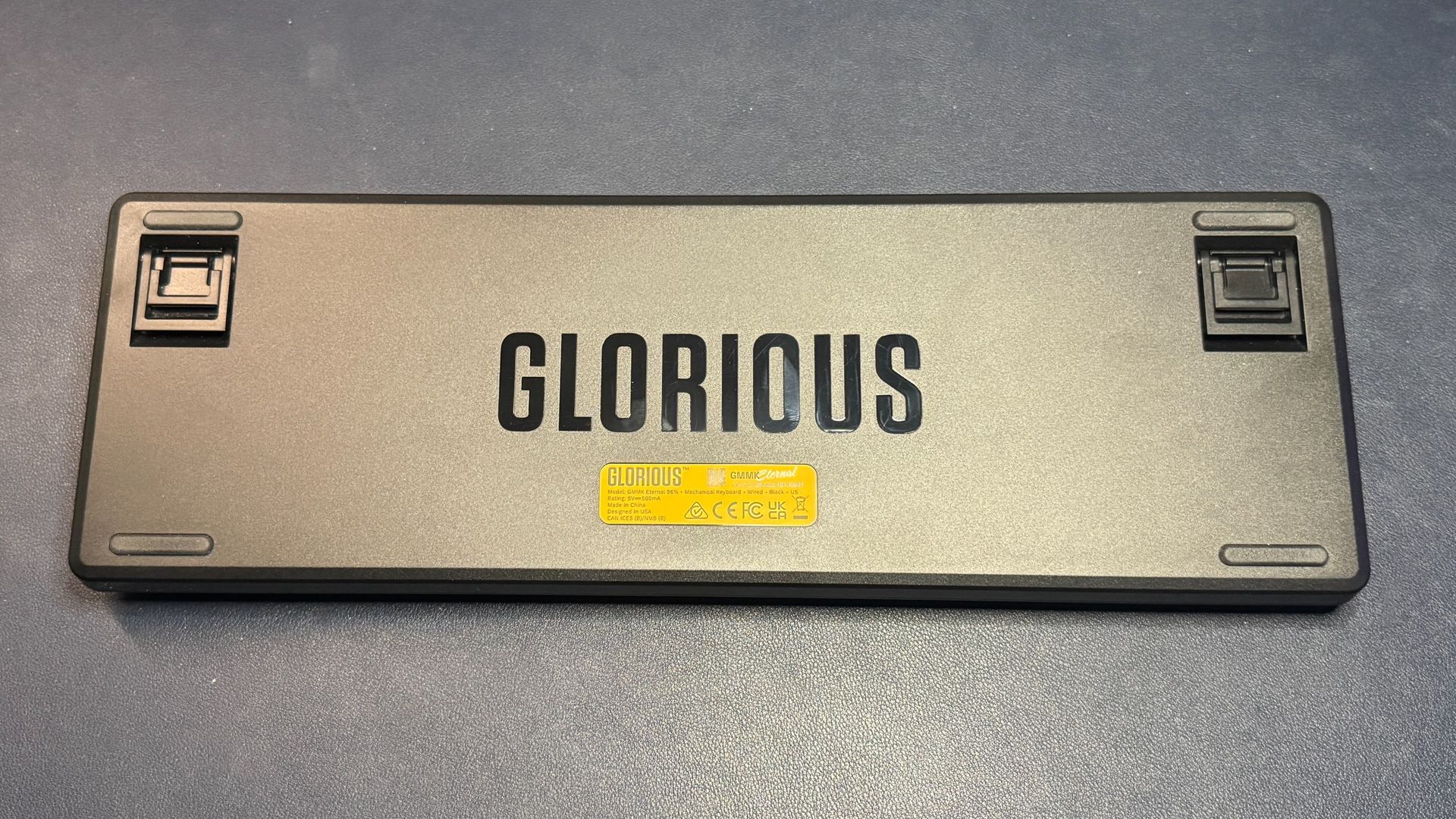
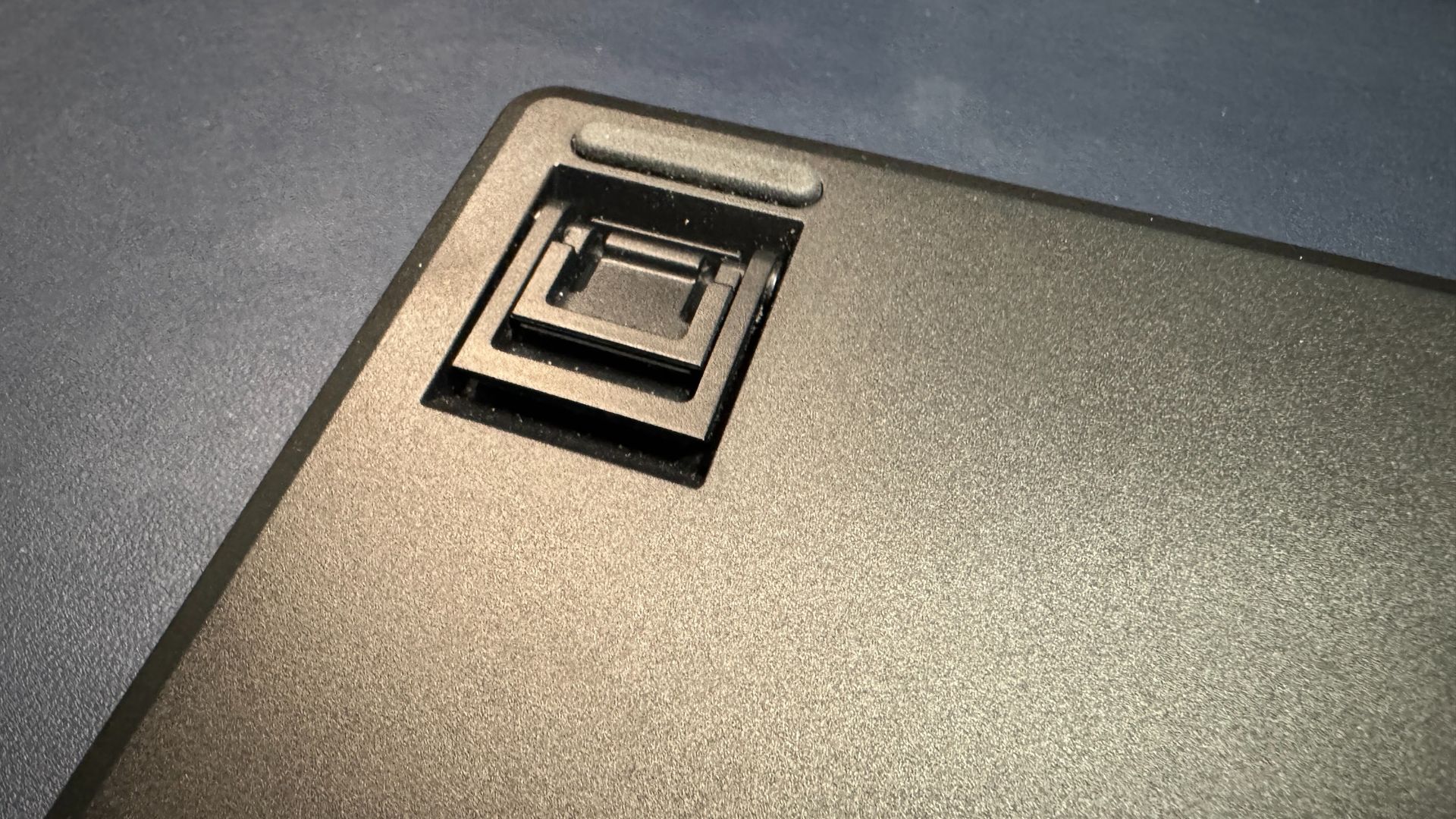
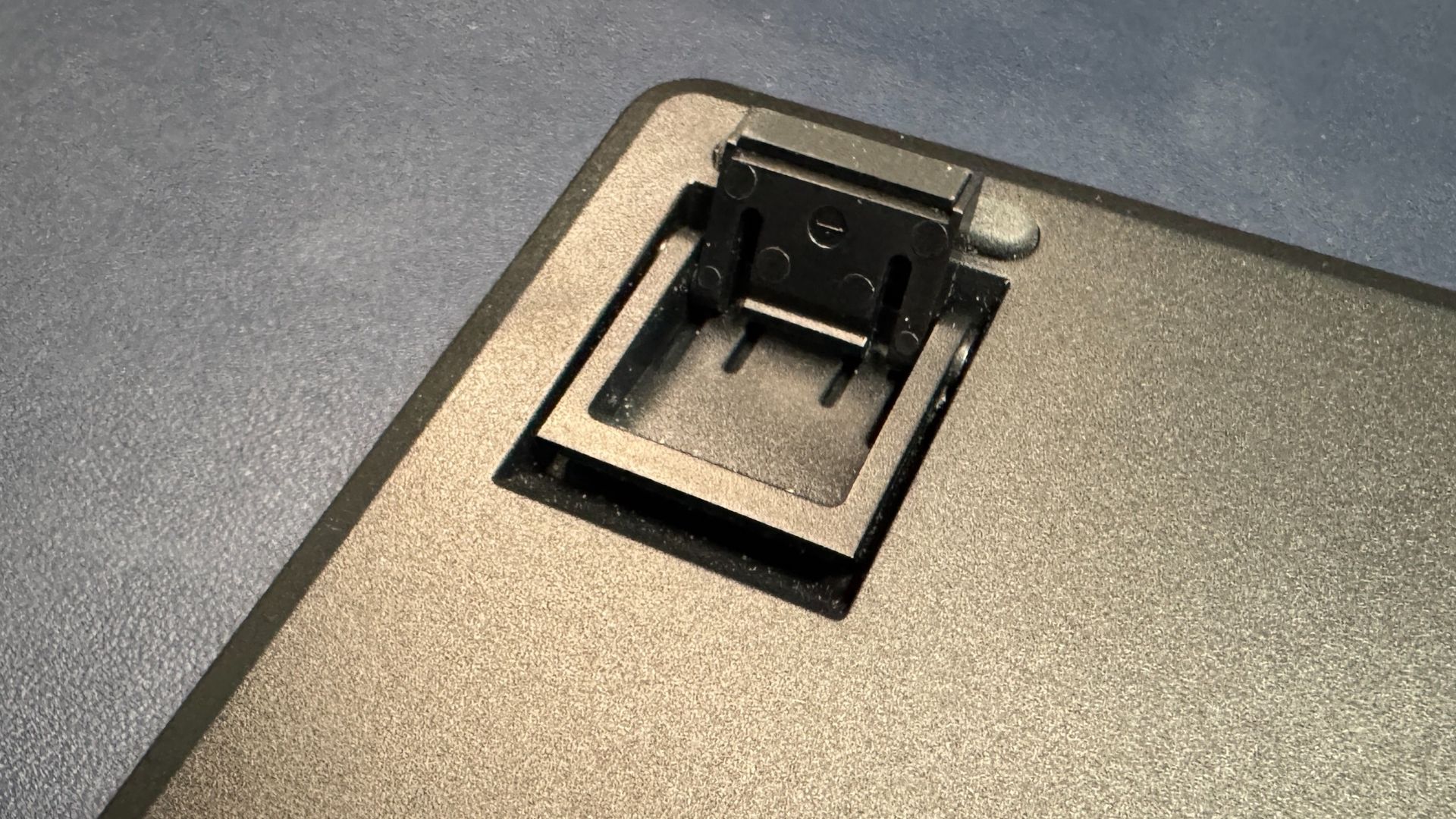
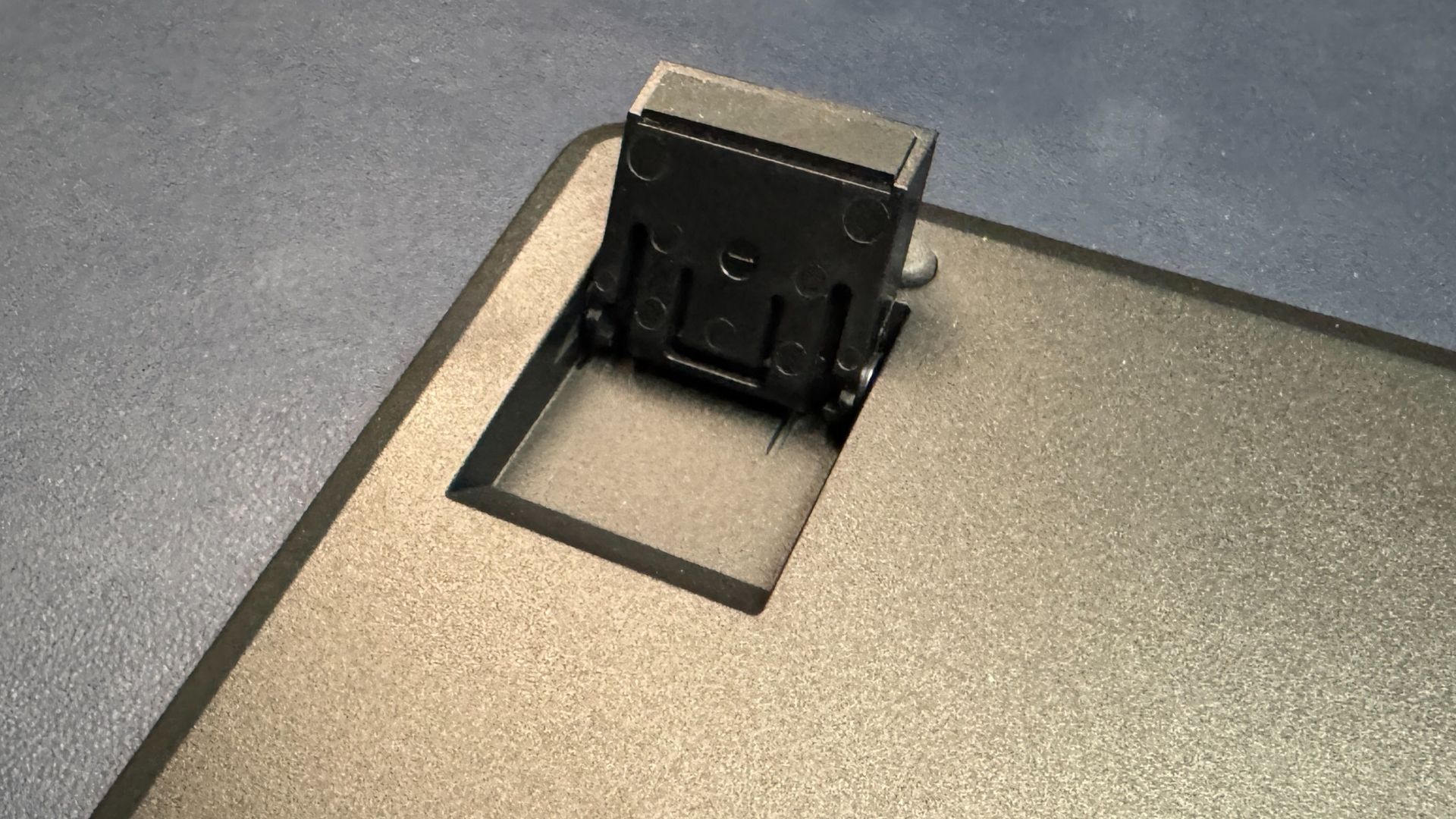
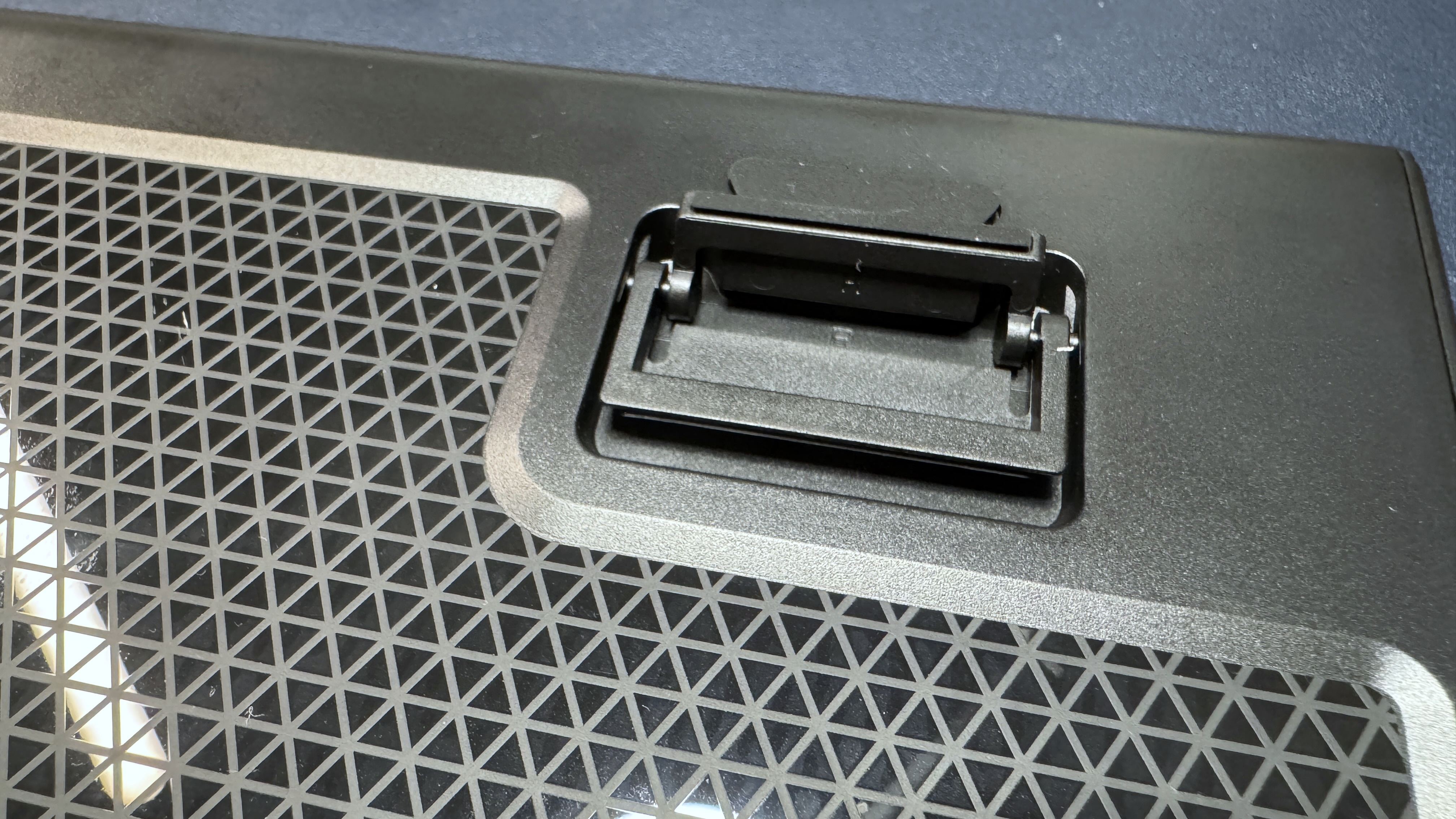
The bottom of the keyboard is where you'll finally see Glorious' branding. The Glorious name is stamped across the back, debossed with a shiny finish. There are also a couple strips of anti-slip rubber, as well as two sets of plastic flip-out feet for adjusting the keyboard's angle. The GMMK Eternal is a wired keyboard, and it has one USB-C port in the center of the board.
(Image credit: Tom's Hardware)
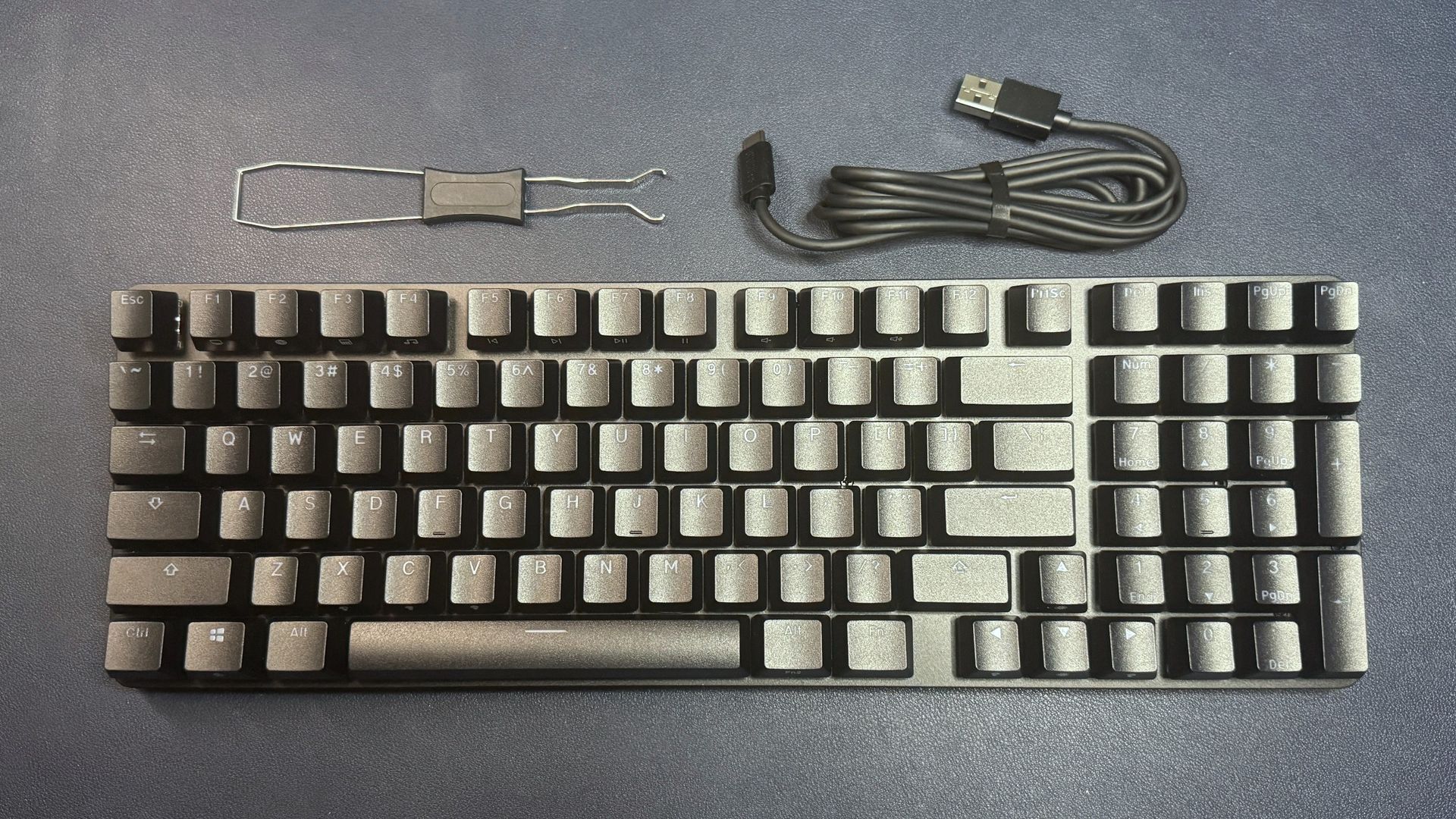
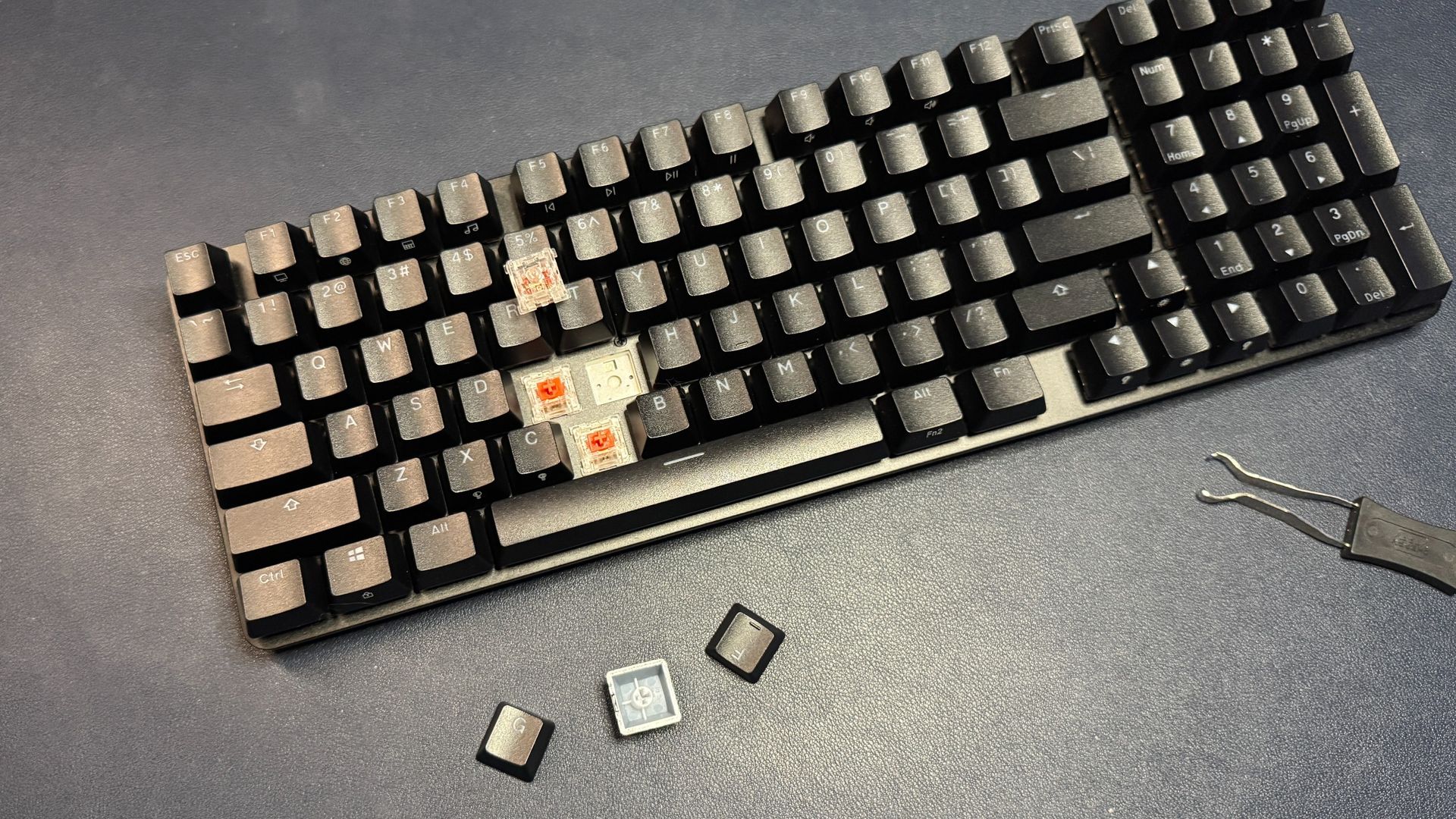
The GMMK Eternal comes with just two accessories in the box: a 6-foot (1.8m) rubber-coated USB-C to USB-A cable and a 2-in-1 combination keycap and switch puller.
Specs
Size
96%
Number of keys
99
Switches
Glorious Fox Switches
Backlighting
Yes
Onboard Storage
Yes (3 profiles)
Dedicated Media Keys
No
Game Mode
Yes / No
Additional Ports
0
Connectivity
Wired (USB-C)
Cable
6ft. / 1.8m USB-C to USB-A
Keycaps
double-shot ABS
Construction
Anodized aluminum top plate ABS bottom case
Software
Glorious Core
Dimensions (LxWxH)
14.6 x 4.8 x 1.7" / 372 x 122 x 44mm
Weight
1.94lbs / 879g
MSRP / Price at Time of Review
$99.99
Release Date
Sept. 8, 2026
Typing and Gaming Experience on the GMMK Eternal
The GMMK Eternal is a mechanical gaming keyboard with a hot-swappable PCB that takes both 3- and 5-pin switches. It comes pre-built with Glorious' Fox switches, which are pre-lubed linear switches with an actuation force of 55g — a little heavier than your average linear switch, but I kind of liked the extra force. The switches are otherwise typical linear switches, with smooth, stable keypresses that have no tactile bump or audible click. They're rated for 50 million clicks.
Tom's HardwareTom's HardwareTom's Hardware
The keyboard features three layers of sound-dampening material in the case: a molded silicone layer and two layers of PU foam around the PCB, for a "deeper, more satisfying thock." And I'll admit that I was pretty impressed with how the GMMK Eternal sounded out of the box — especially for a sub-$100 keyboard from a mainstream gaming company. There was a small amount of rattle as I typed, but the case, at least, was solid and ping-less, and bottoming out did give a deeper sound (if not quite a "thock").
The GMMK Eternal comes with double-shot ABS keycaps in an OEM profile, which is the standard, medium-height profile you'll find on most mainstream gaming keyboards. The keycaps have lightly cupped, textured tops with shine-through legends and secondary legends printed on the sides in white. While I usually prefer lower-profile keycaps, I didn't mind these — the keyboard is fairly compact and low-profile to begin with, so I didn't find the standard height OEM profile to be uncomfortable (nor did I feel like I needed a wrist rest).
The GMMK Eternal is a solid option for both typing and gaming — I didn't have any issues with accuracy, speed, or response time in my testing, minus the normal learning curve of getting used to having the arrow keys right on top of the alphanumeric keys.
Features and Software of the GMMK Eternal
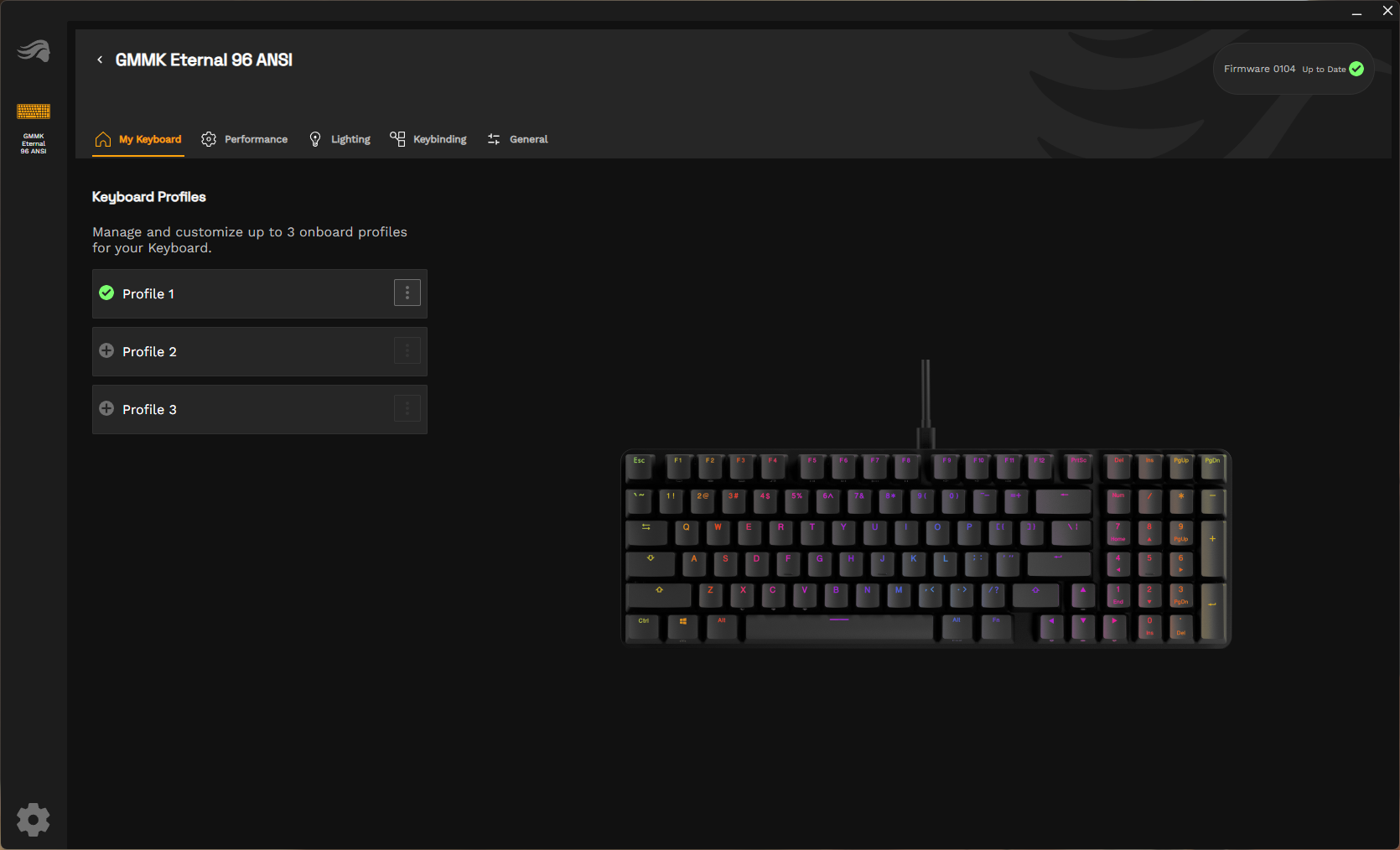
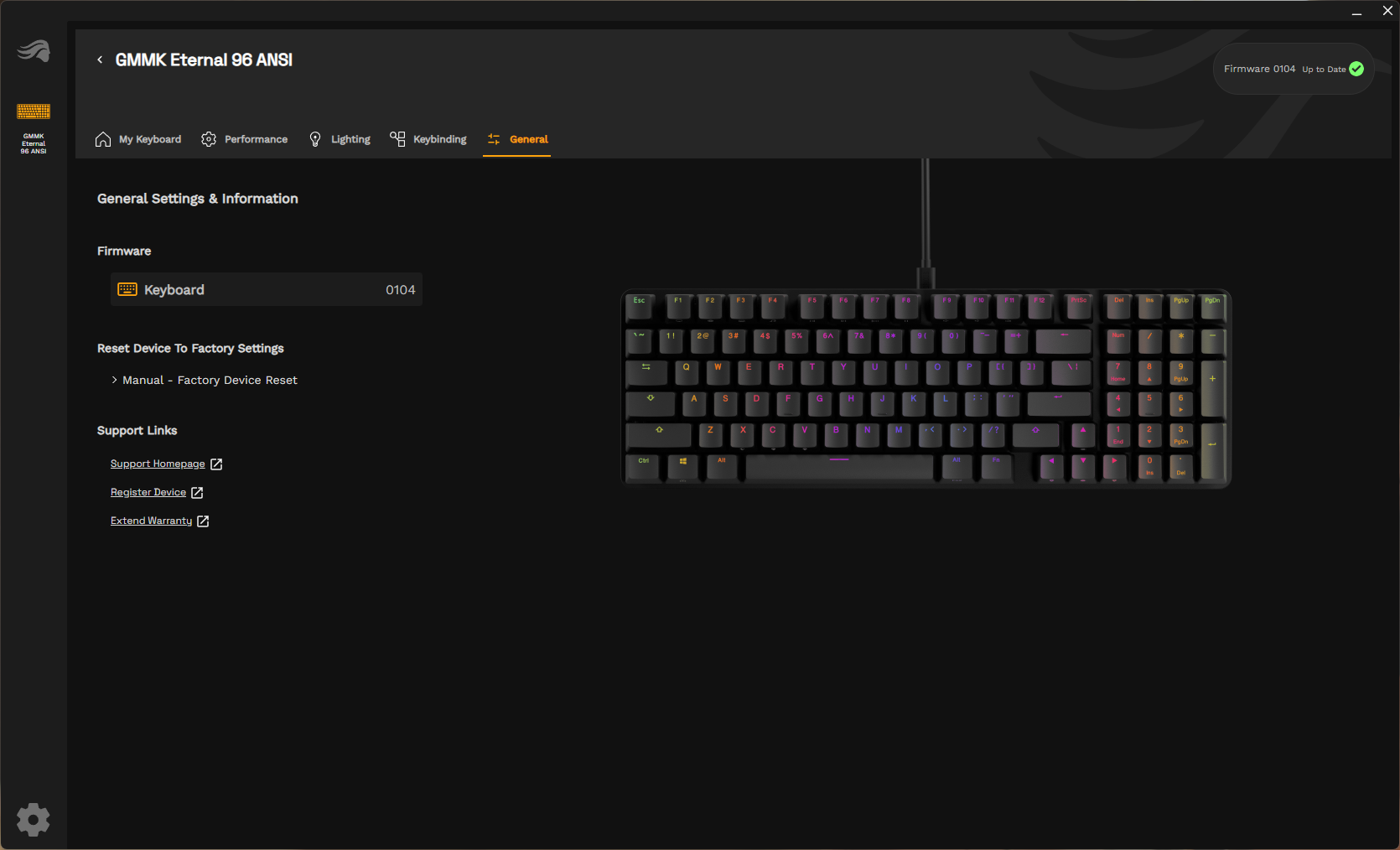
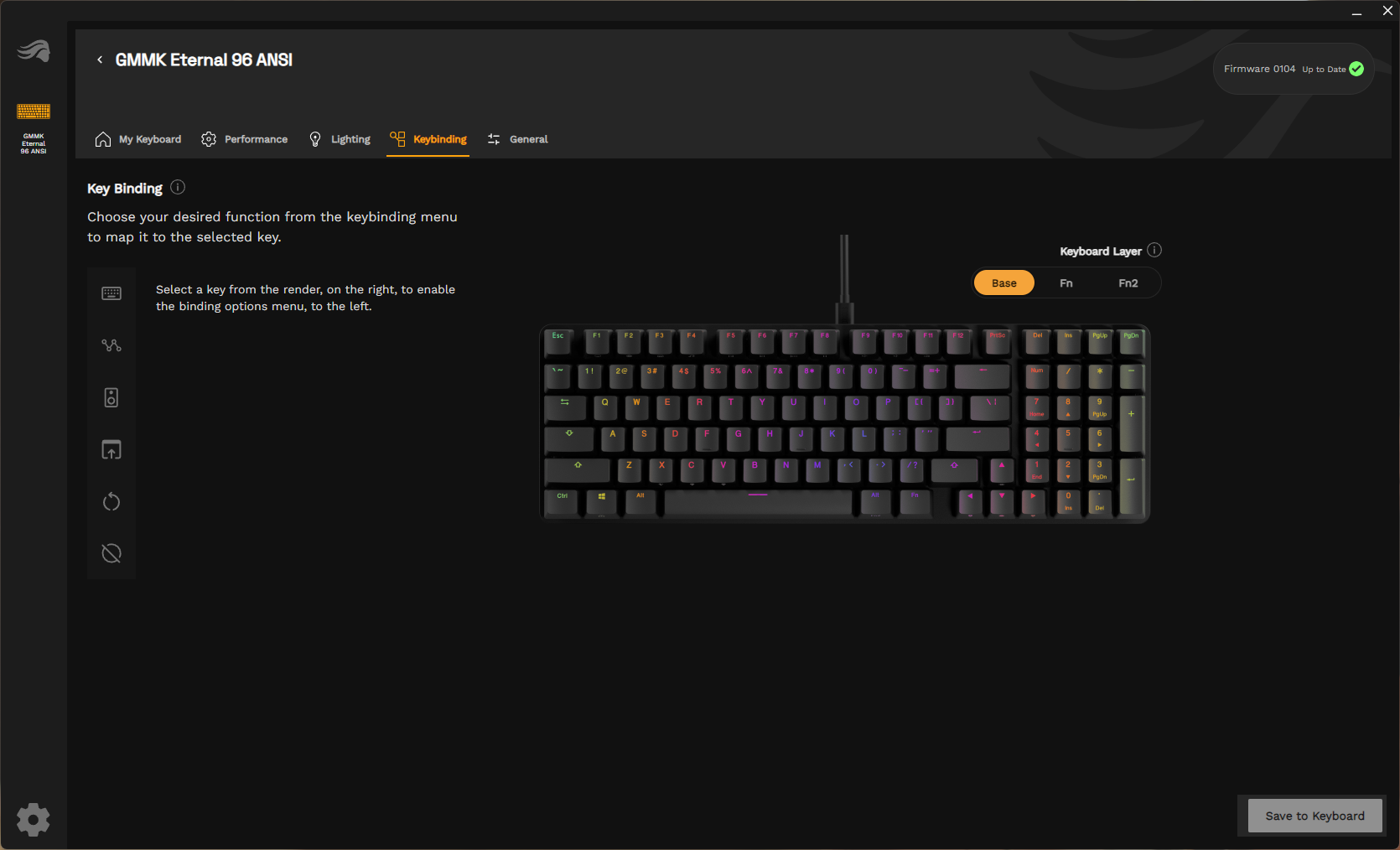
The GMMK Eternal is configurable with Glorious' universal peripheral software, Glorious Core, which I don't have any real problems with, save for the fact that it requires a restart upon install. The keyboard has onboard storage, and you can set up up to three profiles in Glorious Core to save directly to the hardware.
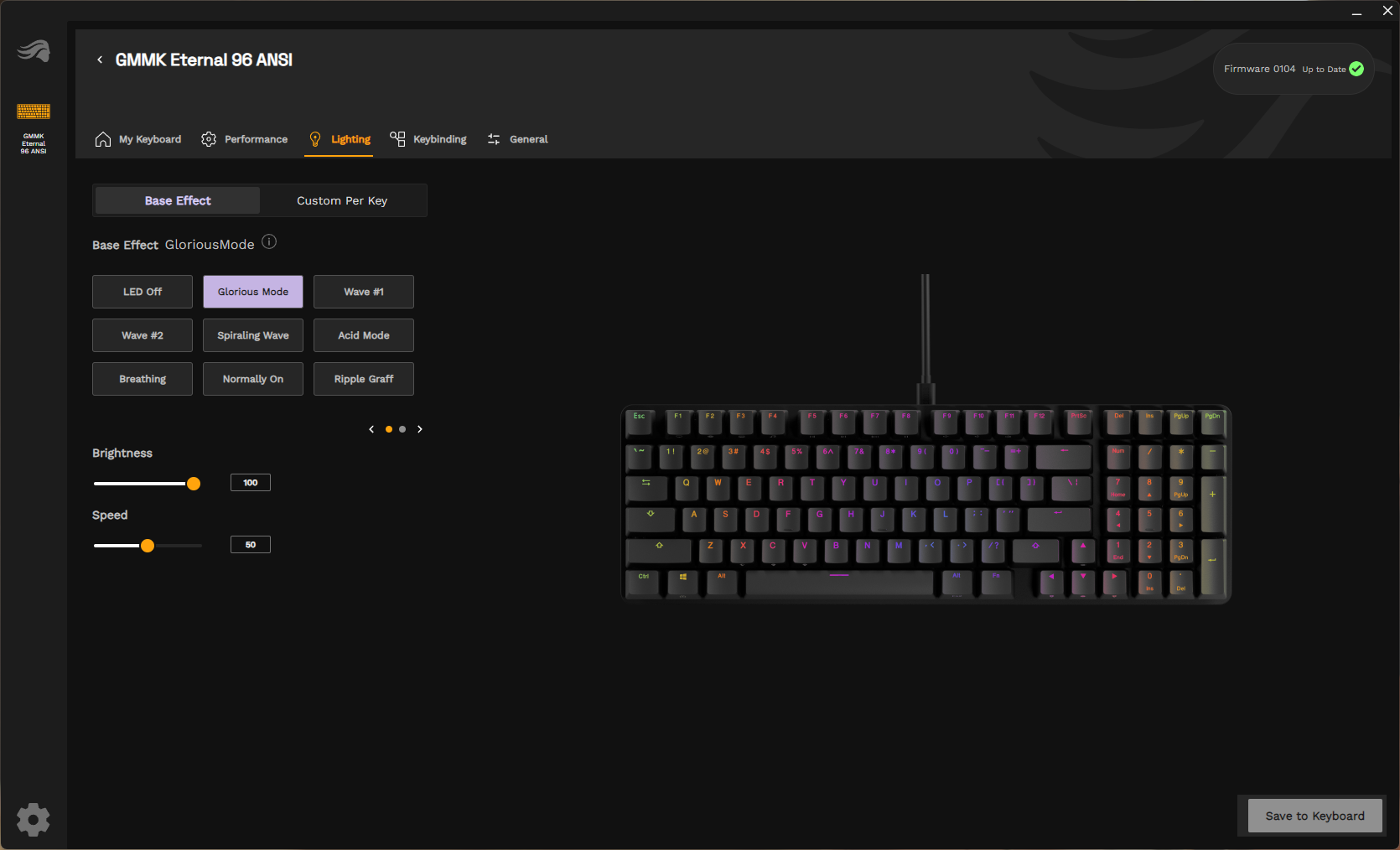
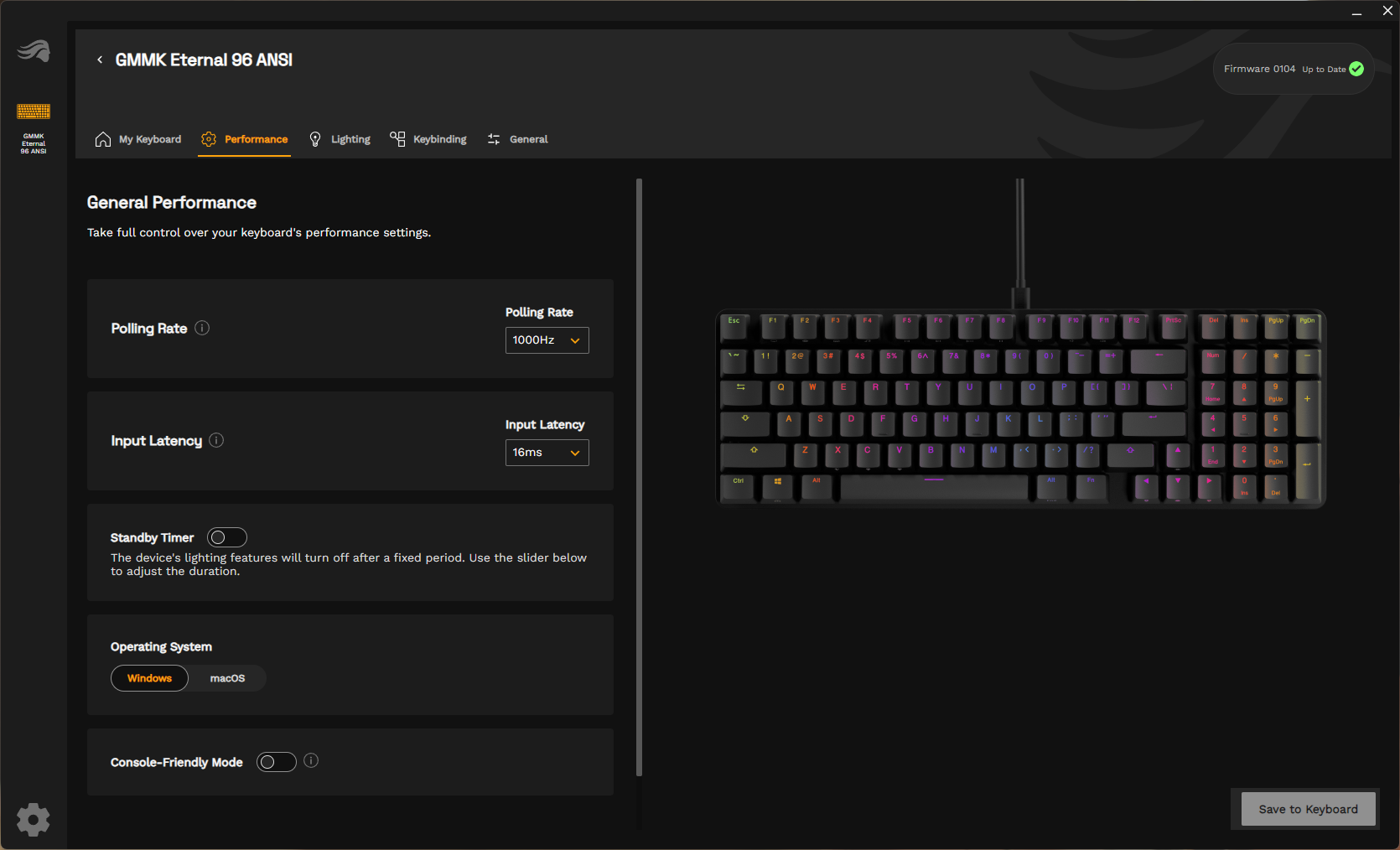
You can use Glorious Core to adjust the keyboard's settings, including polling rate, input latency, and lighting standby timer, as well as switching between Windows and Mac modes. This isn't a magnetic switch keyboard, so there's not much else to set up in terms of performance. You can also remap keys — up to two layers deep, and the software has a built-in macro recorder and manager.
You can also customize the keyboard's lighting, which looks great — the board features bright RGB backlighting with a north-facing PCB, and the board's otherwise boring design really lets the lighting shine. There are 17 different lighting presets in Glorious Core, and you can also customize the lighting for each key individually (if you want).
The Bottom Line
The Glorious GMMK Eternal isn't the most exciting keyboard on the market, especially not for gaming. It's a wired keyboard with mechanical switches and a standard 1,000 Hz polling rate, so it's not trying to be the fastest, lowest-latency, RapidTrigger-enabled keyboard that will launch you into a pro-eSports career. Instead, it's a simple, compact keyboard that offers a very solid typing and gaming experience with hot-swappable switches and pretty RGB lighting for the relatively budget-friendly price of $100. While you can definitely find keyboards for less than $100, you probably won't find one that sounds and feels better than the GMMK Eternal.
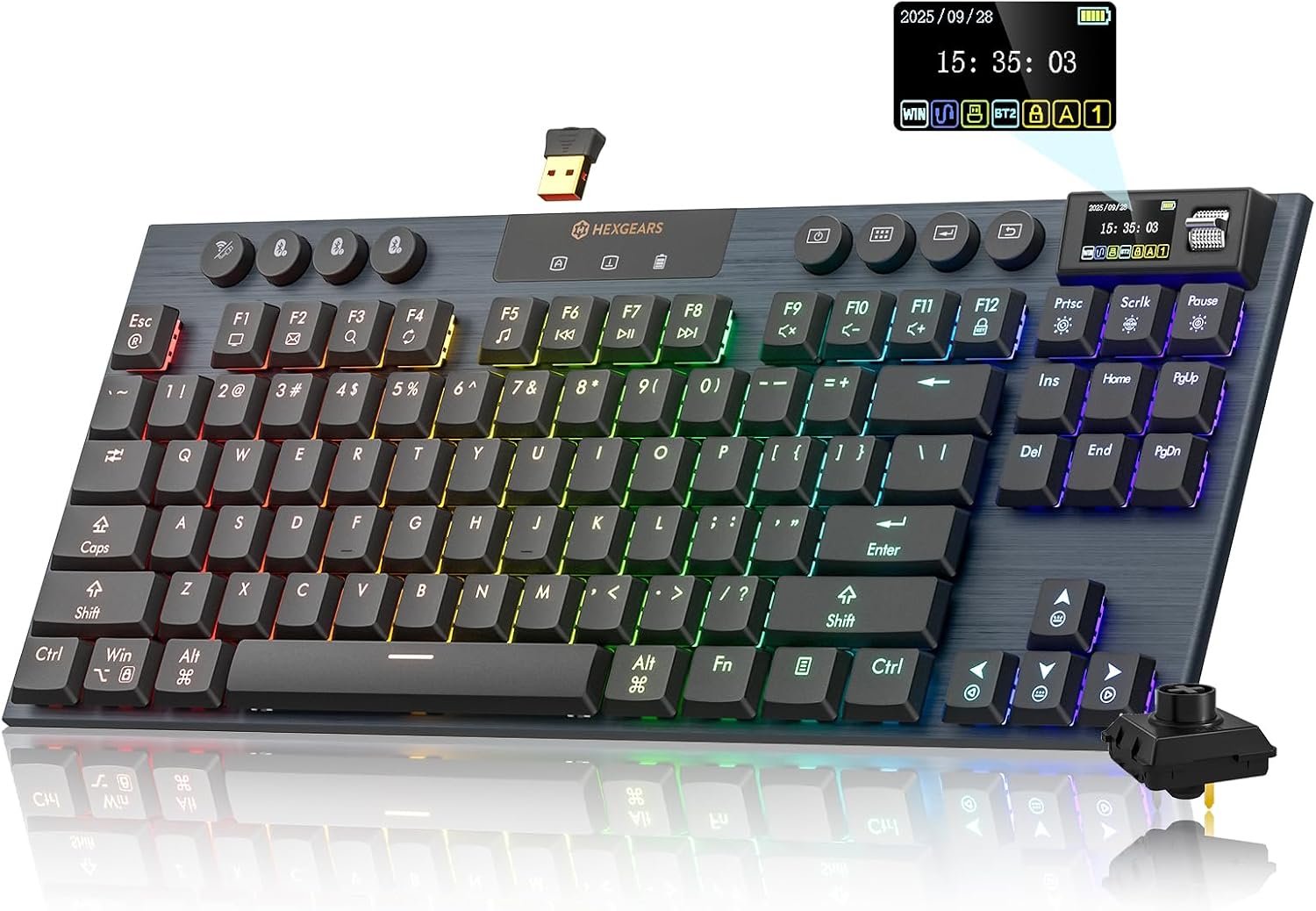
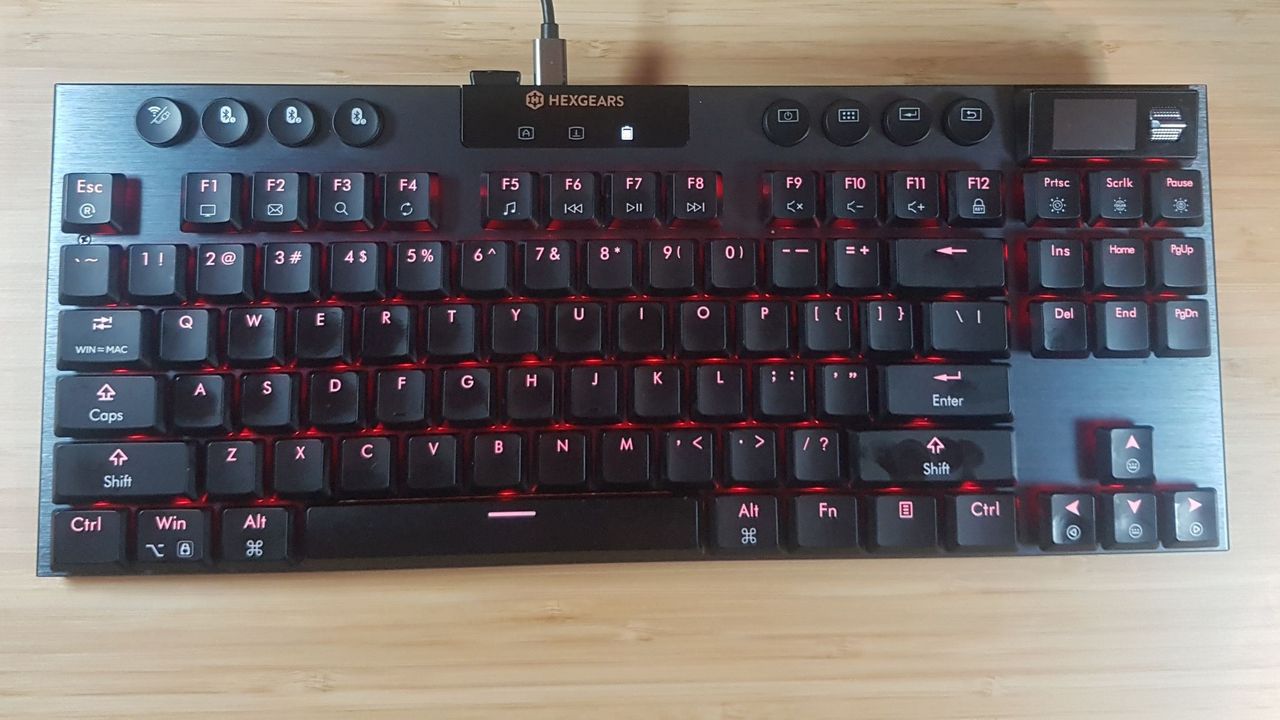
If you fancy a cheeky little PC upgrade that doesn't involve raiding your savings for memory or storage, then how about sprucing up your peripherals? Your mouse and keyboard get the most use and abuse on the daily, and although a good clean and maintenance can extend their life by years, sometimes they just get a little too grotty and need to be swapped out. Keyboards, however, can command a good chunk of cash these days too, so finding a great deal like today's really helps you land a winning upgrade. At Amazon, you can clip a coupon and add the code Q2BJETPO at checkout to pick up the Hexgears low-profile Immersion A3 TKL gaming keyboard for just $42.20. That's a saving of $30.59 on the current list price, and a superb value considering this keeb launched at $159 in 2024.
The Hexgears Immersion A3 features plenty of bright, gamer-ready RGB lighting with onboard profiles and more available via the Hexgears software. The keyboard also features a small TFT screen that gives you current keyboard info, such as a Caps Lock indicator and battery life updates. You can also upload customizable GIFs to personalize your peripheral further.
The Immersion A3 TKL is very thin, and it doesn’t take up much desk space, thanks to its compact TKL layout. There's a choice of switch types, with all versions available for the same price. Choose between Kailh White Rain (silent, linear), Kailh Black Cloud (tactile), or Kailh Hide Mountain (clicky). All of these switches are low-profile and come pre-lubed, with a total travel distance of 2.8mm. The Immersion A3's PCB is hot-swappable, with other 3-pin switches, so you can change up your low-profile switches in the future if you have a preference or fancy something different.
Immersion A3 TKL: was $72.79 now $42.20 Hexgears Immersion A3 combines the small footprint of a TKL keyboard with low-profile keycaps and switches, and multi-connectivity with 2.4GHz wireless, Bluetooth, plus a wired connection. There's even a small TFT screen to monitor battery life or host a personalized GIF.
Clip the coupon, then add code Q2BJETPO at checkout to receive the combined $30.59 discount. View Deal
A wireless, low-profile keyboard for just $42.20 is an absolute bargain, especially with so many features. Its versatile connectivity allows the Immersion A3 to connect to multiple devices easily via 2.4GHz wireless, Bluetooth (up to three connections), or wired via a 5.9-foot (1.8m) USB-A to USB-C cable.
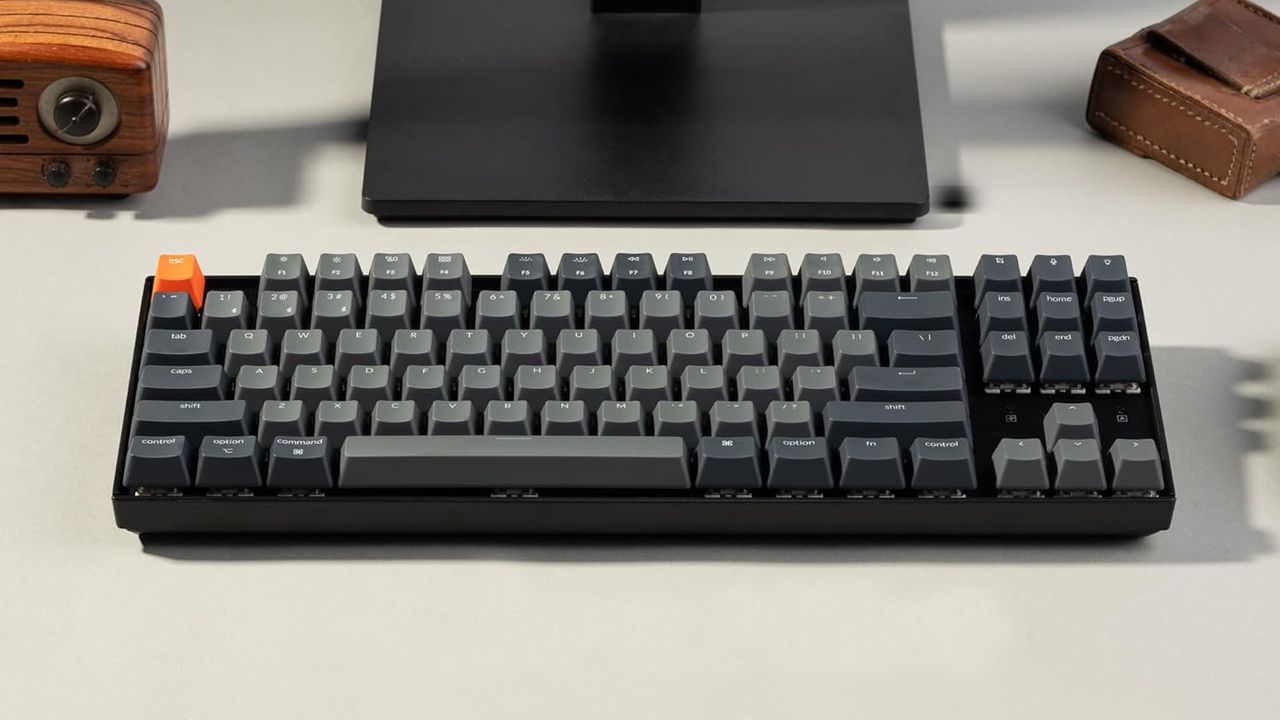
There are loads of budget mechanical keyboard options, but few companies do affordable clackers better than Keychron. And the company's 87-key mainstay, the Keychron K8, is on sale at Woot for the lowest-ever price of just $34.99 when you add the code KEYCRON. In fact, if you're a new Woot customer, the price drops $5 more to just $29!
For this surprisingly low sale price, you get a compact TKL layout, Gateron Red linear switches, and a white backlight – sorry, RGB fans. Note this is the Mac-specific model, but it of course supports both Windows and macOS, and Keychron includes extra keycaps for both operating systems. This model is also wireless, but solely via Bluetooth, so serious gamers will want to connect via the USB-C port for faster response times.
This 87-key keyboard is nicely compact, sports Gateron Red linear switches, keycaps for both Mac and Windows, and a white backlight. It is wireless, but is Bluetooth-only, without an RF USB dongle. So you may want to plug the keyboard in while gaming.View Deal
This model sports a plastic chassis, rather than the metal of some pricier models. But it doesn't look or feel cheap. I used a similar (slightly more compact) Keychron K2 for years as my main keyboard for work and gaming, and it served me well until I upgraded to the prettier, more premium K8 HE last year. I've used three or four Keychron keyboards extensively over the past several years and have had no serious hardware issues with any of them. My original K2 even survived a soup spill (once I cleaned it and let it thoroughly dry before turning it on again) years ago.
When a keyboard like the Keychron K8 is on sale for just $34, there's no reason to opt for no-name budget options. You could certainly spend more and get something with magnetic switches, RGB, a volume knob, and a metal chassis. But if you spend less, you'll almost certainly wind up with something significantly worse than the Keychron K8.
Desk space is an important commodity, and for some, it's an ongoing battle to keep as much free space as possible. Apart from regularly removing clutter, one thing that has popped up over the years is the minimization of keyboard sizes. Gamers have gotten used to sporting tiny 60% keyboards in an effort to free up more space for unhindered mouse movement, but what if you still want a useful keyboard for your day job that has a number pad and some function keys? Well, that's where this keyboard sits: the Corsair Vanguard 96 RGB has a discounted sale price of just $119.99 at Best Buy, a hefty $60 knocked off the $179.99 list price.
The Corsair Vanguard 96 RGB mechanical gaming keyboard is a 96% keyboard that compacts the layout so it can fit a number pad, arrow keys, function keys, six G-keys (macro/elgato), an LCD screen, and even a rotary dial, all while keeping the overall dimensions of the keyboard around the standard size of a TKL (TenKeyLess) keyboard.
To achieve this compact form factor, some of the traditional key dimensions have changed, such as the zero key on the number pad and the removal of the right CTRL button. So a little muscle memory reprogramming may be needed to fully acclimatize to this keyboard.
Other features of the Corsair Vanguard 96 RGB include an 8000 Hz polling rate for super low-latency gameplay, pre-lubed Corsair MLX switches, a hot-swappable PCB (supports 3 & 5-pin switches), RGB lighting, four-layer sound-dampening foam and silicone, and Elgato Virtual Stream Deck integration.
Vanguard 96 RGB 96% Mechanical Gaming Keyboard: was $179.99 now $119.99 A compact and colorful gaming keyboard that squeezes in a full number pad, F-Keys, and G-Keys with Elgato Stream Deck integration. Place pictures or animated GIFs on the full-color LCD screen and easily control your volume with the rotary dial. Pre-lubed Corsair MLX switches offer a smooth gaming and typing experience with sound dampening to keep the key-clackiness to a minimum. View Deal
We haven't reviewed this particular model of the Corsair Vanguard, but we did cover the Corsair Vanguard Pro 96, which has the same layout and functionality as the Corsair Vanguard 96 RGB in today's deal, but uses Corsair's MGX magnetic switches instead of Corsair's MLX mechanical switches. So if you want a better idea of the keyboard in this deal, check out that review.
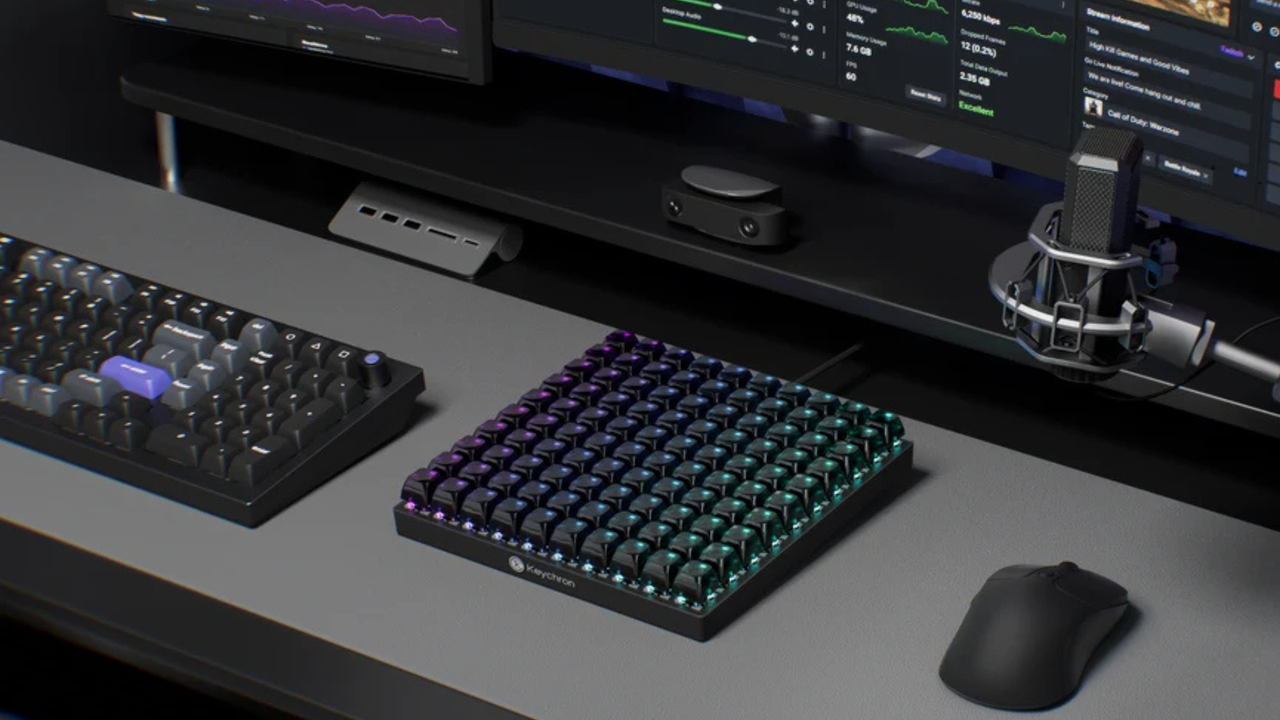
Keychron, which is known for making some of the best mechanical keyboards, just announced the C100 8K macro pad, which is available on Amazon and the Keychron website for $64.99. This massive device features a 10-by-10 customizable keyboard, allowing you to set its functionality as needed (except for the four corner keys). It also uses exclusive pre-lubed Keychron Apex tactile switches, paired with transparent ASA keycaps, making it easier to see its per-key RGB lighting.
The C100 8K is not just any macro pad, though. It features hot-swappable switches, so you can easily replace the Keychron Apex switches with ones that you prefer. It also has an 8K polling rate, making it the perfect macro pad for high-stakes competitive matches. This makes it the perfect addition for those who need a macro pad for both gaming and productivity. The online Keychron QMK launcher also makes it easy to customize the keyboard without requiring you to install software directly on your PC.
This macro pad is compatible with Windows, macOS, and Linux, meaning it will work with most major desktop operating systems. It’s the perfect addition for those who want to be more efficient and find that their MMORPG mouse still doesn’t offer enough buttons for their needs. Because Keychron is known for making some of the best wireless and budget mechanical keyboards, we have high expectations for the functionality and feel of the C100 8K. The only drawback that we can see is that it doesn’t come with a wireless option, so it might be annoying or even a no-go to those who want a wire-free desk.
100 keys might be overkill for most people, but these are actually crucial for those with specialized workloads. Aside from productivity enthusiasts and gamers who want to keep all complicated macros and commands at their fingertips, these are also useful for video editors who work on projects that have hundreds of layers, photo editors working on thousands of images, programmers who frequently input the same commands over and over again, and more. This is also great for sim enthusiasts who want to recreate all the buttons found in race cars, aircraft, trucks, and more, without spending more money on specialized panels. And if they have access to a 3D printer, they can even build their own specialized keycaps for the C100 8K macro pad, turning it from a generic macro pad into something that shows the actual buttons they use for their sims.
We've seen a keyboard with a built-in macro pad, and a keyboard with a touchscreen and a separate, add-on numberpad, but what if you want a keyboard with a numberpad and a built-in macropad without having to spend an extra $100?
I guess that's why there's the Turtle Beach KB5 — a full-size, wired mechanical keyboard with low-profile switches, an 8,000 Hz polling rate, and a built-in 2.4-inch touchscreen that functions as a mini macro pad (with six buttons). It's got the built-in numberpad, unlike the Corsair Galleon 100 SD and the Turtle Beach KB7, as well as the touchscreen / macro pad, though its version is about half the size. Still, maybe that's all you really need. The KB5 is also significantly cheaper than both of those keyboards, which retail for $300 and $200, respectively.
The Turtle Beach KB5 is available now, in black, for $149.99.
Design and Construction of the KB5
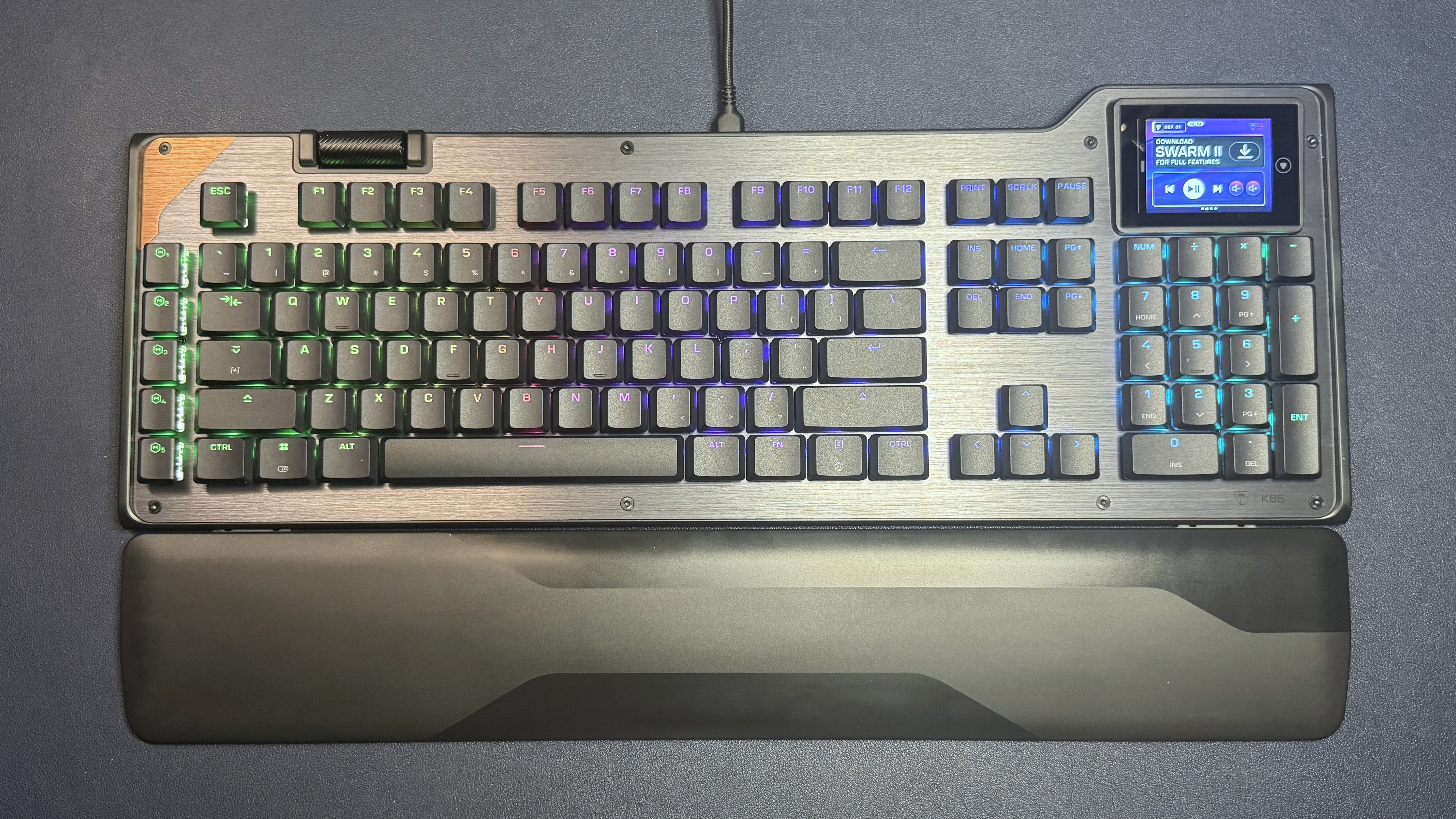
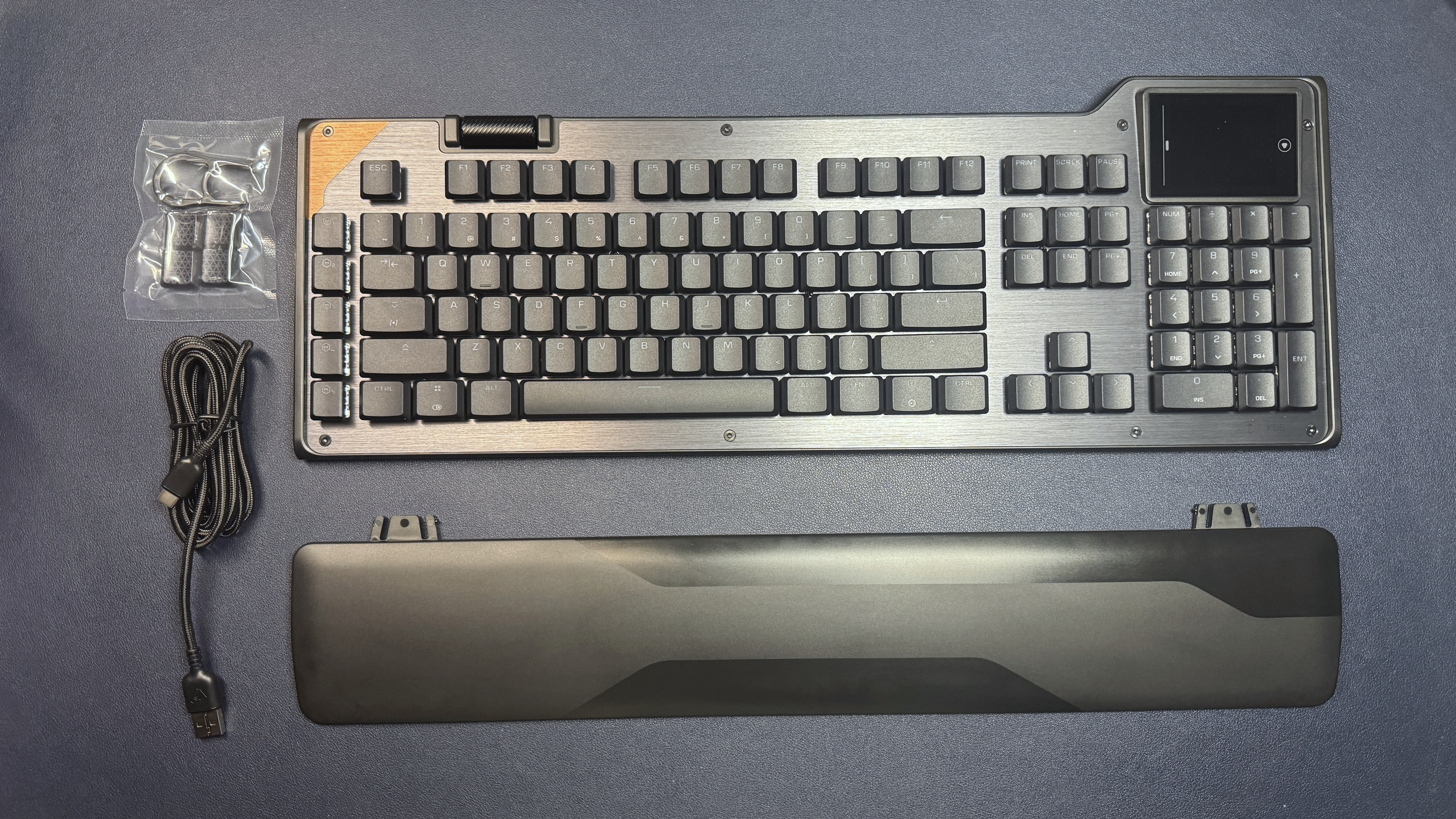
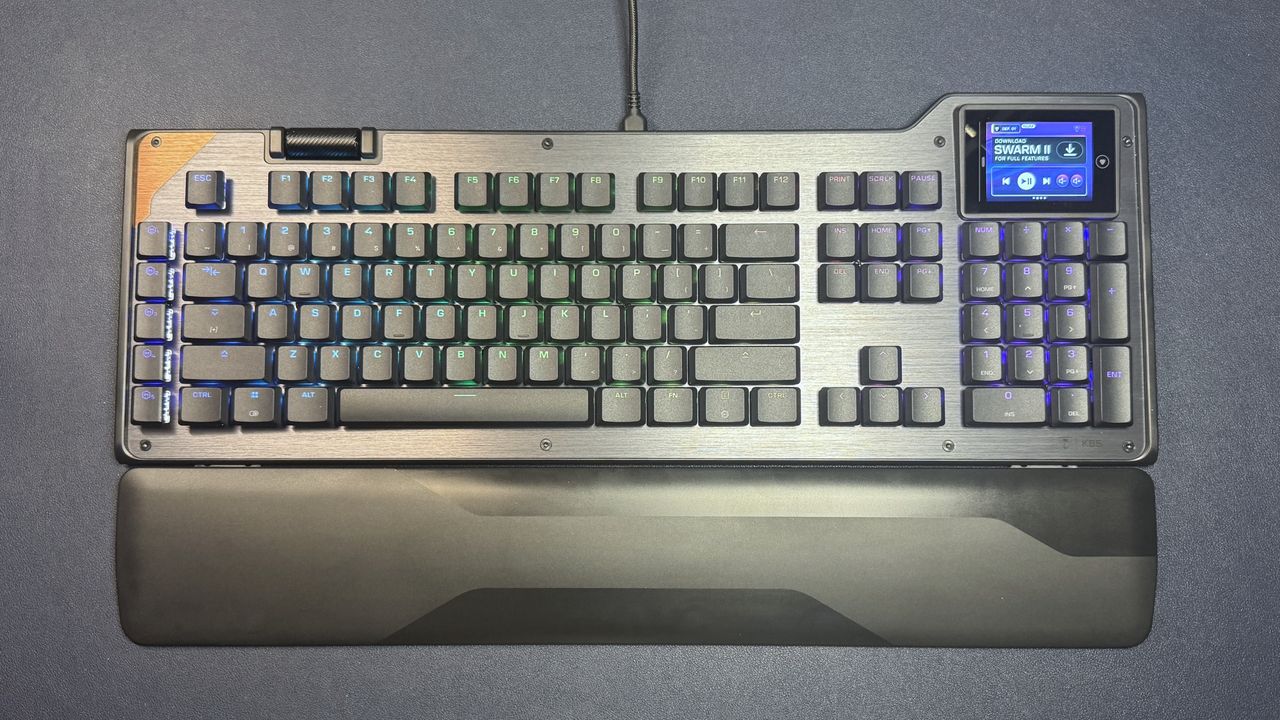
The KB5 is a full-size low-profile wired mechanical gaming keyboard with extra macro keys, a volume roller, and a full-color 2.4-inch touchscreen in the upper-right corner (above the 10-key numberpad). It has a roomy layout and is slightly larger than the average full-size keyboard, measuring approximately 18.78 inches (477 mm) wide by 6.89 inches (175 mm) deep. It's 1.06 inches (27mm) thick at its thickest point, including the keycaps.
(Image credit: Tom's Hardware)
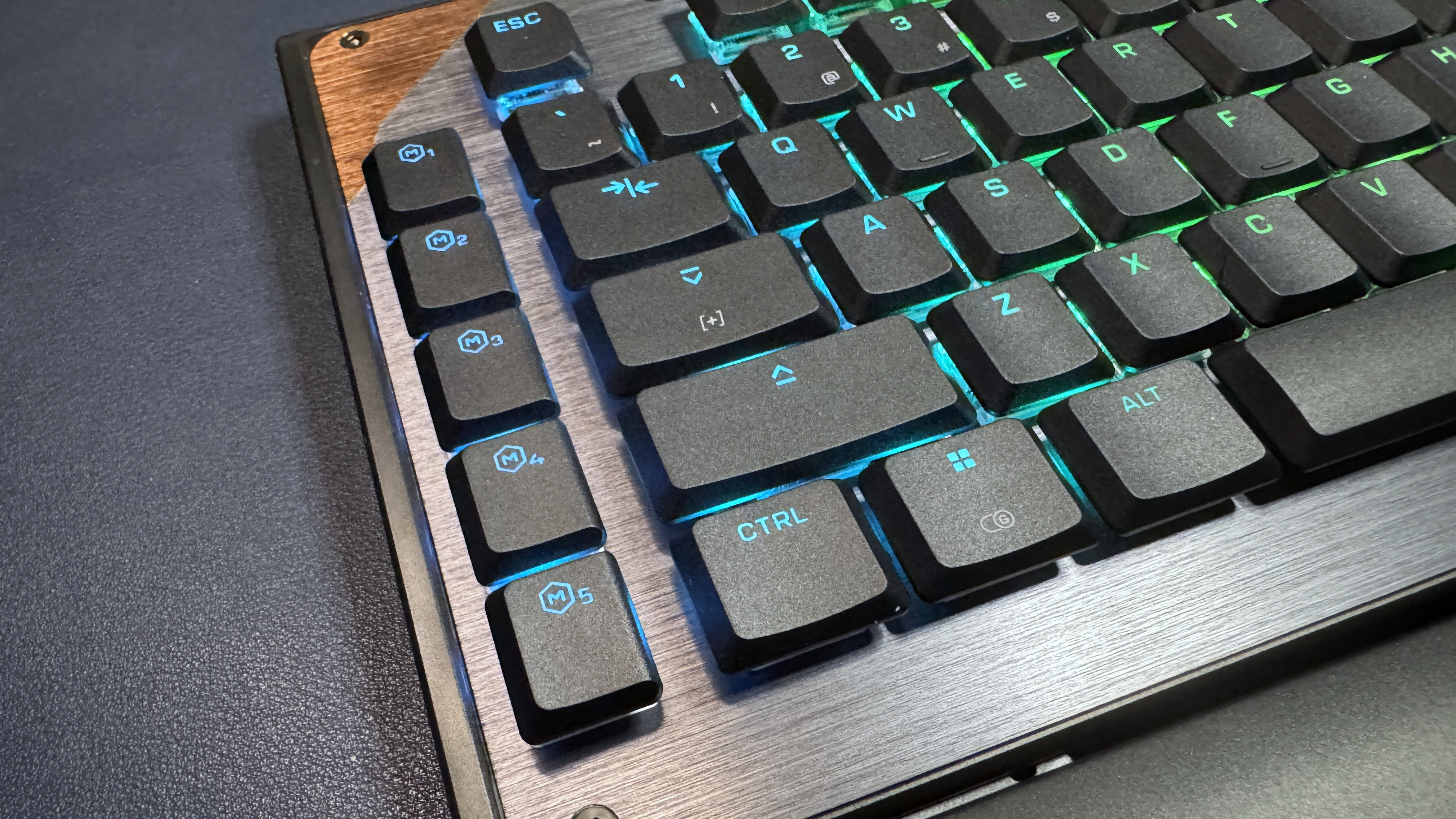
The KB5 has a silver brushed-aluminum top plate with a coppery accent in the upper-left corner. It has a sturdy metal roller bar on the top toward the left side — though it's not really close enough to the left side to be in the corner, and I found it a bit awkward to have to reach over my function row to use the roller. I would have preferred it in a corner or even on the side, like the volume roller on the NZXT Function 2. It's a nicely-built roller, however — thick, metal, clickable, and with etched diagonal lines for grip.
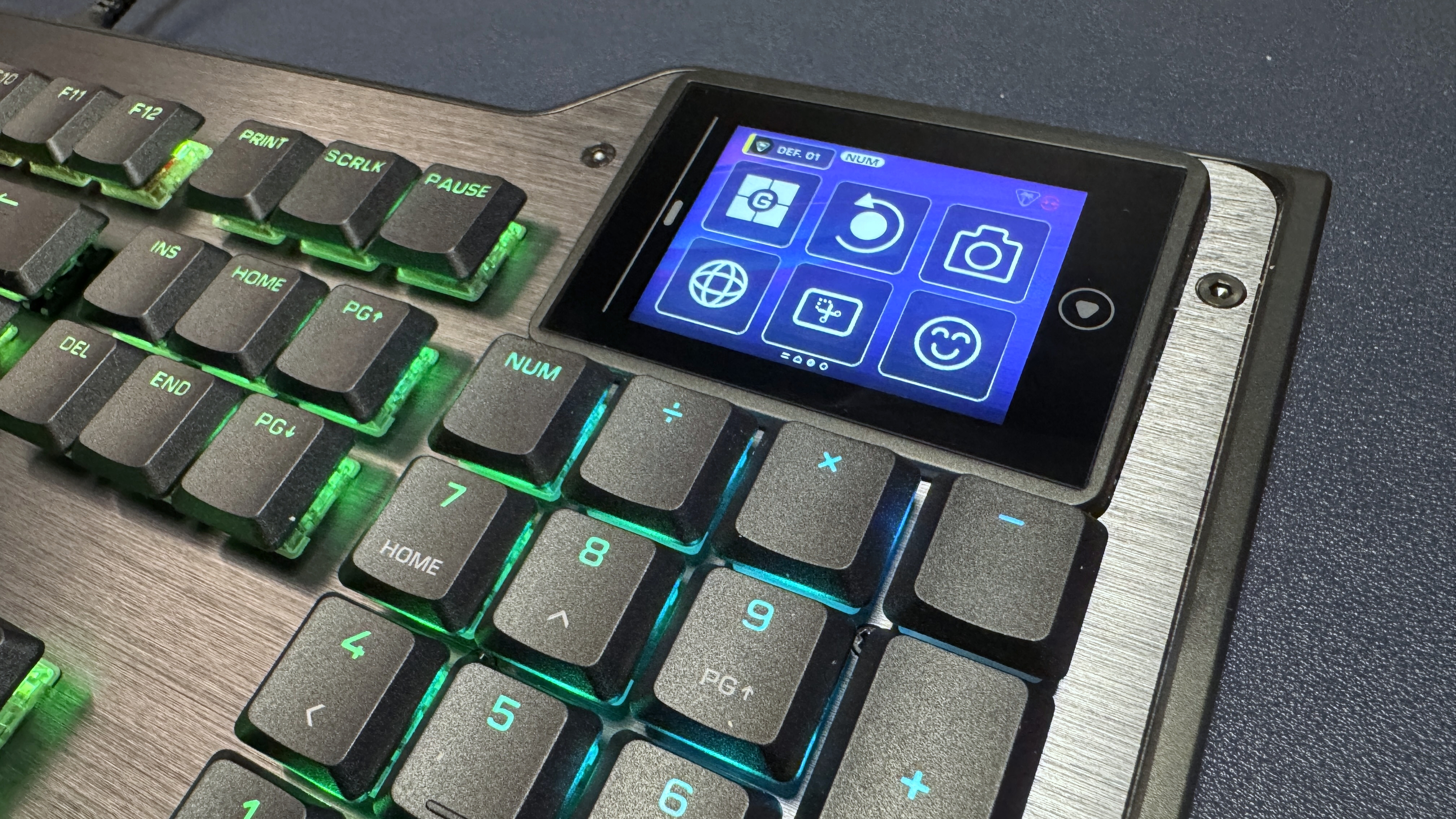
The keyboard also has a row of five macro keys on the left side, as well as a 2.5-inch color touchscreen in the upper-right corner, above the 10-key numberpad. The touchscreen bumps up past the rest of the keyboard — the touchscreen side is just under 7 inches deep, while the other side is about 6.25 inches deep — so it doesn't cut into your keys. The KB5 has a full function row, a full 3x2 navigation cluster, arrow keys, and a full 10-key numberpad, along with the standard alphanumeric keys.
Tom's HardwareTom's Hardware
The KB5 features Turtle Beach's (formerly Roccat's) signature aesthetic — an open board with flat, shallow keycaps that leave the switch exposed, which makes for both easy cleaning and brighter, more visible RGB lighting. The keycaps are low-profile double-shot PBT, with shine-through legends; the board comes with four textured keycaps that you can use to replace the W/A/S/D keys (or, I guess, any four keys) for better recognition.
Tom's HardwareTom's HardwareTom's Hardware
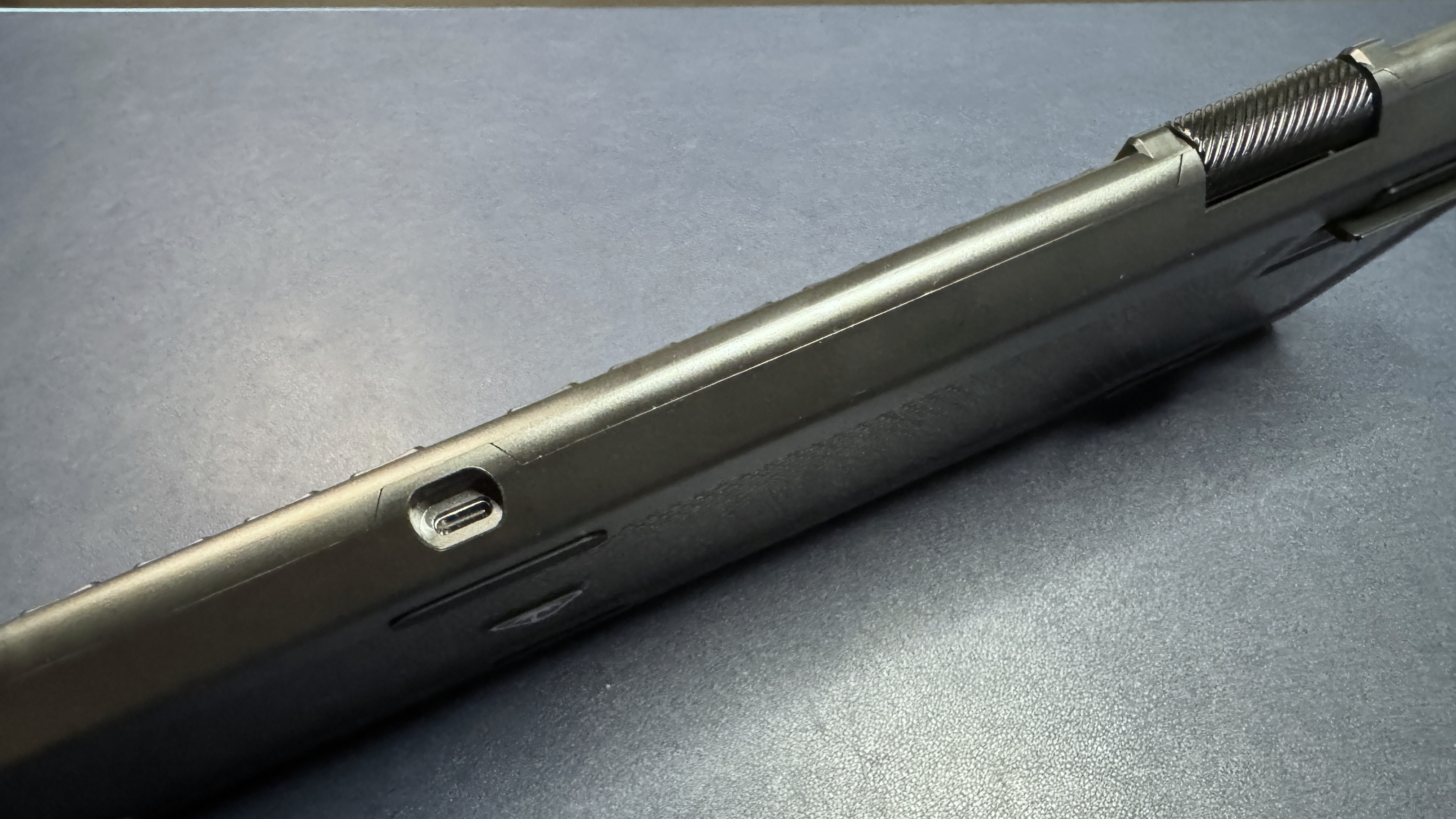
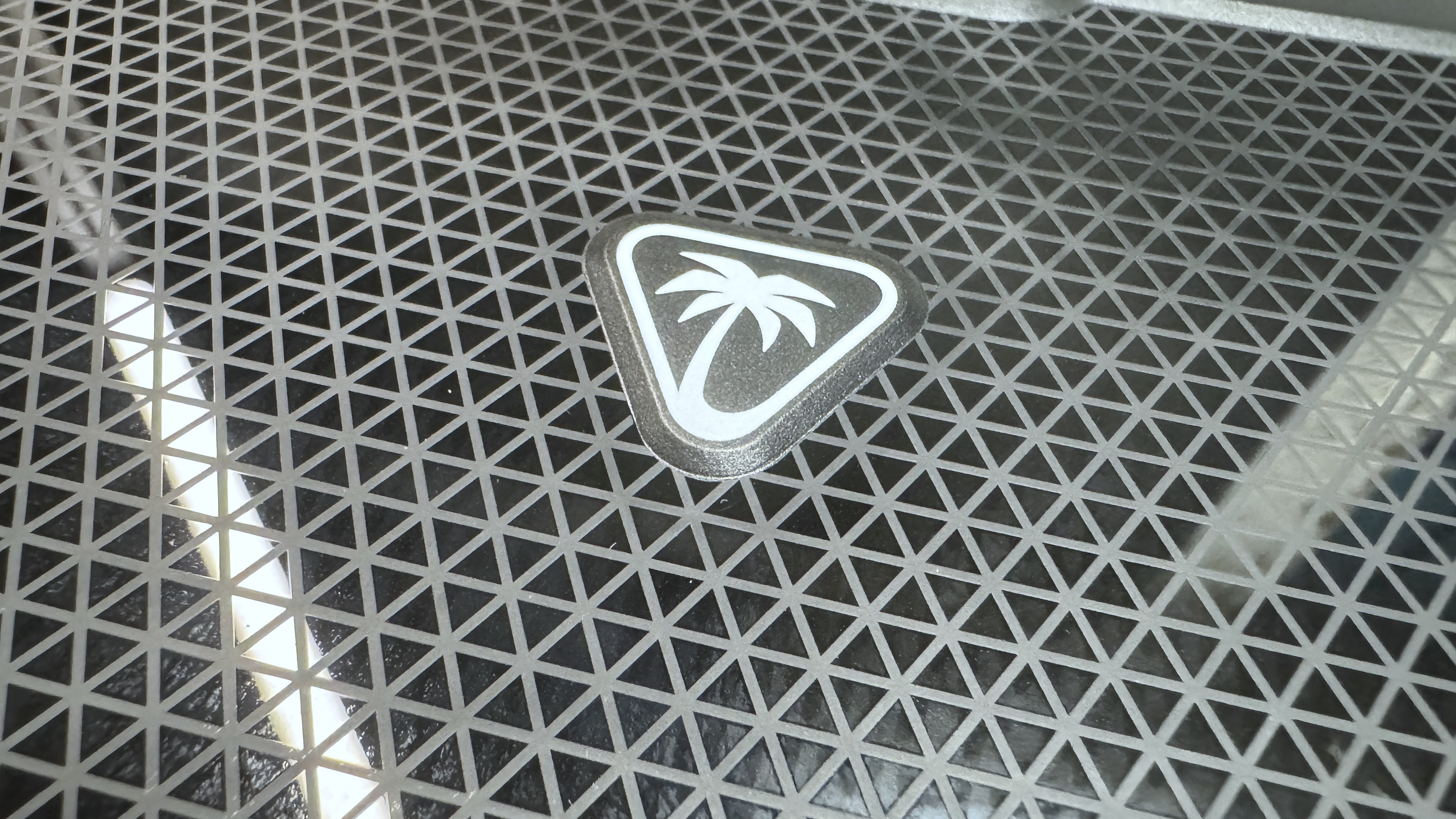
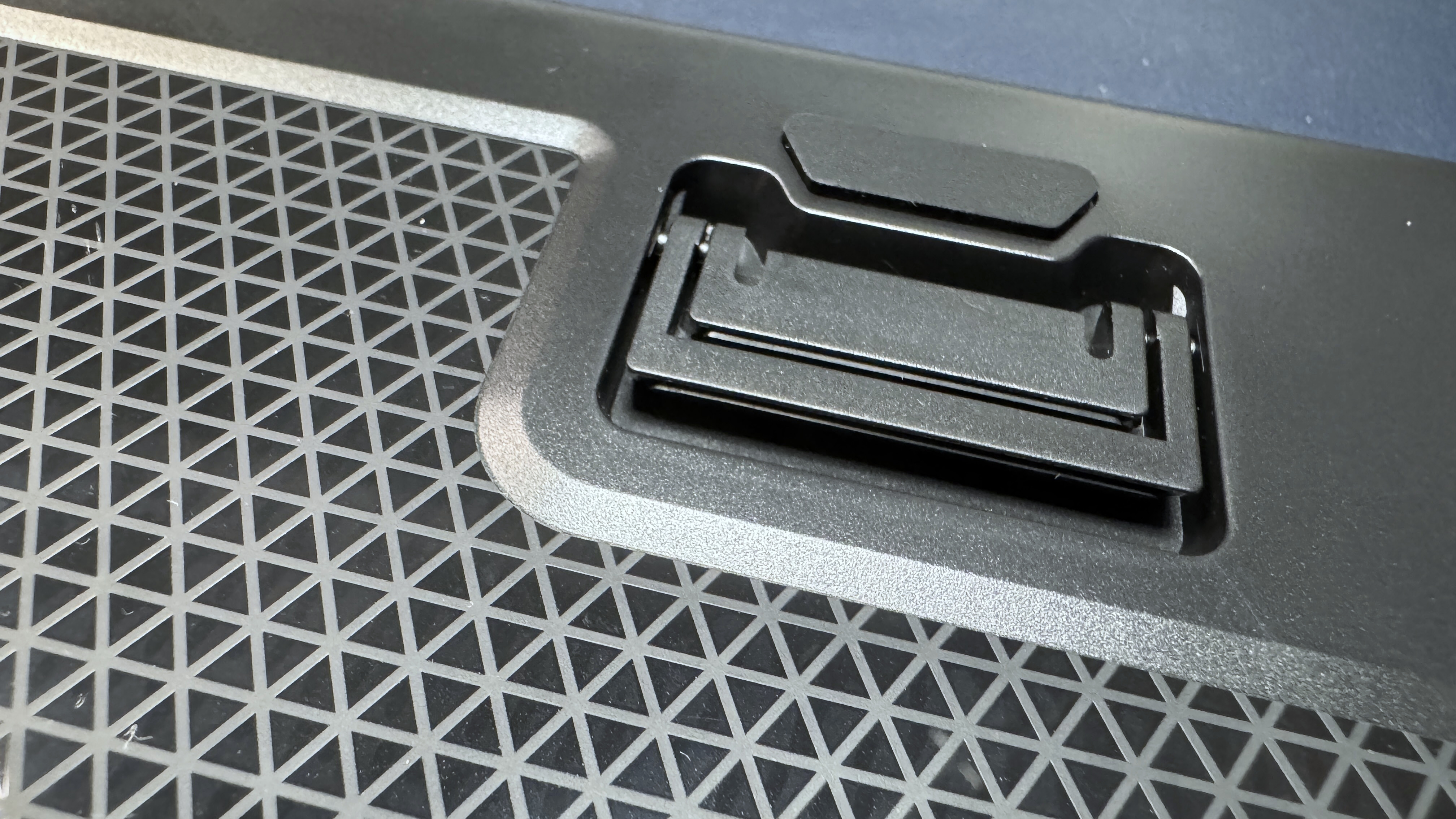
The bottom of the board is plastic, with six rubber anti-slip pads and two sets of plastic flip-out feet for angling the keyboard toward you. It's a fairly lightweight keyboard, weighing just under 2 pounds (1.96lbs / 887g), not including the wrist rest (which weighs an additional 7.5 ounces / 213g). This is about the same as the Logitech G515 Lightspeed, though the G515 is a TKL while the KB5 is full-size (plus a touchscreen and macro keys).
(Image credit: Tom's Hardware)
In the box, the KB5 comes with a plastic wrist rest, a 5.9-foot (1.8m) USB-C to USB-A cable, four textured keycaps for replacing the W / A / S / D keys, and a keycap puller.
Specs
Size
Full-size
Number of keys
109
Switches
Titan Low-Profile (linear)
Backlighting
Yes
Onboard Storage
Yes
Dedicated Media Keys
Yes (volume roller, touchscreen)
Game Mode
Yes
Additional Ports
0
Connectivity
Wired (USB-C)
Cable
5.9ft / 1.8m USB-C to USB-A
Keycaps
ABS
Construction
Plastic chassis Aluminum top plate
Software
Swarm II
Dimensions (LxWxH)
18.78 x 6.89 x 1.06 inches / 477 x 175 x 27 mm
Weight
1.94lbs / 880g
MSRP
$149.99
Release Date
May 2026
Typing and Gaming Experience on the KB5
The KB5 comes with Turtle Beach's Titan low-profile linear switches, which are rated for up to 50 million keypresses and have an actuation point of 1.2mm and a force of 42gf. These are traditional low-profile mechanical switches — not magnetic Hall Effect switches like you'll find on the KB7 (and KP7). They're linear, which means a smooth keypress with no audible or tactile bump, and they're pre-lubed so they're pretty smooth.
While I'm not a huge fan of linear switches, the KB5's are quick and stable, and you get a decent little 'thunk' when you bottom out on the keyboard's aluminum top plate. The typing experience is very similar to that of the KB7, which is to say that it's very pleasant for a mainstream gaming keyboard with low-profile linear switches.
The keyboard has flat, shallow keycaps made of double-shot PBT. They have a slightly matte texture and should resist shine better than ABS keycaps, but I'm not fully convinced that'll be the case (maybe they just feel cheaper because they're thinner, overall, than regular keycaps, though). The keycaps are wide, with slightly curved tops, and the keyboard is roomy — I didn't have any problem getting used to the layout for the most part, though the extra row of macro keys on the left did throw me off a few times (this happens whenever there's an extra row of macro keys).
Tom's HardwareTom's Hardware
The touchscreen is located above the numberpad, and is fairly responsive. It responds to both taps and swipes (you can swipe through "pages" of controls / buttons), and I found the 2 x 3 layout a little more intuitive to navigate than the KB7's much larger layout — though still not as intuitive as it would be with tactile buttons, like the Corsair Galleon 100 SD has. In addition to the six customizable "buttons" on the touchscreen, there's also some other info displayed at the top — your current profile (you can switch between profiles by tapping this) and some keyboard info (e.g. numlock, caps lock, scroll lock).
The KB5 is also a solid keyboard for gaming, thanks to its quick, responsive linear switches and 8K polling rate. While it doesn't have magnetic switches like its pricier sibling, it does implement Turtle Beach's ReacTap, which is a software solution similar to simultaneous opposing cardinal directions (SOCD).
Features and Software of the KB5
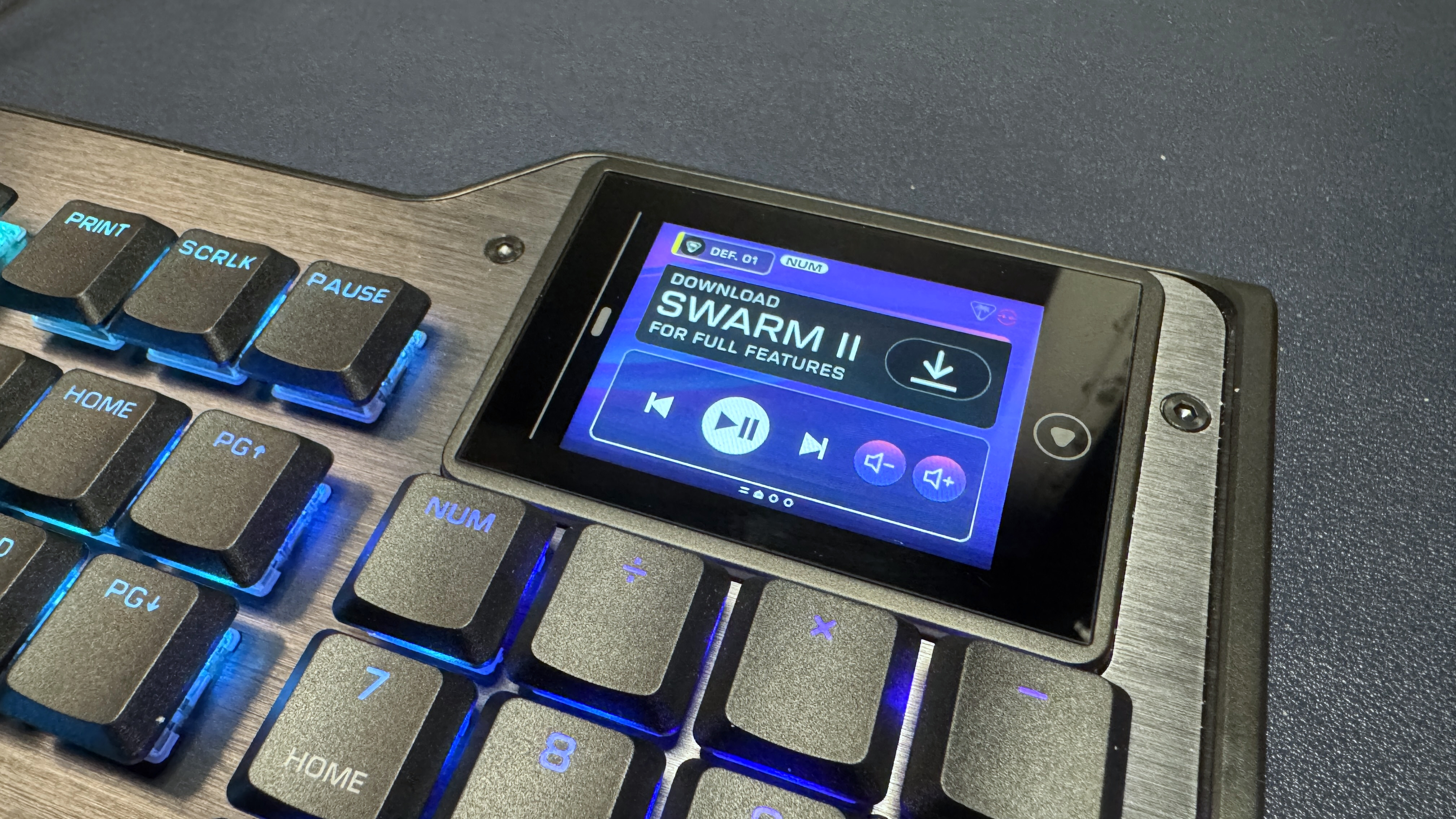
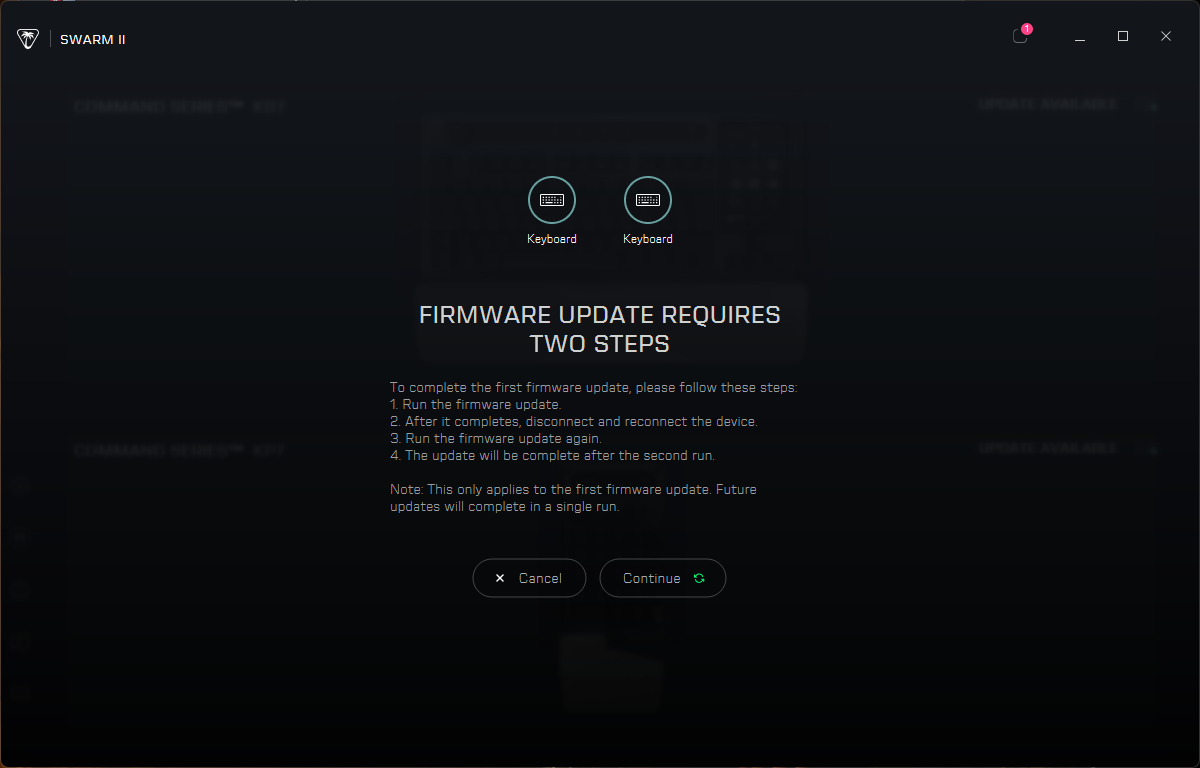
Like all Turtle Beach products, the KB5 ships with firmware from 2001 (or at least it feels like it) and requires at least 16 mandatory updates before it can be used with the brand's Swarm II software. I'm exaggerating, of course — but not much.
Tom's HardwareTom's Hardware
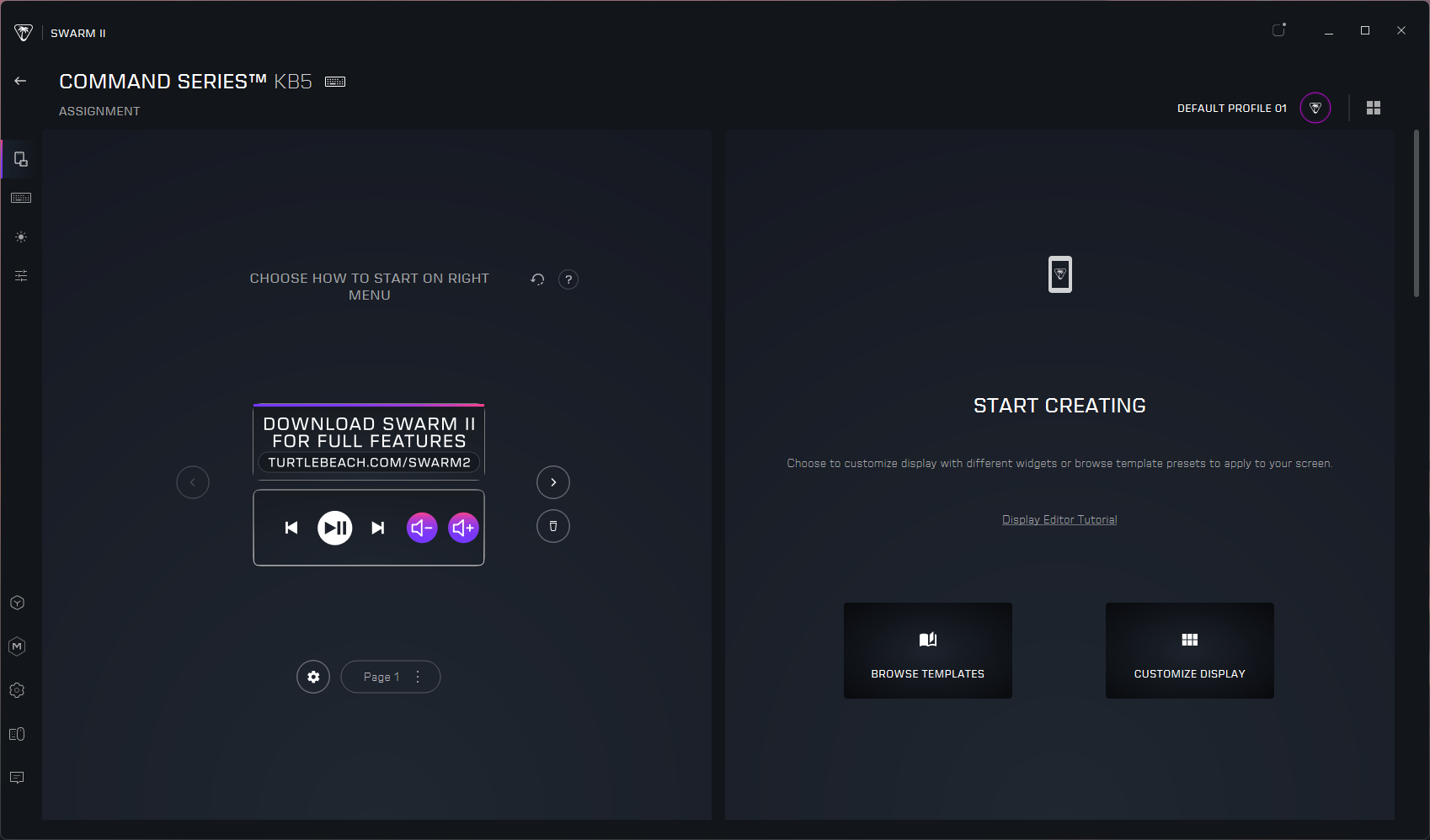
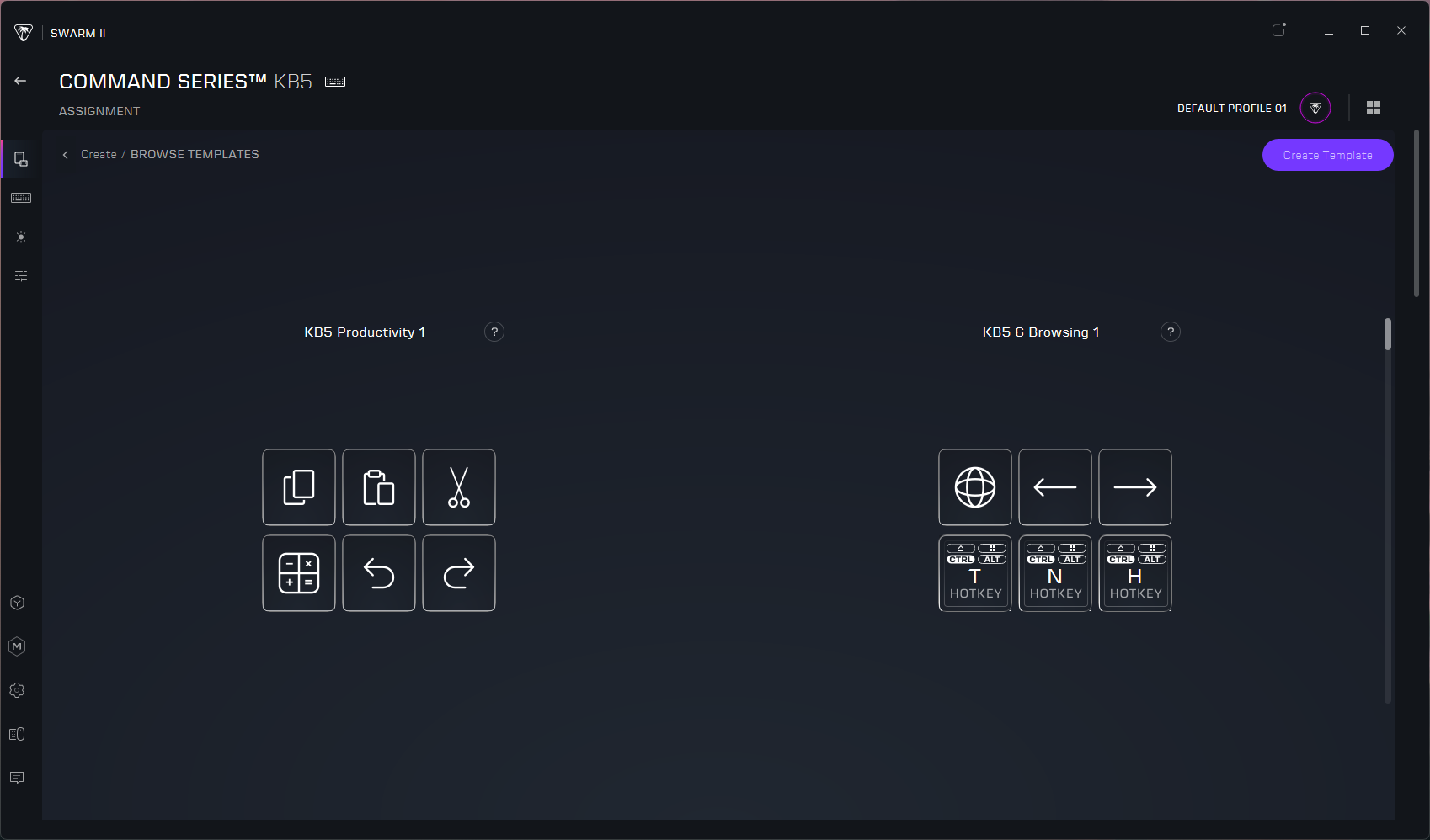
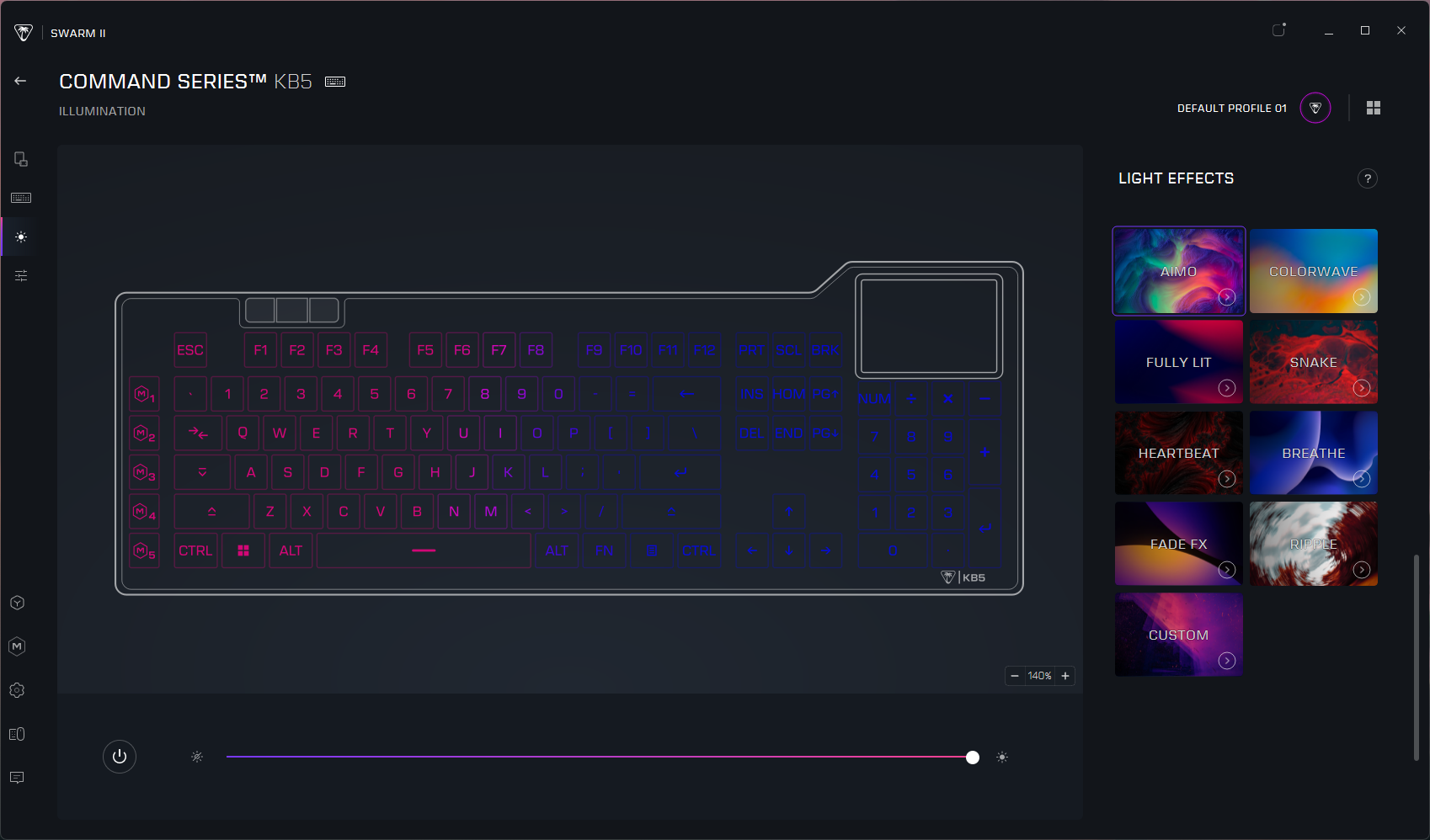
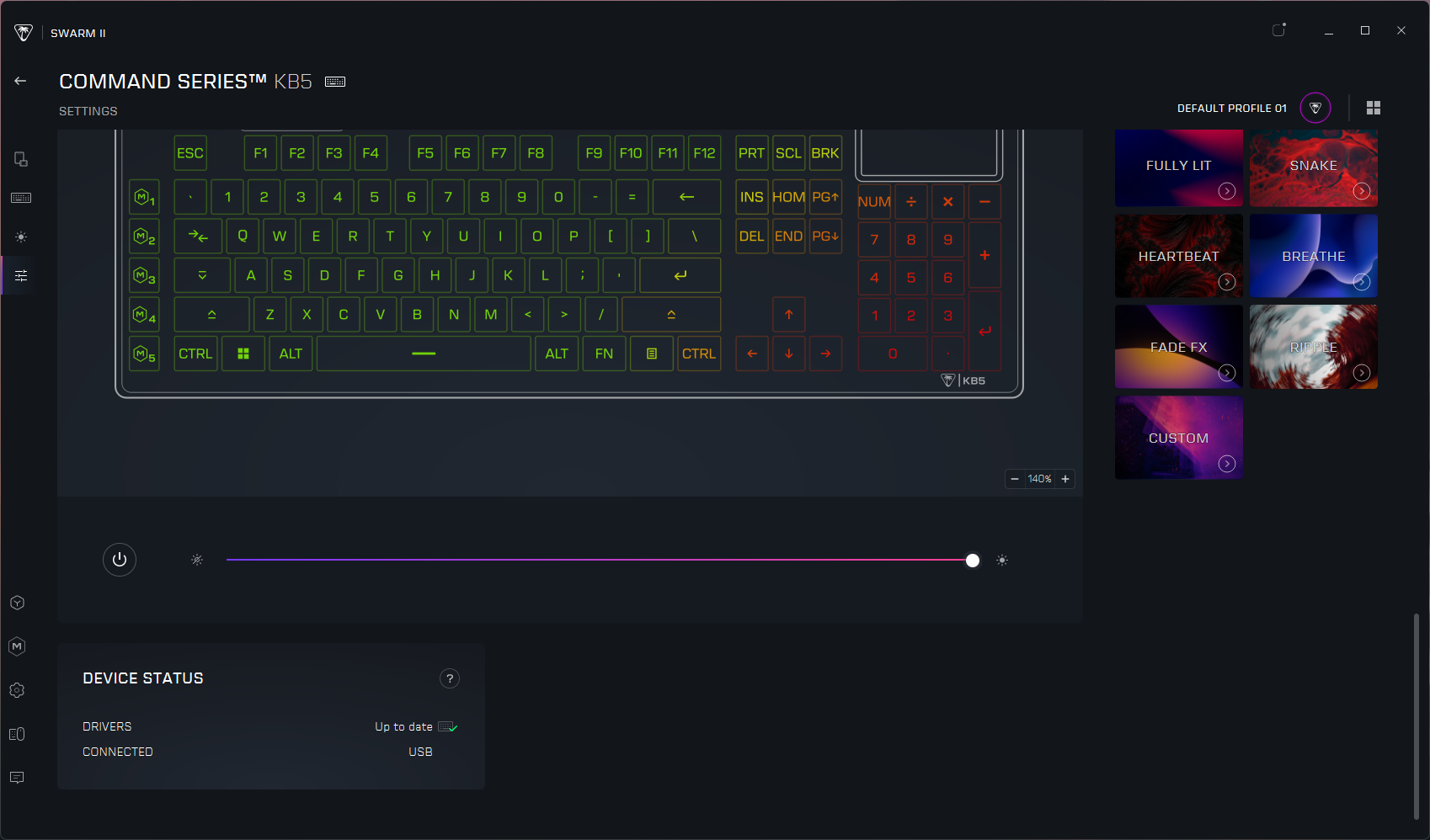
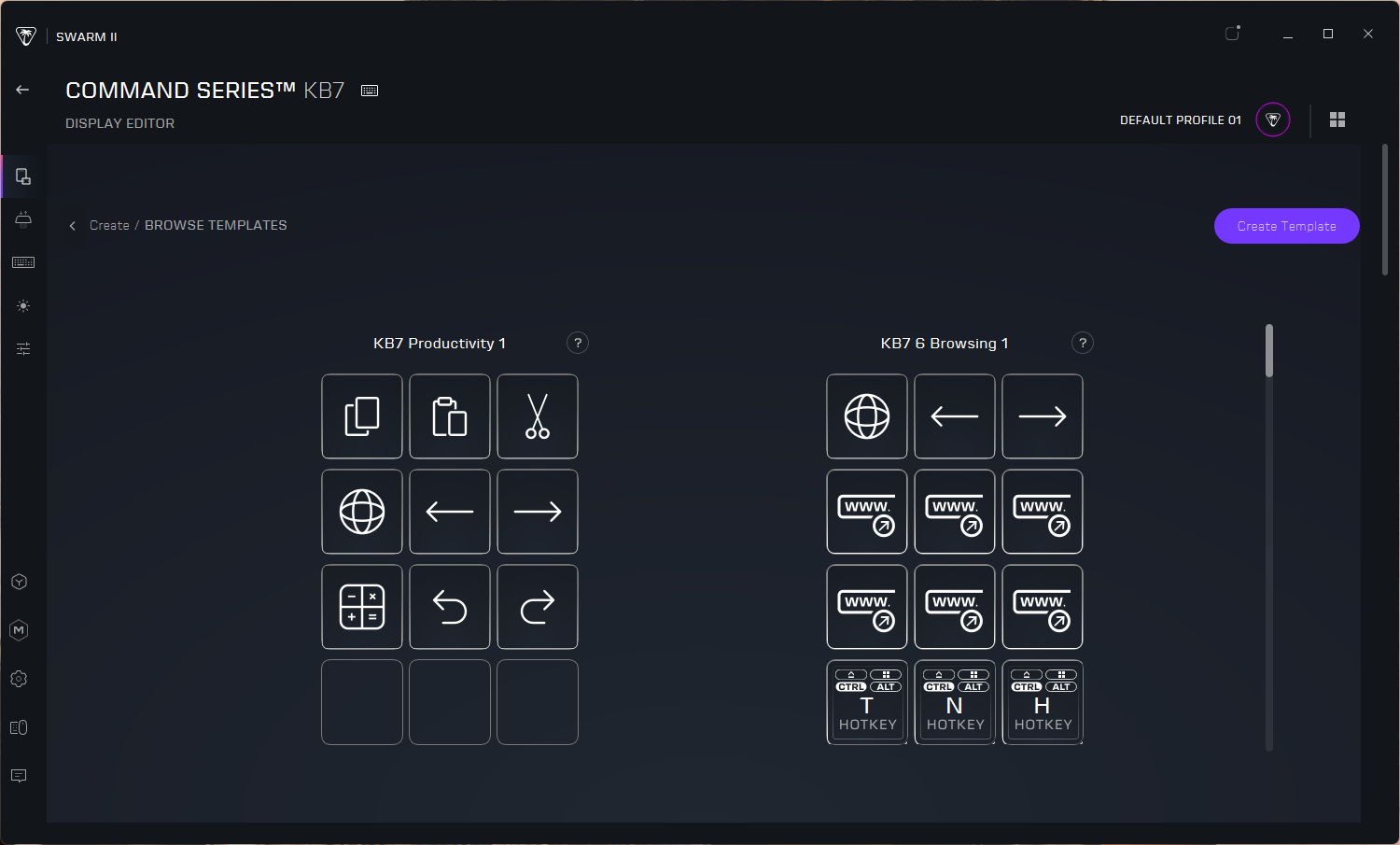
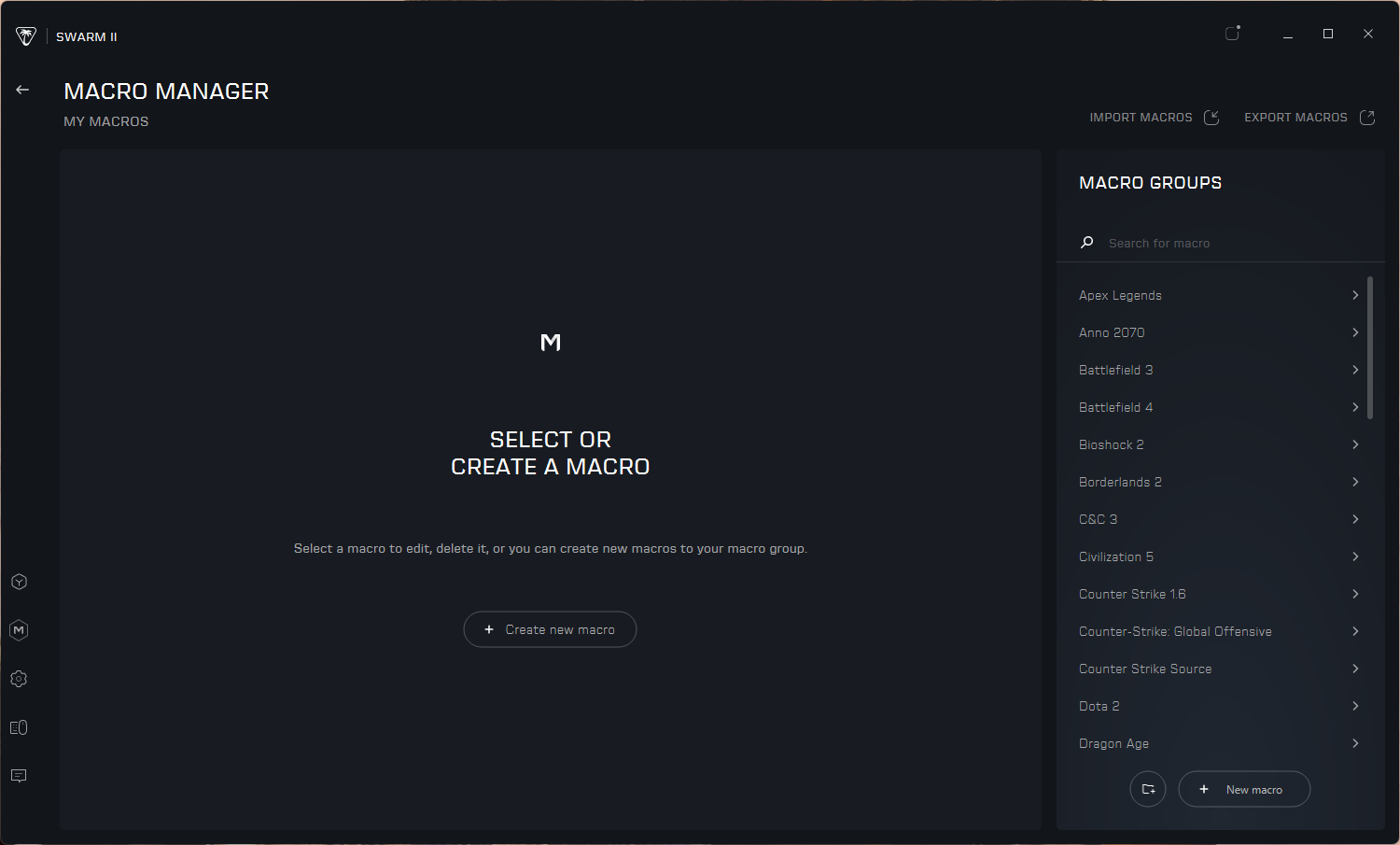
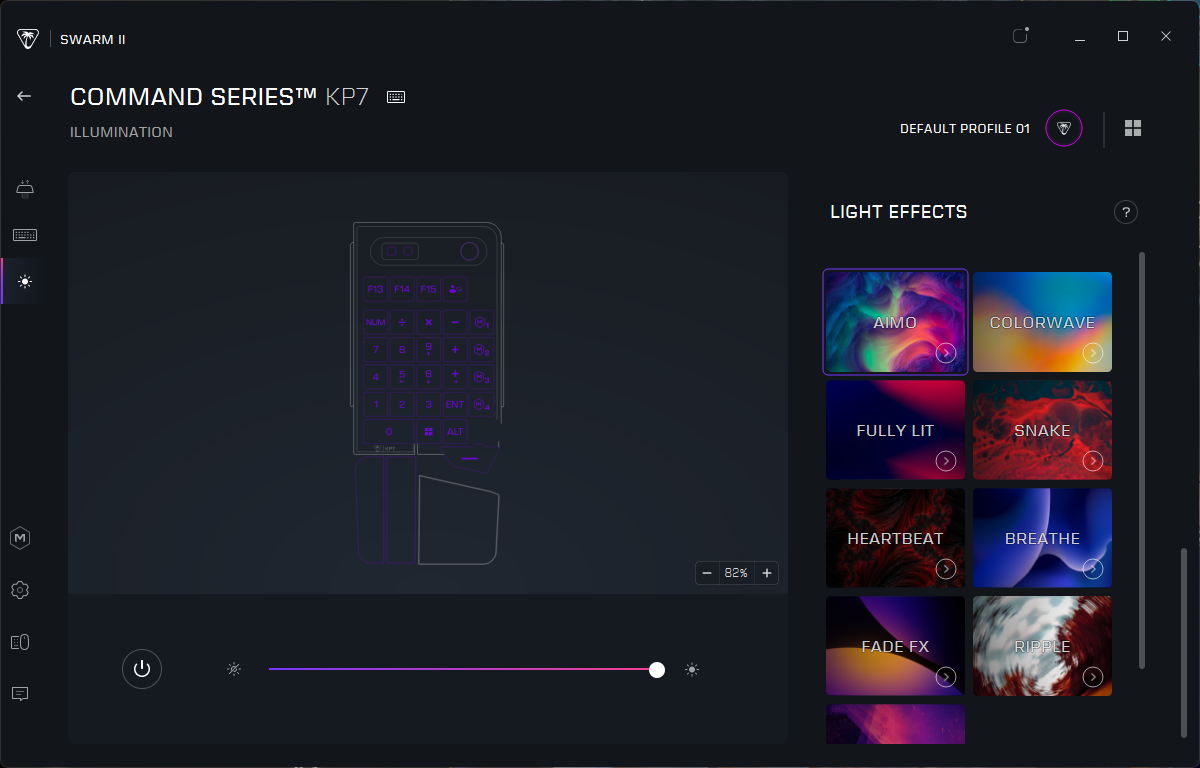
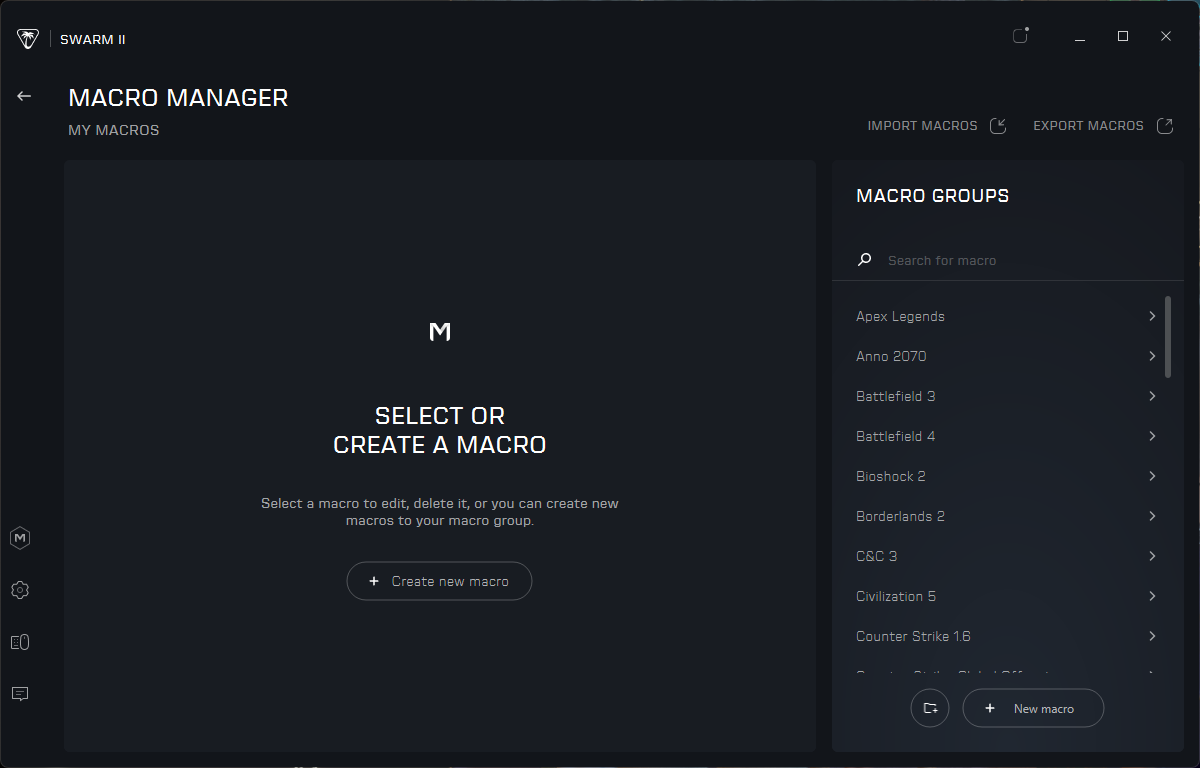
Once I managed to get the KB5 up to date on firmware (and Swarm II up to date on software), I was able to customize the touchscreen, keyboard, and lighting. Swarm II is kind of mandatory for this keyboard, as you can't really customize the touchscreen without it — and the touchscreen is a large part of the selling point here. There's not a ton you can do with the touchscreen that you can't do with regular keys, at the moment. There are options for keyboard / Windows / multimedia functions, opening apps and websites, and assigning macros. And there are a couple of "dynamic" options such as a timer setting and performance monitoring, but it's not a robust ecosystem like that of Elgato or Loupedeck. Still, it's probably enough to get you started, and the Swarm II app includes a handful of templates in case you're out of ideas.
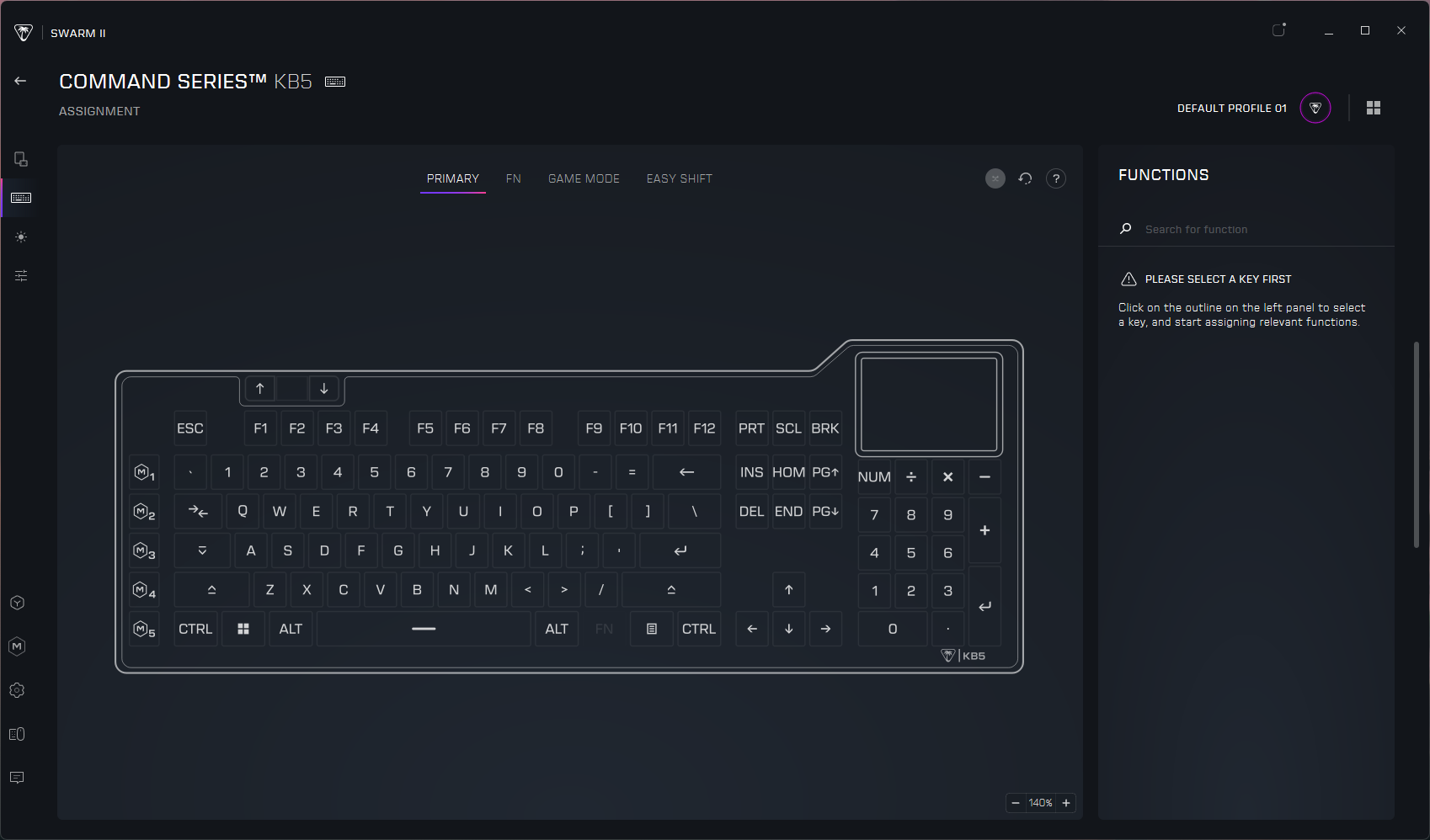
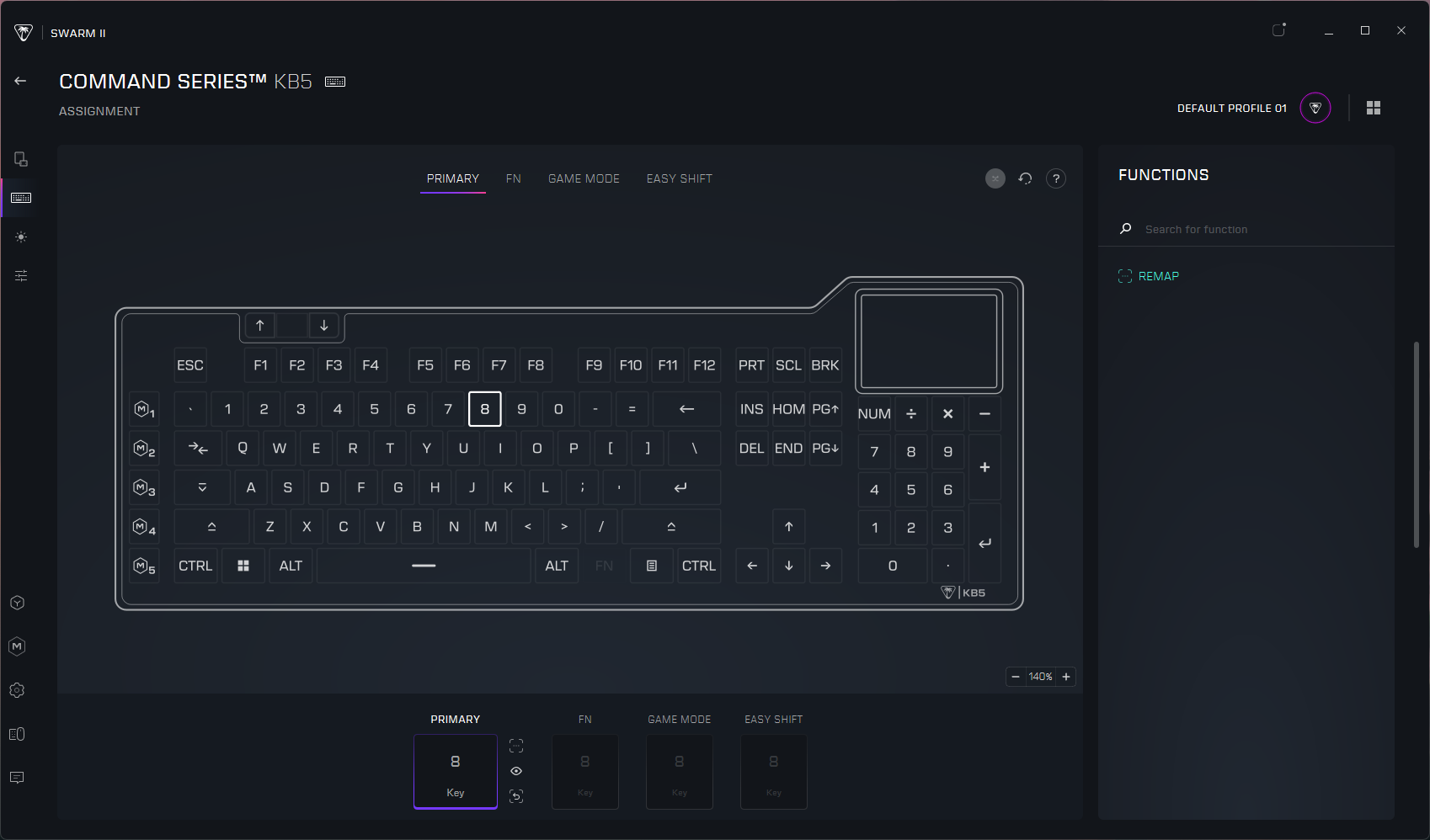
Keymapping is pretty straightforward, and you can map keys to do most of what you can map the touchscreen to do (save for visual things, such as performance monitoring, obviously). You can record and save macros in the app and configure ReacTap. You can also customize the lighting from a handful of presets (or per-key, if you so desire). The keyboard can save up to five onboard profiles, which you can switch between by tapping the profile number in the upper-left corner of the touchscreen.
The Bottom Line
The KB5 is actually a pretty nice compromise, and I like it better than the pricier (and fancier) Turtle Beach KB7. I love having a built-in numberpad that doesn't cost an extra $100 to snap onto the side of the board, and the smaller touchscreen is actually more manageable to use quickly and without (really) looking. The KB5 may not have magnetic Hall Effect switches, but its low-profile linear switches feel and sound pretty good for a mainstream gaming keyboard. And at $150, it's basically half the price of the combined KB7 keyboard and KP7 numberpad.
Of course, if you're really dedicated to making your keyboard a streaming deck substitute, the Corsair Galleon 100 SD is the only real option. Not only does it have physical buttons, it also has knobs — and it's supported by Elgato's Stream Deck software, which is still the real differentiating factor for macropad and touchscreen devices these days.
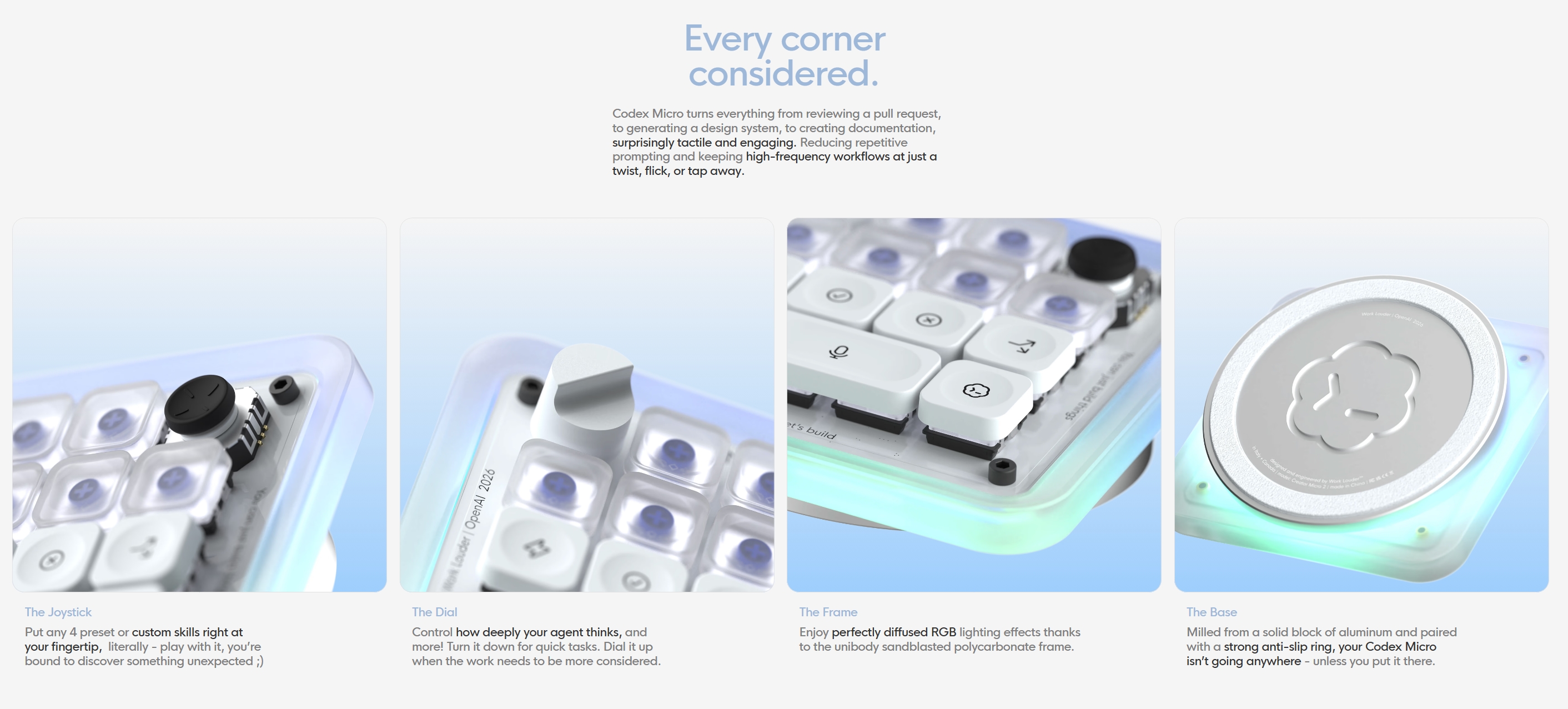
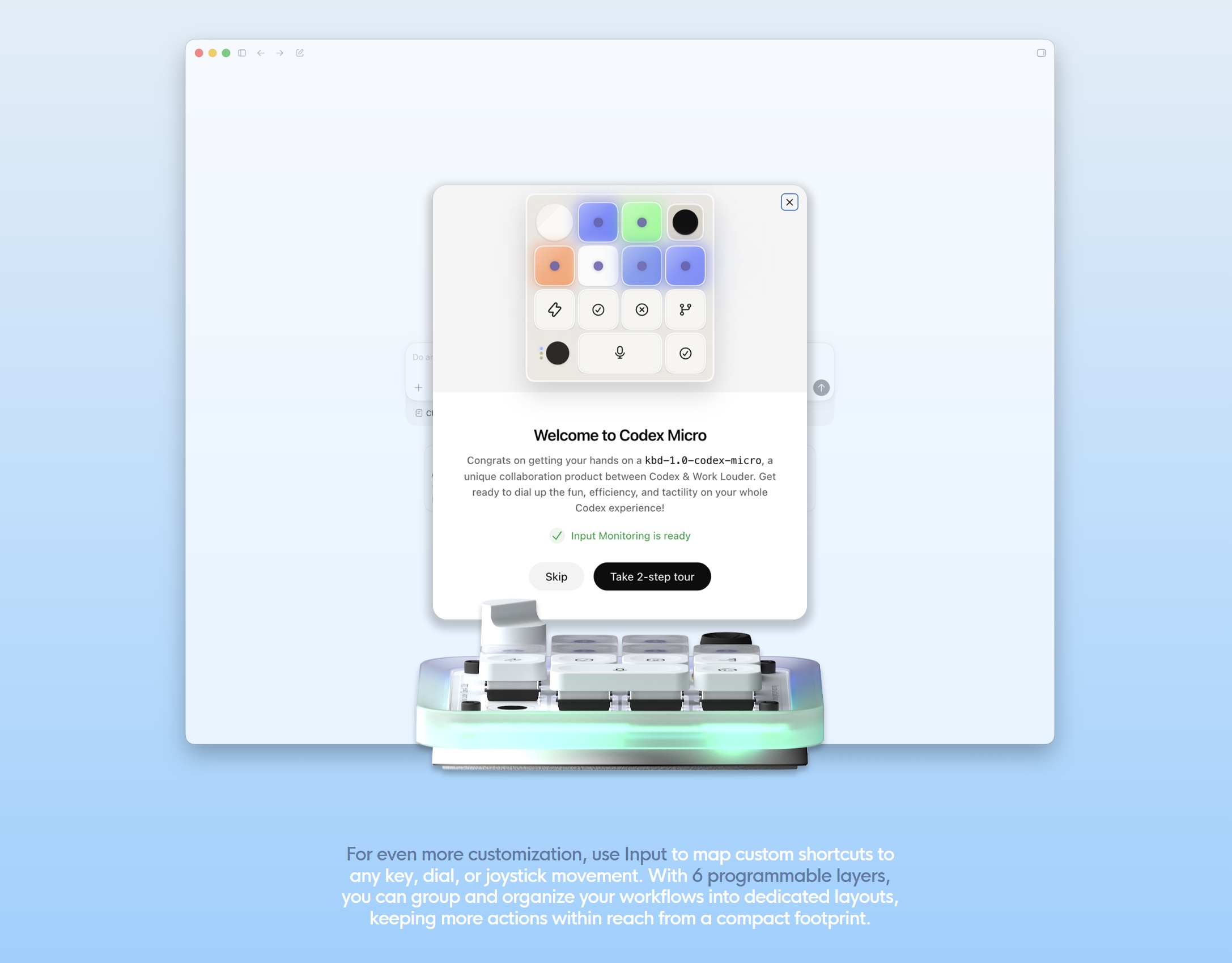
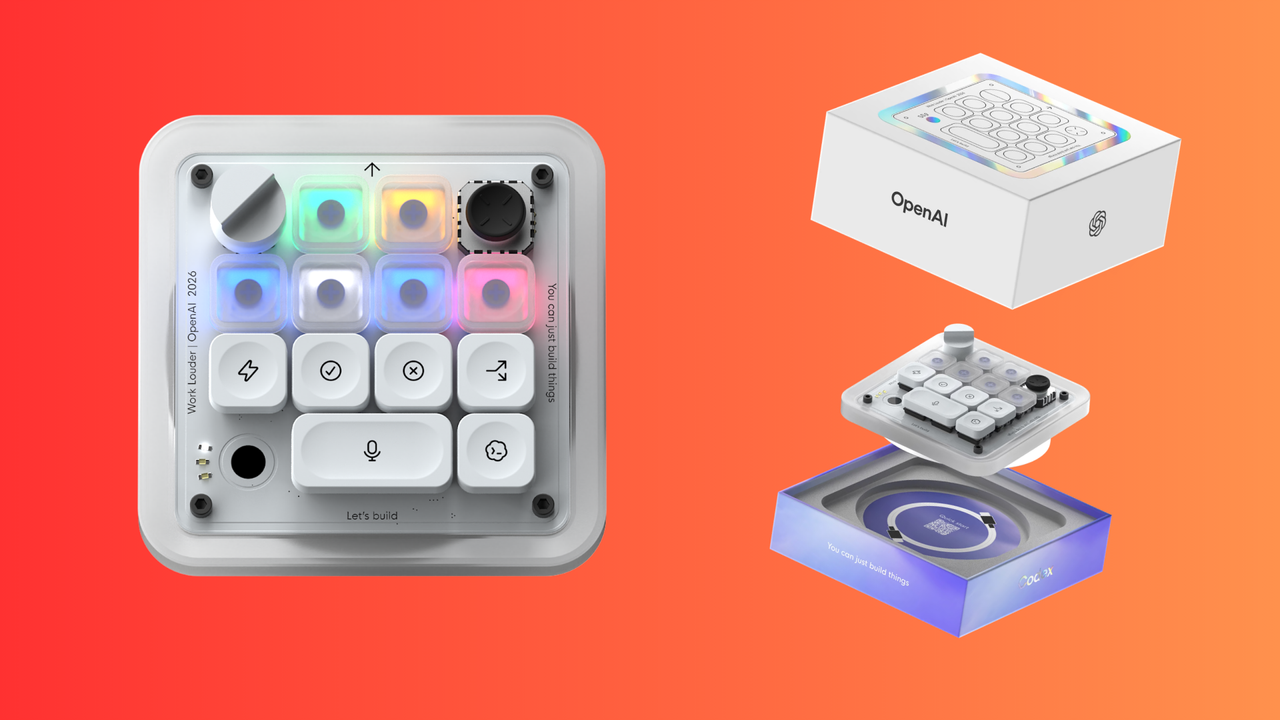
OpenAI has just entered the hardware market with its very first product — a glorified macropad called the "Codex Micro." As the name suggests, it's meant to be used with the company's agentic coding platform, Codex, offering tactile response for an otherwise software-only experience. It's made by luxury keyboard company Work Louder, built on its existing Creator Micro 2 platform, and will cost a cool $230.
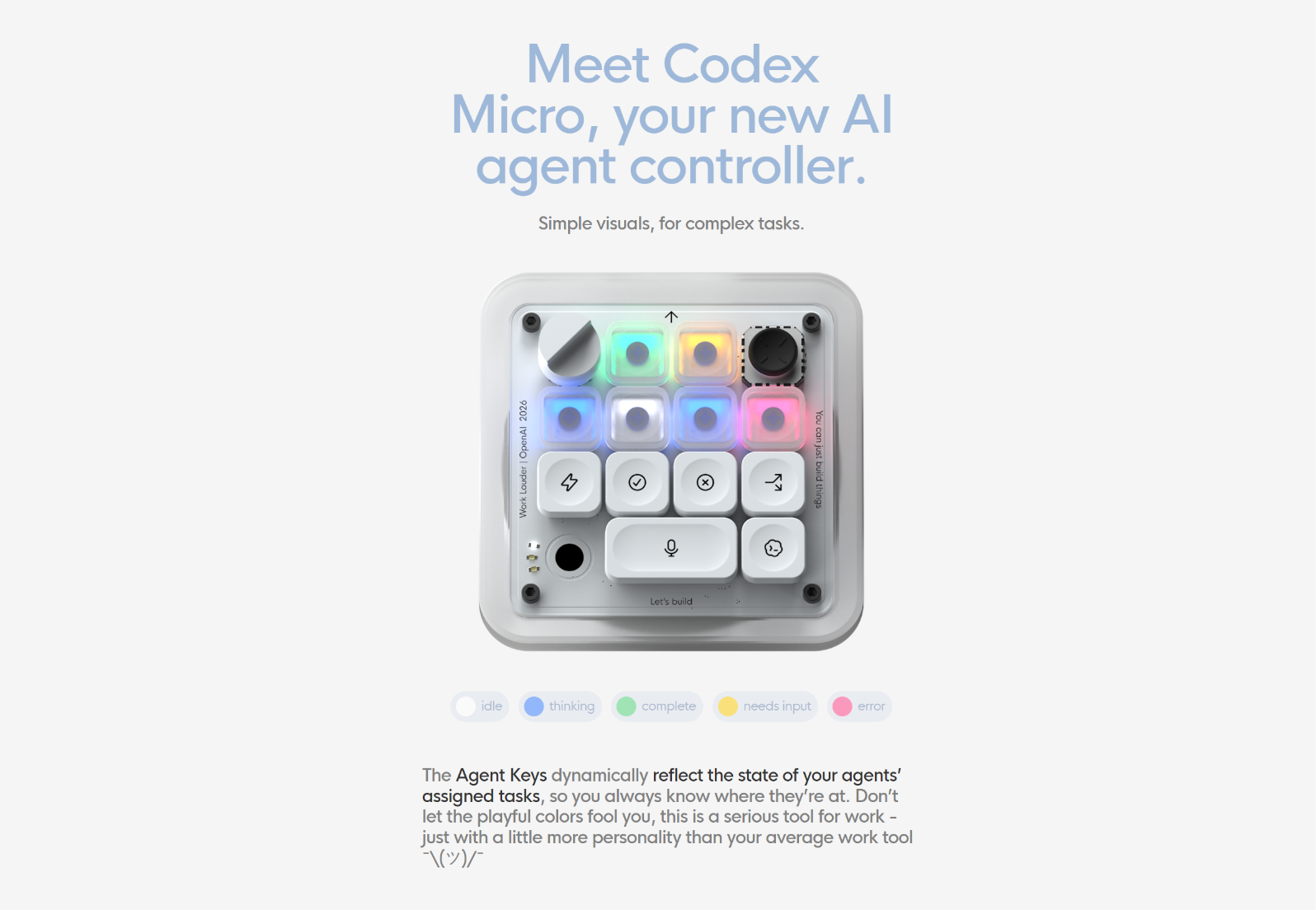
The Codex Micro, also dubbed kbd-1.0-codex-micro for some reason, comes in a frosted white color with a mix of translucent, legend-less keycaps and some opaque ones that serve as "command keys." There are thirteen mechanical keys, one rotary encoder, one joystick and a capacitive touch sensor running across the top of the device, The body is constructed out of CNC'd aluminum with some polycarbonate parts.
The see-through look of the Codex Micro is intentional because it relies on RGB (yes, you're reading this correctly) to convey responses. The six translucent keys up top have an integrated LED, and the entire perimeter of the device also lights up. According to Work Louder, the keys are supposed to provide a live view of your Codex threads, illuminating to signal different agents working.
(Image credit: Future)
The LEDs can show different colors based on where the agent is in a loop at any given time — whether it's thinking, stuck with an error, or perhaps requires feedback. White is used to denote idle behavior; green for an unread chat; blue for thinking; peach for a question; and red for an error. The sides of the Codex Micro also glow in the same color to make sure it catches your attention without you having to check manually.
Then there's the joystick in the top-right corner that you can click to launch common Codex workflows like reviewing a PR, debugging the aforementioned error, or refactoring code. The joystick opens up a radial menu that can be customized to do a bunch of other things, sort of like a Fortnite emote wheel (sorry).
(Image credit: Future)
Finally, there's a rotary encoder — a knob, if you will — that can be twisted to adjust the reasoning level in real-time or, you know, just adjust the volume or something. We've already mentioned the command keys, which are the white keycaps you see with Codex icons. You'll get a full set of those, including 32 unique keys, so you can swap each one out to suit your workflow.
As we mentioned earlier, the Codex Micro is based on the Creator Micro 2 platform, which Work Louder already built. In fact, this is just a reskin of that product as far as we can tell, and the price reflects that. You can buy a Creator Micro 2 for $174 and pay around $50 more for some icon keycaps, so the $230 pricing for the OpenAI-branded Codex Micro 2 lines up almost perfectly.
It's safe to say that unless you're a diehard vibecoder, the Codex Micro is probably overpriced for what's essentially just a really nice macropad. The deep integration with Codex is impressive and certainly useful for some people, but much of it is just a few minutes of (third-party) customization away on other keypads, too. Anyhow, the Codex Micro is available on Work Louder's website right now, and you can choose to buy it with either clicky or silent switches.
I don't think I need a keyboard with a built-in touchscreen, but I also didn't think I needed a keyboard with a built-in Stream Deck (and I was, apparently, wrong). Turtle Beach's take on the customizable-macro-pad-on-your-keyboard is its recently-launched Command Series, which includes a handful of ultra-customizable peripherals with fancy touchscreen inputs — two keyboards, a modular numberpad, and three mice.
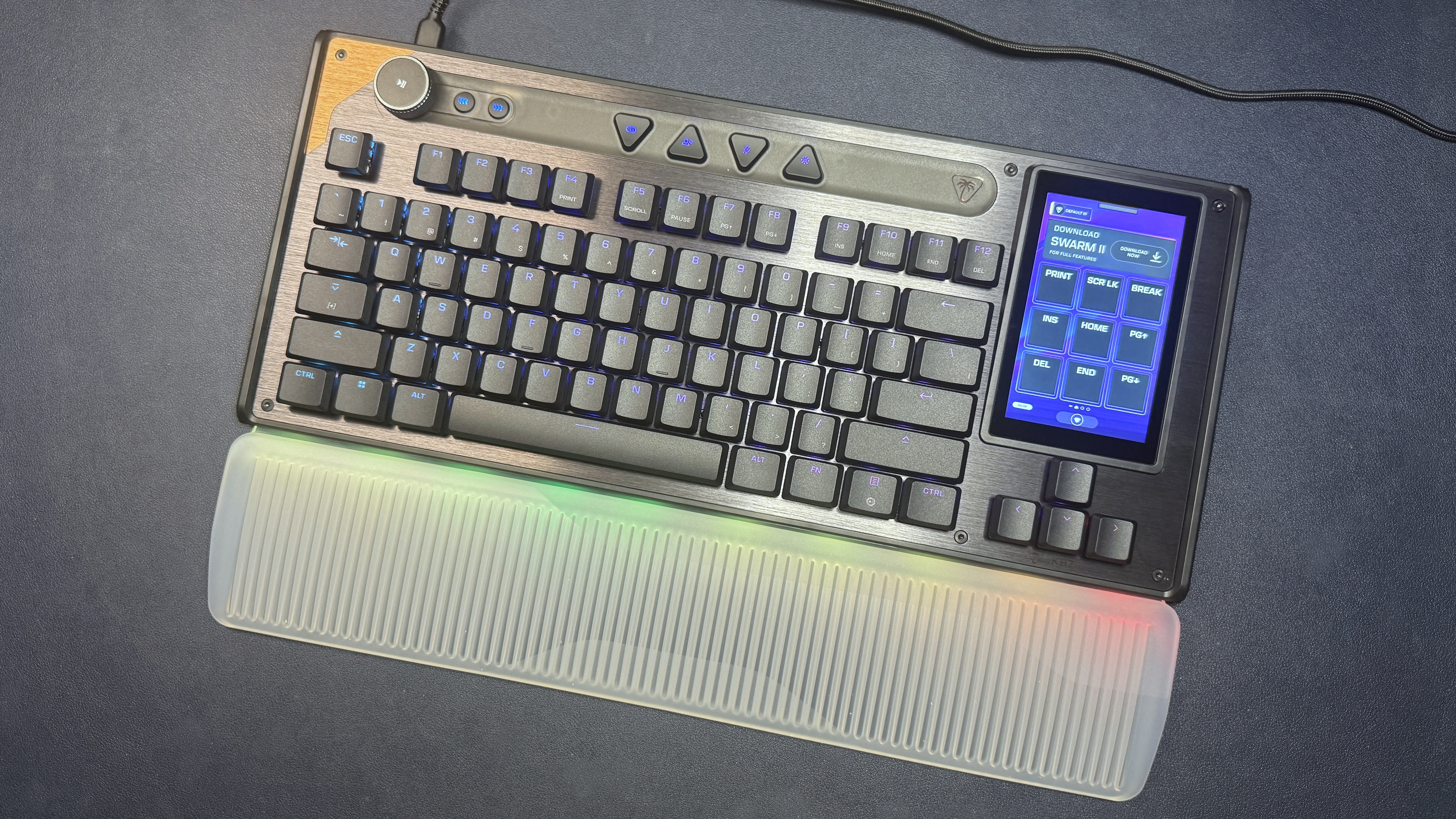
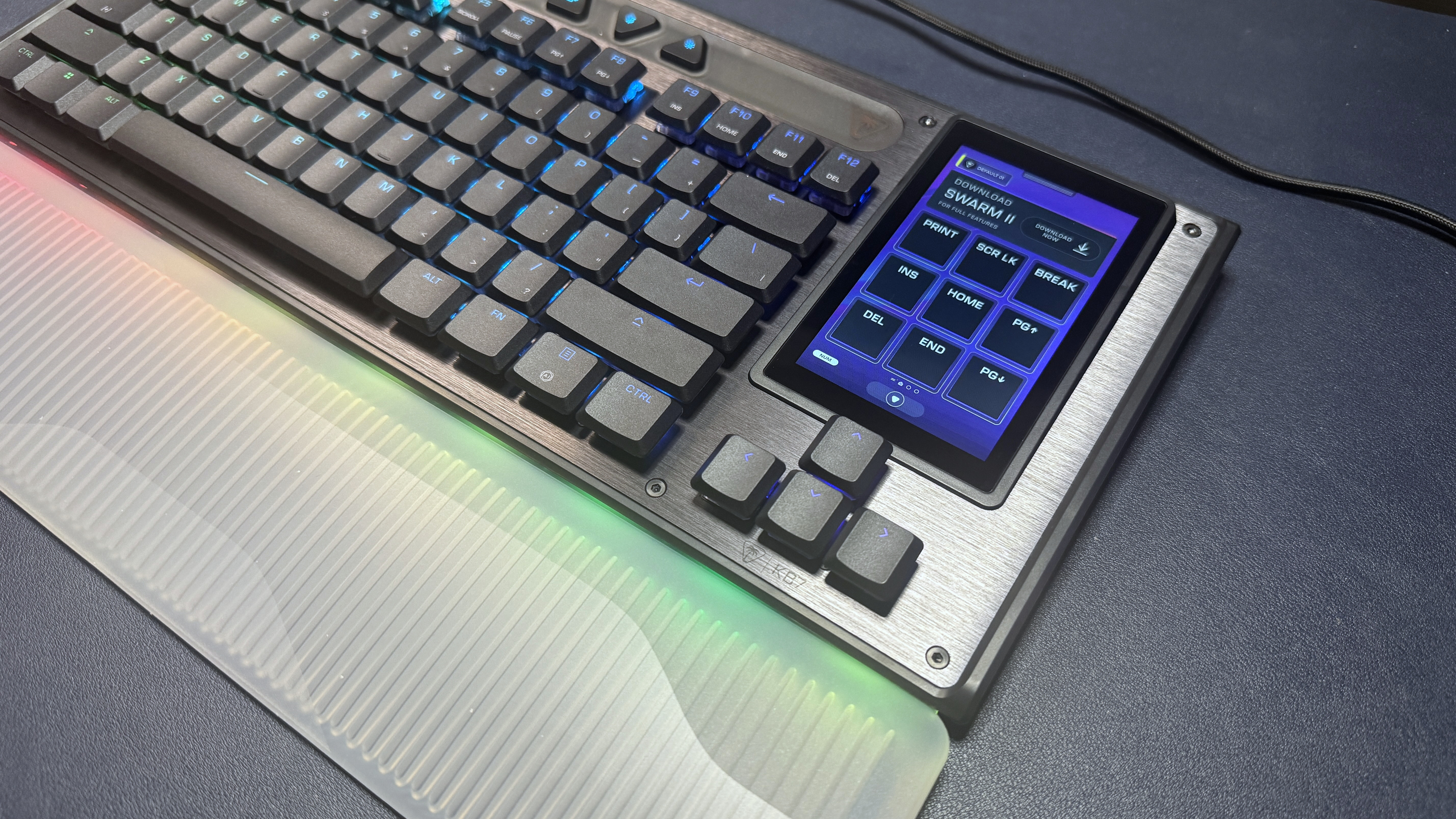
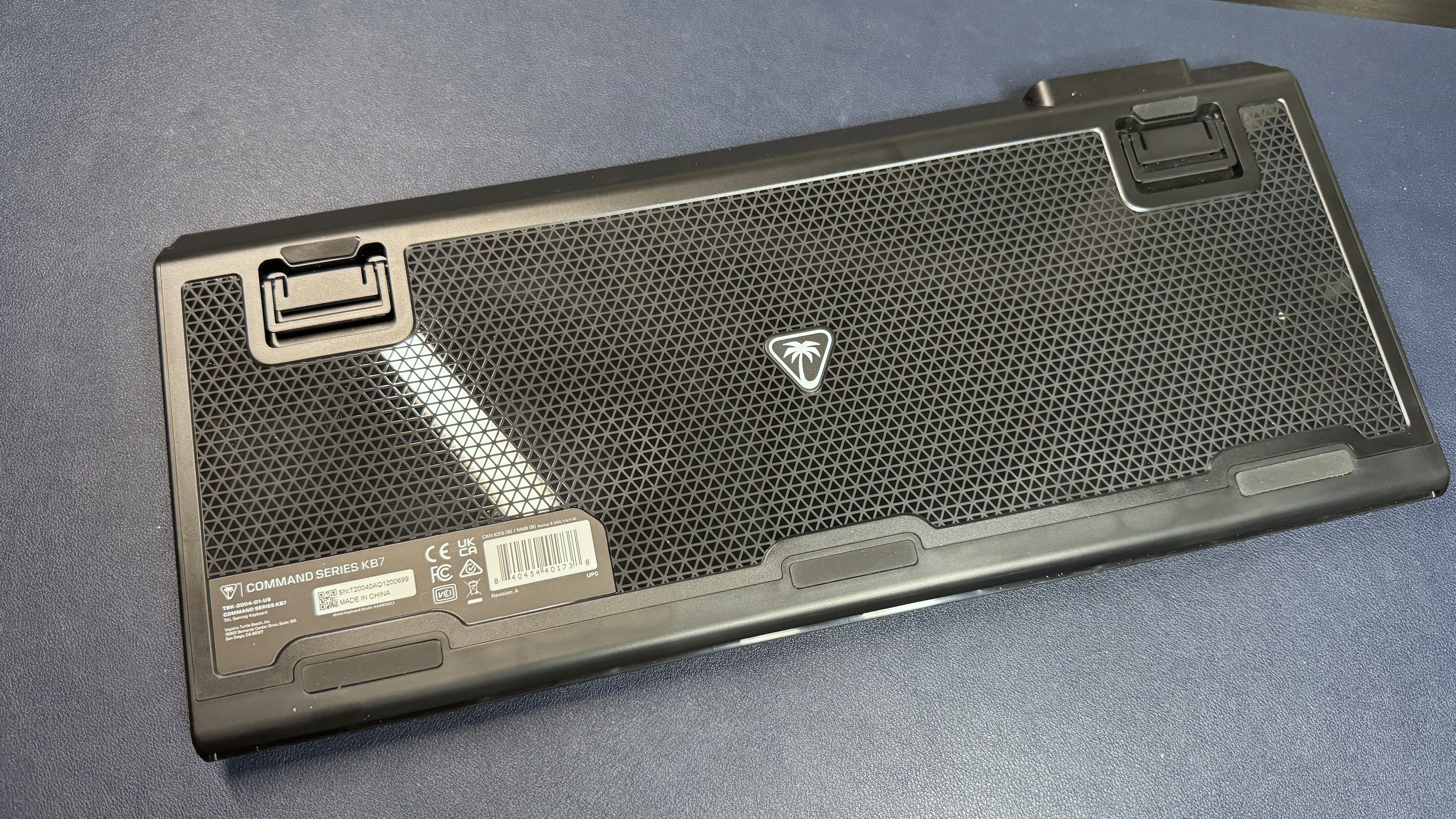
The flagship product is the Turtle Beach Command Series KB7 TKL: a low-profile, wired keyboard with magnetic Hall Effect switches and a built-in "Command Center" touchscreen. It features a modified TKL layout (the touchscreen is where the navigation cluster would normally be), dedicated media and macro keys, a light-diffusing silicon wrist rest, and connection points on either side for the KP7 — a modular, standalone 10-key numberpad with a bunch of extra keys, buttons, and a programmable knob (it's actually so fancy we're going to give it its own review). The KB7 is basically the Corsair Galleon 100 SD, but modular and touch...ier. And it's about as pricey — it's available now, in black, for $199.99 (not including the KP7 — that's a separate $99.99 purchase).
Design and Construction of the KB7
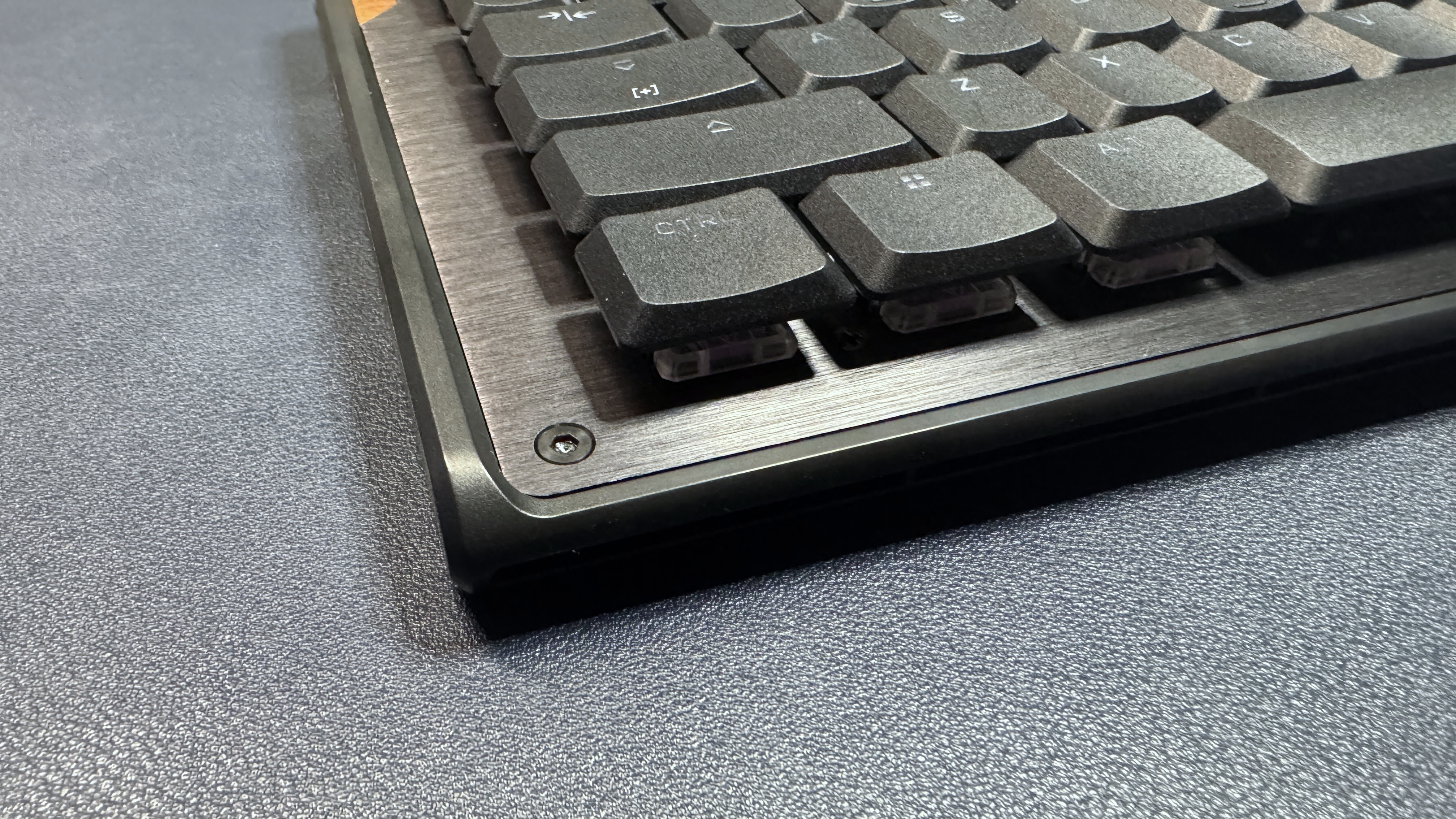
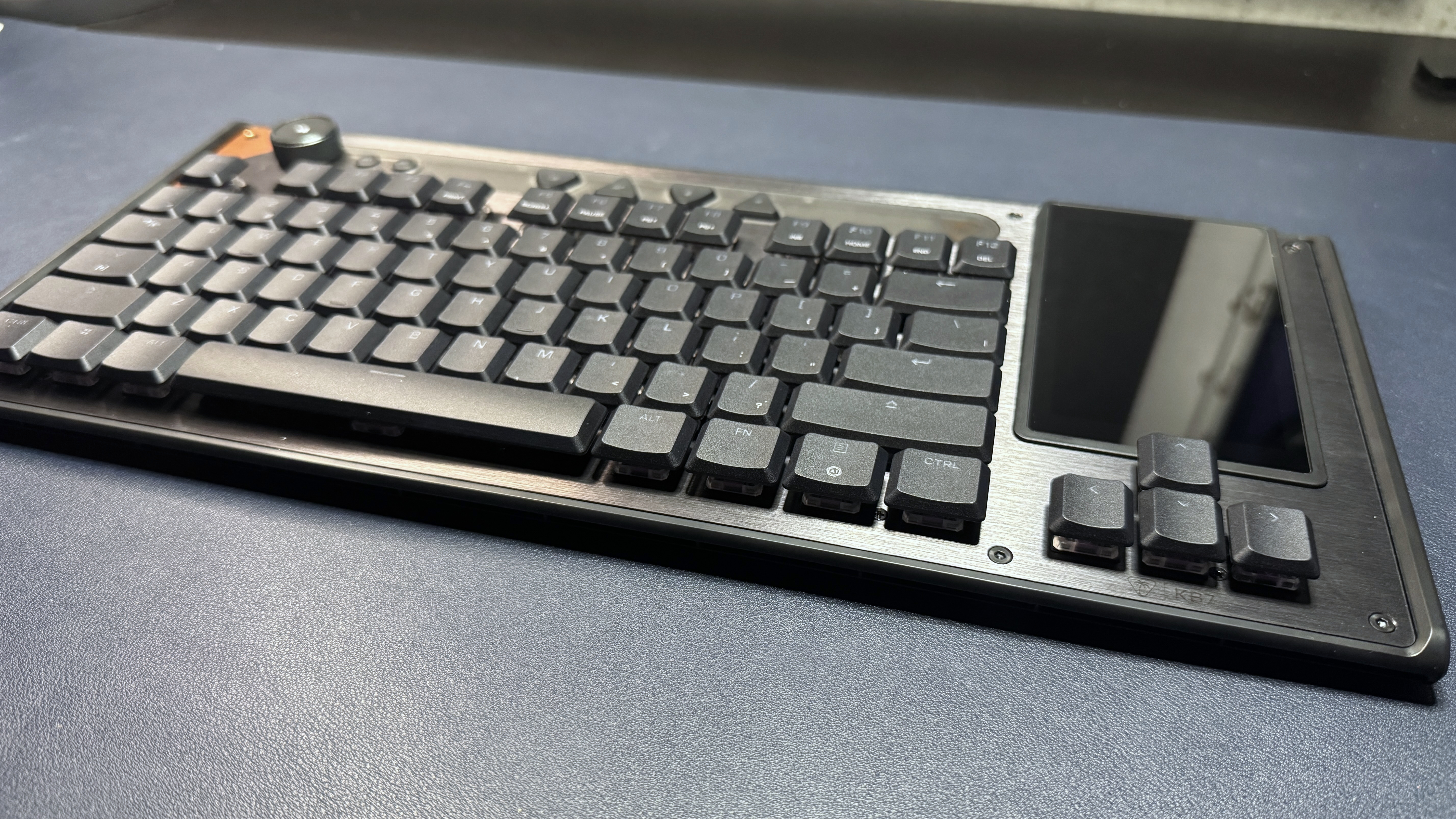
The KB7 has a TKL layout — sort of. It has a full function row and arrow keys, but it has a 4.3-inch touchscreen where the navigation cluster would normally be. It's a slim, well-built keyboard with a brushed aluminum top plate and a plastic chassis. Size-wise, it's pretty standard for a TKL, measuring 15.71 inches (399mm) wide by 6.85 inches (174mm) deep, and it's 1.22 inches (31mm) thick at its thickest point (including keycaps/knobs). It's not particularly heavy — it weighs 1.89 pounds (858g) without the wrist rest, which weighs an additional 9.24 ounces (262g). That's nowhere near as hefty as my current favorite TKL — the 5.25-pound (2,380g) Wobkey Crush 80 Reboot Pro — and it's even a little lighter than Logitech's budget-friendly low-profile wireless G515 TKL, which weighs 1.94 pounds (880g). So, yeah, if you're looking for a keyboard with weight... this isn't it.
(Image credit: Tom's Hardware)
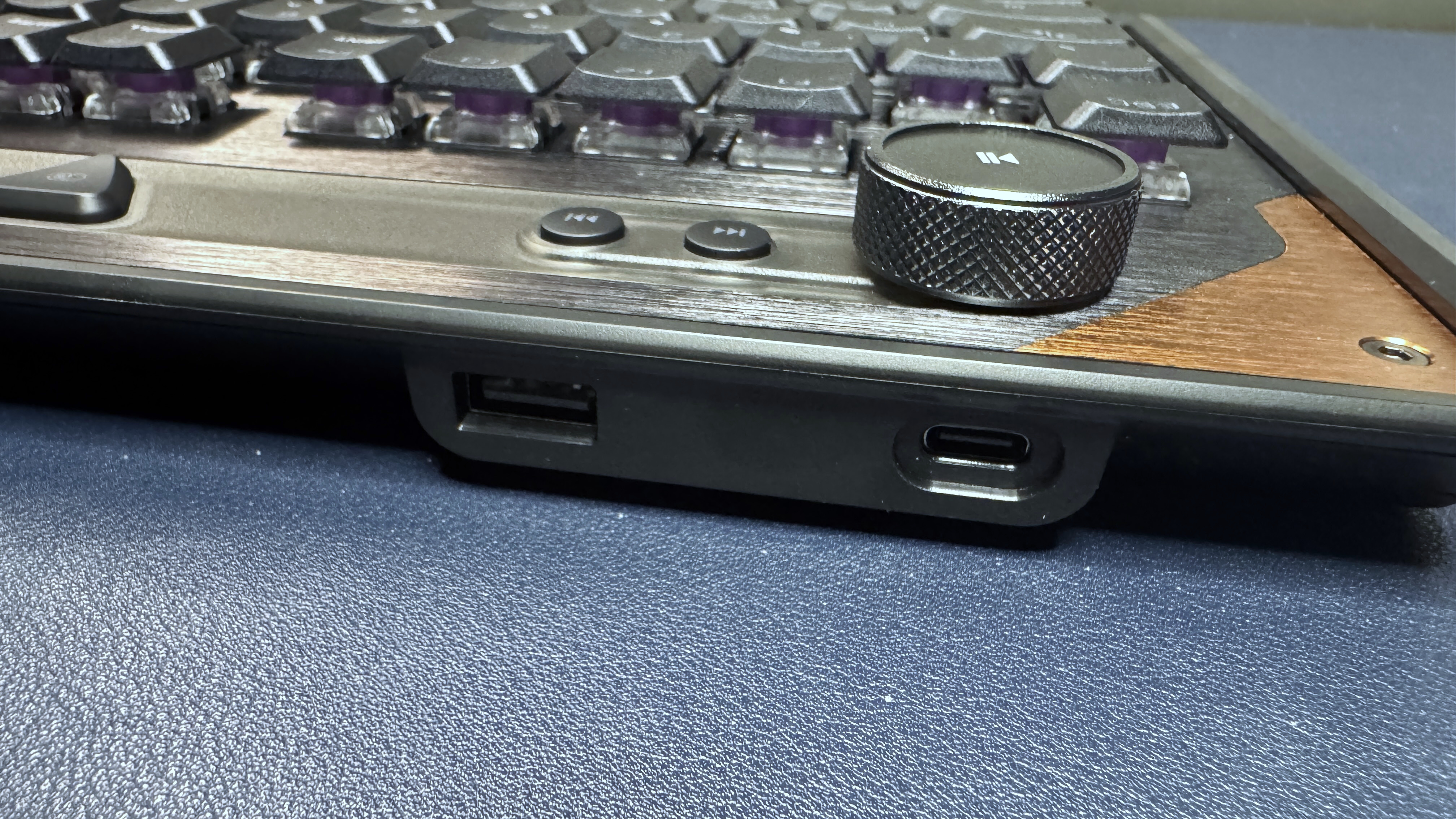
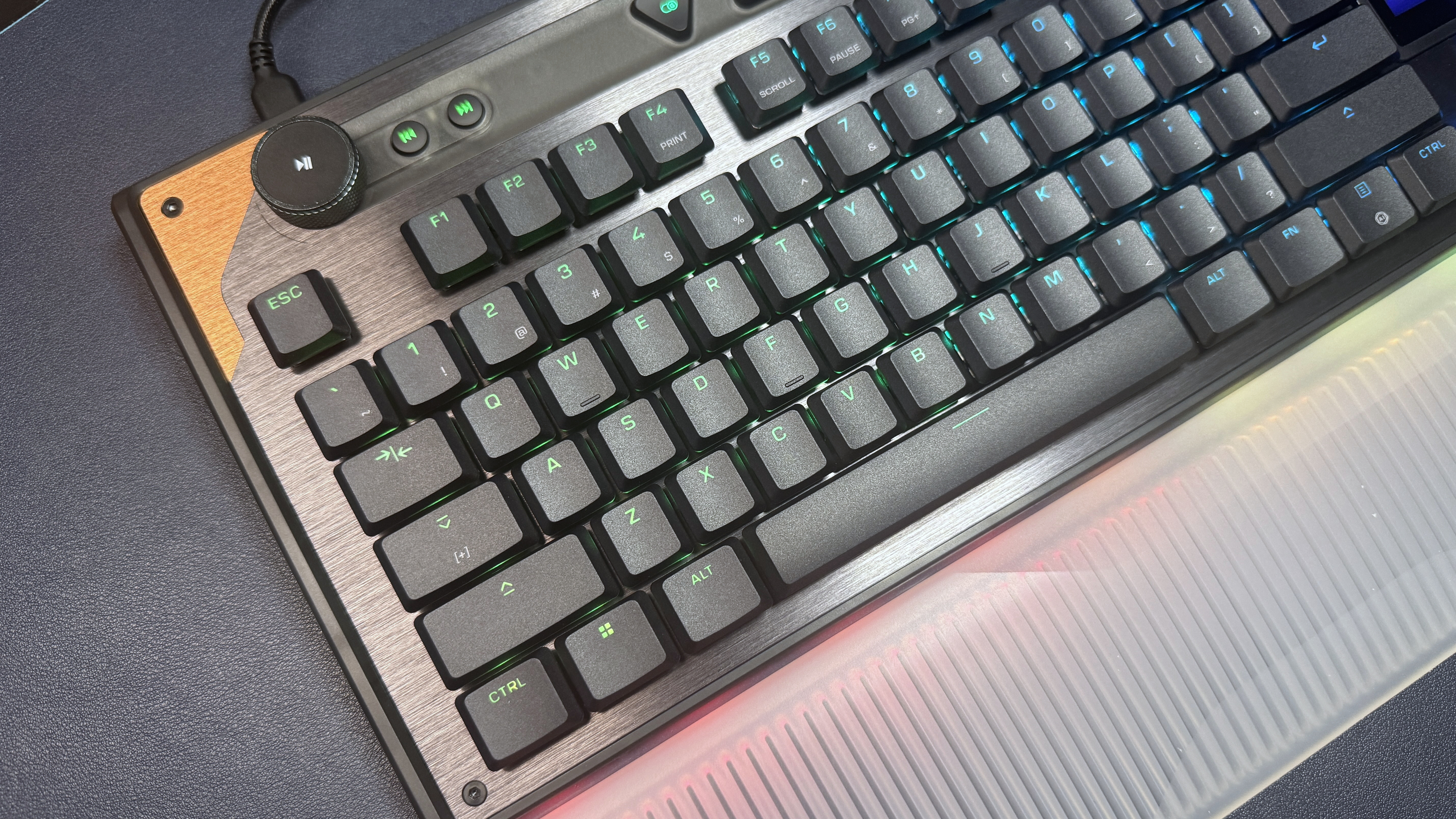
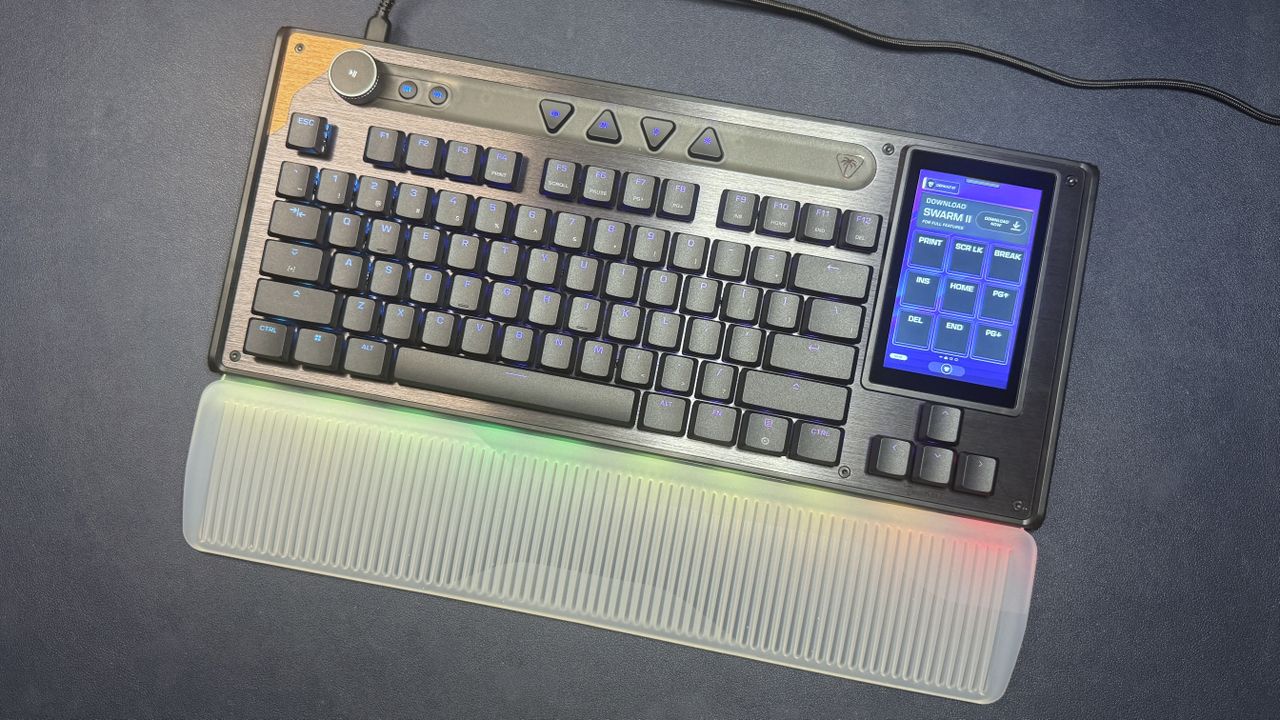
The KB7 has a nice spacious setup for a TKL — there's plenty of room above the function row for extra controls, including a dedicated volume knob, two media keys, and four triangular shortcut keys. The keys come with presets programmed in — from left to right, there's a game mode button, a profile switch button, a mic mute button, and a lighting toggle button — but all of these keys, including the clickable volume wheel and the two dedicated media keys, can be remapped in Turtle Beach's Swarm II software. The volume knob is notched and features metal textured edges for a premium feel, but the rest of these extra media/shortcut keys are mediocre at best. Pressing them gives cheap, plasticky feedback — but at least they're easy enough to press thanks to all the extra space around them.
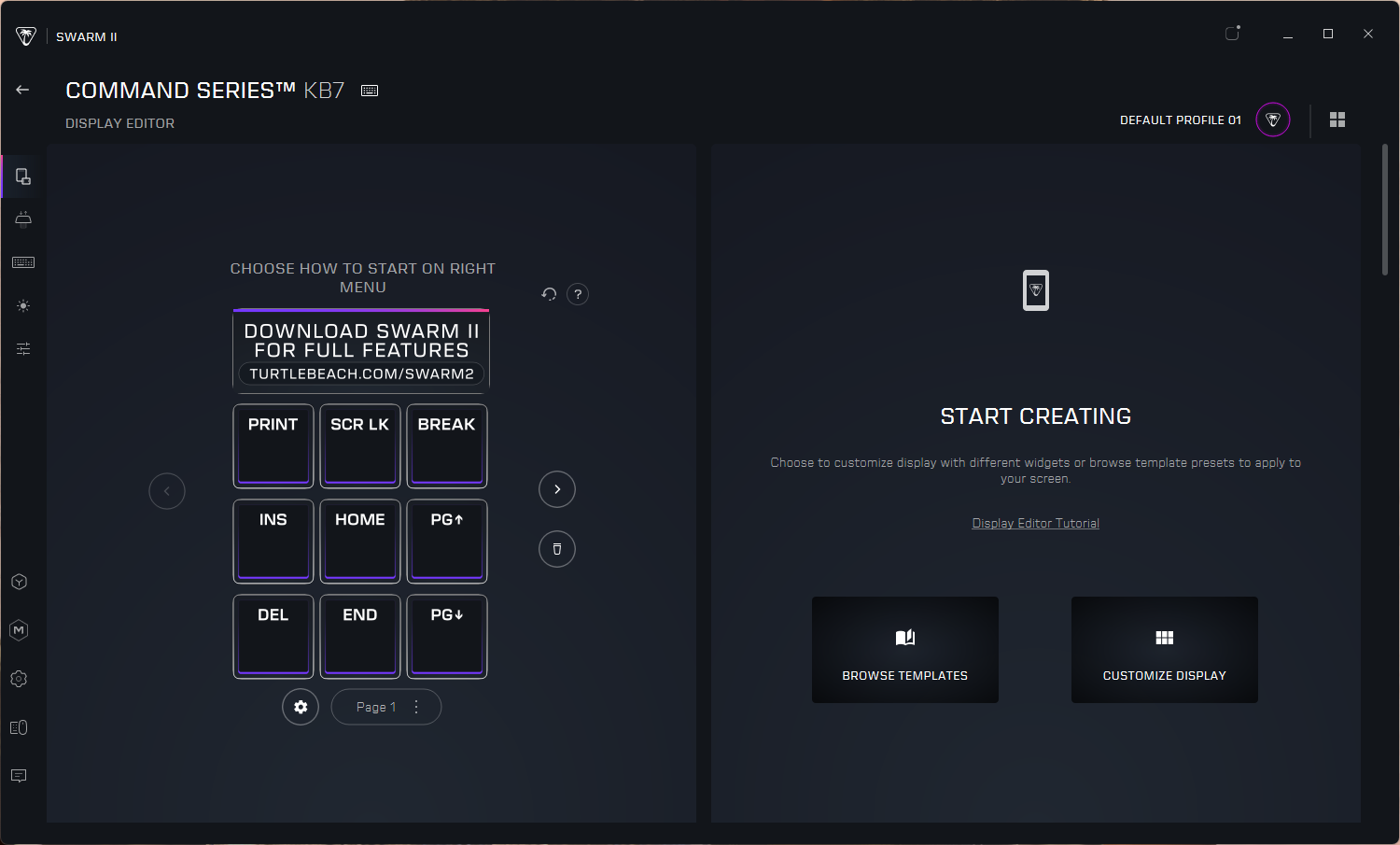
The KB7's standout feature is its 4.3-inch full-color "Command Center" touchscreen, which is located on the left side of the board where you'd normally find the navigation cluster. The touchscreen comes with the navigation cluster programmed in, of course — a full 3 x 3 grid, as well as a link at the top that directs you to download the Swarm II software for full functionality. Once you download Swarm II, you can replace this link with three additional touch-buttons, for a full 12-button grid — similar to the physical LCD key setup of the Corsair Galleon 100 SD.
(Image credit: Tom's Hardware)
Of course, the KB7's touchscreen doesn't have the extra knobs that the Galleon 100 SD has, but it is a touchscreen, so you can swipe left and right to switch "pages" of button layouts (most of my dial usage on the Galleon 100 SD is, admittedly, moving between layouts). The touchscreen also features a few non-remappable "buttons," including a home button at the bottom, a profile switch button in the top left, and a settings menu at the top, which drops down to let you change settings such as keyboard and touchscreen brightness, set the actuation point, toggle ReacTap and Rapid Trigger, record macros, and remap keys. (There's also yet another button for lighting adjustment, as well as one for profile switching — functions that are extra-redundant, given that the shortcut keys are also pre-mapped with them.)
(Image credit: Tom's Hardware)
The KB7 comes with an accompanying silicon wrist rest that's virtually identical to that of the Roccat Vulcan II Max, which is still one of the prettiest keyboards we've tested to date. The wrist rest is made of soft, smooth translucent silicon with a grooved design that showcases the keyboard's bright, customizable RGB lighting when it's hooked into the bottom of the board. It isn't powered, like the wrist rest that comes with Razer's BlackWidow V4 Pro, it just diffuses the lighting from the board onto the silicon. It's a cool feature that still makes for one of the prettiest keyboard lightshows around. The wrist rest itself isn't particularly plush, but it gives you a nice, gradual slope to the keyboard (which is low-profile, anyway, so you probably don't strictly need it), and it's durable and easy to clean.
Tom's HardwareTom's Hardware
Along the top of the keyboard, in the upper left corner, you'll find a USB-C port and a USB-A passthrough port. The passthrough port is nice — and it's also practically necessary, because this keyboard needs a lot of juice. It can connect to your PC through one USB-C port, or it can connect to your PC through two USB-A ports — again, similar to the Roccat Vulcan II Max, which also required two USB-A ports' worth of power to run. I guess that's the price of pretty lighting (and 4.3-inch touchscreens). But at least you get one USB-A port back as a passthrough port, I guess.
Tom's HardwareTom's HardwareTom's Hardware
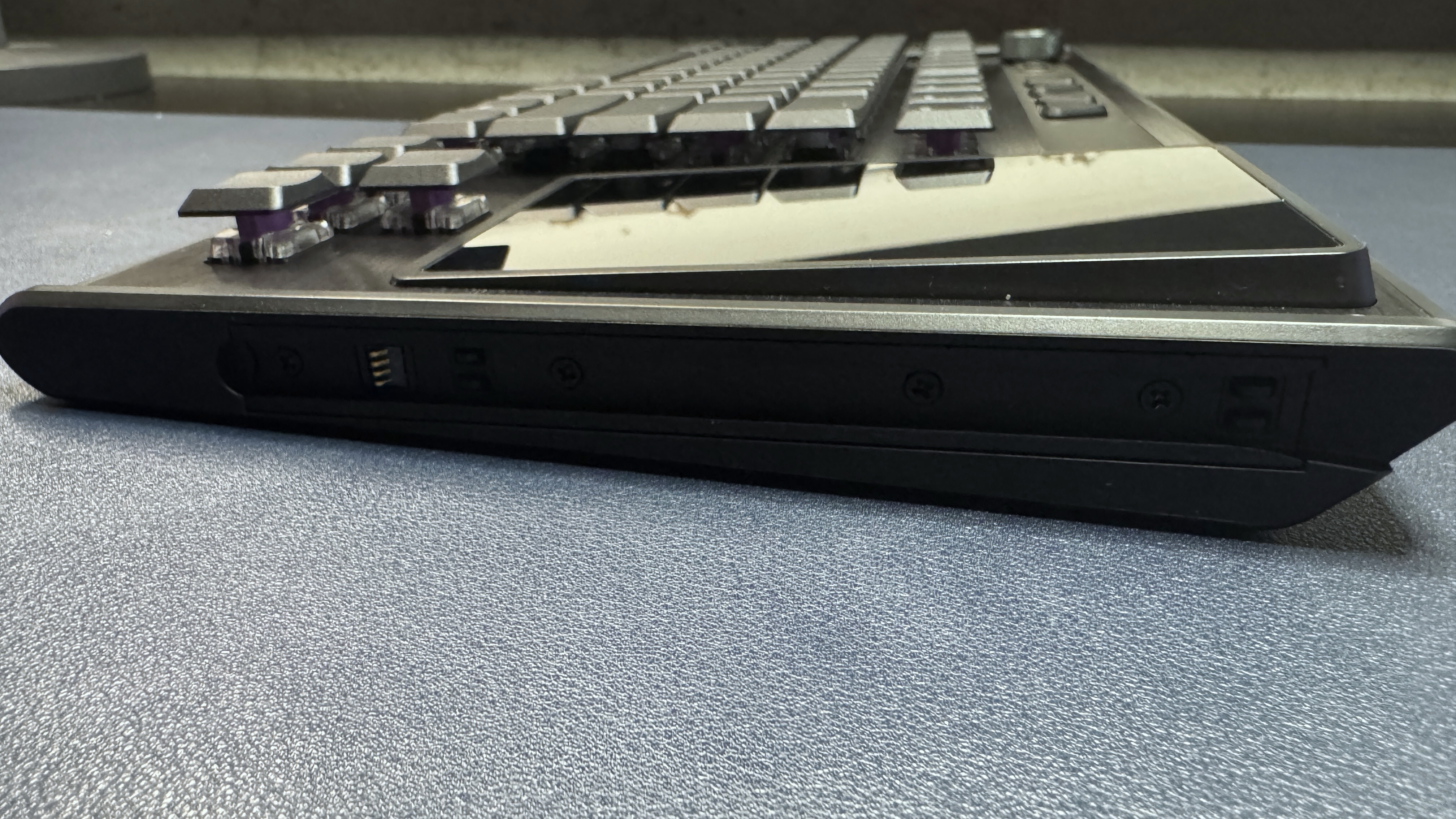
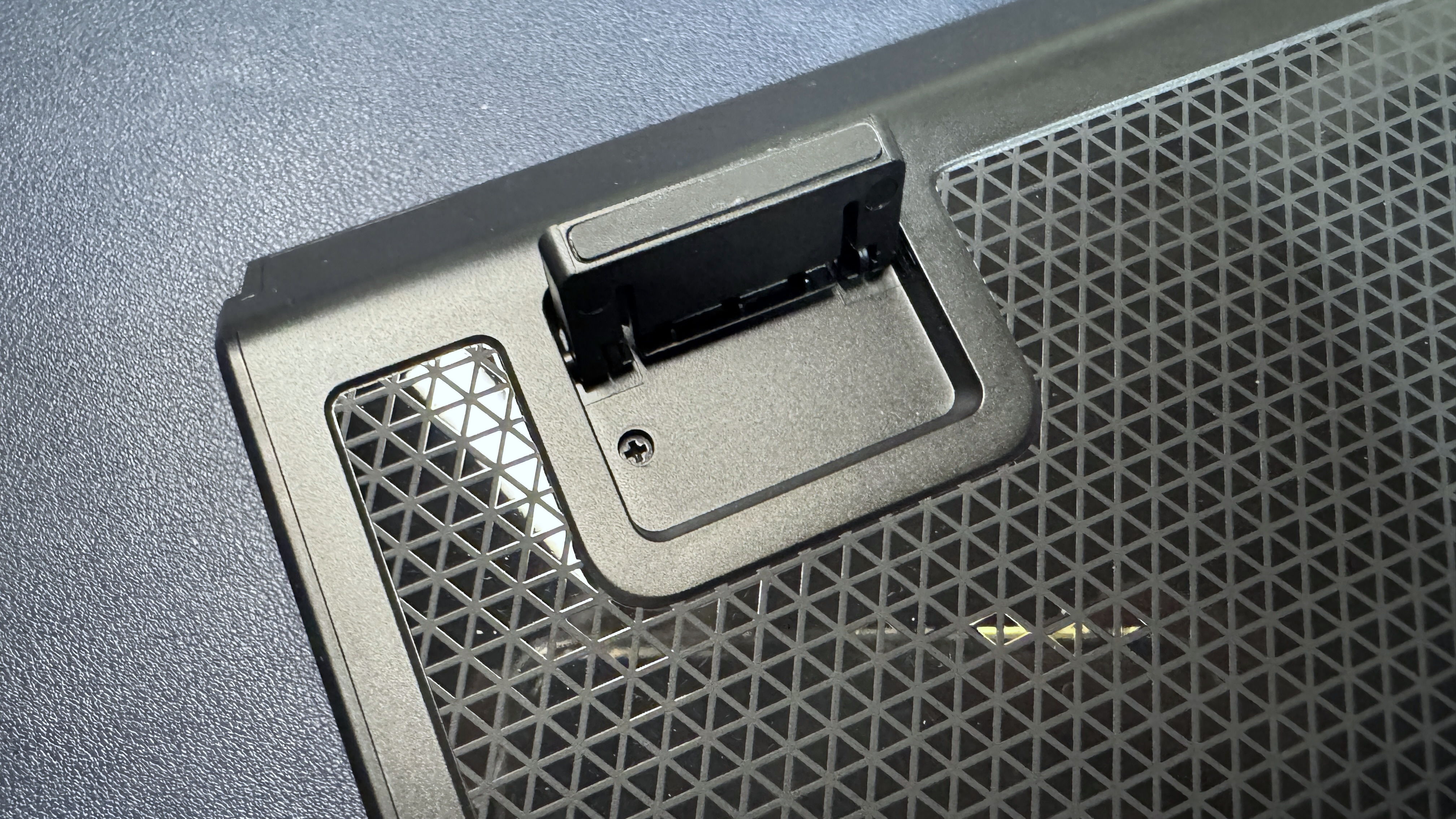
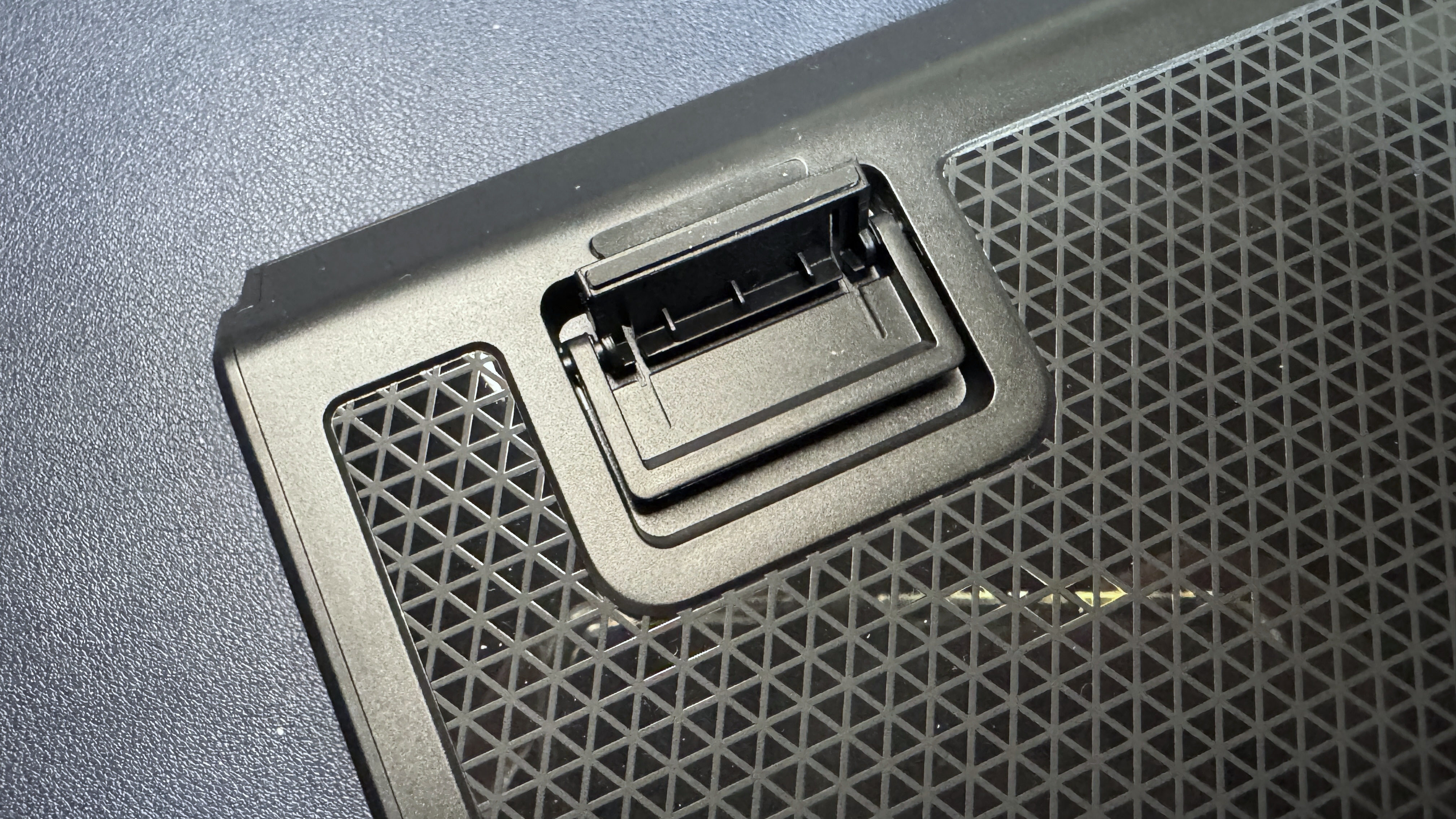
The back of the keyboard has two sets of flip-out feet, which raise the typing angle from basically flat to 5 and 7 degrees, respectively. It also features rails on both sides for connecting the KP7 modular keypad — just slide the keypad onto the rails, and you basically have a full-size keyboard (now with a touchscreen in the middle). It's nice that the rails are on both sides, even though I suspect that left-handed numberpad users make up a minuscule percentage of the population.
(Image credit: Tom's Hardware)
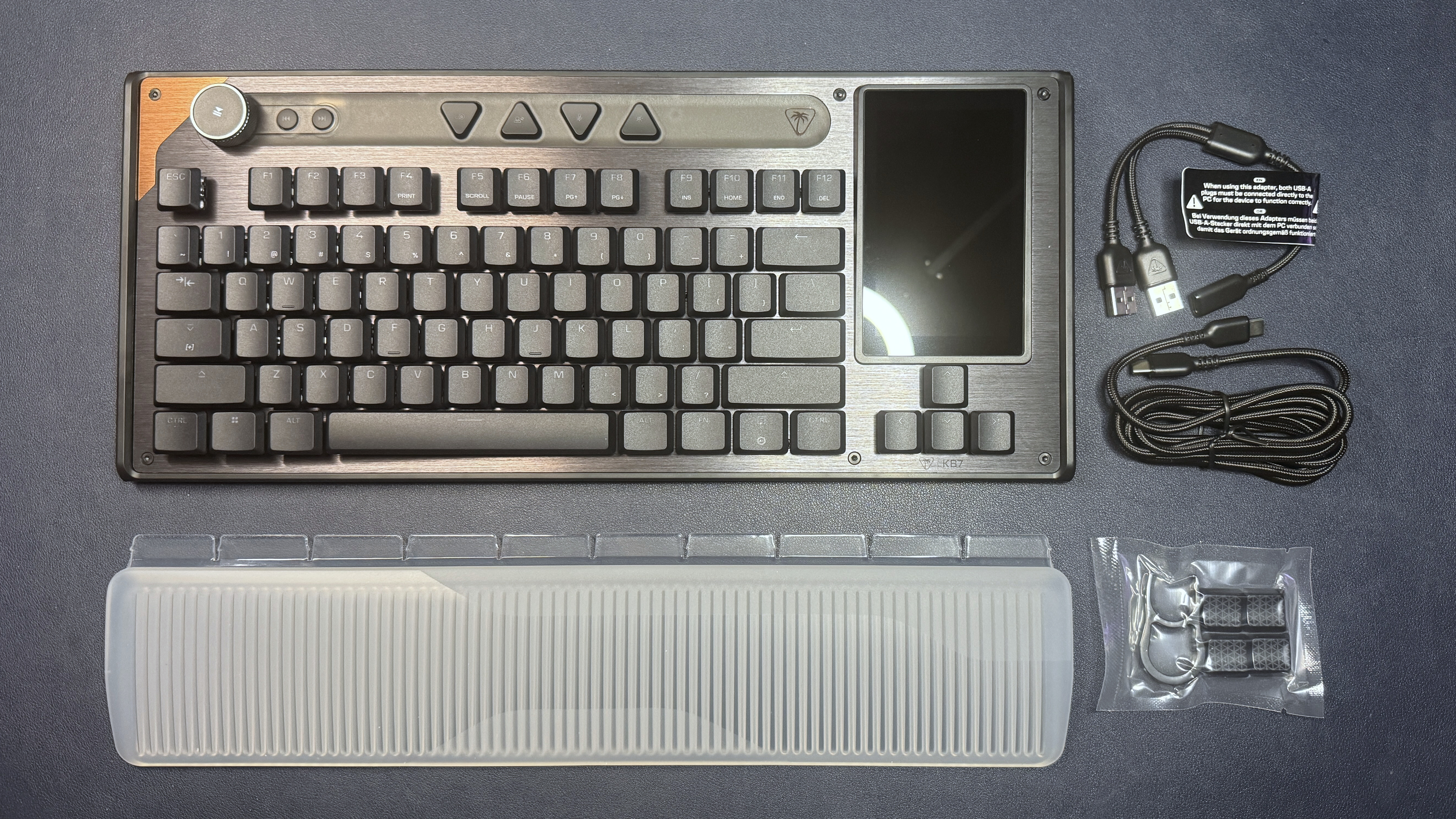
In the box, the KB7 comes with a few accessories: the silicon wristrest, a 6-foot (1.8m) braided USB-C to USB-C cable, a USB-C to dual-USB-A adapter, a keycap puller, and four shiny, textured keycaps (designed for the W/A/S/D keys, but they can be used on any standard-sized key).
Specs
Size
TKL (sort of)
Number of keys
78
Switches
Titan Low-Profile HE switches
Backlighting
Yes
Onboard Storage
Yes (5 profiles / 32MB)
Dedicated Media Keys
Yes (volume knob, fast-forward, rewind)
Game Mode
Yes
Additional Ports
0
Connectivity
Wired (USB-C)
Cable
6ft. / 1.8m USB-C to USB-C (comes with USB-C to USB-A x 2 adapter)
Keycaps
Double-shot PBT
Construction
Plastic chassis Anodized aluminum top plate
Software
Swarm II
Dimensions (LxWxH)
15.71 x 6.85 x 1.22 inches / 399 x 174 x 31 mm
Weight
1.89lbs / 858g
MSRP / Price at Time of Review
$199.99
Release Date
May 2026
Typing and Gaming Experience on the KB7
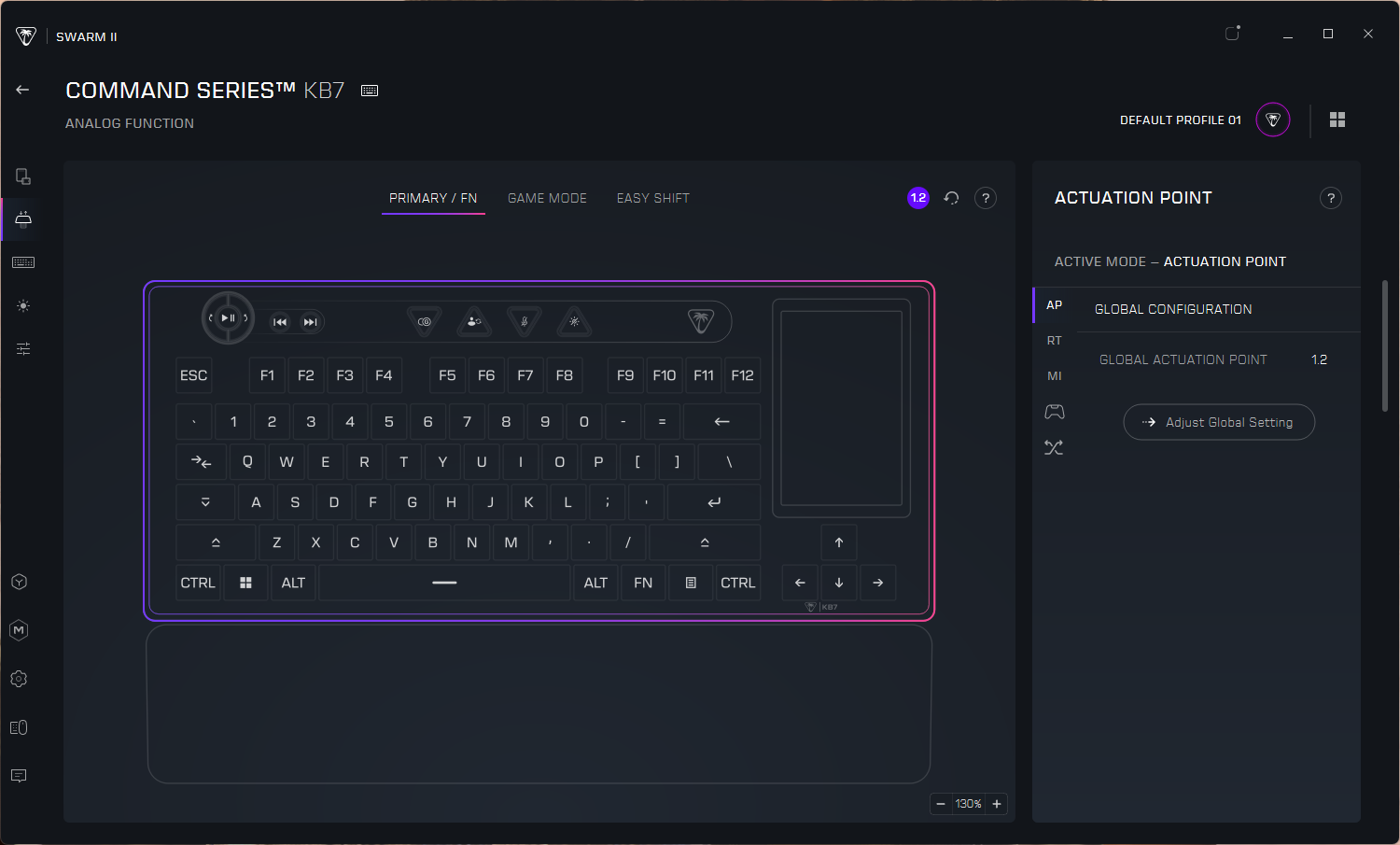
The KB7 is a TKL (-ish) keyboard with Turtle Beach's in-house Titan low-profile linear magnetic Hall Effect switches. They have an adjustable actuation point (0.1 - 3.2mm) and a lifecycle rating of 100 million keystrokes. They're not hot-swappable. Like other magnetic Hall Effect switches, they support all the trendy gaming features that will probably get you banned, including Rapid Trigger, multi-input,controller mode, and ReacTap (SOCD).
I'll admit that I didn't love the way typing felt on the KB7 initially — the linear magnetic low-profile switches combined with the relatively flat, lightweight double-shot PBT keycaps makes for a much flightier typing experience than I'm used to. It took less than an hour for me to get used to it, however, and all in all it's a pretty solid typing experience considering I don't love linear, low-profile, or magnetic switches. The flat, shine-through keycaps make it easy to move your fingers across the board quickly, and the relatively spacious layout means you won't make too many mistakes once you've gotten used to the feel. The board sounds decent — it's not incredible, or anything, but it gives pretty solid thunky feedback for a mainstream gaming keyboard.
(Image credit: Tom's Hardware)
I did have some issues that definitely weren't related to my "just getting used to the feel of the board," however — issues that could probably be remedied with a firmware update and software that worked, but, well... I'm not going to hold my breath. I had several issues while I was typing this review, including ghost inputs, missed inputs, and repeat glitches. All of these issues were quickly resolved, but having to stop the review six times because the keyboard was acting up does not give me great confidence in the board's ability to perform under pressure. I didn't have any serious issues while I was gaming, but I also don't generally play a lot of fast-paced first-person shooters where latency and input accuracy is wildly important (I play a handful for testing, but that's it). The KB7 does boast a speedy 8,000 Hz polling rate, but that means nothing if you can't get the right keys to actuate.
(Image credit: Tom's Hardware)
The touchscreen performance was decent, though I don't know if I'd trust it in a high-pressure situation. While it registered my inputs quickly and accurately, it's still a touchscreen — hardly the kind of input you want to rely on when you're in the middle of a high-stakes battle for your (digital) life. So, while it's useful for general macro-pad type things, it's not something I'd recommend as part of your ultra-competitive gamer arsenal.
Features and Software of the KB7
The KB7 is customizable via Turtle Beach's Swarm II software, which you can download by pressing the link on the touchscreen. You can use Swarm II to program the keyboard (remapping keys, adjusting actuation, recording macros, etc), the touchscreen, and the keyboard's bright, per-key RGB backlighting.
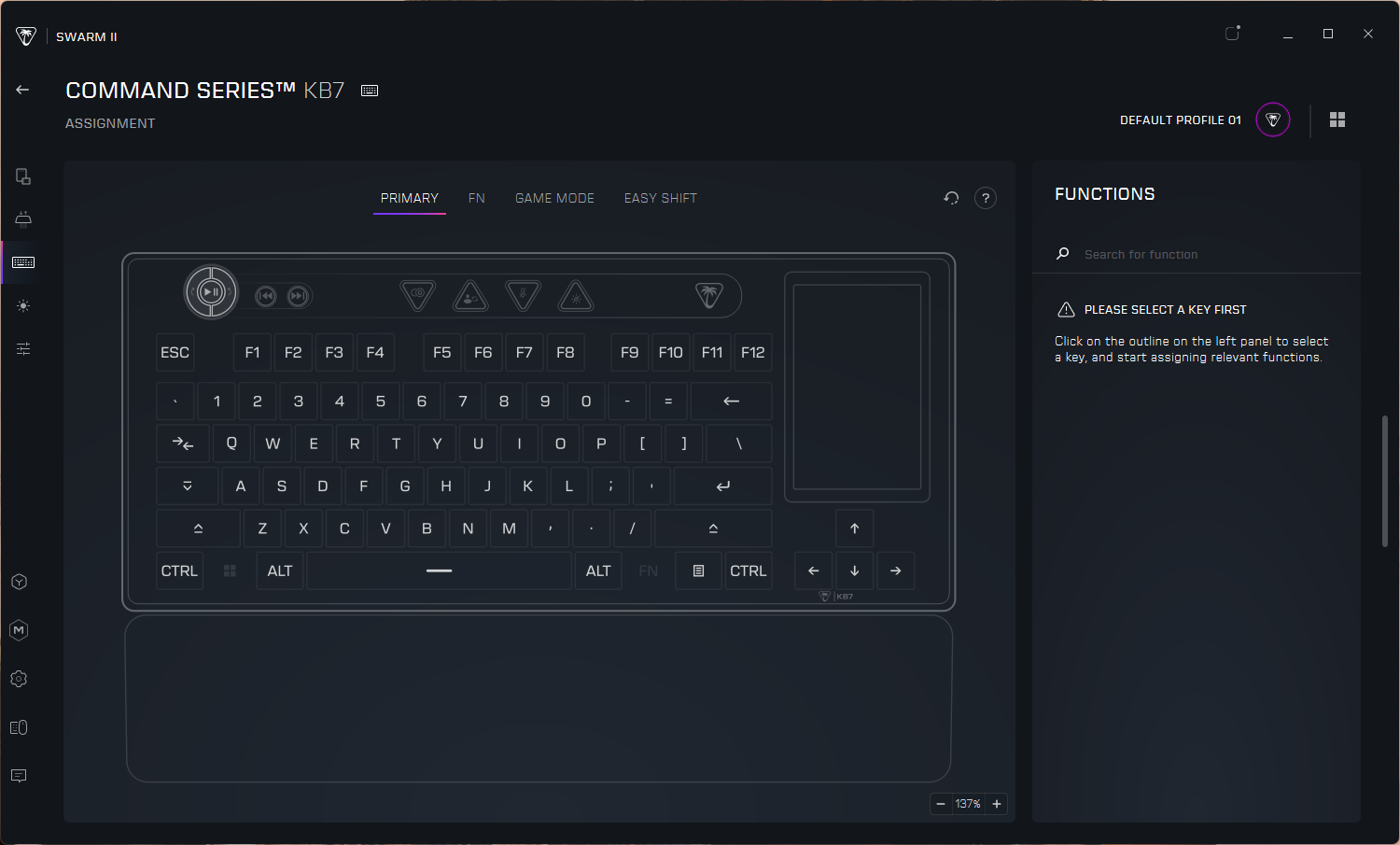
The keyboard settings are pretty standard for a magnetic switch gaming keyboard — you can turn on and adjust Rapid Trigger, multi-input, and ReacTap, and you can fine-tune the actuation point of every single key individually (a thing that nobody does). You can also remap every single key, except the Windows key and the Fn key, to do what you want — on the primary layer you can only swap around the existing alphanumeric punctuation keys (e.g. if you want to set up an unusual keyboard layout), but on the secondary (Fn) and tertiary (Easy Shift) layers you can set keys to do everything from outputting macros to changing system settings and, of course... launching AI? (Apparently this is such a core functionality that it comes standard in the Swarm II software, now — and it's not just CoPilot. There are options for ChatGPT, Gemini, Deep Seek, and Grok, too.)
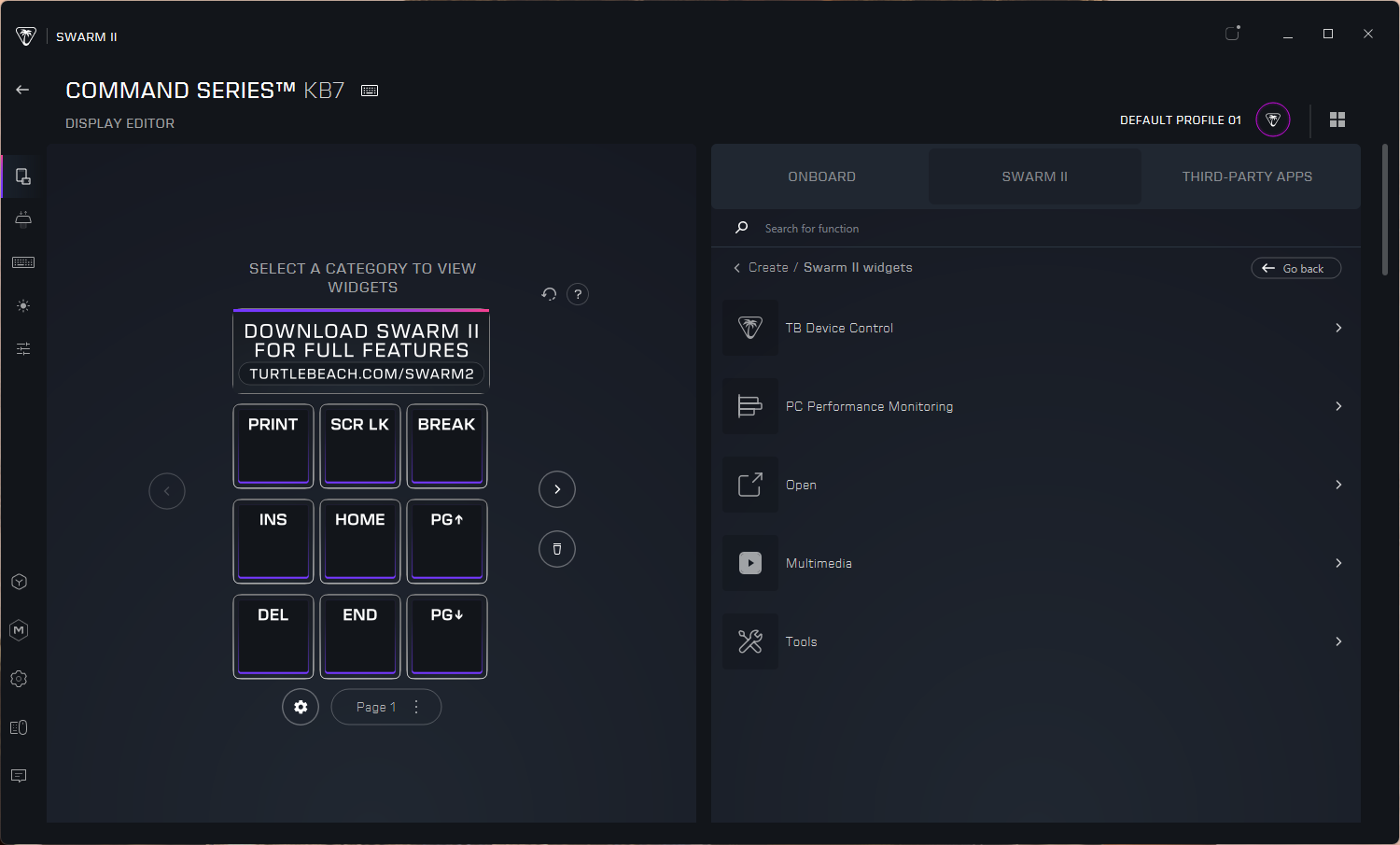
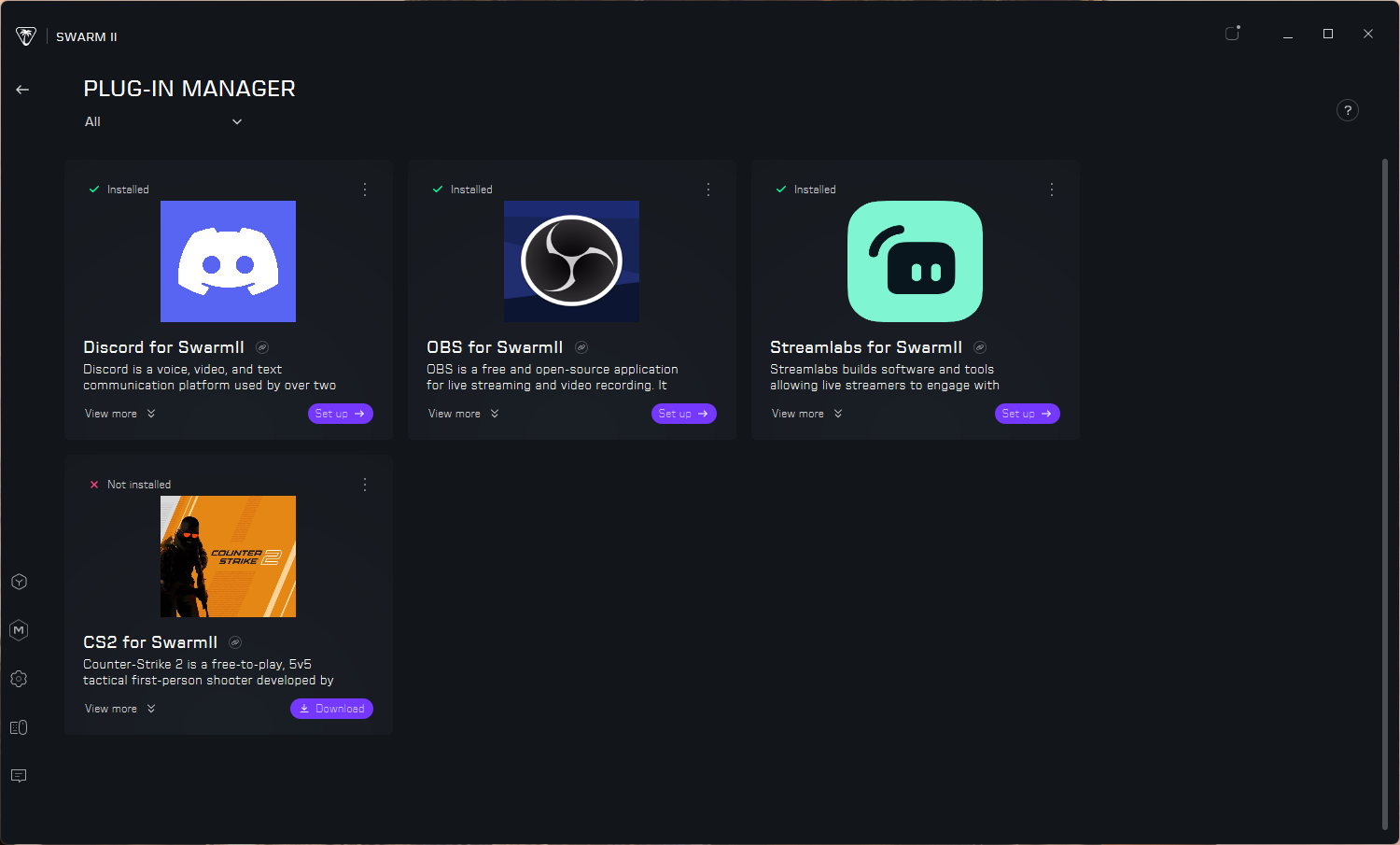
But the real customization is, or should be, in the touchscreen. It is, however, unfortunately — but not unexpectedly — limited. There are several native widgets you can swap in, but they're not particularly life-changing: PC performance monitoring (CPU / GPU / RAM), multimedia controls (which there already exist dedicated keys for), opening apps / websites / files / folders, controlling your Turtle Beach devices (by which I mean mouse DPI), executing macros, and a count down timer. There's also a tab for third-party apps, which currently consist of Discord (though you'll need to set it up via the Discord developer portal as an integration), Counter Strike, Steam (which just opens Steam), OBS, and Streamlabs. You can also assign the standard keyboard functions, Windows functions, and shortcuts such as copy / paste, forward / back, launch calculator, etc.
Because of course it does.(Image credit: Tom's Hardware)
It's a start, but it's definitely nowhere near as robust as the functionality you'll find on Elgato's Stream Decks. Still, this limited functionality is probably workable for most people (after all, you can set up a lot of the functionality you get through third-party apps and plugins by just spending some time creating macros) — if it worked. But the software is, well, let's just say finicky... at best. Setting up the touchscreen seemed to be pretty straightforward, but getting it to stay set up was more of a chore. The software frequently failed in my testing — it would reset, restart, shut down, prompt another six-cycle firmware update (this, at least, I was prepared for — it's pretty standard for Turtle Beach devices to require 14 firmware updates out of the box), etc. When the software was working, the touchscreen worked as expected and could probably replace my Stream Deck. But this was only about 85% of the time, which would probably be decent if my Stream Deck didn't work 100% of the time. And so the touchscreen has ultimately been relegated to a fun gimmick, at least for now.
The Bottom Line
After my surprising love affair with the Corsair Galleon 100 SD, I really wanted to love the KB7 — after all, it's basically the Corsair Galleon 100 SD, but with the option of an actual 10-key numberpad, which was my only real gripe with the latter. But Corsair owns Elgato, which has been making Stream Decks for almost a decade — and has the software and the third-party plugins to back them up. And at the end of the day, a highly customizable macro pad is actually only as customizable as its software allows for. While Turtle Beach currently lacks the integrations to fully compete with Elgato, I do think it has a fighting chance... if it can get the Swarm II software to work, like, at all. I can certainly work without built-in Creative Suite integration, but only if there's something to work with.
I still love the idea of the KB7 and I'm fully ready to hop on the Command Center bandwagon, as soon as Swarm II lets me. But given that this is hardly the first time Swarm II has shot itself in the foot, I'll probably keep this Galleon 100 SD around for a little while longer.
I realize I'm probably in the minority, but I love full-size keyboards because I love 10-key numberpads. For data entry and for everything else (let's face it, I don't do much data entry). Since I often have to test keyboards that aren't full-size, I'm always on the look out for a great standalone numberpad — but the options usually consist of $15 (and under) bargain bin finds or difficult-to-justify $100+ premium picks.
Tom's HardwareTom's Hardware
Turtle Beach's Command Series KP7 isn't exactly in the middle — it retails for $99.99, after all — but it's an interesting option nonetheless. This 28-key modular gaming keypad is part of the brand's recently-launched Command Series, which consists of several modular, multi-input peripherals (two keyboards, three mice, and this keypad). It's designed to work with the series' flagship Turtle Beach Command Series KB7 keyboard, which is a premium TKL keyboard with a built-in touchscreen. The KP7 hooks onto either side of the KB7, turning it into a full-size keyboard with a numberpad and a bunch of extra macro keys. The KB7 retails for $199.99, so the full set is just shy of $300. But the KP7 is interesting because it works very well on its own — in fact, it might even perform better as a standalone keypad than it does with the KB7 it's designed to complement.
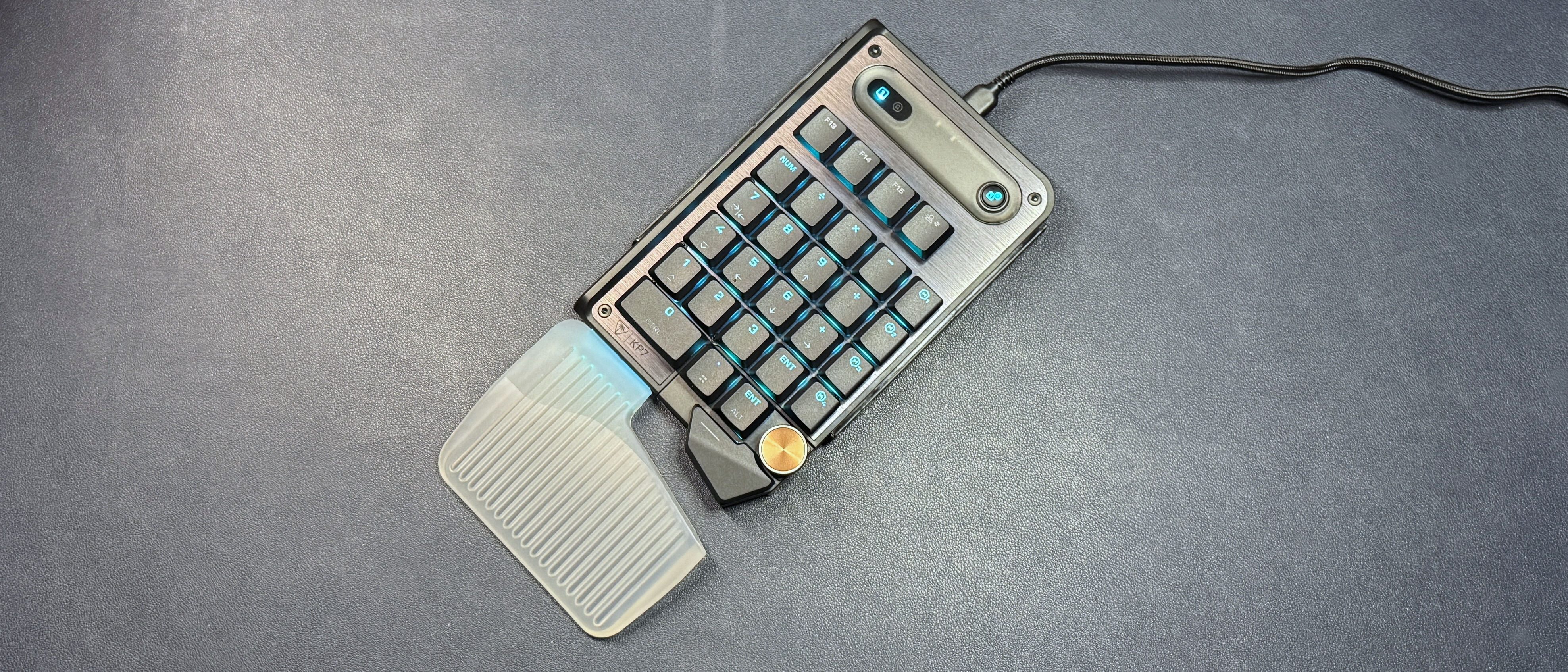
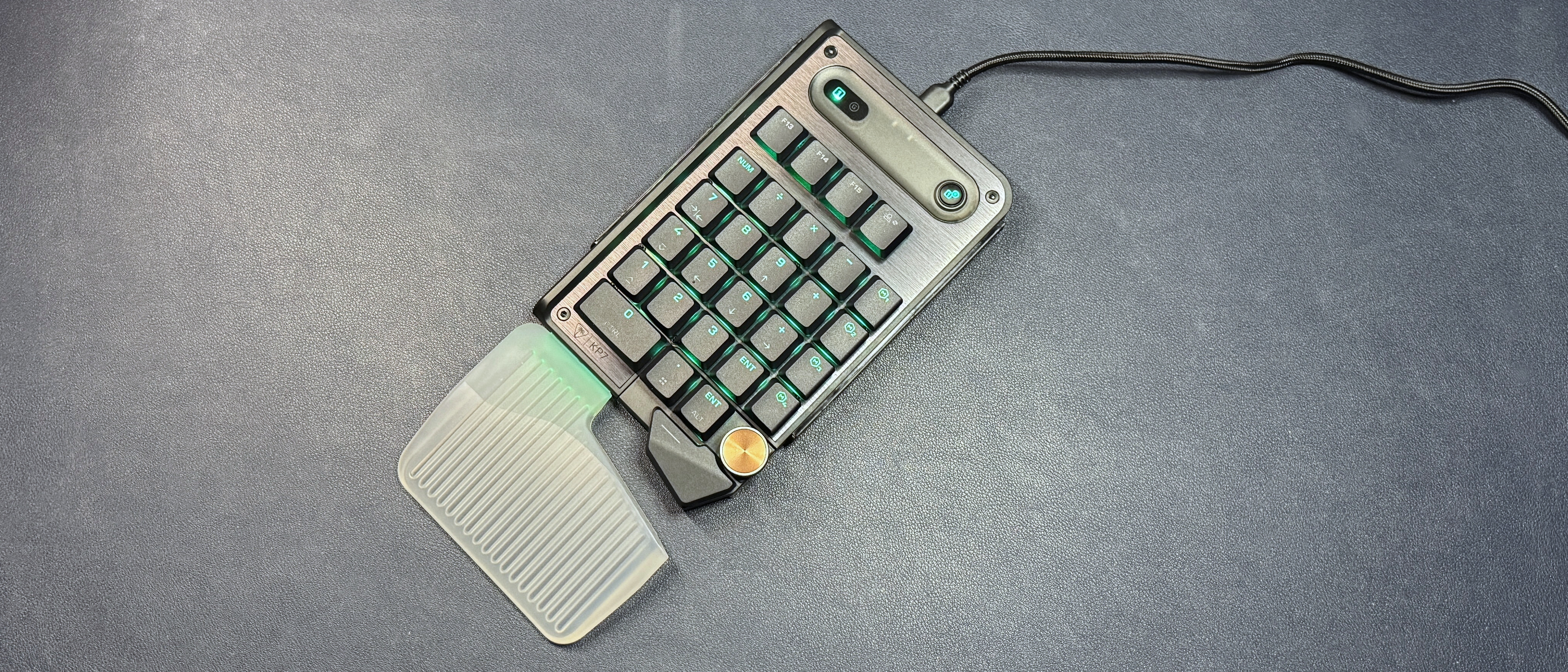
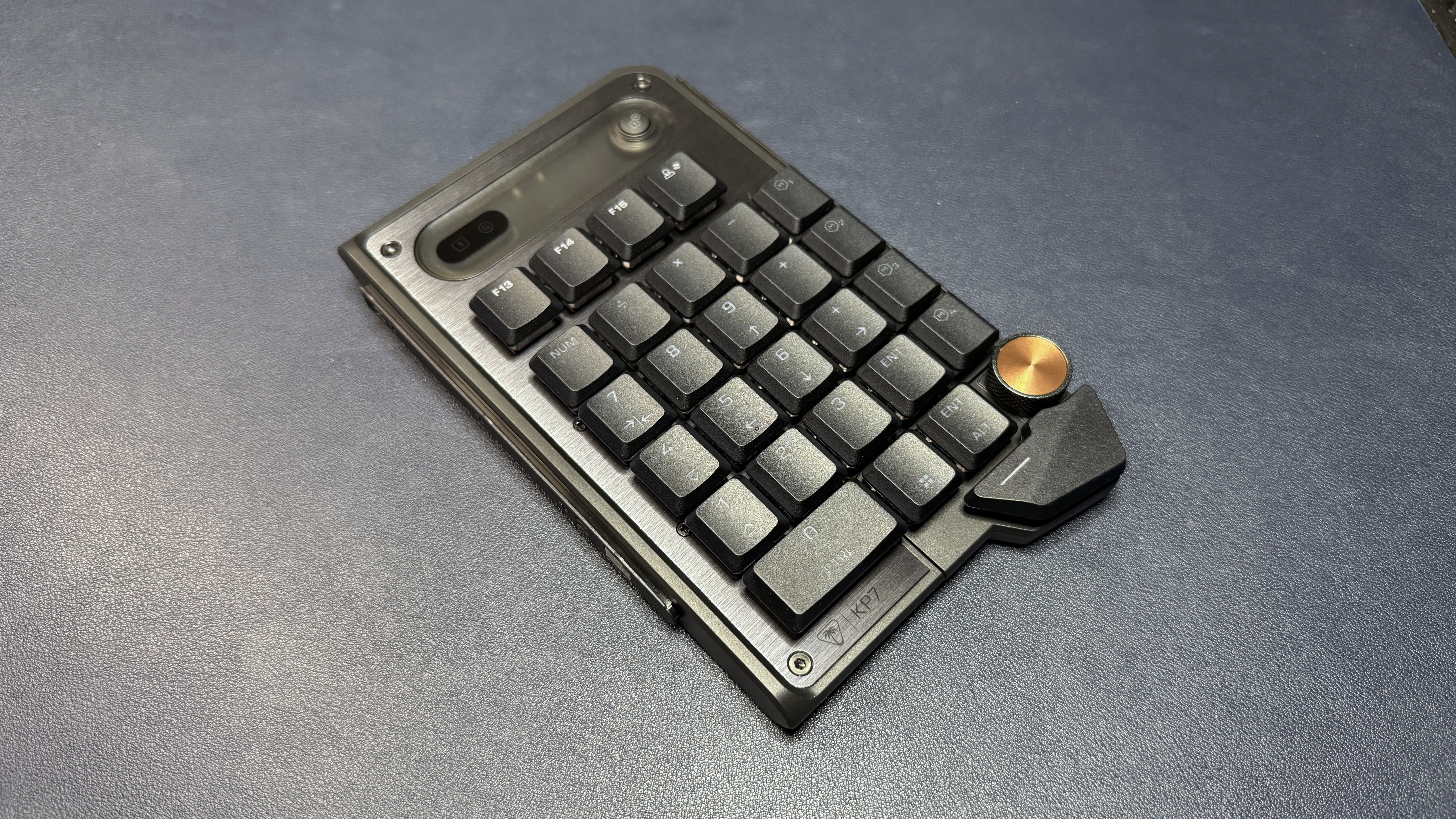
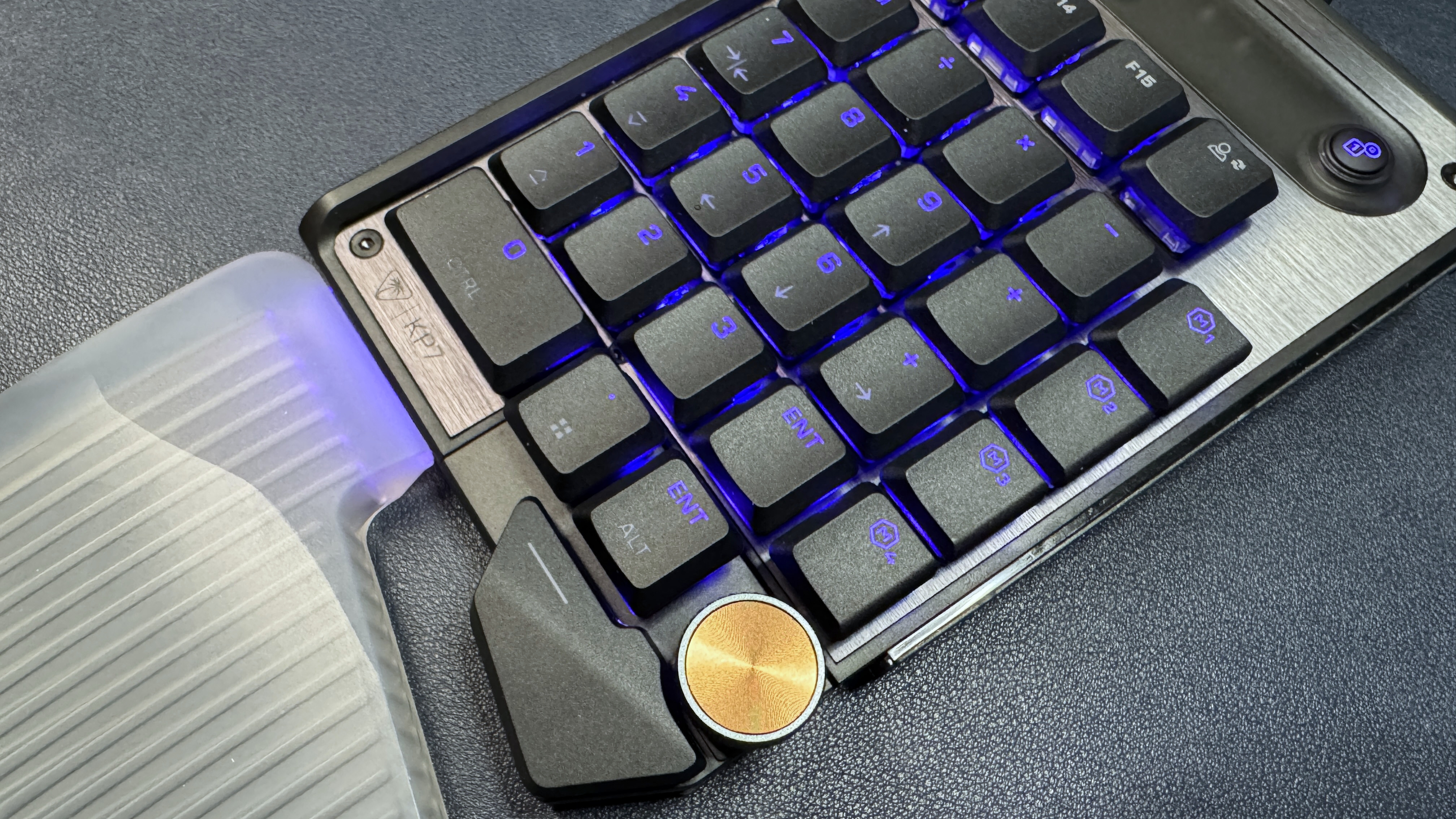
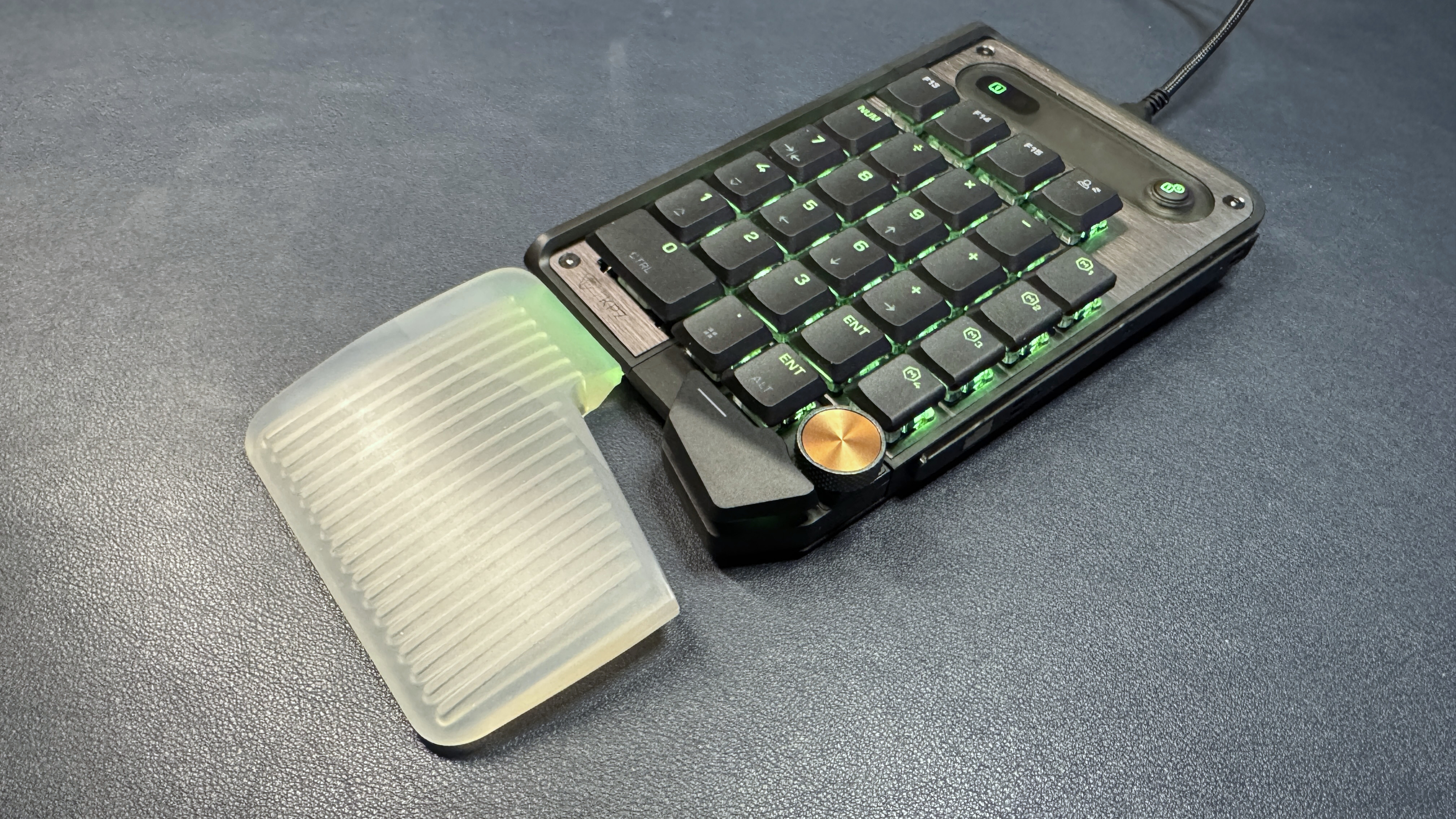
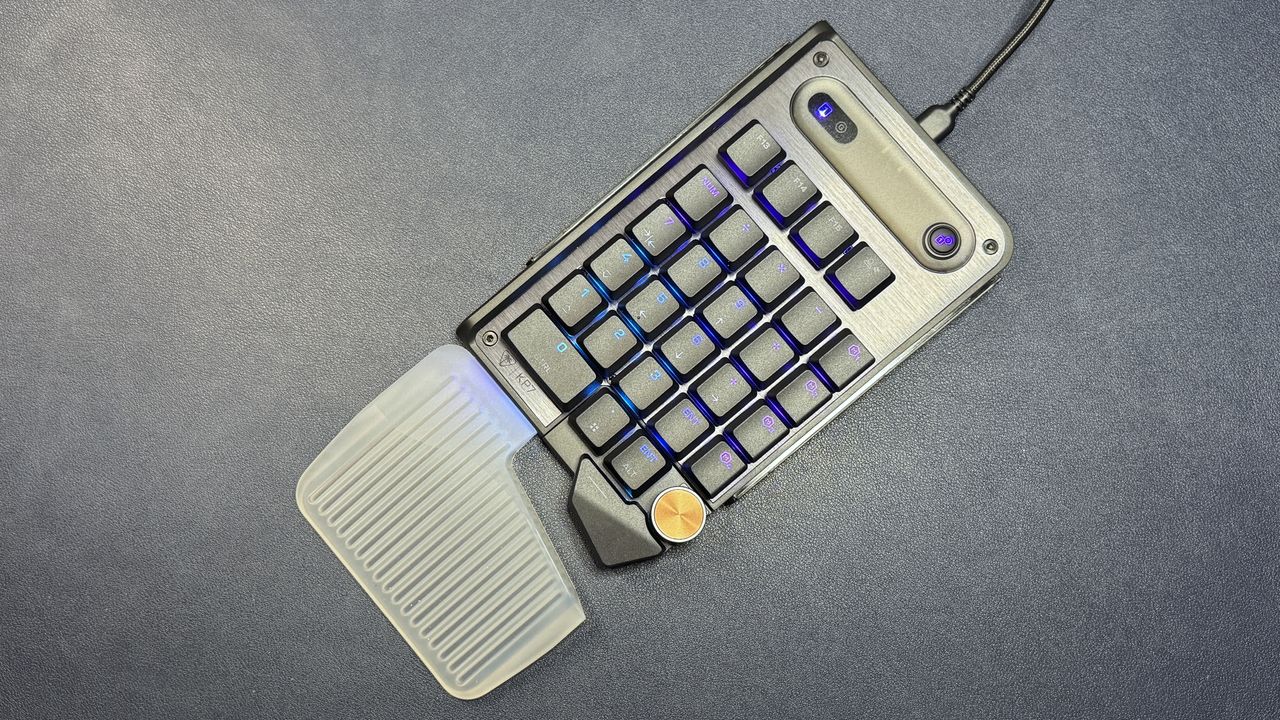
The KP7 is a modular gaming keypad with 28 keys, one clickable, programmable dial, and one (non-programmable) button for switching between numberpad mode and game mode. It can hook onto the right side of the KB7 to function as a typical numberpad, or it can hook onto the left side to function as a gaming keypad — complete with an extendable thumb bar. It features magnetic Hall Effect linear switch, bright per-key RGB backlighting, and its own mini wrist rest. It's available now, as a separate purchase from the KB7, for $99.99.
Design of the KP7
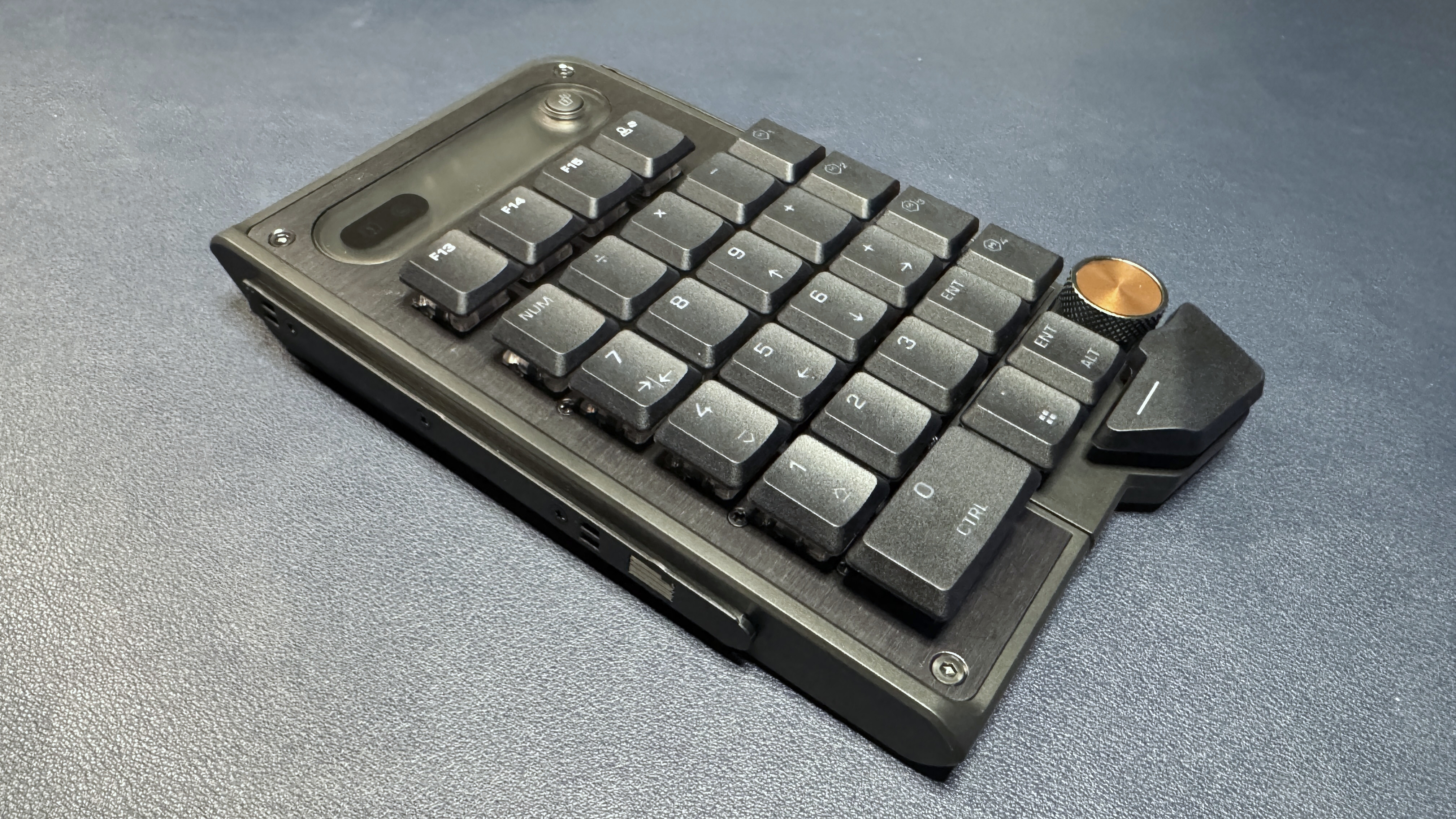
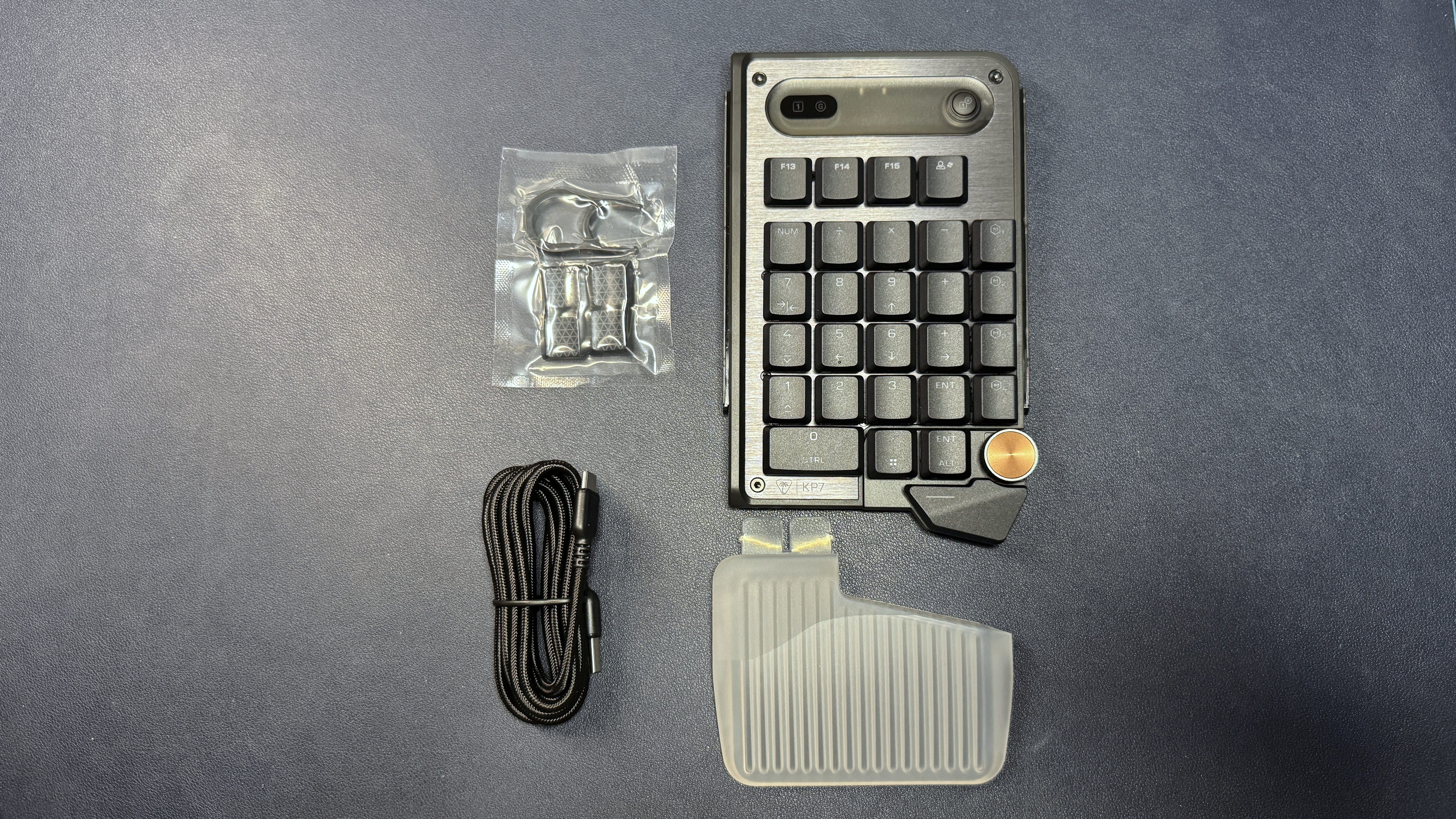
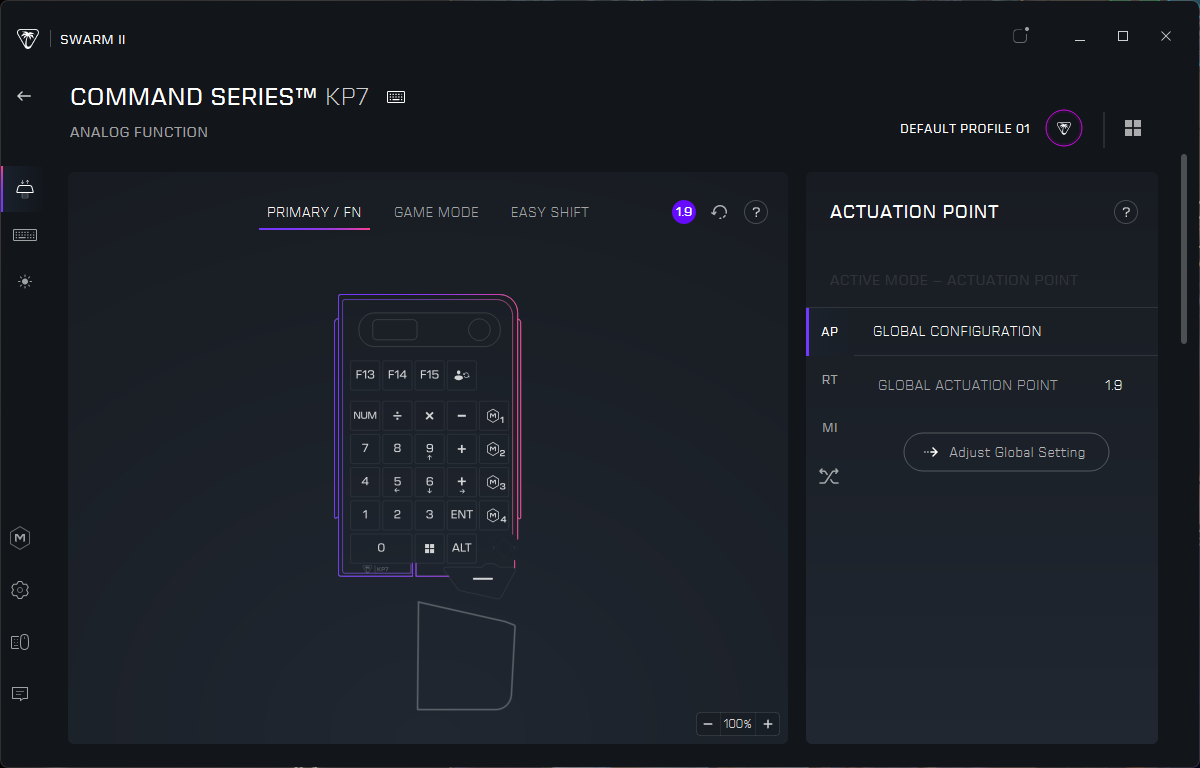
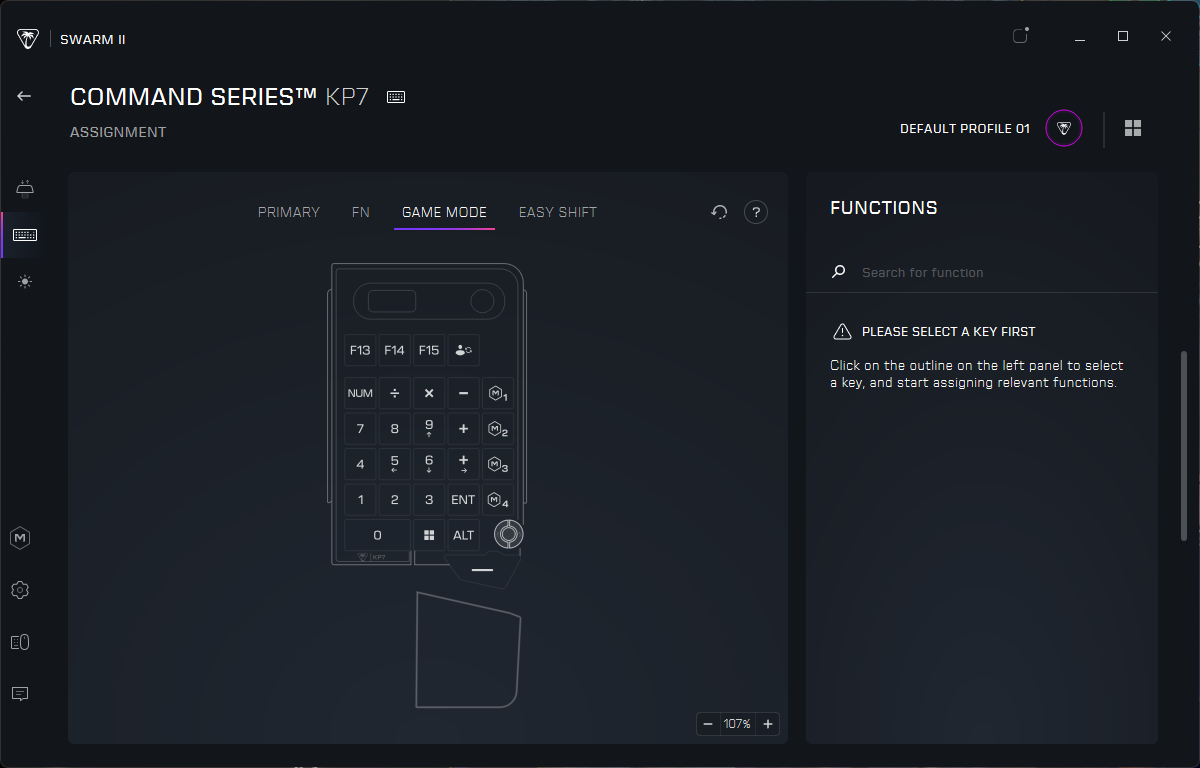
The KP7 is a standalone macropad that consists of a 10-key numberpad surrounded by a bunch of other keys. At the top, there are three additional Fn keys, as well as a profile switch key — it seems Turtle Beach is really trying to push multiple profiles, because if you use this with the KB7 keyboard, this marks the fourth dedicated way to switch profiles. On the right of the numberpad are two columns of keys: The first column consists of the math function keys that usually surround a numberpad, and the second column has four dedicated macro keys.
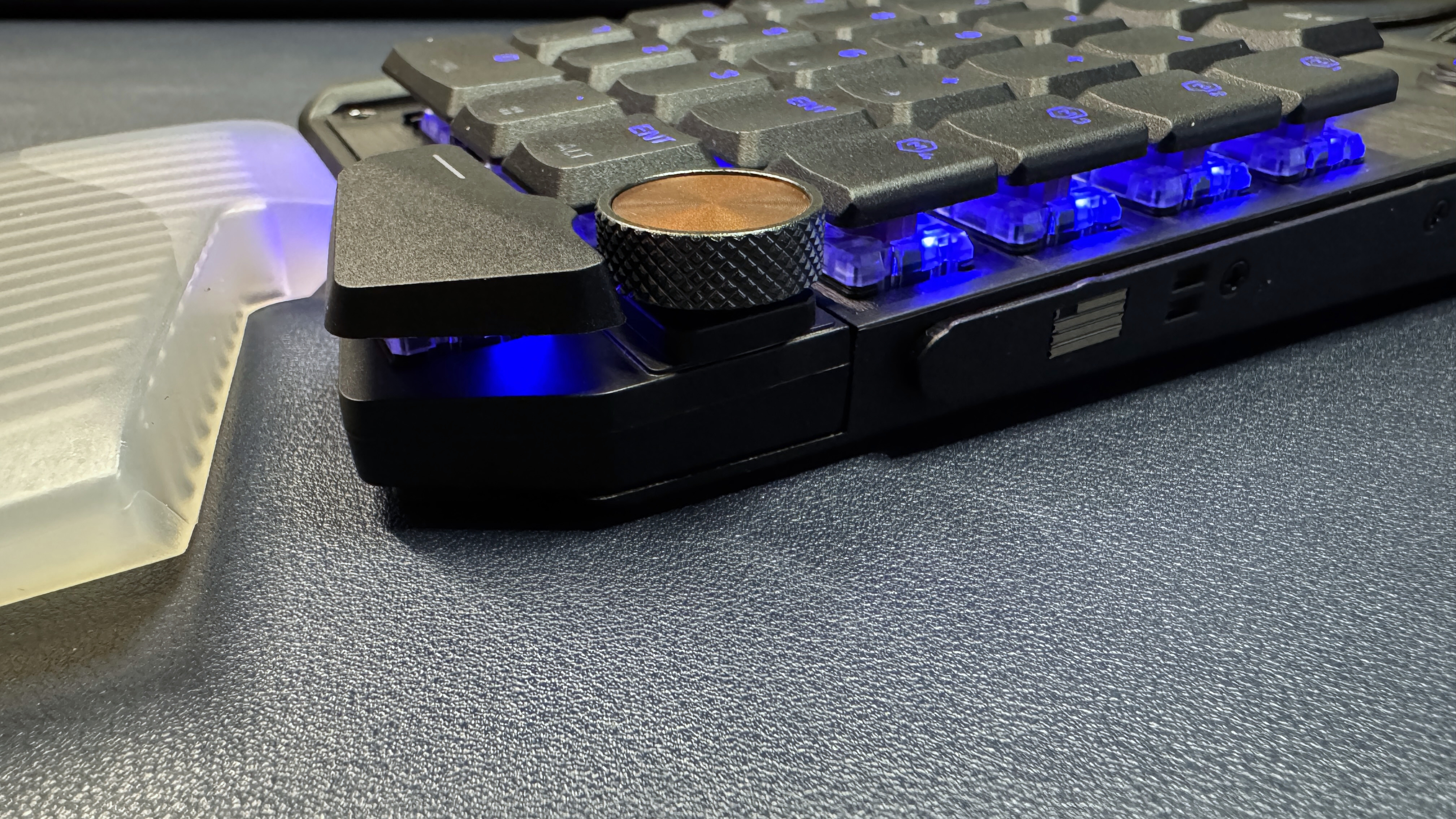
In the bottom right corner there's a programmable knob and an additional thumb button, which is set up by default as a space key. In the upper right corner there's a small button that switches between numberpad mode and game mode — game mode turns the center keys into W / A / S / D (and changes the surrounding keys to the corresponding keys on the left half of the keyboard. It essentially becomes a gaming half-keyboard, sort of like Nordic Game Supply's The Shrimp.
For the times you're using it in gaming mode, the KP7's lower right cluster of keys, including the dial, extend down and right so you can use them with your thumb while you've got your left hand on the center keys. The wrist rest is even cut out to accommodate the keys when extended, which is a nice touch.
Tom's HardwareTom's HardwareTom's Hardware
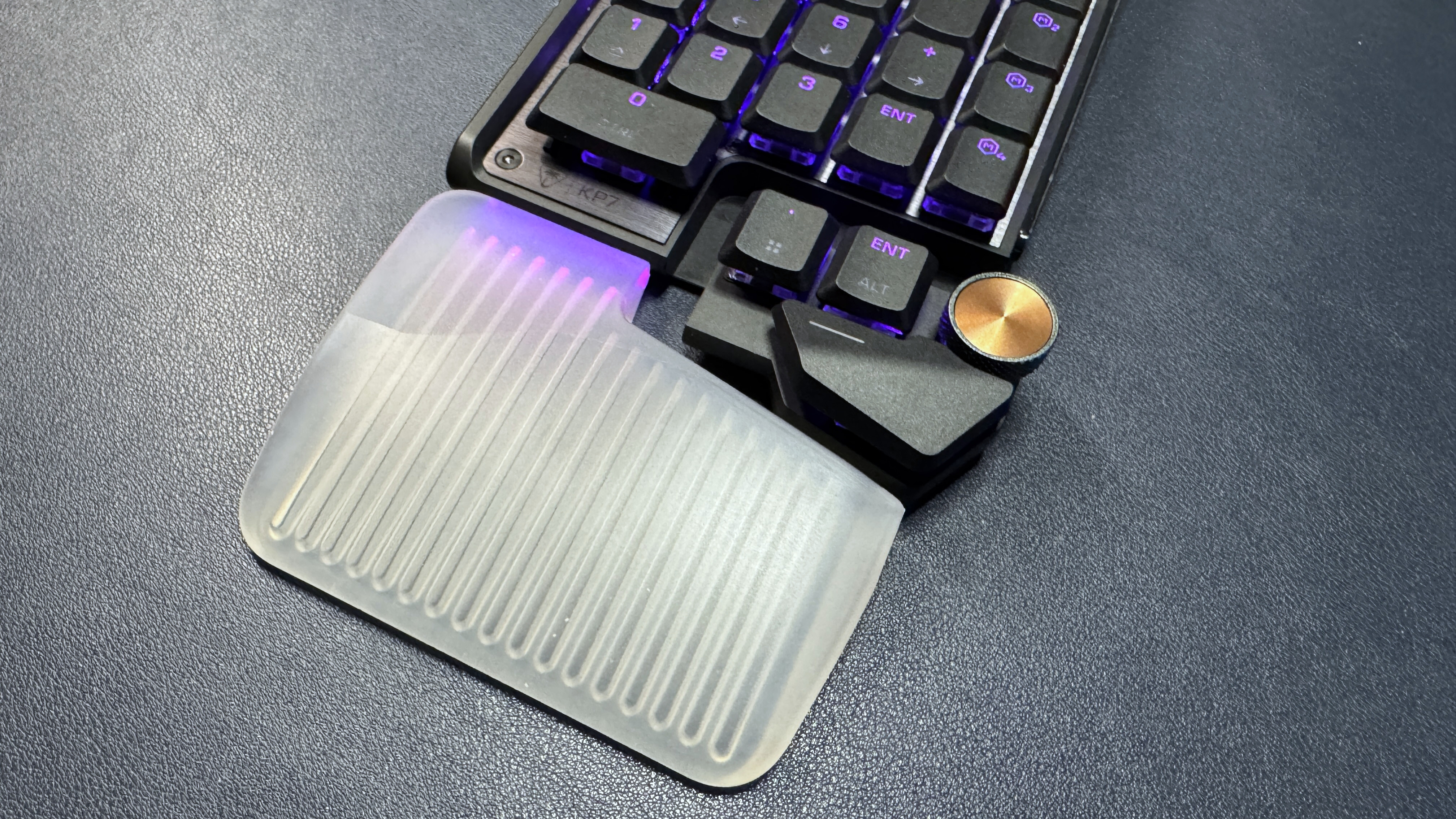
The KP7 is well-built for a standalone numberpad — it follows the same design philosophy as Turtle Beach's KB7, with a brushed aluminum top plate and a plastic chassis. It has low-profile linear switches, flat, double-shot PBT keycaps with shine-through legends, and bright, customizable RGB backlighting that extends to its silicon wrist rest, which is like a mini version of the wrist rest that comes with the KB7 (and, previously, the Roccat Vulcan II Max). The wrist rest slots into the bottom of the numberpad and is made of misty, translucent silicon with a grooved pattern that acts as a conduit for the lighting in the keypad. The wrist rest only attaches on one side of the keypad, so the lighting effect isn't quite as bright or mesmerizing as is the lighting effect on the keyboard, but it's still pretty and comfortable.
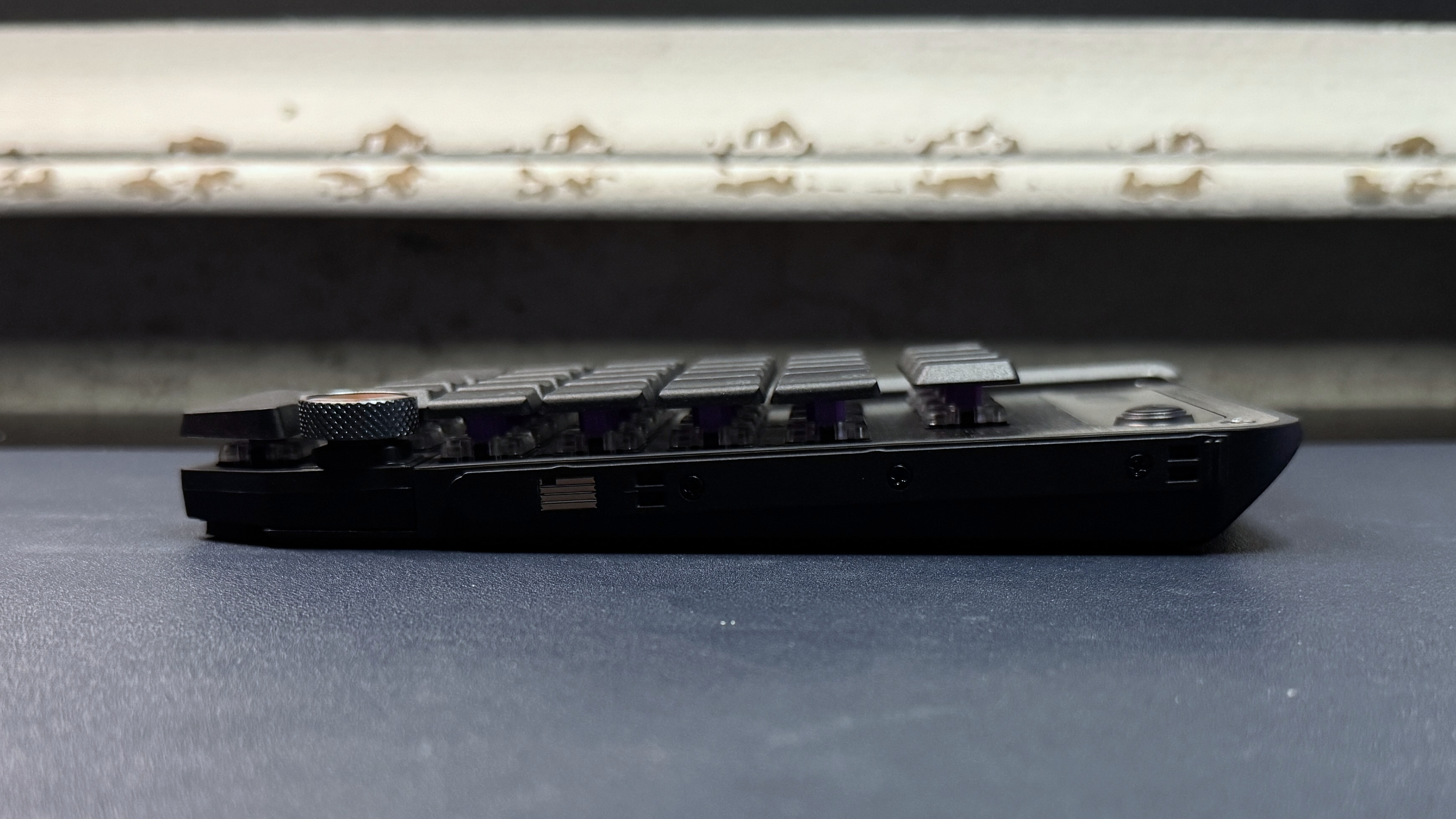
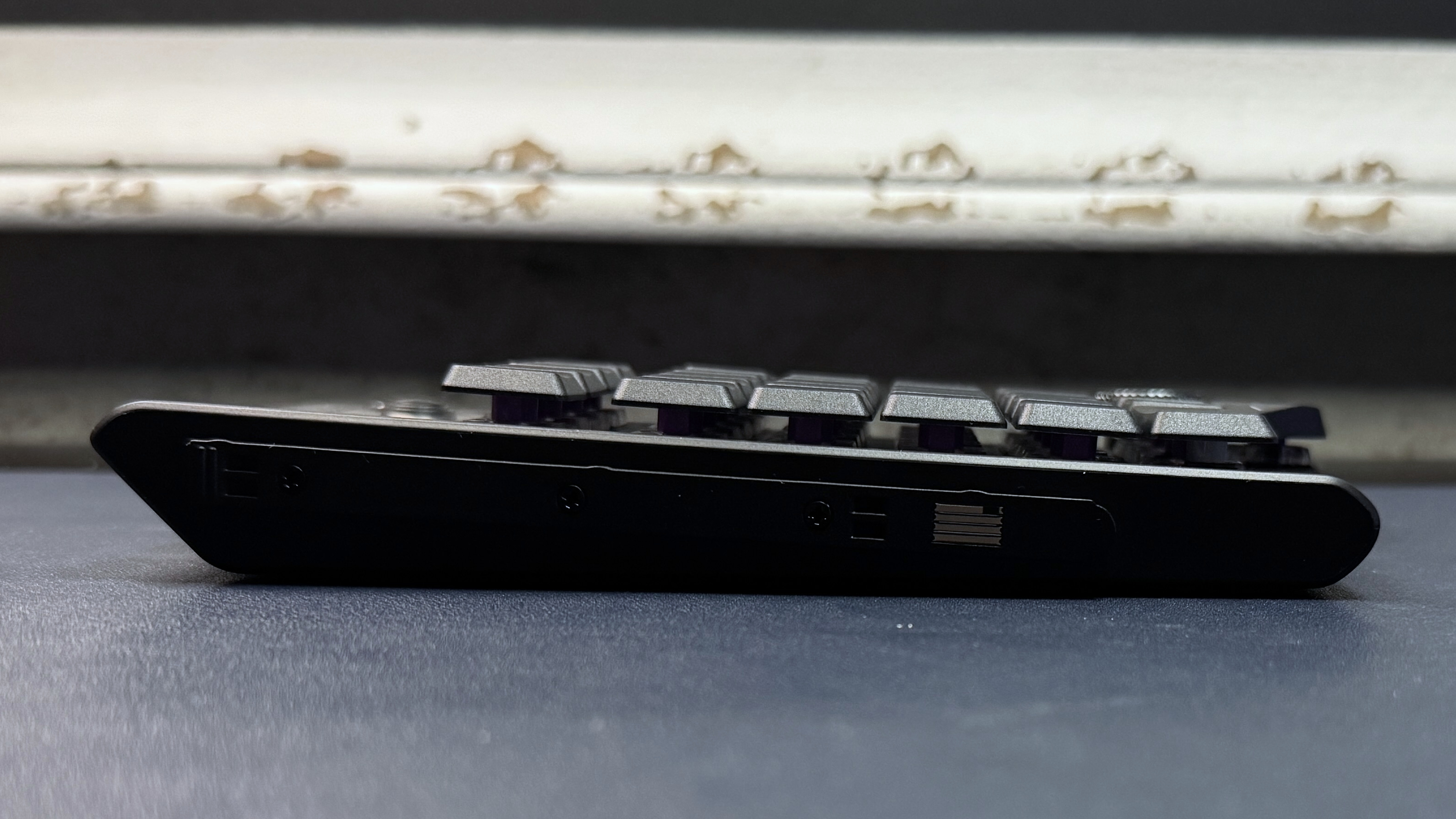
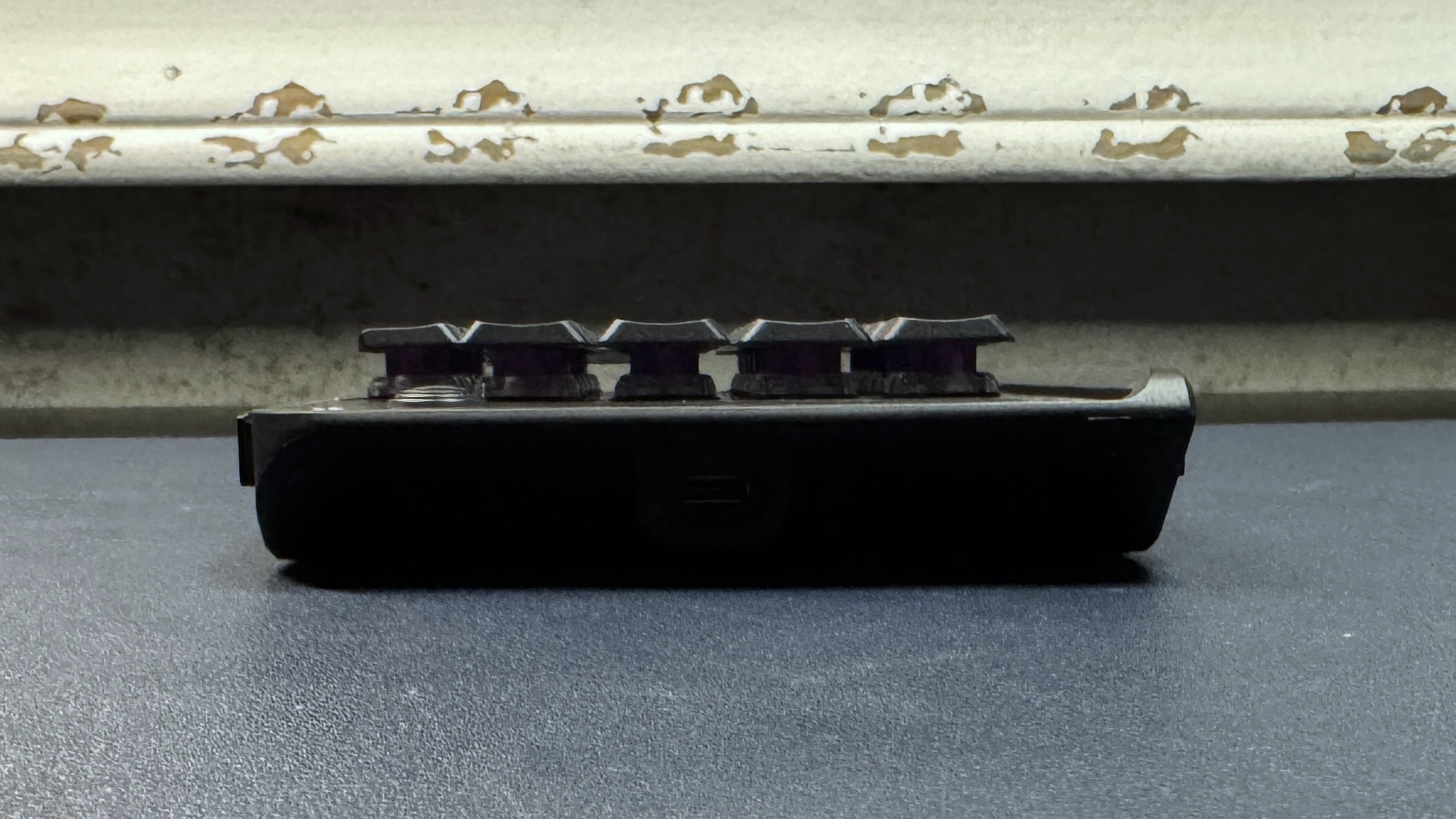
The KP7 has connectors on both sides that are designed to slot into the rails on either side of the Turtle Beach KB7 keyboard. The keypad gets its power from the keyboard when it's connected, so you shouldn't have to plug it in separately via USB-C, which is for when you want to use the keypad alone. However, I found that the keypad's lighting seemed to be inconsistent when it was powered through the keyboard — it flickered and reset itself several times throughout my testing, but this did resolve itself when I plugged it in via its own USB port. Of course, plugging it in via USB port means the KB7 and KP7 keyboard combo takes up either one USB-C and one USB-A port or three USB-A ports, which is a lot for what is essentially a single full-size keyboard.
Tom's HardwareTom's HardwareTom's Hardware
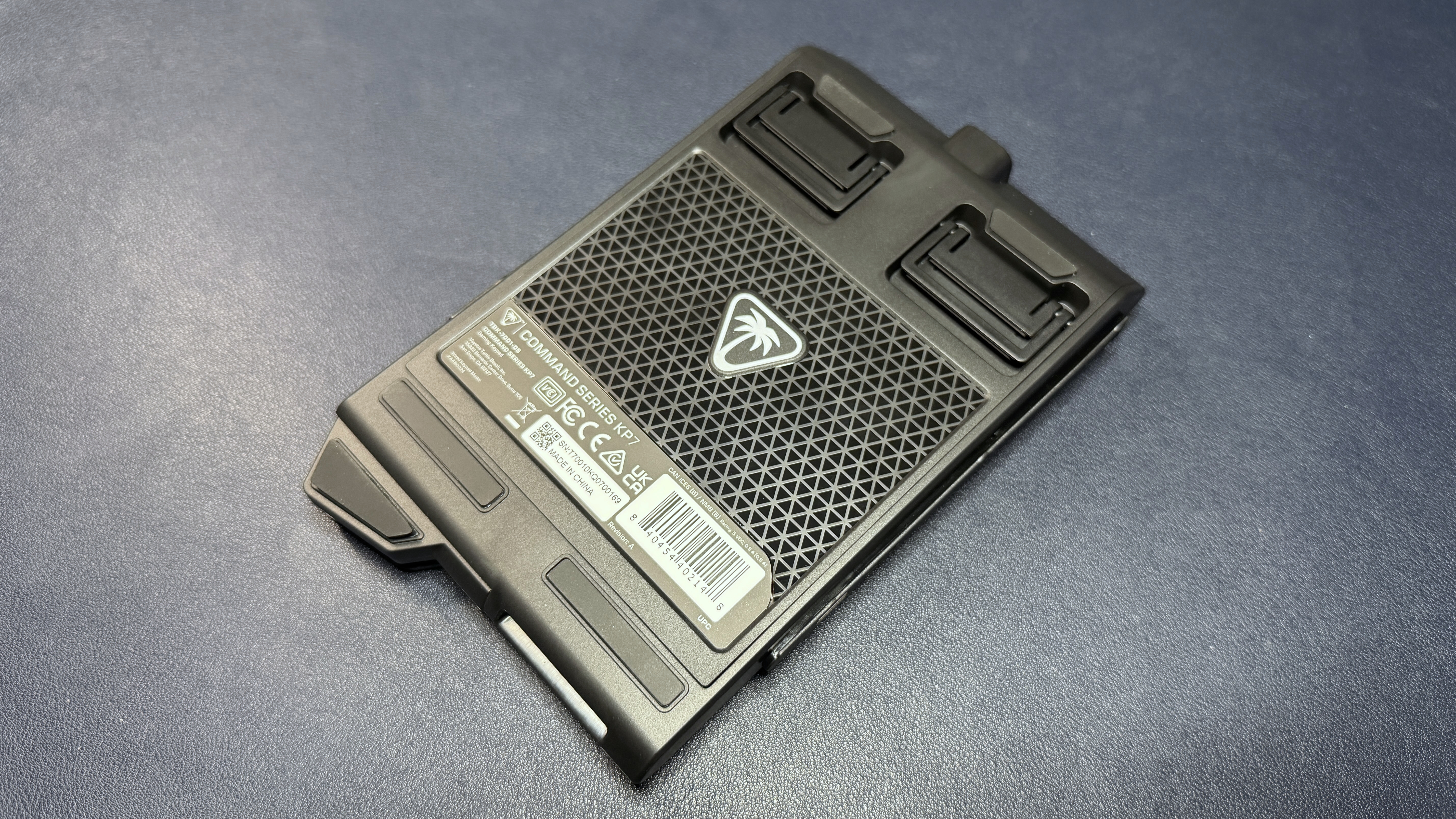
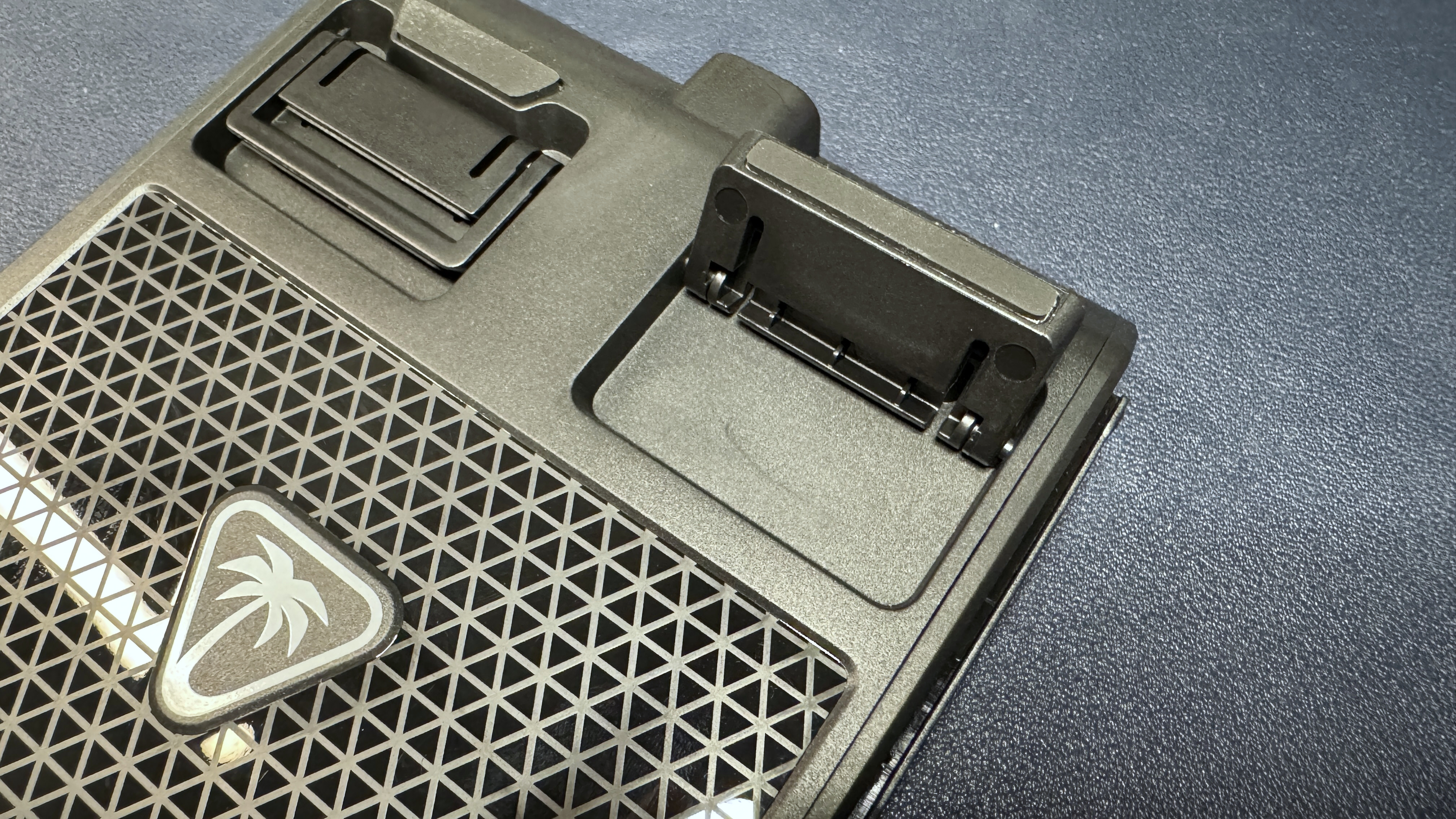
In the box, the KP7 comes with a 5.9-foot (1.8m) detachable braided USB-C to USB-A cable, a silicon wrist rest, and four glossy, textured keys keys (to replace the center W / A / S / D keys, for quicker tactile recognition), and a keycap puller. The back of the keypad has two sets of flip-out feet that raise the typing angle from flat to 5 - 7 degrees. These match the KB7, so you can raise and lower the entire setup as a single unit.
Specs
Buttons (Keys)
28 keys, 1 button, 1 clickable knob
Software
Swarm II
Interface
USB-C
Cable
5.9ft. / 1.8m USB-C to USB-A
Dimensions (W x H x D)
1008 x 4.45 x 1.14 inches / 256 x 113 x 29 mm
Weight
0.56lbs / 254g
System Requirements
Windows 10 / 11
MSRP / Price at Time of Review
$99.99
Release Date
May 2026
Performance of the KP7
It's hard to judge a keypad's performance on its own, but the KP7 has enough keys that it can function as a single-handed "controller." It features the same linear magnetic Hall Effect switches as we saw in the KB7, with the same functionality — individually adjustable actuation point (between 0.1 and 3.2mm), Rapid Trigger, multi-input, and ReacTap (SOCD). It also sports an 8,000 Hz polling rate, so I guess if you're playing a game that only requires the left half of your keyboard, this might be one way to get the ultra-low latency and speed of an 8,000 Hz magnetic switch keyboard without having to buy the whole keyboard (though it does cost exactly half of what the KB7 costs, and I don't think it's quite half the size).
Tom's HardwareTom's Hardware
The low-profile switches and flat keycaps make for pretty speedy input, and while the layout is slightly different from standard numberpad layouts, it's not too bad — in numberpad mode, the first column to the right of the numbers has five keys, but the bottom two keys are both Enter and the two keys above that are both + (normally, the Enter and + keys are vertical 2U keys). It's not quite the same, but it worked well enough for me for data input and other numberpad tasks.
The switches themselves are pre-lubed linear switches with a smooth, consistent keypress and no tactile or audible bump. Typing on the KP7 (well, for as much typing as you can do) is a surprisingly pleasant experience — it's not going to wow any hardcore keyboard enthusiasts, but the linear switches, slim, flat keycaps, and speedy, lightweight Hall Effect actuation is a great combo for extra gaming keys. And, as the KP7 is entirely tactile, it's much easier to integrate into your work (or game) flow. The extendable thumb bar (which just pulls away from the keyboard in a diagonal / downward direction) is also comfortable when you're using the KP7 as a gamepad. The keys on the thumb bar are well-placed, but I did find the knob difficult to turn without hitting other keys, as it's flush with the keys around it.
Software
The KP7 is programmable via Turtle Beach's Swarm II software, which originally belonged to Roccat. It's designed to work in tandem with the KB7 keyboard, but you can still program it fully without having to depend on the keyboard at all. You can use Swarm II to change the keypad's actuation, toggle on and adjust Rapid Trigger and ReacTap, and set up multi-input. You can also use it to remap keys up to four layers deep (Fn, Game Mode, and Easy Shift).
You can customize the KP7's bright, per-key RGB lighting in the software. This works pretty well when you're just customizing the KP7 alone, but I had issues getting the keypad to light up seamlessly alongside the KB7 (they were often out of sync, and/or the KP7 seemed to go into hibernation immediately and often when it was connected to the KB7 — even if it was being powered separately via its own USB-C port.
The Bottom Line
The KP7 is an interesting product — it's designed to work with the KB7, but I actually like it better as a standalone keypad. Partly because it works better as a standalone keypad — it was very finicky in my tests when it was connected to the KB7, regardless of whether it was powered separately or through the keyboard. This is probably because of the software, which, while fairly straightforward for the KP7, still wasn't great. For example, I was prompted to update the KP7's firmware everytime I connected it to the KB7 — but not when I used it as a standalone keypad.
The KP7 isn't the only standalone numberpad-slash-gaming-keypad out there, but it's the only one I've seen that manages to switch between the two modes pretty seamlessly. We tested Nordic Game Supply's The Shrimp mini-keyboard a few years ago, but that was definitely designed as a gaming keypad first and a numberpad... not at all. At $99.99, the KP7 isn't cheap, but it's versatile enough that you can definitely make it worth it.
The Royal Kludge RK R65 is one of our picks for best budget mechanical keyboards thanks to its stand-out feature set and excellent sound and feel for the price, which normally ranges from $50-$60. But today at Amazon, you can pick up this compact 60% clacker for just $44.99 if you clip the $10 digital coupon.
The RK R65's feature set reads like something that costs at least twice as much. The wired keyboard boasts RGB backlighting, factory-lubed switches (RK Cream in this variant), a gasket mount, two silicone pads to absorb stound, and (somewhat) metal volume knob. The result is the best-sounding budget keyboard I've ever used — so much so that I've been using it as my daily driver in the office for over a year, despite the lack of a Function row and other handy keys.
The RK R65 is an excellent budget 60% wired keybaord, with RGB, swappable factory-lubed linear switches, a gasket mount and silicone pads, QMK/VIA support for customizing keys, and a metal volume knob. This is by far one of the nicest-sounding and nicest-looking keyboards I've used in this price range.View Deal
Of course, the 60% layout is best-suited to gaming, and it works quite well for that. But with its dedicated arrow keys, I can also get by using it for productivity. And if you don't like the bronze-and-brown color scheme of this model, there are four other color and switch options that are currently priced between $48 and $50.
Keep in mind, as much as this keyboard delivers excellent features for the price, Royal Kludge had to cut corners somewhere. The chassis is basically all plastic save for the knob, which is also partially plastic. So don't expect a weighty, premium-feeling shell. Still, if you consider the price — especially when it's on sale, as it is today — this is a whole lot of keyboard for something that falls decidedly into the budget range.
It is also probably the best-sounding keyboard I've ever used that didn't cost well more than $100. So much so that, while I have several other keyboard options, I plan to keep using the RK R65 at work for the foreseeable future.
It's hard to find a keyboard that's satisfying for both writing and gaming and I'm not sure the perfect board even exists. But while I wait to find it, these are the keyboards I keep coming back to, for one reason or another.
Cherry XTRFY launched the first 8K ultra-wideband wireless gaming keyboard at Computex 2026. The keyboard features a 70-percent layout, low-profile switches, and a gasket mount design.
Asus’ latest gaming keyboard celebrates two decades of ROG with gold-plated accents, 8K polling, transparent switches and keycaps, an OLED touchscreen, and a hefty $599 asking price to match its 4.6-pound weight with its wrist rest.
 登录