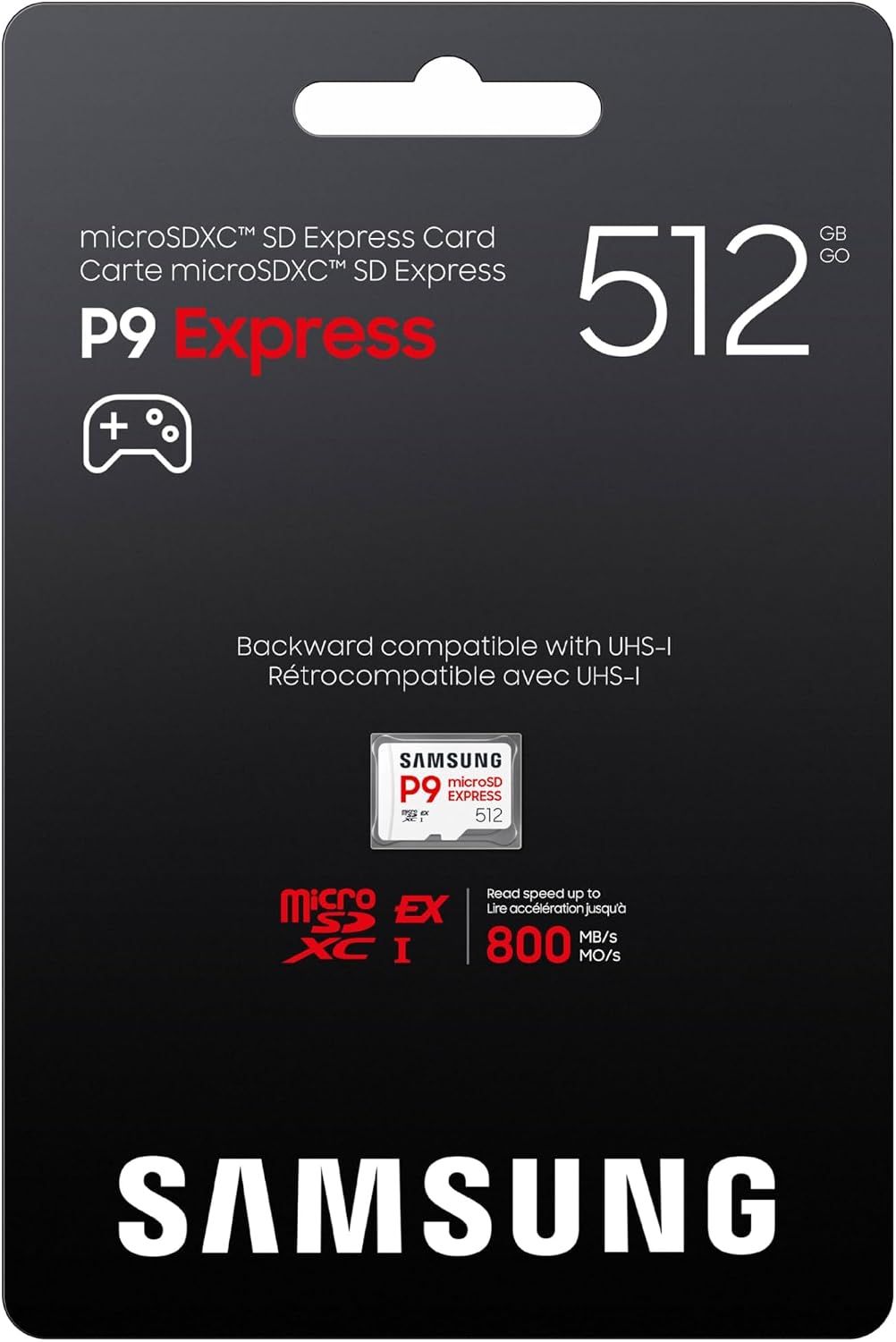
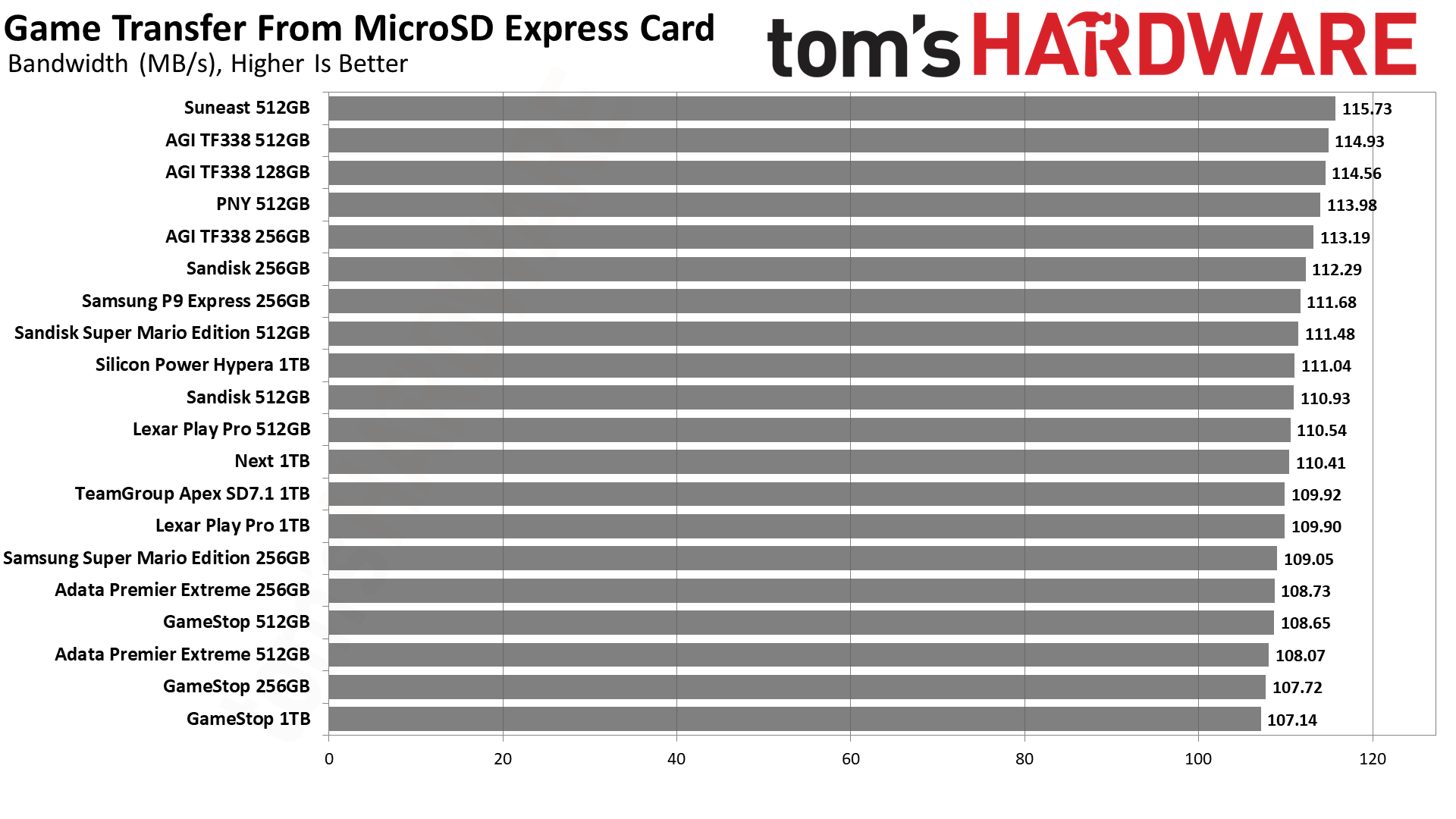
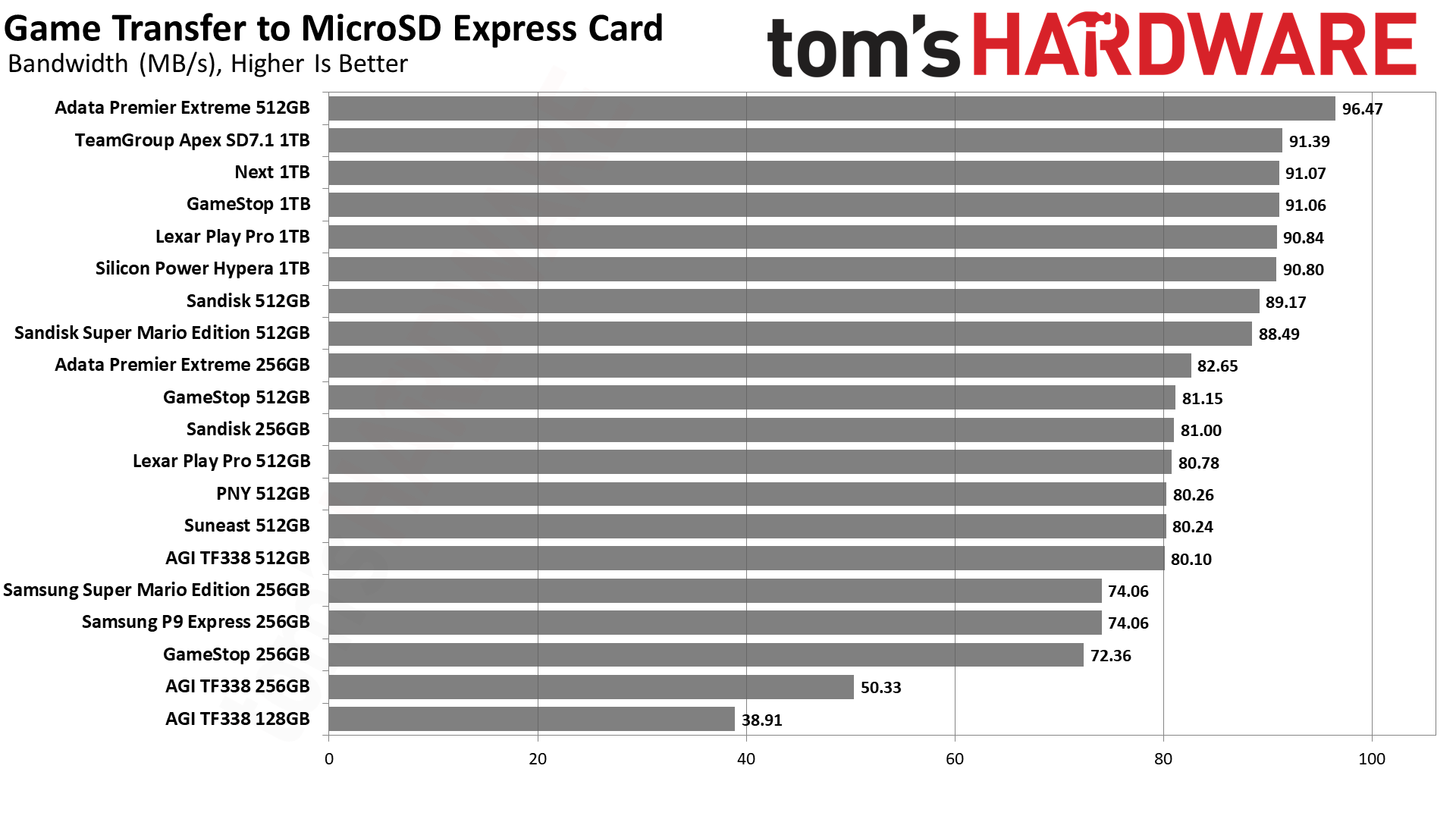
As prices soar, you'll want to pick up a bargain on storage when you can find it. For a limited time only, you can pick up a 512GB Samsung P9 microSD Express card for just $99.99 at Amazon. This price brings it back down to its original MSRP and means you're saving $50 compared to its current list price. This is the perfect option for a Nintendo Switch 2 owner looking to boost their storage for new games.
The Samsung P9 is one of the best microSD Express cards you can buy right now, delivering ultra-fast sequential read speeds of up to 800 MB/s. Those speeds mean it's a great option for installing games and playing them on your Switch 2 without gameplay lag. Write speeds aren't shared, but in this class and capacity, you can usually expect up to 300 MB/s.
P9 512GB: was $149.99 now $99.99 The Samsung P9 is a microSD Express card that offers great performance and reliability for its price. The 512GB model is currently priced at its original MSRP of $99.99.View Deal
You'll want the highest possible write speeds, but for a Switch 2 owner, 300 MB/s is still going to be fast enough to install new games and updates without huge waiting times. The high speeds you're seeing here will mean you won't have too big a bottleneck compared to installing directly onto the Switch 2's internal storage.
That said, these speeds make the Samsung P9 Express up to four times faster than a typical UHS-I microSD card. It also ships with features to help get the most out of your card, including Host Memory Buffer (HMB) functionality to help improve data transfer speeds, along with Dynamic Thermal Guard (DTG) support to help stop the card from overheating and limiting its performance.
microSD cards are small, so durability is an issue to think about, especially if you're handling it often. Samsung reckons this is a model that's well protected, even if you drop it in water, along with protection against extreme temperatures and even X-ray exposure. It has a 3-year limited warranty, and it supports Samsung's Magician software, so you can keep an eye on the card's health, as well as check if it's genuine or not (although that's not an issue here).
The Switch 2 is one of the first consoles to include microSD Express support, so you can use this Samsung P9 Express card's faster storage speeds compared to older UHS-I cards. The $99.99 sale price makes this 512GB Samsung P9 a brilliant bargain to pick up ahead of the holiday season, especially if you're a current or soon-to-be Switch 2 owner. It'll give you a quick-and-easy storage upgrade ahead of The Legend of Zelda: Ocarina of Time's remaster launching later this week, too.
We’re back with another drive from Biwin, which has been putting out some good SSDs with minor exceptions. This one uses hardware we’ve wanted to test in retail for quite some time: the SMI SM2504XT SSD controller, which is hard to find. The PCIe 5.0 DRAM-less range is relatively popular because it offers the performance without the power and heat of higher-end options, at a lower price point. The tech’s newer than what PCIe 4.0 drives offer, so you get a better all-around experience if you’re willing to take the plunge. The M560 slots in here perfectly as a real alternative to all the drives in this class with Phison hardware.
Biwin M560 Specifications
Product
1TB
2TB
Pricing
$189.99
$364.99
Form Factor
M.2 2280 (Single-sided)
M.2 2280 (Single-sided)
Interface / Protocol
PCIe 5.0 x4 / NVMe 2.0
PCIe 5.0 x4 / NVMe 2.0
Controller
SMI SM2504XT
SMI SM2504XT
DRAM
DRAM-less / HMB
DRAM-less / HMB
Memory
218-layer BiCS8 TLC (Kioxia)
218-layer BiCS8 TLC (Kioxia)
Sequential Read
11,000 MB/s
11,000 MB/s
Sequential Write
9,700 MB/s
10,000 MB/s
Random Read
1,400K
1,700K
Random Write
1,600K
1,700K
Security
N/A
N/A
Endurance (TBW)
750TB
1,500TB
Part Number
BM560NN01TB-RGX
BM560NN02TB-RGX
Height
2.45 mm
2.45 mm
Warranty
5-Year
5-Year
The Biwin M560 is available only in 1TB and 2TB capacities. Is that a disappointment? It’s normal to expect at least 4TB SKUs these days, but 8TB is certainly a bridge too far for a four-channel controller. Yes, we have some 8TB DRAM-less drives floating around, but for the most part you can’t find those units. 4TB is more common and highly desired — this is what makes the Lexar NM790 so legendary — but it actually is a decent amount of flash for this type of controller. With the ideal amount of flash for this controller being four dies per channel, or 16 total, 2TB really is the sweet spot. So we’re fine with that for this drive, even if it is higher-end.
Right now the drive can be found for $189.99 and $364.99 for the two SKUs, which is not unreasonably priced for the hardware. At 2TB, it is right in line with the Crucial P510, for example. It’s also below the top drives with DRAM, like the Samsung 9100 Pro, by enough that it makes sense. You can get PCIe 5.0 DRAM SSDs at around this price or cheaper, but you’re giving up some things to do so, which we’ll get into later.
The drive is rated for up to 11,000 / 10,000 MB/s for sequential reads and writes and up to a whopping 1,700K / 1,700K random read and write IOPS. 1.7 million IOPS! That’s astounding, and even exceeds the 1.3+ million, on paper, from direct competitor Phison E31T-based drives, like the Corsair MP700 Elite. This thing is a beast for a DRAM-less drive.
Biwin doesn’t skimp on the warranty, either. It’s the typical five-year affair for duration, but you’re covered for up to 750TB of writes for every TB of space. This is 25% more than is typical, if you care about that sort of thing. We consider it a bonus.
Biwin M560 Software and Accessories
Hitting the download tab for the M560’s site shows three downloads available: the Biwin Data Recovery Tool for macOS, one for Windows, and Biwin Intelligence. The first two are pretty self-explanatory, but we will give kudos to Biwin for having the macOS option. For the last, it is the company’s SSD toolbox, which is an all-in-one software solution dashboard you can use to check your drive’s health, update firmware, and so forth. Biwin lists the supported functions on its page. The toolbox only supports Windows at this time.
Biwin M560: A Closer Look
Tom's HardwareTom's Hardware
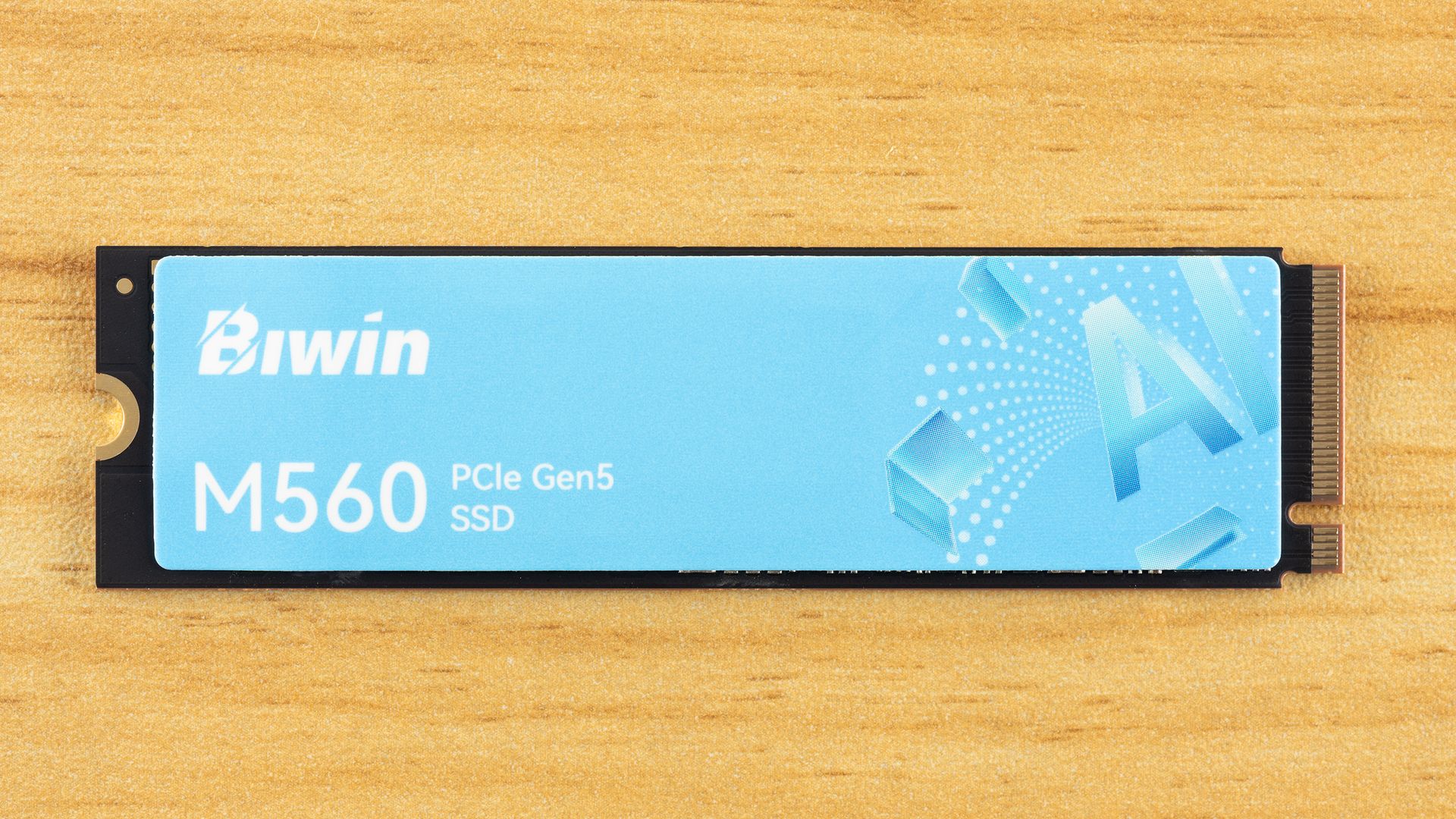
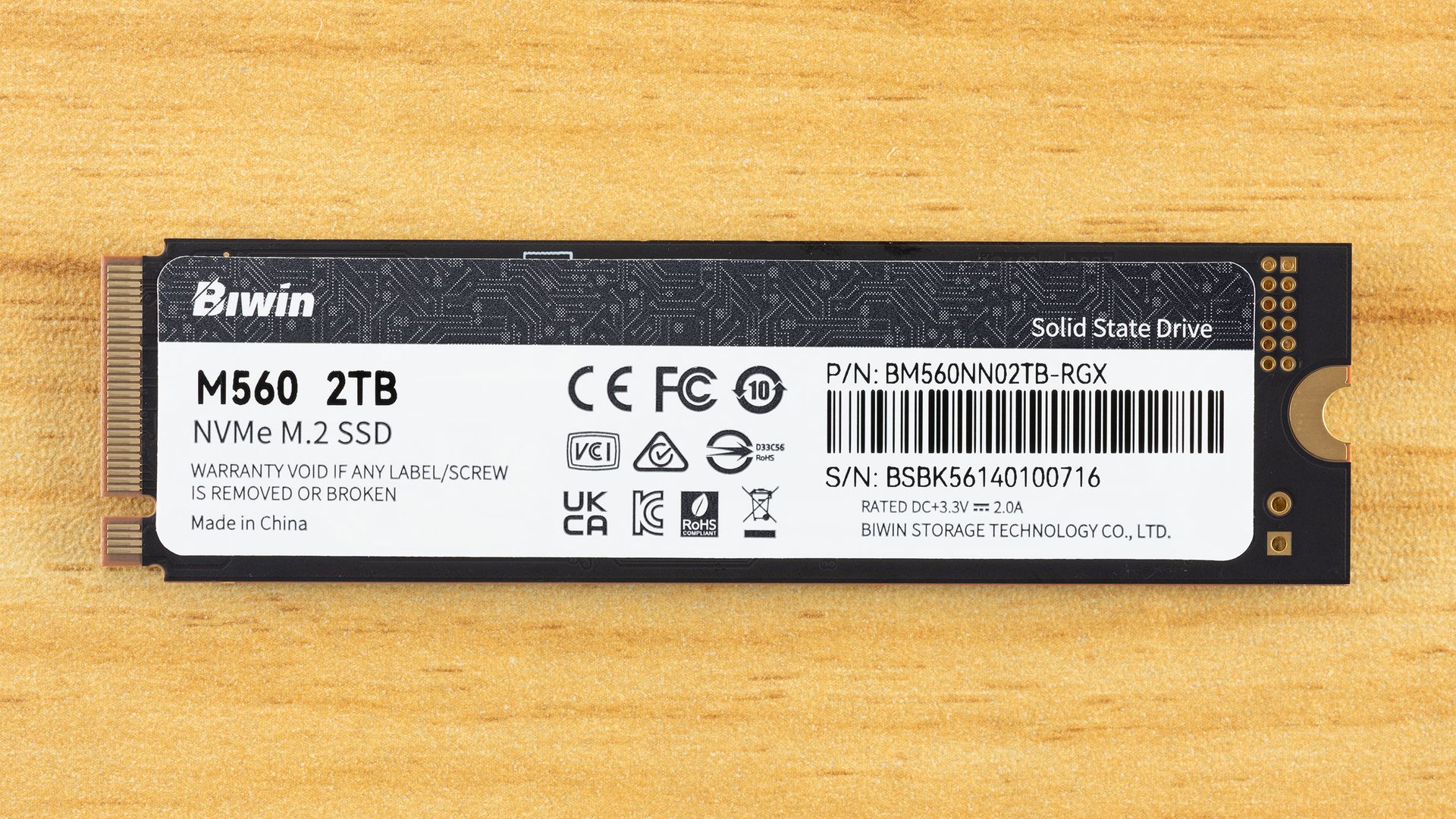
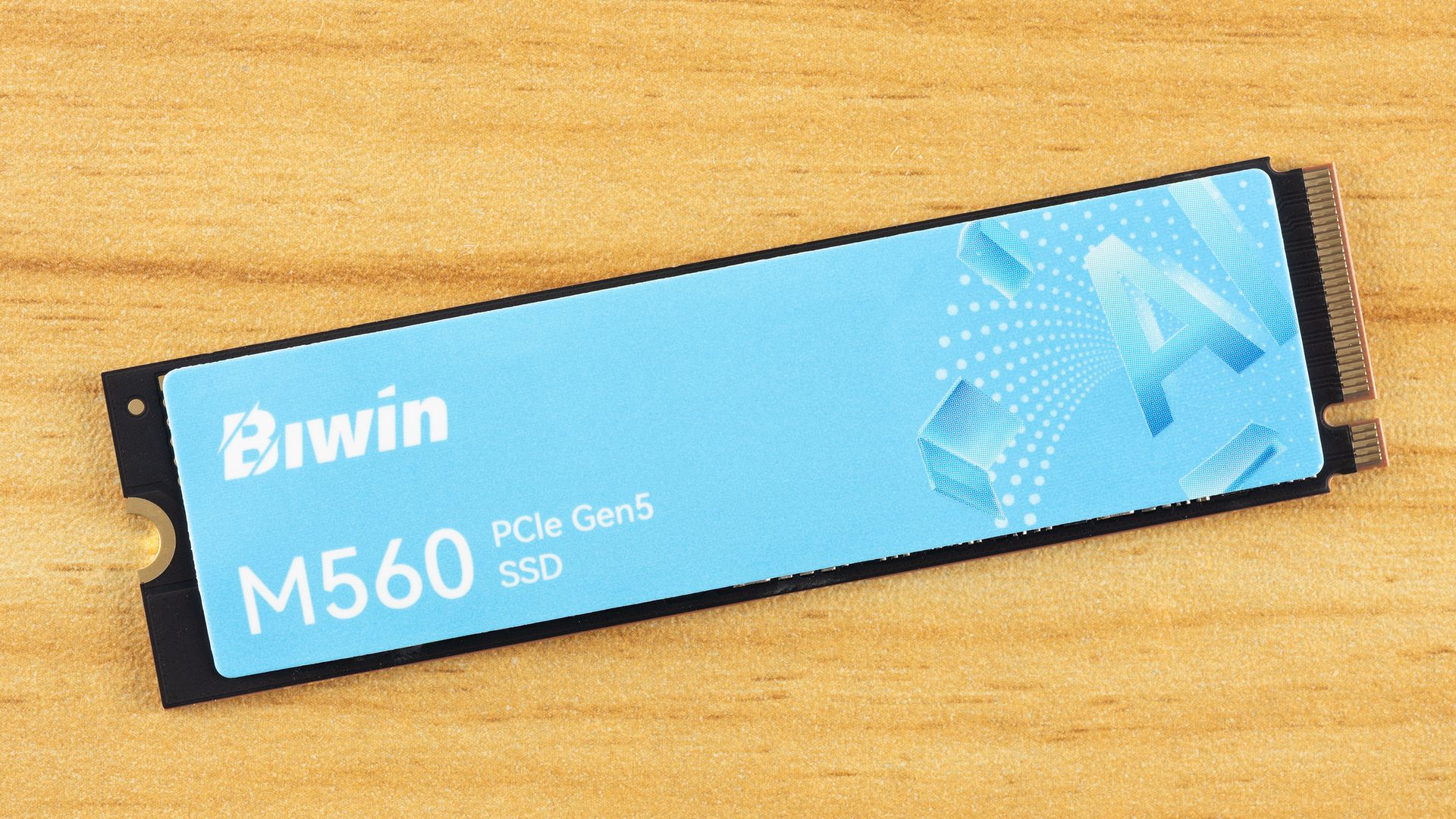
The Biwin M560 is, as expected, a single-sided drive, which we prefer. Less that can go wrong, fits into more machines, and can be easier to cool. The top label is heat-spreading. The back label has drive information, including the 3.3 V / 2.0 A rating, which puts the drive power draw below about 7W. According to the S.M.A.R.T. report, the maximum power draw is 8W.
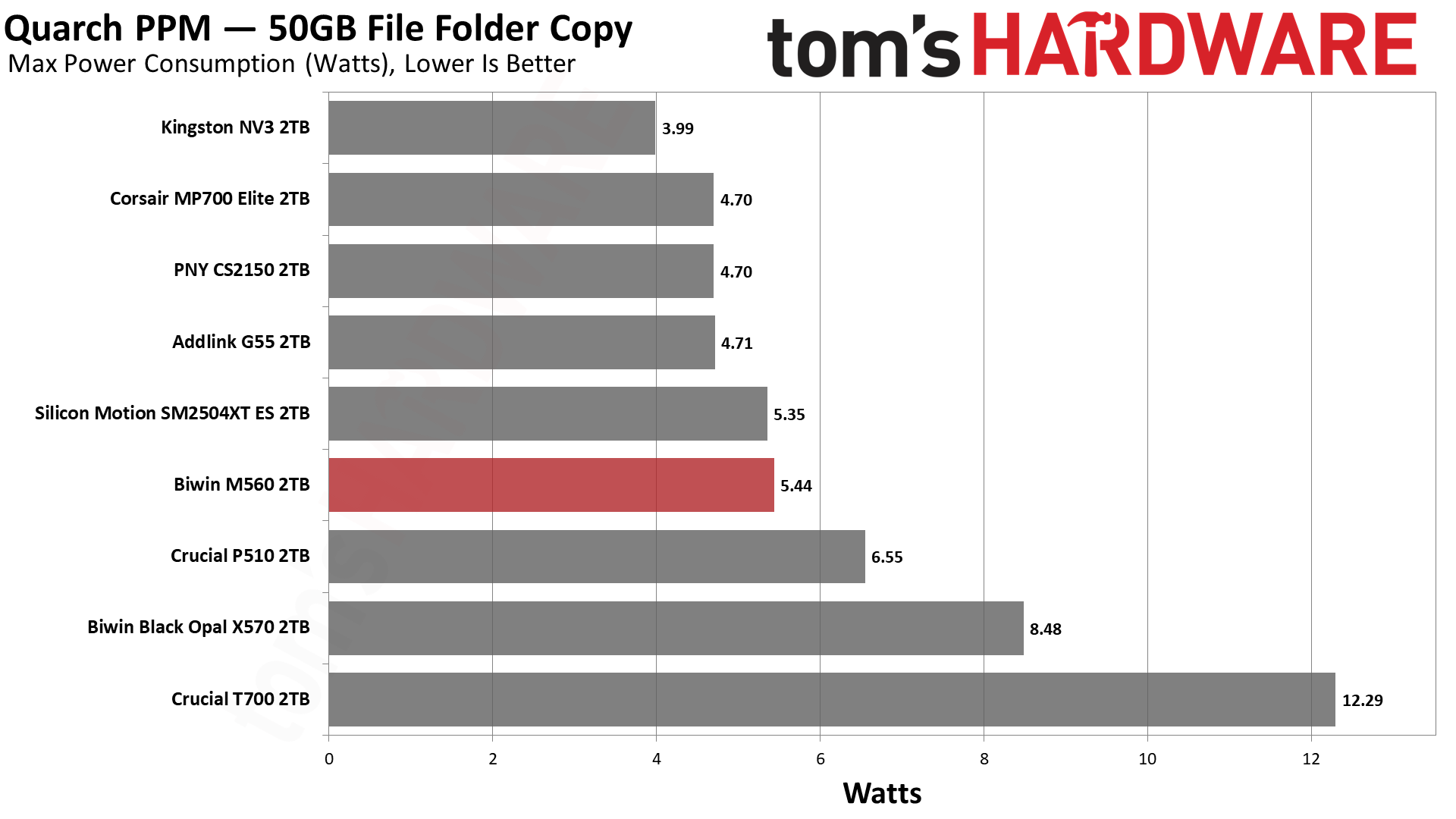
These numbers might be concerning, especially as good DRAM-less SSDs tend to be at around 6.5W or less. Well, as it turns out, the drive is much more comfortable at 4W, with a maximum significantly below 6.5W and an average of one-half that, as you can explore in more detail with our power testing. Even very efficient PCIe 5.0 drives tend to step up over the last generation, making heat something to watch in some cases. Not in this one — we think this will be great in laptops, and exceptionally cool in PCIe 4.0 ones.
Tom's HardwareTom's HardwareTom's Hardware
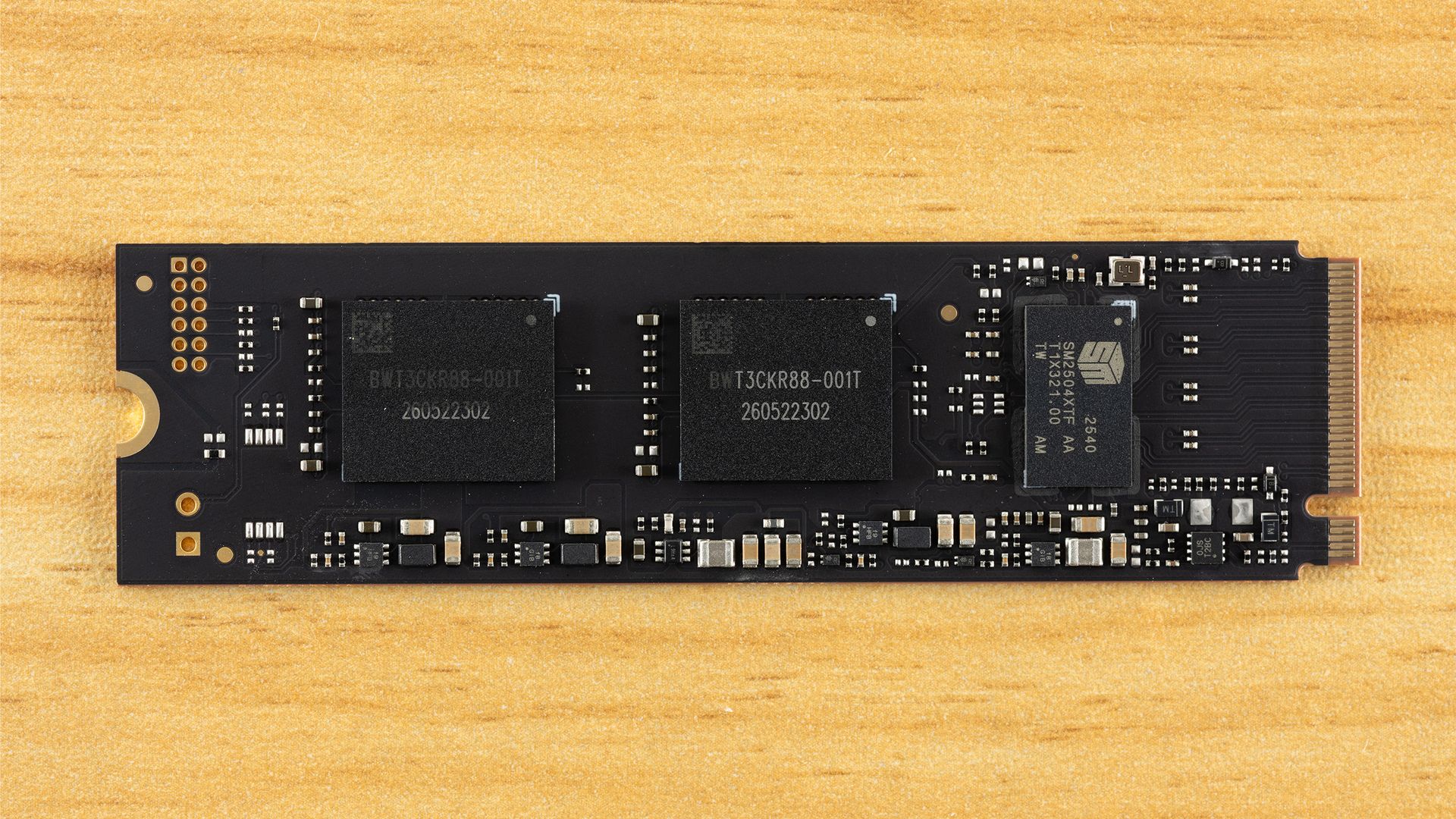
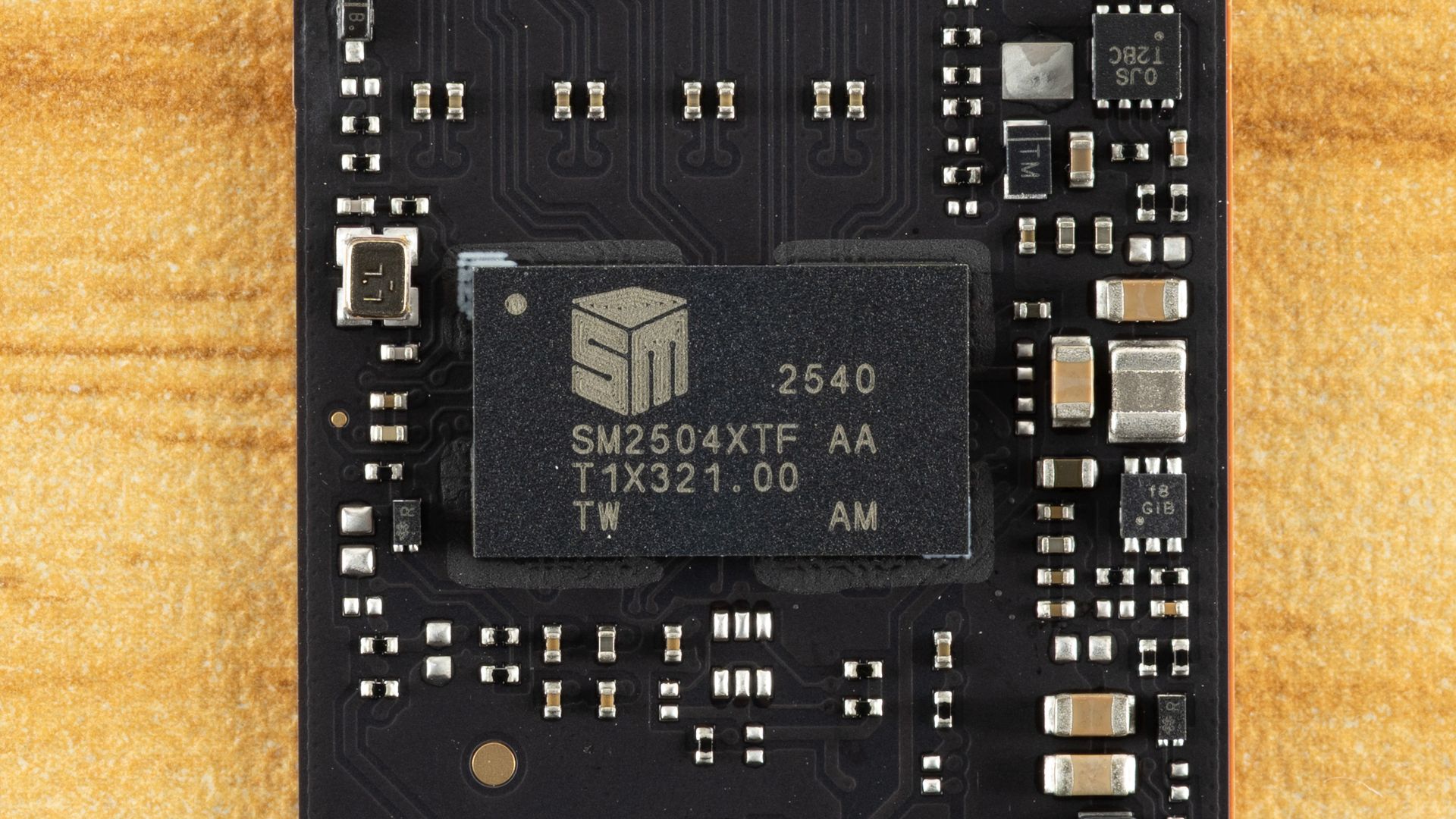
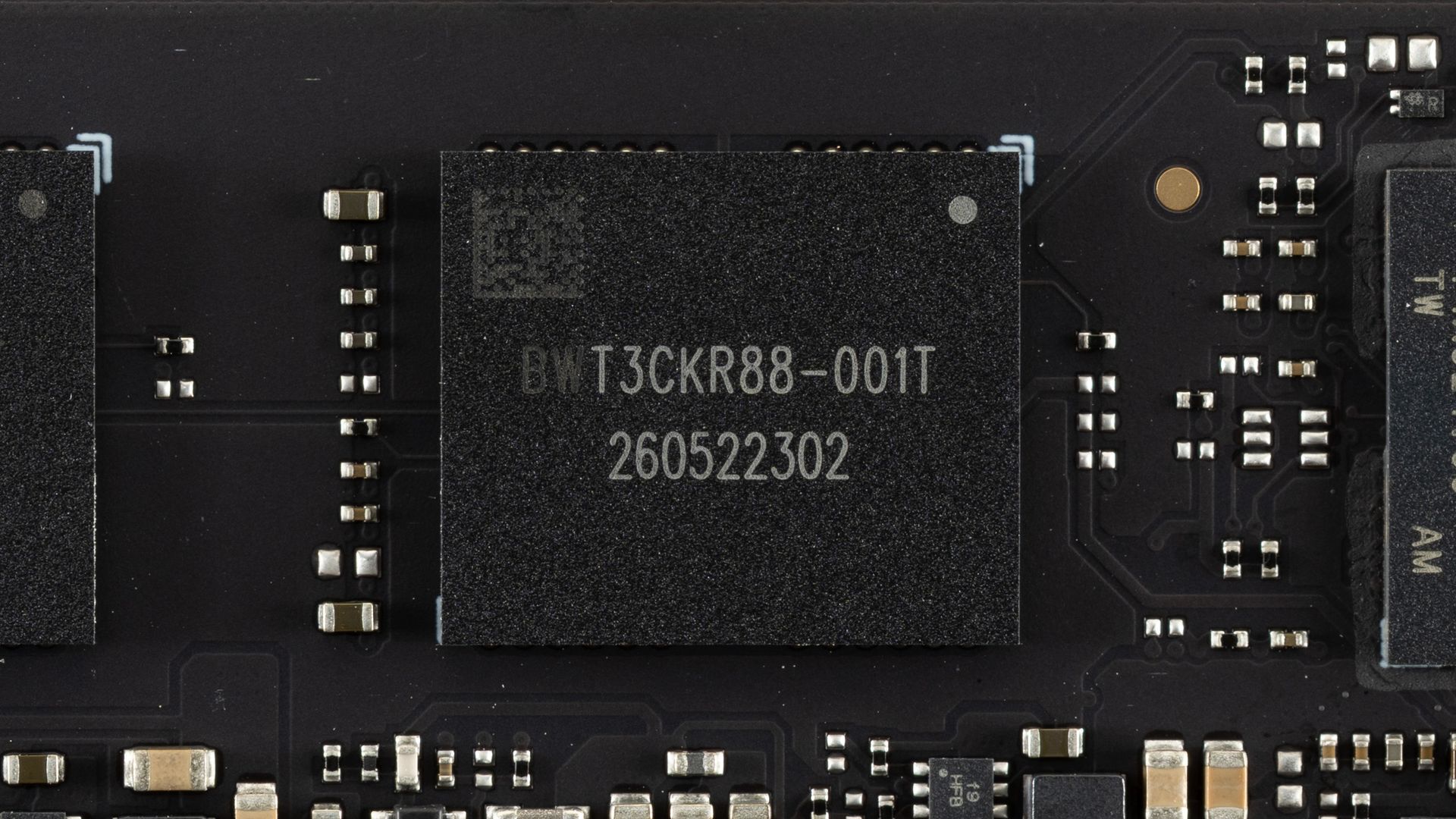
The components don’t even take up half of the PCB space! Impressive engineering, and the extra spacing between components can help spread heat. Here we have one controller, the SMI SM2504XT, which we previously covered in an ES preview, and two NAND flash packages. The controller performed exceptionally in our preview testing and is more than a match for the best controllers out there, whether Phison’s competing E31T or even many drives with DRAM such as those based on the E26. The flash, in this case, is Kioxia’s 218-layer BiCS8 TLC, which is also exceptional. This flash has excellent latency and is also power-efficient. This combination is a match made in heaven, and it’s a shame we don’t see the SM2504XT more often.
We considered pitting the Biwin M560 against some truly high-end drives, but truth be told, we don’t think that’s a valid comparison. If you’re someone who wants DRAM and maximum bandwidth — that means eight flash channels — then this drive is not going to cut it, even if it performs like it does. On the other hand, you may legitimately want a drive in this range that isn’t going to burn your house down. That’s closer to what we’re looking at here. We did throw in the PCIe 4.0 Kingston NV3 for good measure, since it’s using SMI’s comparable controller of that generation, but we suspect that if you’re looking at PCIe 5.0 drives, you are not going to settle for anything less.
To that end, we have direct competitors with Phison’s E31T controller: the Addlink G55, the PNY CS2150, the Corsair MP700 Elite, and the Crucial P510, the last of which has Micron rather than Kioxia flash. We’ve thrown in the SM2504XT ES to show any differences against the more mature M560. We also have a higher-end DRAM-less drive in the Biwin Black Opal X570, which has eight channels. We also have the Crucial T700, which doesn’t break the DRAM and bandwidth rule because, for one, it’s using the older Phison E26 controller and, for two, it’s not the full 14 GB/s variant. There are 10 GB/s drives using that controller, but we think the 12 GB/s T700 is the most appropriate comparison.
Trace Testing — 3DMark Storage Benchmark
Built for gamers, 3DMark’s Storage Benchmark focuses on real-world gaming performance. Each round in this benchmark stresses storage based on gaming activities including loading games, saving progress, installing game files, and recording gameplay video streams. Future gaming benchmarks will be DirectStorage-inclusive and an evaluation for future-proofing is included where applicable.
Tom's HardwareTom's HardwareTom's Hardware
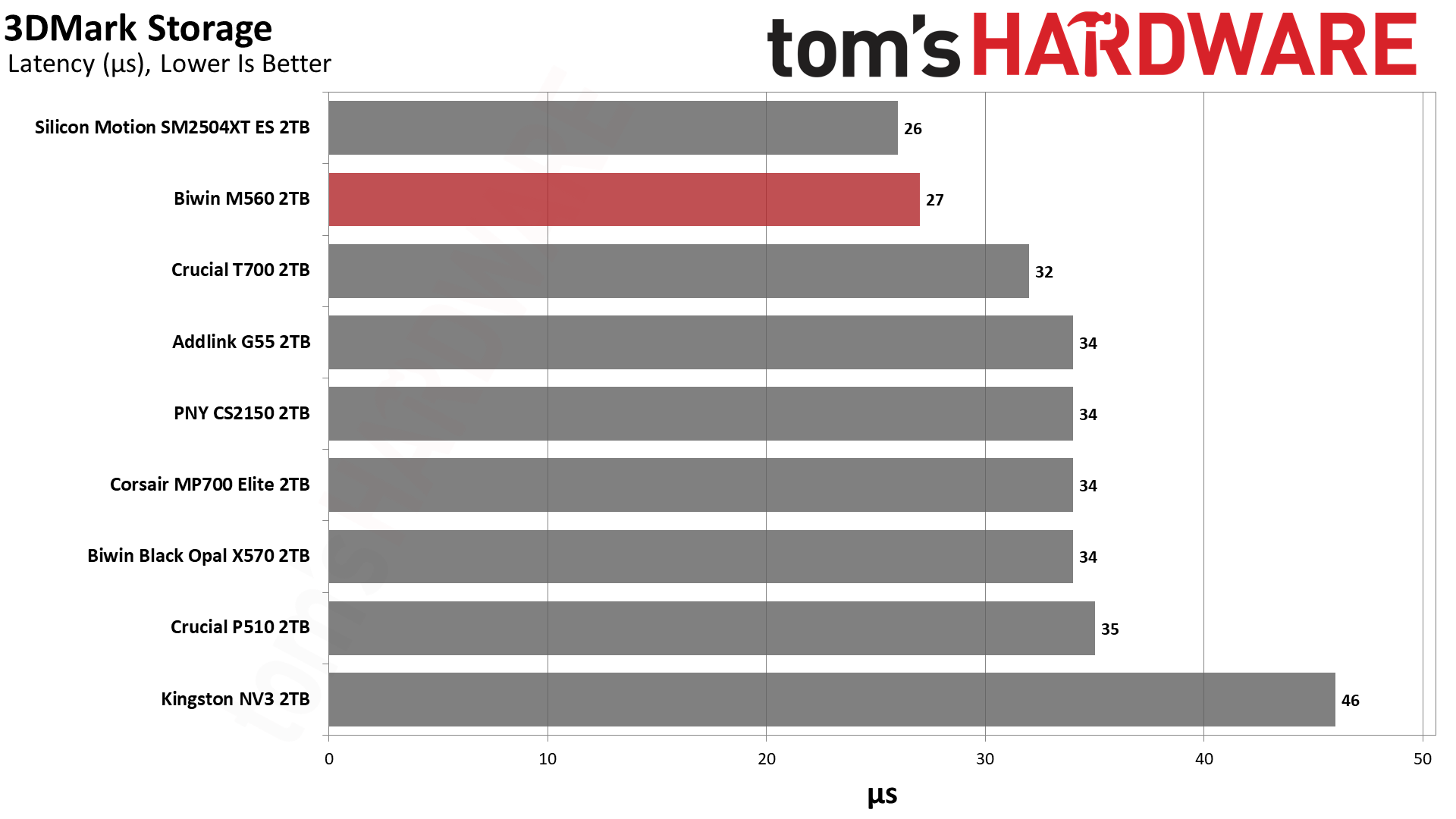
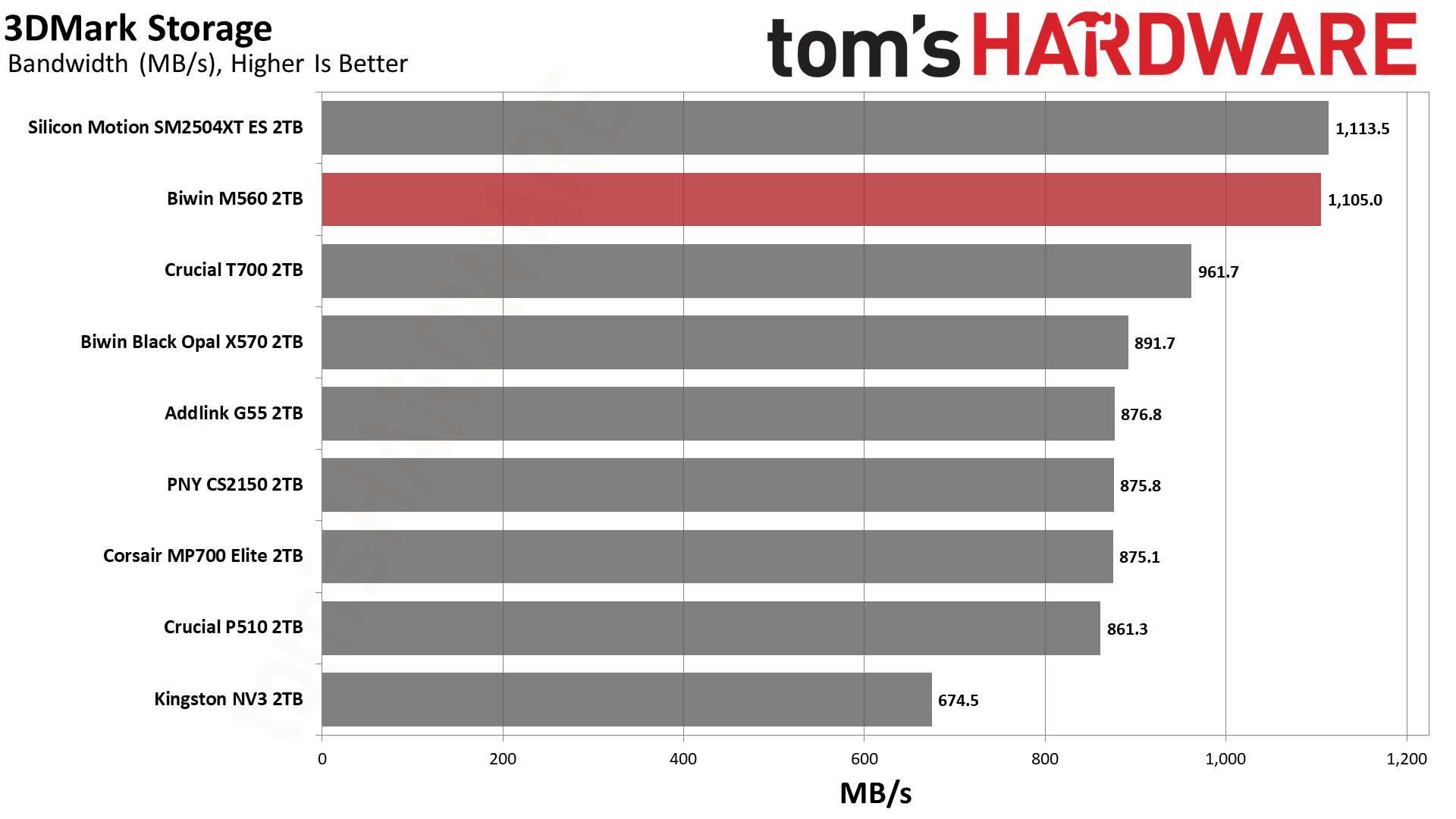
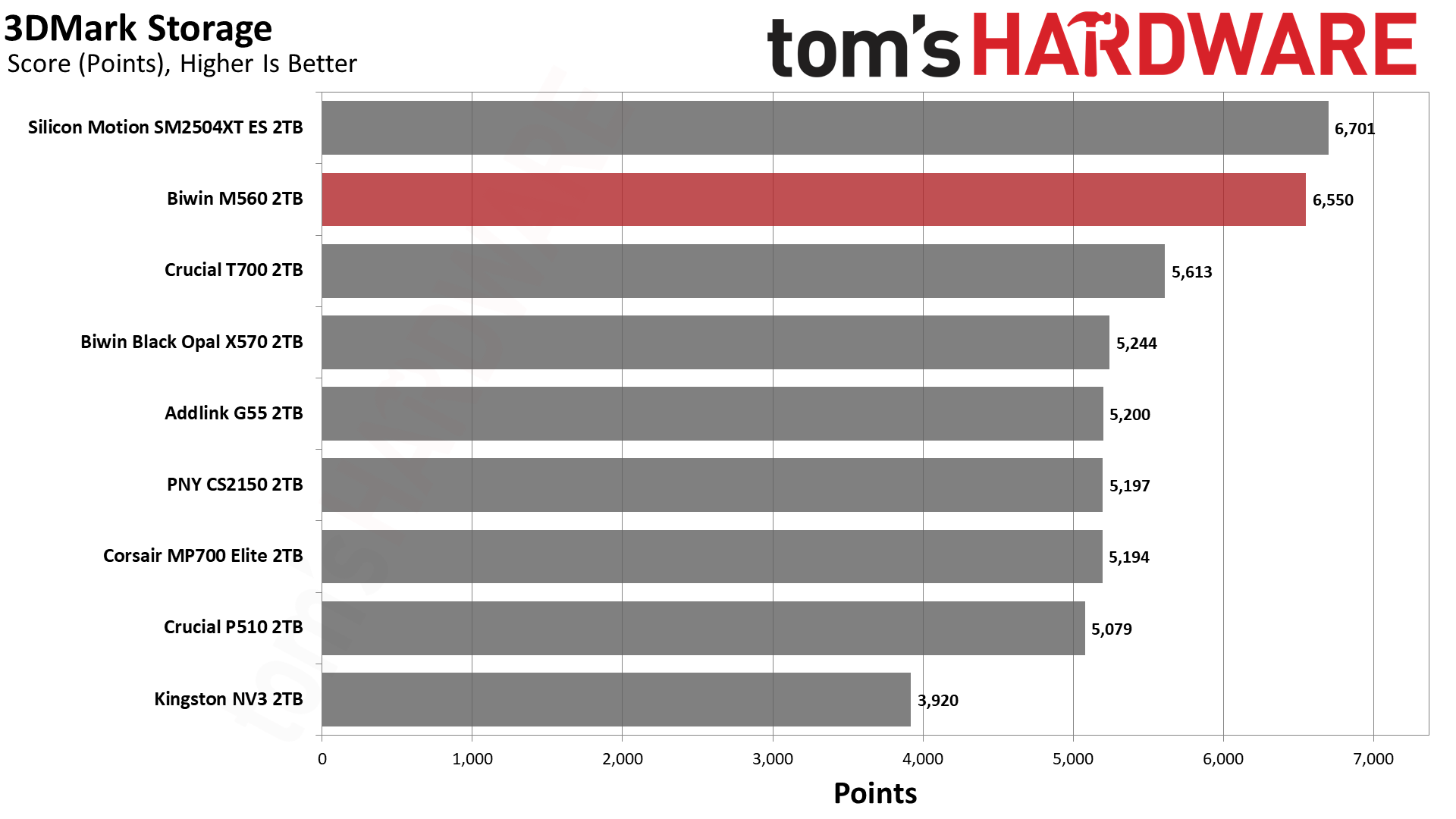
You love to see it: the M560 blows the doors off this benchmark. It comes second only to the ES but, for all intents and purposes, it’s well above any of the competition. This flash is exceptional, but clearly the controller makes the difference here. There are faster high-end drives like the WD Black SN8100, but that uses BiCS8 TLC and an SMI controller, too. This is an SM2508 “Mini-Me,” which is perfect if you want a fast drive without the baggage of a top-end drive.
Trace Testing — PCMark 10 Storage Benchmark
PCMark 10 is an industry standard trace-based benchmark that uses a wide-ranging set of real-world traces from popular applications and everyday tasks to measure the performance of storage devices. The results are particularly useful when analyzing drives for their use as primary/boot storage devices and in work environments.
Tom's HardwareTom's HardwareTom's Hardware
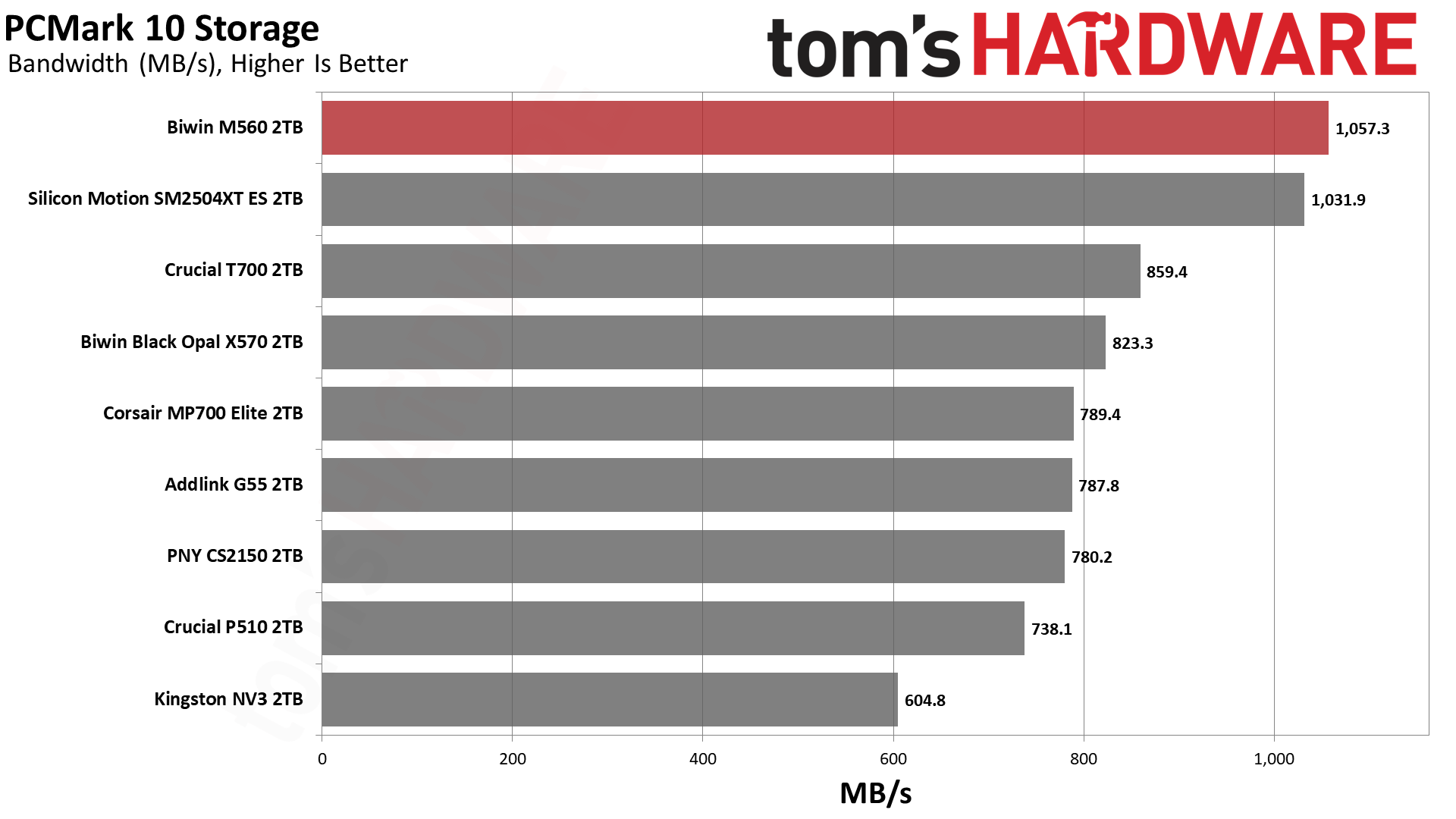
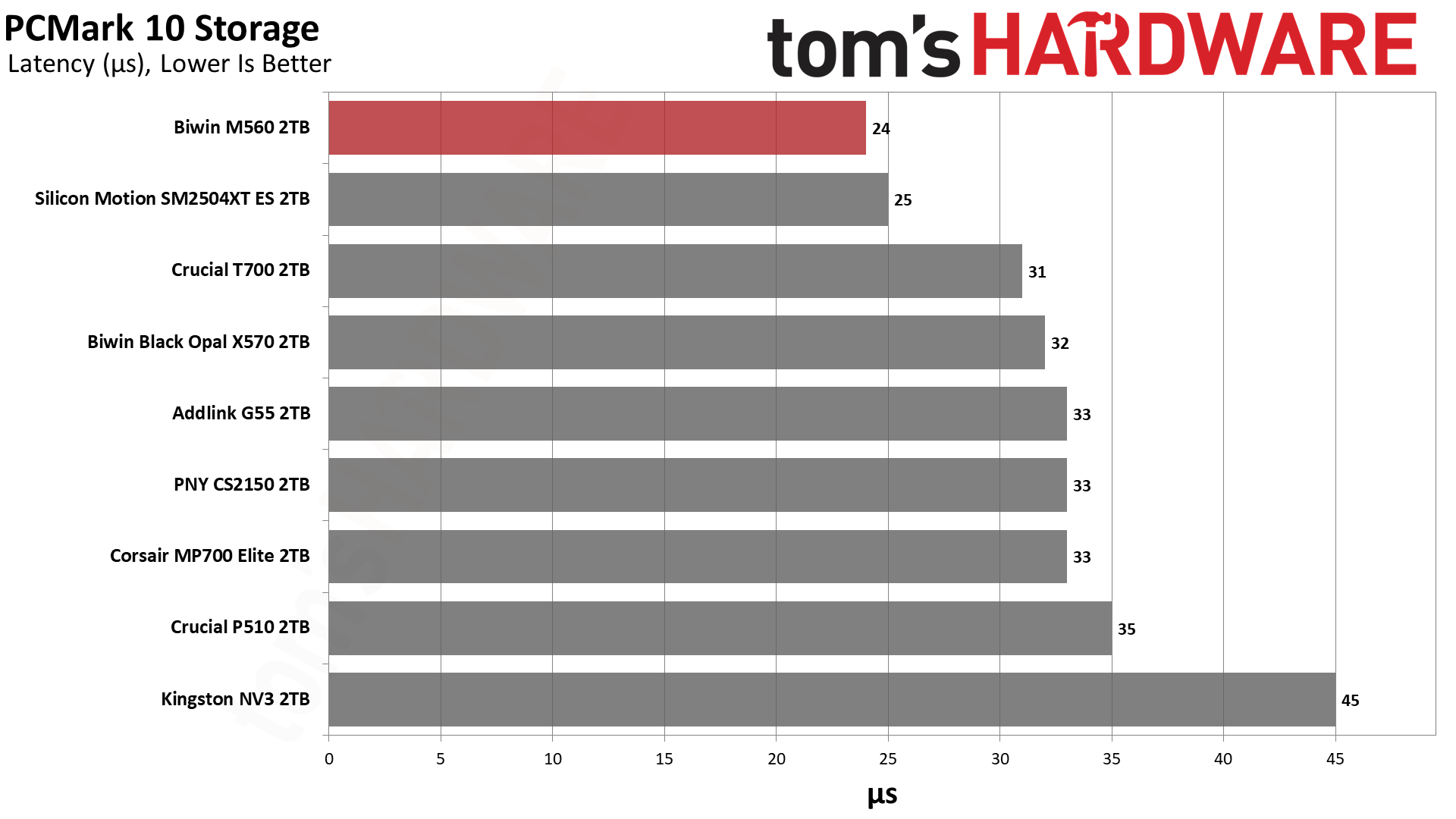
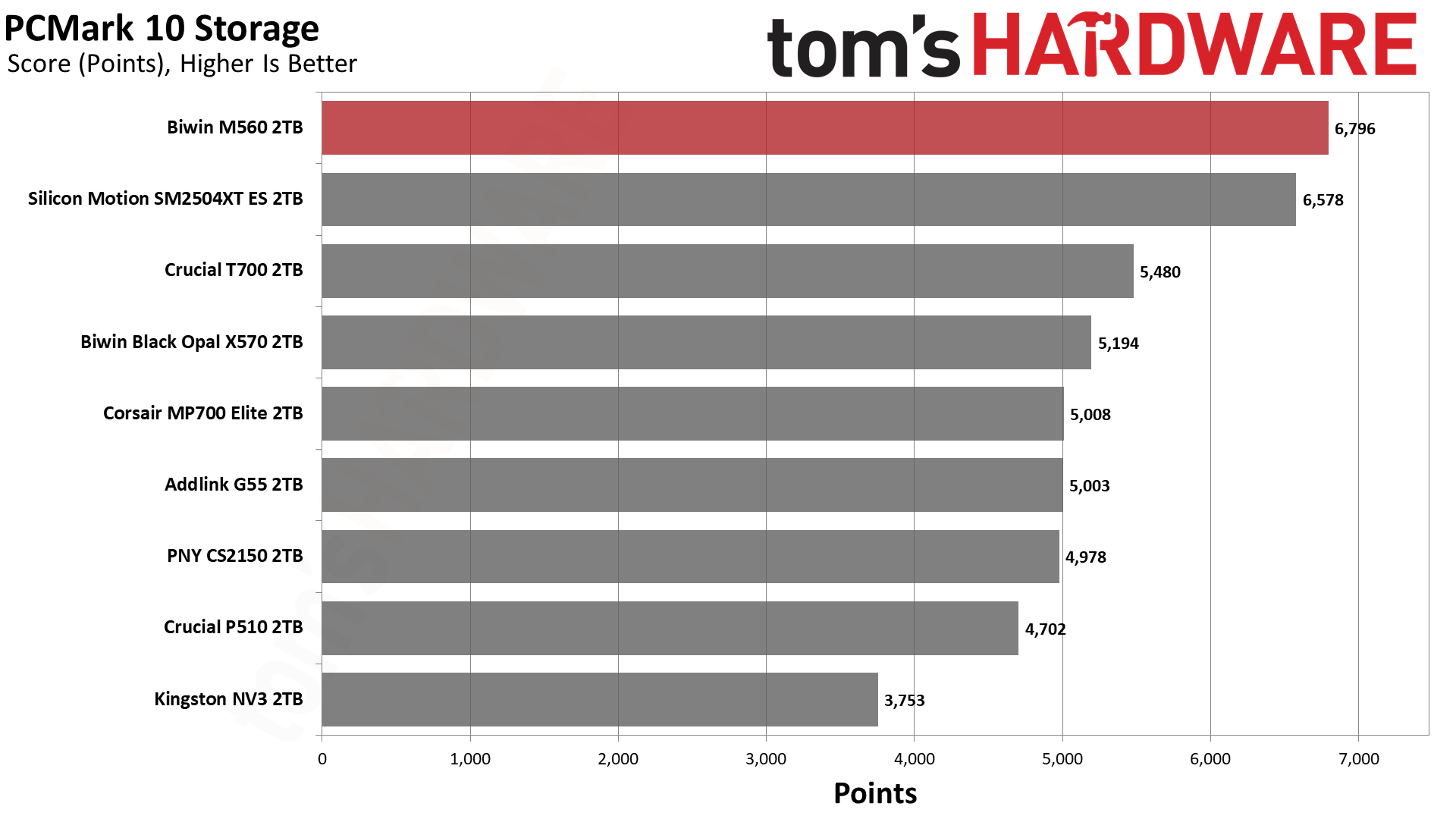
The M560 and SM2504XT ES switched places this time, with the Biwin drive ending up in first place. It’s well ahead of the other drives, with almost half the latency of the NV3. This is an extremely responsive SSD that’s not too far off from the very best, finishing in the top ten of all drives we’ve ever tested.
Console Testing — PlayStation 5 Transfers
The PlayStation 5 is capable of taking one additional PCIe 4.0 or faster SSD for extra game storage. While any 4.0 drive will technically work, Sony recommends drives that can deliver at least 5,500 MB/s of sequential read bandwidth for optimal performance. Based on our extensive testing, PCIe 5.0 SSDs don’t bring much to the table and generally shouldn’t be used in the PS5, especially as they may require additional cooling. Check our Best PS5 SSDs article for more information.
Our testing utilizes the PS5’s internal storage test and manual read/write tests with over 192GB of data both from and to the internal storage. Throttling is prevented where possible to see how each drive operates under ideal conditions. While game load times should not deviate much from drive to drive, our results can indicate which drives may be more responsive in long-term use.
Tom's HardwareTom's HardwareTom's Hardware
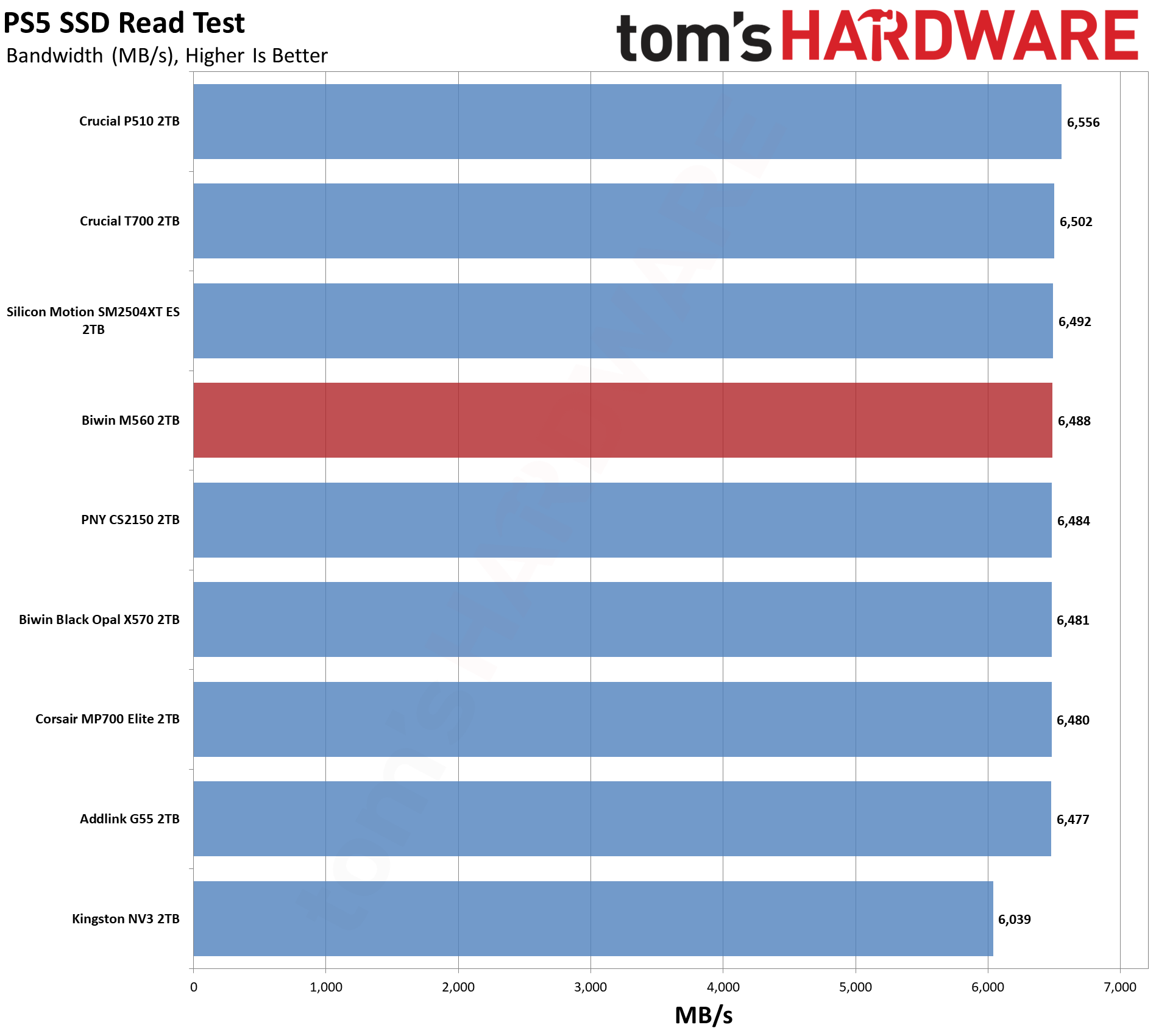
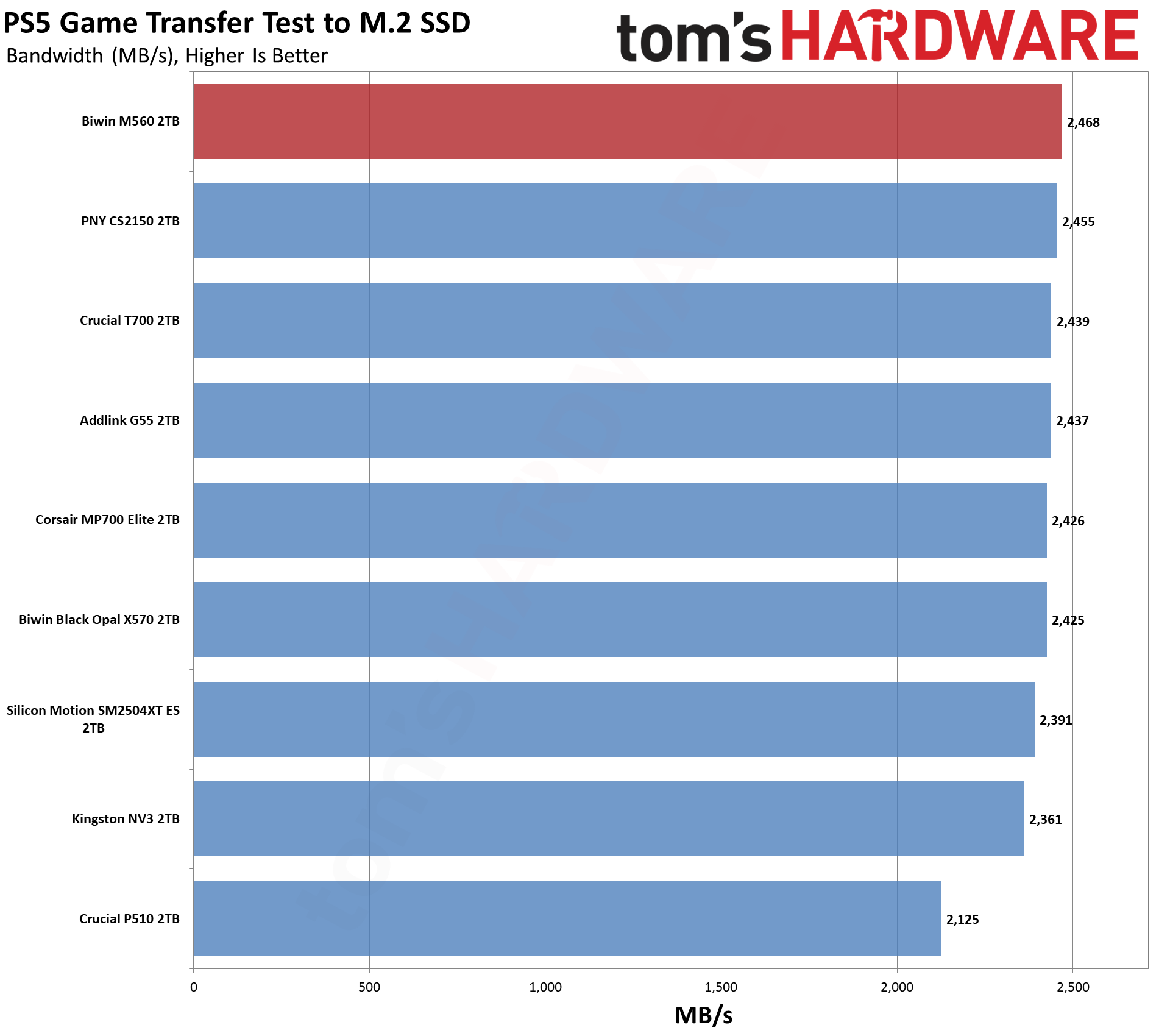
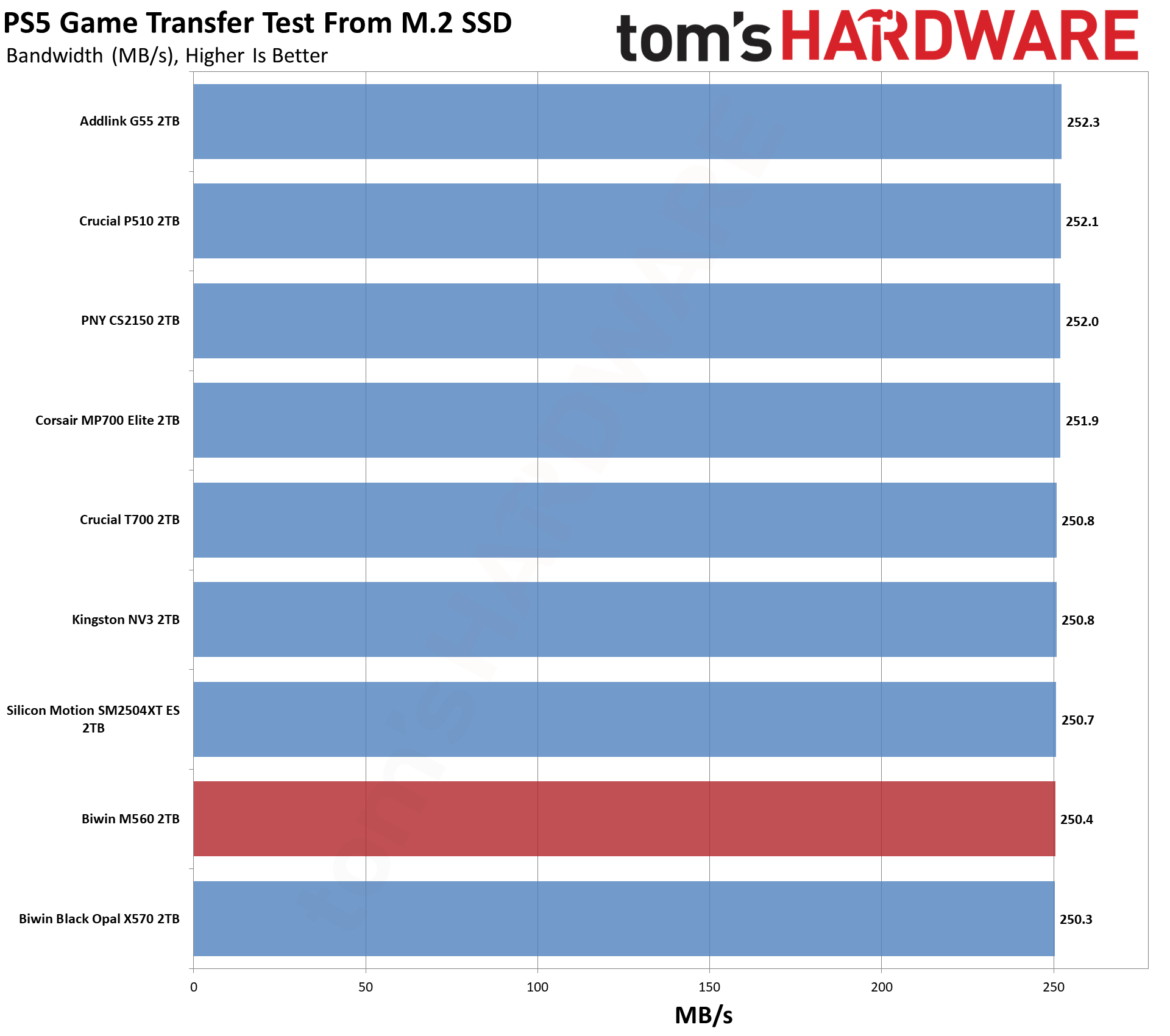
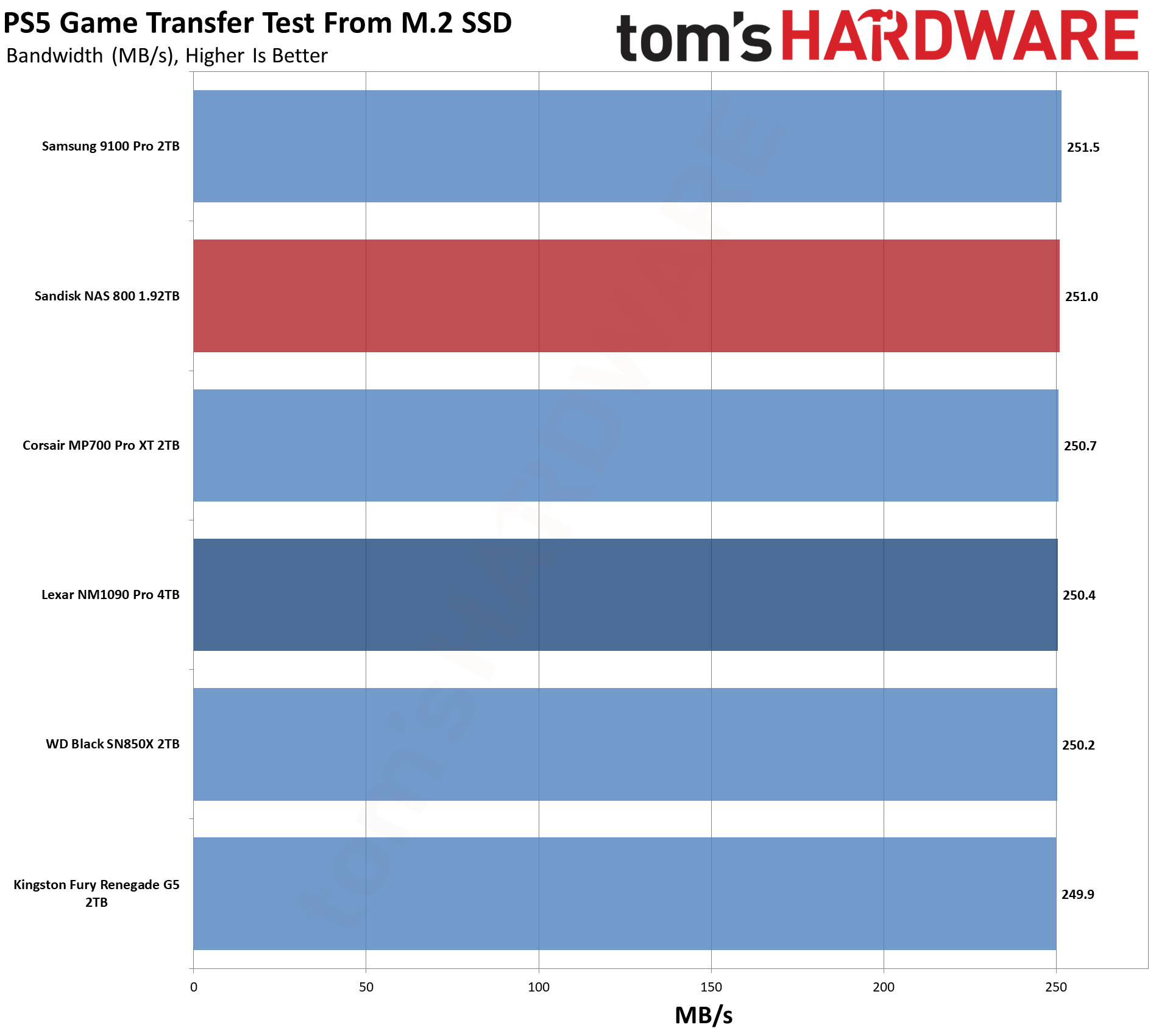
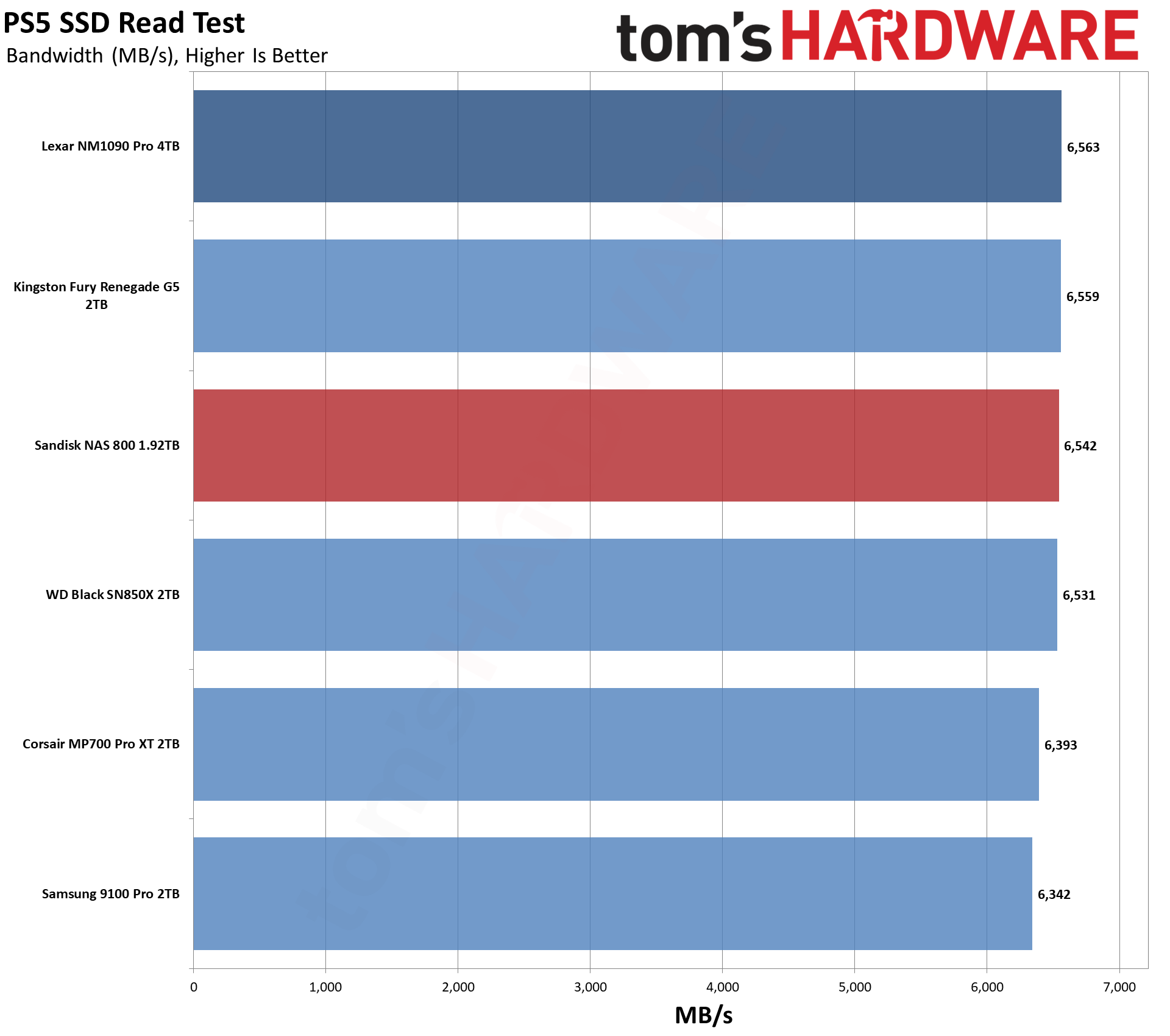
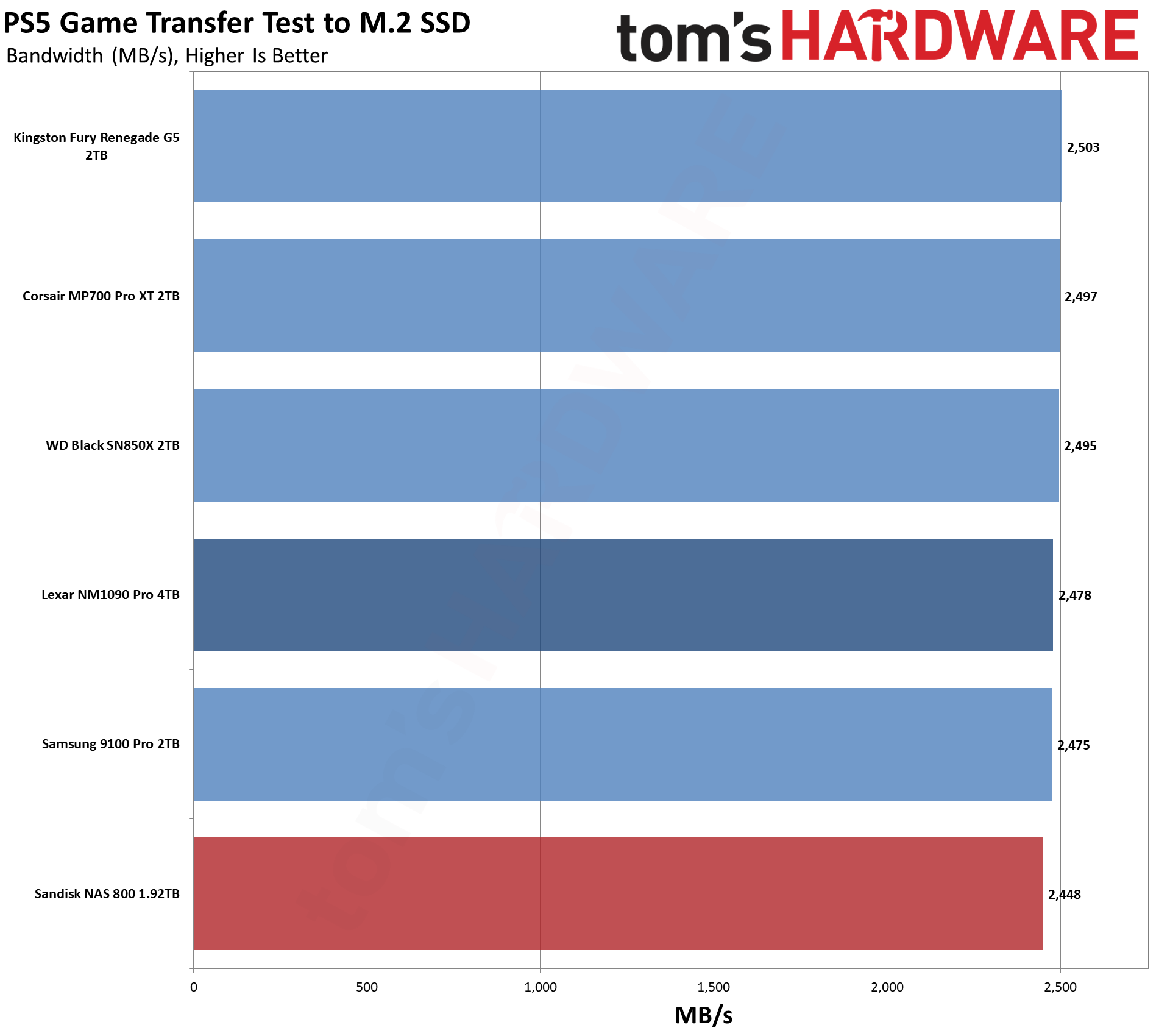
The PS5, why not? The M560 has good results here, as expected, even if it is overkill. We can still recommend it, as it’s going to run very cool at PCIe 4.0 speeds. We think you’re usually better off with a 4TB PCIe 4.0 drive like the Addlink A93, pound for pound, but this one would work.
Transfer Rates — DiskBench
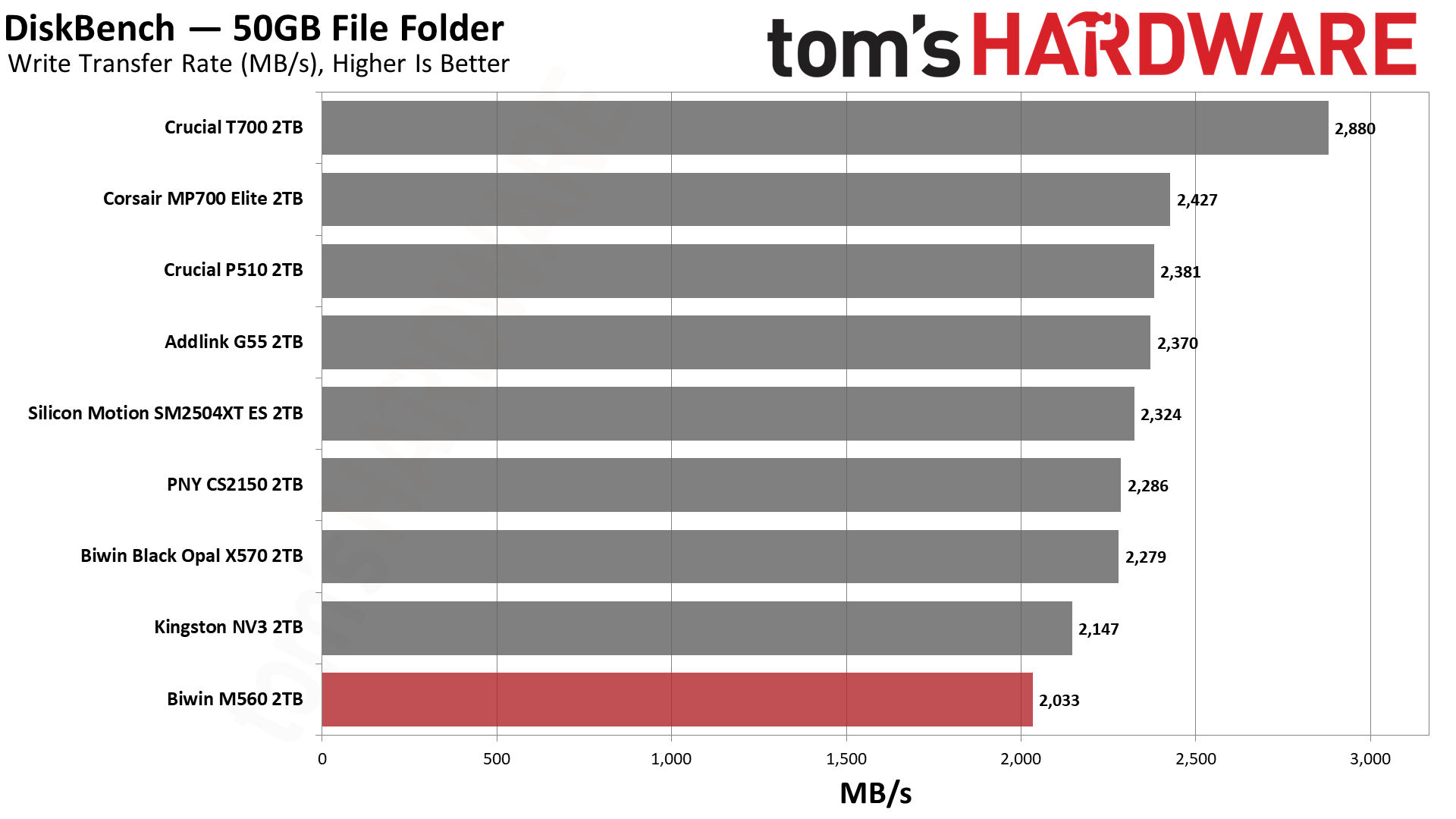
We use the DiskBench storage benchmarking tool to test file transfer performance with a custom 50GB dataset. We write 31,227 files of various types, such as pictures, PDFs, and videos to the test drive, then make a copy of that data to a new folder, and follow up with a reading test of a newly written 6.5GB zip file. This is a real-world type workload that fits into the cache of most drives.
Tom's HardwareTom's HardwareTom's Hardware
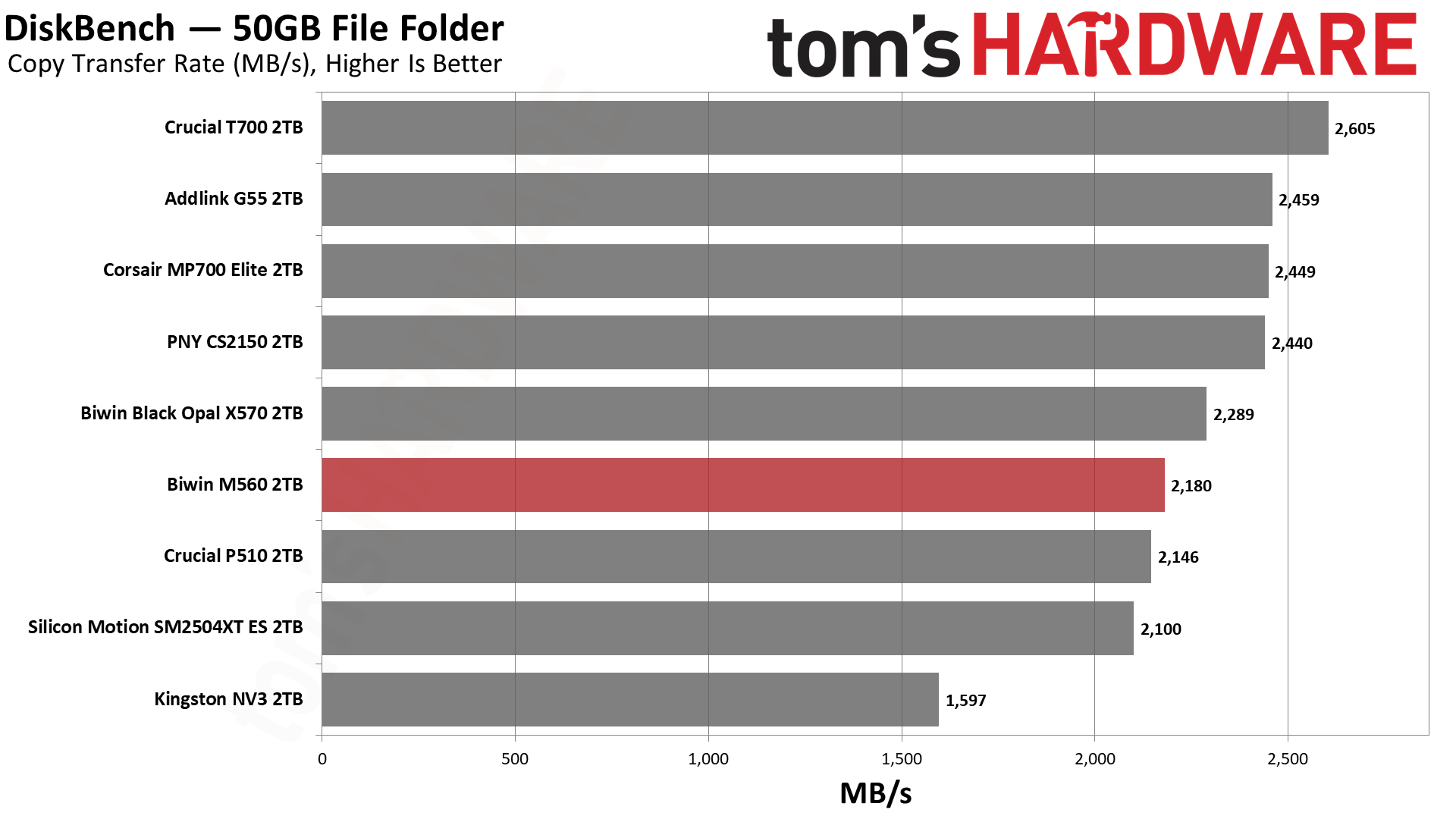
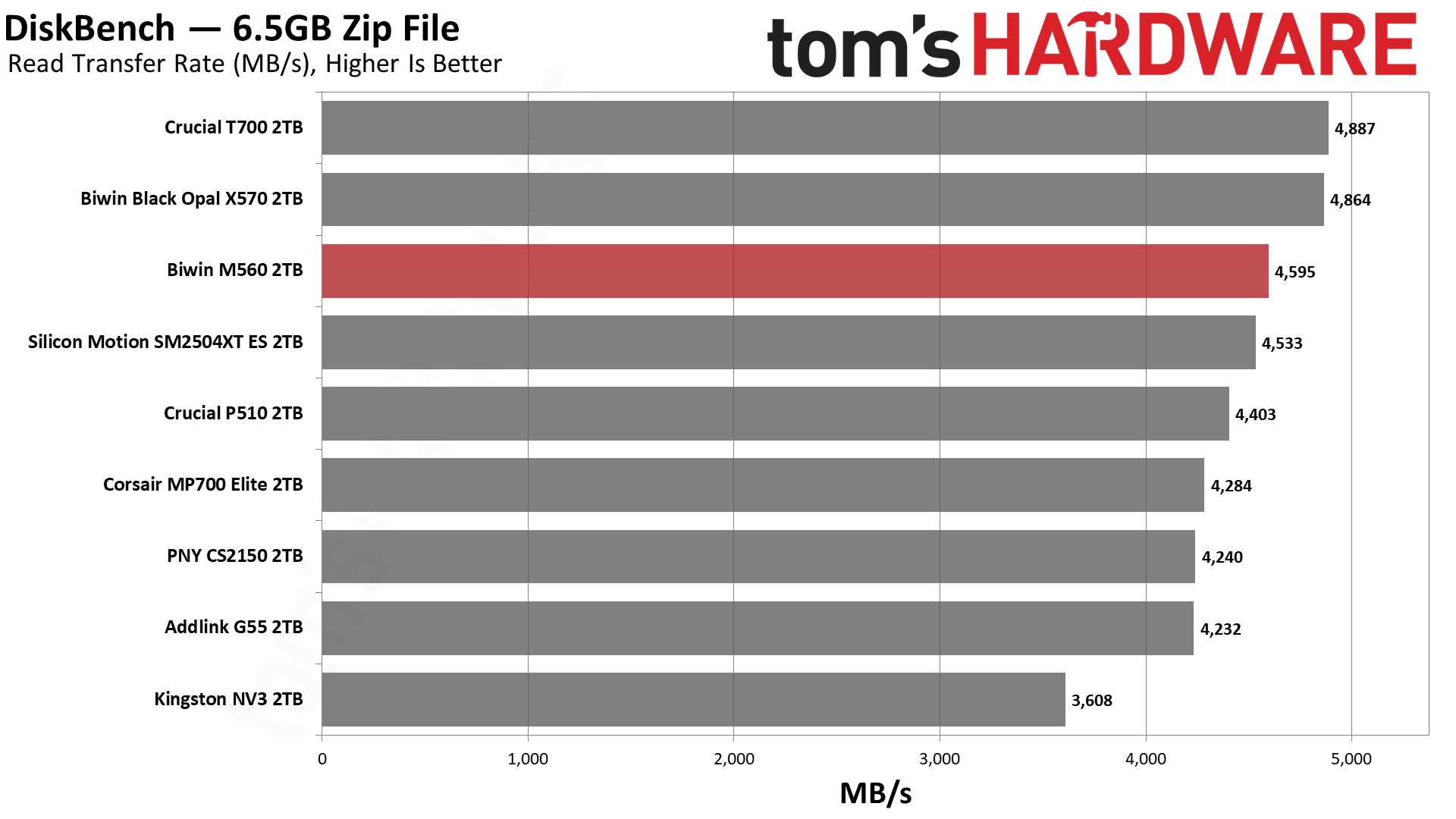
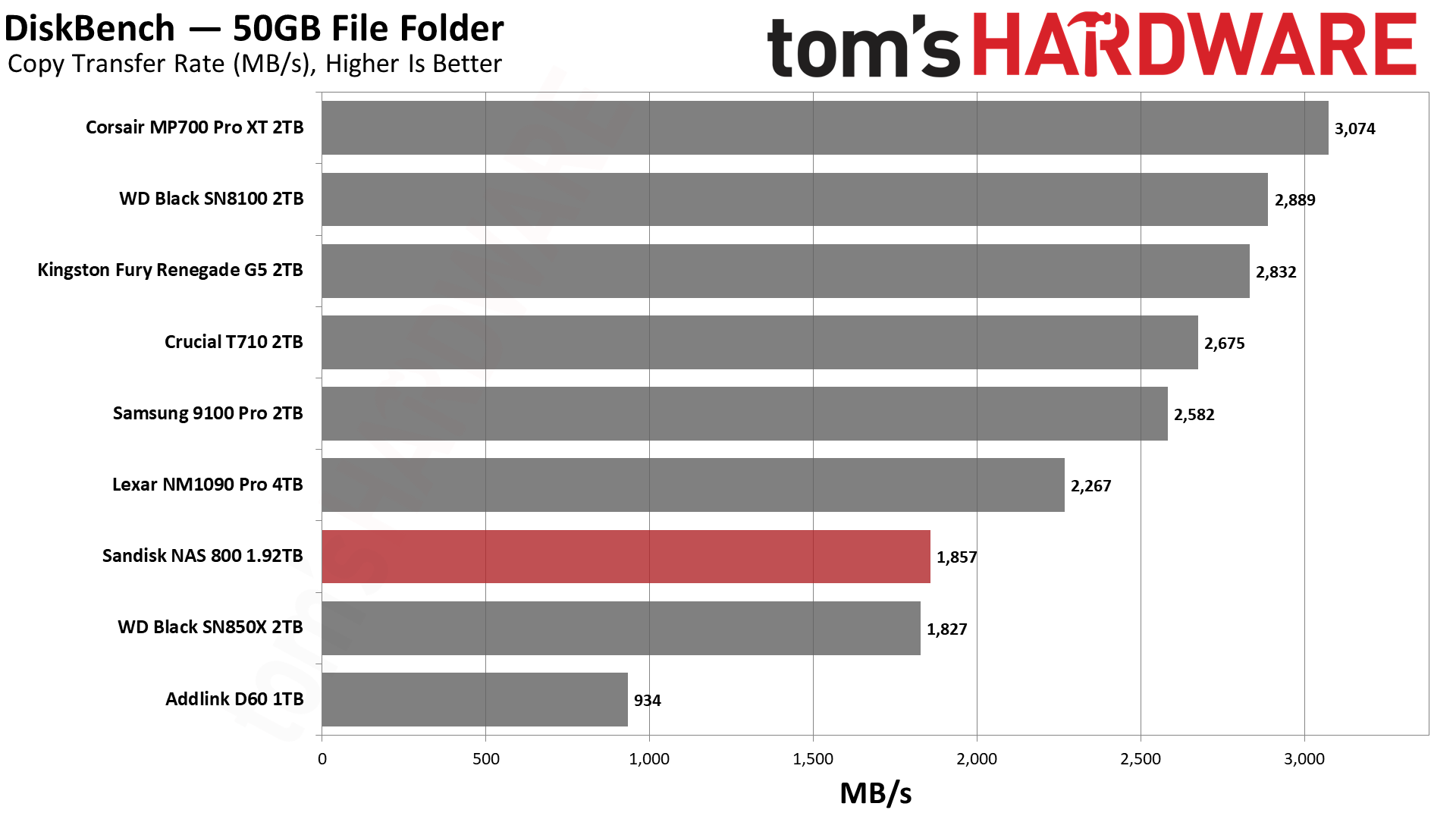
This is the one less impressive test for the drive, and it’s not unexpected, as the SM2504XT also fared somewhat poorly here. The M560 beats it at copying and reading, but not at writing. For copying, it also gets ahead of the P510, which, in our opinion, isn’t bad. Phison’s controller with BiCS8, with the CS2150, MP700 Elite, and G55, is just faster. We can’t chalk this up to a bandwidth difference or a latency difference, so our best guess is that the SMI controller is just not as well-optimized here.
Synthetic Testing — ATTO / CrystalDiskMark
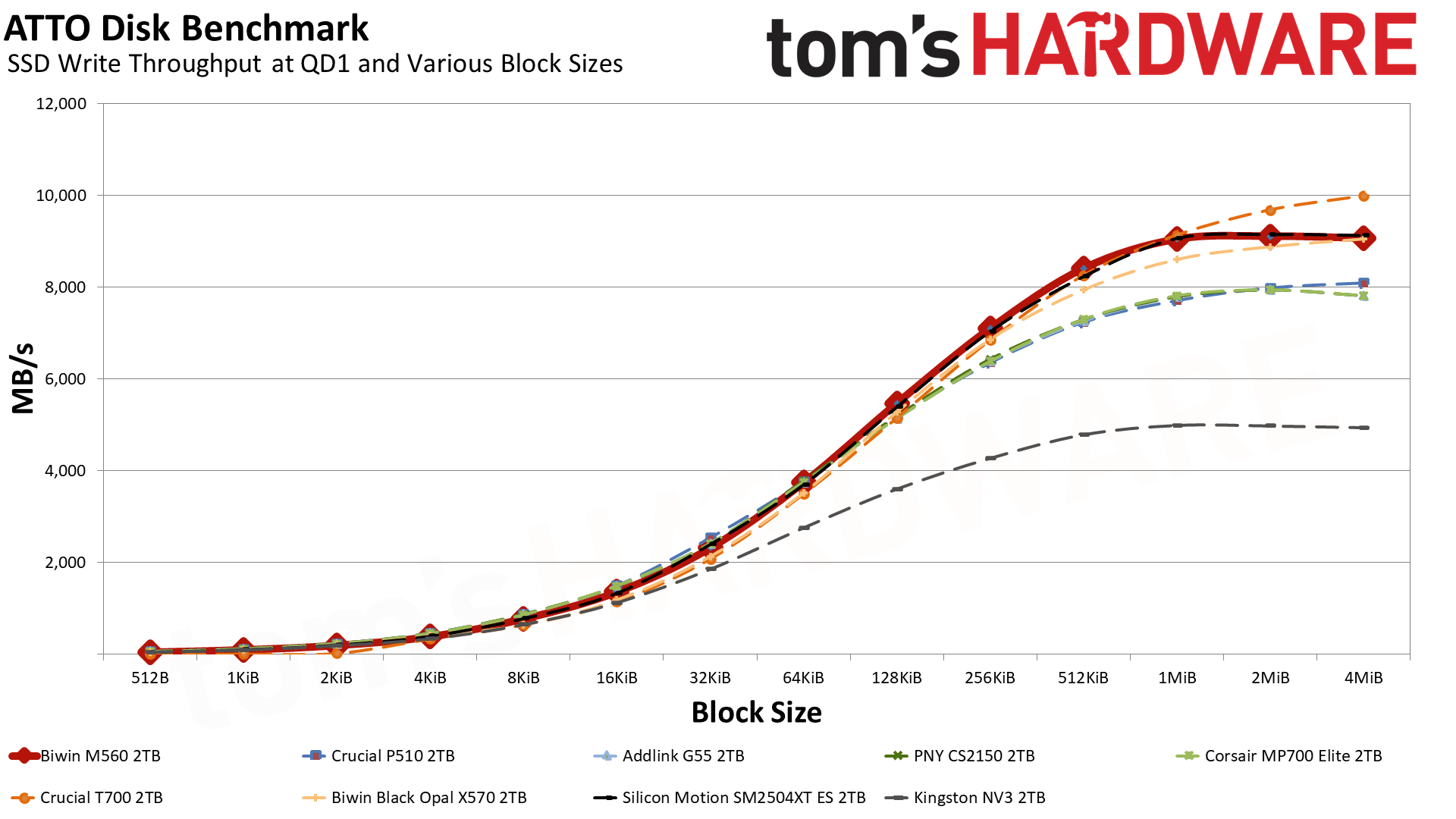
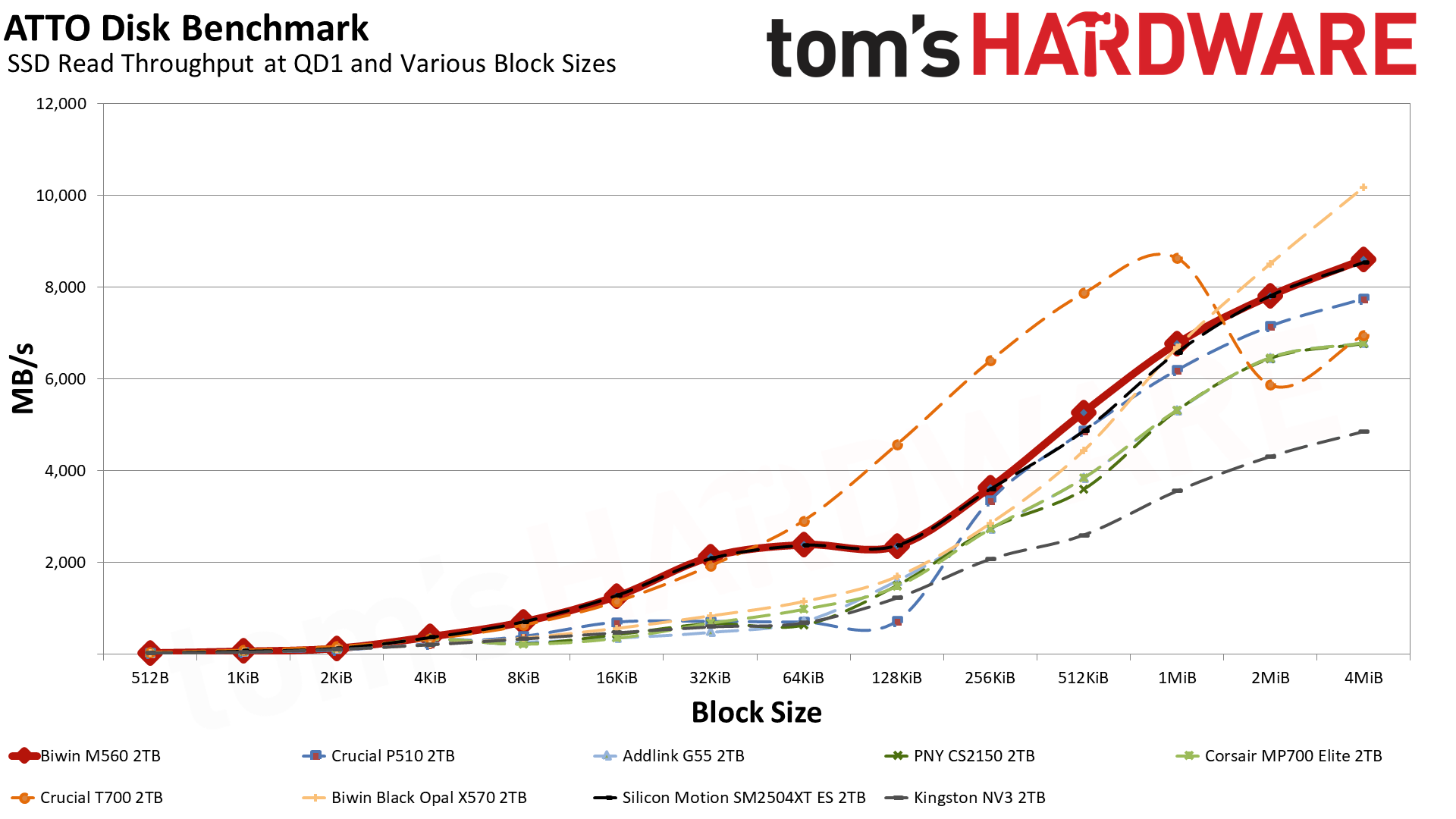
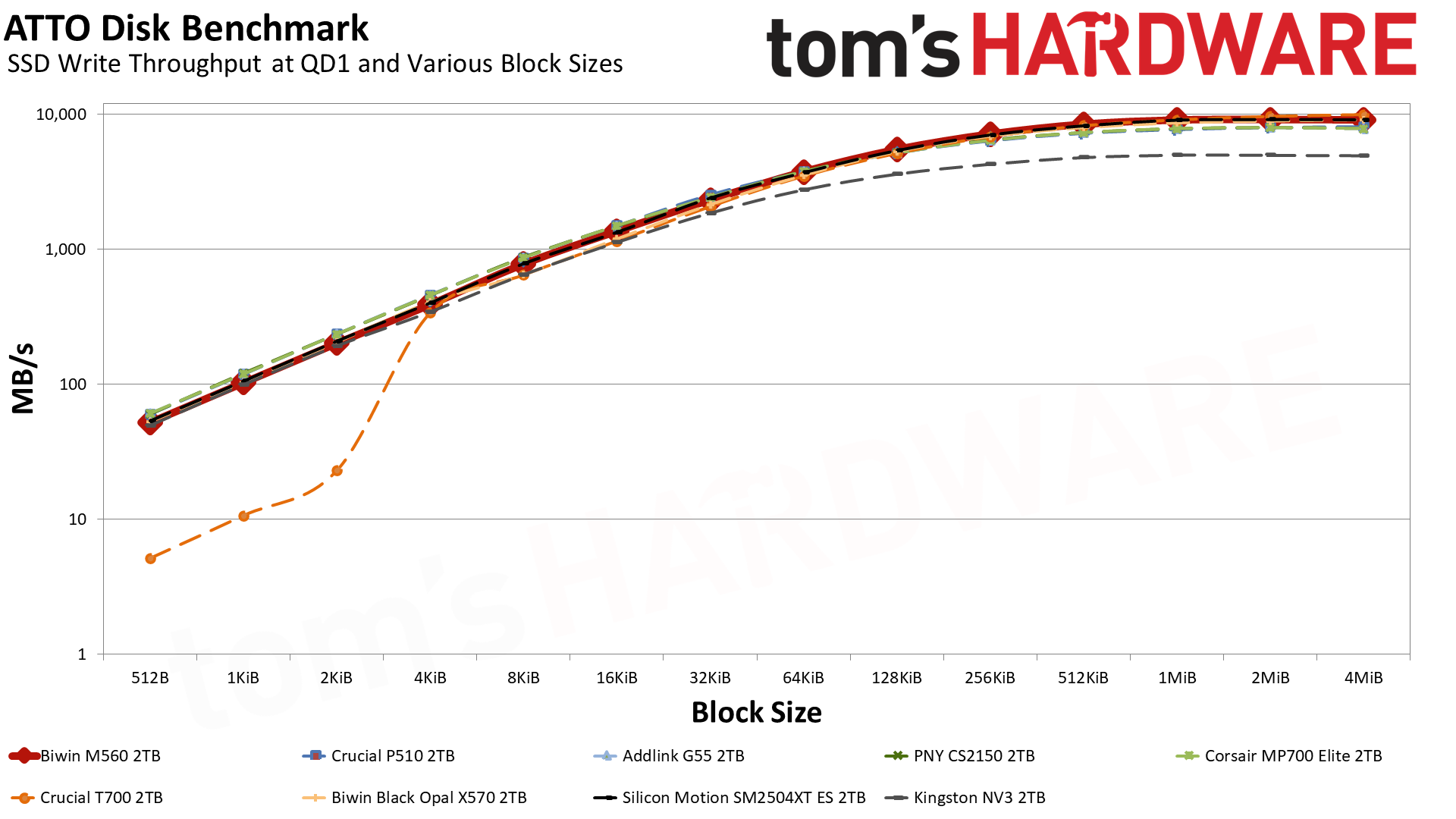
ATTO and CrystalDiskMark (CDM) are free and easy-to-use storage benchmarking tools that SSD vendors commonly use to assign performance specifications to their products. Both of these tools give us insight into how each device handles different file sizes and at different queue depths for both sequential and random workloads.
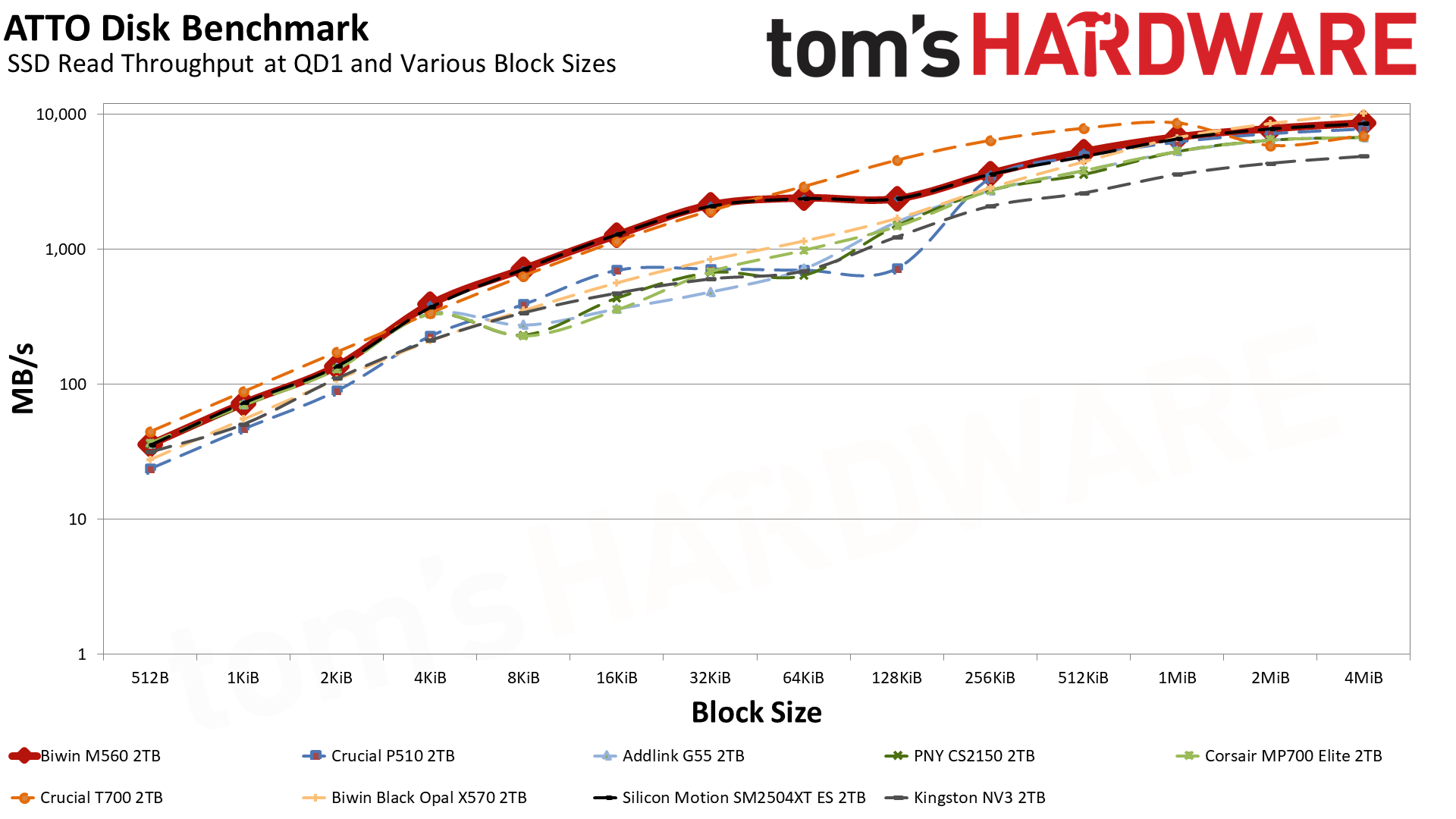
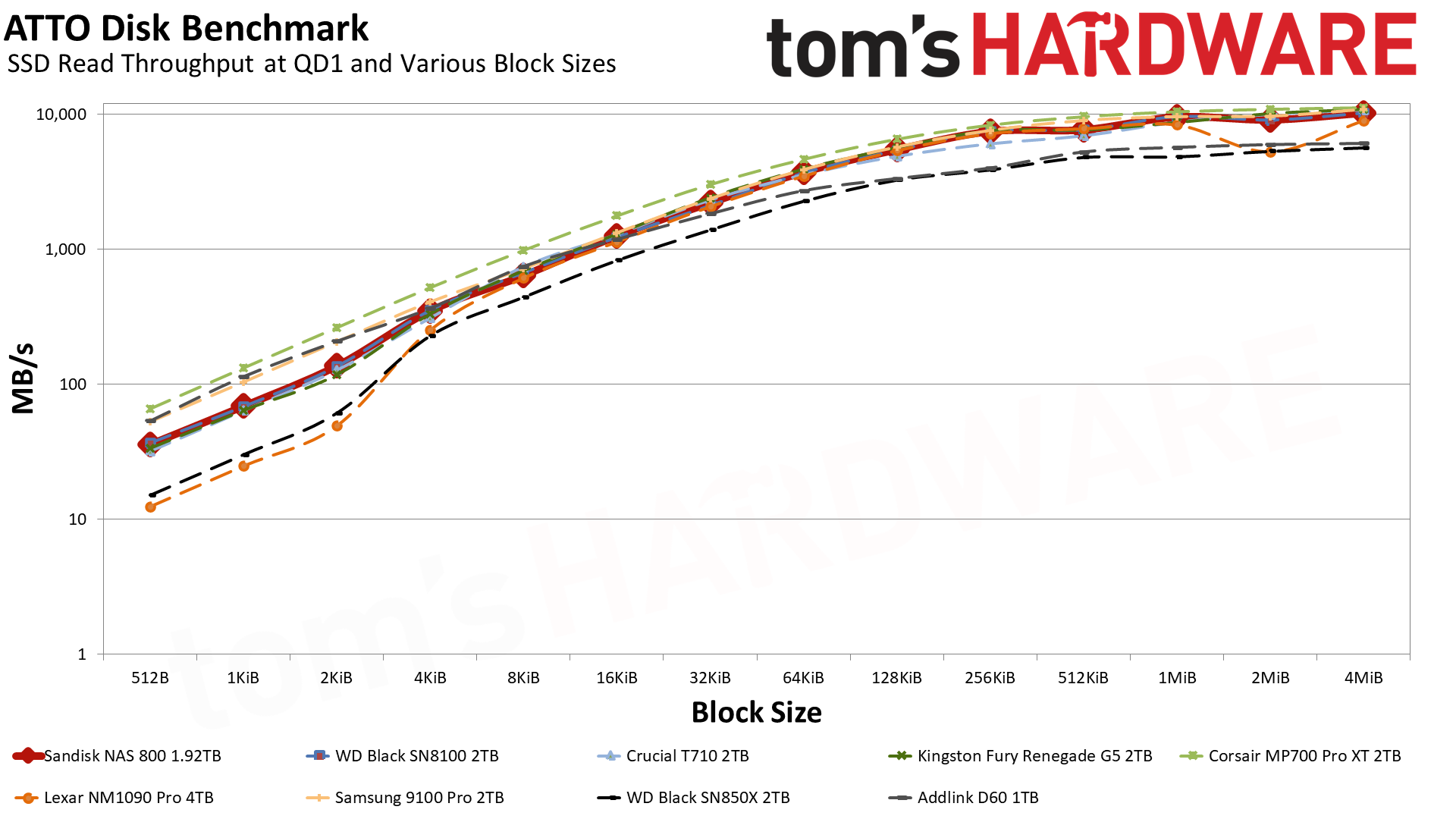
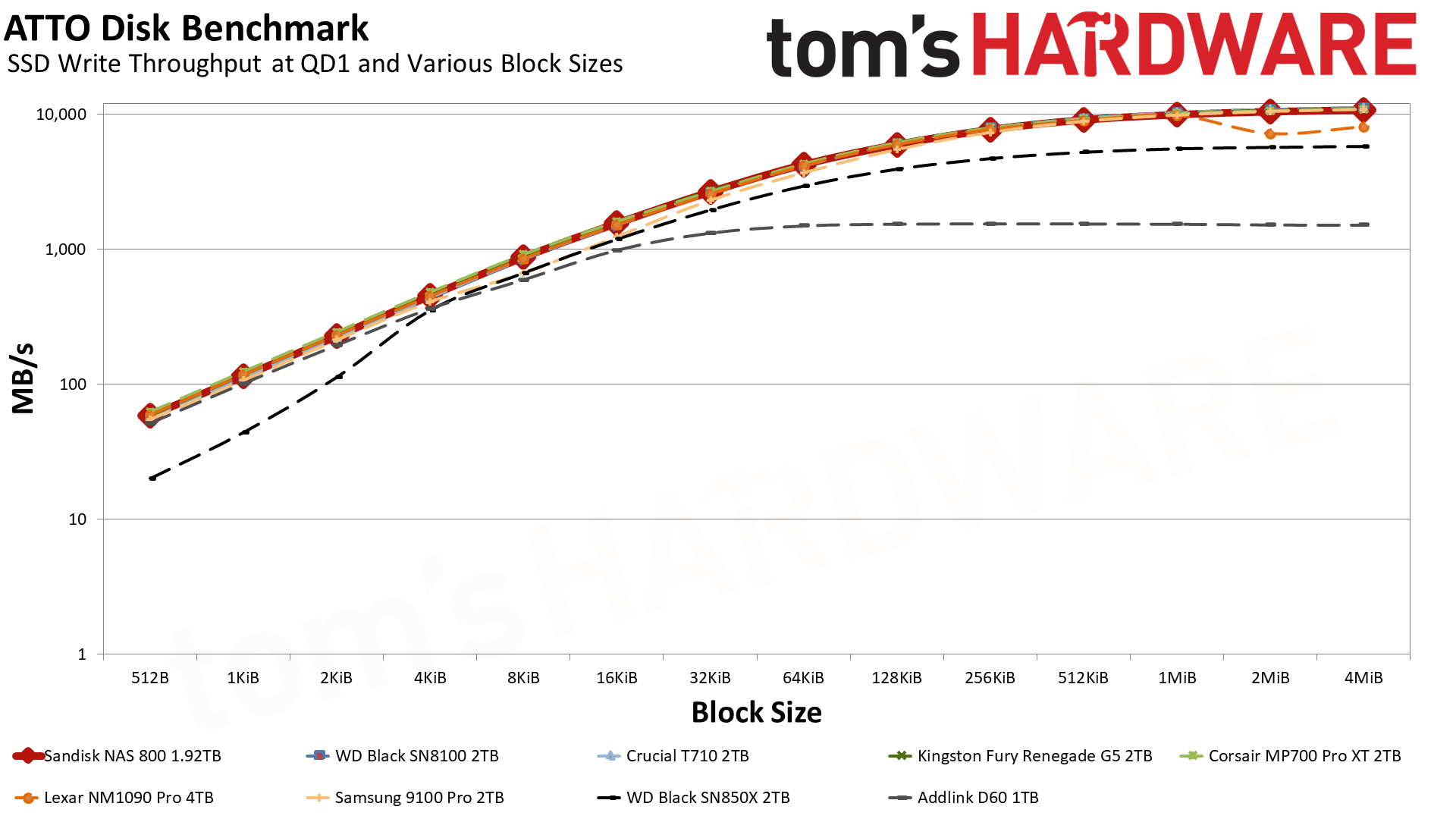
Let’s start with ATTO. For writes, the M560’s curve is quite nice, and it only loses to the T700 — which has double the flash channels, DRAM, and a higher bandwidth ceiling — at the largest block sizes. It even mostly outdoes the eight-channel X570 that’s rated for 10 GB/s with sequential writes. Reads are more of a mixed bag, but in general it’s better than any other drive except for the T700, which it defeats at 2 MiB and up, and the X570, which beats it in that same range. Effectively, this makes the M560 a monster drive for its class any way you slice it.
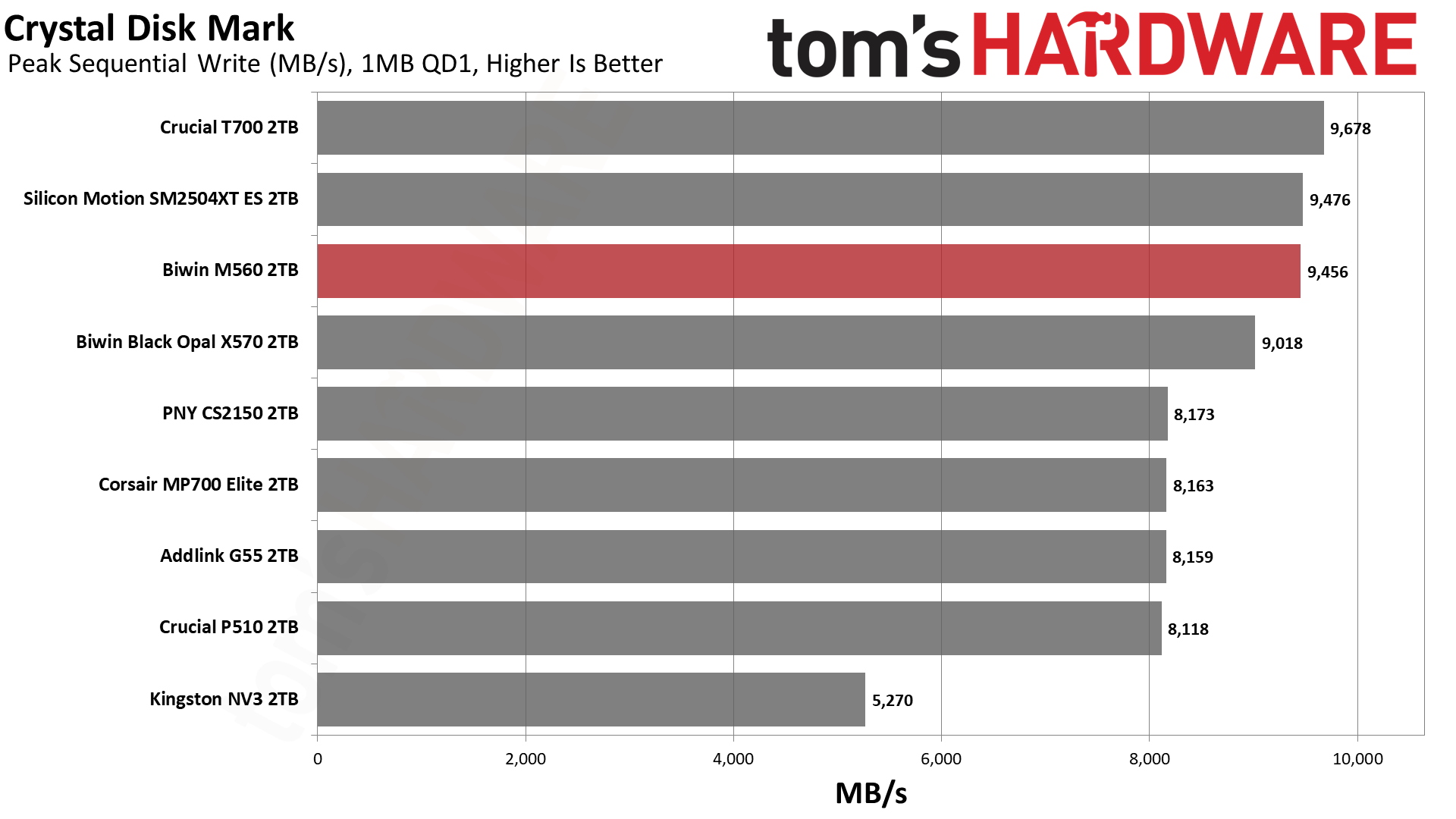
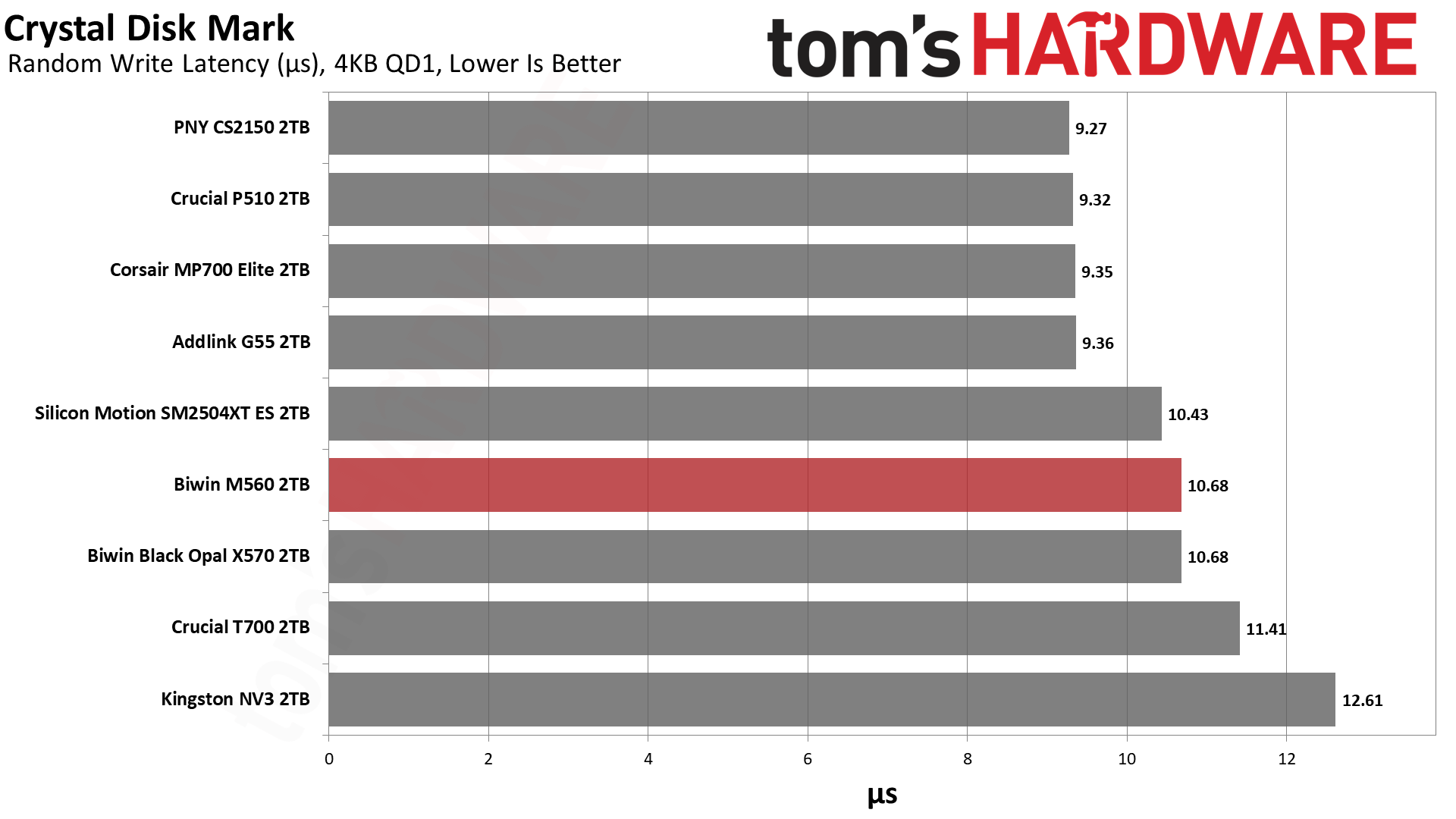
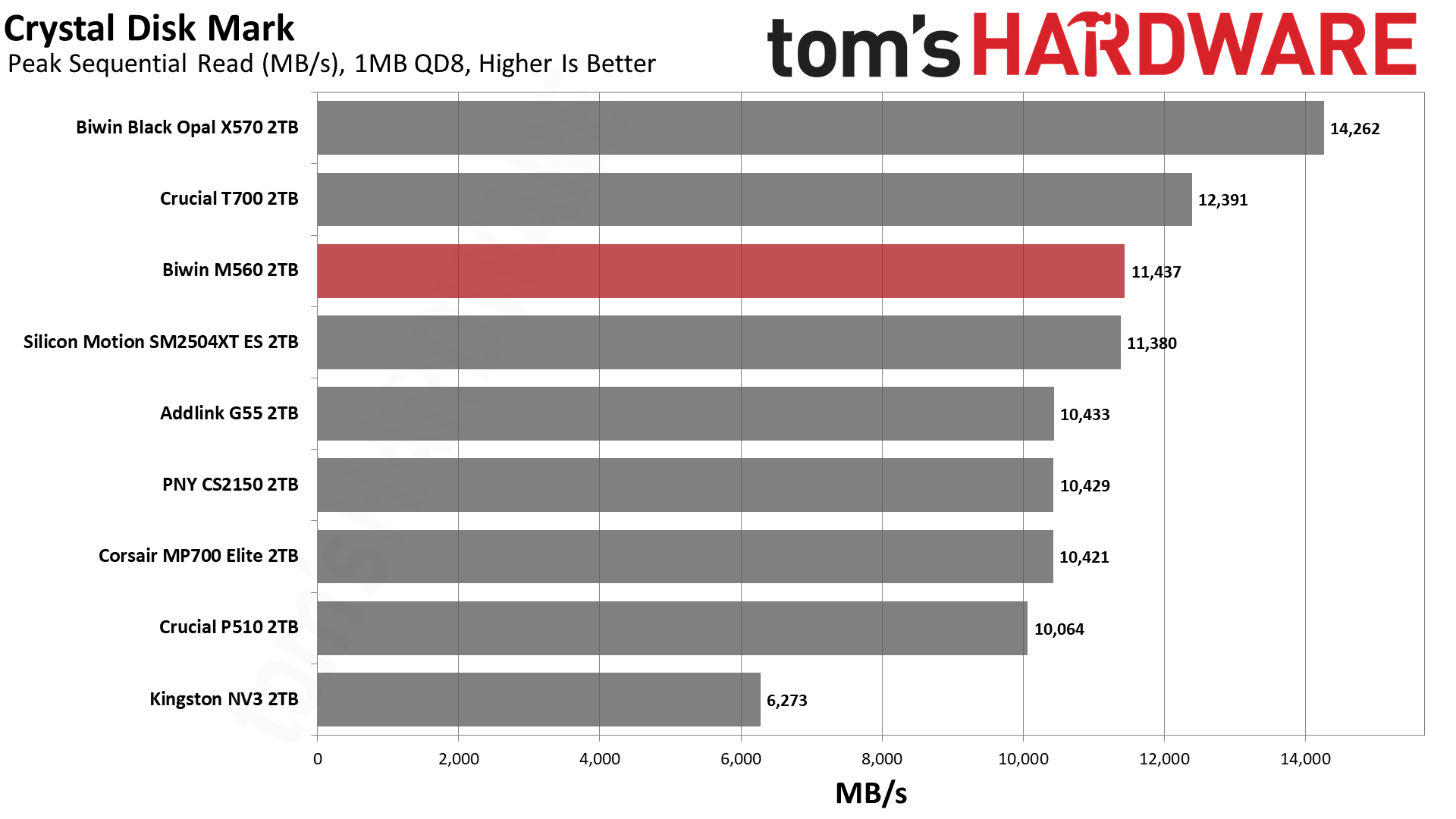
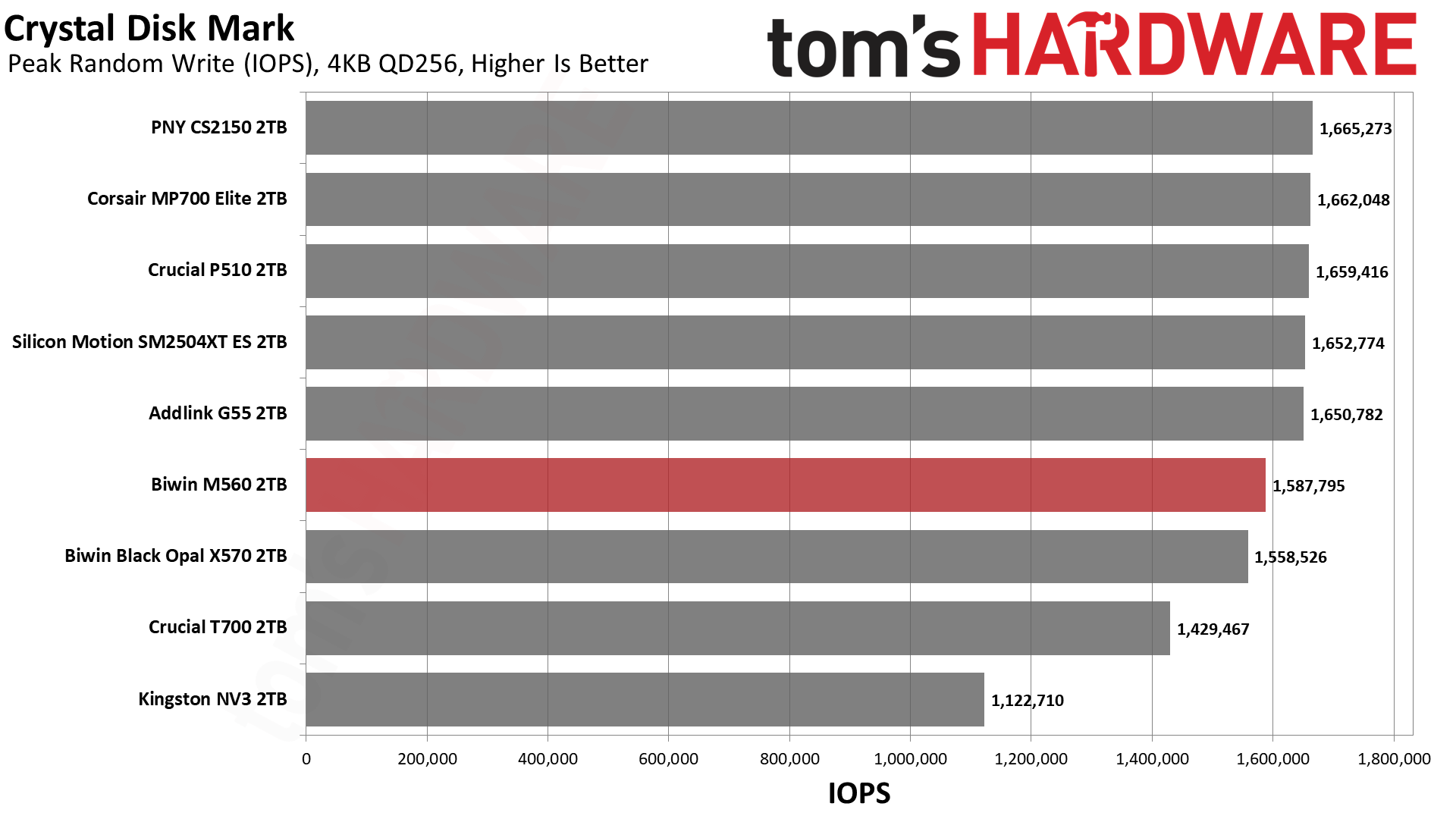
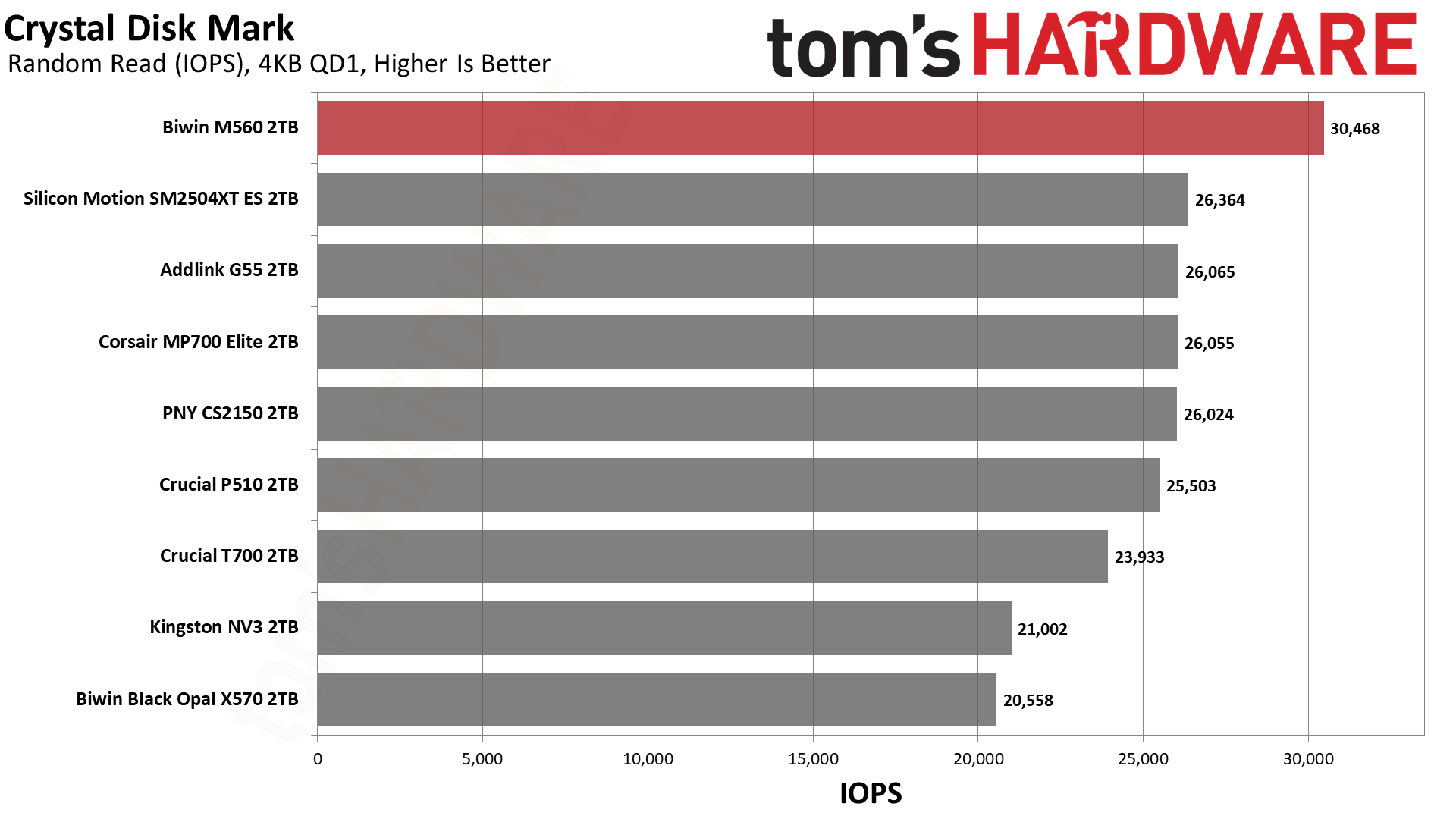
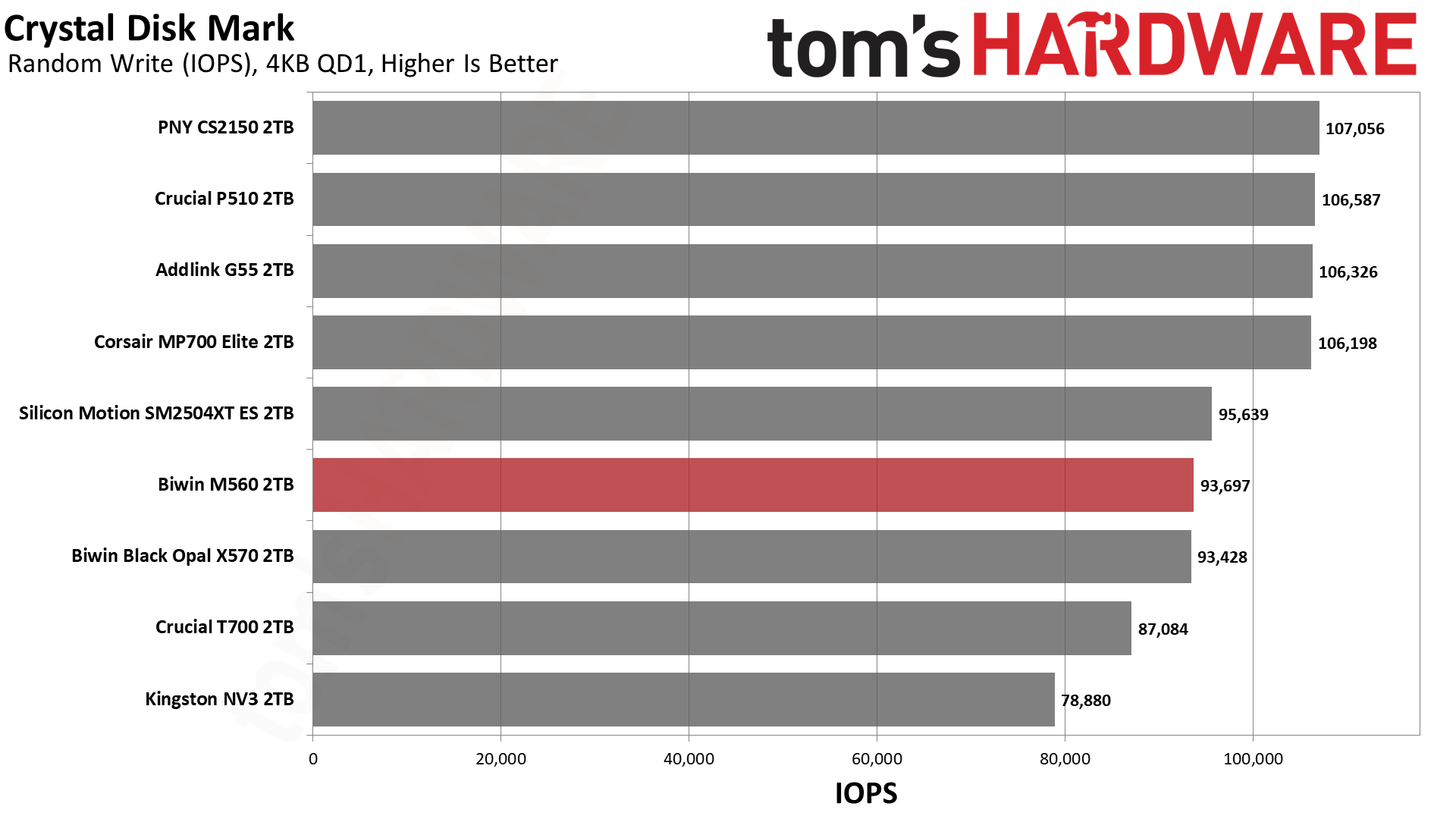
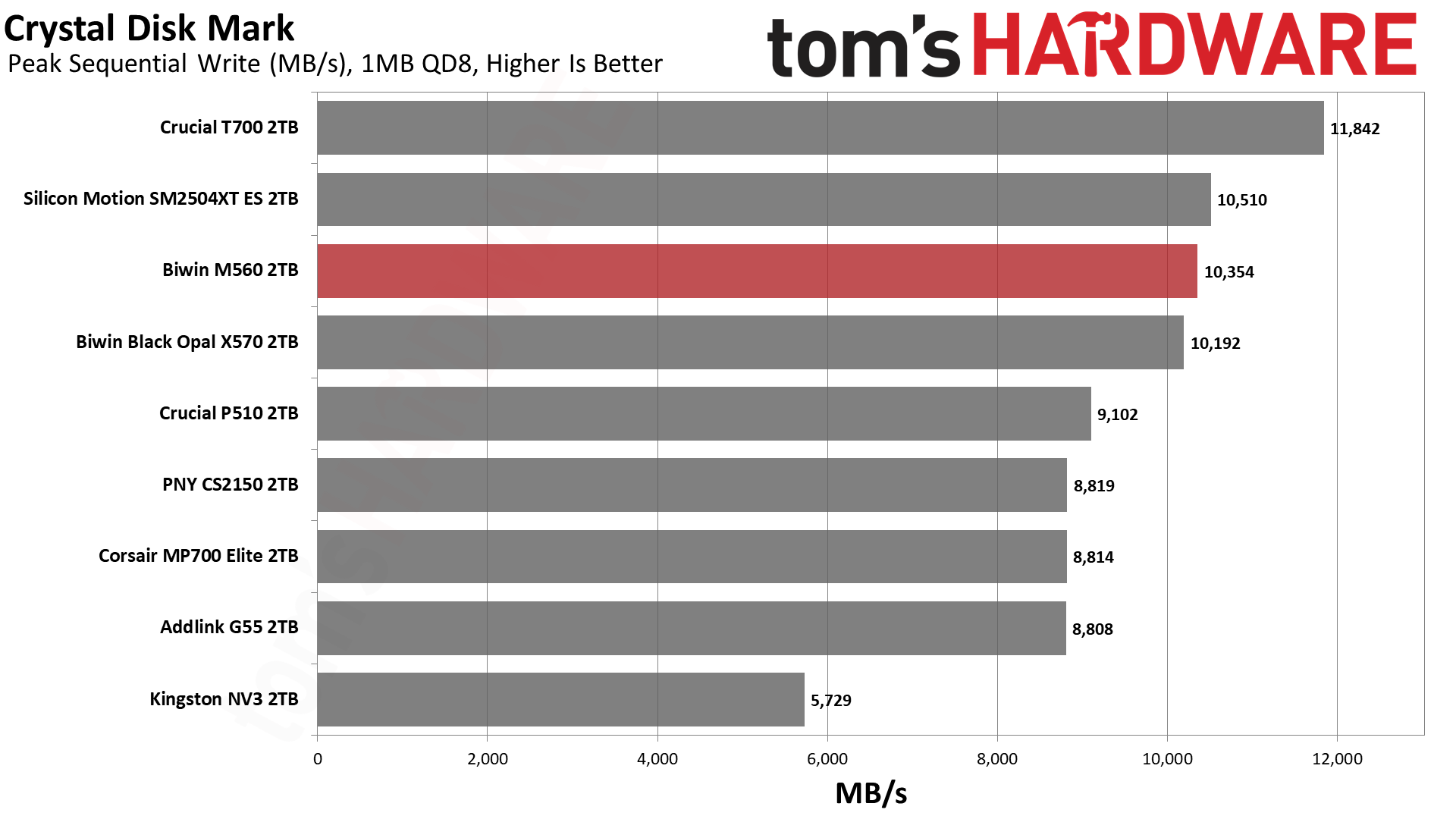
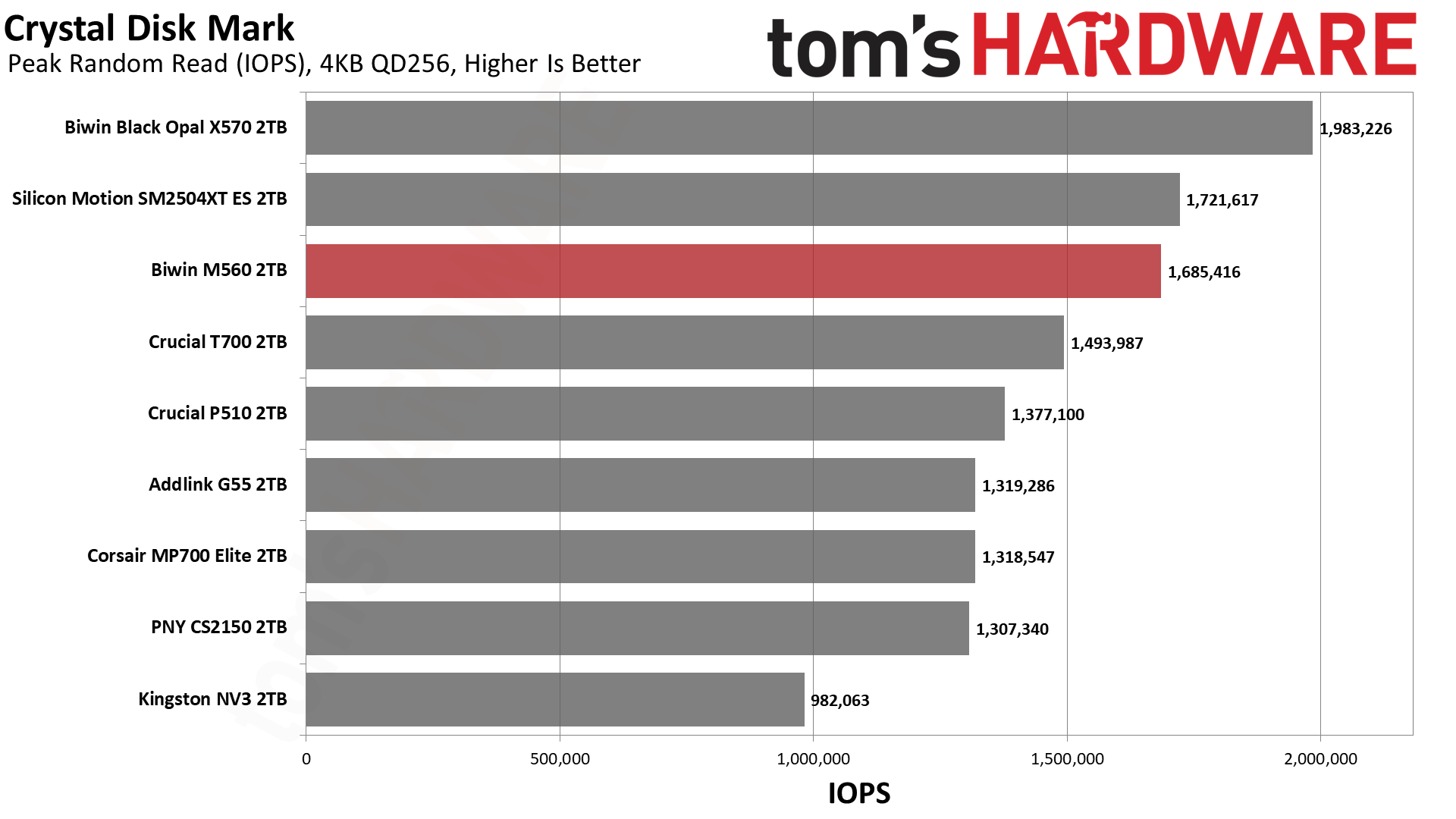
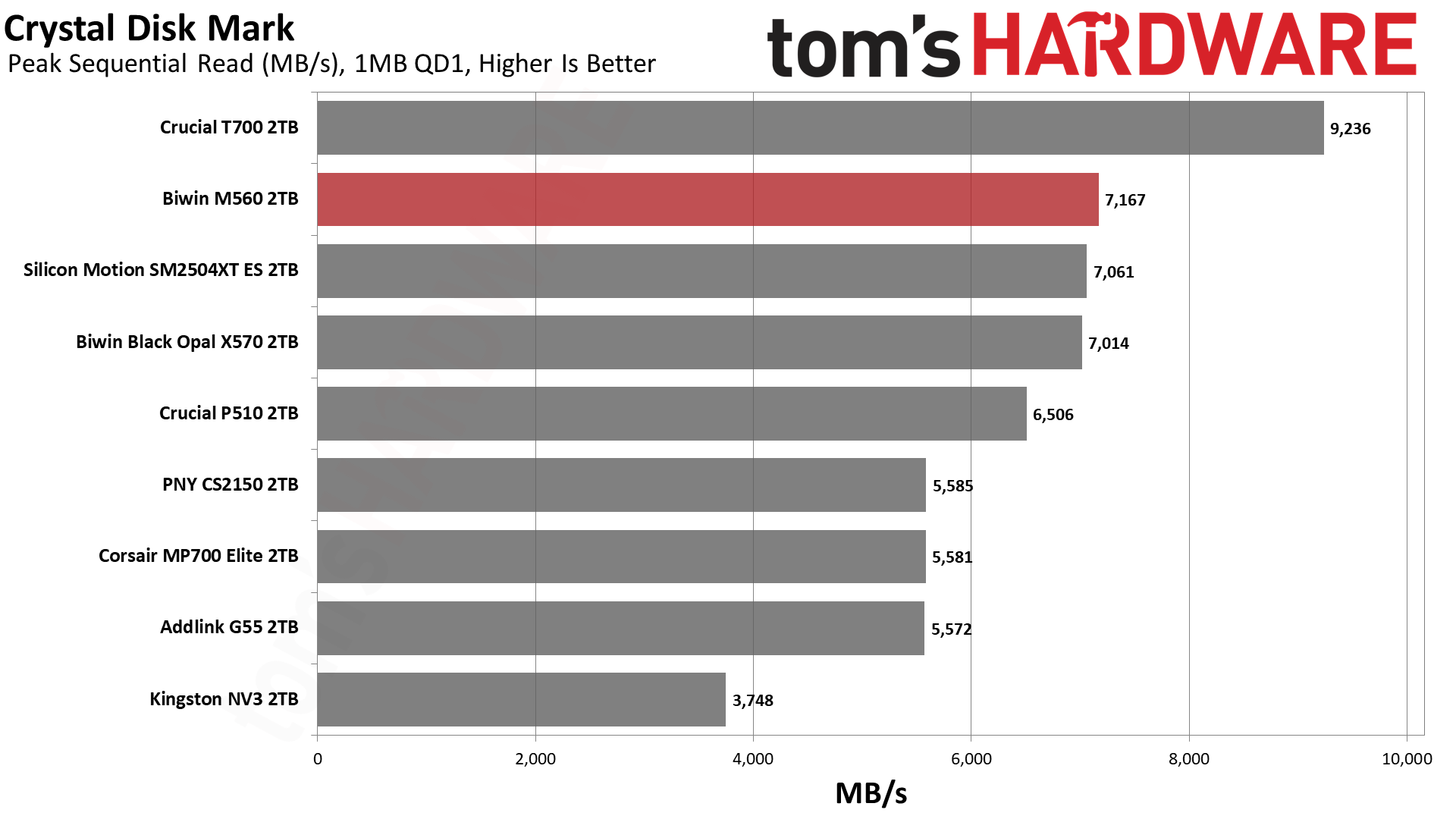
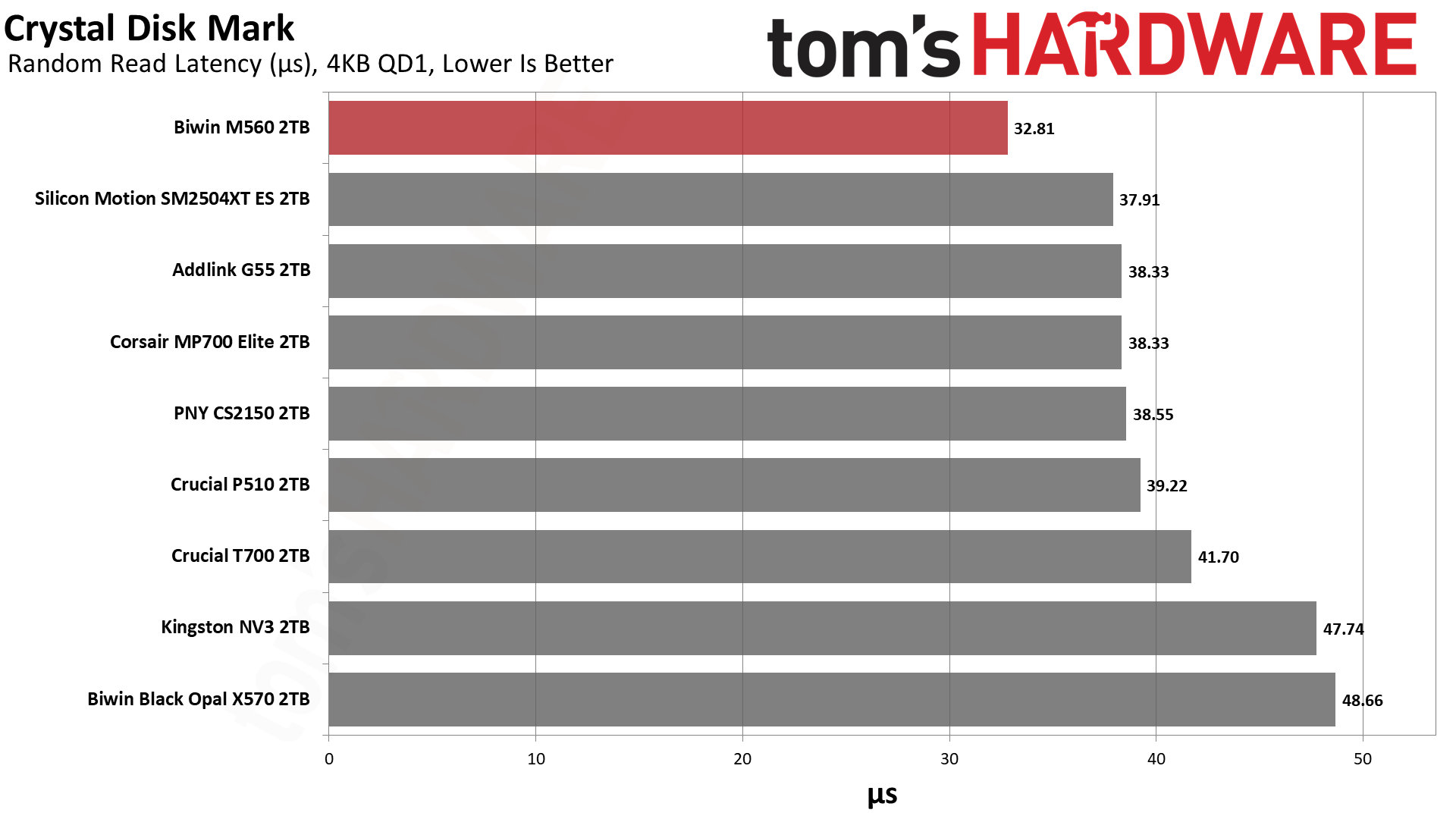
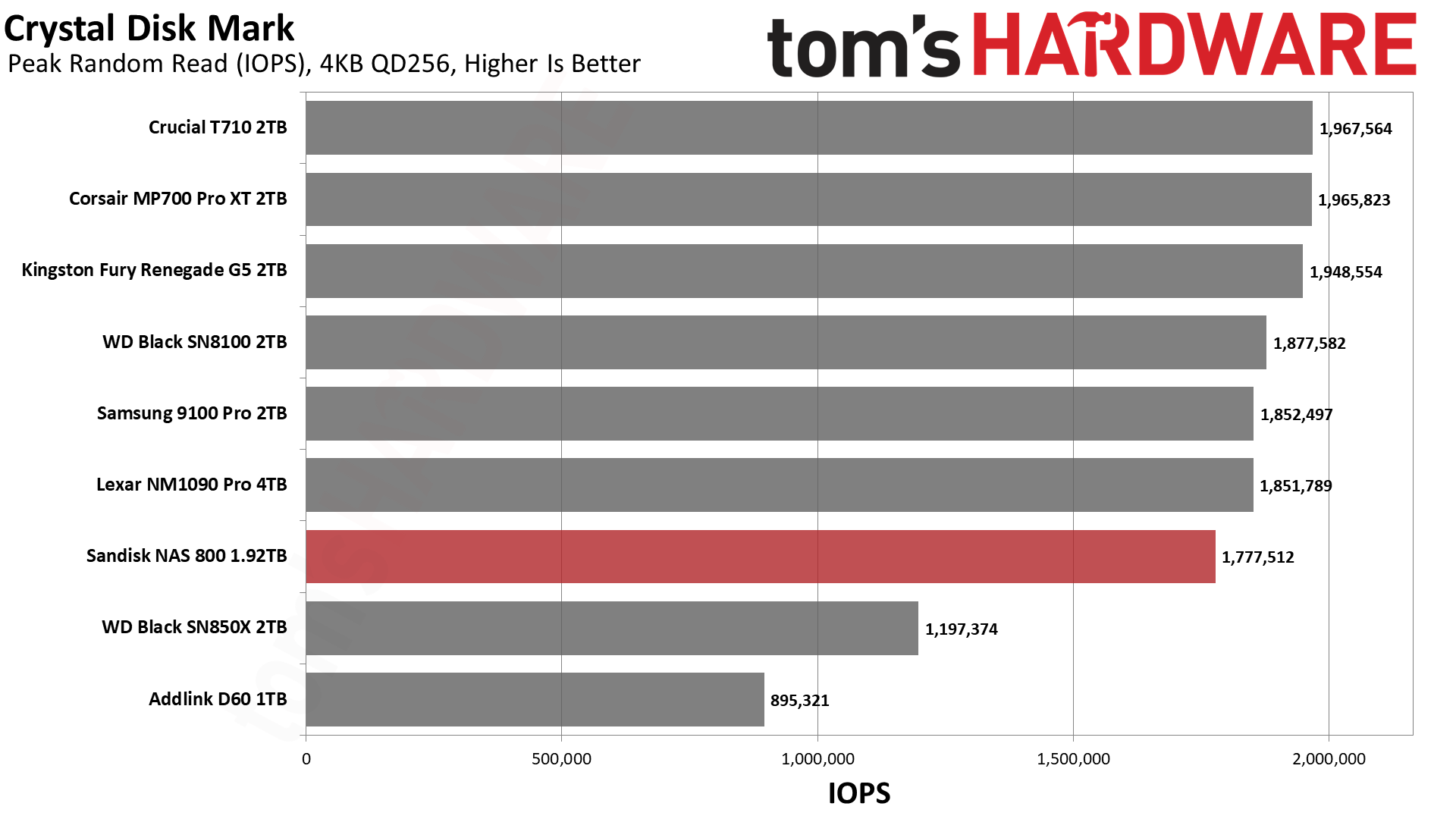
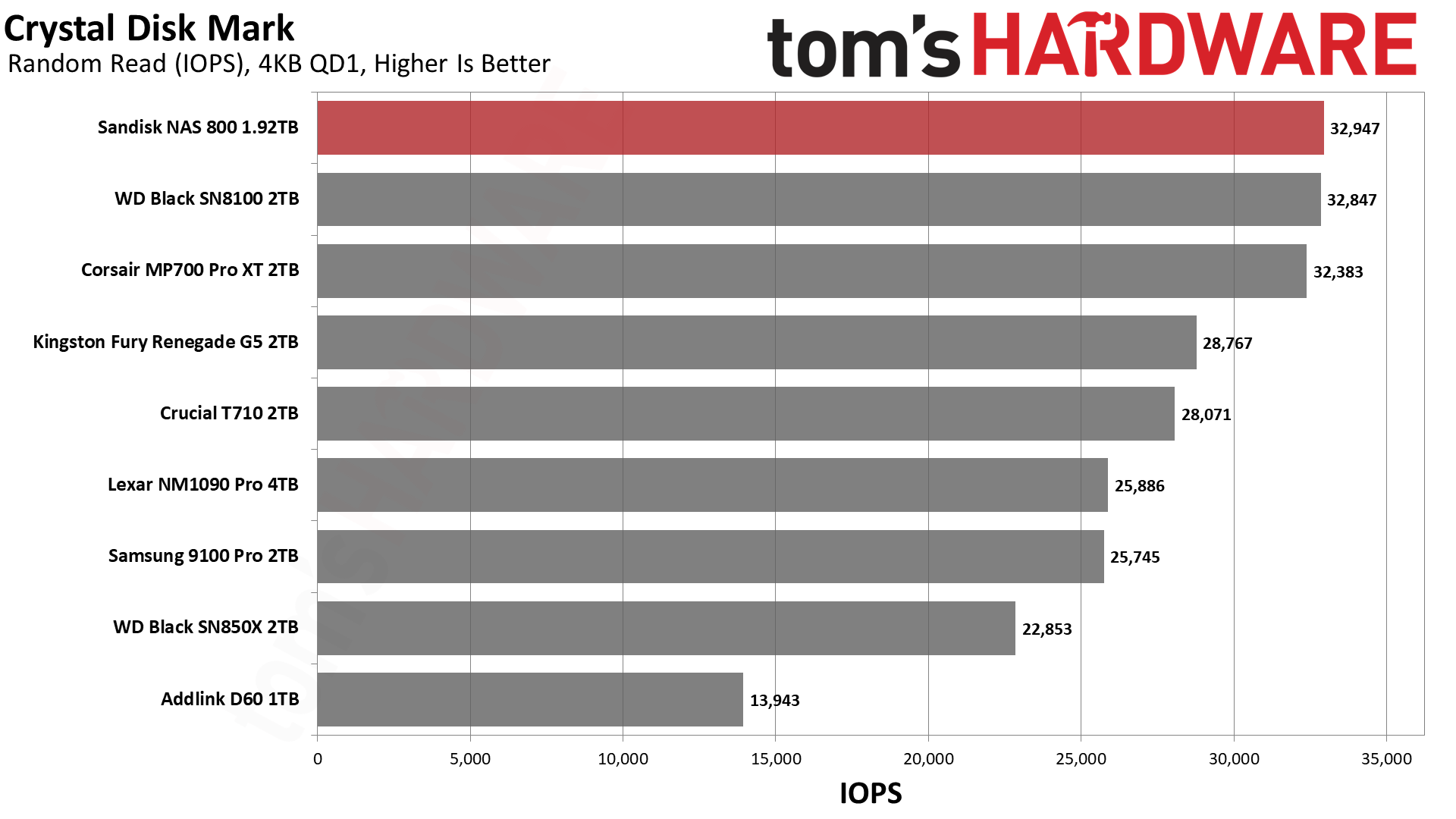
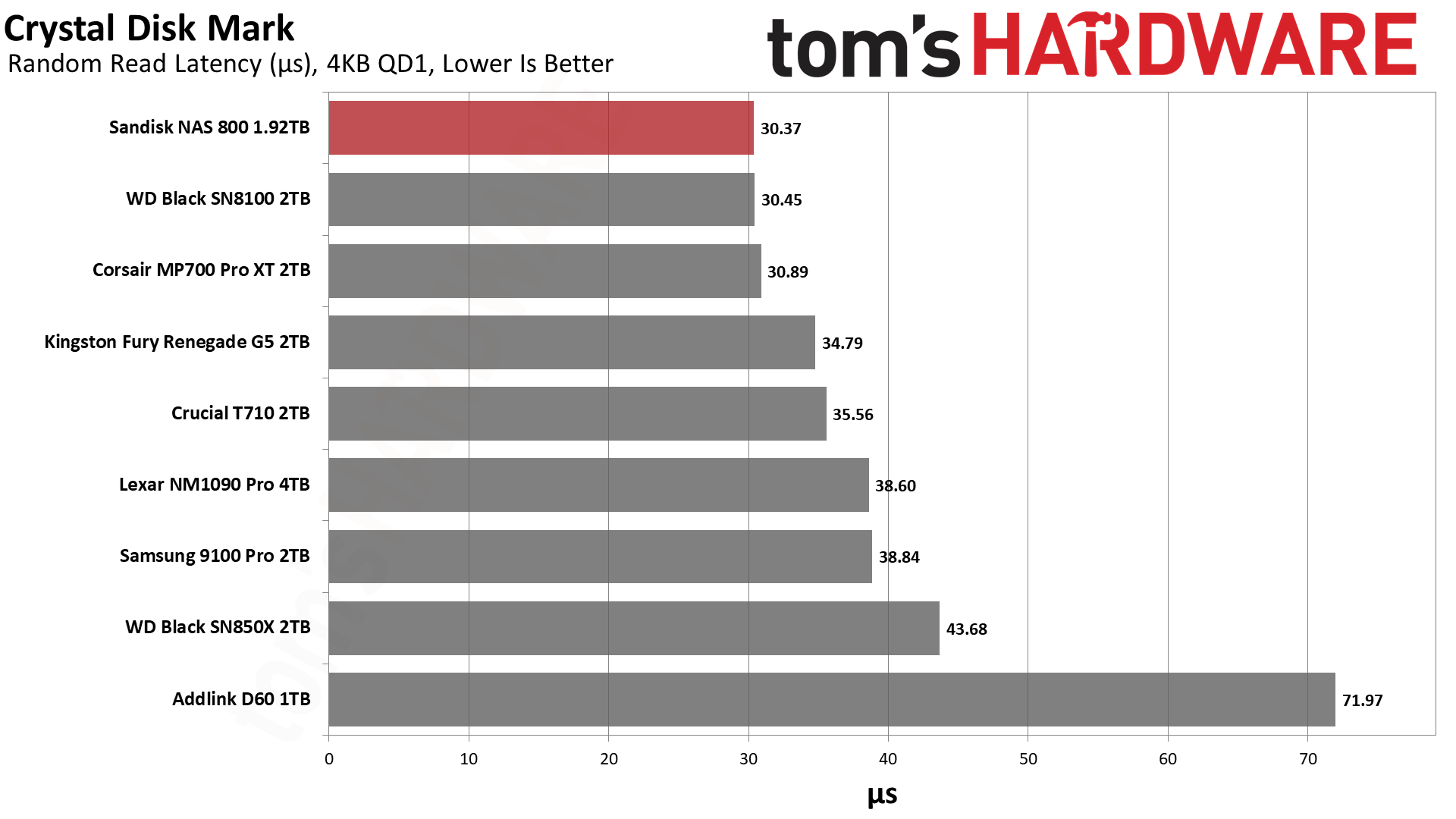
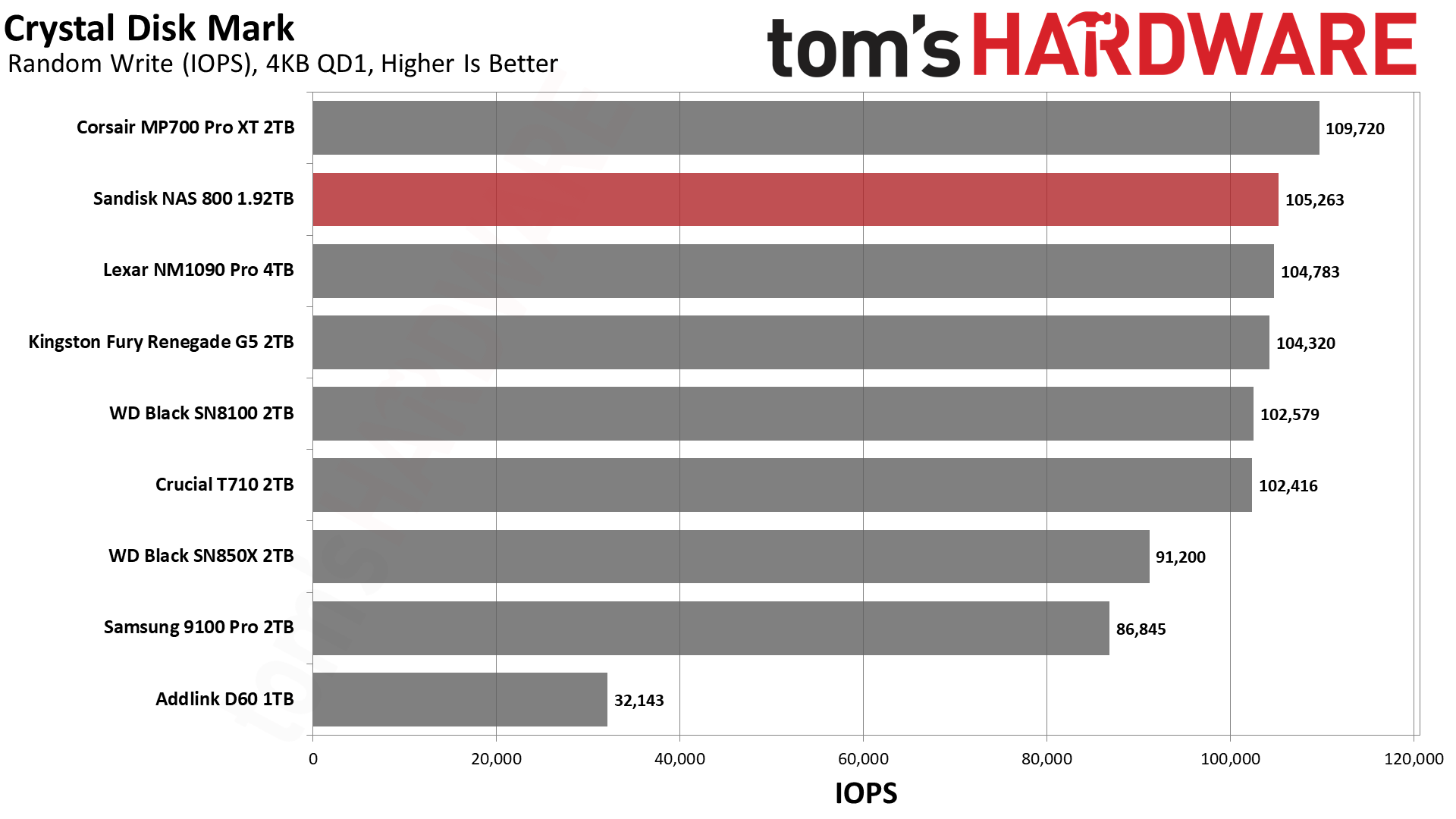
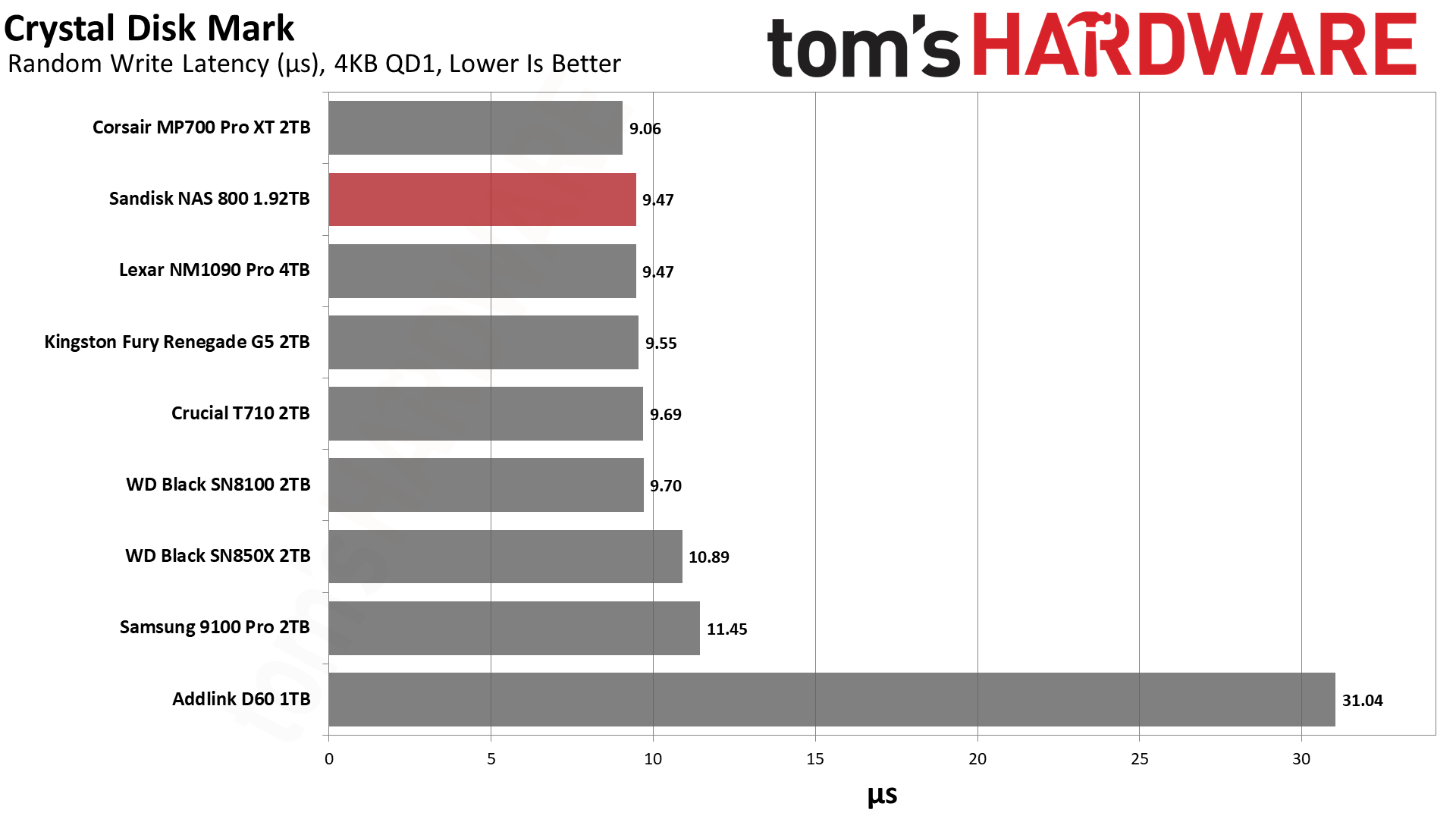
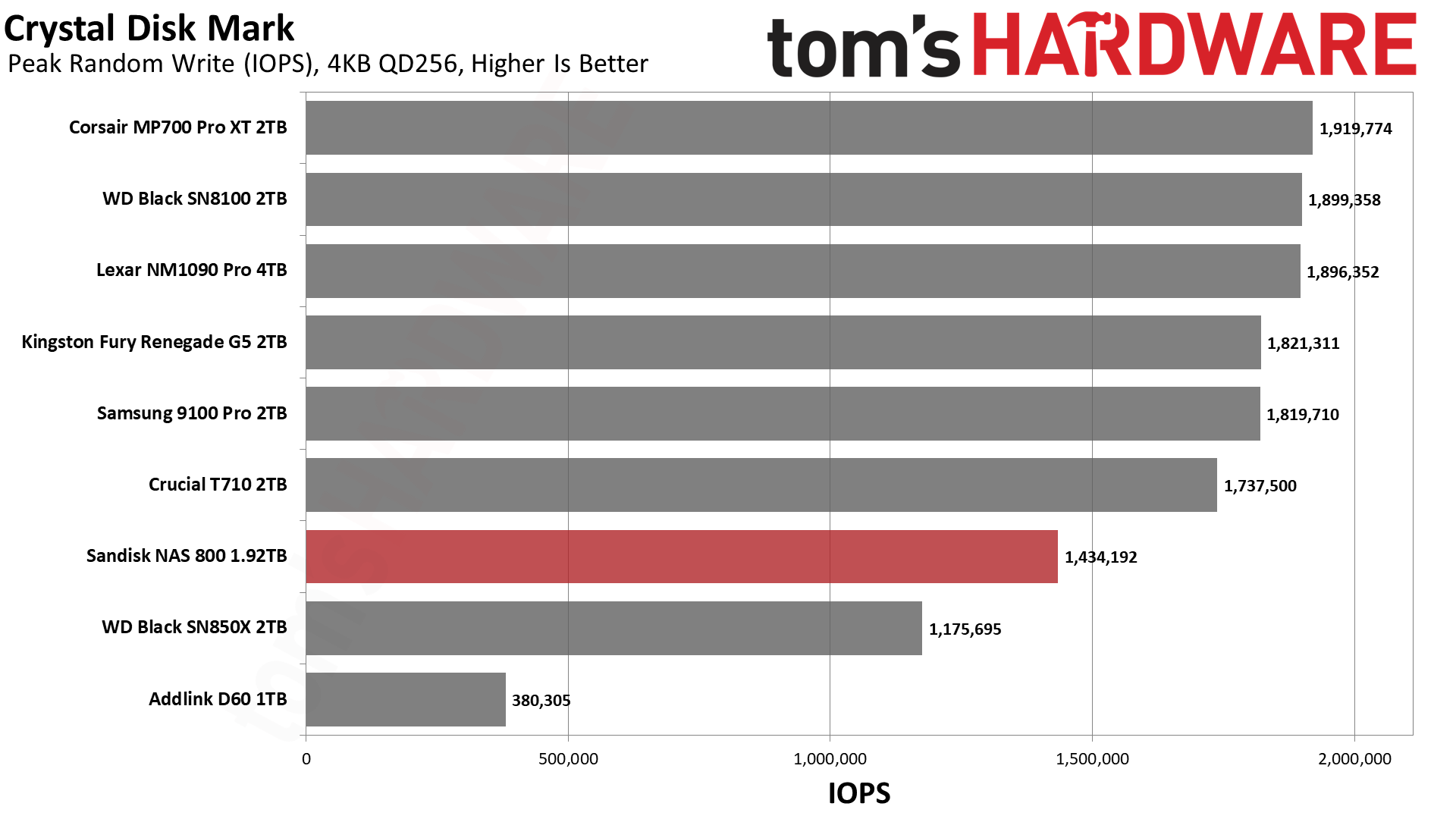
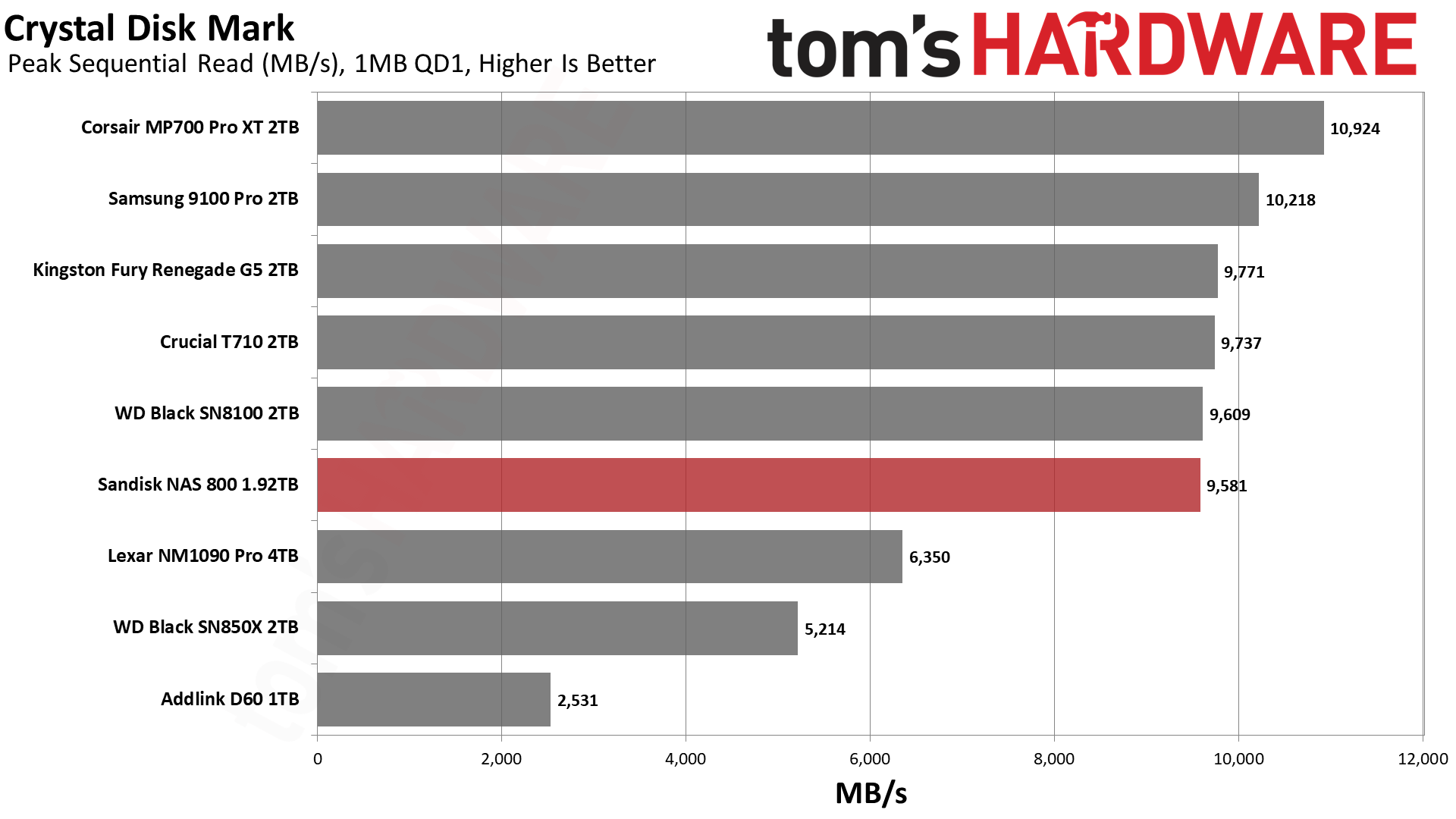
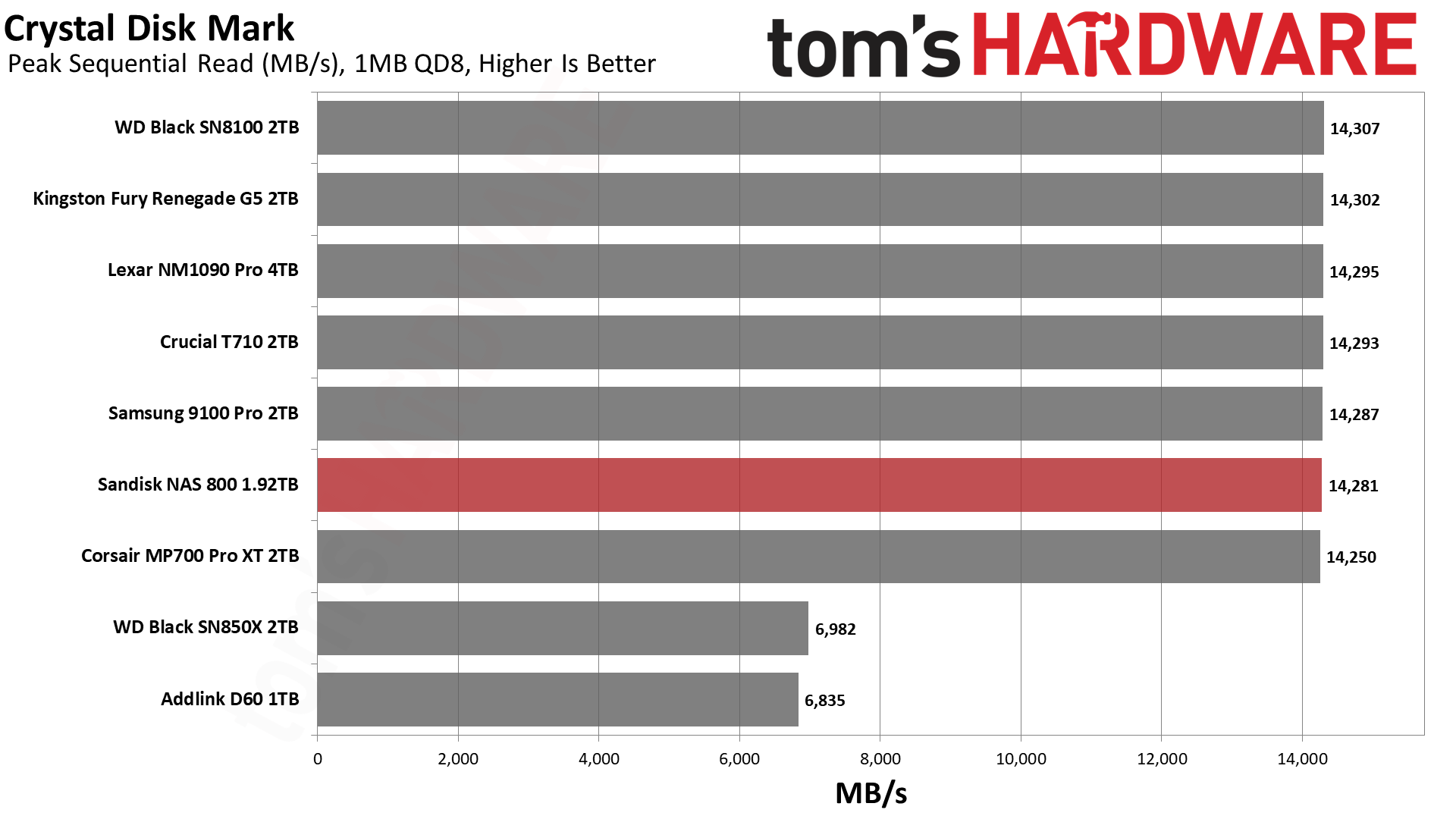
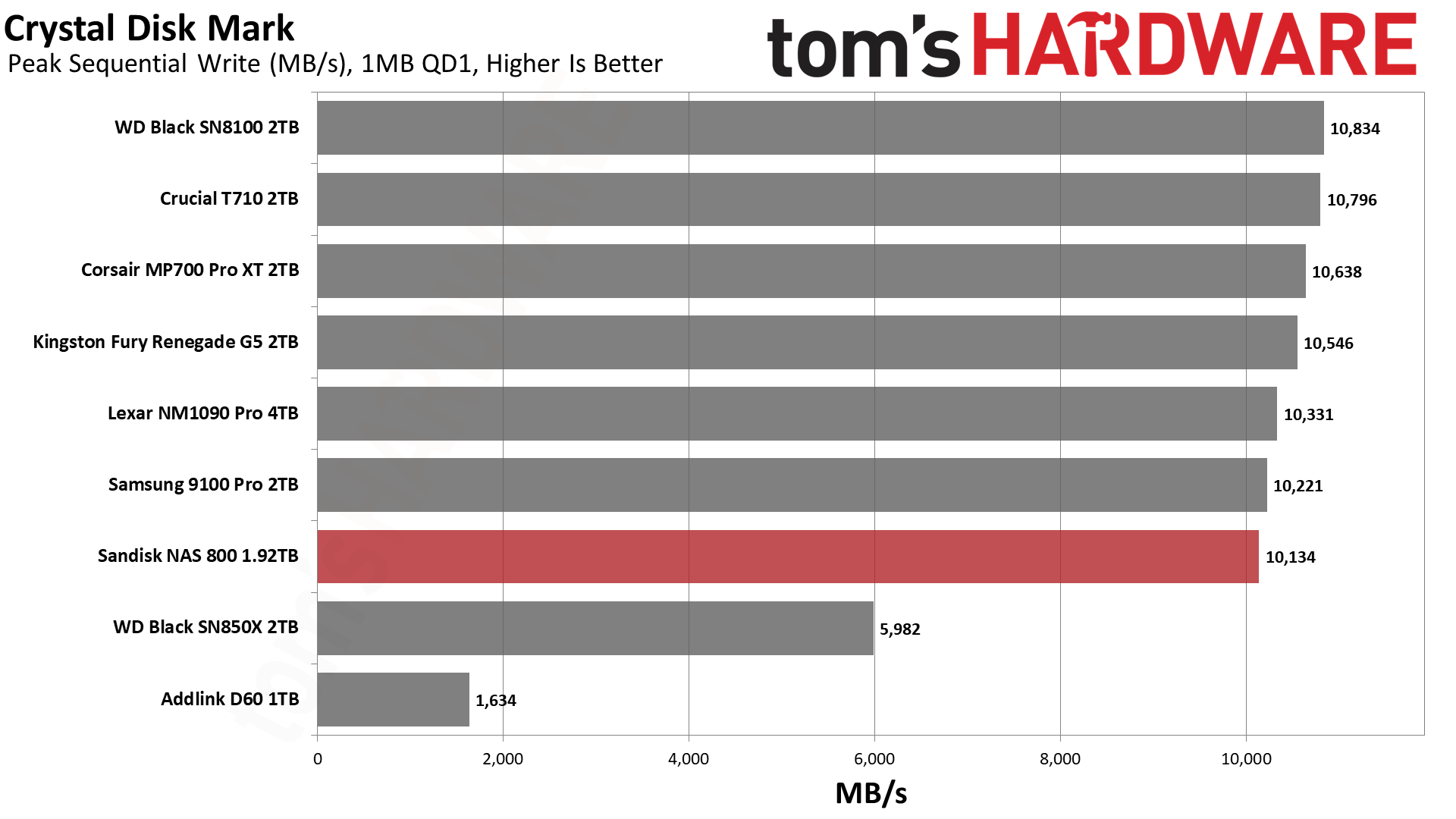
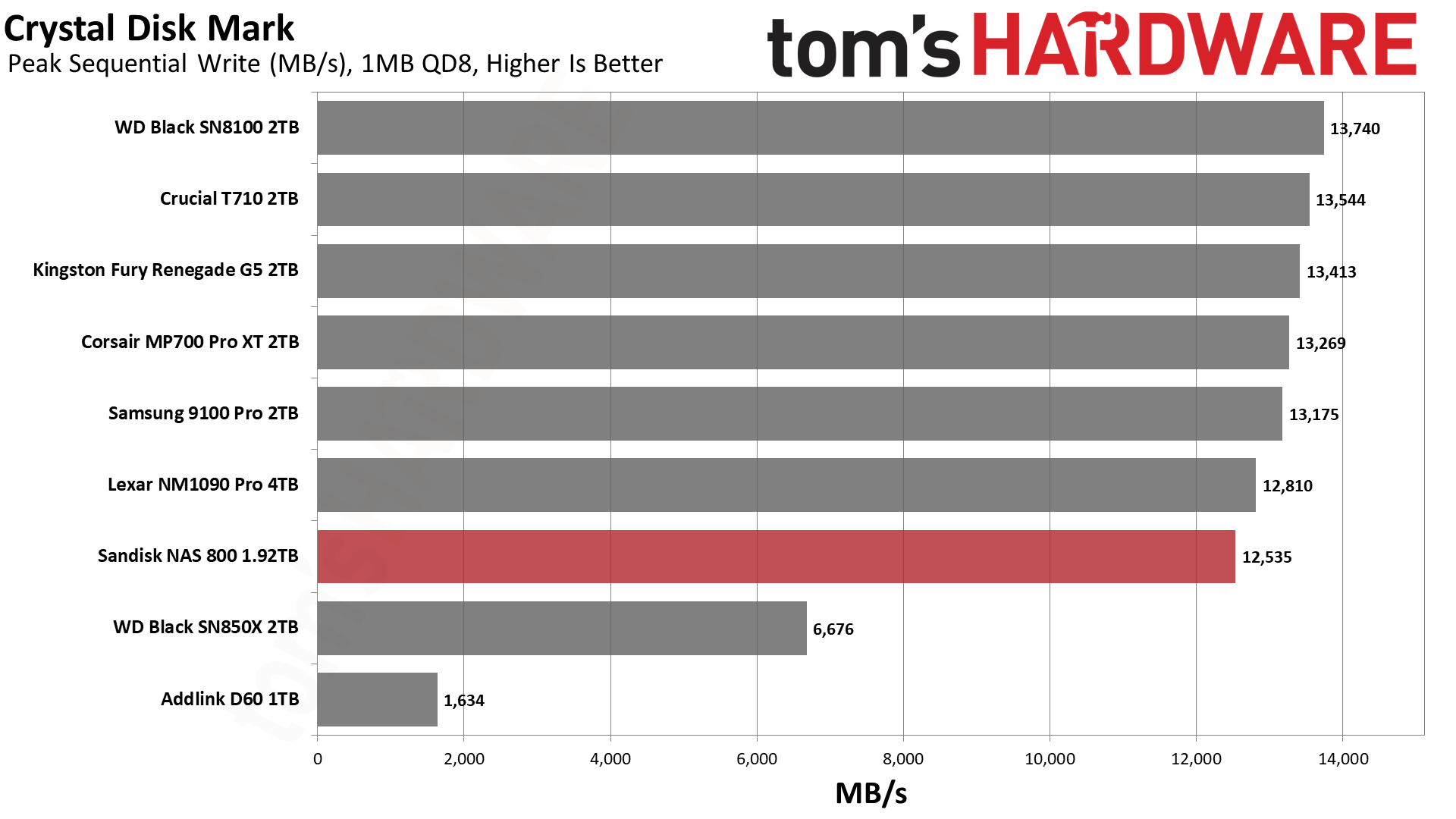
If we turn our attention towards CDM, we see that it dominates with sequential performance against not only the other retail drives in its class but the X570 as well, except at QD8 for reads. This is a powerhouse for what it is. If we look at 4KB performance, we see two different things, with one that weighs more than the other. The first is 4KB QD1 random write latency, which isn’t bad but not up to the level of what we’ve seen with this flash. The maximum IOPS at QD256 also lags. For reads, though, the M560 comes into its own: ahead of the E31T drives at high QD for 4KB random reads but, more importantly, top in QD1 latency against all drives here.
That result, more than any other, should compel you to consider this drive. It’s exceptionally responsive for what matters in daily use. It’s not quite as fast as WD and Sandisk’s drives with Sandisk BiCS8 flash, but it’s very close. Phison’s E31T just doesn’t come close.
Sustained Write Performance and Cache Recovery
Official write specifications are only part of the performance picture. Most SSDs implement a write cache, which is a fast area of pseudo-SLC (single-bit) programmed flash that absorbs incoming data. Sustained write speeds can suffer tremendously once the workload spills outside of the cache and into the "native" TLC (three-bit) or QLC (four-bit) flash. Performance can suffer even more if the drive is forced to fold, the process of migrating data out of the cache in order to free up space for further incoming data.
We use Iometer to hammer the SSD with sequential writes for 15 minutes to measure both the size of the write cache and performance after the cache is saturated. We also monitor cache recovery via multiple idle rounds. This process shows the performance of the drive in various states including the steady state write performance.
Tom's HardwareTom's HardwareTom's Hardware
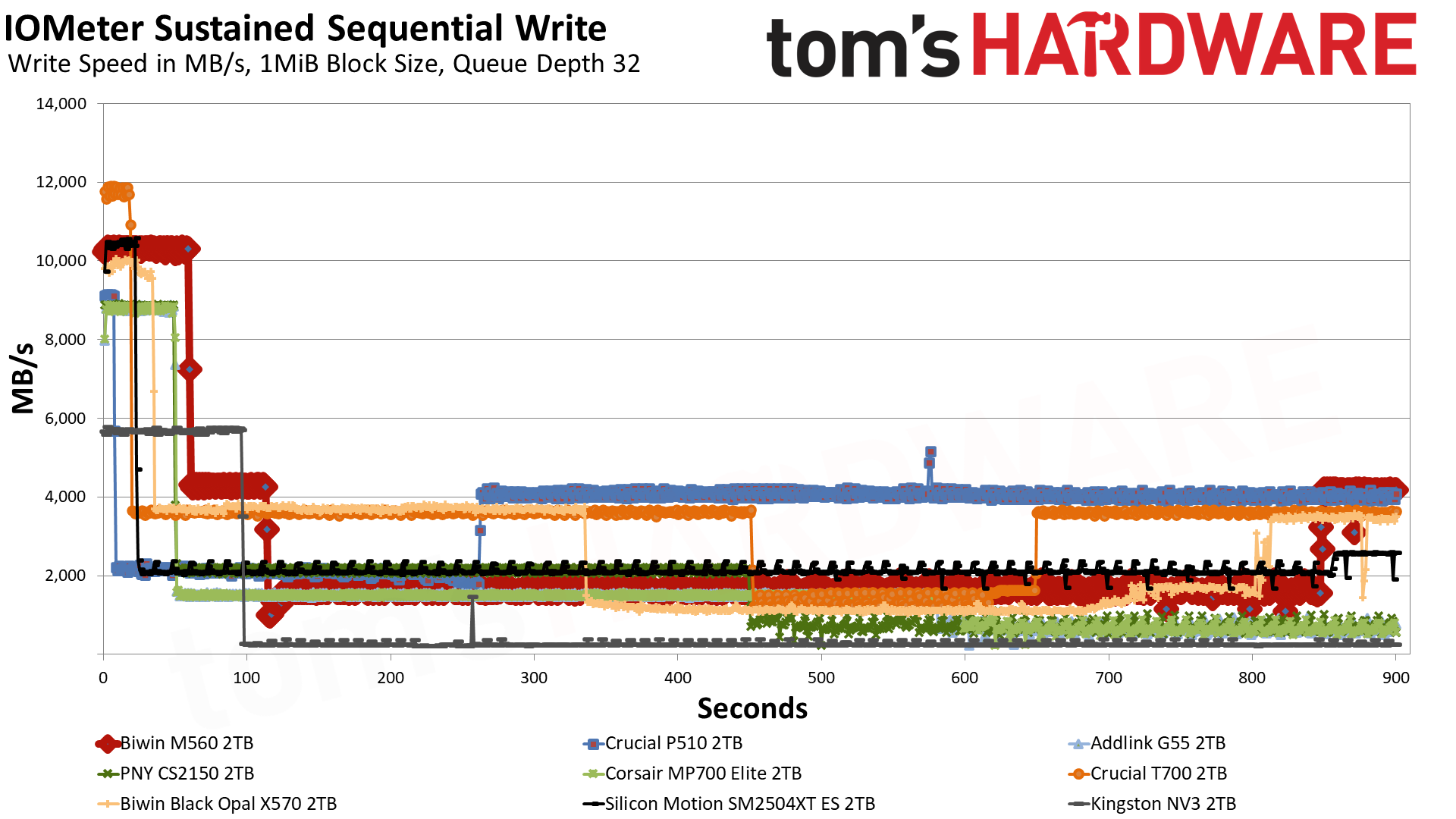
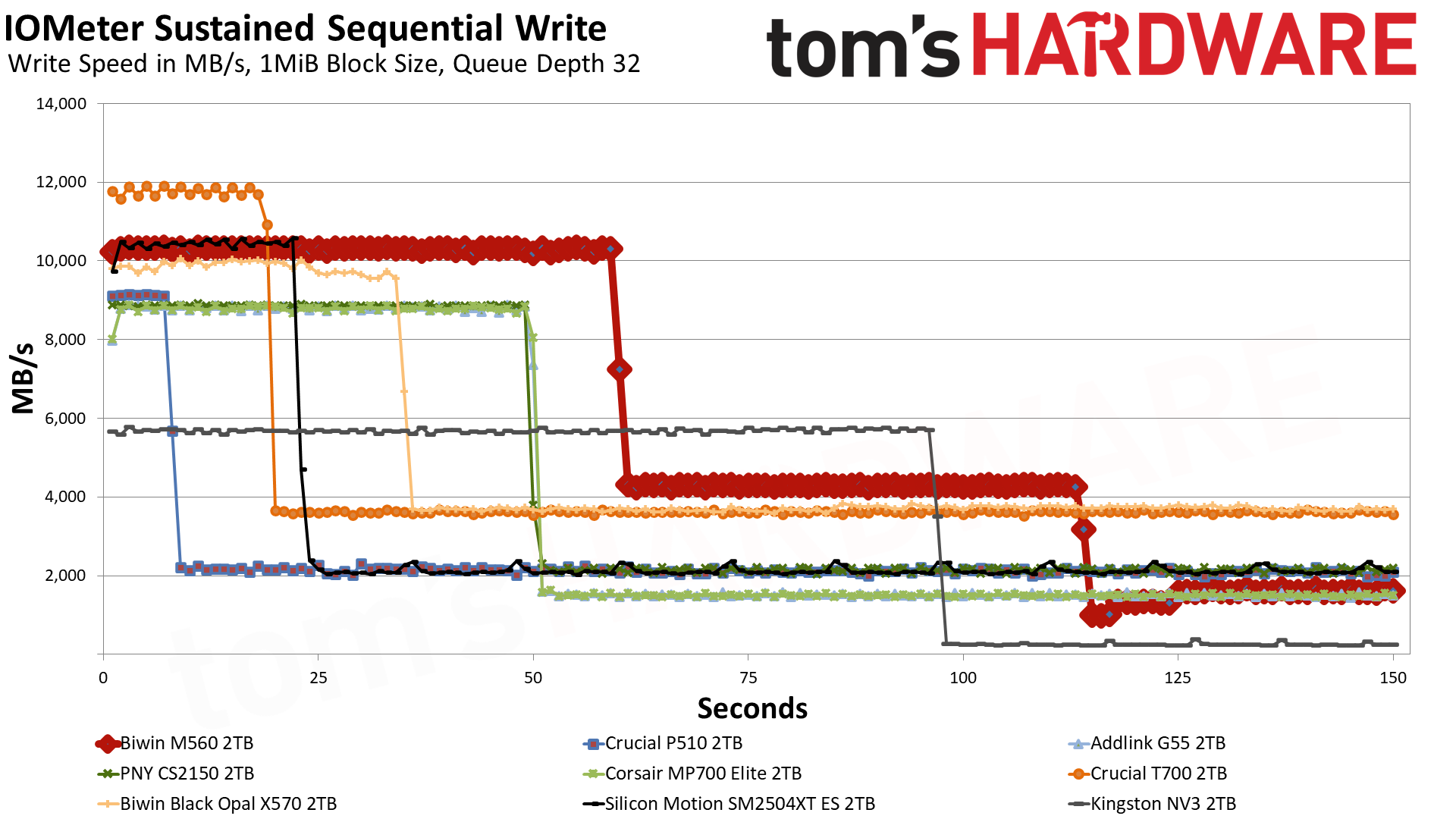
The M560 has three distinct write states: the pSLC cache, direct to TLC flash, and a folding mode where it has to wait for data to be moved over from the pSLC to the TLC. In the first mode, it writes at an average of over 10.3 GB/s for over 59 seconds with a cache of around 611 GB. This is plenty fast for a drive of this type, and the cache is a good size. That figure is from an empty drive, and as with any dynamic cache, it will shrink as the drive fills. It is possible to dedicate more of the TLC flash to this mode, but that has drawbacks. A larger cache usually means the drive will be slower and less consistent with writes when the cache is exhausted.
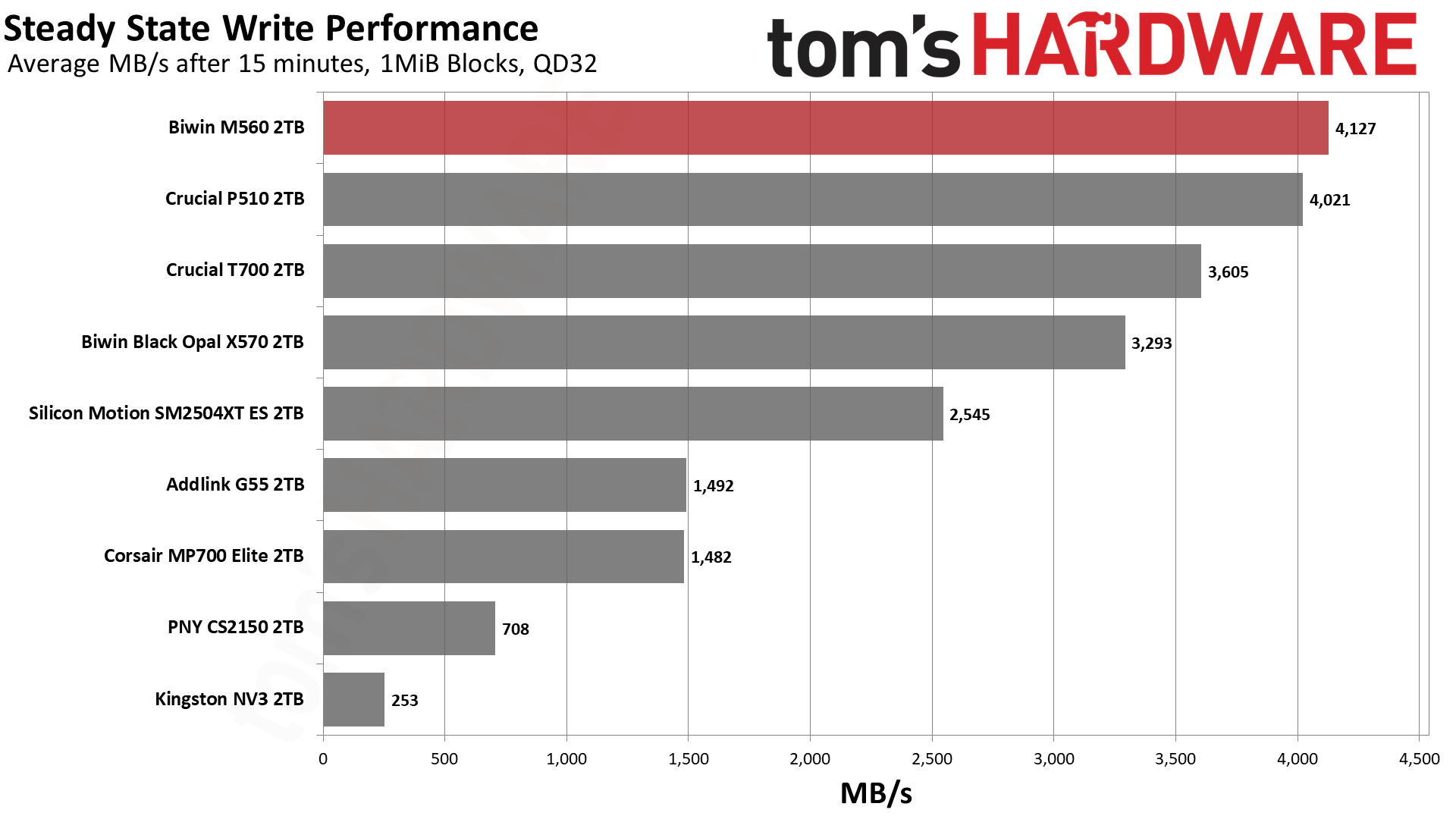
In the middle native write mode, the drive writes at over 4.1 GB/s, which is also what our steady-state result shows: that chart averages the last 30 seconds of the run, and by then the drive had written about 2TB and was back to writing at its native speed. This is in part misleading and in part not. It’s not misleading because, in fact, the flash can maintain this native speed under the right circumstances. It is misleading that you’d end up with this at the end of your writes because the drive will outrun the cache, and there will not be enough space left to handle the incoming writes. This forces the drive to “fold” data from the cache to the native TLC, which interferes with the direct write process, increasing latency and lowering the write speed. The resulting speed is usually less than half the native and, in this case, is somewhere above 1.6 GB/s, which is by no means terrible when some QLC-based drives end up at 10% of that. Note, however, that the ES we tested with the same hardware has a more consistent 2.1 GB/s write speed line, and this is due to it having a much smaller cache.
While the large cache here means that this drive really isn’t ideal for sustained write workloads, the fact it can get over 4 GB/s with its flash is pretty incredible. This would have been above and beyond just about every PCIe 4.0 drive in existence, and with just half the channels. This is a very fast drive and, frankly, feels like a high-end drive if you can get past the fact it “only” hits a bit above 10 GB/s. In practice, for longer writes that still fit in its roughly 600 GB cache, it’s going to feel like one of the fastest drives out there. It’s just that some drives, like the P510, would be more suitable for write workloads where you want a smaller cache. Alternative cache configurations for this same hardware would also be better for that, but we have few to compare at the moment.
Power Consumption and Temperature
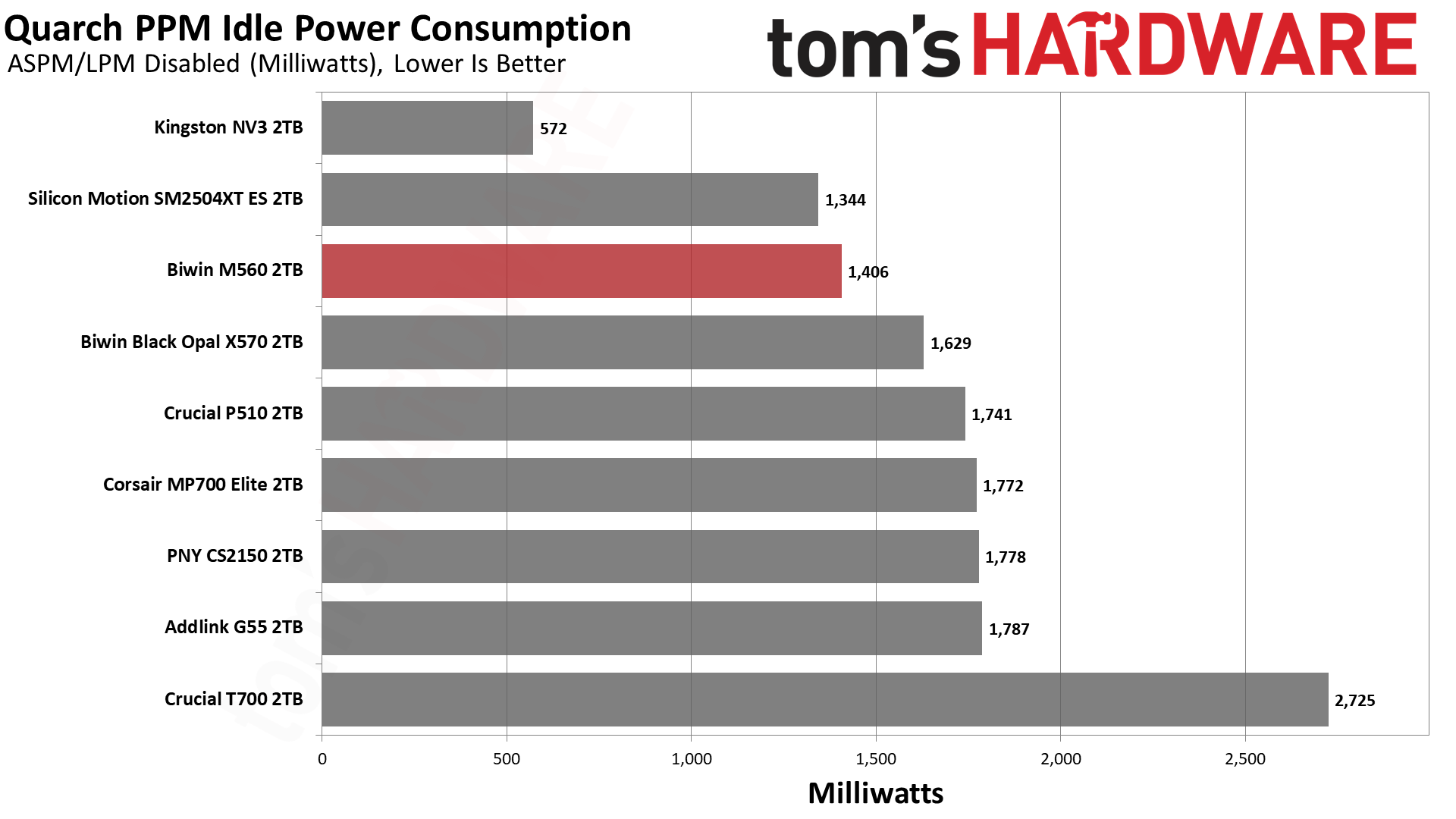
We use the Quarch HD Programmable Power Module to gain a deeper understanding of power characteristics. Idle power consumption is an important aspect to consider, especially if you're looking for a laptop upgrade, as even the best ultrabooks can have mediocre stock storage in terms of capacity and performance. Desktops are often more performance-oriented with less support for power-saving features, so we show the worst-case for idle.
Some SSDs can consume watts of power at idle while better-suited ones sip just milliwatts. Average workload power consumption and max consumption are two other aspects of power consumption, but performance-per-watt, or efficiency, is more important. A drive might consume more power during any given workload, but accomplishing a task faster allows the drive to drop into an idle state more quickly, ultimately saving energy.
For temperature recording, we currently poll the drive’s primary composite sensor during testing with a ~22°C ambient. Our testing is rigorous enough to heat the drive to a realistic ceiling temperature, but real-world temperatures will vary due to the environment and workload factors.
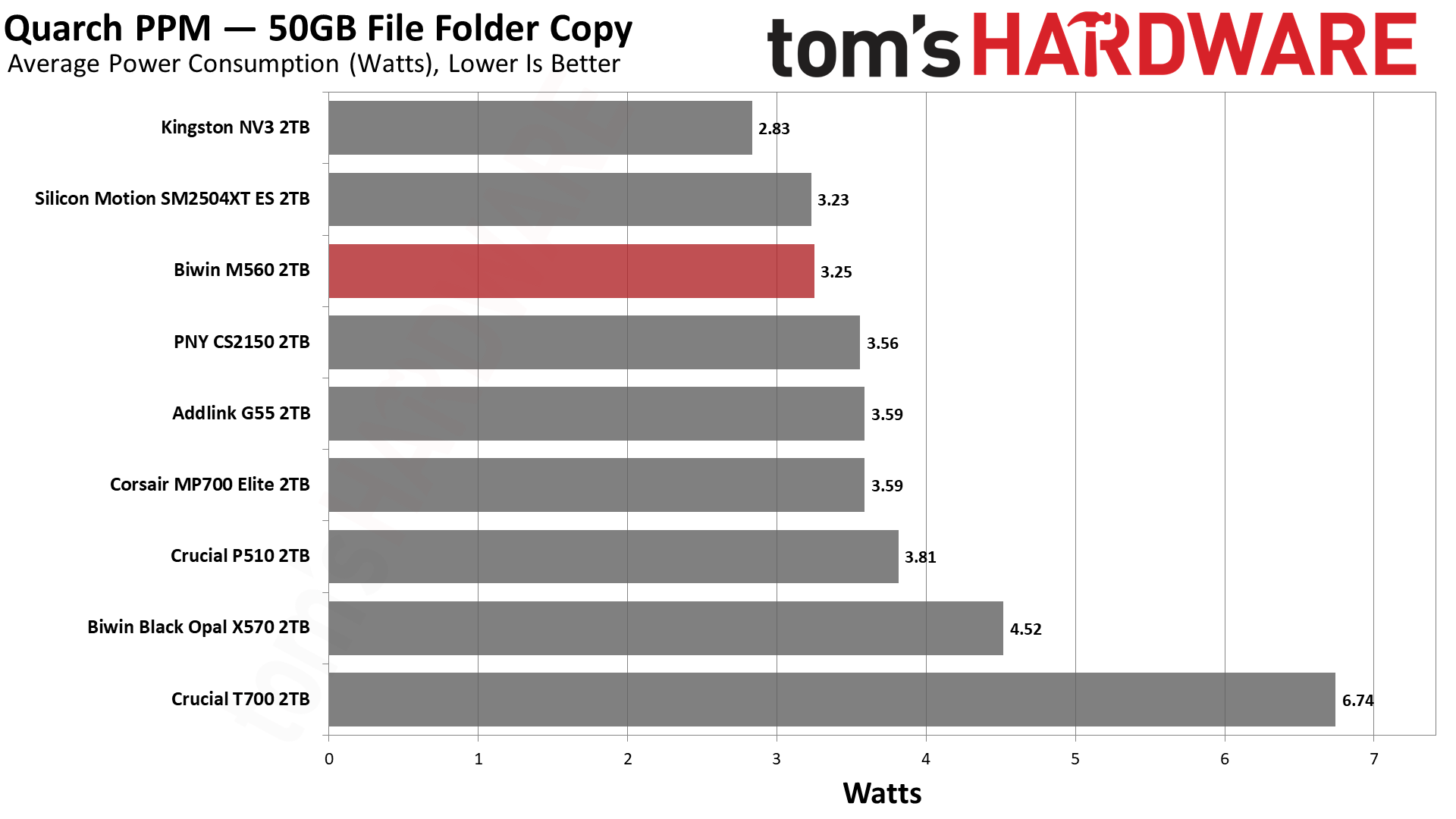
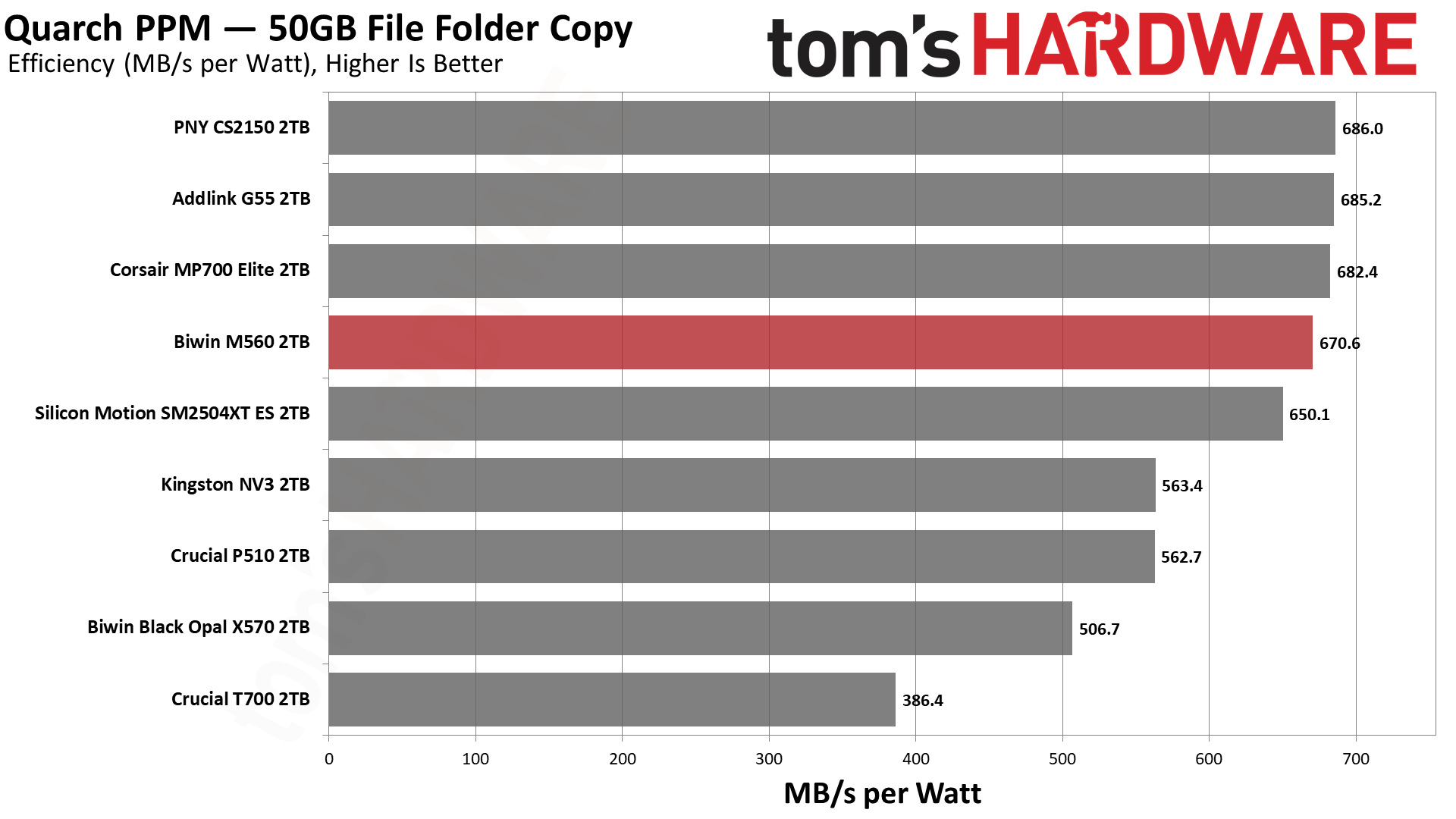
Given what we know from our ES preview, it comes as no surprise that the M560 is efficient. Very efficient. It’s a little shy of the numbers the Phison E31T drives with BiCS8 can put up, but it’s close enough to be negligible. It can pull more watts at peak, but the number is still manageable, and the average power draw is also superior. In fact, the idle power consumption is also relatively good, better than the Phison drives. Ideally, your system will be able to save power, but in the case where you favor responsiveness, the M560 does pull slightly fewer watts. Our take is that, on the whole, this drive delivers pretty excellent power numbers.
The drive ran relatively cool, too. The two sensors hit maximums of 61 and 76 degrees Celsius, respectively. This puts the latter about 10 degrees below throttling, which is closer than we like but is also plenty respectable for a fast, PCIe 5.0 SSD without a heatsink. We test during heavy writing, and the drive has a chonky cache, so we’d expect normal use to run somewhat cooler on average. Sensors aren’t always accurate, and we suspect the hotter one is showing the controller’s temperature, in which case this would probably be okay in most laptops. Would a heatsink help? Sure, but it shouldn’t be a requirement with how few watts this drive draws on average.
We use an Alder Lake platform with most background applications such as indexing, Windows updates, and antivirus disabled in the OS to reduce run-to-run variability. Each SSD is prefilled to 50% capacity and tested as a secondary device. Unless noted, we use active cooling for all SSDs.
Biwin M560 Bottom Line
The Biwin M560 is one of the best all-around drives we’ve ever tested and, for its intended role, is probably the best retail option available. That “role” would be acting as a fast, capable, and efficient all-around boot or primary drive that also has to do other things, like handle gaming and work. Its 1TB and 2TB SKU range underlines this; it’s not a budget drive, and it’s not a storage drive. Not everybody needs or wants a monster 14+ GB/s drive with DRAM, but you might still want to take advantage of newer hardware. This hardware is faster, yes, particularly with insanely low 4KB read latency, but is also very power-efficient. It’s a good option even for PCIe 4.0 laptops, with the future-proofing an added bonus.
(Image credit: Tom's Hardware)
We have few complaints about the drive as a whole, except maybe that a 4TB option would have been nice, but we can live without it. From the performance side, things look very good, but we would be remiss if we didn’t point out that Biwin went with a large cache here. That has its plusses and its minuses. For the expected role, it was probably the right call. The drive also faltered a bit in DiskBench, but this only underlines our point about where it belongs: with lower performance there, the drive makes less sense as a second or third drive. Make no mistake, the M560 is quite capable of being your main drive as a very acceptable alternative to a more expensive Black SN8100 or equivalent.
As it is, we can highly recommend this drive. It’s one of the most responsive drives we’ve ever used and really feels “next gen,” whatever that might mean for an SSD. You should still go with a 4TB PCIe 4.0 DRAM-less option, like the A93 or NM790, if you want fast storage. Or a 2TB Black SN8100 if you want the very fastest main drive. Or something cheap for a secondary or games drive. If you want DRAM and can handle the heat, there are options there, too.
If, on the other hand, you want a dynamite drive that delivers a solid experience, something that won’t hold your desktop or laptop back, then the Biwin M560 would be at the top of our list.
The UK’s Investigatory Powers Commissioner’s Office (IPCO) has flagged “a very significant number” of General Communications Headquarters (GCHQ) storage drives that have been missing for years and have yet to be found. According to The Register, the lost storage media have been known to GCHQ officials for years now, but they’re still unsure about the scope of the problem.
"I remain concerned that GCHQ has not yet established a sufficiently clear understanding of the scale, location, and recoverability of lost removable media that may contain IPA-related data, notwithstanding that the underlying issues were first drawn to my attention several years ago. While I recognize the technical and practical challenges involved, the passage of time without a comprehensive account heightens the importance of sustained senior focus and assured remediation. Given the potential sensitivity of the material involved, I will continue to monitor progress closely,” investigatory powers commissioner Lord Brian Leveson wrote in the report.
GCHQ acknowledged to The Register that the tracking system for its removable media had been insufficient, but it has since taken steps to prevent it happening in the future. "We recognize the importance of security of removable media in our systems and have a range of measures to mitigate the risks posed by these items. The findings in the report have been addressed comprehensively, and all necessary steps to correct this issue have been taken," a GCHQ spokesperson told the publication. It has also launched a program to help locate as many of the lost storage media as possible and will have an automated asset-tracking system up and running before 2027.
The GCHQ is the UK’s equivalent to the National Security Agency (NSA), making it the country’s primary signals intelligence and cybersecurity agency. Its primary mission is governed by the Investigatory Powers Act (IPA), which was passed in 2016 and lays out the legal framework for government surveillance, data collection, and intercepting communications. While neither agency has exactly confirmed what data the missing drives contained, it could potentially have information about GCHQ operations, administration, and other crucial data.
While the UK’s premier signals intelligence and cybersecurity agency losing thousands of removable drives may sound alarming, it’s not alone in running into blunders like this. The publication reported that Britain’s Ministry of Defence has lost 87 classified USB drives from 2003 to 2008, and that the UK police have also dealt with officers losing their assigned tech gadgets. Other governments have also made considerable tech missteps — for example, the South Korean government lost 858TB of data after a catastrophic fire destroyed a data center, and it discovered that it had no backups. Indonesia discovered the same issue when it was hit with a ransomware attack, with one government official calling the lack of backups “stupid.”
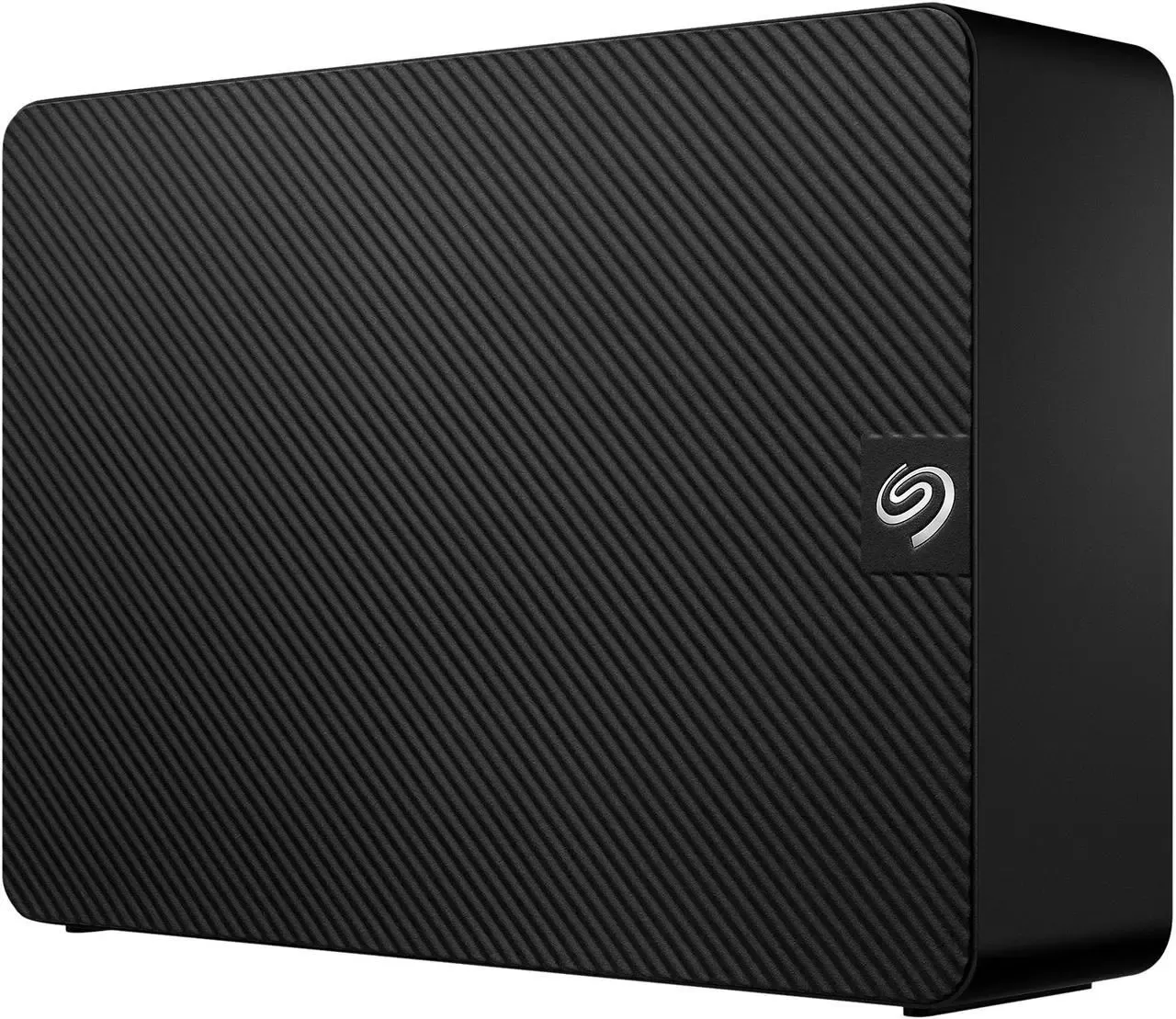
Spotting any kind of discount on storage as of late has been a bit of a monumental task, as the prices of HDDs and SSDs have only been going one way, and that's up. Seagate's 16TB Expansion Desktop External HDD is reduced to $399.99 at Newegg, a reduction of $150 from its $549.99 list price and $50 cheaper than its Prime Day price. Not only is that a bit of relief during turbulent storage times, but the price on this HDD is actually better than we saw during Prime Day earlier this month.
The Seagate Expansion Desktop 16TB HDD is an all-in-one HDD and enclosure that offers a highly versatile plug-and-play solution for storing or backing up your precious data. Seagate ships the drive formatted to ExFAT, so it'll work with virtually any platform out of the box. Of course, you can reformat the drive to any other file system that suits your use case. This external drive has also been a popular choice for those looking to shuck the Hard Disk out of the enclosure and grab a cheaper HDD for use in a NAS or PC.
The Seagate enclosure has its own power supply, which you'll need to connect to a nearby mains socket, while using a USB 3.0 cable to connect the drive to your PC or laptop for easy drag-and-drop file transfers. Should anything happen to your drive causing it to fail, each purchase comes with Seagate's Rescue Data Recovery service included, just in case you need help to recover your data.
Shucking this drive comes with risks. There's no way to guarantee what version of Seagate HDD is inside; it might be an EXOS, or it might not. But what is guaranteed is that once you open the enclosure and start pulling drives out, your warranty becomes invalid.
If you're looking for 16TB of storage at prices cheaper than the last Prime Day, then today's Newegg deal on this Seagate Expansion Desktop HDD is one of the best storage deals currently on offer.
It’s a tough time to launch an external SSD, with demand for flash and RAM at all-time highs thanks to AI hyperscaler demand. But content creators, videographers, and media collectors need more, faster, and roomier options, so Samsung has launched its first USB4 external drive, the Portable SSD P9.
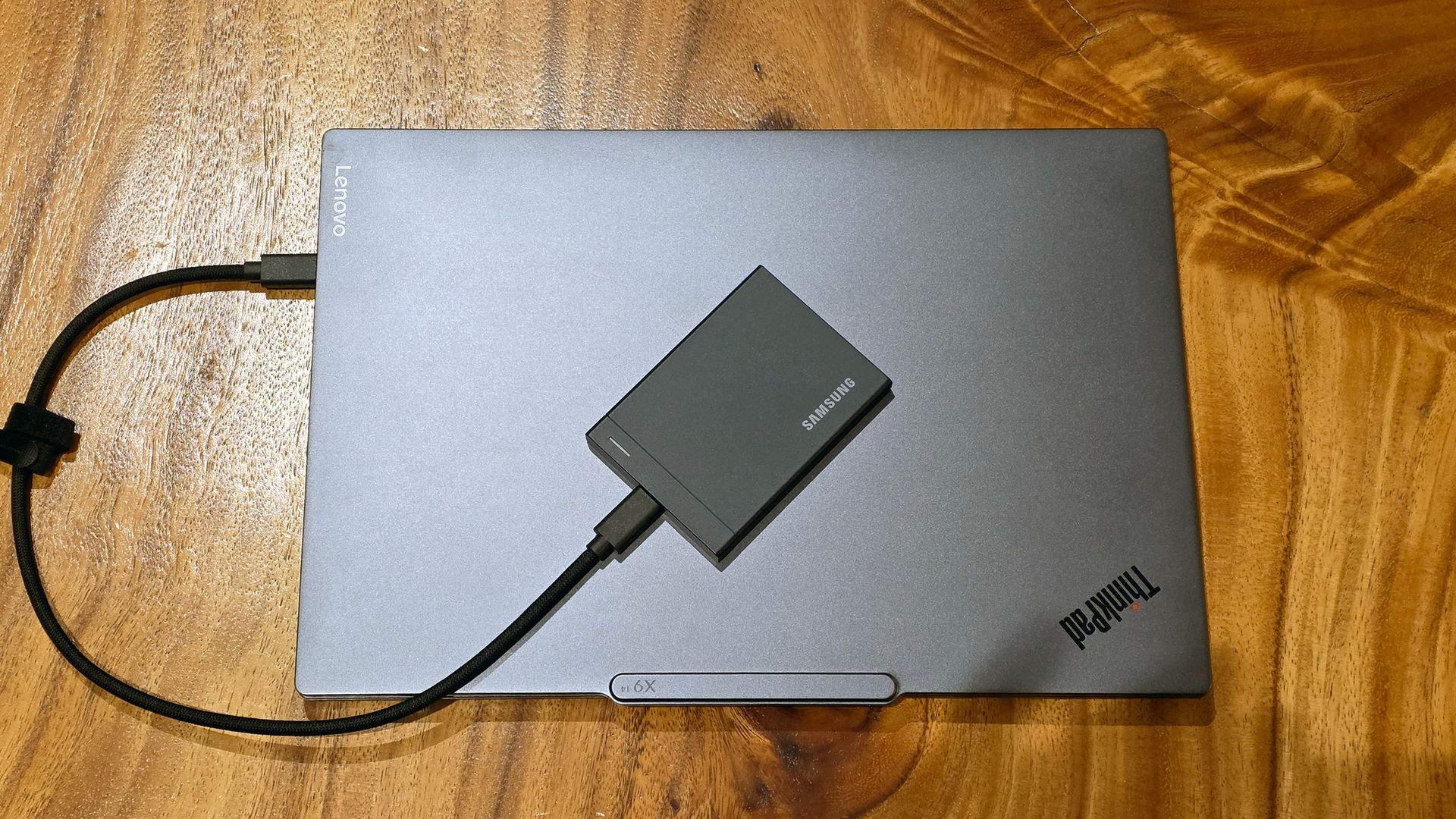
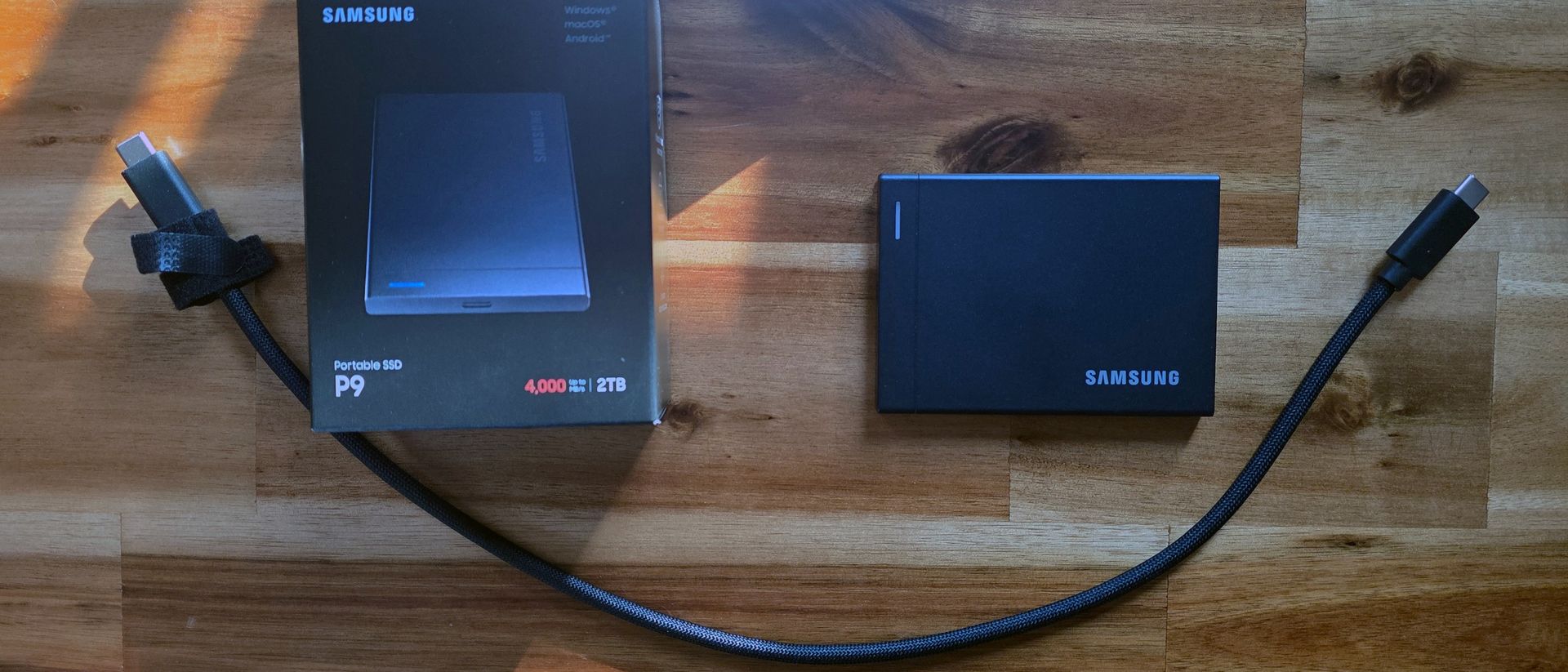
It’s offered in 1, 2, 4, and 8TB capacities (but currently only in stock at 2TB as of this writing), with rated sequential read speeds up to 4,000 MB/s and write speeds up to 3,800 MB/s, a slim (0.3-inch) but simple boxy solid shell. It also includes one of the nicest-feeling sleeved cables I’ve come across (that’s also long for an external drive, at 16 inches). The Samsung P9 is a premium, pocket-friendly portable drive that’s speedy enough to potentially knock Corsair’s EX400U out of its top USB4 drive spot on our list of the best external SSDs.
It’s also quite expensive, starting at $339 for the 1TB model, $649 for the 2TB version we tested, and commanding a whopping $2,879 for the 8TB model. Those prices might seem extreme, given Corsair’s competing USB4 drive launched at $119 for 1TB in early 2025. But as we’ll see below in our comparison section, Samsung’s pricing isn’t exactly exorbitant compared to the current price of USB4-based competition – and many alternatives that launched last year are tough to find in stock.
Samsung P9 Specifications
Product
1TB
2TB
4TB
8TB
Pricing
$339.99
$649.99
$1,439.99
$2,879.99
Interface / Protocol
USB4 Gen 3x2 (40Gbps)
USB4 Gen 3x2 (40Gbps)
USB4 Gen 3x2 (40Gbps)
USB4 Gen 3x2 (40Gbps)
Sequential Read
Up to 4,000 MB/s
Up to 4,000 MB/s
Up to 4,000 MB/s
Up to 4,000 MB/s
Sequential Write
Up to 3,700 MB/s
Up to 3,800 MB/s
Up to 3,800 MB/s
Up to 3,800 MB/s
Dimensions
3.5 x 2.6 x 0.3 inches
3.5 x 2.6 x 0.3 inches
3.5 x 2.6 x 0.3 inches
3.5 x 2.6 x 0.3 inches
Weight
0.21 pounds
0.21 pounds
0.21 pounds
0.21 pounds
Warranty
5 years
5 years
5 years
5 years
Design and accessories
Tom's HardwareTom's HardwareTom's Hardware
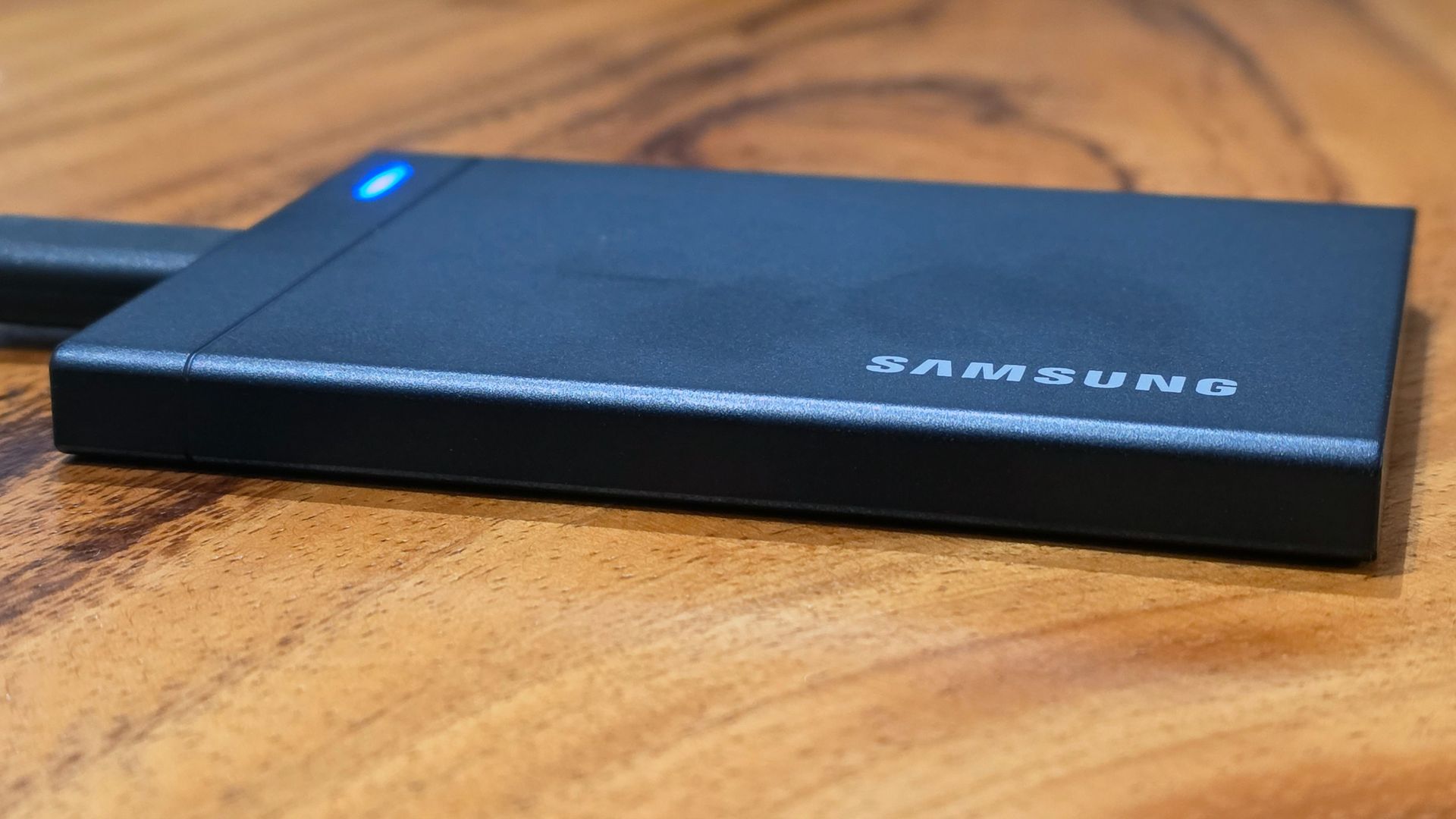
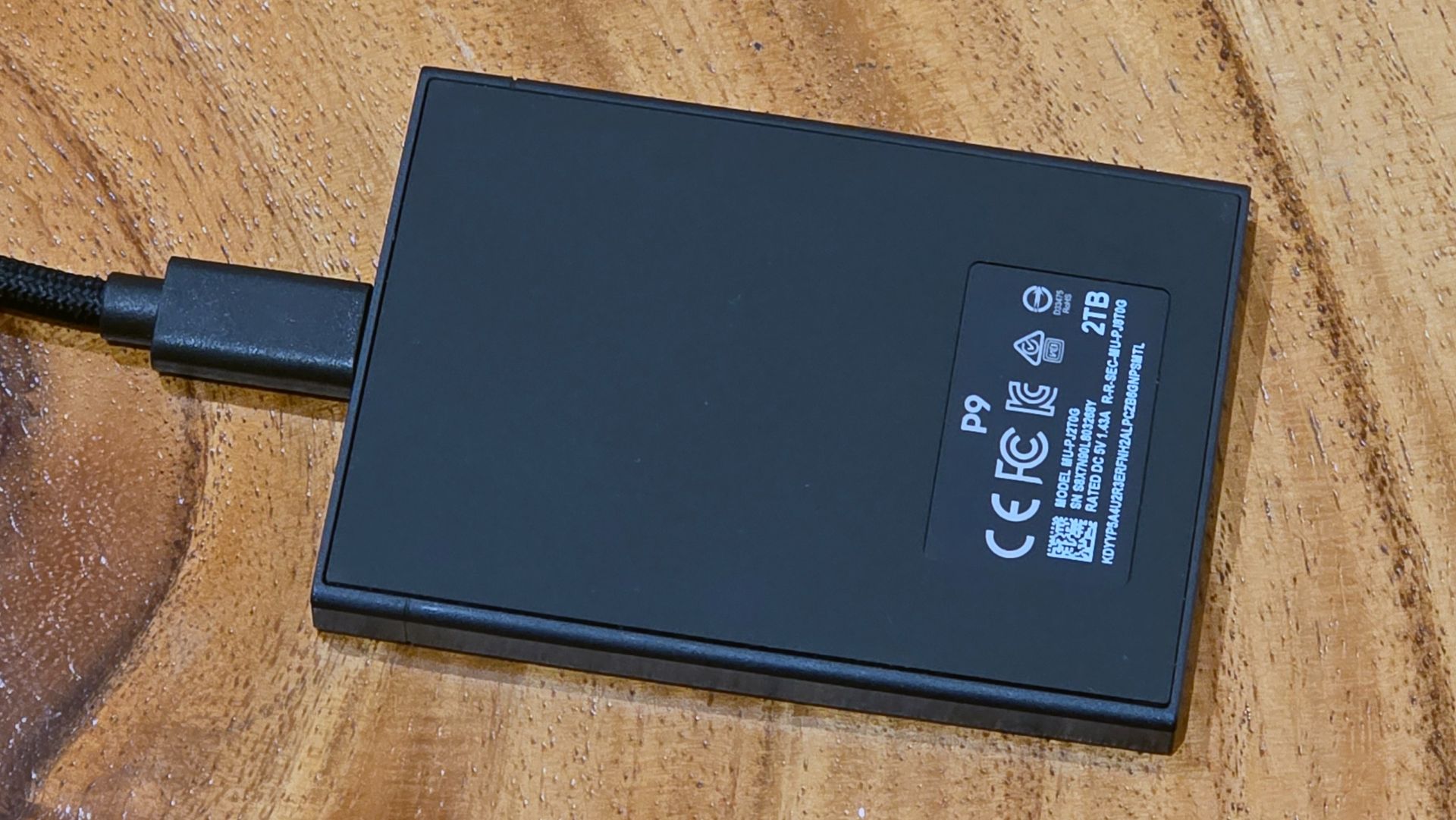
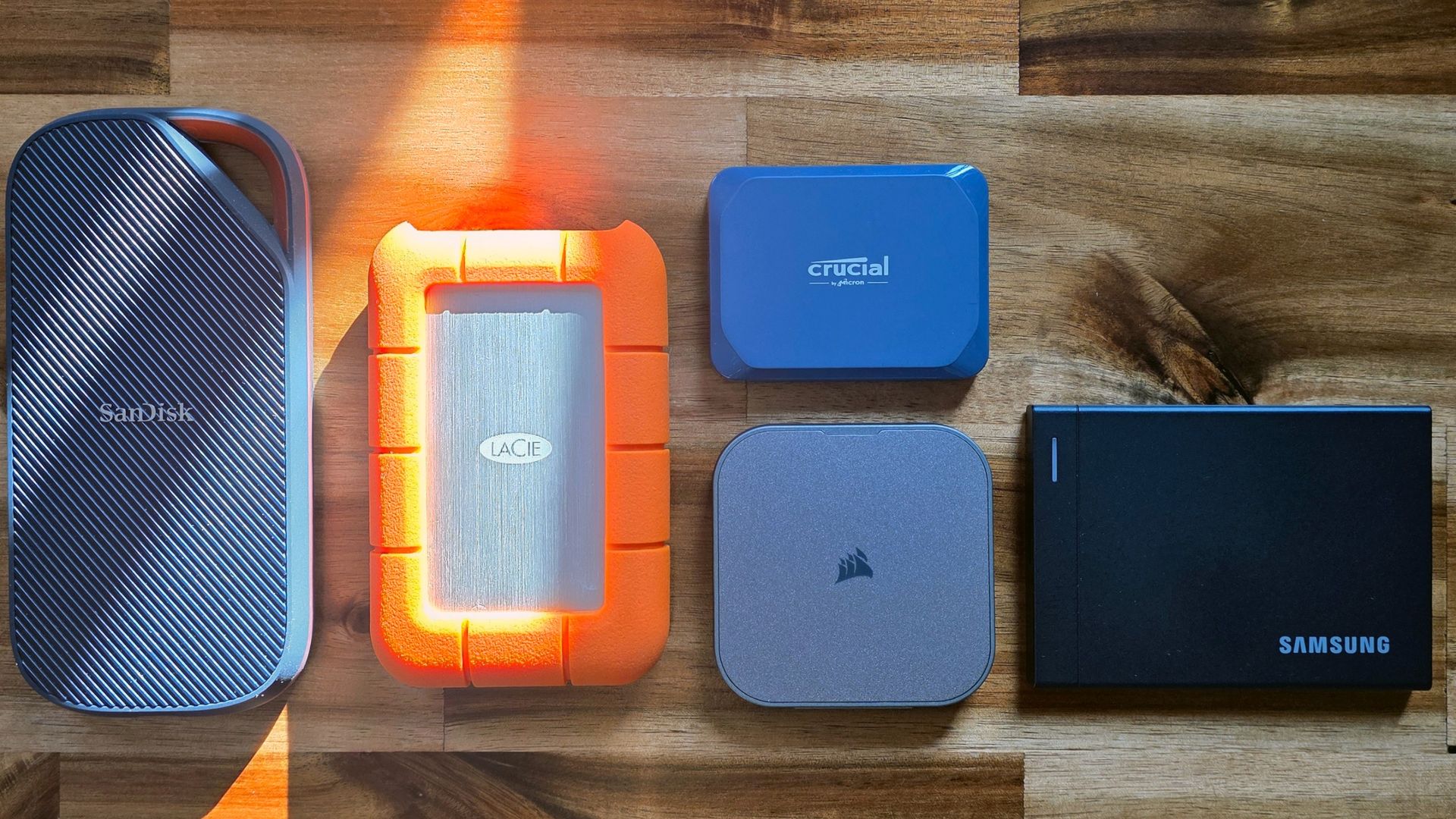
At 3.5 x 2.6 x 0.3 inches and weighing 0.21 pounds, the P9 is neither the smallest external storage drive, nor the lightest. But it’s slimmer than the company’s previous-generation T9 drive (which is 0.55 inches thick and roughly half as fast, at 20 Gbps). It ditches the rubber, textured, dust-collecting coating of the T9 for a metal shellon the P9 that feels very solid. The bottom of the P9 is coated in rubber to keep it in place on your desk.
There are no IP ratings for dust or wind resistance in Samsung’s spec sheet, and I don’t love the visible seam around the subtly rubberized bottom. But the P9 feels rigid and solid, to the point that I am pretty confident it could sustain more than its rated 2-meter drop rating.
There’s also a lot to like about the included cable, which is the only bundled accessory (unless you count paperwork). The cable is roughly 16 inches long, not counting the USB-C plugs on either end, and braided in a way that feels better than even other braided cables in my USB arsenal. There are even two Velcro-like hook-and-loop fasteners on the cable to keep any excess under control. Yes, it is just a cable, but I appreciate the ample length for us desktop PC users, and it is one of the nicest-feeling cables I’ve used.
Samsung Magician Software
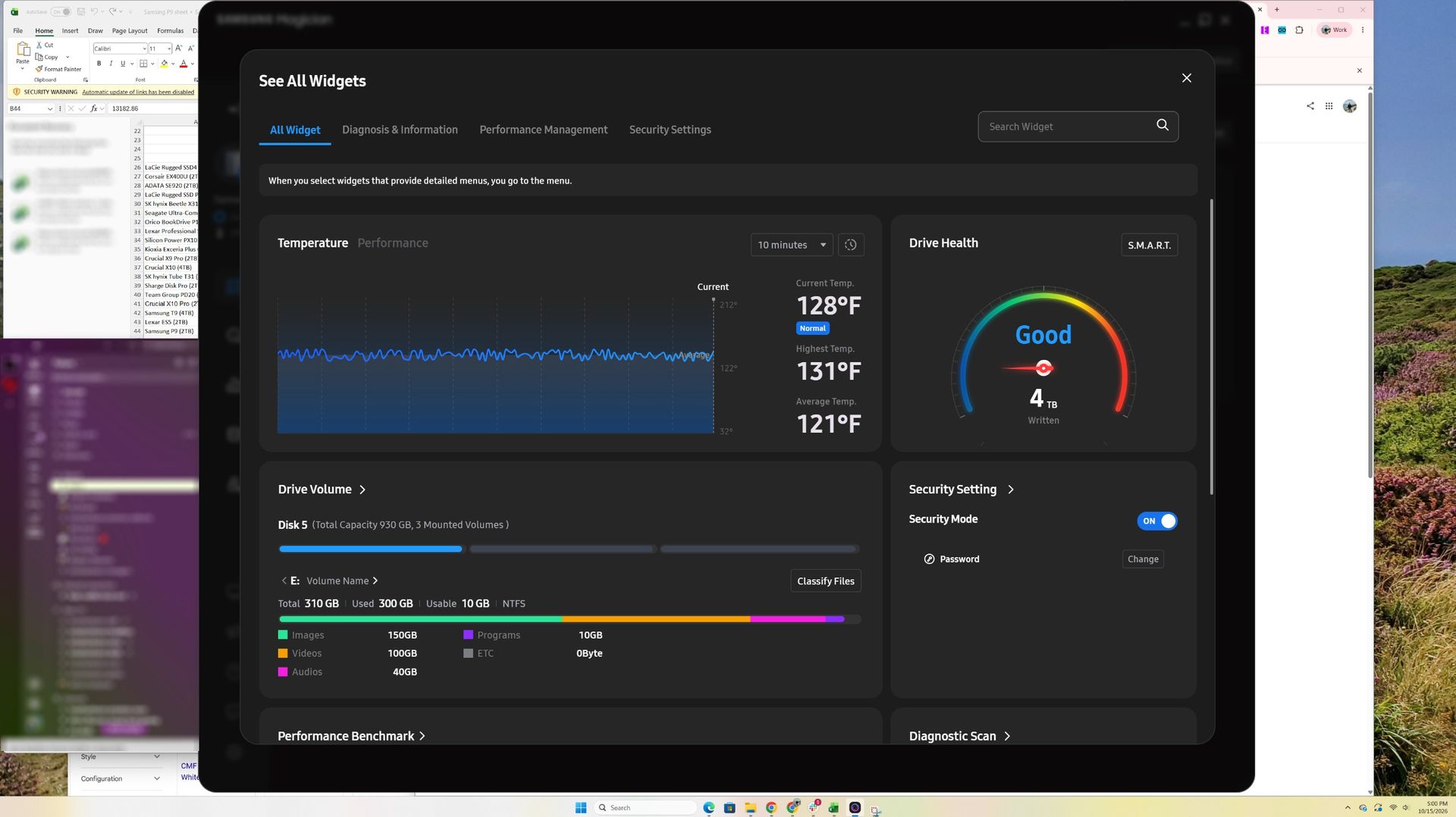
Samsung includes a Samsung Magician Launcher link on the drive, but it’s really just a pop-up box that prompts you to download the latest version of the software. The app has widgets and sections for drive health and management, temperature and performance, diagnostics, monitoring, secure erasing or encrypting the drive (256-bit hardware encryption is supported), and more.
(Image credit: Tom's Hardware)
It’s one of the more feature-rich SSD toolboxes, and benefits from Samsung’s long history in the storage realm. But it also has a mobile-app-first design that makes it look big and clunky on a desktop, with rounded corners. On the 65-inch TV that I use as a monitor, the Drive Health gauge defaulted to something close to the size of my head, and toggling to the compact version hides nearly everything but that single gauge widget. While that is of course an extreme example, the software just has a big UI for the information it presents.
Comparison products
(Image credit: Tom's Hardware)
Samsung has a fair amount of competition on the USB4 drive front, but much of it is increasingly scarce, likely due to flash availability. Sandisk’s Extreme Pro is the most recent USB4 competitor we’ve tested, with the 2TB version selling for $549, or $100 less than the P9.
LaCie’s Rugged SSD4 launched a little over a year ago and performed very well on both Windows machines and Macs. But it’s listed as sold out or no longer available in many places. As of this writing, it was available at Micro Center and a couple of online outlets, for between $750 and $800 for the 2TB model.
Corsair’s magnetic-backed EX400U has long been our favorite USB4 drive, for its compact size, performance, and value. But Corsair’s drive is also becoming hard to find in stock. And, like everything else in this space, its price has risen as well, with the 2TB version selling for $692 when I wrote this.
For those who don’t absolutely need USB4 speeds, the latest iteration of Crucial’s X10, a 20 Gbps drive with effectively half the bandwidth of these competing USB4 drives, is selling for $399 for the 2TB model. It’s very good for a 20 Gbps drive, but obviously that’s a different performance class than USB4 (40 Gbps).
With all that perspective, the $649 2TB Samsung P9 still feels expensive — if the drive launched a little over a year ago, it would likely have been roughly a third of this price. And it is $100 more than its Sandisk competitor, but it’s still priced a little less than other, older options. Let’s see how it performs.
Storage testbed
In 2025, we updated our external storage testbed to an AMD Ryzen 7600X-based PC with an Asus ROG Crosshair X870E Hero motherboard, installed in Lian Li’s Lancool 217 case. This was done in part because we needed a system with native USB4 support for upcoming drives (like this one).
All the drives in the charts below have been re-tested on the new X870E system, with the exception of the final Iometer sustained sequential test. That benchmark is less about top speed and more about how long a drive can write before depleting any fast cache onboard. We also updated to CrystalDiskMark 8, rather than the older (and non-comparable) version 7 we used on the previous testbed.
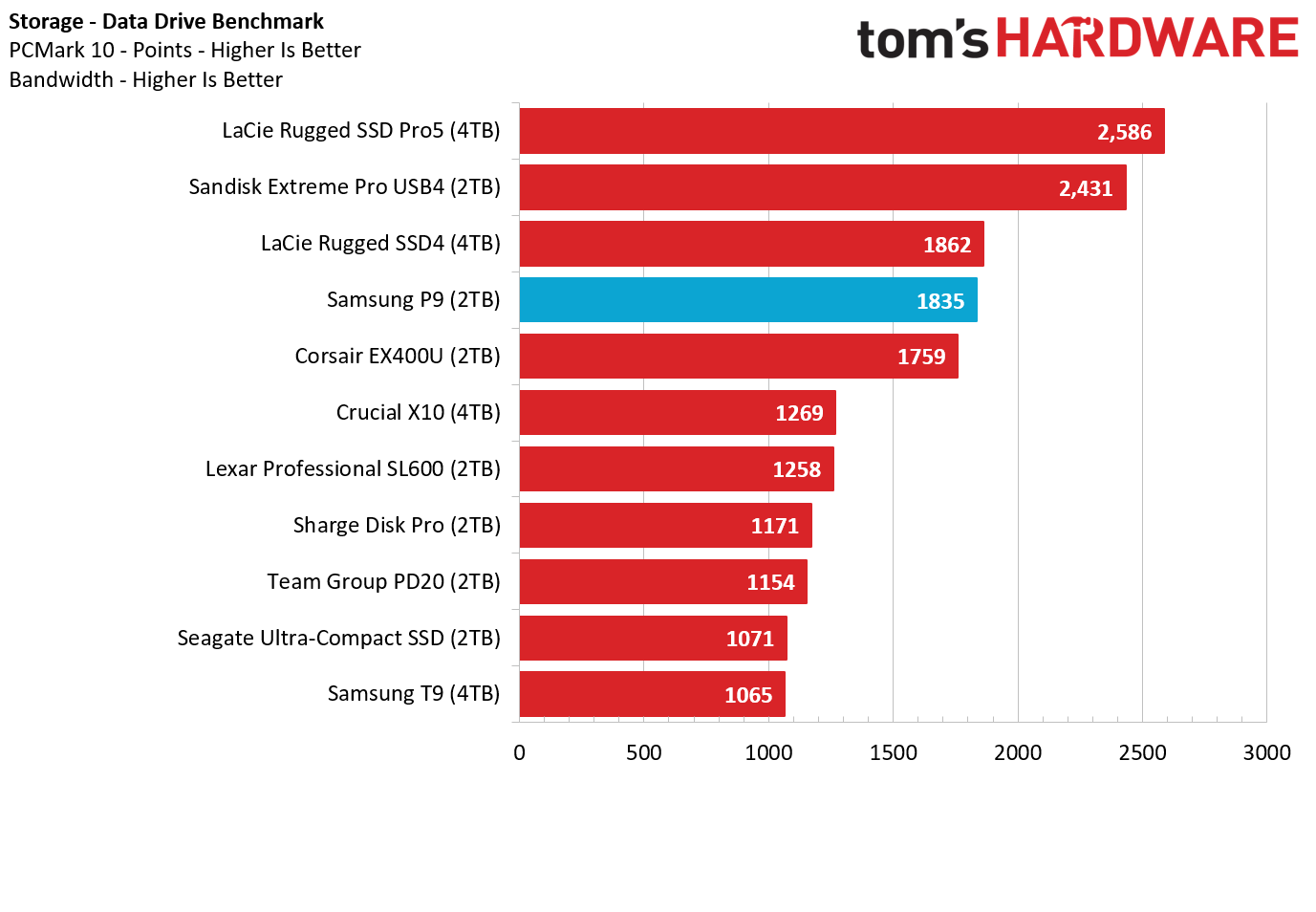
Trace Testing - PCMark 10 Storage Benchmark
PCMark 10 is a trace-based benchmark that uses a wide-ranging set of real-world traces from popular applications and everyday tasks to measure the performance of storage devices.
(Image credit: Tom's Hardware)
Samsung’s P9 doesn’t start off our test suite looking its best. It (unsurprisingly) falls behind LaCie’s Thunderbolt 5 drive (which is currently priced at $1,999 for the 4TB model we tested), but it also lands behind USB4 drives from LaCie and Sandisk in PCMark 10. It did, though, fare better than Corsair’s USB4 EX400U here.
Transfer Rates — DiskBench
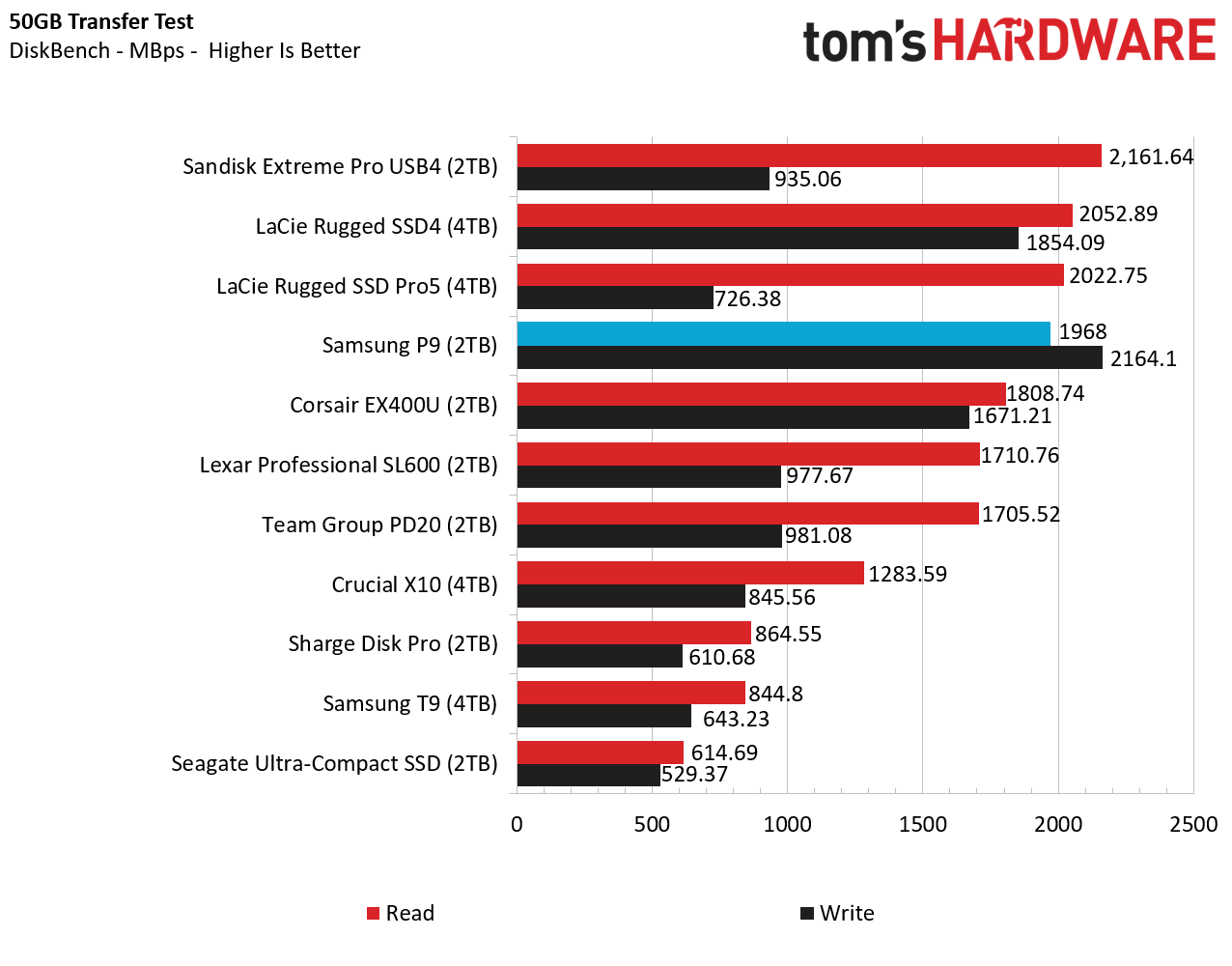
We use the DiskBench storage benchmarking tool to test file transfer performance with a custom 50GB dataset. We copy 4,617 files (images, videos, and software ISO files) to a folder on the test drive (write). Then, after leaving the system idle for five minutes, we run the same test in reverse, moving the test folder to a different location on our PCIe 4.0 testing drive.
(Image credit: Tom's Hardware)
Samsung’s P9 led the pack in this real-world write speed test. Although its read speed technically landed it in fourth place, it again easily beat Corsair’s USB4 drive, and was close to Sandisk’s drive, which was less than half as fast when it comes to writes in this test. Note the somewhat odd performance of LaCie’s TB5 drive here, which is capable of being faster on Apple hardware, but did not perform very well on our USB4 testbed in some tests.
Synthetic Testing: CrystalDiskMark
CrystalDiskMark (CDM) is a free and easy-to-run storage benchmarking tool that SSD companies commonly use to assign performance specifications to their products. It gives us insight into how each device handles different file sizes. We run this test at its default settings.
(Image credit: Tom's Hardware)
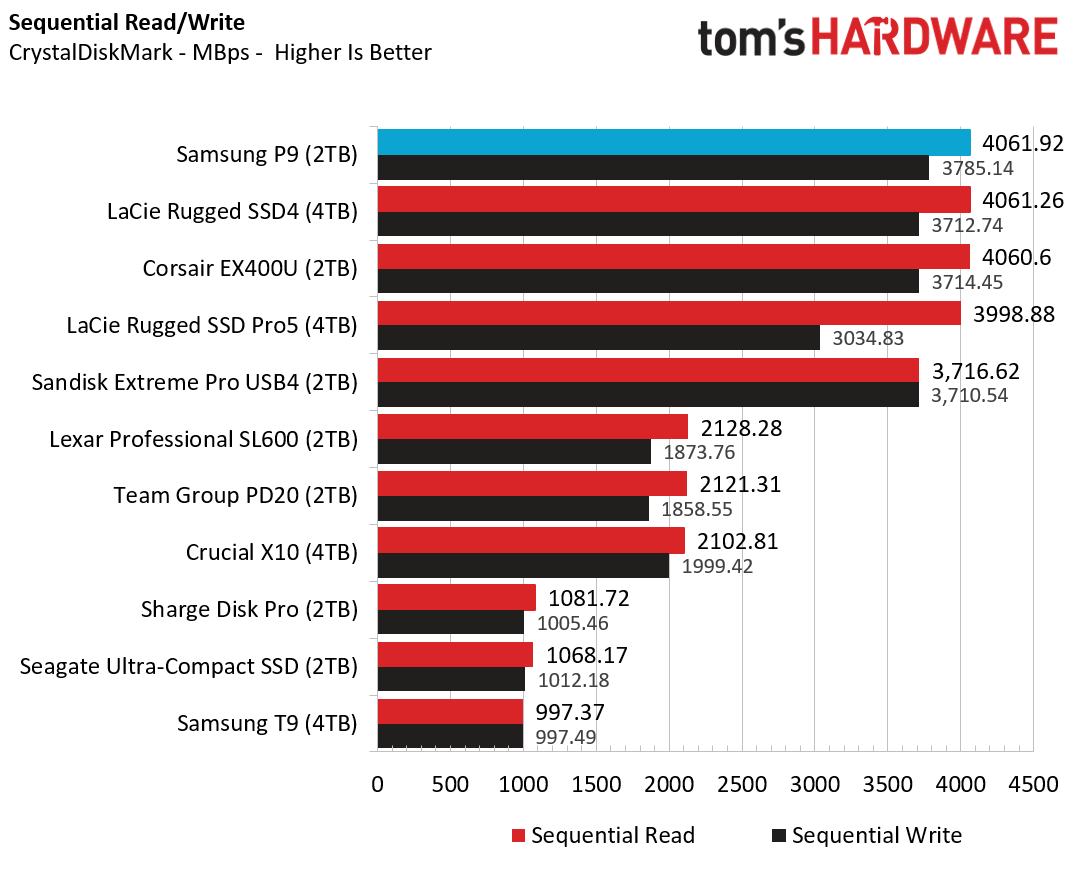
The Samsung P9 looks its best on this synthetic, best-case-scenario benchmark, landing in first place in both reads and writes. Most of the other high-end drives were close, save for SanDisk’s USB4 SSD, which is a few hundred MB/s slower on read speeds, but was still fast.
Sustained Write Performance
A drive's rated write specifications are only a piece of the performance picture. Most external SSDs (just like their internal counterparts) implement a write cache, or a fast area of flash, programmed to perform like faster SLC, that absorbs incoming data.
Sustained write speeds often suffer tremendously when the workload saturates the cache and slips into the "native" TLC or QLC flash. We use Iometer to hammer the SSD with sequential writes for 15 minutes to measure the size of the write cache and performance after the cache is saturated.
(Image credit: Tom's Hardware)
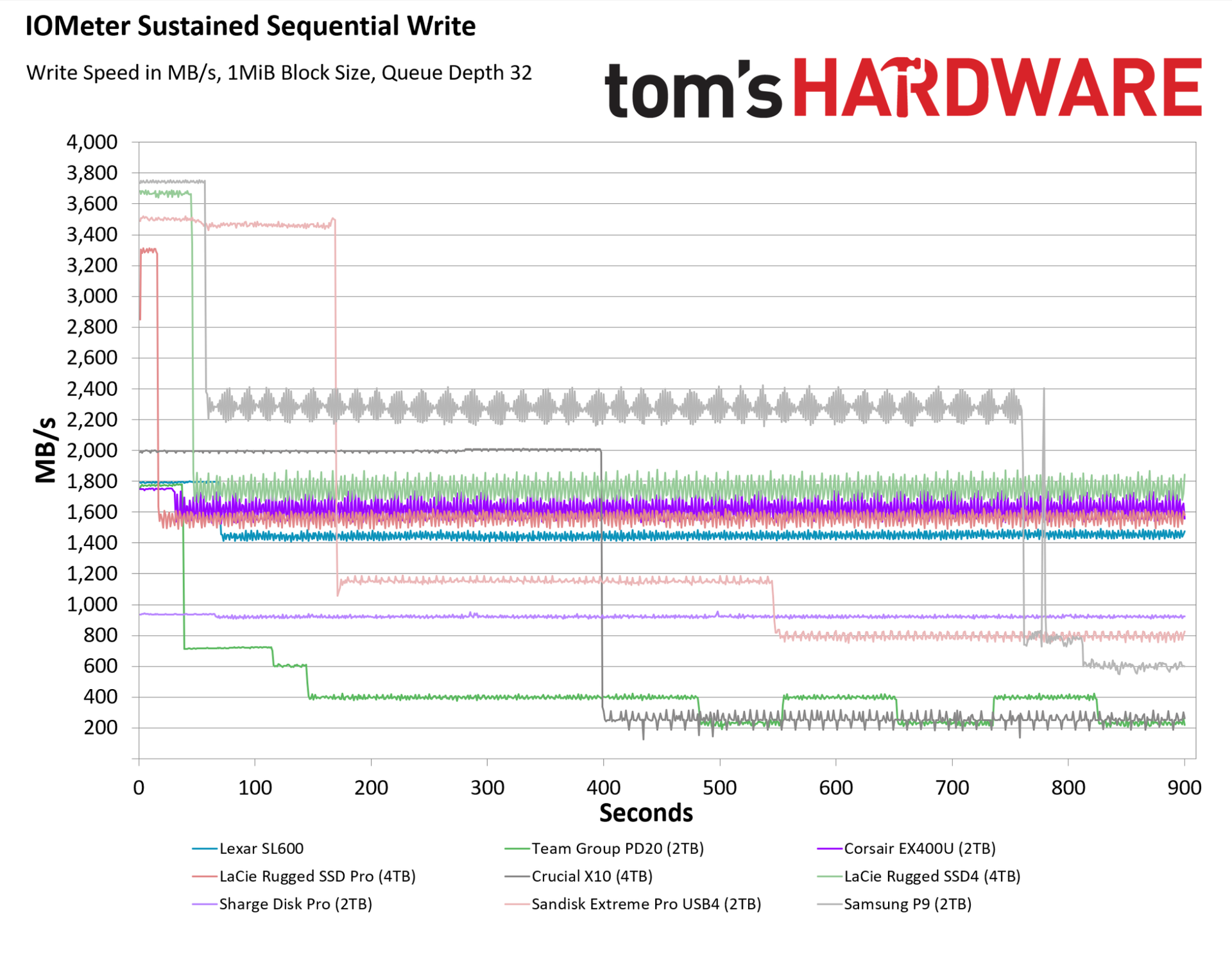
Samsung hasn’t disclosed SLC cache size for its P9 drive, whether it’s fixed or dynamic, or if it differs by capacity. In other words, our 2TB P9 drive may be at a disadvantage here, at least compared to the 4TB LaCie and Crucial drives in our chart. But regardless, the Samsung P9’s performance on this test is largely positive, if somewhat complicated.
For roughly the first minute, the P9 wrote close to its max spec, around 3,750 MB/s. It then dropped to a write speed that fluctuated between just below 2,200 MB/s and just above 2,400 MB/s, which is still quite fast. It maintained that speed range for the next 12 minutes of writes, before dropping into the 600-800 MB/s range.
Sandisk’s Extreme Pro USB4 drive maintained its initial speed, around 3,500 MB/s, for roughly three times longer. But when its cache was exhausted, it dropped lower, first to roughly 1,200 MB/s, and then to around 800 MB/s. Looking beyond our usual 15-minute test, the Sandisk drive stayed in the same 800 MB/s range after the 15-minute mark, until we stopped the test at 30 minutes. The Samsung P9, however, recovered a good chunk of its write speed after about 17 minutes, switching back into its “middle” write range of 2,200-2,400 MB/s, from then until the end of the 30-minute test.
Corsair’s EX400U was more consistent in this test, but its write speeds never topped 1,800 MB/s, and it frequently dipped below 1,600 MB/s. Samsung’s P9 is flatly in another class, even though these are both USB4 drives.
Bottom line
(Image credit: Tom's Hardware)
As much as $649 for a 2TB external SSD still feels like a lot, the Samsung P9 performed very well in our testing. It wasn’t always at the top of the charts, but it consistently beat Corsair’s EX400U, which costs a little more now, if you can find it.
Sandisk’s Extreme Pro USB4 costs $100 less at 2TB, and $340 less at 4TB (and the P9 wasn’t even in stock at that capacity when this was written). But Sandisk’s drive has been on the market longer, and I would expect the two drives' prices to land close to each other once the P9 has settled into the market — that said, they both very well could go up in price, given recent trends.
Regardless, Samsung’s P9 drive is faster in most scenarios, particularly when it comes to sustained write speeds, which are important to professional users. And Samsung’s drive is about a third smaller, making it more travel-friendly. So while you could easily get by with Sandisk’s drive and save some money, Samsung’s P9 is a better USB4 drive if you want the best, fastest option for serious storage demands.
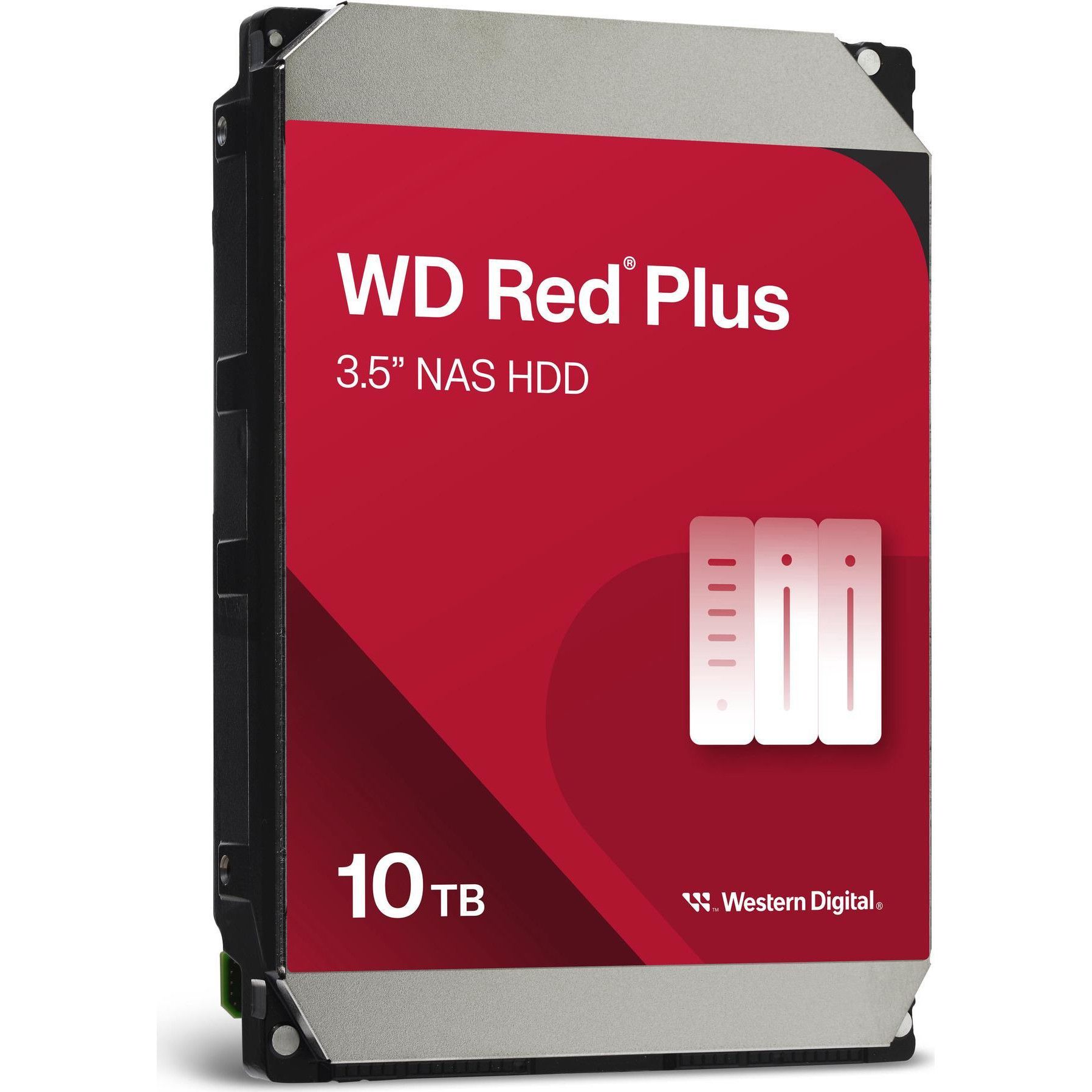
Whether you've had a NAS drive for a while, or you're looking at setting one up, the most important thing is making sure you have plenty of storage capacity. So, if you're looking to replace or boost your current storage drives, then this double-up deal from Newegg on 2x Western Digital WD Red Pro 10TB Hard Disk Drives for $785.98 might be helpful. The price of storage has skyrocketed over the last year due to the ongoing AI infrastructure rollout, so finding a relative deal on HDD storage has become a rare sight indeed. You can save $134 on this deal. The list price for the two drives is $919.98, with a single WD Red Plus 10TB listed for $459.99.
WD Red Pro hard drives are designed and constructed to be more reliable. These are not your average consumer drives, as they've been engineered to be more robust and cope with vibrations, small shocks, and continuous operation. With NAS drives often operating 24/7, you want reliable hard drives that are up to the task of sustained use. This two-pack of drives instantly starts you off with 20TB of storage capacity.
Red Plus 10TB (2-pack): was $919.98 now $785.98 Western Digital's WD Red Plus 10TB NAS HDD is a NAS-optimized hard drive for servers and other NAS operators looking to upgrade their capacity with a reliable and energy-efficient drive. This two-pack of drives instantly starts you off with 20TB of storage capacity.View Deal
The benefits of going with NAS-specific WD Red Plus HDDs include the fact that they are optimized for lower power consumption and lower operating temperatures than standard HDDs, ensuring lower electricity bills and hopefully great longevity. These WD Red Plus 10TB drives come with a 3-year limited warranty, which should help you to replace this expensive drive should there be any unfortunate drive failures.
The WD Red Plus drive has a 512MB cache and is rated to operate at speeds of up to 216 MB/s with a 7200RPM speed, supporting a workload of up to 180TB/year. That's a fair amount of data for a single drive, and should give the Red Plus plenty of longevity in your NAS setup.
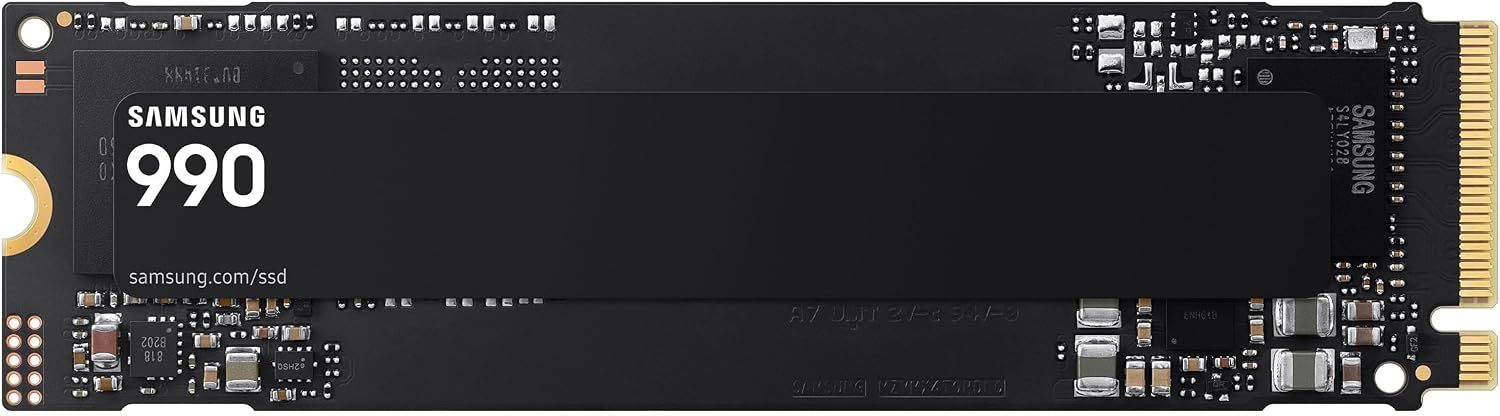
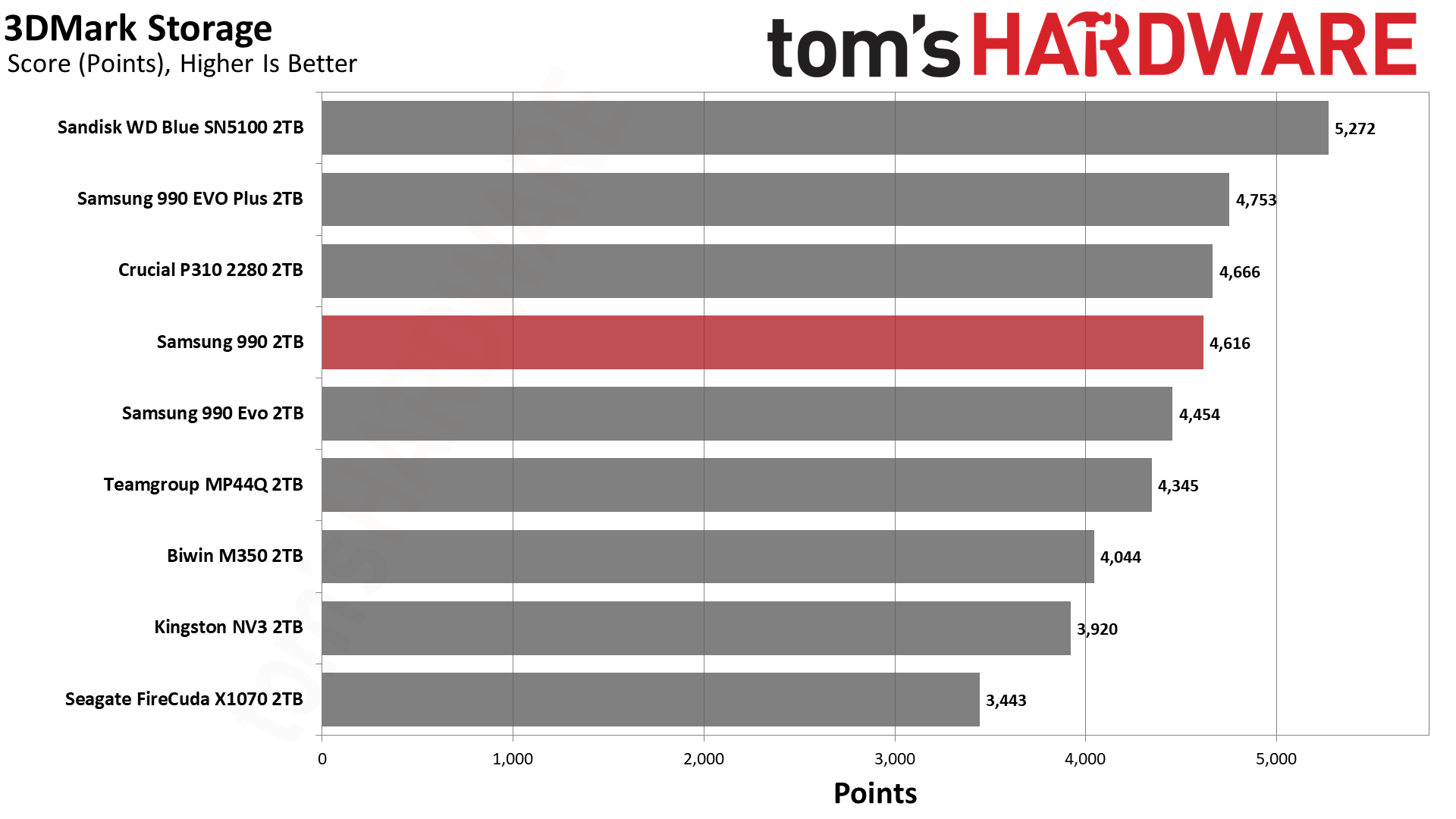
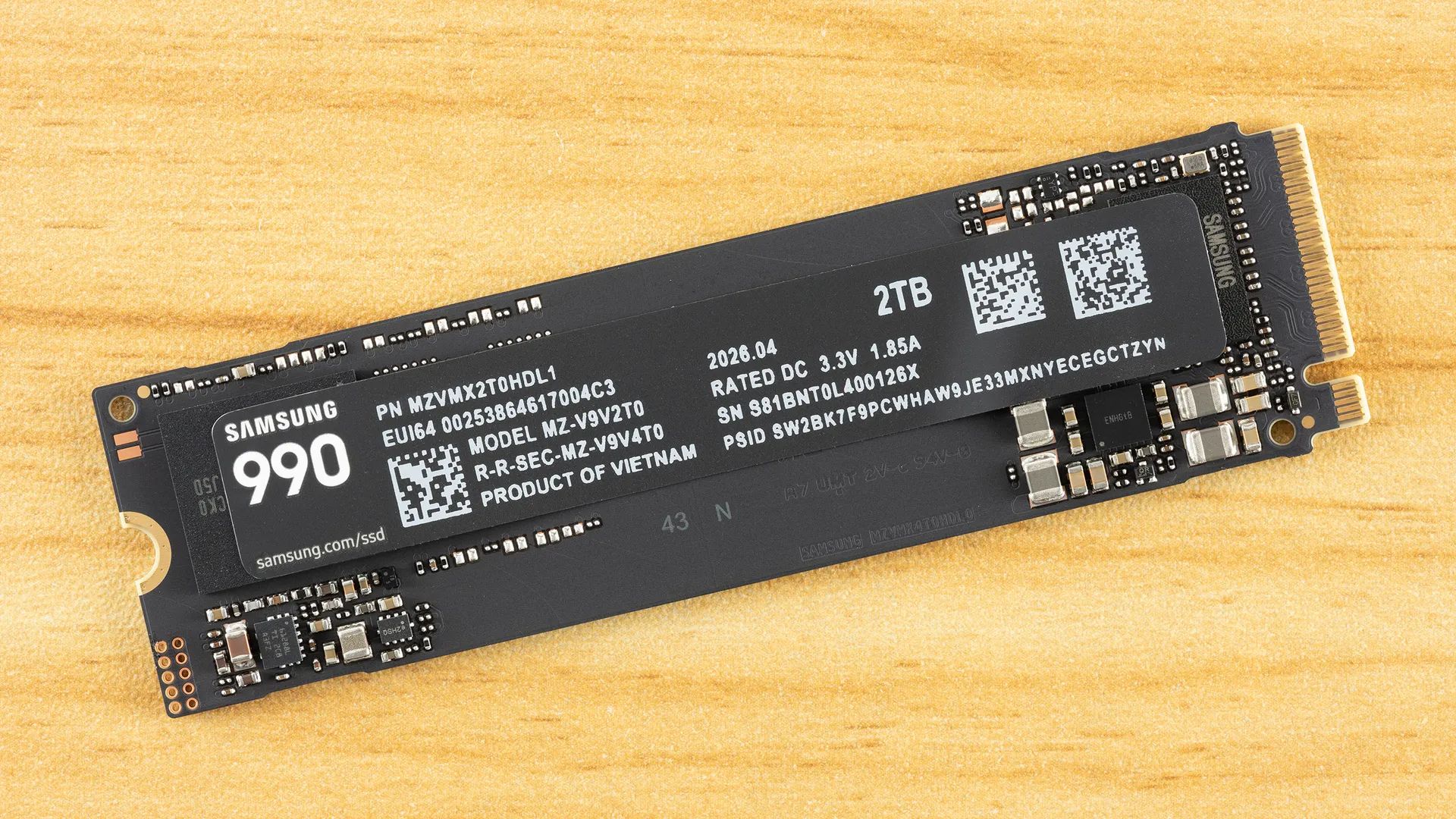
The 990 SSD is an interesting product because it is one of the few SSDs released after the AI pricing crunch sent storage prices into orbit. As such, we know what Samsung thinks this drive is worth in the current climate, namely $529. While 2TB of storage would have been much cheaper a year ago, a 38% discount on a new SSD is not to be sniffed at, especially given all signs point to these drives getting more expensive, not cheaper, in the future.
We reviewed this drive at launch last month and liked its full-fledged Gen 4 throughput, decent power consumption, and good all-around performance. The 990 is essentially a QLC-based 990 EVO Plus, featuring Samsung's PiccoloQ controller and V9 QLC Flash memory.
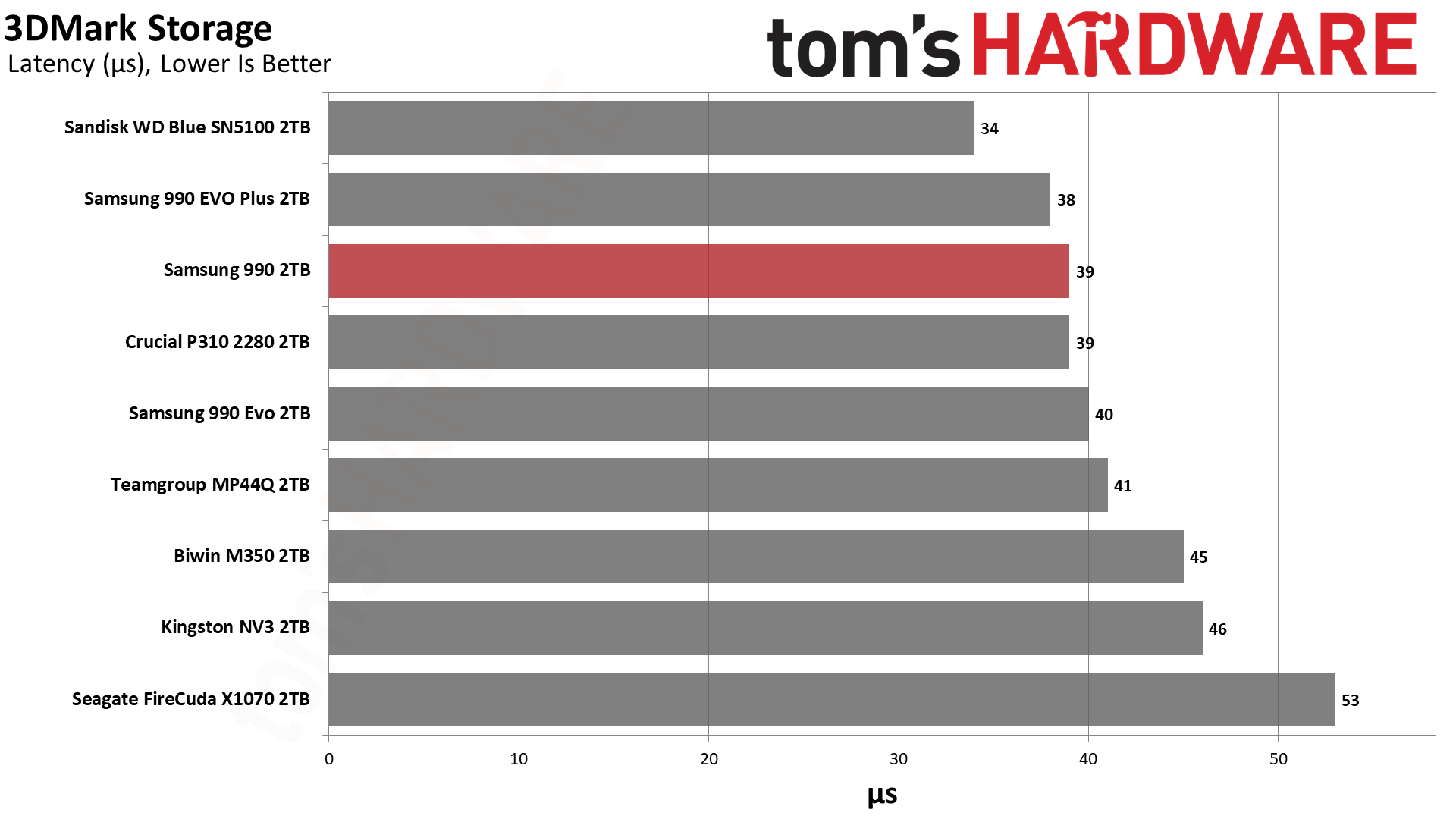
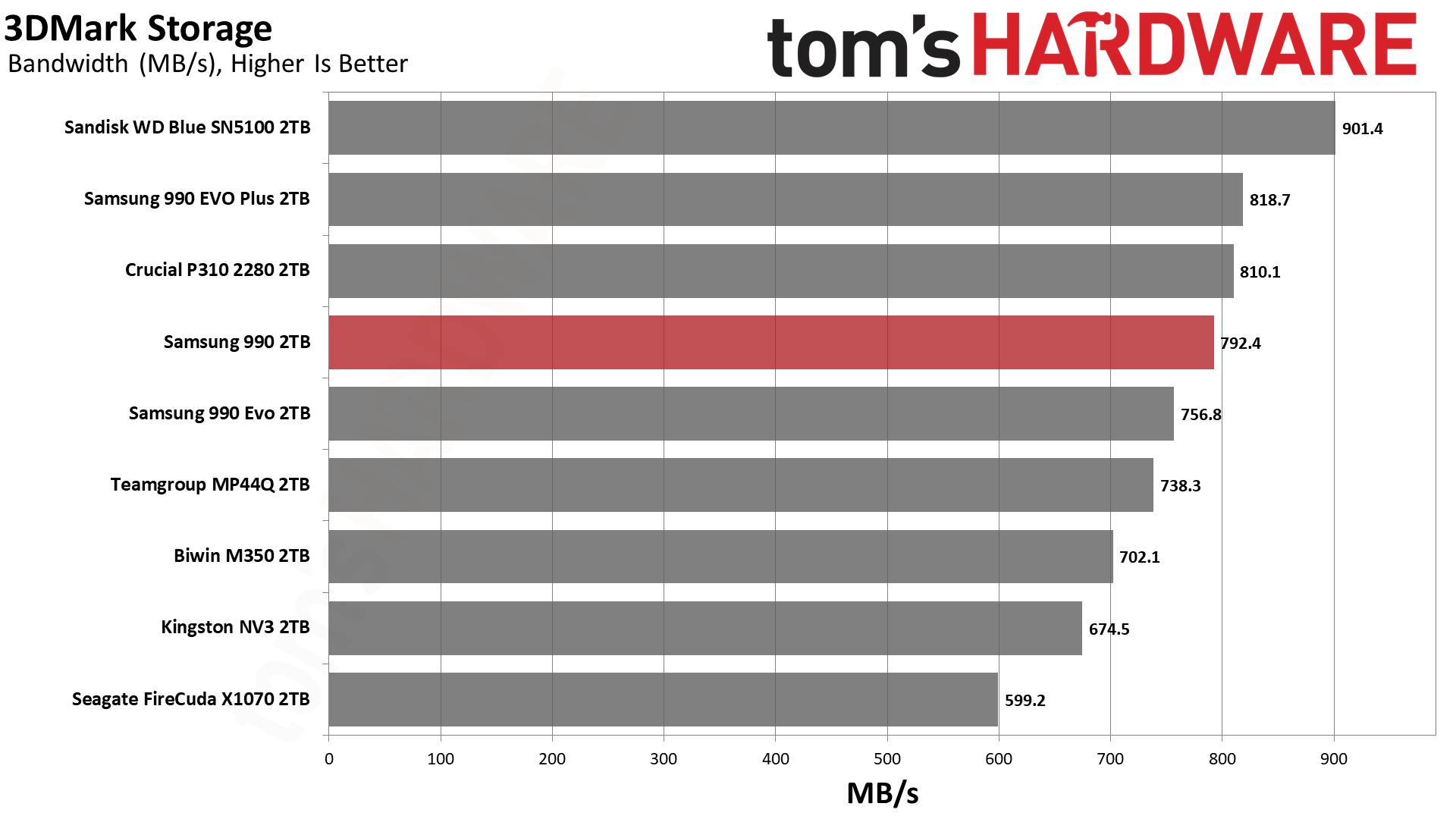
As you can see from our testing data, it scores very close to the 990 EVO Plus in latency testing, while beating the 990 EVO drive in bandwidth and 3DMark overall score.
SamsungSamsungSamsung
This drive also scored well in our PS5 test, so this drive could serve as an expansion drive for your shiny new PlayStation if you so choose. At its original list price, this drive makes no sense as a purchase up against the 990 Pro or Samsung's Gen 5 9100, but at this price it is a good chunk cheaper than both of those options.
As we approach the end of 2026, these storage prices remain tough to stomach, but things don't look like they are going to improve any time soon. In fact, all signs point to the AI pricing crunch continuing to make things worse going forward, meaning leaving it too long could make storage even more expensive in the future.
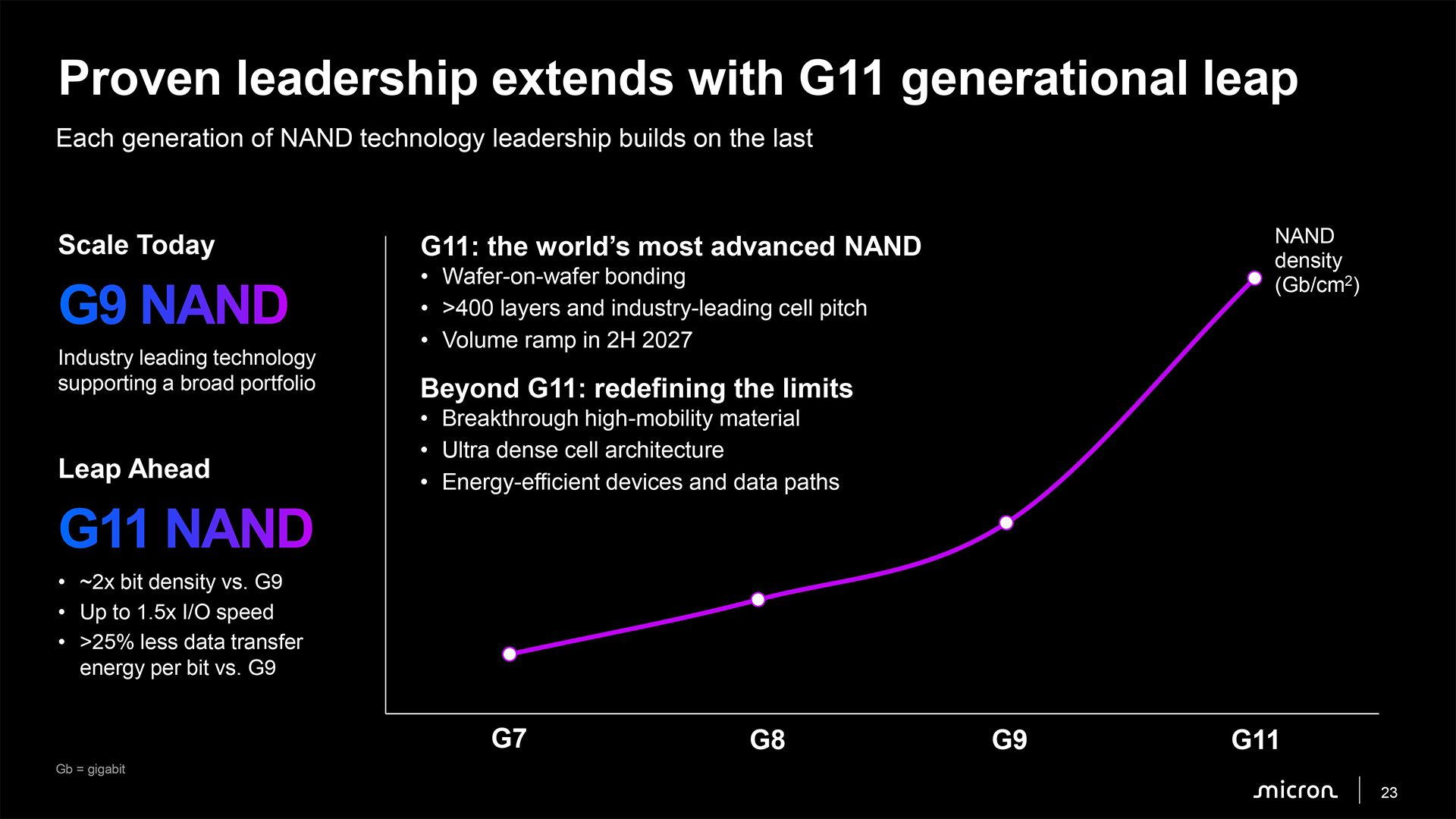
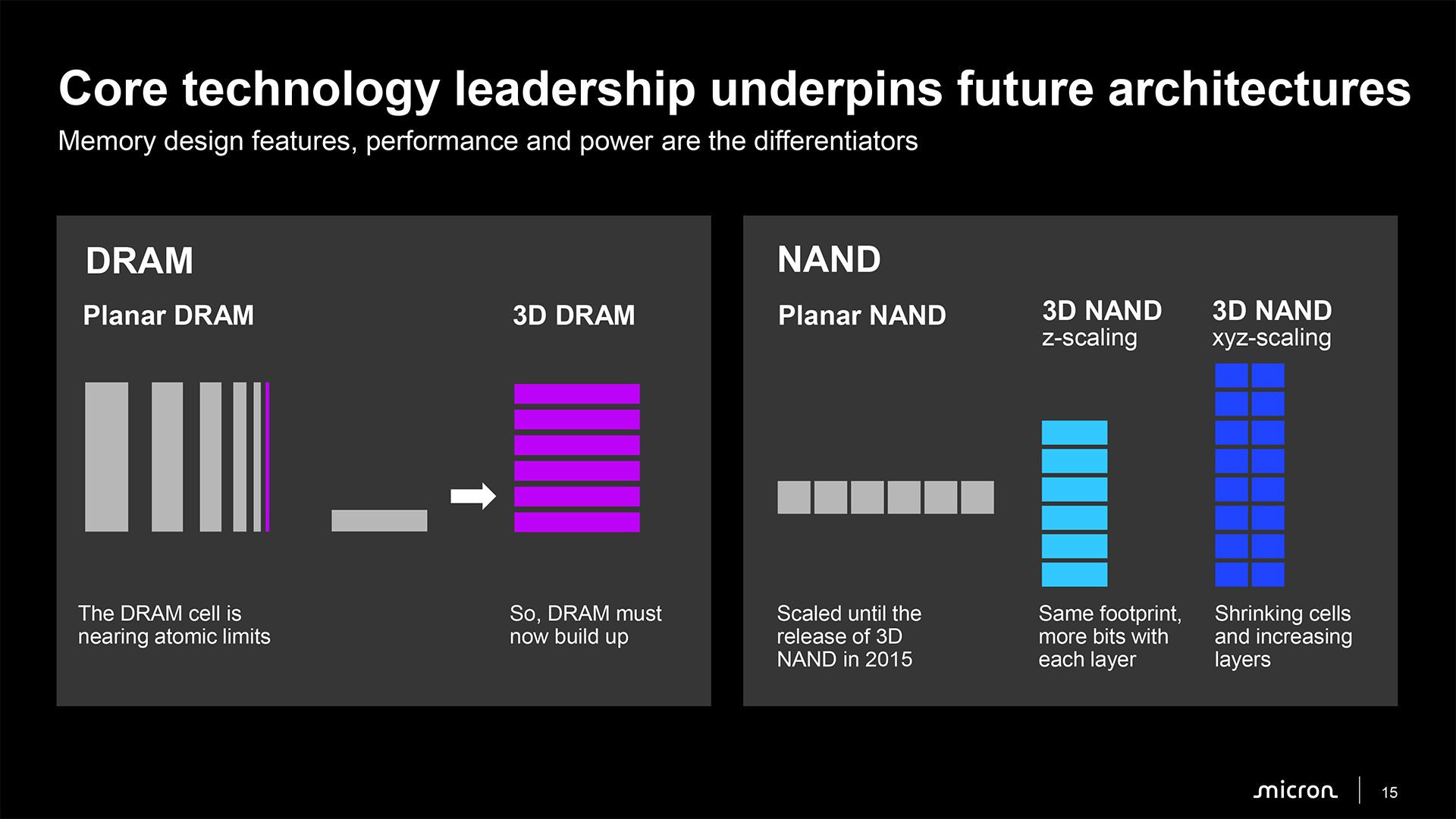
Micron's next-generation 3D NAND, which will enter mass production in 2H 2027, is set to offer three significant advantages: it will double storage density, increase I/O performance by 50% compared to the company's current-generation NAND memory, and decrease power consumption, the company revealed at an event this week. To achieve these aggressive goals, Micron plans to take a page from YMTC's book and adopt wafer-on-wafer bonding. Meanwhile, Micron is also developing new materials and denser memory cell architectures to extend 3D NAND scaling beyond G11.
"We had mentioned we will bring in wafer-on-wafer bonding technology at the right time when it’s cost-effective, and it brings in capability that is important for the product specs at the time, and this is the right timing for that technology," said Scott DeBoer, president and chief technology and products officer at Micron, during the company's event this week. "So this G11 technology is the world's most advanced NAND. It will ramp in the second half of next year, [and] it is based on wafer-on-wafer bonding technology."
G11: Over 400 layers and wafer bonding
Micron's G11 3D NAND represents a substantial advancement over its current G9 (N160) generation. The company expects the new memory to achieve approximately twice the bit density of G9 (3D TLC 21 Gb/mm2 => 3D TLC 42 Gb/mm2?), which means a dramatic increase compared to Kioxia's BiCS10 or Samsung's V10; increase I/O speeds by up to 50% (3,600 MT/s => 5,400 MT/s?); and reduce data transfer energy consumption per bit by more than 25%.
These improvements should benefit both conventional high-capacity SSDs for client and data center applications and emerging AI-oriented storage devices, which require greater bandwidth and energy efficiency.
(Image credit: Micron)
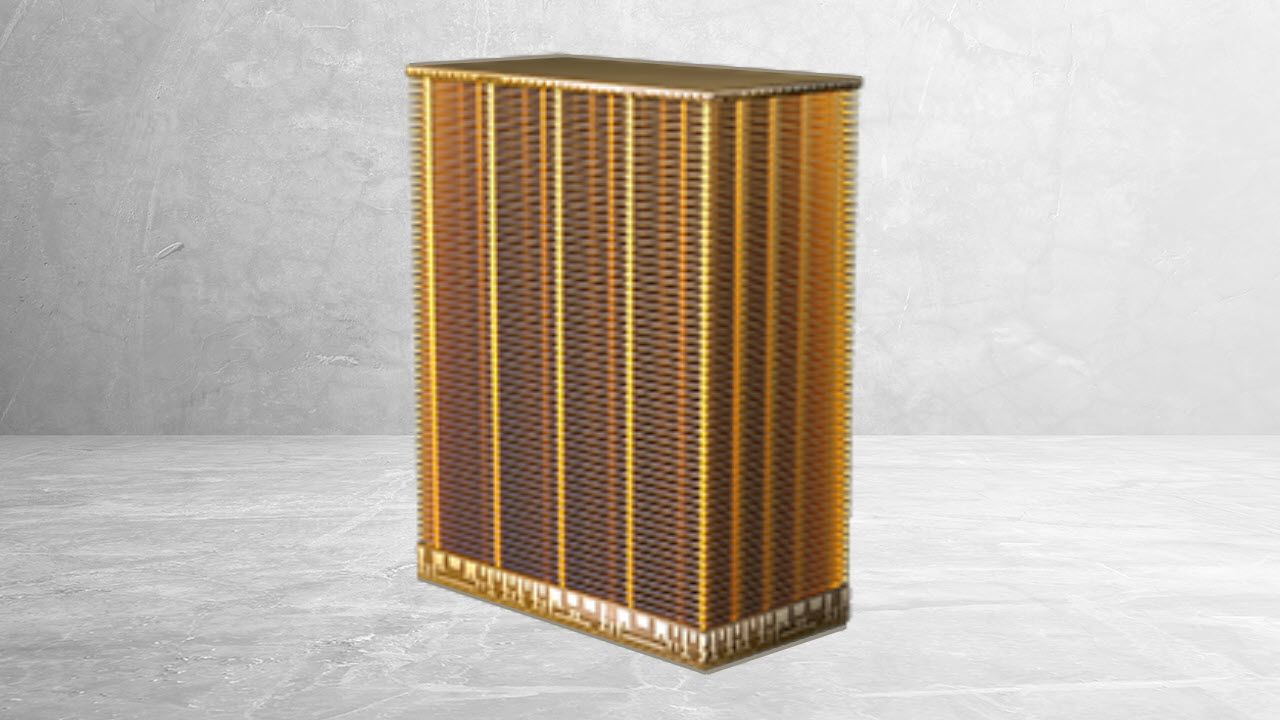
One of the key changes introduced with G11 is wafer-on-wafer bonding, which enables Micron to manufacture different parts of its NAND device on separate wafers using different process technologies — a new 3D NAND node to build a NAND array and a logic fabrication process to make peripheral circuits and I/O — and subsequently bond them together. The company has used CMOS-under-array architectures for several generations. Still, wafer bonding provides additional flexibility to optimize memory arrays and peripheral logic independently, which means more capacity and performance if all goes as planned.
Another important innovation is the transition to more than 400 NAND layers. Micron has not disclosed the exact number of active wordline layers or the number of memory decks used by G11, but the company says the technology will feature an industry-leading memory cell pitch, which suggests that its density improvements will come from both additional layers and smaller cell dimensions.
Micron expects to disclose more technical details about G11 in 2027, closer to the start of high-volume manufacturing in the second half of next year.
Beyond G11: New materials and denser memory cells
Without any doubt, Micron will continue scaling 3D NAND along all three dimensions rather than simply increasing the number of layers going forward. While conventional 3D NAND scaling initially relied primarily on adding more memory layers, future generations will also require reductions in cell dimensions along the X and Y axes to improve bit density while keeping manufacturing complexity in check.
(Image credit: Micron)
To achieve this, Micron is developing what it describes as breakthrough high-mobility materials, ultra-dense cell architectures, and more energy-efficient devices and data paths. These technologies could improve transistor characteristics, enable further reductions in memory cell dimensions, and reduce the energy required to move data within NAND devices.
"Beyond G11, we have a strong roadmap, not going to go into great detail on it today, but really focused on new materials densifying the cell architecture, and continuing to focus on that XYZ scaling going forward," said DeBoer. "[…] The current industry direction and Micron’s direction is scaling both by adding layers [and] also by shrinking the cell dimensions."
The company has not disclosed specific architectural details, density targets, or production schedules for its post-G11 generations, though its roadmap suggests that future NAND scaling will increasingly depend on innovations in materials, cell architecture, and peripheral circuitry rather than layer-count increases alone. Meanwhile, since the number of active layers is arguably the easiest way to increase storage density, we would not expect the race towards the highest layer count to slow down substantially in the coming years, especially given strong demand for 3D NAND-based storage.
SK hynix early on Friday announced that it had decided to abandon plans for a potential initial public offering (IPO) of Solidigm, its U.S.-based enterprise SSD subsidiary, citing unfavorable stock market conditions and semiconductor share price trends. At the same time, SK hynix confirmed it plans to build a new fab for Solidigm in the U.S. to address growing demand for enterprise SSDs. Although an IPO could have helped finance a new fab in the U.S., SK hynix claims that its subsidiary’s expansion remains a priority.
Solidigm specializes in high-capacity data center SSDs based on floating gate 3D QLC NAND memory. As AI infrastructure deployments accelerate, demand for high-capacity storage increases, whereas Solidigm's existing manufacturing capacity is barely sufficient to address its projected needs. Consequently, SK hynix believes that Solidigm requires additional production facilities in the U.S., although it has yet to disclose the planned fab's capacity, investment requirements, or construction schedule. Such a facility could also strengthen SK hynix's American manufacturing footprint, which is important, given the current environment and on-shoring trends.
SK hynix had considered multiple options — including direct investment, a pre-IPO funding round, and IPO of Solidigm — to finance capacity expansion. An IPO would have enabled SK hynix to raise capital from outside investors without taking on more debt. Furthermore, it could have revealed the true value of the subsidiary, which SK hynix believes is not properly reflected in its own market capitalization. In addition to financing the expansion, the proceeds could have been used for dividends, share repurchases, and share cancellations.
However, SK hynix says that increased market volatility and the ongoing correction in semiconductor stocks have made an IPO less attractive. As a result, the company believes that current market conditions would prevent Solidigm from achieving a valuation that adequately reflects its growth prospects. Consequently, it has discontinued its review of both pre-IPO financing and an IPO, even though it will continue to evaluate alternative funding mechanisms.
The cancellation of the IPO raises an obvious question: why would SK hynix abandon a financing mechanism that could provide billions of dollars for Solidigm's expansion just as demand for enterprise SSDs is at a record high and set to increase further over the next couple of years? After all, constructing a modern 3D NAND fab requires tens of billions of dollars, and external financing could reduce the burden on SK hynix's balance sheet and preserve capital for other projects (e.g., new capacity elsewhere).
One possible explanation is Solidigm's exceptionally strong profitability. Micron's enterprise storage division recently reported a non-GAAP gross margin of 90%, and given Solidigm's unique position in the market (it controls 21.1% of the enterprise SSD market together with its parent company), its margins may well be higher as it sells exclusive products. If extraordinary margins are sustainable over the next two or three years, its operations could substantially boost SK hynix’s consolidated profitability and generate considerable cash for future investments. Given these circumstances, SK hynix could potentially finance Solidigm's U.S. manufacturing expansion through a combination of internally generated cash and debt even without diluting its ownership. Financing the entire project with cash alone may also be possible, even though such an approach would be less likely given the massive capital requirements of advanced semiconductor production facilities nowadays. In any case, it is natural for SK hynix to prefer retaining full ownership of a highly profitable subsidiary to selling part of it at a valuation it considers inadequate.
In a world where SSDs with up to 256TB capacity are about to enter the scene to compete against hard disk drives that store over 40TB, magnetic tape storage may seem archaic. However, the 25-year-old Linear Tape-Open (LTO) format continues to evolve at a rather impressive pace.
The current LTO-10 generation stores up to 40TB of uncompressed data per cartridge, while HPE, IBM, and Quantum — the companies behind the LTO Program — now envision LTO-14 cartridges with up to 365TB of native capacity. But capacity is not the only advantage of LTO. In fact, the consortium has deliberately slowed its capacity roadmap in a bid to prioritize reliability, cost per terabyte, and manageable backup and recovery times over the previous goal of doubling capacity with every generation.
LTO began in 2000 with the LTO-1 format, which stored just 100GB of data natively and transferred it at 20 MB/s. Since then, capacity increased to 200GB with LTO-2, 400GB with LTO-3, 800GB with LTO-4, 1.5TB with LTO-5, 2.5TB with LTO-6, 6TB with LTO-7, 12TB with LTO-8, and 18TB with LTO-9.
The original LTO-10 media introduced in 2025 increased native capacity to 30TB, whereas an extended-length LTO-10 cartridge announced later increased it further to 40TB.
LTO cartridge capacity has increased by a factor of 400 in about 25 years without changing the form-factor itself. For comparison, the capacity of 3.5-inch hard drives increased by roughly 585 times over the same period, from around 75GB in 2000 to as much as 44 TB today, so tape has evolved at a slower pace. However, LTO has evolved without dramatic changes in internal complexity.
Two scaling vectors
The 40TB LTO-10 cartridge is noteworthy because its additional capacity is enabled by higher recording density and literally longer tape. The LTO-10 format uses 15,104 data tracks (enabled by the new barium ferrite recording layer), up 68.5% from 8,960 tracks with LTO-9, and combines them with higher linear density. To make this possible, LTO-10 uses a redesigned high-bandwidth servo system with a low-mass mechanism that enables the head to follow increasingly narrow tracks accurately, including in environments subject to shock and vibration.
Both 30TB and 40TB LTO-10 media use a strontium-doped barium ferrite (BaFe) recording layer, but the 40TB version uses a new Aramid base film that is thinner and smoother and therefore enables manufacturers to put more tape into the same cartridge. According to MagStor, the thinner substrate increases tape length from approximately 1,035 meters with the 30TB cartridge to around 1,335 meters with the 40TB version. Meanwhile, the 40TB cartridge works with the same LTO-10 drives as the existing 30TB media.
Therefore, modern LTO has at least two major scaling vectors: manufacturers can record more bits on a given area of tape, and can put more tape into a cartridge. Meanwhile, with LTO-10, the consortium had to drop backwards compatibility, which we will detail further within this article.
There appears to be plenty of room left on the tape front. Back in 2020, IBM and Fujifilm demonstrated a strontium ferrite tape technology with an areal density of 317 Gb/in², which they said could theoretically enable a cartridge capable of storing 580TB. The prototype used tracks only 56.2nm wide and a 29nm TMR read sensor, which proved that magnetic tape could reach capacities vastly beyond commercially available LTO products.
Capacity is not everything
Ironically, despite considerable technological headroom, the LTO Program has recently made its roadmap considerably less aggressive.
When HPE, IBM, and Quantum extended the roadmap through LTO-14 in 2022, they expected capacity to roughly double every generation. The plan envisioned 72TB for LTO-11, 144TB for LTO-12, 288TB for LTO-13, and a whopping 576TB native — or 1.44PB compressed — for LTO-14. But that changed in November 2025, when the three companies introduced the new roadmap for LTO that significantly slows down capacity scaling. The current roadmap targets 70TB native for LTO-11, 120TB for LTO-12, 210TB for LTO-13, and 365TB for LTO-14.
While the new roadmap is somewhat less impressive, it does not necessarily indicate that tape technology has encountered a physical scaling wall. The developers claim the revised targets are intended to prioritize reliability, affordability, efficiency, and cost per terabyte. The consortium also specifically says that lowering maximum cartridge capacities should help reduce the amount of time required to store and recover data, which is a legitimate argument even though it looks like an attempt to make a 'feature' out of a limitation.
"AI has turned archives into strategic assets," said Stephen Bacon, Vice President, Data Protection Solutions Product Management, HPE. "The new 40 TB LTO-10 cartridge will help enterprise-class organizations — across healthcare, financial services, media, research, manufacturing, the public sector and beyond — consolidate petabytes efficiently, strengthen cyber resiliency with true offline air-gapping, and keep long-term retention affordable and sustainable."
Bandwidth is becoming one of tape's more obvious limitations. LTO-8 offered 360 MB/s of native bandwidth, LTO-9 increased this to 400 MB/s, and LTO-10 remains at 400 MB/s, although hardware compression can boost effective throughput to as much as 1,200 MB/s when data can achieve the assumed 2.5:1 compression ratio.
As a result, while maximum native cartridge capacity increased from 12TB with LTO-8 to 40TB with LTO-10 — a 3.33X increase — native transfer performance improved by only around 11%. At 400 MB/s, writing 40TB sequentially would theoretically take around 28 hours (without the overheads). Future LTO generations will likely increase performance, but the consortium has not yet published transfer rate targets for LTO-11 and its successors.
No backwards compatibility
One thing to note about LTO-10 is that it has broken a long-standing LTO tradition, which is backward compatibility. Up until LTO-7, new drives could generally read cartridges from two generations earlier and write media from one generation earlier. LTO-8 and LTO-9 reduced compatibility to one previous generation. However, because LTO-10 redesigns its head, its backwards compatibility disappears completely: an LTO-10 drive reads and writes only LTO-10 media, although the 30TB and 40TB cartridges are of course interchangeable.
This creates a natural problem for operators that need to maintain archives for decades. Once they adopt LTO-10, they either must migrate all their archives to the new format from LTO-8 or LTO-9 cartridges, or keep the old drives in their fleet, which may be increasingly difficult.
Demand remains strong
Perhaps counterintuitively, the AI boom could strengthen demand for tape. AI infrastructure produces enormous datasets, but not every training dataset, checkpoint, model, log, or generated asset needs to remain indefinitely on expensive SSDs or HDDs.
LTO capacity shipments reached 160.3 exabytes in 2025, down 9% year-over-year. However, shipments in the first quarter of 2026 jumped 57% YoY, according to figures reported by the LTO consortium. The organization attributed the increase to AI-related data growth, traditional archival demand, cyber-resilient backups, continued LTO-9 adoption, and the beginning of the LTO-10 transition.
"We are seeing unprecedented data growth combined with increasing cost, energy, and cyber resilience pressures across the industry," said Hugues Meyrath, CEO, Quantum. "As organizations adapt to this new reality, tape is increasingly viewed as a strategic component of modern data infrastructure, delivering predictable economics and resilient long-term data retention at scale."
Indeed, tape has a number of fundamental advantages that are not going to disappear any time soon. Tape provides vast capacities at a low cost per terabyte, cartridges consume virtually no power while sitting offline, hardware encryption protects data, and physically removing a cartridge from a drive provides a genuine air gap against network-based attacks. LTO also supports the LTFS file system, which maintains indexing information on tape and makes archived files considerably easier to manage.
Meanwhile, tape's disadvantages are equally fundamental and are not going away: tape is sequential and therefore cannot provide anything resembling the random-access performance of HDDs or SSDs. Although nobody expects something similar from it.
LTO isn't going anywhere
25 years after LTO-1 offered 100GB per cartridge, LTO-10 can store as much as 40TB, and the roadmap calls for 365TB with LTO-14 several years down the road. Perhaps more importantly, laboratory demonstrations indicate that magnetic tape itself has considerable scaling potential beyond today's commercial products. Meanwhile, instead of pushing capacity as quickly as technologically possible, the LTO consortium is now deliberately balancing density with reliability, performance, and cost.
For a storage technology which demise has been predicted repeatedly for decades, LTO not only continues to evolve at a predictable pace, but its adoption is growing, while its relevance remains on a high level. Only time will tell whether it remains relevant for another quarter of a century, but its steady progress certainly increases this possibility.
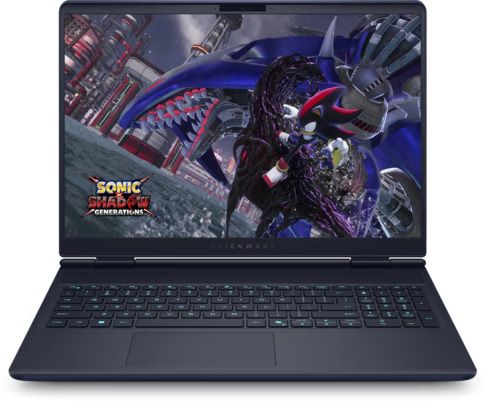
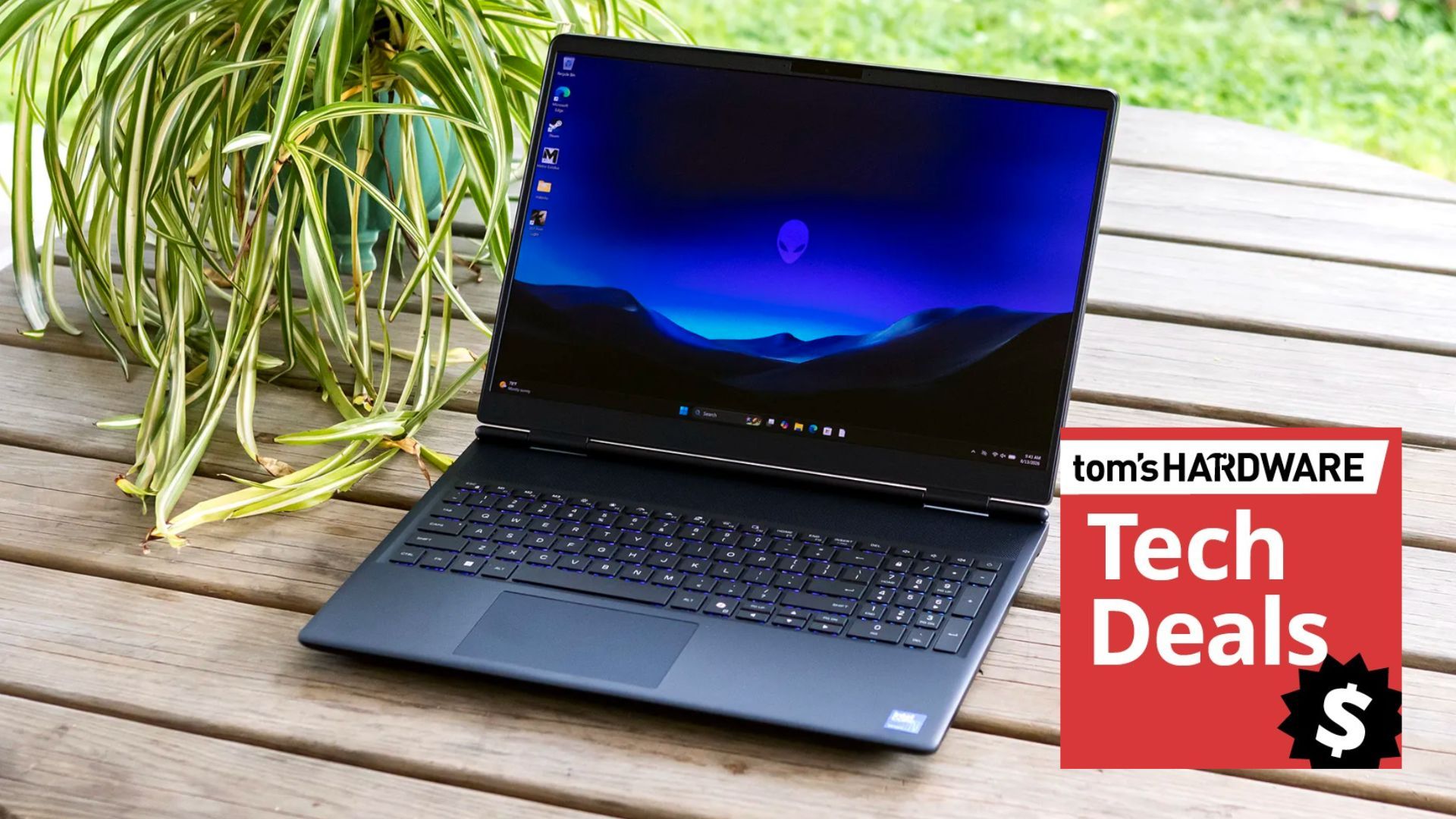
There are a host of great laptop deals at Best Buy at the moment, but one of my favorites today is this fantastic $950 saving on an RTX 5070-powered Alienware 16X Aurora gaming laptop with OLED display for $1,949.99. A significant drop in price from the original $2,899.99 list price. A great choice for a gaming laptop that also doubles as a competent computer for work and studying. The combination of powerful graphics, CPU, and gorgeous display will bring your games and media to life.
The Alienware 16X Aurora is a premium gaming laptop with a Core Ultra 9 290HX processor, a high-performance CPU featuring 24 cores and a boost clock speed of up to 5.5GHz. This is one of Intel's top laptop processors and an excellent gaming CPU. For the graphics, this model of the 16X Aurora uses Nvidia's GeForce RTX 5070 Laptop GPU, which is an excellent choice not only for powering your games to life, but also for getting the most out of the Aurora’s crisp 16-inch OLED 2560x1600-pixel display.
Having an OLED screen means the 16X Aurora will have an insanely low gray-to-gray response time of just 0.03ms, excellent for super smooth motion when gaming, plus the display sports a rapid refresh rate of 240Hz and a maximum screen brightness of 500 nits. Oh, and of course, amazing contrast, inky blacks, and eye-popping color representation.
Finishing up on what major components are inside this model of the Alienware 16X Aurora, we have 16GB of DDR5-5600 MT/s memory and a spacious 1TB SSD for storage, ample room for your favorite games.
The Alienware 16X Aurora is a formidable laptop with a high-end 24-core Core Ultra 9 290HX processor that runs alongside a GeForce RTX 5070. It also flaunts 16GB of DDR5-5600 memory and a 1TB M.2 NVMe SSD.View Deal
We reviewed the Alienware 16X Aurora gaming laptop back in September of this year, praising the excellent 16-inch OLED display, solid gaming and productivity performance, sturdy, understated design, broad port selection, and good upgrade prospects. Making it an easy decision to award the laptop 4 out of 5 stars.
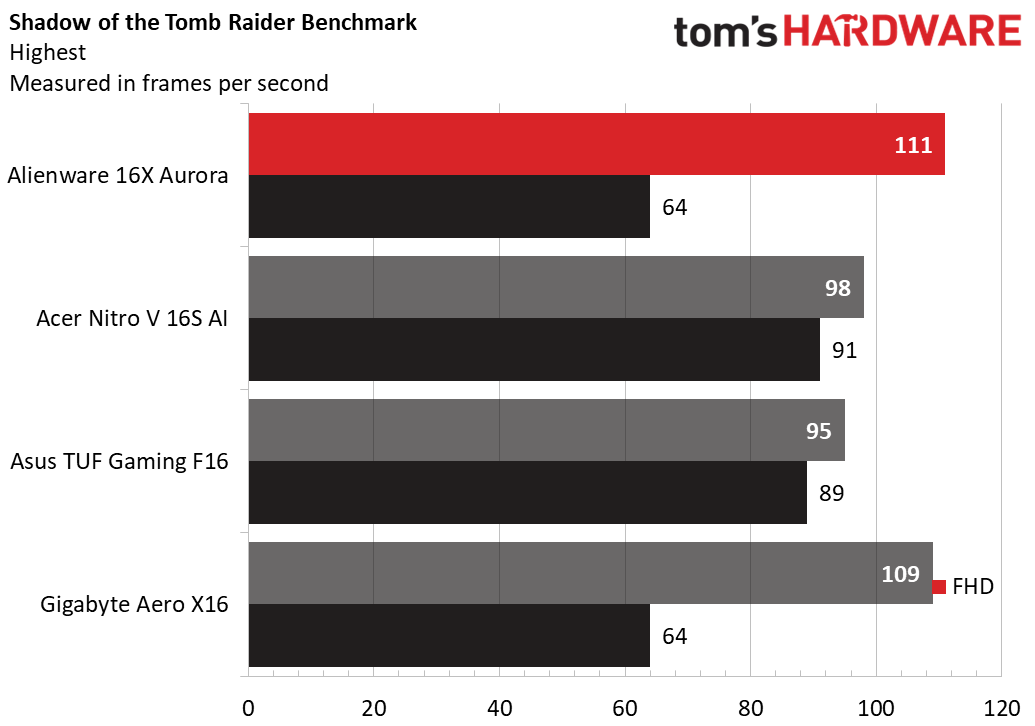
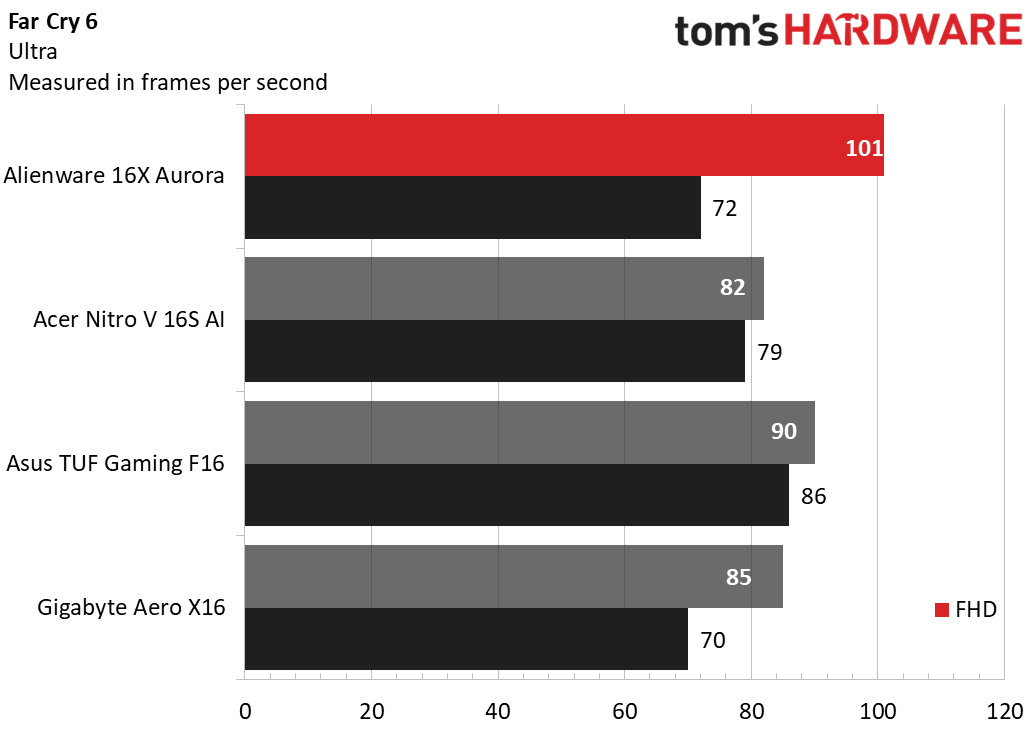
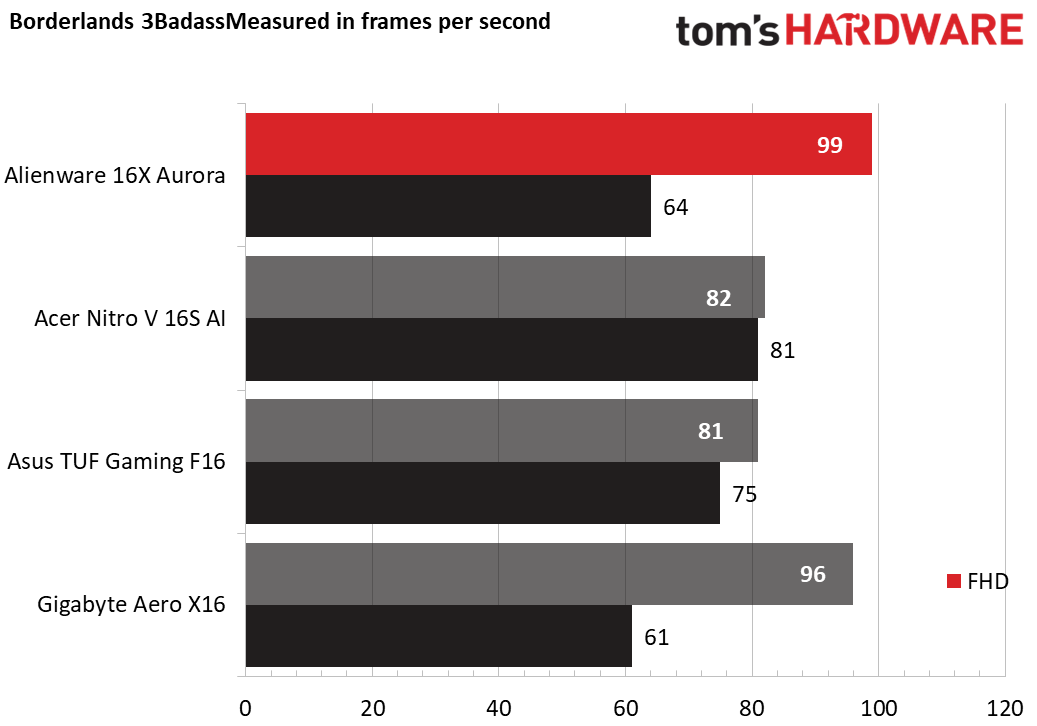
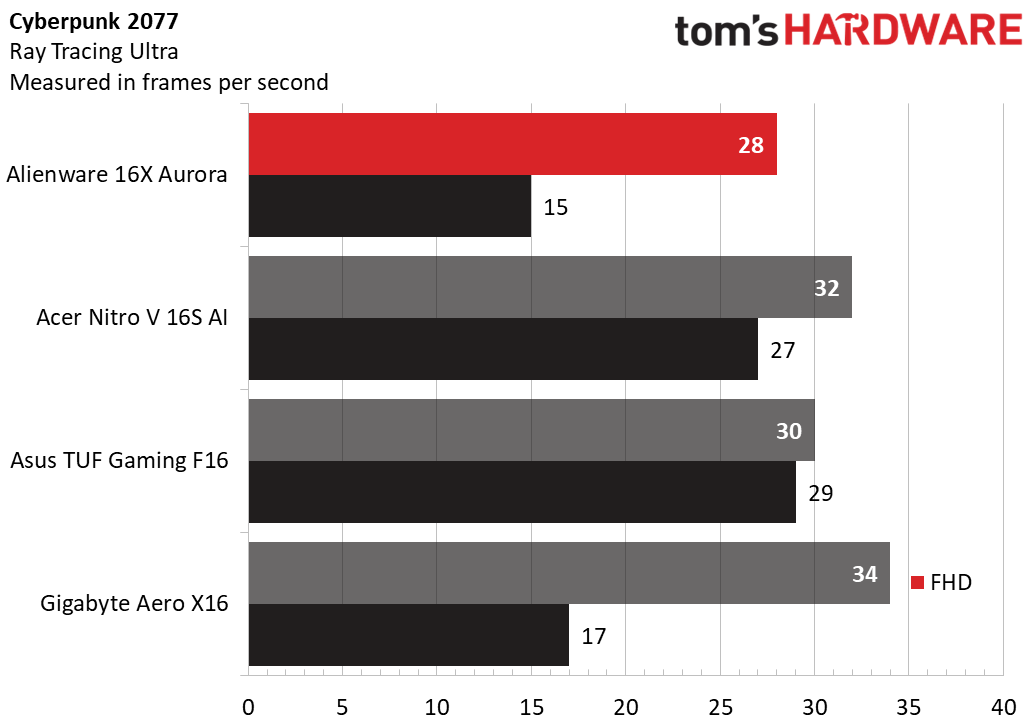
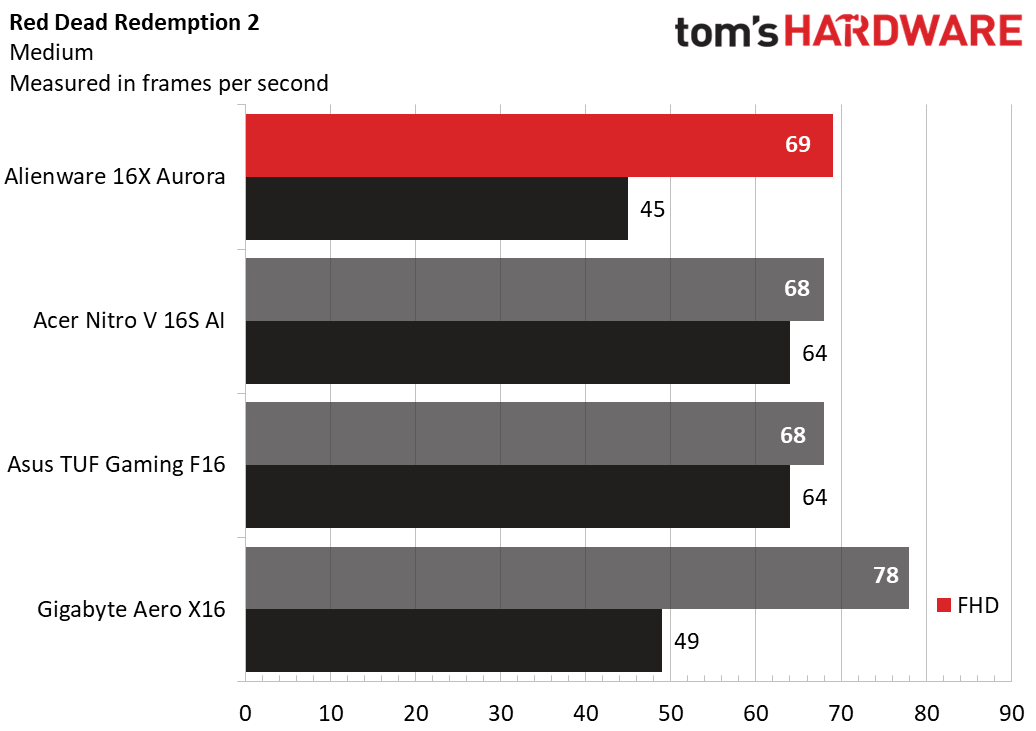
We tested the less powerful variant of the 16X Aurora, in its entry-level configuration, featuring a Core Ultra 7 270HX Plus processor, a GeForce RTX 5060 GPU, and 16GB of dual-channel DDR5-5600 RAM. It performed well against its peers, as you can see from the chart below, but bear in mind that the performance of this model will be higher due to the more powerful CPU and GPU combination.
So if you're looking for a powerful and well-built gaming laptop that also comes with a gorgeous 16-inch OLED display, this could be the option for you. With a price drop of $950, this is a great moment to snag a deal on a new gaming laptop.
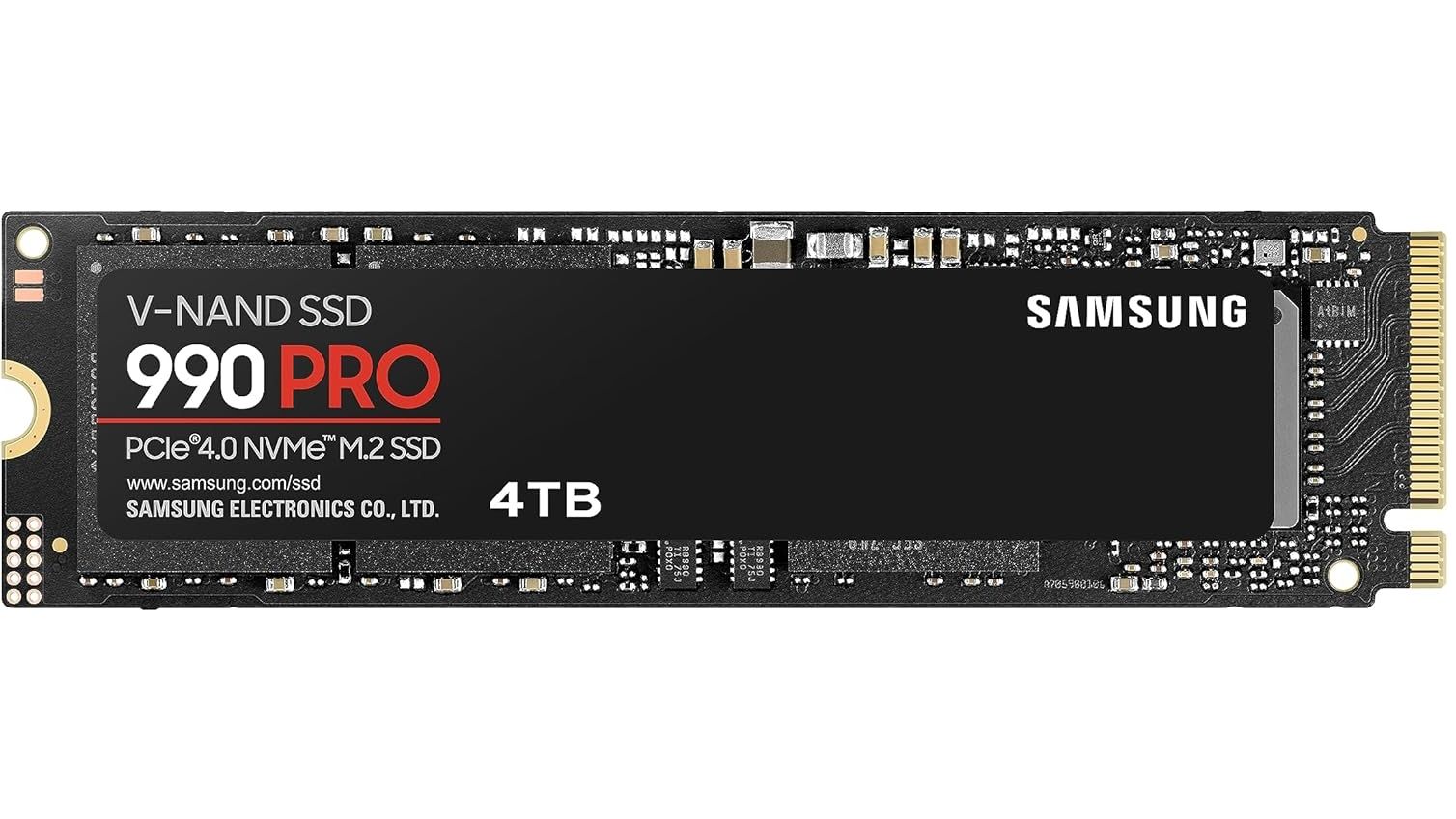
At one point in time, it was the fastest PCIe Gen 4 drive you could buy. Now, the next generation of PCIe 5.0 drives is available, but the 4TB Samsung 990 Pro still offers extremely fast performance and whopping amounts of capacity in a single-sided M.2 2280 form factor. The main issue at the moment is price. Thanks to the AI boom driving up the prices of memory and storage, SSDs have reached insane highs, so to be able to take advantage of a large 27% discount in these times is nothing to be sniffed at. The 4TB Samsung 990 Pro has fallen from $1,099 to this new price of $799.90, a saving of over $300. This works out as roughly 20 cents per Gigabyte of storage capacity.
Having reviewed the Samsung 990 Pro 4TB when it was released, we found it to be one of the best 4TB SSDs on the market and among the best SSDs overall. The 990 Pro boasts maximum sequential reads of 7,450 MB/s and sequential writes of 6,900 MB/s, with random reads/writes coming in at 1.6 million and 1.55 million IOPS, respectively, while endurance is rated for 2,400 TBW.
990 Pro 4TB SSD: was $1099.99 now $799.90 The Samsung 990 Pro 4TB is among the fastest Gen 4 SSDs available thanks to read and write speeds of up to 7450/6900 MB/s, almost maxing out the Gen 4 bandwidth. This M.2 NVMe drive comes in the 2280 form factor and holds enough capacity to store a large selection of your favorite games or files.
Random reads/writes come in at 1.6 million and 1.55 million IOPS, respectively, while endurance is rated for a respectable 2,400 TBW.View Deal
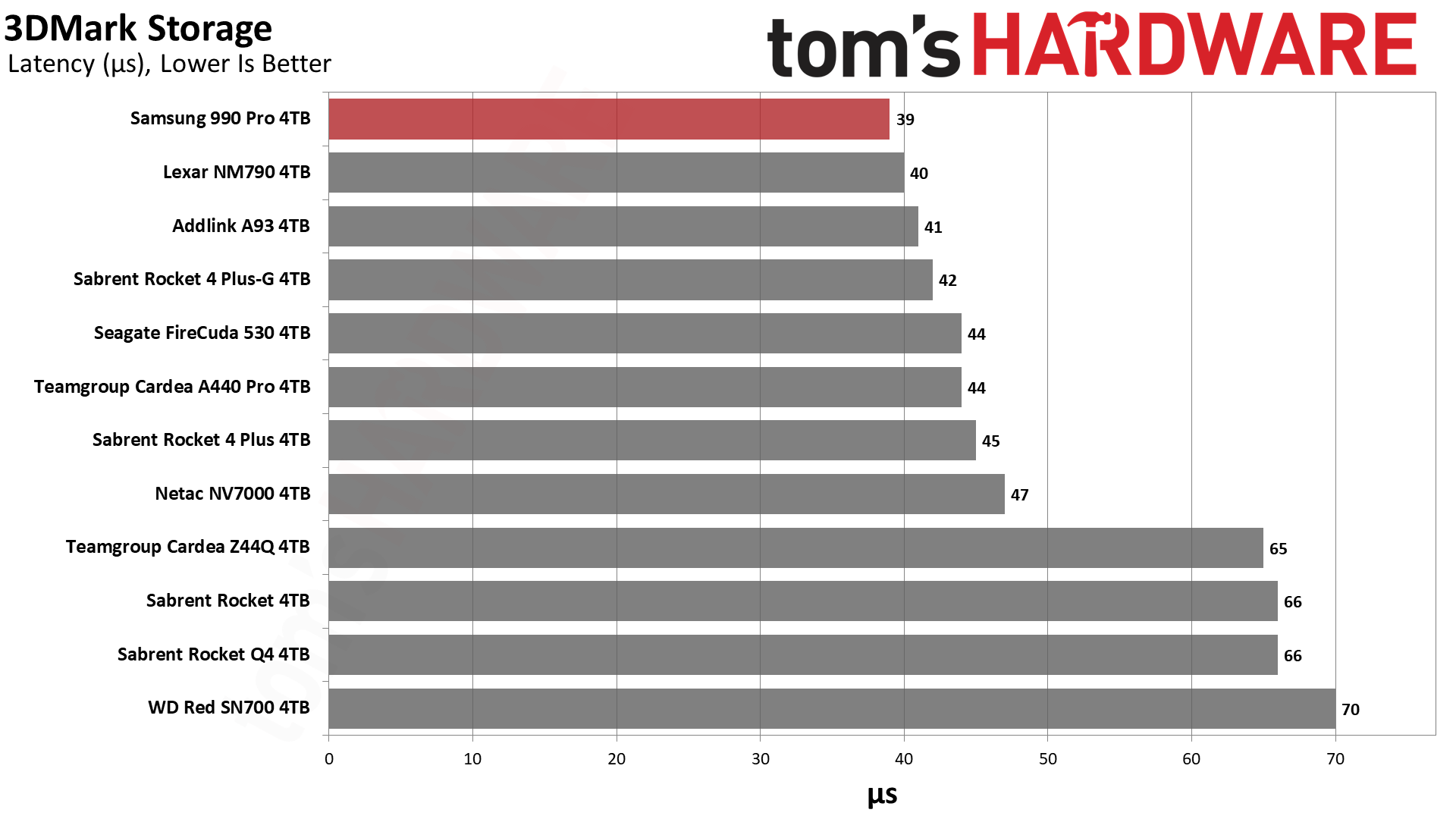
Samsung uses 236-layer TLC V-NAND to achieve its 4TB capacity, while also using a single-sided design, making the 990 Pro ideal for use in computers where space is a finite resource. When we tested the Samsung 990 Pro 4TB, we found it scored above the competition on almost every test. On 3DMark's storage test, it had the lowest latency result, a big plus for responsive load times in gaming.
(Image credit: Tom's Hardware)
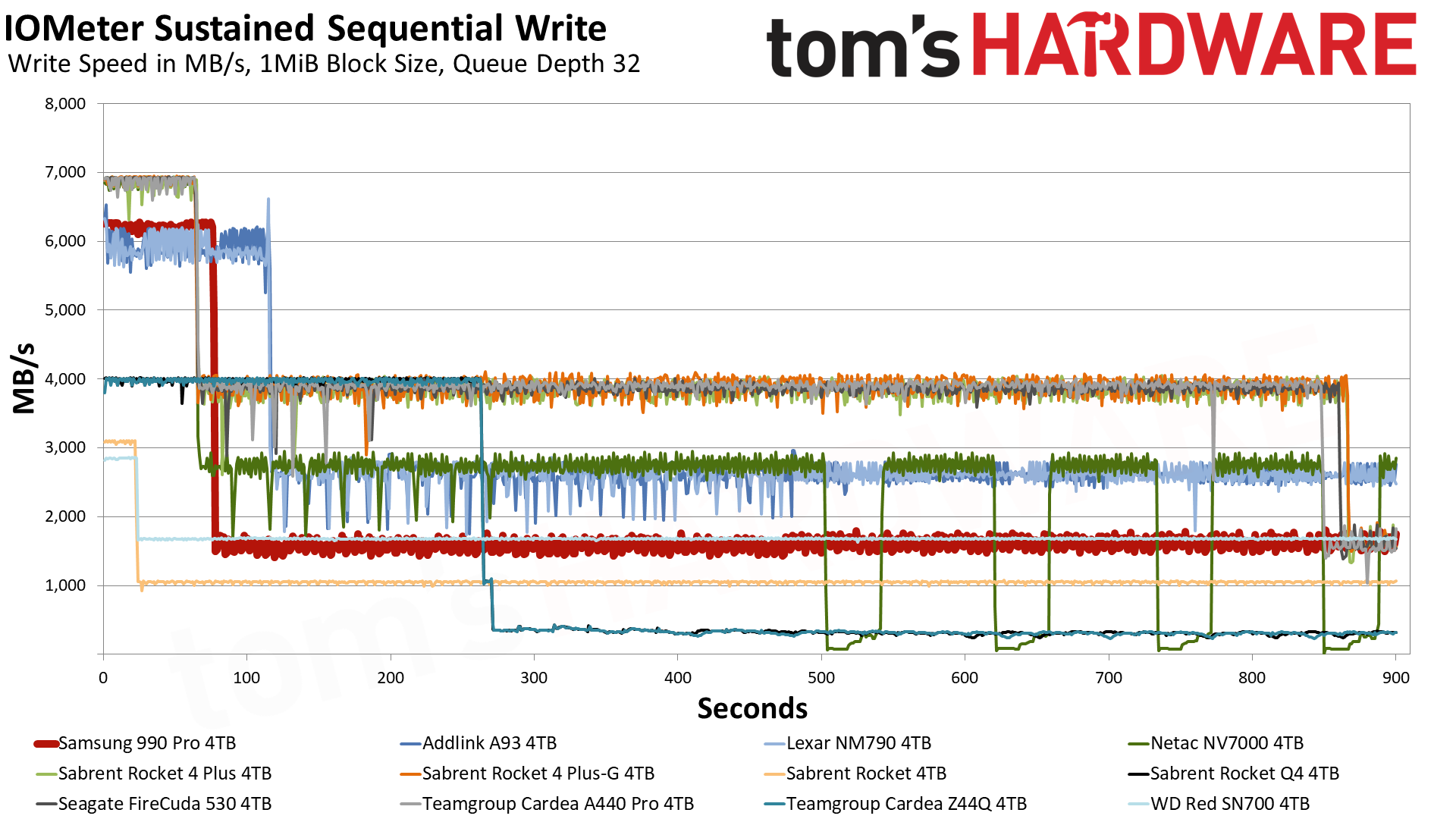
The Samsung 990 Pro is also excellent at sustaining strong write performance. In our IOMeter sustained sequential write tests, the 4TB 990 Pro was able to maintain a speed of 6.2 GB/s for 75 seconds thanks to its generous 10GB of pSLC cache. Once the data spills over into the TLC, it operates at 1.6 GB/s. The Samsung 990 Pro is also a leader in power efficiency, delivering 421.1 MB/s per watt. That number puts it ahead of all competitors but the Addlink A93 4TB and Lexar NM790 4TB.
(Image credit: Tom's Hardware)
The Samsung 990 Pro is certainly nowhere near the all-time low prices of years gone by, and I'm not sure at the moment when, if at all, we'll ever see those low prices again on storage, certainly not for some considerable time. If you want 4TB of storage now, then the Samsung 990 Pro is a formidable choice; just try to grab it when there's as much of a discount as possible.
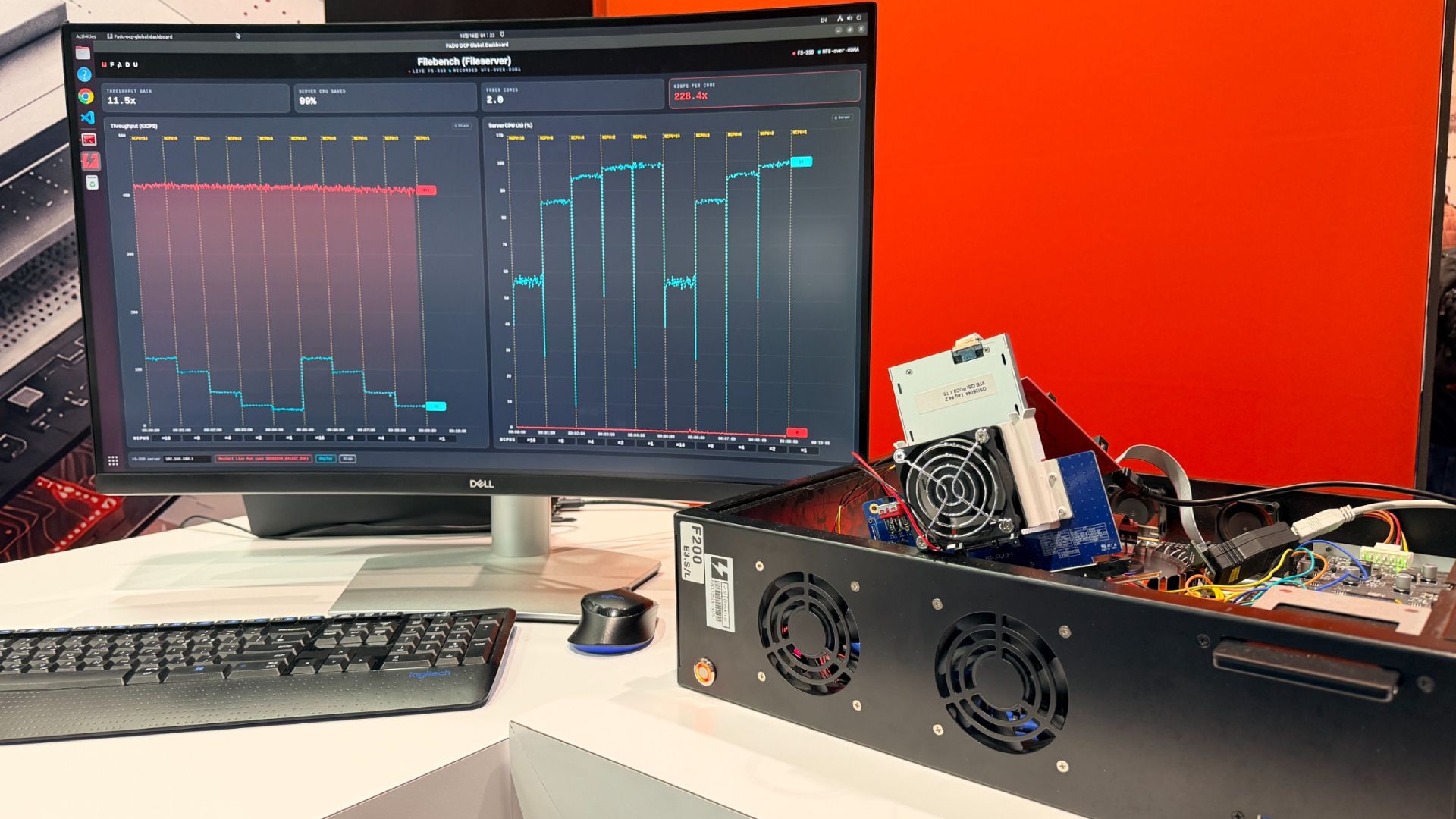
SSD controller designer FADU’s new File-Semantic SSD (FS-SSD) was announced at the 2026 OCP Global Summit. The new device promises to move the file system into the SSD itself. As detailed in a white paper, this enables GPUs, DPUs, and NICs to open and read files with “no host filesystem, no block layer, and no storage-server CPU in the path.” FADU told Tom’s Hardware Premium it expects partner samples by Q3 2027.
FADU is a Seoul, South Korea-based fabless SSD controller designer. Its FS-SSD technology is designed to handle and improve the control path, as the data path side moved to accelerators years ago. FADU’s measurements show that the file system, plus block layers, can consume about 30% of CPU cycles in a GPUDirect Storage (GDS) random-read workload. It notes that bypass options give up the files, and the company claims its solution promises the best of both worlds.
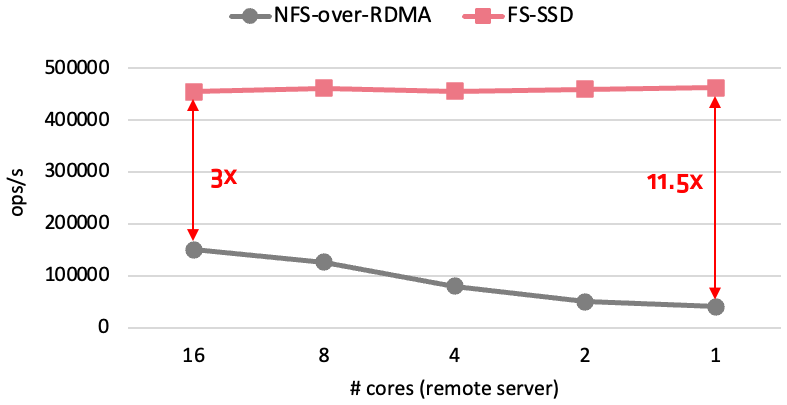
In FADU’s own preliminary Network File System (NFS) over NVMe test, on a drive built on its FC6161 Gen6 controller in a PCIe 5.0 host, remote file throughput held steady as the server downshifted from what FADU labels 16 cores to just one, maintaining about 460,000 ops/s.
The NFSv3 operations are carried inside standard NVMe commands, and the drive handles path lookup, access control, and file-to-flash mapping. FS-SSD’s performance is remarkable when compared to Linux NFS-over-RDMA, which achieved a third of the ops/s with 16 cores and only 40K ops/s with one core. The technology remains “under active development,” and FADU told Tom’s Hardware Premium it expects Gen6-host results by Q1 2027, with partner samples in Q3 2027.
FS-SSD holds about 460,000 ops/s from 16 server cores down to one, while NFS over RDMA falls from approximately 150,000 to 40,000 ops/s (Image credit: FADU)
FADU chooses to use NFSv3 because it’s “small (21 operations), OS- and filesystem-agnostic, and stateless” with low firmware overhead. FS-SSD supports PCIe today, with NVMe-oF over RDMA and TCP working without any new transport needed. Reusing an existing protocol is a smart move, in our view. Under the hood, the file system and flash translation layer are merged with a file layer derived from F2FS. Node and data blocks are aligned with the natural flash pages, sections at corresponding erase units, so that the F2FS node table becomes a “File Map” pointing the node IDs at physical flash addresses.
One big advantage is that the DRAM mapping metadata overhead is considerably smaller: it uses the same amount of DRAM as a standard SSD, ~0.1% of NAND capacity (about 1 GB per TB), which a standard SSD fills almost entirely with its mapping table. Here, most of that DRAM, ~95%, can act as a hot-path node cache.
One garbage collector also replaces two, avoiding what FADU calls the “double GC” of host F2FS, where file-system cleanup and the drive’s own garbage collection amplify each other. Write amplification is also 63% lower versus a host F2FS solution on a mixed sequential and random workload with FADU’s research prototype, the company said. FADU told Tom's Hardware Premium that the prototype runs synthetic fio workloads on NVMeVirt, an open-source software SSD emulator from Seoul National University, so it is not a hardware result.
Most importantly for this method, it ensures host-free access. The GPU builds NFS-over-NVMe commands in queues in its own memory, which could include HBM. Alternatively, a remote SmartNIC or DPU with NVMe-oF target offload can drop commands in the drive’s submission queue. The data goes from SSD to NIC via PCIe peer-to-peer DMA, coming out as RDMA writes. FADU’s explicitly named use cases for this include GPU file reads and checkpoints, DPU-served HTTP content delivery, and a JBoF (just a bunch of flash) file server.
FADU’s numbers for its internal test come from a client and server Intel Core i5-13600K, a CPU with 20 threads that clocks up to 5.1 GHz with 128GB of DDR5, and a Mellanox ConnectX-6 100 Gbps NIC. Synthetic testing is compared using fio with the baseline F2FS and Ext4 on block firmware versus the FS-SSD via a kernel client and an SPDK user-space client. The sequential test is 1 thread, queue depth (QD) 128, with 128KB blocks, while random is at 4 threads, the same QD128, but with 4KB blocks.
These block sizes are typical for client workloads in our experience, so they are a fair measure, with detailed preliminary results in the table below. Against SPDK on the raw drive, figures FADU provided to us, FS-SSD’s SPDK client keeps about 93% on 4K random read and 53% on 4K random write, via fio, with around a 7% and 47% cost for the in-drive file layer. Though the raw drive’s 13,240 MB/s random write is above the ~12 GB/s FADU gives as the NAND’s program bandwidth, those runs likely weren’t at steady state. The Filebench result is particularly interesting, as the SPDK random gains apply to a plain block device too.
This should be the workload most favorable for the technology, as the Filebench file server is metadata-heavy with relatively high host overhead: FADU says it uses 10,000 files in a multi-level tree, mean directory width 20, and a mean file size of 128KB with 50 client threads.
FADU’s preliminary fio results: Gen6 controller in a PCIe 5.0 host, direct I/O
Setup
Sequential read (MB/s)
Sequential write (MB/s)
4KB random read (MB/s)
4KB random write (MB/s)
F2FS
14,120
4,510
7,850
3,980
Ext4
14,130
7,050
9,120
4,560
FS-SSD (kernel client)
14,140
11,940
8,070
4,320
FS-SSD (SPDK client)
Not reported
Not reported
13,000
7,030
Raw block (SPDK)
Not reported
Not reported
13,990
13,240
One important thing to recall is that although this test is on a Gen6 drive, the test results are on a PCIe 5.0 host. Therefore, every sequential read config tops out at around 14.1 GB/s, which is roughly the link limit. The testbed also uses a consumer-class desktop CPU, while the one-core NFS server is a showcase example. The kernel client ends up 11.5% behind Ext4 on random read and 5.3% behind on random write, again by our math.
One example of a tough question more generally is: how do concurrent GPU, DPU, and host writers coordinate? How does a kernel mount’s page cache stay coherent with GPU access? NFSv3 storage devices, by the pNFS Flexible File Layout spec (RFC 8435), are “always treated as loosely coupled,” which means “Mandatory byte-range locking cannot be supported.”
Credentials riding in the NVMe command may also face security issues, as loosely coupled devices get only “a level of security equivalent to AUTH_SYS,” NFS’s basic scheme, in which the server trusts whatever user and group IDs the client sends. FADU’s published material also does not describe features such as snapshots, encryption handling, quotas, ACLs, crash handling, and so forth, related to this. Statelessness is what makes it work, but it doesn’t solve all problems, so the trust factor moves elsewhere.
In reply to our questioning, FADU said that there is no cross-host locking, as NFS’s lock manager isn’t implemented. The drive applies each write whole, in order. If two writes hit the same spot, the second one wins; this is “last-writer-wins.” Coordination depends on the clients: kernel-mounted ones get the usual advisory locks among themselves, GPU and SPDK clients coordinate in the application, and at scale a pNFS metadata server handles the coordination. Caching is also handled like ordinary NFS, with kernel clients, or is not done at all, for GPU and SPDK clients. This is stock NFSv3 behavior.
The drive has to check user/group IDs against the file permissions itself. Because those IDs ride inside the command, a client could fake them, but FADU says it closes that issue with capability-based authentication. Each command carries a capability issued by an outside authentication server, plus a code computed with a key shared only between that server and the drive. This is not detailed in its published material. FADU adds that support for the Kerberos authentication protocol is planned. For networked drives, the standard NVMe-oF protections are used, with only pre-approved hosts admitted. A drive trusts a single host’s kernel like any NVMe drive.
However, as FADU described to us, ACLs and other features are missing in the current release, aside from encryption, which in this case is handled by the FC6161’s standard TCG Opal self-encrypting drive support. Power loss is also typically handled with capacitors flushing metadata, the write buffer, and a log of in-flight operations. On restart, the drive replays the unfinished operations, and every write is durable if the drive acknowledges it.
FADU’s longer sights are on producing a JBoF storage solution with no server in front: FS-SSDs, a PCIe switch, and a DPU or NIC for handling NVMe-oF in hardware. FADU’s model puts this at about 42% lower power, about 57% lower cost per 16-drive server, and higher rack density with significantly lower five-year total cost of ownership. The drives would slot in behind existing pNFS metadata servers and could scale. FADU’s controllers already ship with drives such as the SN861, which Western Digital launched and SanDisk now sells, but this would expand the options and solutions it can provide.
FADU’s FS-SSD roadmap
Milestone
Timing (per FADU)
Details
Gen6-host results
By Q1 2027
FS-SSD tested in a PCIe 6.0 host; hardware write-amplification figures to come with them
Partner samples
Q3 2027
OEM/ODM talks are at an early stage; active collaboration expected once samples ship
Hostless JBoF
By end of 2027
Reference design built on Xsight Labs E1 DPUs, delivered to OEM/ODM partners
GPU access
Now, via GPUDirect Storage
Works with GDS through the kernel client; FADU intends to join the Accelerated IO SIG (xio-sig), where Nvidia open-sourced cuFile; no direct engagement with Nvidia
Standards
Nothing submitted yet
FADU plans to start a file-semantic command set discussion at NVM Express and OCP Storage; samples and client code come first
Next year should bring real numbers and samples, with the JBoF reference design also expected. There may be an NVM Express or OCP Storage proposal down the line for a file-semantic command set to further cement and mature the approach. FADU has a good idea, is building it on an existing framework, and has a testbed with results and a hardware path forward on its Gen6 controller, with a trust model in mind. A Gen6-host run is now needed to support the company’s claims.
Reports that Solidigm was considering building a 3D NAND fab in the U.S. came as a surprise last month, as no company has manufactured NAND flash memory in America for years. However, the potential investment now appears to be part of a calculated move by Solidigm's parent, SK hynix, which is reportedly asking the U.S. government to authorize additional semiconductor manufacturing equipment shipments to its Dalian facility in China in exchange for a commitment to build a new NAND fab in the U.S., according toReuters.
The Dalian fab is the world's only facility to produce 192-layer floating gate 3D NAND for Solidigm's data center-grade SSDs for AI, enterprise, and hyperscale data centers. Its manufacturing operations rely on equipment from major American suppliers, including Applied Materials, KLA, and Lam Research, whose exports to China require a license from the U.S. government. Although the U.S. authorities tend to authorize shipments of some tools to semiconductor facilities in the People's Republic that are operated by multinational companies like Samsung or SK hynix, they only want to keep the fabs running, as they are against expansions of capacity of fabs in China or introducing new manufacturing technologies to these facilities.
Solidigm has requested U.S. export licenses for additional tools, but the U.S. government has yet to authorize the shipments. Last December, the U.S. Commerce Department granted SK hynix a limited authorization for equipment deliveries to Dalian for 2026, but it has not issued a similar equipment export authorization for 2027, according to Reuters. In a bid to persuade the U.S. government to authorize shipments of necessary tools to its Dalian facility, SK hynix proposes to build a 3D NAND facility in America. This would fill an important gap in the Trump administration’s efforts to bring semiconductor manufacturing back to the U.S.
SK hynix's Solidigm subsidiary wants to install additional manufacturing equipment in the unused portions of its Dalian Mod B facility, which was completed in 2023. The company never fully equipped the building because of the memory market downturn at the time, so while some production tools are installed, substantial space remains unused and is available for additional tools. Given that Solidigm sells every single SSD it produces, unused capacity means lost revenue. Meanwhile, because the building was completed in 2023, installation of tools into that facility does not constitute a capacity expansion.
Additional NAND production in China could generate profits that Solidigm could use to finance its proposed American fab and support its operations until domestic manufacturing capacity becomes available. The company is also considering an initial public offering as early as 2027 to raise additional capital.
Solidigm has previously confirmed its commitment to further development of floating-gate 3D NAND technology. In aninterview with Tom's Hardware at Computex 2026, Avi Shetty, who leads Solidigm's AI solutions and ecosystem business, said that the company intended to develop 5th and 6th Generation floating-gate NAND beyond its existing 192-layer technology. He also emphasized the importance of maximizing factory utilization and profitability. However, he did not disclose plans to expand manufacturing output at the company's Dalian facility, not to mention a new fab in the U.S.
Nonetheless, the new reports about SK hynix's intentions clearly indicate that the company not only intends to keep developing new generations of Solidigm's floating-gate NAND, but also to expand its production in China and the U.S.
SK hynix has detailed plans to reduce reliance on power-hungry CPU cores with an in-house core named a Hynix Transaction Processing Unit (H-TPU). Not to be confused with an AI accelerator, an H-TPU would assist with repetitive work handled by an SSD, which usually demands more cores on a controller as drives get faster. These new cores are placed in clusters and would handle routine I/O with a four-stage, in-order pipeline, while management is left to the traditional Arm CPU. The new, tiny cores are claimed to draw only about 2.5% of a general-purpose CPU core’s power, with just around 4% of its area. Now, the company plans to apply H-TPU across its portfolio of products, TheElec reports.
The company’s VP of system-on-chip (SoC) design, Koo In-jae, spoke at ISOCC 2026, the International SoC Design Conference, earlier this week, saying that SSD controller CPUs are at their limit on power and area. In the talk, titled “From SSD Controllers to AI Memory SoCs,” he said that PCIe bandwidth doubles every generation, and controller CPU clocks and control capability reportedly can’t keep up. SK hynix reportedly plans to apply H-TPU across its NAND products, including next-gen enterprise SSD controllers. That’s where the unending chase for IOPS makes the problem most evident.
Koo’s comments underline the issue of scaling, which is evident in the “more cores” solutions found in competitor products. Marvell’s PCIe 6.0 Bravera SC6 uses 12 Cortex-R82 cores in two six-core clusters with three Cortex-M7 cores and a secure Cortex-M3. Compare this to its PCIe 5.0 predecessor, the Bravera SC5, which lists 10 Cortex-R8 and Cortex-M7 cores plus a Cortex-M3 for security. Core counts have climbed with PCIe speeds out of necessity.
SK hynix’s answer is a core of its own design: the H-TPU, kept small and programmable. It comes with a dedicated compiler and other development tools for specialized code. It’s stated to use a four-stage pipeline with in-order, or sequential, execution. It is not superscalar, does not use out-of-order units, and should not be confused with a tensor processor for AI. It is designed to handle read and write command processing, manage metadata, and handle buffer control, all repetitive tasks.
Storage control requires more than 100 detailed functions, which is not ideal for a monolithic CPU. Instead, SK hynix broke those functions up and spread them across “dozens of small TPU clusters,” according to ZDNet Korea (translated). Each H-TPU therefore has a specialized job. The total number of H-TPUs is more than 100; the function count above is a separate figure. However we currently have no details on how many cores each cluster holds.
The main CPU still handles error recovery and exception handling, plus storage-policy management, so the H-TPU complements the CPU: offloading, not replacement. The design idles the cores a given I/O doesn’t need, which reportedly drop into a minimum-power mode. Neither report names the CPU core behind SK hynix’s 2.5% power and 4% area figures.
Splitting the workload this way is not a new idea. Phison’s CoXProcessor, which pairs Cortex-R5 cores with hardened macros to offload repetitive firmware at wire speed, has been in products for some time. The company’s E18 SSD controller uses two lower-clocked Cortex-R5 cores to supplement the three main ones. On the enterprise side, Phison’s X1 used two Cortex-R5 cores plus up to 32 “micro cores,” each dedicated to one or two tasks. H-TPU takes this approach to a larger scale.
While the talk itself is light on detail, we discovered multiple SK hynix patents that describe a similar split between small cores and a CPU. U.S. patent 11,675,537, first filed in Korea in November 2020, details a CPU-run control plane and an I/O plane of many small processors, sorted into four groups by job. A command passes through all four in order: host for ingestion, cache, map, and NVM to the NAND. The processors “configure a pipeline for the data I/O operation” this way, letting the CPU handle any exceptions. That pipeline runs across many cores and is unrelated to the four-stage pipeline inside each H-TPU.
In the patent’s example, each small core is around “200,000 logic gates” rather than the “seven million logic gates” of the CPU, or about 2.9% of the CPU’s gate count. These are not fixed elements, as “firmware may be driven in each of the TPUs,” making them more adaptable than the hardware circuits the patent calls “difficult to modify.” The patent spells out TPU as “Tensor Processing Units,” but, again, this should not be confused with AI accelerators. H-TPU shares that programmable approach, but the next step SK hynix described moves some routine jobs into fixed hardware.
This next step is hardware automation (HWA), with command processing, address lookup, and buffer copies moved to dedicated circuits. The CPU and H-TPUs still handle exceptions and key policy decisions. Moving to this framework is meant to keep completion times predictable, which is necessary with I/O, especially for today’s high-IOPS enterprise SSDs.
SK hynix has filed on fixed-hardware paths before, with a 2014 filing by its San Jose-based unit and, later, with U.S. patent 12,216,914, first filed in Korea in 2022. The latter describes a “write automation circuit” and says “a task without intelligent control can be handled or processed through the hardware layer,” while firmware keeps jobs such as garbage collection. The former went further, sending basic I/O commands down a path “completely implemented in hardware,” with anything it couldn’t handle being sent upstream.
The H-TPU itself is reportedly being used in “Storage Next,” Nvidia’s name for the joint AIN P project with SK hynix. Storage Next targets 512-byte or more limited access with NAND, which traditionally aims at higher operating sizes. SK hynix also plans to apply it to high-bandwidth flash (HBF), which the outlet said is due next year. HBF stacks NAND dies for AI inference, targeting high-bandwidth memory (HBM) levels of bandwidth but with far more capacity, with up to 512GB per stack versus 64GB for HBM4.
For HBF, AI inference reads outnumber writes around 300,000 to 1, with the AI compiler and runtime passing pre-analyzed dataflow to the HBF SoC. Proper buffer management and prefetching based on that dataflow are meant to hide the slow NAND latency behind compute. Size is important in HBF stacks, so a traditional multi-core Arm design is likely less practical.
H-TPU has yet to be proven in an actual enterprise SSD controller product, and no date has been given. The move from general-purpose CPU cores to specialized single-job cores and circuits matches the type of workload SSDs handle, and the demands on storage are only increasing as AI servers become memory-constrained.
SK hynix’s statements and patents support an evolution to H-TPU and beyond to HWA, with H-TPU itself headed for traditional NAND and next year’s HBF. SSD controller manufacturers must be willing to adapt, as simple scaling is suboptimal even at current PCIe levels, let alone the speeds promised for PCIe 7.0 and 8.0, the latter headed for final ratification in 2028.
Sandisk is back with another welcome SSD, the NAS 800. As the name implies, this drive is designed for NAS appliances, but could also be a good choice for high-end desktop and enthusiast workstations. We recently reviewed the Optimus GX Pro 850P, a consumer drive for the PS5, so SanDisk is on a roll. The company has made it clear it wants to support the broader consumer market, as it’s even bringing back SATA SSDs in the form of the 320 and 520 series. The NAS 800 is closer in theme to the WD Red series of drives, like the WD Red SN700, which are optimized for home and small-business servers.
At its heart, the NAS 800 is a specialized, optimized Sandisk Optimus GX Pro 8100 (formerly the WD Black SN8100). That progenitor is one of the best drives on the market. It has a stellar controller and excellent all-around flash with good power efficiency and low latency. This makes a great base for a NAS drive, although some changes are necessary. The bones are good, though, and this drive could be used in any system. The only real issue is that you’re paying a premium for the NAS optimizations, and that’s where our focus is.
The Sandisk NAS 800 has some strange capacities, at least compared to consumer offerings, because the drives reserve more spare flash as overprovisioning, which improves endurance. The drive comes in 960GB, 1.92TB, 3.84TB, and 7.68TB flavors. The final one is the most welcome, as it’s been difficult to find larger drives outside of enterprise. Performance is excellent, at up to 14,900 / 13,200 MB/s for sequential reads and writes and up to 2,300K / 2,100K random read and write IOPS. Peak overall performance should be achieved at 3.84TB.
Write endurance is where this drive really stands out. It’s rated for up to 14PBW at its maximum capacity. Proportional to size, this puts it at almost three times the normal for consumer drives. The drive also supports TCG Opal self-encryption for data at rest, as would be expected for a drive in this class. Things are capped off with a standard five-year warranty.
You pay for this performance and endurance. At the time of writing,SanDisk’ss store lists the four capacities at $387.99, $699.99, $1,374.99, and $2,749.99. That’s roughly 45% to 65% more than the WD Black SN8100’s current street prices. Against the same drive under its new Optimus GX Pro 8100 name, the premium is between 27% and 29% at the time of review. The extra cost comes partly from the drive’s optimization but mostly from its TBW rating. You’re getting about one drive write per day over the five-year warranty, which is all but required for a drive of this type, and worthy of the price tag if you’re focused on endurance.
Sandisk NAS 800 Software and Accessories
If you own a Sandisk drive, or a WD drive for that matter, then you should be no stranger to the NAS 800’s software offerings. Sandisk has its own dashboard, aptly named Sandisk Dashboard, which follows the popular WD Dashboard. This SSD toolbox has all the information you need for your drive, including important SMART and health information. It also lets you enable optional features, find firmware updates, and more. Sandisk also provides a download for its OEM version of Acronis True Image, useful for backing up your files or cloning your drive.
Sandisk NAS 800: A Closer Look
Tom's HardwareTom's Hardware
The 1,920GB, or 1.92TB, version of the NAS 800 is single-sided. That also applies to the 960GB and 3.84TB versions. Only the 7.68TB version is double-sided, although that shouldn’t generally preclude you from using it in devices that would benefit from the drive. It could make a difference for certain cooling arrangements. The drive’s rating of 3.3V / 2.7A puts it at around 9W, which is between the drive’s maximum power state of 9.50W and its 6.5W / 6.4W average draw for this capacity. The reported active draw of 7.52W is higher than this average, but given that this drive is NAS-optimized with a small pseudo-SLC (pSLC) cache, it will likely be lower in practice. The drive should run cooler as a result.
Tom's HardwareTom's Hardware
The drive layout includes the SSD controller, a DRAM package, and two NAND flash packages. The 7.68TB version will need more packages on the rear, for a total of four flash packages. The controller is labeled in a way similar to SanDisk’s proprietary parts, but the “250800” spells out that this is a Silicon Motion, or SMI, SM2508. This is an eight-channel, high-end PCIe 5.0 SSD controller with generally excellent performance and power efficiency.
The DRAM package is LPDDR4 and is therefore a more power-efficient choice. It’s also 2GB, which follows the normal 1:1,000 ratio of DRAM to NAND. Our recent Optimus GX Pro 850P review had a 2TB drive from Sandisk with only 1GB of RAM. That’s perfectly suitable for gaming use. For this NAS drive, 2GB is very much preferred. The controller and DRAM are paired with SanDisk’s 218-layer BiCS8 TLC flash. This is some of the best flash on the market, with good all-around performance, very good latency, and very good power efficiency. This is world-class hardware, and the price reflects that.
The Sandisk NAS 800 technically has little competition in this market. We do have the Gen 4 Addlink NAS D60 with power-loss protection, but it’s otherwise pretty thin, particularly for Gen 5. The closest non-NAS retail drive in Gen 4 is the WD Black SN850X. For Gen 5, we have the WD Black SN8100, which has the same hardware as the NAS 800, and the same goes for the Kingston Fury Renegade G5. The Crucial T710 and Lexar NM1090 Pro use the same controller but two different generations of Micron flash rather than Kioxia or Sandisk flash. Phison is represented by the Corsair MP700 Pro XT, while the main proprietary option here is Samsung’s 9100 Pro.
Trace Testing — 3DMark Storage Benchmark
Built for gamers, 3DMark’s Storage Benchmark focuses on real-world gaming performance. Each round in this benchmark stresses storage based on gaming activities including loading games, saving progress, installing game files, and recording gameplay video streams. Future gaming benchmarks will be DirectStorage-inclusive and an evaluation for future-proofing is included where applicable.
Tom's HardwareTom's HardwareTom's Hardware
We wouldn’t normally recommend a NAS drive for gaming, but if you happen to use this drive, you would be good to go. The NAS 800’s flash is known for being low-latency, and while it doesn’t perform up to the Black SN8100’s level, it’s in the same ballpark as the T710 and 9100 Pro. The drive does not seem optimized for it, though, as it does lose quite a bit of performance against the Black SN8100, which has the same hardware. This is still more than fast enough for games. You would be plenty happy with just the Black SN850X.
Trace Testing — PCMark 10 Storage Benchmark
PCMark 10 is an industry standard trace-based benchmark that uses a wide-ranging set of real-world traces from popular applications and everyday tasks to measure the performance of storage devices. The results are particularly useful when analyzing drives for their use as primary/boot storage devices and in work environments.
Tom's HardwareTom's HardwareTom's Hardware
Performance is a bit weaker in PCMark 10 than in 3DMark. The NAS 800 finishes closer to the Lexar NM1090 Pro, which is not a bad drive but also not fully within the same class. We would expect it to be closer to the T710 and 9100 Pro. The Black SN8100 doesn’t shine quite as much here, either, but the NAS 800 trails it by 26%, a wider gap than the 21% in 3DMark.
This points to firmware tuning and other optimizations on the NAS 800, rather than a limitation of the shared hardware. The Phison-based MP700 Pro XT leads the pack and seems better optimized for PCMark. The NAS 800’s performance is still excellent in the grand scheme of things, though, well above Gen 4 drives. It’s just not our first choice for applications.
Console Testing — PlayStation 5 Transfers
The PlayStation 5 is capable of taking one additional PCIe 4.0 or faster SSD for extra game storage. While any 4.0 drive will technically work, Sony recommends drives that can deliver at least 5,500 MB/s of sequential read bandwidth for optimal performance. Based on our extensive testing, PCIe 5.0 SSDs don’t bring much to the table and generally shouldn’t be used in the PS5, especially as they may require additional cooling. Check our Best PS5 SSDs article for more information.
Our testing utilizes the PS5’s internal storage test and manual read/write tests with over 192GB of data both from and to the internal storage. Throttling is prevented where possible to see how each drive operates under ideal conditions. While game load times should not deviate much from drive to drive, our results can indicate which drives may be more responsive in long-term use.
Tom's HardwareTom's HardwareTom's Hardware
If the NAS 800 is overkill for PC gaming, it’s really overkill for PS5 gaming. Performance is pretty good, as expected, but you’re leaving a lot of its bandwidth potential on the table. The drive is also not optimized for this type of workload. However, it could work if you do a lot of writes on your PS5 and want something with extreme endurance.
Transfer Rates — DiskBench
We use the DiskBench storage benchmarking tool to test file transfer performance with a custom 50GB dataset. We write 31,227 files of various types, such as pictures, PDFs, and videos to the test drive, then make a copy of that data to a new folder, and follow up with a reading test of a newly written 6.5GB zip file. This is a real-world type workload that fits into the cache of most drives.
Tom's HardwareTom's HardwareTom's Hardware
At a quick glance, the NAS 800 does well with reads but not so well with writes and copying in our DiskBench test. Obviously, having slower writes will impact copy performance. That’s the reason the drive lags here, as the test works against the NAS 800’s design. Its roughly 12GB pSLC cache can only absorb the first quarter of the 50GB write, with the rest going straight to TLC. For that reason, its write score lands about 20% below the other Gen 5 drives, with a drop of 36% for copying against the same-hardware SN8100.
Admittedly, a NAS drive should be able to tackle file copying like this. A better test to show its value would be an extremely large transfer, where its steady-state performance would win out. Also, for smaller transfers, particularly random writes, its small cache would perform well. Know your workload before picking your drive.
Synthetic Testing — ATTO / CrystalDiskMark
ATTO and CrystalDiskMark (CDM) are free and easy-to-use storage benchmarking tools that SSD vendors commonly use to assign performance specifications to their products. Both of these tools give us insight into how each device handles different file sizes and at different queue depths for both sequential and random workloads.
The NAS 800 does quite well in ATTO and CDM where it matters. Its performance in ATTO is as expected, tracking the curve of the similar Black SN8100, and quite good on the whole. Write performance in particular is consistent.
In CDM, the drive is top in random read latency and nearly the top in random write latency. These are great numbers, and the drive is exceptionally responsive with 4KB low-queue-depth operations. Sequential performance is rougher but not terrible. Once queue depth gets up there (QD8), sequential read performance is effectively identical to the very fastest drives available. Sequential write performance is weaker, although we expect that to some degree on a drive optimized more for sustained writes. For internal transfers between very fast drives, this can be a factor, but the extra write endurance is a solid trade-off.
Sustained Write Performance and Cache Recovery
Official write specifications are only part of the performance picture. Most SSDs implement a write cache, which is a fast area of pseudo-SLC (single-bit) programmed flash that absorbs incoming data. Sustained write speeds can suffer tremendously once the workload spills outside of the cache and into the "native" TLC (three-bit) or QLC (four-bit) flash. Performance can suffer even more if the drive is forced to fold, the process of migrating data out of the cache in order to free up space for further incoming data.
We use Iometer to hammer the SSD with sequential writes for 15 minutes to measure both the size of the write cache and performance after the cache is saturated. We also monitor cache recovery via multiple idle rounds. This process shows the performance of the drive in various states including the steady state write performance.
Tom's HardwareTom's HardwareTom's Hardware
The NAS 800 writes a bit differently than most other drives we’ve tested. It’s only pushing 12 GB/s for about a second in the pSLC mode, and then it drops to just below 4 GB/s for the direct-to-TLC mode. This indicates that the cache is likely static, that is, always available and in a usually high-endurance region. We’ve tested consumer drives with this setup in the past, like the original WD Black and the WD Black SN750. These drives were actually great for NAS. However, over time, it became clear that consumer workloads are bursty and prefer large, dynamic caches. Sandisk and Samsung use hybrid caches these days for the best of both worlds.
While small, a static cache can be useful for higher endurance, and it still handles many random writes just fine. As the cache comes from the base flash, its size is limited. The NAS 800 already has extra overprovisioning to increase its endurance, just as many enterprise drives have, which potentially limits the size of this cache even more. Typically, you would have about 24GB of static cache for 2TB and about 12GB for 1TB, give or take, so our guess is Sandisk is balancing all of this for endurance with the extra overprovisioning.
We find this to be a good trade-off, as 12GB is still quite a lot if you’re juggling smaller random writes. Those get handled by the pSLC cache, which likely has very high endurance, and then they are combined for low write amplification to the native TLC flash, or discarded if the writes aren’t kept. The static cache and native flash may have separate wear zones, which, in summary, means the cache arrangement can help support higher overall drive endurance.
Another big bonus of the small cache is that post-cache performance is high and consistent. At about 4 GB/s, it’s very fast for consumer-grade hardware, and this drive held that pace for a full hour in our testing. That’s a big selling point, and 4 GB/s is more than enough for 10GbE links. Internally, this can keep up with pretty much any Gen 4 drive in the long term. If arranged in an array, this level of performance is high enough for workstation and even some enterprise-level workloads. The T710 and MP700 Pro XT look faster on paper but are not as consistent.
Power Consumption and Temperature
We use the Quarch HD Programmable Power Module to gain a deeper understanding of power characteristics. Idle power consumption is an important aspect to consider, especially if you're looking for a laptop upgrade as even the best ultrabooks can have mediocre stock storage in terms of capacity and performance. Desktops are often more performance-oriented with less support for power-saving features so we show the worst-case for idle.
Some SSDs can consume watts of power at idle while better-suited ones sip just milliwatts. Average workload power consumption and max consumption are two other aspects of power consumption but performance-per-watt, or efficiency, is more important. A drive might consume more power during any given workload but accomplishing a task faster allows the drive to drop into an idle state more quickly, ultimately saving energy.
For temperature recording we currently poll the drive’s primary composite sensor during testing with a ~22°C ambient. Our testing is rigorous enough to heat the drive to a realistic ceiling temperature but real-world temperatures will vary due to the environment and workload factors.
The NAS 800 is not terribly efficient by Gen 5 standards, or even Gen 4, coming in under the Black SN850X. This is OK and explained by the fact that the drive has a very small pSLC cache. TLC flash is not as performant, so it does less work. Less power is used, but multi-bit programming is less efficient. When placed next to the D60, it becomes clear that the NAS 800’s results aren’t so bad, although the D60 has power-loss protection hardware, which can affect power consumption.
As we said, TLC can mean less power, so this lower level of efficiency does not translate to higher heat production. The drive hit a peak reading below 70 degrees Celsius in our testing, and as the drive is optimized for sustained writes, our type of testing is more relevant than usual. The drive has about 15 degrees of headroom if this reading correlates to the throttling temperature, which is acceptable to us, although certainly a heatsink is not unwelcome.
We use an Alder Lake platform with most background applications such as indexing, Windows updates, and antivirus disabled in the OS to reduce run-to-run variability. Each SSD is prefilled to 50% capacity and tested as a secondary device. Unless noted, we use active cooling for all SSDs.
Sandisk NAS 800 Bottom Line
The Sandisk NAS 800 is not a drive for everyone. It’s priced too high for that, and its performance distinctly prefers certain workloads. Due to its optimization, it’s also not very power-efficient, so you might not want this in your laptop, either. This is all OK, though, because this drive is great at what it’s made for: NAS workloads.
Its sustained write performance, in particular, is high and consistent. It can also handle all of those writes with its exceptionally high TBW. The base hardware is fantastic in its own right, and there remain hints of that with the drive’s top-tier 4KB QD1 latencies, too. If you have a place for this drive and can afford it, it’s the best retail option out there for NAS.
(Image credit: Tom's Hardware)
There are some things the NAS 800 can’t do, though. It lacks power-loss protection hardware, like an array of capacitors. The D60 has these, and it’s one of the few retail options avialable with that feature. The NAS 800 is also not an ultra-low-latency option on par with a pSLC drive, or one with extreme endurance like the PNY LX3030, but that’s moot with no real products like that currently on the market.
We would instead look at two other possibilities: One, you go with a Gen 4 drive, or two, you grab an equivalent Gen 5 drive with a standard caching scheme. One downside for either is that you’re not getting the NAS 800’s high TBW. We also think the caching scheme works well for write-heavy workloads. Performance-wise, a Gen 4 drive could work as an alternative for many NAS applications, but we would highlight the NAS 800’s excellent latency as a counterpoint. If you need bandwidth, then there is not much of a substitute, either.
On the power-efficiency front, the NAS 800’s results are underwhelming, but expected. It would be wrong to take our numbers at face value for a drive that writes mostly in TLC mode. It’s plenty efficient for its intended workload, and the drive did not overheat in our testing.
As such, our biggest gripe is the price. We know what this hardware is, and we can account for the firmware optimization and the pSLC cache. That means you’re paying for the endurance rating. Frankly, we’re OK with that because this is one place you want that level of security. Standard drives often have comically high TBW for what users actually do with them, but this drive might actually see some serious writes over years of regular use. If that sounds like you, then you should definitely give the NAS 800 a serious look.
Microsoft just made a major change to its storage policy affecting Microsoft 365 subscribers with shared accounts. According to the company, the Microsoft 365 Family, Premium, and Pro plans will move from an assigned 1TB of cloud storage for each user to a shared 2TB for all users. This means that a subscription shared across six users will have its total cloud storage capacity slashed by 66.6%. This change will take effect on subscription renewals after May 2, 2027, unless the subscribers change their plan earlier. Some affected subscribers might also receive bonus storage when their account switches to the share limit model, although the company did not mention its eligibility requirements.
The company said it made this change so that the cloud storage allocation for Microsoft 365 subscribers will automatically go where it’s needed, and that individual users are less likely to hit individual storage limits. Aside from that, it also said that unused storage can benefit the entire family, and that any additional storage that the main subscriber purchases will benefit everyone.
This new setup is indeed advantageous for subscribers who only have one power user that uses up the majority of the cloud storage capacity, while all the rest take up a fraction. It would also be cheaper for an individual who intends to use more than 1TB of cloud storage to just switch to the Microsoft 365 Family plan (which costs $129.99 annually) instead of getting the Microsoft 365 Personal plan ($99.99 annually) and paying an extra $9.99 per month or $119.88 per year to bring their total cloud storage capacity to 2TB. However, if you have four users under one account using 500GB each, you will be forced to purchase additional capacity, starting at $1.99 per month for 200GB.
While Microsoft hasn’t increased the prices of its subscription, this move simultaneously reduces the burden on its storage servers while forcing accounts with multiple large users to purchase storage separately. This seems like a reaction to the storage shortage hitting the industry, with hard drive prices surging by 46% from September 2025 to January 2026. Enterprise SSDs have been hit hard, too, with 30TB drives now costing $22,600 while supply remains sold out until 2027.
Kioxia introduced its LD4-series solid-state drives (SSDs) in an E1.L form factor with capacities up to 122.88TB designed for high-density storage deployments in hyperscale data centers on Friday. The new drives use proven BiCS8 3D QLC NAND and are aimed at read-intensive workloads like AI data repositories and object storage, according to the manufacturer.
Kioxia's LD4-series SSDs rely on the company's proprietary platform complying with the NVMe 2.0e specification and featuring a single-port configuration along with select requirements of the Open Compute Project Datacenter NVMe SSD specification 2.6. Although Kioxia lists PCIe 5.0 compliance, the drives operate at PCIe 4.0 x4 speeds of up to 16 GT/s per lane, which provides a theoretical maximum bandwidth of approximately 7.88 GB/s in each direction. While the company currently offers capacities of up to 30.72 TB, it has validated an architecture capable of supporting 122.88 TB drives, though it never revealed when such drives are set to be available, something not surprising in a world where 3D NAND memory is sold in advance.
Interestingly, Kioxia did not disclose any actual performance characteristics of its LD4-series SSDs, including sequential read and write speeds, random read and write IOPS, or latency. The company also did not reveal their endurance ratings in drive writes per day (DWPD) or total bytes written (TBW), nor did it specify their power consumption. These characteristics are particularly important for hyperscale operators evaluating the cost, performance, and longevity of storage infrastructure.
(Image credit: Kioxia)
The key selling point of Kioxia's LD4-series and its E1.L form factor — 318.75 mm length × 38.4 mm height × 9.5 mm thick — is its ability to house numerous 3D NAND flash packages on an elongated printed circuit board, thus enabling multiple drives to be installed in a thin 1U server, offering vast capacities. This enables system manufacturers among those who build OCP-compliant servers to maximize storage capacity without increasing rack space requirements, which is particularly important for large-scale storage deployments.
Kioxia is currently sampling 15.36 TB and 30.72 TB LD4 drives to select customers. The company has not disclosed when 122.88 TB configurations will become available or when the series will enter mass production. The drives will be demonstrated at the OCP Global Summit in San Jose in mid-October.
Normally, only a madman would even attempt to buy an SSD during a storage shortage. However, the WD Black SN770M 2TB has fallen to $259.99, just 8% above its original launch price. At this price, it is worth considering if your gaming handheld is running out of internal storage.
The WD Black SN770M, once one of the best SSDs, is an M.2 2230 drive, making it a perfect fit for popular handhelds like the Steam Deck, ROG Ally, Legion Go, and Claw. Currently, 2TB is the highest capacity available to consumers. Micron announced a 4TB M.2 2230 SSD not long ago, but it is limited to OEM models, so gamers will have to settle for 2TB for now.
The PCIe 4.0 SSD delivers sequential read and write speeds up to 5,150 MB/s and 4,850 MB/s, respectively. It is a perfect fit for modern handhelds that take advantage of the PCIe 4.0 interface. For the Steam Deck, however, which uses PCIe 3.0, the WD Black SN770M is a bit of overkill.
WD Black SN770M 2TB: was $531.99 now $259.99 The WD Black SN770M is an M.2 2230 SSD that delivers sequential read and write speeds of up to 5,150 MB/s and 4,850 MB/s, respectively, over a PCIe 4.0 interface.View Deal
The WD Black SN770M remains a good option for gaming handhelds, even after the introduction of newer models like the Optimus GX 7100M. The SSD strikes a balance between price and performance, especially for the Steam Deck, which is limited by PCIe 3.0.
The WD Black SN770M came out three years ago with an MSRP of $219.99, but it typically hovered around $239.99. During the recent storage shortage, prices surged to between $349.99 and $399.99, so Best Buy's comparison value of $531.99 is heavily exaggerated.
For $0.13 per GB, the WD Black SN770M offers very good value, being only 8% above its pre-shortage retail price. The SSD is among the best deals available if you need a high-performance M.2 2230 SSD for your gaming handheld right now.
 登录
登录