Elon Musk’s Neuralink has been pushing advancements in the brain-computer interface (BCI) space, with patients now able to play World of Warcraft through a Neuralink brain implant. However, the billionaire founder gave a recent update on its second product, which will be Blindsight. Musk claims that it will “enable even those who are completely blind or have never seen to see,” and that it’s already “ready from an engineering standpoint” and “just waiting on regulatory approval.”
Neuralink was founded in 2016, but it didn't begin human trials until 2024. The progress also started small, with the first implantee starting with moving a mouse cursor “just by thinking.” It has since advanced its technology, with Musk seemingly launching its first product on X and calling it Telepathy. “It enables high-speed communication with computers or humans simply by thinking,” Musk wrote. “Output bandwidth will vastly exceed the fastest human speed or typing in a few years. Read that sentence again.”
Our second product is called Blindsight and it will, as the name suggests, enable even those who are completely blind or have never seen to see.It is ready from an engineering standpoint. Just waiting on regulatory approval.October 30, 2026
While Neuralink isn’t the first to work on BCIs, it’s one of the more successful companies, partially because of Musk’s financial backing. Other companies are working on similar technologies, though. For example, Meta is developing a non-invasive magnetoencephalography scanner that lets users turn thoughts into keypresses, while Chinese outfit NeuroXess, founded in 2021, is accelerating toward human trials this year.
However, Blindsight is unique, as most of these technologies currently focus on the brain sending signals to control external machines. Cochlear implants and sensory neuroprosthetics already send signals from sensors into the brain, allowing deaf patients to hear again and patients to regain the ability to feel through touch. Neuralink’s Blindsight, on the other hand, aims to create an artificial visual pathway, allowing a patient to use a camera to capture visual images and then convert the signals into something that the brain can understand via a BCI.
These medical advancements could help people with limited movement or those who have lost the ability to move their bodies regain independence, as they could use BCI to control machines with their thoughts. But Musk's mention that the technology could enable high-speed communication with humans simply by thinking could also mean much more than helping people regain mobility. Beijing announced last year that BCI technology is a nationally strategic sector, and with the renewed arms race between the East and West in drones, lasers, and new technologies, it’s not far-fetched that someone, somewhere, has thought of using BCI to create super soldiers.
Bastian Recha, “Unskilledcast,” is a German former CS:GO commentator, tech reviewer, and 3D printing enthusiast. On October 28, he posted a demo of his “Mausstudio” project on X that generates a customizable mouse shell around an imported 3D model of a mouse PCB intended for 3D printing — all running locally and not generated using AI.
Bastian posted on X after six days of inactivity, stating that he’s been busy working on Mausstudio, his custom 3D-printed mouse shell generator. His post shows a video of him demonstrating the software, playing around with the ways users can customize their mouse.
This is why I’ve been a little quiet on social media lately.Meet mausstudio.Import your mouse PCB as an STL and start designing your own mouse shape.The tool runs locally, using maths and algorithms. No AI involved in generating the geometry.Still a work in progress. https://t.co/UpO3YvfNGlOctober 27, 2026
Mausstudio works by importing an STL 3D file of a mouse PCB, like the Razer Viper V2 Pro and Zaunkoenig M2K PCBs in Bastian’s demo, from which the software detects the location of several key components: Mouse button switch locations, sensor location, scroll wheel location, and screw hole locations. It then generates a shell around those key components, placing stems to reach the switches, cutouts for the scroll wheel, buttons for the side switches, and base cutouts for the sensor.
Bastian’s demo also showed how users can adjust the width, length, and height of the mouse, including the location of the hump. Further customizations include weight-reducing cutouts for the upper and lower shell, with options to have a fully enclosed shell without the cutouts. To demonstrate the level of customizability, Bastian also showed a battery shelf option, allowing you to customize the location of the battery and the shelf’s size by inputting the battery’s dimensions — this feature, Bastian emphasizes, is lacking in many custom 3D-printed mice, and battery placement is treated as an afterthought, often just using hot glue or double-sided tape to adhere it.
Bastian also boasts that Mausstudio runs completely locally and without generative AI, just math and algorithms.
Bastian has not yet announced a release date for this project, nor has he announced whether this is paid or free, but he has posted an update on what has been changed since his demo, including being able to edit detected component assignments, more side button control, saving shell designs to be used on other PCBs, and cleaner geometry. We’re not sure if it can handle split PCBs like on the G Pro X Superlight, but support for that may come in the future as well.
This project looks to be a great way for users to create a mouse that’s closer to their ideal shape; good gaming mice are not cheap, and it’s a costly endeavor to buy many mice just to try out various shapes. This project may be able to let users experiment with more shapes more affordably with their existing mouse without needing CAD skills or hoping that someone has designed a mouse shell for their PCB that fits their needs. We will have to see how good the software is when it releases, and how it will improve and mature with future updates.
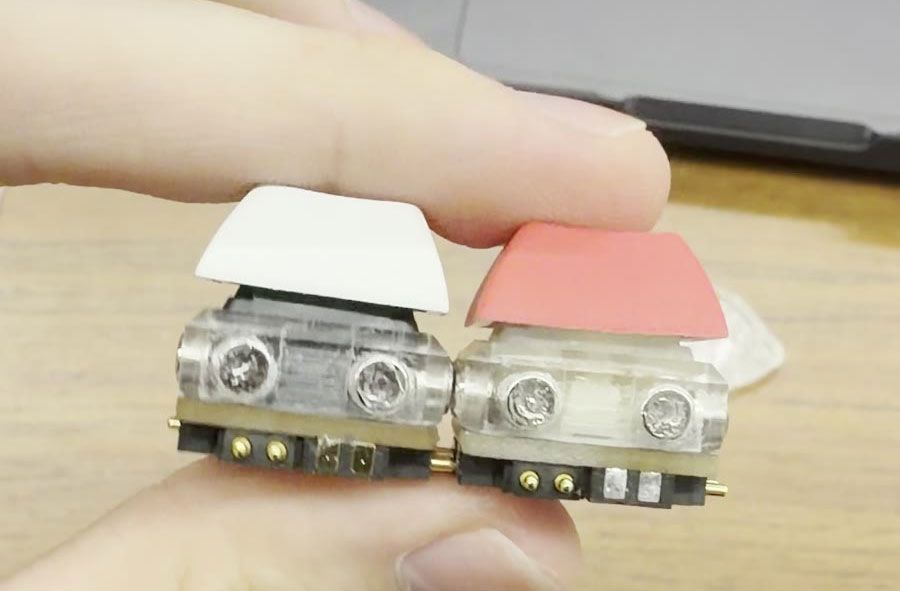
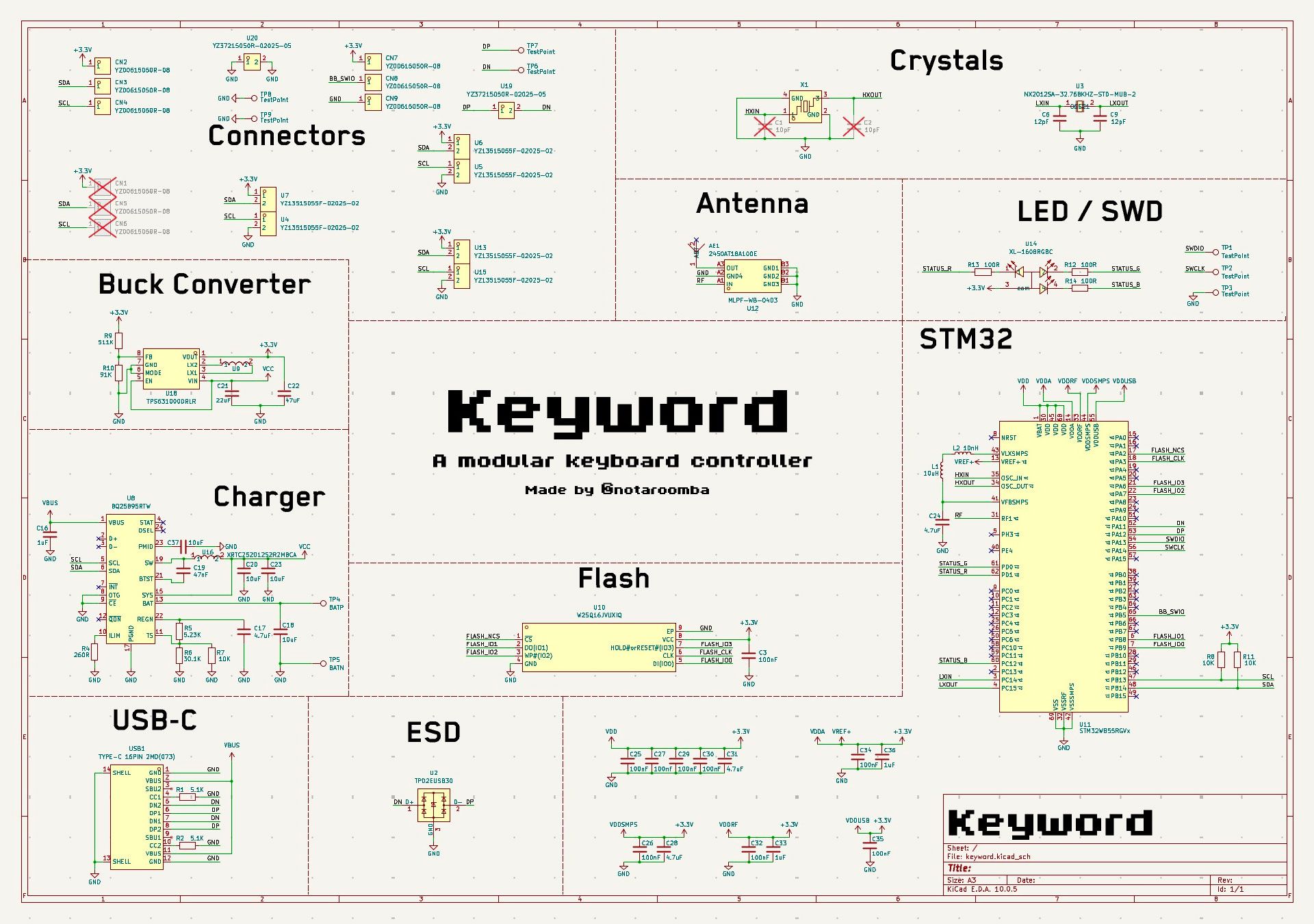
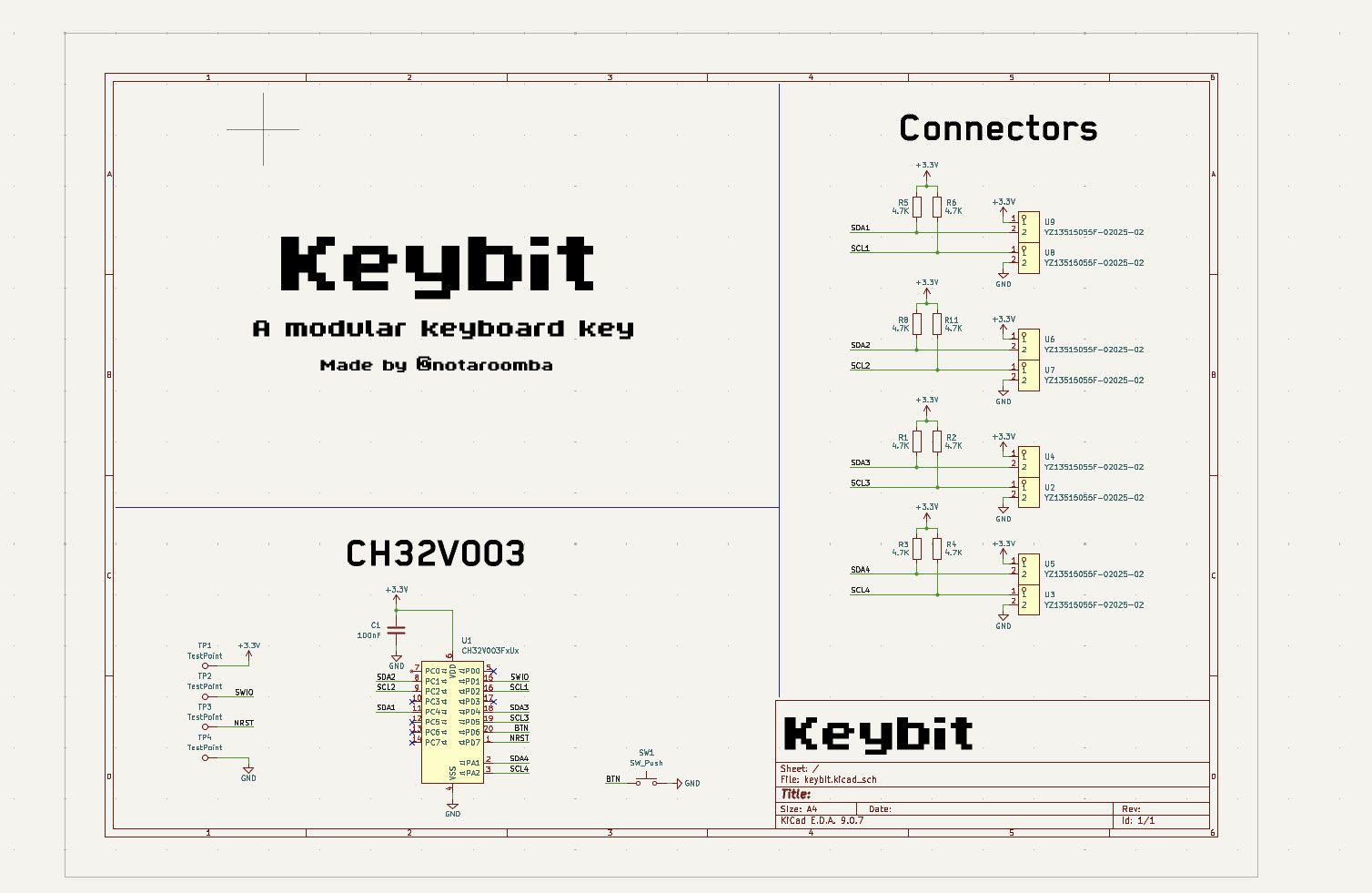
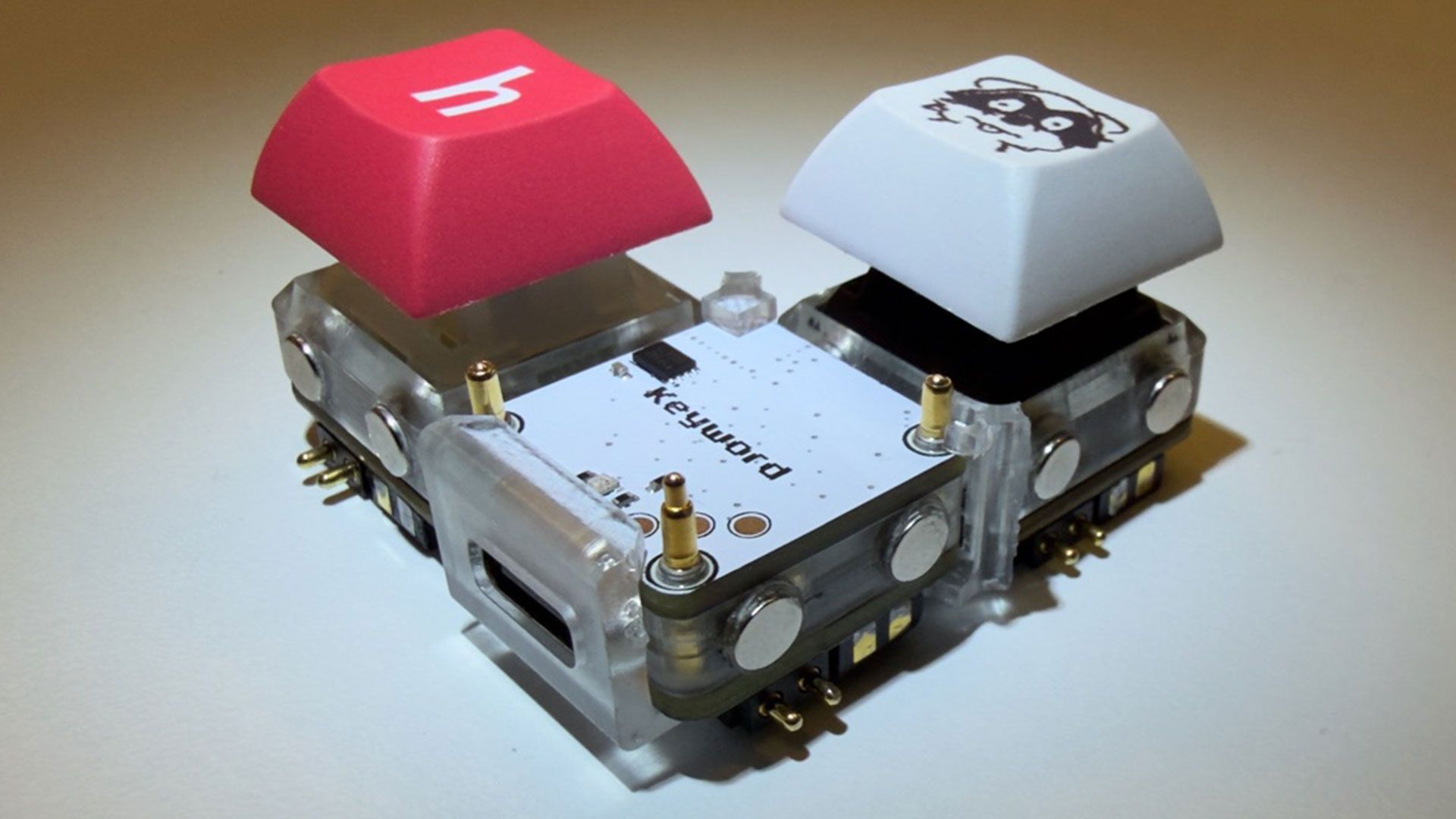
Developer notaroomba (AKA Nathan Alspaugh) has published details of his Keybytes project on GitHub. In essence, this is a modular project where a Keyword hub is magnetically connected to Keybit keys, and each key has its own microcontroller. Hence the number of keys and their layout are entirely up to the user, with a modular design akin to building Lego.
We’ve seen oodles of imaginative and truly excellent mechanical keyboards over recent years, but Keybytes probably offers the greatest flexibility with regard to layout and key selection we’ve ever seen.
notaroomba on GitHubnotaroomba on GitHub
It starts with a Keyword, which is the main board that the Keybits connect to. This central component houses a stacked pair of PCBs. The top board packs an Arm Cortex M4-powered microcontroller, Bluetooth antenna, and flash memory. The lower board offers USB-C, charging, and a buck-boost converter.
Adding keys seems like a cinch. Every Keybit, one of the modular keys, contains a CH32V003 RISC-V microcontroller. Moreover, it features pogo pins on all 4 sides of every key for power and I2C. The case is magnetic so you can connect it to any aspect of the Keyword and other Keybits. Atop the Keybit, a Cherry MX switch is installed. We guess you can follow the GitHub MIT-licensed plans for this project and use your preferred variety of mechanical switches.
On the GitHub project page, there are no more than two Keybits together with a Keyword, so you don’t get to see what crazy layout plans he’s hoping to conjure up. However, it is still early days. Per the project journal, Keybytes only became a thing back in March this year, and it was only over the weekend that the developer got to finally boast “it finally works!!”
notaroomba on GitHubnotaroomba on GitHub
Both the Keyword and the Keybit modules are 1U sized (19.05 x 19.05mm).
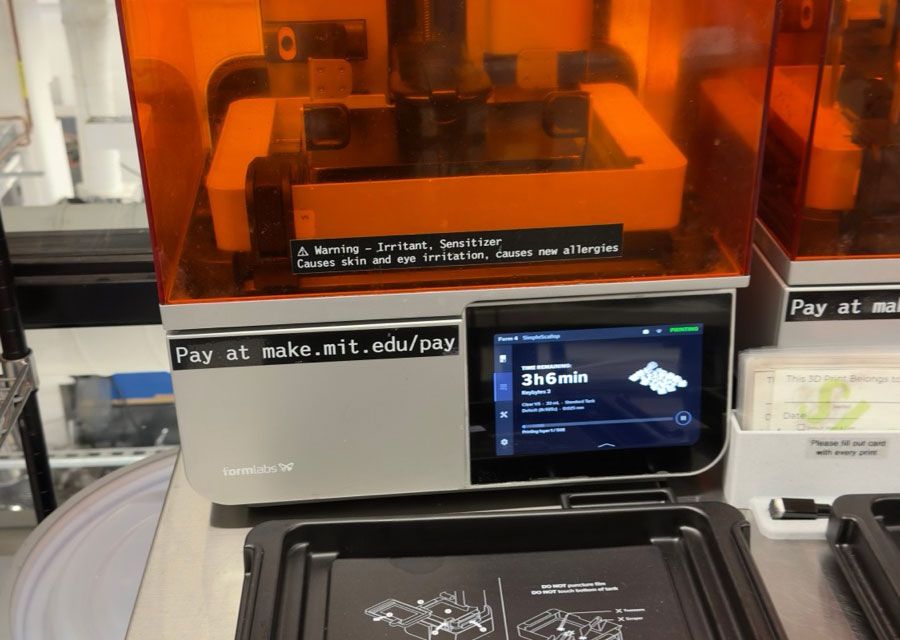
Alspaugh, a student at MIT, has shared all the assets, files, and details you might need to make your own Keybytes keyboard. The GitHub repository says that everything is released under the permissive MIT license.
It might quickly become expensive for individuals to put together a usable layout with, say, 60 keys. Getting the PCBs made, buying and soldering all the components, and 3D printing all the custom bits and pieces is also a considerable task when your proposed keyboard layout is more than a handful of shortcut keys. In the aforementioned journal, Alspaugh actually mentions that he priced up a “full sized keyboard (2 keywords and like 110 keybits) and it's around $900 assembled.”
Keyword has a status light, but the Keybits lack any kind of lighting. My wishlist for Keybytes 2.0 includes customizable RGB lighting, and I would also like to propose Dialbits, a Fingerprintbit, and a matching Touchpadbit.
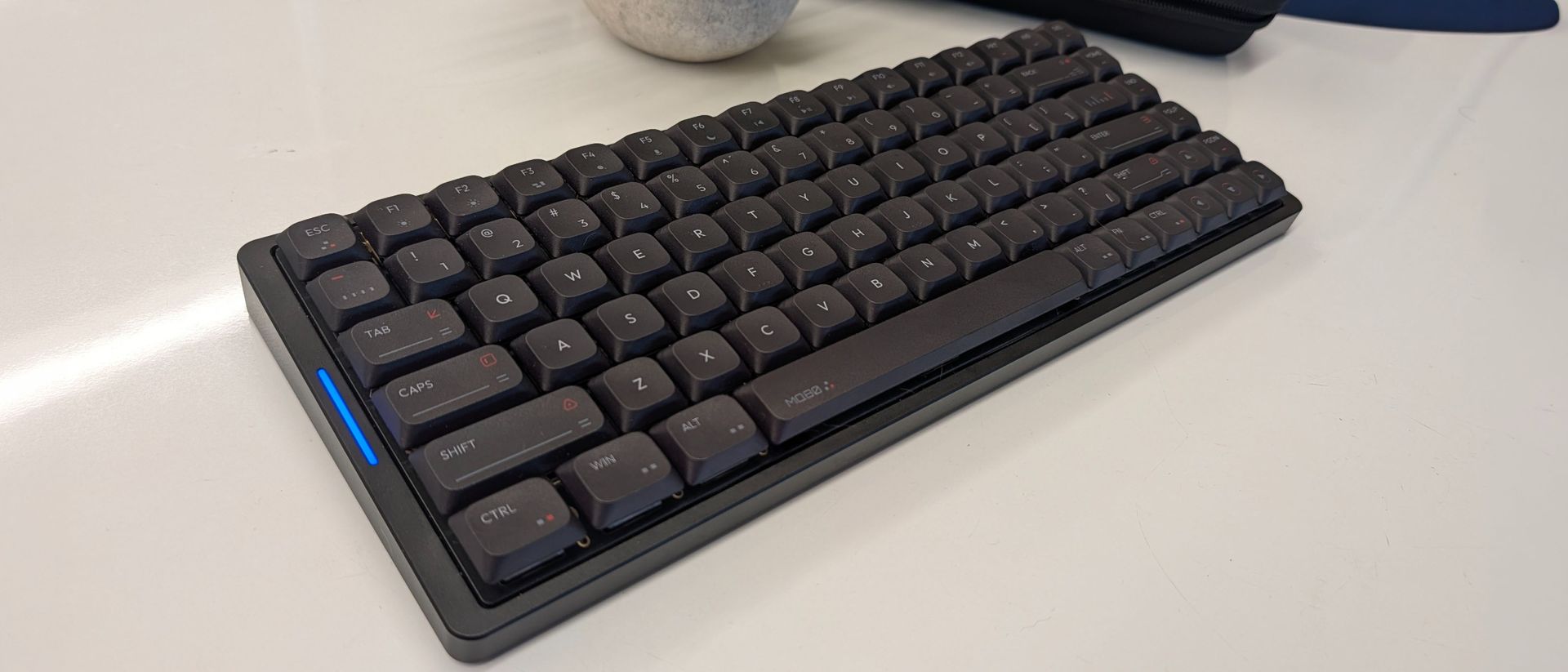
When it comes to mechanical keyboards, IQUNIX has always been ahead of the curve. Before COVID turned the mainstream onto mechanical keyboards, the company had already been releasing some of the best mechanical keyboards available, quietly making the case for PBT keycaps and premium materials that have since become the norm.
With a catalog of traditional mechanical keyboards under its belt, it’s not surprising that the company would be ready to branch into new territory. It has the Hall Effect demographic covered with its EZ series, but the MQ80 goes another direction entirely. It takes all of the lessons the company learned about how to create an exceptional typing and gaming experience and compressed it. It’s all aluminum, low profile, and offers some of the best-sounding keystrokes of its kind, but steep competition and poor portability hold it back from being the go-to pick it might otherwise be.
IQUNIX MQ80 Specs
Number of Keys
80
Switches
IQUNIX Rose Gold (Linear)
Backlighting
Per-key RGB
Onboard Storage
4 Layers/Profiles
Dedicated Media Keys
Fn Shortcuts
Additional Ports
None
Connectivity
USB, 2.4GHz, Bluetooth 5.1
Cable
Braided, 6 feet
Keycaps
High purity PBT plastic
Construction
Aluminum case, multilayer sound damping
Software
VIA (web)
Dimensions (LxWxH)
12.64 x 4.90 x 0.41 - 1.08 inches
Weight
2.6 pounds (1180 grams)
MSRP
$159.99
Release Date
February 25, 2025
Design and Construction of the IQUNIX MQ80
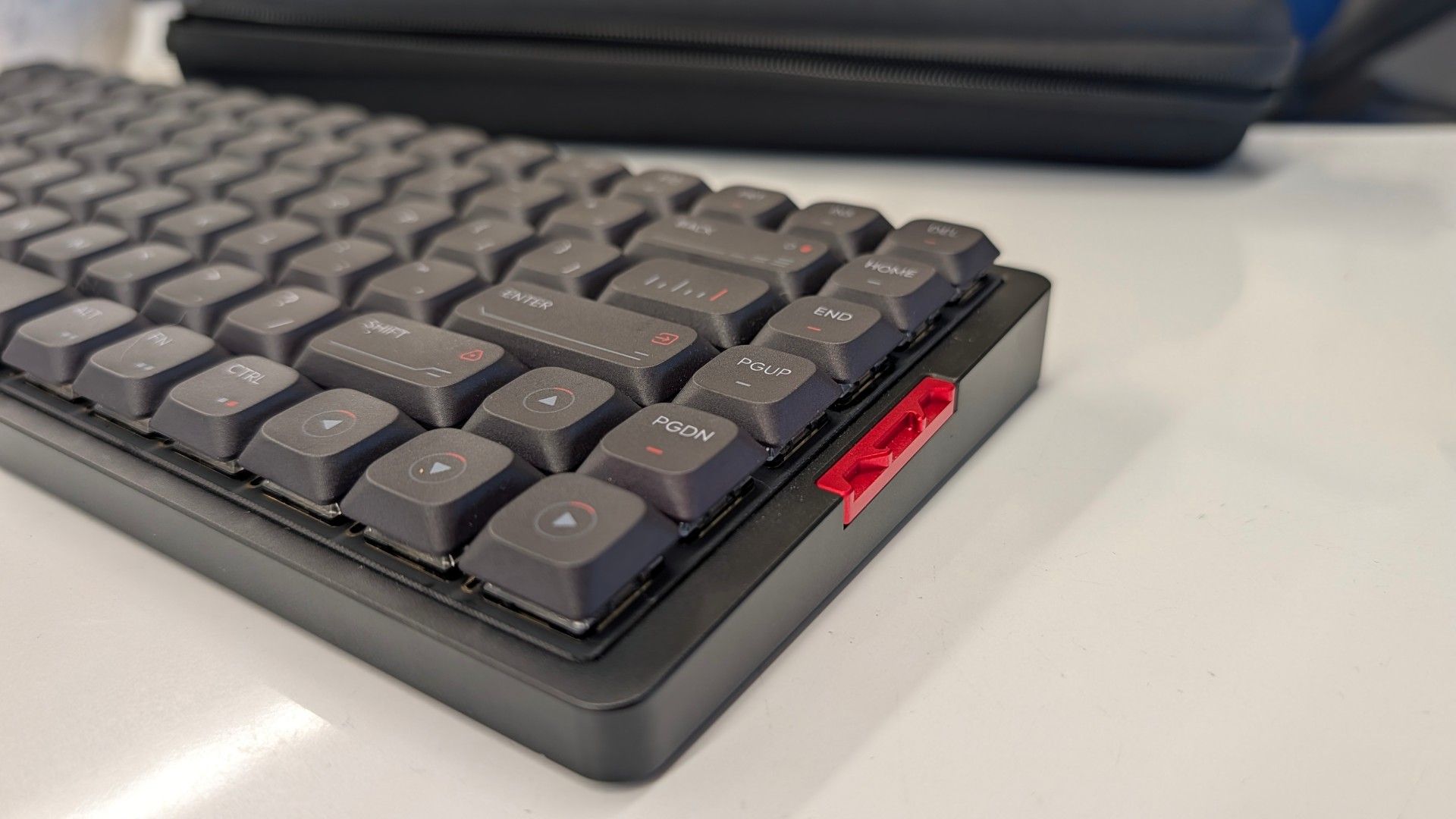
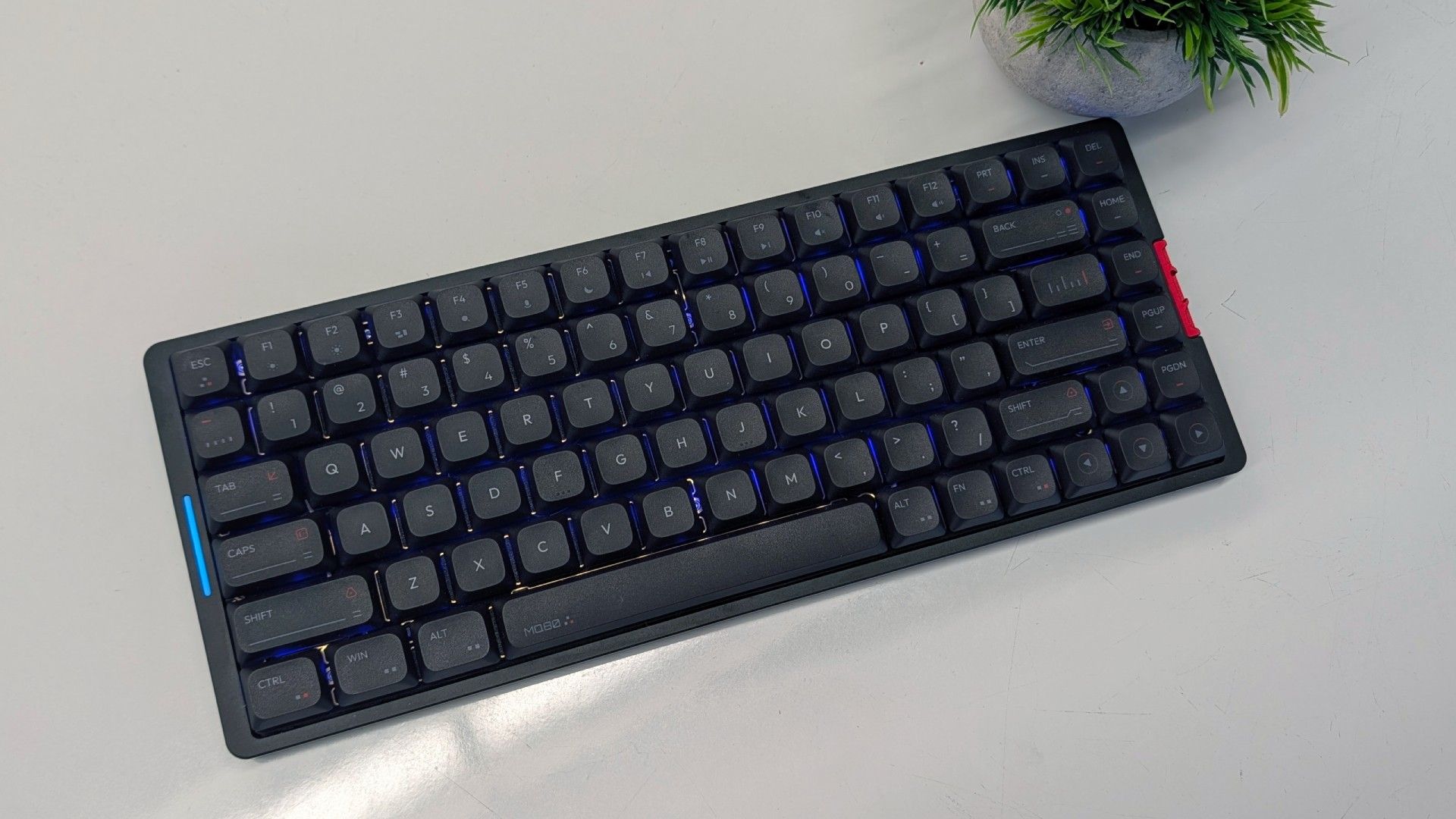
The IQUNIX MQ80 breaks the mold for IQUNIX, but carries the same 75-percent layout as countless mechanical keyboards before it. The form factor is sometimes referred to as a “Compact TKL,” since it shares most of the same keys — minus the blank spaces in between. The result is a condensed slab of keys, including a full function row, arrow cluster, and seven navigation and editing keys.
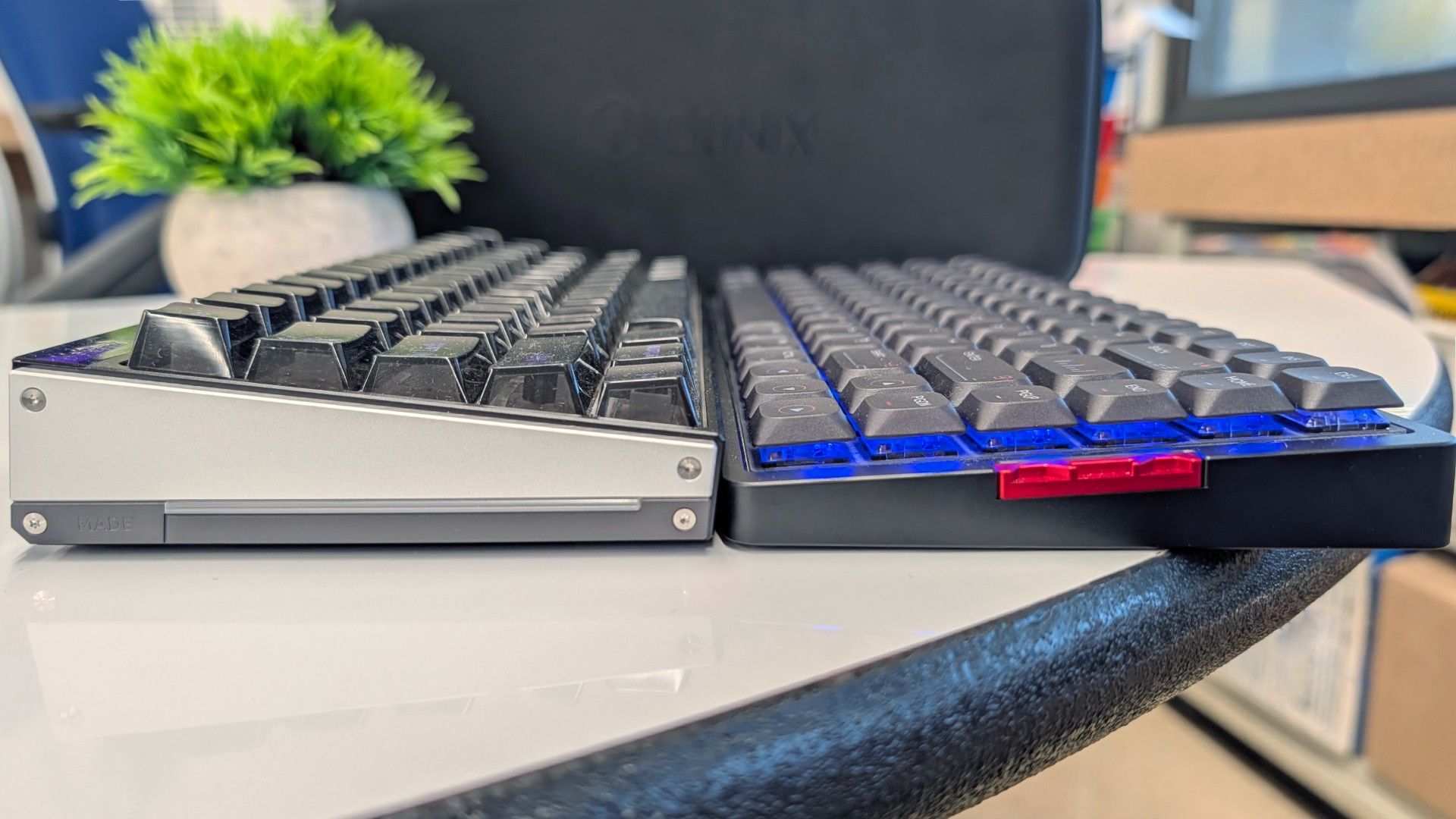
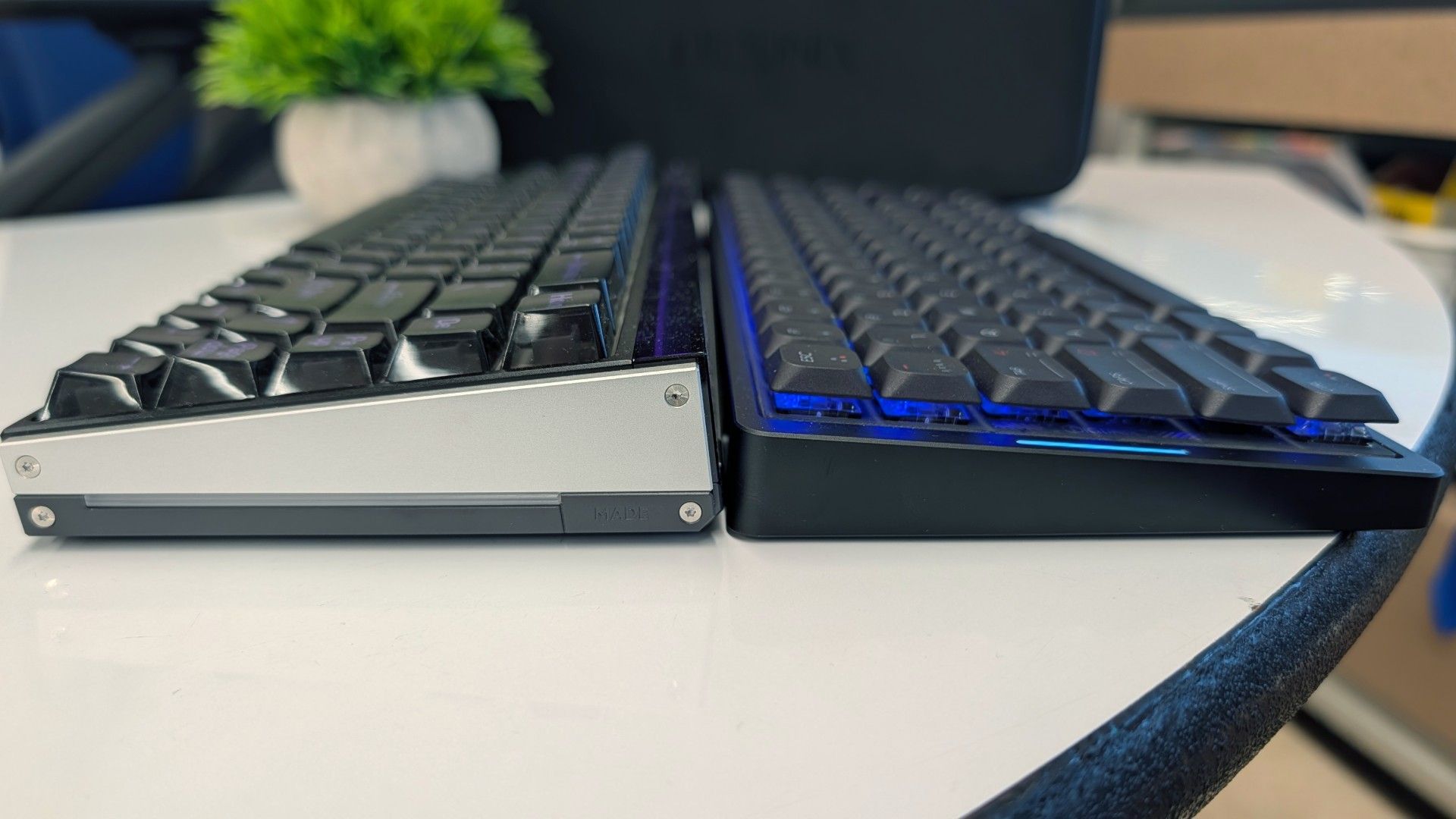
Nothing too out of the ordinary there, but the MQ80 marries that compact layout with an impressively low height of only 0.4 inches (10.8mm) at the front and 1.08 inches (27.5mm) in the rear. The keycaps are the same height across every row, and while they're scooped to keep your finger centered above the switch, they otherwise feel identical below the finger tip. This makes it an easy transition if you’re coming from a laptop or Apple Magic Keyboard, but first-time LP users should be prepared for a learning curve.
(Image credit: Tom's Hardware)
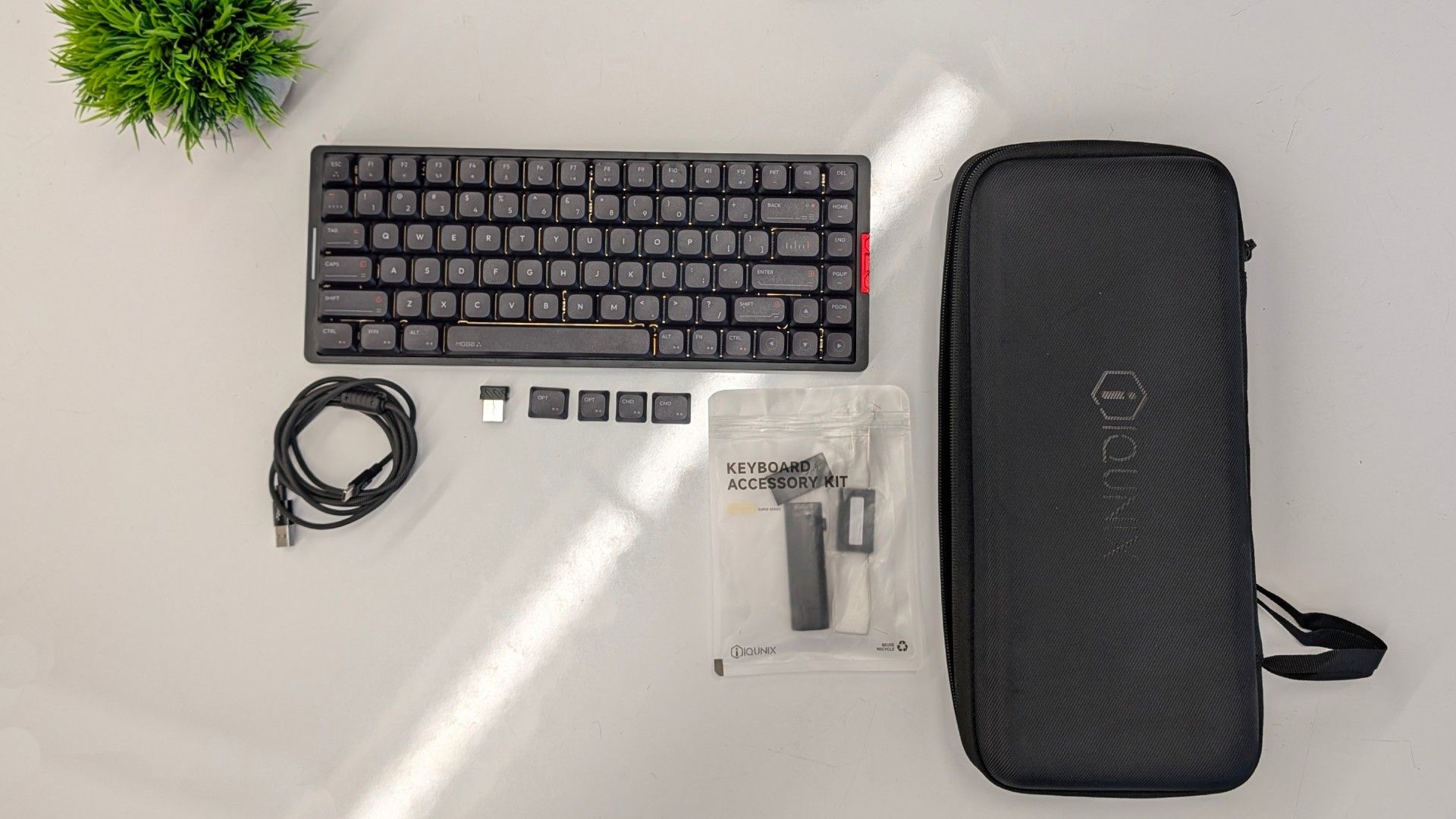
The keyboard is wireless and supports both 2.4GHz and Bluetooth 5.1 connections, as well as wired if you need to use it while it’s recharging. It sports a 4,000 mAh battery which IQUNIX claims can sustain the keyboard for up to 350 hours. This is with the usual caveats of that being over Bluetooth with all of the lighting disabled, etc. etc. — but I was able to use it for close to two weeks between recharges, even with the lighting on.
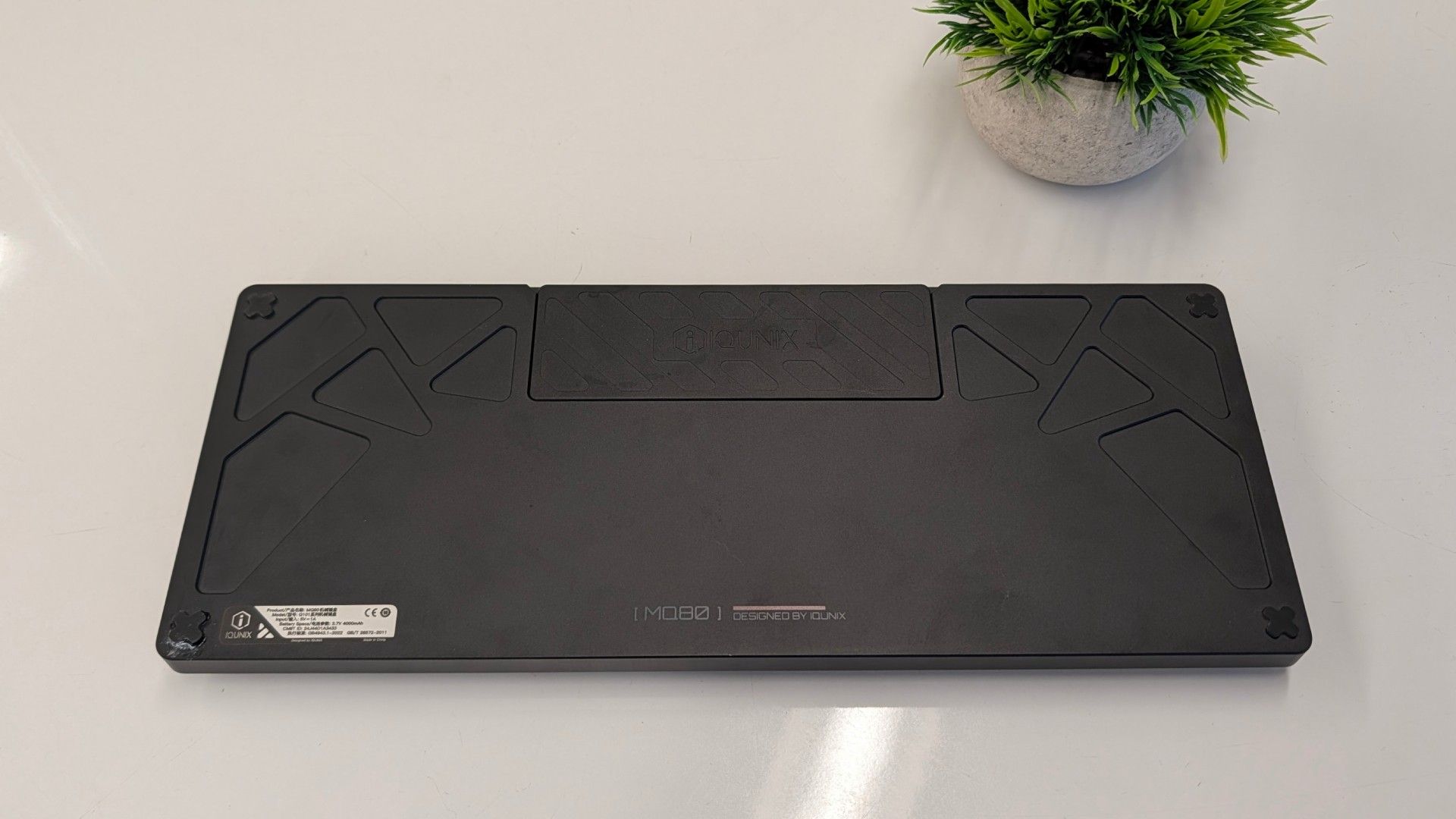
The MQ80 is a bit of a curiosity, if I’m being honest. It's thin, yes, but it’s certainly not light. It uses a heavy, CNC-milled aluminum case, just like the company’s prior models and countless others aiming for that “premium feel.” It’s a case study in how looks can be deceiving.
(Image credit: Tom's Hardware)
In fact, it has been a pretty common occurrence for people to comment on how surprising its weight is. The keyboard tips the scales at 2.6 pounds, which is around what you encounter with a full-size mechanical keyboard or nicer TKL. From a low profile keyboard that everyone assumes will be airy and effortless to carry around, it flies in the face of what you might expect.
So while technically, yes, it’s a portable keyboard (IQUNIX even provides a nice hardshell carrying case to tote it around in), it's not one I could see most people wanting to carry every day. Instead, this seems designed to live on your desk, providing a solid option for fans of the profile who prefer to use it for all of their typing — not just on the go.
(Image credit: Tom's Hardware)
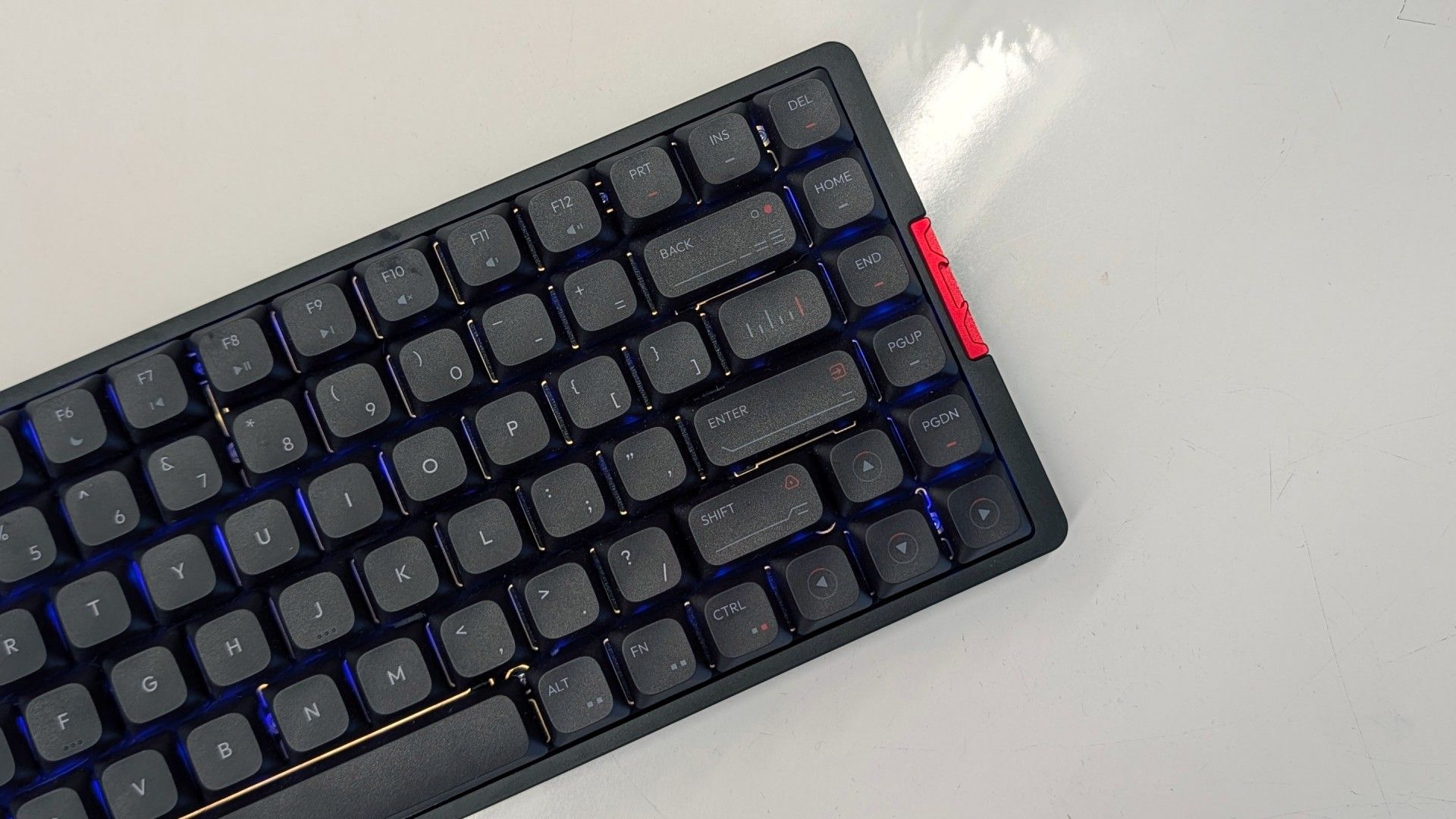
In typical IQUNIX fashion, the MQ80 is built to an enthusiast's standard. The case features intricate milling with plenty of small accents that lend it a vaguely cyberpunk impression. The keycaps feature colored legends and contrasting accents that complete its visual identity. The keyboard is available in white or black with keycaps to match, and both look fetching.
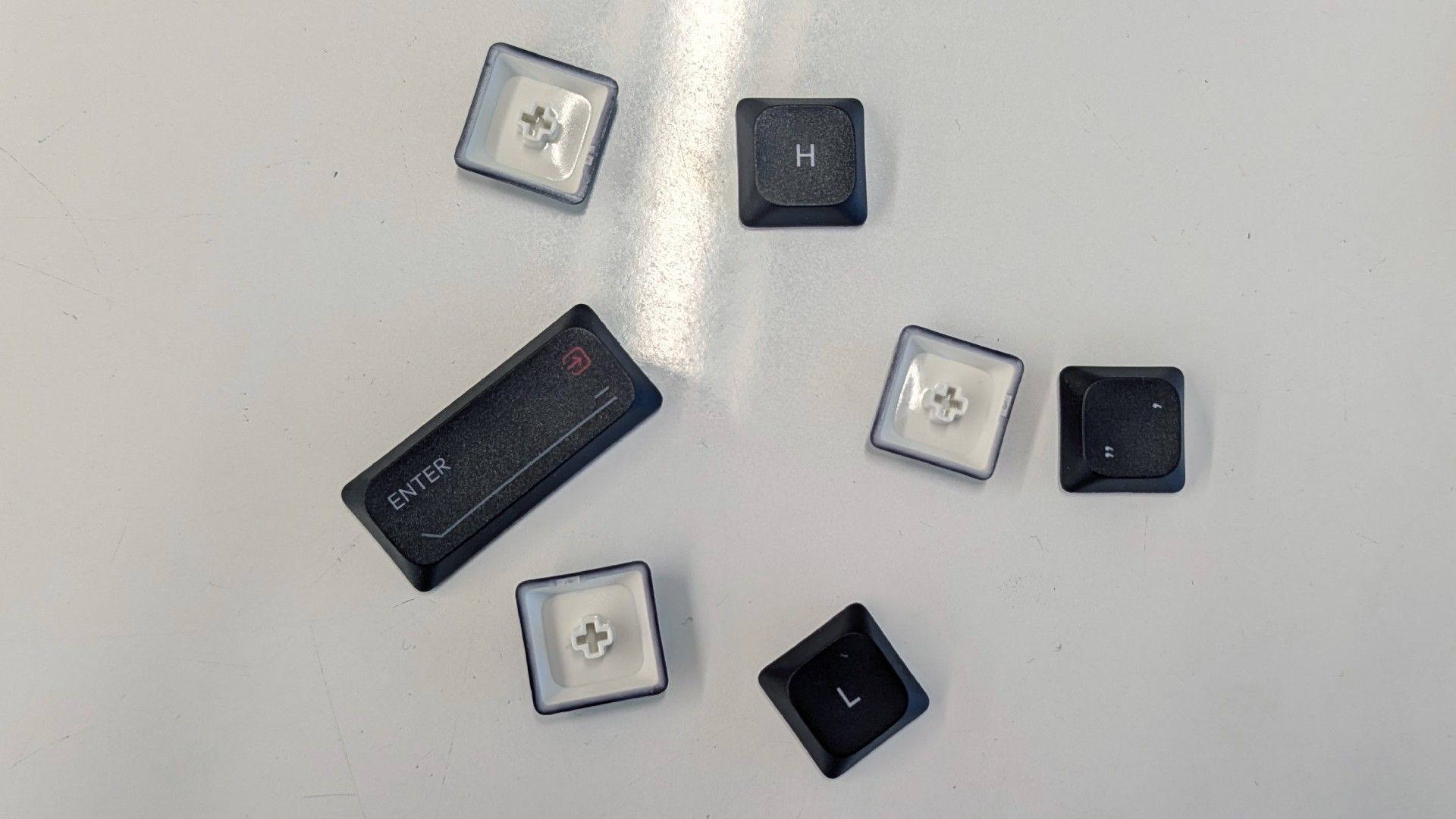
The keycaps are made of thick PBT plastic. They have a light texture to add some grip to your typing experience and use dye sublimated legends that won't chip or fade over time.
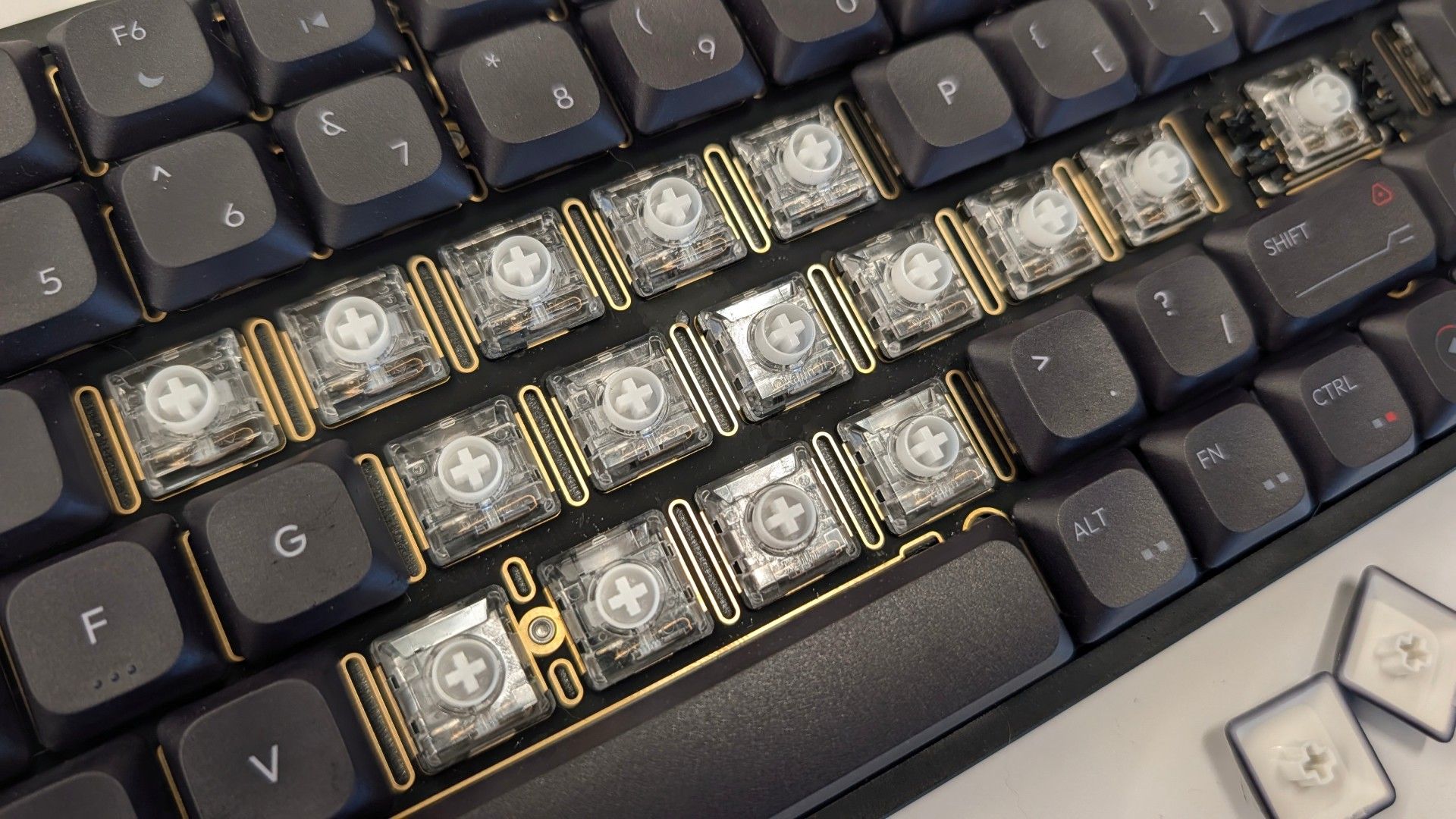
The switches below those keycaps are Kailh Rose Red, a lightweight linear switch with a 40g actuation force, 2.8mm of travel distance, and a 1.2mm actuation point. Despite their shortness, they offer 70% of the movement of a full-height switch. This makes them easier to transition to in how they feel to bottom out, but they still feel sensitive. This is a keyboard to use with a light touch or you'll find yourself with strings of single letters or running from cover before you mean to.
(Image credit: Tom's Hardware)
The switches are hot-swappable with any Kailh Choc V2 alternative, but there just aren't many options. Gateron has run away with the variety end of the low profile switch market, but you can swap them out if you're inclined to do so.
The keyboard features per-key RGB backlighting, customizable within the VIA web configurator or with shortcut keys. The keycaps aren't backlit, however, so it's not great for use in the dark if you aren't a touch typist.
The internal structure of the keyboard is where things get really interesting. The MQ80 came into the world following a run of pre-built custom keyboards IQUNIX produced under its SUPER product line. It pulled direct influence from the boutique, limited run, group buy custom keyboards popular on r/mechanicalkeyboards. All of those lessons come into play with the MQ80.
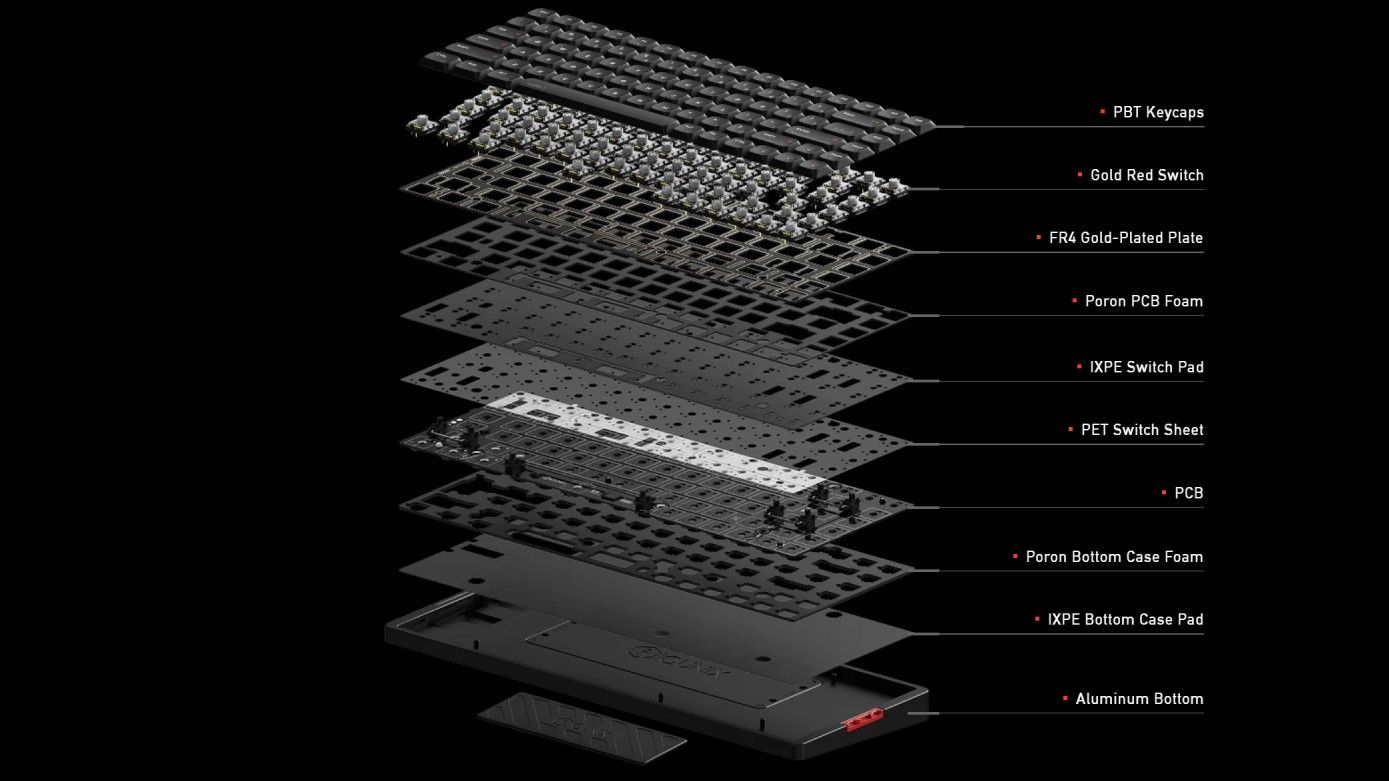
Beneath the keys lies a multi-layer assembly that makes even the best gaming keyboards look simple in comparison. It's an intentional system meant to filter and refine the sound and feel of every keystroke without the need to customize or adjust anything yourself.
(Image credit: IQUNIX)
Moving from the top down, the switches snap into a fiberglass (FR4) plate, a middle-ground material that balances firmness with crisp keystrokes.
Beneath the plate and PCB are two layers of foam, each with different acoustic properties, and a plastic film. The first layer of foam is thick PORON and fills in the empty space between the switches, plate, and PCB. It cuts reverb and helps isolate each switch. A much thinner, less dense sheet of IXPE foam and a plastic PET sheet sit below the switches to add a crispness and pop to each keystroke.
Below the circuit board is another layer of PORON foam that filters soundwaves that pass through and cushion each press. Finally, in the very bottom of the case is another layer of IXPE foam intended to reflect mid-range sounds and act as a final buffer before hitting the aluminum of the case.
(Image credit: Tom's Hardware)
It sounds like a lot and it is, but it doesn't end there. The PCB assembly attaches to the case with a modified gasket mount ("Le-Tray Gasket Mount") that imparts some of the qualities of gasket mounting into this much slimmer design. Six arms from the assembly attach to the case with silicone buffers, holding it aloft to deliver pillowy bottom outs.
As a wireless keyboard, IQUNIX also had to fit a battery into its slim frame. It's surprisingly large given the space constraints with a 4,000mAh capacity. This translates into 350 hours of rated uptime, but only when using Bluetooth and no RGB backlighting. In practice, keeping RGB on high and using 2.4GHz, it lasts around 45 hours but your specific figure will depend on use.
Typing Experience on the IQUNIX MQ80
While there's an obvious pre-requisite to prefer low profile keys, you'll also need to be a fan of linear switches. And not just that, you'll need to be a fan of lightweight, fast actuating low profile switches with keycaps that feel identical under your fingers.
If I sound a little salty, I'm not. It's just that I've used hundreds of mechanical keyboards and typed A Song of Ice and Fire worth of words on them, including more than a fair share of competing low profile keyboards, and it's still a pain in the ass to switch back to them.
(Image credit: Tom's Hardware)
At least at first, because you do get used to it and the light touch required. Before long, I remembered to pay special attention to the navigation bumps on the "F" and "J" keys. Once everything clicked, I honestly felt faster and more nimble as a typist.
Surprisingly, this didn't translate into actual WPM in my case. I average right around 110 WPM on my day-to-day full height keyboard. Swapping to the MQ80, my raw speed increased slightly, likely due to the lightweight switches and the floating posture I adopted to accommodate its height. My actual average words-per-minute on MonkeyType actually decreased to 105 WPM due to having to backspace to correct typos.
So, typing speed is a bit of a wash (at least for me) but it's hard to argue that the sound and feel of typing on the keyboard is less than exceptional. The multiple layers of sound dampening quiet and deepen the sound of each keystroke in a satisfying way. The Le-Tray Gasket Mount system also gives bottom outs a softness that's reminiscent of, but slightly stiffer than, the gasket mounts used on most full height gaming keyboards.
(Image credit: Tom's Hardware)
The thing is, since IQUNIX launched the MQ80 to Kickstarter in early 2025, Nuphy released the third iteration of its Air75 series, the Air75 V3, and it delivers a typing experience that I feel is at least as good and is objectively more customizable with its Gateron low profile switches and tactile and silent switch options at checkout.
As a heavy handed typist, I prefer a lot of tactility, especially on a keyboard with perfectly flat rows. The only option for "not a light tactile" were Kailh Black Cloud switches and would have run me half the cost of the keyboard itself.
None of this is to say that the typing experience is bad. It's genuinely not. IQUNIX knows its stuff. All of this is simply to say that there's an important trade-off and if you don't like light linear switches or paying a premium to replace them, the MQ80 probably isn't the keyboard for you.
If you like that light touch, the custom keyboard-esque feel of its keystrokes filtering through all of that foam and milled aluminum, then you're probably going to love it.
Gaming Experience of the IQUNIX MQ80
Most of the same considerations from the typing experience apply to gaming as well, but fragging enemies is really where the MQ80 felt most at home to me.
Those lightweight switches that were a liability to typing accuracy suddenly feel like hair triggers. If you're connected using the 2.4 GHz dongle or plugged in via USB, its 1,000 Hz polling rate ensures that every keystroke comes through instantly - though, it still doesn't compare to the growing number of 8,000 Hz keyboards out there on paper. Whether you'll be able to tell the difference is up for debate.
(Image credit: Tom's Hardware)
While the layers of cushioning and damping don't have a direct impact on how effective the MQ80 is for gaming, much like typing, they just make the experience that much more pleasant.
Apart from its switches, there's a dearth of dedicated gaming features unique to the keyboard. The keys are reprogrammable and support string macros, but you won't find a fancy software suite to support the experience here. Instead, IQUNIX went open source and the MQ80 is better for it.
Software for the IQUNIX MQ80
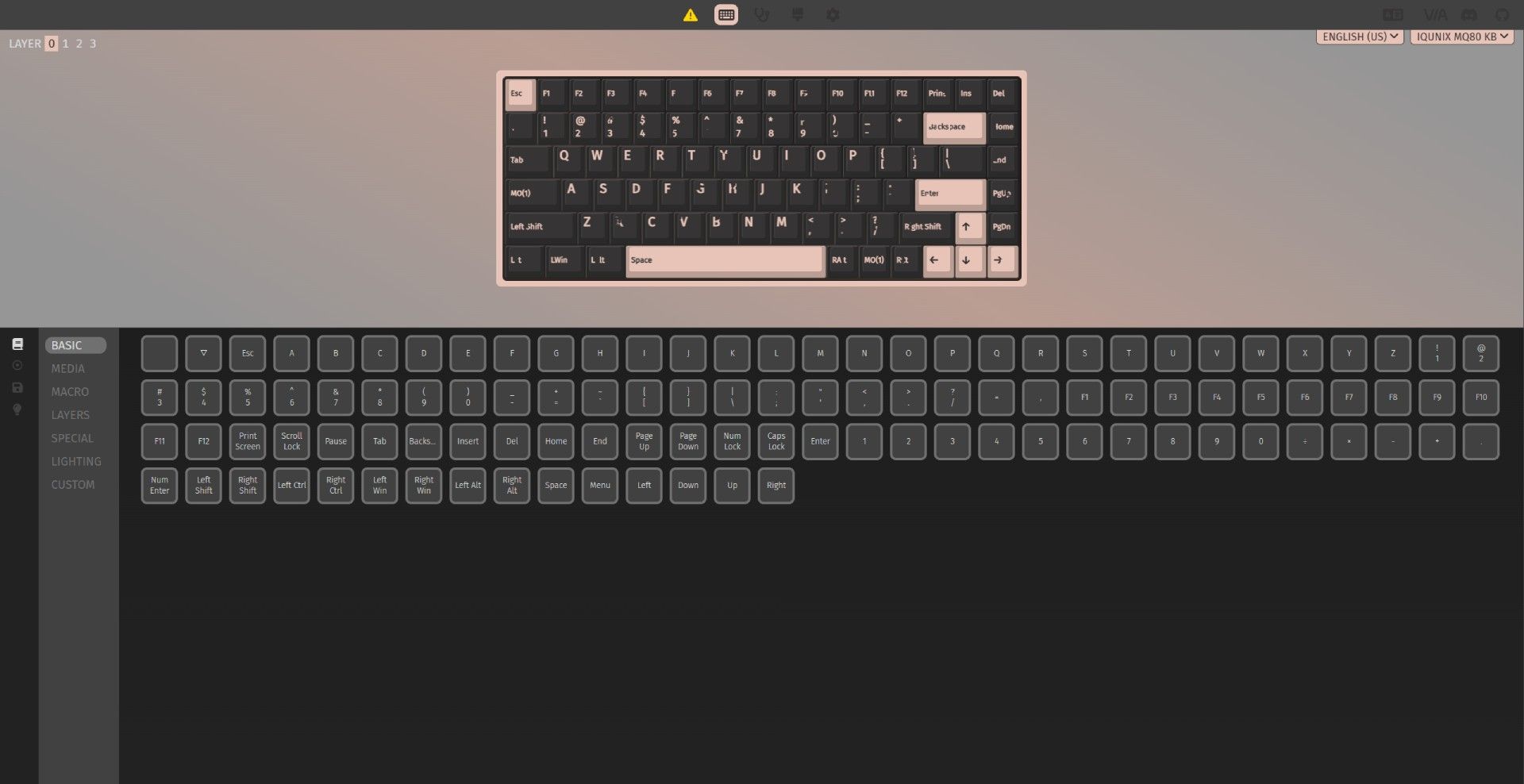
Where the MQ80 comes into its own is its programmability. Unlike many traditional gaming keyboards, it doesn't have downloadable software that needs to stay running in the background. Instead, IQUNIX opted to support VIA, a web-based configurator that allows you to make changes on the fly while also saving them to the keyboard.
It's simple on the surface, but is surprisingly powerful once you dive into it. Every key can carry up to four different actions or macros, broken into layers for quick shortcut access. Much like holding Shift, you hold or tap a key of your choice and access those additional layers of keymaps.
(Image credit: Tom's Hardware)
While this functionality isn't unique to VIA or the MQ80 by any means, big gaming companies usually require you to keep their software running to access layered functions (ex. Razer HyperShift). Here, every change is written directly to the keyboard's firmware and will work on any machine, exactly as programmed.
The web client itself is fairly simple. You have a graphic of your keyboard layout with all of your current mappings on display. Underneath are all of the different commands that can be mapped, including things like media controls, additional F-keys (all the way to F24), macros, RGB controls, and virtually anything else you might want to assign to a keystroke.
The biggest feature you'll miss out on, apart from proprietary features like game-synced RGB backlighting, is the ability to assign backlight colors to individual keys. It's possible to change the brightness, hue, and saturation across its dozen or so preset animations, but creating an entirely custom lighting scheme requires creating your own code and flashing it to the keyboard manually.
The Bottom Line
(Image credit: Tom's Hardware)
The IQUNIX MQ80 is a very good keyboard. For a lot of users, I'm confident that they would describe it as "Great" or even "Amazing." I wouldn't fault them for that. This is essentially the luxury option in the low profile space at this point.
But it's too heavy to easily tote around without questioning your life choices. If portability is important to you, I highly recommend the Nuphy Air75 V3. Or, if you're looking for something a little more office friendly than the Nuphy, the Lofree Flow 2 is another great choice that also comes with a tactile switch option.
At the end of the day, all three of these options are good for the money but only the MQ80 feels like a luxury option thanks to its heavy case. If you're not planning on carrying it back and forth to work and you like a fast switch, the MQ80 is a solid choice.
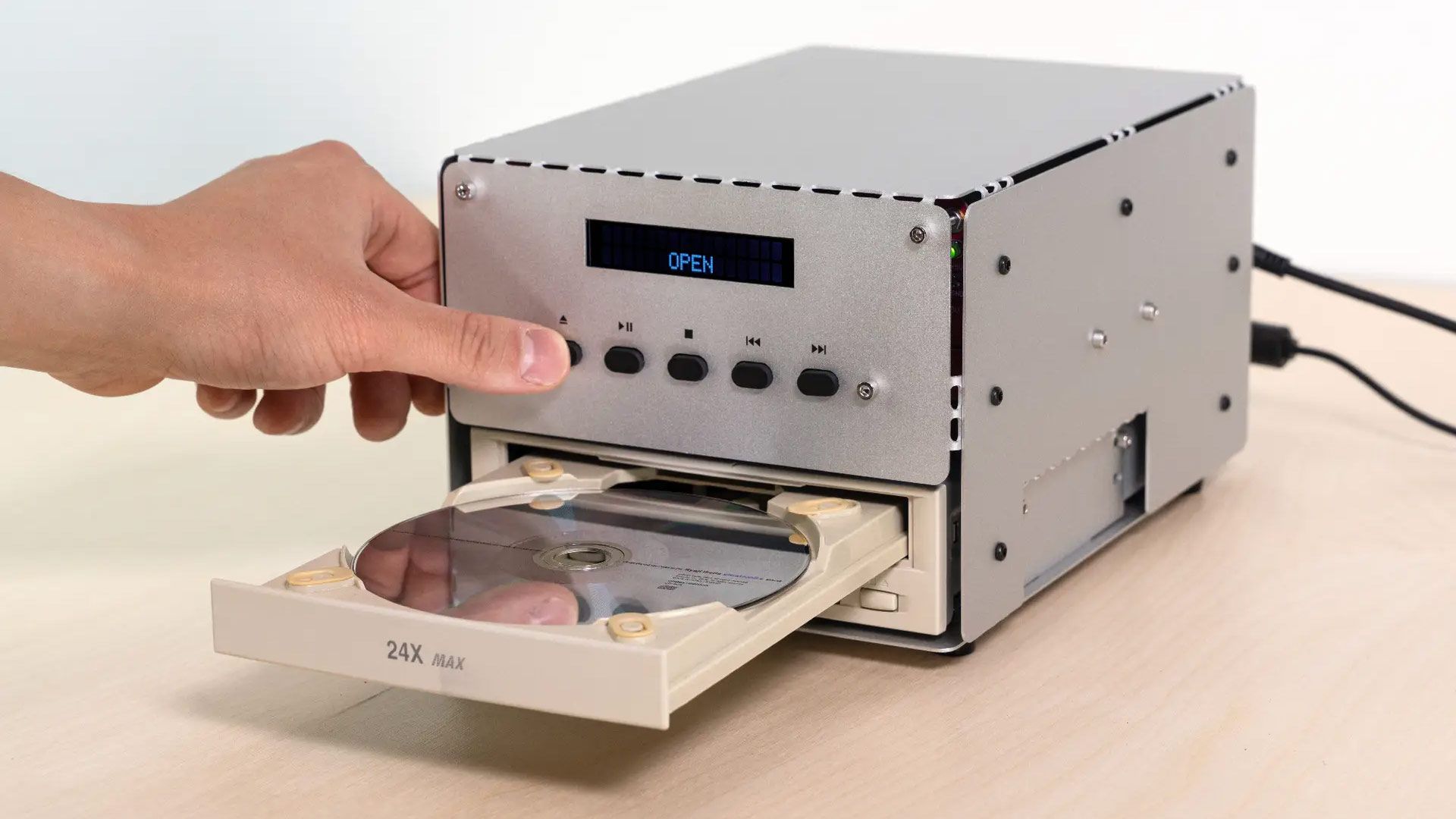
Even as optical media sees a resurgence and new CD players hit the market, some optical drive and component manufacturers have ended production. As a result, PS Audio and Naim have halted production of their high-end CD players, raising questions about the maintenance and repairability of these new devices. Headphonesty says that of the eight new models, four are from Musical Fidelity, two from Marantz, and one each from Arcam and NAD.
Musical Fidelity reportedly sources its key components from SUOS-HiFi, with three of its new models using SUOS disc mechanisms. In contrast, the fourth uses a SUOS-sourced servo but a tray-loading mechanism from an unnamed manufacturer. On the other hand, Marantz reportedly develops its drives in-house, though it’s unclear whether it also outsources production to a third party. As for the two remaining manufacturers, they did not reveal who made their optical drives.
PS Audio had to end production of the PMG Super Audio CD Transport because D&M, Marantz’s parent company, has ceased external orders for its optical drives. Although the company bought D&M’s entire remaining stock, it wasn’t enough to keep production going. Naim faced the same issue with its Uniti Star—though it didn't name its optical drive supplier, it had to find an alternative when the manufacturer stopped production. Naim was evaluating a replacement manufacturer when it, too, stopped making the components the Uniti Star needed. While both companies retained some optical drives in inventory, they are only for repairs and replacements.
What hardware deals are you hoping to pick up during Black Friday?
These issues highlight the problem of relying on a single manufacturer for such a critical component. But even though these manufacturers would love to find alternative sources for the drives that they need, it’s likely that only a few companies are capable of making such a niche product, even if demand has grown substantially recently.
The best option for them would be to design these parts in-house, which is what Marantz is doing. That way, even if the current maker they rely on goes out of business, they could plausibly find another one to take over production (or even build it themselves). This is difficult to accomplish, though, with PS Audio CEO Paul McGowan saying that building its own optical disc reader is beyond the company’s capabilities.
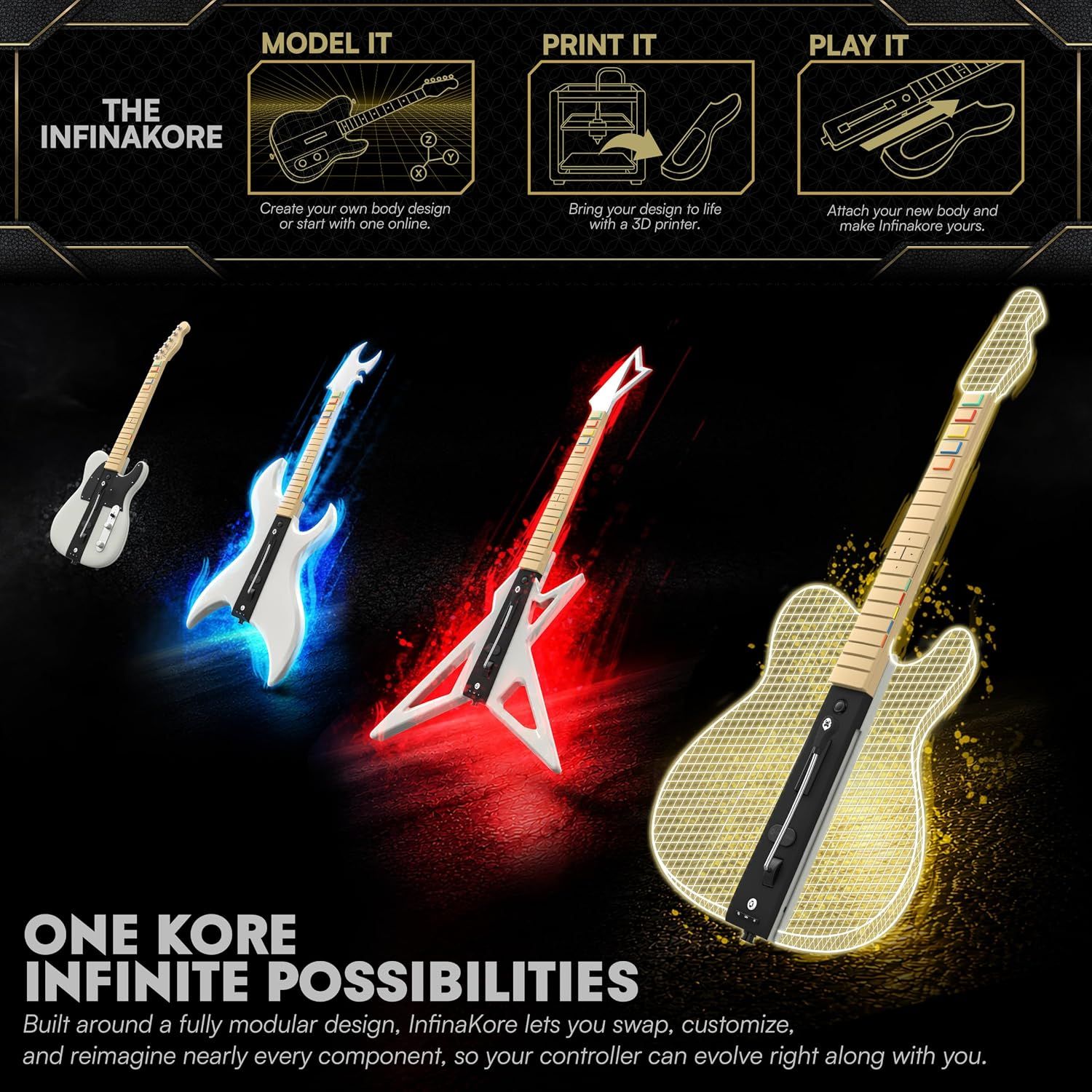
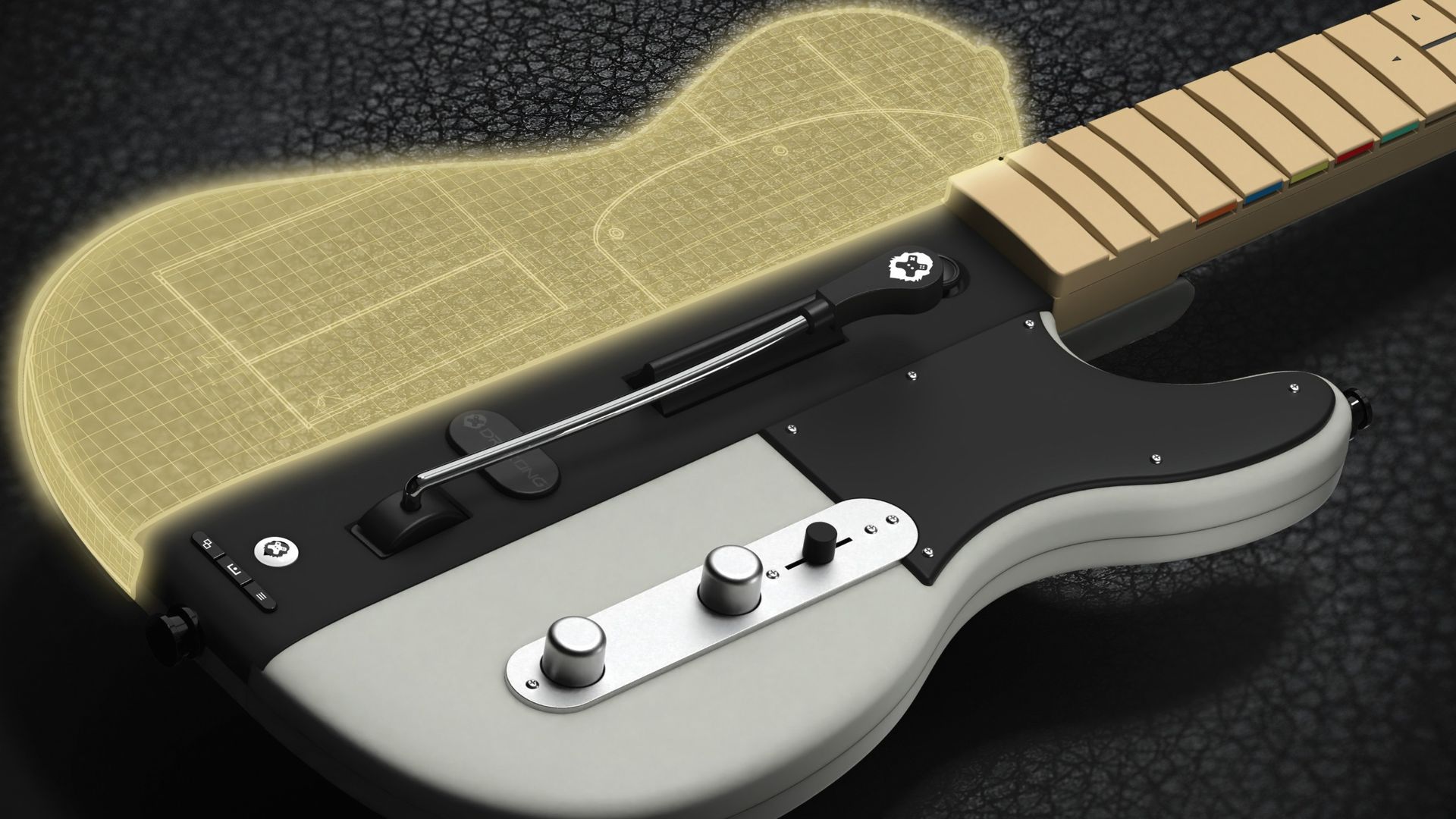
It's been over 20 years since the first Guitar Hero arrived on the gaming scene in 2005 and catapulted music rhythm games to the top of the charts. This was followed by multiple Guitar Hero iterations and competition from rival rhythm games such as Rock Band, and even Clone Hero on the PC. Now, in 2026, band-based rhythm games are due to make a return with the imminent release of Stage Tour from developer RedOctane Games. This brings new opportunities for brand-new music peripherals, and one interesting entry with a unique spin is the InfinaKore Fender Telecaster guitar controller from manufacturer Drakong, which will retail for an MSRP of $129.99 / €129.99 / £119.99. This new controller has a modular design to let creative users fully customize the guitar to their own look and feel, and even 3D-Print their own parts.
The premise of open-source and customizable peripherals isn't a new one, but it certainly does make this new guitar controller from Californian-based peripheral maker Drakong (Part of HyperKin) interesting. Being able to take the core of this guitar controller and modify the shape, size, and color of the body and head by 3D printing your ideas or community designs will allow you to instantly transform this controller into something else.
(Image credit: Drakong)
Apart from the customization aspects of the InfinaKore controller, the guitar peripheral hosts the latest tech, with the top frets using low-profile Kailh Choc switches (these are hot-swappable) and the bottom frets using membrane switches, with the strum-bar and whammy-bar using hall-effect switches for less wear and tear.
The fret bar has some of the frets styled like a D-pad for some interesting strumming possibilities, plus the controller can be easily stored away thanks to a foldable neck, allowing convenient storage and transportation.
There's also tri-mode connectivity, a 4-mode slider switch, tilt functionality for entering the power-up mode, or just use the new dedicated power-up button. Even better, the buttons are mappable.
There's plenty of rhythm music gaming to look forward to when Stage Tour drops later on in the year, and this could be a great controller to complement the game.
Razer has been updating its gaming mouse lineup systematically over the past two years, and it's finally the Basilisk's turn to get a real update. The last update we saw to the Basilisk line was the Basilisk V3 Pro 35K in October 2024, which was basically just the Basilisk V3 Pro with a new sensor.
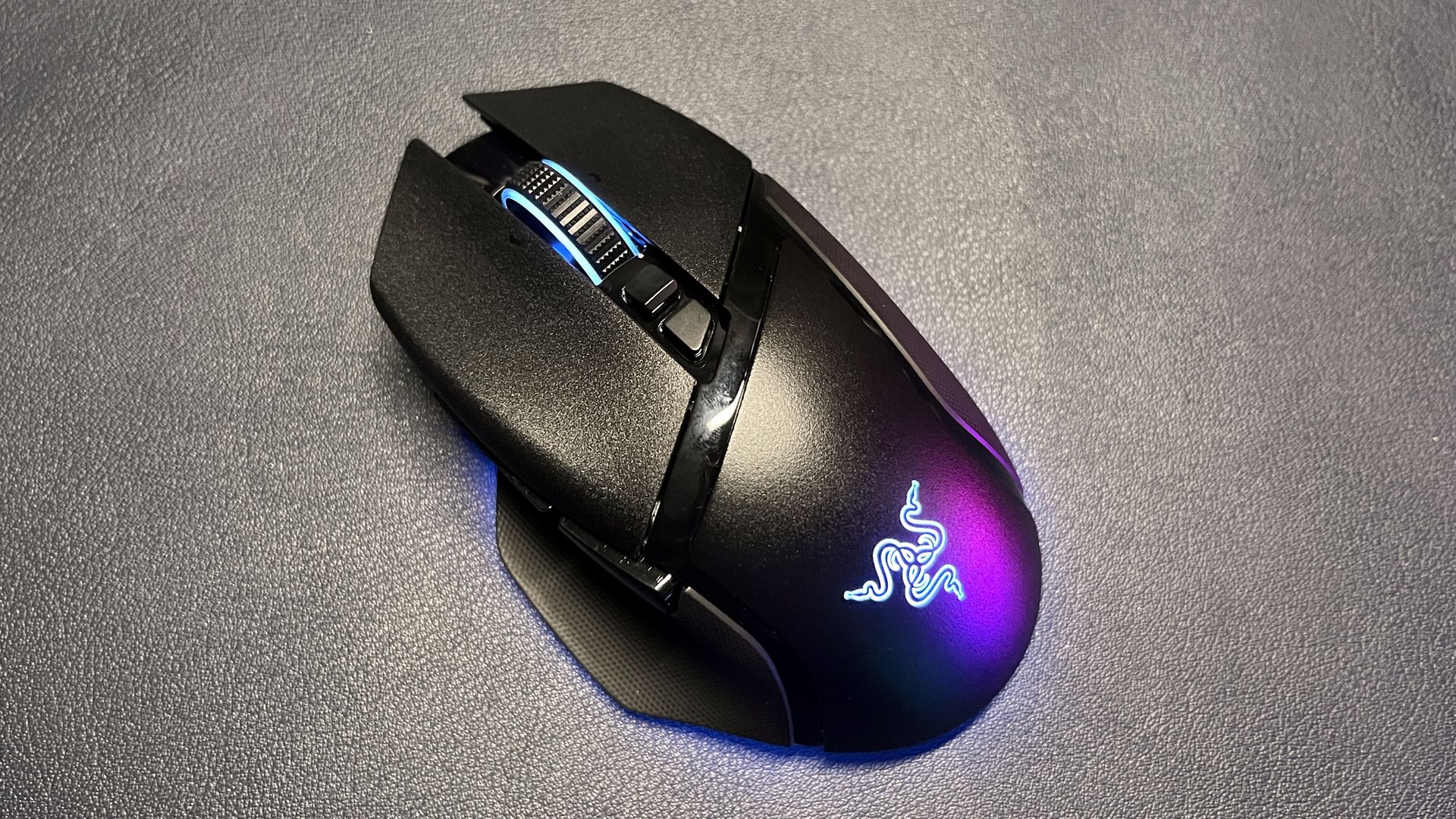
The Basilisk isn't Razer's most popular gaming mouse line, but it is the more versatile, all-rounder line for people who aren't chasing performance above all else. The Basilisk V4 Pro maintains the general design of its predecessor — a contoured, right-handed gaming mouse with bright RGB lighting and a handful of extra buttons, for the serious gamer who isn't trying to break esports records. It features Razer's newest Focus Pro 50K optical sensor, gen-4 optical mouse switches, and up to an 8,000 Hz polling rate, plus multiple forms of connectivity and up to 200 hours of battery life (over 2.4GHz at 1,000 Hz).
It is admittedly pricey, like all of Razer's flagship mice, at $169.99 for both colorways (black and white), and it launched with Razer's Mouse Dock V2 Pro — which is sold separately for $69.99.
Design and Comfort of the Basilisk V4 Pro
Following in the footsteps of its other recent next-gen mouse launches, Razer has kept the design of the Basilisk V4 Pro largely the same. The Basilisk V4 Pro has basically the same size and shape as its predecessor — it has a right-handed ergonomic shape with a contoured thumb rest and a hump that sits slightly back and to the left. It has large primary mouse buttons with shallow finger grooves, and a slight contour on its outer edge that makes it relatively easy to pick up and move.
(Image credit: Tom's Hardware)
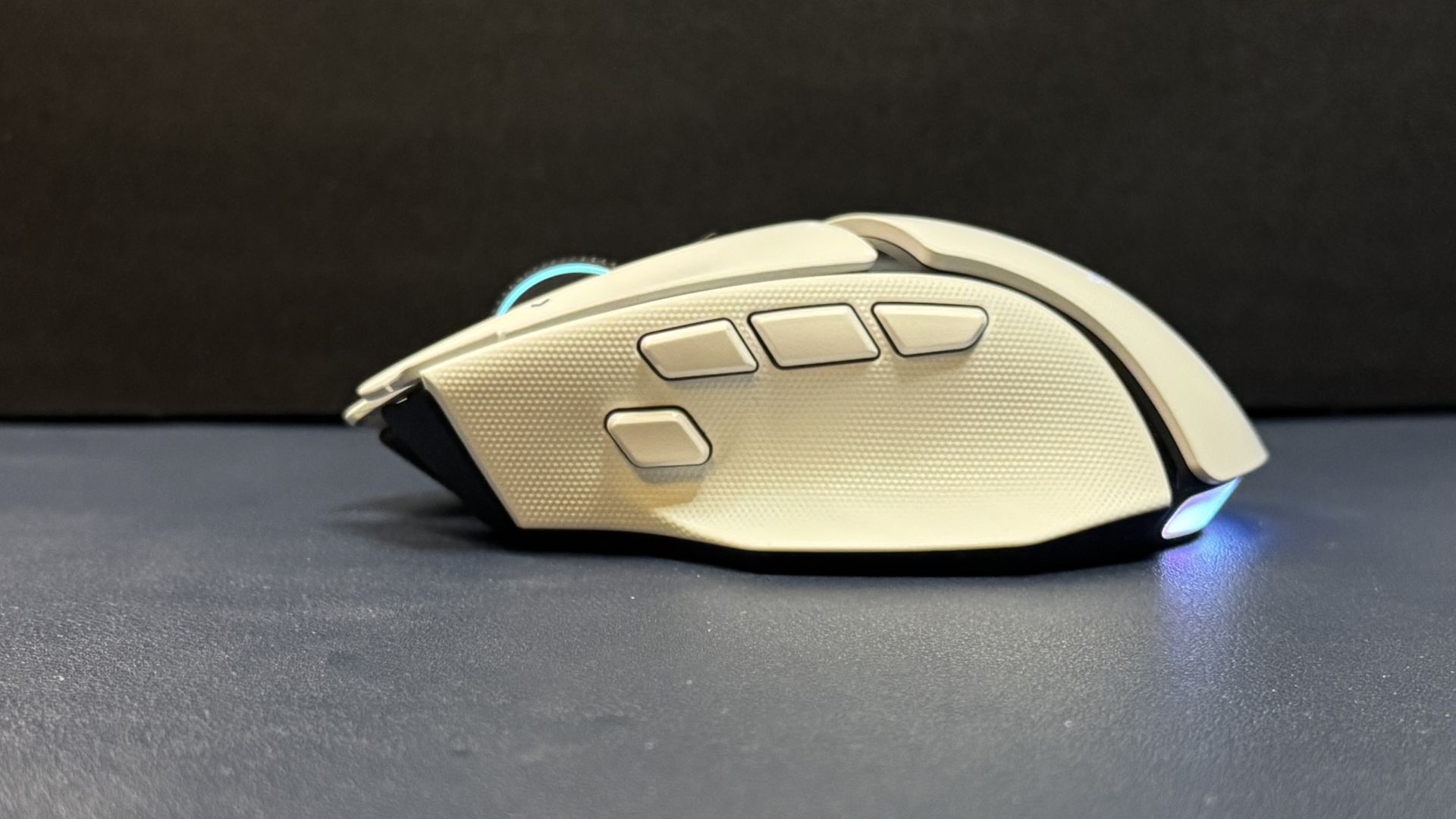
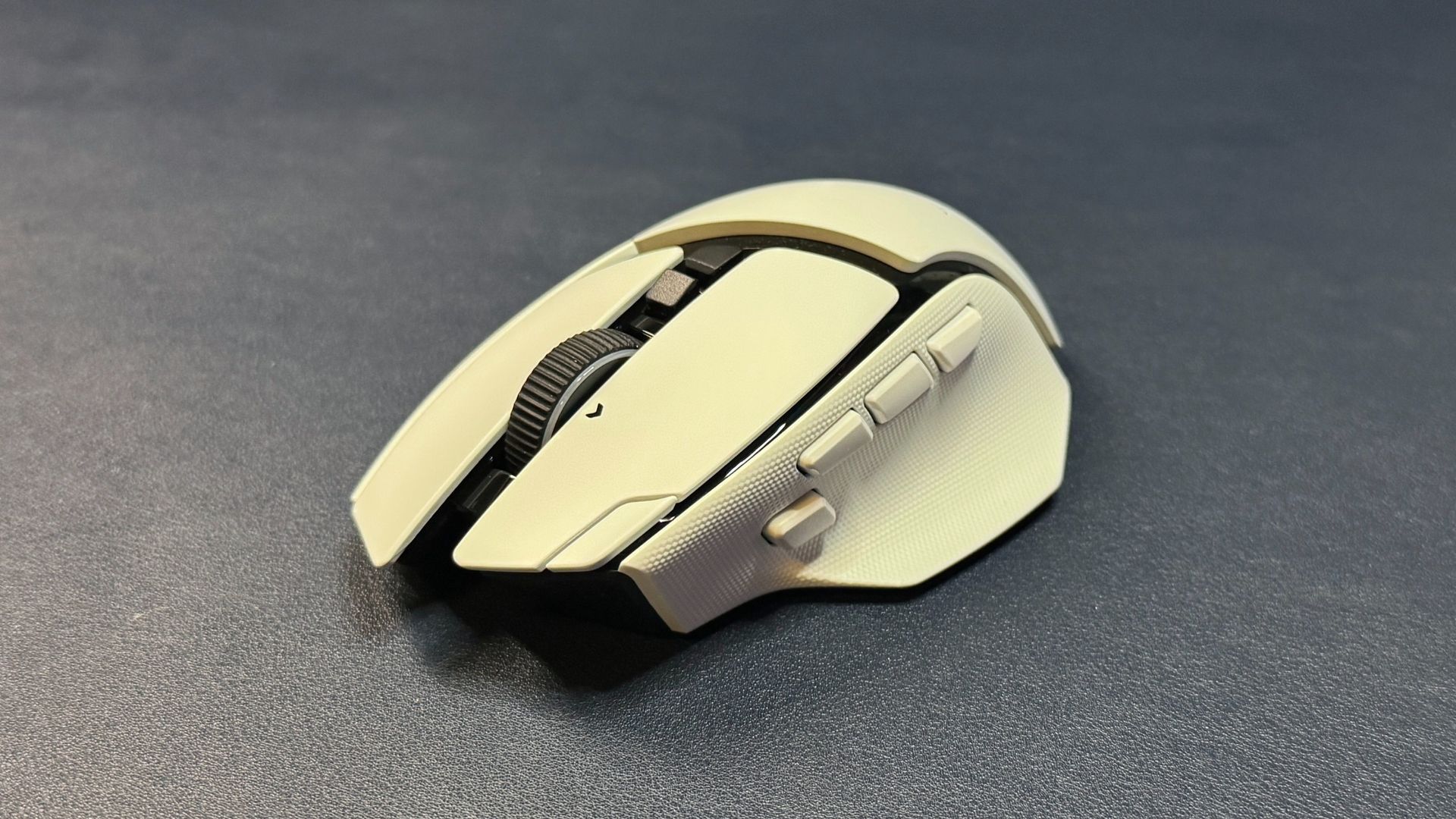
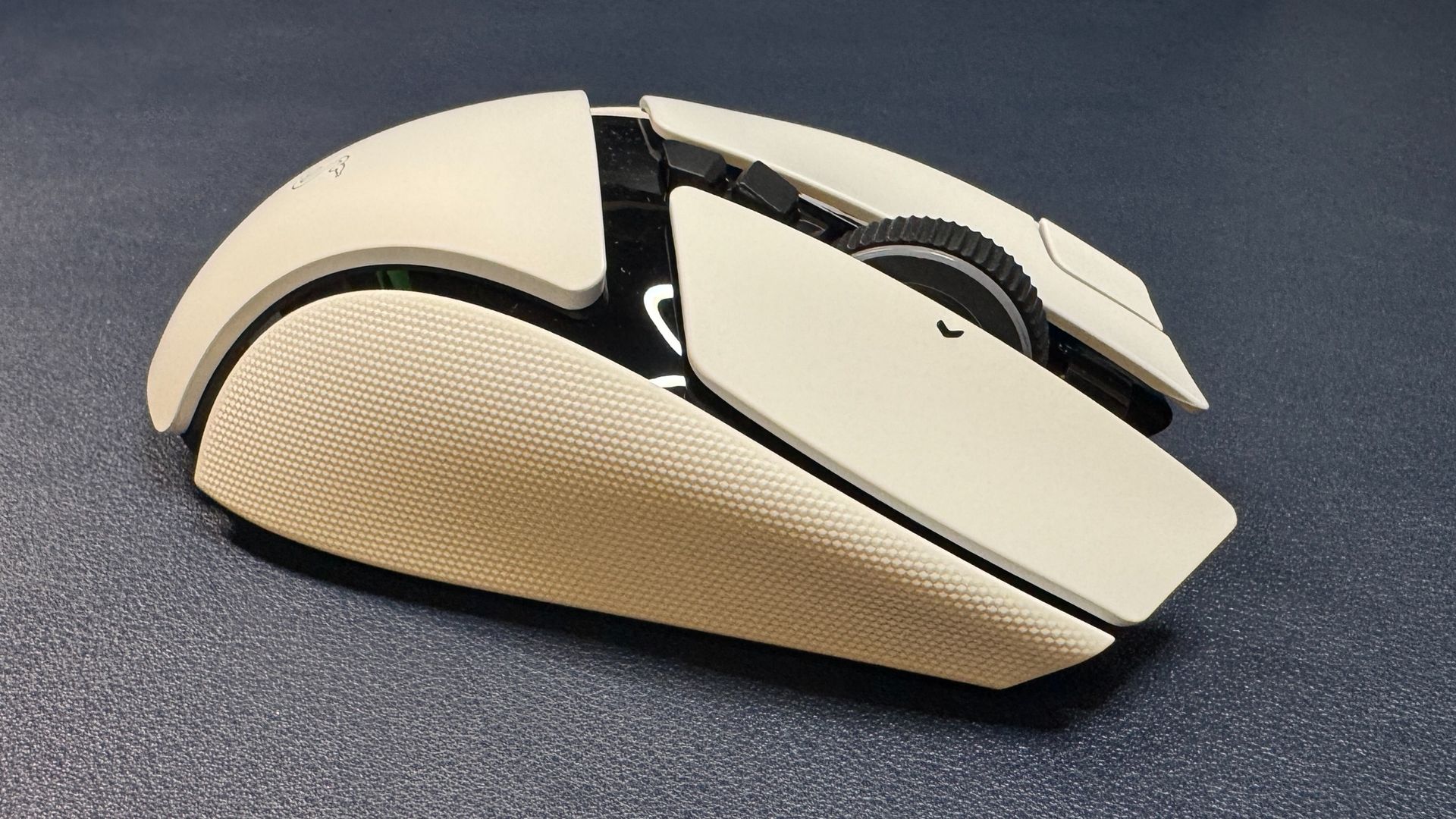
It's not exactly the same as the V3 Pro, however. The V4 Pro has two new buttons, for a total of 12 programmable buttons on the mouse: the left and right primary buttons, three thumb buttons (instead of the usual two) and a trigger button in the thumb groove, a clickable tilt wheel (three "buttons" — center click and left/right click), two buttons above the tilt wheel, and an extra button on the left side of the left mouse button. The third thumb button and the extra button on the left mouse button are the new ones; the third thumb button sits in front of the first two and is set to open up Razer's AI prompt by default, while the extra button on the left mouse button is set to switch through profiles by default.
Tom's HardwareTom's HardwareTom's Hardware
I'm... actually not a big fan of the new buttons. Or, well, I don't really think they're necessary — the Basilisk already had plenty of buttons for a mouse that's not all about having buttons, and I don't really see myself incorporating these new buttons into my workflow in the near future. The extra button on the left mouse button is a little too far forward — this is a very long mouse (it measures 5.02 inches / 127.5mm long), and the extra button is right at the front edge. I have medium-sized hands and relatively long fingers, and the button felt too far for me to press comfortably. It's not a big deal if you plan to leave it set as a profile switch button (which are often located on the bottom of mice), but it's not really viable as a real extra button.
(Image credit: Tom's Hardware)
Worse, however, is the location of the third thumb button — the AI prompt button — which is located in line with the other two thumb buttons. I generally have no issue with three rows of thumb buttons, as my daily driver is the Razer Naga V3 Pro, but this new AI button is the same size as the other thumb buttons and it pushes everything back a little. This puts the first thumb button (MB4) back too far to press comfortably (and that's a mouse button I use often). And while you can swap the buttons around, the AI prompt button is slightly too far forward. Basically, there are now three buttons where there should be only two, and they all feel slightly off.
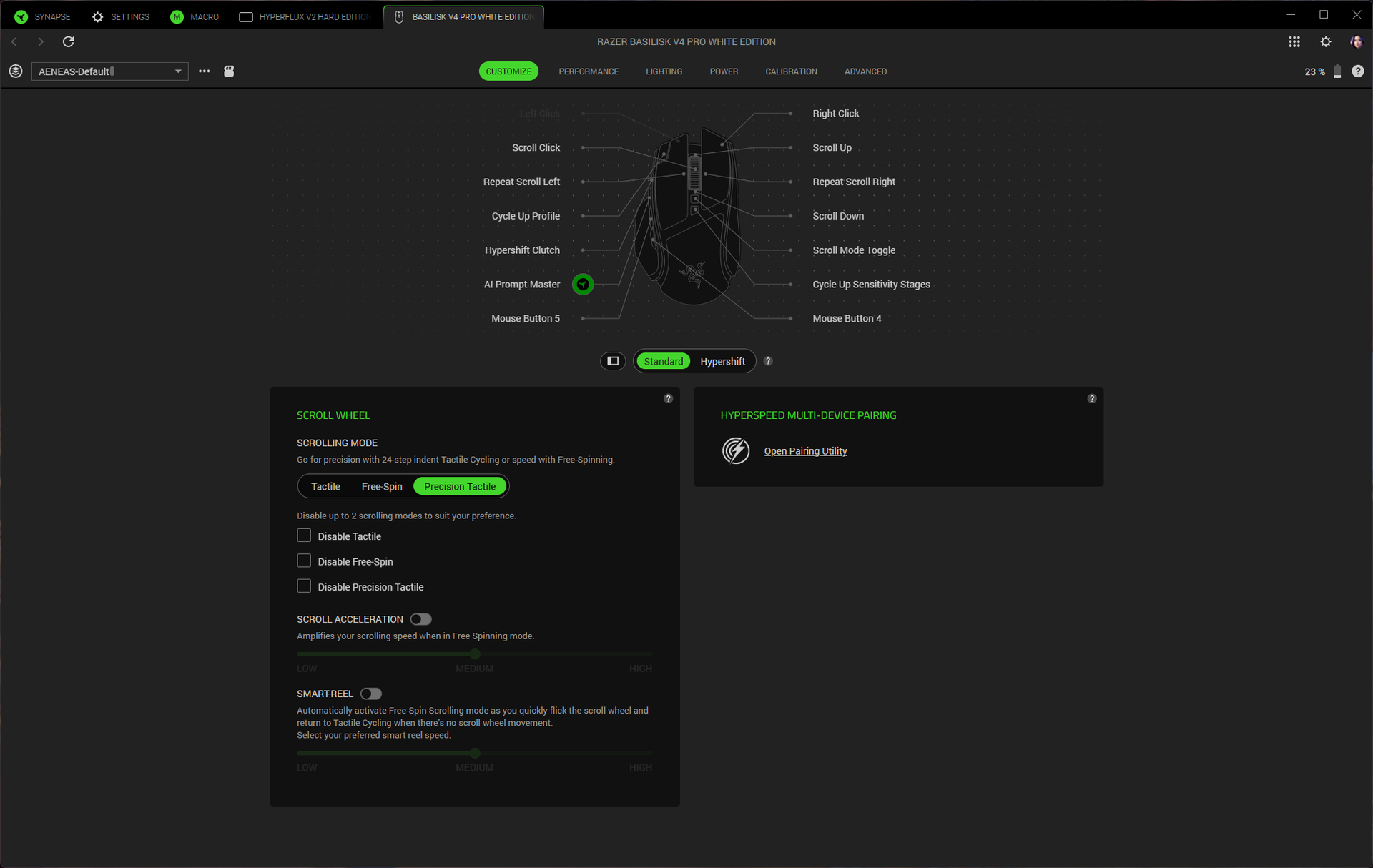
The tilt wheel has three different modes you can switch through with the button right above it: two tactile modes (24 and 48 steps), and free-spin mode. I generally love free-spin mode, but the tilt wheel on the Basilisk V4 Pro is a little too sensitive and will backscroll if you even think about moving your finger near it. The precision-tactile scroll hits a great balance and feels great, however, so this didn't bother me too much.
Tom's HardwareTom's Hardware
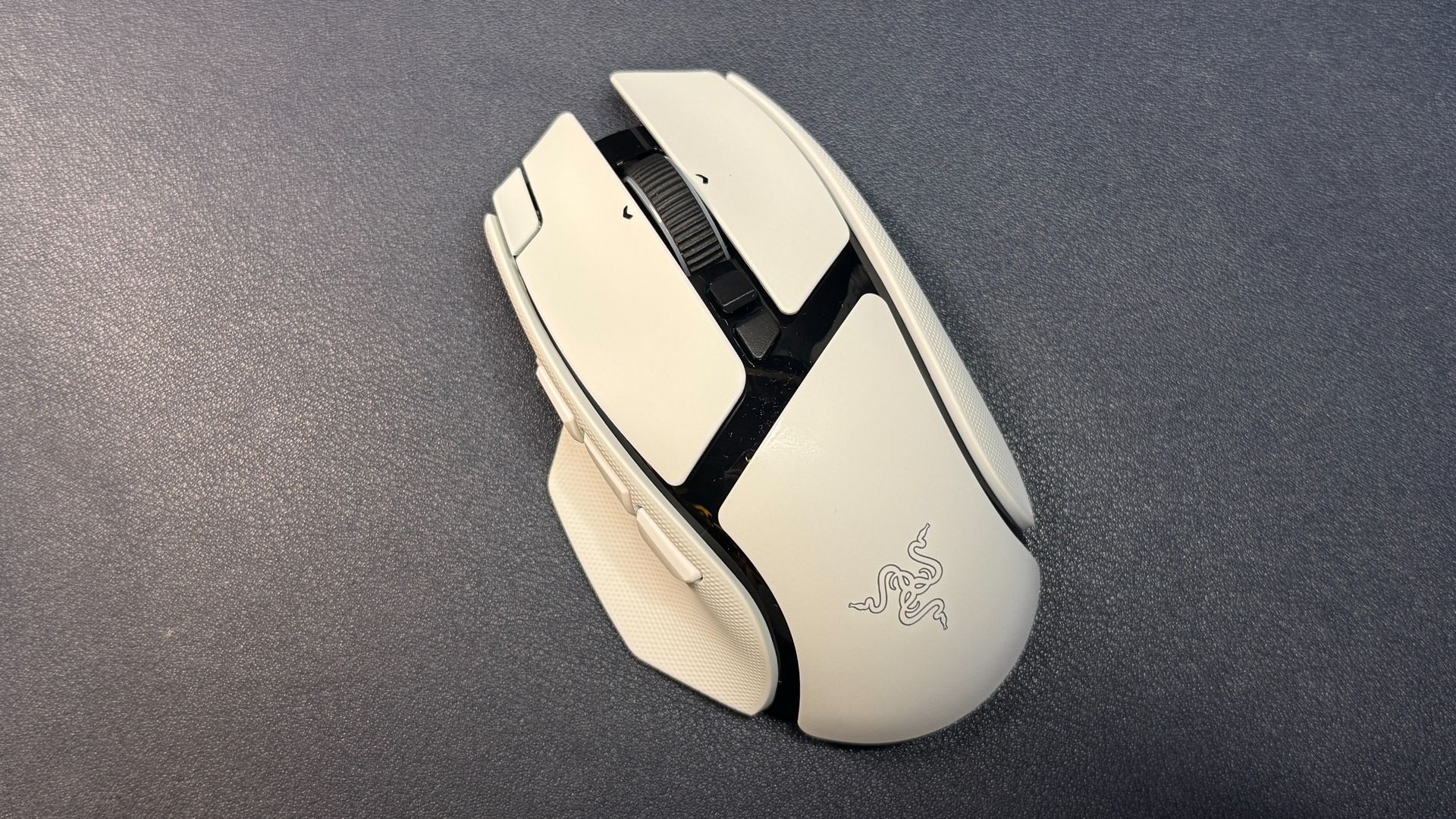
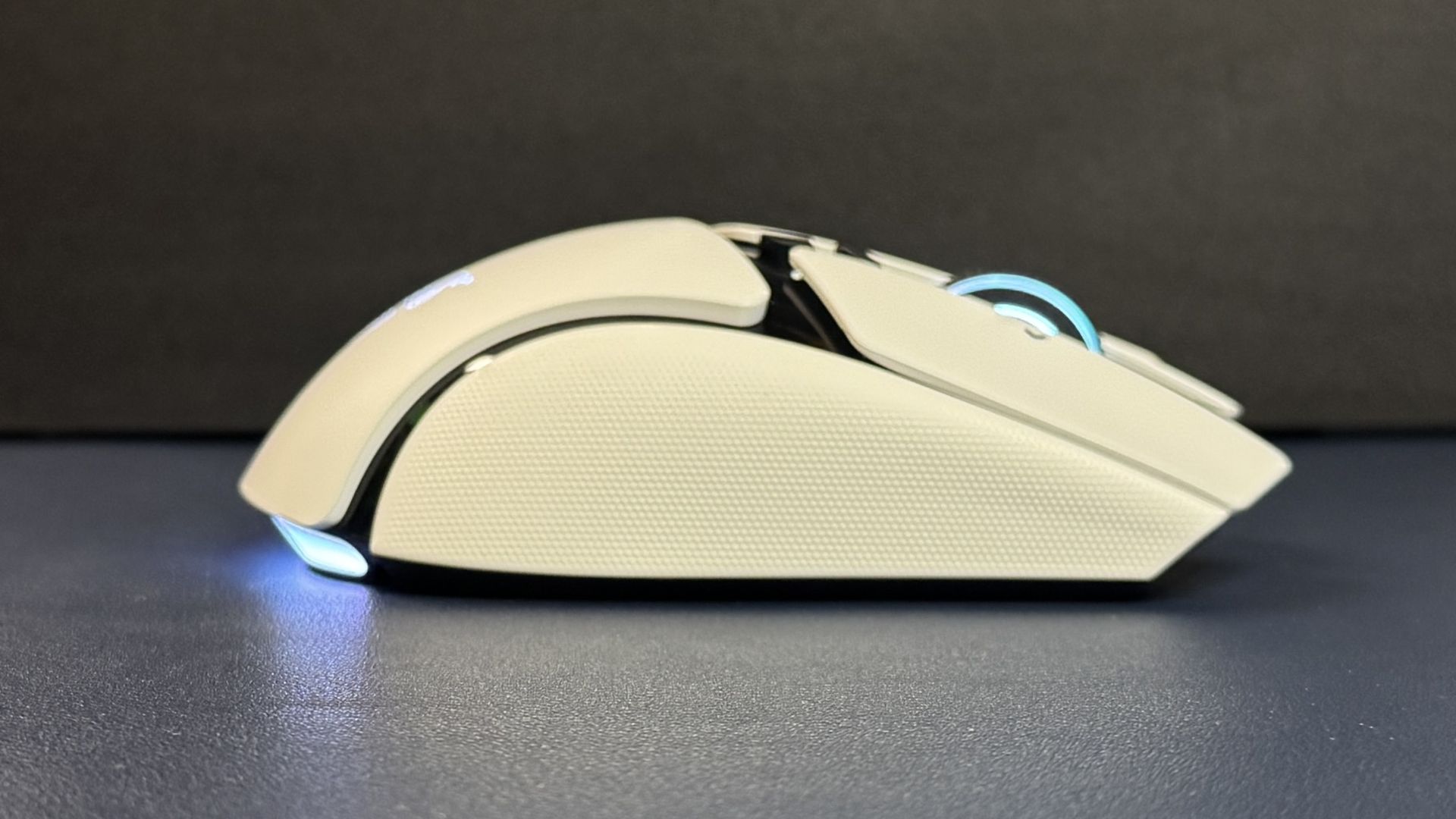
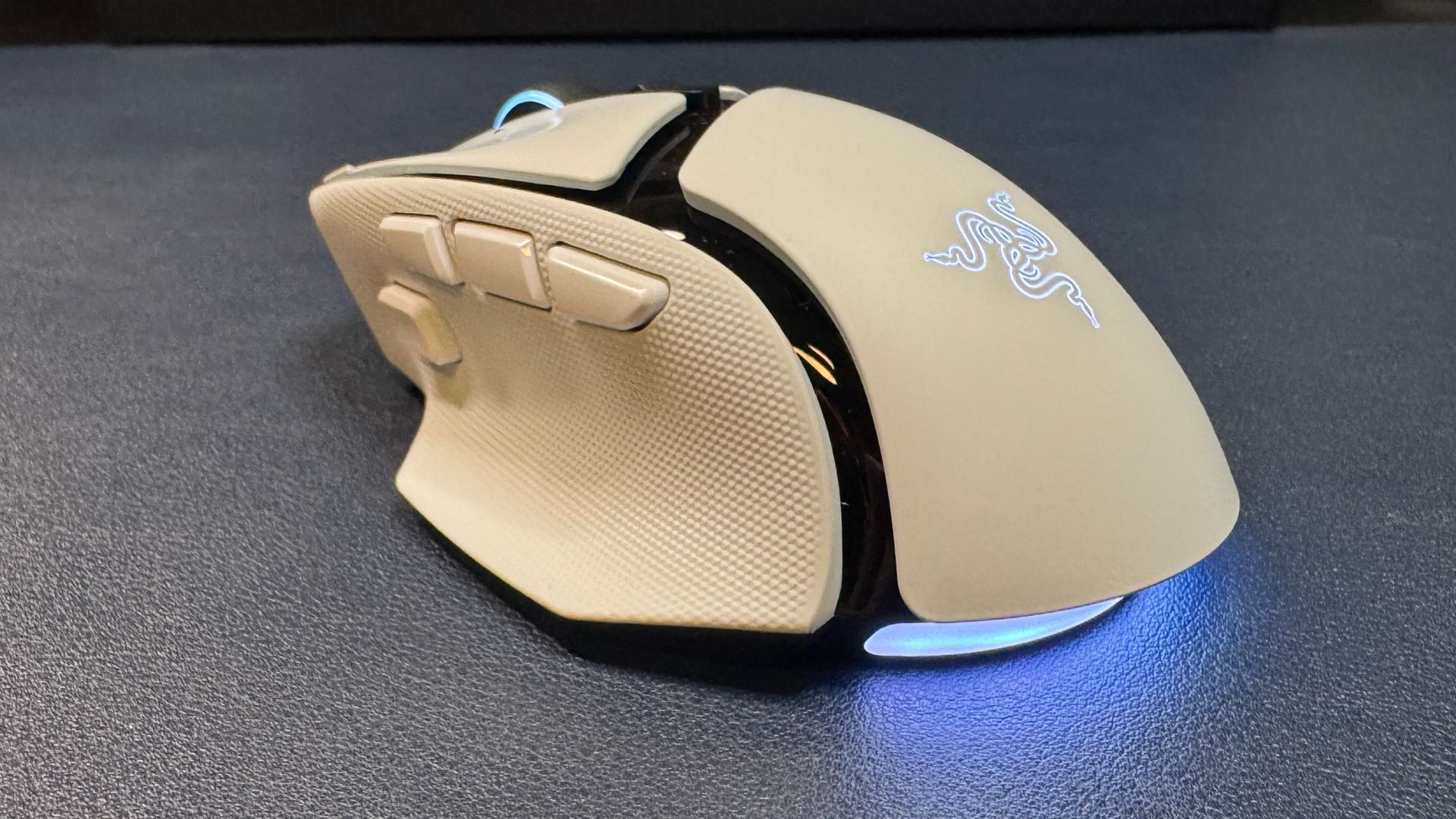
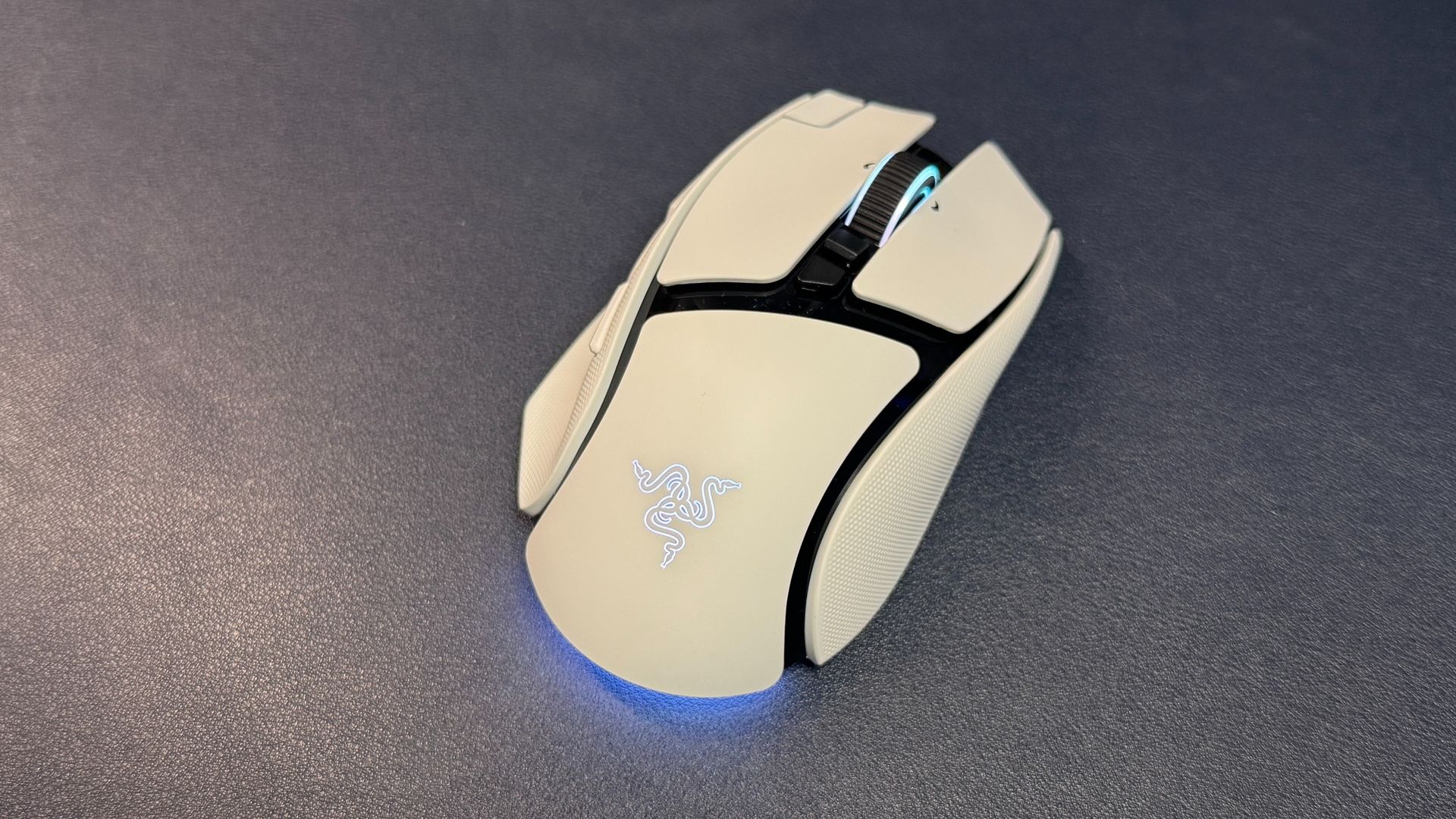
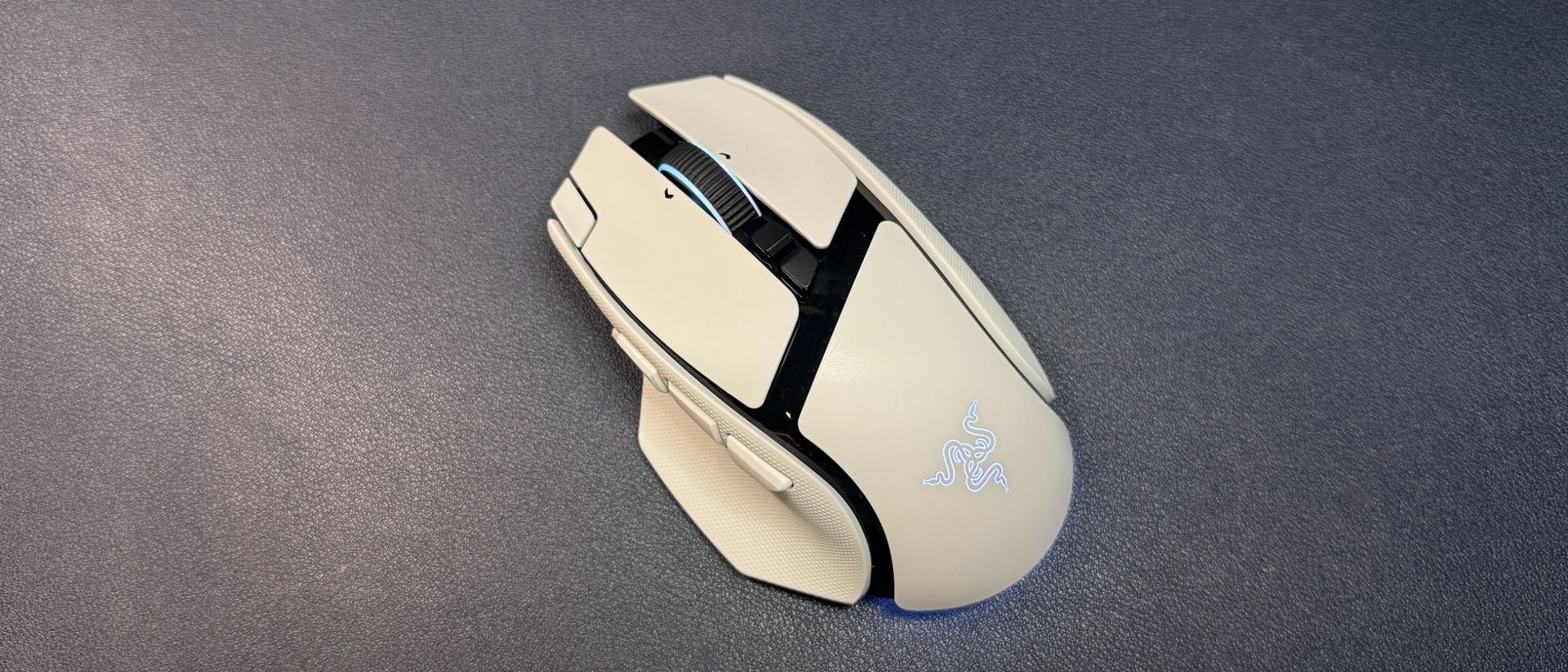
The Basilisk V4 Pro comes in both black and white colorways; ours came in white, which has shiny black accents so it's a little more Stormtrooper than iPod. It has a smooth matte white body with dimpled rubber texturing for grip on both sides. While it's nice to have built-in side grips, I suspect they will wear down like the grips on the V3 Pro — and then you'll have to find or make your own grip tape, as the mouse comes with none. The mouse is roughly the same size as its predecessor, but it weighs less: the black version weighs 3.53 ounces (100g), which is almost half an ounce lighter than the V3 Pro 35K (3.95oz / 112g). It's not an ultralightweight mouse (or anywhere close), but the weight difference is noticeable and the mouse is definitely easier to pick up.
Tom's HardwareTom's Hardware
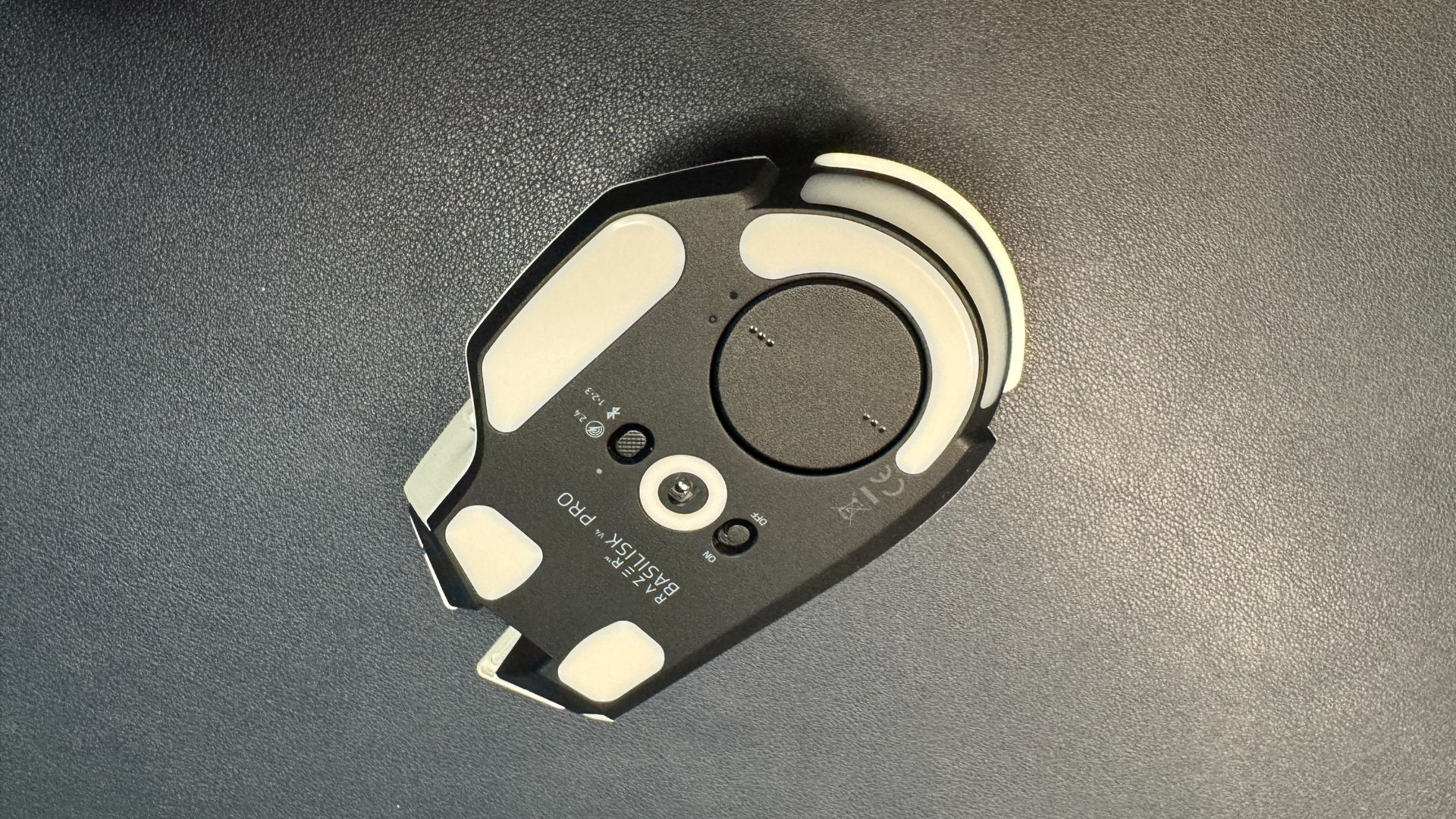
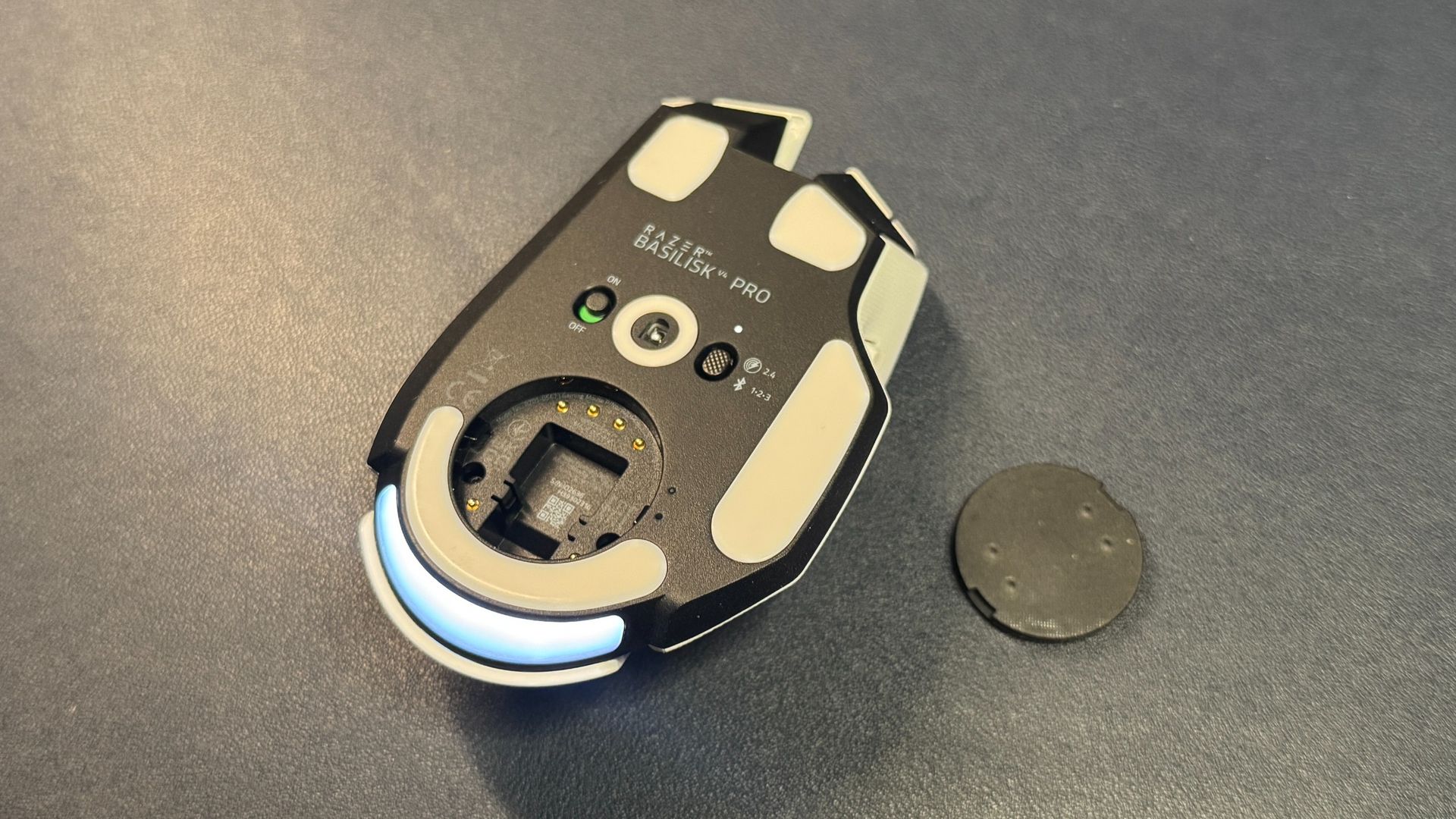
On the bottom of the mouse, you'll find pure PTFE feet — two near the front, a strip at the back, and a strip under the thumbrest, as well as a strip around the sensor, a power switch, and a connection switch button that is not programmable.
(Image credit: Tom's Hardware)
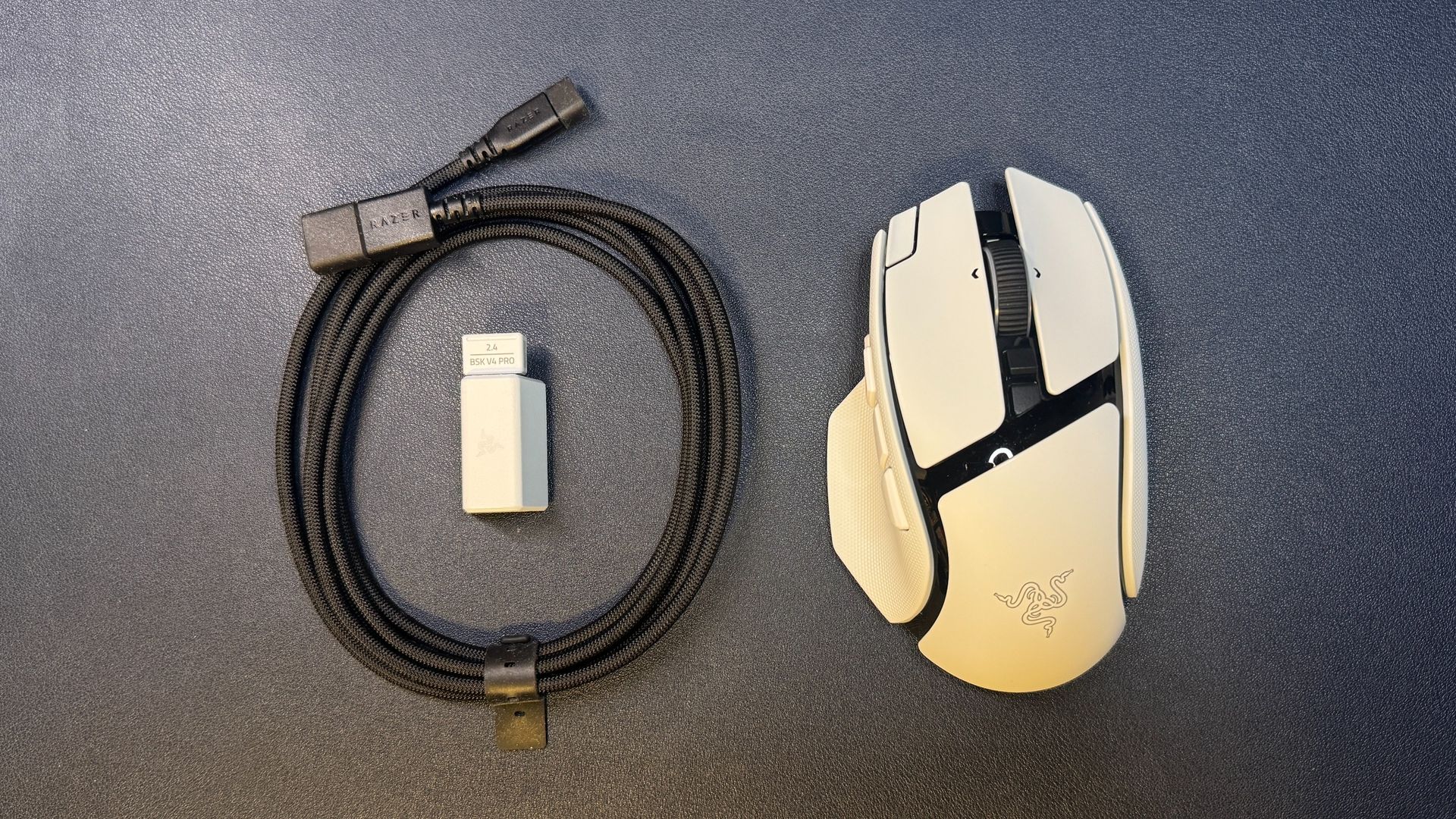
In the box, the Basilisk V4 Pro comes with a USB-A dongle, a USB-A to USB-C converter, and a 6-foot (2m) braided USB-C to USB-A cable. While the cable is braided, it is not one of Razer's flexible HyperFlex cables — it's meant for charging the mouse and plugging the dongle into your PC, not for using the mouse in its wired form.
Specs
Sensor Model
Focus Pro 50K Gen-3 optical sensor
Max Sensitivity
50,000 DPI
Max Speed (IPS)
930 IPS
Max Acceleration
90 G
Polling Rates
8,000 / 4,000 /
Programmable Buttons
12
LED Zones
7
Cable
USB-C to USB-A
Connectivity
2.4GHz wireless, Bluetooth, wired (USB-C)
Measurements (L x W x H)
5.02 x 2.98 x 1.68 inches / 127.5 x 75.8 x 42.5 mm
Weight (excluding cable)
100g
MSRP / Price at Time of Review
$169.99
Release Date
Oct. 2026
Performance of the Basilisk V4 Pro
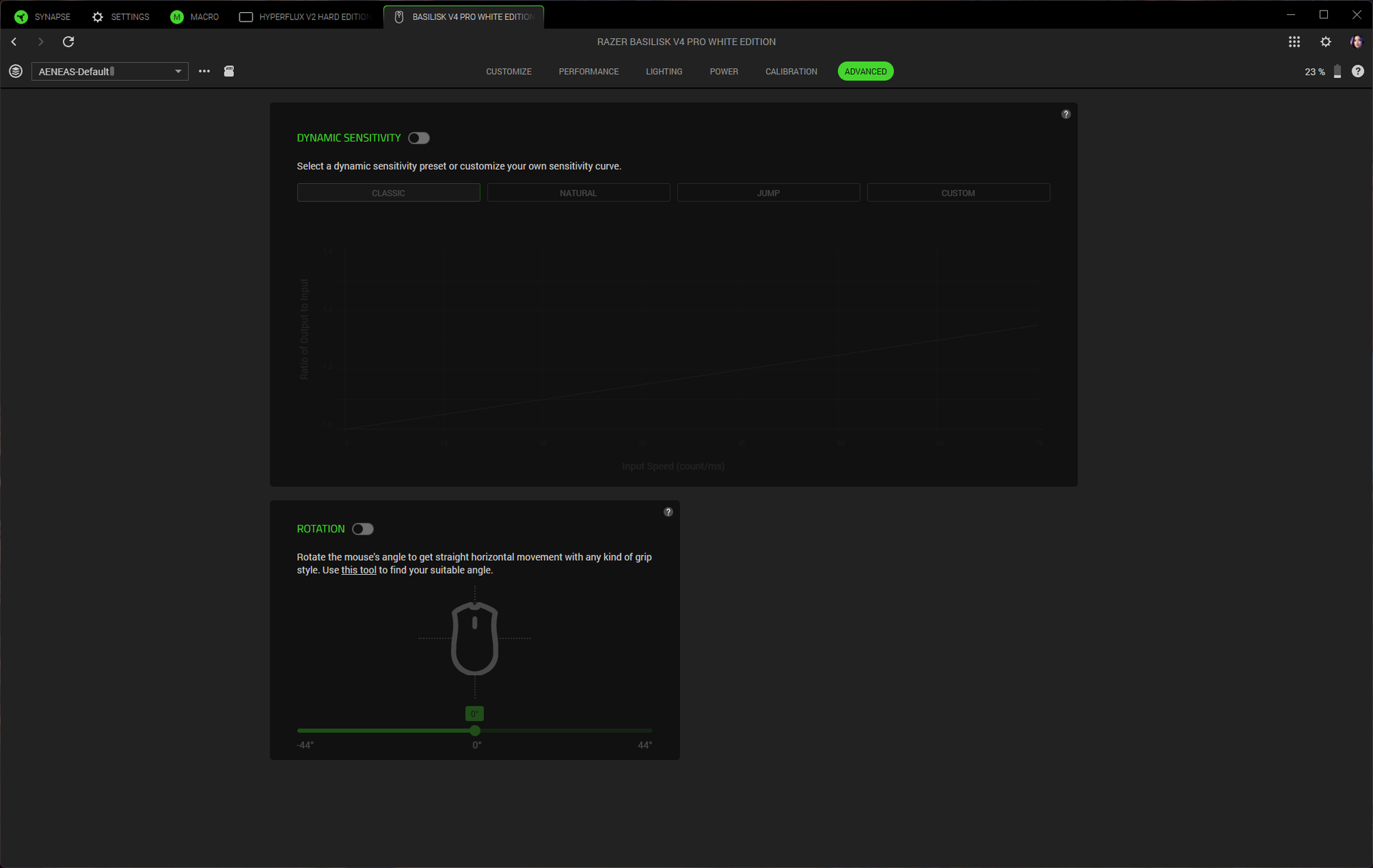
The Basilisk V4 Pro sports Razer's latest optical sensor, which is the Focus Pro 50K Gen-3 optical sensor. It has a maximum resolution of 50,000 DPI and a maximum speed of 930 IPS, and it can handle up to 90 G's of force. This is the third Razer mouse to feature this sensor (others are the Viper V4 Pro and the Naga V3 Pro), and it's a solid sensor that works with Razer's dynamic sensitivity (the sensitivity can be set up to change based on how quickly you move your hand) and rotation tool in Synapse. It tracks well across just about every surface, including glass that's at least 4mm thick.
The Basilisk V4 Pro isn't an ultra-lightweight mouse, but its shape and grippiness mean it's pretty easy to pick up and move quickly if you're playing an FPS. The trigger button is right under your thumb, however, so you may accidentally trigger (haha) it if you have a tendency to pick up your mouse a lot. The Basilisk's shape isn't quite as natural-feeling as that of the DeathAdder V4 Pro, but it's a comfortable mouse for a variety of games — from multi-button-needing MMOs to competitive shooters (though, perhaps not for peak competition). While I still take issue with the placement of the new buttons, it is nice to have a few extra buttons without jumping straight to 19.
The Basilisk V4 Pro sports Razer's Gen-4 optical mouse switches, which are rated for over 100 million clicks. The switches have a nice, crisp sound that's not too loud (not as loud as Logitech's, anyway), though it's not a mouse for those trying to minimize mouse clickiness. The primary buttons have a solid, tactile feel, and I had no issues with misclicks or double-clicks while I was testing. While the tilt wheel's free-spin mode was too sensitive for me to get to work properly, I love the precision tactile mode — it blends speed and tactility perfectly.
Features and Software of the Basilisk V4 Pro
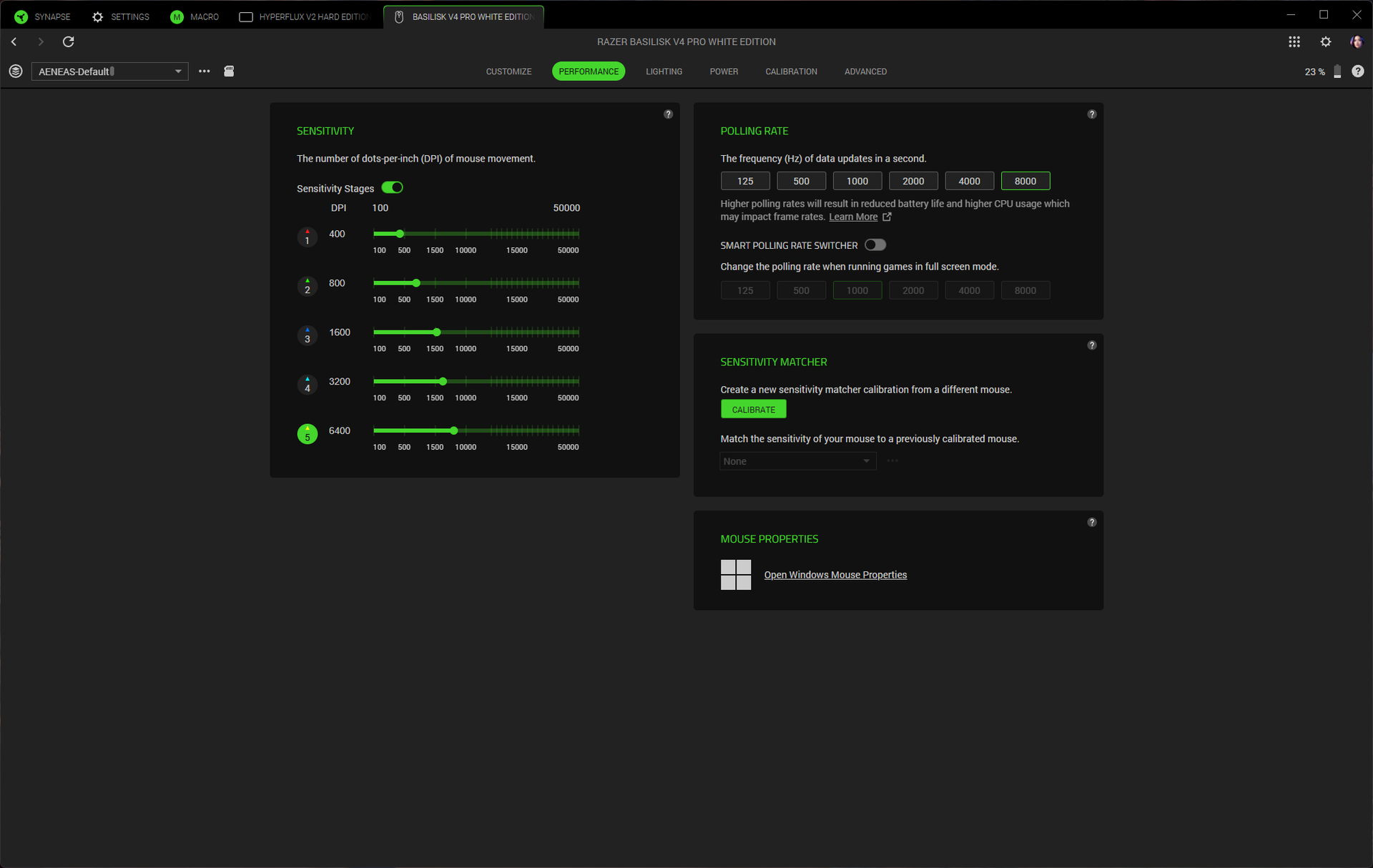
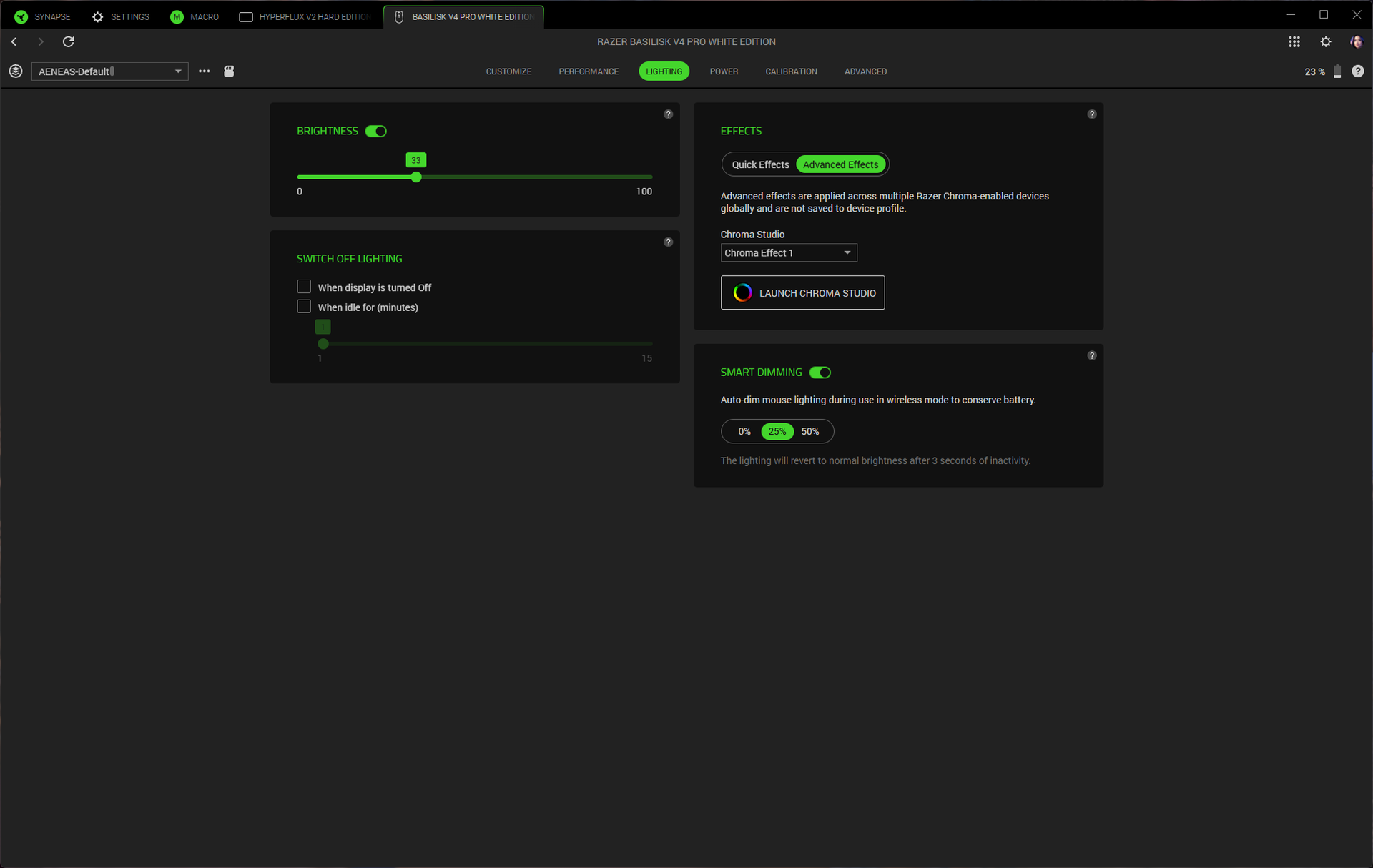
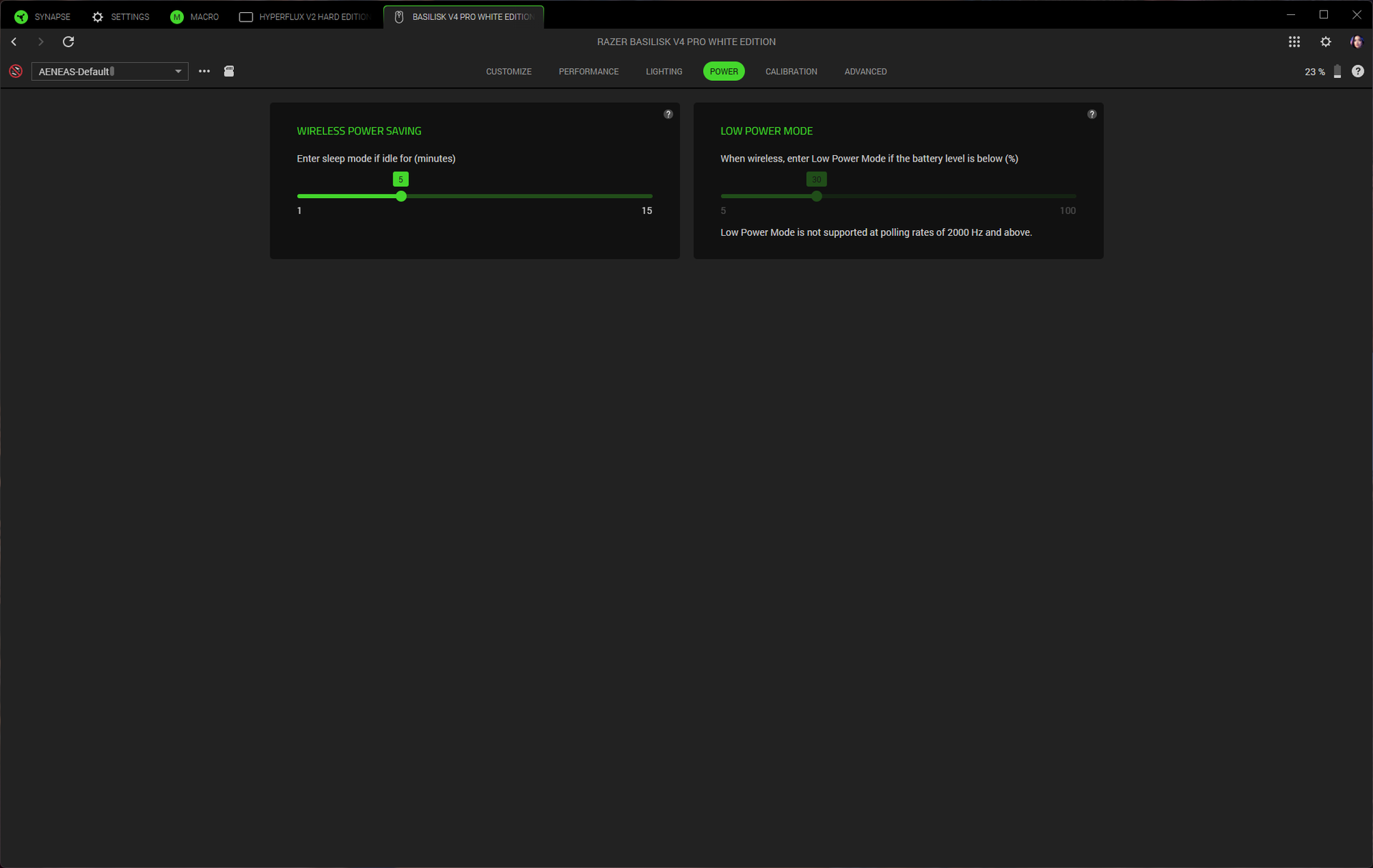
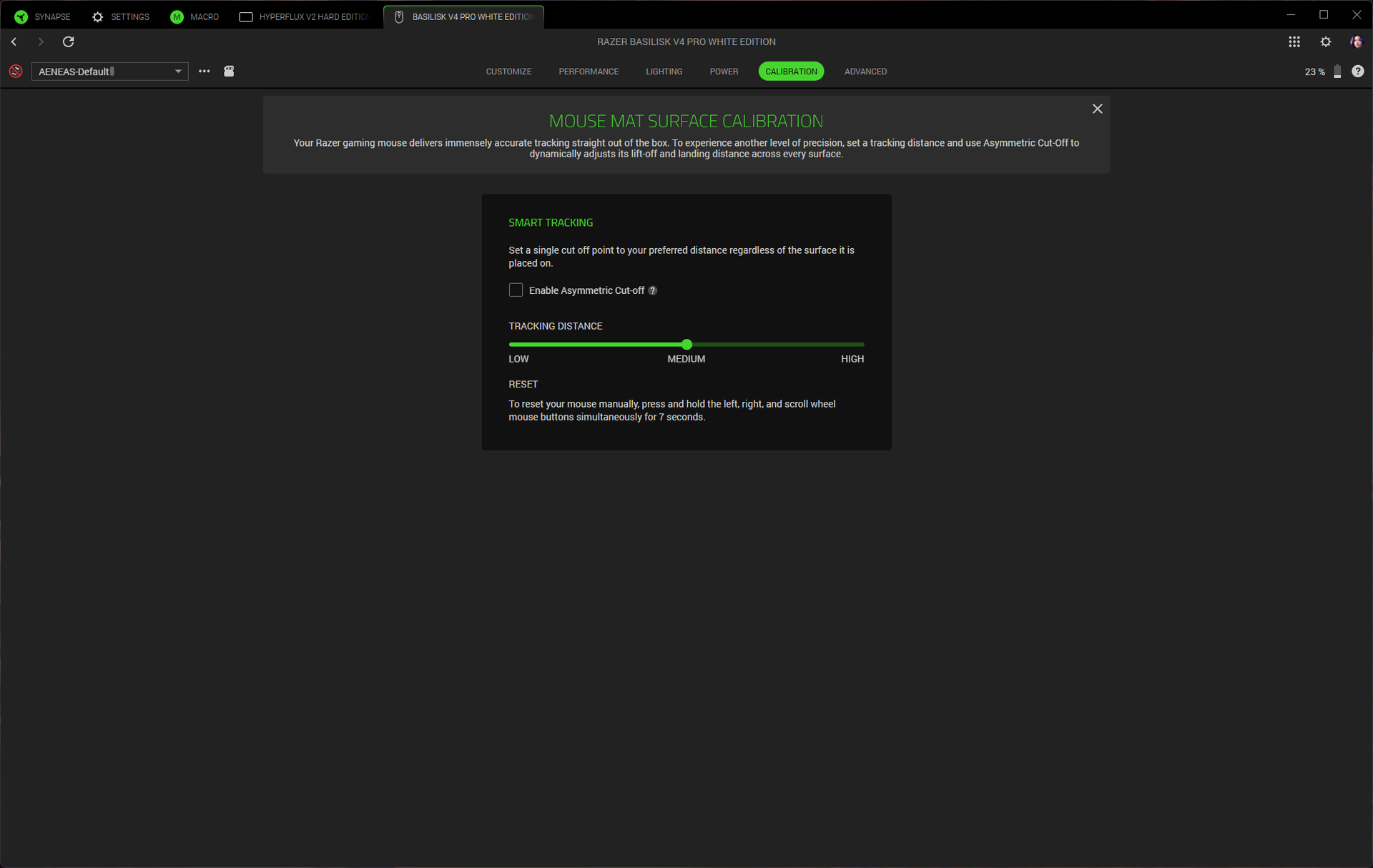
The Basilisk V4 Pro is programmable with Razer Synapse 4 (not Razer's web-based version of Synapse). You can use Synapse to remap the mouse's 12 programmable buttons (14 programmable controls, if you include scroll up/down; the connection switch button on the bottom of the mouse is not programmable). Synapse has a variety of remap options, as well as a built-in macro recorder / editor. Synapse is also where you'll be able to customize the mouse further by tweaking things like the scroll wheel, DPI stages, and surface calibration. There's also a sensitivity matcher that will match the Basilisk V4 Pro's sensitivity to match that of your old mouse.
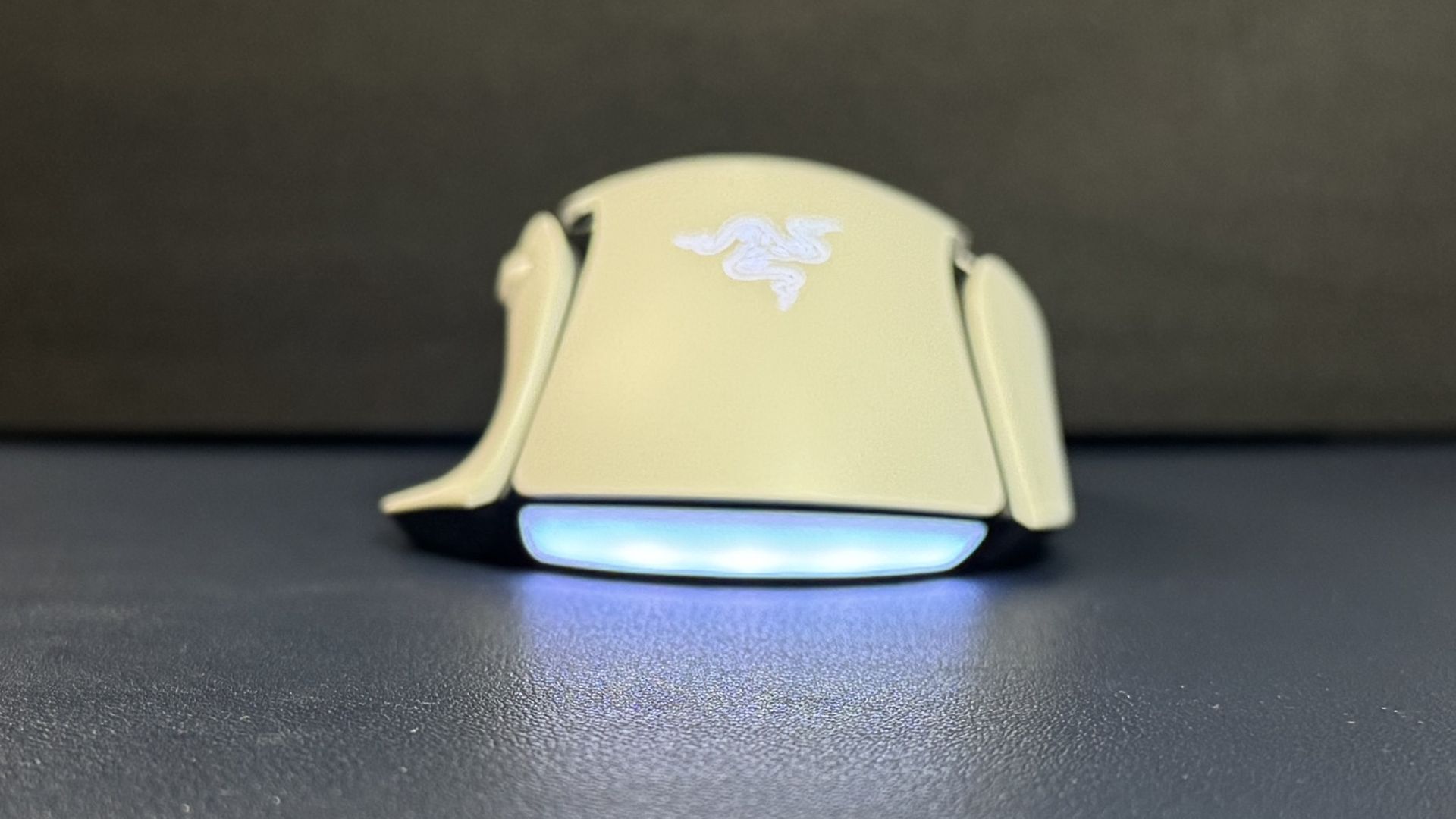
You can also use Razer's Chroma Studio to customize the mouse's lighting and sync it with games and/or your other Razer peripherals. The Basilisk V4 Pro has seven RGB lighting zones: a five-zone underglow strip along the bottom curve of the mouse, as well as one in the scroll wheel and one in the logo on the palm rest. The lighting is bright and the underglow's five zones blend nicely — the underglow strip is tilted outward so it's pretty visible when the mouse is just sitting on your desk.
Wireless Experience and Battery Life of the Basilisk V4 Pro
The Basilisk V4 Pro has three forms of connectivity: 2.4GHz wireless, Bluetooth, and wired (via USB-C), though it doesn't really come with a mouse-ready USB-C cable. Razer rates it at 200 hours of battery life over a 2.4GHz wireless connection with a 1,000 Hz polling rate, which is excellent. This number does drop to 54 hours at an 8,000 Hz polling rate, which is... still pretty good, to be honest.
(Image credit: Tom's Hardware)
The Basilisk V4 Pro launched alongside Razer's Mouse Dock V2 Pro, which is a wireless charging dock with built-in RGB lighting and an integrated 8,000 Hz wireless receiver. The Mouse Dock V2 Pro is sold separately for $70, and comes with a wireless charging puck that slots into the bottom of the mouse. It sits on your desk (it's small — 3.28 x 2.2 x 1.71 inches / 83.5 x 56 x 43.5mm) and serves as a magnetic dock and wireless receiver for your mouse. It has eight RGB lighting zones around the base, and it lights up to indicate battery level (flashes red when the battery is low). It's made for the Basilisk V4 Pro and V4 HyperSpeed, but it will also work with the Basilisk V3 Pro 35K, the Basilisk V3 Pro, the Cobra Pro, the Cobra HyperSpeed, the Naga V3 Pro, and the Naga V2 Pro (up to 8,000 Hz polling rate for all except the Naga V2 Pro).
The Basilisk V4 Pro is also compatible with Razer's HyperFlux V2 charging mouse pad, but you'll need to connect to your PC via the mouse's dongle for 8,000 Hz polling.
Bottom Line
The Razer Basilisk V4 Pro is an expected update to the Basilisk V3 Pro / 35K. The bump in battery life, from 150 hours in the Basilisk V3 Pro 35K to 200 hours in the Basilisk V4 Pro, is very nice (and 54 hours with an 8,000 Hz polling rate isn't bad, either). While I didn't like the new buttons, I'm sure some people will (although I find it difficult to believe that every mouse and keyboard needs a dedicated AI prompt button), and the reduced weight feels good even if, at 100g, it's still nowhere near the ultra-lightweight category. The Basilisk V4 Pro is a great gaming mouse for gamers who want something a little more exciting and versatile than a DeathAdder V4 Pro, but not as button-heavy (or as heavy) as a Naga V3 Pro.
"Best gaming headset for audiophiles" is one of the categories on our list of best gaming headsets, and it's easy to look at that and wonder if you shouldn't be looking at just audiophile headsets to begin with. Headsets are mainly about audio, after all, and it does seem to logically follow that audiophile headsets would have the best audio (I mean, it's in the name).
Well, not so fast.
Headsets are mainly about audio, but that doesn't mean that the "objectively" best-sounding headset by audiophile standards translates to the best-sounding headset by gaming standards. Nor does it mean that you should choose your gaming headset based on audio quality at the expense of everything else.
Audiophile headsets, including headphones, are primarily designed around one thing: audio fidelity. In other words, they're designed and tuned to reproduce audio exactly as it was recorded, which is exactly as the artist heard it when they were recording it, and is therefore exactly as the artist intended for it to be heard. This doesn't necessarily mean it's going to sound amazing to everyone. In fact, to many people it will probably sound somewhat underwhelming, but it's really the only objective way we have of measuring what makes audio "good," since how something sounds depends largely on individual listeners' preferences.
Gaming headsets, on the other hand, are designed around... well, everything else. This doesn't mean they ignore audio fidelity completely, but it tends to not be the priority. (Many premium flagship gaming headsets have been focusing more on audio fidelity in recent years, but it's still generally not the priority.) Gaming headsets tend to focus on other features, such as comfort, convenience, and communication. And when they do focus on audio, their priority is about making games sound good — which is generally not the same as making them sound accurate to their original recording.
Don't get me wrong, some of the "audiophile" elements do help games sound better; for example, detailed, layered sound and a wide soundstage make virtual environments sound more realistic. But ultimate realism isn't always what gamers are looking for. If you're playing a competitive first-person shooter, you're probably looking for audio cues to give you a tactical advantage: you want sound that's directionally accurate and that singles out specific details, such as footsteps and gunshots. You're not here to appreciate the individual details you can pick out from different layers of audio if those details prevent you from hearing what's important. If you're playing a game that's designed to make you feel something with the sound, an epic fantasy or a horror RPG, for example, then the goal isn't really accurate sound reproduction; it's for the game to sound epic (or horrifying, I guess).
There isn't a universally perfect answer, of course, because it depends on how you're going to use the headset. It's easy to get swept up in the audiophile hype, but you shouldn't ditch your mainstream gaming just yet. Here's what you should consider before buying into either side.
Comfort
There are plenty of audiophile headsets and gaming headsets that are comfortable — and plenty that are... not so much. While both categories tend to put comfort at least somewhat high on the priority list, comfort means different things for different listeners. Audiophile headsets tend to be larger and more open — larger drivers can produce more sound with less movement, and less movement means less distortion; an open-back design lets sound waves move through the headset instead of bouncing off the enclosure for a wider soundstage and better spatial accuracy. Open-back headsets offer more listening comfort: you won't feel like the sound is closing in and overwhelming you like you will with closed-back headsets, and you'll be able to listen for longer.
Turtle Beach Atlas Air (Image credit: Tom's Hardware)
Gaming headsets, on the other hand, are largely closed-back (though there are several open-back gaming headsets on the market now, including the Corsair Virtuoso Pro and the Turtle Beach Atlas Air), with smaller drivers, so there's not as much consideration toward listening comfort. They do, however, tend to focus more on physical comfort. They are lightweight and flexible, with gamer-oriented features such as Turtle Beach's "ProSpecs" earpads, which have softer foam near the front to prevent discomfort for gamers who wear glasses. Or the hinge-free design of Logitech's G735 headset, to prevent snagging on longer hair and piercings. Audiophile headsets are designed to be physically comfortable, but gaming headsets are specifically designed around the gaming audience.
Convenience
Convenience is one area in which gaming headsets will basically always win, hands-down. Not only are audiophile headsets not designed with convenience in mind, they're usually the opposite: wired, with very little non-audio-focused tech, and many require a separate audio interface to even work with a PC or gaming console.
Razer Blackshark V3 Pro (Image credit: Tom's Hardware)
Gaming headsets, on the other hand, are packed with technology to make your life easier. Headsets like the Turtle Beach Stealth Pro II and the Razer BlackShark V3 Pro let you connect to multiple devices and switch between them seamlessly, listen to two audio sources simultaneously, and quickly cycle through game-ready EQ presets. Gaming headsets try to put as many controls as possible at your fingertips, from on-ear dials and buttons to detailed app-based EQ tuning to separate desktop base stations (such as the one included with the HyperX Cloud Alpha 2 Wireless).
HyperX Cloud Alpha Air (Image credit: Tom's Hardware)
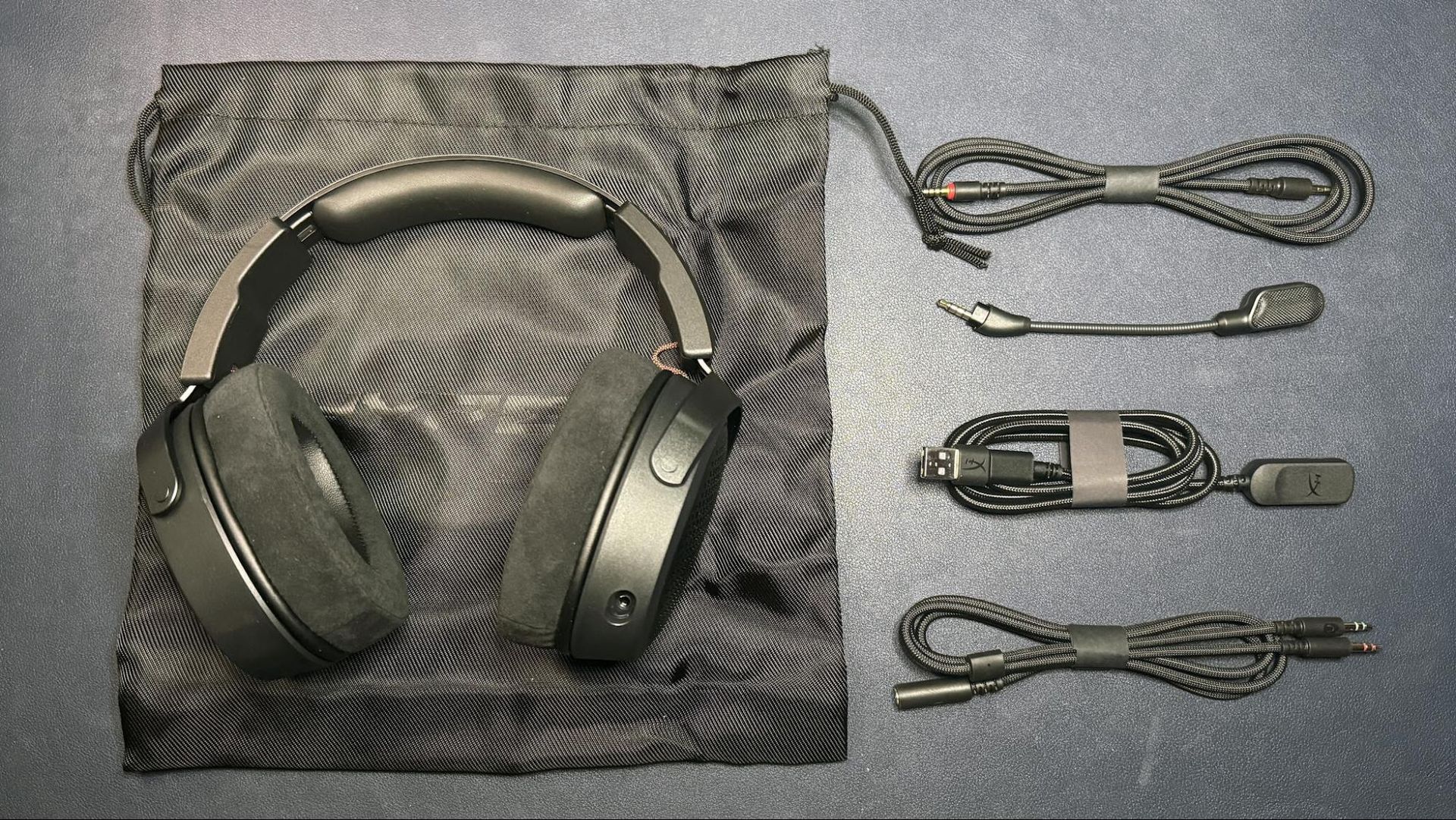
Even wired gaming headsets often include multiple ways to connect to various devices. For instance, the HyperX Cloud Alpha Air is wired, but it comes with a standard 3.5mm analog cable for plugging into a standard audio jack, a USB-C extension (with USB-A converter) for plugging into a USB-C/USB-A port, and a PC headset extension for plugging into separate audio/mic jacks.
The wireless gaming headsets from the audiophile sector that have these features still manage to implement them in a way that is... well, inconvenient. Audeze's Maxwell and Maxwell 2 allow for dual-wireless connectivity but do not give you a way to manually switch between the two. Instead, Bluetooth always takes precedence over 2.4GHz wireless — full stop. It's infuriating, and it's one of my only real grievances with those headsets.
Communication
A standalone USB gaming mic will almost always make you sound better than a built-in headset mic. But that doesn't mean that you should ignore headset mics or how gaming headsets implement other features that help you communicate with others, whether they're team members or stream viewers, while gaming. (Besides, some headsets, such as the Razer BlackShark V2 Pro (2023), have microphones that actually can rival the best USB gaming mics.)
If you go with an audiophile headset — or headphones — you'll likely need to invest in a separate gaming mic regardless. There's more to communication than just the mic, though. Many gaming headsets, such as SteelSeries' Arctis Nova series, have built-in ChatMix, which lets you channel your game audio and your chat audio through different channels and mix them together on your headset. This lets you dial up (or dial down) chat if you need to hear what's being said over whatever epic music or sound effects are playing in the game. Gaming headsets are also backed by peripheral software that, while often frustrating, is, ultimately, designed around the needs of gamers. Software-based noise reduction/cancellation, microphone EQs, and sidetone are all particularly useful communication tools that you won't find on most audiophile headsets.
Audiophile or gaming headset?
At the end of the day, audiophile headsets tend to focus on audio above everything, which is exactly what audiophiles want. But it's not really what most gamers want. A great gaming headset does have to sound good, but that's not all it has to do.
Audeze Maxwell 2 (Image credit: Tom's Hardware)
There are, of course, gaming headsets from audiophile companies, such as the Audeze Maxwell and Maxwell 2, as well as headsets from gaming companies that implement audiophile features, such as the open-back Corsair Virtuoso Pro. And while a headset like the Audeze Maxwell 2 does a decent job of bridging the gap between audiophile and gaming, it makes some sacrifices; it's a very heavy headset (thanks in part to its large, 90mm planar magnetic drivers), though it is relatively comfortable for its weight. It sounds great, but it doesn't do the best job of implementing the gamer side of things — while it has a wide soundstage and decent spatial immersion, that's not the same as pinpoint spatial accuracy when you're listening for footsteps and gunshots.
(Image credit: Tom's Hardware)
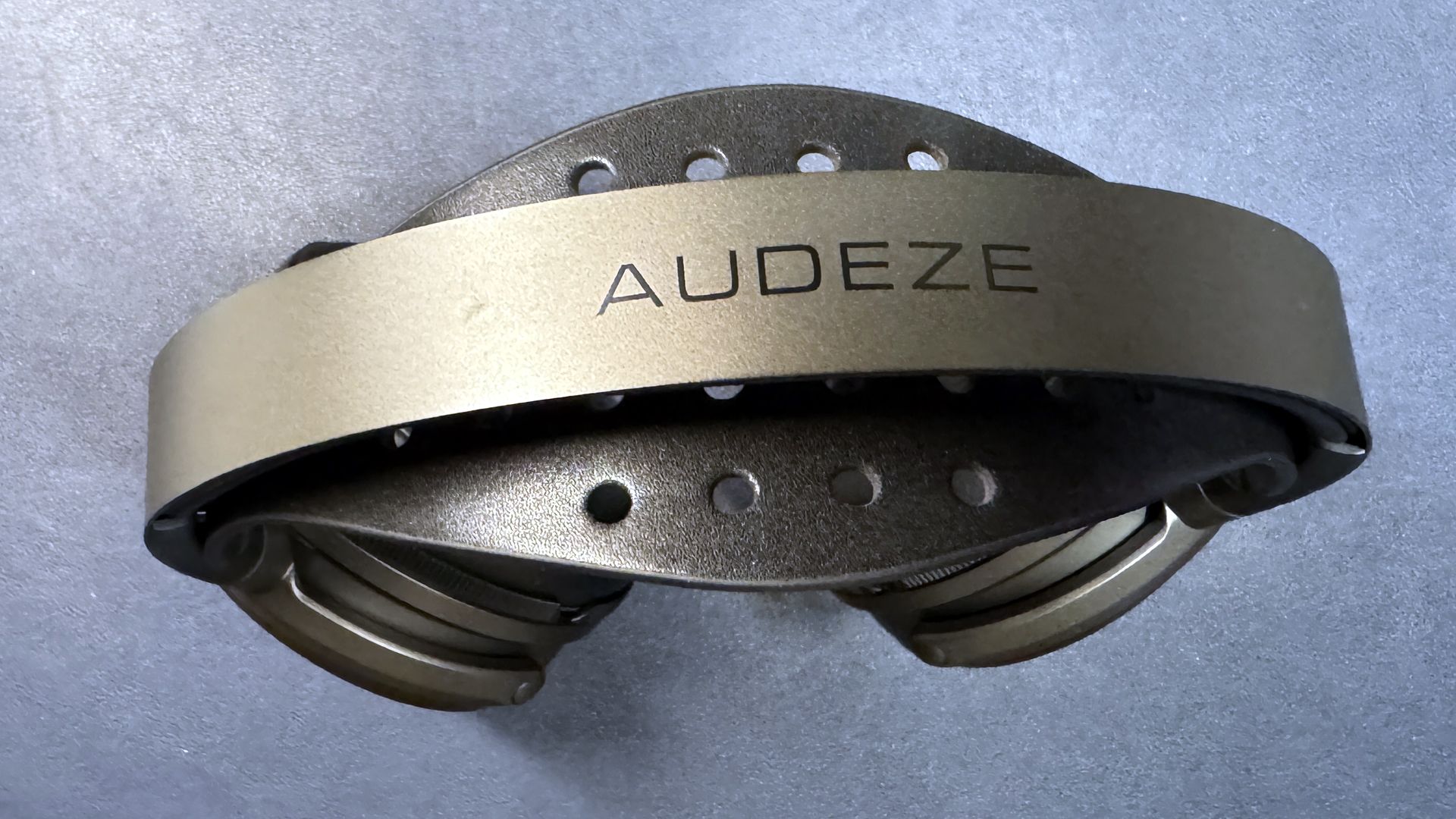
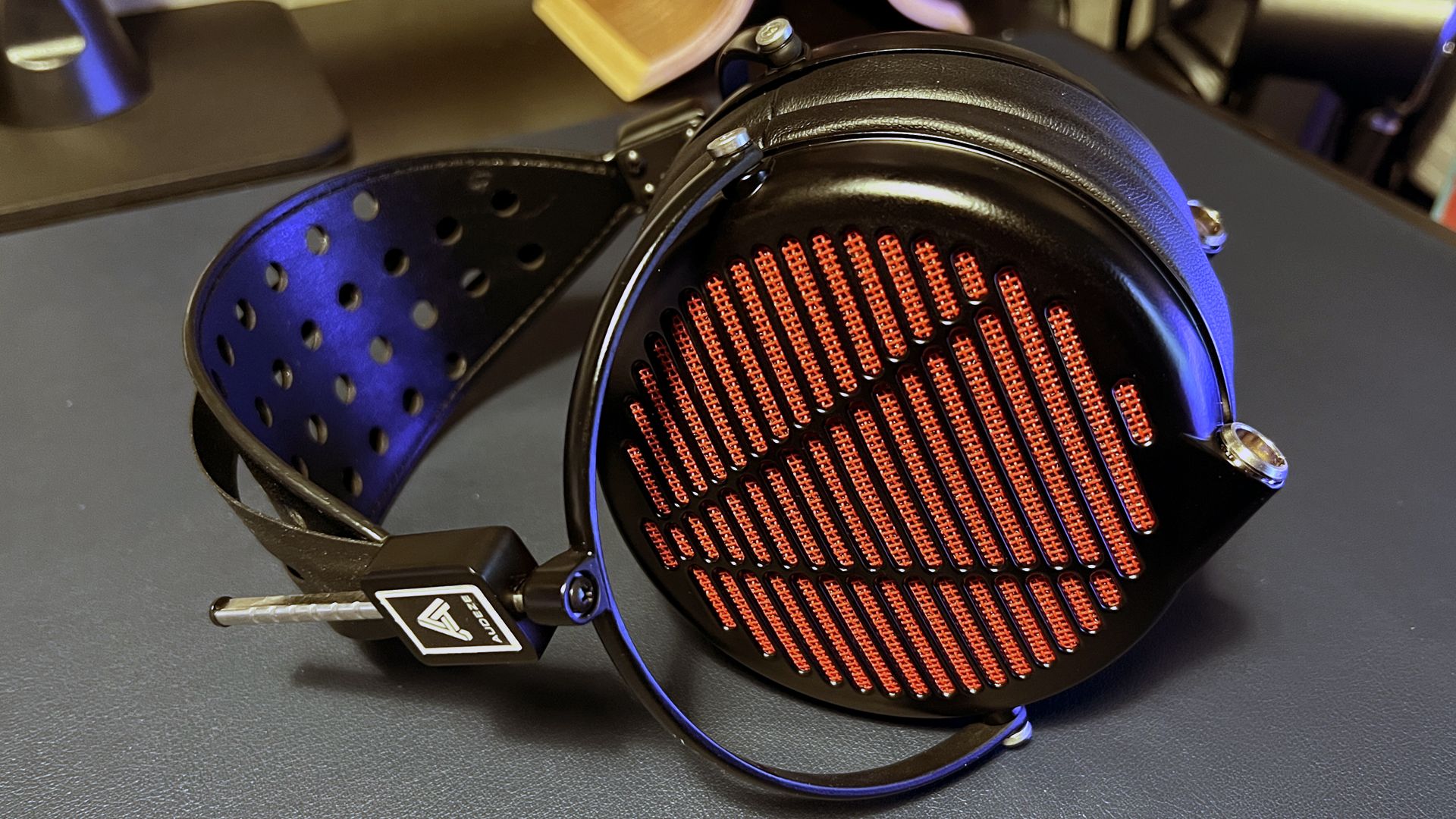
And while the much pricier Audeze LCD-GX sounds incredible, it's basically the perfect example of how an audiophile headset focuses on sound at the expense of all else, as its gaming features are... mostly non-existent. The only thing that really makes the LCD-GX gamer-friendly is the fact that you can plug it directly into a PC because it comes with a 3.5mm cable and a PC (dual 3.5mm headphone/mic) converter.
So, should you get an audiophile headset in lieu of a gaming headset? Probably not. If you need a gaming headset for its gaming features: multi-device connectivity, super accurate positional audio for tactical advantage in shooting games, the ability to mix chat and game audio on the spot, convenient microphone, connection, and volume controls at your fingertips, or physical comfort for a marathon gaming session, definitely not. Yes, you will give up some audio fidelity and quality by picking a gaming headset over an audiophile one, but you aren't going to miss that when you're arguing over voice chat while trying to determine how far away the enemy is.
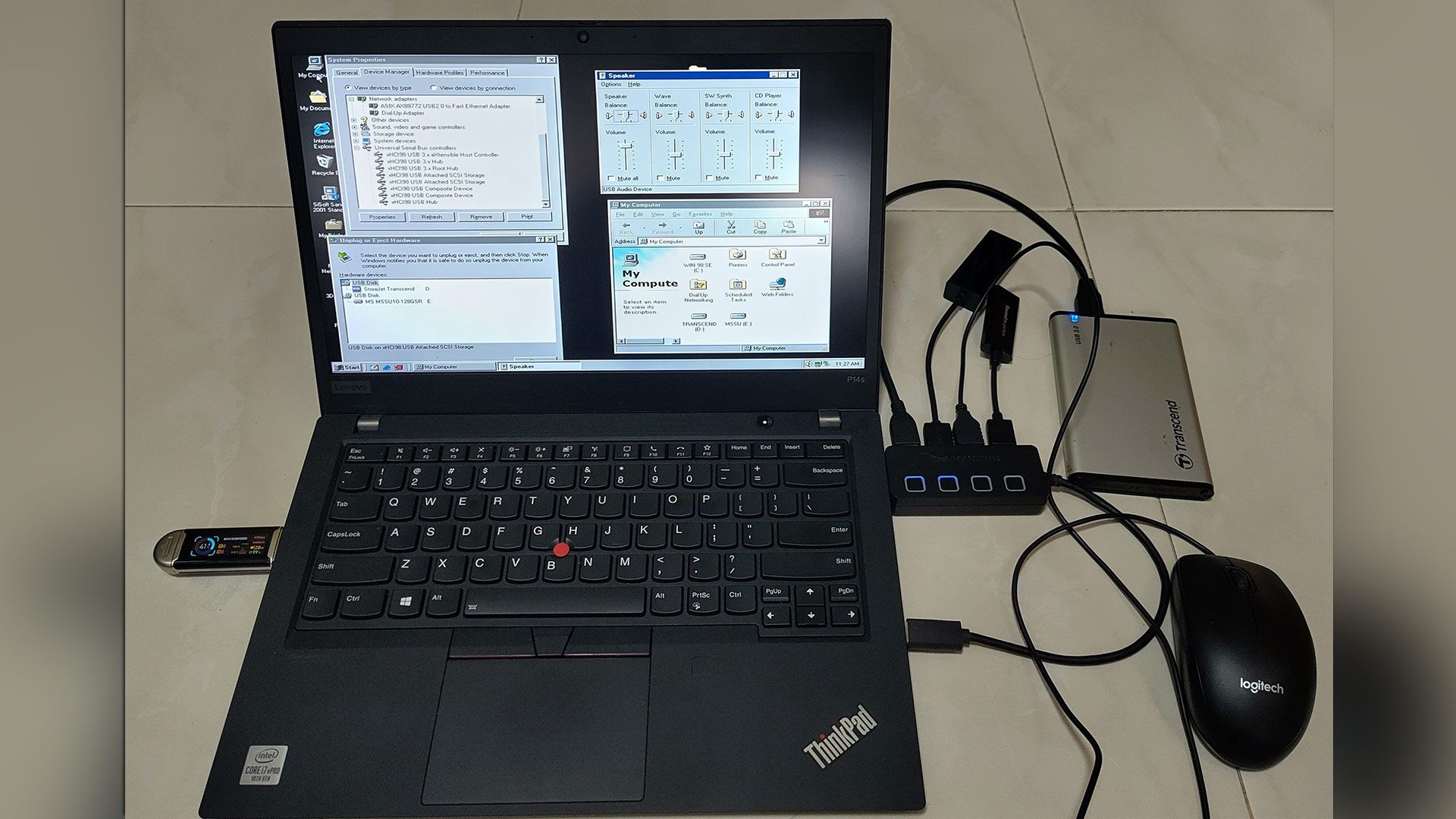
Windows 98 SE devotees can now enjoy (experimental) support for USB4 and Thunderbolt 3/4. Developer and maker Yeo Kheng Meng, who also enjoys retrocomputing, recently released the vibe-coded xHCI98 v3.0.0.0, enabling the practical use of generic USB 3.x, USB4, and Thunderbolt 3/4 host controllers on systems running Windows 98 SE, ME, 2000, XP, Vista, and 7. An extensive blog post by the dev provides further reading about the driver, compatibility, its creation, and usage.
Demo video “shows many different USB devices being hotplugged to a modern 2020 ThinkPad P14s Gen 1 with only xHCI controller.”
Some of you will be wondering why a project to bring USB4 (Thunderbolt 3 and 4) to PCs running Windows 98 SE exists. Retro computing fan Meng explains on his GitHub that this project should appeal directly to users of PCs from the mid-2010s that have xHCI-only (USB 3.x) chipsets and no legacy EHCI controller. However, older OSes don’t have xHCI drivers, and that’s where xHCI98 steps in. “Without xHCI support, even keyboards, mice, and flash drives need the BIOS's legacy support, cannot be hotplugged, and devices such as Ethernet and audio do not work at all,” explains Meng, revealing his motivation. “This project fills that gap.”
Impressively, xHCI98 drives a lot more than USB storage. It replaces Windows’ own USB port and hub drivers to facilitate the connection and use of USB 1.1 and 2.0 and SuperSpeed (USB 3.x) devices and hubs, UAS (USB Attached SCSI) storage through a second driver (xhciuas.sys), and Thunderbolt 3 and USB4 docks and NVMe enclosures through a third driver (xhcicm.sys).
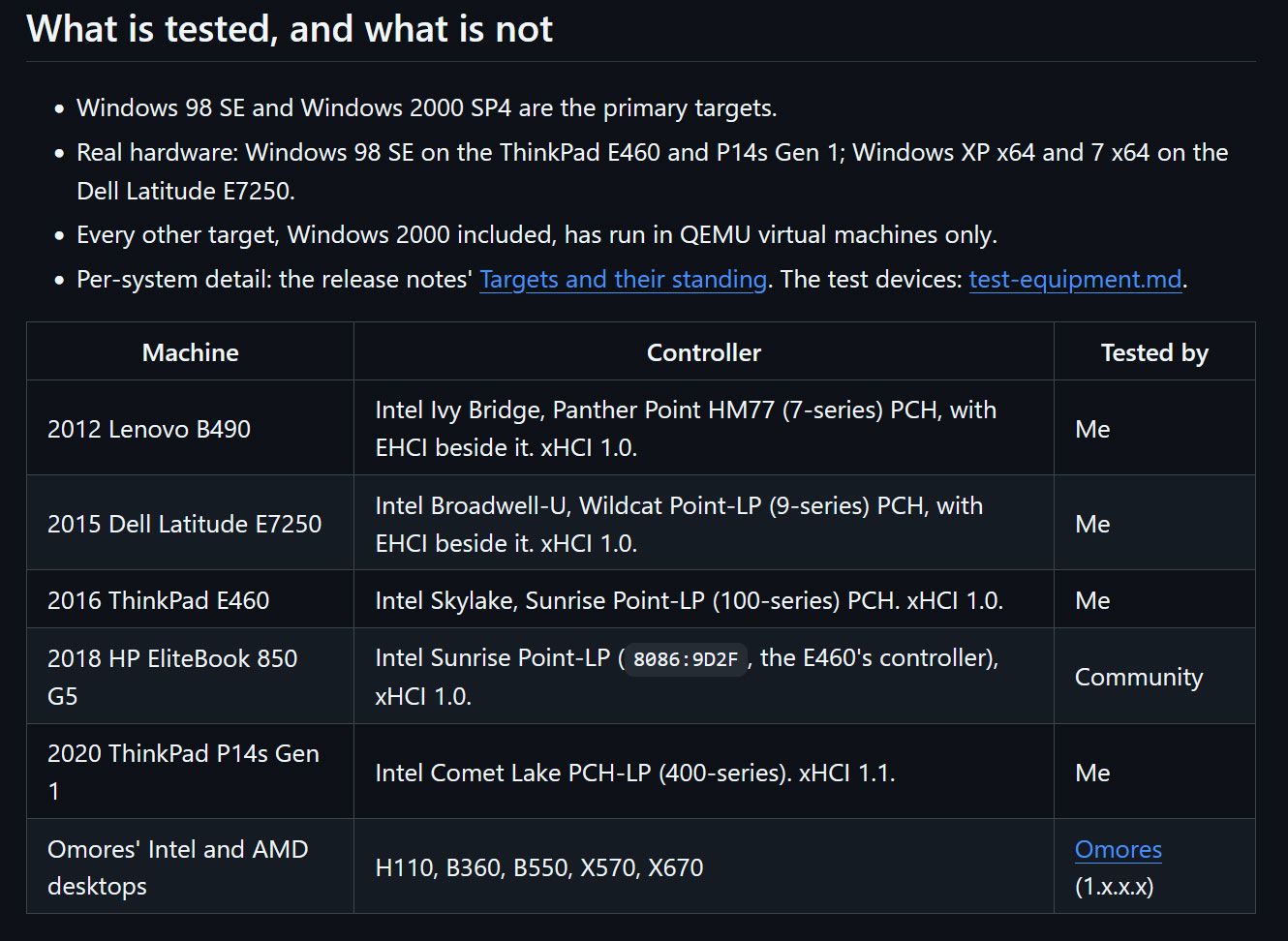
Meng has developed and tested xHCI98 mostly on Intel hardware, as that is what he owns. Candidly, he admits “this is a solo human's project with AI assistance, so bugs are not unexpected,” even if you do have the same hardware as the dev - a 2020 ThinkPad P14s Gen 1 (Comet Lake xHCI, no EHCI). It stands up pretty well during the plug/unplug video demo above, though the test rig used is not quite the USB cart of death.
As a solo developer, Meng isn't shy to admit he leaned heavily on AI assistance to prepare the xHCI98 release. His vibe coding adventure was supported by Claude Fable 5.1 for planning, Claude Opus 5.5 for coding, and Codex GPT 6 Astra as an adversarial reviewer.
In addition to a few bug warnings, there are some other things to know about using this driver with the various older versions of Windows it supports, standby and hibernation, and more. The dev helpfully sketches out a process for checking your hardware, outlines various install methods, discusses updating, and talks about tuning the driver for those who will be jumping in at the deep end with this project.
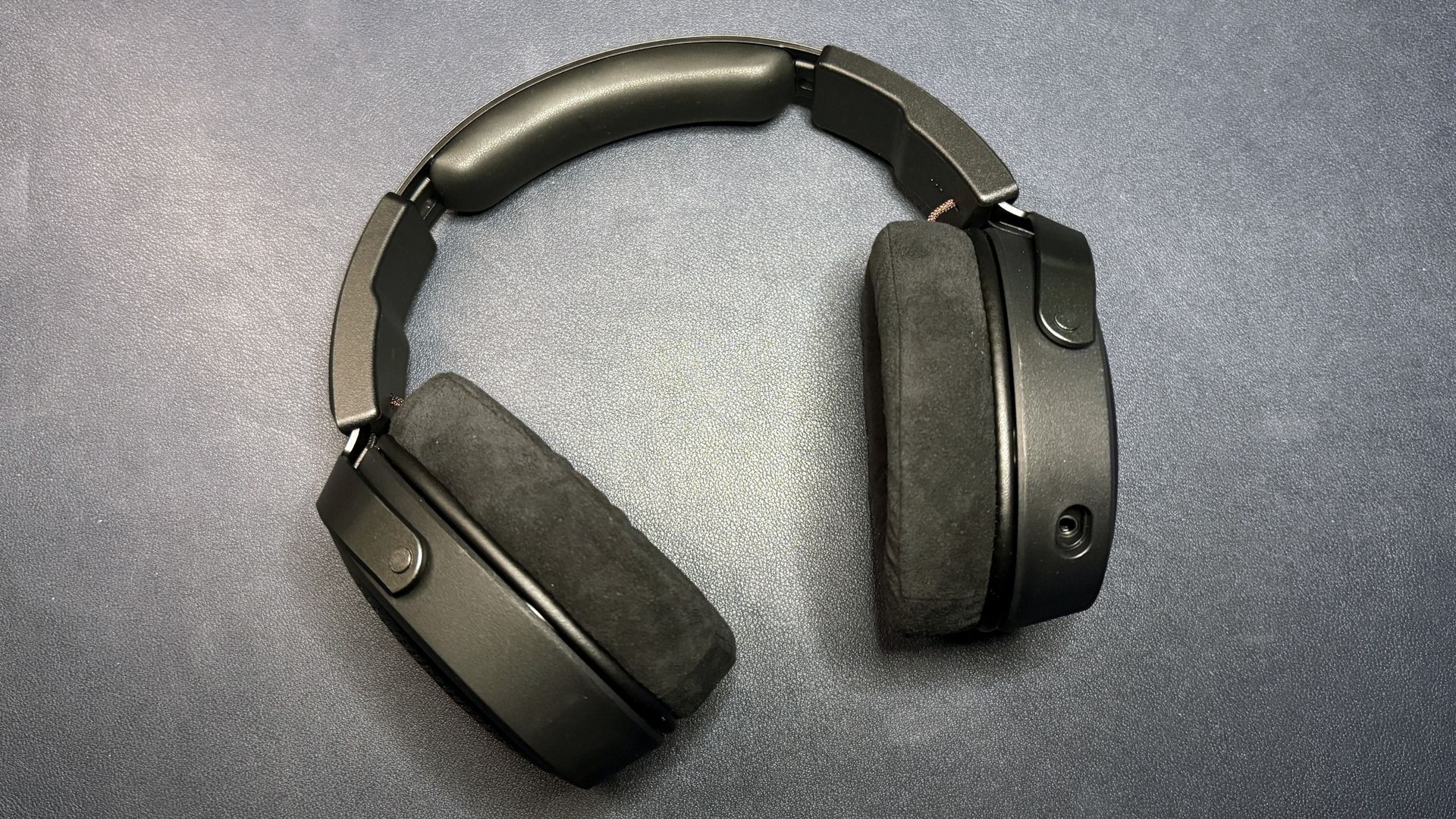
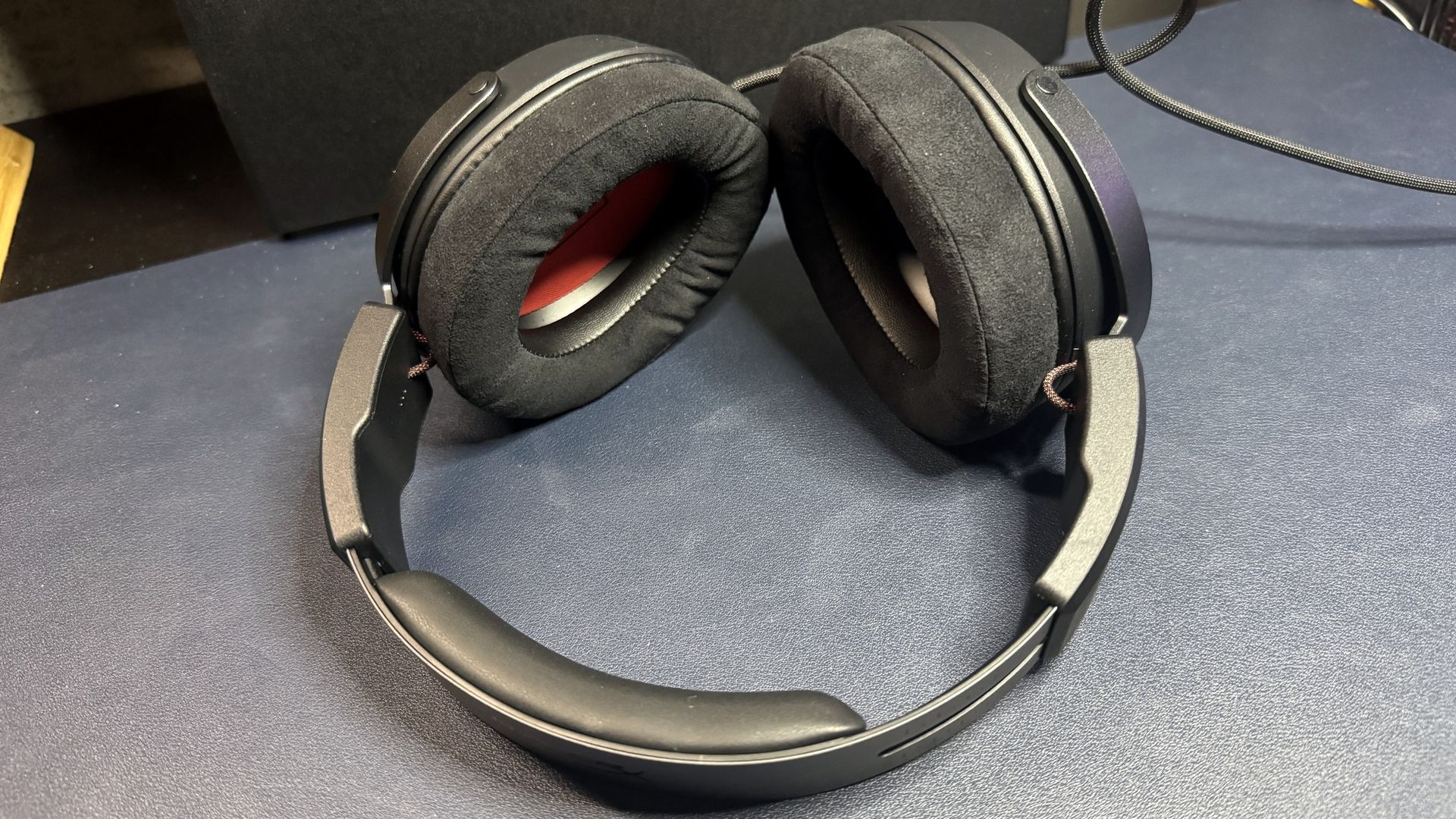
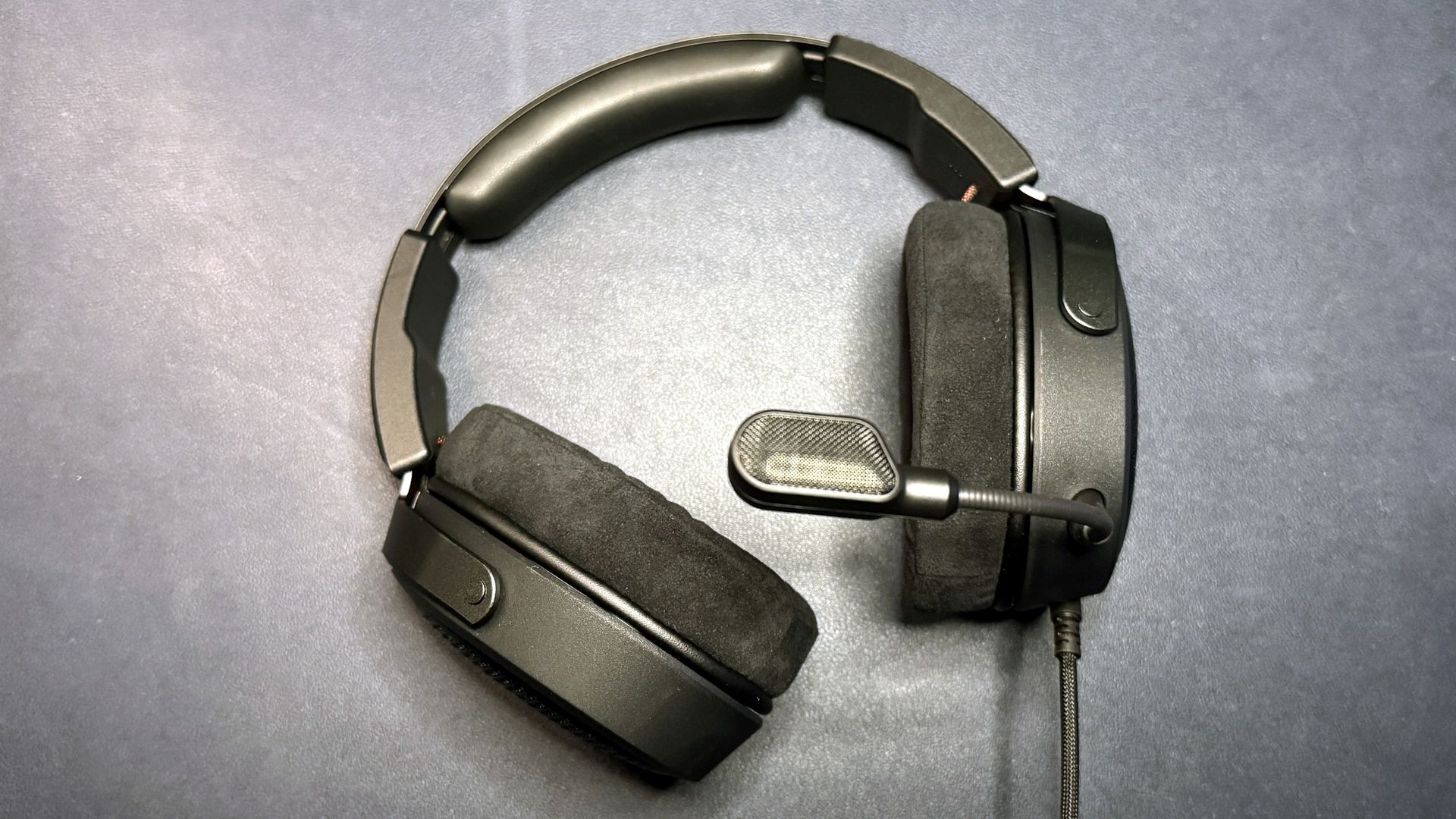
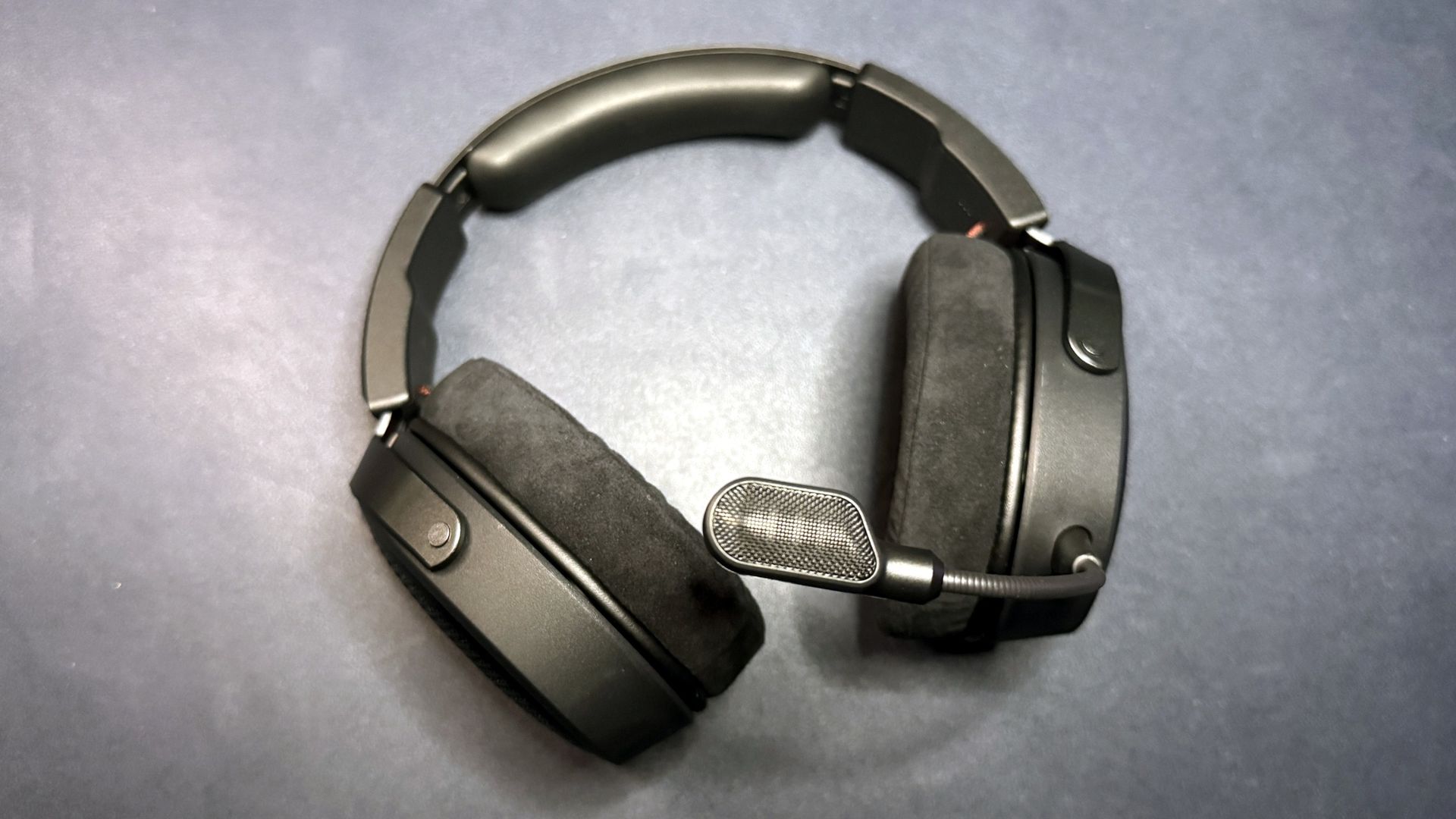
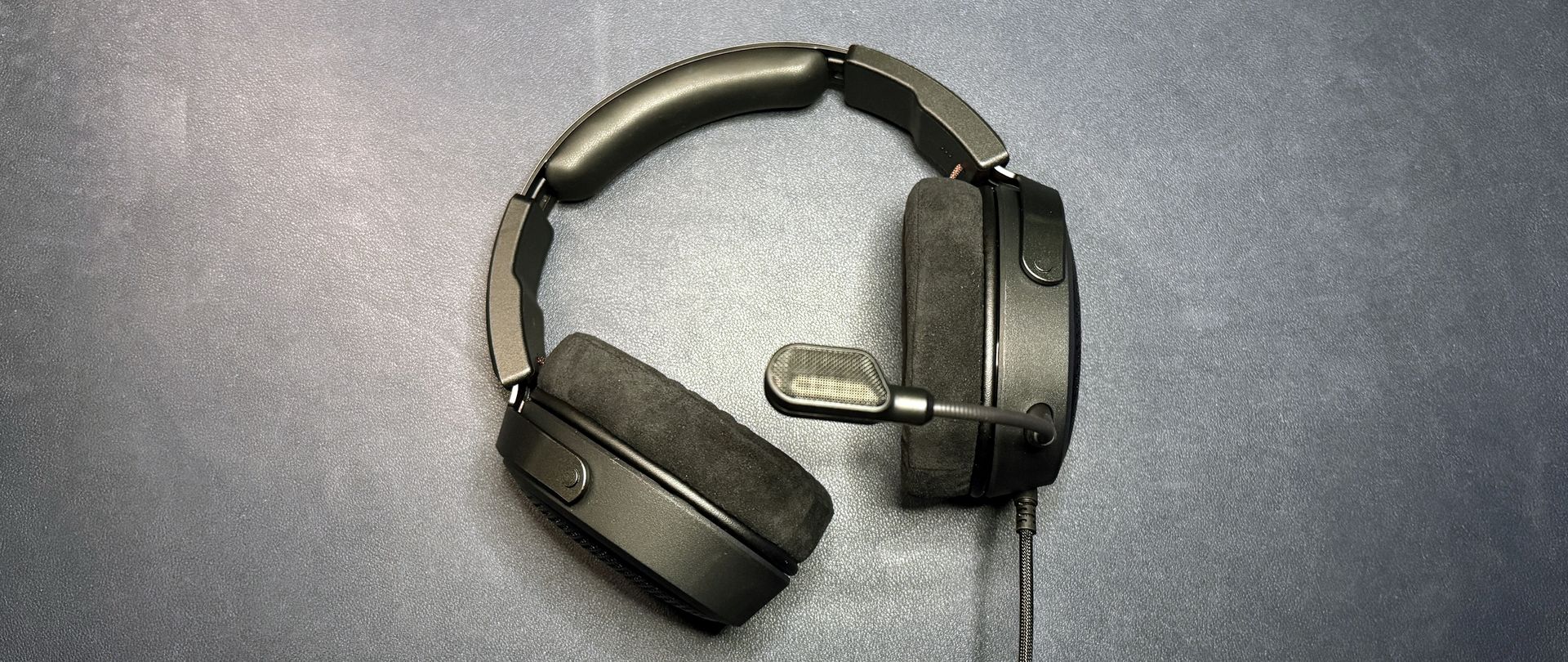
HyperX has decided to toss its hat in the ring of open-back gaming headsets with its newest, the Cloud Alpha Air. It's definitely not the first open-back headset we've seen in the past few years — others include the $200 Corsair Virtuoso Pro, the $180 Turtle Beach Atlas Air, and, of course, the $900 Audeze LCD-GX. The Cloud Alpha Air is at least somewhat budget-friendly at just $149.99.
The Cloud Alpha Air is a wired over-ear open-back gaming headset designed for comfort and immersion. It features dynamic 40mm drivers with a frequency response range of 20 - 20,000 Hz and a special "HyperX Bass Tube" to keep the low end present without compromising the open-back design. And, like other HyperX headsets (which are some of the best gaming headsets we've tested), it's extremely lightweight and easy to wear for hours at a time.
Design and Comfort of the Cloud Alpha Air
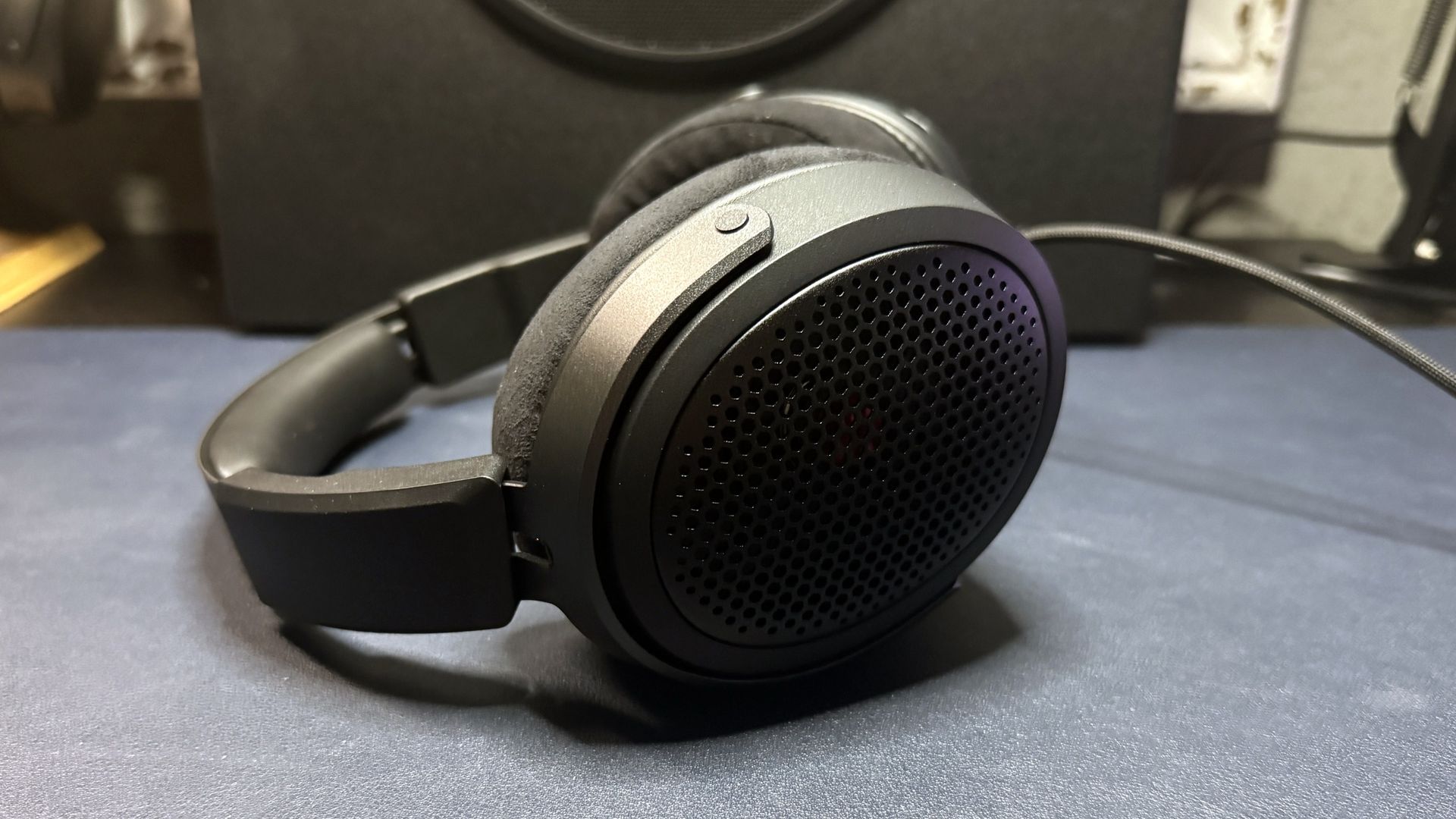
The Cloud Alpha Air is a wired over-ear (circumaural) open-back headset with a detachable boom microphone. It has large, plastic oval-shaped earcups with metal grilles attached to a padded steel headband. It's a fairly lightweight headset — HyperX has its weight listed at 9.6 ounces (272g) without the boom mic attached (the boom mic is listed at approximately 0.42 ounces / 12g), but we found the headset weighed closer to 10 ounces (283g) (the boom mic, however, weighed closer to 0.07oz / 2g), and came in at just under 10.6 ounces (300g) with both the boom mic and cables attached. This still makes it one of HyperX's lightest headsets — slightly lighter than the HyperX Cloud Stinger 3 Wireless and Turtle Beach's Atlas Air open-back headset.
(Image credit: Tom's Hardware)
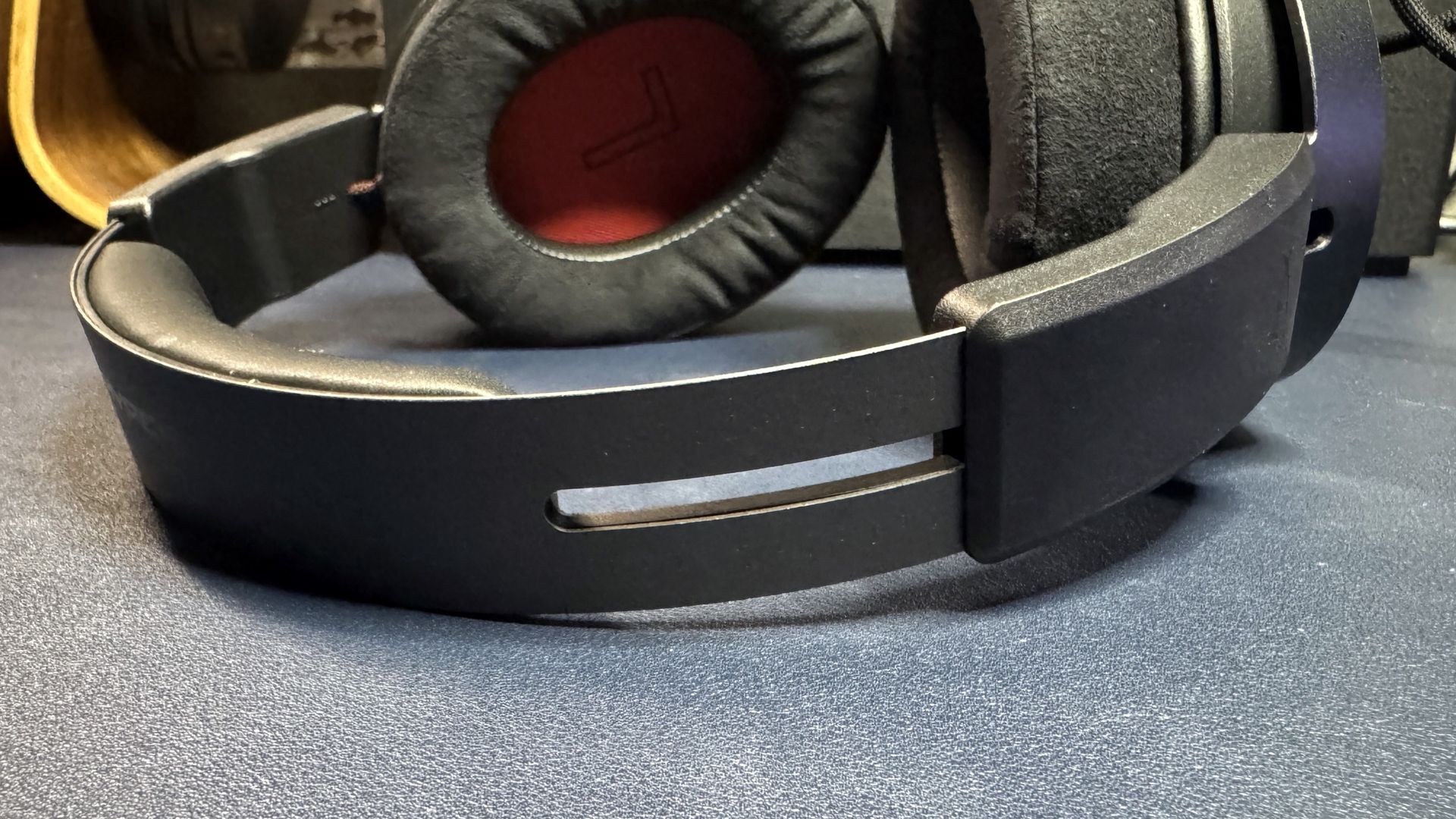
The Cloud Alpha Air's earcups are pretty roomy, with thick memory foam padding covered in soft ultrasuede material. The earcups tilt and swivel a little, but they're not as flexible as the earcups on many gaming headsets — and they don't swivel flat. The headset features a steel headband with leatherette-covered padding at the top and metal-reinforced yokes, so that explains the rigidity. The earcups are independently height-adjustable, with about an inch of extension for a maximum inner headband measurement of approximately 12 inches (300mm).
I found the Cloud Alpha Air to be very comfortable, despite the headband's relative rigidity, since the whole package is pretty lightweight and well-padded. However, I can see users with larger heads having problems with the top of the headband, as the padding did press on my crown slightly.
(Image credit: Tom's Hardware)
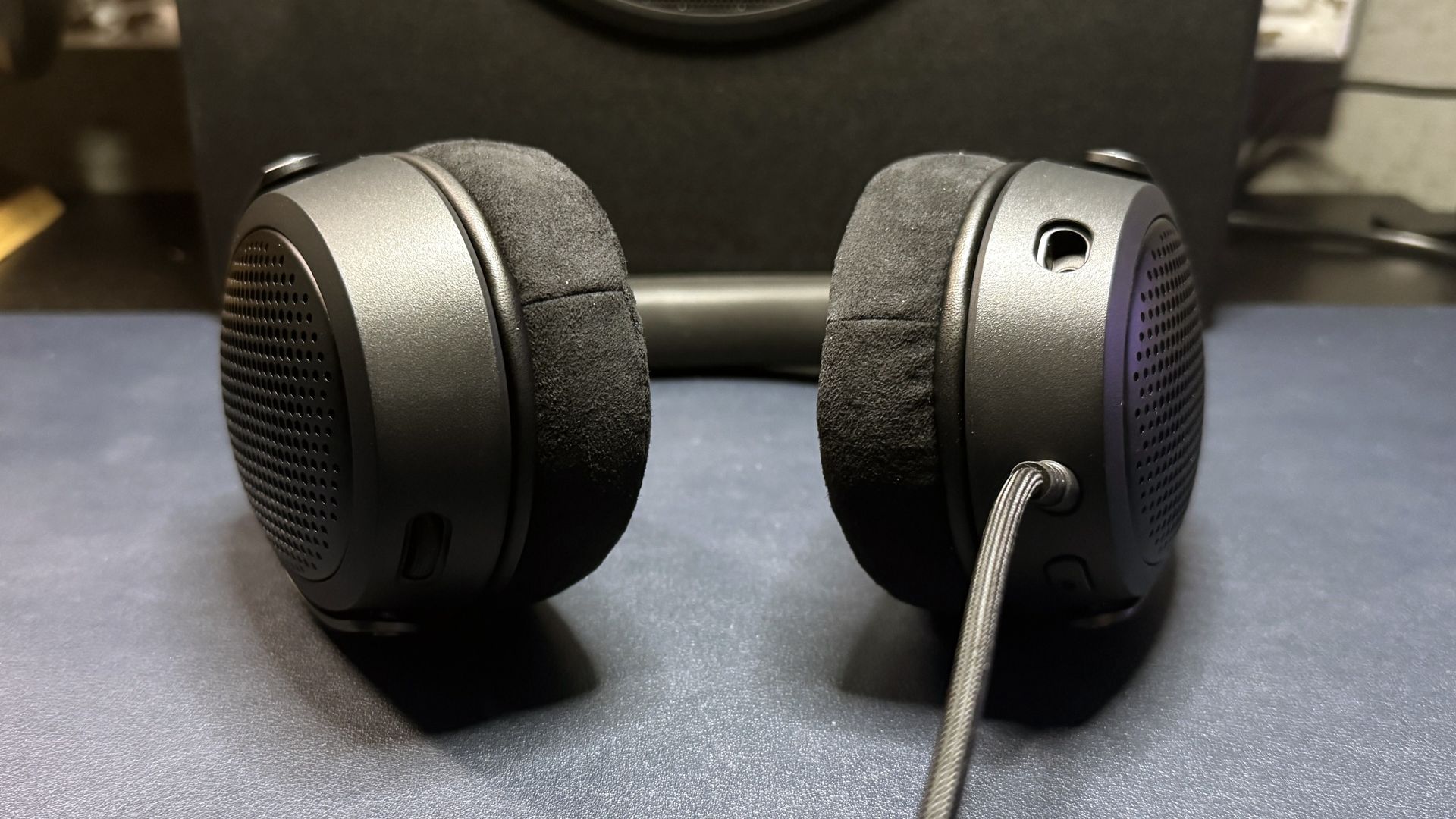
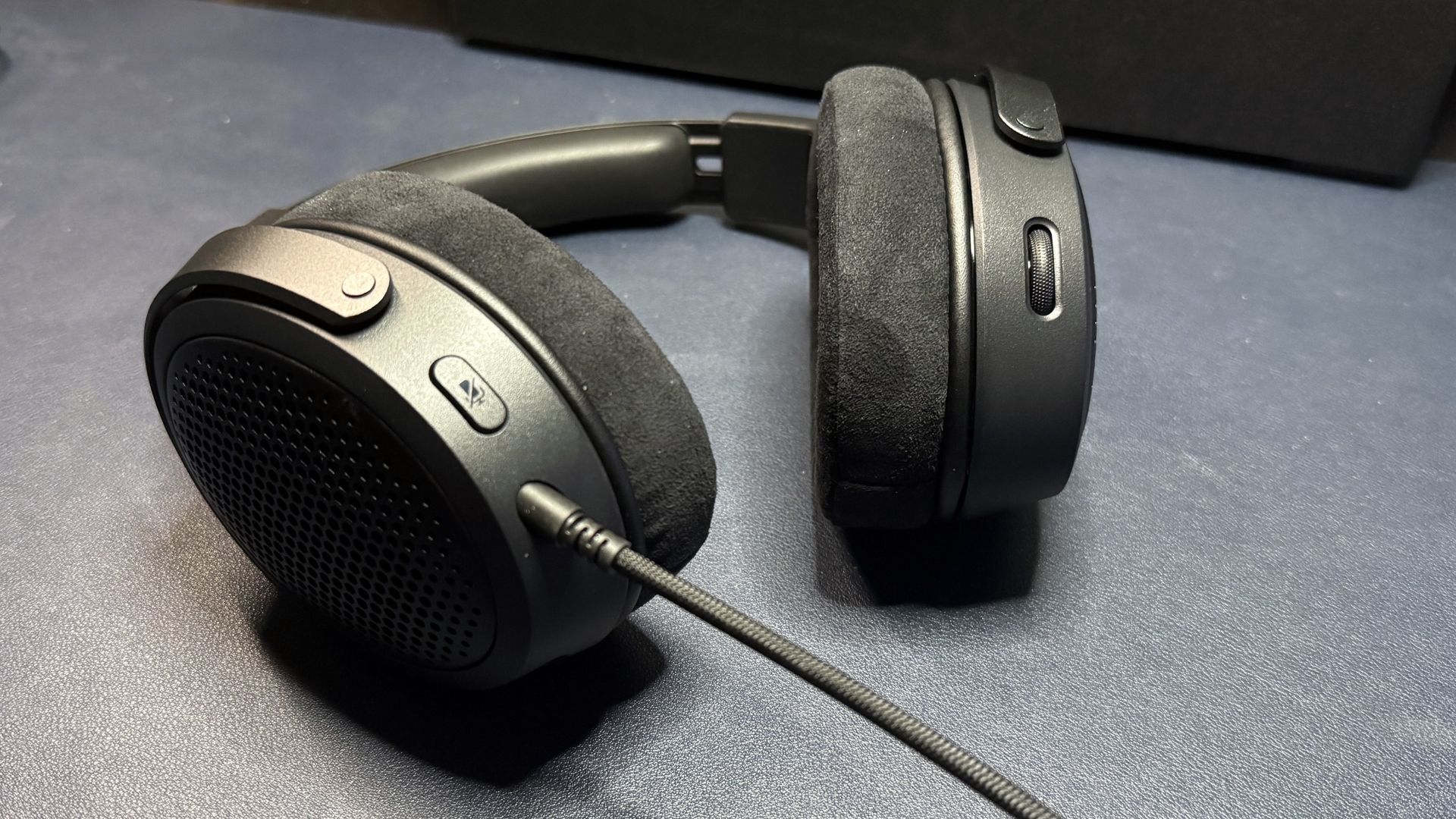
This is a wired headset, so there aren't a lot of ports or on-ear controls. The left earcup has two 3.5mm jacks, one for the detachable boom mic and one for the primary audio cable, as well as a microphone mute button, and the right earcup has a volume wheel.
(Image credit: Tom's Hardware)
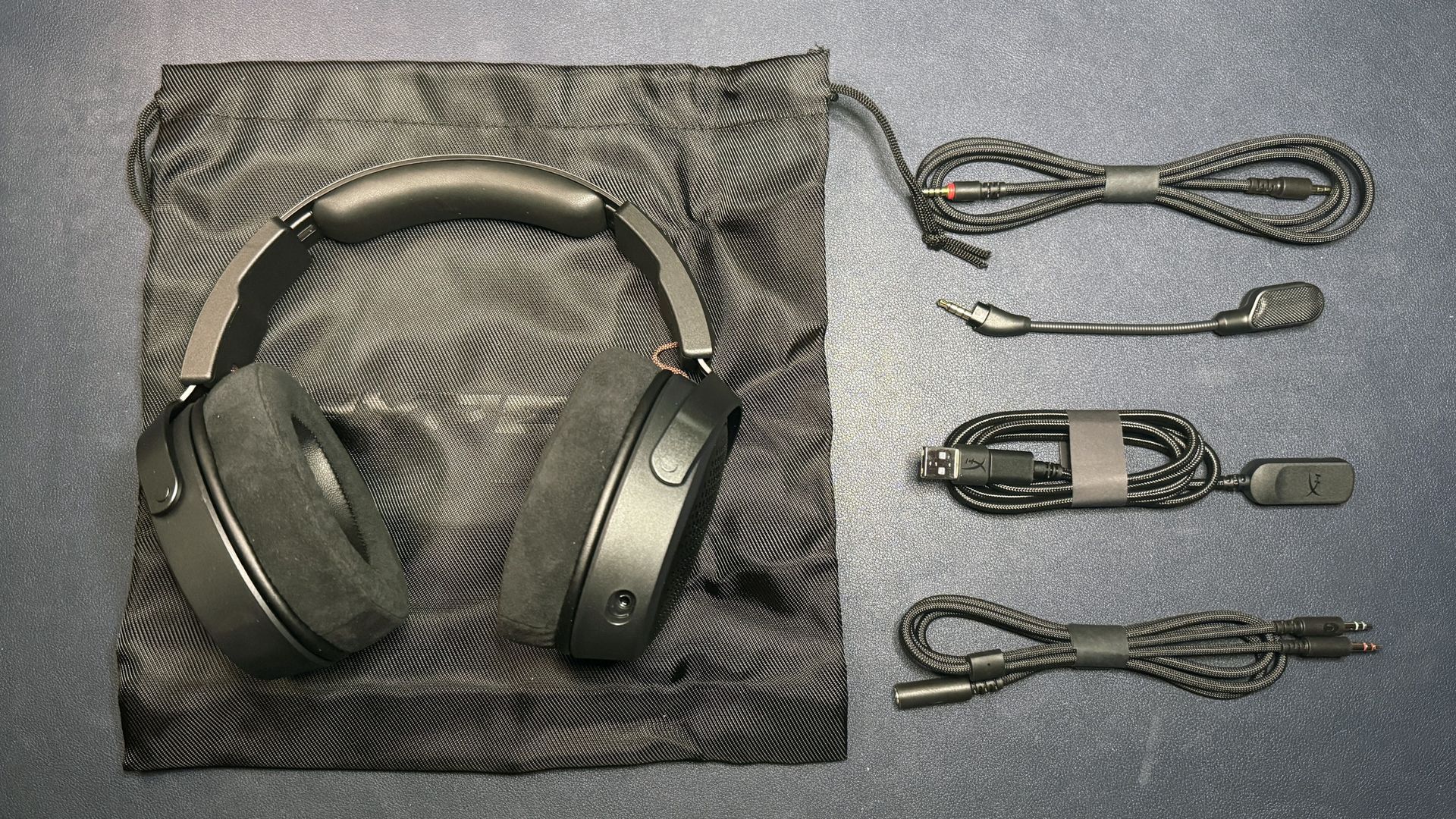
The Cloud Alpha Air is wired, but the wires are detachable, and it comes with everything you need in the box to plug it into various devices. The main cable is a standard 4-foot (1.2m) 3.5mm, and it comes with two extension cables: a 4.5-foot (1.37m) 3.5mm to USB-C extension (with a USB-C to USB-A converter attached) for plugging it into a PC or console, and a 3.5-foot (1m) PC extension cable with separate audio and microphone jacks. That gets you about 8 - 8.5 feet of cable when you're plugged into your PC, which is decent — though I would personally prefer single long cables instead of the extension system, as the extension system means there's a weight (where the cables connect) in the middle. The cables are braided and seem high-quality, if a bit heavy. The headset also comes with its detachable boom microphone in the box, as well as a thick drawstring carrying bag for keeping everything together.
Specs
Driver Type
40mm dynamic
Frequency Response
20 - 20,000 Hz
Design Style
Over-ear (circumaural), open-back
Microphone Type
10mm, uni-directional
Connectivity
Wired (USB-C/A, 3.5mm)
Weight
10oz / 283g
Cord Length
4ft (3.5mm AUX)
4.5ft (3.5mm to USB-C)
3.5ft (3.5mm to
Battery Life
N/A
Lighting
None
Software
HyperX Ngenuity
MSRP / Price at Time of Review
$149.99
Release Date
Sept. 2026
Audio Performance of the Cloud Alpha Air
The Cloud Alpha Air features dynamic 40mm neodymium drivers, with a frequency response range of 20 - 20,000 Hz (still pretty standard for gaming headsets, despite several companies coming out with premium models that have wider ranges).
Music sounds very good on the Cloud Alpha Air. The headset has a mostly neutral sound profile, with bright, detailed highs, a full, present mid-range, and solid but not overly powerful bass. It definitely has a wider sound stage than its closed-back counterparts, though it's not quite as wide or as open as some open-back headsets (such as the Audeze LCD-GX). Mid-range-heavy songs such as K-931's Lonely World and Enya's Orinoco Flow sounded especially dynamic. The headset has a built-in "HyperX Bass Tube" designed to maintain powerful bass, despite its open-back style. This works decently well — while I still found bass to be more powerful on closed-back headsets such as the Razer BlackShark V3 Pro, the bass was definitely present (and fairly detailed — I could hear the full run of the bass drum in Lorde's Royals).
(Image credit: Tom's Hardware)
Games sound even better on the Cloud Alpha Air, thanks to the open-back design. Games with multi-layered audio environments, such as Uncharted 4 and God of War: Ragnarok, really stood out on the headset — I could hear every individual creature in jungles and make out conversations with (possibly unrealistic) clarity in cities. Directional audio was also very good, though I would probably still opt for a closed-back headset for competitive first-person shooters where the direction of footsteps and gunshots is paramount. But you can't beat open-back headsets for exploring an open world (and for being able to hear things happening in the real world).
Microphone of the Cloud Alpha Air
The Cloud Alpha Air has a detachable 10mm boom microphone with a unidirectional polar pattern. It sits at the end of a 3-inch flexible metal gooseneck you can bend toward your mouth for better pickup, and the arm has a small red indicator light near the microphone end that lets you know when it's muted. It's the same microphone found on HyperX's other premium headsets, including the Cloud III S Wireless and the Cloud Alpha 2 Wireless.
(Image credit: Tom's Hardware)
The mic performs about as well as expected — it's good for a headset mic, but it's definitely still a headset mic. My voice was clear and full-sounding over both voice chat and in recordings. But the mic's pickup was pretty low by default — for other HyperX headsets I've been able to adjust the gain in its Ngenuity software, but I wasn't able to get Ngenuity to recognize the Cloud Alpha Air (I imagine if it had recognized it, it would have been adjustable, however). Hopefully this is fixed in a software or firmware update soon.
The mic mute button is easy to press, and the indicator light is a nice thought — but it was too low and too dim to be useful to me (I had to keep moving the mic up to see it, which seems like it sort of defeats the purpose of having an unobtrusive indicator light). I also had the same issue I did with the mute mic button on the HyperX Cloud III wired headset, where pressing the mute button caused a noticeable blip in my recordings.
Features and Software of the Cloud Alpha Air
The Cloud Alpha Air is supposed to be configurable with HyperX's Ngenuity peripheral software, which should let you do things such as tune the EQ and adjust the microphone's input gain. But, again, I couldn't get any version of Ngenuity to recognize the Cloud Alpha Air.
Bottom Line
If you've been thinking of getting an open-back gaming headset, the Cloud Alpha Air might be the headset you've been waiting for. As long as you don't mind the wires, it's an excellent headset for the price — it's comfortable, lightweight, and it sounds great whether you're listening to music, watching movies, or gaming. While I couldn't get it to connect to Ngenuity, I honestly don't count that as much of a point against it — peripheral software often causes more headaches than it's worth, especially for a headset that's mostly analog to begin with.
Over the past several years, MOZA Racing has become one of the most recognizable names in sim racing, earning a reputation for producing high-quality racing wheels and peripherals. Founded in 2012 by a group of automotive engineers and sim racing enthusiasts, the company initially focused on manufacturing and selling videography equipment before entering the sim-racing market.
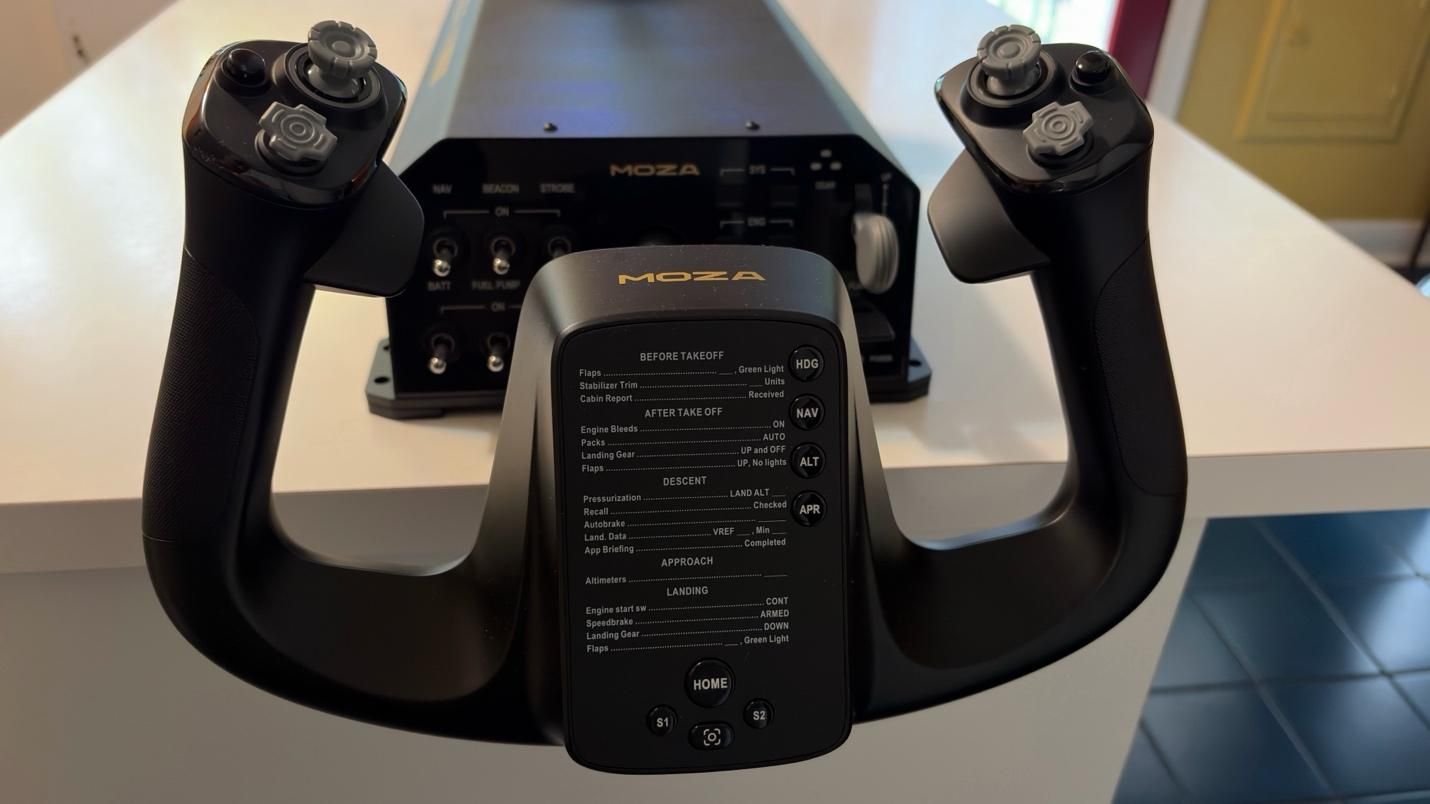
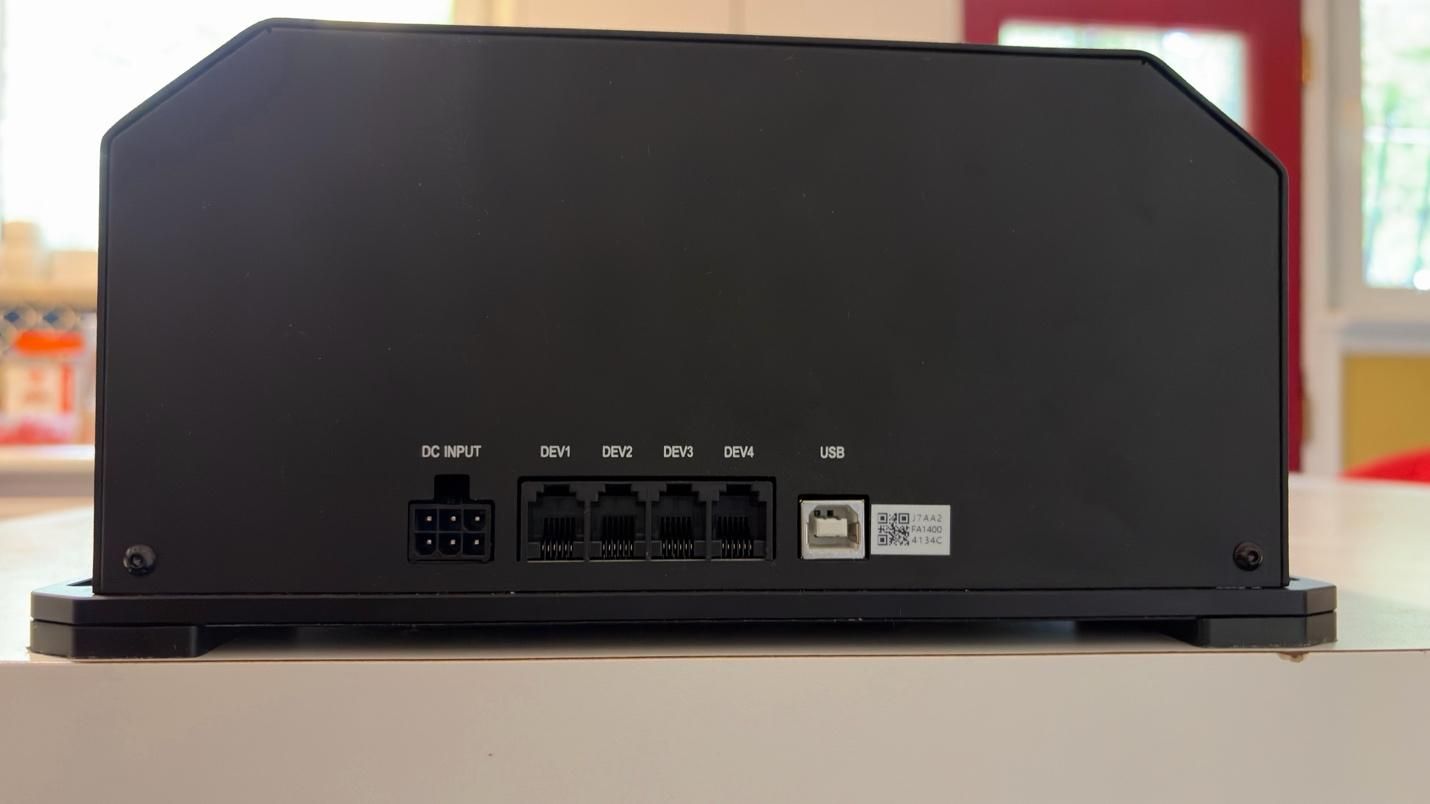
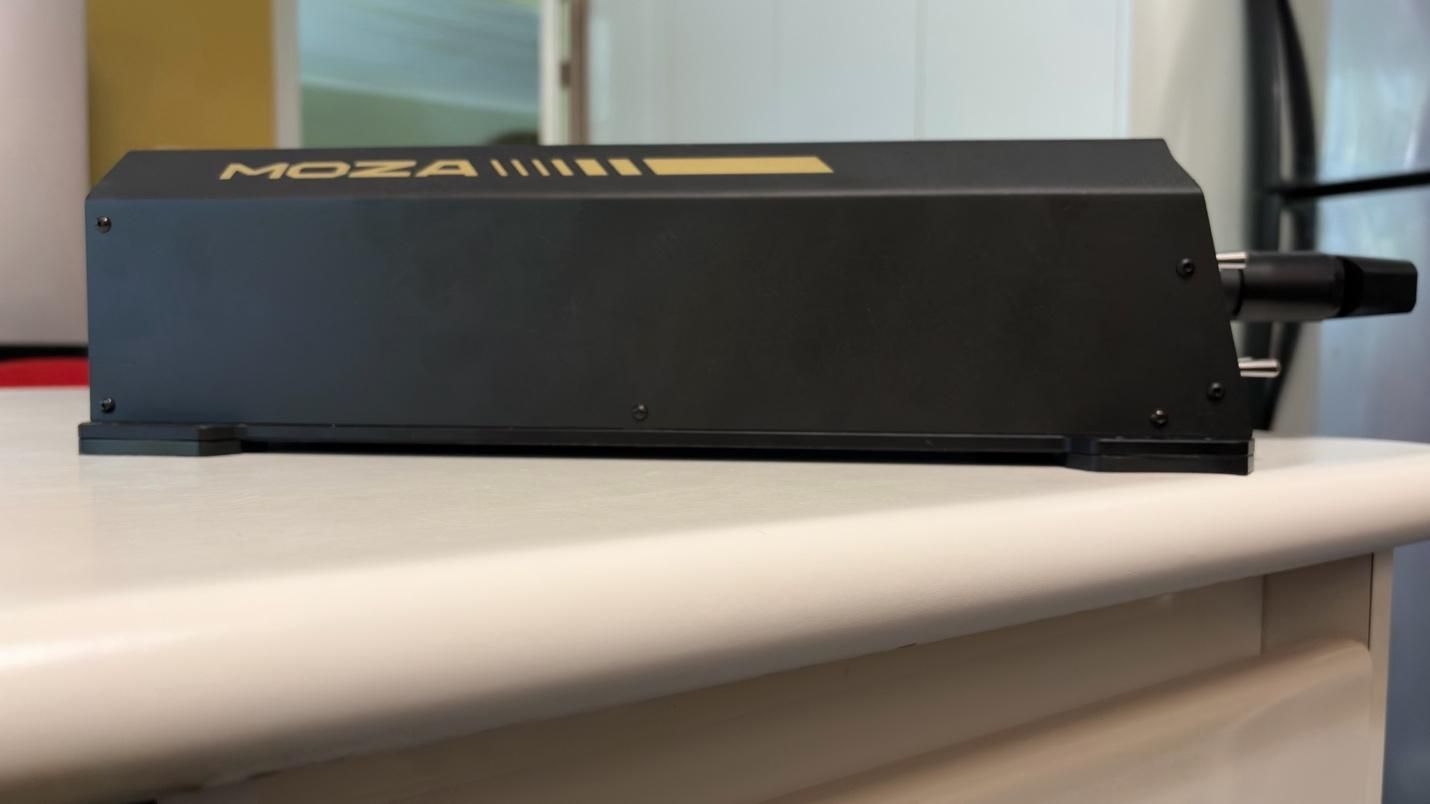
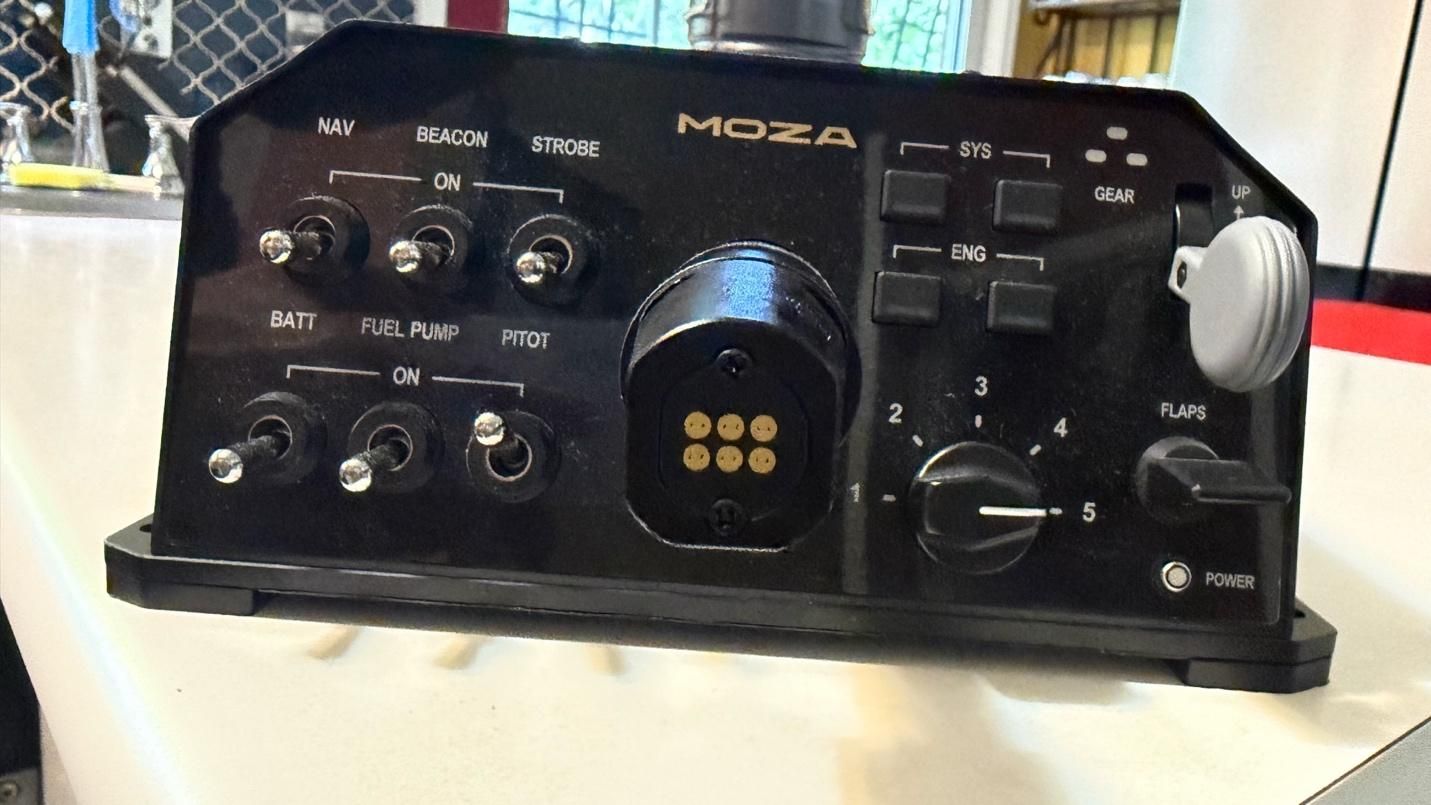
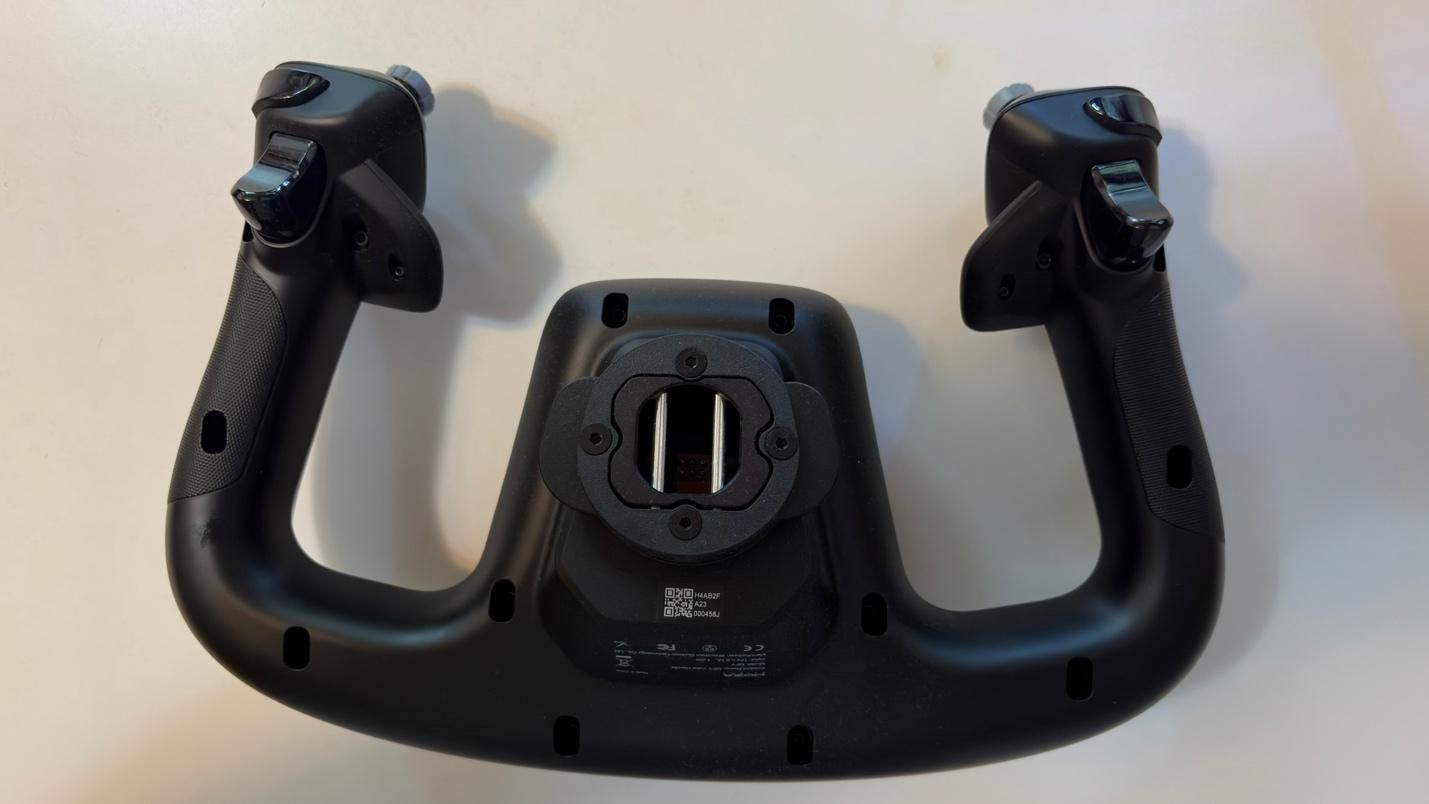
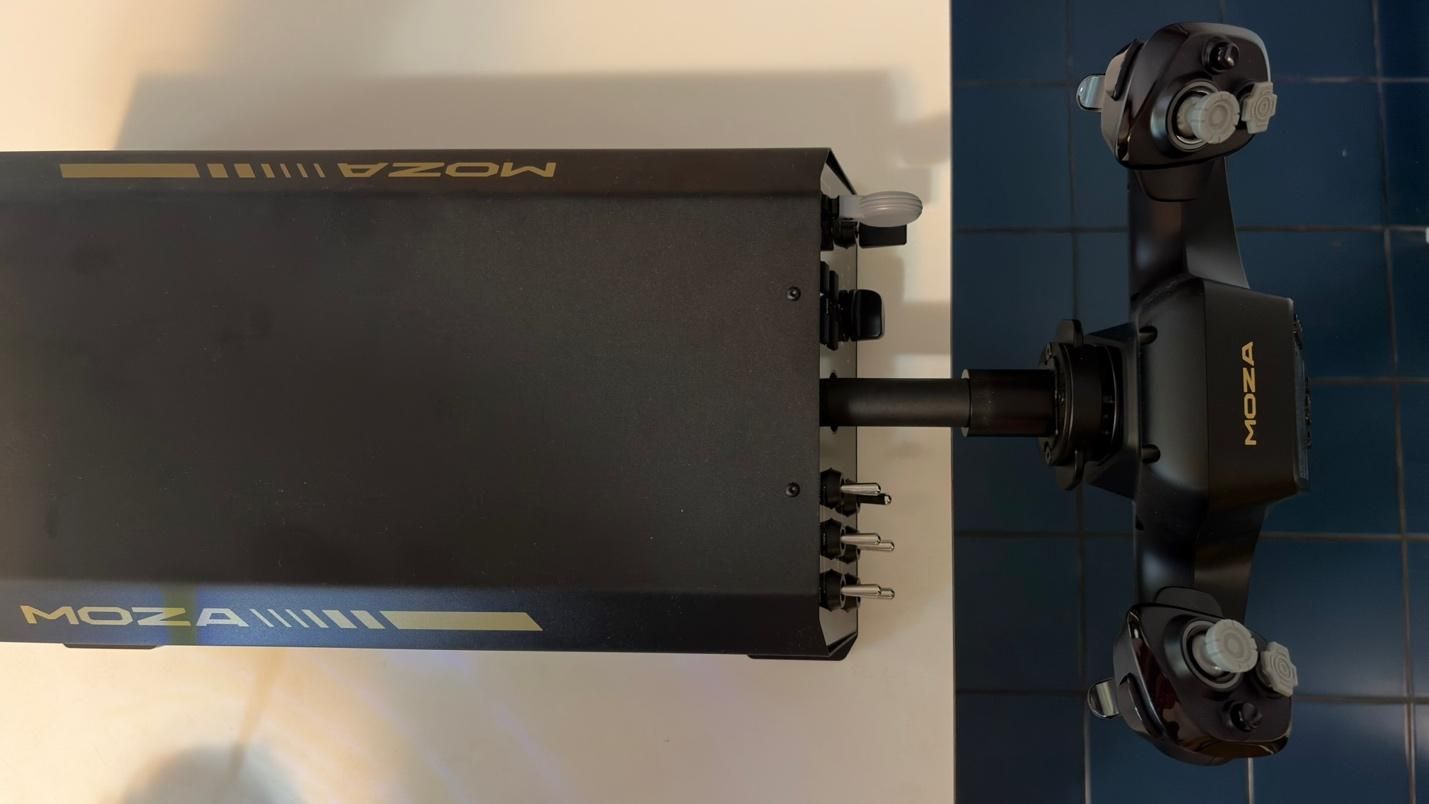
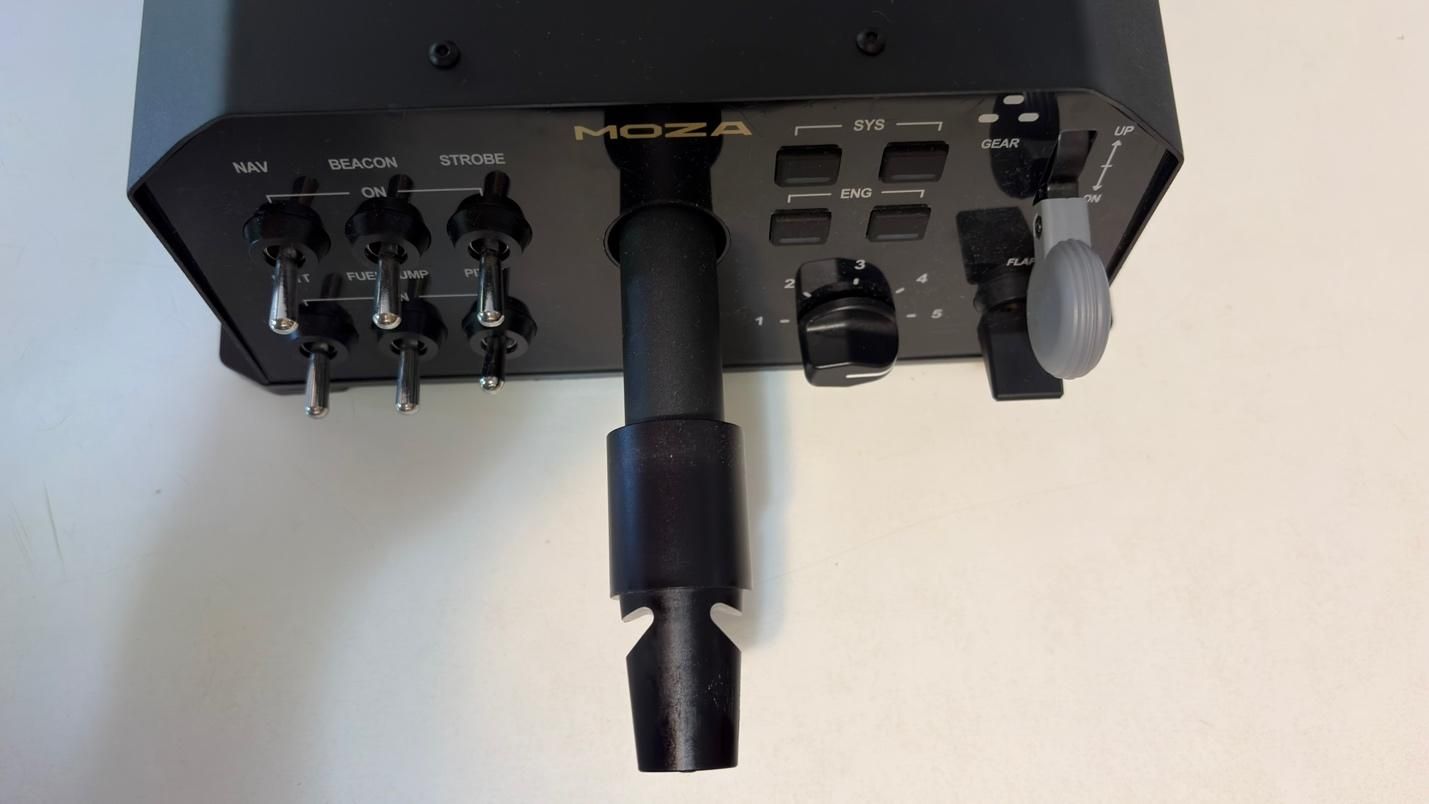
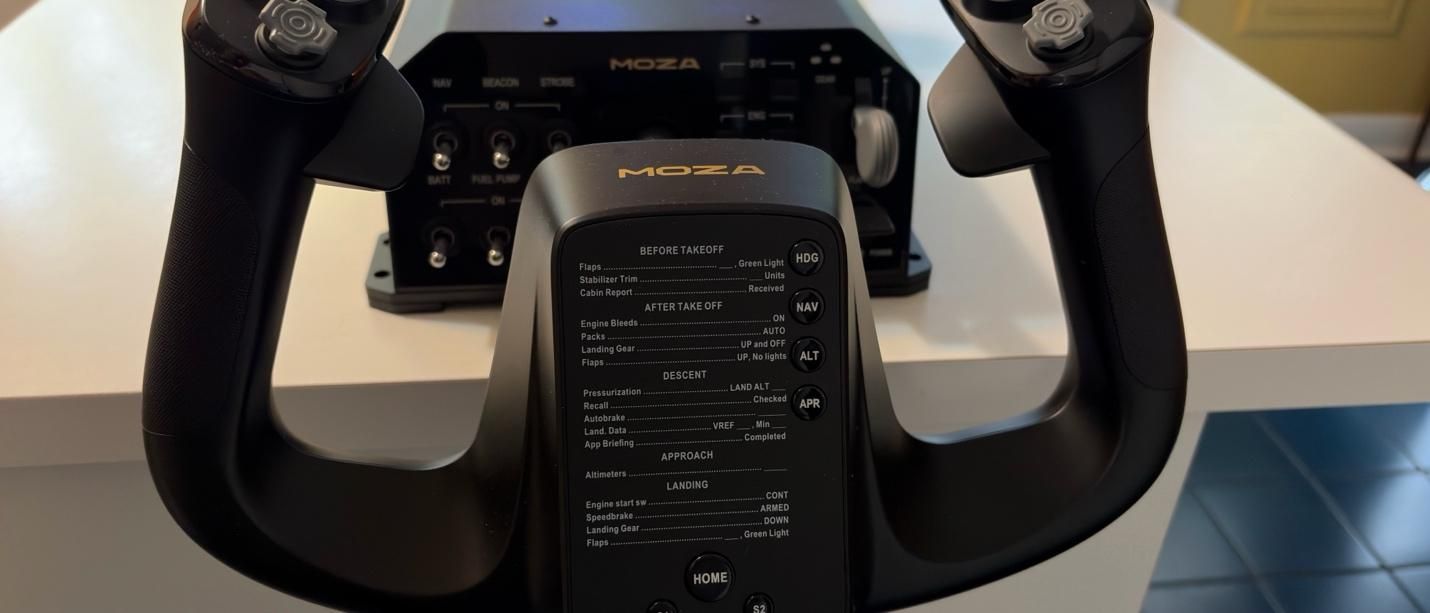
More recently, MOZA has expanded into the world of flight simulation, bringing the same focus on build quality and performance that has made its racing products so popular. Today, we’re taking a look at the MOZA AY210 Force Feedback Base and MFY Yoke. We’ll be putting both products through their paces in Microsoft Flight Simulator 2024, testing them across a variety of challenging flight scenarios to see how they perform in the cockpit.
While you can purchase the base and the yoke separately, they also come in a bundle. With the bundle, you get both the yoke and the base in the box, along with a toolkit and user manual. The base comes with a power cable and a USB Type A to Type B cable.
MOZA also sent us a couple of table clamps for the yoke to secure it to our test setup. The clamps are sold separately.
MOZA MFY Yoke Specs
Case Material
Composite
Quick Release Material
Aluminum Alloy
Button Cap Material
ABS Plastic
Platform Compatibility
Windows 10/11 – MSFS, X-Plane
8-Way Switches
2
Hall Effect Joysticks
2
LB/RB Buttons
2
Triggers
2
Total configurable inputs
34
Software
MOZA Cockpit
Dimensions (LxWxH)
5.6 x 8 x 12.3 inches / 142.5 x 202 x 313 mm
Weight
2.9lbs / 1.3kg
MSRP
$129.99
Release Date
March 2025
MOZA AY210 FFB Yoke Base Specs
Connectivity
Wired connection via detachable USB-B to
USB-A cable
Platform Compatibility
Windows 10/11 – MSFS, X-Plane
Housing Material
Aluminum alloy
Motors
Dual servo motors
Sustained Roll Torque
9 Nm
Travel Distance
150mm
Power
216W
Voltage
110~220V AC -> 36V DC
Chip Precision
15-bit magnetic encoder
USB Refresh Rate
1000Hz
Native Force Feedback
Supported
Intelligent Telemetry
Force Feedback
Supported
Software
MOZA Cockpit
Dimensions (LxWxH)
9.6 x 15.9 x 4.4 inches / 243 x 403 x 112 mm
Weight
17.6lbs / 8kg
MSRP
$699.99
Release Date
March 2025
Customization
The base and yoke feature several programmable buttons and switches, but the real depth of customization comes from MOZA Cockpit Software. The software provides an impressive range of options for fine-tuning the yoke to your preferences. You can adjust individual settings to create your ideal feel, or choose from one of MOZA’s presets or community-created profiles.
Build Quality
Tom's HardwareTom's Hardware
The base is constructed from aluminum alloy, giving it a sturdy, durable, and premium feel. An aluminum quick-release mechanism allows you to swap yokes quickly while keeping them securely attached.
Under the hood, the AY210 is powered by a 280 MHz processor and features a 15-bit high-resolution magnetic encoder. This is designed to provide precise and responsive inputs across the full range of motion, whether you’re making small, delicate adjustments or larger, more aggressive inputs. Combined with MOZA’s proprietary active force-feedback system, the AY210 is designed to deliver a high level of control while adding another layer of immersion to the flight experience.
The MFY Yoke features a premium build made from high-quality synthetic engineering thermoplastic and ergonomic design that closely replicates the feel of a yoke found in a real commercial aircraft.
How Does it Feel?
The star of the show is undoubtedly the force feedback. With up to 9 Nm of torque and 210 N of push force, the system adds a level of immersion that simply isn’t possible with conventional yokes that lack force feedback.
When flying the PMDG 737, the yoke gives the aircraft a noticeably heavier feel through the control column, closely mimicking what we experienced in a 737 simulator. As airspeed increases, the yoke becomes progressively harder to deflect in both pitch and roll, accurately reflecting the aerodynamic forces acting on the aircraft.
But the force feedback goes far beyond simply simulating control forces. You can feel the vibrations from the engines, as well as the movement of the flaps and spoilers. After takeoff, the yoke conveys the increasing resistance of the airflow as the aircraft accelerates. Approaching a stall during a climb produces a noticeable buffet through the controls, while landing provides feedback as the wheels make contact with the runway.
The AY210 also replicates the movement of the aircraft's controls when the autopilot is engaged, with the yoke moving under the control of the autopilot servos.
All of these effects work together to create a remarkably convincing connection between the aircraft and the controls. It’s a level of immersion that most other yokes simply cannot replicate.
Microsoft Flight Simulator 2024 Testing
We tested the AY210 Force Feedback Base and MFY Yoke in Microsoft Flight Simulator 2024 primarily using the PMDG 737-800. While the iFly 737 MAX is a great addon with a superb flight model, especially in Microsoft Flight Simulator 2020, it is not yet natively built for MSFS 2024. As such, it does not handle wind and turbulence effects entirely well in MSFS 2024. We wanted to stick with MSFS 2024 because of its more realistic flight dynamics. We also tested the yoke with the PMDG 777. For our tests, we used the latest 737 NG and 777 profiles from Tonyaviation on Flightsim.to. Tony is a real-life pilot with experience in the 737 and 787. The 787 and 777 share many of the same flight characteristics.
We tested the base and yoke in three different scenarios:
Basic maneuvering. Flying at 5,000 feet, we performed gentle turns and pitch changes to evaluate the precision of the base during small, accurate control inputs.
Turbulent approach. We performed an approach into Las Vegas under hot, windy conditions with strong updrafts and downdrafts. This scenario required larger, more frequent control inputs to assess how the base handles turbulence and rapid corrections.
Curved approach. Finally, we flew the RNAV Visual approach to Runway 1R at San Francisco International Airport. This approach is available in MSFS 2024 if you use the Navigraph database, but it is missing the RF leg between the waypoints KLAUS and SQIRL, so we added it to the navigation database of the PMDG 737 and 777 ourselves. The procedure features a sweeping right-hand arc that continues until roughly one mile from the runway threshold, requiring the aircraft to remain in a turn at very low altitude. The approach demands precise tracking of the flight path while also requiring a smooth, accurate transition to the runway centerline after the final waypoint. This scenario tested both the precision and responsiveness of the AY210 Base.
Basic Maneuvering
Basic maneuvering feels precise and smooth with the right settings. That last part is important, however, because the AY210 does not necessarily deliver this experience out of the box. Based on our previous experience with a 737 simulator, even with significant pitch input, the control column should maintain a smooth and consistent feel throughout its movement. With the AY210, we found that the motion could feel less natural and “sticky” unless Pitch Friction Correction was enabled in the MOZA Cockpit Software. Fortunately, this setting significantly improves the feel, giving the control column a response that is much closer to what we experienced in a 737 simulator.The 280 MHz processor and 15-bit high-resolution magnetic encoder also contribute to the AY210’s precise and responsive inputs. We were able to make accurate turns and precisely set our desired descent rate, with even small control inputs translating smoothly and predictably into the simulator.
Turbulent Approach
Here, we perform our usual turbulent approach, landing in Las Vegas during the summer. The combination of extreme heat, strong winds, and thermals along the approach path can create significant turbulence, making for a much less stable approach. Microsoft Flight Simulator 2024 is able to replicate these conditions through its Live Weather system, providing a challenging environment for testing the AY210.
The level of immersion provided by the AY210 is simply incredible. Through the force feedback system, you can feel the effects of wind and turbulence directly through the yoke, rather than relying solely on visual cues or the aircraft’s instruments. This provides useful feedback that helps you anticipate and make the necessary control corrections. The AY210 handled these conditions exceptionally well, accurately conveying the changing forces throughout the approach and giving us a much better sense of how the aircraft was responding.
Curved Approach
The RNAV Visual approach to Runway 1R at San Francisco International Airport contains an RF leg between the final two waypoints – KLAUS and SQIRL – which is a sweeping right-hand arc. The AY210 was responsive and precise throughout, allowing us to follow the arc all the way to SQIRL, at which point we were able to accurately align with runway 1R and perform a smooth landing.
By comparison, the Thrustmaster TCA Boeing Yoke felt noticeably jerkier throughout the approach. The two products are also in completely different price tiers, so this is not necessarily a direct or entirely fair comparison. However, the TCA Boeing Yoke is a popular choice among simmers flying Boeing aircraft in Microsoft Flight Simulator, making it a useful reference point. The difference was immediately noticeable, and the AY210’s ability to provide smoother, more natural control while conveying the effects of turbulence is a clear example of what you gain from its more premium design and force feedback system.
Bottom Line
The MOZA AY210 Force Feedback Yoke Base delivers one of the most immersive experiences available in desktop flight simulation. It comes at a premium price, but after spending time with the AY210, it is genuinely difficult to go back to a yoke without force feedback. The combination of realistic feedback, precise control, and the level of detail conveyed through the yoke adds an entirely new dimension to the flying experience.
It is not without its flaws. Some of the force feedback effects could be stronger, while the control column can feel slightly unnatural and “sticky” out of the box. Fortunately, both issues can be addressed to some extent through the extensive customization options in MOZA Cockpit Software.
Overall, the AY210 is an impressive piece of hardware. For those willing to pay the premium, its force feedback and overall level of immersion make it a compelling upgrade for any serious home cockpit.
For years, the standard polling rate for gaming peripherals — mice, keyboards, etc. — has been 1,000 Hz, which equates to a delay, or latency, of 1 millisecond. This is significantly higher than the standard polling rate for non-gaming peripherals, by the way, which is 125 Hz (8ms latency) — in fact, it's eight times as fast.
Well, over the last couple of years, gaming companies have been asking: What if we made the polling rate even faster than 1,000 Hz? What if we made it eight times as fast?
And now just about every single ultra-lightweight, esports-oriented gaming mouse that comes out has up to an 8,000 Hz polling rate. And, of course, this raises the question every time: Do you actually need a mouse with an 8,000 Hz polling rate?
And the answer is... probably not.
What is polling rate, and what does it mean?
Polling rate is, simply put, how often your mouse communicates with your PC. That is, how often it reports mouse movement and clicks to your CPU. At a standard gaming mouse polling rate of 1,000 Hz, your mouse is communicating with your PC 1,000 times per second — or, once every millisecond. Hence, a 1,000 Hz polling rate means 1ms latency. At a standard non-gaming mouse polling rate of 125 Hz, your mouse is only communicating with your PC once every eight milliseconds — or an 8 ms latency. At a polling rate of 8,000 Hz, your mouse is communicating with your PC once every 0.125 milliseconds — a 0.125 ms latency.
Polling Rate
Mouse Report Rate
Latency
125 Hz
125x / second
8 ms
500 Hz
500x / second
2 ms
1,000 Hz
1,000x / second
1 ms
2,000 Hz
2,000x / second
0.5 ms
4,000 Hz
4,000x / second
0.25 ms
8,000 Hz
8,000x / second
0.125 ms
Polling rate affects both mouse movement (if the polling rate is low enough, mouse movement might be jerky) and, more importantly, click latency — you want your mouse clicks to translate instantly.
But it's important to keep this in perspective, because higher polling rates yield increasingly diminishing returns. Going from 125 Hz to 1,000 Hz is definitely noticeable — it cuts your latency from eight milliseconds to just one. But while going from 1,000 Hz to 8,000 Hz cuts your latency by the same factor, we're now talking about fractions of a millisecond. The average gamer can tell if their mouse is lagging by several milliseconds, but can they tell if their mouse is lagging by less than one millisecond?
Maybe. But probably not.
Why not?
Well, inability to distinguish whether your mouse is lagging by 0.875 milliseconds aside, there are some potential downsides to ultra-high polling rates. The main one being that your system may not be able to handle it. A higher polling rate means that the mouse is communicating with your PC more frequently, so this can affect CPU performance — if you don't have a pretty solid gaming CPU, you may see more of a performance hit than is worth the infinitesimal lower latency (which may not even end up being lower if performance issues cause latency). And if you don't have a gaming monitor with a high refresh rate (at least 240 Hz, if not higher), any perceived smoother mouse movement will be just that — perceived. (Of course, with a higher refresh rate you'll need an even better system to keep up with that and the 8,000 Hz polling rate, and... well, you get the point).
Turtle Beach Burst II Pro (Image credit: Tom's Hardware)
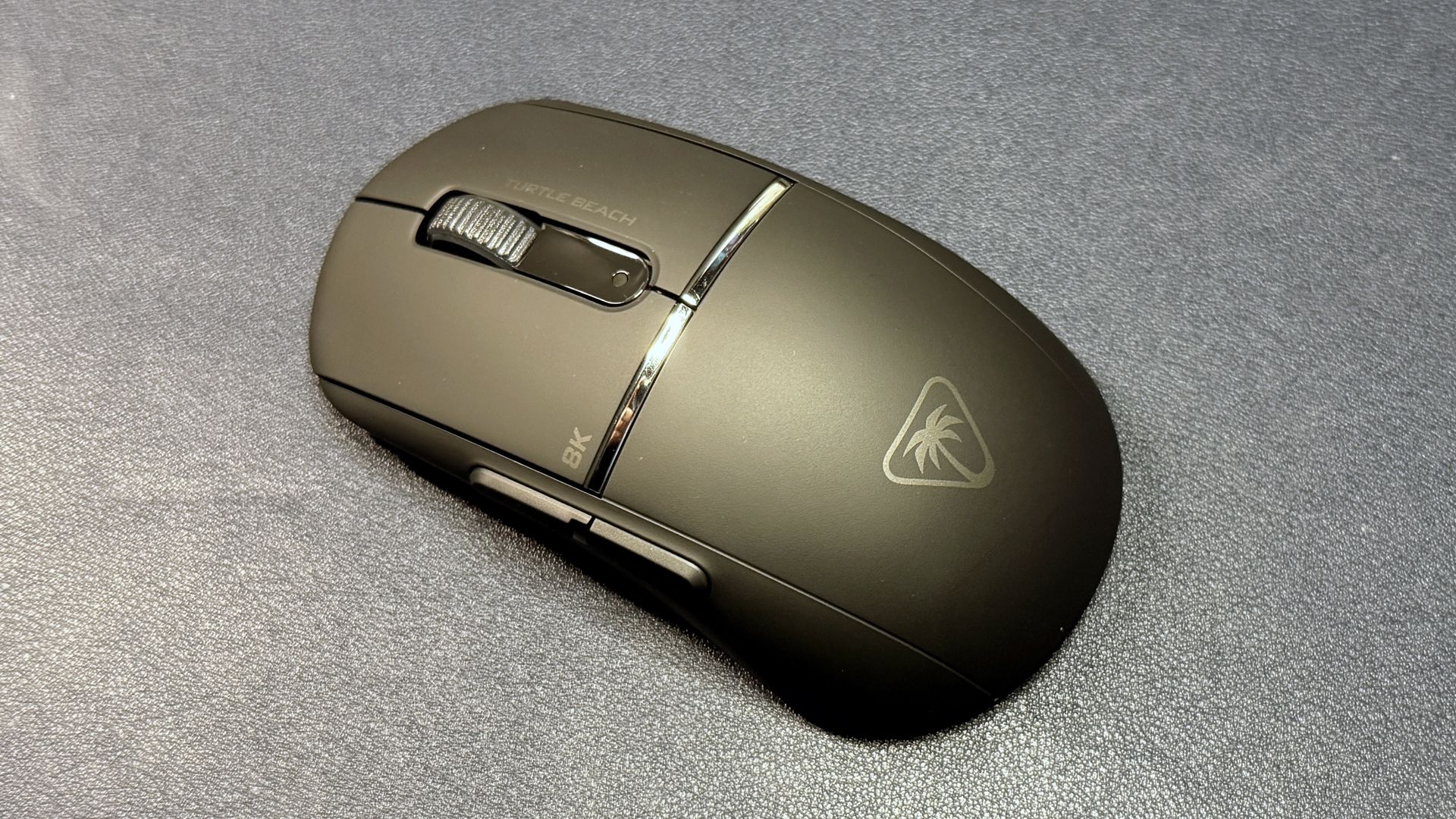
Another downside to an 8,000 Hz polling rate is battery life, because it drops significantly on wireless gaming mice. The battery life of the Corsair Sabre v2 Pro Wireless is a pretty impressive 120 hours at 1,000 Hz, but this drops to just 21 hours at 8,000 Hz. The Razer Basilisk V3 Pro 35K gets up to 150 hours at 1,000 Hz, and just 28 hours at 8,000 Hz. The Turtle Beach Burst II Pro does a little better, going from 150 hours at 1,000 Hz to 40 hours at 8,000 Hz, but it's still a significant drop.
Razer HyperFlux V2 (Image credit: Tom's Hardware)
And while you can cheat the system with select Razer and Logitech gaming mice by pairing them with either the Razer HyperFlux V2 or the Logitech PowerPlay 2 wireless charging mouse pads, you will need to pair the mice to your PC using their included (or, in some cases, sold separately) 8,000 Hz dongles — neither the HyperFlux V2 nor the PowerPlay 2 offer 8,000 Hz polling rates if you connect through the built-in receivers.
But... 8,000 Hz!!
You may not need an 8,000 Hz polling rate, but maybe it will make you feel better.
If any category of gaming mouse is going to benefit from lower latency, it's the esports category — where mice need to be lightweight so they can fly across surfaces, relatively small so they can be picked up when sliding them is too time-consuming, and hyper speedy and accurate so competitors can shoot people in the head without missing a beat. And so it's not surprising that flagship gaming mice like the Razer DeathAdder V4 Pro or the Asus ROG Harpe Ace Extreme (or the Asus ROG Harpe II Extreme Edition 20) tout 8,000 Hz polling rates.
Razer Basilisk V3 Pro (Image credit: Tom's Hardware)
But you don't have to spend a ton on an extreme edition flagship gaming mouse to max out your polling rate — several of Razer's older mice work with the company's Mouse Dock Pro and/or HyperPolling Wireless Dongle to get up to 8,000 Hz wireless polling rates, including the Razer Basilisk V3 Pro, and many of its newer mice come with 8,000 Hz polling out of the box (e.g. the Razer Viper V3 Pro, which is currently on sale for $110 at Amazon — 31% off its retail price of $160).
If you don't need a wireless mouse, Razer's DeathAdder V3 wired gaming mouse gets up to an 8,000 Hz wired polling rate (and is currently on sale for $45 at Amazon — 36% off its retail price of $70). Even Redragon, one of our favorite budget-friendly peripherals companies, has a mouse with an 8,000 Hz polling rate: the Redragon M916 ULT, which is wireless and ultra-lightweight (49g) and retails for just $50.
Razer Naga V3 Pro (Image credit: Tom's Hardware)
Ultra-high polling rates are creeping in everywhere, not just in the competitive esports market. Even Razer's recently launched V3 Naga Pro, which isn't even an ultra-lightweight, esports-oriented gaming mouse (it's a relatively hefty 23-button mouse for games that definitely do not need to worry about ultra-smooth, accurate mouse movement or click latency), can get up to an 8,000 Hz polling rate if you pair it with either the company's Mouse Dock Pro or HyperPolling Wireless Dongle (both are sold separately, naturally, because — again — you don't need this).
Corsair recently showed off its Nightsword v2 Wireless SD, a mouse with a built-in Stream Deck (sort of), which also has up to an 8,000 Hz polling rate (170 hours of battery life at 1,000 Hz, which drops to 47 hours with the lighting turned off and 25.5 hours with the lighting turned on at 8,000 Hz). And if you think that you can tell the difference between half a millisecond but not that extra quarter, there are also mice with up to 4,000 Hz polling rates, such as the HyperX Pulsefire Saga Pro and the SteelSeries Aerox 3 Wireless Gen 2.
And as for whether you need a keyboard with an 8,000 Hz polling rate, the answer is: absolutely not.
While compressed air is affordable, it becomes less practical if you clean your system frequently. You could unknowingly spend hundreds of dollars a year on disposable cans, especially if you use compressed air outside of system maintenance. Amazon has plenty of deals on cordless air dusters during the Big Day sales, which not only helps save you money in the long run but is also better for the environment.
As with any product, air dusters come in different shapes, specifications, and features. So, choose one that meets your needs. Prices also vary, but we have curated a selection of air dusters, starting at $19, which is a few dollars more expensive than a can of compressed air, and going up to premium options.
The Blowzer X6 is a high-end cordless air duster with a 130,000 RPM motor. It includes five nozzles, a carrying case, and a three-year warranty.View Deal
Compressed Air Duster: was $23.99 now $19.19 At a very accessible price, the CAGIWIRU air duster has a fan speed of 130,000 RPM. It offers three adjustable gear speeds, an LED light, and various attachments for different cleaning needs.View Deal
Compressed Air Duster: was $24.99 now $19.28 This device is equipped with a slightly varied set of accessories designed for cleaning your PC or keyboard. It features rechargeable capability via USB Type-C, includes two different nozzles and three brushes, and operates at a maximum speed of 150,000 RPM.View Deal
MF60: was $49.99 now $30.39 Wolfbox's rechargeable compressed air duster has a 110,000 RPM motor, three speed settings, and five nozzles for cleaning. It has two 2,2500 mAh batteries that charge in three and a half hours.View Deal
This compact air duster is capable of moving air at velocities of up to 45 m/s, powered by a turbofan operating at 150,000 RPM. It features a rechargeable battery that provides a usage time of up to 100 minutes and supports charging via USB Type-C. The MF100 is equipped with five nozzles and two brush tools to facilitate the cleaning of your PC equipment.View Deal
Compressed Air Duster: was $39.99 now $24.34 This air duster features three adjustable gear modes up to 100,000 RPM. It also has a smart LED display to show the active mode, plus an LED light for working in dark places.View Deal
Finding a budget gaming chair that checks all the right boxes is rare. Our top recommendation, the Razer Iskur V2 X, is now available at a record-low price of $189.51, an $110.48 discount off its usual price.
The Iskur V2 X, one of the best gaming chairs, offers some of the best ergonomics in any budget gaming chair. Designed for long gaming sessions, it features an adjustable lumbar support system and high-density foam cushions that adapt to your body. Meanwhile, the 21.4-inch seat base evenly distributes your weight, so you stay comfortable whether you are leaning forward during gaming or lying back to relax.
The Iskur V2 X caters to a wide range of users. It can accommodate adults up to 6.2 feet tall and supports a maximum load of 299 pounds. Whether you are petite or average-sized, the Iskur V2 X's robust construction and reinforced frame are designed to keep you as comfortable as possible.
Razer backs the Iskur V2 X with a generous limited three-year warranty. That alone really sets it apart from the competition, where entry-level gaming chairs typically come with one-year warranties. The level of support demonstrates Razer's confidence in the Iskur V2 X's quality and durability, two areas that matter a lot when it comes to something that you will likely sit on every day until it breaks.
At just $189.51, you are unlikely to find another chair that matches the Iskur V2 X's blend of comfort, durability, and support. Whether you need a gaming chair or plan to use it as an office chair for long workdays, the Iskur V2 X offers outstanding value.
As much as I love high-priced tech like my potent RTX 4090-equipped custom gaming rig or the 65-inch LG OLED TV I use as my monitor, most of us can't spend several hundred dollars on a tech purchase or gift all the time. But you can still improve your tech life (or the lives of your friends and family) while spending a comparatively small amount of money.
I own all of the affordable devices listed below, and all are on sale for under $50. Some are even under $25! All of these products have made my tech-saturated world a little nicer in their own way. If you're looking for a small tech splurge for yourself during this deals season, or an affordable gift for that tech-savvy friend or family member, one of these $50-or-under options might be a good fit and a great deal.
Last year, a family member asked me for help with an older PC, which was trying to run Windows 10 and several programs on a cramped 110 GB SSD. At first, I figured I could clone the boot drive onto a more spacious drive so the OS and programs had more space to stretch out.
But the thought of using multiple USB enclosures or shuffling drives in and out of my desktop filled me with dread as I pictured being there for hours getting everything done and the system back up and running. So I looked into getting an M.2 SSD cloner and was surprised to see they can be found for less than $50.
NVMe SSD Cloner: was $49.99 now $36.09 With support for NVMe M.2 SSDs and offline cloning, this handy device makes it simple to move your files or OS from one drive to another. And with a 20 Gbps USB-C interface, it's also speedy in your OS of choice if you want to use software to clone or move your data between drives.View Deal
While I don't love the glossy plastic shell of Rosewill's model, it's one of the more affordable options. And it supports both NVMe M.2 drives and older AHCI models (Sorry, SATA). Using the cloner is pretty straightforward. You plug in the included USB-C power adapter, put your source drive in the left slot, the destination drive in the right slot, press the power button on the back, and a few logos light up, letting you know you're ready to go. Press the clone button on the top, and drive cloning will commence (provided your destination is the same size or larger than your source).
That's assuming you want to do an offline clone. But because I wanted to also resize the partition between the old 110 GB and the newer Team Group 512 GB SSD, I used the second included USB-C cable to connect the Rosewill cloner to my laptop and powered up the device. Within seconds, both drives were recognized in Windows, so I fired up the excellent free DiskGenius software, cloned the old partition to a new Team Group drive with a few clicks, and then used the software to drag the boot partition to the full size of the new drive. The whole process took just a few minutes, since the Rosewill cloner supports 20 Gbps USB, and I wasn't exactly copying a huge partition.
When the cloning process was finished and the partition inflated, it was hard to believe it was all that easy. I had expected to be at the task for hours, but I was done in less than 30 minutes. Sure, unless you're in IT, a drive cloner might not be something you use regularly, but it's sure handy to have around. You could also use it to save some money by buying a laptop with a cramped SSD and swapping in something much roomier – provided, of course, the laptop's storage isn't soldered to the motherboard.
The Rosewill cloner is also handy for just checking the contents of old M.2 drives you may have lying around. But if that's all you need, you can buy an NVMe enclosure or a single-drive dock. I also own a version of this model from Suitok, which costs $12.
This tiny, cheap, magnetic, USB-charging flashlight is great for PC building and other everyday tasks
(Image credit: Tom's Hardware)
I picked up the OLIGHT IMINI 2 mini flashlight last year on impulse because it looked well-designed and cost around $20, but now it's down to just $12. Its simple design and built-in USB-A plug for charging make it fun to use – just pull the back off, and it turns on. The magnet at the back lets you easily mount it anywhere you need a little extra light. I've used it inside a steel PC case while fiddling with RGB wires.
Imini 2 EDC Rechargeable Keychain Flashlight: was $19.99 now $11.99 At just 2.17 inches long, this flashlight is rated to 50 lumens, and it sports a magnetic back with a USB-A plug for charging. Pulling the back off turns on the flashlight, and the magnetic back makes it easy to mount the light on anything mafe of ferrous metal.View Deal
The OLIGHT IMINI 2 is also small enough for your keychain, is designed to live with your keys, and includes two silicone covers for the USB port and a little carabiner clip. But the flashlight portion is only held to the charging port via a magnet, and I feel like (for me, at least) it would fall off and get lost before too long.
I've used the HOTO 3.6V Screwdriver Set to build dozens of PCs
(Image credit: Hoto)
I build a lot of PCs, though not as many lately thanks to the RAMpocalypse, and I also do regular home improvement work around my apartment. So a cordless screwdriver is a nice thing to have. I also own a much slimmer Wowstick, but have found HOTO's NEX O1 Pro to be more useful thanks to its extra (and variable) torque. It's great for loosening those factory-installed screws on PC cases that just don't want to let go, and also good for assembling furniture.
The HOTO won't replace my DeWalt drill for bigger, tougher jobs. But for everyday tasks, it's powerful enough, easy to charge over USB-C, and even looks good on my workbench.
NEX O1 PRO 3.6V Screwdriver Set: was $49.99 now $28.49 Hoto's wireless screwdriver has three torque settings, charges over USB-C, and looks surprisingly good. It's even proven quite durable, as I've dropped it off of ladders and my workbench at least a dozen times, and it's still working flawlessly.View Deal
Cheap USB media control box puts volume and track control a touch away
(Image credit: Amazon)
For those of us who grew up in the 1900s, few things beat a chunky tactile volume knob and physical buttons for controlling media, and Vaydeer's USB device provides that and then some. I own the previous version of this device and love it for controlling and muting music at my treadmill desk while I work.
I use the buttons on it to play / pause audio and video and move forward to the next track or backward to the previous one. It's totally plug and play, as no drivers are needed.
What's not to love about a SNES-inspired wireless gaming controller that's compatible with Windows, Mac, Android, and the Nintendo Switch? Not much, as far as I'm concerned.
As you might expect given this controller's small size and many more buttons than the SNES controller it was based on, its Rumble motors aren't the strongest, and the layout can feel kind of cramped for some modern games. But for any retro game and especially platformers (I'm looking at you, Super Mario Bros. Wonder), this is my go-to controller. At this price, maybe I should pick up another one.
SN30 Pro Bluetooth controller: was $44.99 now $33.74 With its SNES-inspired design and white shell, this controller will appeal to gamers of a certain age. But its appeal goes beyond its looks., with Hall Effect joysticks, and support for the Switch, PC, macOS, and basically any OS that supports games and Bluetooth.View Deal
Go retro with modern specs with this NES-themed mouse from 8BitDo
There are so many gaming mouse options, most with specs that go well above and beyond my abilities. So I chose something with style that caught my eye, 8BitDo's Retro R8 Mouse with Charging Dock. This NES-inspired mouse is designed for nostalgia, with its black, gray, and red color scheme and round red side buttons. But 8BitDo went the extra mile (or two) by designing a weighted charging dock (with its own NES-like touches), and a spot for the 2.4 GHz dongle. This is the kind of extra feature that's more common in mice that cost twice as much.
Retro R8 Mouse with Charging Dock: was $49.99 now $39.99 The nostalgia of this mouse's design is nice. But it also sports a 26,000 DPI sensor, 4K polling, and a really nice charging dock that also houses the 2.4 GHz dongle. If you're in a pinch or not gaming, Bluetooth is also supported. View Deal
Under the hood, you get a decent 26,000 DPI sensor and 4K polling (plenty for us older, non-esports gamers), and an ambidextrous design with two side buttons on either side, and a clicky, rubberized scroll wheel. The side buttons, which are concave, took a little getting used to for me. But they are also so distinctive that now I miss them while using other mice.
Never run out of USB ports with this powered 11-port hub
If you're like me, you never have access to enough USB ports. I solved this problem by picking up this Ikai hub, with 60W of power for your drives and peripherals and a premium metal shell. It sports three speedy 10 Gbps ports (two USB-C), along with seven 5 GBps USB-A ports. The final USB-C on the end of the hub is for charging your phone or other devices, and delivers 20W.
The other nice feature, is that all the data ports have a button on the side so you can toggle them on and off. Aside from saving a bit of power, I also find this handy for swapping between wireless mice and keyboards, while keeping the tiny dongles plugged in so I don't lose them.
11-in-1 Hybrid USB Hub: was $49.98 now $42.49 With 11 ports and up to 10 Gbps speed, a solid aluminum shell, and buttons so you can cut the power to individual ports, this USB hub is a great addition to your desk. It has external power for better stability, and even a 20W USB-C PD port on the end for charging phones or peripherals.View Deal
The sole thing to keep in mind about this (and basically any) hub, is that it has a single 10 Gbps input. So don't expect to plug in multiple high-data devices (like SSDs) and have them run simultaneously at full speed. If that's what you need, you'll need to get a Thunderbolt or USB4 hub (and spend significantly more).
Add recessed power and USB ports to your desk for just $16
(Image credit: Tom's Hardware)
OK, this one's only for the DIY-inclined, because it involves cutting a rectangle in your desk (or anywhere else you might want some flush-mount power ports, like a nightstand). Jgstkcity's recessed power strip lets you drop a couple of AC outlets and two USB charging ports (one 30W USB-C) anywhere you need them – again, once you've cut a hole for it.
While it's smart to be wary of no-name power strips, I've used two variations of these strips for roughly three years, and nothing has ever felt hot or failed in any way. I have it installed in the narrow stand I built right behind my couch. It's a super-convenient place for power outlets, especially when friends or family stop by. I just warn people not to put drinks there. Thankfully, the coffee table is even more convenient for that, and it's right in front of the couch.
Recessed Power Strip: $19.99 You'll likely need a drill and a saw to install it, but having a couple of power plugs and USB-C PD power right on the surface of your desk or nightstand is super convenient. View Deal
Stay charged and save space while traveling abroad with Anker's slim Nano Travel Adapter
(Image credit: Tom's Hardware)
When you're traveling to another country for more than a few days, every small bit of space you can save helps. But you also usually need a travel adapter to plug your devices into the outlets of other countries. Anker's Nano Travel adapter serves both needs well, as it's roughly half the thickness of other adapters and is designed to work in over 200 countries.
The Nano Travel Adapter also has four USB ports for charging, which I've found super convenient for keeping my phone, ereader, and earbuds juiced up without needing a separate charger. There are two USB-A ports on the bottom and two USB-C on the side, with the latter delivering up to 20W. It also comes in black or white/silver. I opted for the white one, which makes it easier to find after months in a drawer when I'm not traveling.
Nano Travel Adapter: was $25.99 now $19.99 Anker's slim travel adapter is 43% smaller than many other adapters, while supporting over 200 countries with its fold-down plugs. It also has two USB-C and two USB-A ports for charging, at up to 20W. View Deal
The major downside over other travel chargers is that the Nano Travel Adapter doesn't support plugging in devices with three-prong (grounded) plugs. But I haven't found this an issue since I typically plug things like my Baseus flat laptop charger in while traveling, rather than high-power devices like a desktop PC or hair dryer.
Powerowl's rechargeable batteries are good and surprisingly cheap
(Image credit: Tom's Hardware)
When I first started using rechargeable batteries with my Walkman in the early 90s, they were kind of awful (but still better than spending all my money feeding my music addiction). They couldn't hold a charge and didn't last nearly as long as name-brand disposable batteries. But here in the mid-2020s, rechargeables are surprisingly good.
Panasonic's Eneloops arguably ushered in the rechargeable AA and AAA renaissance, but PowerOwl's batteries are a lot more affordable and I haven't had a single one fail in over three years of using them in my various remotes, smart door locks, and other devices.
8 AA Rechargeable Batteries With Charger: was $28.99 now $24.99 These PowerOwl Pro AA batteries are rated to 2800mAh (though I wouldn't put stock in that spec) and are rated to keep 60% of their power for two years. The included USB-powered charger isn't the fastest (10 hours rated), but it gets the job done. View Deal
Lithium rechargeables are great for high-drain devices, and this 8-AA set with charger is just $23
(Image credit: Tom's Hardware)
After the good experience I've had with the company's NiMH batteries for years, I bought Powerowl's Lithium rechargeable batteries early this year. And boy am I glad I did. These last months longer in my smart door locks than those older batteries, which means I only have to swap the cells on two doors a few times a year now.
Full disclosure: I have had one of these batteries refuse to recharge after its first power cycle. But out of the three sets I now own, that's not a terrible track record. I just wish the company also made AAA lithium cells for my other devices.
TP-Link's AX1800 WiFi 6 USB Adapter delivers Wi-Fi 6 to older devices over USB
(Image credit: TP-Link)
Have you upgraded your router to Wi-Fi 6 or later, but your desktop or laptop doesn't have the requisite hardware to take advantage of your recent network tech? TP-Link's AX1800 WiFi 6 USB Adapter is here to solve that problem for you. It's quite large by USB Wi-Fi dongle standards, but I've found it works quite well with the Wi-Fi 6 router I bought in 2020.
I have the router running downstairs from my office. And it instantly fixed an issue I was having with very poor reception from the SFF PC I built in the Fractal Terra case.
AX1800 WiFi 6 USB Adapter: was $34.99 now $27.49 Sure, it's big and bulky with two antennas, but this Wi-Fi 6 USB adapter can deliver some serious speed to your desktop or laptop when paired with a Wi-Fi 6 or later router.View Deal
Orico USB 3.0 Clamp Hub is easy to mount on many desks
This is a four-port, 5Gbps USB-A hub that's designed to clamp onto your monitor or desk and give you extra convenient connectivity.
It comes in black or silver and has a nice, sturdy metal frame. Just note that its clamp section is pretty shallow and its adjustable screw can only open between 10 and 32 mm, so it won't fit on all monitors or desks.
If you to get a handle on the PC cables in your home or office, some cheap cable management trays will do the job. This two-pack comes with tape, though heavier loads will ultimately require some screws.
Besides the trays, this kit also comes with cable ties and a few cable clips you can place along the bottom or sides of your desk. One of these has been holding up the PC cable clutter in my living room for the past year. But I had to screw it into my desk because it's holding one of the above Anker power strips, plus the large external power brick from my LG OLED TV / Monitor.
You may, like me, be swimming in a world of USB cables. But that doesn't mean you always have one when you need it away from home. This short 240W USB4 charging cable from EndlesShine solves that by being small enough to attach to your keys. It's not always convenient, at just over 5 inches long, but it will do in a pinch, and has come in handy more than once, particularly on trips when I'm traveling light.
If you're the type who is rough with your keys, the plastic cap may wear out over time, so you might want to just keep the cable in a pocket or your bag. It even comes in white and yellow if you don't like basic black.
Sometimes you need a keyboard, and you need it now. That was where I found myself a couple months ago during local AI testing with one of the Nvidia GB10 boxes on my bench. Those systems are incredibly picky about which wired keyboards they'll work with for some reason, and moving the one known-good board I have on hand between systems under test was becoming a massive headache.
After one too many inconvenient keyboard swaps, I had had enough. I wanted a compact Bluetooth board that I could dedicate to my workbench, and I wanted it now. Testing on that GB10 system couldn’t wait, and I didn't want to get stuck in analysis paralysis. So I hopped on Amazon, filtered my choices down to items with same-day delivery, and found the Epomaker x Aula F75 Pro for just $65.
(Image credit: Future)
AULA
Aula F75 Pro Wireless Mechanical Keyboard
The Aula F75 Pro keyboard is feature packed with Leobog Reaper switches, dual-tone PBT keycaps, a volume knob, and wired, 2.4 GHz, and Bluetooth connectivity, among other features.
I was suspicious of this board at first, given the lack of in-depth independent reviews online and its unfamiliar switches. It uses Epomaker’s Leobog Reaper switches, which didn't map directly to any of the standard Cherry MX switches or their knockoffs that I'm used to.
But according to the spec sheet, they were linear and didn't have an incredibly heavy actuation force, which is the most important spec I look for in a keyboard when protecting my RSI-ravaged wrists. And they claimed to come pre-lubed, which is an upgrade I’ve never performed myself on any of my prior boards. So we were off to a good start.
The rest of the F75 Pro's feature list suggested custom keyboard DNA in its lineage. Spiffy dual-tone PBT keycaps with side legends? Check. A stack of noise-shaping and noise-reducing materials inside, including a cotton layer and a hefty silicone foundation? Check. A dedicated volume knob that doubles as a mute button? You got it.
Throw in wired, 2.4GHz wireless, and Bluetooth connectivity (with multiple Bluetooth pairing profiles), along with customizable RGB LED backlighting, and I was sold. And for such a low price, plus a few bucks extra for same-day delivery, I was willing to risk it if some aspect of this board wasn’t quite up to snuff.
A couple hours later, my Amazon delivery driver dutifully dropped the F75 Pro at my doorstep. And after a few minutes with the printed shortcut guide so I could pair it over Bluetooth, I had it connected to my GB10 box and was typing away in a terminal.
(Image credit: Future)
Despite this board’s low price, the Leobog Reaper switches underneath its keys are honestly the nicest I’ve ever felt. They’ve ruined me for every other board with MX-style switches I have. Whether it’s down to their pre-lubed treatment or inherent construction quality, they don’t have the tiniest bit of wobble or grit in their strokes like the red switch clones in many of my other mechanical keyboards.
The Reapers have a light 36gf initial force, a 45g actuation force and a 55gf bottom-out force, so they don’t place undue stress on my hands and wrists, and they have a nice, high-pitched audible “thock” at the bottom of their range that serves as pleasant reassurance for a successful keypress without rising to the level of a deafening click like blue-type switches might. The five-layer acoustic dampening stack within this board makes it the nicest-sounding one I own, too. And if I ever get tired of these particular switches, the Aula F75 has hot-swap support for easy modding.
I feel like I’m more accurate with these switches than I am with other boards in my office, and at 107 wpm with 99% accuracy on the MonkeyType test, I’m slightly faster than average on this board, too.
For all the thoughtful stuff that might be happening inside the F75 Pro's chassis, the outer plastic shell does feel a bit cut-rate. If you want the pleasure of knowing your board is clad in milled aluminum, carved stone, or some other exotic solid, this board doesn’t offer that satisfaction. But you're not touching the shell as you type. You're touching (and listening to) the keys. And I can attest that the tactile and auditory experience of typing on this board is far, far better than you would expect given its low price.
I also appreciate that most of the Aula F75’s functionality is available without installing any extra software. Although a utility is available, I’ve never felt the need to install it. I do have to refer to the included cheat card to figure out certain Fn combos, though, so don’t throw yours away if you get an F75 Pro of your own.
I do wish this board’s 75% layout dropped the volume knob for a dedicated Home key, but I can live with its existence on a Fn layer given the rest of this board’s virtues. And again, this board sells for $65 (and possibly even less during the current Prime Big Deal Days event). Given the hundreds of bucks that boards from big brands usually go for, I’ll enjoy what I hope is a long-lived and premium typing experience and keep the extra cash in my pocket.
Sony doesn’t have a lot of love going its way among gamers right now, especially among the PC crowd, between the decision to abandon physical disc sales and reportedly shelve ports of its games to PC. Sony makes an excellent controller with the DualSense, not only for the PS5, but also for PC, with native support for its features (such as adaptive triggers) in some games. Still, it doesn’t feel great spending $74 on a controller if you don’t particularly align with Sony’s recent decisions, especially considering there are several other excellent controllers that either cost less or pack more features (and sometimes both).
Although there’s some impressive tech in the DualSense, it’s missing a lot of features that are now commonplace among third-party controllers, notably, TMR joysticks, additional rear paddle buttons, and multiple onboard controller profiles — you’ll need to spend $200 on the DualSense Edge for that. All of the controllers below come with those modern conveniences, as well as dedicated software for profile management and button remapping.
All except one also use a 2.4GHz connection, allowing you to use the controller wirelessly with virtually any device, and without the latency implications or connection limitations of Bluetooth.
The controller for most PC gamers: GameSir G7 Pro
(Image credit: Tom's Hardware)
The GameSir G7 Pro is a pro-style controller without the extra luggage, literally. As more tech gets packed into controllers, they get heavier, which is an issue with the standard DualSense and, to a far greater extent, the Xbox Elite Controller (any version, really) and the DualSense Edge. With the G7 Pro, you get extra amenities like remappable buttons (including rear paddles), a charging dock, a 2.4 GHz connection, and a surprising number of different aesthetic variants. The primary difference is that the G7 Pro feels like a normal controller in your hands, and it’s less than half the price of the first-party options from Sony and Microsoft.
For feel, the G7 Pro clocks in at 7.1 ounces, a far cry from the Elite Controller's 12.2 ounces and the DualSense Edge’s 11.6 ounces. Like the first-party premium designs, you get four remappable buttons: two paddles on the back and two small buttons situated between the trigger and bumper. It also comes with removable sticks and three D-pad options in the box. The faceplate and grips come off, as well, if you want to change up the look in the future.
The G7 Pro stands out most for what it does differently, however. For the face buttons and D-pad, GameSir uses optical micro switches, which you can also carry over to the triggers. The G7 Pro includes Hall Effect analog triggers, but you can toggle over to a hair trigger setting with a slider on the back. In this mode, the controller instead uses a micro switch, giving you the tactile feedback you get with the face buttons.
For connectivity, 2.4GHz is the way to go, with the G7 Pro operating at a 1,000Hz polling rate and using its included charging dock for connection (the dongle is removable but sits inside the dock). It also supports Bluetooth and wired connections. For managing the controller, you can use the Nexus App, which gives you access to full controller remapping, calibration for the TMR sticks, and far more. But you don’t need to use the app, which is one of the highlights of the G7 Pro.
You can remap buttons, as well as calibrate your sticks and triggers, with combinations on the controller itself. The remapping is particularly useful, allowing you to quickly remap controls when you boot up a new game rather than opening Nexus to remap there. It’s seamless. Regardless of how you set up the G7 Pro, you can store up to three profiles on the controller itself, and far more within Nexus.
G7 Pro Controller: was $79.99 now $63.99 The GameSir G7 Pro is a controller for Xbox Series X/S, PC, and Android, and it comes with tri-mode connectivity, including Bluetooth, wired, and 2.4GHz connections. It also comes with a charging dock, as well as a swappable D-pad. View Deal
For retro enjoyers and DualShock fans: 8BitDo Pro 2 (SN30)
(Image credit: Tom's Hardware)
The 8BitDo Pro 2 (previously known as the SN30) is a more versatile controller than it first appears. It’s modeled after a Super Nintendo controller, supercharged with dual Hall Effect sticks, two back paddles, and triggers. It looks like a SNES controller, and the D-pad pulls off a good impression if you want to dive into any emulators or retro-style games. But with the handles, it feels most like a DualShock 4, a controller that you can’t use natively with Windows.
Although controller compatibility between platforms isn’t as big of an issue as it once was, the Pro 2 supports several platforms natively over Bluetooth, no cable required. A toggle on the back of the controller allows you to switch between Switch, Apple/macOS, Android/DirectInput, and PC/X-input modes. Unfortunately, there’s no 2.4GHz connection, though you can use the controller wired on any of the platforms it supports.
8BitDo allows you to store three profiles on the controller, which you can customize using the 8BitDo Ultimate software. It includes full controller remapping (including additional layers), macro support, trigger and stick deadzones, and vibration settings.
Pro 2 Controller: was $49.99 now $41.99 The 8BitDo Pro 2 is a controller for PC, Android, macOS, and Switch. It connects via a USB-C cable or Bluetooth, and it comes with two rear paddle buttons. View Deal
At $42, the 8BitDo Pro 2 is a solid deal. If you can stretch your budget a bit, the newer Pro 3 is $60 and comes with several upgrades. 8BitDo replaced the Hall Effect sticks with TMR sticks, added extra buttons between the bumpers and triggers, and added a hair trigger toggle for the triggers. The front buttons are swappable as well, as you can swap between a Nintendo and standard layout, and 8BitDo bundles in a charging dock.
The 8BitDo Pro 3 controller supports Windows, macOS, and Android, and it comes with Hall Effect triggers, TMR joysticks, and swappable ABXY buttons. View Deal
For around $50: GameSir Cyclone V2
(Image credit: Tom's Hardware)
The GameSir Cyclone V2 is a slightly worse version of the G7 Pro, and the difference really is slight. It comes with just two additional buttons (the back paddles) instead of four, and you don’t get the customization options for the sticks, D-pad, and faceplate. The primary annoyance with the Cyclone V2, which the G7 Pro solves, is the dock. It’s bad. It can hold and charge the controller, but you’ll fumble trying to make sure it’s actually sitting on the dock when you go to set the controller down.
Outside of that one usability issue, the Cyclone V2 is excellent, especially considering its price around $50. You still get quality TMR joysticks, responsive micro switches on the face buttons and D-pad, a 1,000Hz polling rate over the 2.4GHz wireless mode, and analog triggers with an optional micro-switch mode.
Instead of the dozen or so variants of the G7 Pro that are available, the Cyclone V2 is available in two colors: white or black, with a matching dock. The plastic shell isn’t fully opaque, however, and GameSir includes LEDs within the body of the controller that shine out while it’s on. You can customize these colors inside Connect (the software for the Cyclone V2), creating a smooth gradient of color (or just a solid color) across the controller while you’re playing.
Within Connect, you still get access to trigger and stick deadzone settings, button mappings, and profile management. Three profiles can live on the controller, and you can remap buttons (as well as access functions like macro recording) directly on the controller with key combinations.
The GameSir Cyclone 2 controller works with PC, Android, and Switch, and it supports three connectivity modes, including Bluetooth, wired, and 2.4GHz. It comes with an included charging dock and removable 2.4GHz dongle. View Deal
If you have money to spend and time to wait: Valve Steam Controller
(Image credit: Tom's Hardware)
It’s hard to recommend the Steam Controller because it’s not on sale (it’s not even available outside of Steam), and you can’t actually buy it right now because it’s sold out. Still, it’s an excellent controller, and if you have $100 to burn and a few months you’re willing to wait, you’ll come out on the other side with perhaps the only purpose-built controller for modern PC gaming we’ve ever seen.
As Valve did with the Steam Deck before, the Steam Controller is only available via a reservation system. You need a Steam account in good standing to sign up for the queue. Thankfully, Valve’s queue isn’t some black hole lottery that you’ll never hear back from; you will get the chance to buy a Steam Controller eventually, but it might take several months before that time comes.
As you can read about in our Steam Controller review, the gamepad essentially recreates the feel and functionality of the Steam Deck with any PC. It’s built around Steam Input, giving you a deep level of customization over every aspect of your input, even in games that don’t natively support a controller. The dual touchpads come in handy in that case, mimicking the movement of a mouse.
Similar to other Valve devices, the Steam Controller has a solid modding scene around it. There are party trick mods, such as a tool that allows the controller’s haptics to play back 16-bit audio, but also practical hardware mods like third-party buttons and triggers. The modding community has had a field day with the puck that the Steam Controller uses for charging and connection, as well.
The Steam Controller is only available directly from Valve. You cannot purchase it directly. Instead, you'll need to sign up for a reservation list, which will put you in a purchase queue. View Deal
Whether you're one of the many people who rushed on the M4 Mac Mini this year or grabbed the M6 or M5 Pro Mac Mini that released last month, you're bound to eventually want to consider more storage, more ports, or both.
You can't upgrade the storage (it's soldered on the M6, and on M4 you need specialty NAND that will void the warranty and isn't easy to come by), so using external storage is all there is. And while the Mac Mini is fairly generous with five USB-C ports, there are no legacy USB-A ports or an SD Card slot like on the Mac Studio.
For Prime Day, there are a handful of docks specifically designed for Apple's Mac Mini that will give you more ports, including options with SSD slots to allow for more storage in a compact footprint. Keep in mind these won't work in older Mac Minis, which had a different chassis.
Mac Mini Dock & Hub with 2-Bay NVMe SSD Enclosure for M6/M4/M4 Pro: was $99.99 now $84.99 Acasis's dock has ports on three sides, but what's most interesting about it is that it has support for 2 NVMe SSDs for up to 16TB of internal storage. They won't be at their fastest over the 40GBps cable, but should be fine for making backups and other scheduled tasks. This dock also includes a 65W power brick.View Deal
In general, some Mac users love these docks, while others have suggested that placing them underneath a Mini can block the Wi-Fi signal. That's something to consider if you're not plugging into Ethernet.
While there are lots of specialized docks for the Mac Mini, you don't need that. If you're willing to use any standard, rectangular USB-C or Thunderbolt dock, which can offer the same advantages, just not in a bespoke shape.
Hoto isn't a big household name, but it's a brand that Tom's Hardware staffers appreciate, as a good chunk of us have bought a Hoto tool or two for our toolkits. I personally own and use Hoto's electric screwdriver, and it's become indispensable as I'm renovating my home.
You don't need a fortune to pick up a set of Hoto tools, but Amazon's Big Deal Days discount event means you can pick them up at even lower prices. These popular and powerful, not to mention well-built tools have been slashed back to record-low prices and, in some cases, new lows entirely.
These Prime Day deals aren't going to be around for long, with the Big Deal Days event ending tomorrow night. If you want to pick up one of these Hoto tools, now is a brilliant time to do it, as you'll be paying less than you will by the end of the week. Check out our recommendations below for some of the best deals to choose from Hoto's line-up.
Deals on Hoto Tools
Hoto is launching new tools all the time, from vacuum cleaners to wine bottle openers. The tools we've listed below are the ones that techies, PC builders, hobbyists, and DIYers are going to need in their toolbox, though.
There are electric drivers, vacuum and air blowers, flashlights, rotary tools, precision driver kits, and more to choose from.
25 Bit Electric Screwdriver Kit: was $49.99 now $28.48 This deal features the Hoto NEX O1 Pro, a magnetic precision screwdriver powered by a 1,500 mAh battery that will drive over 1,000 screws on a single USB-C charge. There are 25 different bits included in the case. This kit comes with a sturdy box and all the bits you will need to keep your PC running.View Deal
PixelDrive Electric Screwdriver with 30 bits: was $79.99 now $59.99 The Hoto PixelDrive is a magnetic, precision cordless screwdriver powered by a 2,500 mAh battery and charged via a USB-C cable. An upgrade over the Tom's Hardware favorite, the Nex O1 Pro, this model includes a built-in LCD screen to display torque and battery levels. It weighs 317g, features six different torque settings, and includes 30 different ultra-hard screw bits.View Deal
SNAPBLOQ S-A01 3.7V Electric Screwdriver: was $99.99 now $79.99 This HOTO SnapBloq 3.7V electric screwdriver includes 56 bits, including Slotted, Phillips, Hexagon, Hexagon Security, Torx, Torx Security, Pentalobe, Standoff, Y-Shaped, Tri-Wing, Triangle, Square, U-Shaped, JIS, and SIM Card Needle. It also has three torque settings, an integrated light, and charges via USB-C.View Deal
Complete Master Workstation Set: was $89.99 now $59.99 This Hoto workstation set is the go-to kit for on-the-go DIYers, PC builders, and hobbyists. It comes in a magnetic case that helps organize 26 different steel precision kits, six spudgers, five opening picks, two tweezers, a suction cup, and a pry knife.
You're also getting a magnetic pad, anti-static wrist strap, along with demagnetizing and magnetizing zones. It comes with an electric driver with a 350 mAh battery, rechargeable via USB-C, that's ultra-slim and portable.View Deal
4-in-1 Handheld Vacuum and Air Blower: was $59.99 now $44.99 If your loved one suffers from a crumbly desk or a dusty PC, this all-in-one desk vacuum and portable air blower with 15,000 Pa suction is the appropriate gift to share. One side is for blowing, and one side is for sucking, with various magnetic tools, depending on your environment. This 4-in-1 tool is also good for inflating and vacuum sealing. View Deal
Handheld Car Vacuum Cleaner: was $99.99 now $59.99 The Hoto handheld car vacuum delivers 20,000 Pa suction for serious grime-busting capabilities, thanks to its 96,000 RPM motor. This 4-in-1 tool is more powerful than the one listed above, but comes with a 2-in-1 grooming brush head, as well as various nozzles for inflating and blowing.View Deal
Rechargable Flashlight: was $25.99 now $16.99 Everyone needs a flashlight for an emergency (or in those tough-to-reach spaces). This Hoto model is rechargeable via USB-C and comes with up to 24 hours of battery life, thanks to its 1,500 mAh battery. The brightness is up to 280 Lumens, and it's waterproof, with an IP55 rating.View Deal
Hobbyists and makers will want to get hold of this Hoto 35-in-1 cordless rotary tool kit. The rotary tool itself is fitted with a high-speed motor, offering five speed modes between 5,000 and 25,000 RPM. You can use this for sanding, polishing, cutting, carving, as well as to finish off a 3D-printed model. It's battery-operated, uses USB-C for charging, and has a full array of attachments for various roles.View Deal
AutoCare Air Duster & Electric Screwdriver Kit: was $129.98 now $103.98 This combo deal features the Hoto NEX O1 Pro, a magnetic precision screwdriver powered by a 1,500 mAh battery that will drive over 1,000 screws on a single USB-C charge. It also includes the Hoto AutoCare 4-in-1 air duster and vacuum cleaner with five accessories.View Deal
16V Brushless Power Drill: was $109.99 now $84.99 This Hoto 16V cordless drill delivers 50 newton-meter torque, with dual high-speed modes providing between 400 and 1,700 RPM for drilling and driving. It's fully rechargeable, with a 1,900 mAh battery. It comes with 10 screwdriver bits, two metal drill bits, three woodworking bits, a multi-purpose ceramic bit, and an extension rod with storage.View Deal
40-piece tool kit: was $79.99 now $56.98 This is the essential Hoto toolkit for somebody starting out. It includes 14 essential tools and 26 accessories, including the Hoto NEX O1 Pro electric screwdriver, arranged in a compact case.View Deal
Getting the edge over your opponents can sometimes come down to the wire, or maybe the lack of one. A wireless gamepad gives you peace of mind that a wired controller can't. If you want a gamepad that doesn't compromise on specs while offering lightning-fast wireless performance, the Razer Wolverine V3 Pro can give you that for only $94.99, which is 53% off the normal price.
The Razer Wolverine V3 Pro is the wireless and more premium version of the already impressive Razer Wolverine V3 Tournament Edition.
The gamepad features 4 removable back buttons using high-performance mouse switches for minimal travel and sharp tactile feedback, 2 claw grip bumpers, and microswitches for the face buttons, just like the back buttons. Those specs are shared with the Tournament Edition, but the Pro features Razer's HyperSpeed 2.4 GHz wireless connectivity through a USB dongle for Xbox and PC.
The Pro also includes Chroma RGB lighting on the logo, Razer Sensa HD Haptics, and a 20-hour battery; features the Tournament Edition doesn't have. This high-performance gamepad will ensure your inputs don't miss a beat with its 8,000 Hz polling rate, drift-resistant TMR sticks, and 8-direction floating D-pad. If you ever need to go wired, it's also an option through the USB-C port, which also acts as a charging port.
If you're worried about who shoots first, the hall-effect triggers allow you to customize the activation point, allowing for true hair-trigger sensitivity, precise analog performance, and personalization.
Wired
This wired controller won't fail you in the middle of an intense battle, with its ultra-low latency and precise TMR thumbsticks helping you stay on top of your opponents. The Wolverine V3 Pro has an 8,000 Hz polling rate and is fully customizable through Razer's software. View Deal
OEM controllers don't offer the same level of performance as this controller, and you're sure to have an advantage. The Razer Wolverine V3 Pro gives you a familiar layout, but adds buttons in convenient and easy-to-reach areas so you can pick it up without much adjustment while being able to ease your way into the additional customizable buttons.
While OEM controllers are basically consumable products lasting only a few months, this controller is equipped with hall-effect and TMR for the analog inputs. This ensures a long lifespan with much more resistance to stick drift. Having magnets in your controller ensures no analog electrical contacts wear out while gaming, and you won't have to worry about buying a new and expensive controller every few months.
Its longevity and features make it a great deal, but the Razer Wolverine V3 Pro for only $94.99 is an even better one. Grab yours now while it's still in stock.
 登录